I’m going to show you how to change a background in Higsfield AI. There are a bunch of different models and ways to do this.
I’m showing the one I like using, and I think it is efficient.
Go to the video tab up top and select Kling O1 Edit. From here you can start by uploading the video you wish to edit.
Higgsfield AI Background Replacement: Setup
Step 1: Go to the Video tab and select Kling O1 Edit.
Click Kling O1 Edit to open the editor. This is the workspace for the background change.
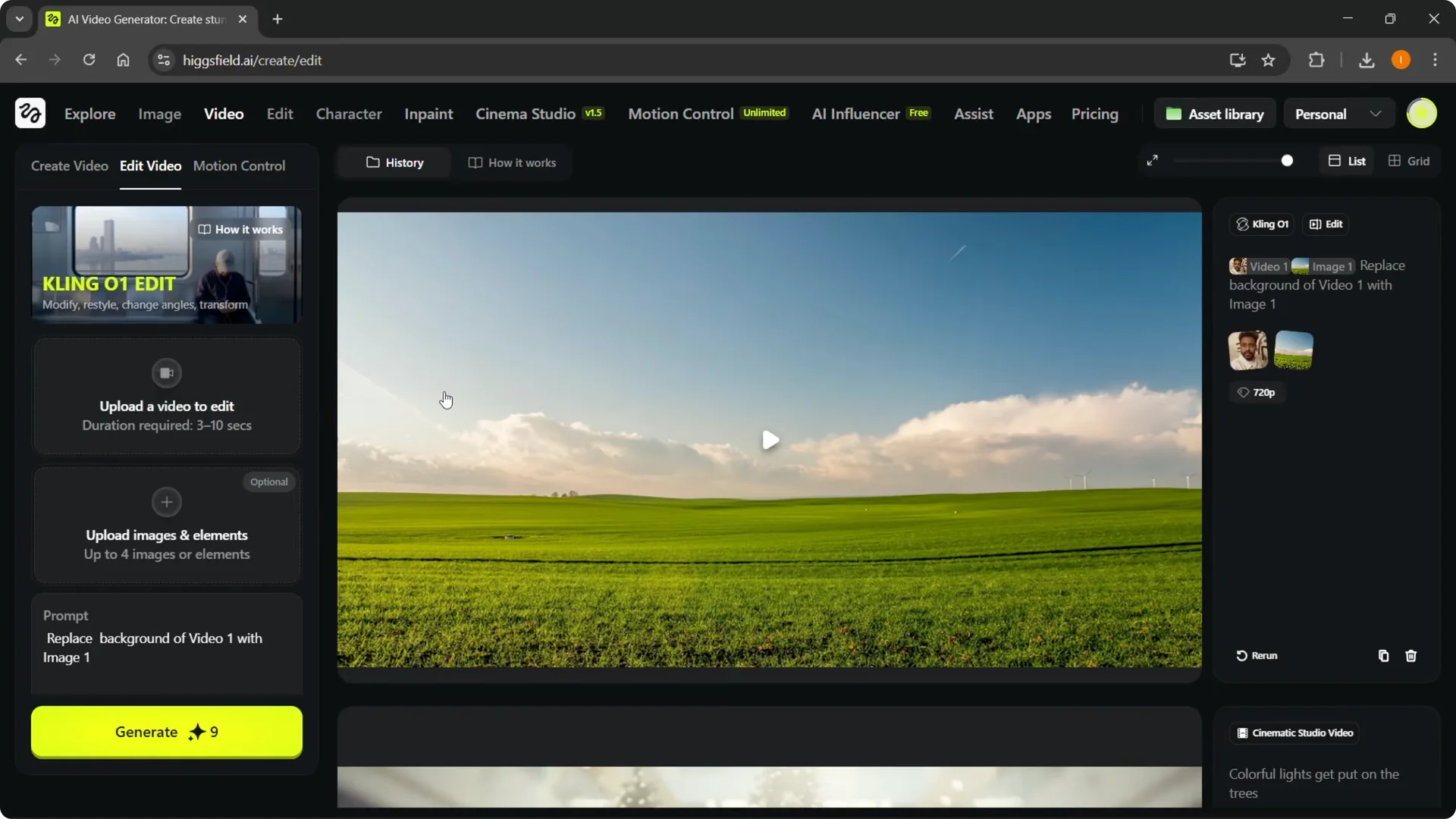
Step 2: Upload the video you wish to edit.
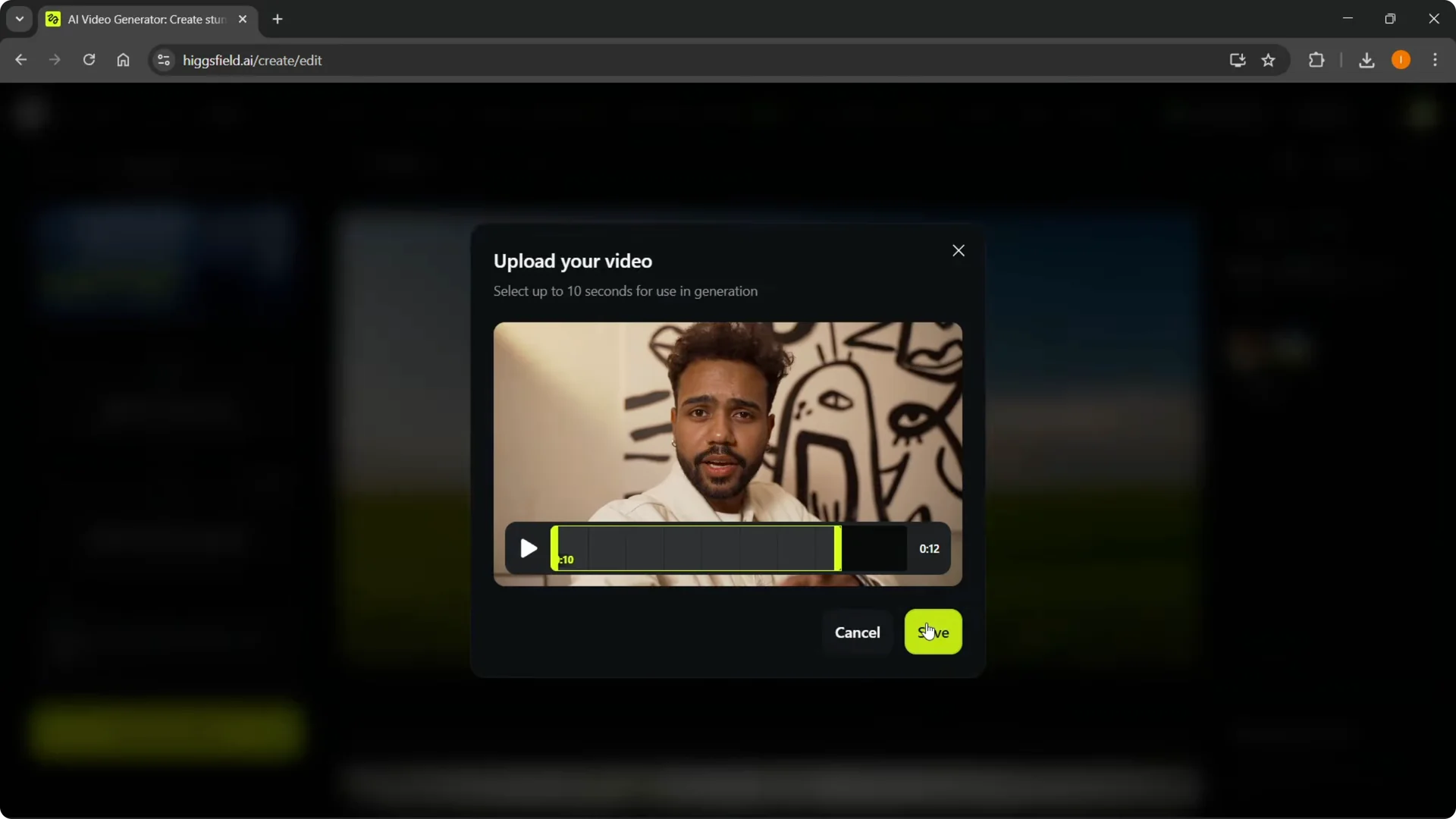
Select your file, click Open, and choose where you want to use it, then Save.
I often set it to use the first 10 seconds as a quick test.
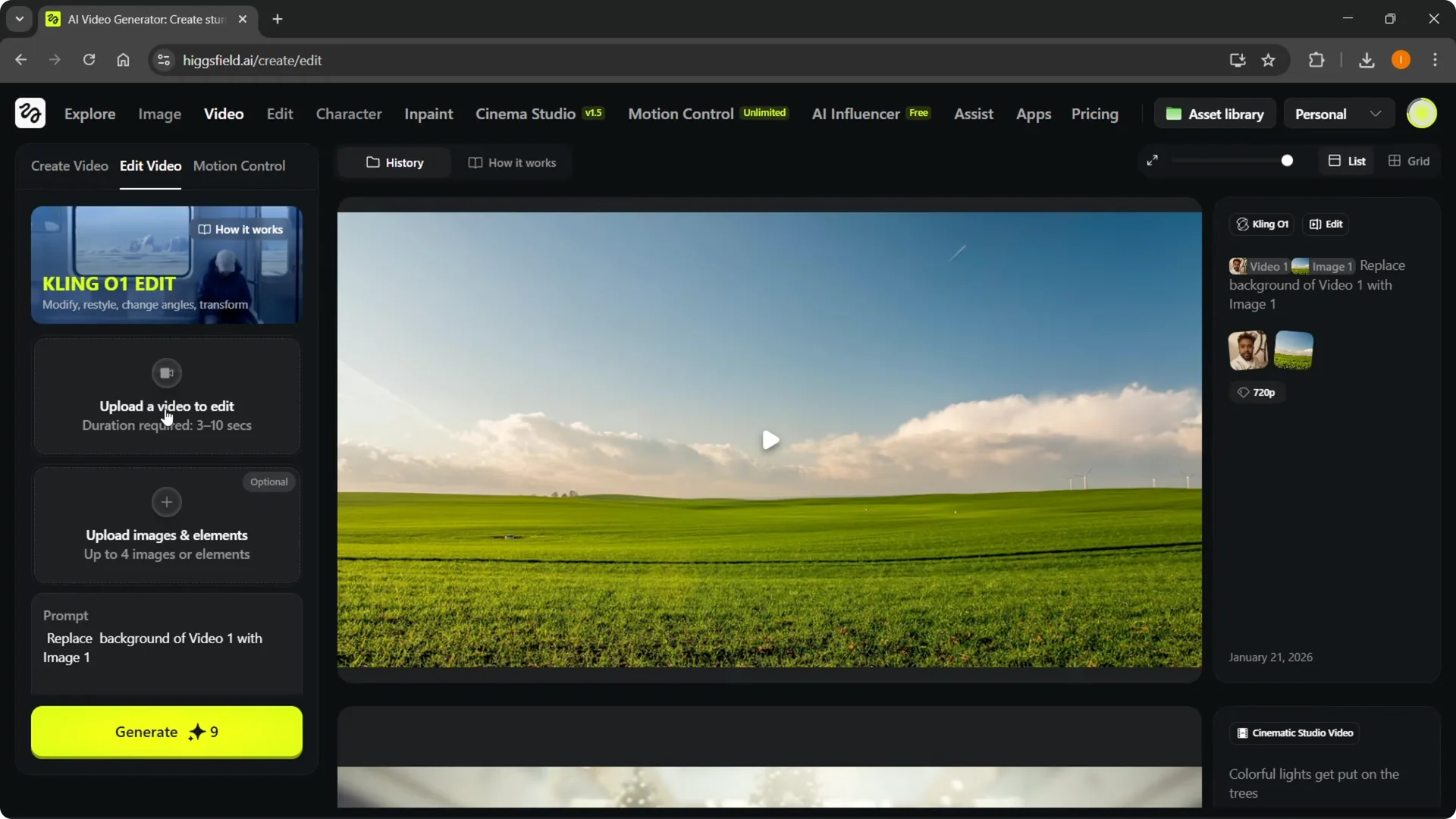
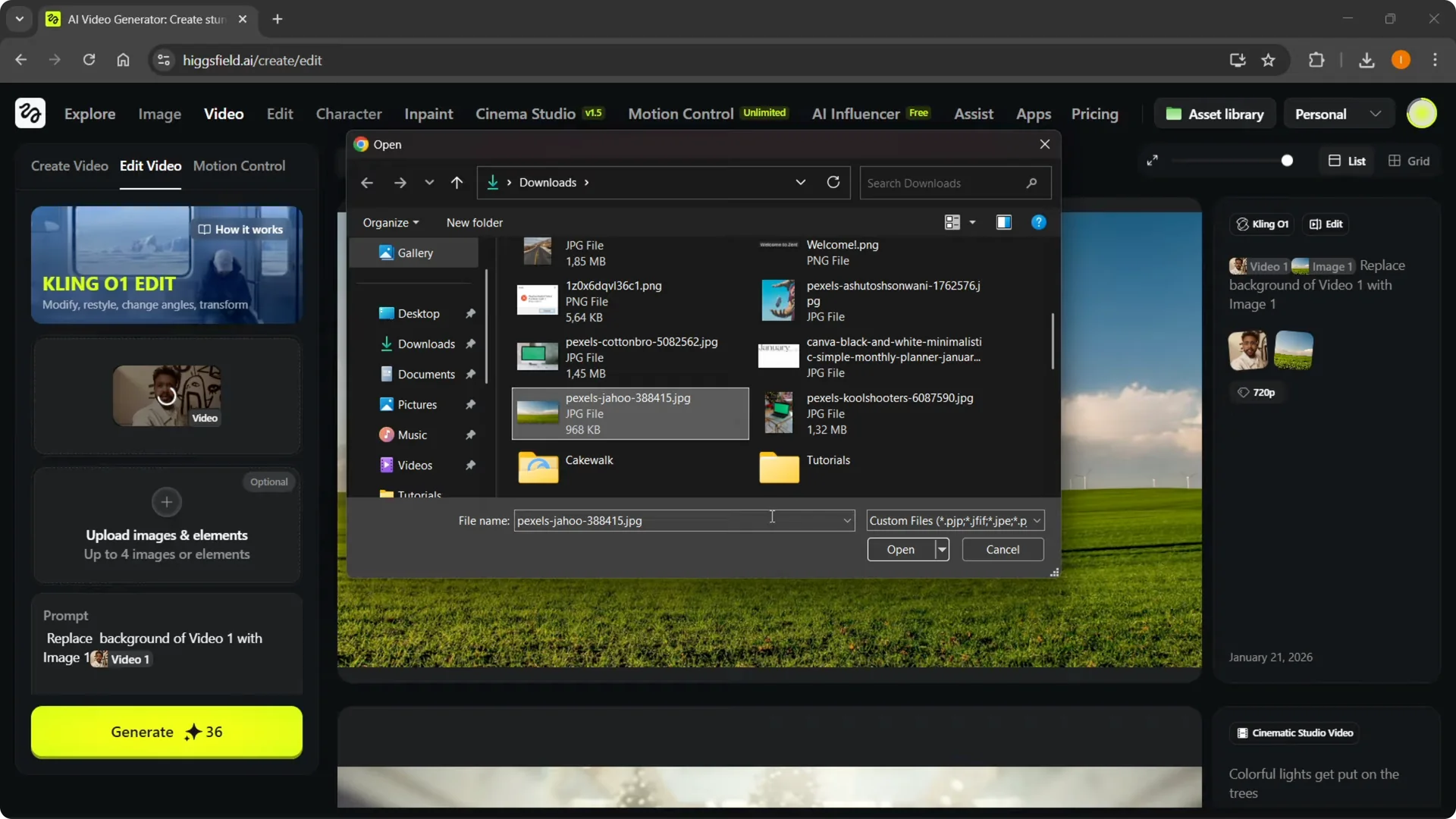
Step 3: Upload images and elements for the background.
Put in the image you want to use for the background. Click to upload, select one of your images, and open it.
To fine-tune framing after replacement, see this guide on the zoom out feature.
Higgsfield AI Background Replacement: Prompt and Settings
Step 4: Write the prompt.
Type: replace a background of video one or whatever it is called for you with image one. Usually when you do this for the first time, those two things are going to be like this.
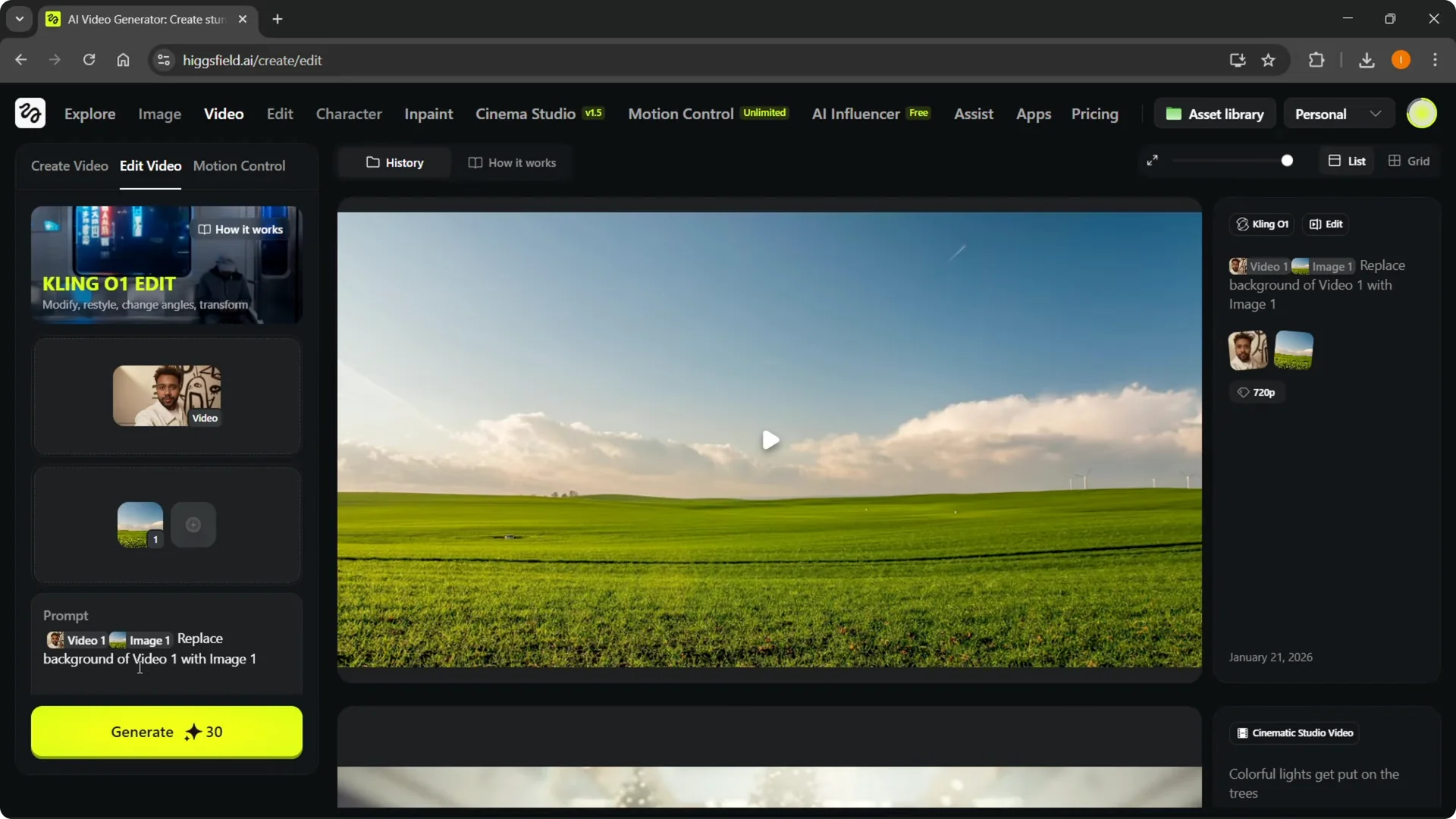
Step 5: Set quality and frame options.
You can change your resolution, use auto settings, or set different aspect ratios and duration. Adjust these based on what you need.
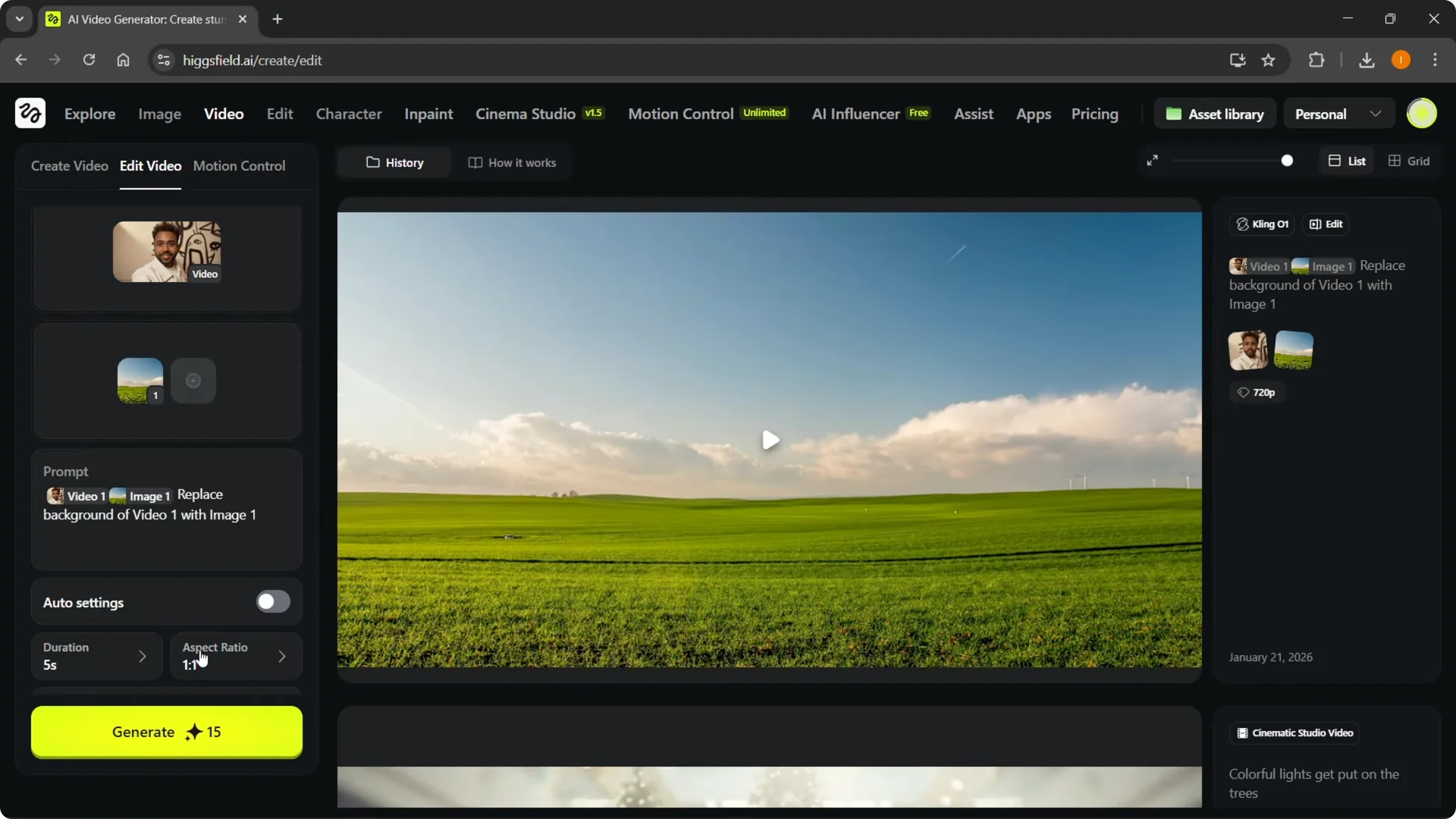
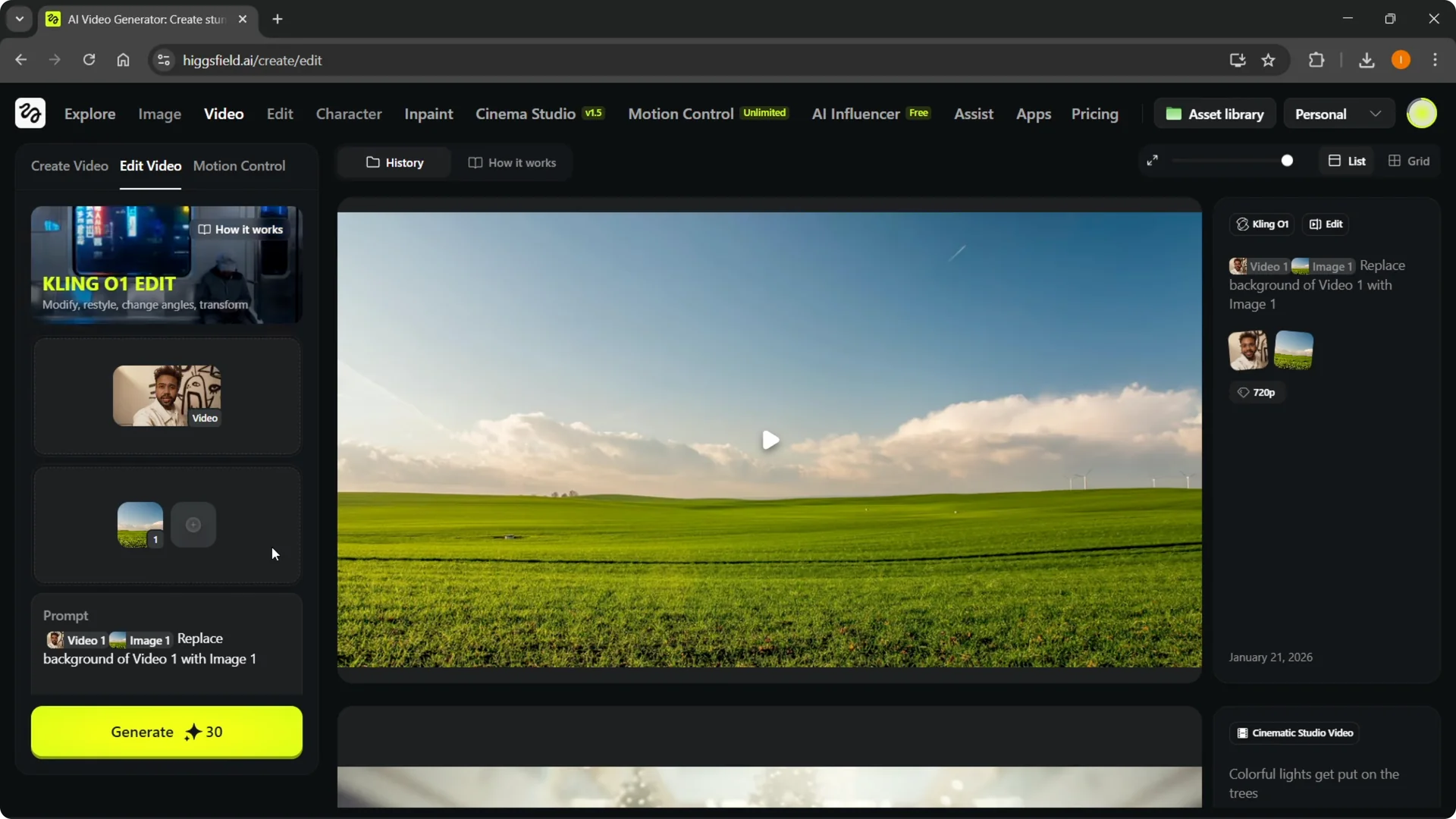
Step 6: Generate.
Click Generate to start the process. It usually takes a few minutes to go through.
If you are setting this up for the first time and need to secure your account, here is how to change your Higgsfield password.
Higgsfield AI Background Replacement: Results
When it finishes, you will see your background has been completely changed. It can look as if the person is actually at that place.
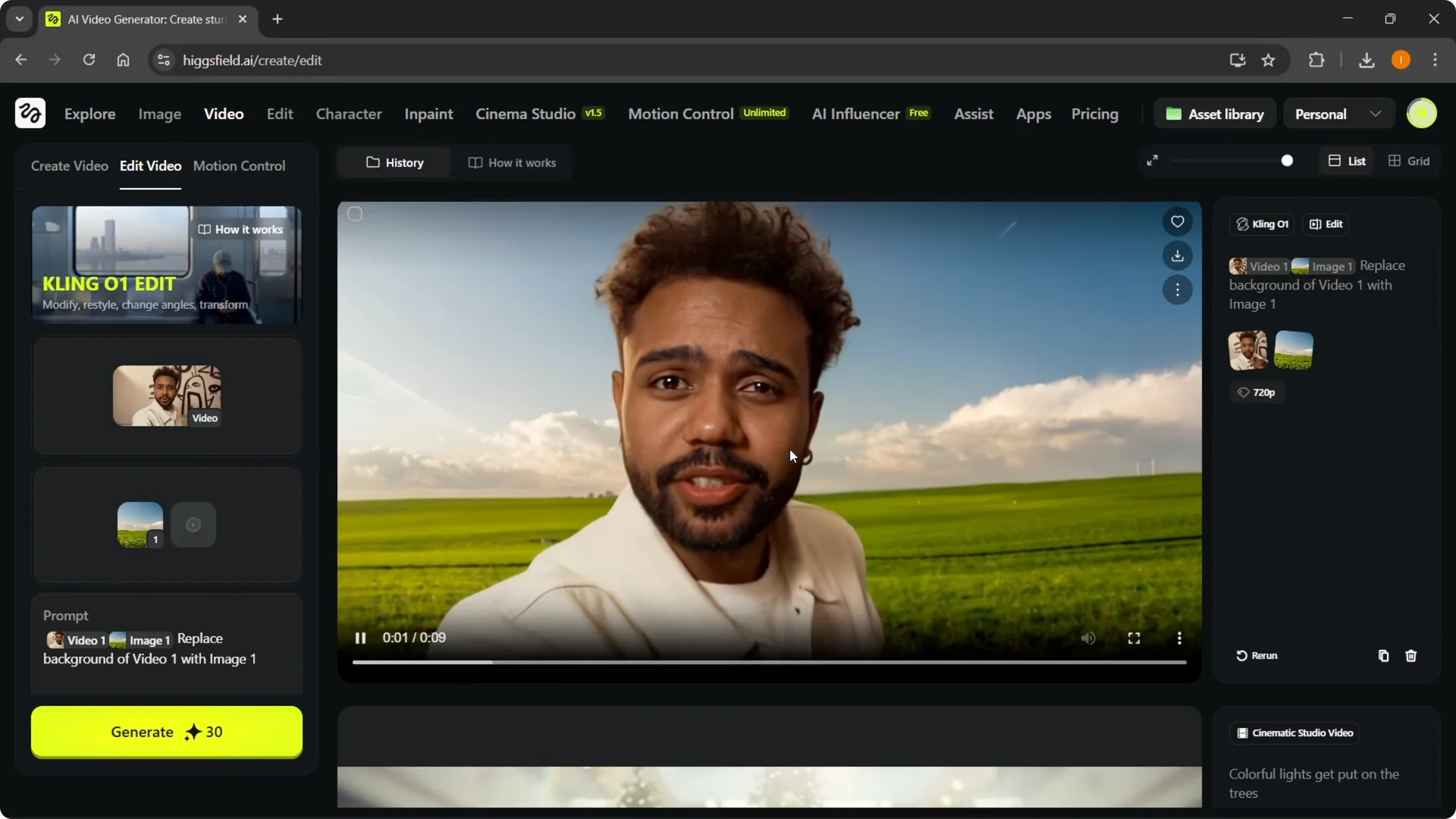
That is how to do it. That is how easy it is. I hope this helped you out.
If you run into issues or need help with your account or projects, you can contact Higgsfield AI for support.
Higgsfield AI Background Replacement: Final Thoughts
Upload your video, upload the background image, write the prompt to replace the background of video one with image one, adjust settings, and generate. Give it a few minutes, and your background will be changed. Keep resolution and aspect ratio settings aligned with your final output needs.