My name is Santiago. Higgsfield is an AI powered video and image generation platform designed for creators, marketers, and businesses. It specializes in creating cinematic quality content with visual effects and ready-to-use assets.
You can create videos from images or text prompts. You can create characters and keep those characters consistent across all of their videos. For deeper techniques on keeping your cast consistent across scenes, see this guide on building consistent characters in AI video stories.
There are free tools such as the Popcorn tool and a range of paid plans. The basic plan is $9 a month with up to 150 credits, plus Pro and Ultimate tiers. The software is tailored for the different needs of different creators.
We will animate a single image into full story scenes using Popcorn. The process is fast, and the results are strong enough to stitch into a short narrative video.
Higgsfield Story Animation setup
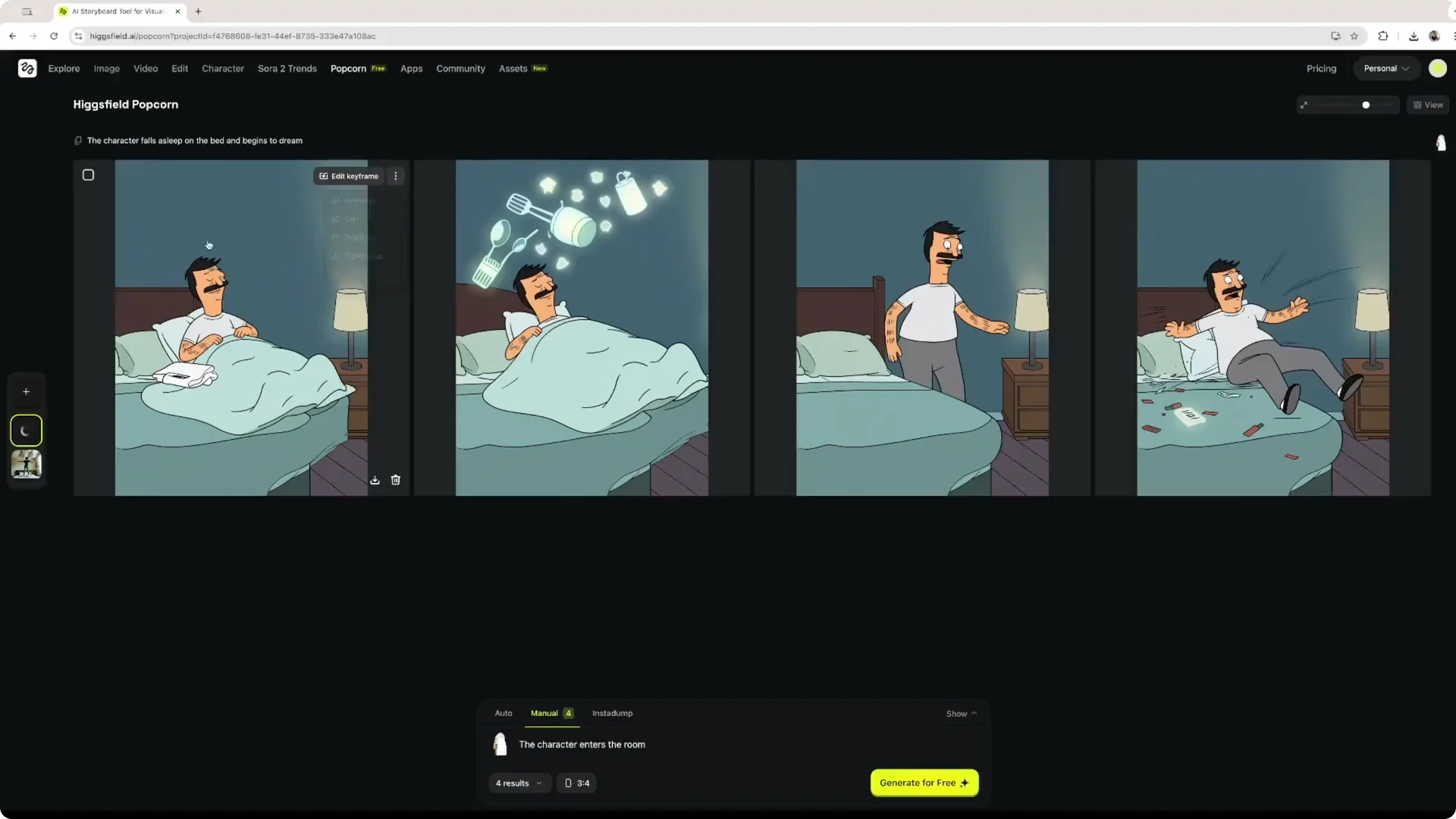
I’m using the Popcorn tool and selecting the manual mode. The software asks for reference images, so I upload one image of Bob Belcher from Bob’s Burgers. At the bottom, I describe what happens in each scene.
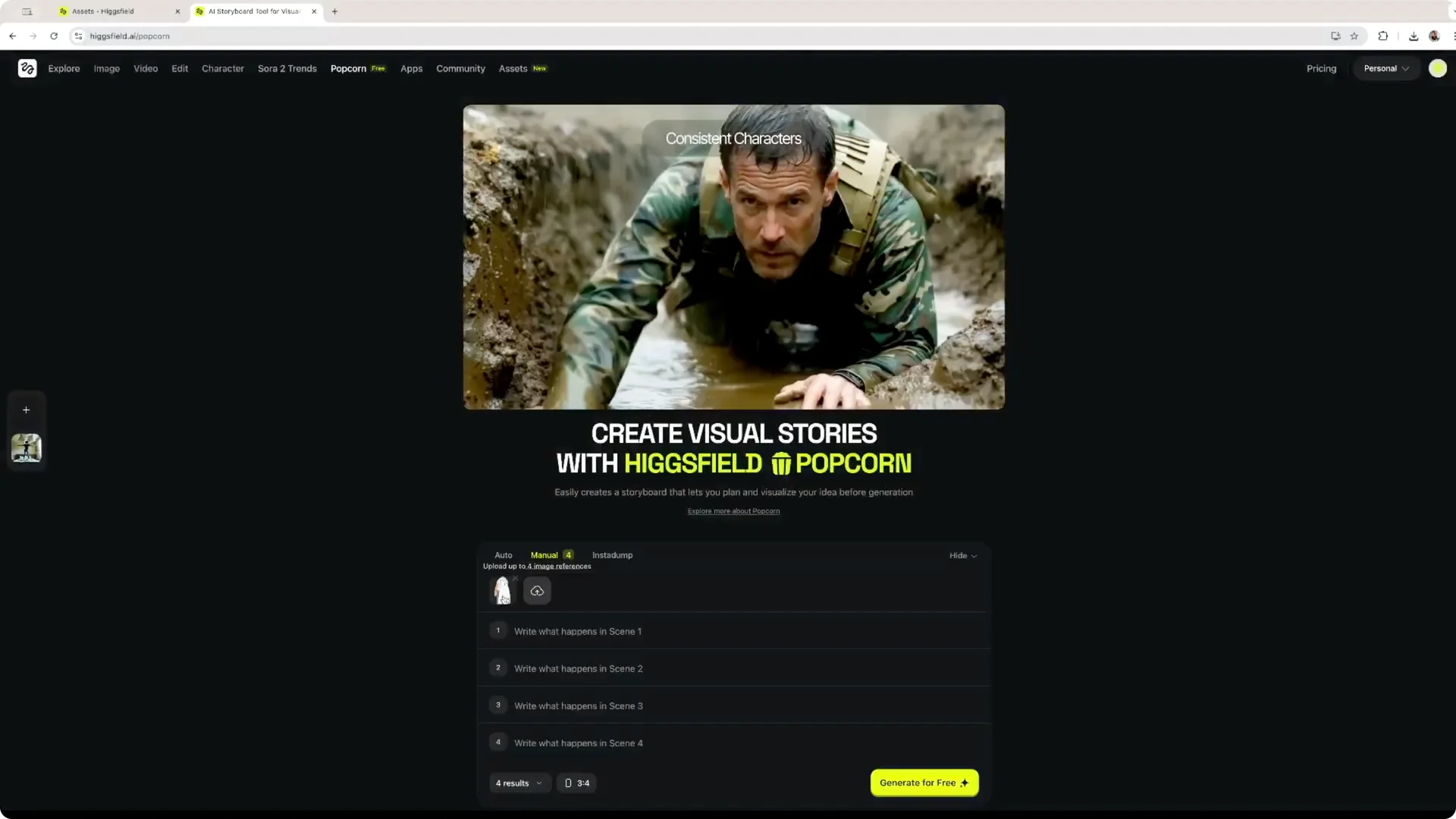
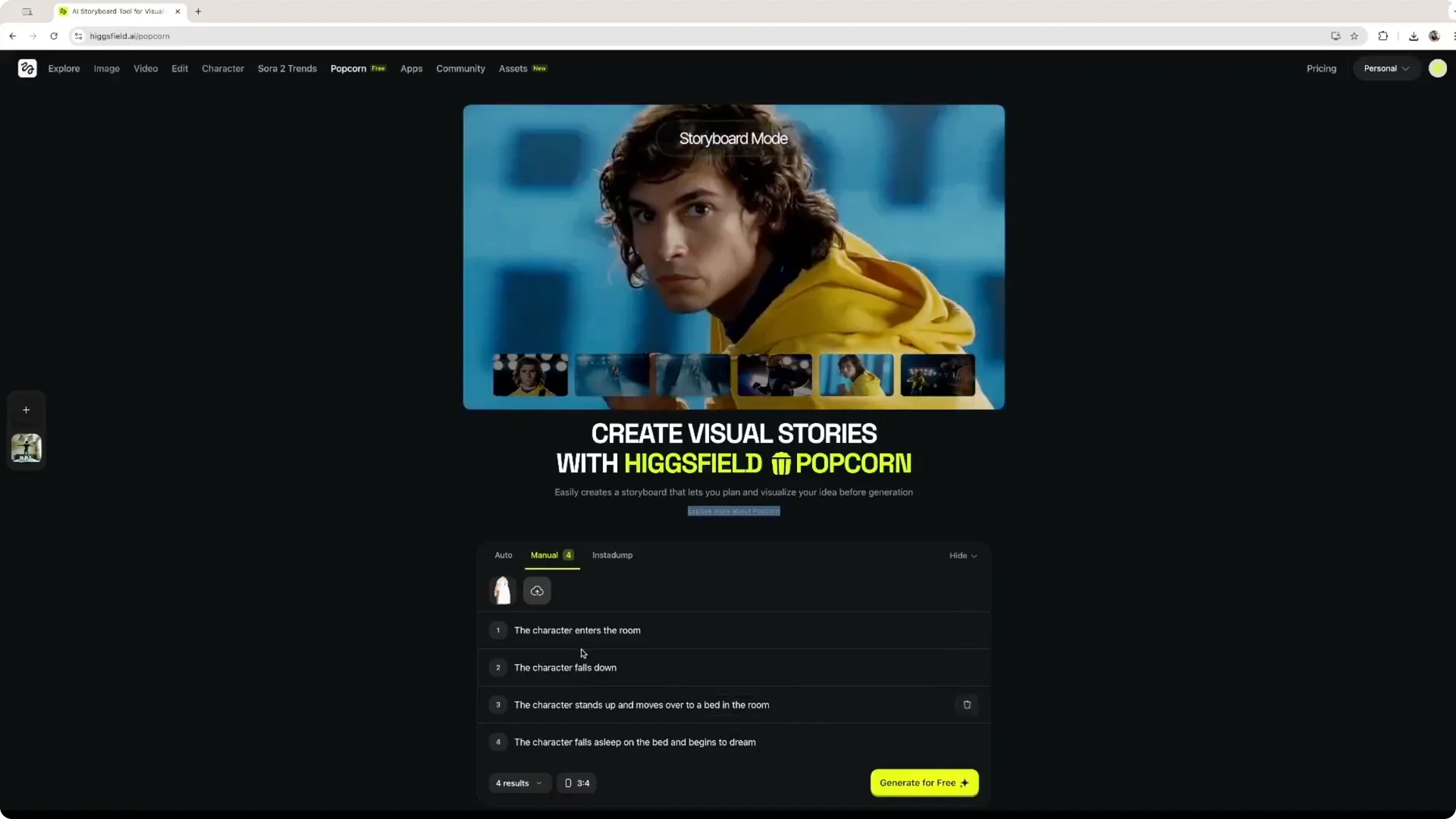
You can add more scenes with the plus button. For example, the first scene can be the character entering the room. Once you have the scenes, click generate for free and wait a few seconds.
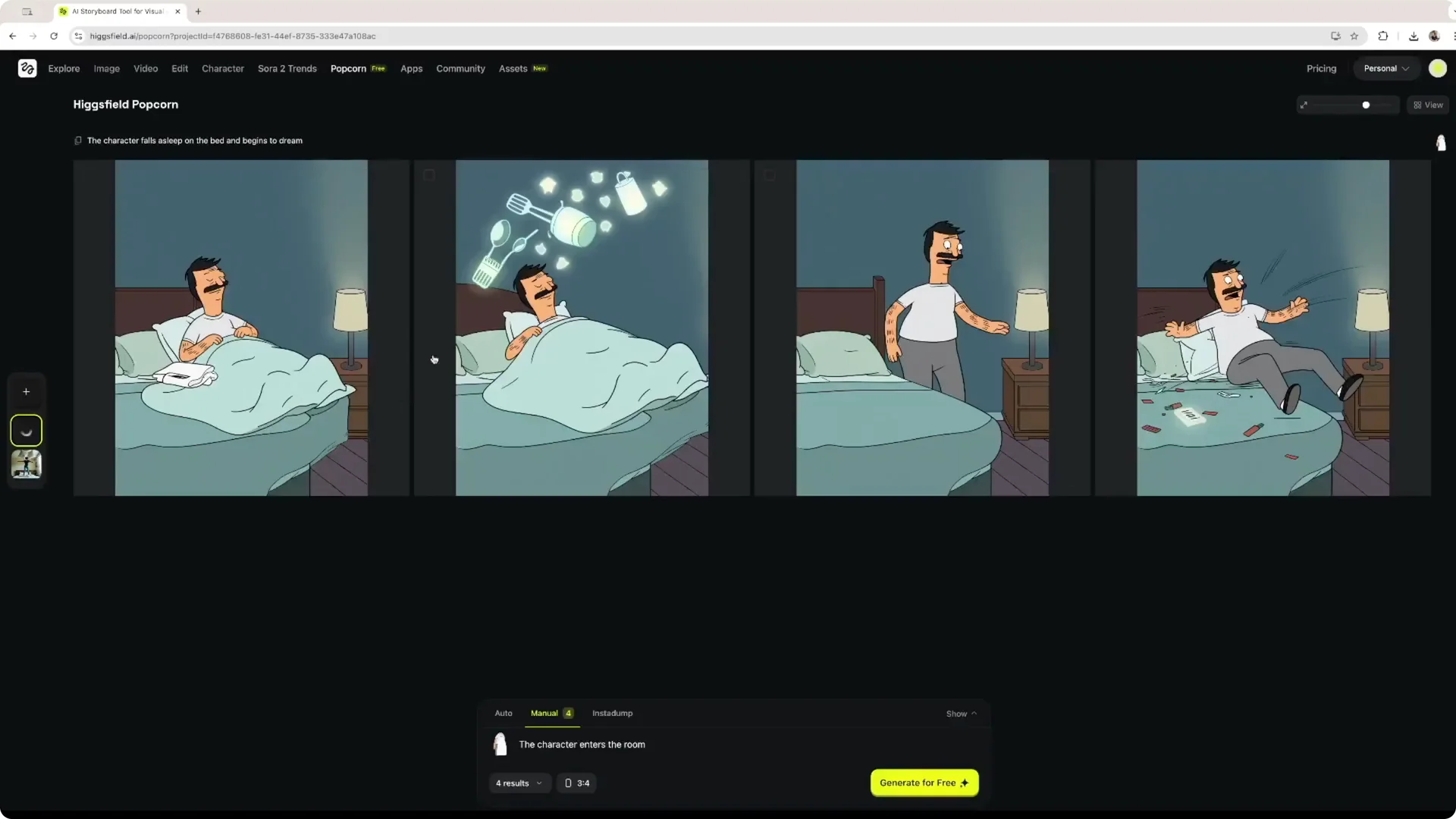
The software creates images that match the manual descriptions. In my case, it produced four images aligned with the scene notes. From here, we can animate specific scenes.
Popcorn manual tool steps for Higgsfield Story Animation
Step 1: Open Popcorn and choose manual mode.
Step 2: Upload a reference image for your character.
Step 3: Describe each scene in the text fields and add scenes with the plus button.
Step 4: Click generate for free to create scene images.
Step 5: Review the generated images and pick scenes to animate next.
Animate scenes in Higgsfield Story Animation
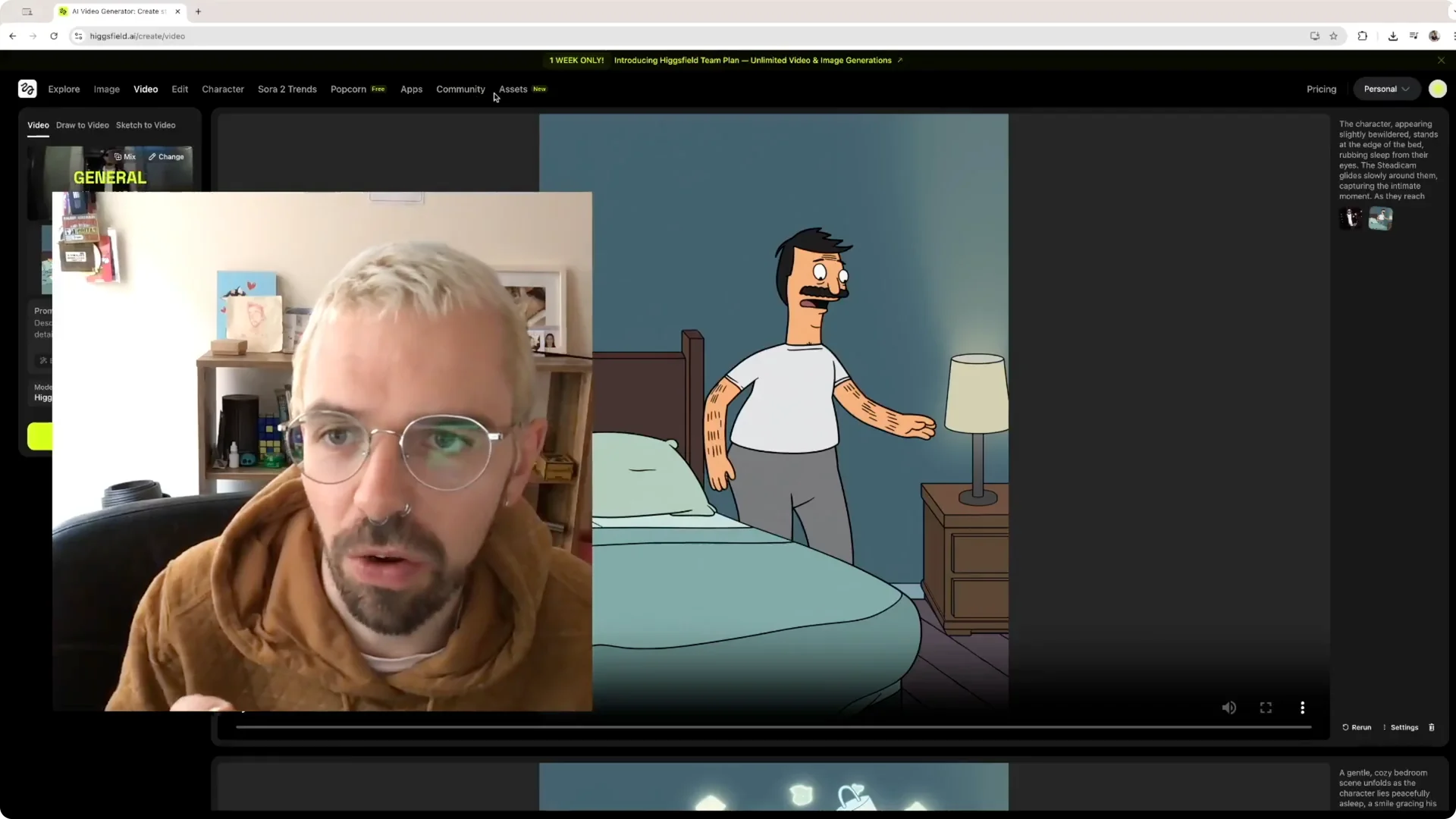
Open the first scene, click the three dots, and choose Animate. The general model is selected by default, but you can switch to other animation styles. You can also add a prompt to describe the scene.
You can change the model from options like MiniAX Halo 2. Each model has its own description, such as Higgsfield with advanced camera controls and effect presets, or Google Bio with precision video and sound controls. You could also choose Sora, and I picked Sora 2 for this demo.
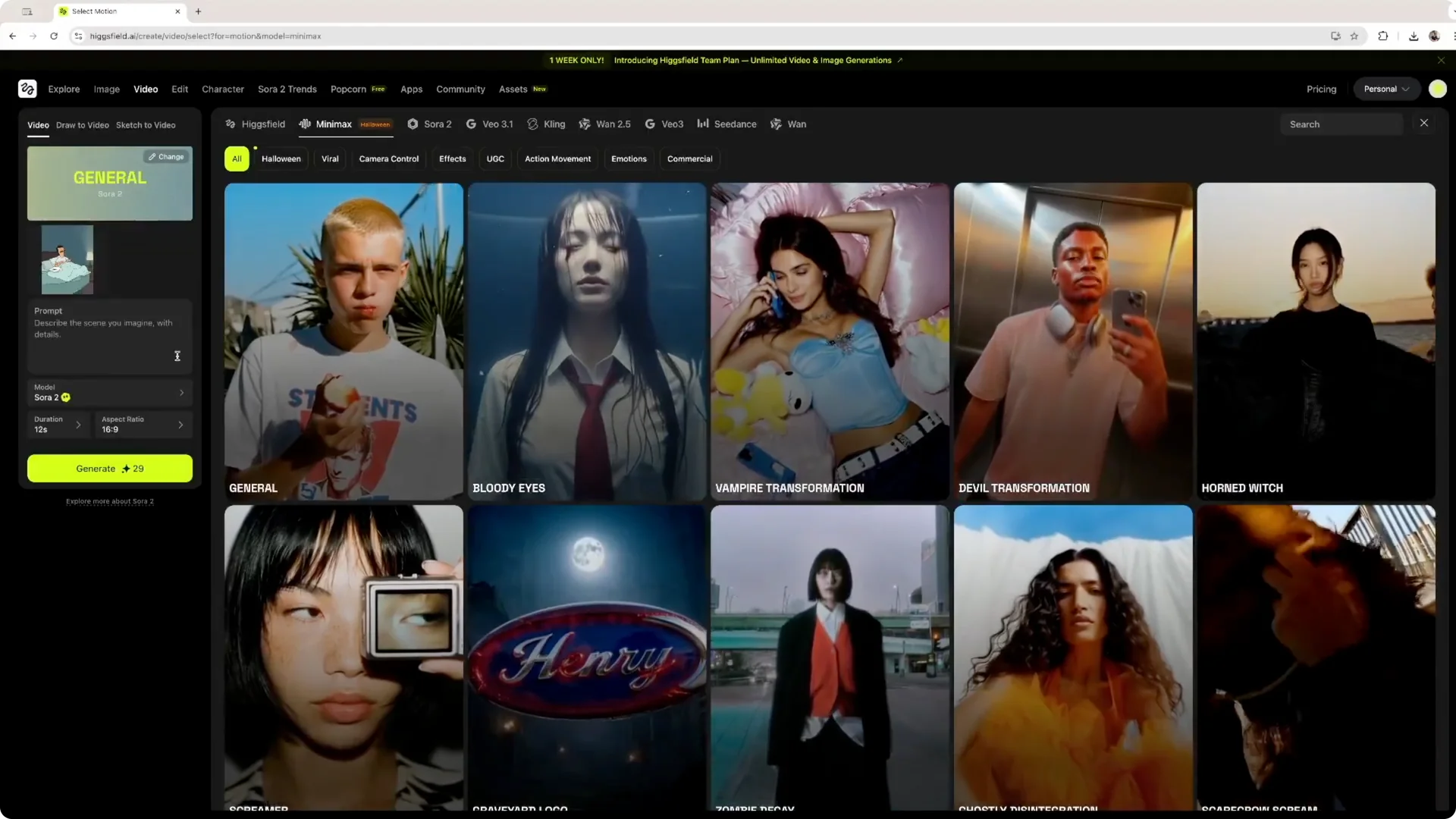
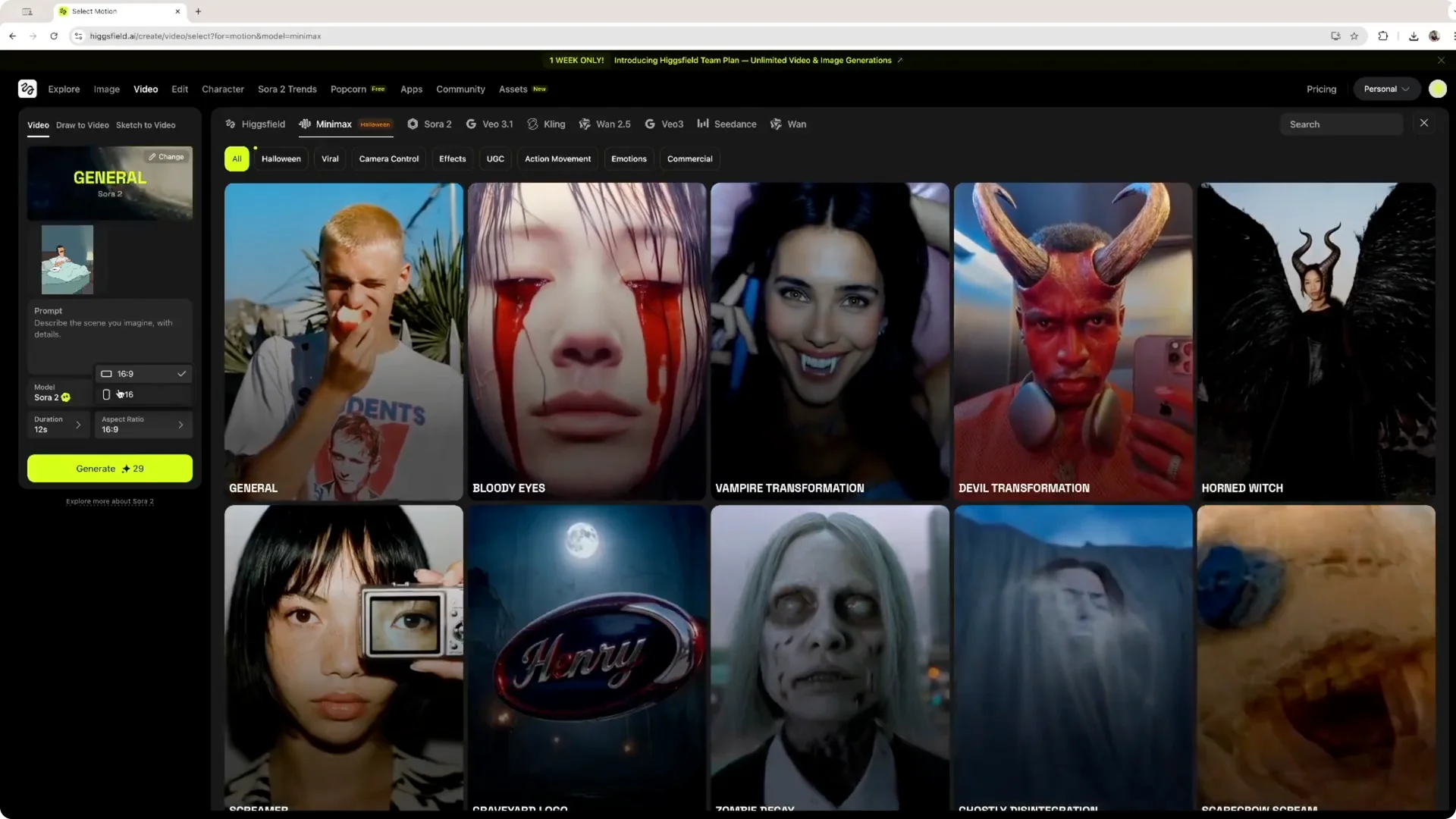
Choose a duration of 4, 8, or 12 seconds. Select an aspect ratio like 16×9 for long format video such as YouTube or Vimeo, or 9×6 for short format like Instagram, TikTok, or YouTube Shorts. Write a prompt for the scene, such as the character having a nightmare, then click generate.
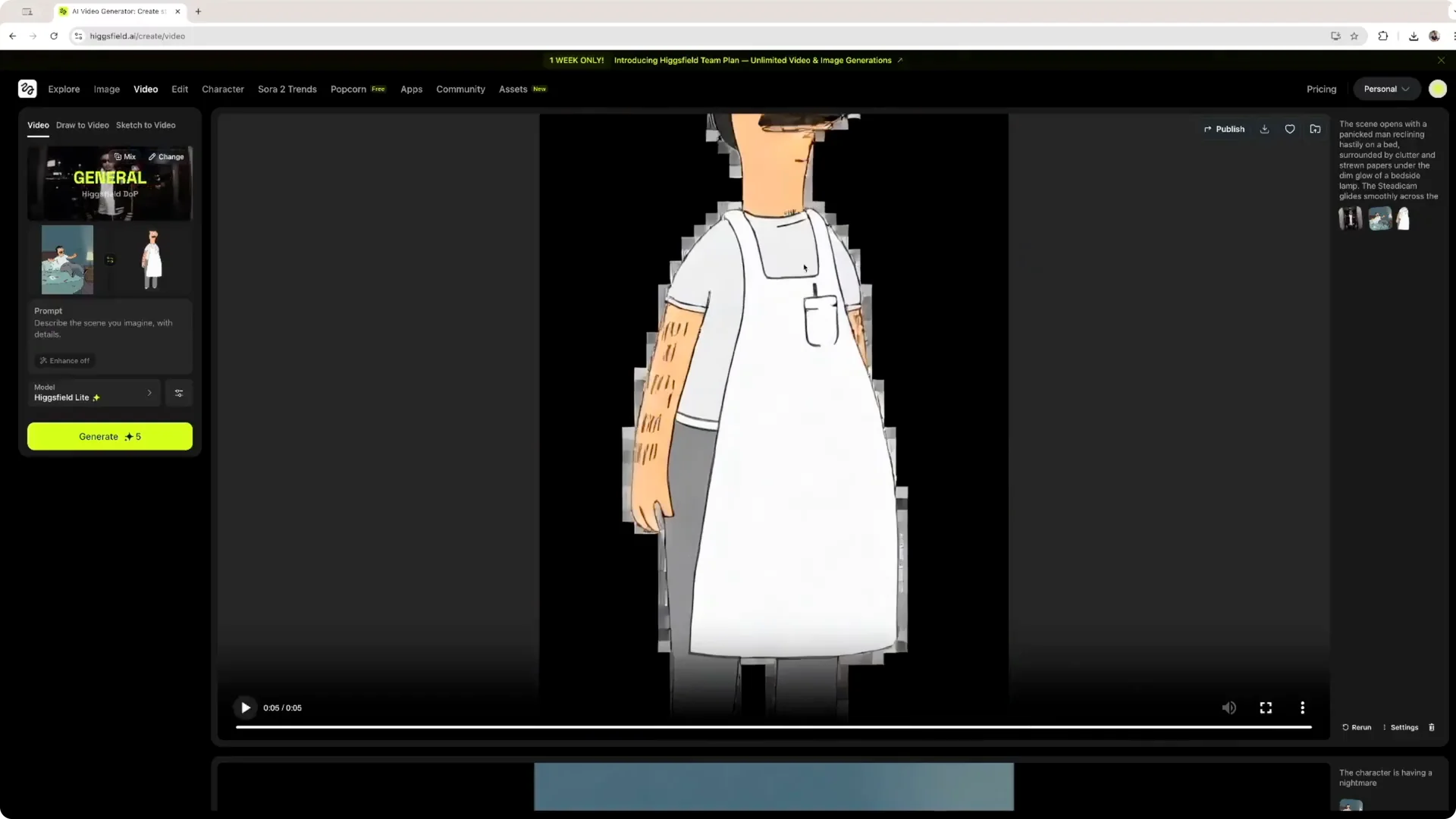
After a short render, the animation is ready. It adds voice over, movement, and sound effects like the bed and groans. It even adds music to make the animation usable in more scenarios.
If you prefer recording your own narration and polishing it, here’s how to record your voice in Filmora and enhance it with AI. This gives you full control over tone and pacing while keeping Higgsfield’s visuals.
End frame option in Higgsfield Story Animation
You can create a video using the original image and then set an end frame. I used the original character image as the end frame so the animation ends on that exact pose. The preview shows the character standing up, moving around, and returning to the original image at the end.
Build a short story with Higgsfield Story Animation
I animated the four scenes created with Popcorn. The first scene shows Bob falling asleep and having a nightmare. Then he calms down and chills in bed.
After that, he’s asleep again and dreams of food. In the final scene, he stands up and leaves the room. Placing one video after the other turns the clips into a cohesive story around 30 seconds long.
Everything here was created inside the software. You can return to the Assets tool to find the images you generated, animate each scene, and then stitch them in your preferred editor. I used Final Cut, and you can do the same on your phone with CapCut or on the desktop version of CapCut.
If you want consistent narration across scenes, consider voice cloning in Filmora AI. It pairs well with Higgsfield’s animated sequences when you need the same voice throughout your story.
Step-by-step: Stitch and export your Higgsfield Story Animation
Step 1: Animate each scene you generated in Popcorn.
Step 2: Export the animated clips to your desktop or device.
Step 3: Open your video editor and place the clips in order on the timeline.
Step 4: Add transitions, adjust audio levels, and trim for pacing.
Step 5: Export the final video and review for continuity.
Final thoughts on Higgsfield Story Animation
Creating scenes and characters in Higgsfield is straightforward. You only need an image of a character, even yourself, and the software can animate it into usable clips. Stitch those clips together for a compact story.
The Popcorn tool makes it fast to describe scenes, generate images, and animate them with prompts, model choices, durations, and aspect ratios. Voice, movement, and sound effects come baked in, and you can refine narration or cloned voices in external editors when needed. With a basic plan at $9 for 150 credits, plus higher tiers, there’s a plan that fits most projects.