I’m Santiago, and we’re making a series about Sracat, an AI powered tool to create videos. Today I’m creating a product presenter using the AI avatar creation tool. I’ll show the full process, from uploading a product image to exporting a finished product presenter video in minutes.
This walkthrough uses an avatar that promotes a Chanel perfume bottle with a brand logo visible throughout. I’ll cover appearance settings, product placement, script generation, editing, and export. The same flow works for any product you want to showcase.
AI Product Presenter Workflow Overview
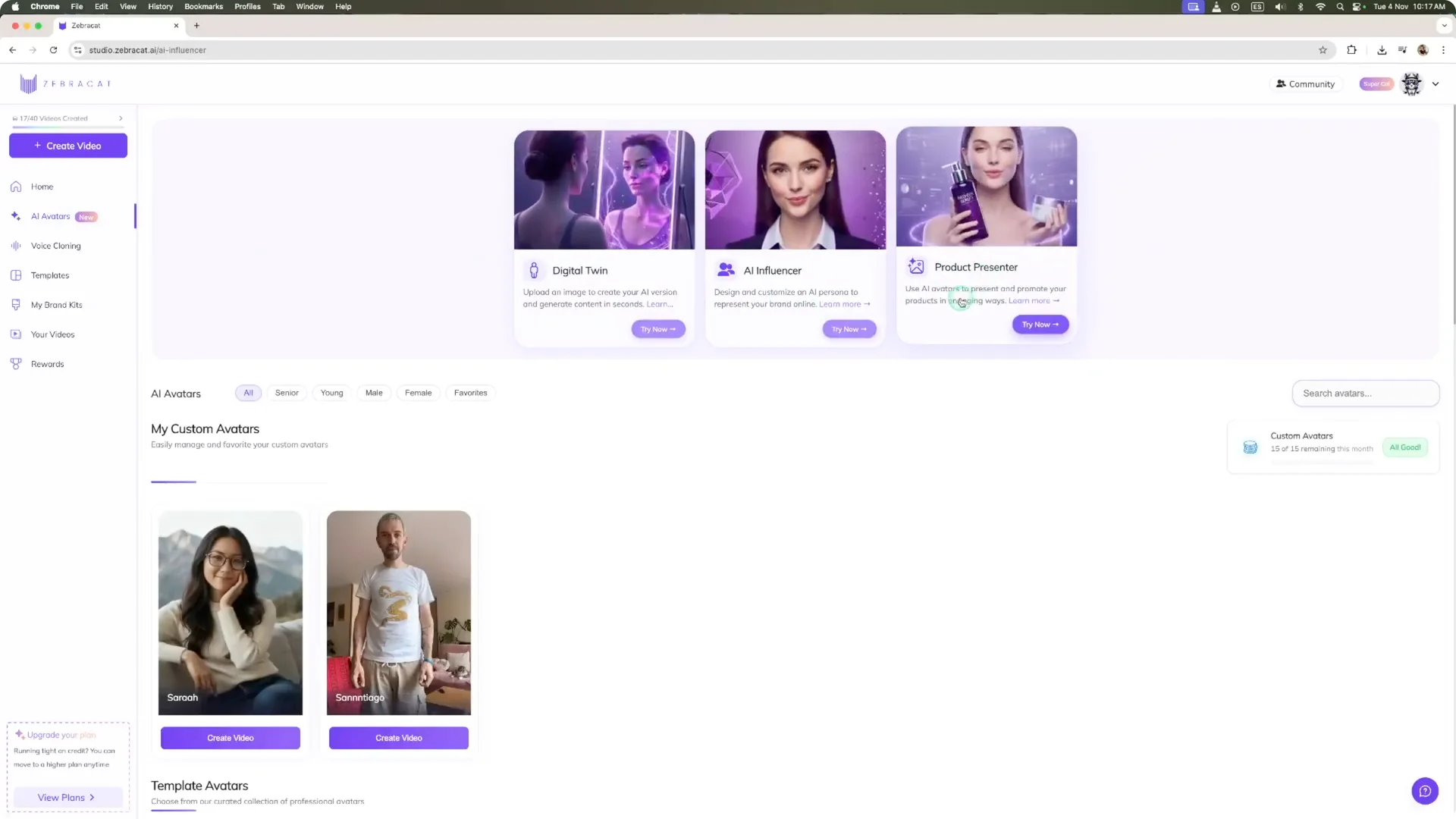
Sracat’s homepage shows recent projects and several ways to create videos. For this project, I go to the AI avatars tool on the left and pick the Product Presenter tool. This screen shows my avatars and the controls we’ll use.
Read More: Mastering Ai Video Stories Consistent Characters
AI Product Presenter Workflow – Set Up the Avatar
Step 1 – Open the Product Presenter tool. I click Try Now to open the avatars screen. From here, I can build the avatar’s look and add the product.
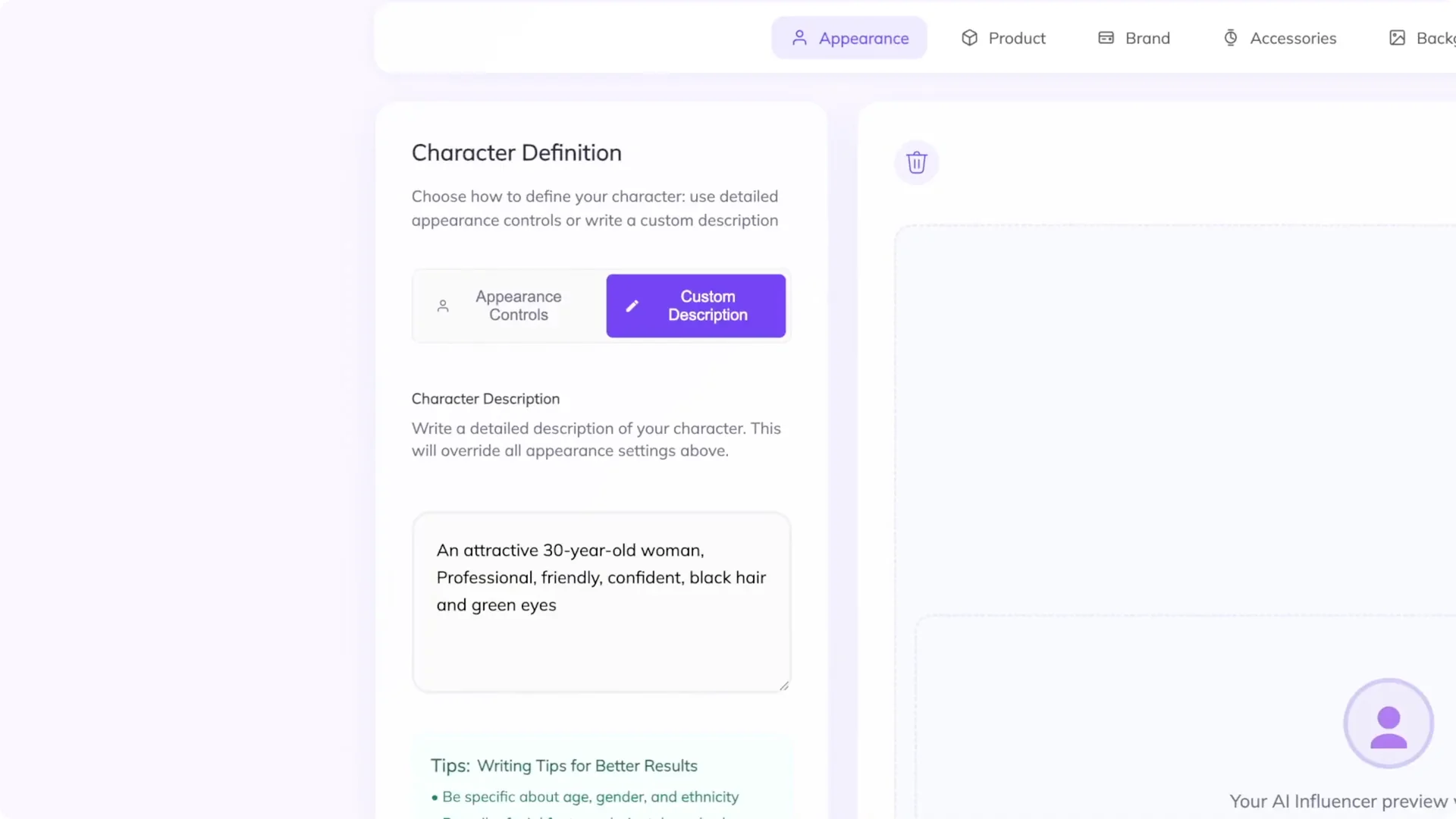
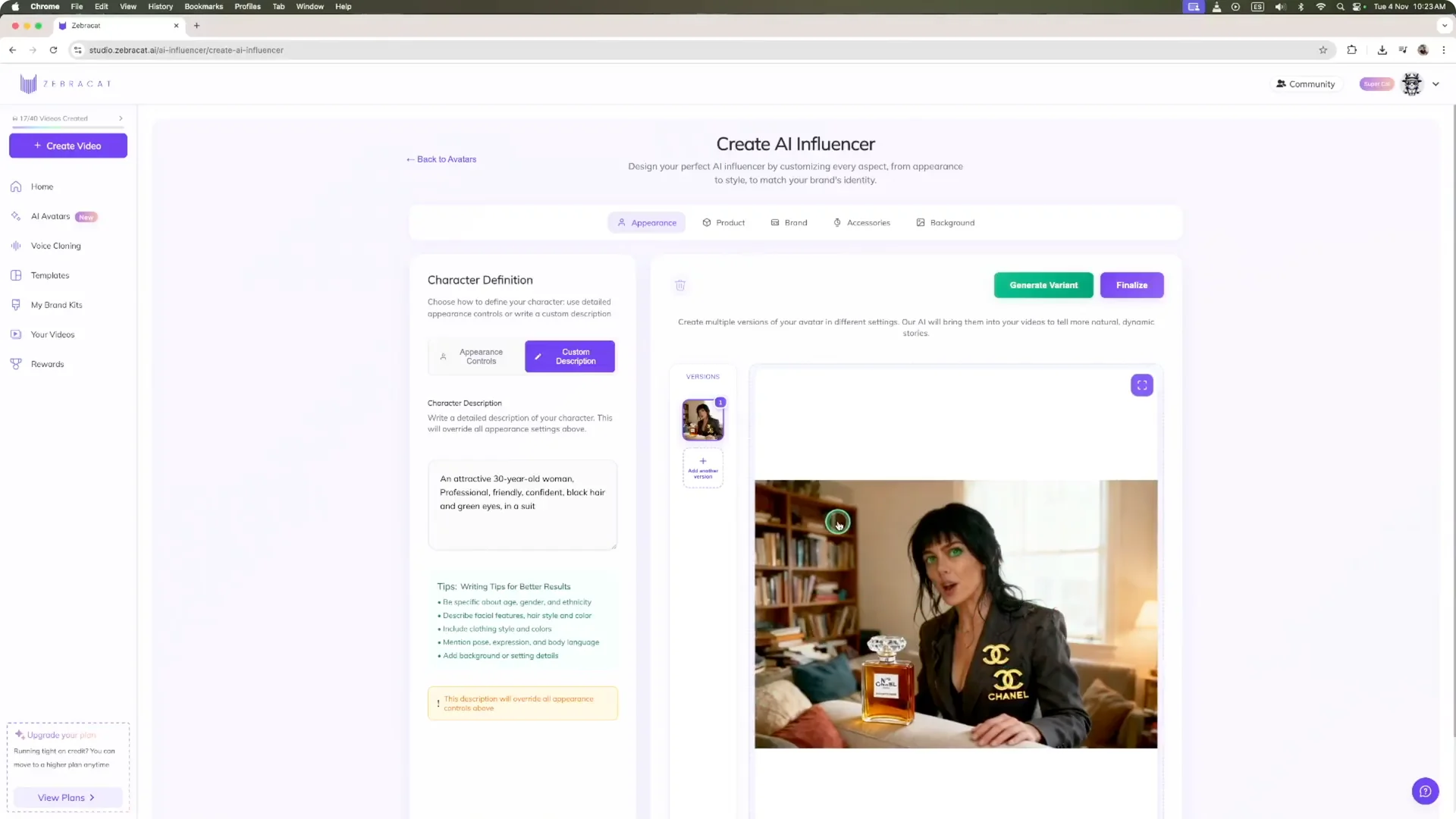
Step 2 – Choose appearance controls. I can set gender, ethnicity, age, body type, face, and eyes, or write a custom description. I wrote an attractive 30-year-old woman – professional, friendly, confident – black hair and green eyes.
Step 3 – Add an outfit description. I added in a suit to refine the look. This locks in a professional presence. The same controls work across the AI influencer and AI product presenter tools.
AI Product Presenter Workflow – Product and Branding
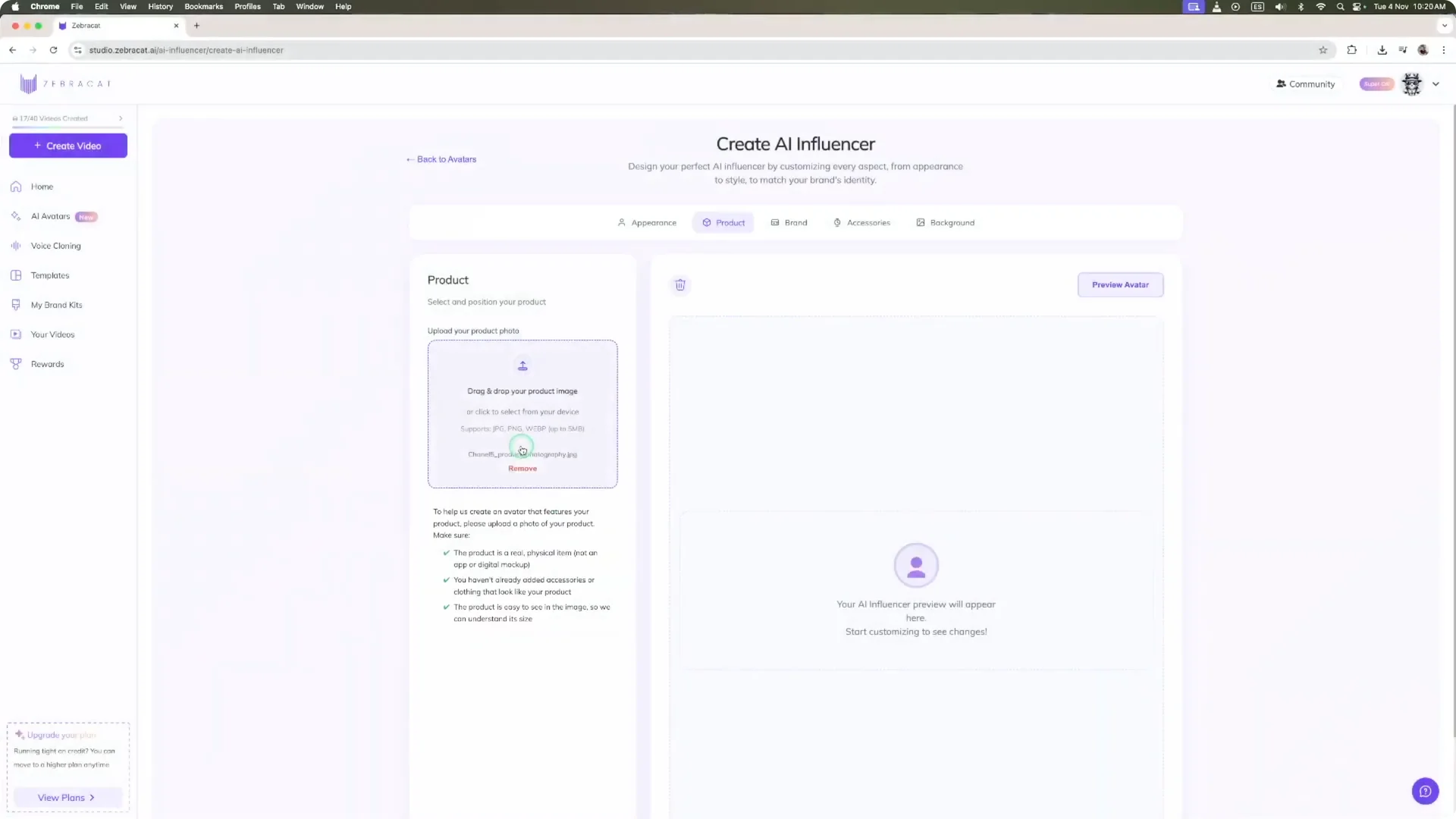
Step 4 – Upload the product image. I upload a Chanel perfume bottle. You can also add a brand logo and brand name to appear next to the product.
Step 5 – Set accessories and background. I leave accessories blank and choose a studio background. You can also type a custom background prompt.
AI Product Presenter Workflow – Preview and Variants
Step 6 – Preview the avatar. I click Preview Avatar and wait a couple of minutes while Sracat generates it. The result shows the avatar in a studio with the Chanel bottle and the green eyes I prompted.
Step 7 – Create variants. I use version one and version two to compare looks. I copy the appearance description to the second version and add glasses, then preview again.
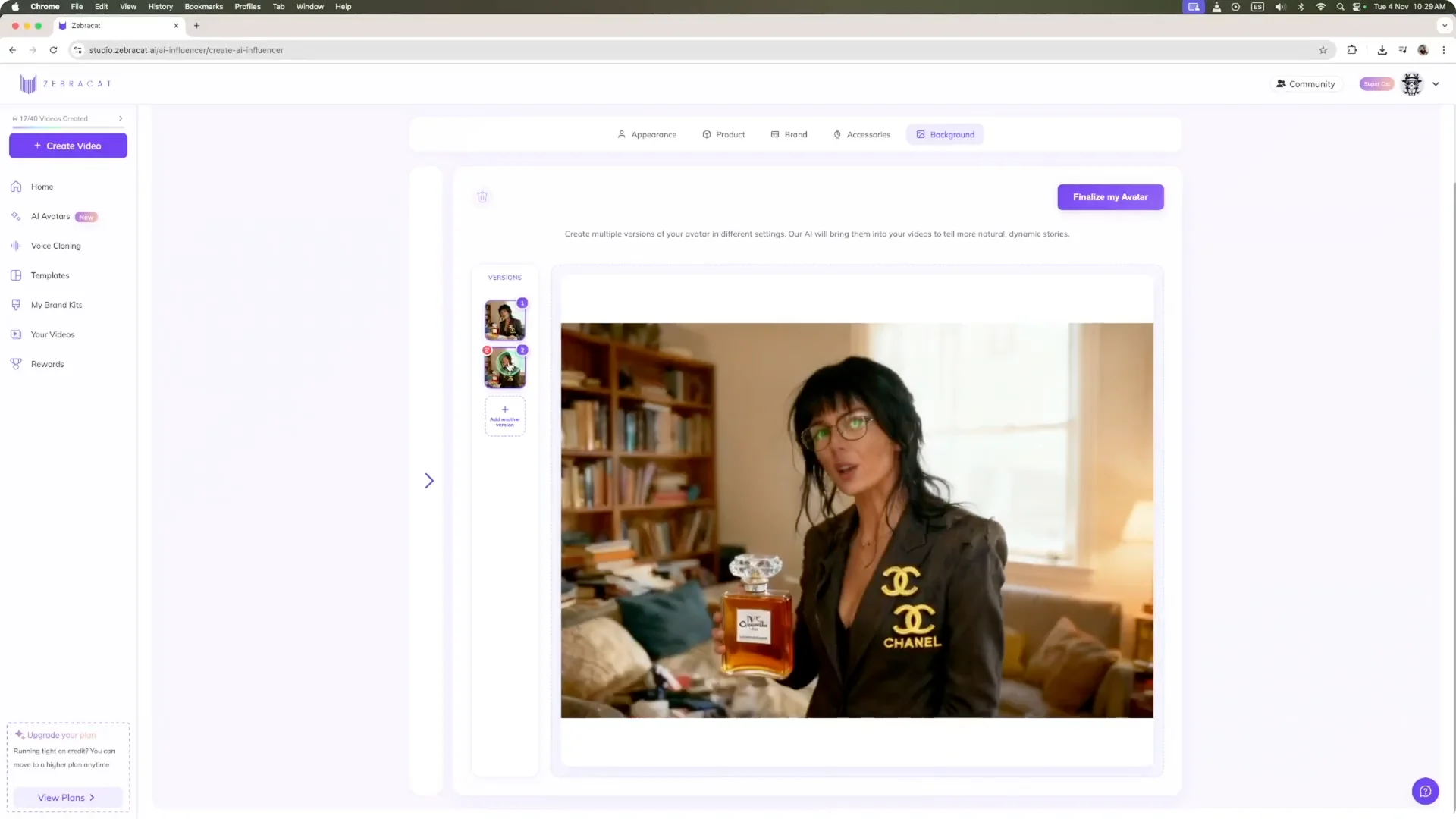
Step 8 – Finalize and name. I click Finalize My Avatar, name her Jenny, and Create Avatar. Sracat processes both versions so I can hover to preview movement and see how the video will look.
AI Product Presenter Workflow – Build the Video
Step 9 – Set the prompt and script. I click Create Video and enter a prompt to create a promo video for Chanel perfume. I choose English, a 1 minute duration, and a general story style, then Generate Script to get two options I can pick or regenerate.
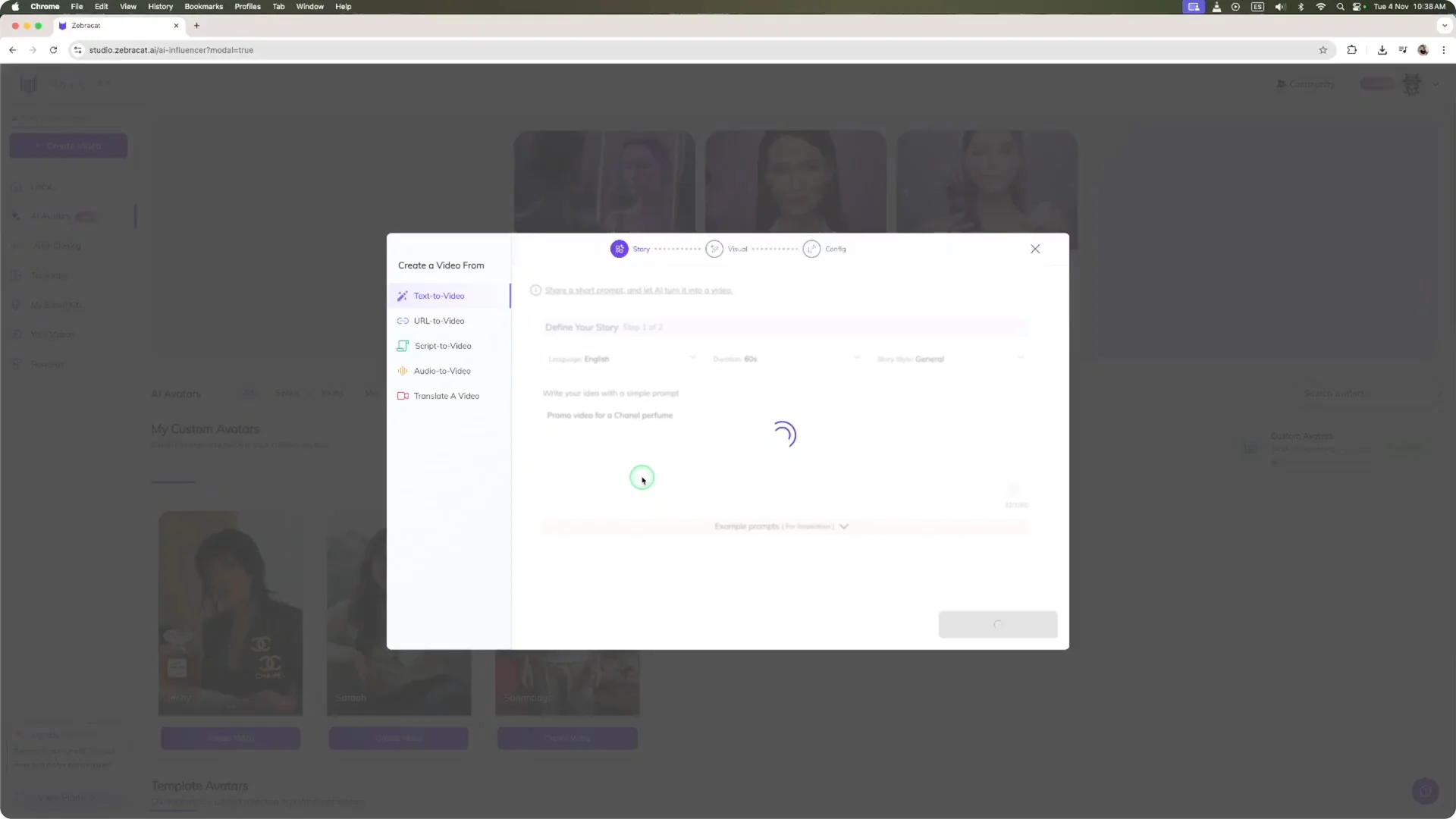
Step 10 – Choose video type and avatar. I select AI avatar and AI image video. I pick Jenny from my avatars and click Next Step.
Step 11 – Pick image style and settings. I choose a realistic image style to combine with the avatar and click Next Step. I set the video ratio, keep captions, voice over, and music enabled, and preview voices to pick one.
Step 12 – Mood, brand kit, generate. I set the mood to Serious for a promotional tone. If a brand kit is available, I select it and then click Generate Video.
For more on producing visuals with AI from prompts and images, see this AI video image creation walkthrough.
AI Product Presenter Workflow – Edit and Customize
Step 13 – Review captions and visuals. In the editor, captions appear at the top with timing. At the bottom, I see the generated images.
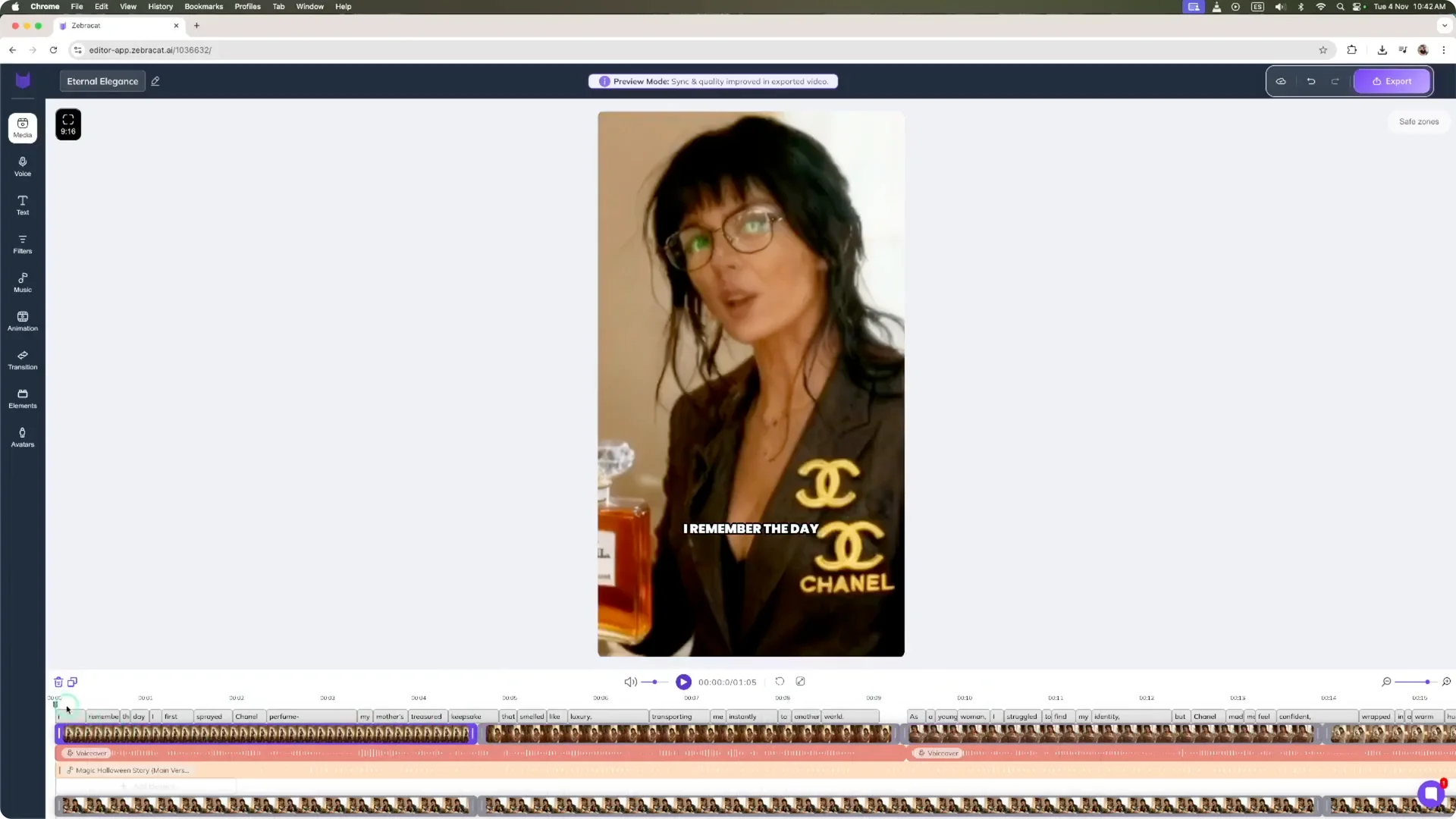
Step 14 – Voice over, music, and avatar. I can click the voice over to change it. I can also swap music and adjust the avatar from its tab.
Step 15 – Animations and transitions. I tweak scene animation and transitions between scenes. I also adjust caption style for readability.
Step 16 – Colors and media. I switch color presets between warm and cold. In Media, I change any scene to a stock library image or video, generate a new one, or upload my own footage.
For a feature overview of AI art and video tooling that pairs well with workflows like this, check out these AI art video features.
AI Product Presenter Workflow – Export and Preview
Step 17 – Export settings. When the video looks right, I click Export on the top right. I select the video resolution and compression quality.
Step 18 – Prepare and process. I click Prepare Video for Download and let Sracat process the avatar and video. When it’s done, I open the preview.
AI Product Presenter Workflow – Example Output
I remember the day I first sprayed Chanel perfume, my mother’s treasured keepsake that smelled like luxury, transporting me instantly to another world. As a young woman, I struggled to find my identity. But Chanel made me feel confident, wrapped in a warm hug.
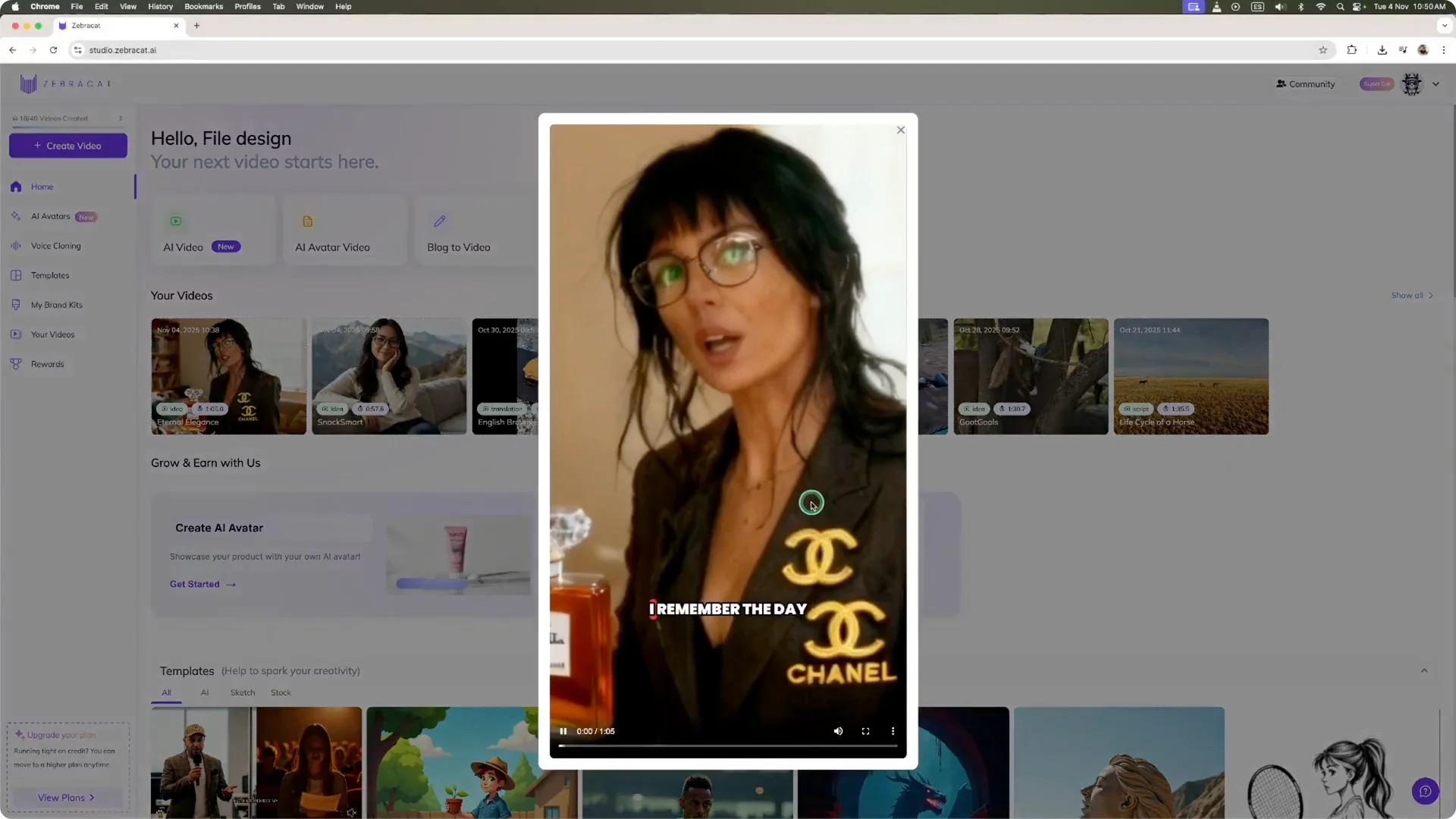
The scent lingered on my skin like a gentle reminder. The bottle is a work of art, sleek and sophisticated, a tiny masterpiece on my dresser. A constant reminder of beauty within, reflecting the refined woman I aspire to be.
When I wear Chanel, I feel like a polished, put together version of myself. The fragrance unlocks poise and sophistication, making me shine with a hidden reserve. It’s a feeling, a state of mind.
Expressing my inner self with elegance and refinement, wrapping me in confidence, making me invincible with a sense of poised self assurance always. I gift Chanel to loved ones, sharing luxury and self-love, saying, “You are worth it.” A small act of kindness that speaks volumes about my love and appreciation for them always.
Final Thoughts
Creating a product video with a made up AI avatar in Sracat is fast and straightforward. I described the avatar, uploaded a product image, set a brand logo, and finished the edit in under 15 minutes. You can describe your avatar in as much detail as you want for an exact look and a polished product presenter video.