If you’ve ever tried to create a character that keeps a consistent face across different projects, this walkthrough shows how to do it using a single photo. I’m focusing on the character tool in Higgsfield and how it maintains character consistency so you can reuse the same face across multiple images.
I’ll show how to create a character profile, generate images with prompts, and fine-tune settings like style, model choice, aspect ratio, and quality to keep results consistent.
AI Character Consistency overview
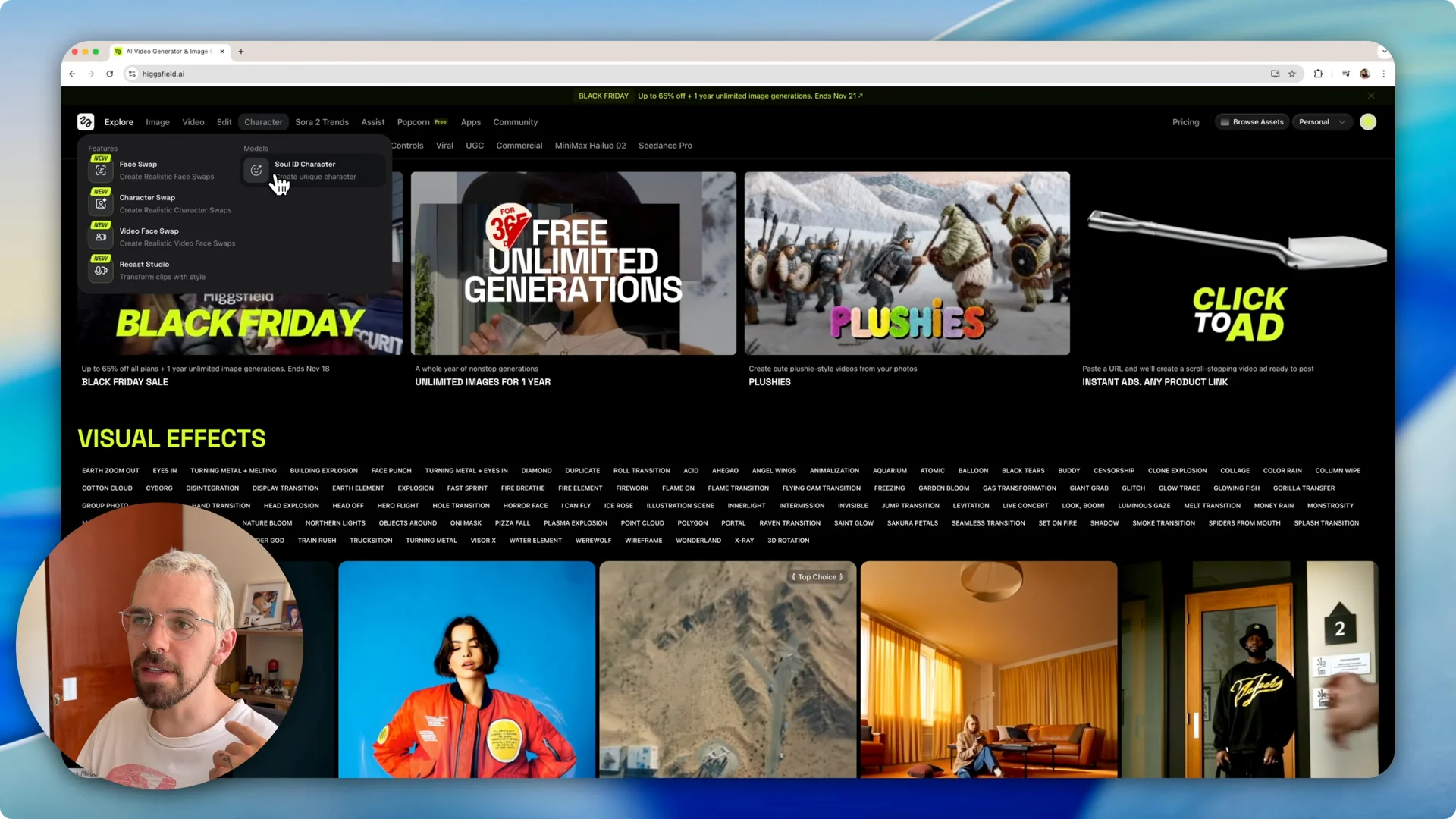
Higgsfield includes a character tool with a Soul ID Character section where you can create a reusable character. The idea is simple – upload photos of a person, let the system learn that face, and then prompt it for new images with different outfits, poses, and settings.
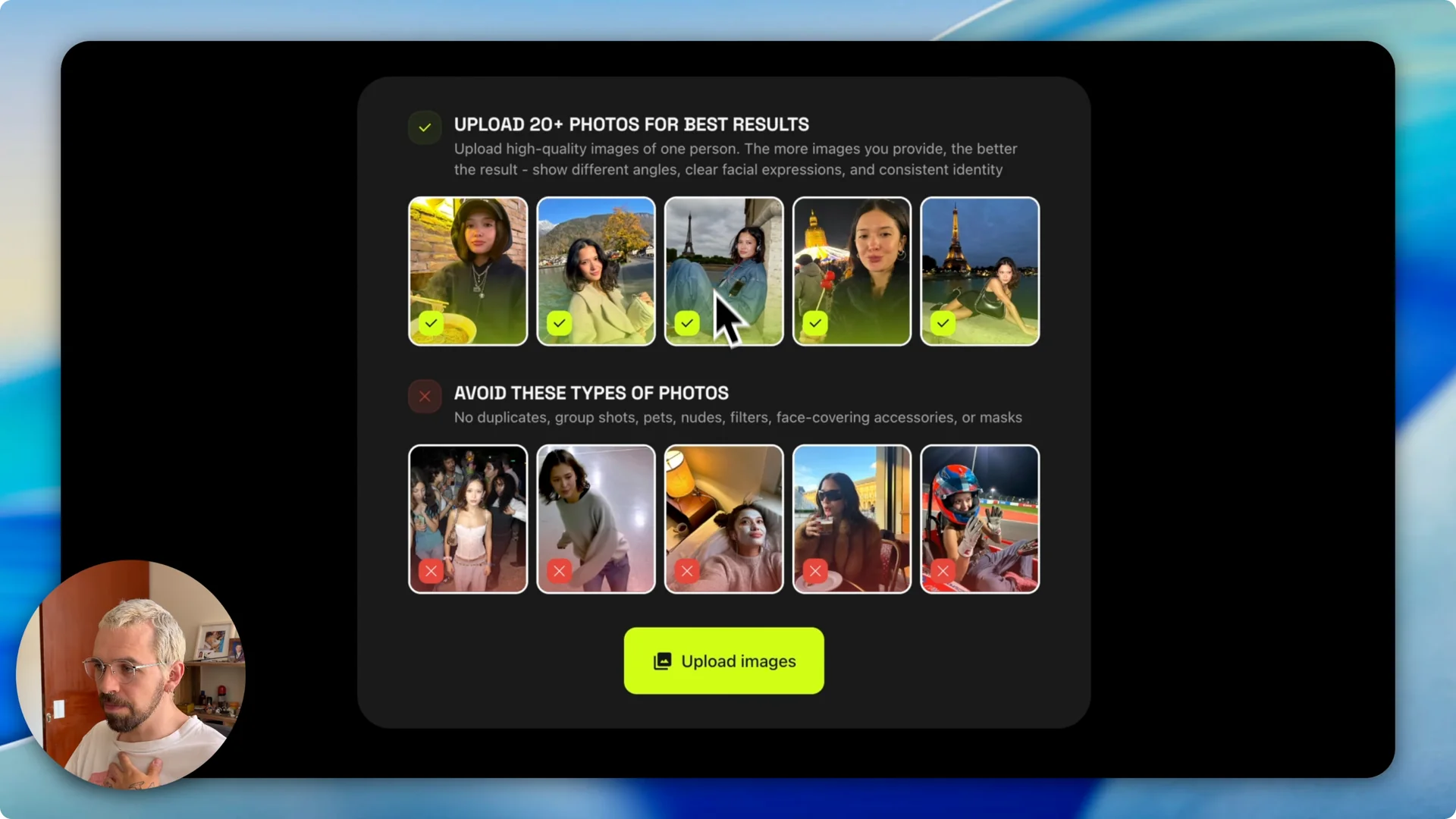
You can work with one photo, though uploading more photos gives you more poses and stronger consistency. The software can handle up to 70 photos for a single character and does a better job as you add variety.
For a deeper walkthrough on repeatable faces and setup, check out this consistent character guide for Higgsfield AI.
Set up AI Character Consistency
Create your character
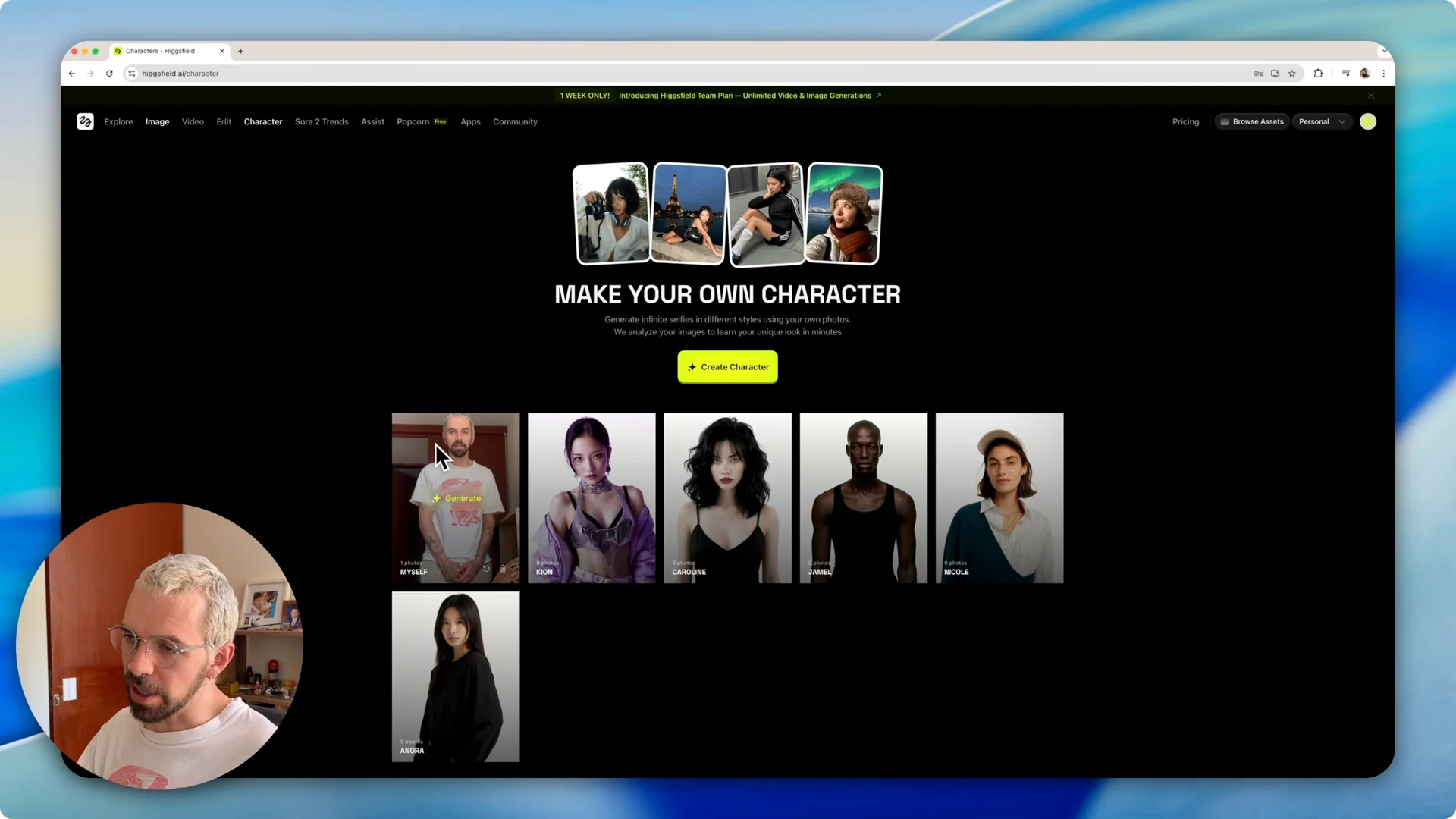
Once the character is ready, you’ll see it in your character library. You can reuse it across projects and prompts without rebuilding it each time.
Generate images with prompts
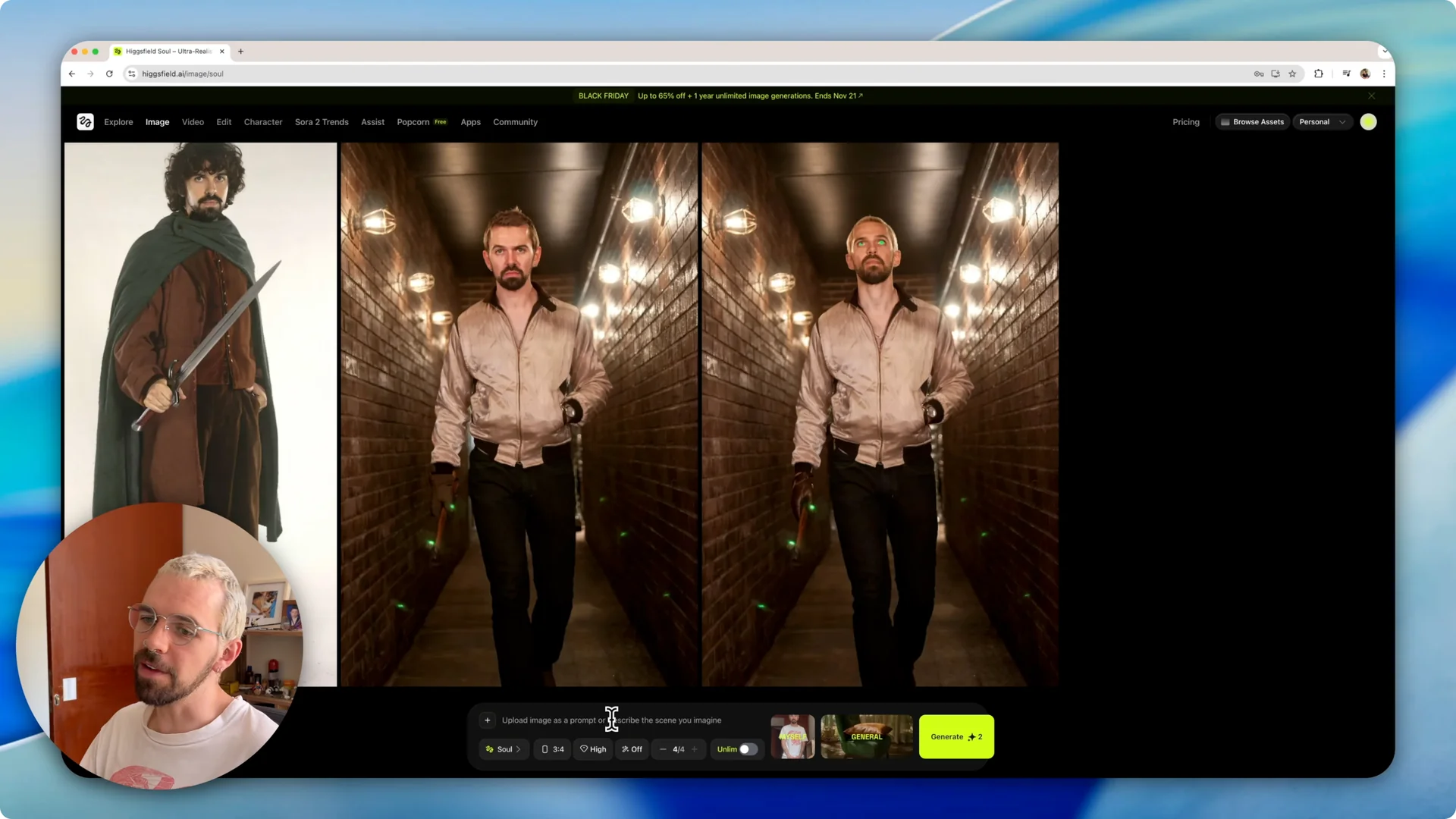
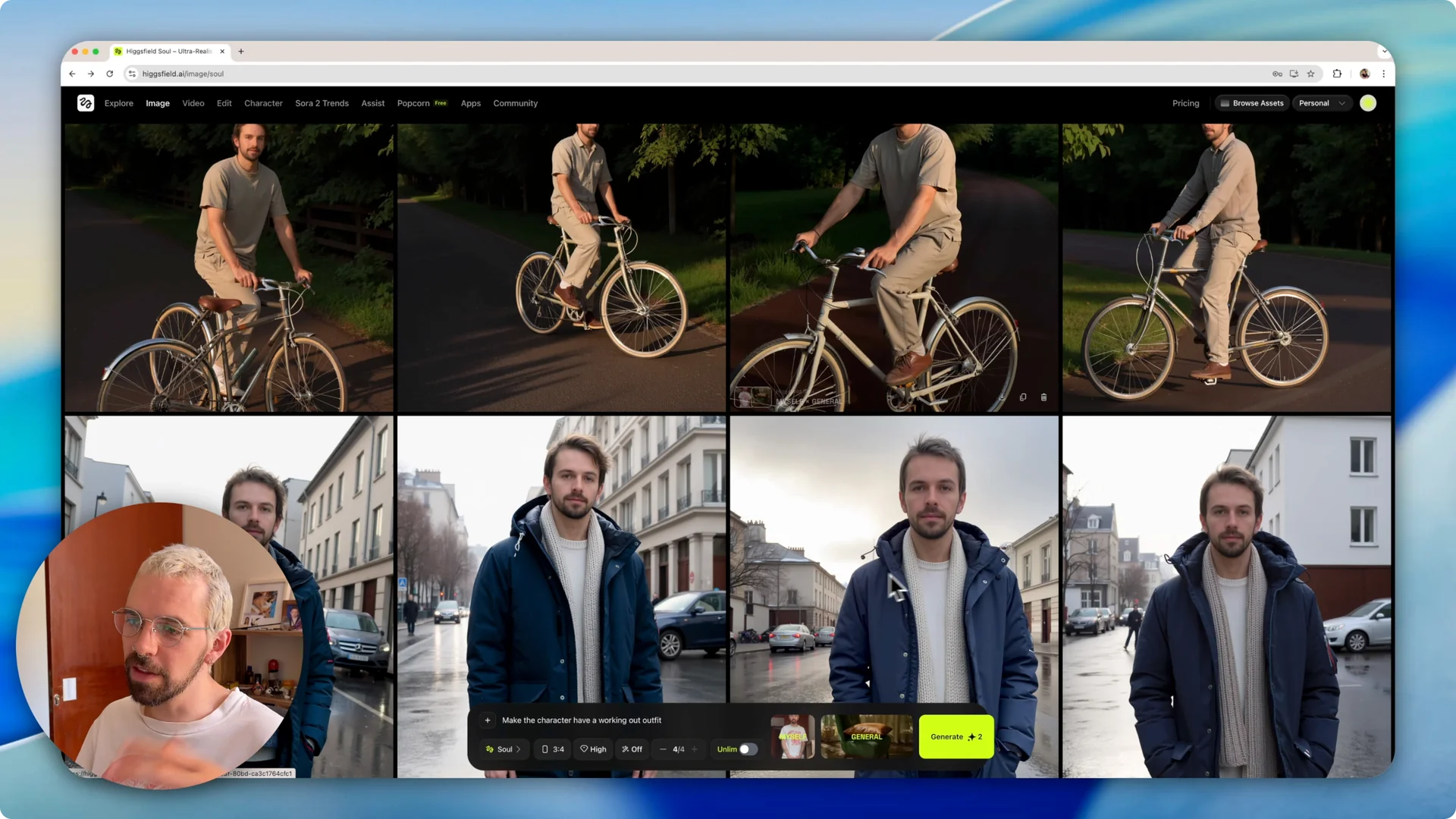
You can prompt for new outfits, switch poses, and adjust the setting. As you test prompts, you’ll notice the background also adapts to match your prompt – outdoor scenes for a bicycle prompt, winter settings for a cold-weather outfit, or a home gym for workout prompts.
If you want more ideas for prompts and looks, see this overview of creative workflows in Higgsfield AI.
Controls for AI Character Consistency
Character and model
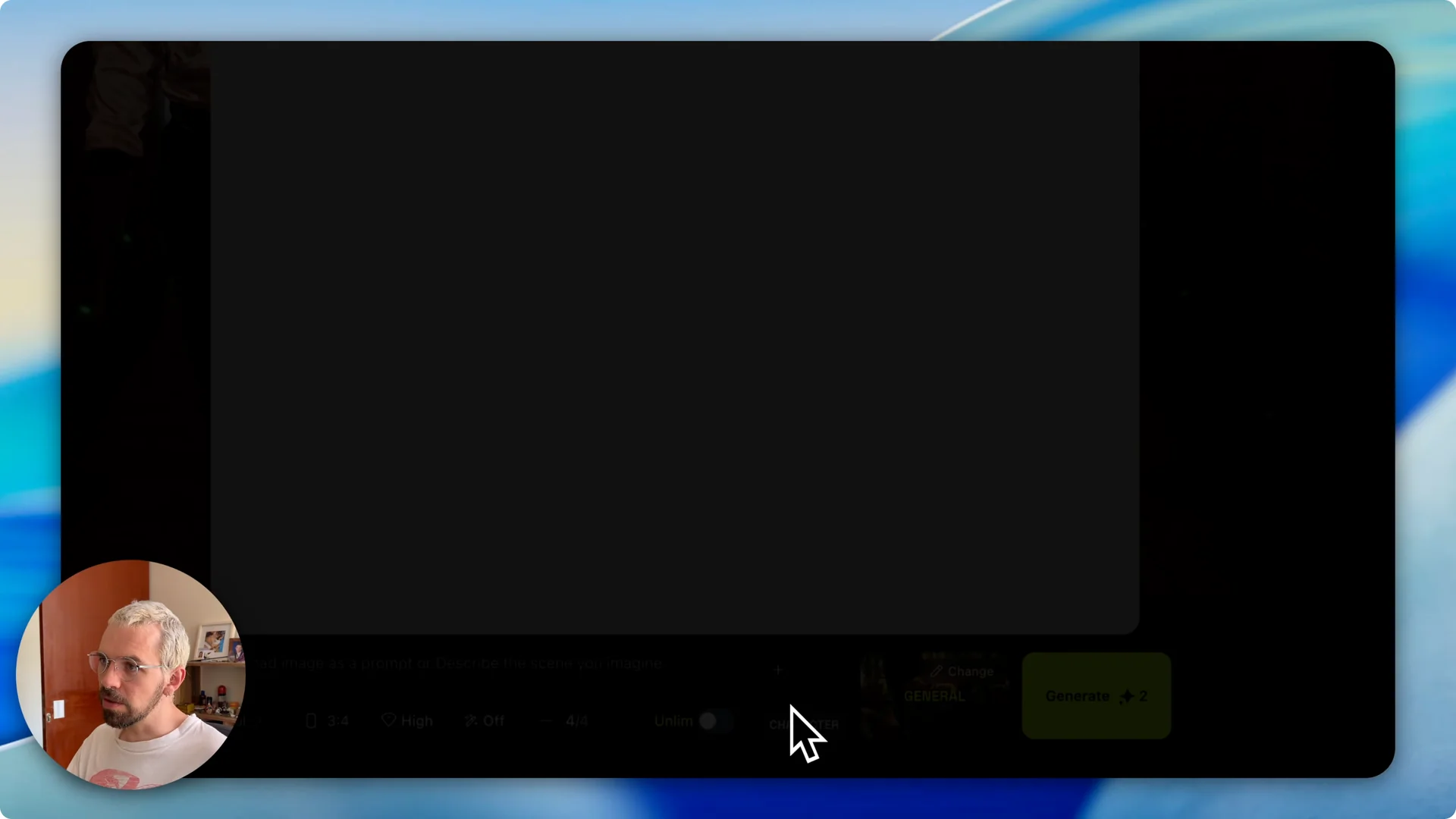
In the Character menu, pick any saved character. Hovering over generated images shows which character and which model were used, so you can track settings that worked best for a given look.
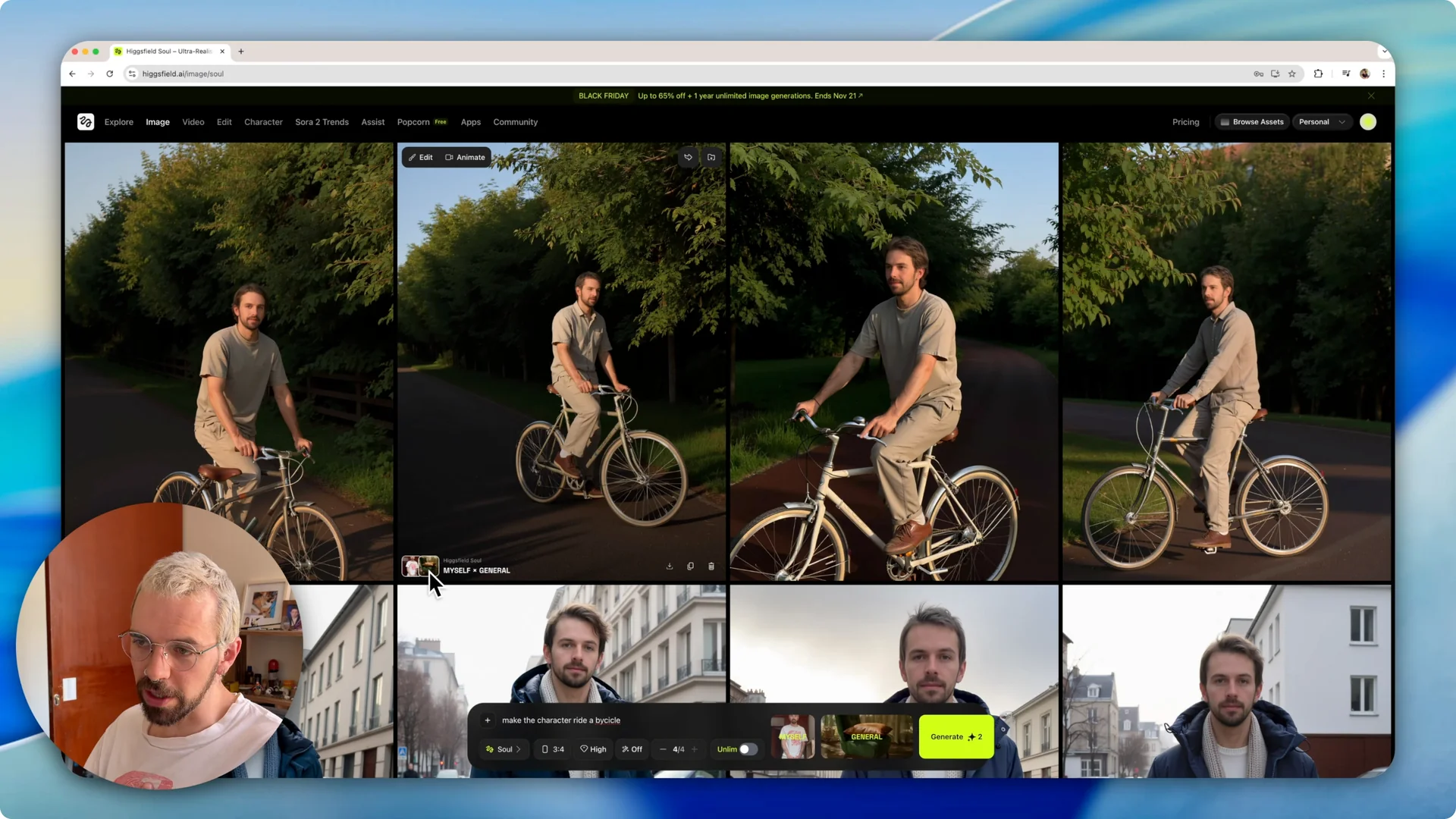
The Soul model is a solid general model for consistent faces. You can switch models anytime to test how they interpret your character.
Aspect ratio, quality, and output count
You can choose the aspect ratio before generating. Set the quality level – High works well for detailed results.
There’s a toggle to auto-enhance the prompt if you want the system to refine your text. You can also set how many images are created per prompt – generating four at a time gives you options to pick the closest face match.
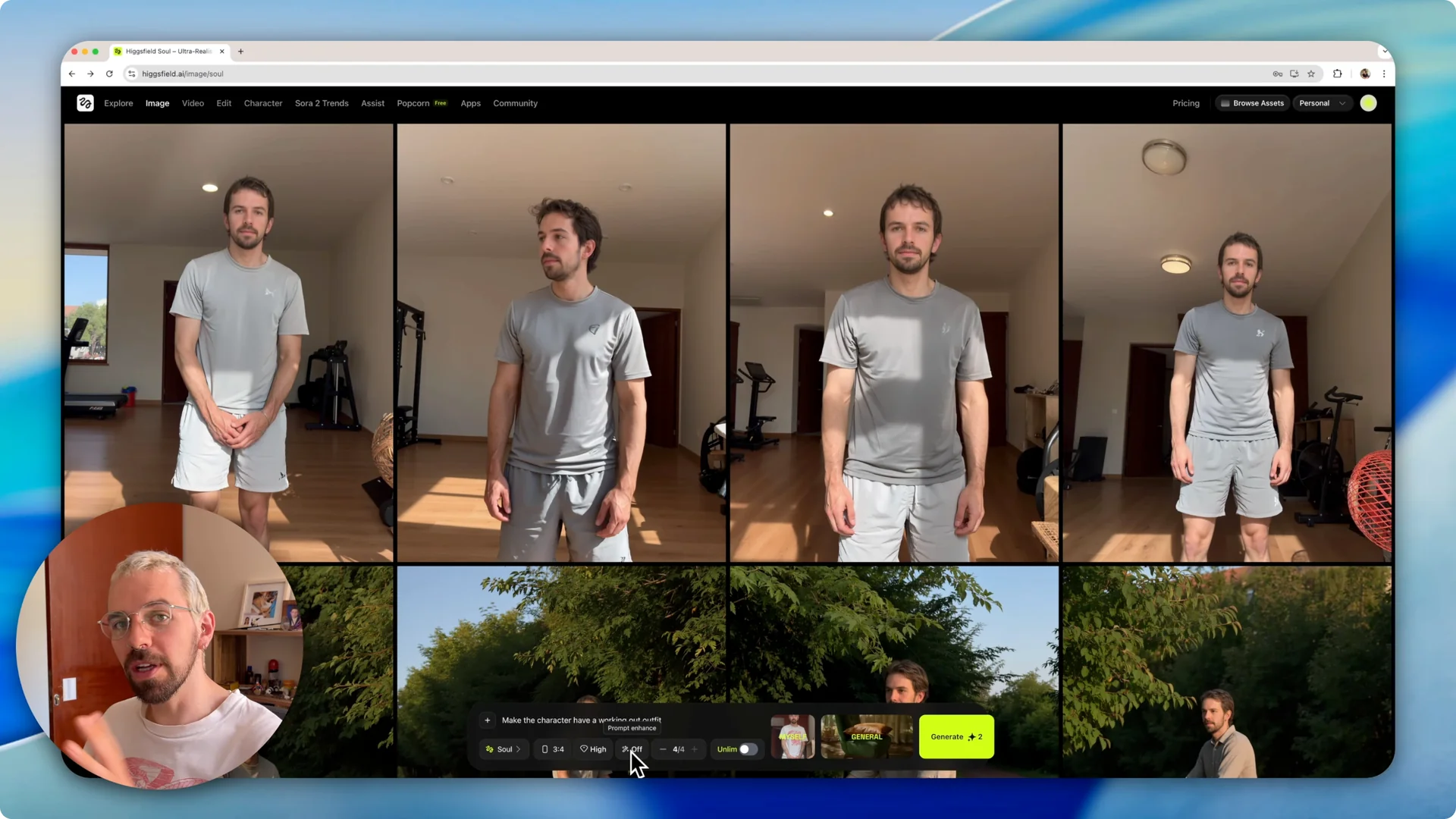
Visual styles
You can change the overall visual style group to shift how the image looks. For example, you can pick a style that mimics an iPhone photo look or try a Tokyo style for a different aesthetic.
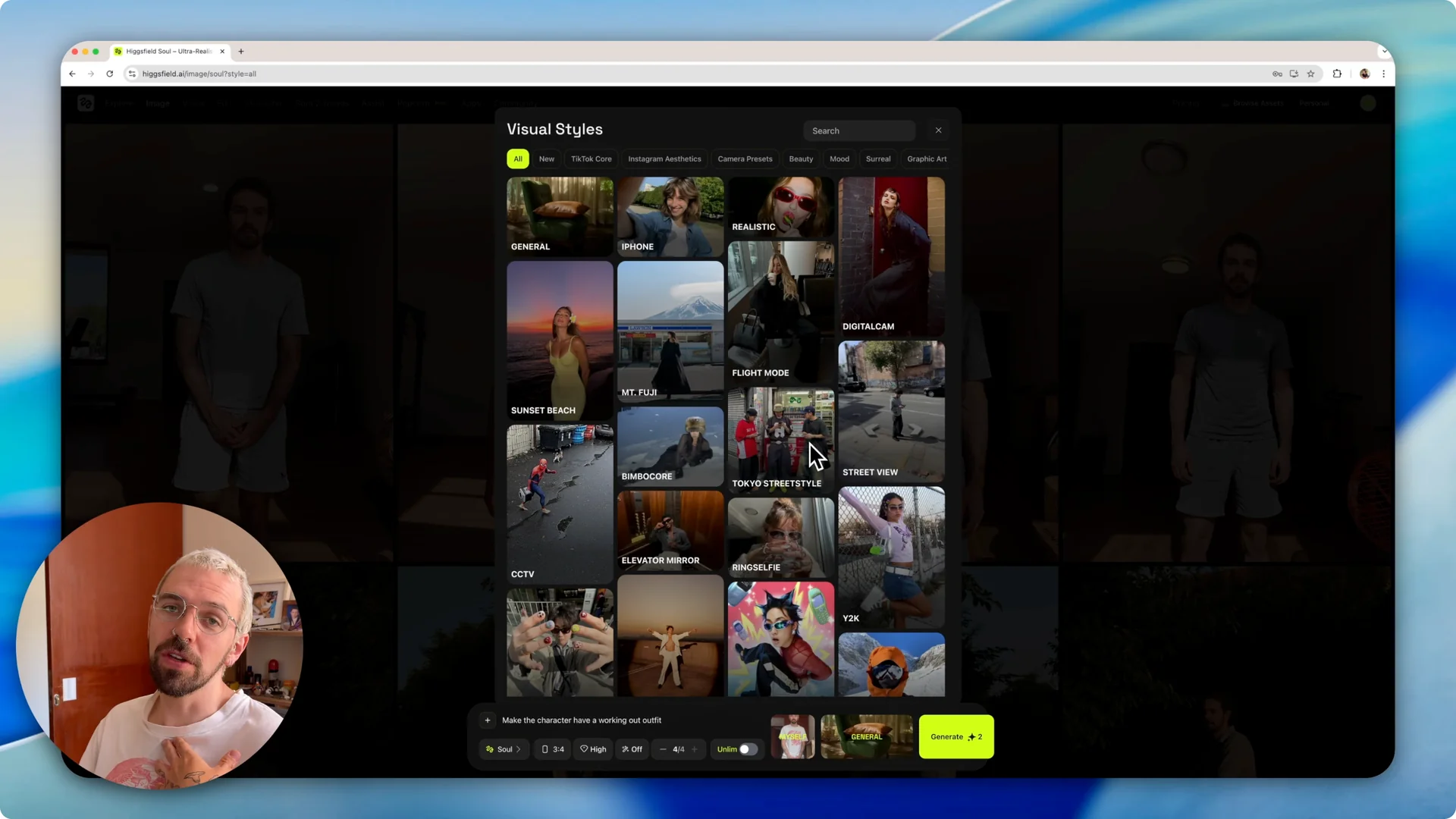
These style presets can influence lighting, color, and framing, while your character face remains consistent. If you plan to carry consistent characters into animated pieces or sequences, explore cinematic sequences in Higgsfield Cinema for next steps.
Examples and timing
With a single photo, I was able to keep the face consistent while changing outfits and poses like winter wear, riding a bicycle, and a workout outfit. I picked the results that looked closest to my face from each batch.
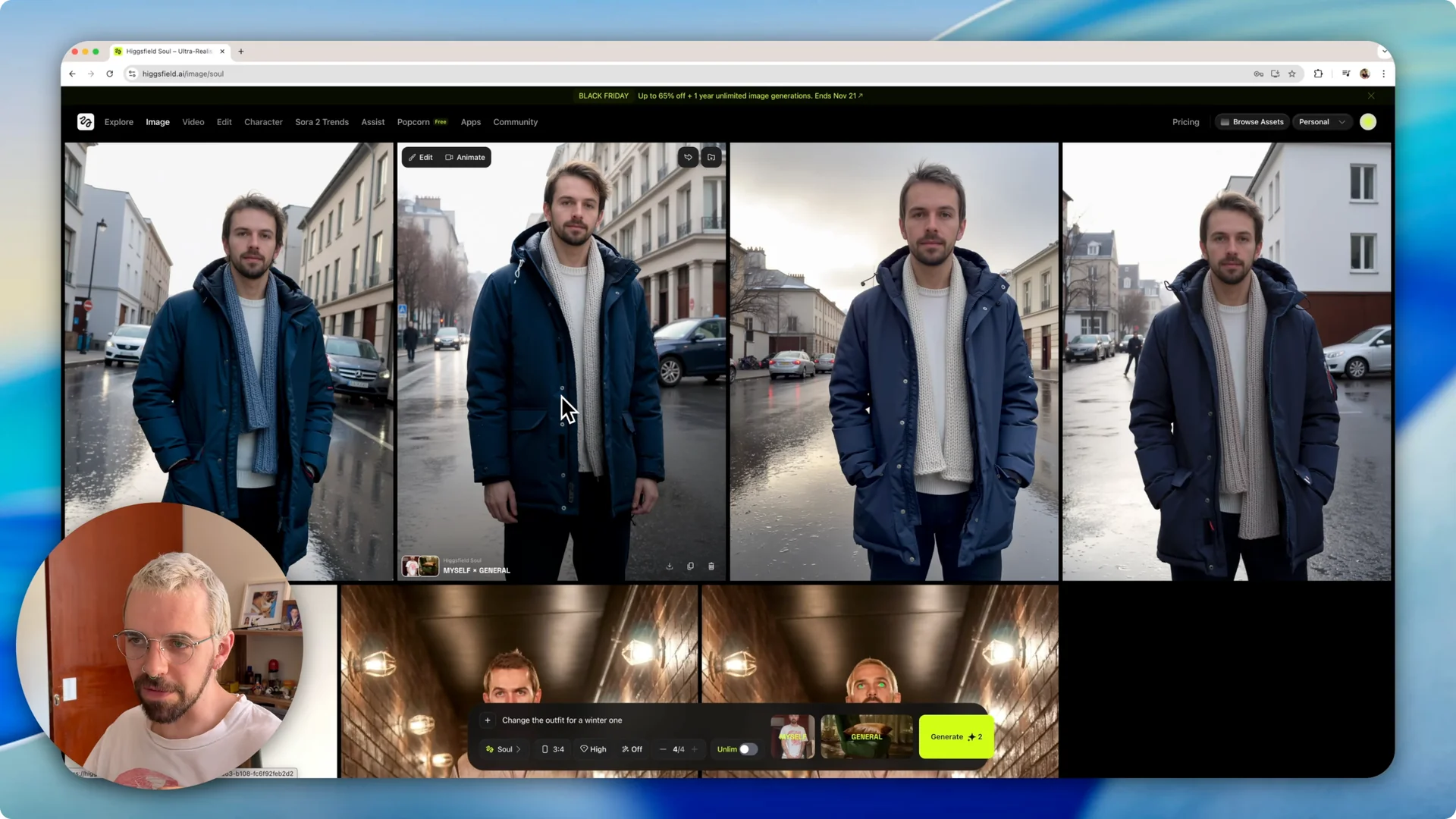
From upload to first results, it typically takes under 10 minutes. Each new prompt then takes a few minutes to render, and you can repeat prompts to refine your picks.
Final Thoughts
The character tool in Higgsfield makes it straightforward to set up a face, reuse it across prompts, and keep results aligned with your projects. Upload multiple images if you want more pose variety and stronger consistency, but even one good photo can work well.
Build your character once, test prompts, and lock in the settings that produce the closest face match for your workflow. For an expanded tutorial on stable identities, see this practical Higgsfield character consistency guide.