I’m going to show you how to use Kling O1 on Higgsfield. This is a recent update from Kling, and I’ll walk through how to use it and what it does with practical examples. I’ve prepared a set of generations and edits to make the use cases clear.
Higgsfield is currently offering unlimited Kling O1 generations for everyone who subscribes to the Ultimate Plus plans by December 7th. I’ll point out the options that matter, how credits work, and a few tips that improved my results.
Getting started with Kling O1 on Higgsfield
On the left, you have two options. Create video is Kling 2.6 for generating new clips, and Edit video is Kling Edit for editing existing clips. I’ll first show what I generated, then how I edited with Kling O1.
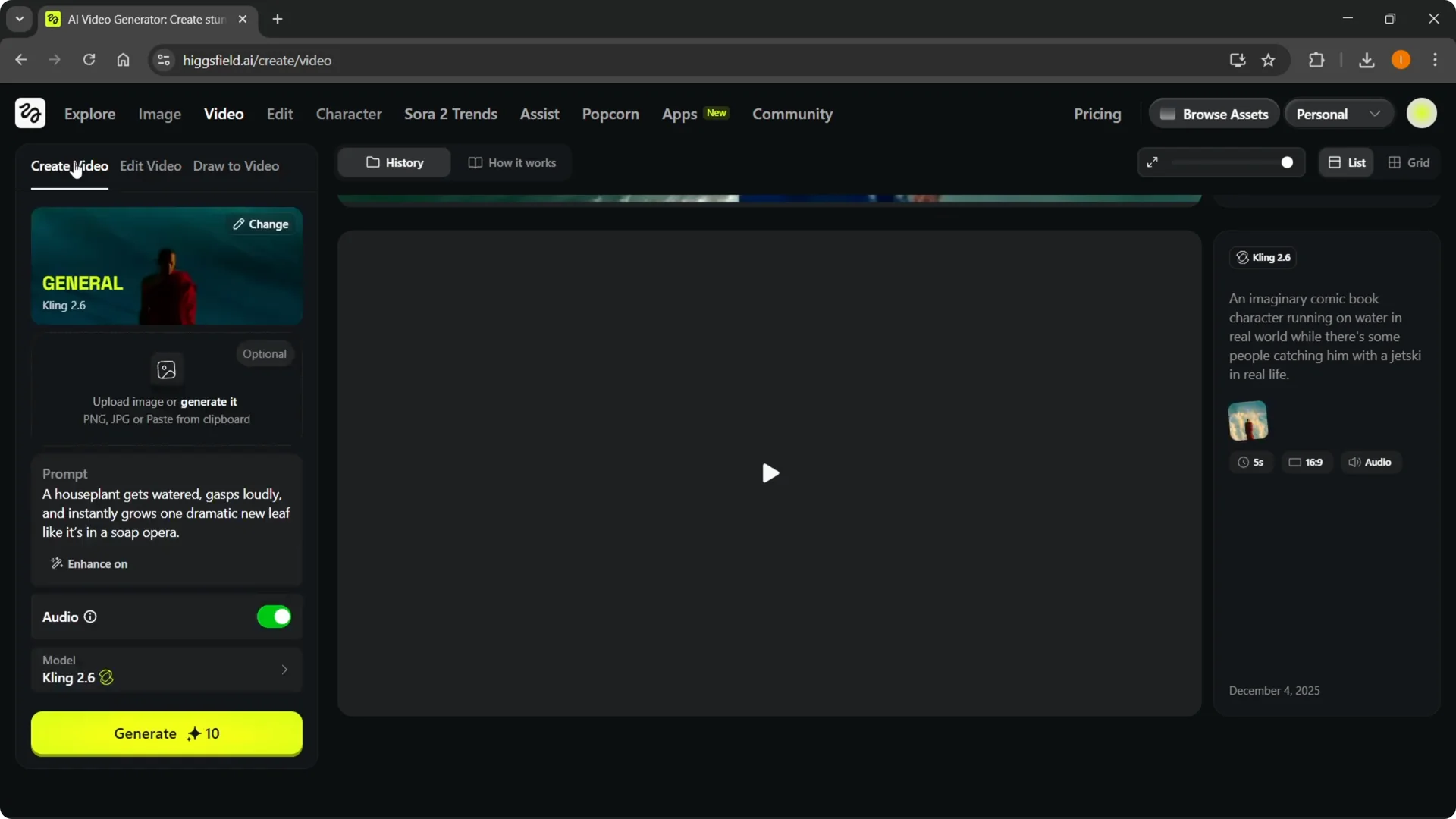
You can upload an image, start from a prompt, or mix both.
Set the model to Kling 2.6, choose a duration of 5 or 10 seconds, and pick an aspect ratio for horizontal, vertical, or 1:1.
You can enable audio, but it will cost double the credits.
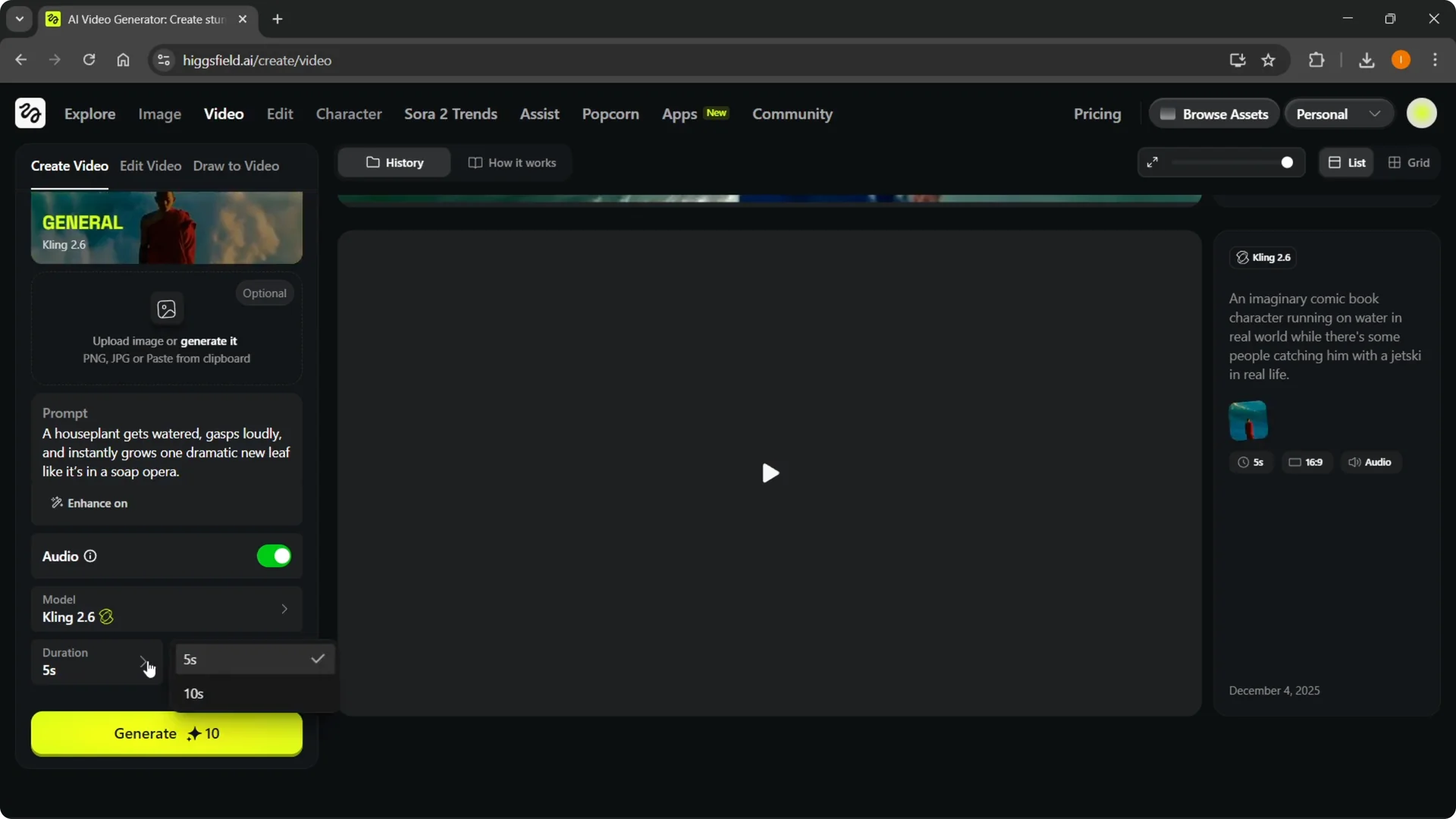
Under the prompt, you can leave Enhance on or turn it off. With Enhance off, it will follow exactly what you wrote.
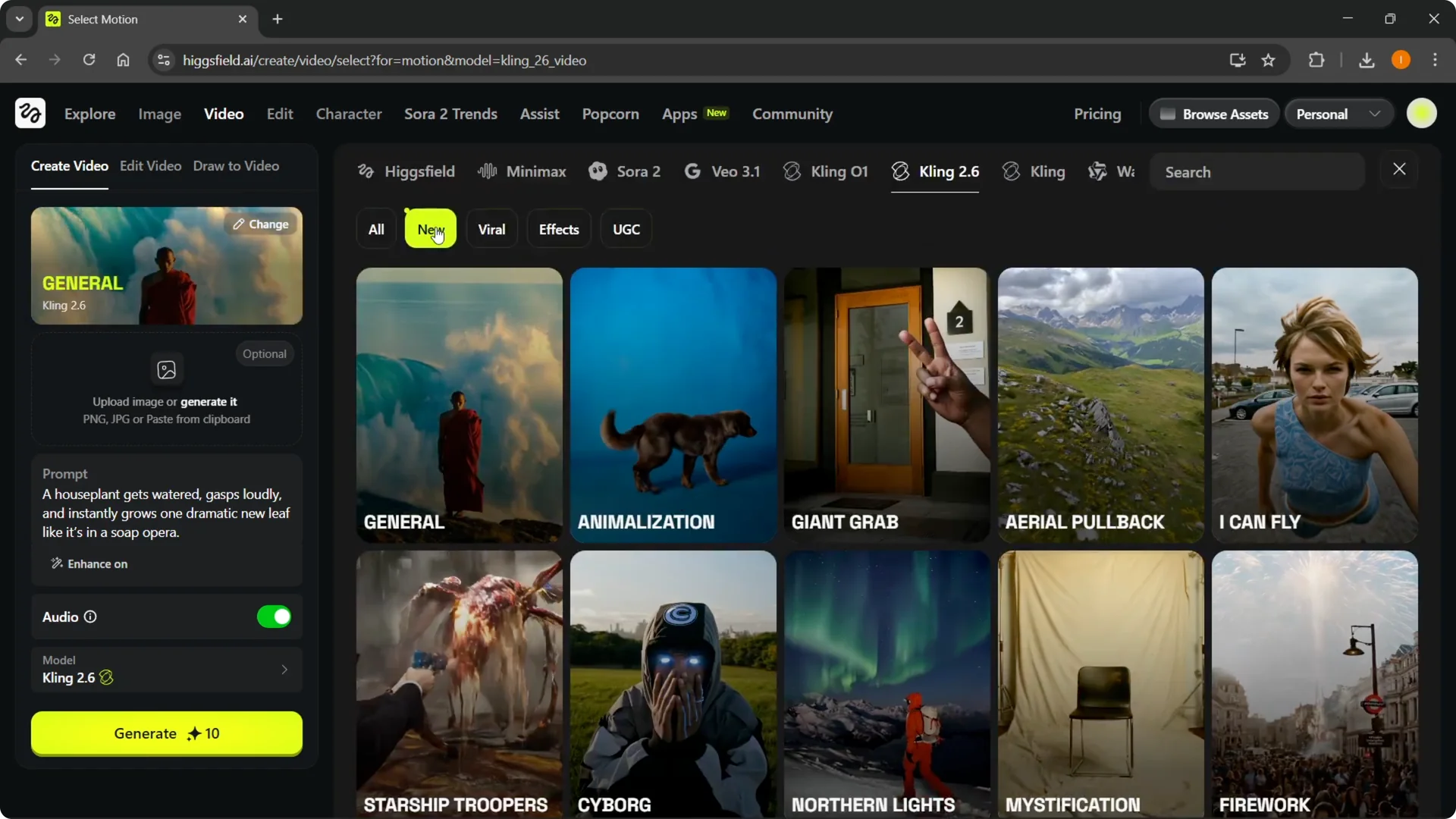
You can also switch from the General template to specific templates in the Change tab.
There are a lot of templates. You’ll find categories like New, Viral effects, and UGC, plus options like transforming, giant grab, aerial pullbacks, flies, northern lights, cyborg, and starship troopers.
Set a template, create, then switch back to General when done to avoid odd outcomes.
If you need consistent characters across videos, see this quick guide to character creation in Higgsfield. It pairs well with prompts and templates when you want the same subject across multiple edits.
Create video with Kling 2.6
Step 1: Open the Video tab in Higgsfield and choose Create video with Kling 2.6.
Step 2: Pick a duration and aspect ratio, and decide if you want audio. Audio is supported, but it uses double credits.
Step 3: Enter your prompt and choose if you want Enhance on or off.
Step 4: Optionally upload images for stronger guidance.
Step 5: Open the Change tab to try templates, or keep General for open-ended prompts.
Step 6: Generate your video, review the result, and rerun if needed.
Editing with Kling O1 on Higgsfield
I downloaded one of my generated clips and moved to Edit video.
I uploaded the clip, typed the edit I wanted, and made sure to select the Kling O1 video edit model.
Then I generated the edit and reviewed the output.
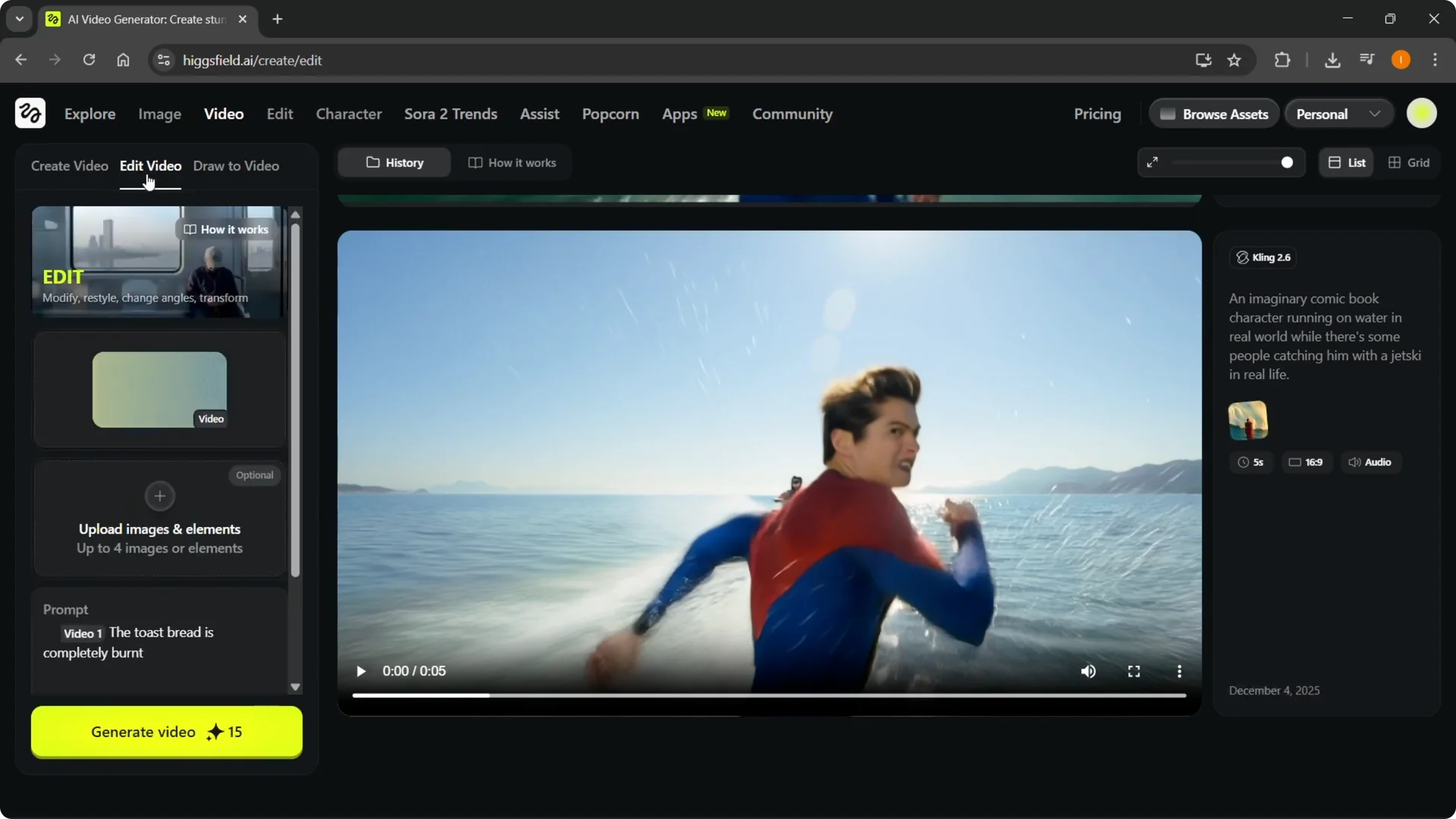
Here’s a clear example. I had a clip of an imaginary comic book character running on water with people chasing on a jet ski.
I prompted: swap the jet ski for a crocodile so the person is riding a super fast crocodile, and it did exactly that.
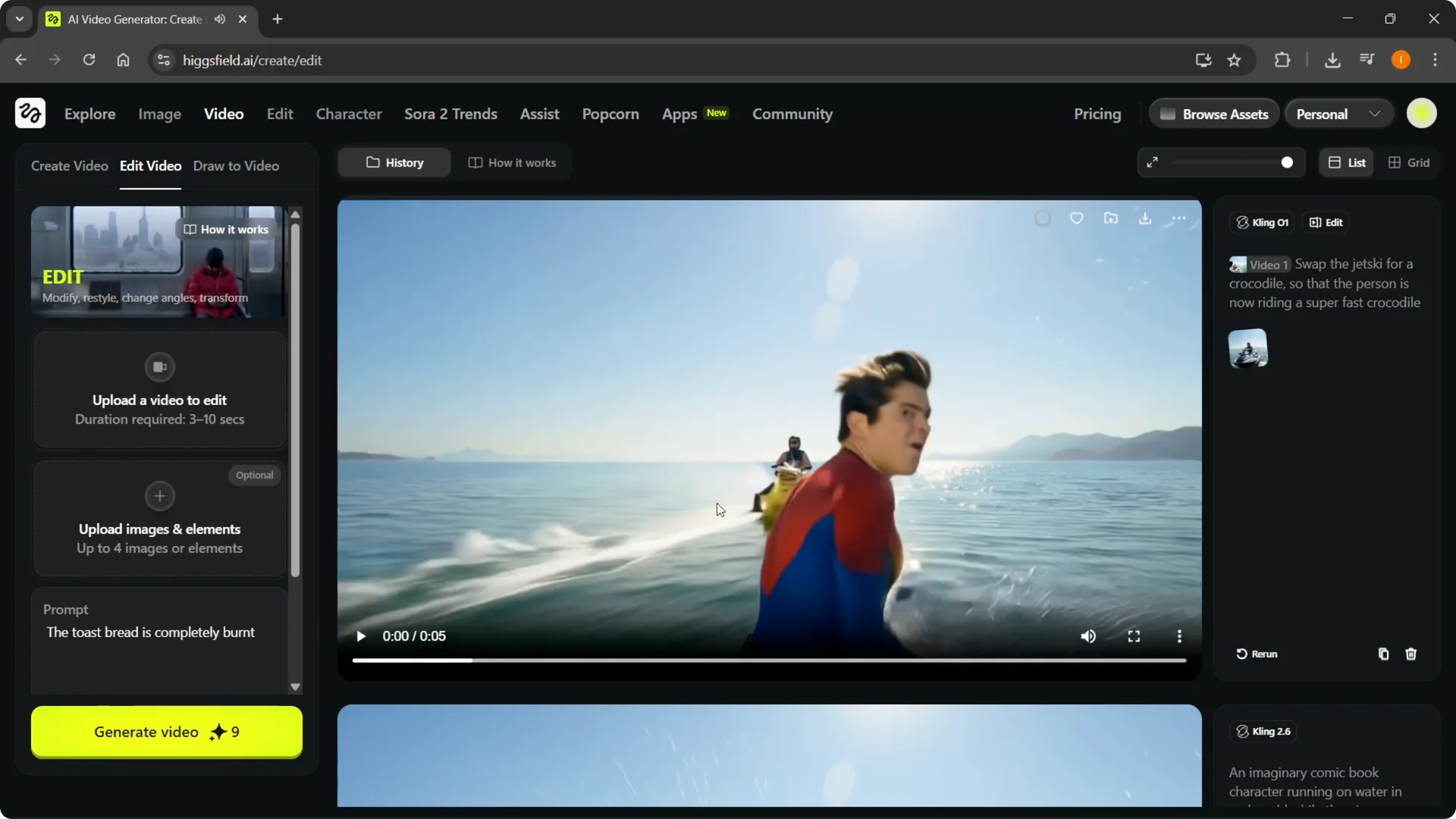
When I first generated the chase, the motion looked like it was moving forward while chasing backward. That kind of odd motion happens sometimes, and I’d rerun it if I needed the take.
The edit itself did a very good job, and better source videos tend to yield better edits.
Edit video workflow with Kling O1
Step 1: Get your source video ready by downloading from your generations or using any clip you have.
Step 2: Open Edit video and upload the clip.
Step 3: Select the Kling O1 video edit model.
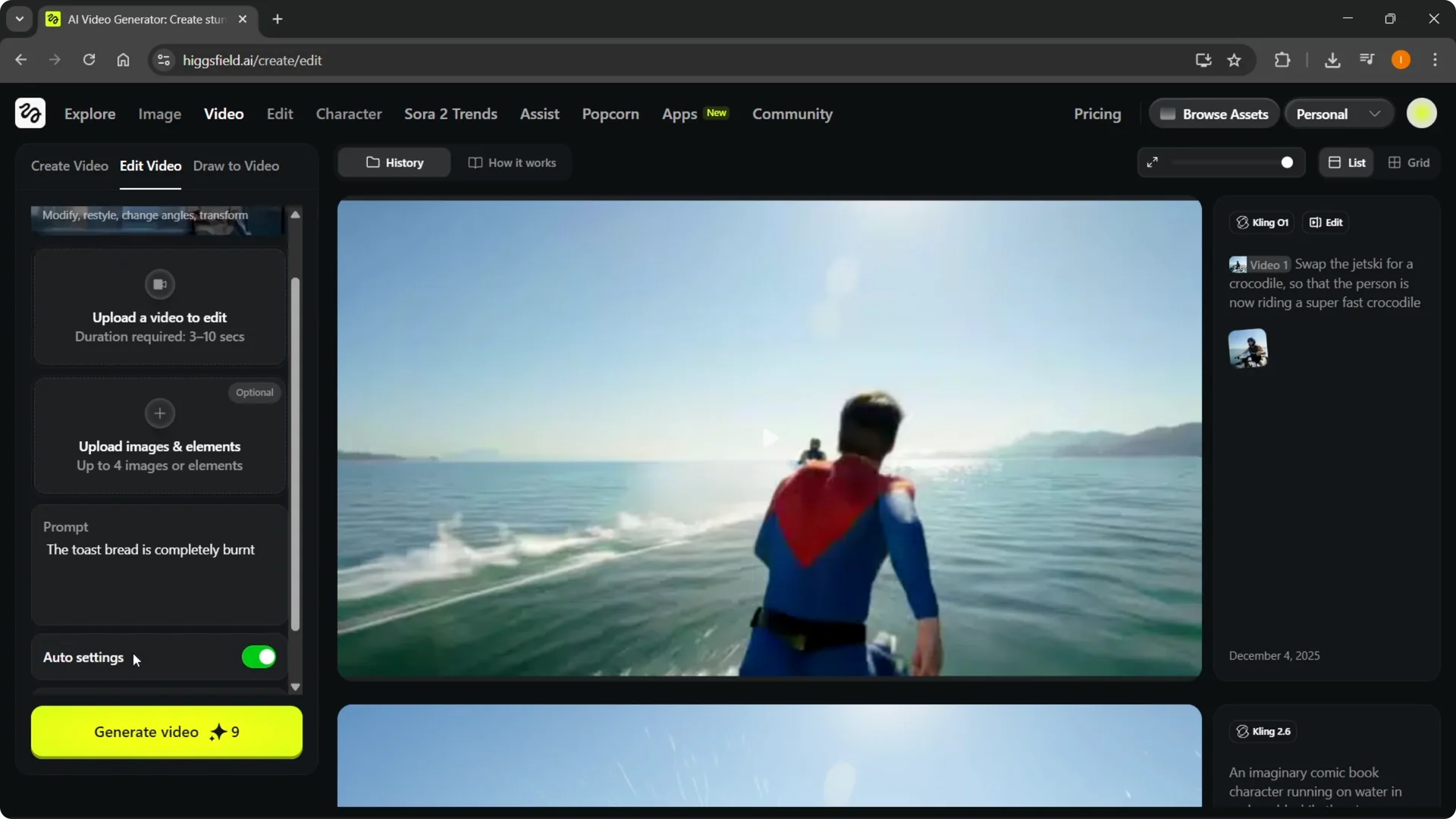
Step 4: Enter a clear edit prompt. For example, swap a jet ski for a crocodile, or add a specific prop, outfit, or background element.
Step 5: Optionally add images and use auto settings if you prefer.
Step 6: Generate the edit and review. If you want tighter control, see how to guide strokes and masks with Higgsfield Draw Video.
Prompt examples and results
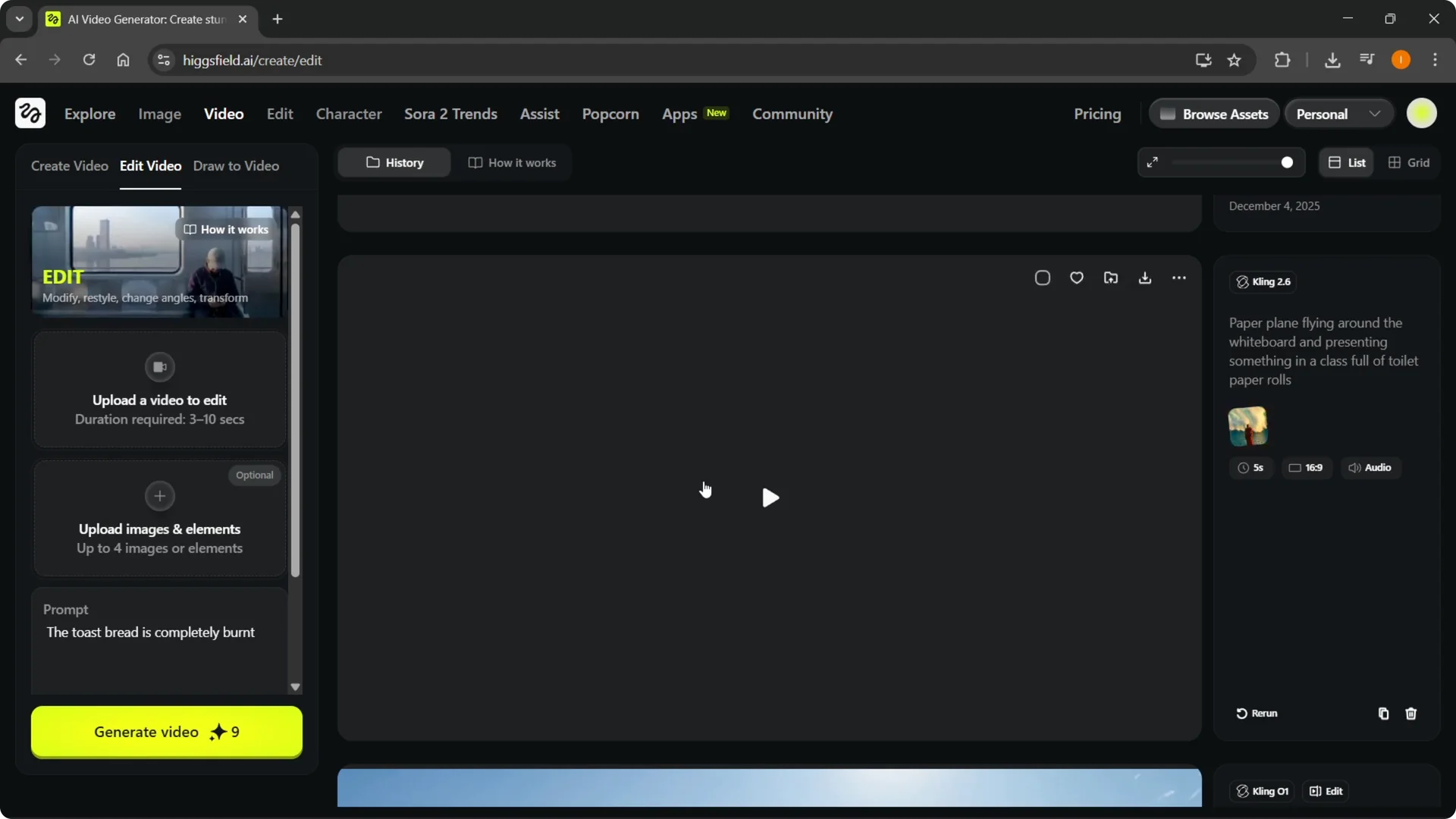
I made a paper plane flying around a whiteboard, presenting something in a class full of toilet paper rolls. It built a coherent scene and even added fitting motion.
Simple prompts like these can still produce impressive structure.
I tried a banana tripping over itself, and it worked. I also prompted a confident cat that runs toward the lens and bumps into an invisible barrier. It captured the moment and timing nicely.
A goldfish that sounds excited while building a bubble foam rocket came together with playful energy. I also tried a penguin preparing to speak with a quick honk. These were very simple prompts, yet the results were solid.
I prompted a toaster moment with a strong pop. Then I edited the output to make the toast completely burnt. The follow-up edit matched the request and changed the toast cleanly.
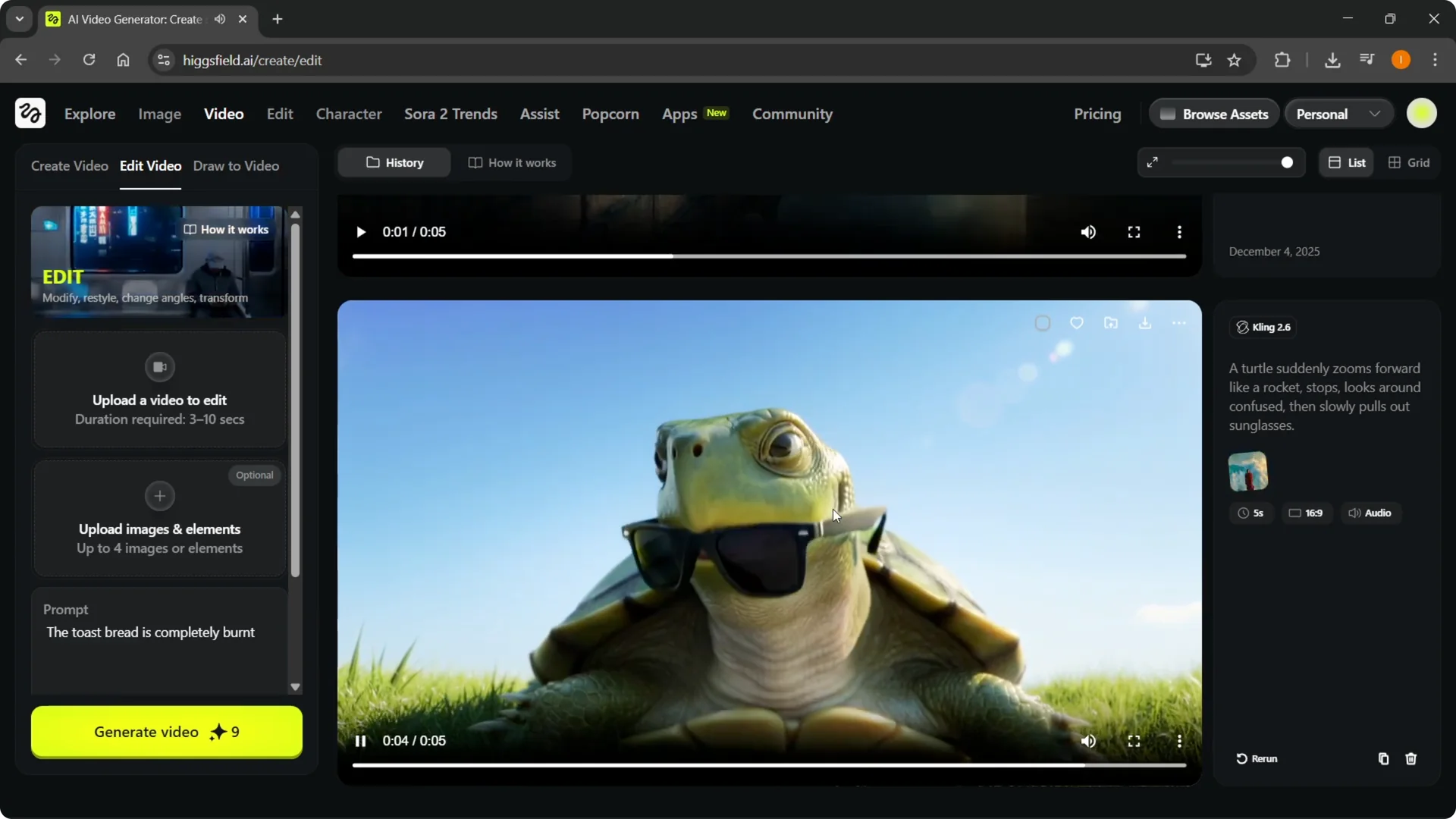
I tested ghosts walking through walls and a turtle zooming fast toward the camera, then putting on glasses. Both rendered cleanly with the right visual beats. Short prompts like these are quick to iterate.
For a lava bulb lifting barbells, I made a follow-up edit to give it shredded abs. It did the trick and kept the original motion. I also had a dancing robot whose head falls off, and I edited it to wear a long red dress with the same choreography.
On a frog clip, I prompted for an audience in the back. The edit added a background crowd, and the scene still read well. If you want quick tricks for sketching scene ideas and pacing, take a look at fast workflows with Higgsfield Popcorn.
Tips for prompts and templates in Kling O1 on Higgsfield
Short prompts work, but longer and more detailed prompts improved my results. If you need a specific look or reference, add a guiding image. Credits matter here, and audio doubles the cost, so I enable it only when I really need it.
Templates are powerful for style and motion, but remember to switch back to General when you’re finished with a specific template. Leaving a template on can lead to unintended outcomes. When something looks off, I rerun the generation or adjust the prompt for clarity.
For character continuity, motion ideas, and recurring themes, plan your prompts in a small list and test them with a single seed clip. That approach helped me build consistent edits from one base scene. If you are building a cast across multiple scenes, revisit the tips on character creation in Higgsfield.
Final thoughts
Kling O1 on Higgsfield makes it easy to generate short clips and then transform them with specific edits. Simple prompts already work well, and adding detail, images, or templates can raise the quality. Start with a clean source clip, write a clear edit prompt, and switch templates thoughtfully for reliable outcomes.