I’m going to show you how to use Higgsfield Draw to Video. Here you can turn a sketch into a video in a second. No prompt needed.
Getting started with Higgsfield Draw to Video
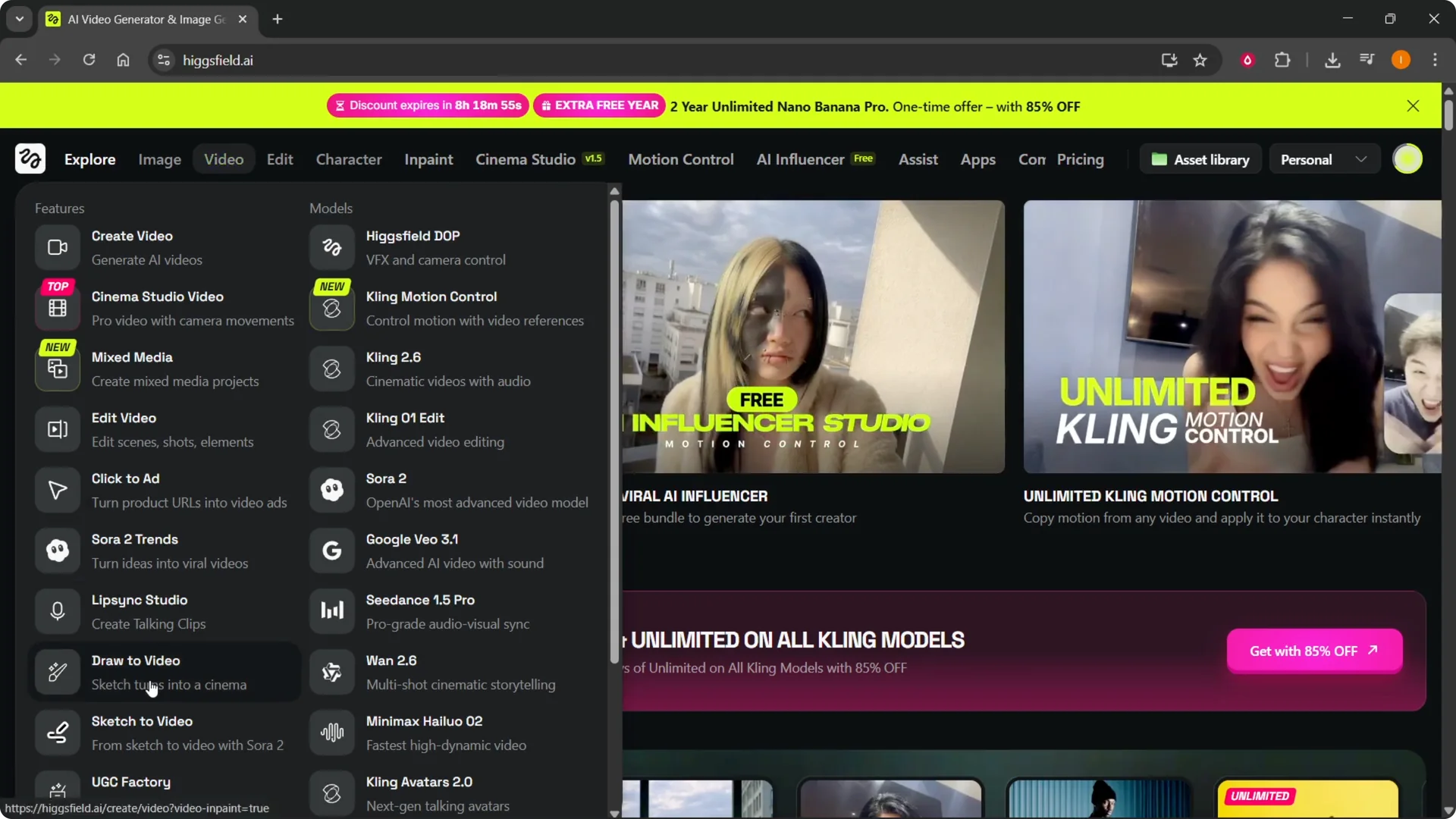
Step 1: On the website, hover over Video at the top. At the bottom left, you’ll see Draw Video. Click that to open the tool.
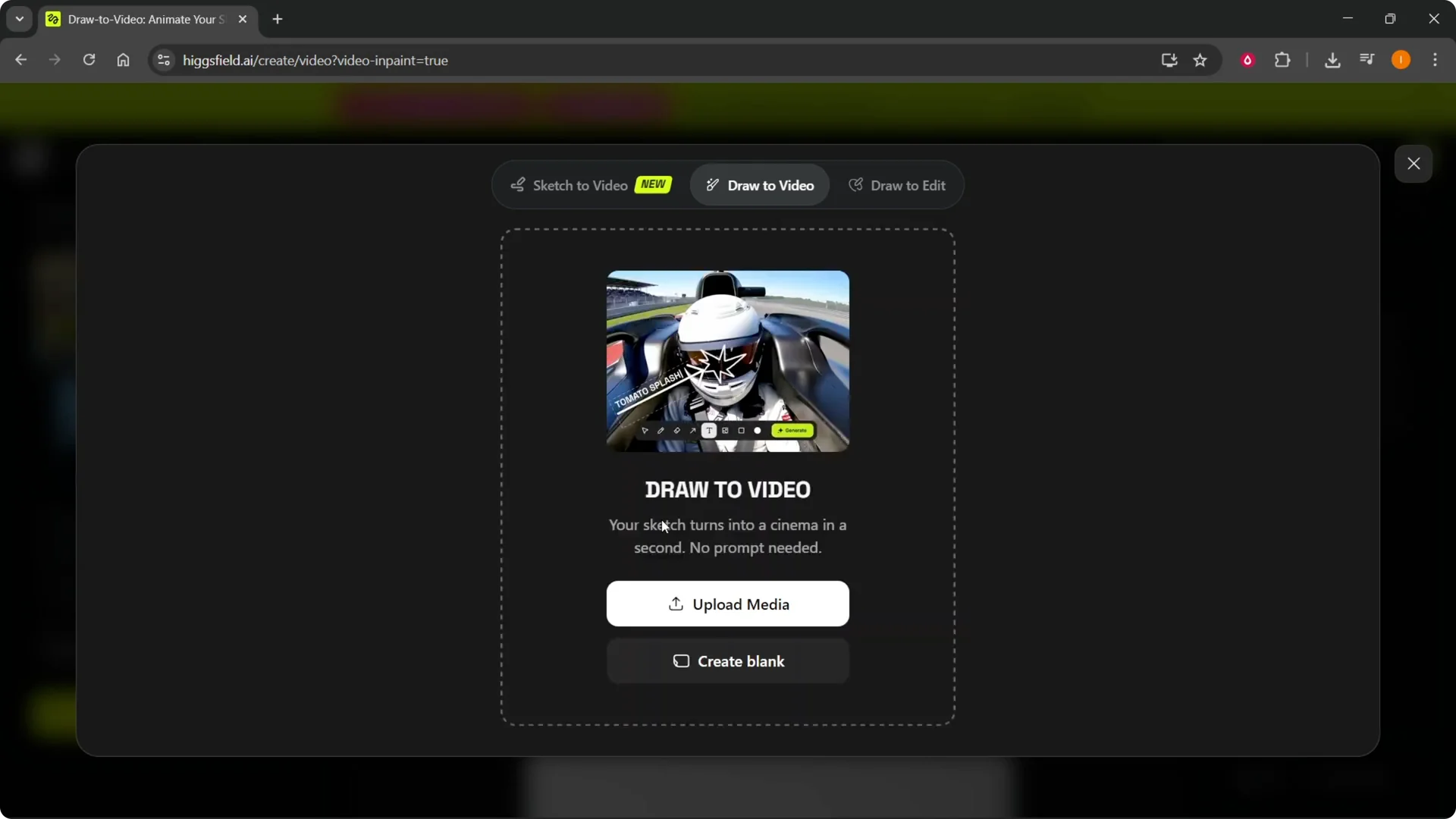
Step 2: In Draw to Video, you’ll see different options. You can start with a blank canvas or upload media. Pick the route that fits what you want to make.
If you’re setting up a new account or want to save on credits, see how to apply a promo code before you begin.
Blank canvas in Higgsfield Draw to Video
Step 3: Click Create Blank. Draw whatever you want to turn into a video on the canvas. Keep the sketch clear so the motion makes sense.
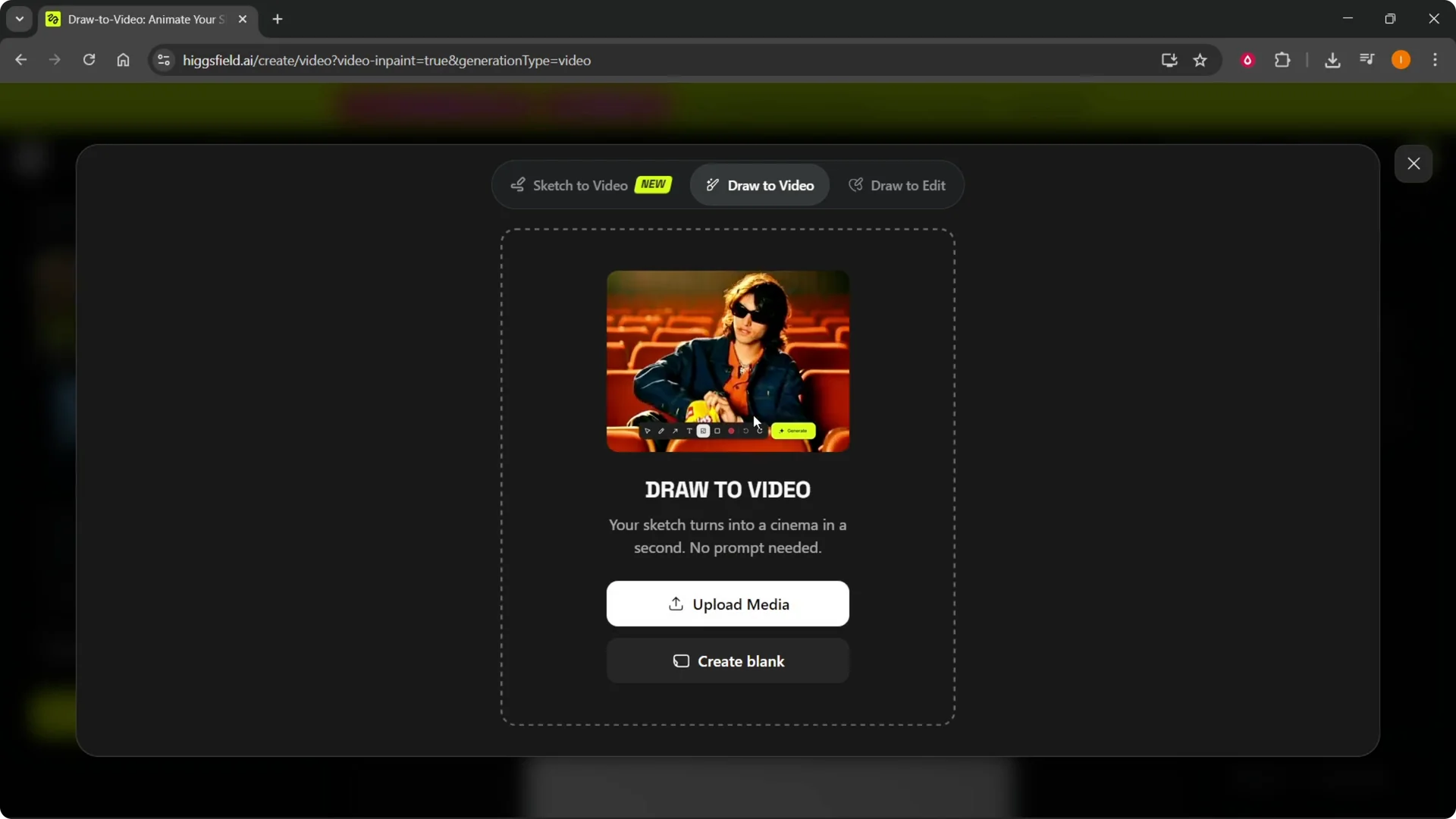
Step 4: Review your drawing and get ready to add motion notes. Short, direct instructions work best. You can generate from this canvas as soon as your note is ready.
Upload to Higgsfield Draw to Video
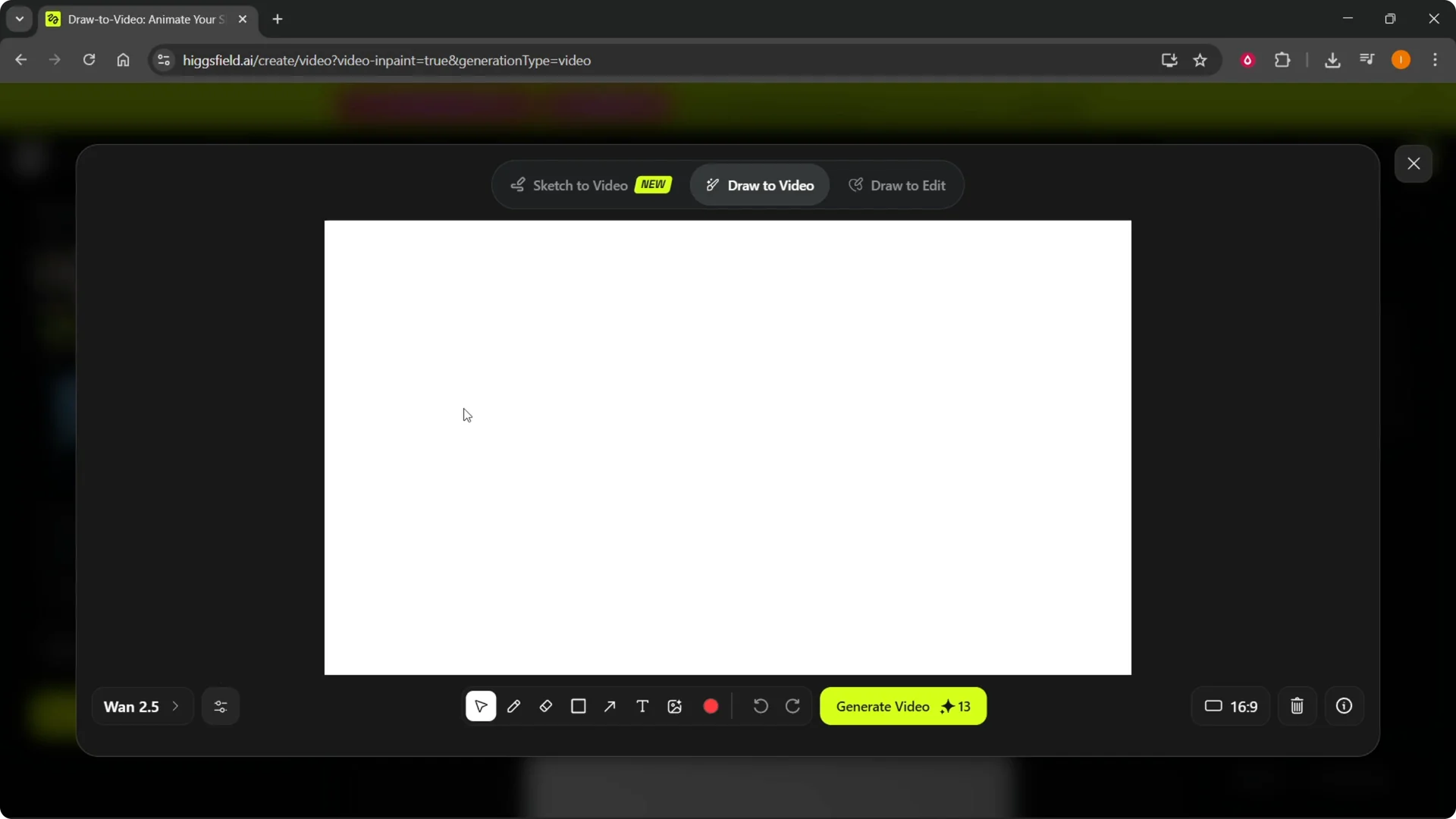
Step 5: Click Upload Media. Choose an image you created elsewhere and click Open. The image will upload into the canvas.
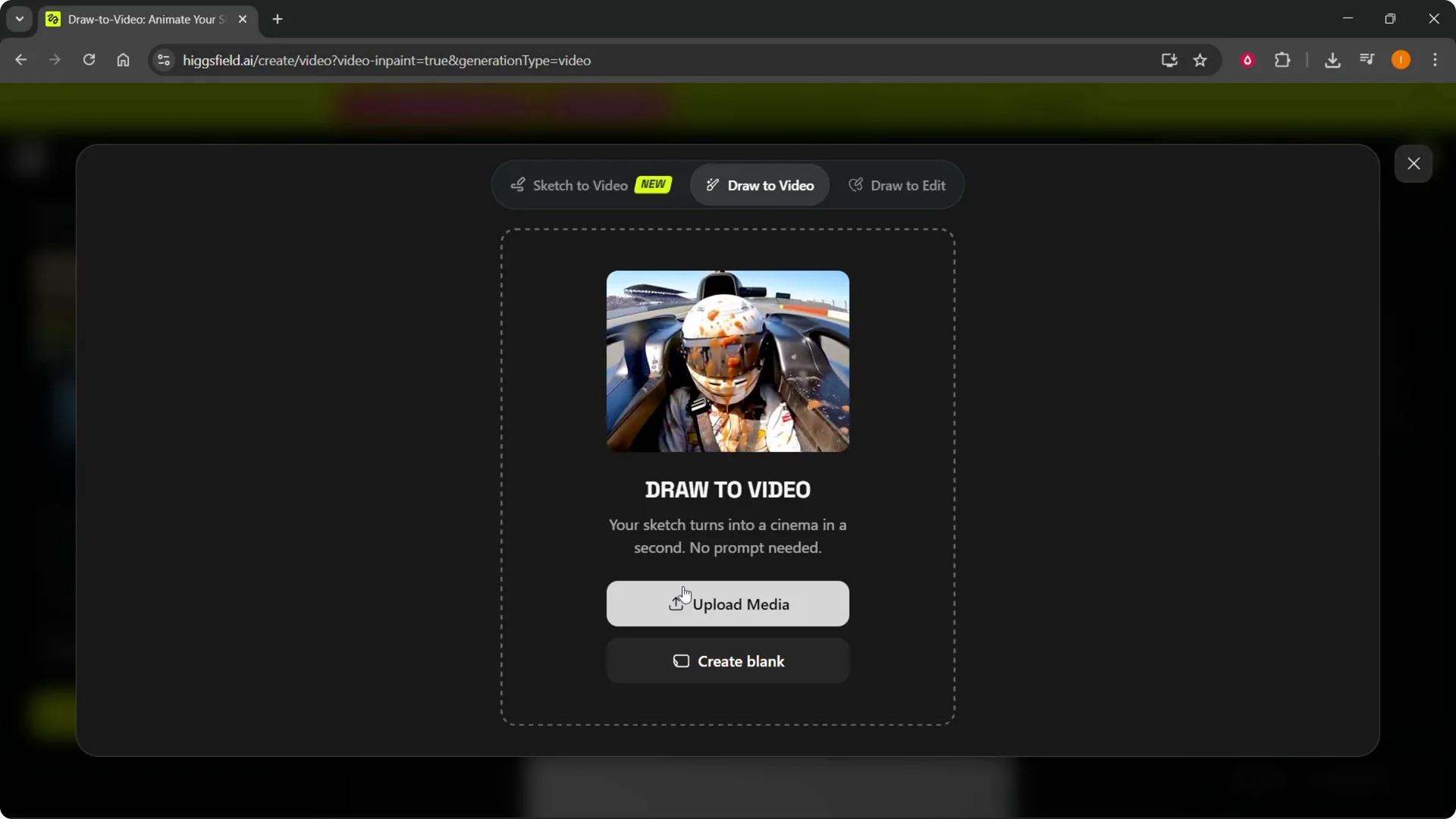
Step 6: Once the image appears, you can proceed to generate the video. Make sure the subject is clear in the frame. If needed, adjust or re-upload a cleaner source.
Notes and generate in Higgsfield Draw to Video
Step 7: Add a short note in the drawing describing what should happen in the video. Be specific about the action or movement you expect. This helps the tool create the motion you want.
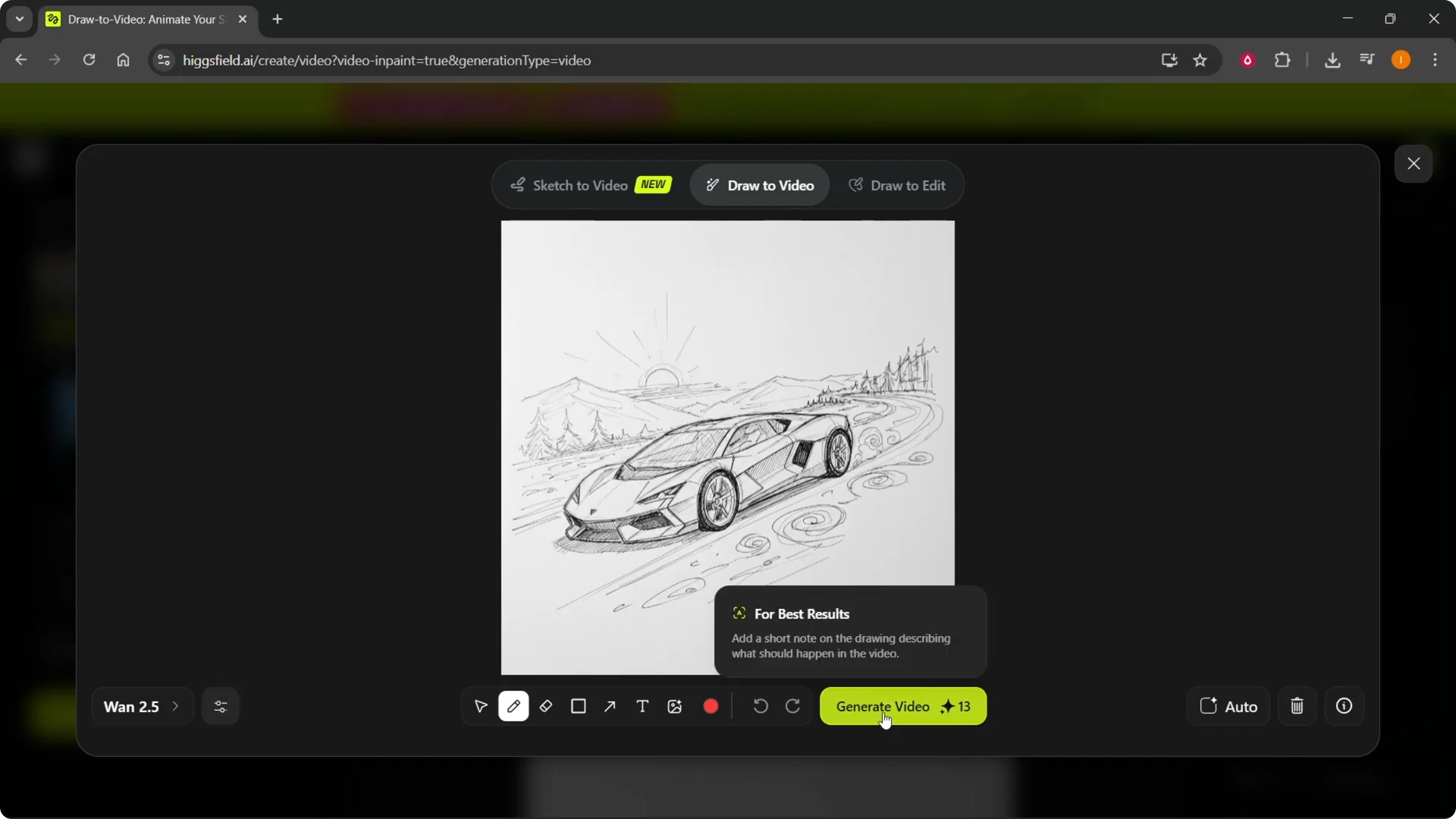
Step 8: Click Generate Video. It will use your credits and start processing. If you need to check your credits, do that before you run multiple generations.
Other options in Higgsfield Draw to Video
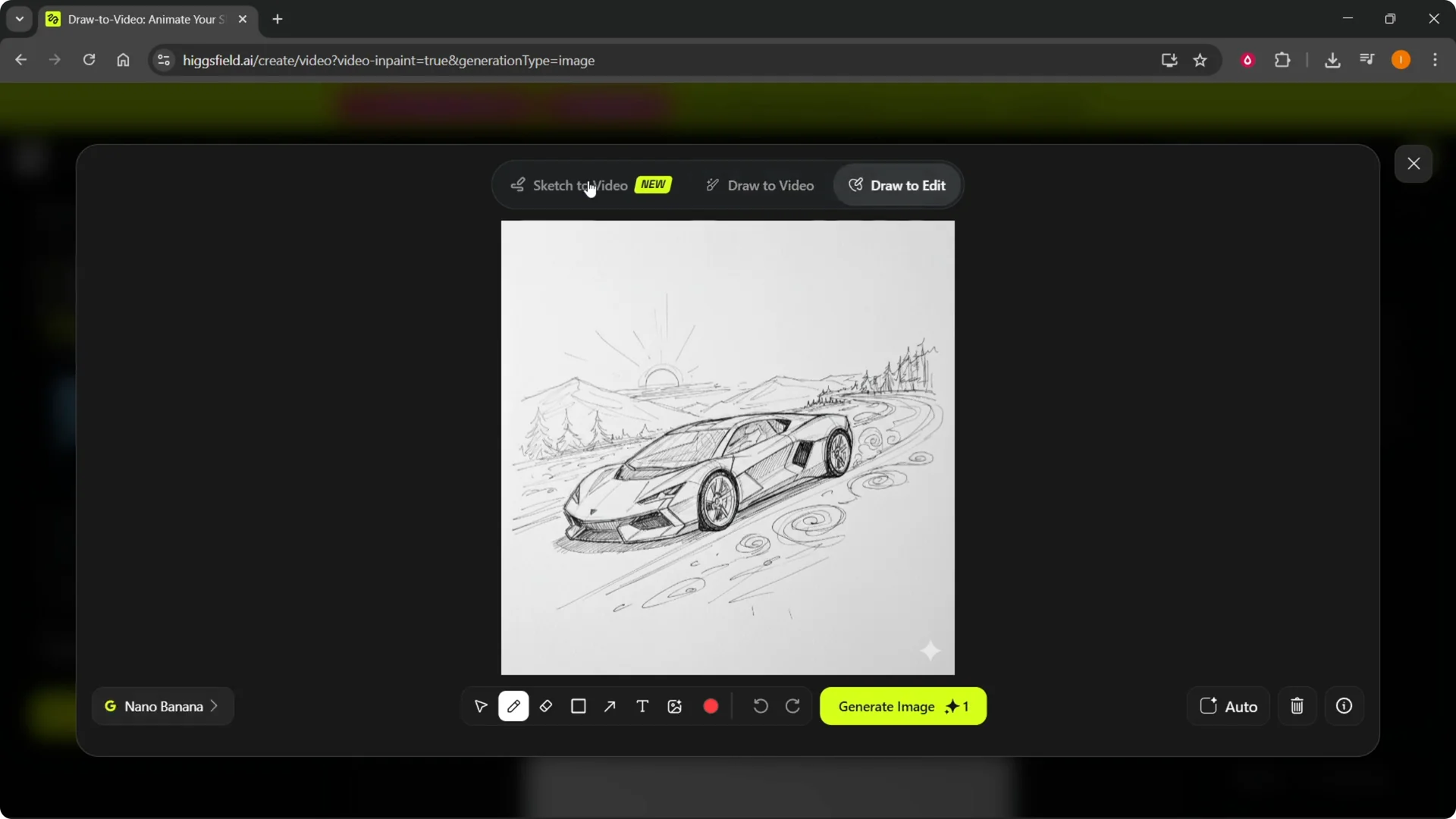
You also have Draw To It and Sketch to Video. These options let you work from different starting points if that suits your workflow better. All of these are available from the same area.
Final thoughts
That’s pretty much how you do it with Higgsfield Draw to Video. Start from a blank canvas or upload an image, add a clear note about the motion, and generate. If you’re logging in for the first time, it’s a good idea to change your Higgsfield password for security.