Here is how to use the new Nano Banana Pro on Higsfield. Sign into your account, hover over Image, and select the new Nano Banana Pro.
It is labeled as the best 4K image model.
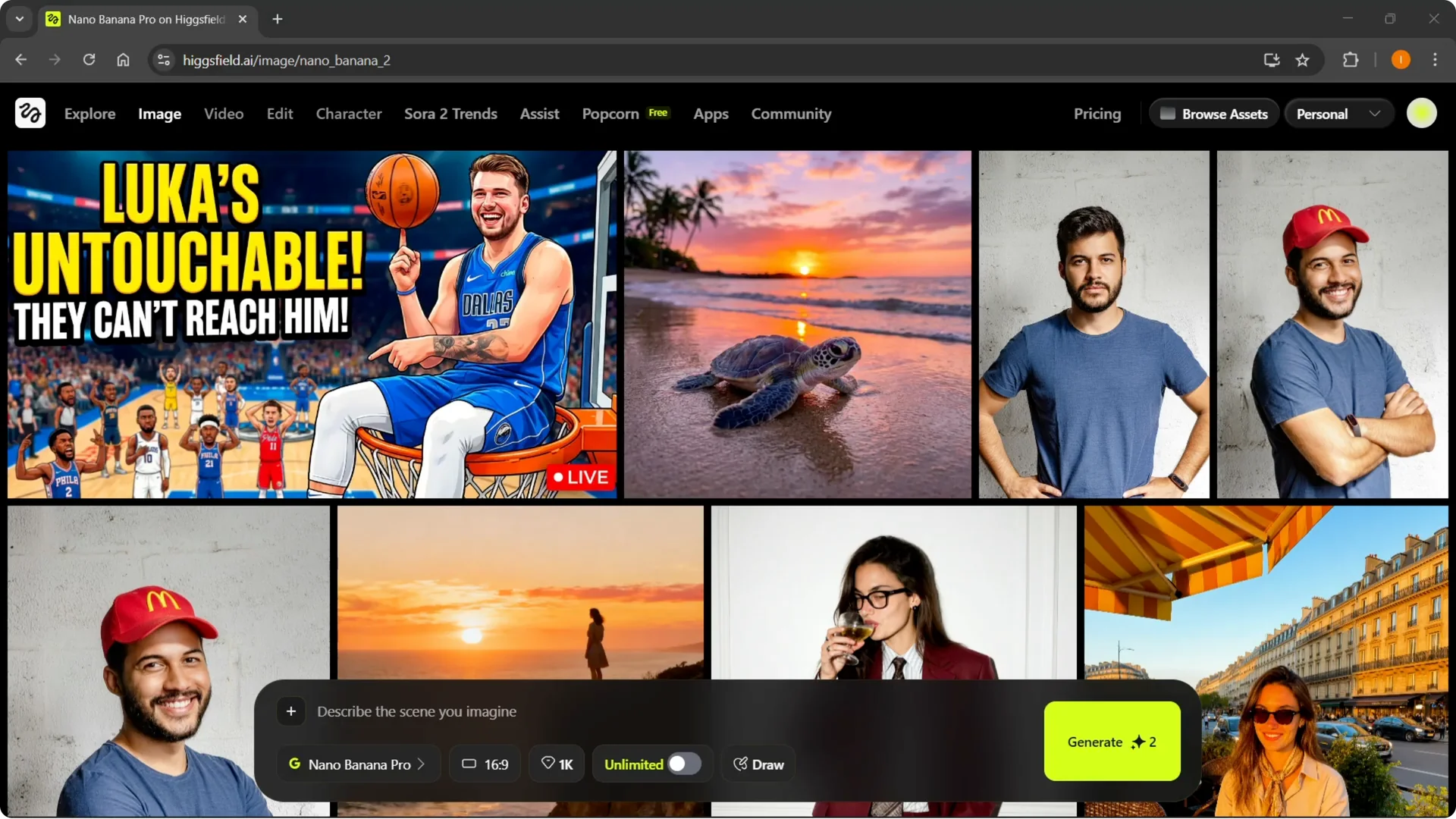
If you subscribe through Monday, November 24, Higsfield is offering unlimited Nano Banana Pro generations for one year.
That is available to new subscribers who join by that date. I will focus on how to use it.
Higgsfield Nano Banana Pro Guide: Access and setup
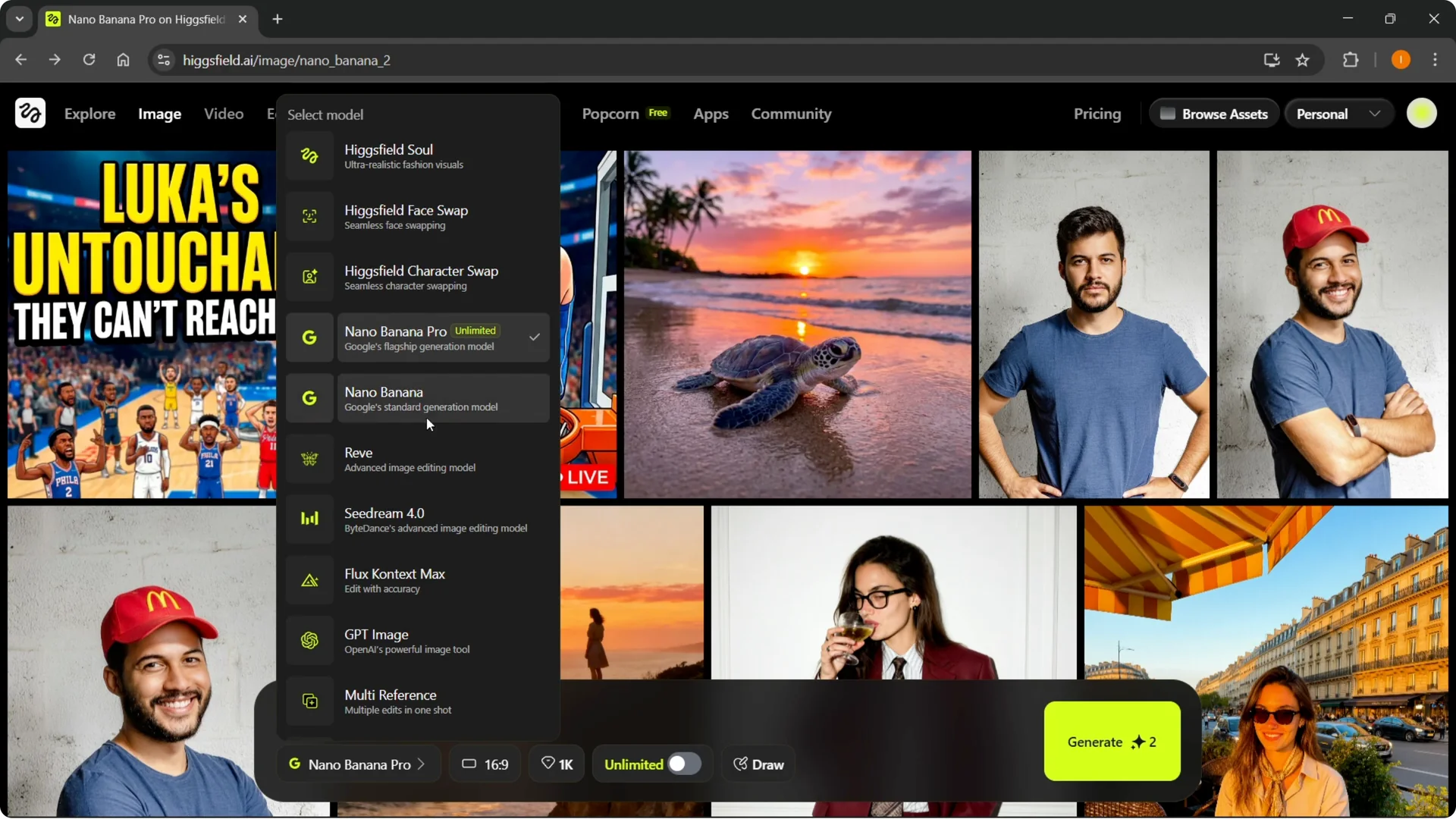
Make sure the model selector is set to Nano Banana Pro, because there is a regular version too. Select the Pro model before you start generating. That way you get the 4K Pro results.
For a deeper walkthrough of features and model behavior, see this Nano Banana Pro overview. It covers usage details you might want as you build a workflow. Keep reading here for hands-on steps.
Generate your first image
Step 1: Type a simple prompt like “a sports car on a track.”
Step 2: Confirm the model is set to Nano Banana Pro.
Step 3: Click Generate and wait for the image to render.
I also generated a cute turtle on a beach and a YouTube thumbnail to test it. Both came out great without extra tweaks. You can start simple and build from there.
Edit images directly
You can click on any generated image and edit it. Open the image editor and use plain instructions to change what you see. It will follow your prompts closely.
Disassemble a subject
Step 1: Open the car image in the editor.
Step 2: Type “Disassemble this car into parts on a white table.”
Step 3: Click Generate to create the disassembled version.
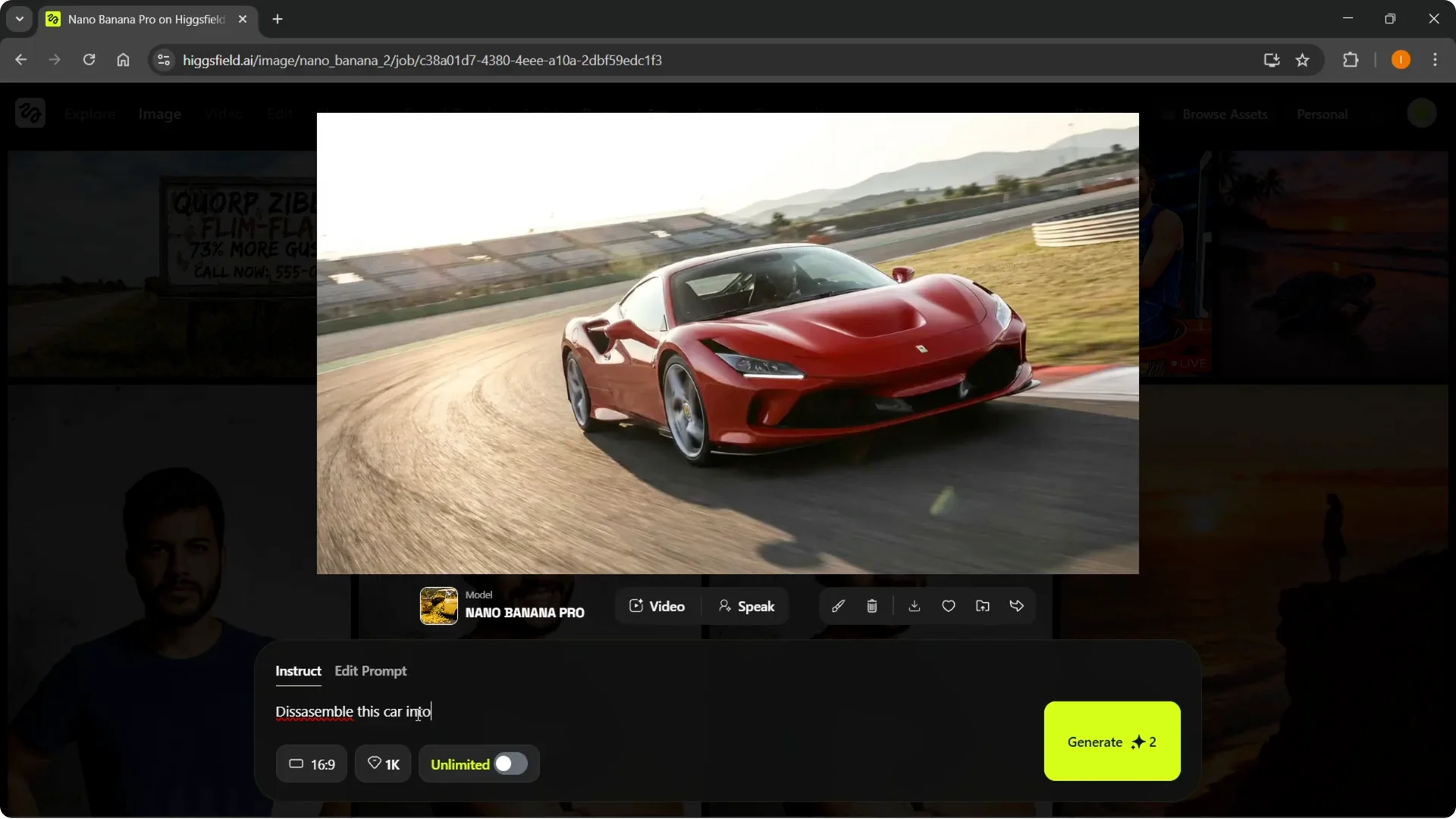
It kept the same car and laid out the parts on a white table. The output matches the instruction very closely. This is a fast way to create breakdowns and product part shots.
Nano Banana Pro Guide: Text and billboards
You can generate a billboard with text and then translate it. Create a billboard with your headline or slogan first. Then instruct it to translate that text.
Step 1: Generate “a billboard with [your text].”
Step 2: In the editor, ask it to “translate this to Spanish” or “translate to an ancient language.”
Step 3: Click Generate to update the lettering.
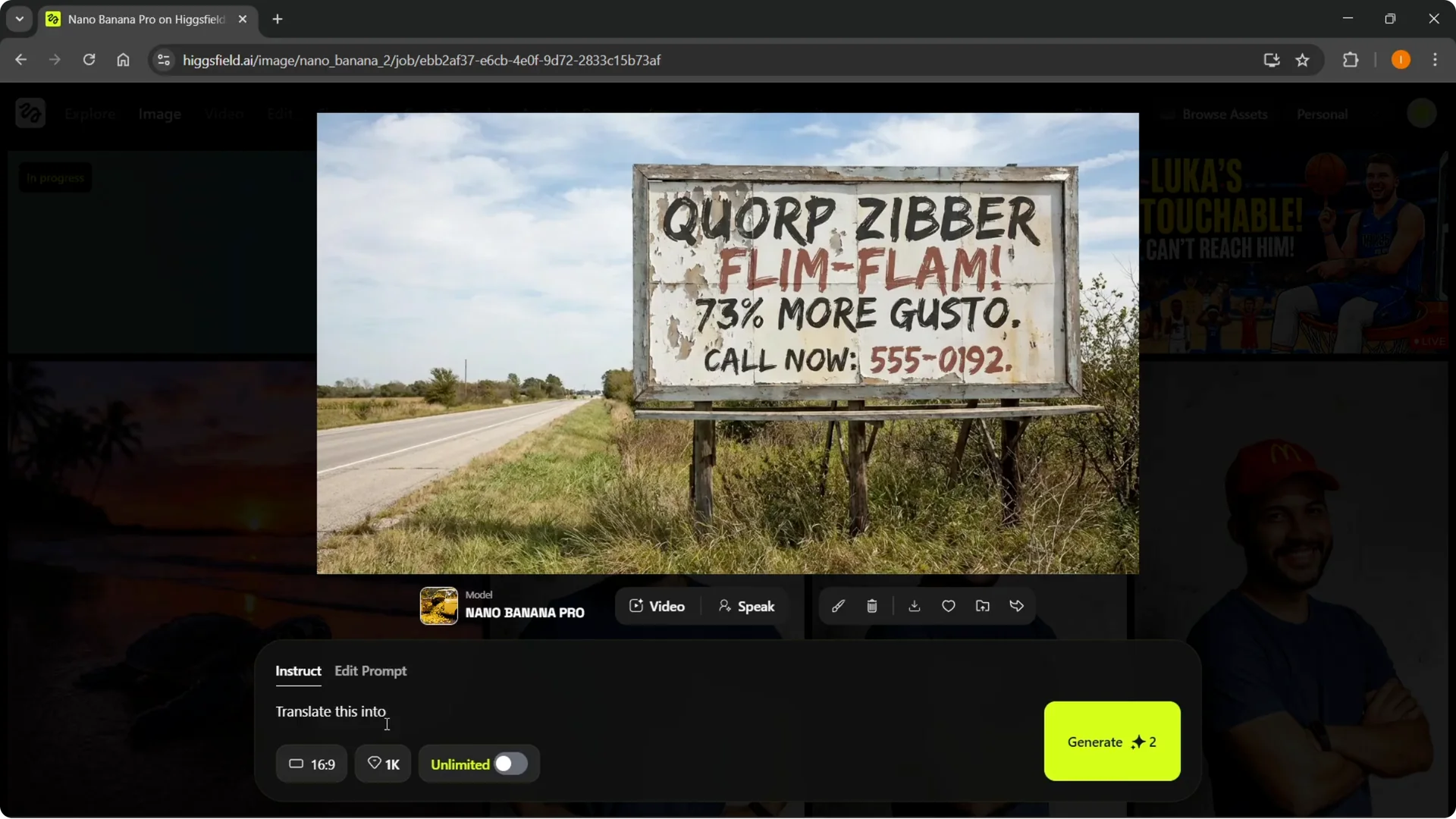
Text now reads correctly and follows the phrasing you type. That makes it useful for posters, ads, and headings. You can refine specific words and regenerate.
Zoom into details
Zoom lets you push in on a part of the image. I used it to zoom into the car brand logo at 100x. It created a clean zoomed version as instructed.
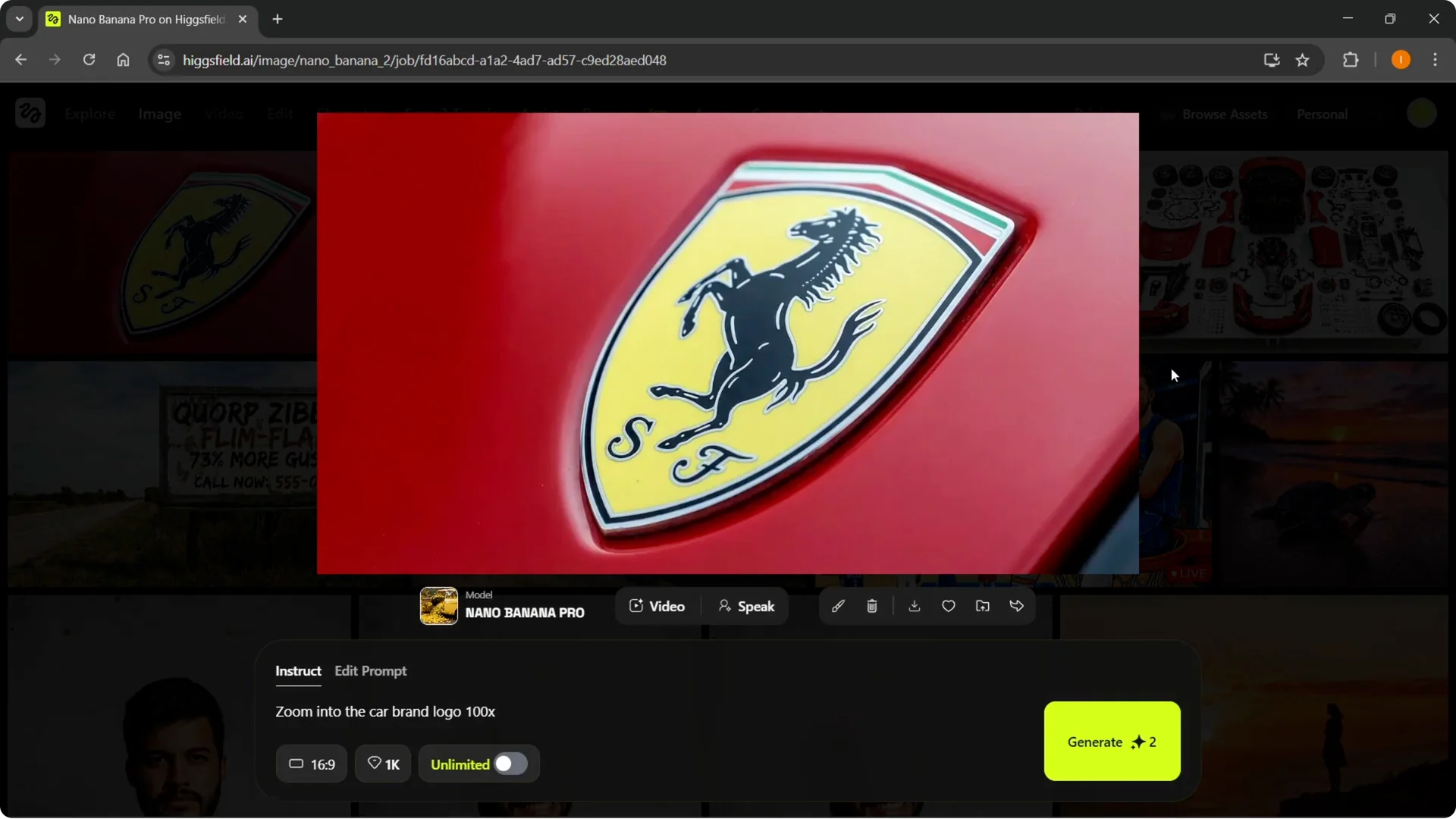
Step 1: Open the image and choose Zoom.
Step 2: Type “Zoom into the car brand logo 100x.”
Step 3: Generate the zoomed frame.
Face swaps and identity edits
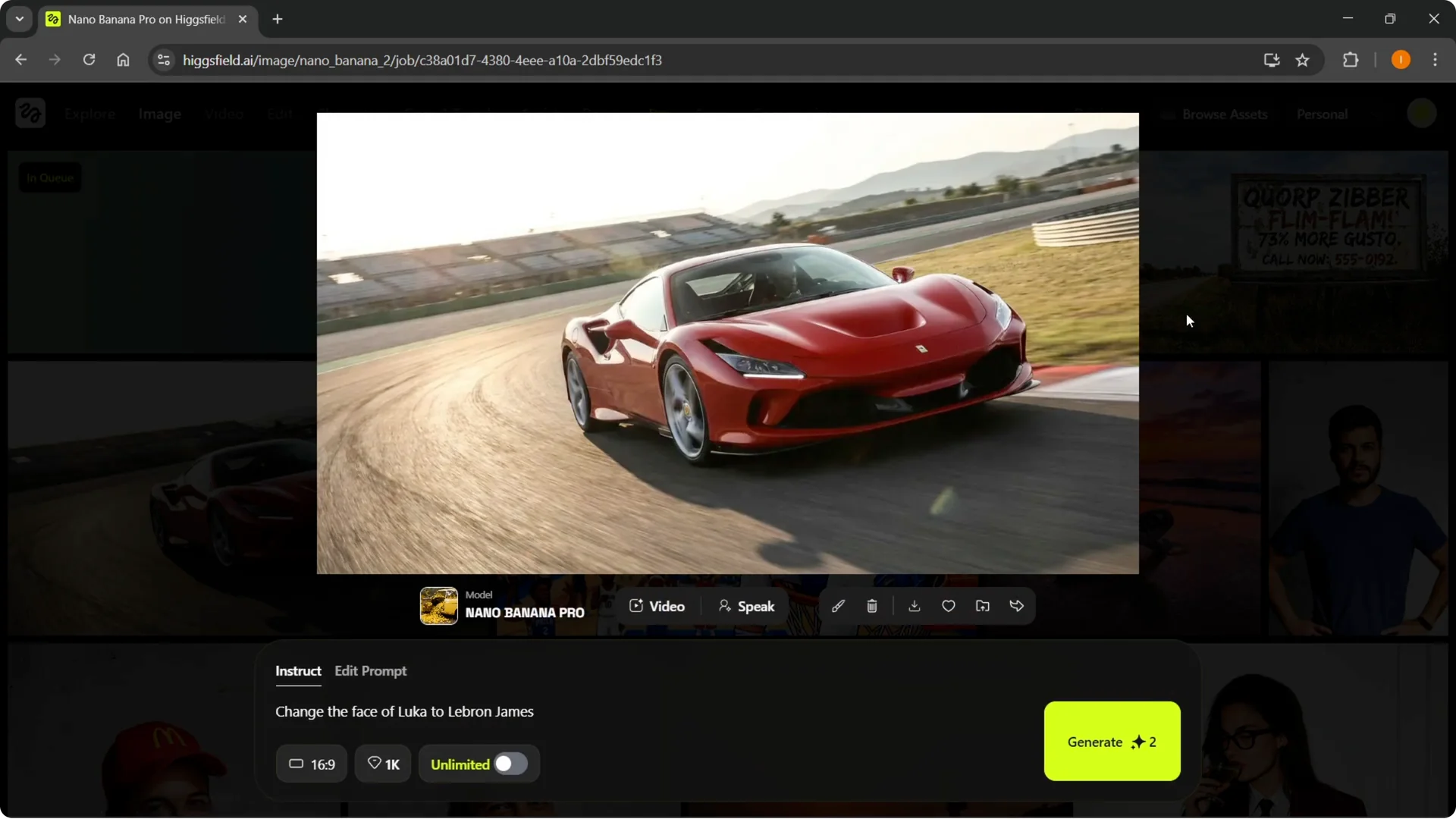
You can swap faces across images. I changed the face of Luka Donic to LeBron James and it followed that instruction well. It also lets you edit in canvas and draw over areas you want changed.
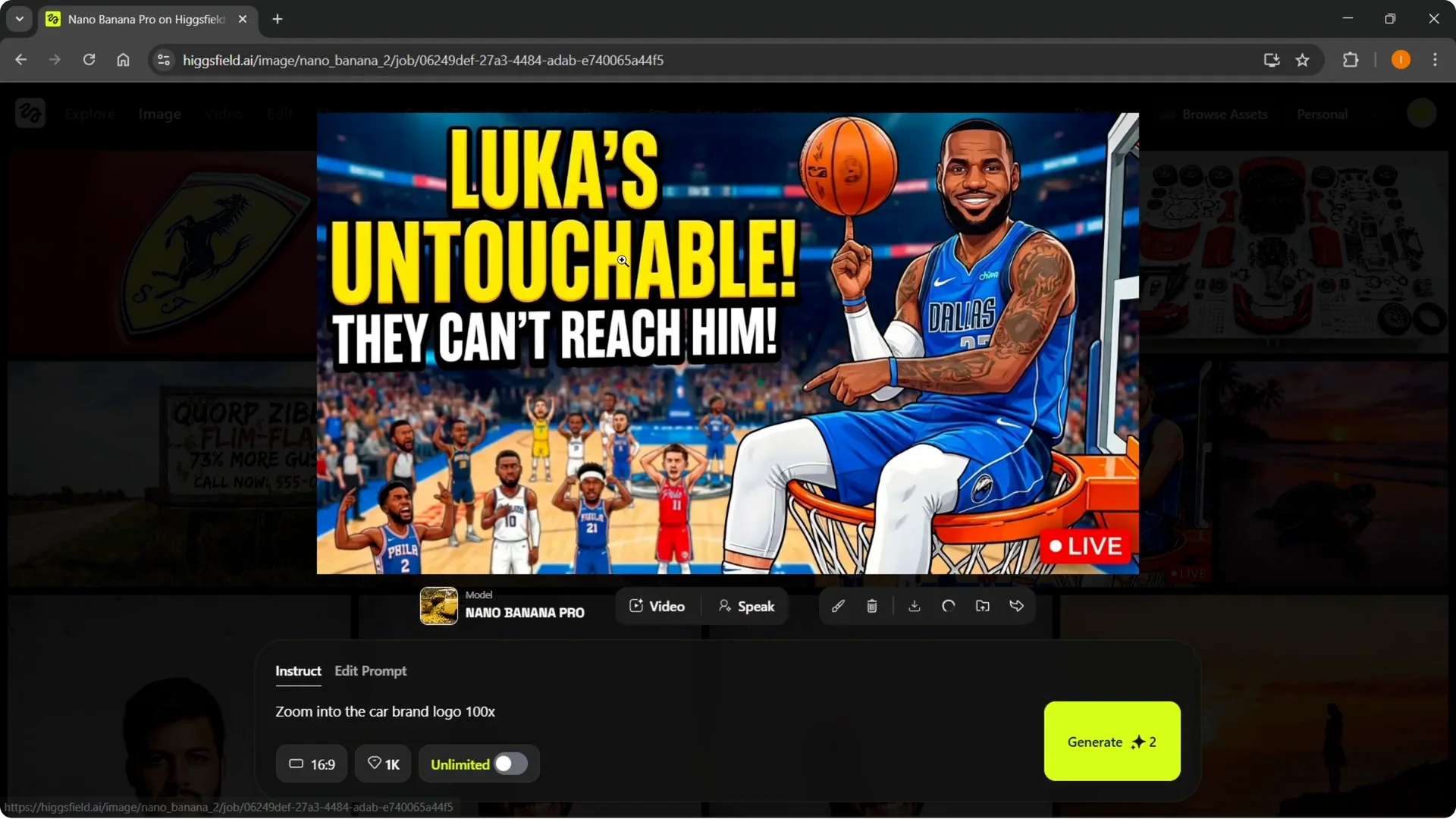
Step 1: Select the image and open Edit or Canvas.
Step 2: Type “Change the face of Luca to LeBron James,” or draw over the face area and label it.
Step 3: Generate to apply the swap.
You can start from complete scratch and type anything you need. For example, describe a video game scene you want, then refine it. It adapts to detailed prompts and keeps context.
Quality, queue, and aspect ratio
There is an unlimited mode that gives you unlimited runs in the standard queue. You can turn that off for faster results. Pick the mode that fits your speed and volume needs.
Aspect ratio can be set at the bottom of the interface. You can also choose the output quality, like 1K or 4K. 4K takes longer to process.
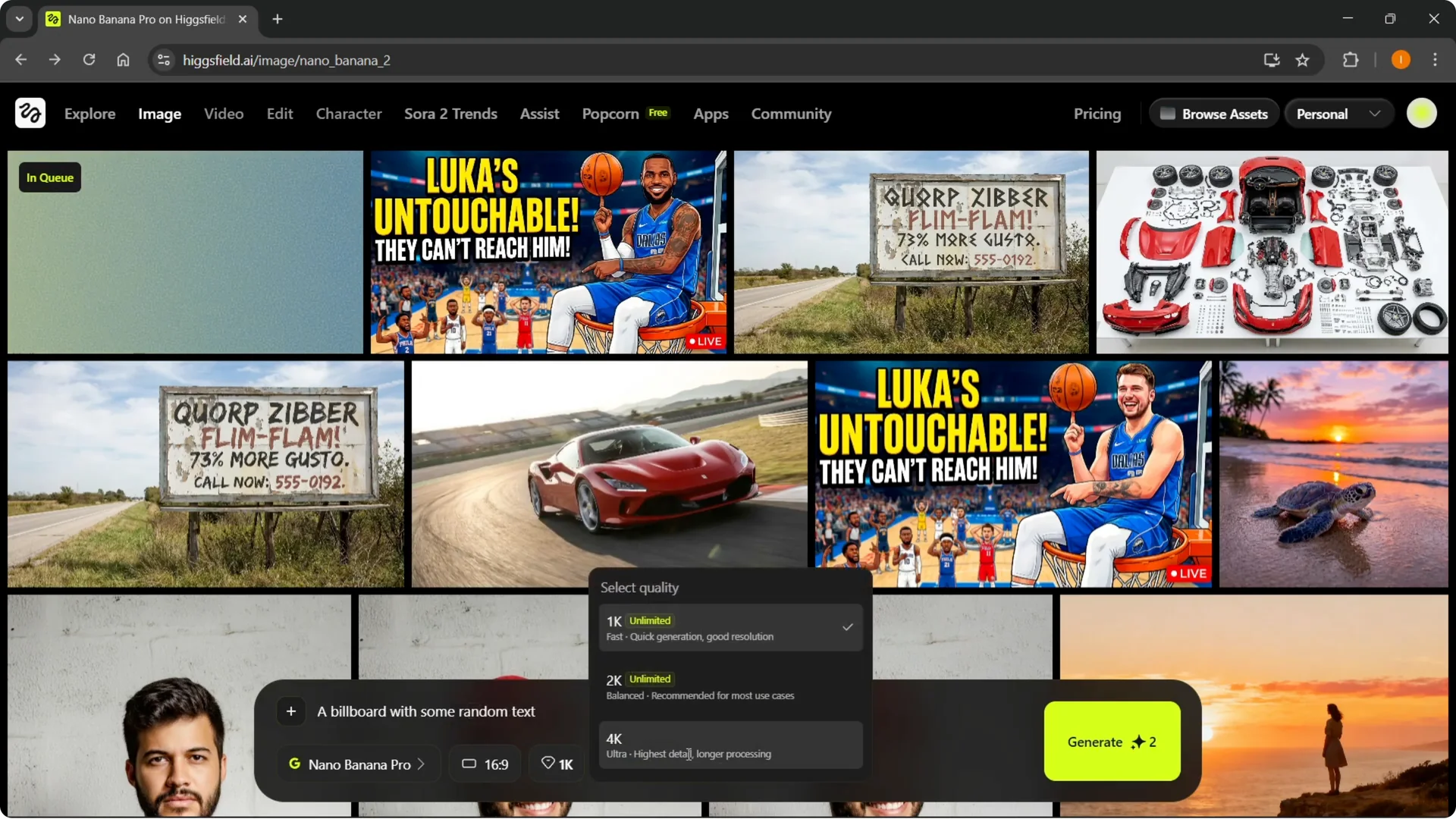
You can draw a quick sketch and turn it into an image. Canvas editing lets you paint over areas and instruct changes like “switch faces here.” It is fast and flexible for touchups.
Read More: Quick Easy Ways Use Higgsfield Popcorn
Quick edits on clothing and props
You can add symbols or accessories. I took a person and asked for a Superman logo on the shirt and some shades or goggles. It added them in a few seconds.
Step 1: Open the portrait in the editor.
Step 2: Type “Put a Superman logo on his shirt and give him some shades.”
Step 3: Generate the updated image.
Use cases
This works well for brands, thumbnails, poster artists, educational creators, and performance marketers. It handles product shots, ad mockups, and social graphics. It is also great for quick concept art.
You can keep iterating inside the editor for each use case. Translate text, zoom, swap faces, and adjust style and layout. Build versions and compare results.
What is new in Nano Banana Pro
It has 4K image quality. Text reads correctly, so signs, labels, and posters come out clean. Visual reasoning is included and it uses the Gemini model from Google.
It creates stronger faces and identity control. That helps you build consistent characters across multiple images. For tips on building character consistency, see this character creation guide.
The model generates data aware images and follows prompts exactly as described. That improves accuracy across scenes and details. It stays aligned to your instructions from start to finish.
Export and animate
You can turn an image into a video or animation. You can also keep editing inside Higsfield with Nano Banana Pro. Keep refining until it matches your brief.
Final thoughts
Nano Banana Pro is easy to access on Higsfield and delivers high quality results. Editing, translation, zoom, and face swaps make it practical for daily creative work. If you need a full feature breakdown and extra tips, start with this Nano Banana Pro guide and build your own workflow.