Here is how to use Higgsfield Popcorn to create visual stories. I walk through selecting the model, using Automatic and Manual modes, and the Insta Dump feature. You can generate scenes from a single image and turn the results into short films.
Higgsfield Popcorn Tutorial: Getting started
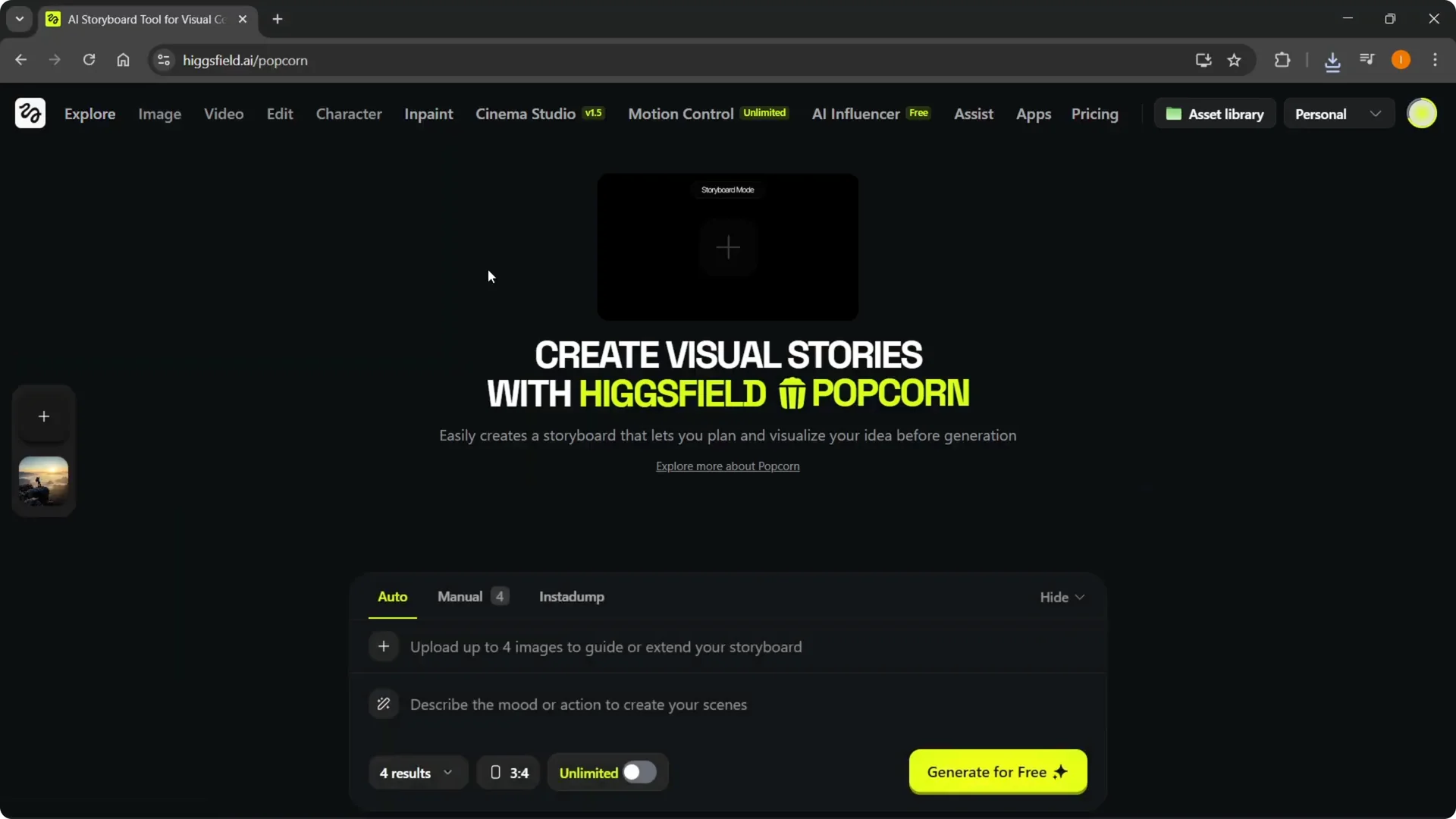
Step 1: Under Platform, hover over Image.
Step 2: Under Models, select Higgsfield Popcorn.
Step 3: This is where you can create visual stories with Higgsfield Popcorn.
Read More: Higgsfield Promo Code Use
Higgsfield Popcorn Tutorial: Automatic mode
You have a bunch of different options, and the first one is Automatic.
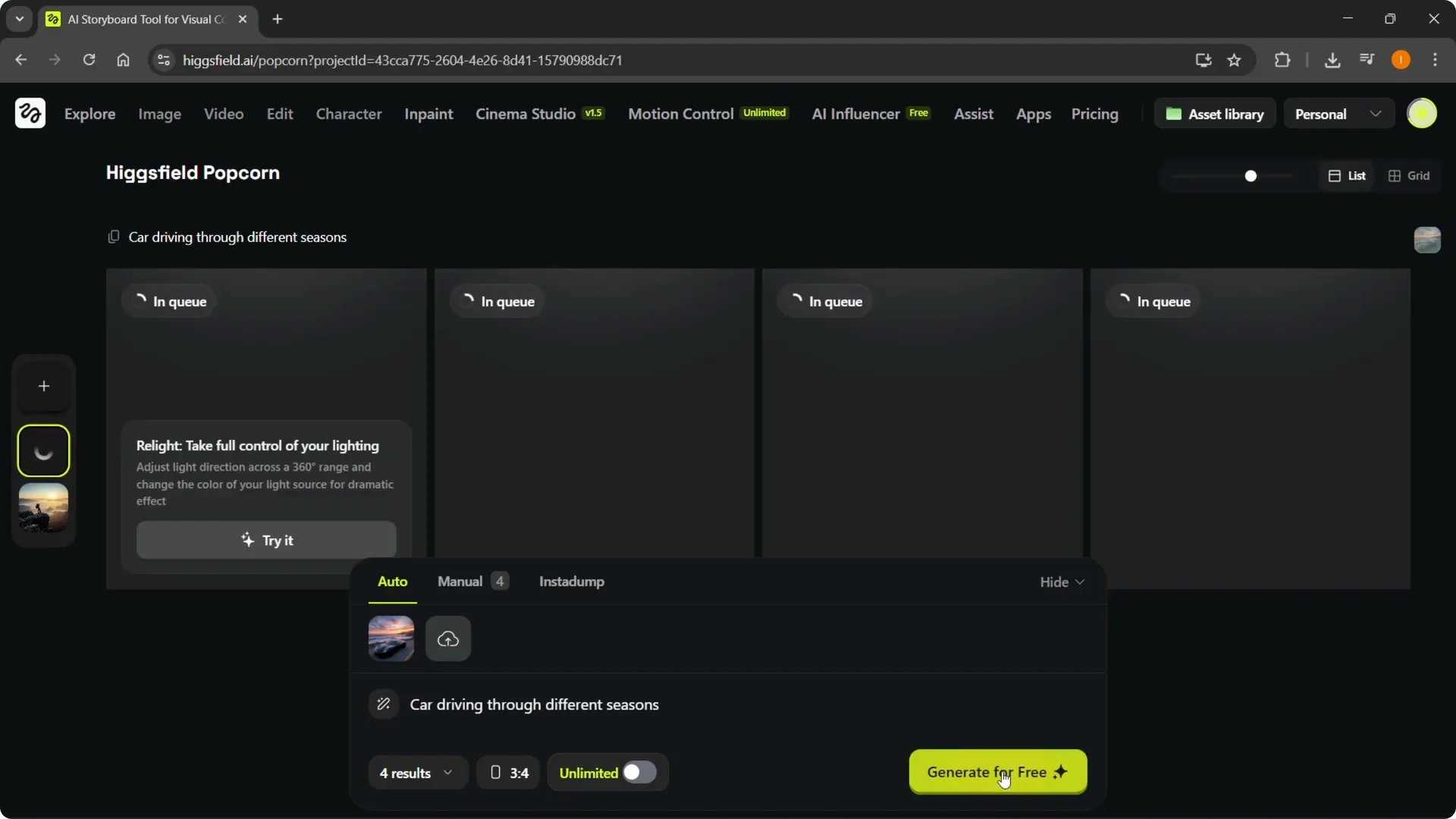
Step 1: Click Upload and select an image.
Step 2: Describe the mood or action to create your scene.
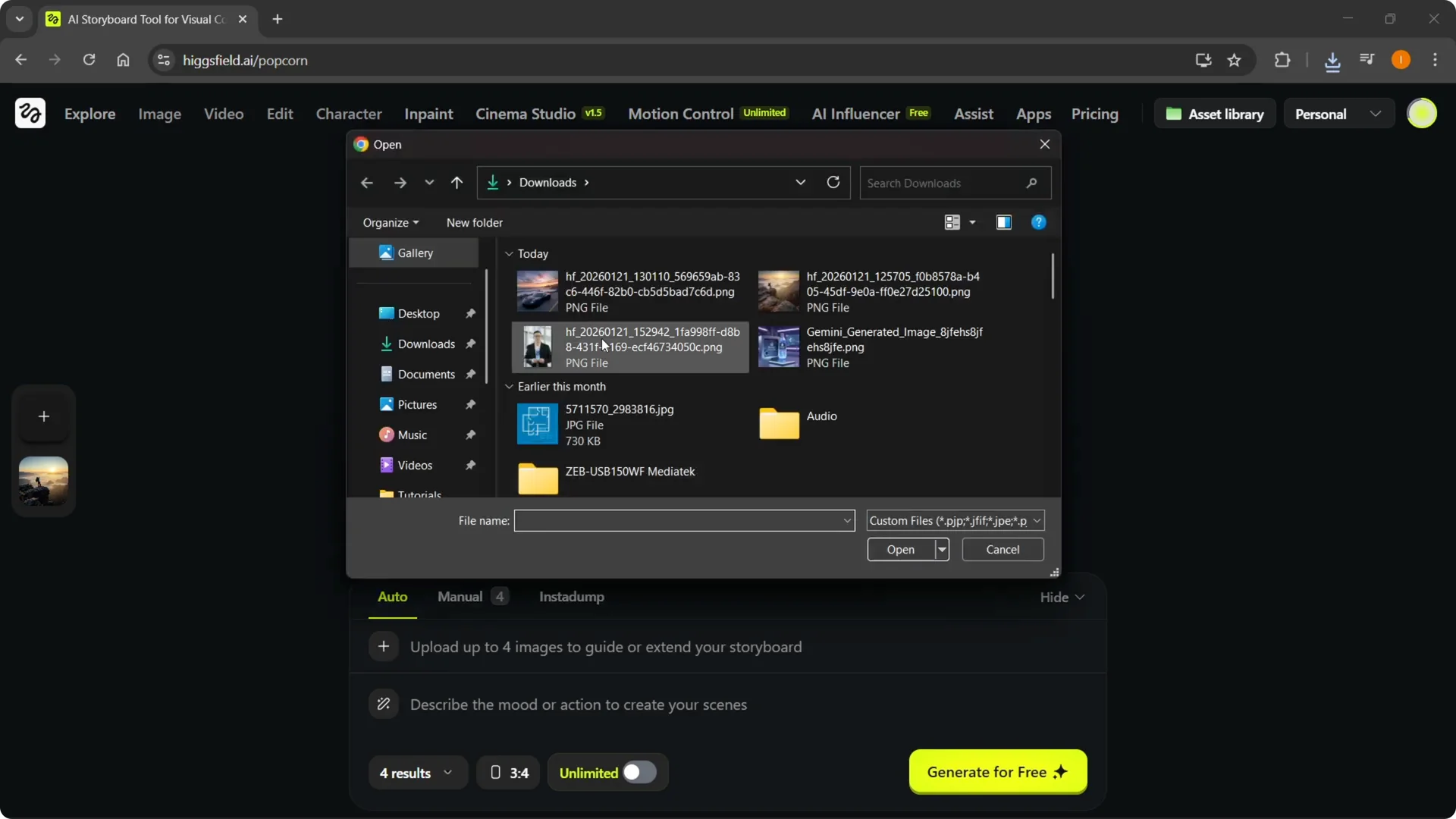
In my example, I use a car image and type “car driving through different seasons.”
Step 3: Choose how many results you want, up to eight.
Step 4: Pick an aspect ratio like 3:4, or choose another one.
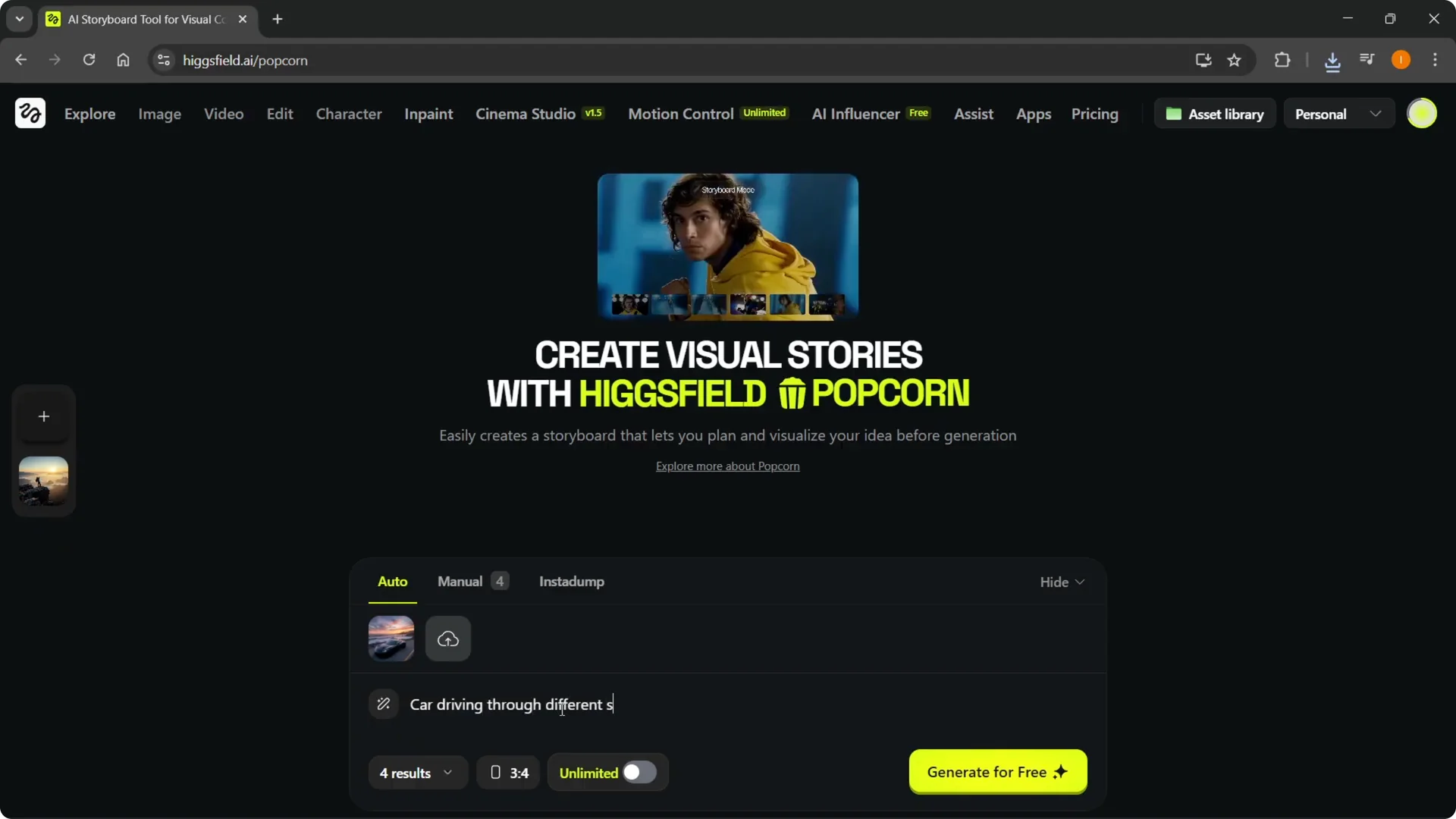
Step 5: Choose Unlimited or the other mode for faster or slower generation.
Step 6: Click Create or Generate to start.
It will begin generating your images.
Higgsfield Popcorn Tutorial: Manual mode
Manual mode lets you control each scene.
Step 1: Switch to Manual.
Step 2: Add a source image.
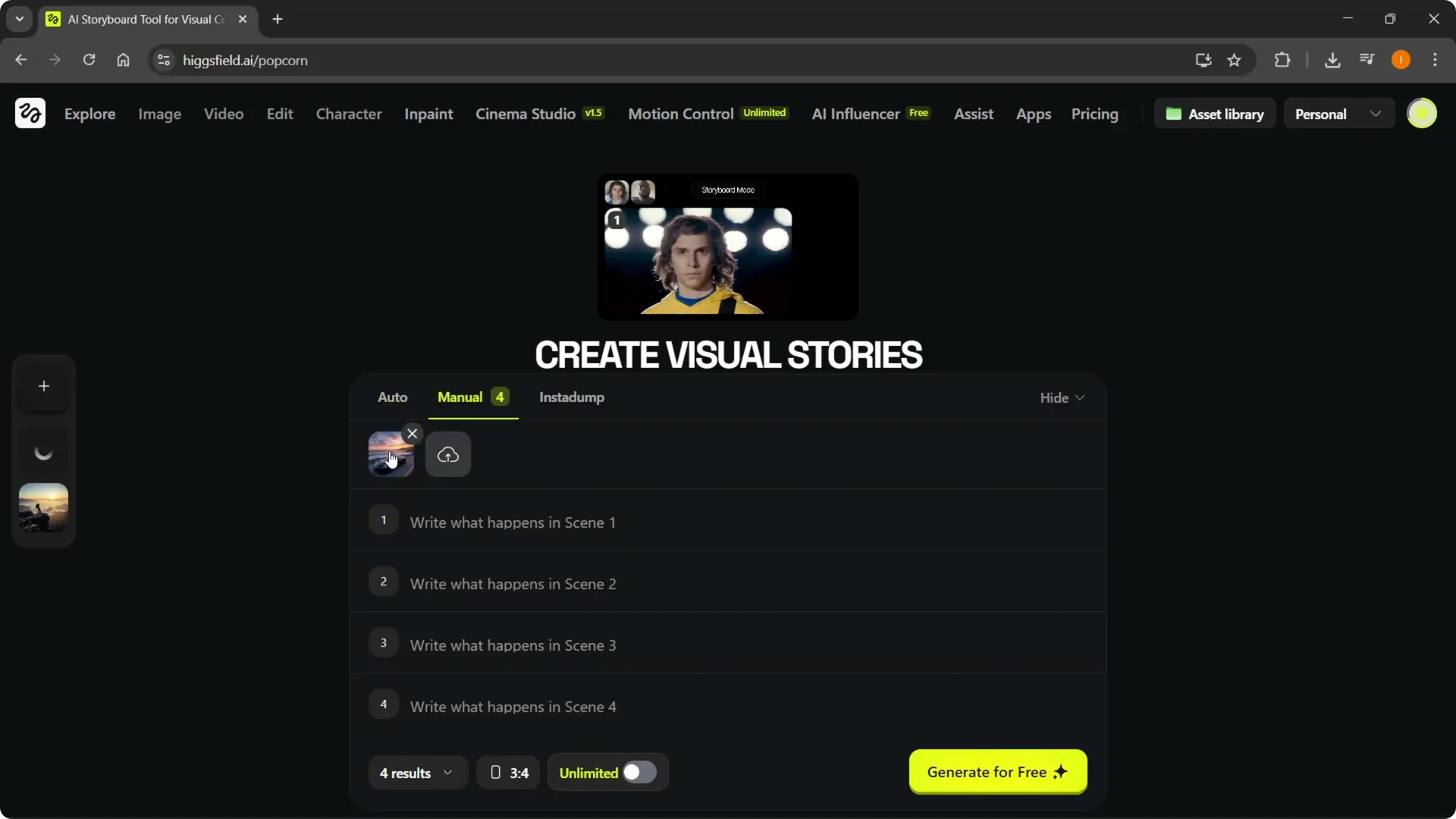
Step 3: Describe what happens in different scenes.
For example, “the car drives to the snowy mountains” and “a car driving in autumn.”
Step 4: Add new scenes, up to eight total including the default image.
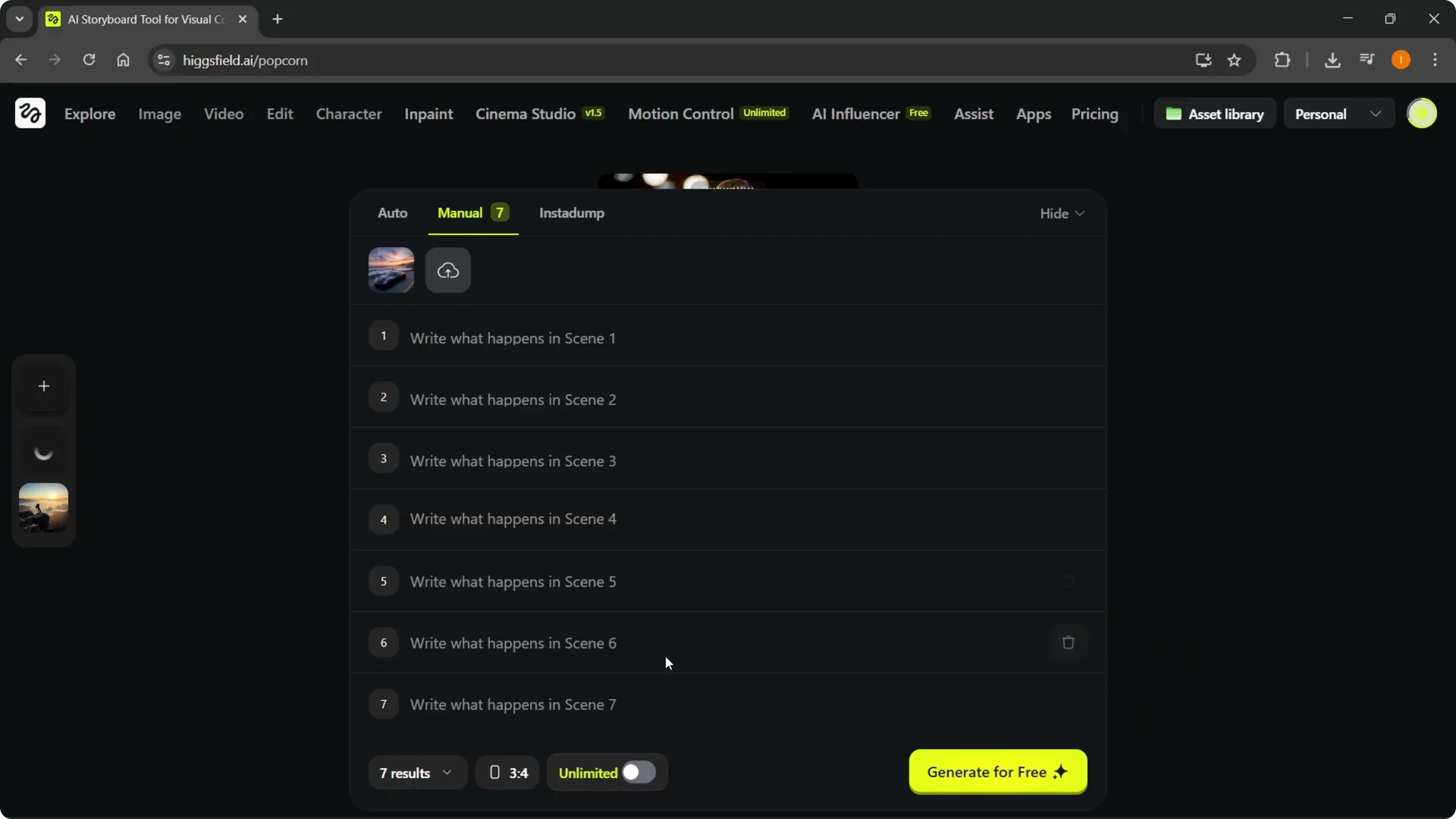
Step 5: Generate your set of images.
These can represent scenes you can use to create your own movies or short films.
You can expand or refine each scene prompt as needed.
Read More: Ugc Ads Higgsfield
Higgsfield Popcorn Tutorial: Insta Dump
There is also an Insta Dump feature.
Step 1: Upload your favorite photos and build a pack to generate new images that look like you.
Step 2: Create a pack or use any of the available packs.
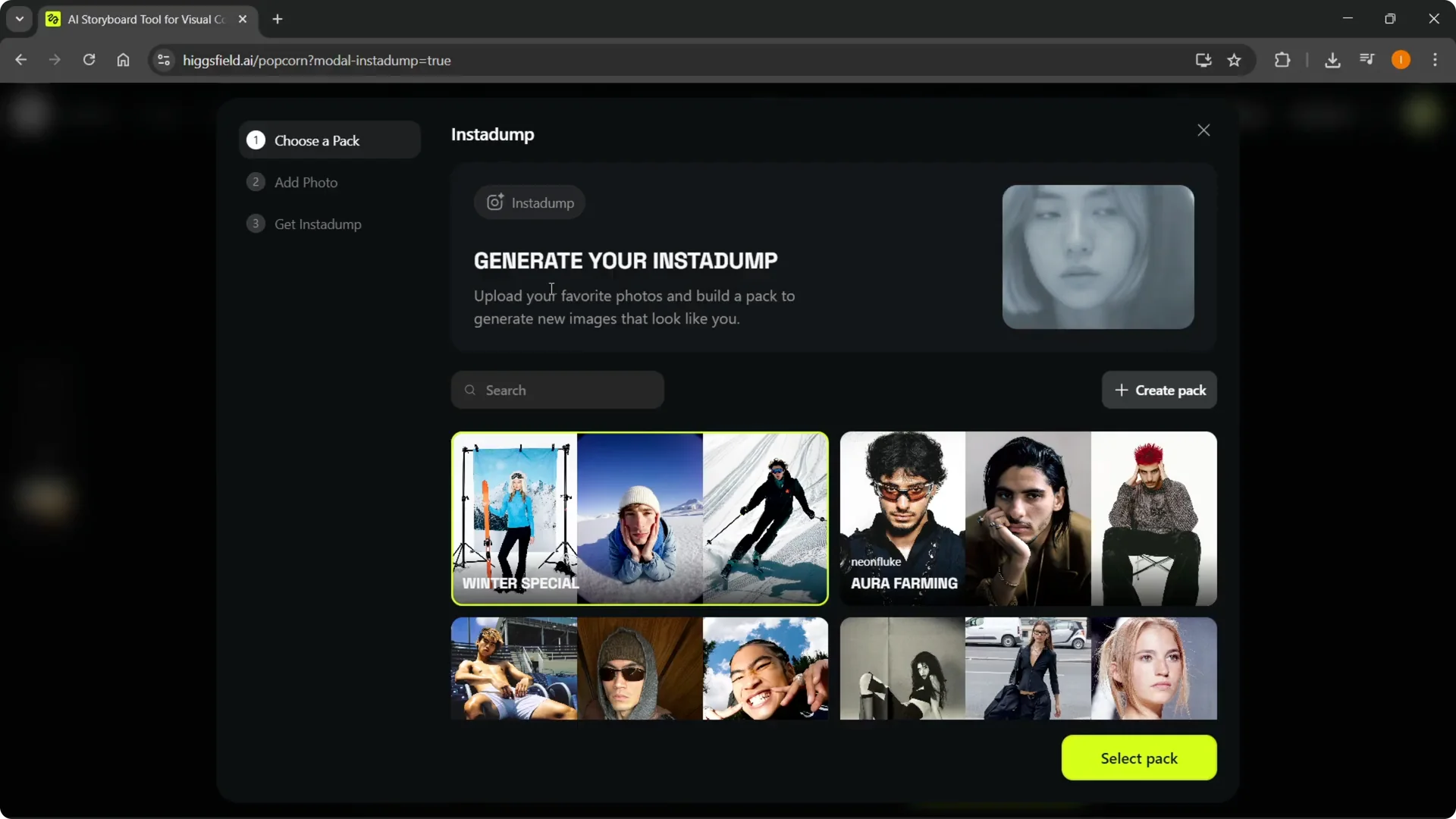
In my example, I put in an image and describe “a man on a journey.”
I use four photos to build the set.
If I wanted to create a short movie from them, this would do the trick.
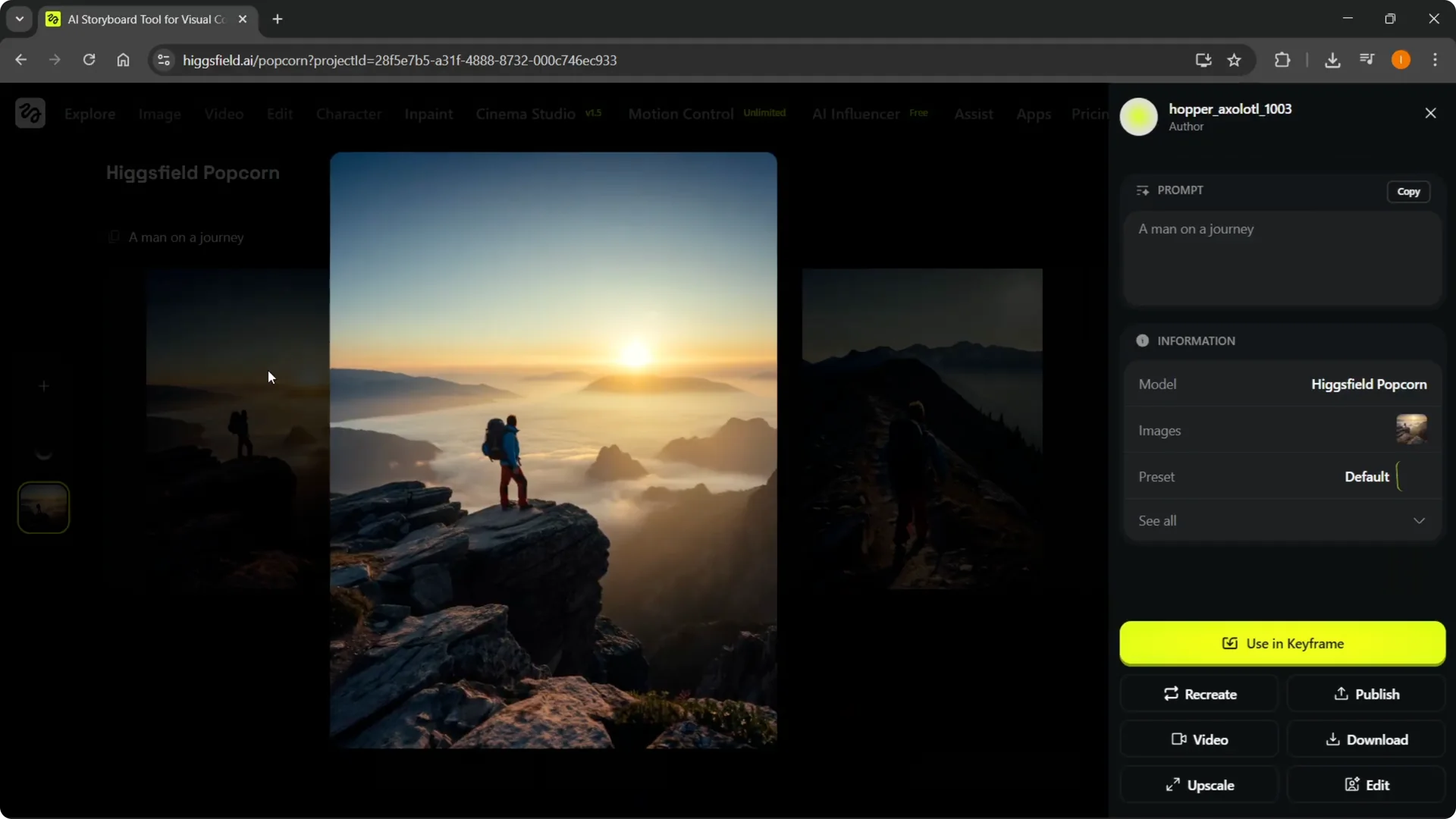
Generation usually takes a few minutes.
It may be quicker at times of day with fewer generations happening.
When it finishes, you’ll see the results as a set.
Read More: Mastering Sora 2 Higgsfield
Higgsfield Popcorn Tutorial: Results and next steps
In my seasons example, it created four images that matched the request.
It is the same car in roughly the same location, shown in different seasons.
That makes it easy to pick and order them as a visual sequence.
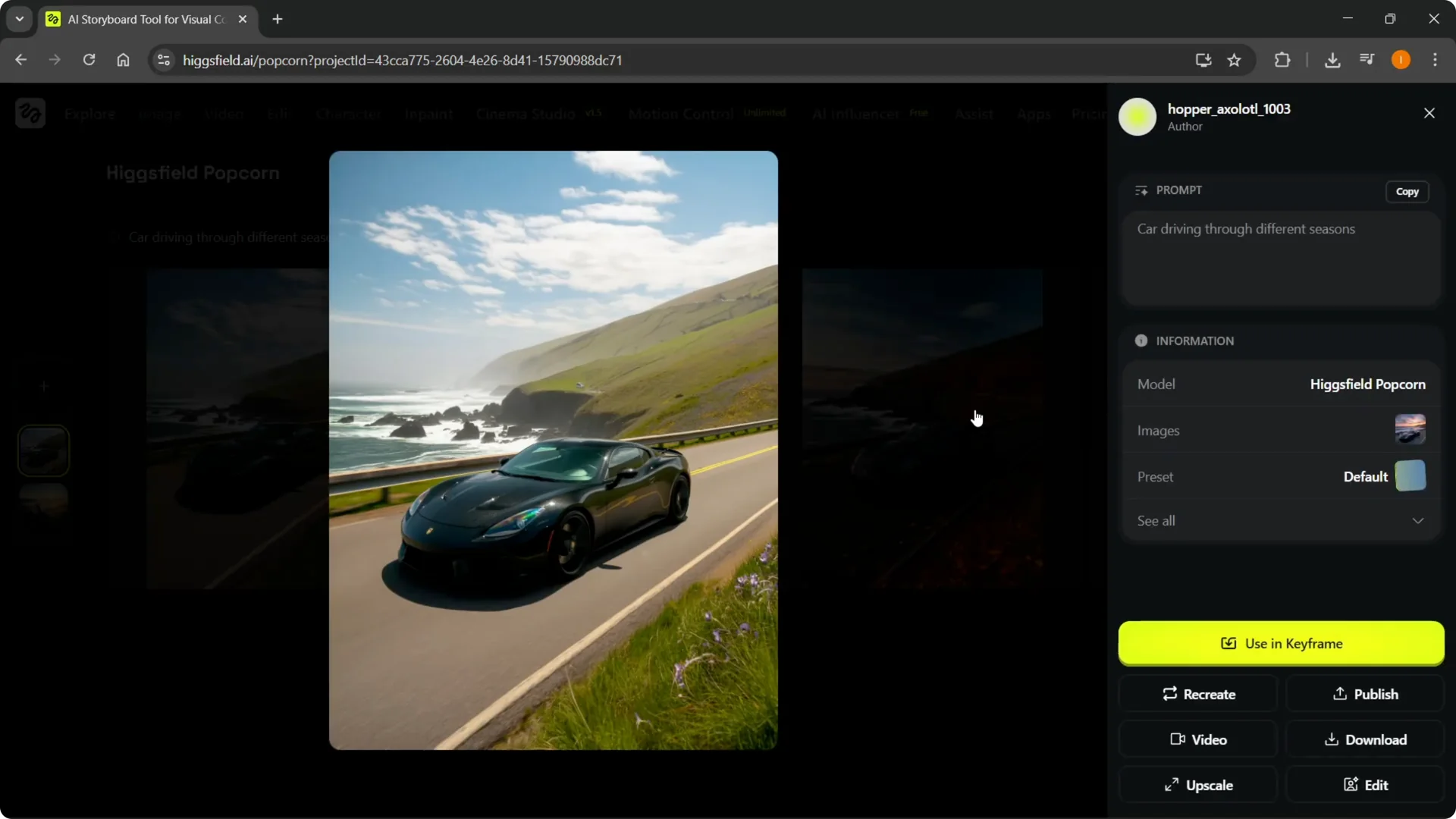
You can use these images to create videos.
You can upscale them.
You can upload them wherever you want.
Final thoughts
Select the Higgsfield Popcorn model, then choose Automatic for quick scenes or Manual for scene-by-scene control.
Insta Dump is great for building a pack from your photos and generating sets that match your look.
Set your prompts, choose your settings, generate, and turn the outputs into short films or photo stories.