Higgsfield just dropped a ton of new tools. A lot of you have been asking me about video face swap and character swap. They are here, and they are pretty good for quick swaps.
When you land on the Higgsfield app, click the Character tab. This is the new hub where they have organized all the character and swap features. We previously covered face swap for images, but we are focusing on these new video tools.
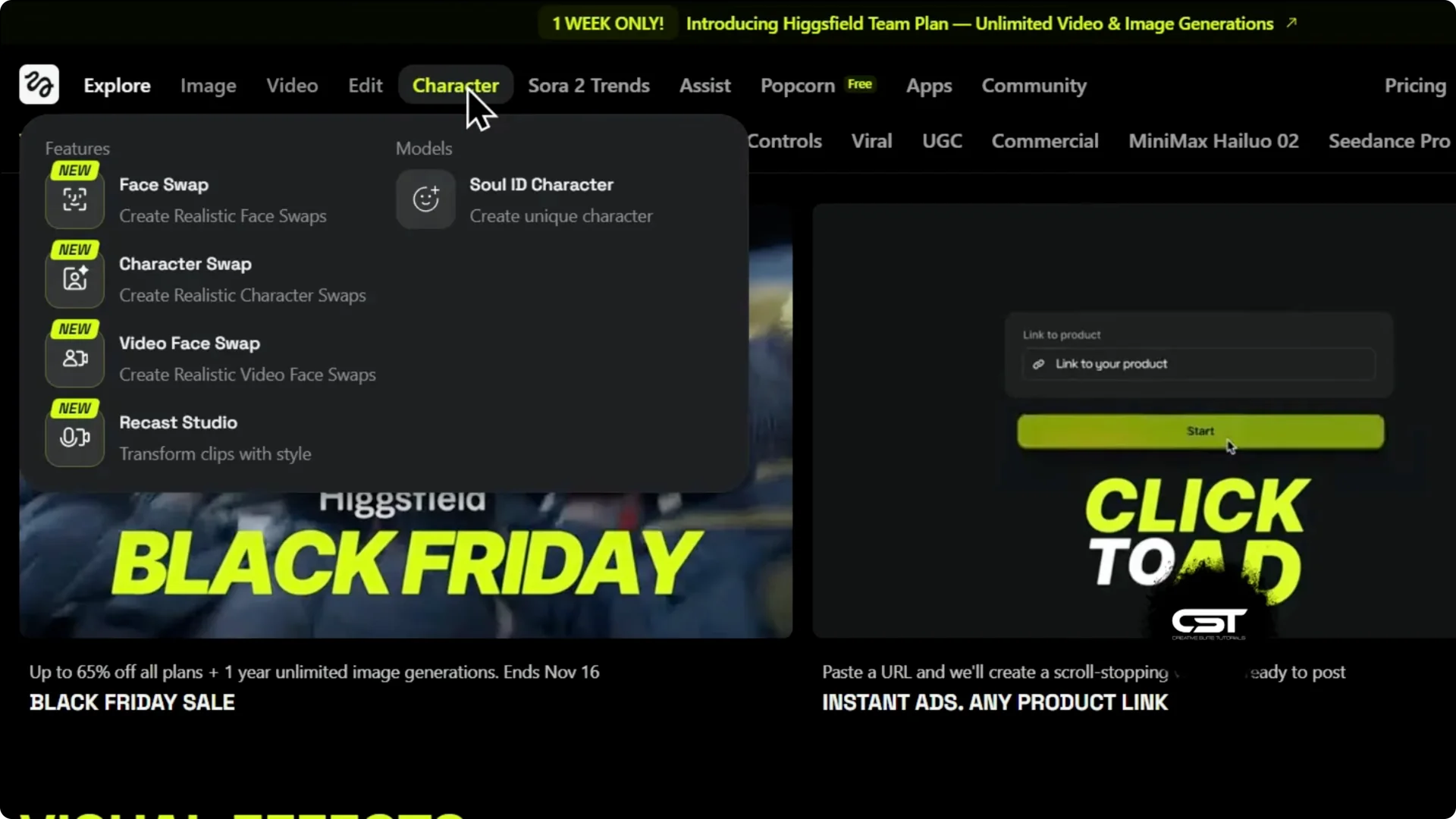
Higgsfield Recast Studio Workflow: Two paths
First, you have video face swap. It is technically part of the Recast engine, but it is simplified. You give it your source video and a target face image, and it generates the face swap for you.
It is simple and effective for quick face replacements. But Recast Studio is where the real opportunity is for content creators. This is the full stack workflow.
You start with your source video. Then select Character, scroll through presets, or upload your own. Go to Voice and Dubbing, clone your own voice or choose a preset.
Right below, you can autodub that video into different languages with automatic lip sync. You can even swap the background. This is a total character replacement to create a completely new video from your original.
For a broader look at the studio features and what they cover, see this overview of Higgsfield’s studio.
Higgsfield Recast Studio Workflow: Build a content engine
Here is the real secret. The pro level workflow is not just swapping a face on your own video. You can take content that is already viral and legally repurpose it, multiply it, and aim it at any new audience or demographic you want.
We are not just reviewing features. We are building a complete content workflow. We will focus specifically on Recast Studio.
I will show you how to take one single piece of content and turn it into 10, 20, or even 30 plus variations. We are talking different characters, different backgrounds, and different languages, all from that one original clip. Focus on this workflow first because this is the part that will actually change how you make content.
Higgsfield Recast Studio Workflow: Step-by-step
Step 1: Add your source video. Start with the clip you want to recast. Keep it clean and clear so the tool can read your performance.
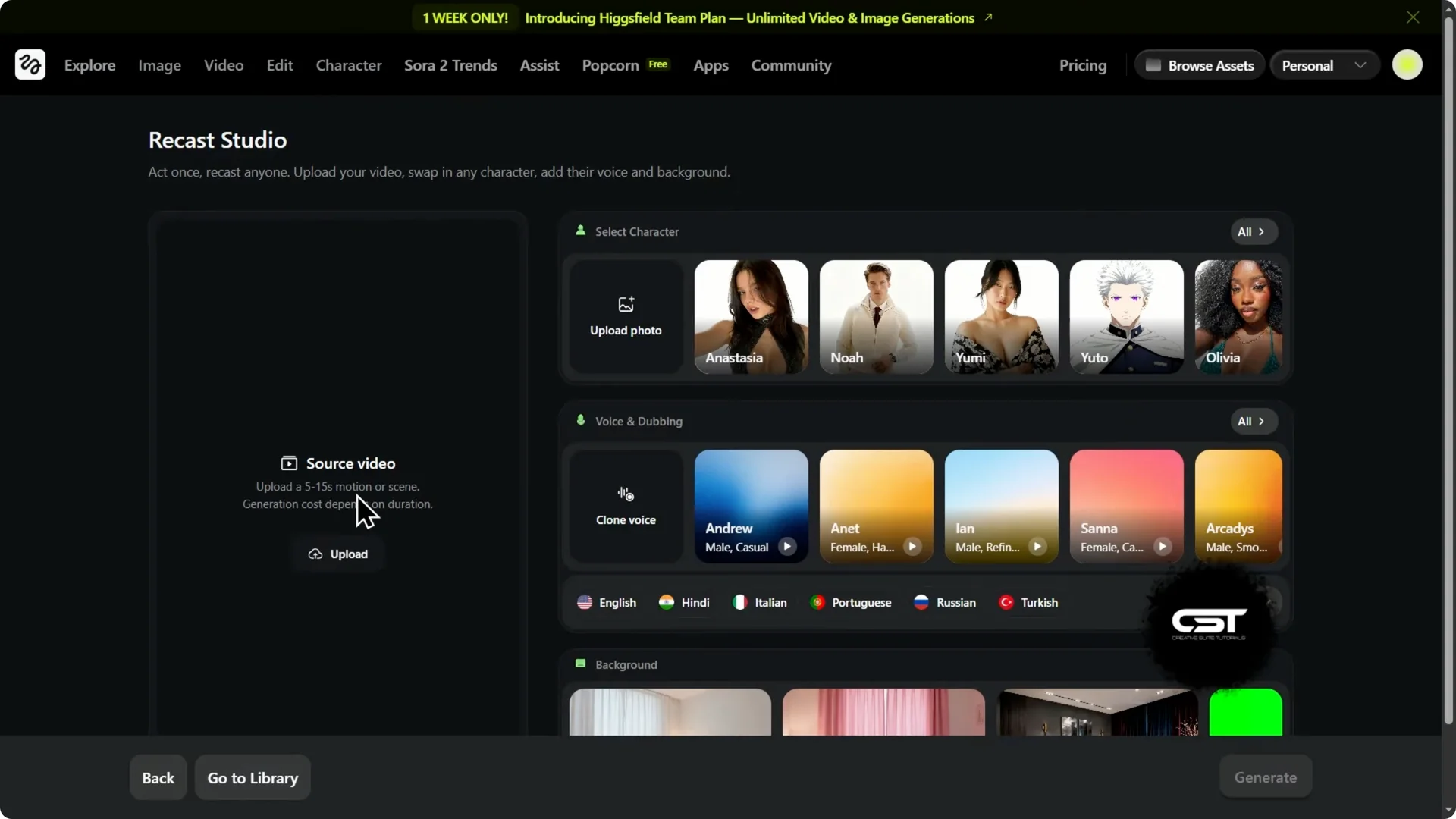
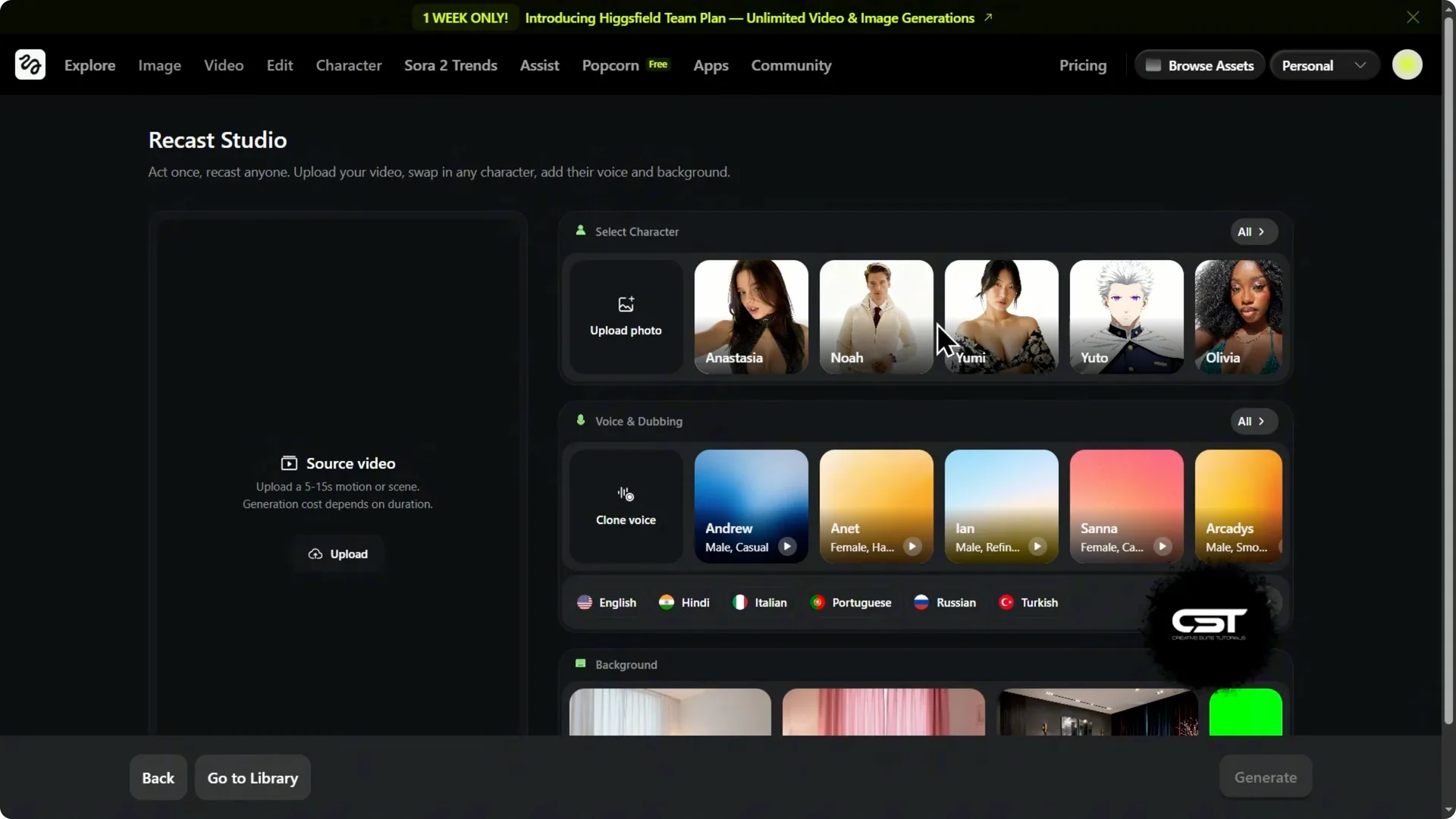
Step 2: Choose the character. Scroll the preset library for a fit or upload your own photo to create a custom character. Your own uploads are incredibly powerful for unique branding.
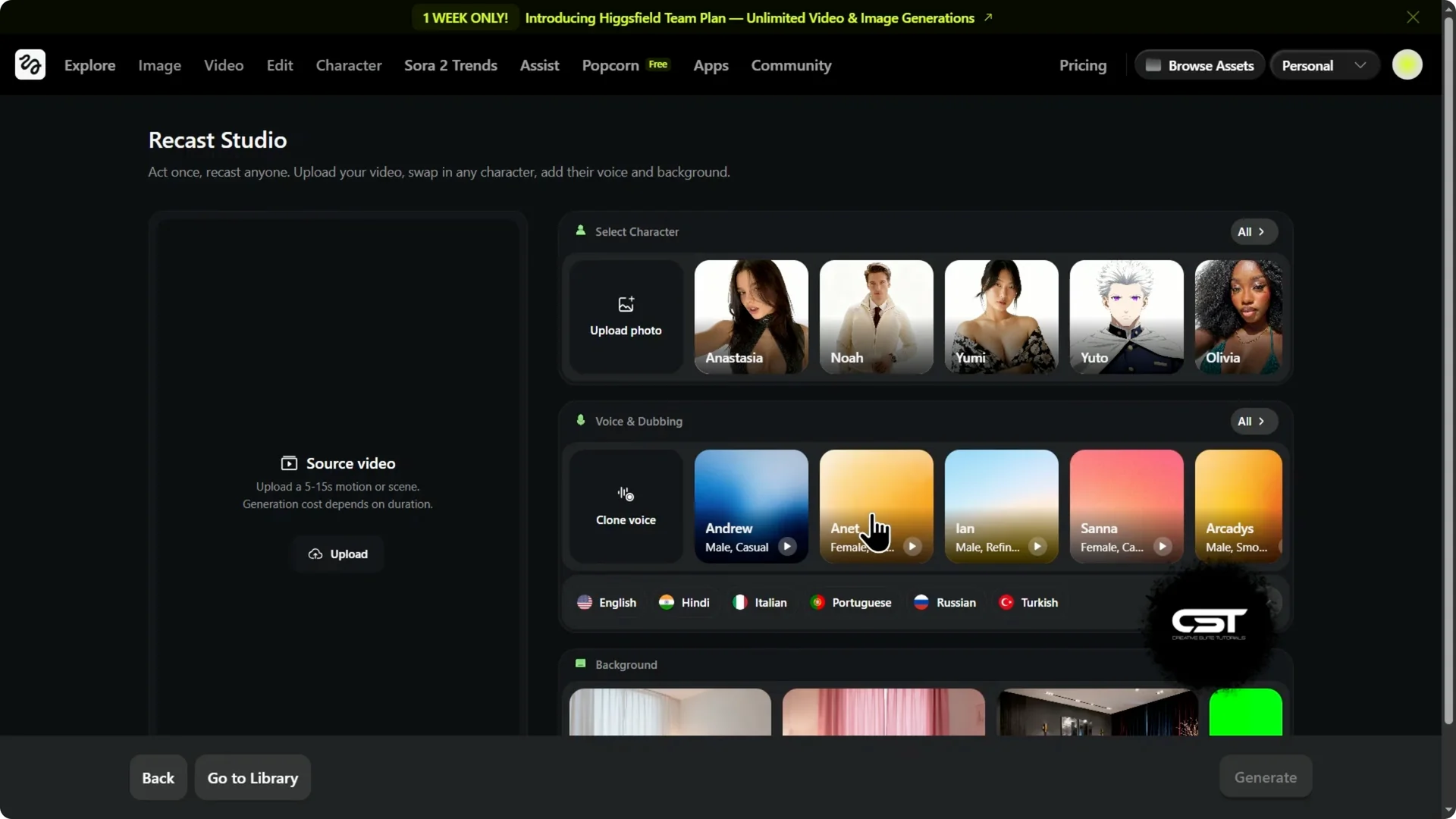
Step 3: Set voice and dubbing. Clone your own voice or pick a preset that matches the character. Turn on autodub to render versions in other languages with automatic lip sync.
Step 4: Pick the background. Select from the built in options or use the green screen. Green screen is perfect if you want to replace it later with your own studio photo or brand visuals.
Step 5: Generate. Click Generate and let it process. For short clips, expect a few minutes per render.
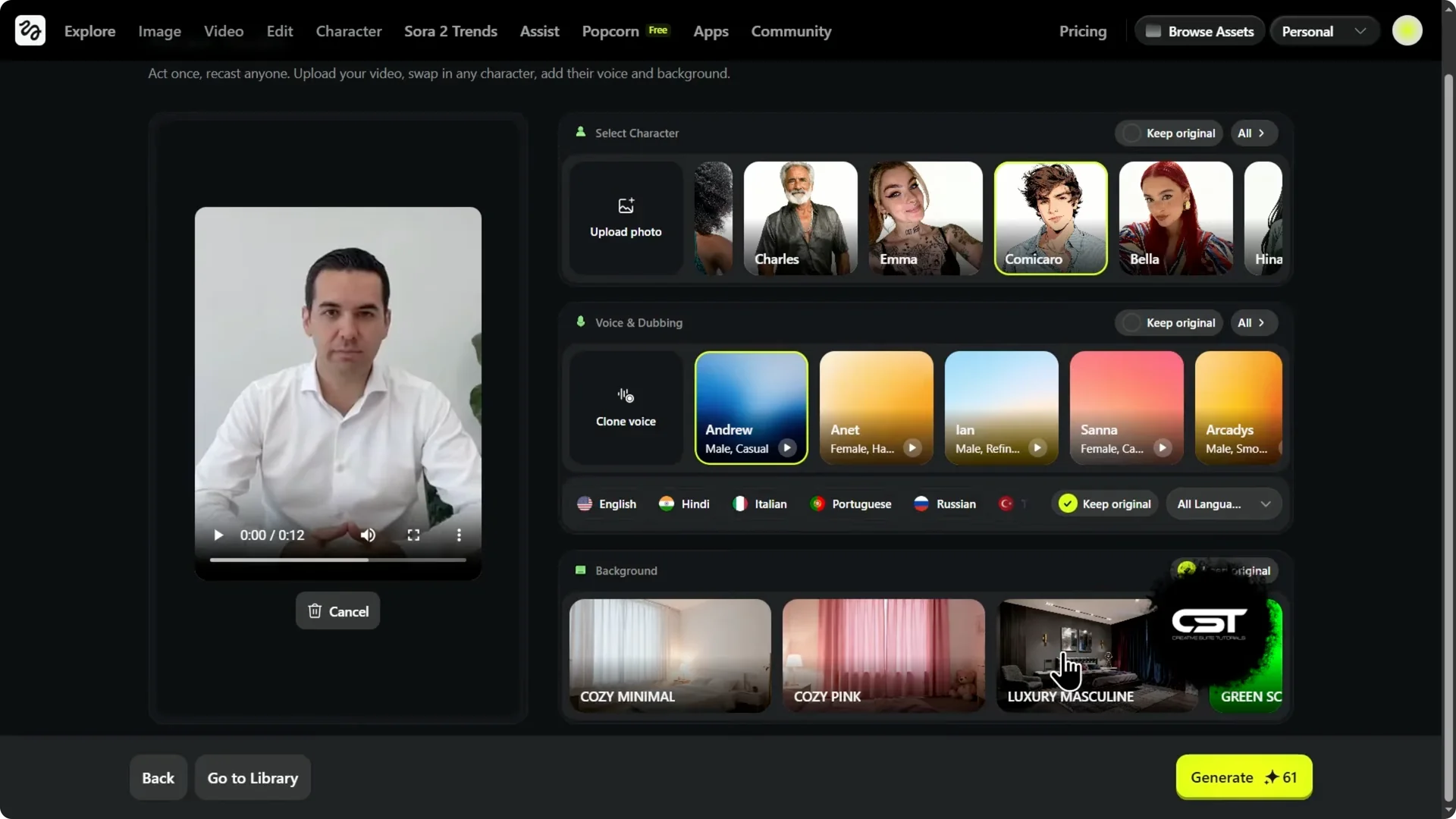
Step 6: Review and iterate. Run the generation two or three times with different characters. Sometimes one model will click with your performance better than another.
If you want to trim and polish these outputs fast, check these quick editing tips for Higgsfield videos.
Higgsfield Recast Studio Workflow: Stress test with hands
To show you, I took a 12 second master clip. Here is the script so you know exactly what we are working with. “People are asking if AI will replace creators. That is the wrong question. The real question is how it multiplies our output. It is not a replacement, it is a multiplier.”
I chose this video very specifically. The subject is using a ton of hand gestures. AI tools are terrible with hands, just like how AI images used to be.
Higgsfield claims that this is the most realistic swap out there. We are taking this video as our example to really put that to the test. Here is how it held up.
Test 1: Target an authoritative audience
I want to target a new demographic, maybe senior management or an older, more authoritative audience. They tend to trust authority, so I tried an elderly man character. You can also upload your own photo to create a custom character, which is incredibly powerful.
For voice and dubbing, I kept the original for this first test. In Background, there is even a green screen, which is perfect for swapping in a studio photo or branding. I hit Generate.
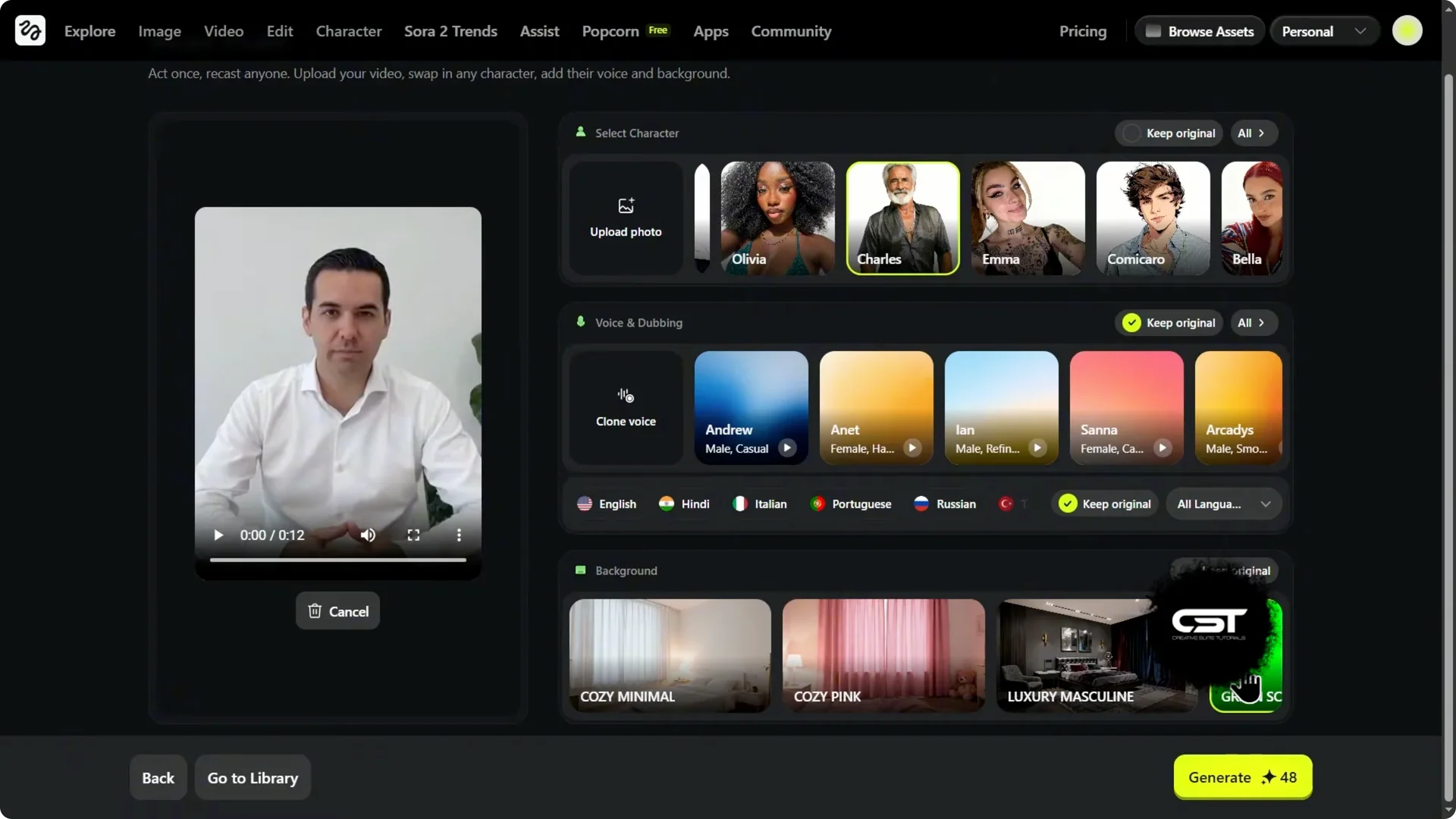
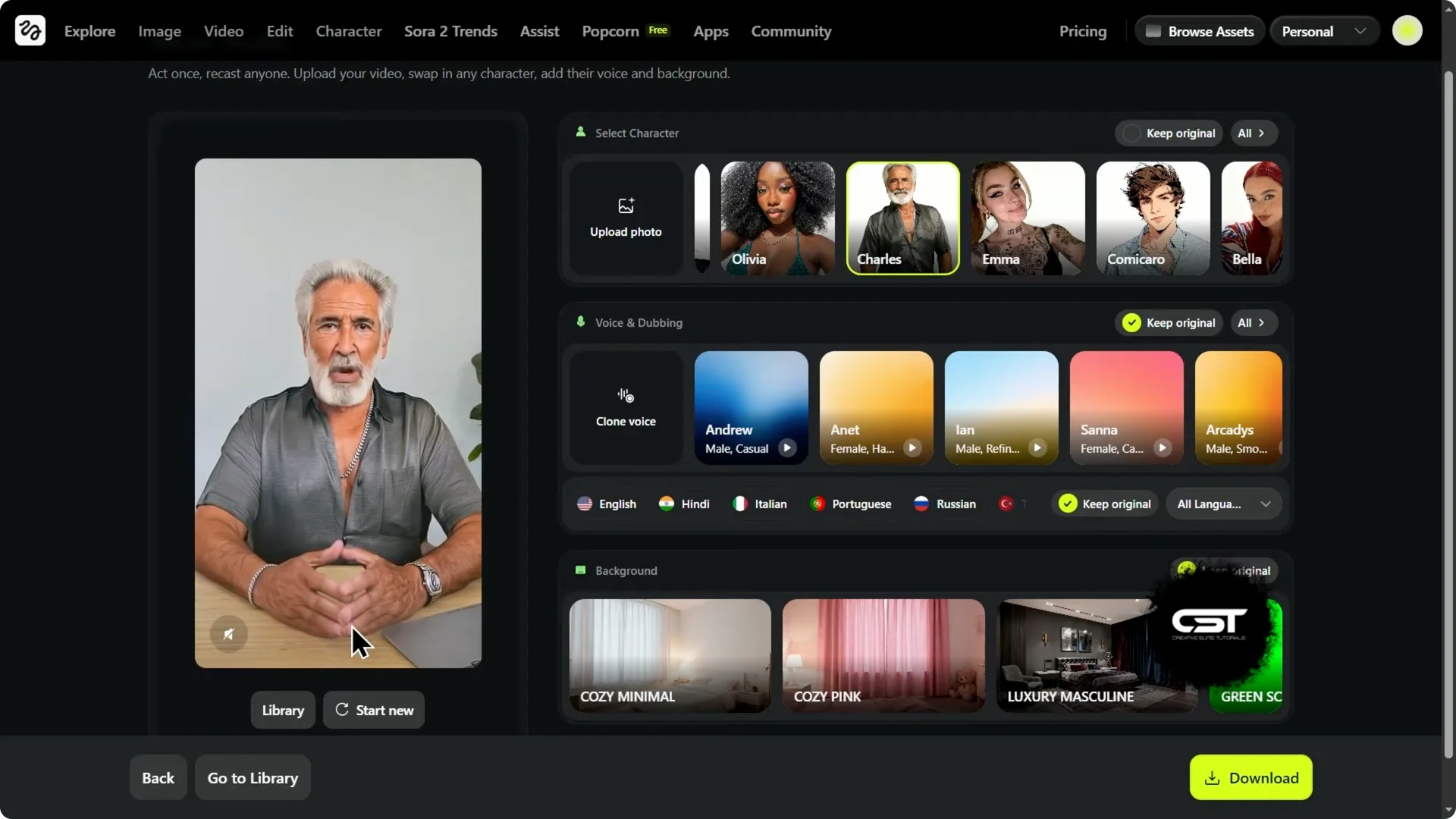
The result took me maybe 3 or 4 minutes, and that is so worth the wait. You are creating a brand new video from a single reference instead of having to reshoot it all. Here is the result:
“People are asking if AI will replace creators. That is the wrong question. The real question is how it multiplies our output. It is not a replacement. It is a multiplier.”
Look closer. The hand movement is real, not glitching or melting, and it is perfectly tracking my original performance. This is the most realistic high fidelity character swap, or as they call it, Recast Studio, I have ever seen.
Test 2: Comical character and green screen
For test number two, I picked a comical character. I also gave it a new voice, Andrew, and changed the background again. I hit Generate.
This generation took a little longer, maybe about 7 minutes. At the same time, I gave it another command, the same comical character but with the green screen background. In about 7 minutes, I got two new videos.
“People are asking if AI will replace creators. That is the wrong question. The real question is how it multiplies our output. It is not a replacement, it is a multiplier.”
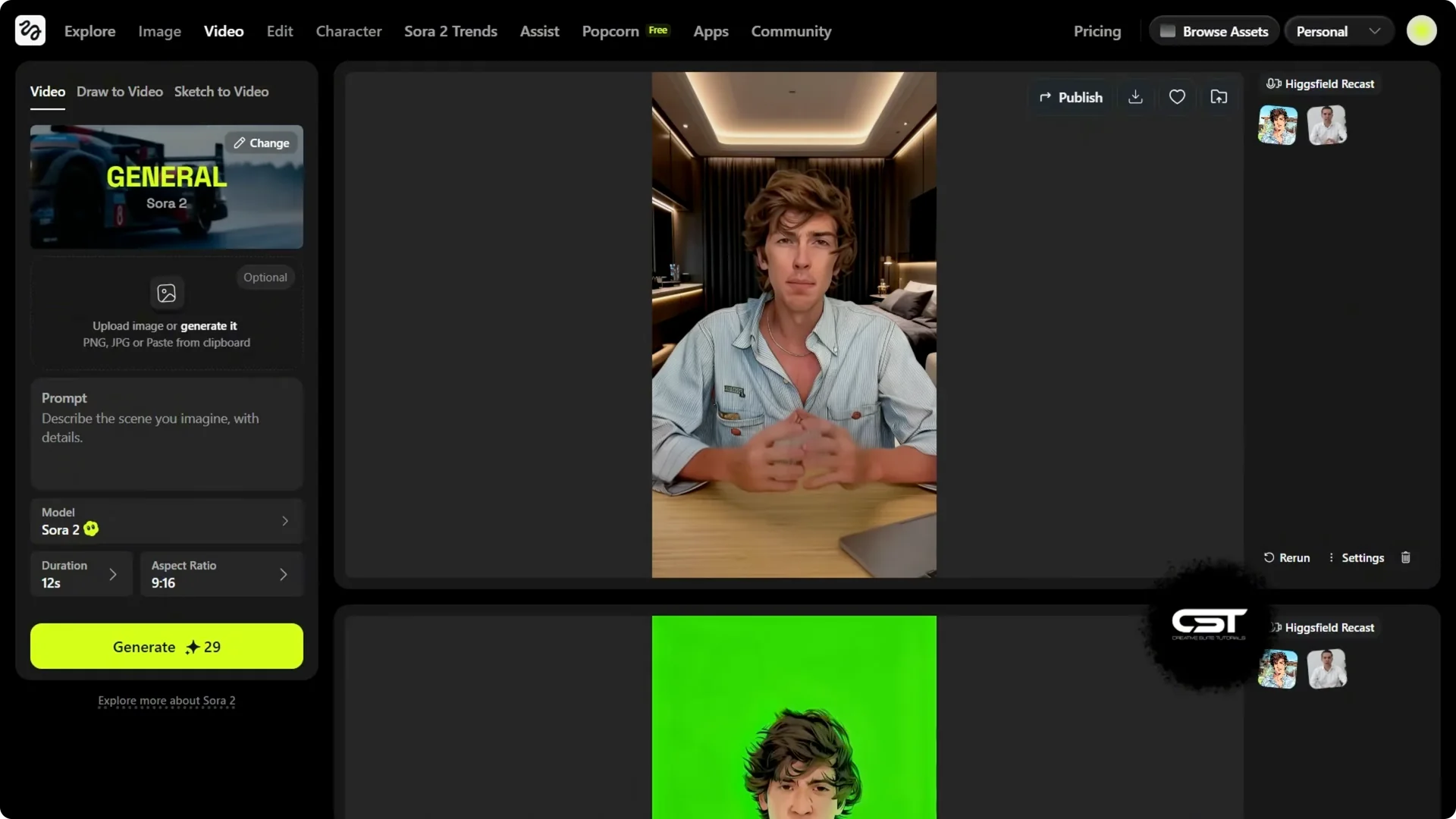
This one is so good. The comical character exactly copied everything, the dialogue, the expressions, and most importantly, the hand movements. Here is that green screen version I did.
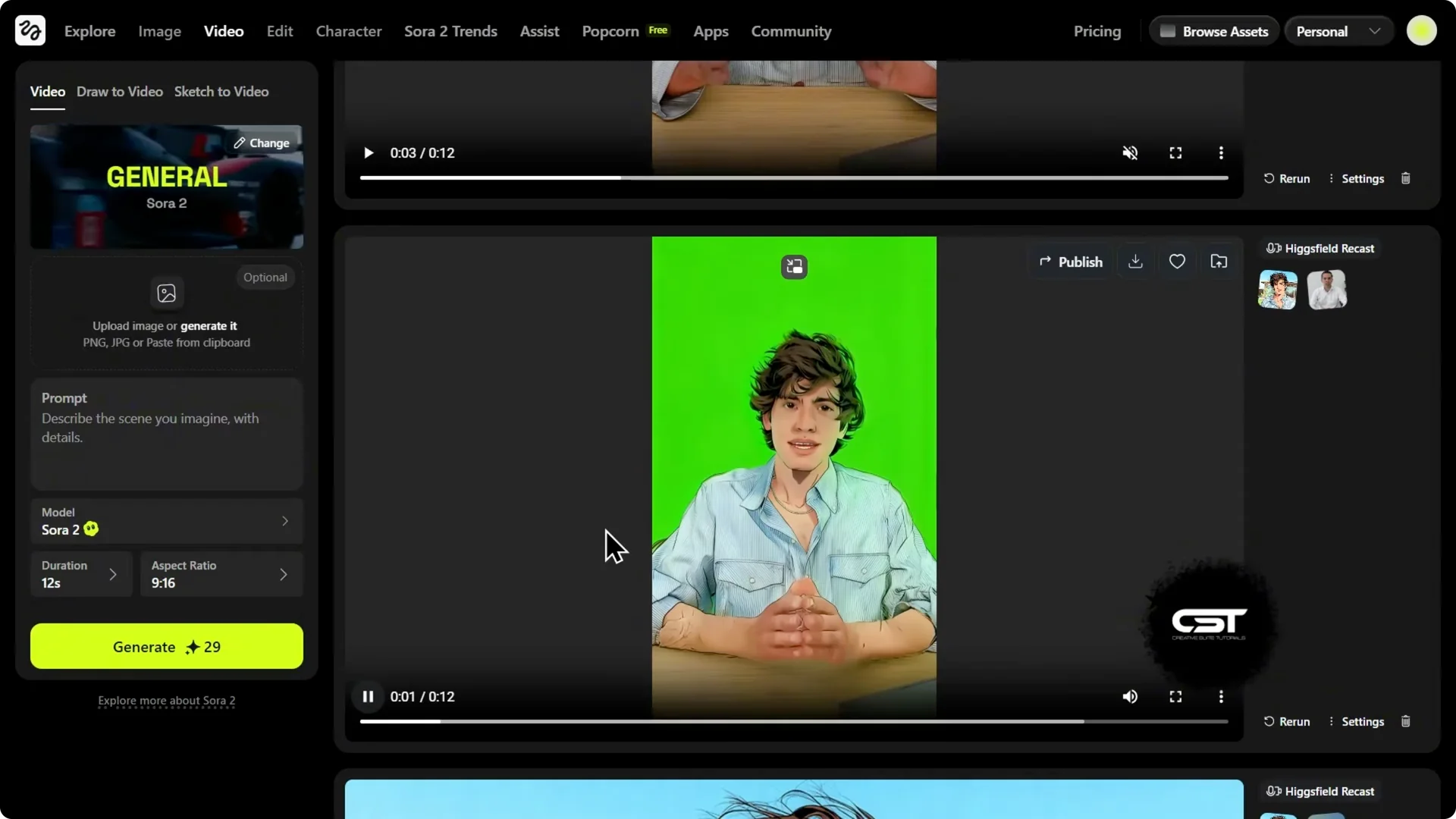
This is so useful. You download it and, in your video editor, remove the green screen and replace it with anything you want. For cleaner keying and finishing touches, see simple editing techniques that pair well with Higgsfield outputs.
Higgsfield Recast Studio Workflow: Recap and tips
We took one 12 second clip and in about 10 minutes, we created three completely new videos from it. We changed the character, changed the background, changed the voice, and added a green screen. That is the record once, repurpose infinitely workflow.
Pro tips
First, your source video matters. Make sure your face is well lit, looking at the camera, and not full of shadows. The AI needs to see your features clearly.
Second, for the hands, this is key. My results look good because my original hands were always in the shot and well lit. Do not let your hands fly out of the frame or get hidden in shadows.
Finally, do not be afraid to experiment. Run the generation two or three times with different characters. This is a creative tool, so be creative.
Higgsfield Recast Studio Workflow: Final thoughts
Recast Studio is not just for a face swap. It is a total character, voice, and background transformation that turns one solid clip into a library of targeted variants. Build your process once and keep multiplying your output.