
Adding a cover image on your Higgsfield AI account is super easy. You can do this right from your profile area without any extra tools. Here is exactly how I do it.
Higgsfield AI Profile Cover Image
Open your profile
Step 1: Hover over your account on the upper right.
Step 2: Click View profile.


Optional: Update your profile image
Step 3: Click the camera icon on your profile image.
Step 4: Choose an image from your computer and add profile image. I already have one.
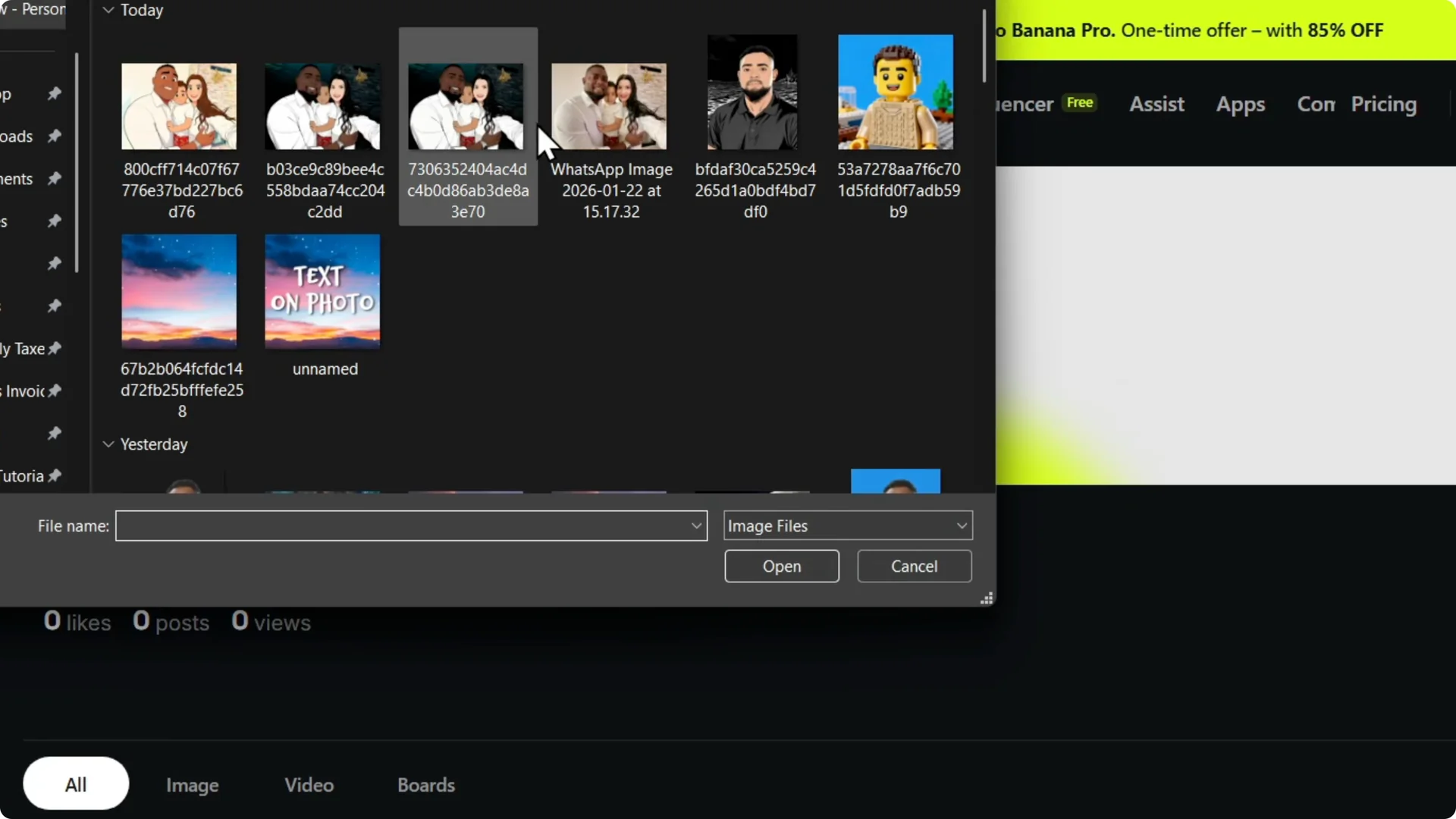
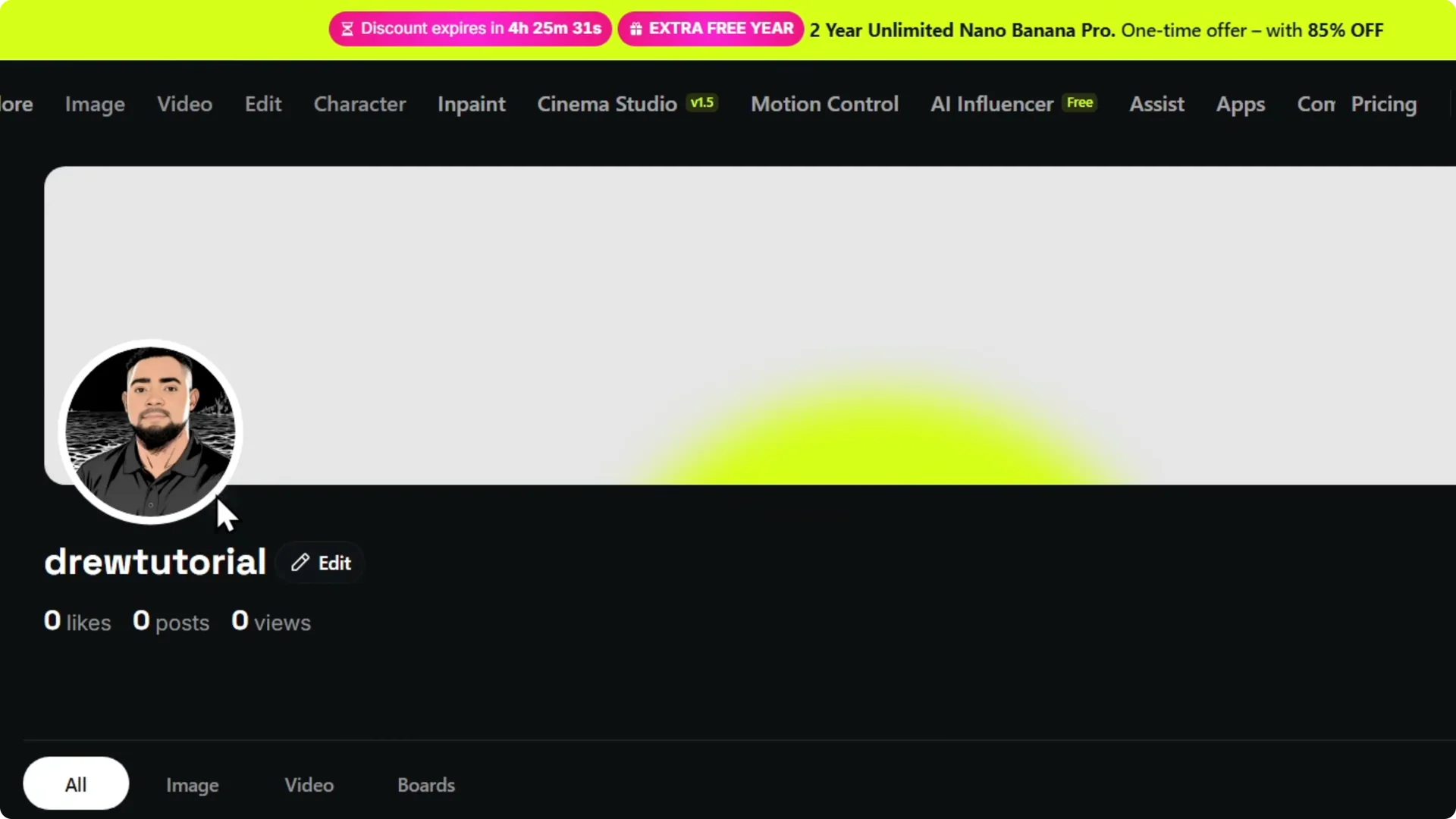
If you are preparing visuals for your page, see this quick guide to video and image creation in Higgsfield AI.
Change the cover image
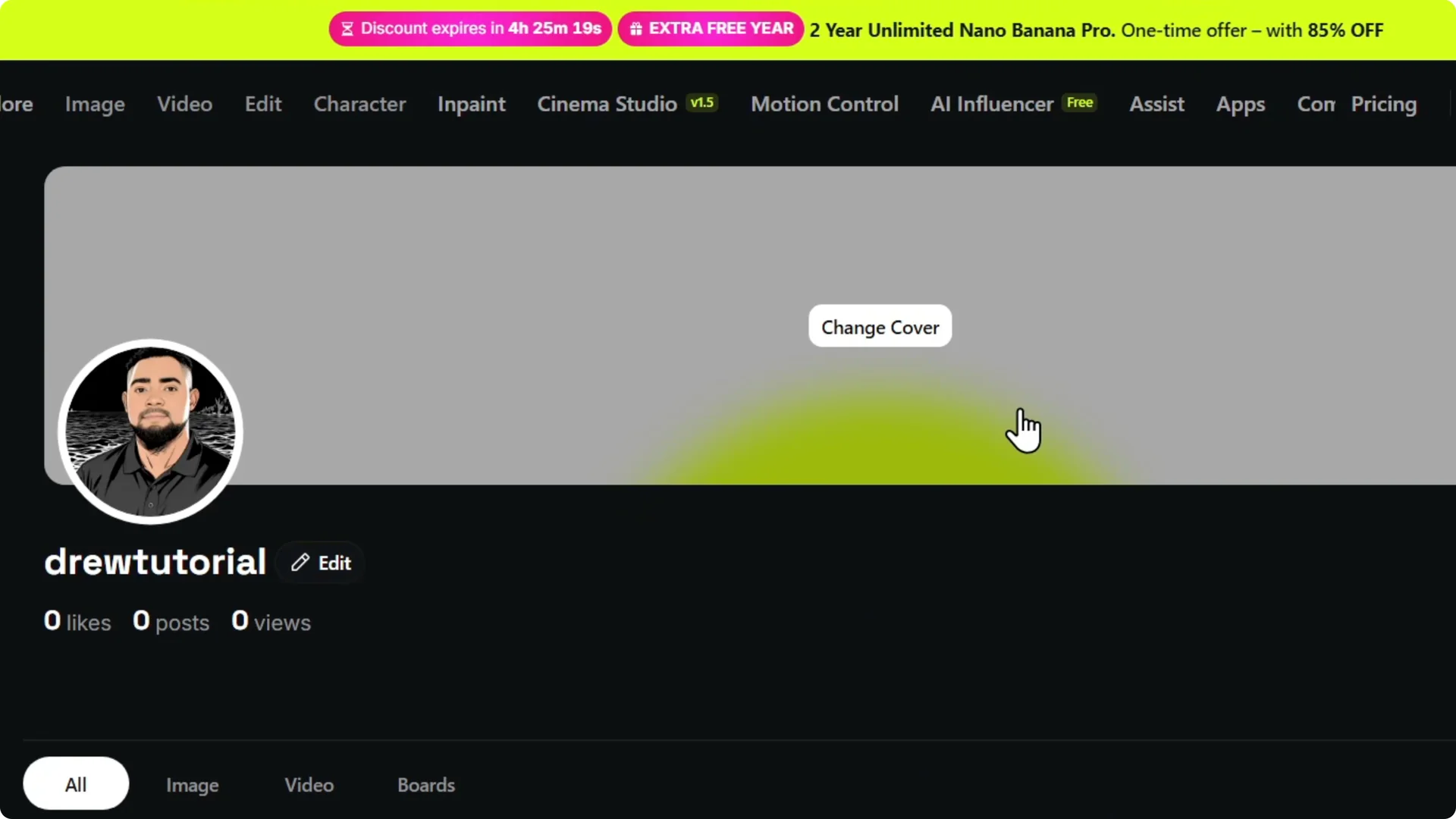
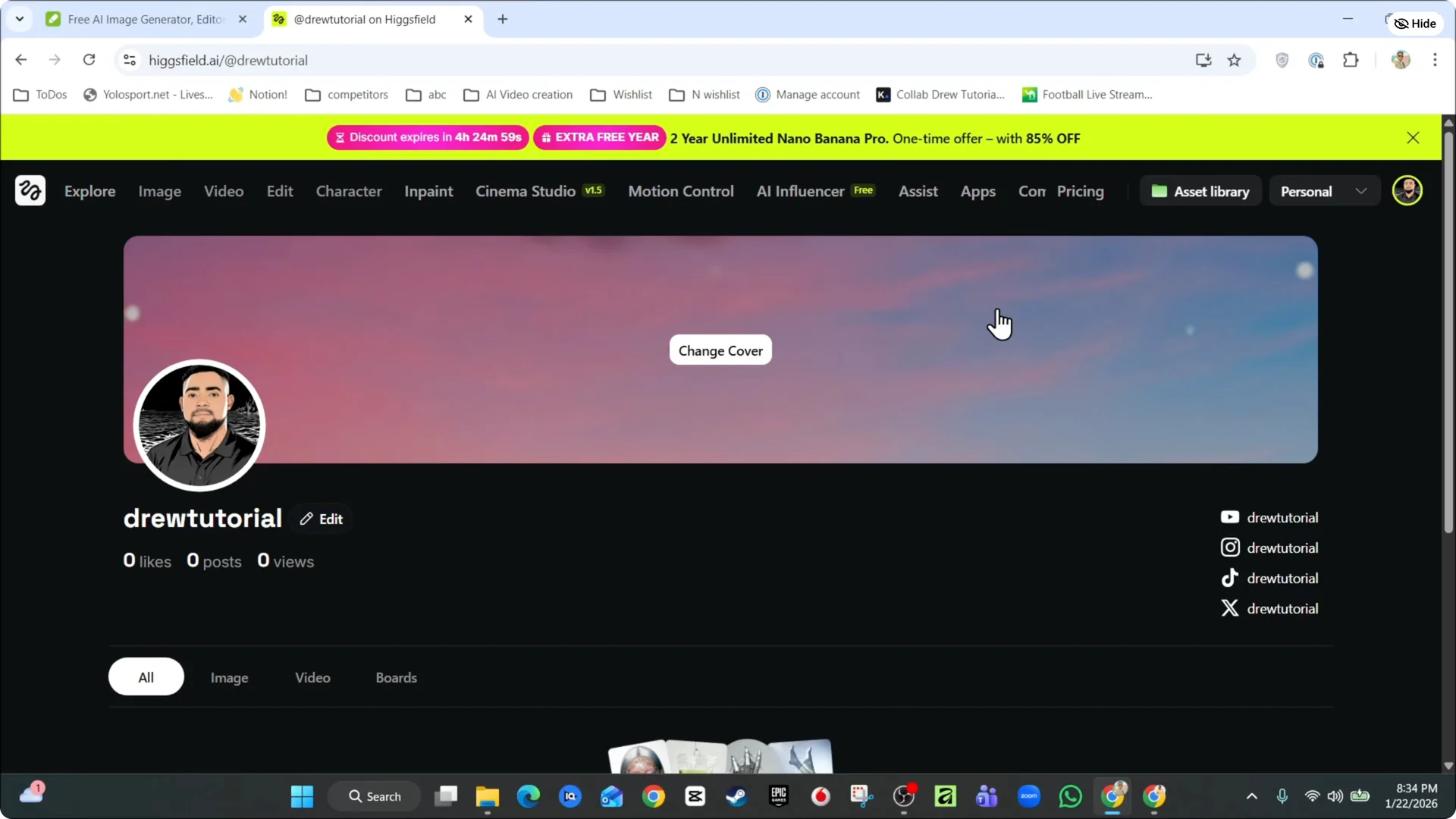
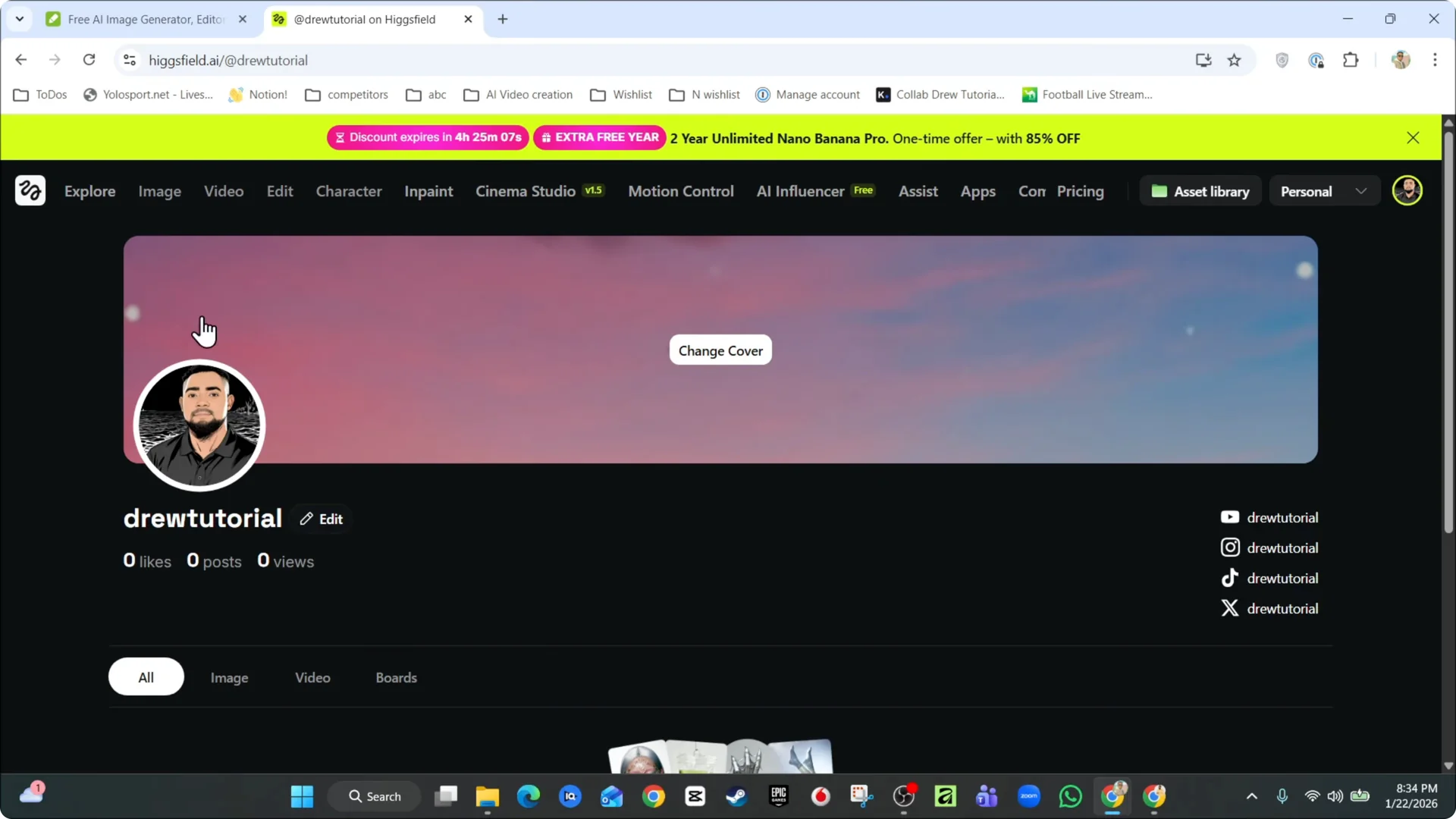
Step 5: Click Change cover.
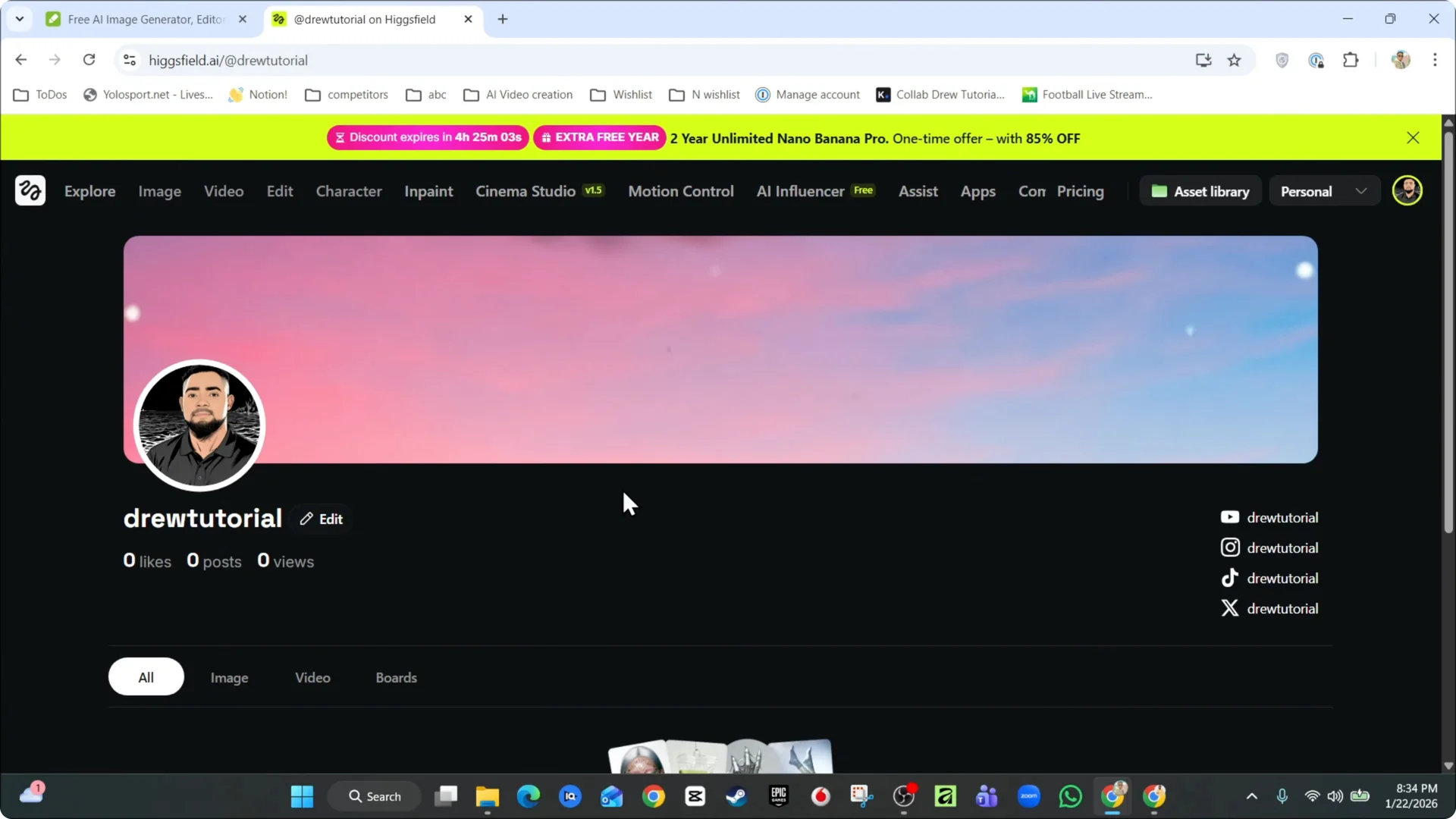
Step 6: Choose an image from your computer. You will see that it adds there.
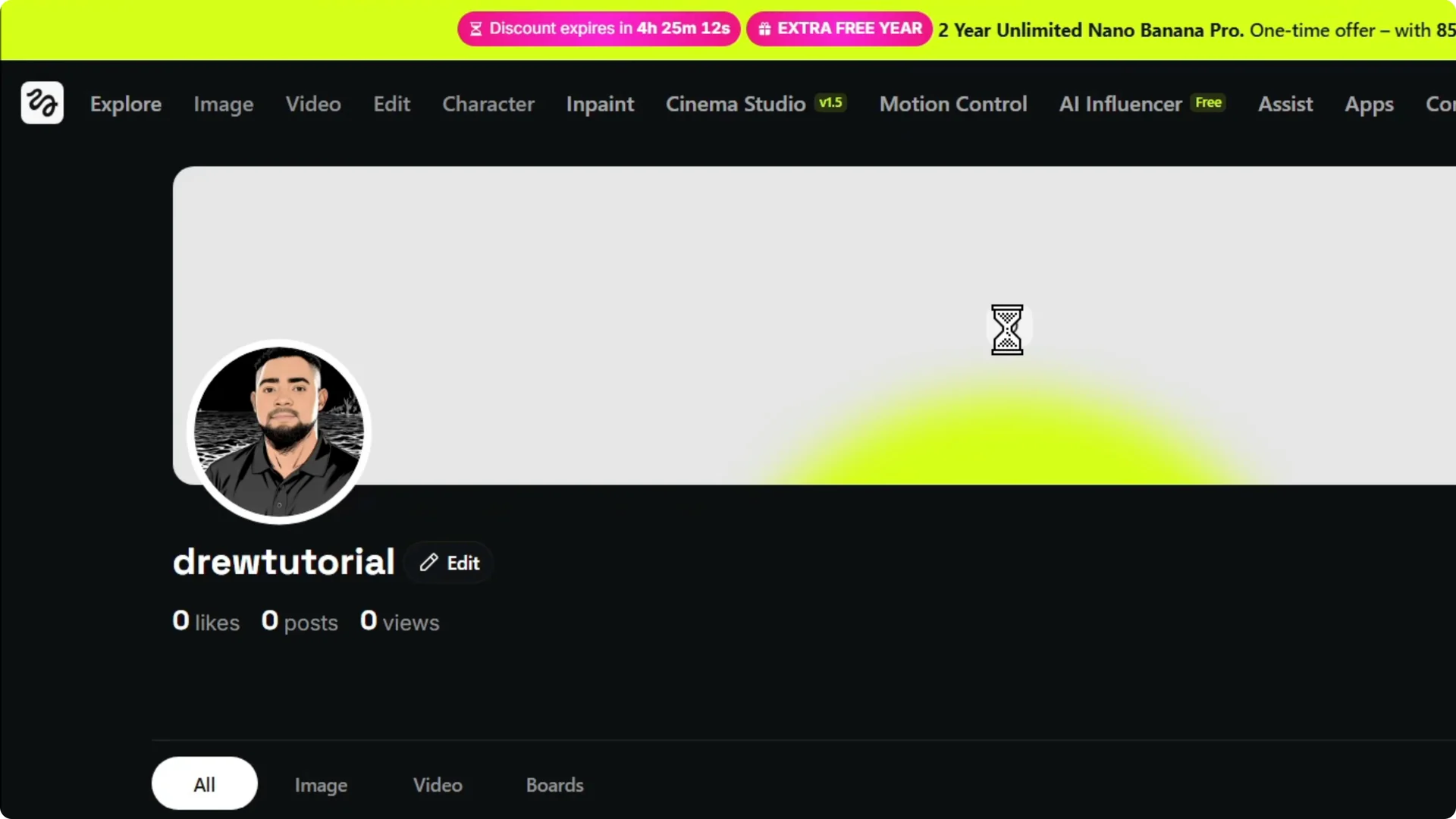
You can see that the background changes. It may be stretched out, and that is perfectly fine. That is how you can easily change the cover image on your profile page.
If your upload looks soft after adding it, check tips to upscale images without quality loss.
Account note
If you need to add a payment method for upgrades or storage, follow this quick guide to add a payment method in Higgsfield AI.
Final Thoughts
Hover over your account, open your profile, and change the cover with a couple of clicks. The image may stretch to fit the background, and that is expected. That is all you need to refresh your Higgsfield AI Profile Cover Image.