Imagine being able to take a video you created and convert it into something like this. With Kling 2.6 Motion Control, you can bring in or record your own video and apply another image to it to create something very unique and very creative.
This is not new technology in the AI video space, but I wanted to check out what Kling 2.6 can do. I’m going to explore the different settings and what they can do, and also compare it to some of the other models that are out there. You can use this not only for simple motion videos. You can also do full lip sync videos where you record yourself talking and apply a different image to it to get different effects.
I’m using OpenArt for these tests, as they have Kling 2.6 and a few other motion control models within their interface. I wanted to push this by giving it something difficult with movement and motion blur, so I started with a boxing video.
Getting started with Kling 2.6 Motion Control in OpenArt
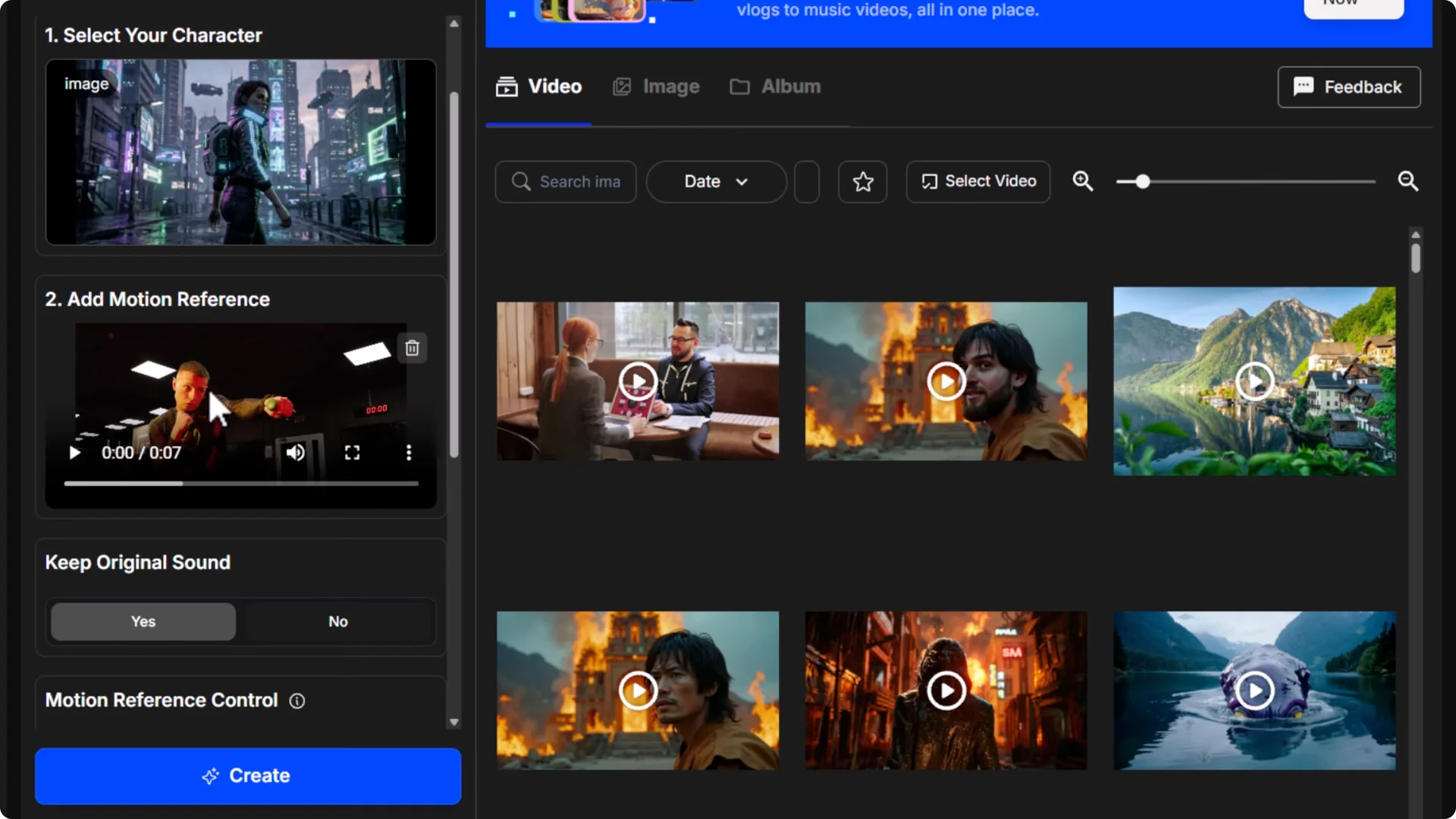
- Go to the Video tab in OpenArt and choose Motion Sync Video.
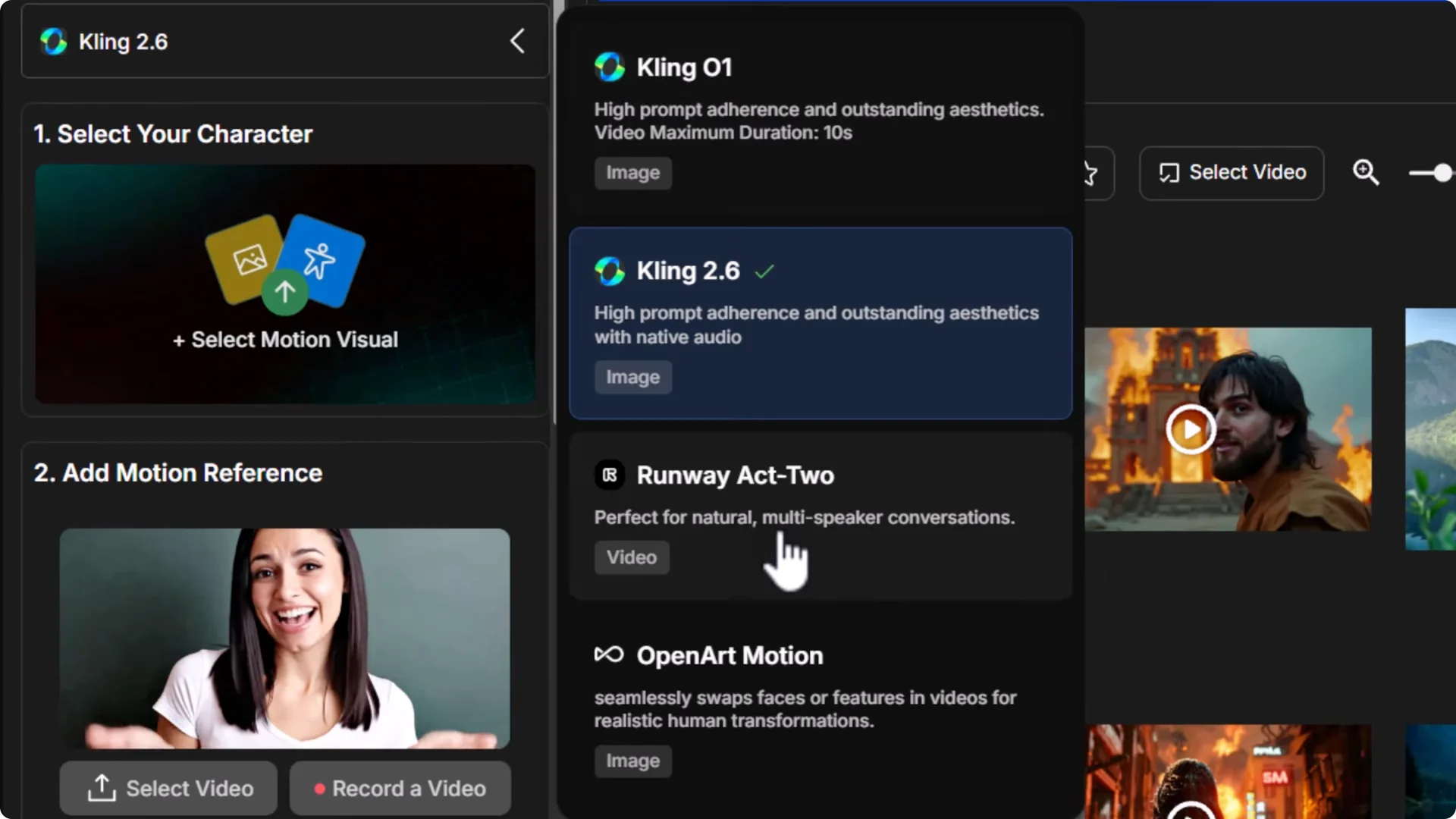
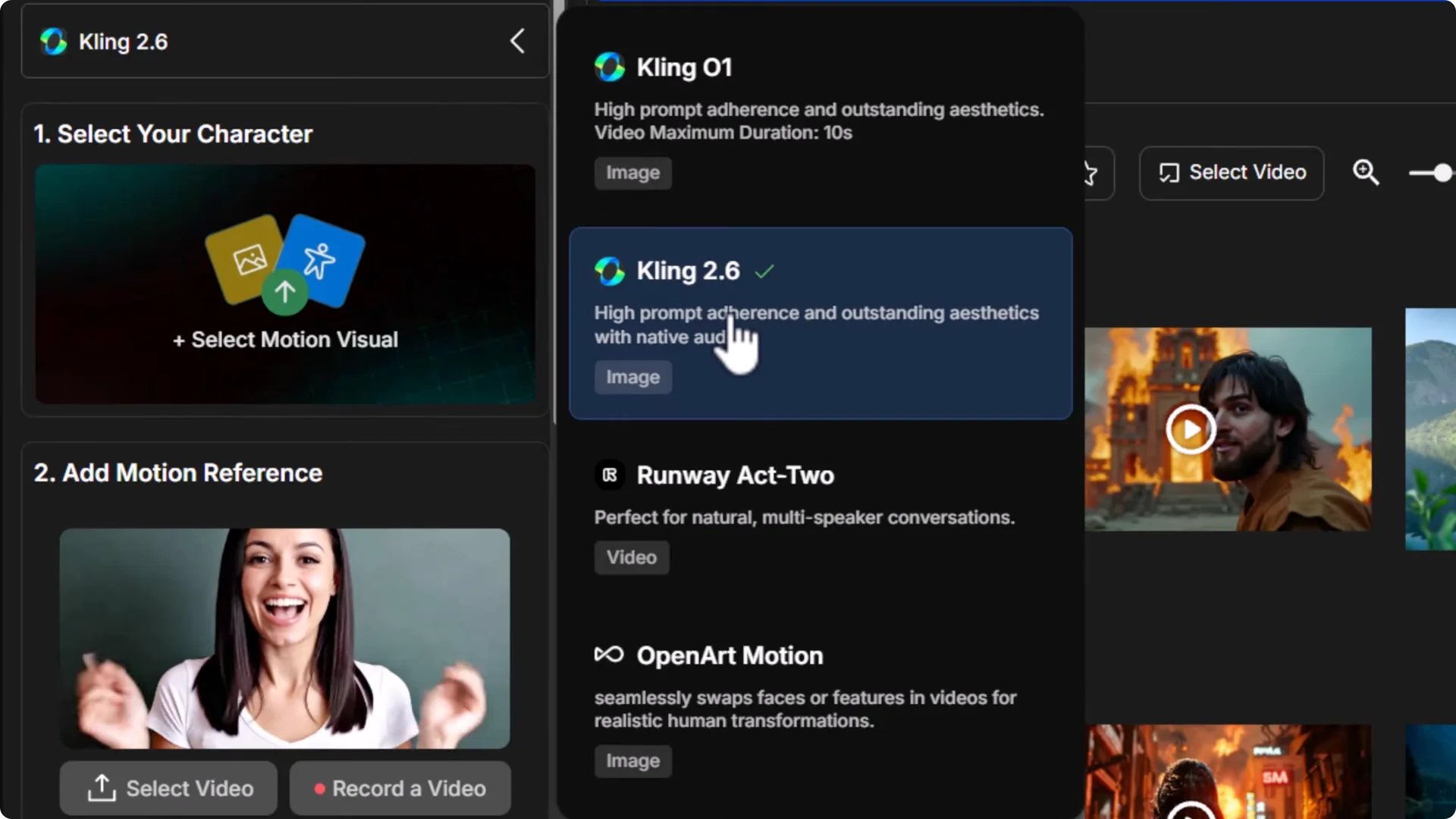
- Select the model. Options include Kling 2.6, Runway Act 2, and OpenArt Motion. I started with Kling 2.6.
- Choose a character or an image. I focused on using an image I generated earlier in OpenArt’s image generation section. You can select from history or upload.
- Upload a reference video. I used a clip of a boxer shadow sparring.
- Keep original sound on or off. If you want your talking audio preserved for lip sync, turn it on. For motion-only tests, I left it off.
- Set Reference Control:
– Exact: tries to match the source video closely.
– Partial: gives the model more flexibility, often keeping framing more stable.
- Choose Video Mode:
– Standard: 720p.
– Pro: 1080p.
- Optional prompt: I described the scene as “a cyberpunk girl is shadow boxing in the street.” You can leave this blank.
- Click Create and wait for the render.
Boxing test with Kling 2.6 Motion Control
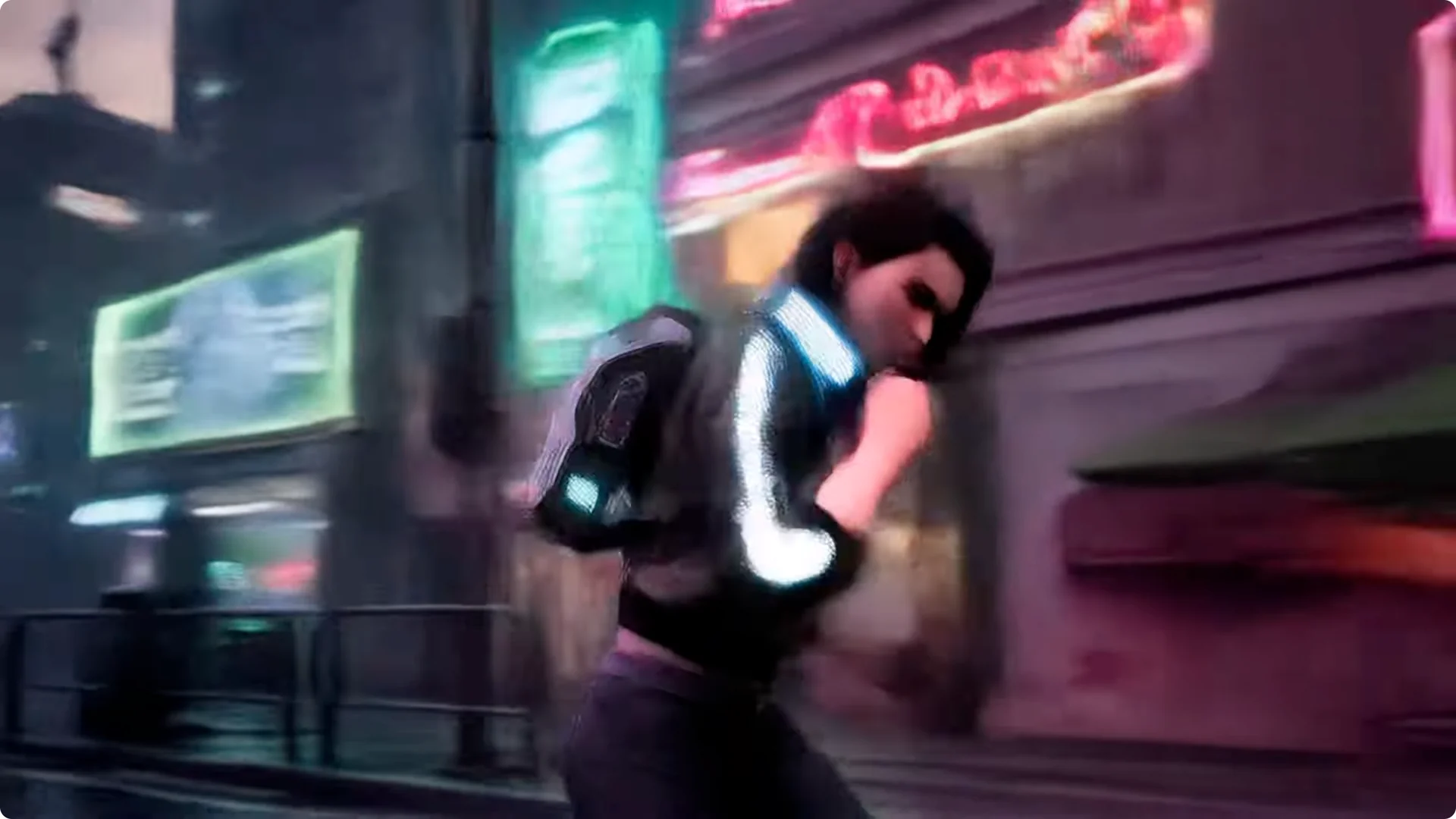
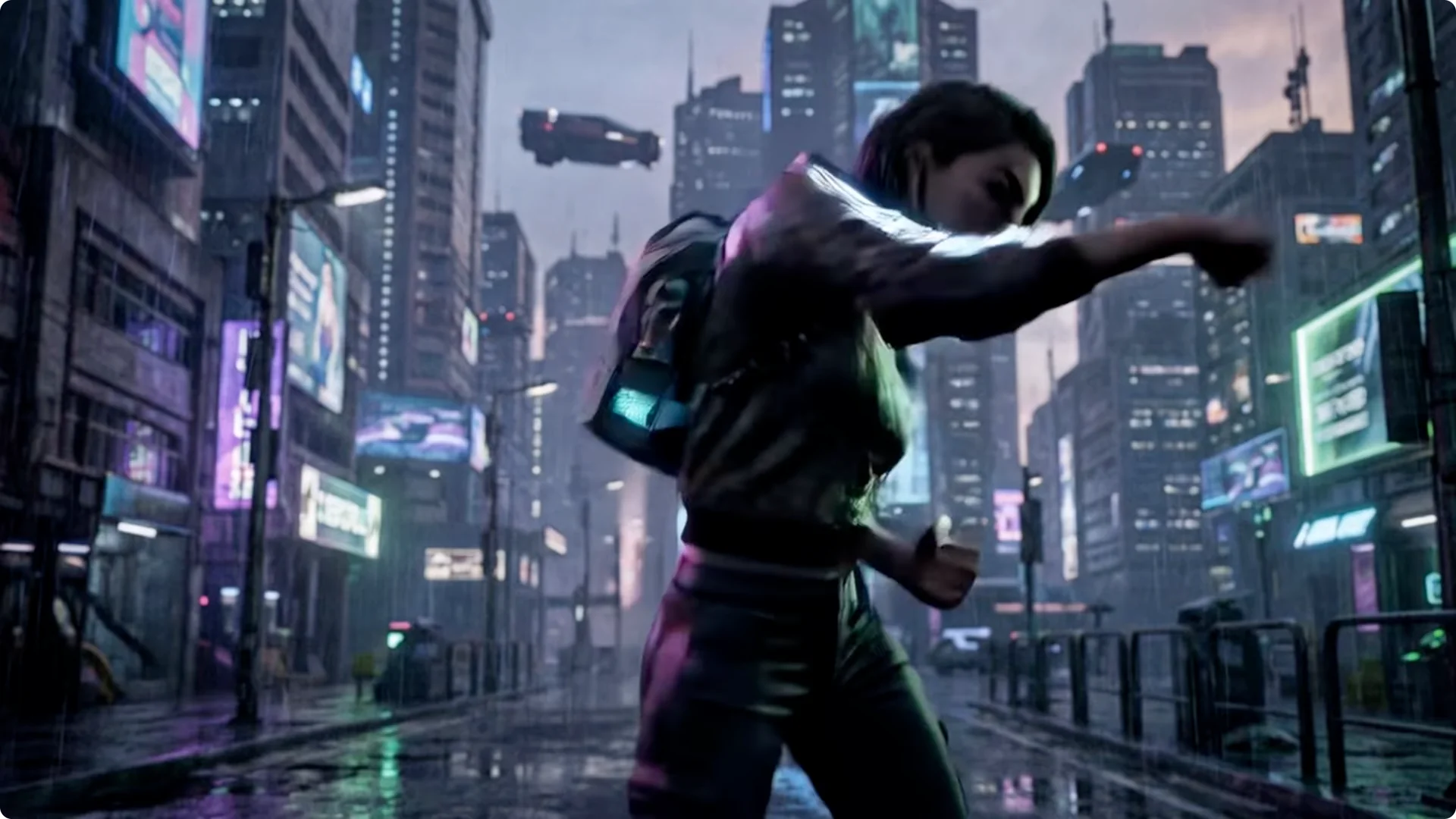
I used a cyberpunk girl image and a shadow-boxing video. The goal was to put the motion from the video into the image.
Exact vs Partial motion
- Exact did a pretty good job. She looks like she’s actually throwing, and if you match it to the video, it’s pretty much spot on. The background was a bit still, but the main motion translated effectively.
- Switching to Partial showed how much the video can move and change when it doesn’t rely as much on the source. It gives a more flexible interpretation, sometimes with nicer overall balance.
Standard vs Pro
- Standard is 720p. Pro is 1080p.
- Pro sometimes introduced background instability with Exact, where the background went a bit crazy.
- In a few cases, Standard did a better job than Pro, even though the resolution isn’t as high. You can always use a video upscaler in OpenArt if you need it.
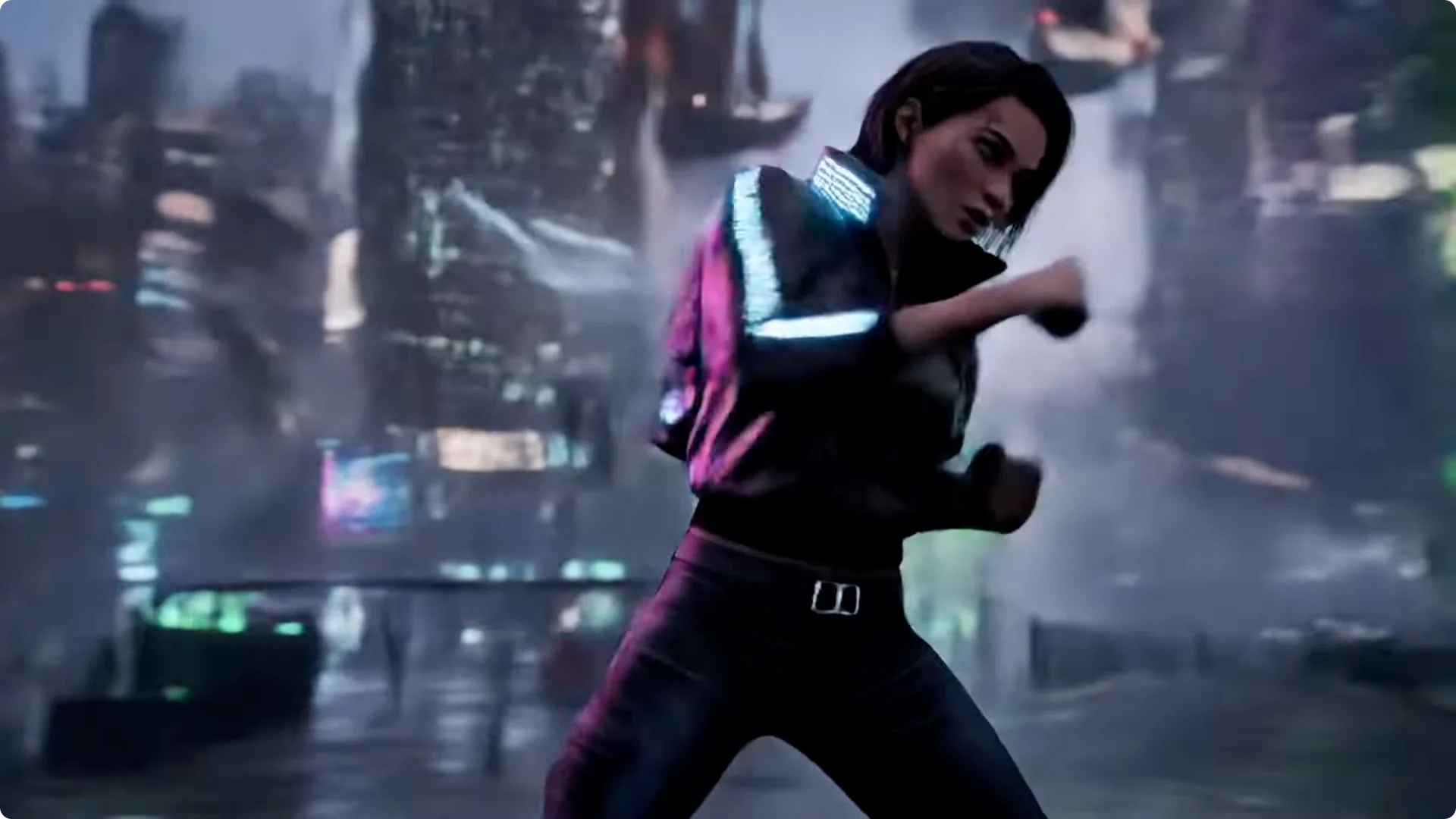
Overall, it really nailed the punch motion. The background felt more like a roll of the dice. Consider how your background might be impacted if there’s camera or environmental movement, and adjust your prompt or settings.
Dancing test and framing considerations with Kling 2.6 Motion Control
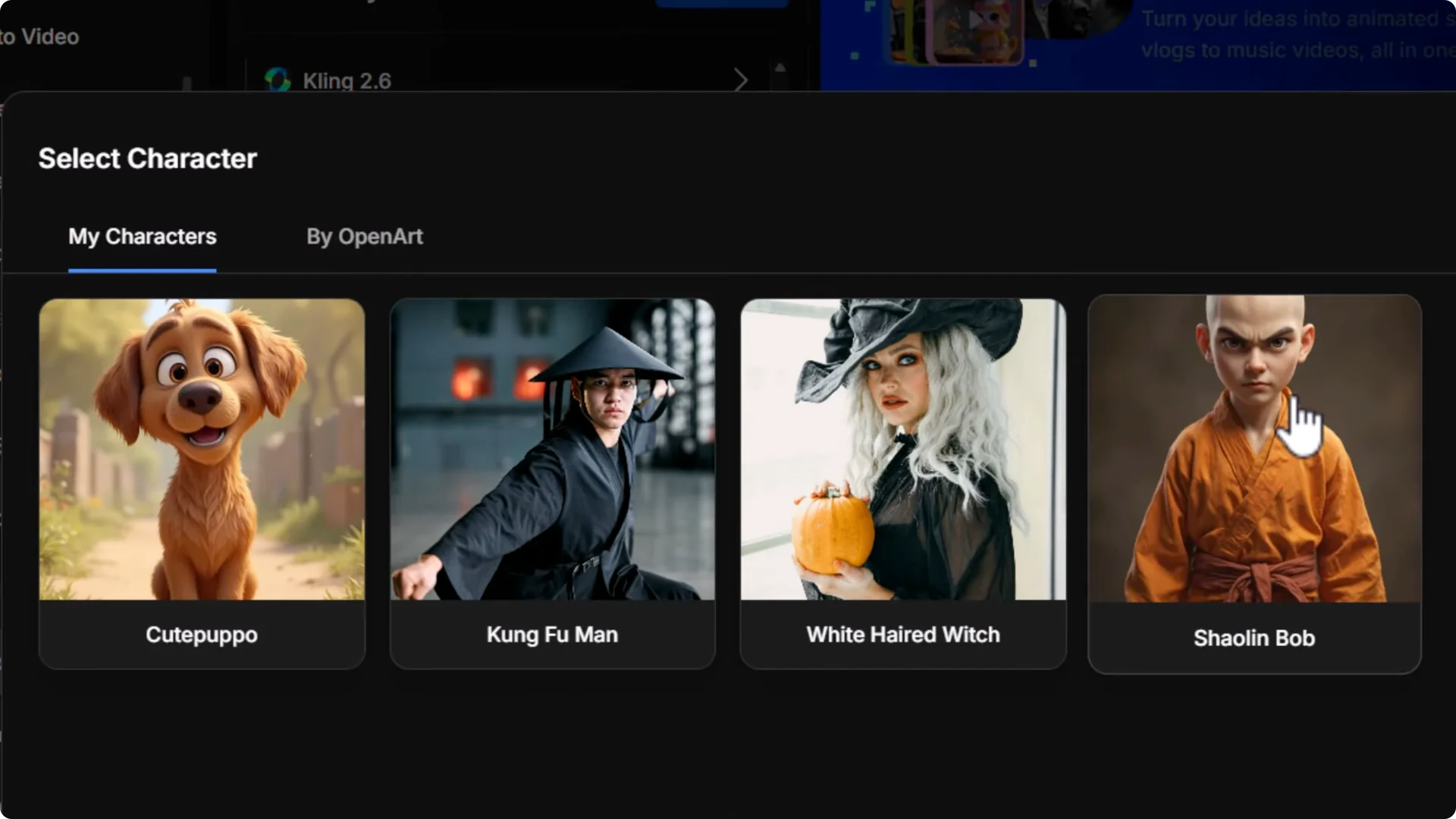
I tried a dancing video with some camera movement to push it further. I selected a character I’d made, Shaolin Bob, and generated videos from the dance clip.
Exact with camera movement
- With Exact, the different aspect ratio and framing caused issues. The camera movement in the source video made the character drift out of frame, and we lost the monk in some shots.
Partial with camera movement
- Partial focused more on the character and kept the framing of the image, which worked much better given the source video’s camera motion.
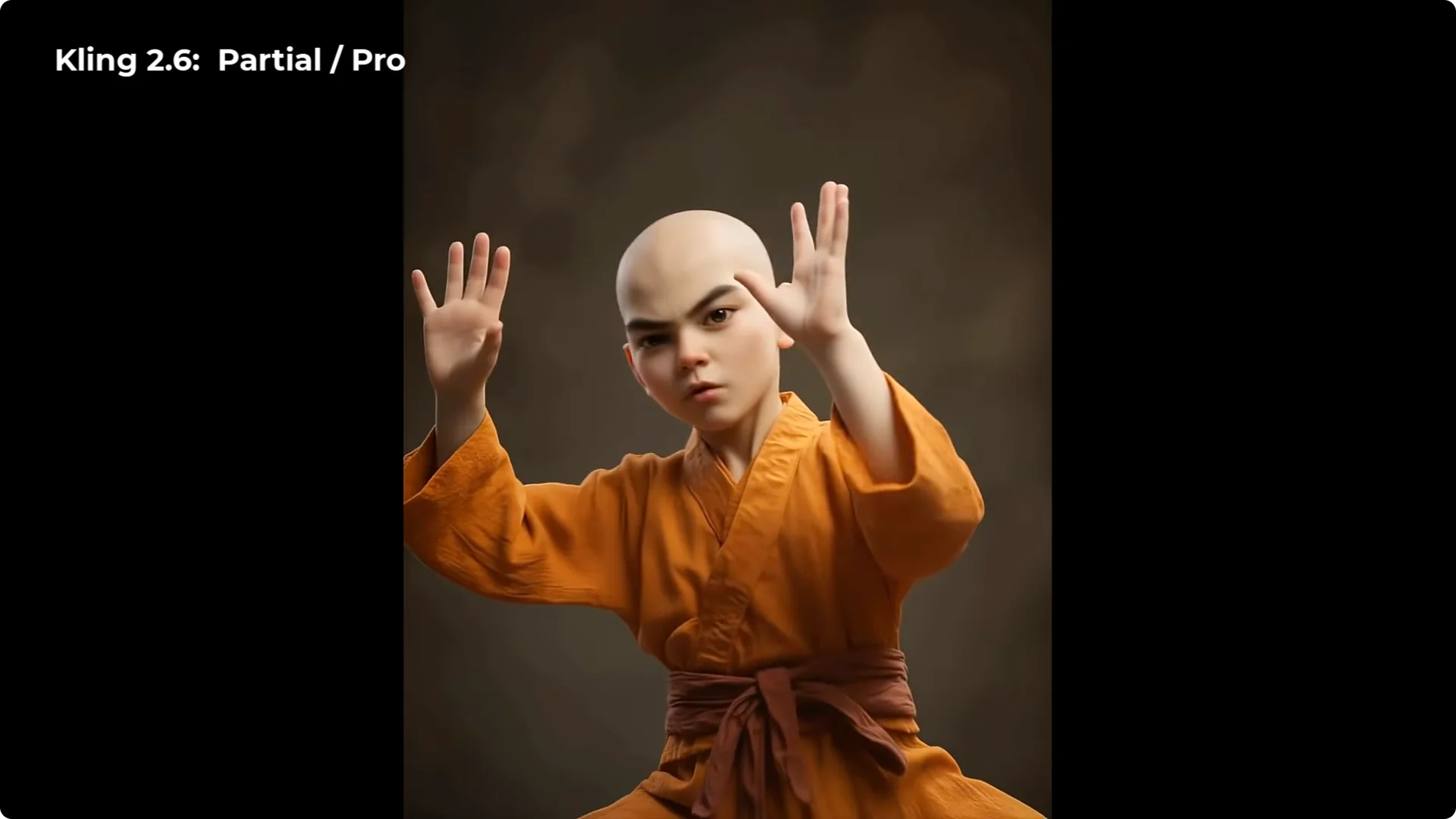
I then created another test image with better framing for the character and tried again:
- With better framing, Exact produced a cleaner result.
- Partial kept the camera feeling more still. Choose based on your priority: tighter match to the camera or steadier character framing.
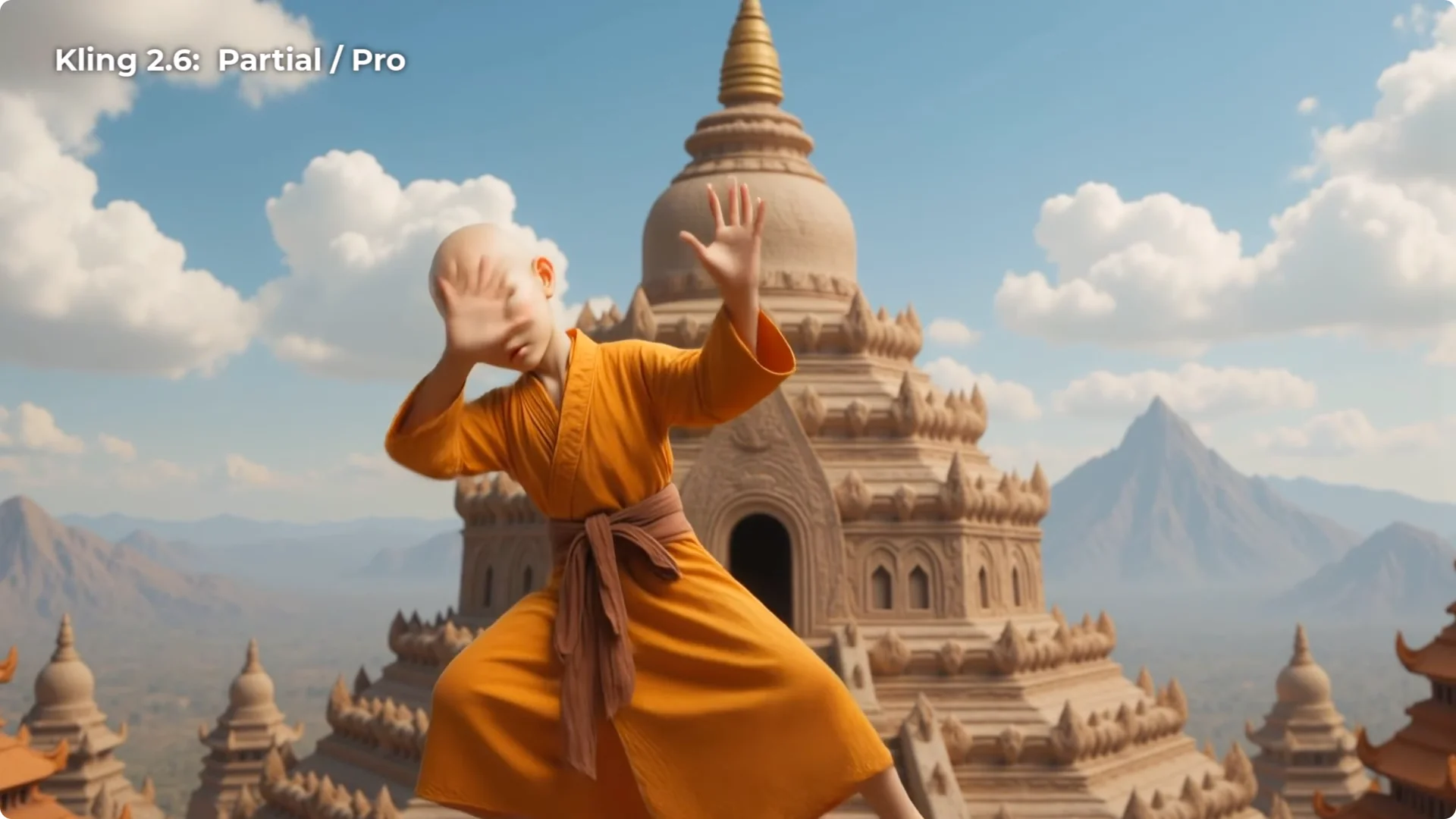
Look at the little details: facial expression changes as he moves, the way the cloth and clothing bounce, and the parallax in the background. It pulls the image apart and adds depth.
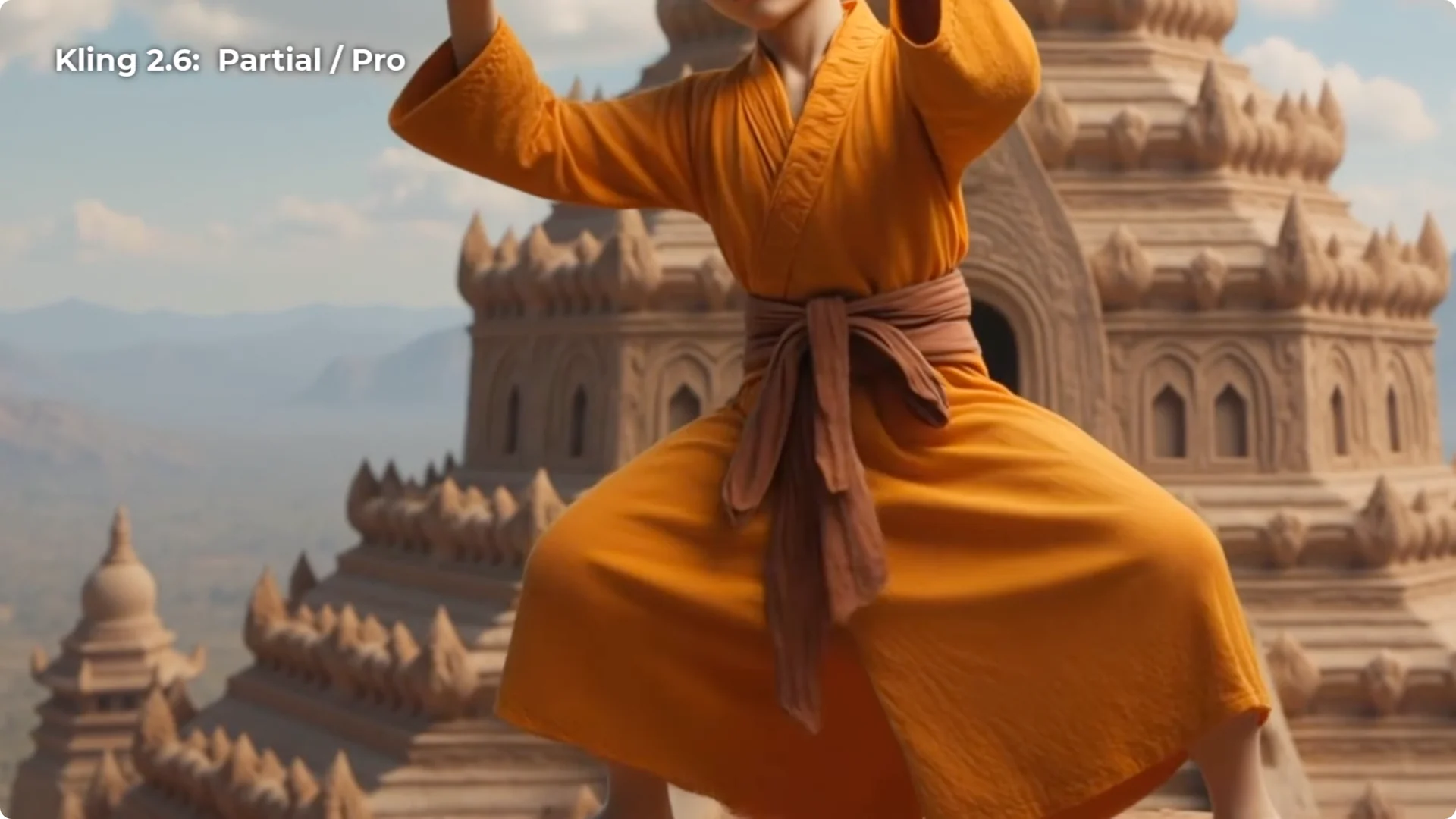
Framing, aspect ratio, and prep
Framing and aspect ratio matter a lot. You can:
- Reframe the image.
- Use a model like Nano Banana Pro to zoom in or out and adjust composition before motion sync.
- Test both Exact and Partial and pick the best result.
Animal tests with Kling 2.6 Motion Control
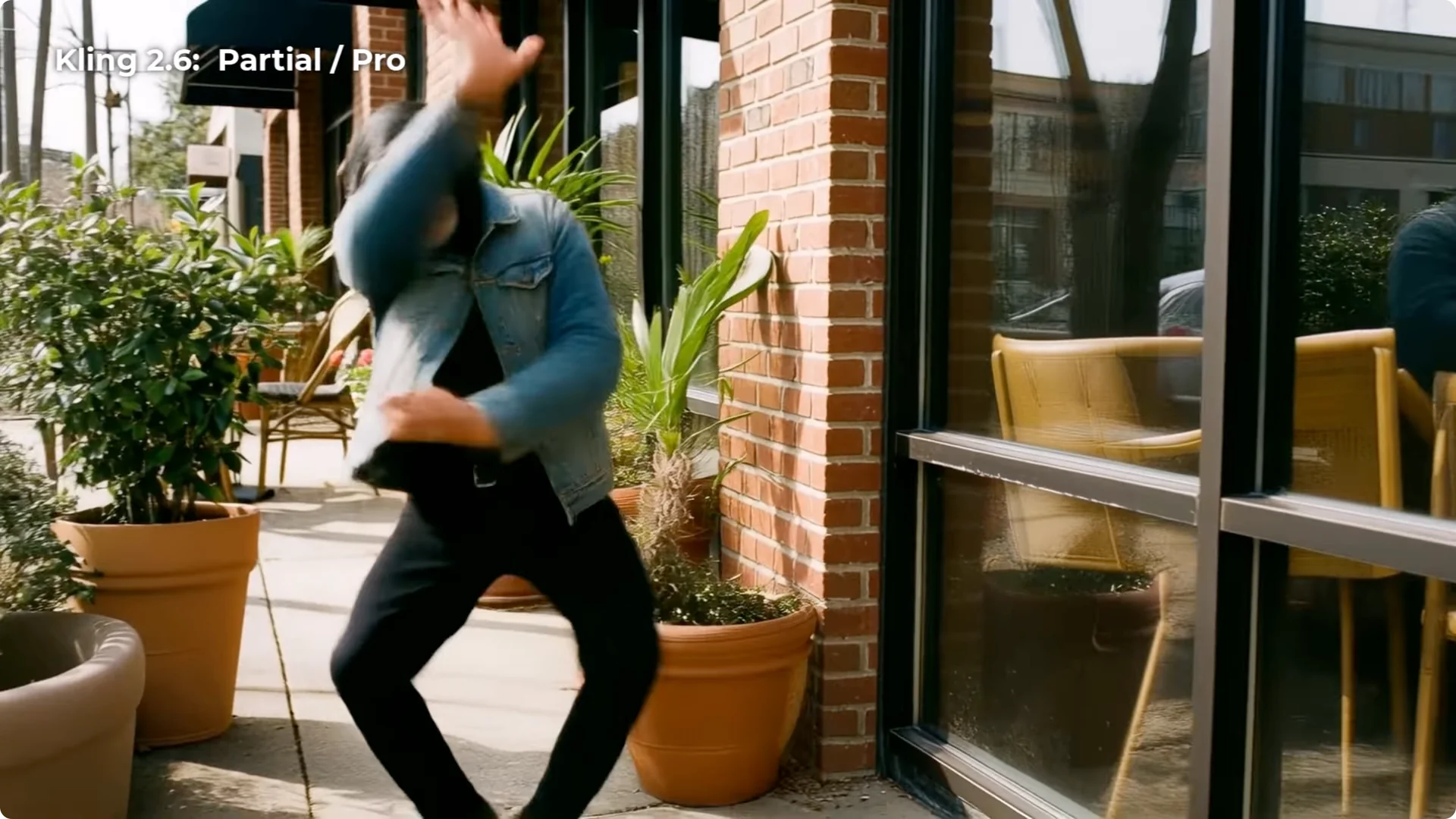
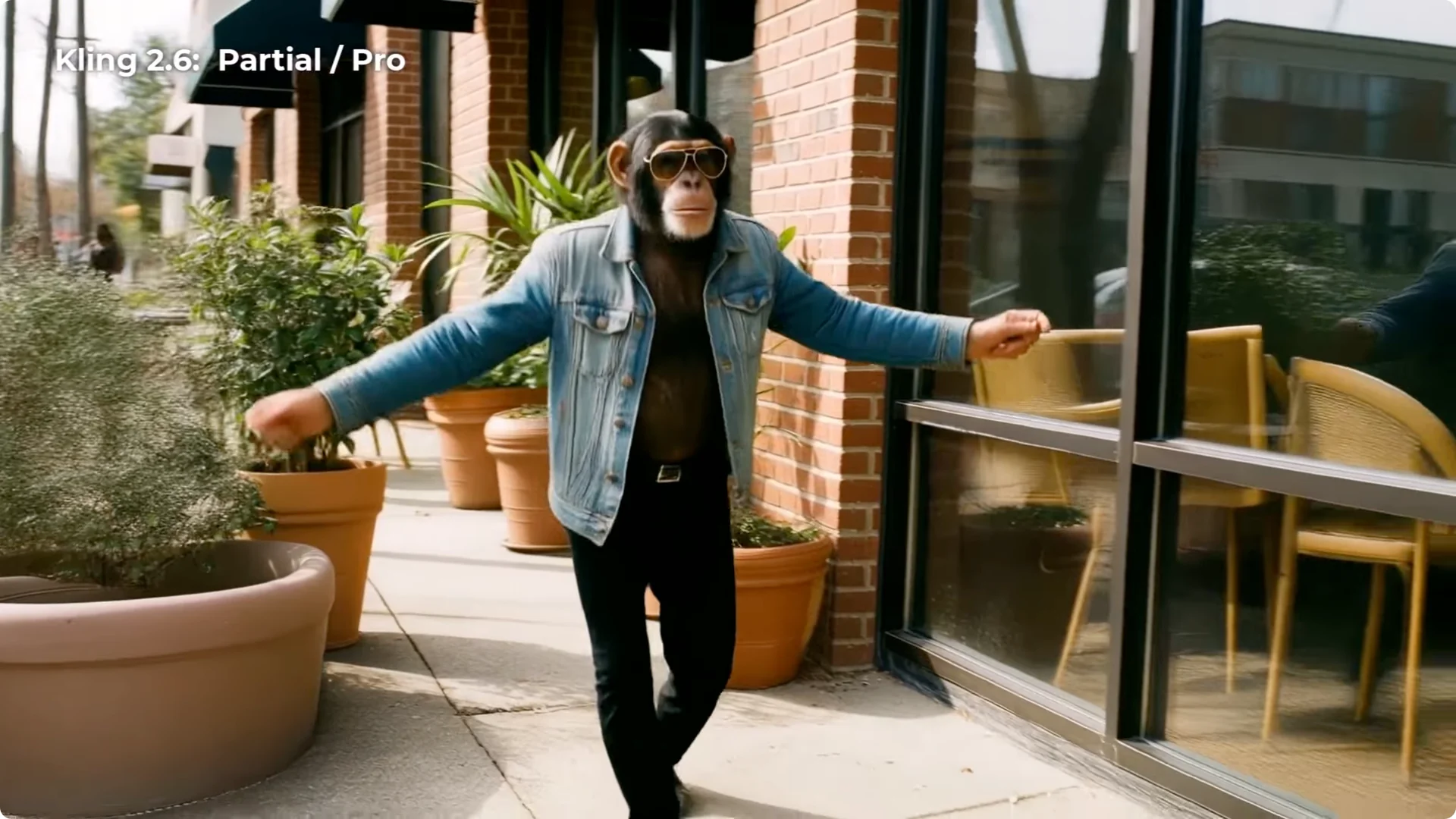
I kept testing framing by switching subjects and trying an animal. I used two images of a monkey with sunglasses: one full body and one portrait.
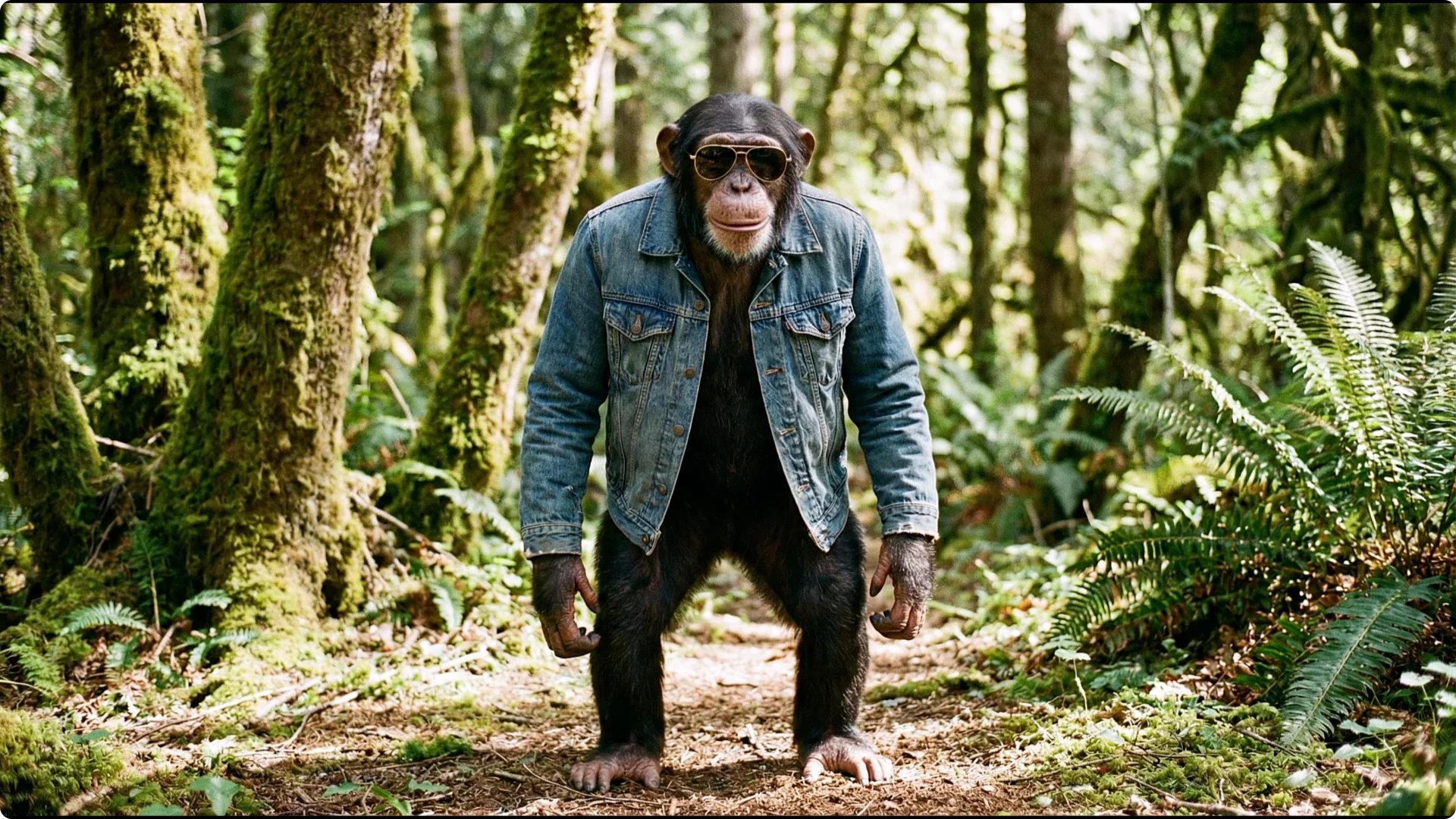
Full body vs portrait
- Full body + Exact: looks solid because the framing matches, though it did cut off here and there.
- Full body + Partial: a nicer video with a bit more movement and better balance.
- Portrait + Exact: messy because the source motion did not suit the crop.
- Portrait + Partial: turned out exceptionally well and looked cinematic.
Conclusion: the framing counts. Test both Exact and Partial for each case.
Kling 2.6 Motion Control vs Runway Act 2 vs OpenArt Motion
I reused settings across models to compare the same boxing setup.
Boxing comparison
- Runway Act 2:
– 720p output in my tests.
– Expression intensity at 1: decent, but it produced a weird dead arm effect.
– Intensity at 3: better balance, still not perfect arms.
– Intensity at 5: more background activity, but the arms still not right.
- OpenArt Motion:
– I tested both Character Guided and Video Guided at 1080p.
– Video Guided looked fine, not quite as sharp as Kling, but it handled motion reasonably well.
– Character Guided introduced some morphing with this high-motion clip.
Kling 2.6 produced the sharpest and most reliable result on this setup.
Credits and resolution
Using OpenArt’s credit system:
- Kling 2.6:
– Standard 720p: 160 credits
– Pro 1080p: 240 credits
- Runway Act 2:
– 720p: 200 credits
– 1080p costs more than Kling Pro
- OpenArt Motion:
– 720p around 240 credits
– 1080p around 320 credits
– Video Guided can reduce credits
Kling tended to be the cheapest and the most reliable in my tests.
Additional comparisons on other clips
On the Shaolin Bob and chimp videos:
- Runway Act 2 did not detect a face, so I compared Kling vs OpenArt Motion.
- OpenArt Motion had some results with a slight blur at the bottom or framing too tight. Character Guided and Video Guided both produced workable outputs, but small morphs and blurs showed up.
- Kling was consistently sharper, with motion and camera handling that felt a bit more solid.
Talking head and lip sync with Kling 2.6 Motion Control
I tested how well it handles lip sync for people who want to speak on camera while keeping their face private.
Setup
- Use an image with similar framing to your talking video.
- Keep original sound on.
- Pro mode for 1080p.
- Test Exact and Partial. I left the prompt blank to see how it handled it.
Results across different images
- A portrait-like photo close to my framing produced decent lip sync and movement, not perfect but workable.
- A monkey with sunglasses image: some speech segments worked well, some did not.
- A Renaissance-style painting performed better than the monkey.
- A cartoon Studio Ghibli style image did not translate as well.
None of these were perfect, but there has been a big improvement. It’s practical for many use cases.
Lip sync comparisons
I compared talking head outputs across models.
Runway Act 2
- Intensity 1: pretty decent lip sync, but the chin movement didn’t quite work.
- Intensity 3: nice natural dialogue.
- Intensity 5: too expressive, with chin wobble artifacts.
- Zoomed in, Kling looked better than Runway on sharpness.
OpenArt Motion
- Character Guided: not what I wanted visually on this clip, with a strange arm issue, but the lip sync itself felt natural.
- Video Guided: a lot better overall on that specific example.
My take:
- Sometimes any of these models can produce a good or poor result on a given clip.
- For that talking test, Video Guided worked best for OpenArt Motion.
- Exact worked best for Kling 2.6.
- On Runway Act 2, keep expression intensity lower for more natural results.
Practical takeaways for Kling 2.6 Motion Control
- Match framing: Align your image composition with the source video’s framing and aspect ratio.
- Try Exact and Partial: Exact tracks the source closely. Partial stabilizes framing and can avoid cropping and weird camera shifts.
- Standard vs Pro: Standard can be more stable in some cases. Pro delivers 1080p but may exaggerate background issues in Exact.
- Use a prep pass: Reframe or adjust your image before motion sync. Zoom in or out to keep your subject in frame.
- Backgrounds vary: Static or complex moving backgrounds can behave unpredictably. Consider prompts and composition to minimize issues.
- Lip sync: Portrait photos with clear facial structure and natural proportions generally perform better. Stylized or heavily cropped images may reduce accuracy.
- Costs: Kling 2.6 often gives the best quality-to-credit ratio in these tests.
Final thoughts
Kling 2.6 Motion Control handled motion translation impressively well in my testing, with sharp images and very usable results. Exact vs Partial and Standard vs Pro are meaningful toggles that can make or break a shot, and framing matters a lot. On comparisons, Kling tended to be sharper and more reliable, while Runway Act 2 and OpenArt Motion offered viable alternatives in specific cases.
For talking head and lip sync, Kling delivered solid outputs, with Runway and OpenArt Motion sometimes matching or exceeding it on a clip-by-clip basis. With a bit of experimentation on framing, mode, and reference control, you can quickly get high-quality motion and talking outputs from your existing images and videos.