Here is how you can easily delete images in your account. If you have generated a bunch of videos and images and you do not want them to show, you can keep it clean by removing them. For a broader look at working with visuals, see this guide to Higgsfield images and videos.
Higgsfield AI Image Deletion
Delete from image menu
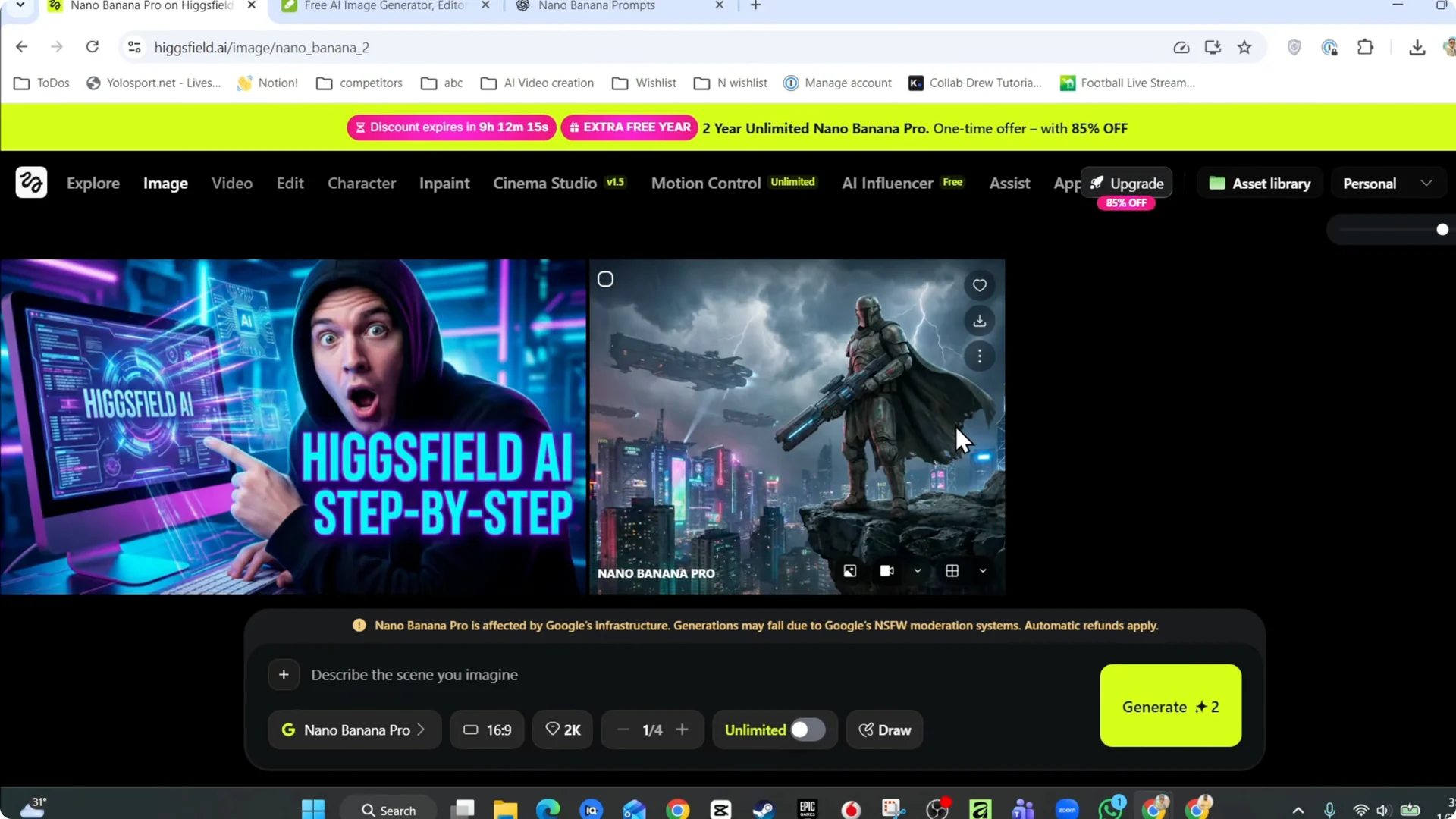
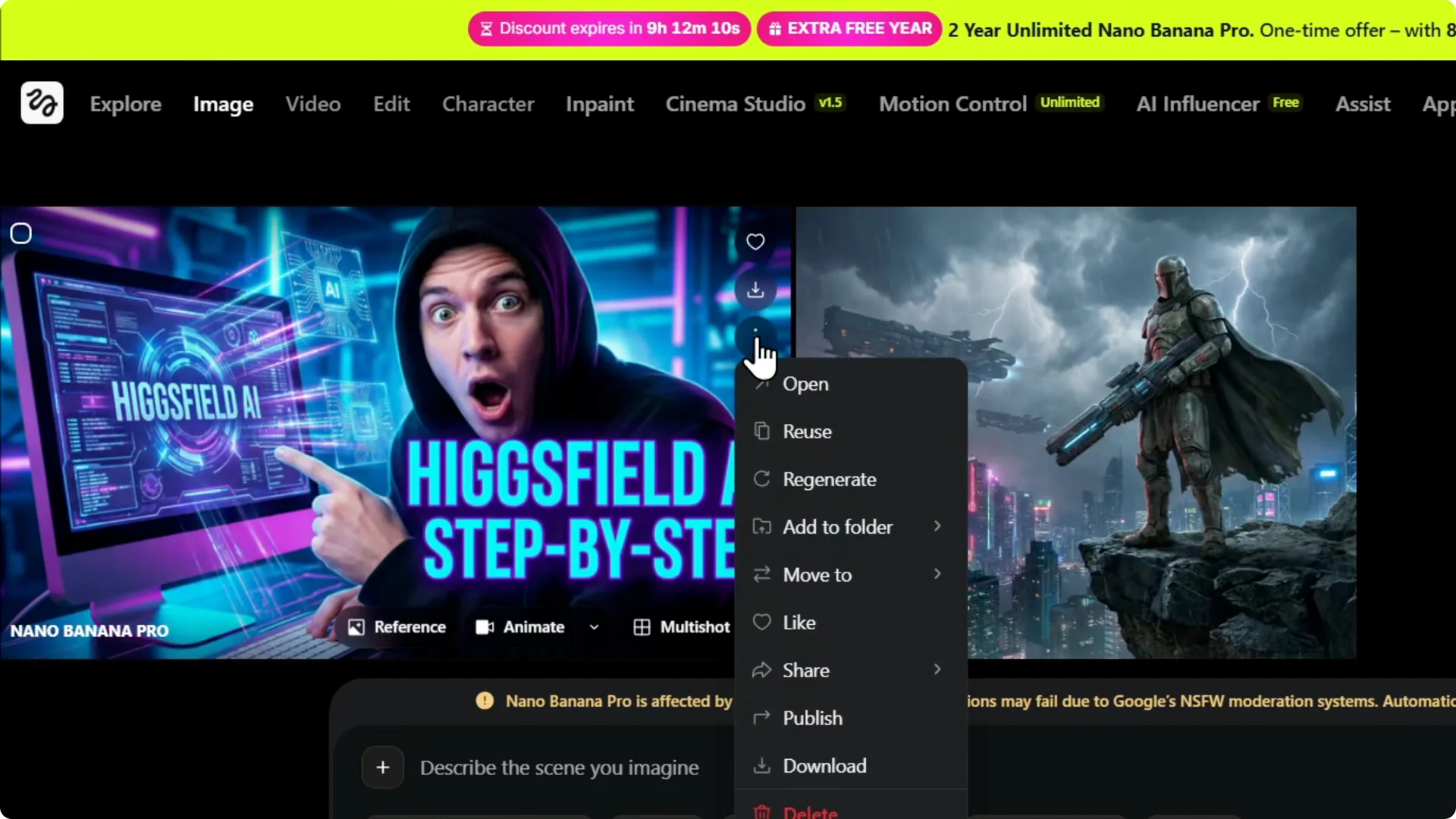
Step 1: Click the three dots on the upper right of any image. You will see the option to delete at the bottom.
Step 2: Click on Delete. This opens the confirmation.
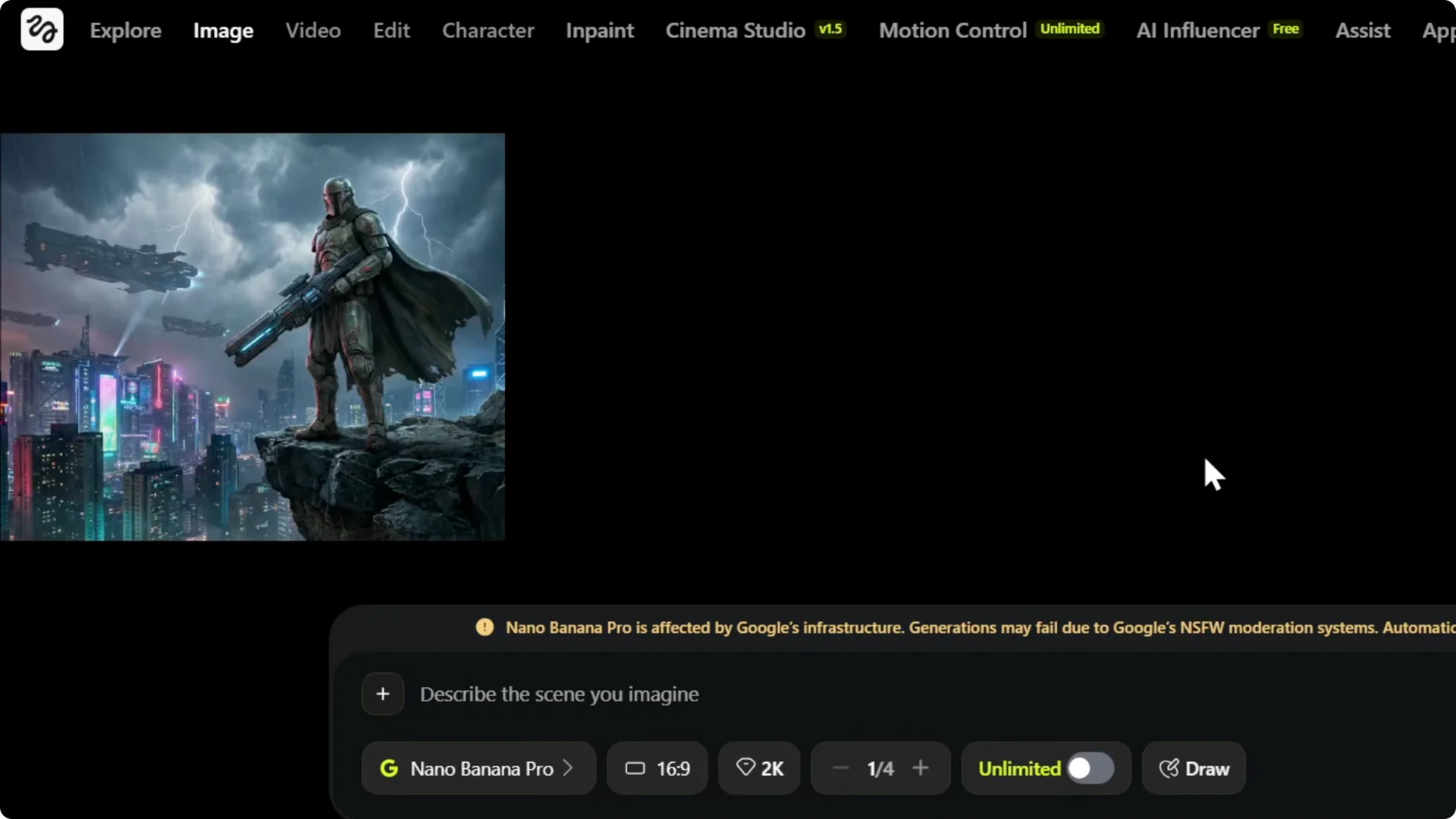
Step 3: Click on Delete forever and it is gone. Once you confirm, the image is removed.
If you are creating new visuals from prompts, see these text to images tips for Higgsfield.
Use asset library
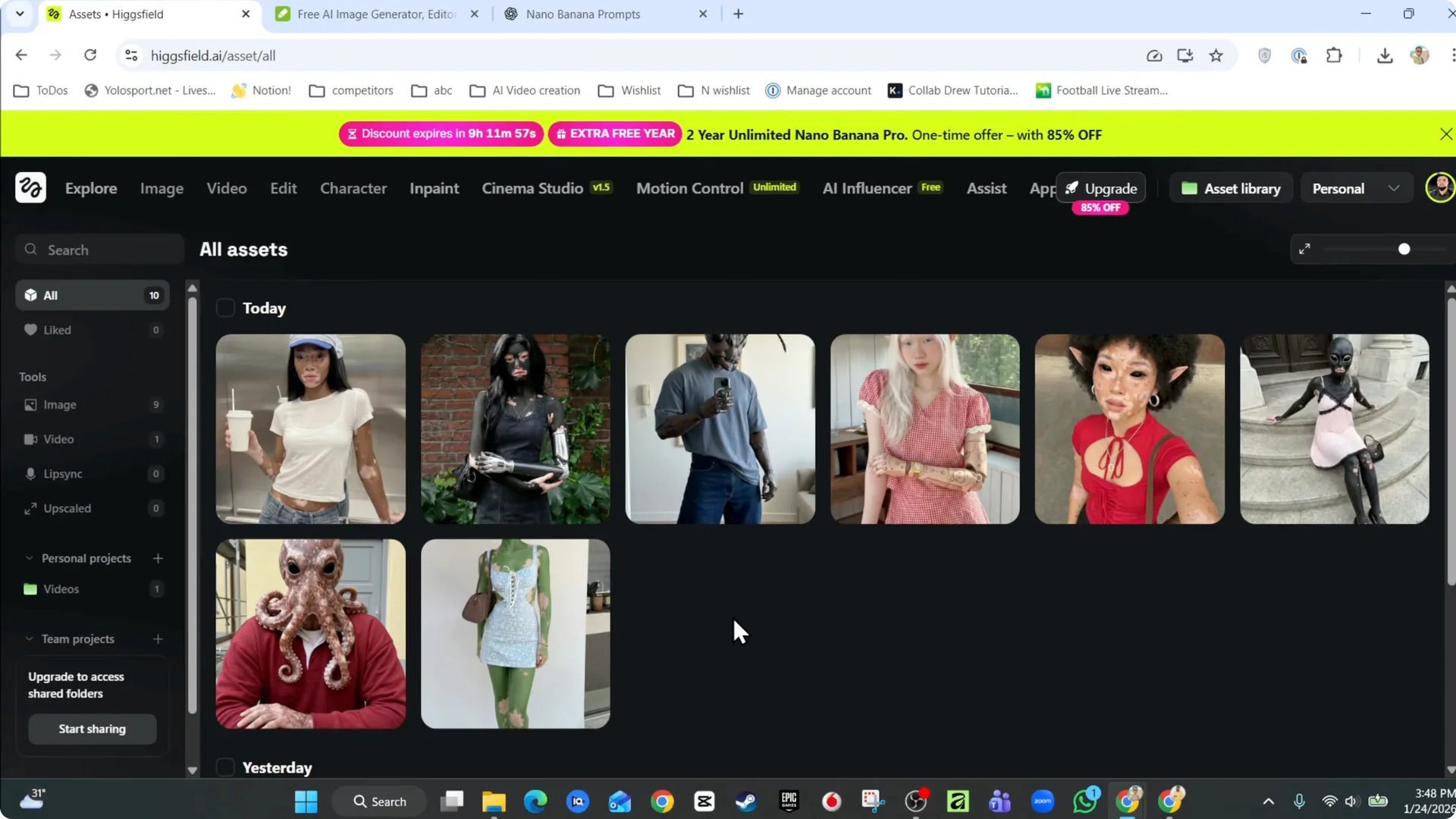
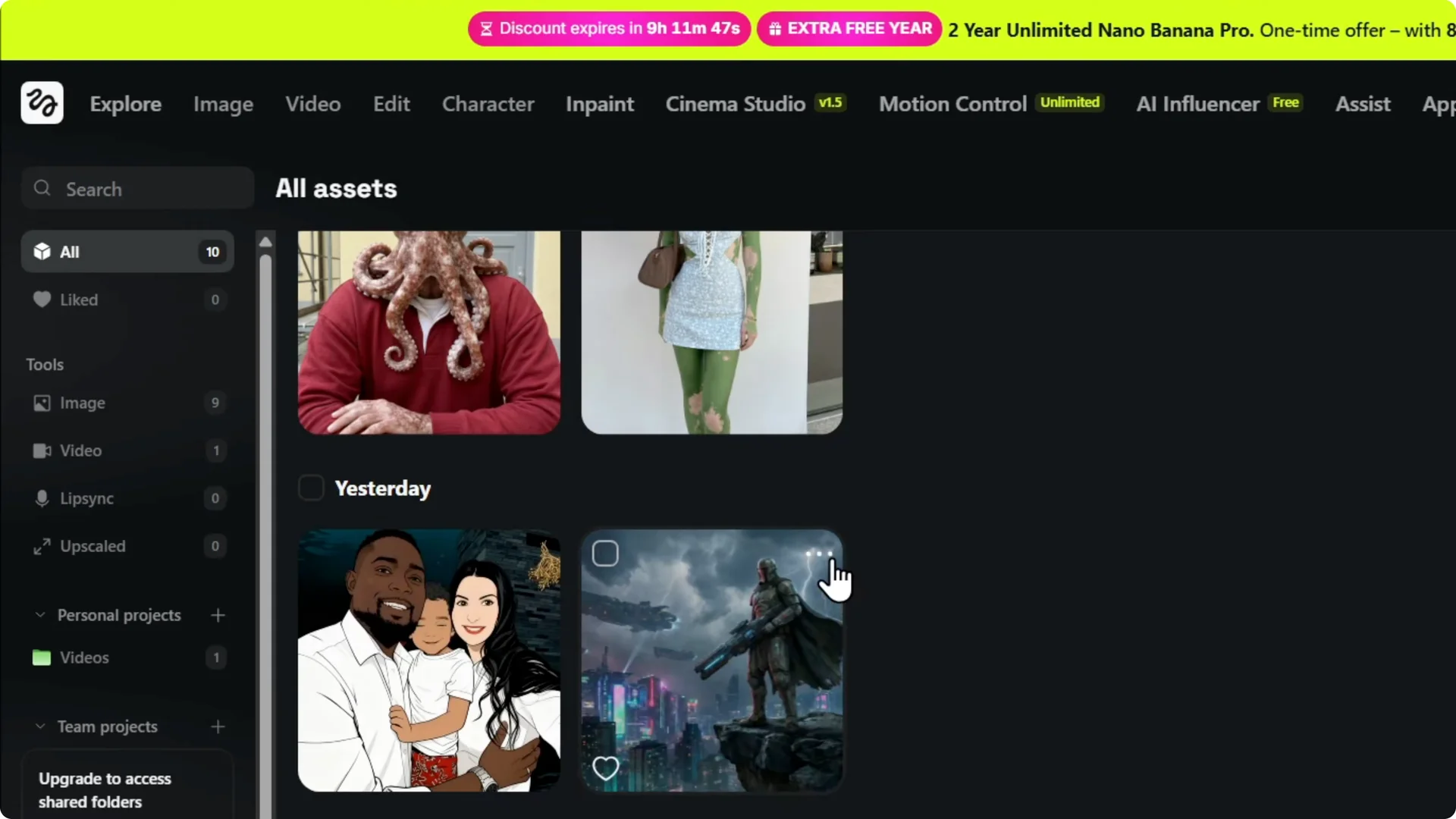
Step 1: Click on Assets on the upper right to open the asset library. You will find the asset library there.
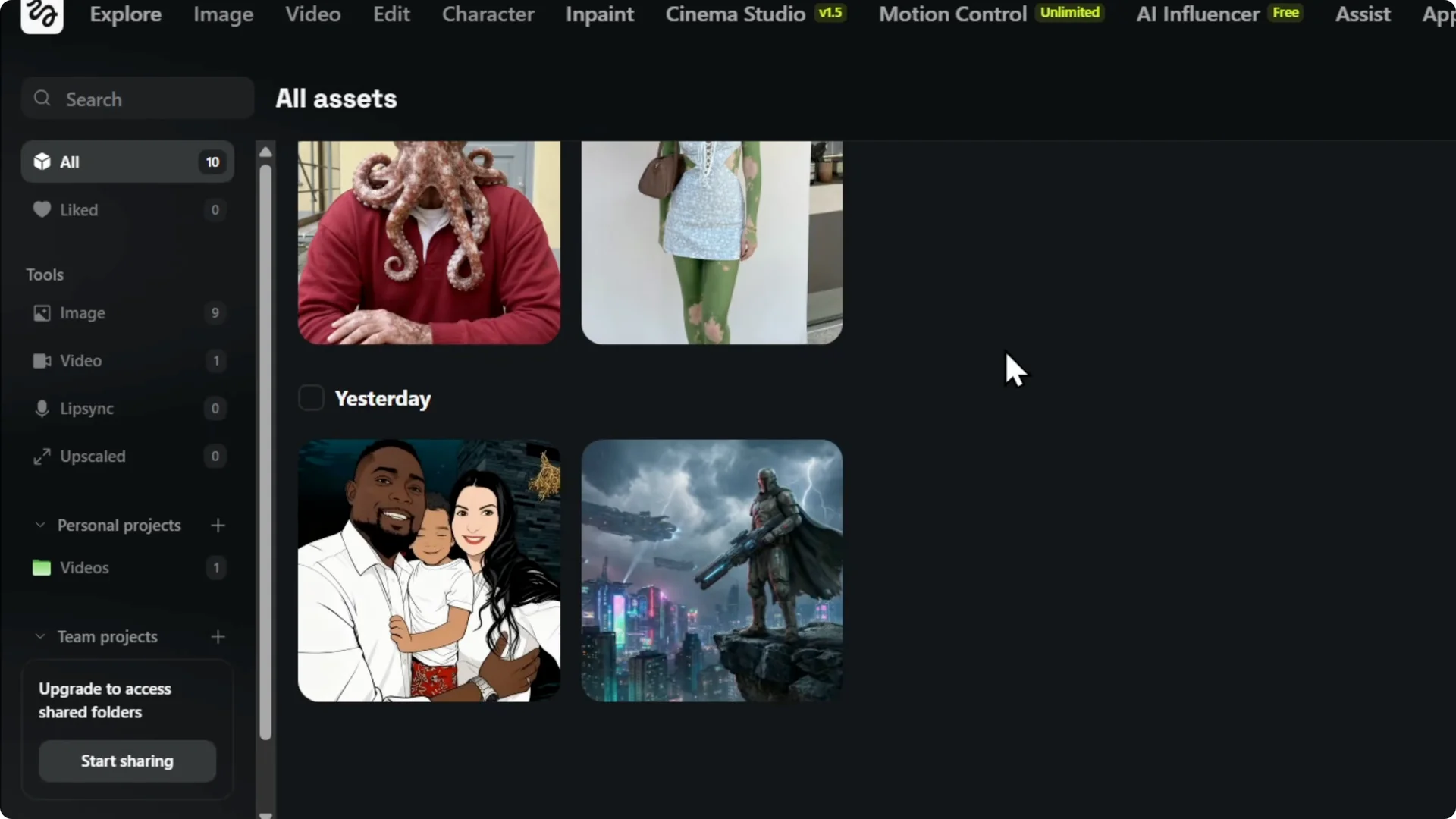
Step 2: In your asset library, locate the images you want to remove. You will find different items listed.
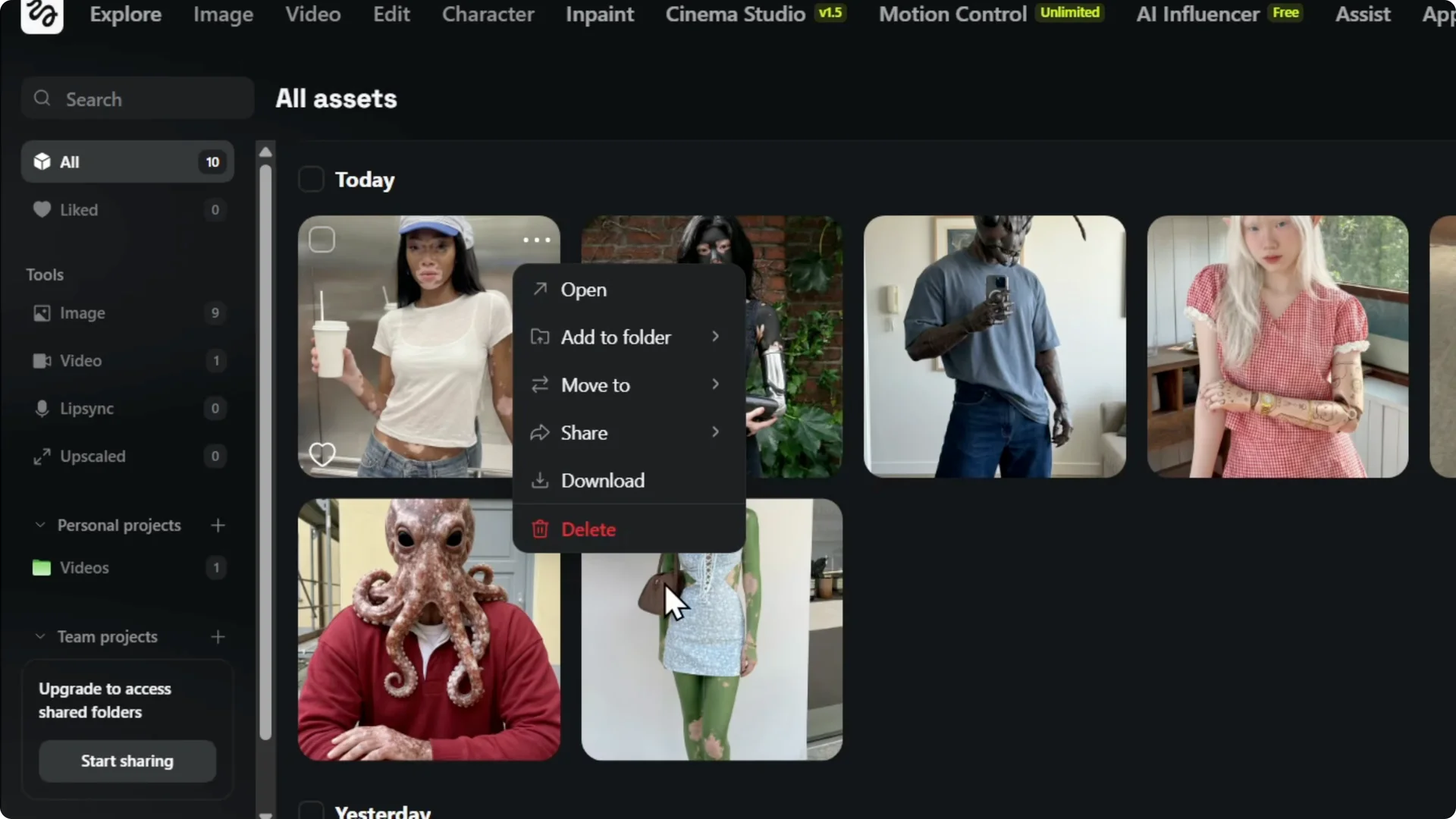
Step 3: Click the three dots on the item and hit Delete. You can remove anything you do not want to show.
If you manage product photos, you might also like this guide on improving ecommerce images with Higgsfield.
Final Thoughts
You can delete images directly from the image menu or from the asset library. Click the three dots, choose Delete, and confirm with Delete forever. Anything you do not want to show can be removed quickly.