If you have a photo or a video of your face and you want to make your skin look much nicer, try Higgsfield AI. I’m going to show you how I refine skin with its Skin Enhancer and what to expect from the results. You can test different finishes, compare with your original, and even animate the portrait afterward.
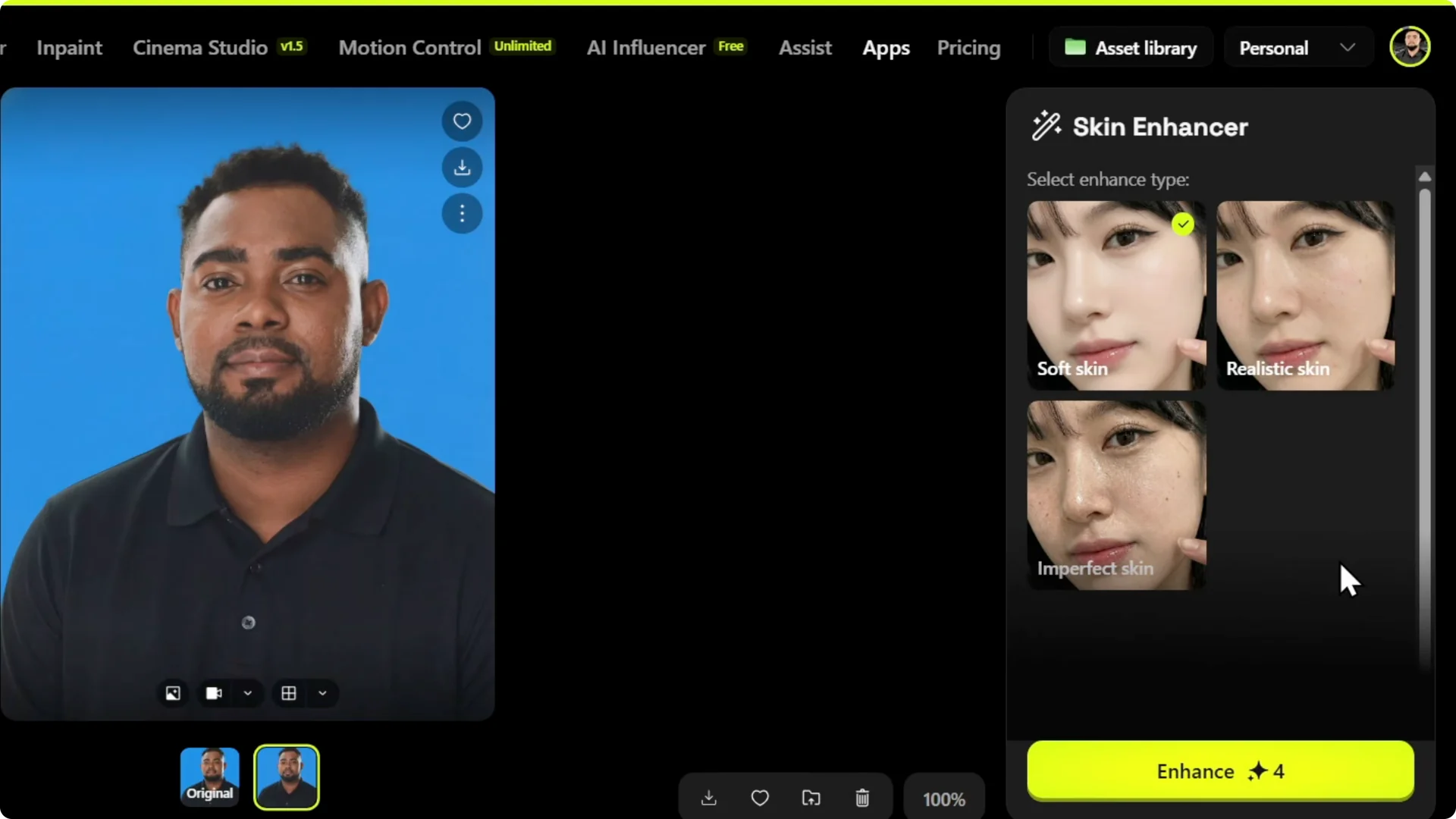
You’ll see options to soften skin, keep it realistic, or even add imperfections if you want to show some pimples or texture. It depends on how your picture actually looks and what you prefer. You can always enhance again to push the effect.
Higgsfield AI Skin Retouching: Getting Started
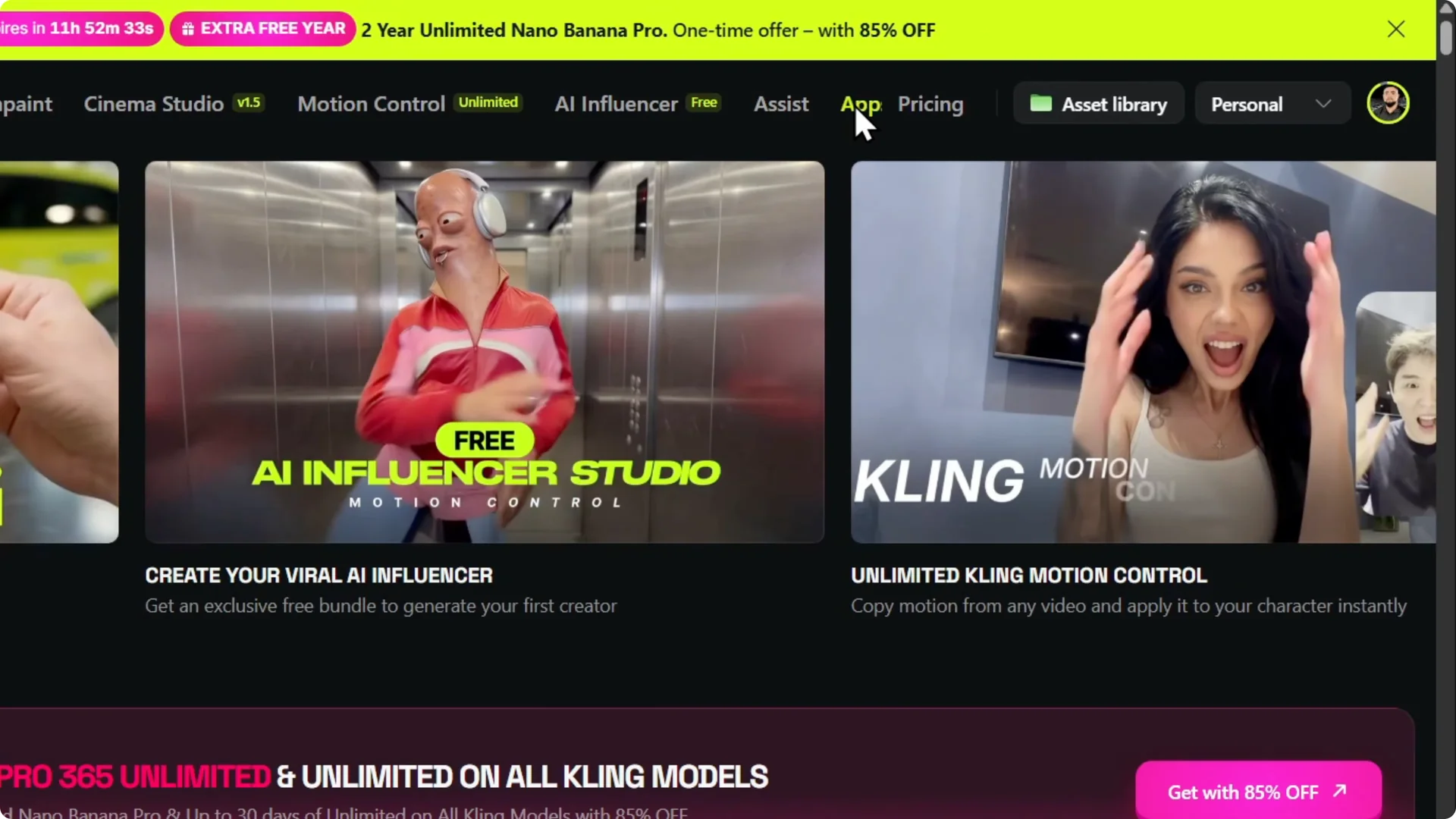
Step 1: Log into your account. Click on Apps at the top right, right next to Pricing.
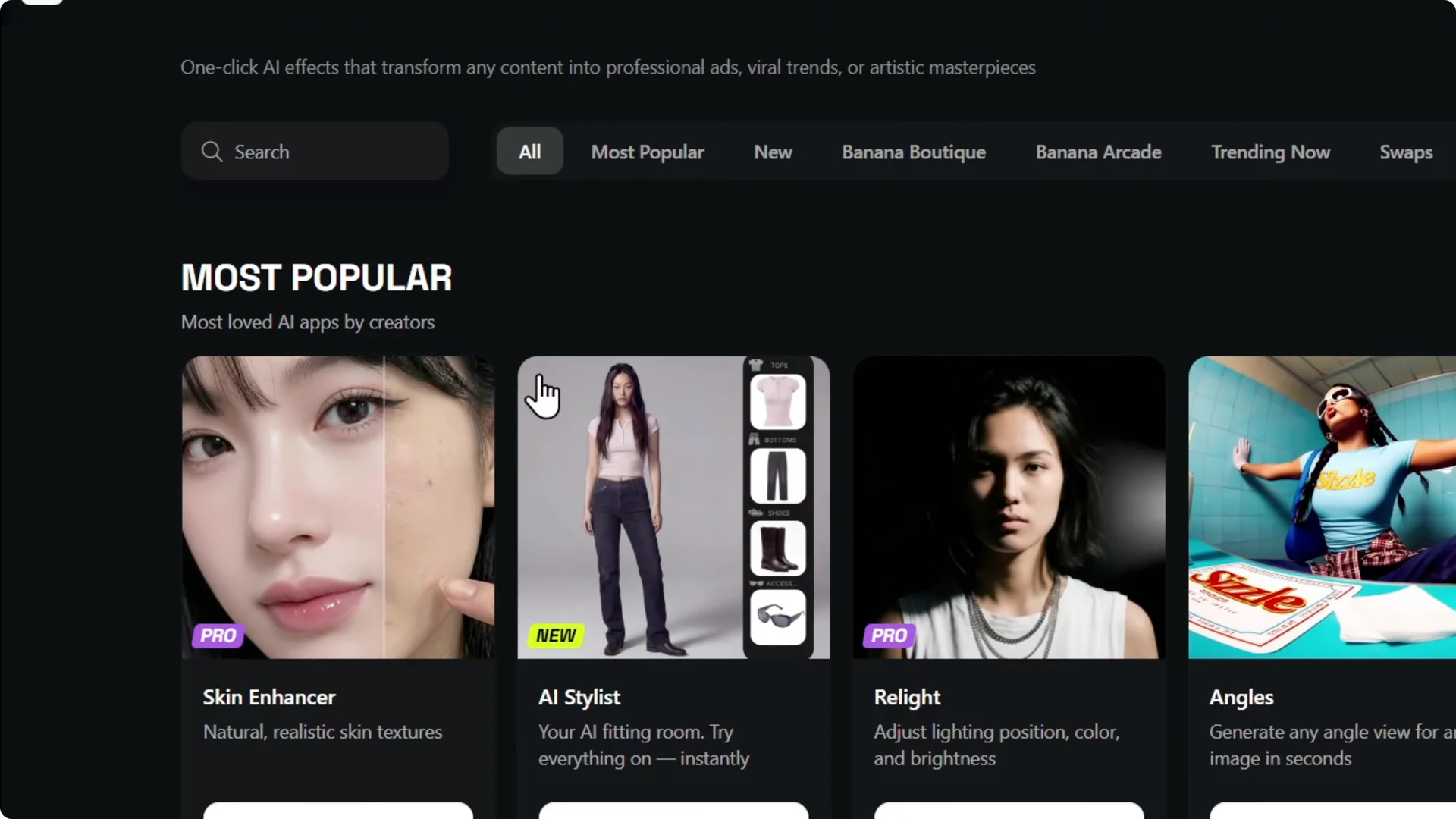
Step 2: Look for the Skin Enhancer. You can also search for it, and once you find it, click to open.
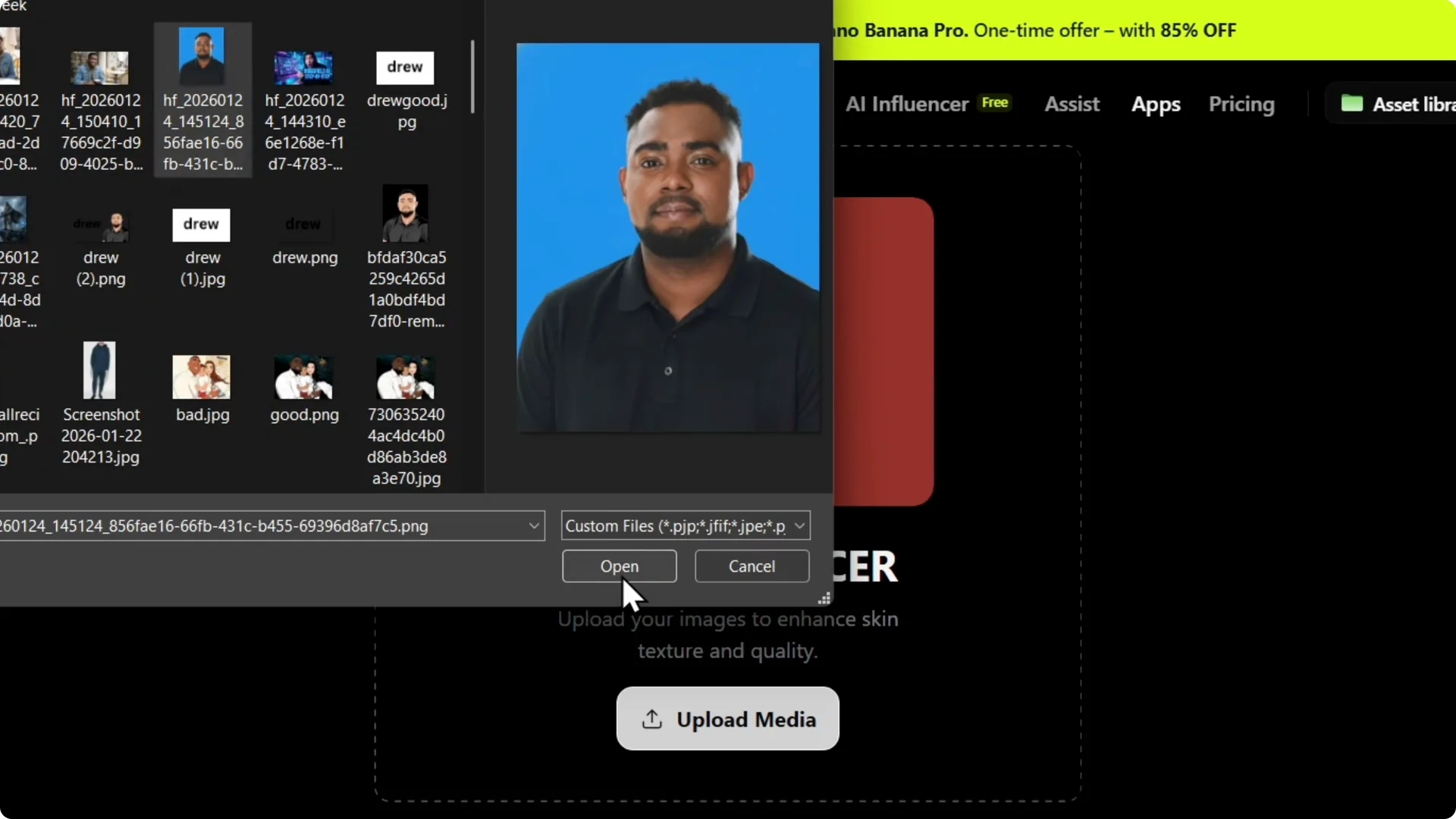
Step 3: Upload your media or your image. Pick the file from your computer and wait for it to upload.
Step 4: Choose your finish. You’ll see options like Imperfection Skin, Soft Skin, or Realistic Skin, and you can select whichever you want based on your image. Click Enhance to process it with the AI tool.
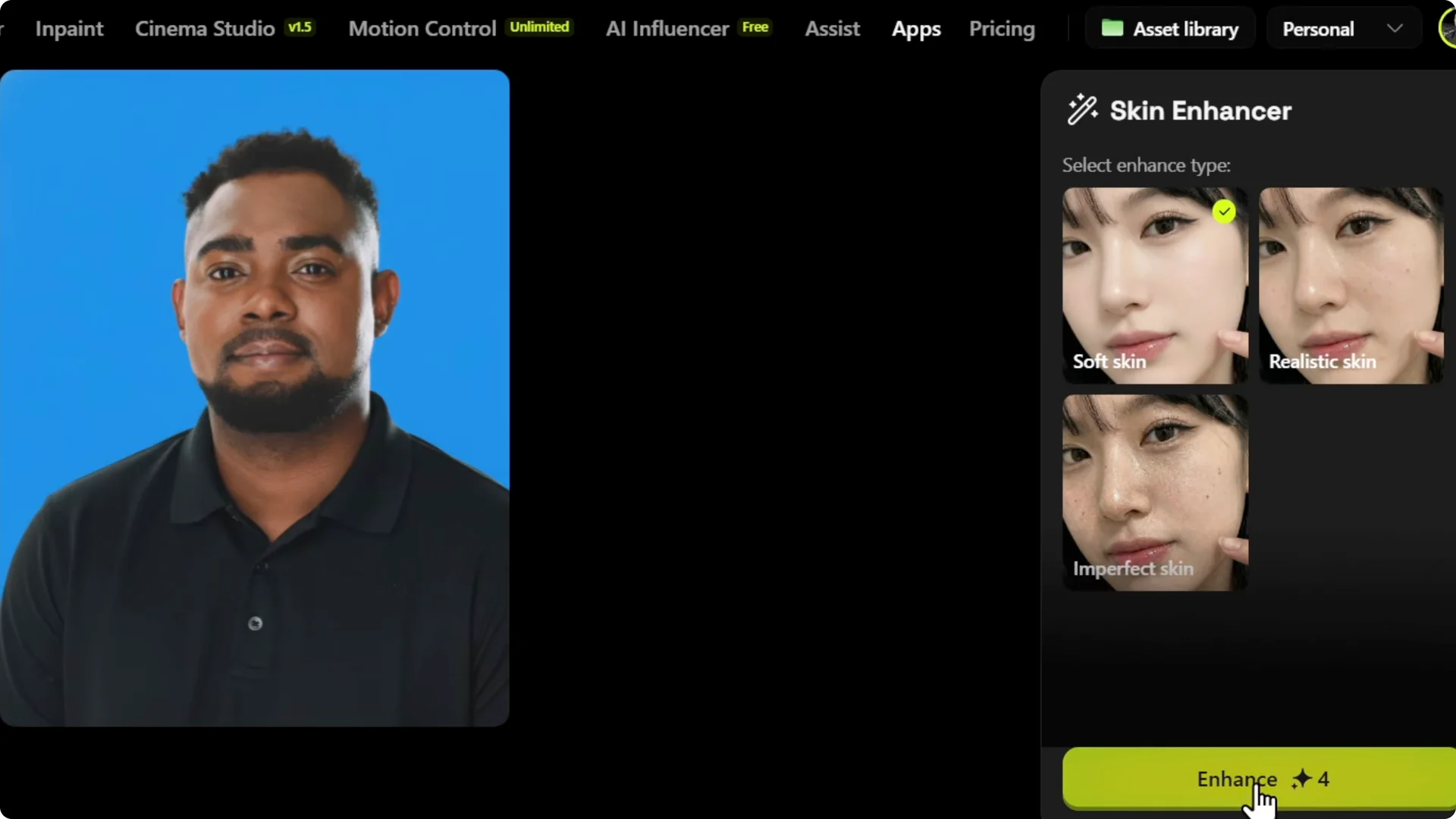
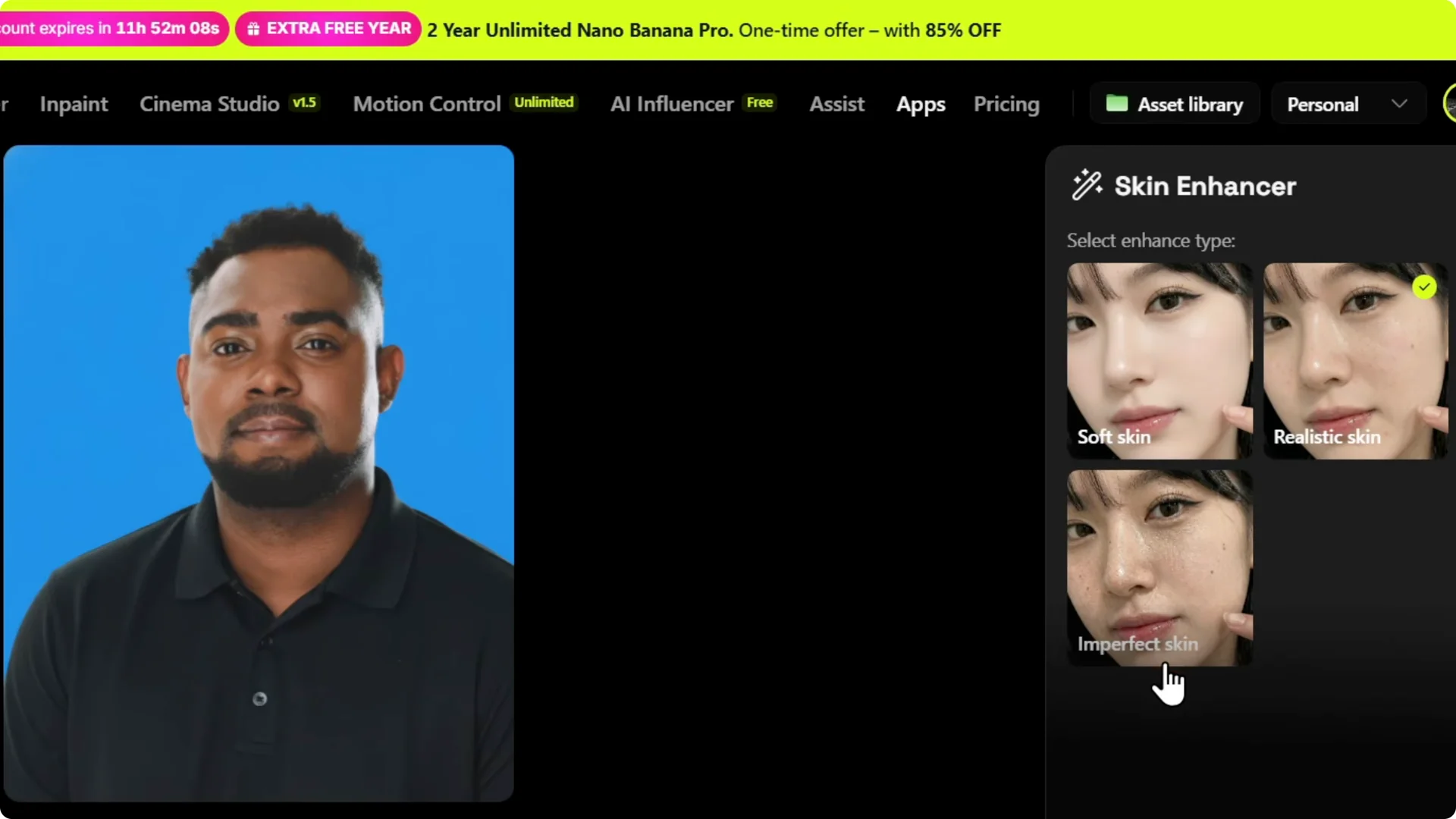
If you want to branch into creative edits beyond skin cleanup, see how Higgsfield can handle clothes style transformations.
Higgsfield AI Skin Retouching: Review and Download
Give it a moment to complete the enhancement. You might not see a huge difference on a professionally taken photo, but on a rougher image the AI can make the skin look much better. The improvement depends on the quality of the original.
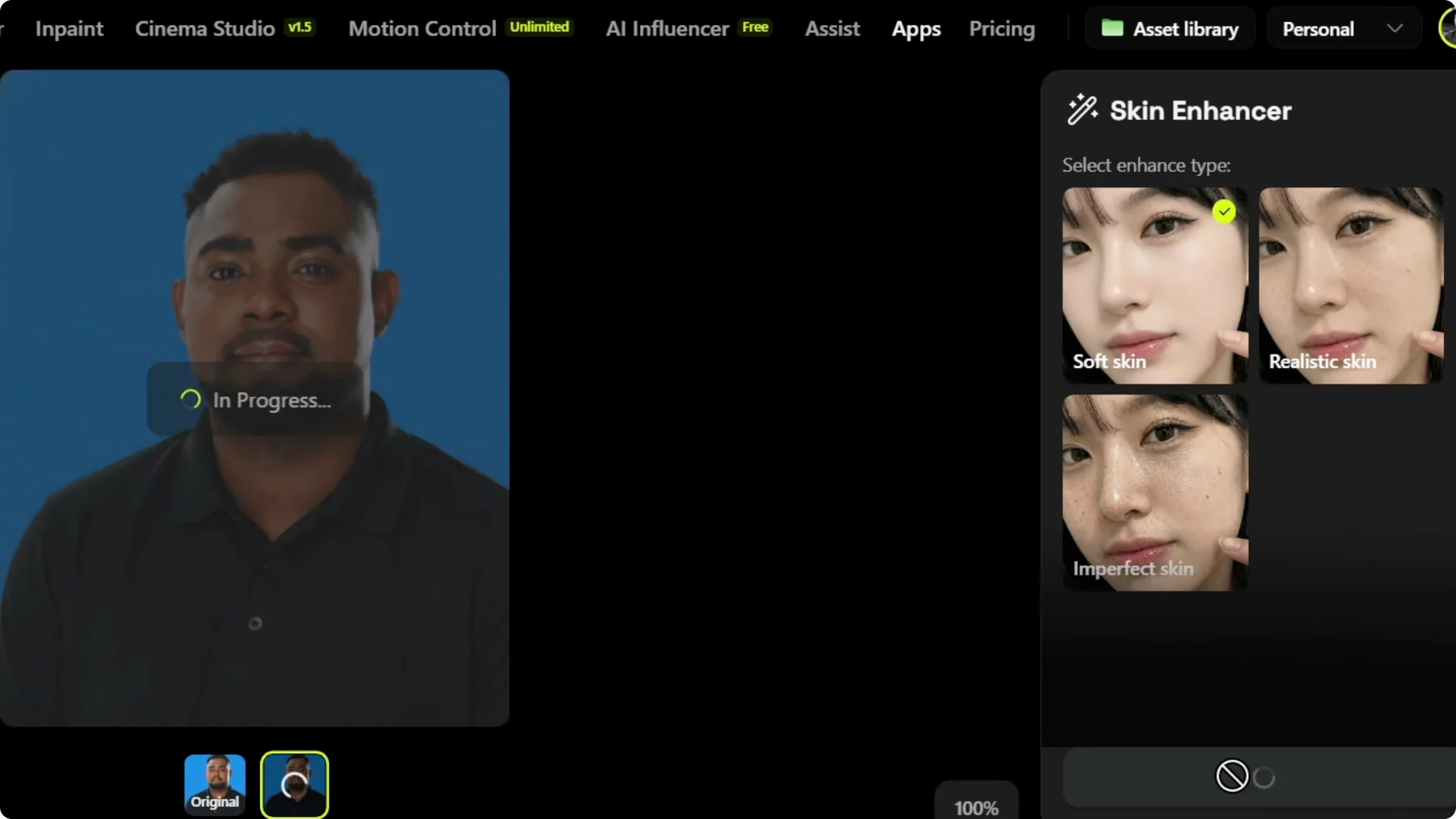
Open the processed image, review how it makes your skin look, and download it. Compare it with your original to decide which one you prefer. It’s subjective, so test a couple of finishes to find what works for your picture.
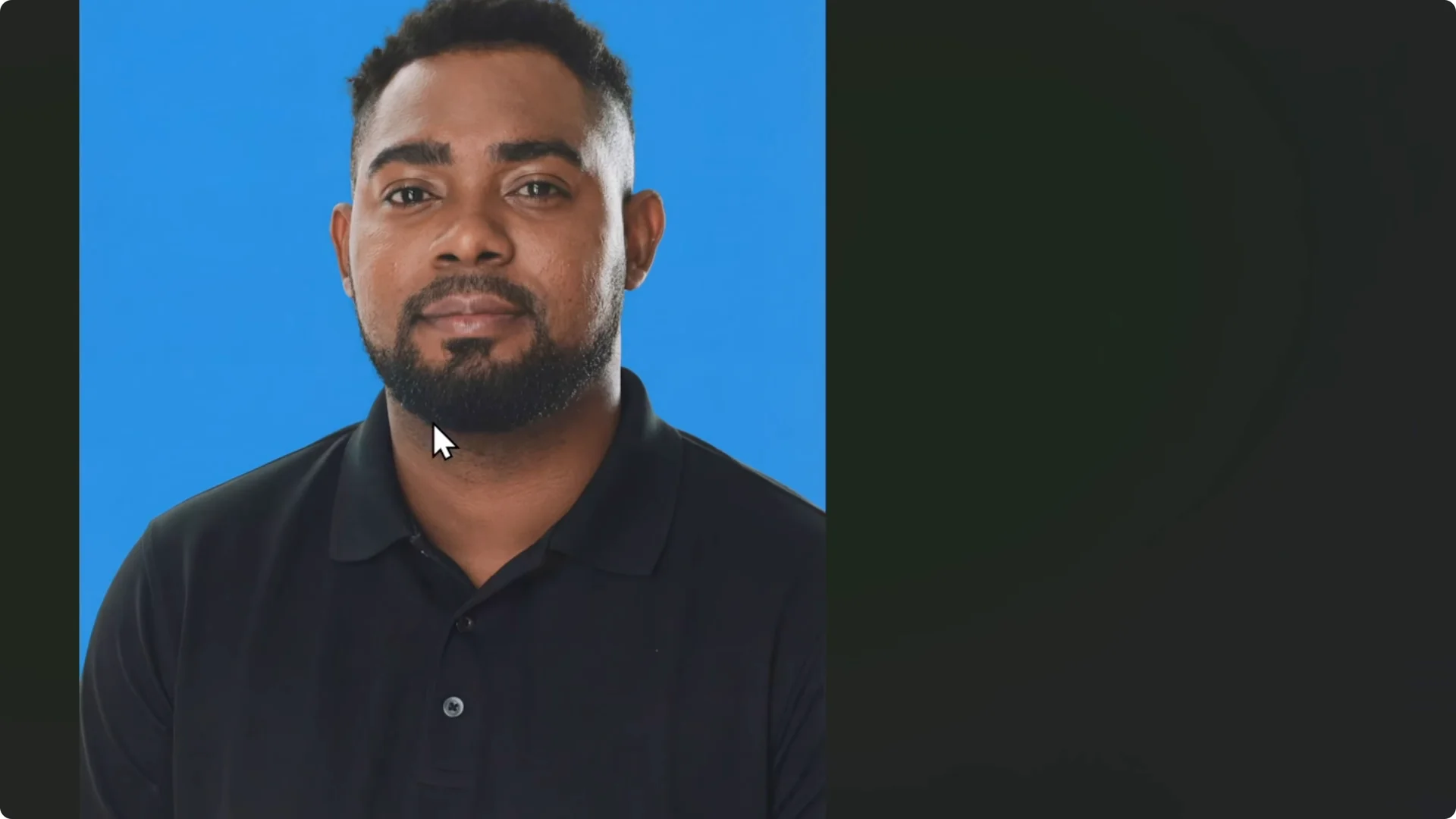
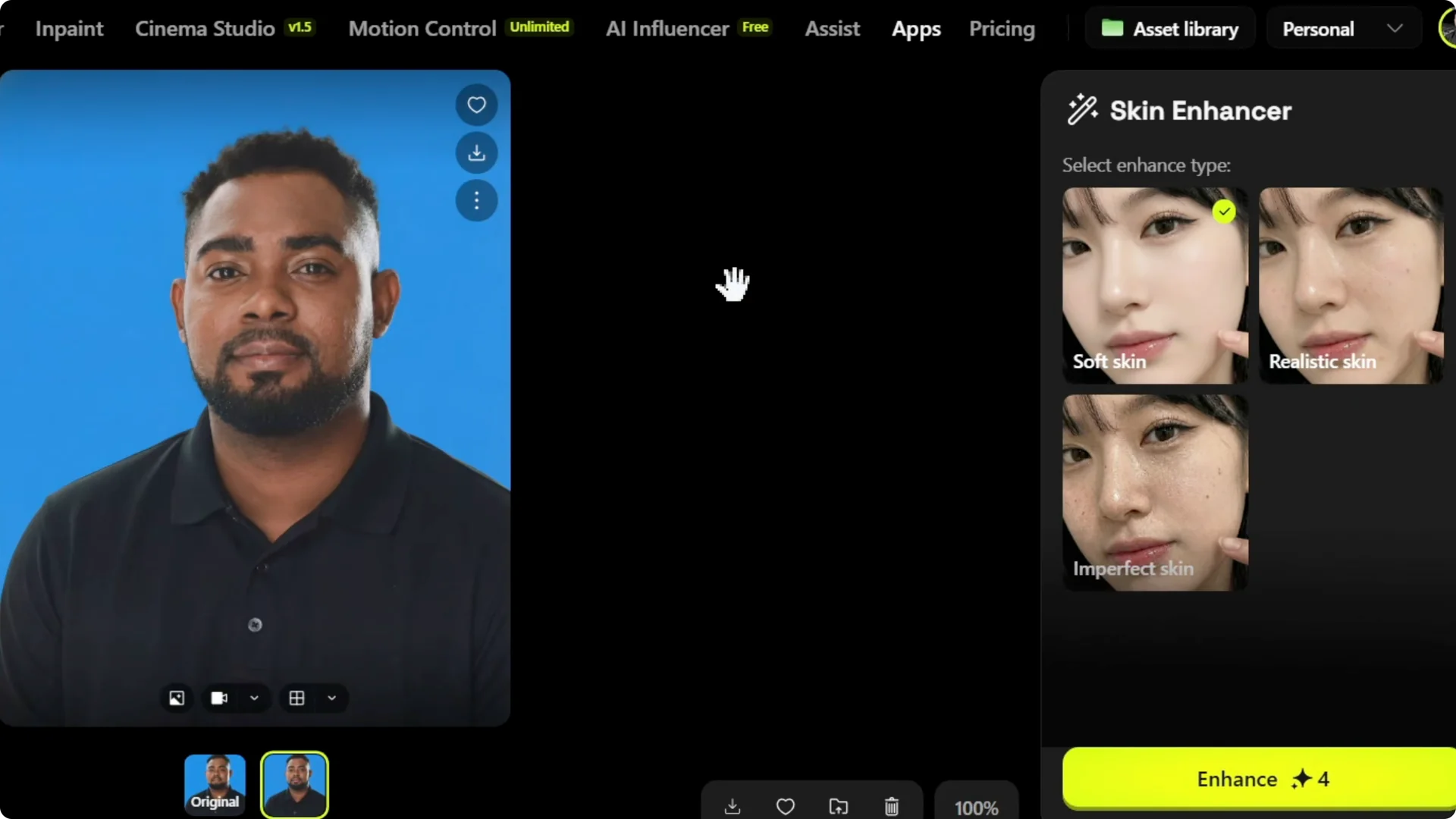
You can enhance it again by pressing Enhance to apply the effect one more time. Play with the tools and try a different finish if needed. It’s not perfect, but depending on your image, it can do a better job on a second pass.
If you work with product shots or model photos for stores, check how Higgsfield can improve catalog visuals in this guide on ecommerce image transformations.
Higgsfield AI Skin Retouching: Animate Your Portrait
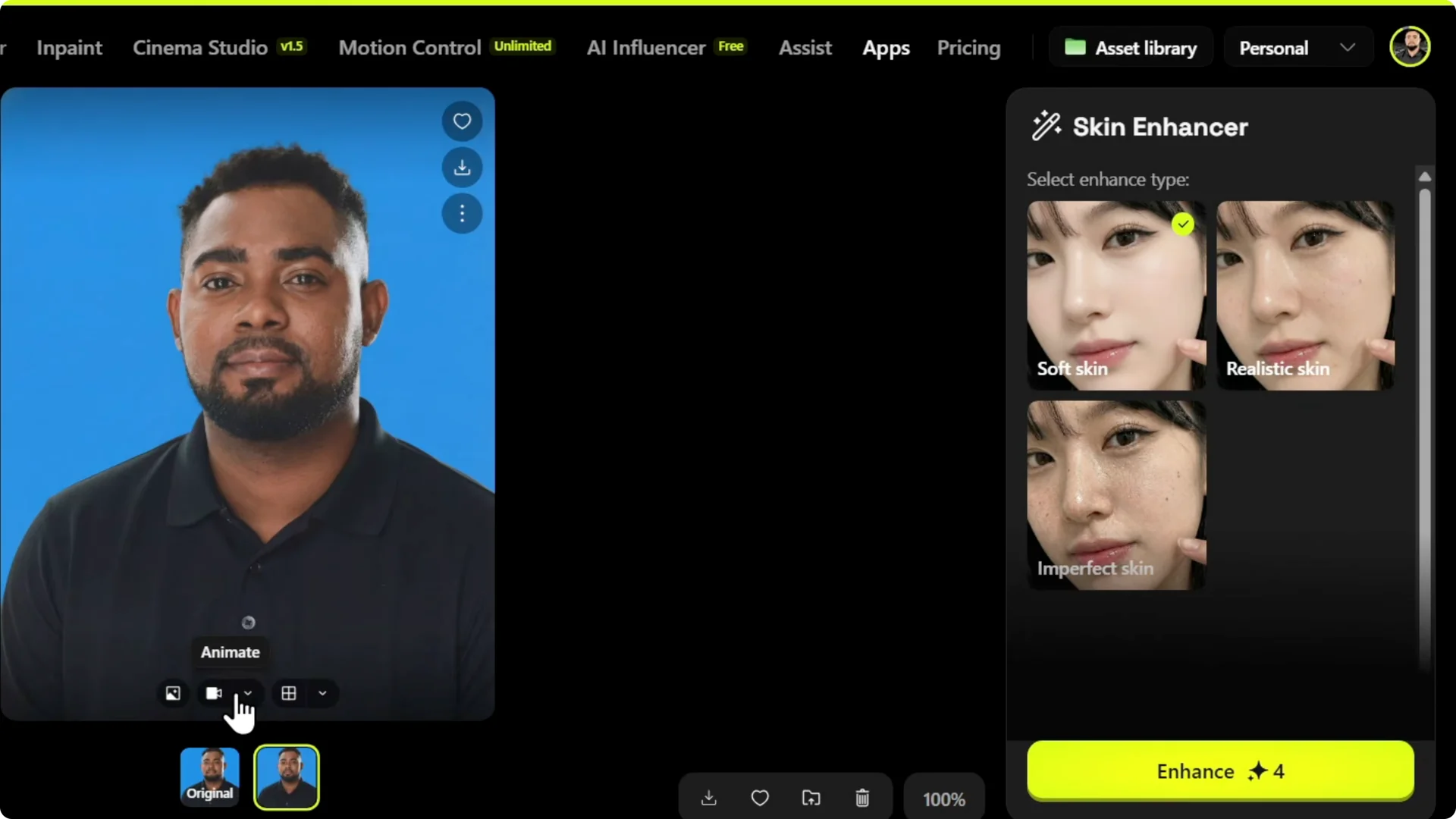
After the generation finishes, you can convert any image into a video. Look for the Animate button and click to animate it. That’s a quick way to bring your retouched portrait to life.
If you’re building scenes or previsuals, explore keeping characters on-model with consistent characters and storyboards.
Final Thoughts
Skin retouching in Higgsfield AI is straightforward: upload your image, pick a finish like Soft Skin, Realistic Skin, or Imperfection Skin, and click Enhance. Download the result and compare with your original to see what you like best.
If your starting photo is already high quality, the changes may be subtle. If it needs cleanup, this tool can refine the skin and give a better visual, and you can always enhance again or try another finish. You can also animate the final portrait with the built-in Animate option.