How to Add Glowing Neon Text Effect in Filmora

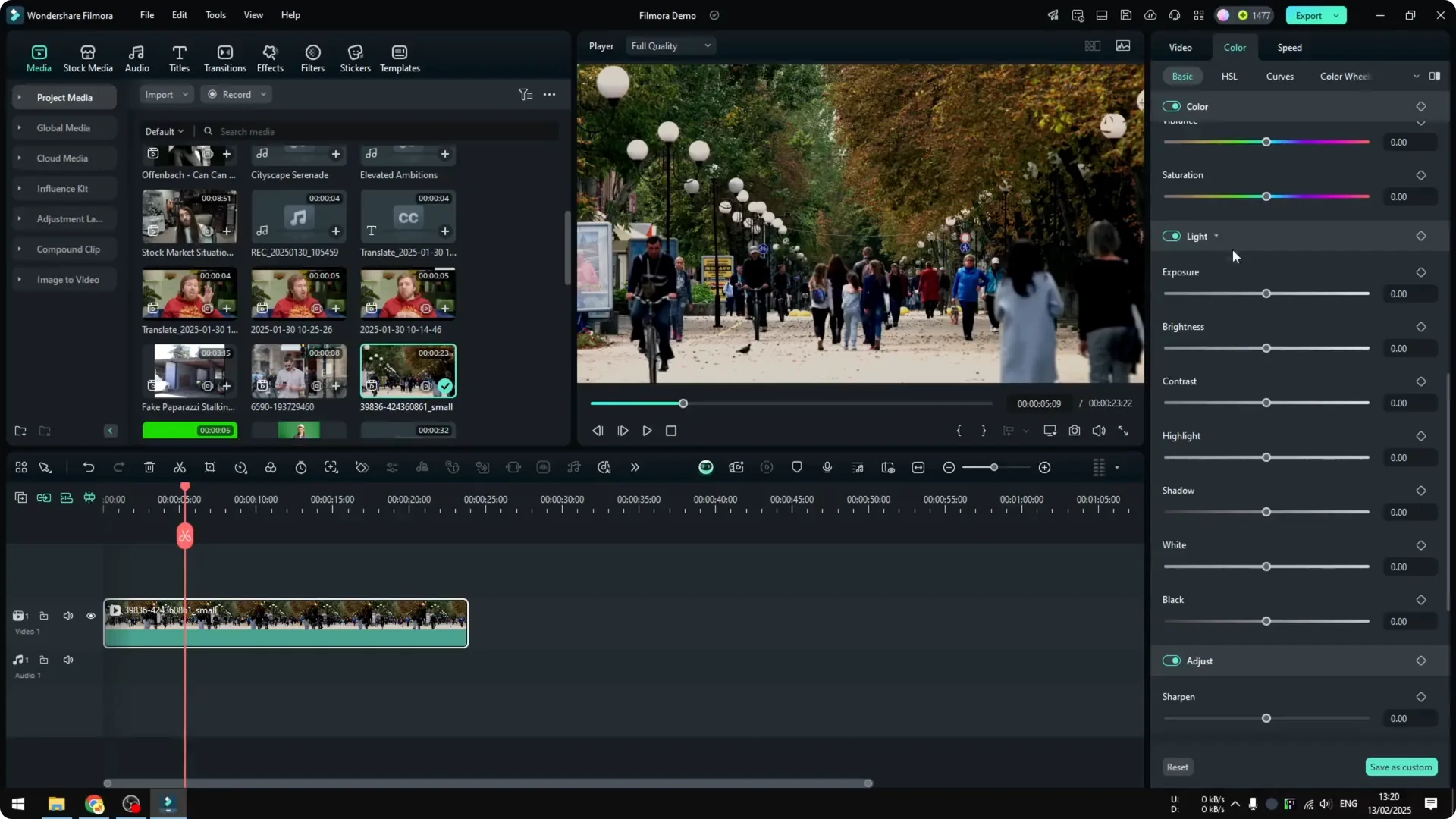
This is how you can add a neon text effect in Filmora. I’m going to be using a video clip for the background, and the background is a bit too bright, so I’ll change the brightness to minimum so the text or the neon effect will be more visible.

Prepare the background for the Filmora Neon Text Effect
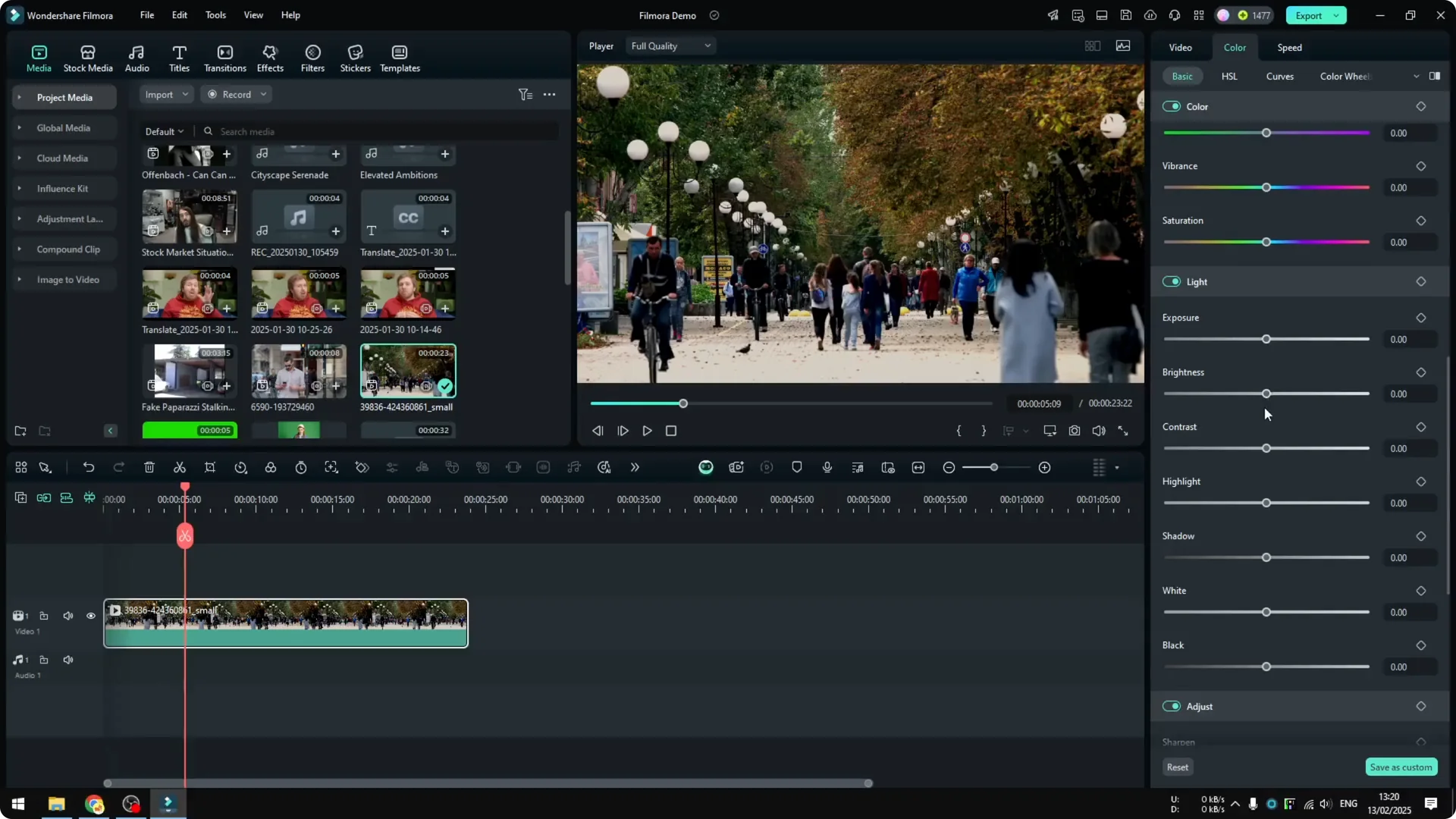
  • Click the video clip.
  • Go to Video – Color.
  • Scroll down to the section where you can adjust the light of the video.
  • Reduce the Brightness to minimum.
  • How to Add Glowing Neon Text Effect in Filmora screenshot 2

    How to Add Glowing Neon Text Effect in Filmora screenshot 1

    You can also change the contrast, exposure, shadow, etc., but the brightness should be good enough.

    Add and choose the neon style for the Filmora Neon Text Effect

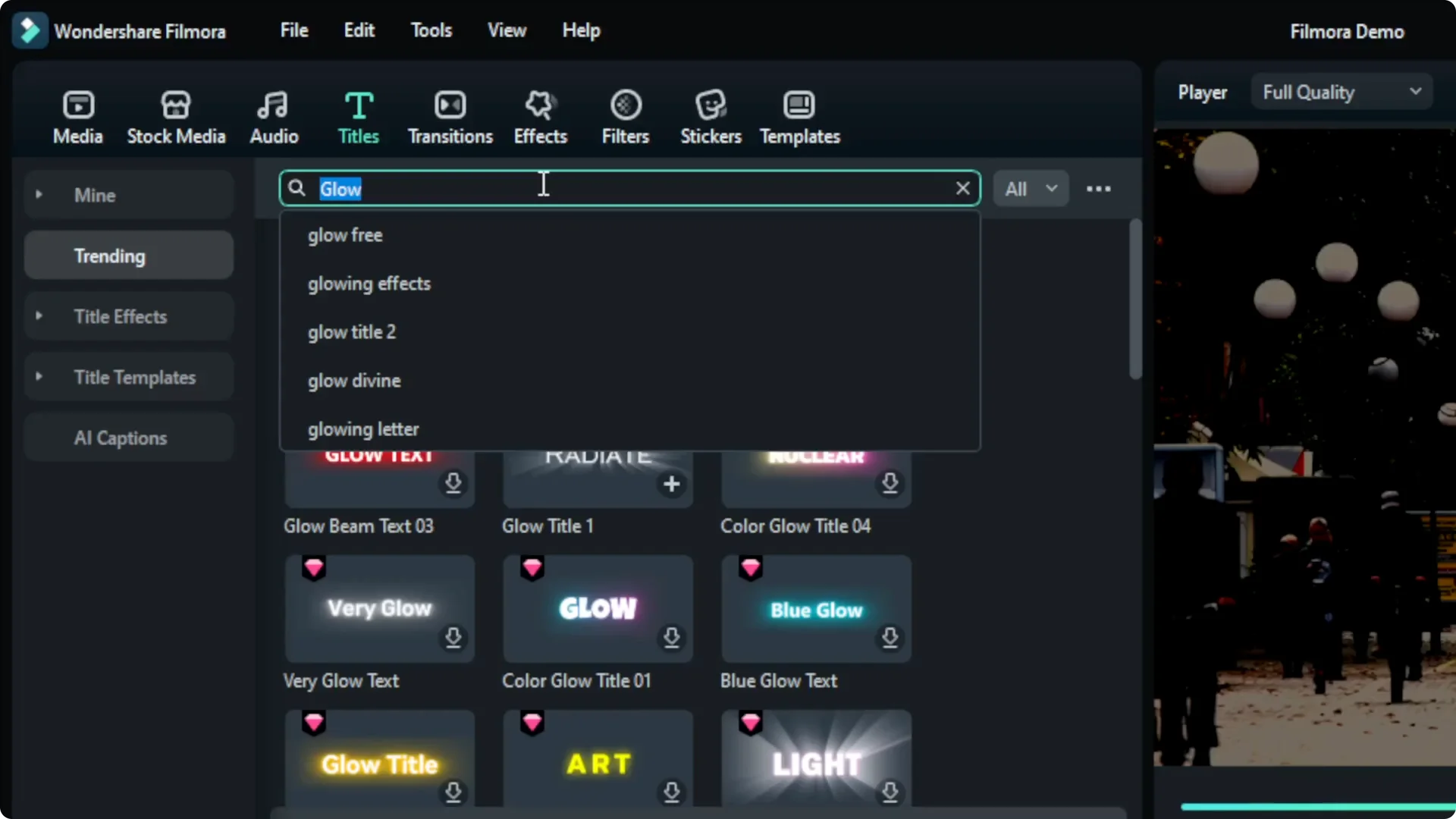
  • Go to Titles.
  • Search for the keyword “glow.” There are many effects that are similar to the neon effect.
  • Click and drag one to the timeline to test it.
  • I think it is good enough, but if you’re not happy with the effect, you can use something else like the neon text effect, which resembles the kind of effect we want to achieve here.
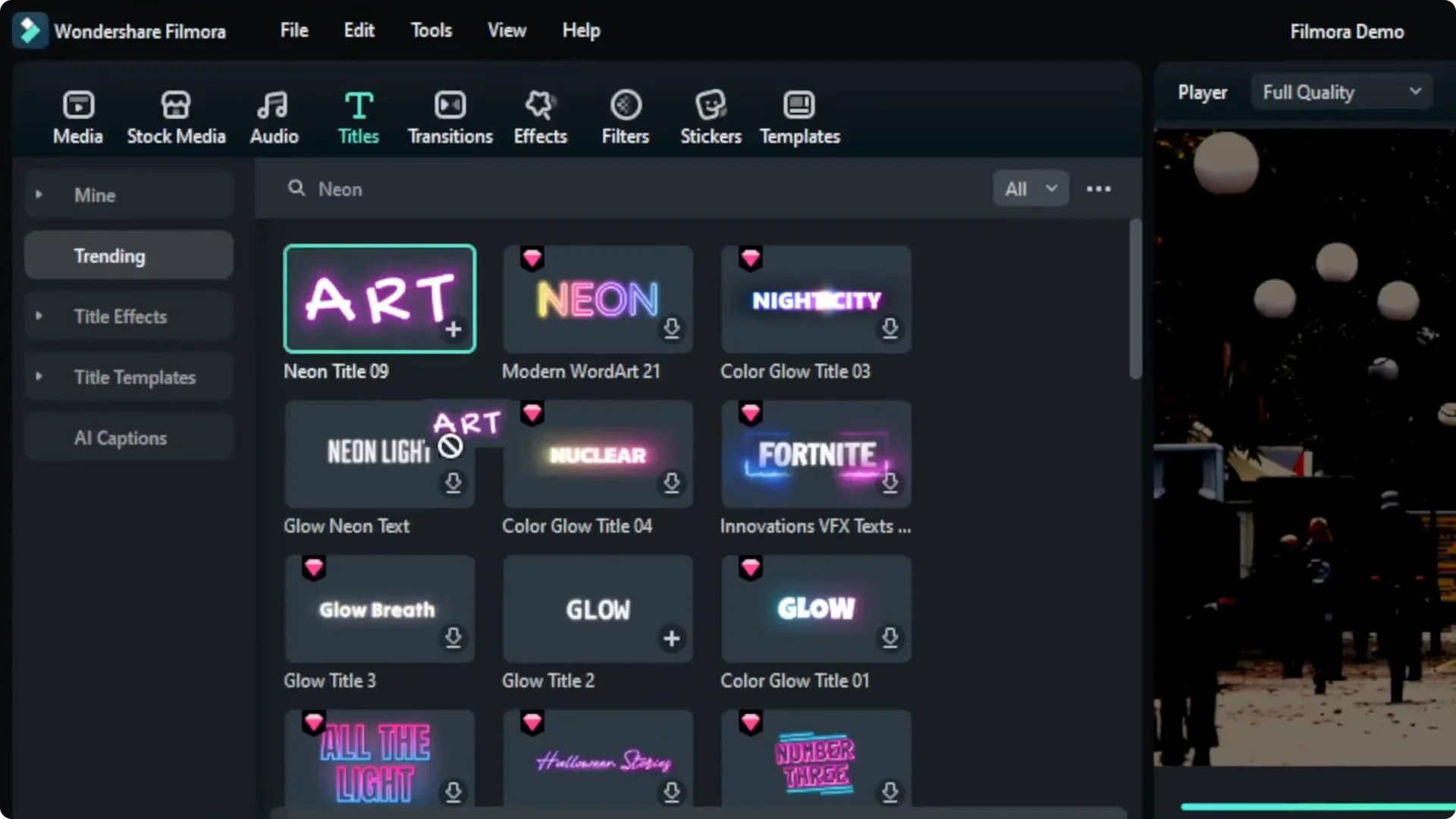
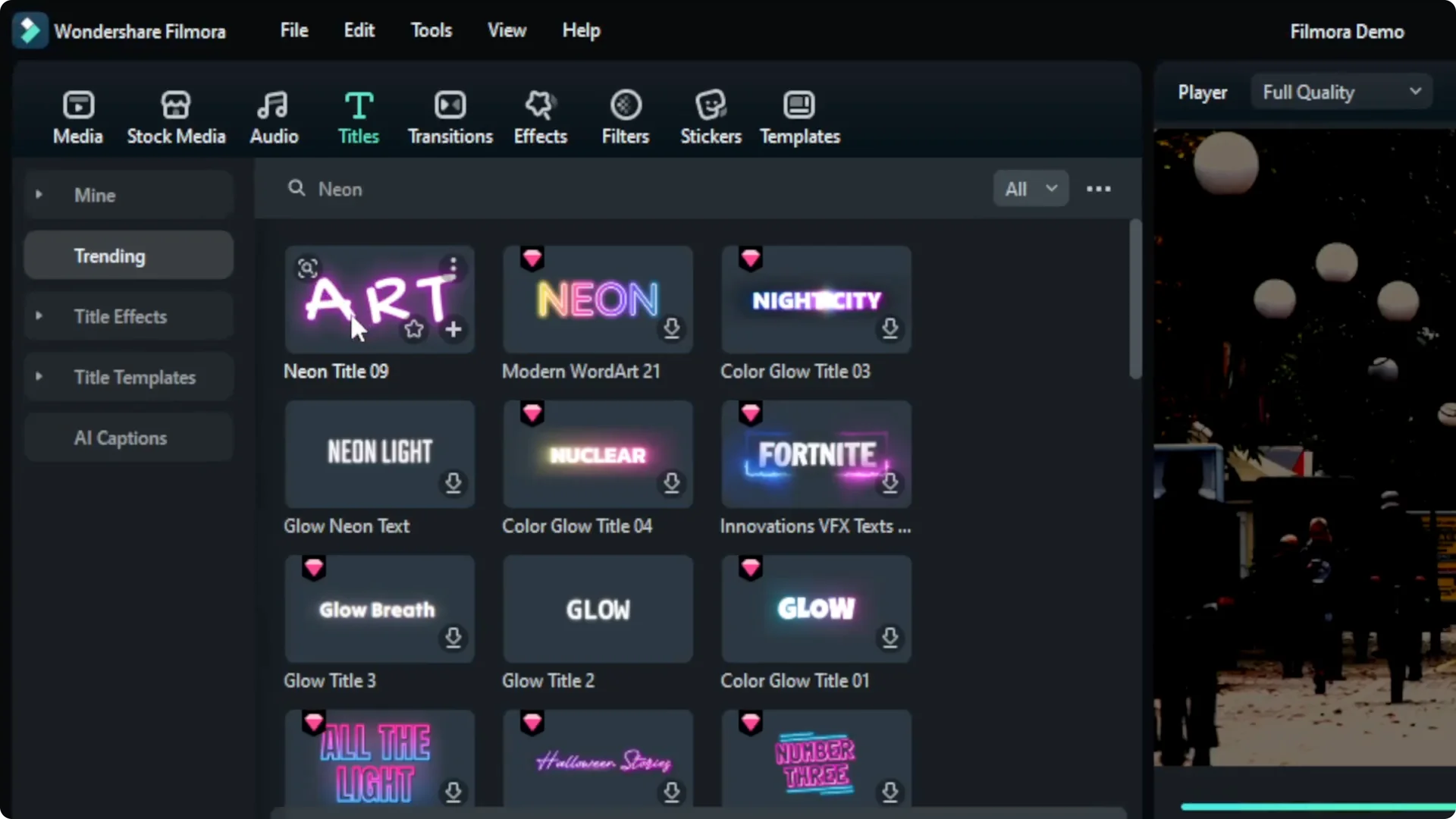
  • Search for the keyword “neon” and hit Enter.
  • Pick the one that looks better.
  • Remove the previous item if needed.
  • Click and drag the new item to the timeline.
  • Make it longer to match the actual video duration.
  • How to Add Glowing Neon Text Effect in Filmora screenshot 5

    How to Add Glowing Neon Text Effect in Filmora screenshot 4

    How to Add Glowing Neon Text Effect in Filmora screenshot 3

    That looks really nice.

    Customize text content, font, and styling in the Filmora Neon Text Effect
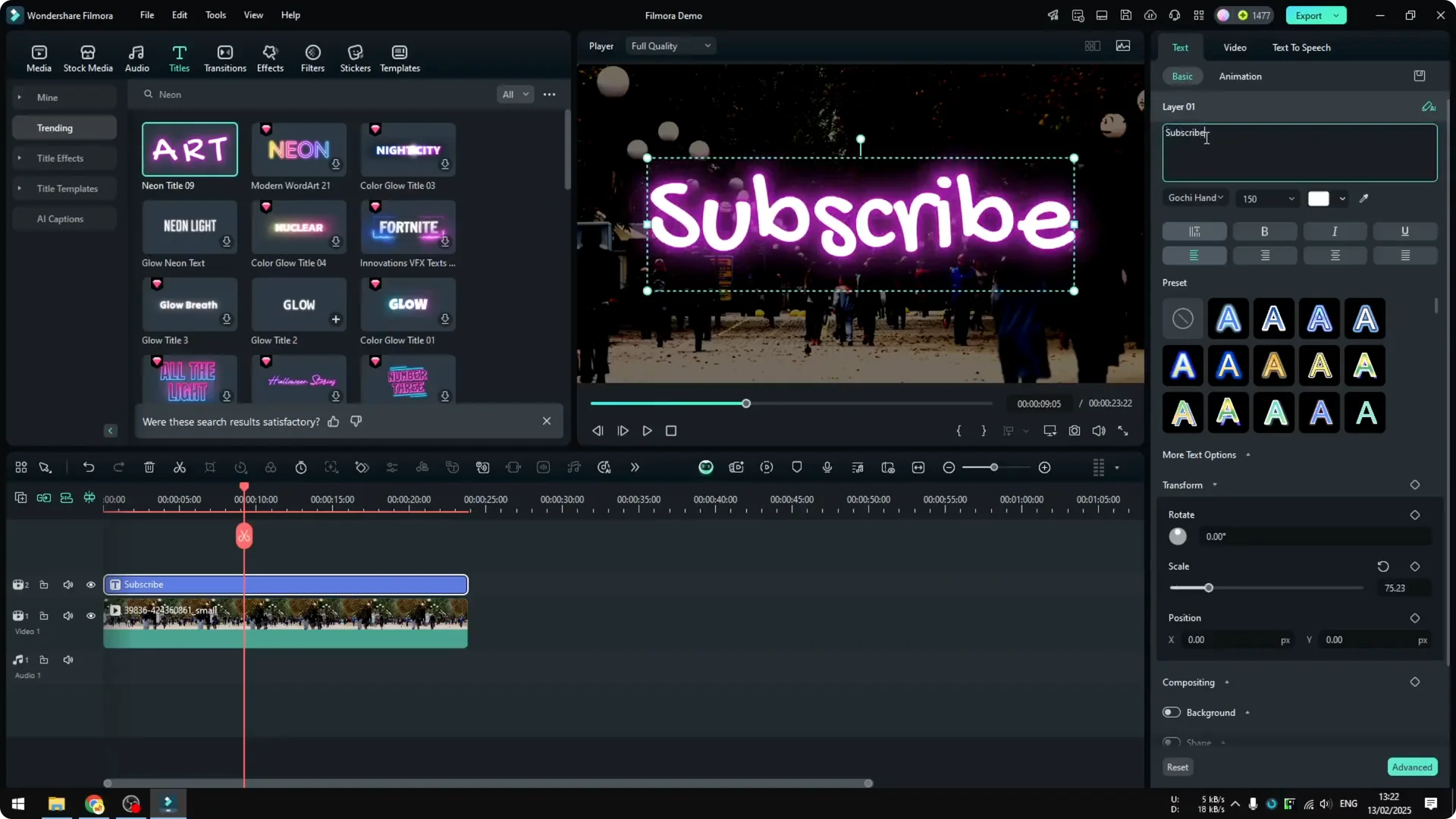
  • Click the text, then go to Text – Basic.
  • Change the text content, for example to “subscribe.”
  • Change the font to something appropriate for the neon text effect. There are a lot of options here, but this one looks amazing.
  • How to Add Glowing Neon Text Effect in Filmora screenshot 6

    You can change the color and size. You can also add some rotation and other effects in this menu, but this should be more than enough if you just want a simple neon text effect.

    Animate the text – In, Out, and Loop in the Filmora Neon Text Effect

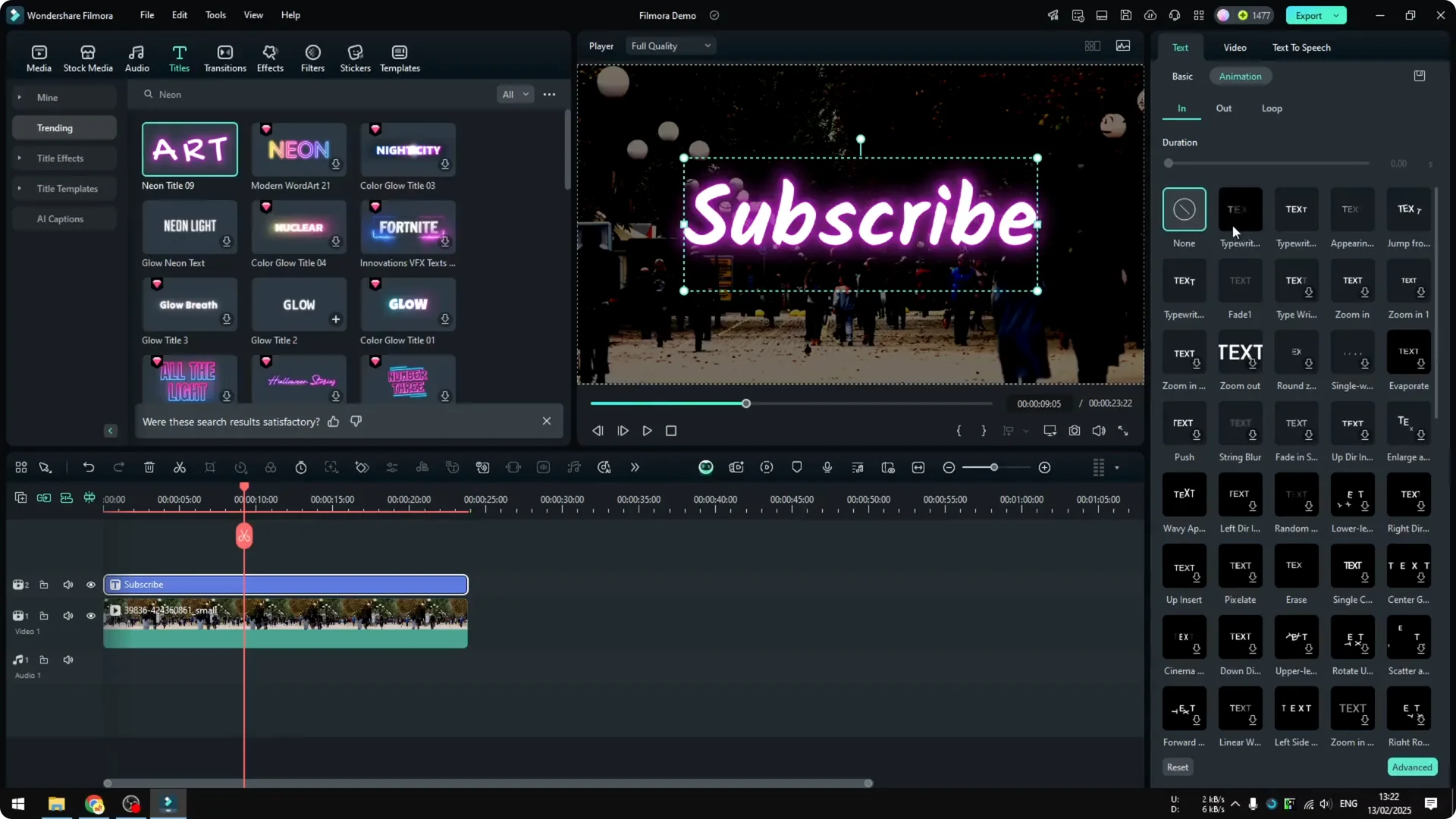
    If you navigate to Animation, you will see three different options: In, Out, and Loop.
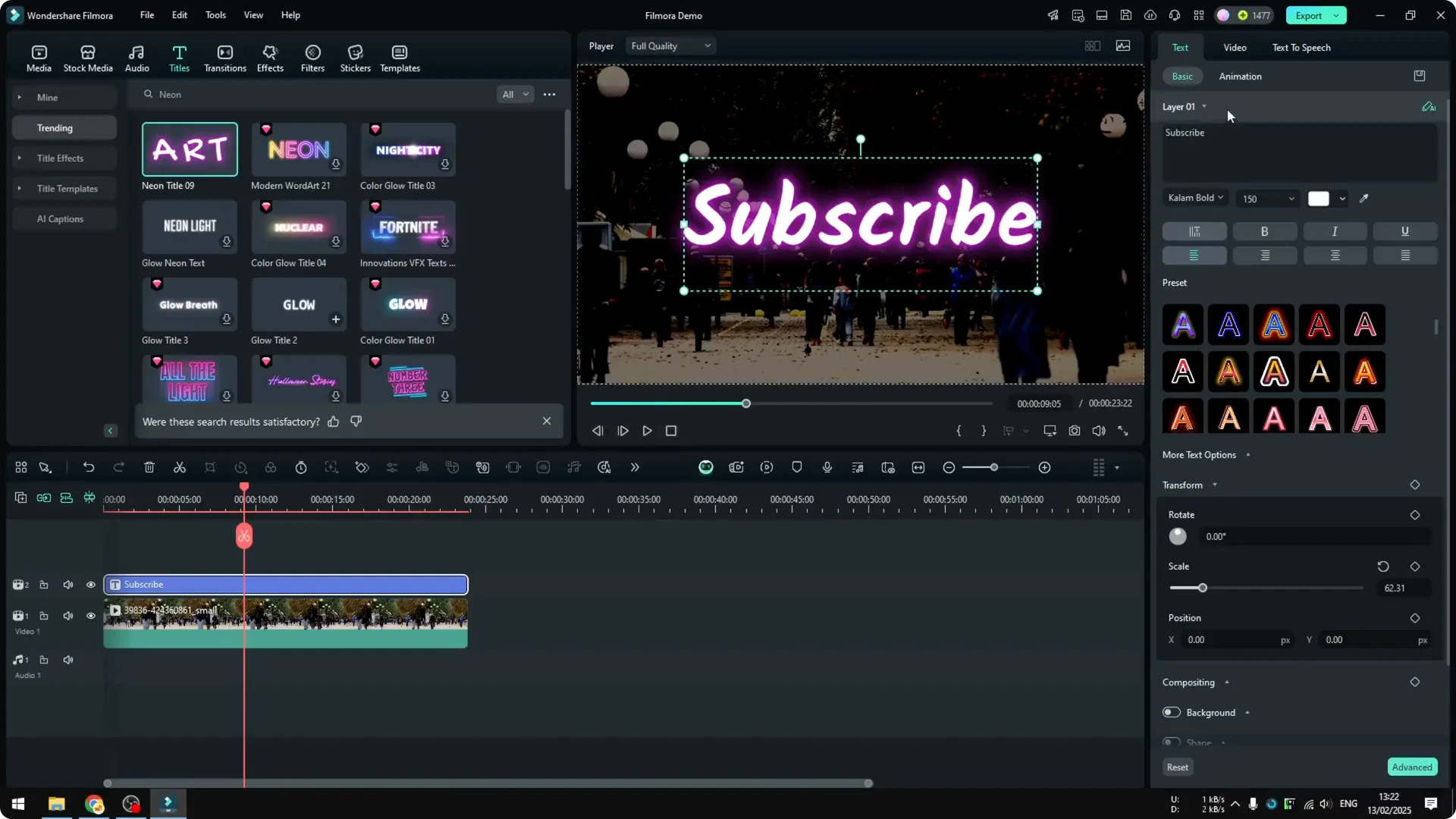
    How to Add Glowing Neon Text Effect in Filmora screenshot 7

  • In and Out are animations that play when the text appears and when the text leaves.
  • Apply a simple Typewriter effect on In. You can apply the same effect for Out.
  • How to Add Glowing Neon Text Effect in Filmora screenshot 8

    For Looping, this is quite fascinating because you can make the animation keep going as long as the text appears on the video. This is going to make the video even more engaging and draw attention to this particular text.
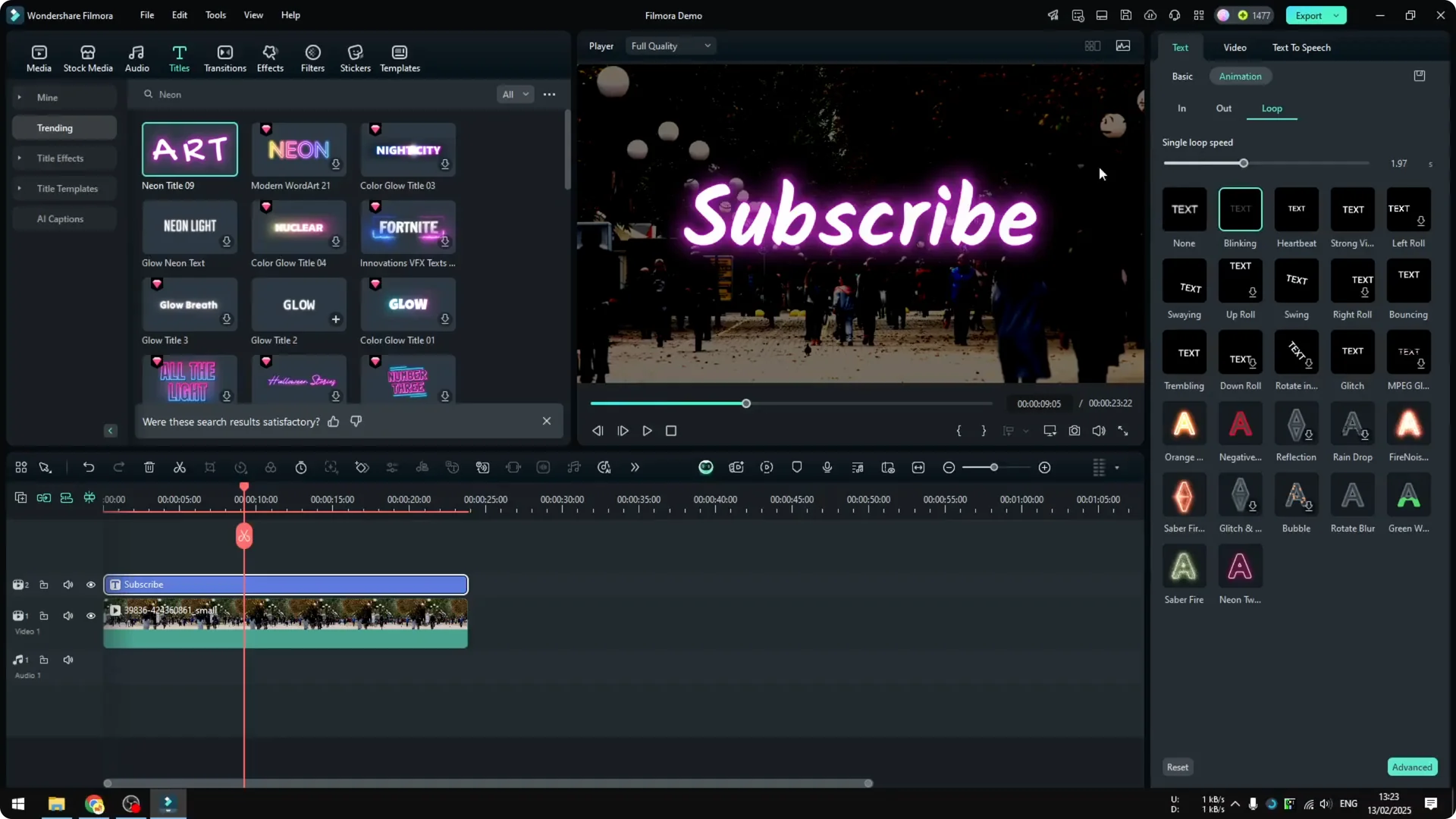
  • Add a simple blinking loop. Just double click to apply.
  • How to Add Glowing Neon Text Effect in Filmora screenshot 9

    Play the whole video to preview the result. It looks pretty, it’s blinking, and it’s definitely going to attract attention by just having this blinking text effect.
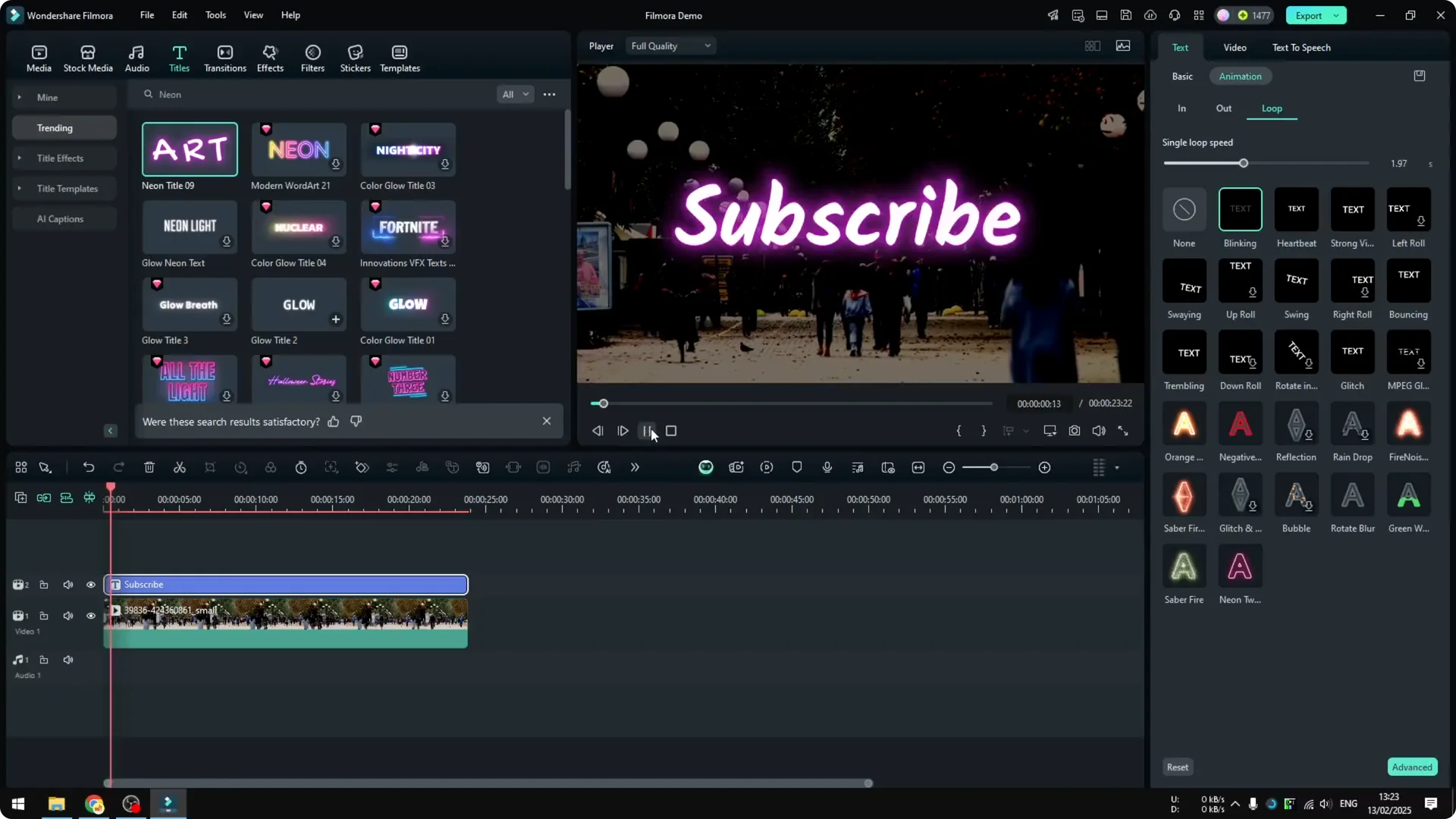
    How to Add Glowing Neon Text Effect in Filmora screenshot 10

    Final Thoughts

    Reduce the background brightness, add a neon title from the Titles menu, customize the text and font, then animate it with In, Out, and a blinking Loop. That’s essentially how you can apply a neon text effect in Filmora.

    Leave a comment