Kling AI allows you to create exceptionally hyperrealistic videos as well as images. It can take any of your pre-existing images and include elements such as your subject, your backgrounds, and more.
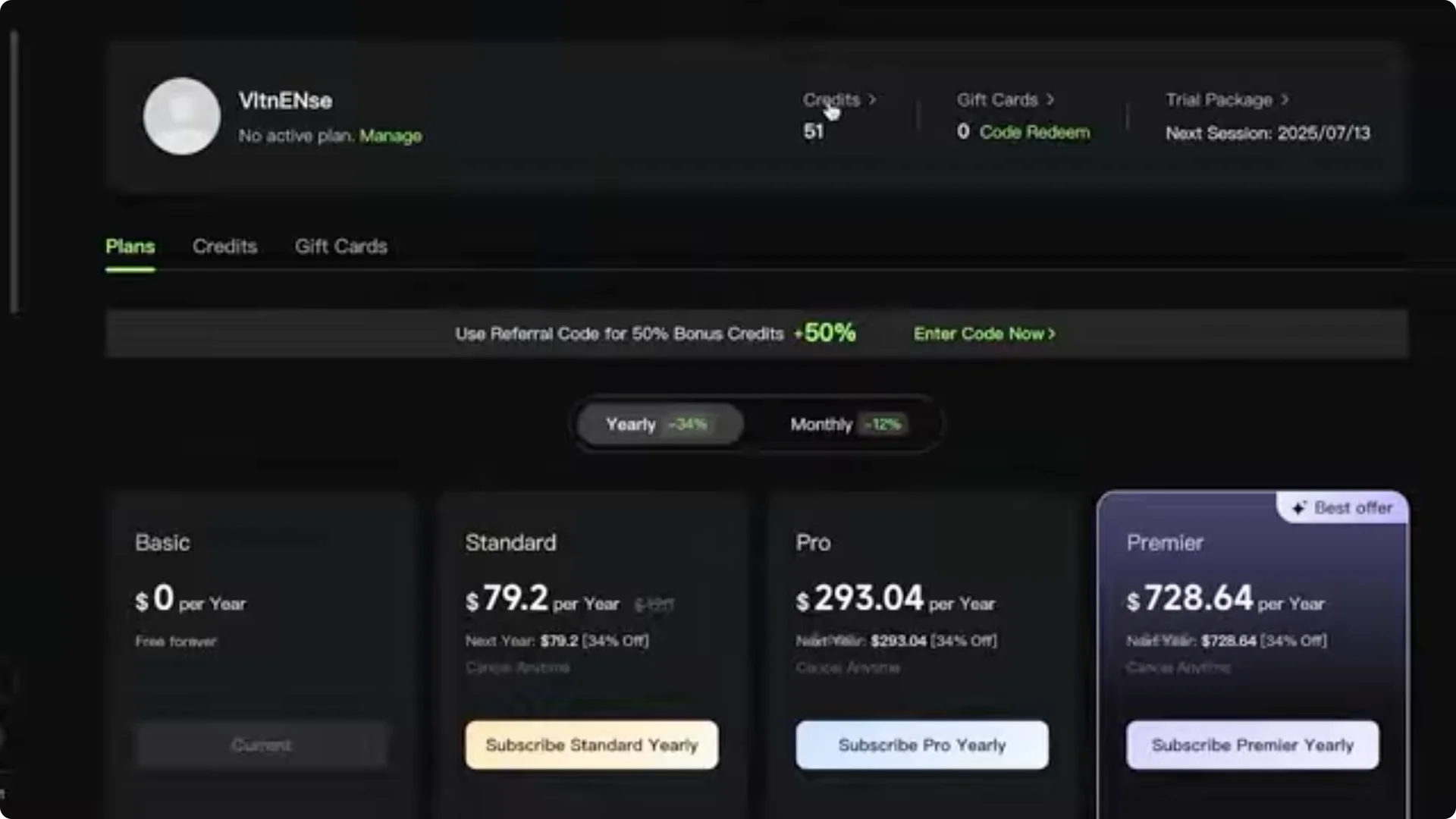
Log in to your Kling AI account. On the bottom left, you will find your subscription as well as the number of credits you have. They have three basic subscriptions, which I cover below.
Kling AI Multi-Element Editing for Images
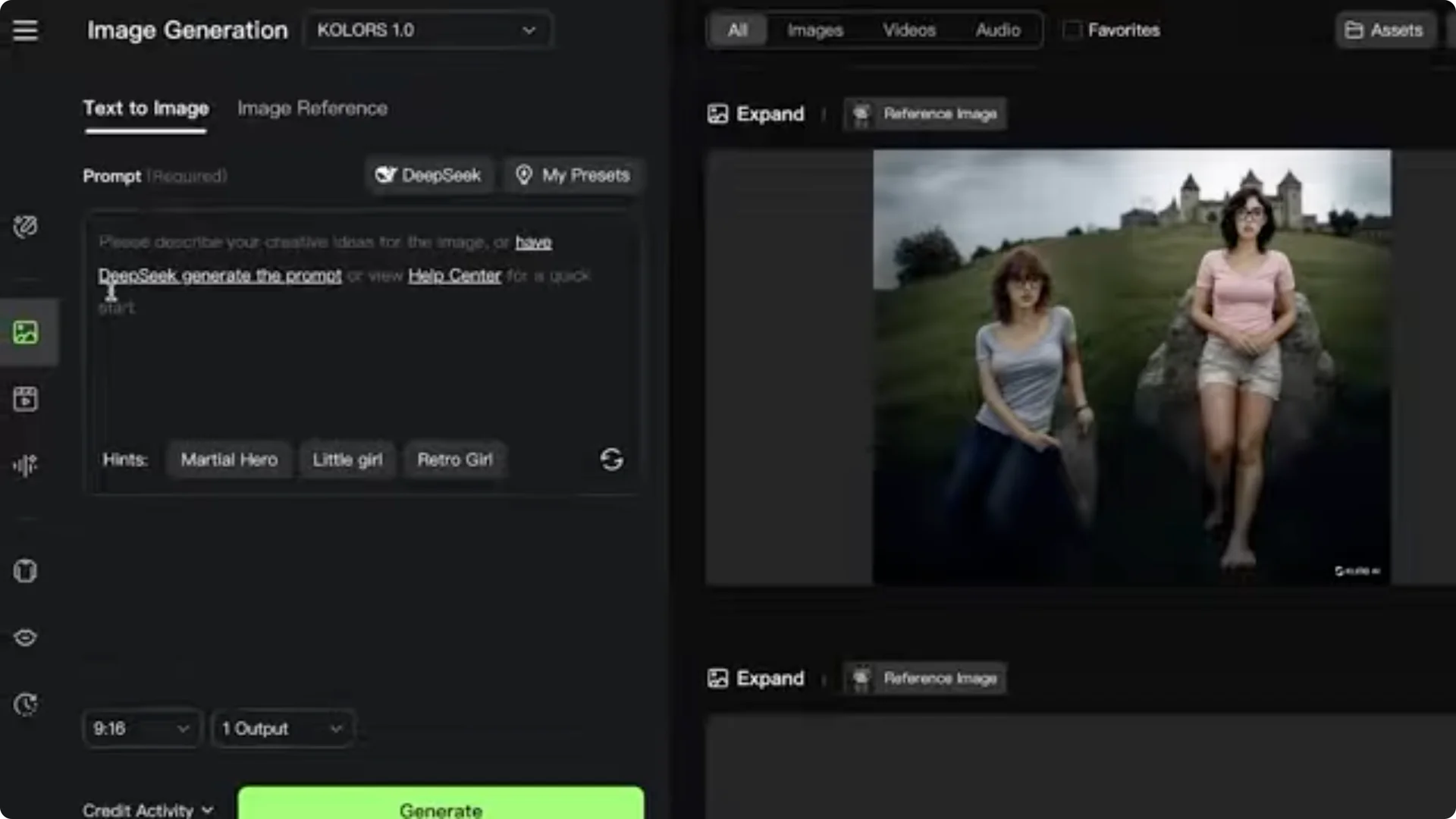
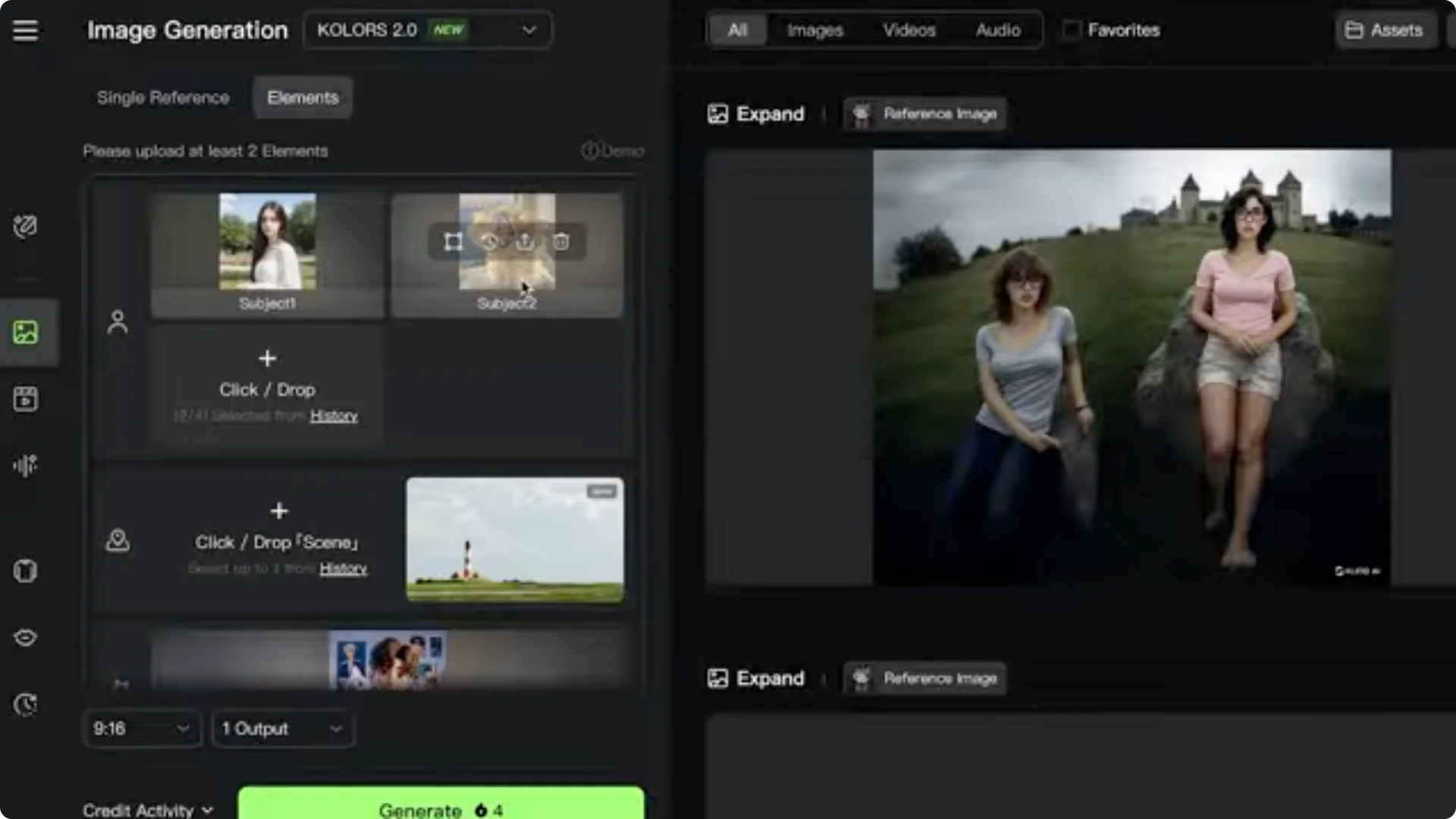
Go into Image on the left menu bar. Once you click on Image, you have options such as Text to Image and Image Reference. In Image Reference, open Elements to include different elements.
You can add images or elements in the form of:
- Subject
- Scene
- Style
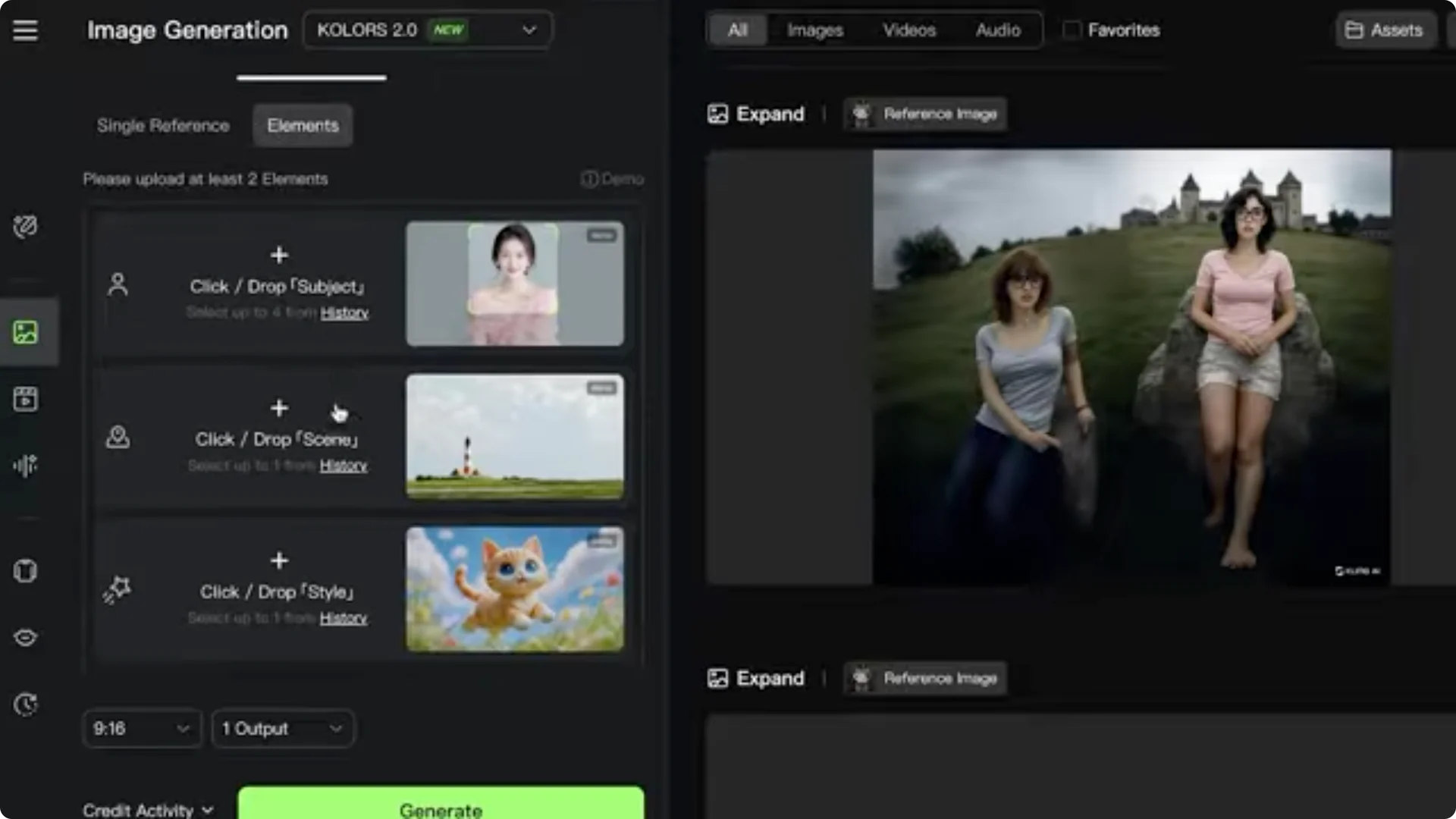
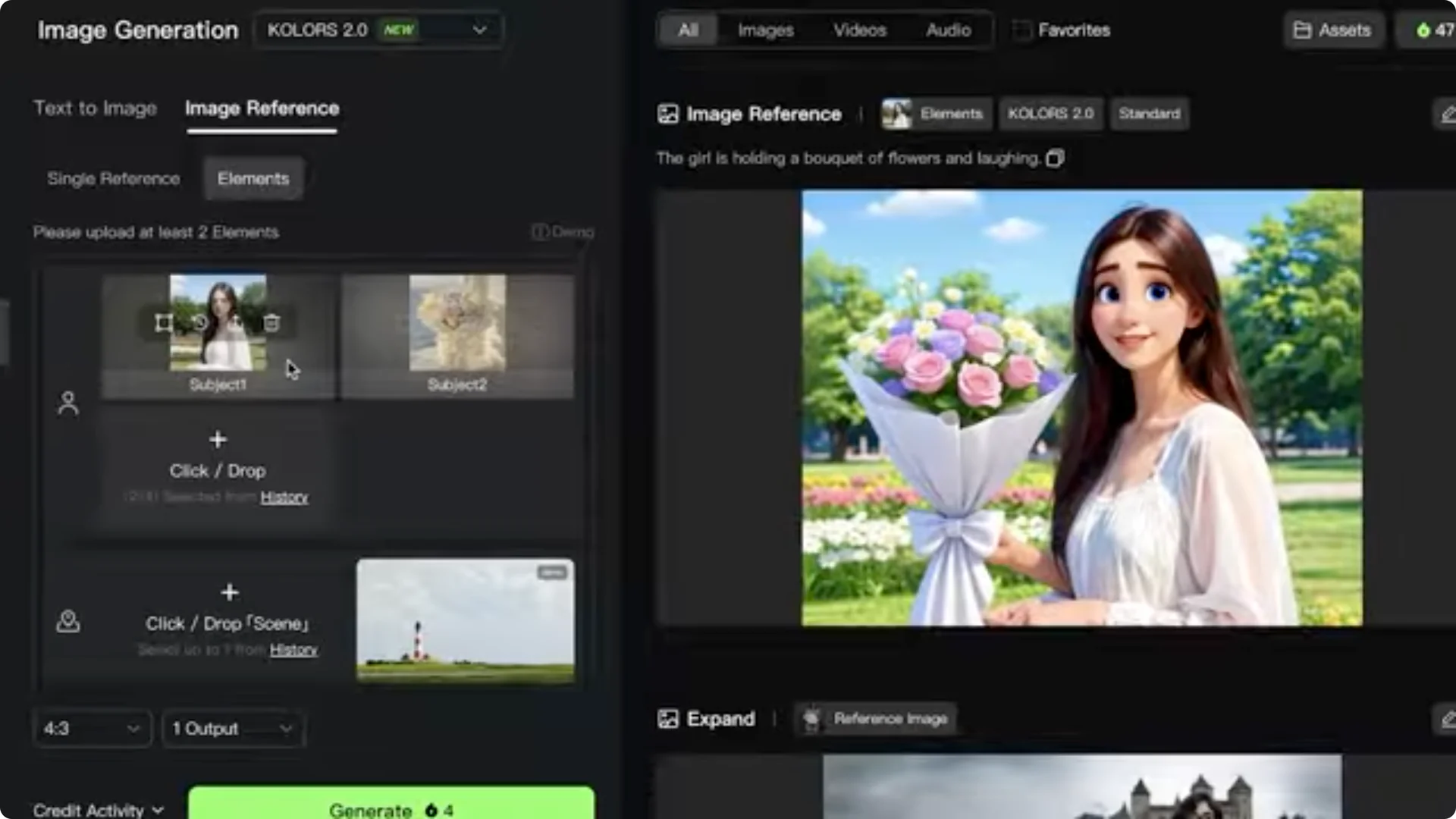
They have samples for this as well. For example, you might see a setup with two subjects and an art style. One sample uses a bouquet and a girl as subjects, a specific location as the scene, and Cartoon as the art style.
Example prompt and settings
- Prompt: the girl is holding the bouquet of flowers and laughing.
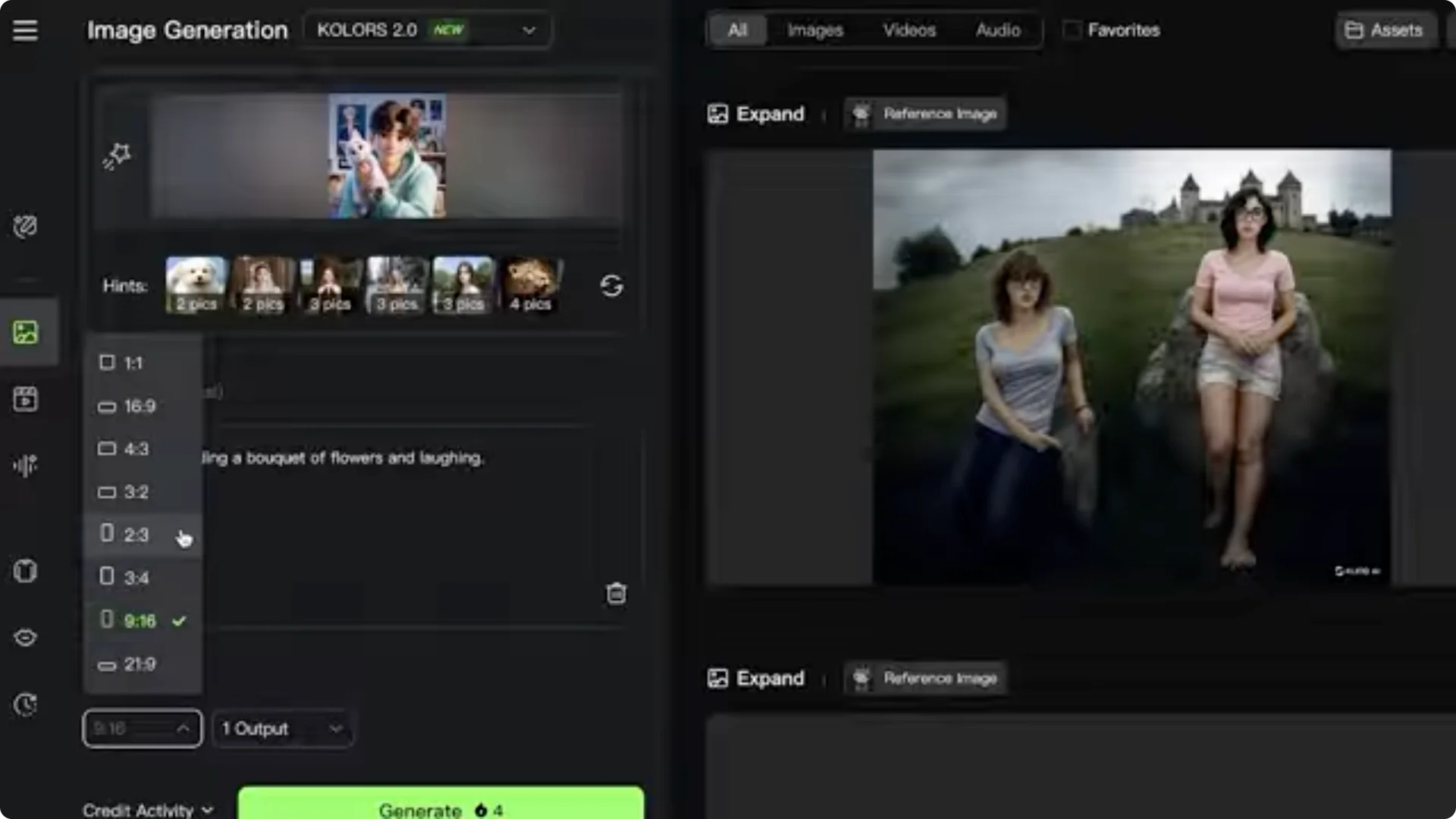
- Choose the aspect ratio, such as 1:1, 3:2, or 4:3.
- Choose one or two outputs.
- Click Generate.
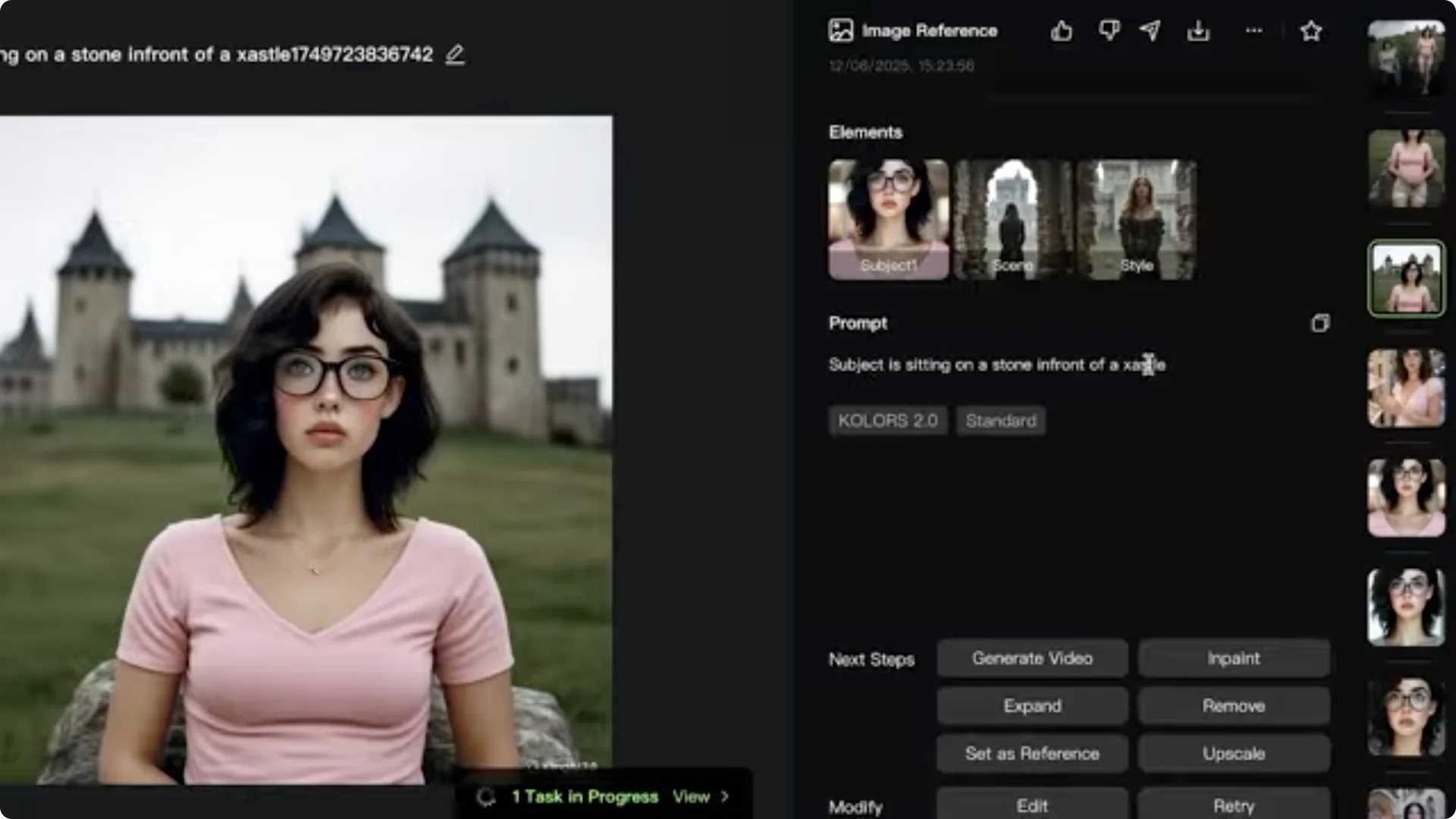
This allows you to add or remove any element. In a previous generation, I selected a subject image I uploaded, then added a scene and a style. My prompt was: the subject is sitting on a stone in front of the castle. It adapted quite nicely.
When adding two subjects, such as a rose bouquet and a woman, the generated image incorporated all the elements that were added.
Kling AI Multi-Element Editing for Video
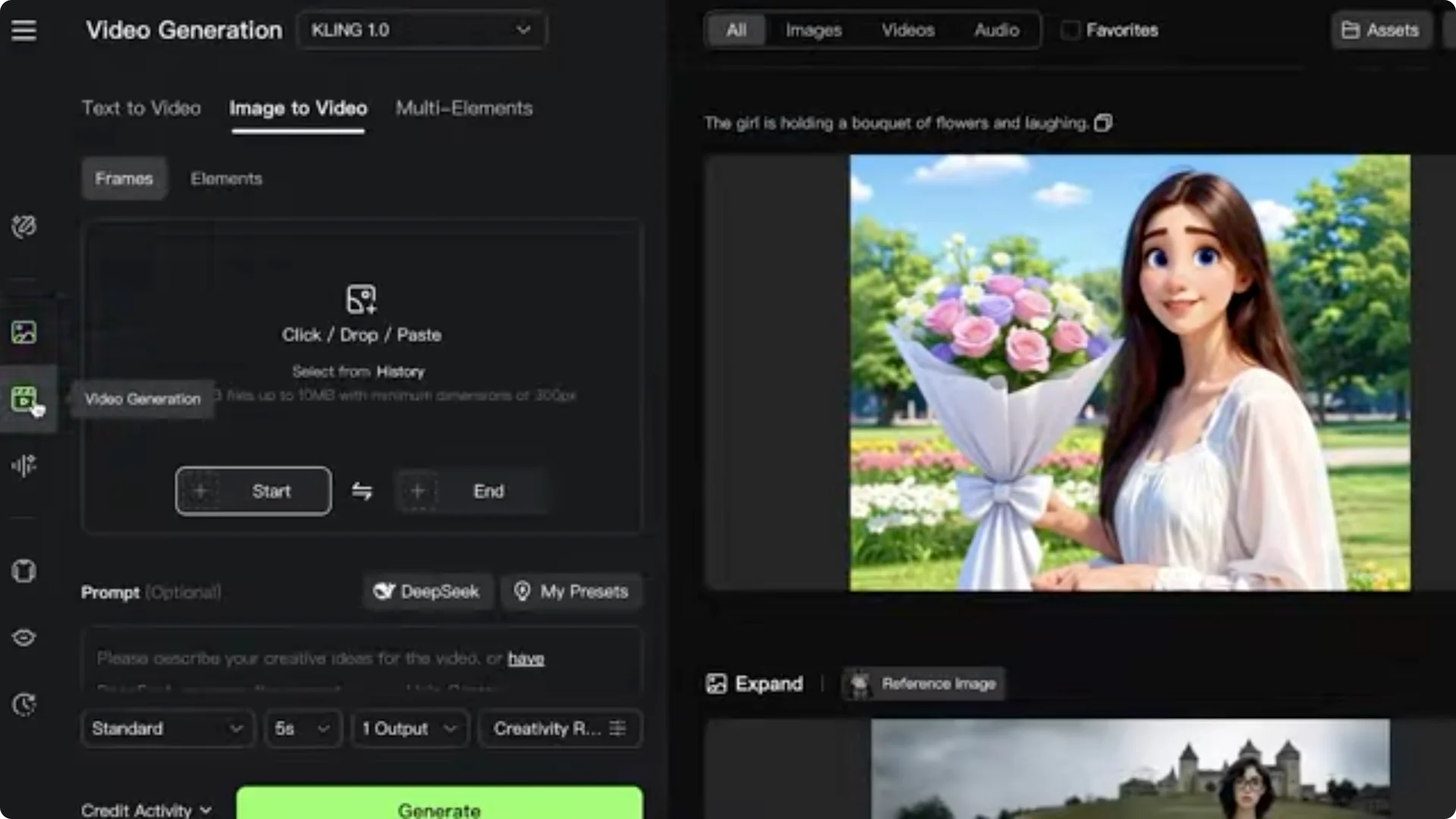
Go into Video Generation on the left and click on Multi-Elements. You can upload videos to edit and upload images to edit as well. You can create an image with a certain element, and you can also convert an image with elements into a video.
Face or subject swap example
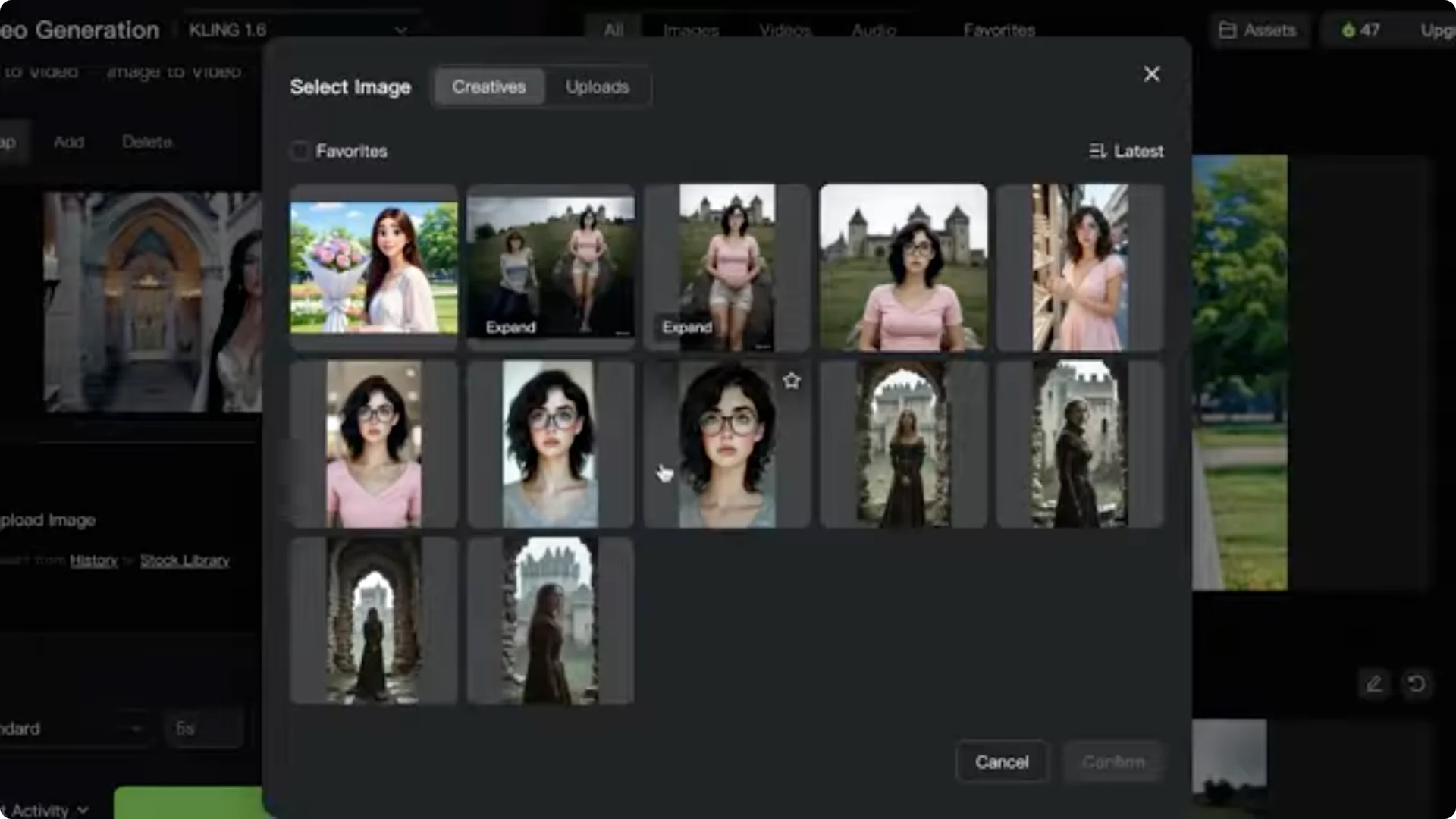
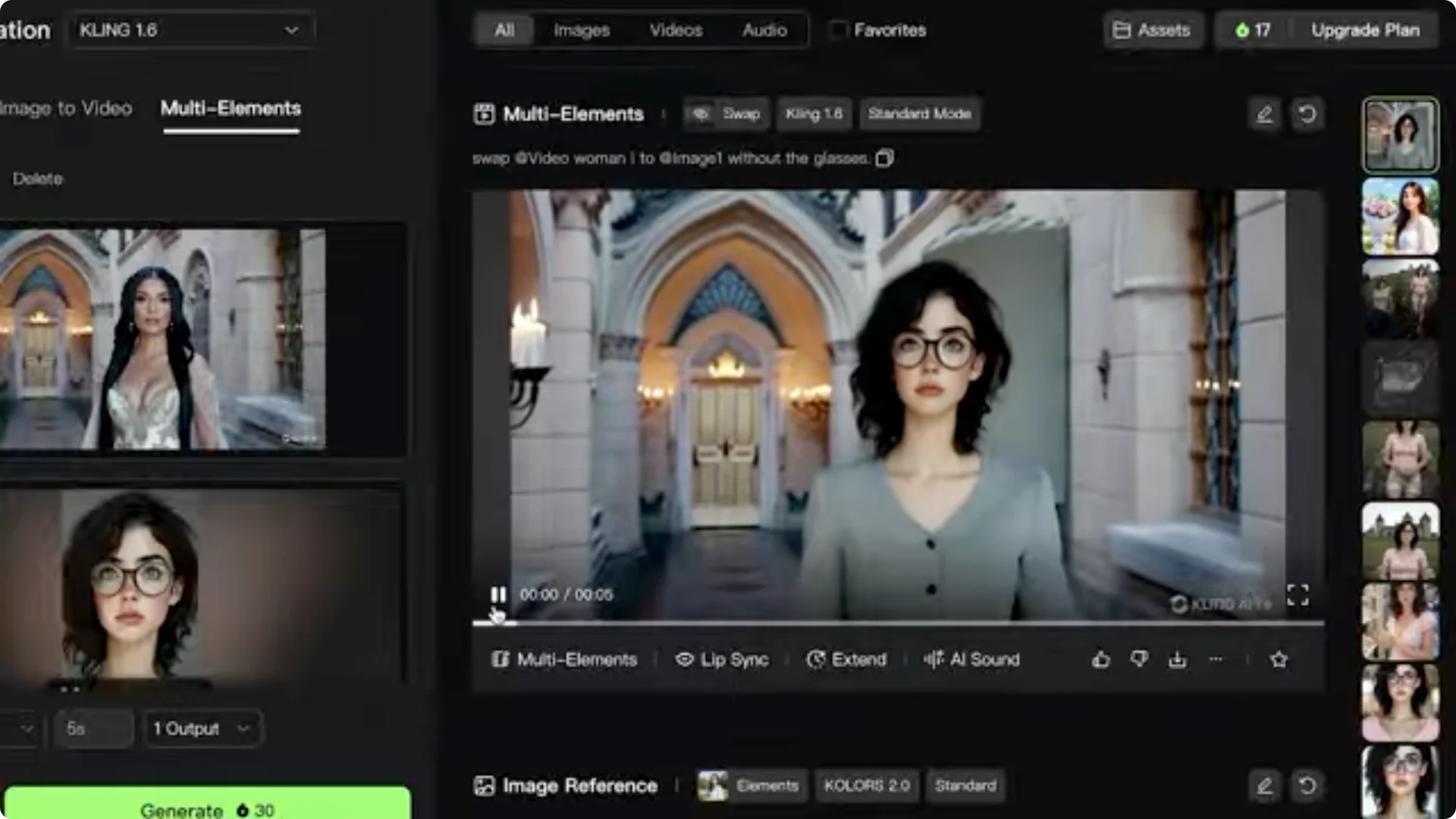
I used a video of a woman walking in a castle and confirmed the selection. Below that, you can swap and upload a different image. I used the stock library to change the face of the woman to a specific woman.
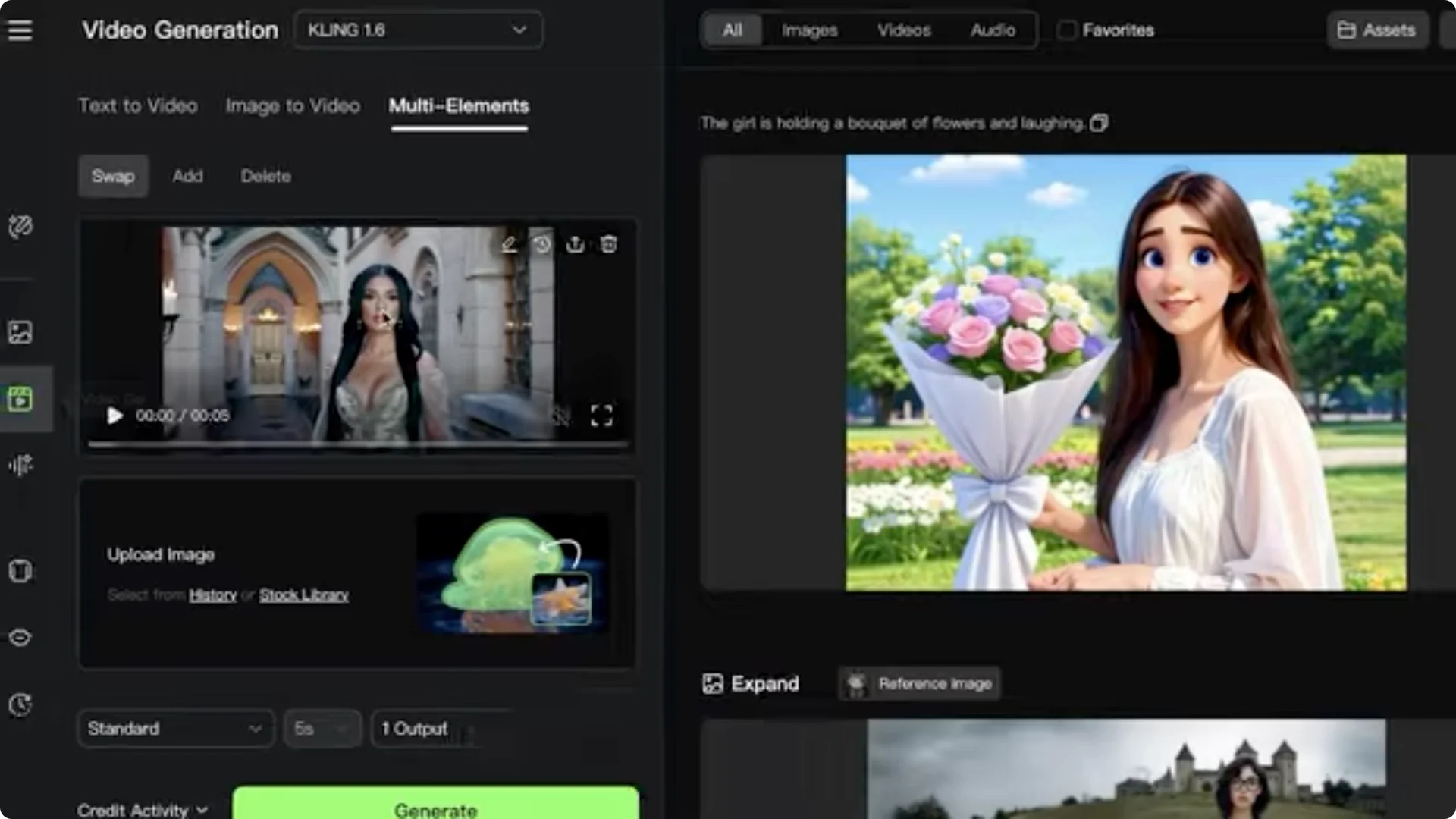
- Prompt: swap the woman in the video to the woman in the image. Create her without the glasses.
- Remove any unnecessary @ references in the prompt if they appear.
- Mode: Standard
- Duration: 5 seconds
- Outputs: 1
- Click Generate.
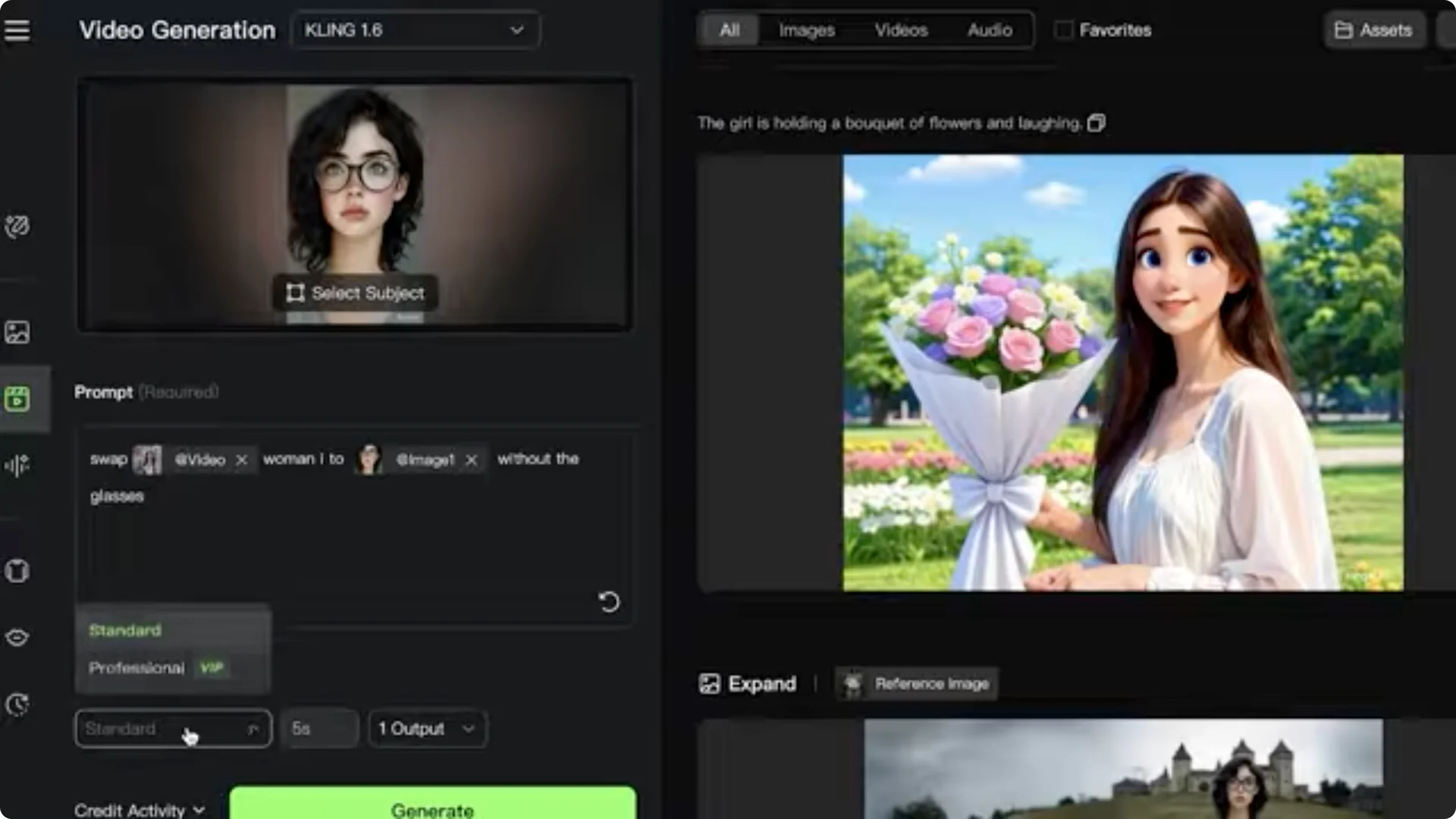
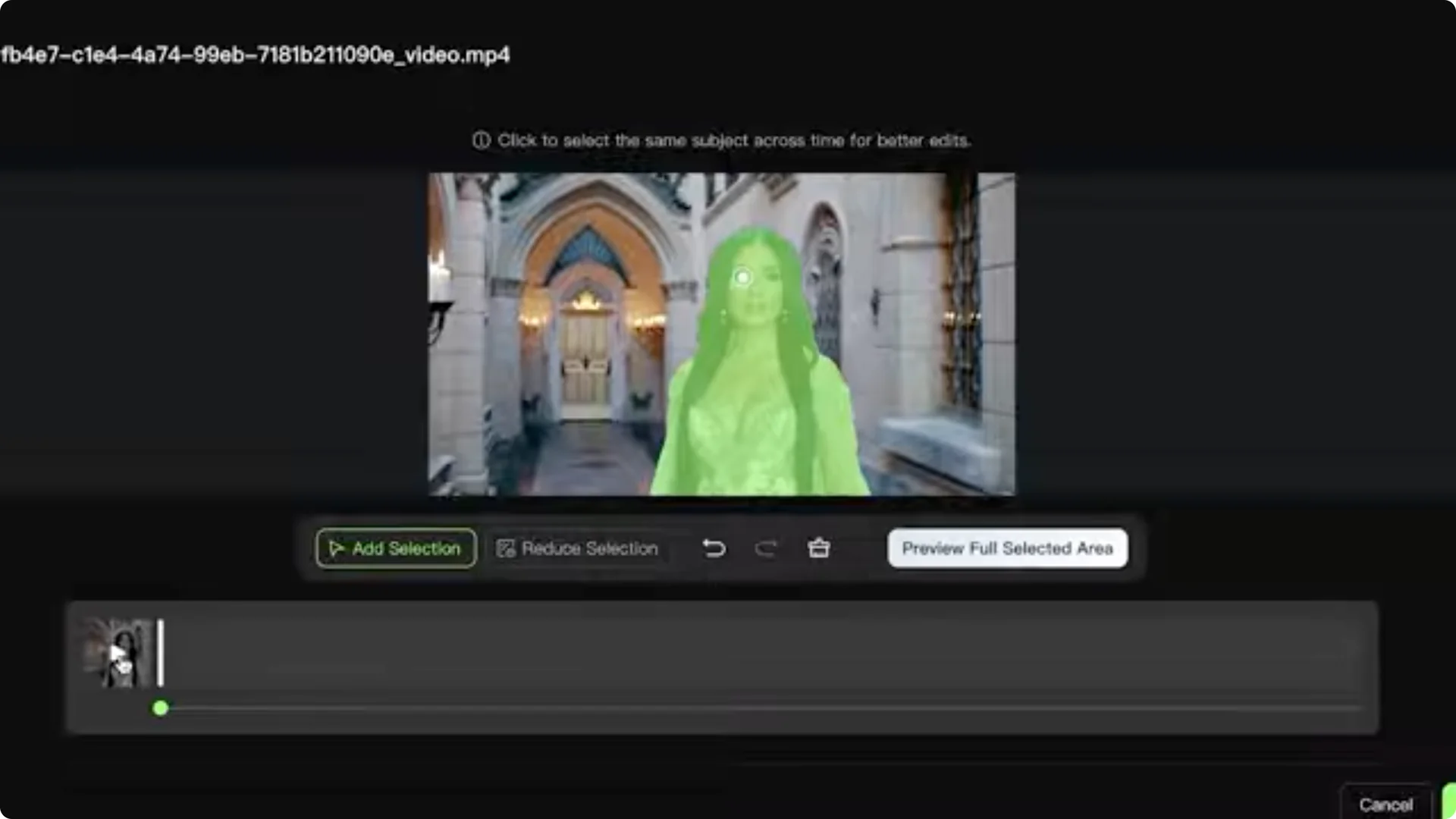
You will be asked to specify the selection of video to edit. Click Add Selection and select the main character, then confirm. The outlines were accurate. Click Generate again.
This can take more time because it is a video. Once completed, the subject is swapped, replacing the original person with the new person.
Adding or deleting elements in video
Use Add on the left to add multiple elements into a video. You can upload images and add multiple different elements in a video, and you can delete elements from a video as well. This is more credit heavy, so plan your credits accordingly.
Credits and plans
You can purchase credits directly for a set dollar amount or choose a subscription plan.
- Monthly plan at $7 per month – 660 credits per month
- Pro plan at $26 per month – 3,000 credits per month
- Premier plan – 8,000 credits per month
Important notes for video editing
Image element features such as subject, scene, and style work differently in video. In a video workflow, you do not add subject, scenes, and styles as separate element slots. Instead, add the images you want to include in the video, and those will be added accordingly.
You can add multiple images, but you do not have the capability of adding scenes or backgrounds separately. Specify backgrounds or cartoon styles in the prompt rather than adding them as default values.
Final thoughts
Kling AI makes it straightforward to add, swap, and remove elements in both images and videos using subjects, scenes, and styles for images, and targeted selections and swaps for video. Set clear prompts, choose the right aspect ratio and duration, and manage your credits based on the complexity of your edits.