Let me show you what Kling actually does. This update is wild. Kling did not just upgrade their generator, they rebuilt how you edit videos. With O1, you can take any clip you already recorded and reshape the whole scene.
You can add new characters, change their movement, adjust the cameras, fix the lighting, or swap the background without reshooting anything. It looks clean and natural.
I have been testing it all day, and every time I think it is done, it goes even further. Here is exactly what Kling O1 can do to transform your footage.
AI Avatar Video Replacement: End-to-end Workflow
Prepare a source video in Canva
- Go to canva.com
- Open a blank canvas.
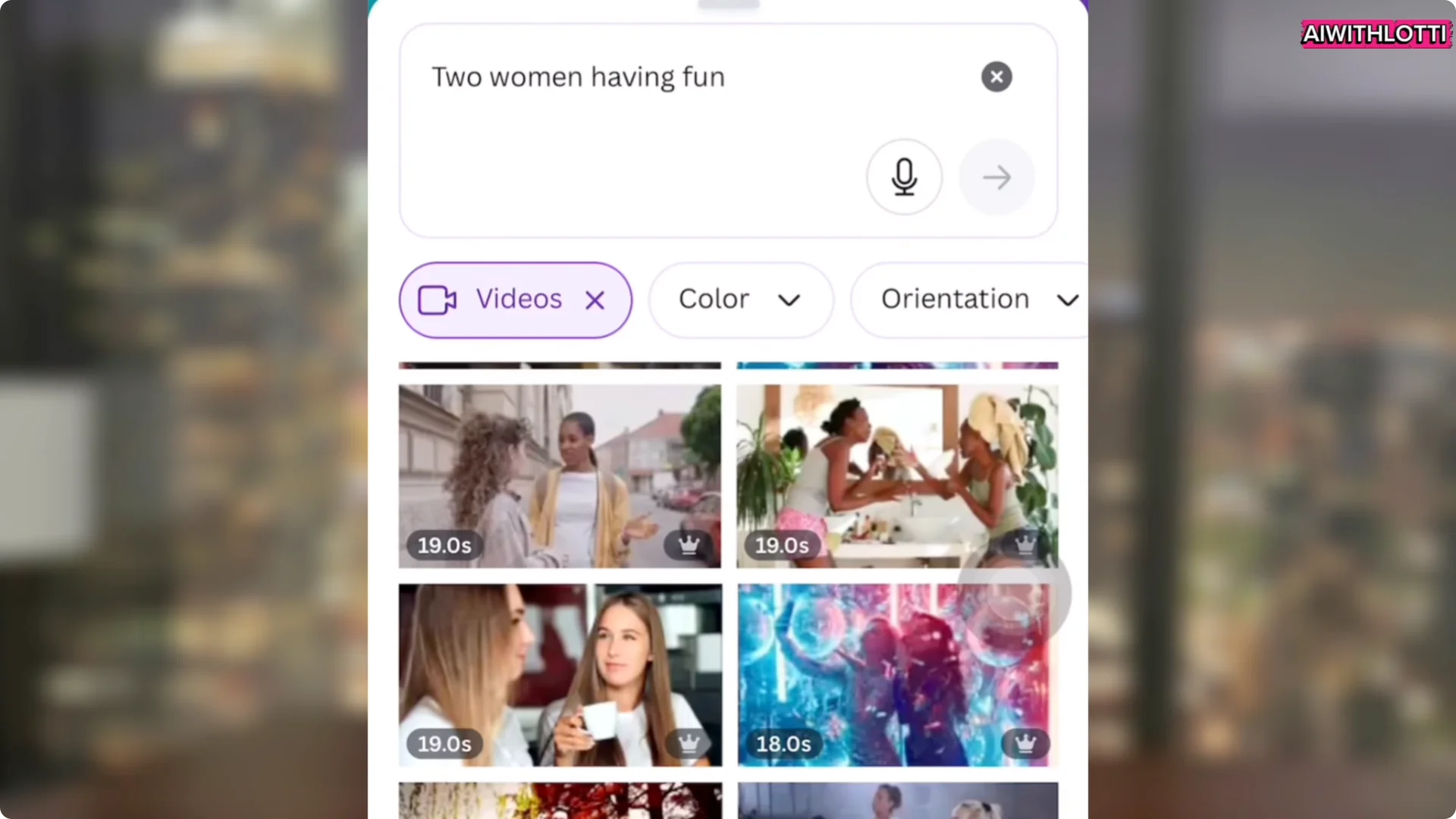
- Go to Elements and search for a clip. I searched for “two women having fun.”
- Pick a video and stretch it to fill the canvas.
- Download it at the highest quality.
Prepare avatar reference images in Magic Studio
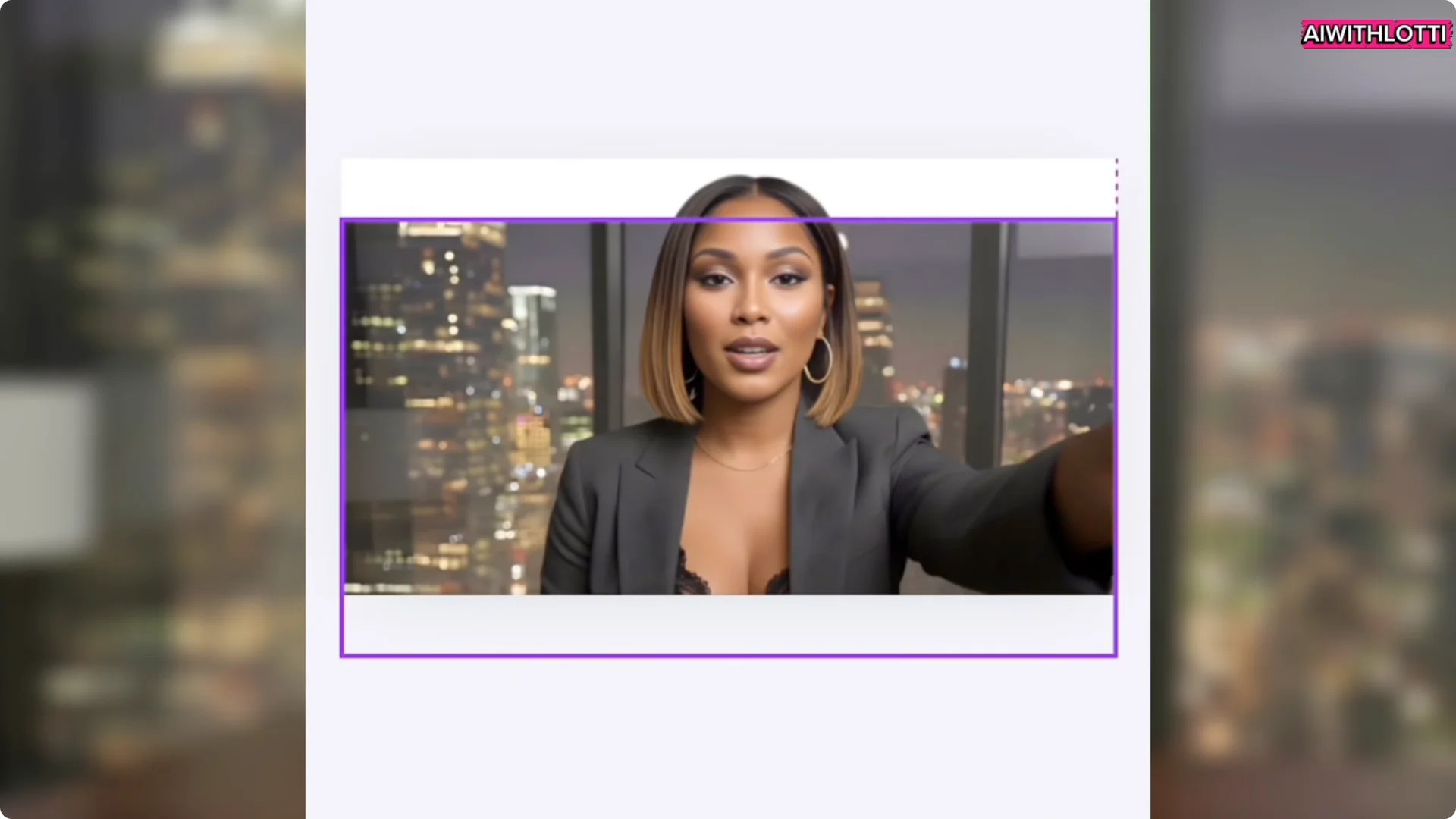
- Open a new canvas and upload your image. I used my realistic avatar and my animated one.
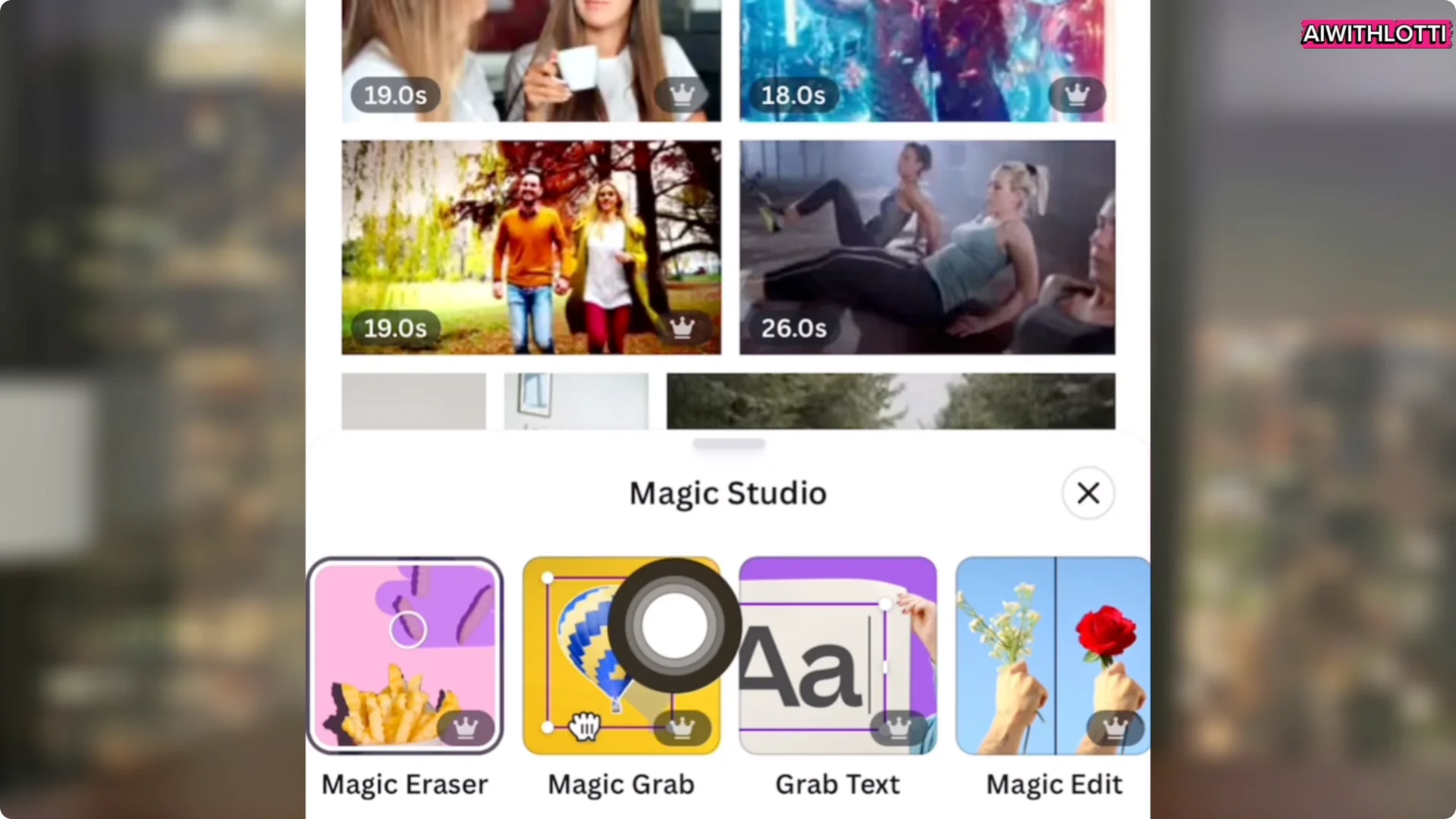
- Go to Magic Studio and click Magic Grab. This grabs the subject from an image.
- Once it separates the subject, delete the background.
- Download the cutouts at the highest quality.
- Removing the background makes the replacements more precise and cleaner when you add them into the video.
Modify Footage in OpenArt with Kling O1
Replace people with your avatars
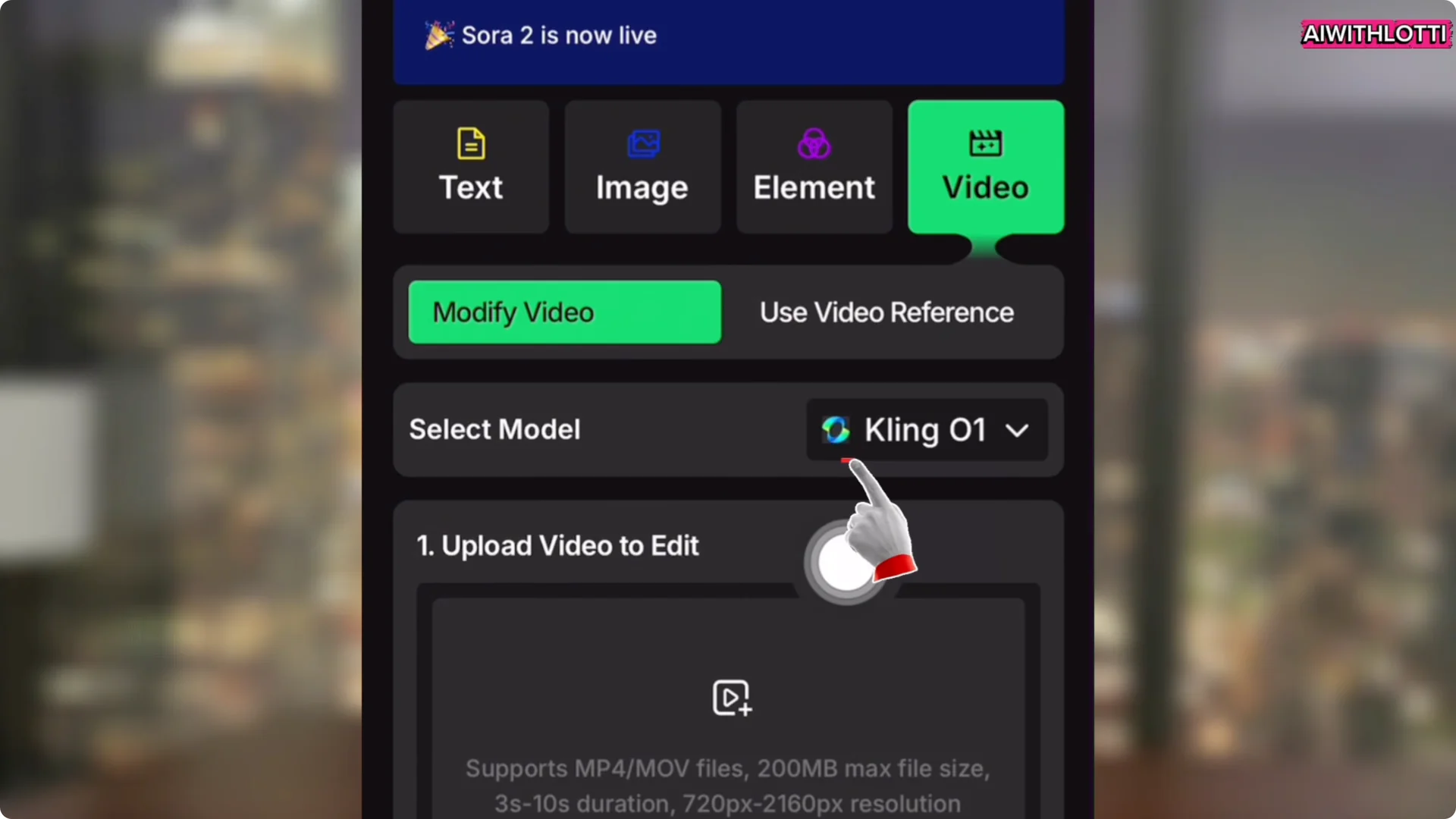
- Open OpenArt and click Video to access Kling.
- Choose Modify a video and make sure you are on Kling O1.
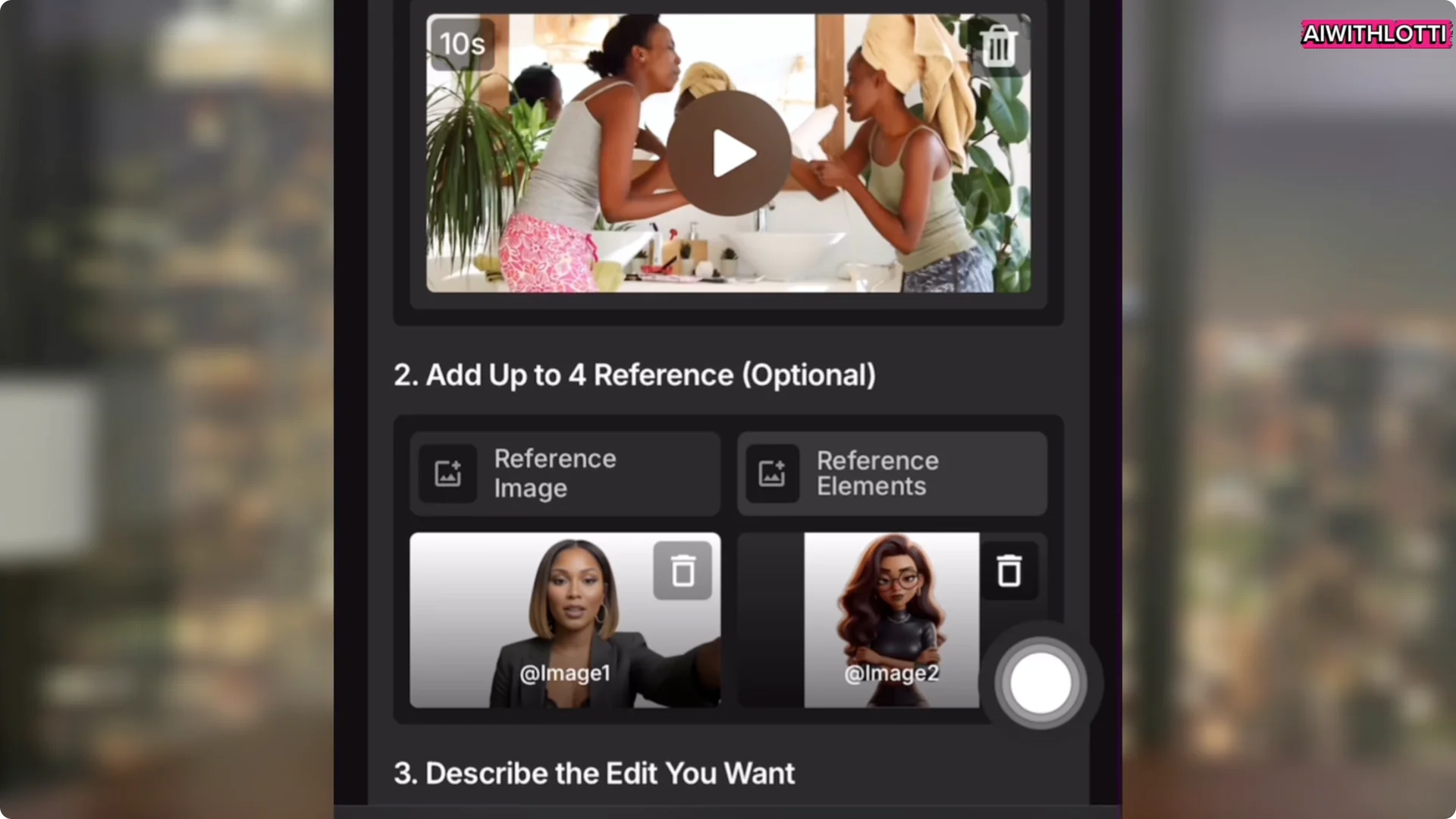
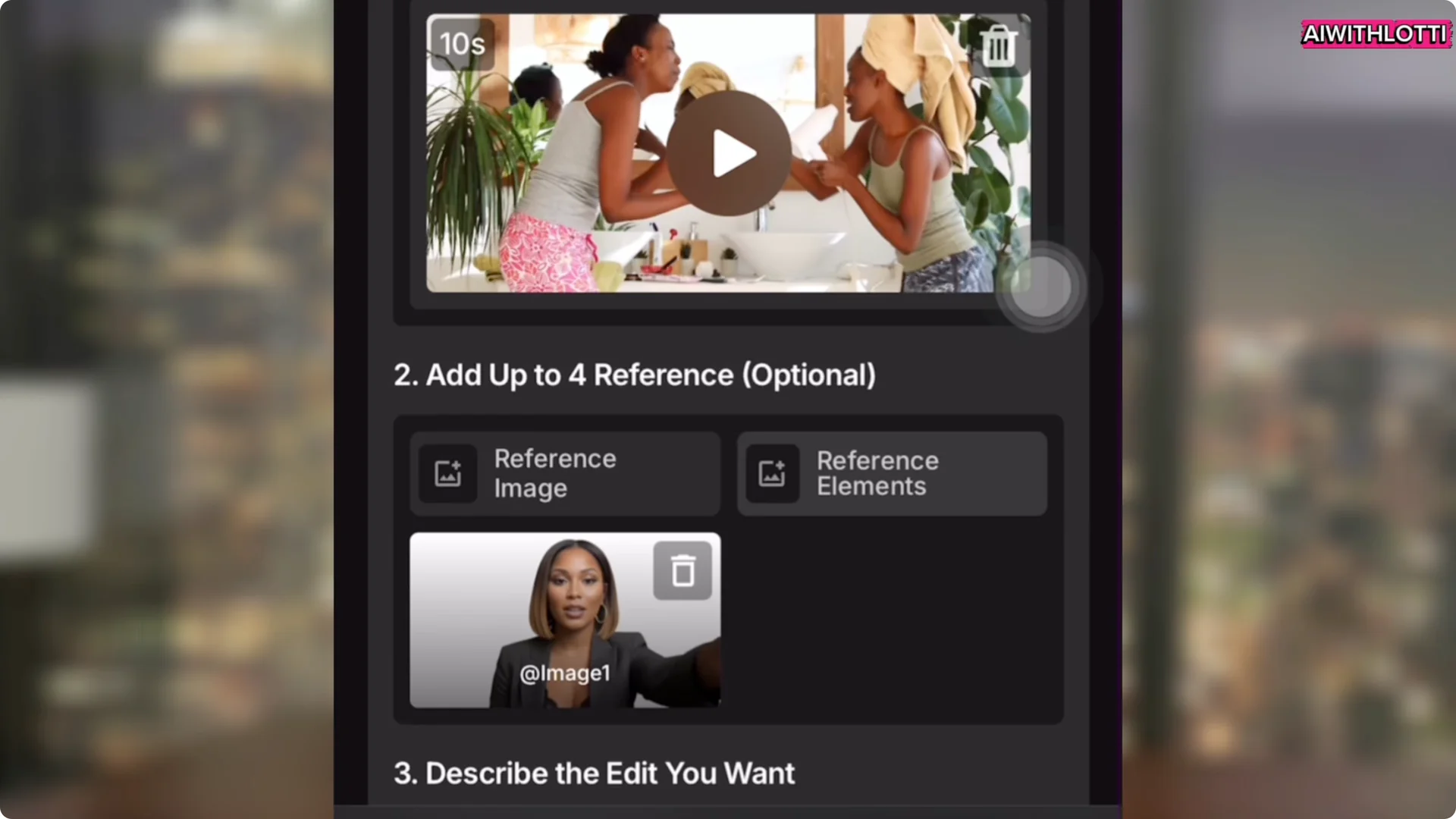
- Upload the source video from Canva.
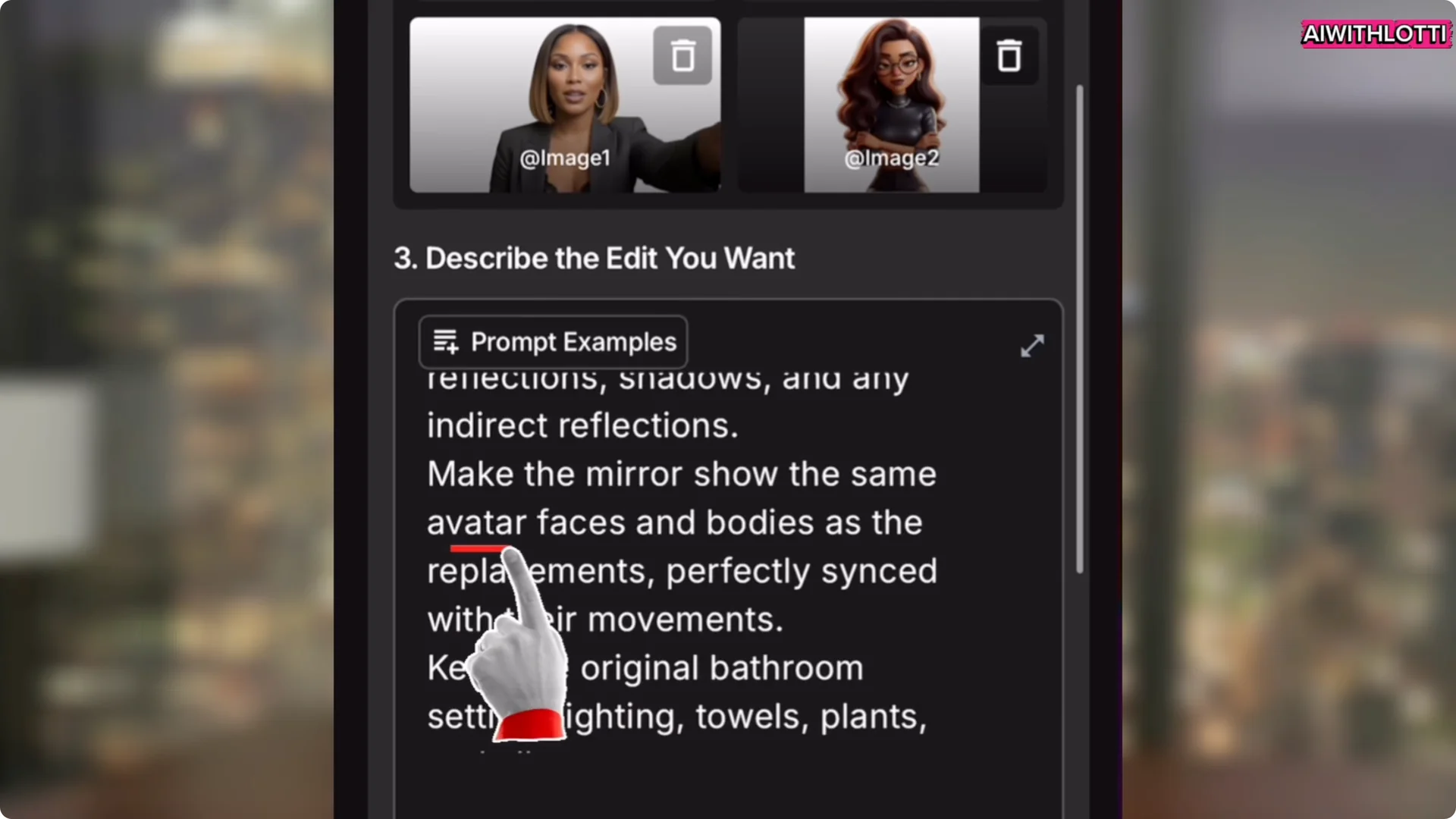
- Add your reference images. I uploaded both my realistic and my animated avatar.
- Add a prompt. Make your prompt extremely specific because if it is not, you will not get the results you are hoping for. The system names your images image one and image two, so reference them clearly, for example: replace the two real people with image one and image two.
You can add audio or a voice later if you want, but I usually do that after the render.
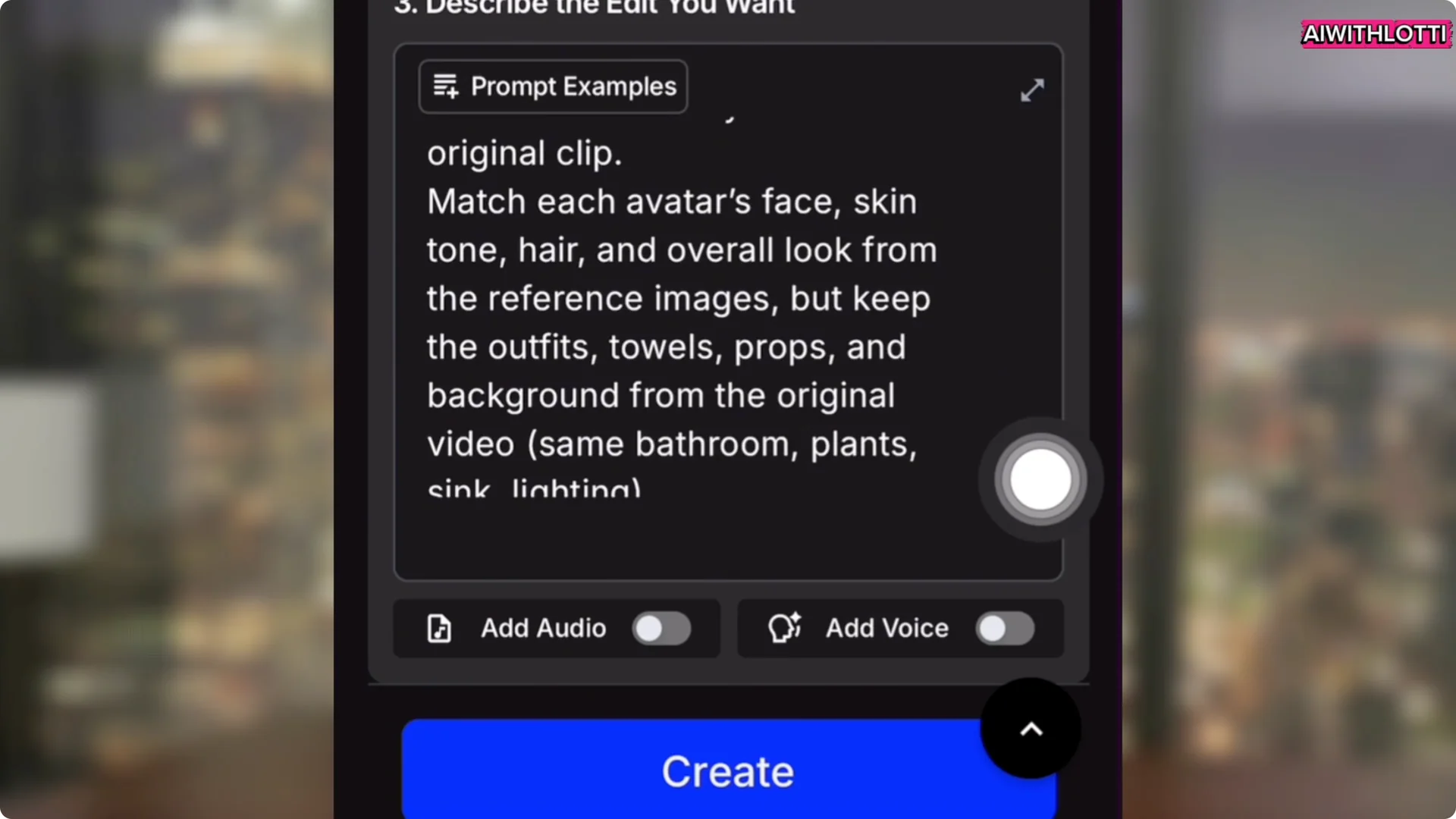
Prompt precision for mirrors and reflections
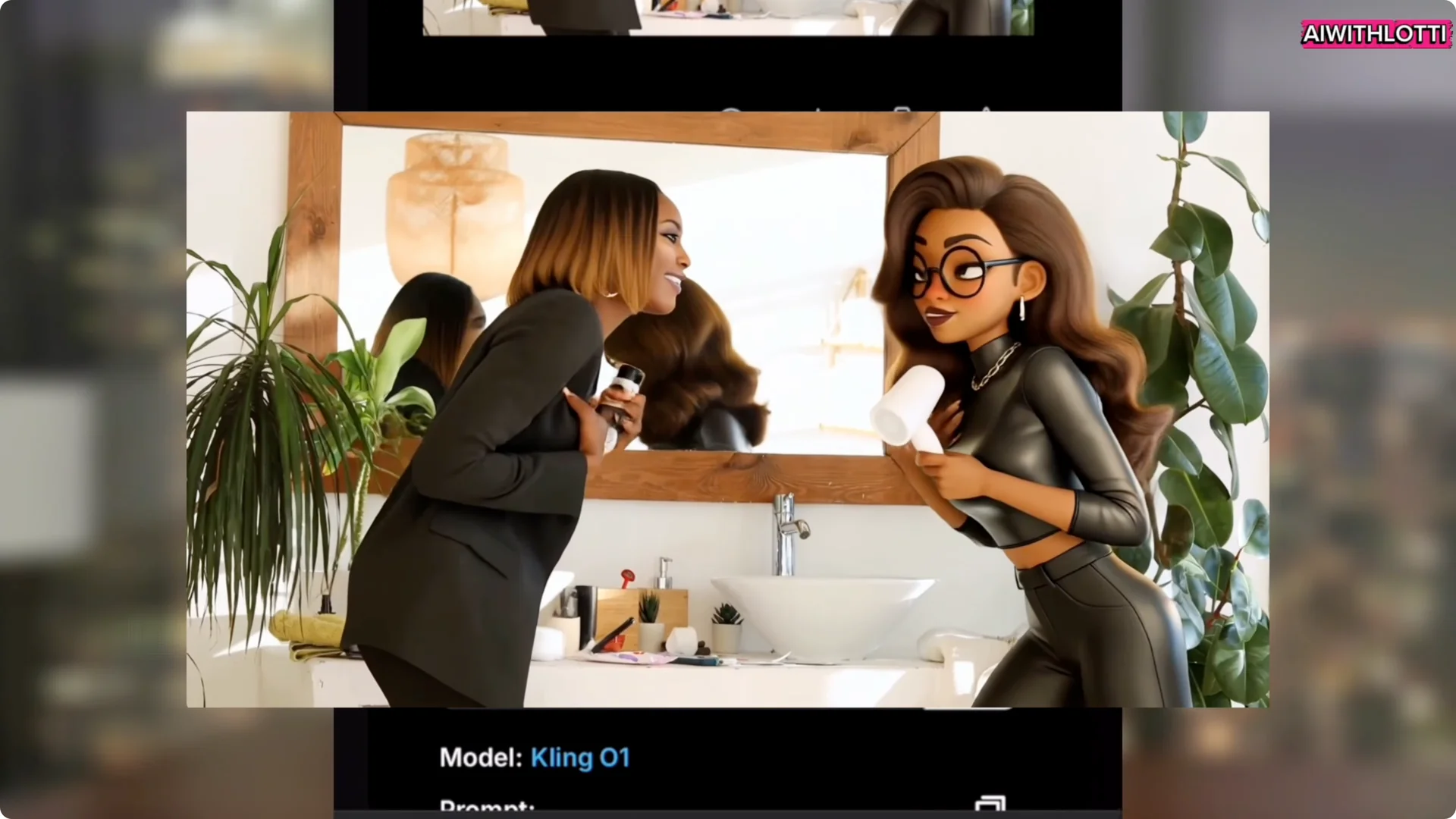
The first pass kept the girl in the mirror. Redo the prompt and be explicit about reflections. I added: make the mirror show the same avatar faces and bodies as replacements. Click Create.
Now the video looks exactly how I want it to look. They are dancing, it looks like they are singing, and both are correctly shown in the mirror background.
AI Avatar Video Replacement: Change Camera Angles
Kling O1 lets you change the camera angle. Say the angle you want and it creates it. Side view, back view, zoomed out, anything.
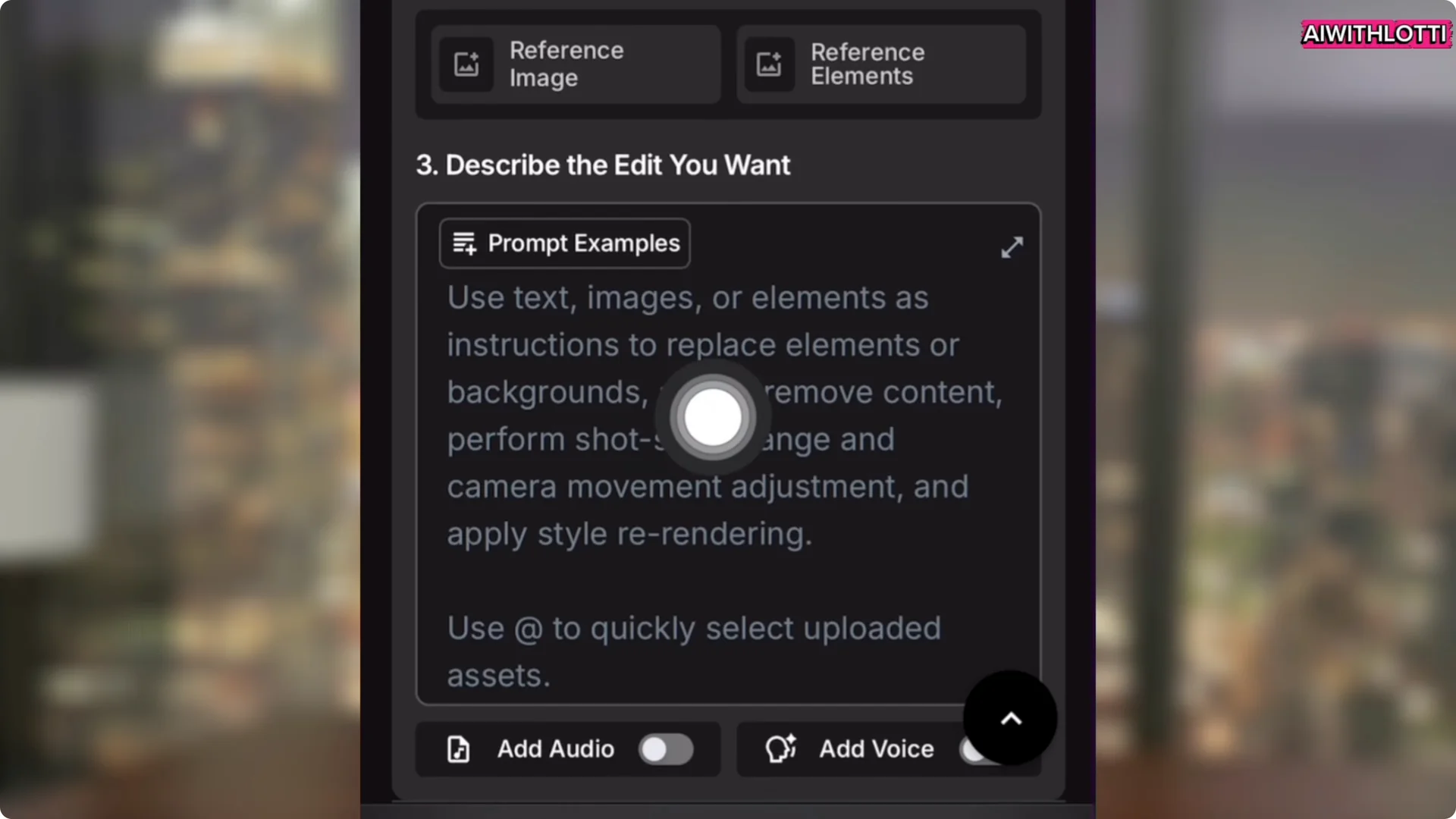
- Upload a video. I used a clip of my avatar talking.
- Write a prompt. I asked for a close up from the side and for it to almost look cinematic.
- Make sure the video is attached and click Create.
The result went real close. She is talking from the side, exactly as prompted.
AI Avatar Video Replacement: Add Objects or People
You can replace or add anything in your video. People, pets, objects. Upload a reference and tell it where to go. It blends in perfectly.
- Upload a video. I used a clip of a girl running.
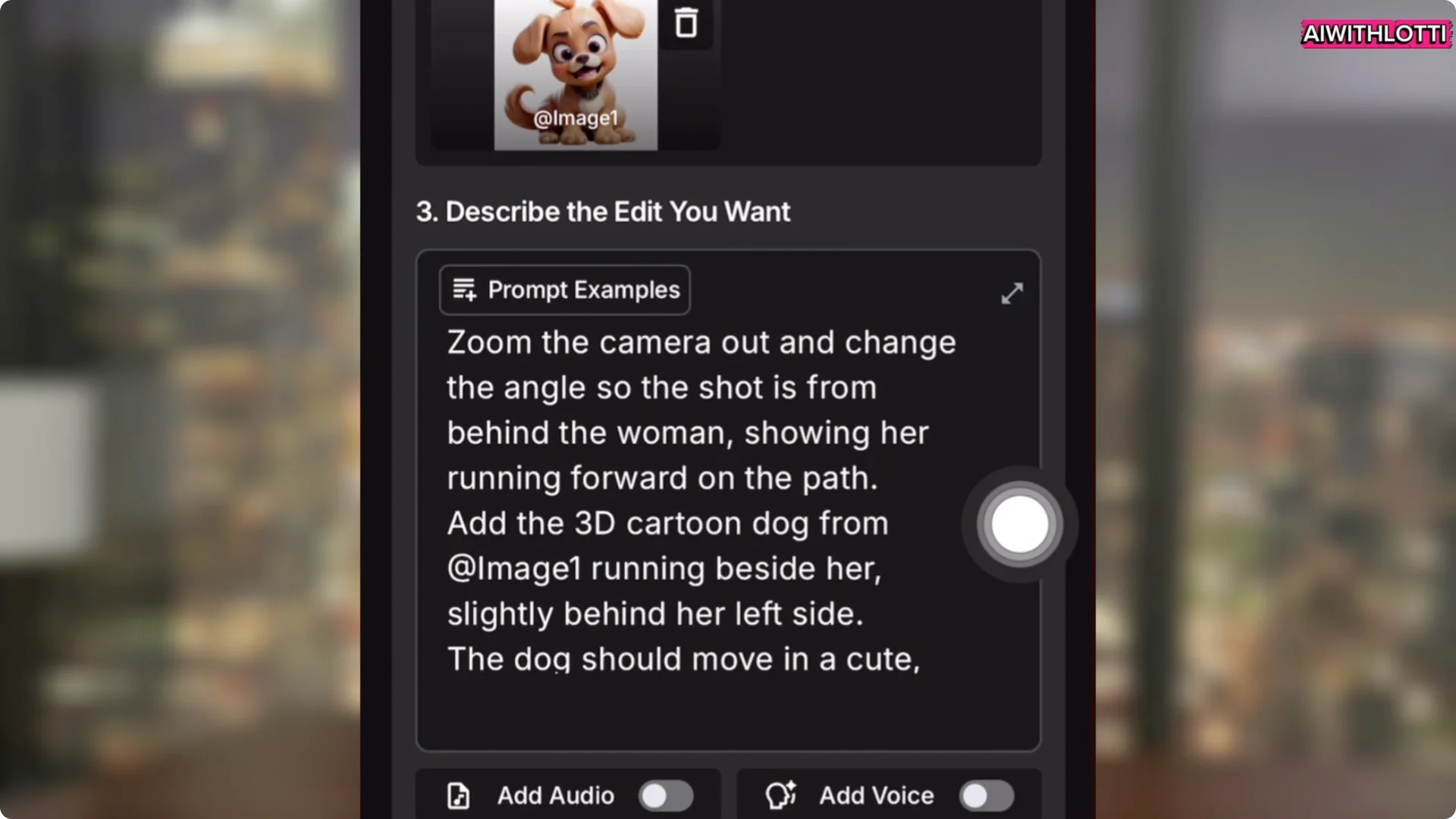
- Add a reference image. I uploaded an animated dog.
- In the prompt, describe what you want. I asked for the dog running next to her while she is running.
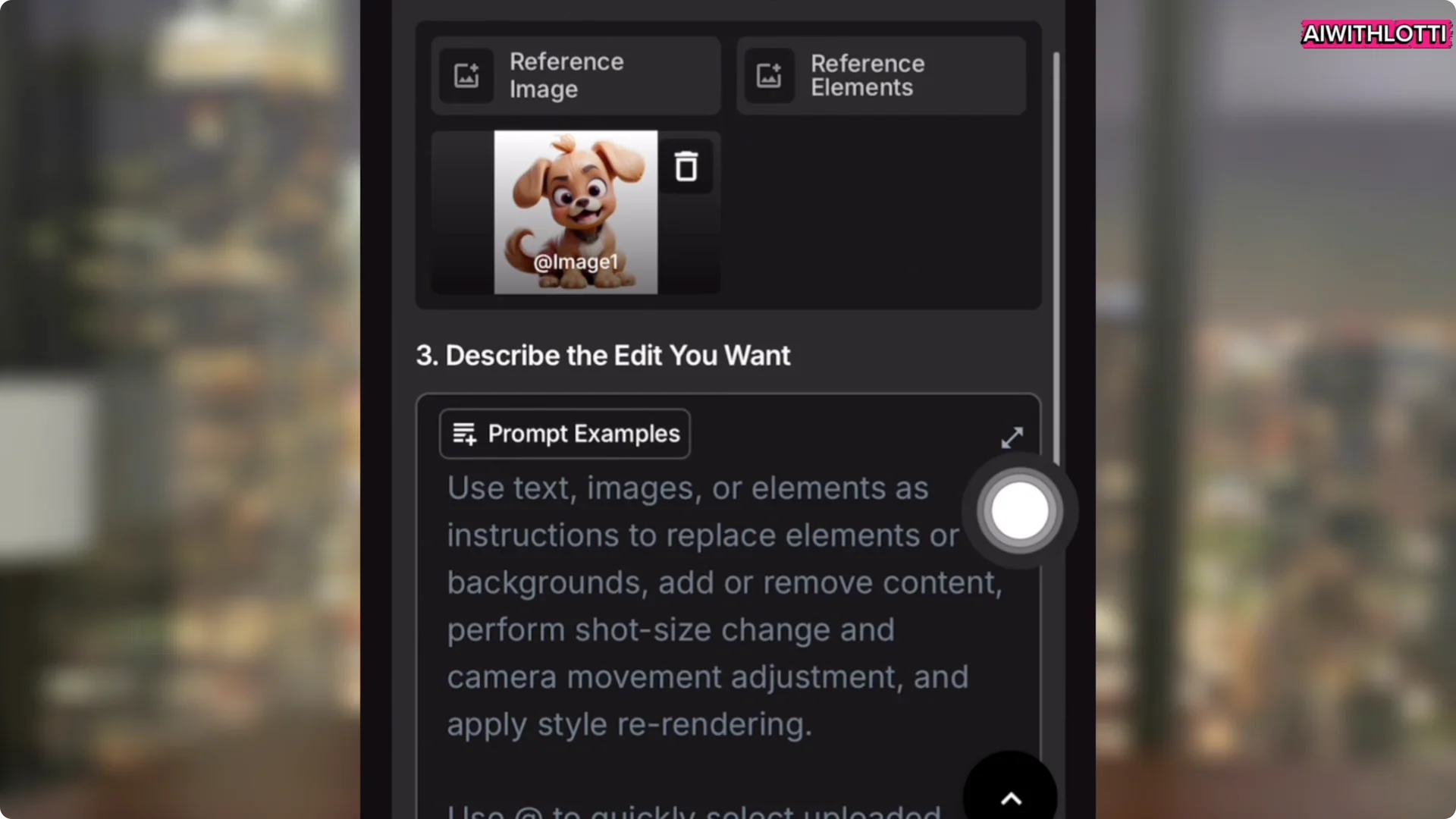
The result nailed it. AI is definitely advancing.
Lip Sync Your Characters
I usually use sync.so to make characters talk.
- Click Create Project and name it.
- Upload your video. I used the closeup.
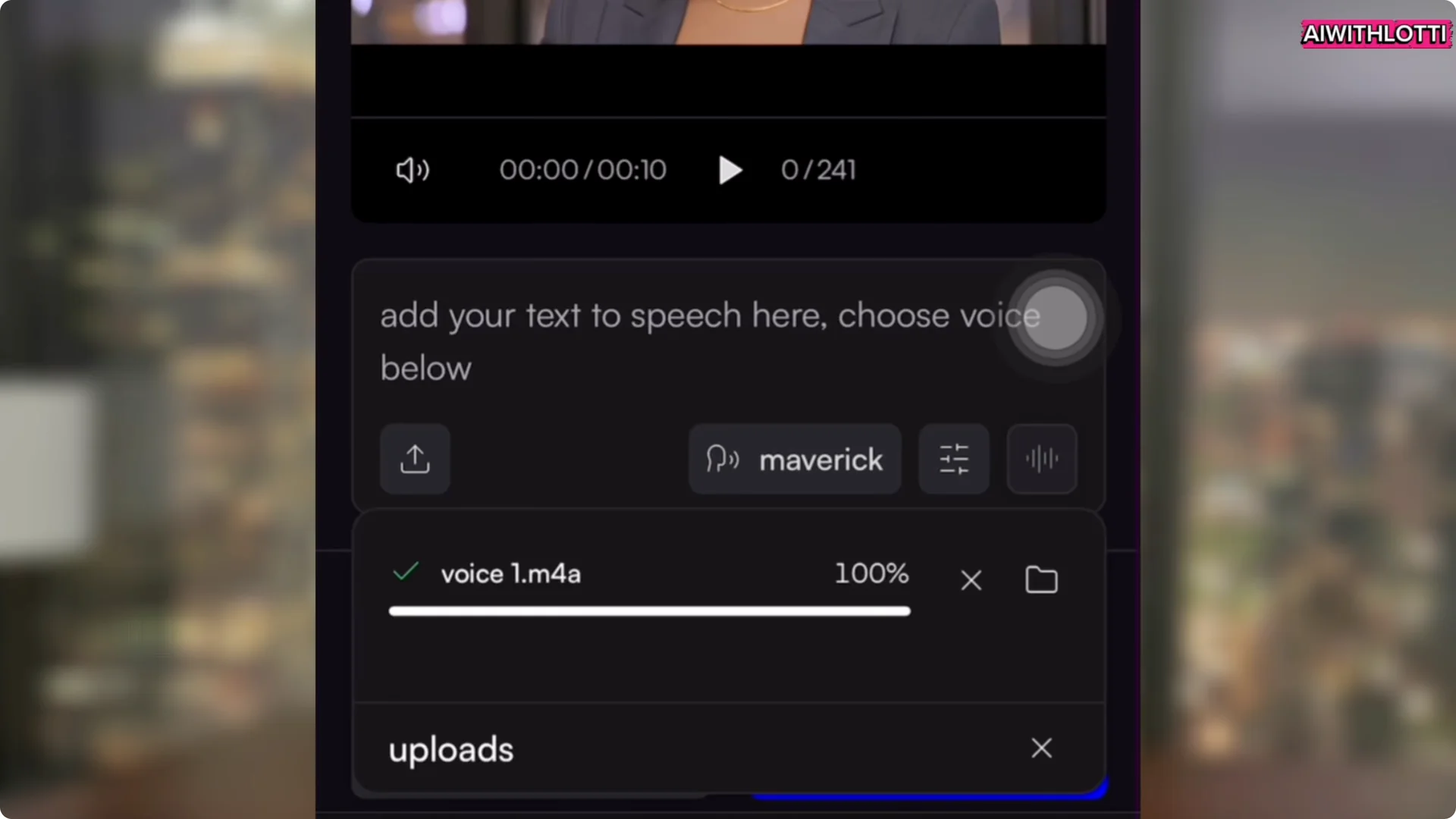
- Record your voice or upload a file of your voice.
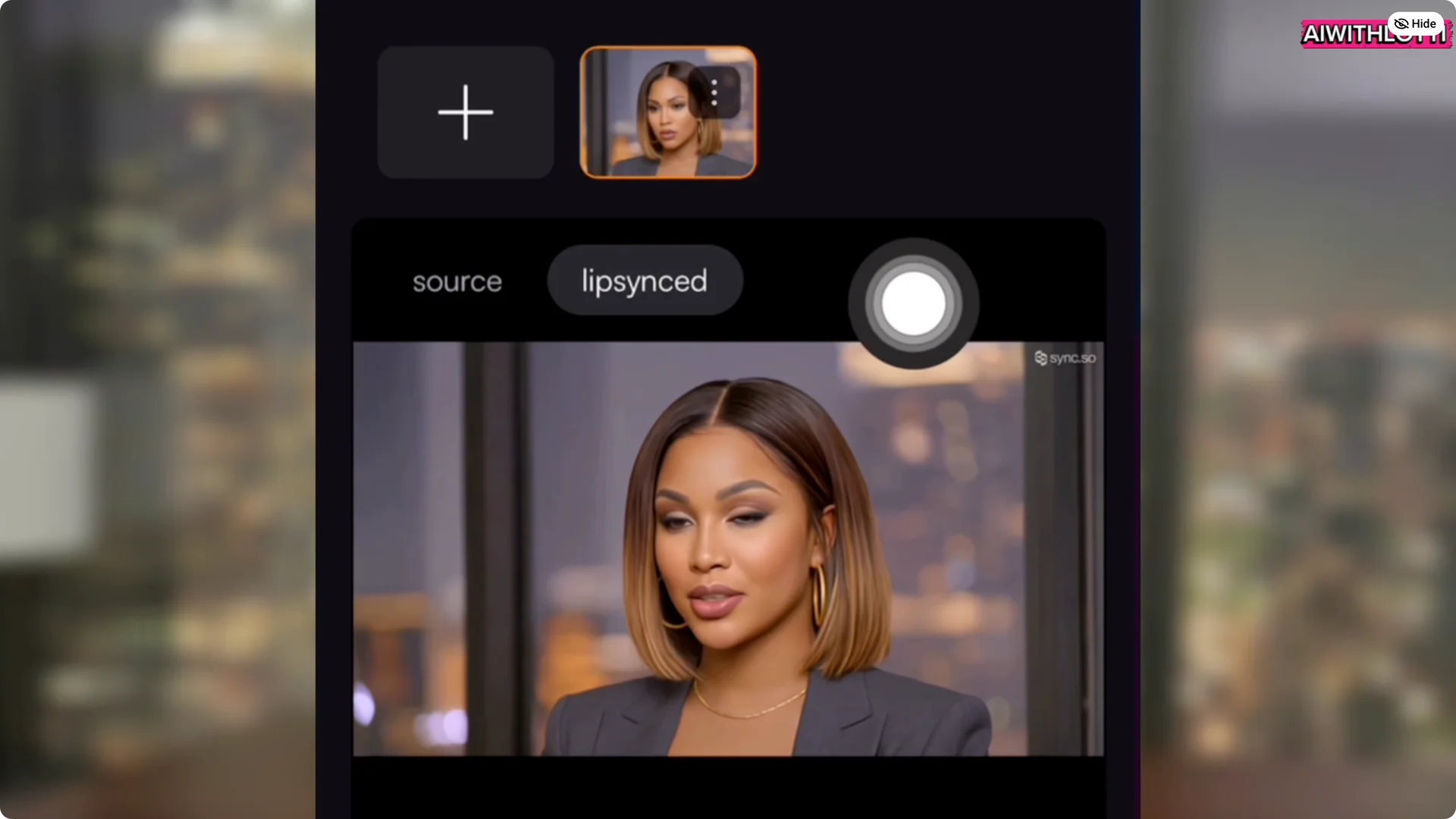
- Click Lip Sync. It will sync the video to your audio.
- Review the result and you are done.
Export Your Final Video
- Click the three dots at the top and choose Download.
Final Thoughts
Kling O1 lets you reshape recorded footage without reshoots. Replace people with avatars using specific prompts, handle tricky details like mirror reflections, change camera angles on command, and add objects or characters that fit into the scene. Pair it with lip sync to bring your avatars to life and you have a flexible way to produce polished videos fast.