I started with one of these videos and used Kling AI’s multi-elements swap feature to swap out the person behind the desk with a different person that I had an image of. This isn’t just for swapping people. I started with a video of a red car going down the road and an image of a blue car, and now it’s the blue car going down the road instead of the red car.
I also gave it a video of a dog in the backyard along with an image of a miniature horse, because who doesn’t need a miniature horse roaming around their backyard. And sure enough, that’s exactly what we get.
Getting Started With Kling AI Multi-Elements Editing
- Go to the Kling AI website.
- In the upper right, click Create.
- In the left menu, click Video.
- Near the top, switch to the Multi-elements tab.
- Choose among three options: Swap, Add, and Delete.
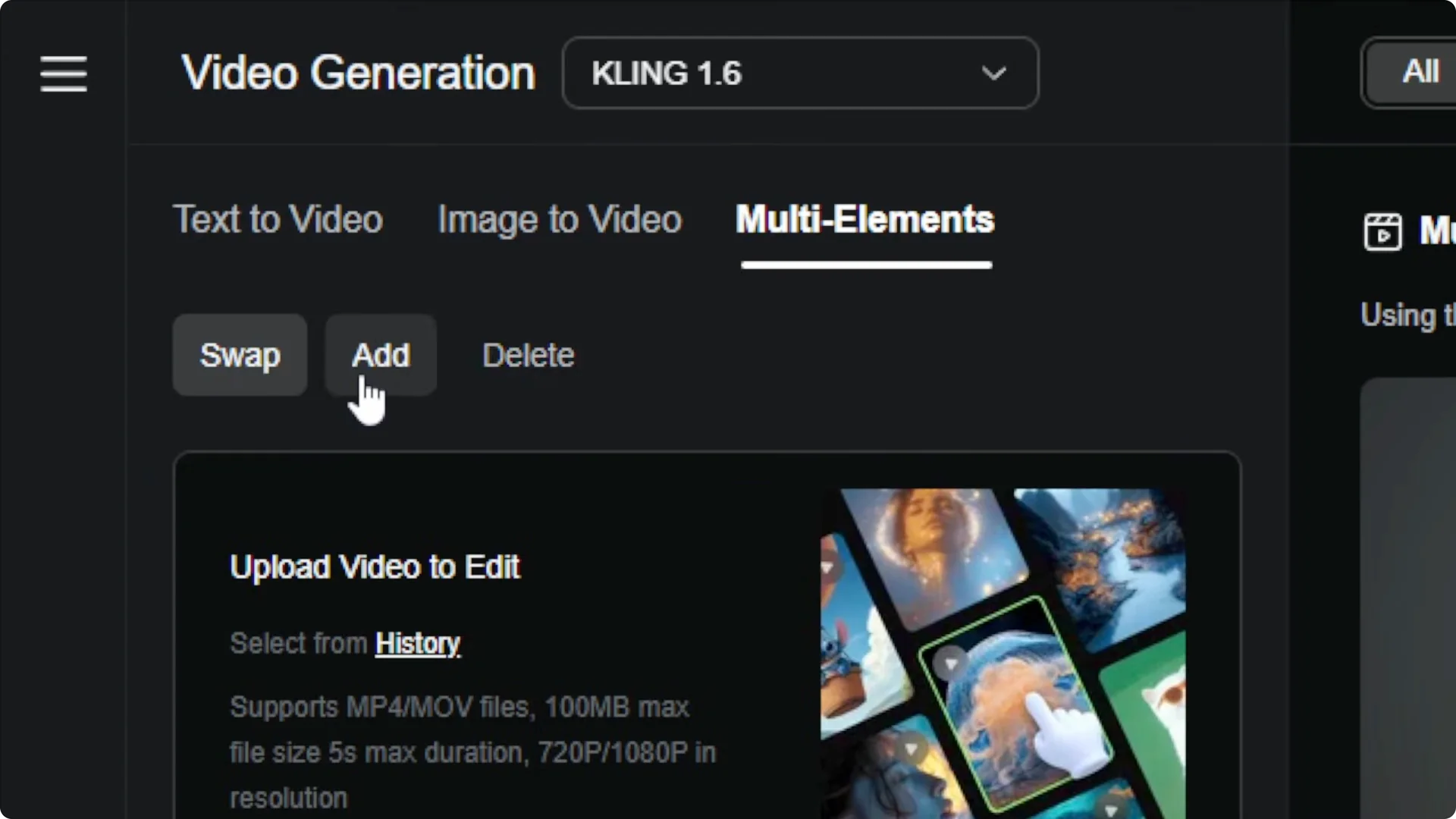
Supported formats and limits
- Video formats: MP4 and MOV
- Max file size: 100 MB
- Max duration: 5 seconds
- Resolution: 720p or 1080p
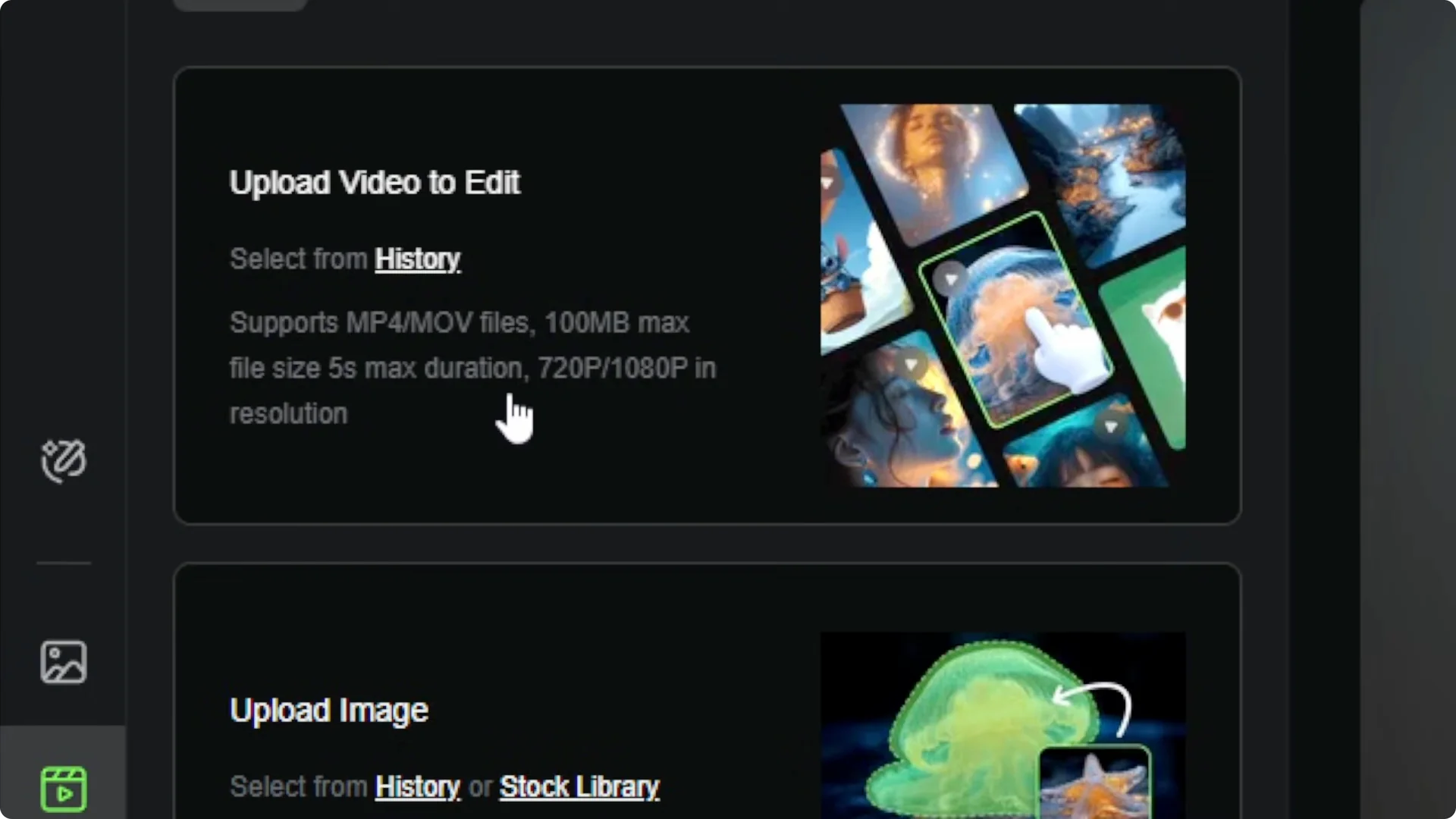
You can select a video from your history or upload from your computer by clicking in the upload box or dragging a file in.
Swapping Elements With Kling AI Multi-Elements Editing
We’ll start on the Swap tab.
Select the object to replace
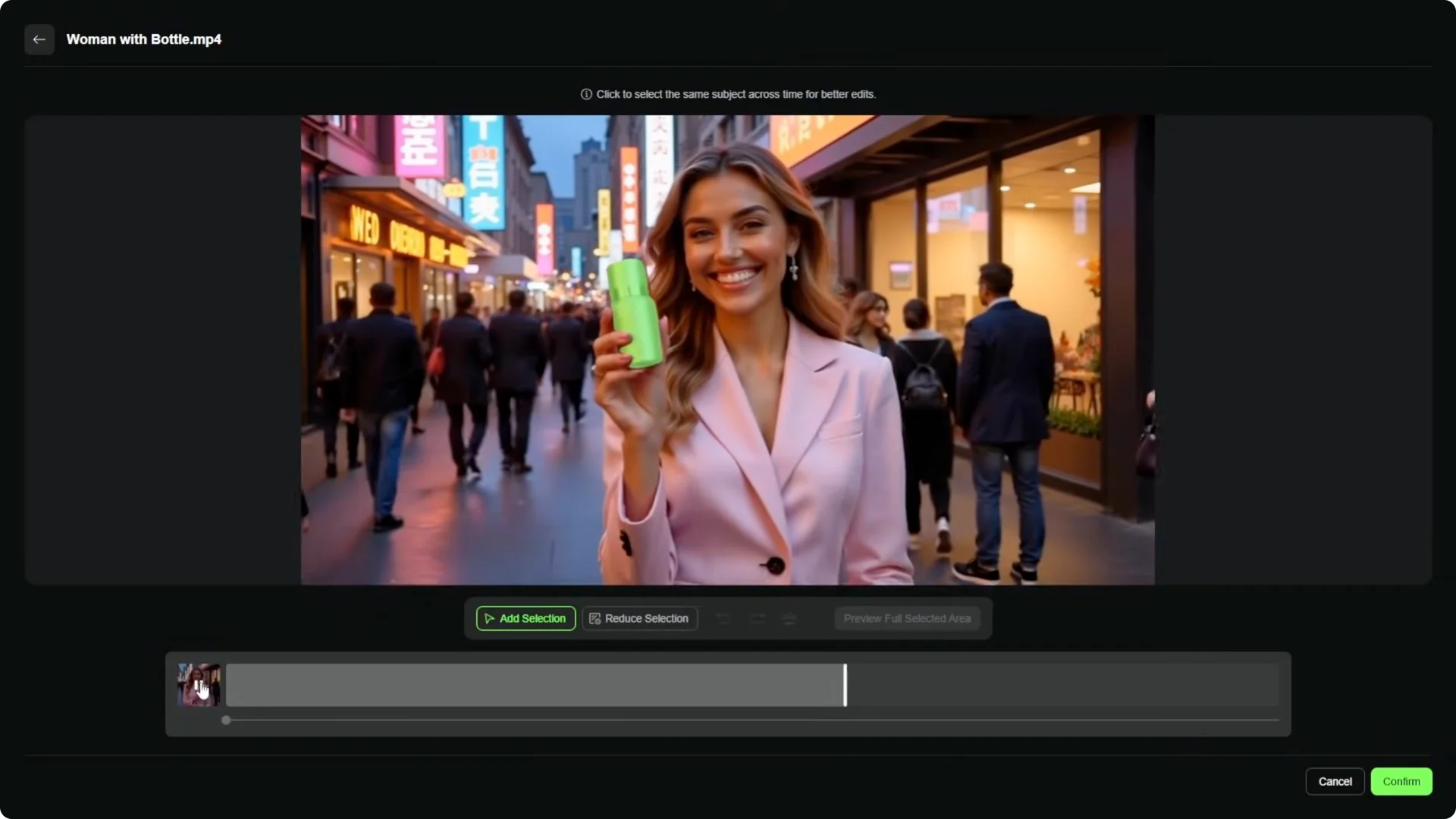
- After the upload and processing, you’ll see a window to select the object you want to replace.
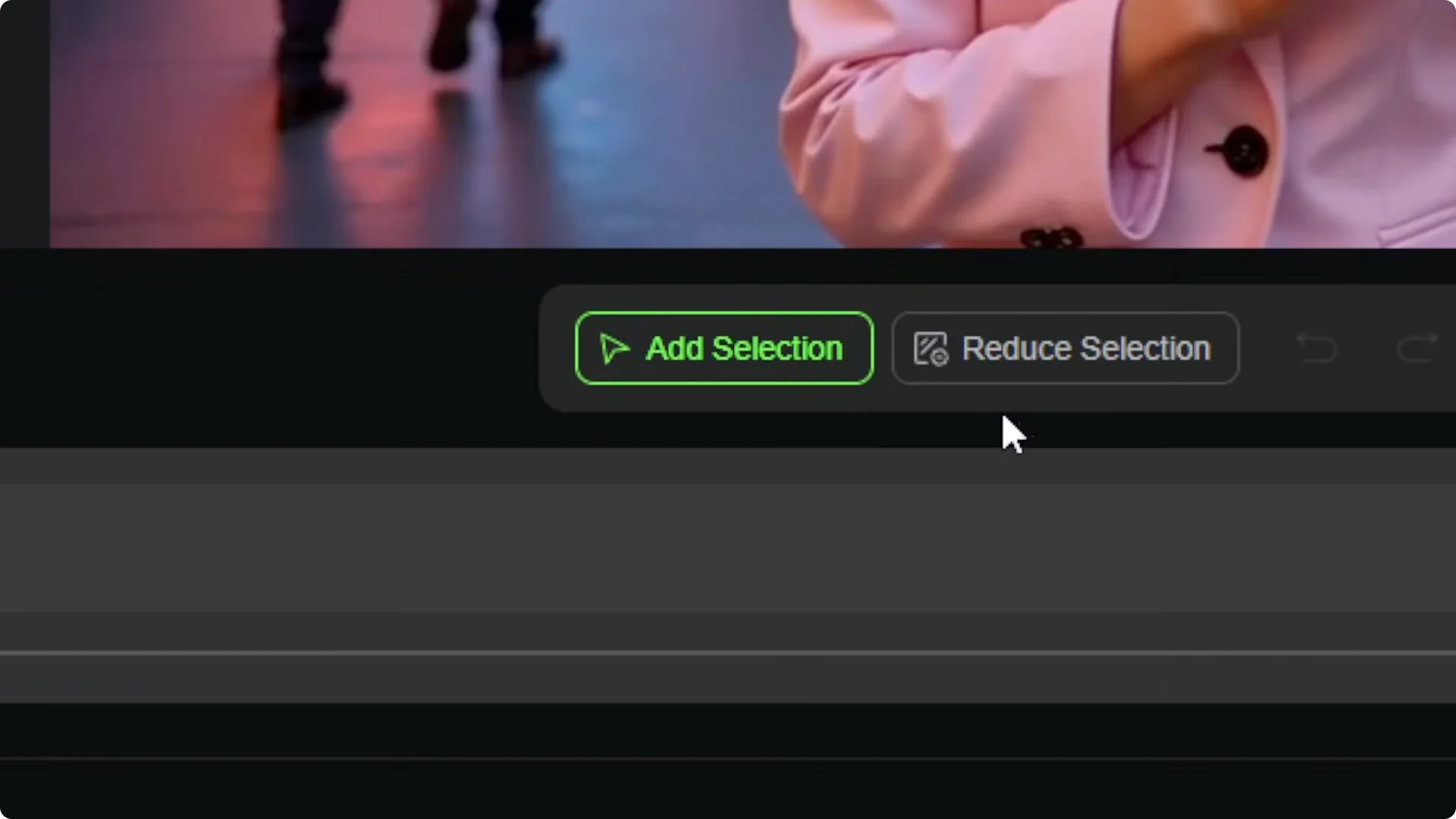
- The two main tools are Add selection and Reduce selection. Add selection is on by default.
- Click on the object. For example, I clicked on the bottle in a clip of a woman showing off a bottle or can.
- Click Preview full selected area. As the preview plays, the green masking shows what it identifies as the object.
- You can fine-tune frame by frame by pausing anywhere and reselecting, but I kept it simple.
- Click Confirm.
Provide the replacement image
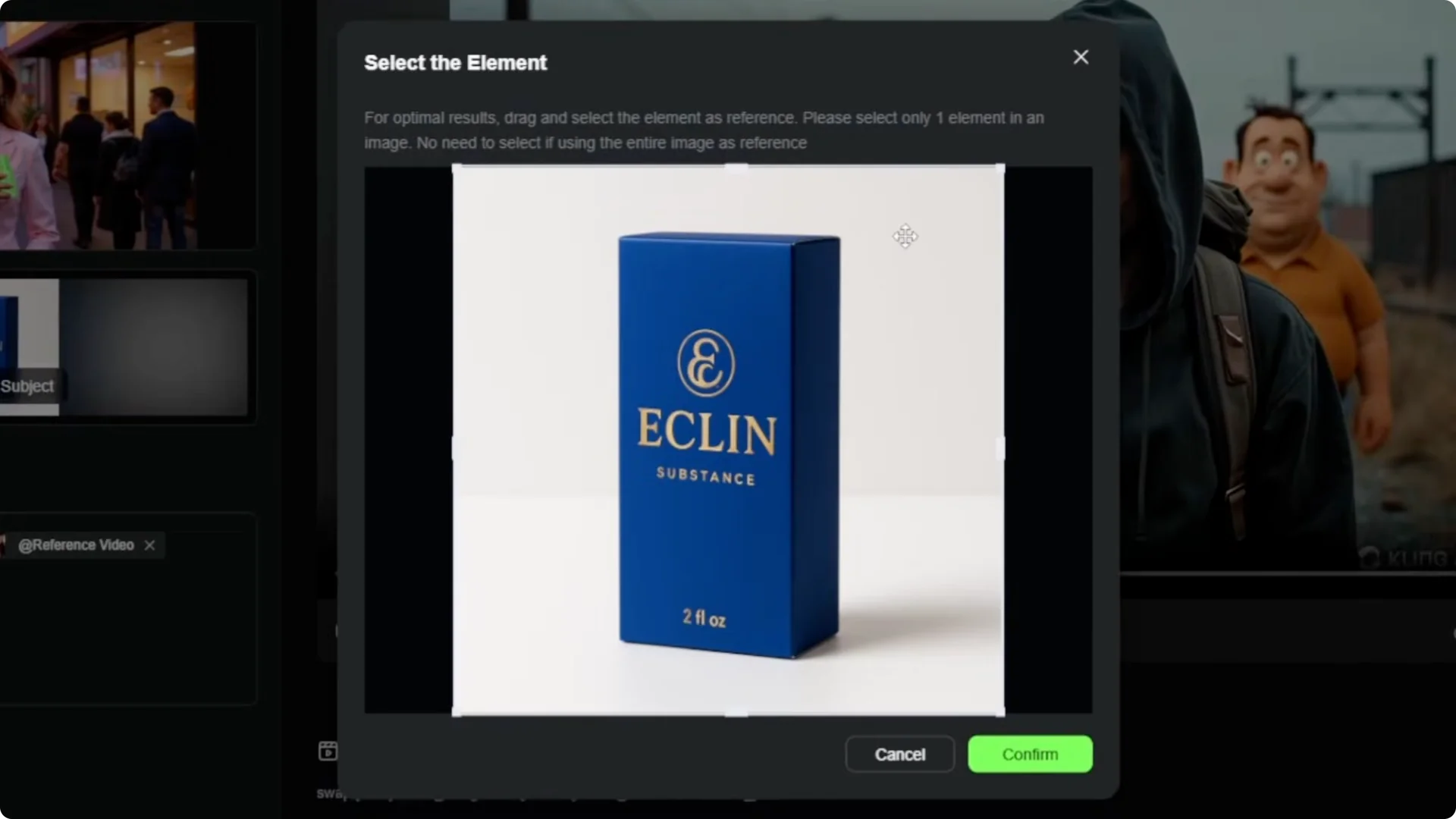
- Upload or choose an image from your history. There’s also a small stock library you can experiment with.
- Use Select subject if your image has multiple objects or a busy scene and you need to crop to the specific element. I skipped it since my image had one object on a plain background.
Write the prompt
Kling suggests a structure like: swap X from @image for X from @reference video.
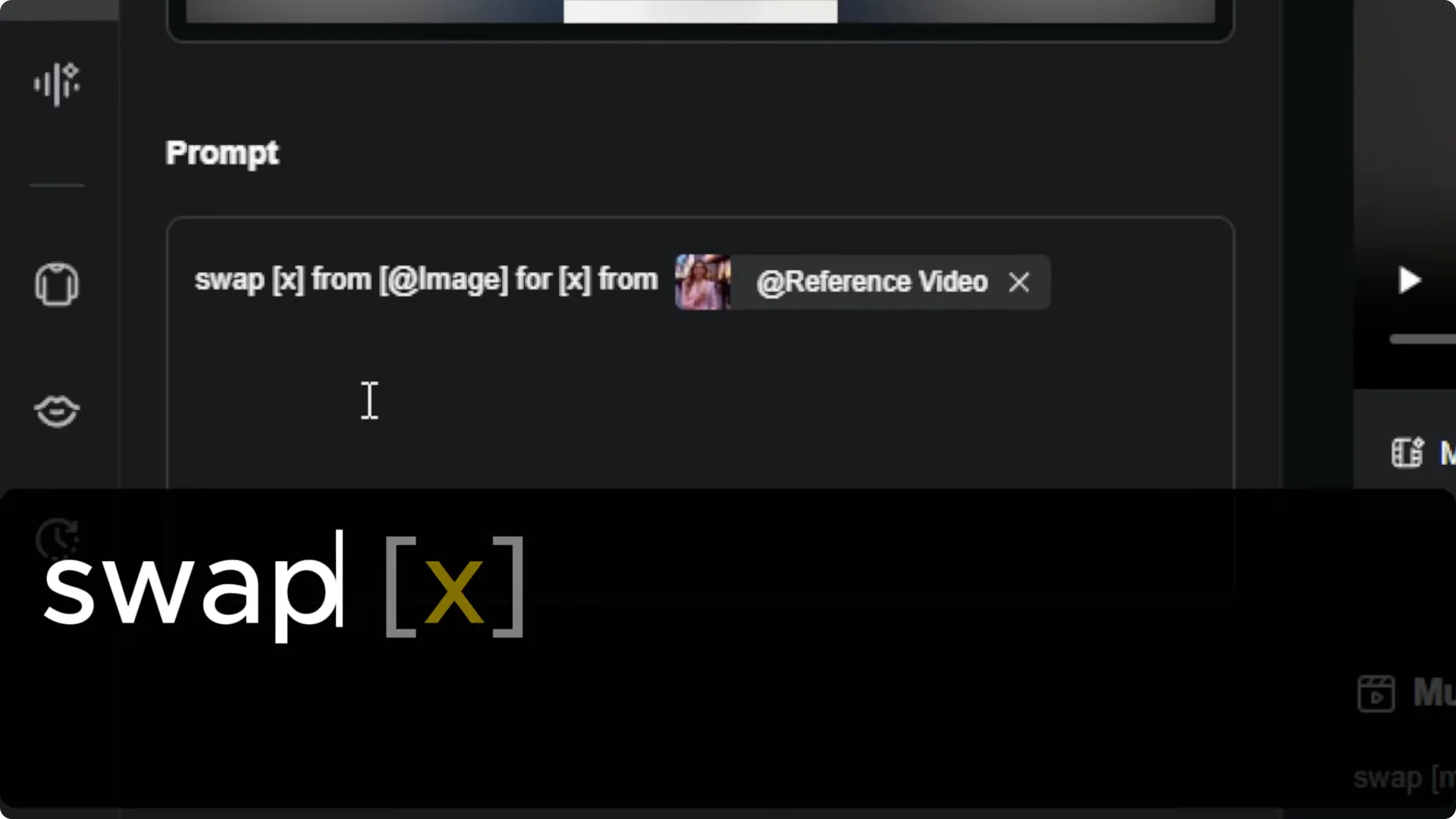
- In my case: Swap blue box from image 1 for silver bottle from reference video.
- If it auto-inserts extra “X from” bits, delete the extras.
- The brackets in their template are just reminders of what to replace. You don’t need to leave them in.
- You can be a bit more descriptive, but I’ve been sticking close to their template to get the basics down.
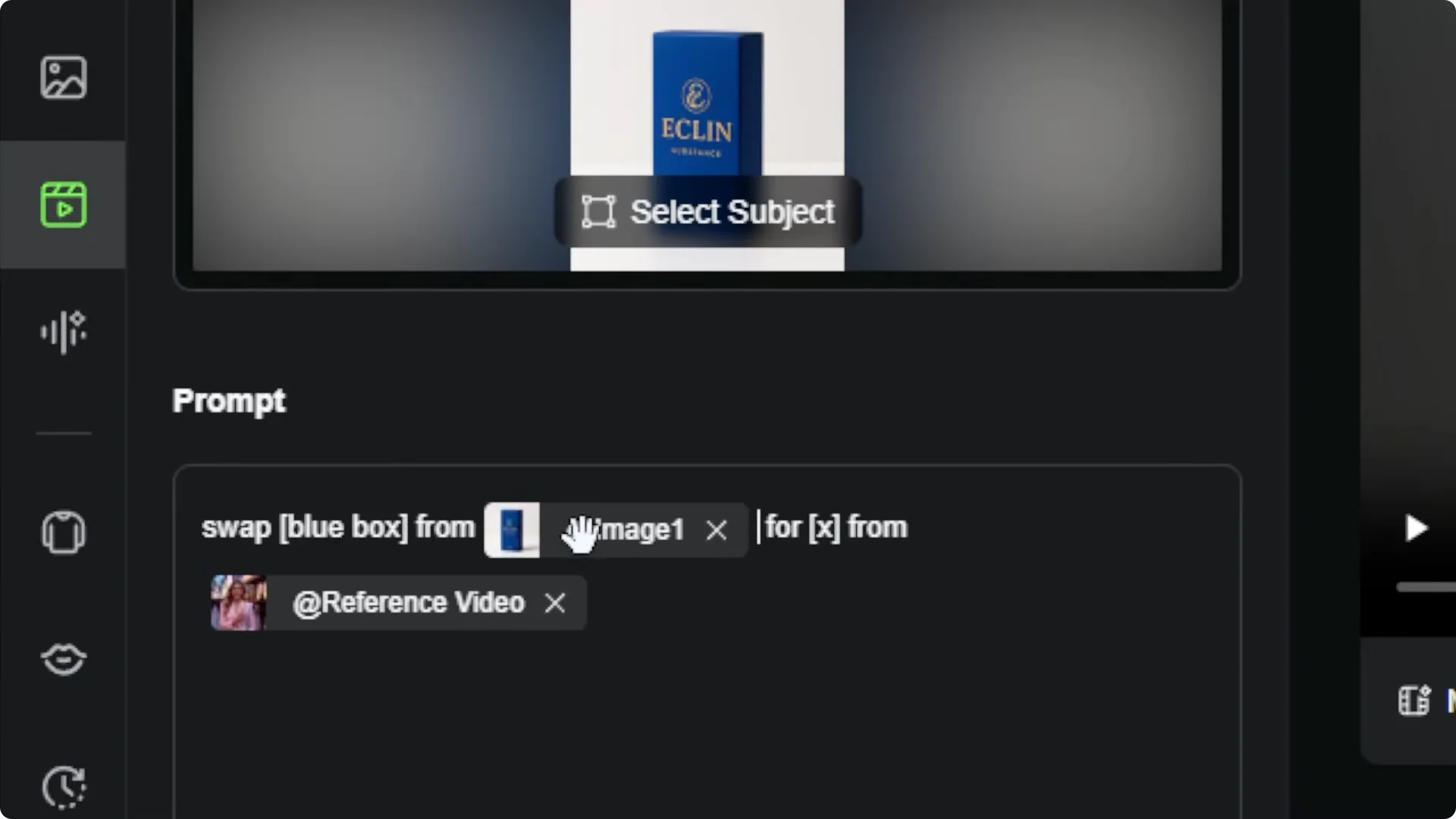
I left it on Professional mode. 5 seconds is the only duration option. One output is fine.
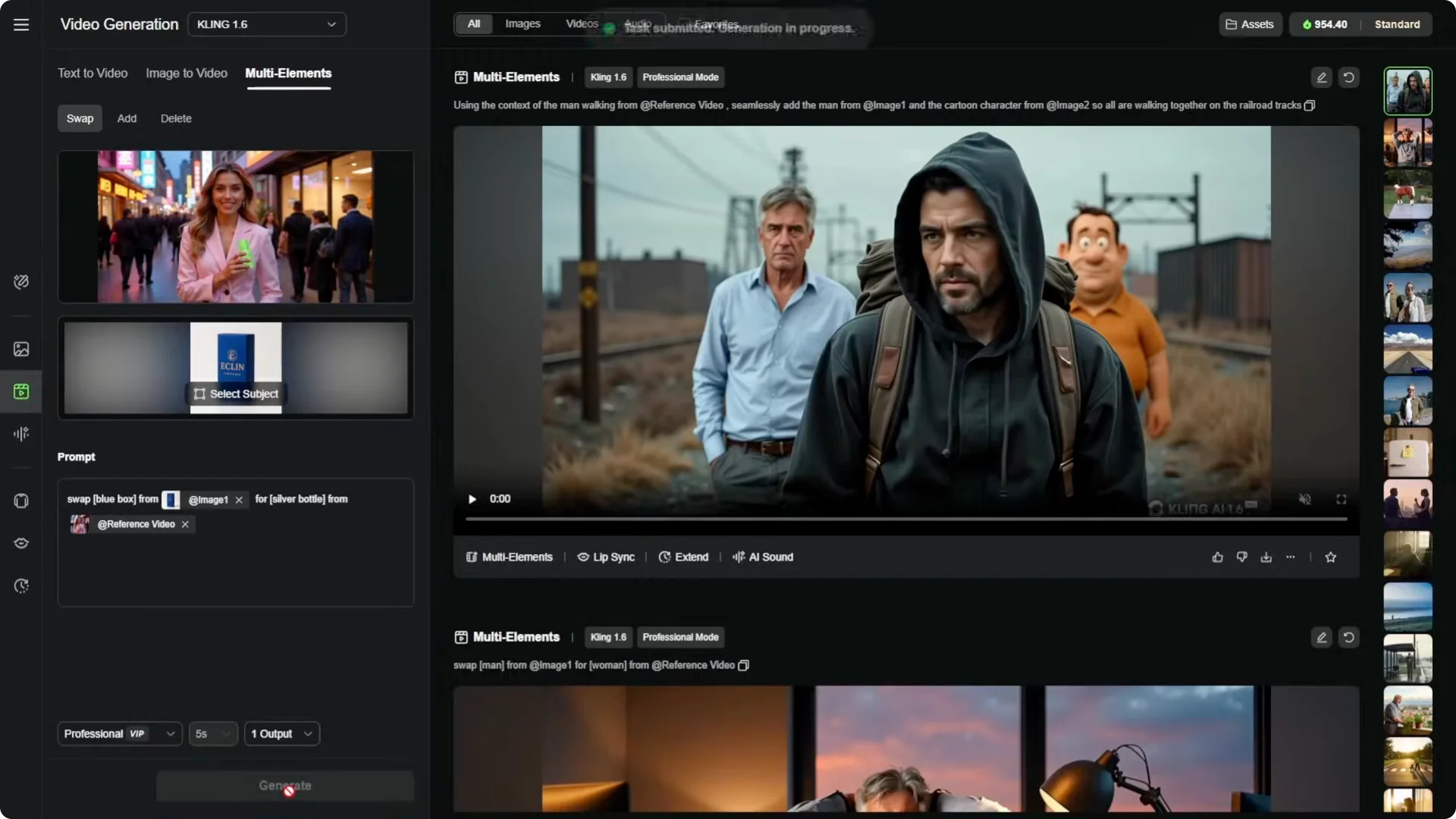
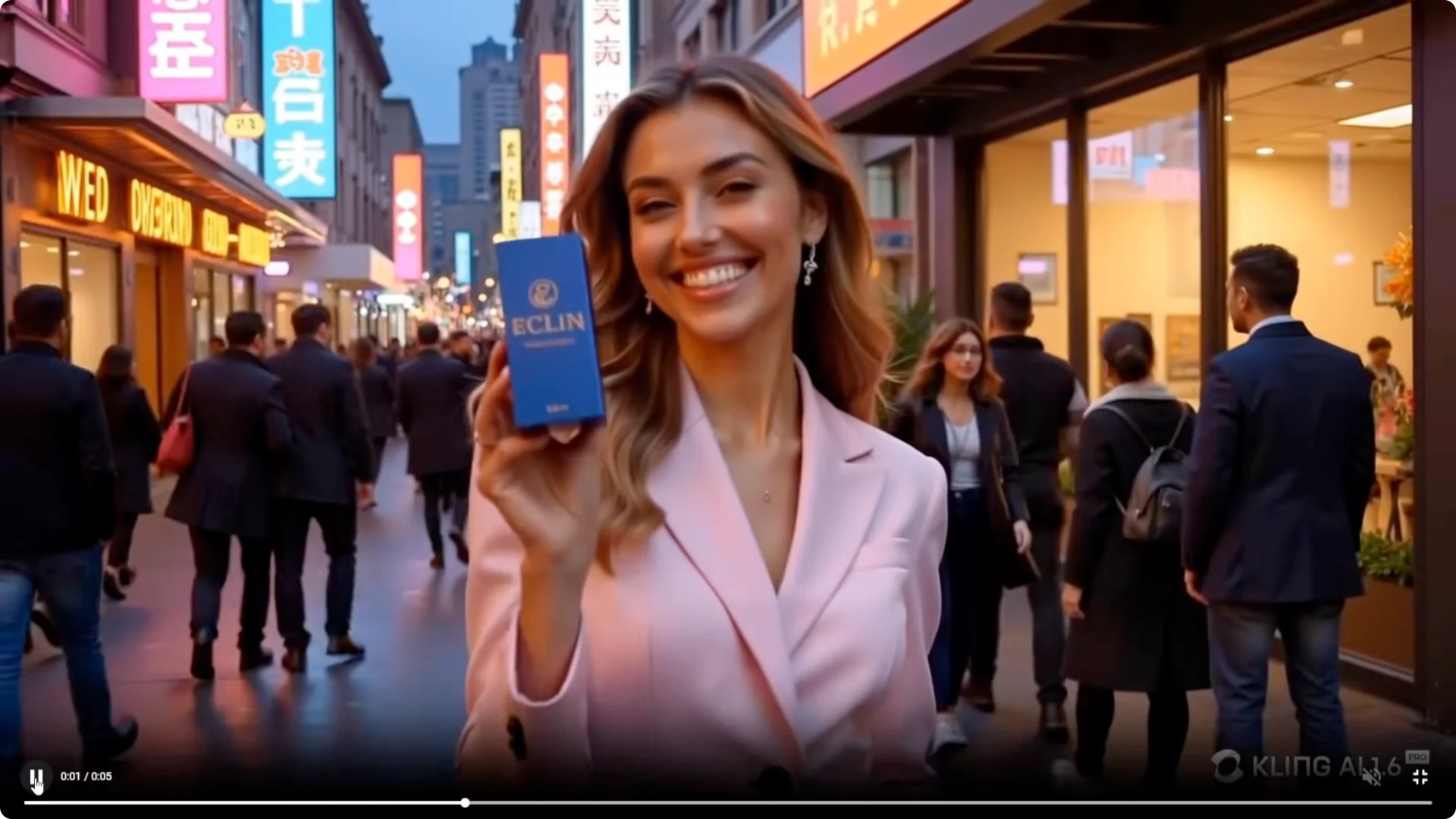
A few minutes later, the video swap was ready. She’s walking along holding up the imaginary product in the blue box instead of that silver can or bottle.
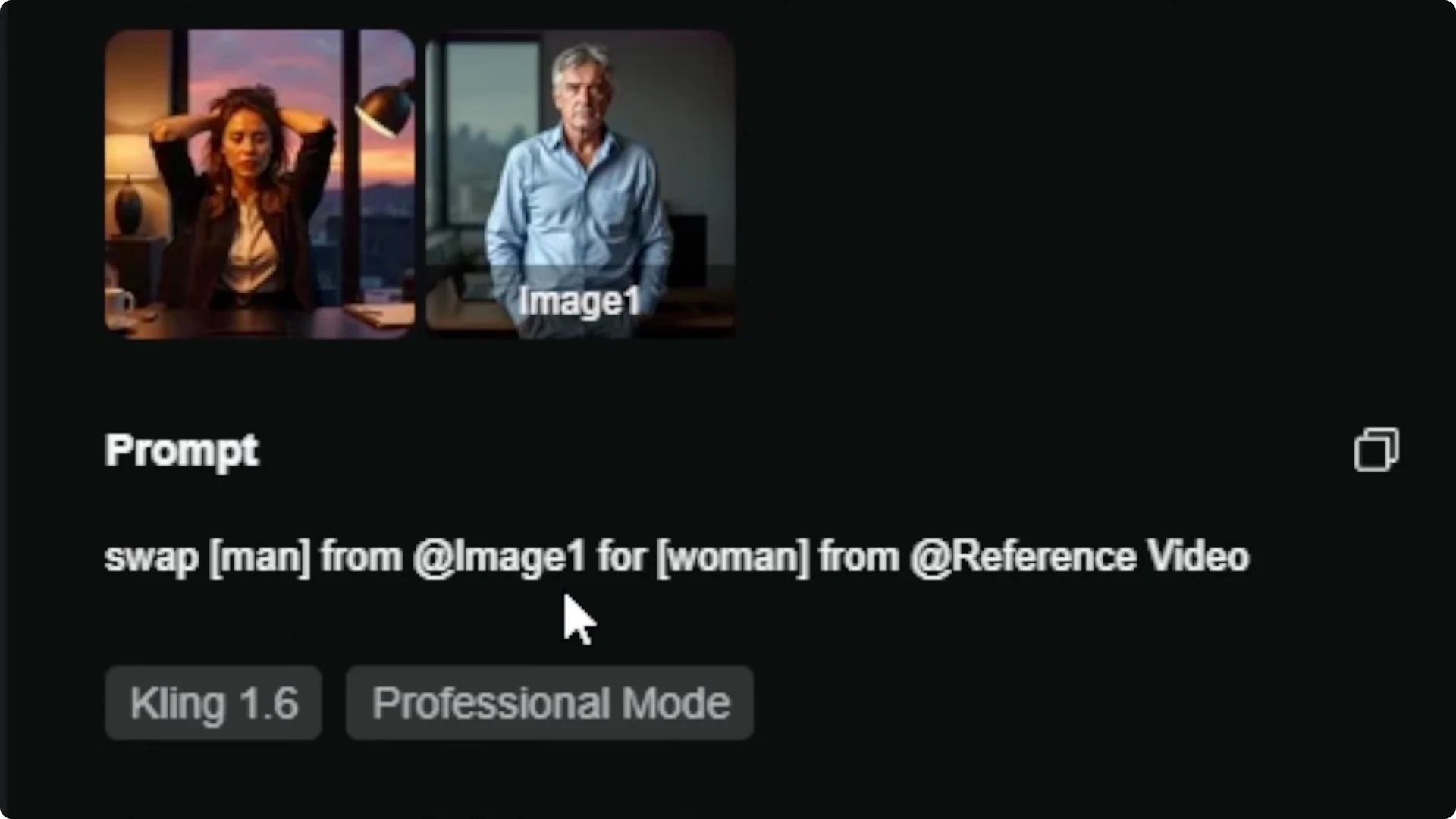
This is the same approach I used to make the clip at the beginning. I started with a video of a tired woman behind a desk, gave it an image of a man, and used the prompt: “Swap man from image 1 for woman from reference video.” The woman was the subject in the original, and I swapped her out for the guy.
Adding Elements With Kling AI Multi-Elements Editing
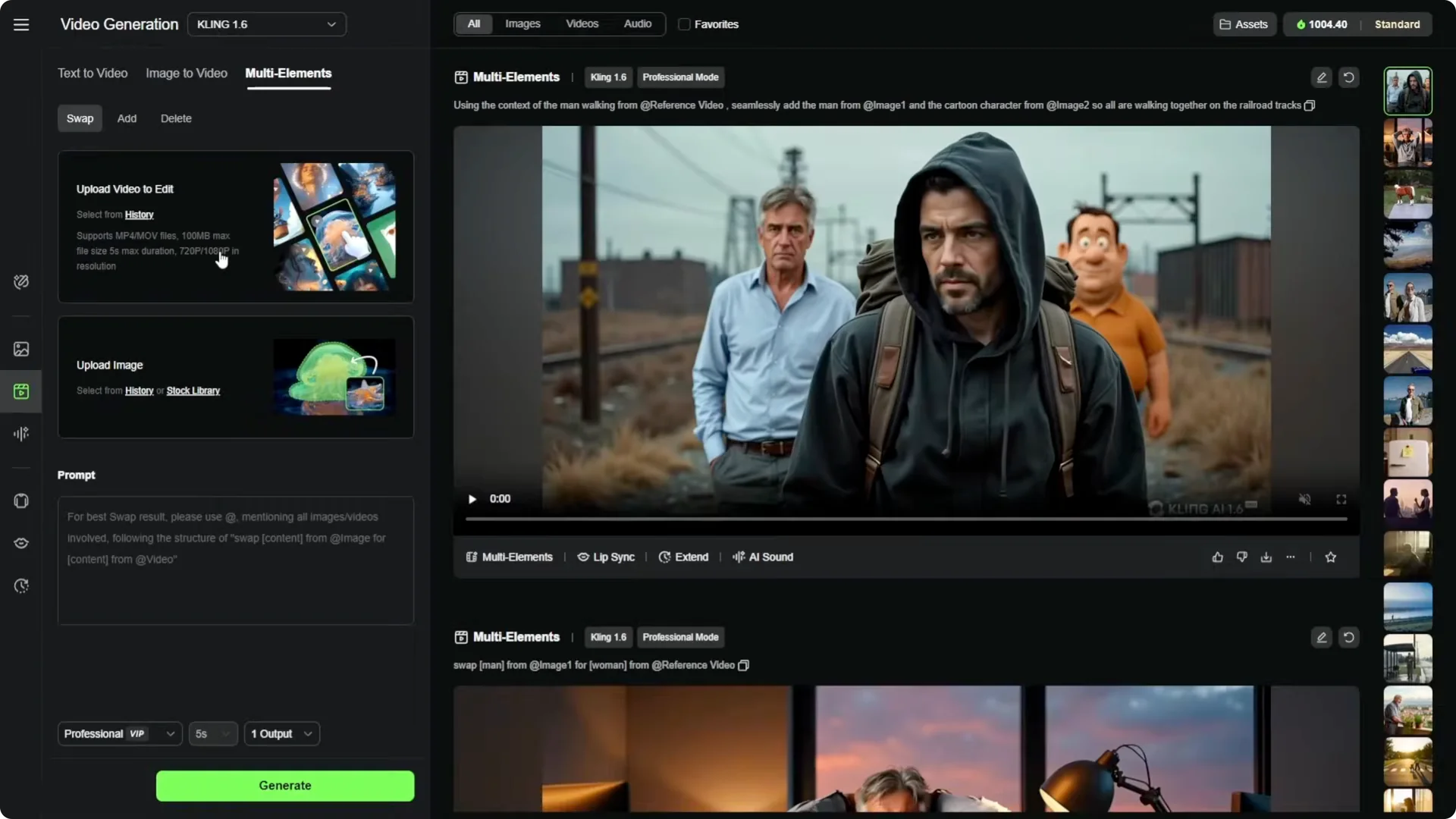
I took a stock video of a woman walking, gave it an image, and using the Add option, he’s added to the video walking right beside her. I also tried adding more than one thing to a video of a guy walking on the railroad tracks. I gave it the image of the tired guy from the office and my cartoon guy. This is what they look like walking together on the railroad tracks.
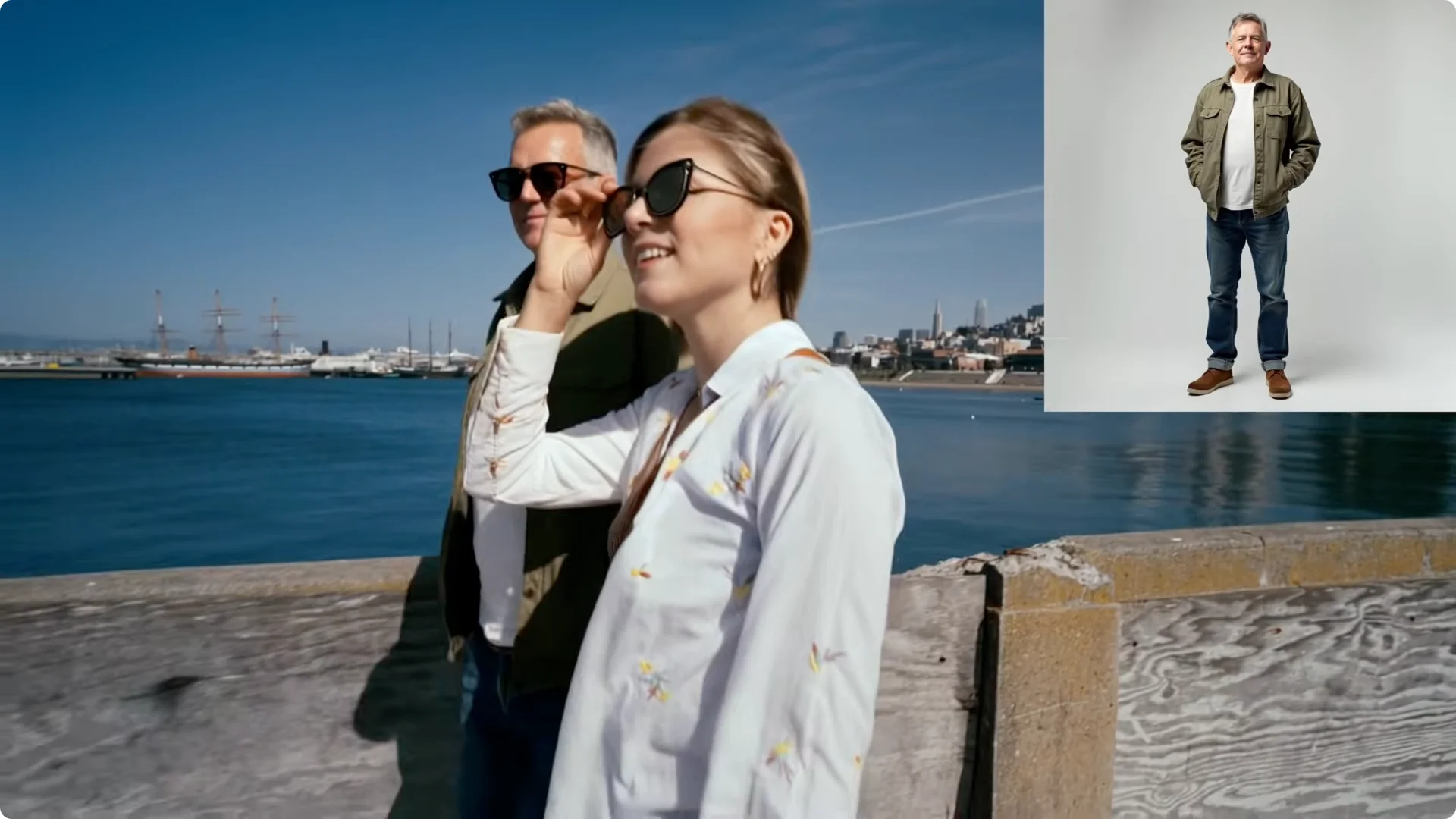
There’s not a lot of facial expression in either of the characters in the back. I don’t think either of them blink, but aside from their faces being kind of stone-like, the rest of their body movements look pretty good.
That might be an area I could improve with more creative prompting. I basically used their template for the Add feature and added a little something at the end: “All are walking together on the railroad tracks.”
How the Add workflow compares
- Upload the video you want to edit or pick it from your history.
- Choose an image.
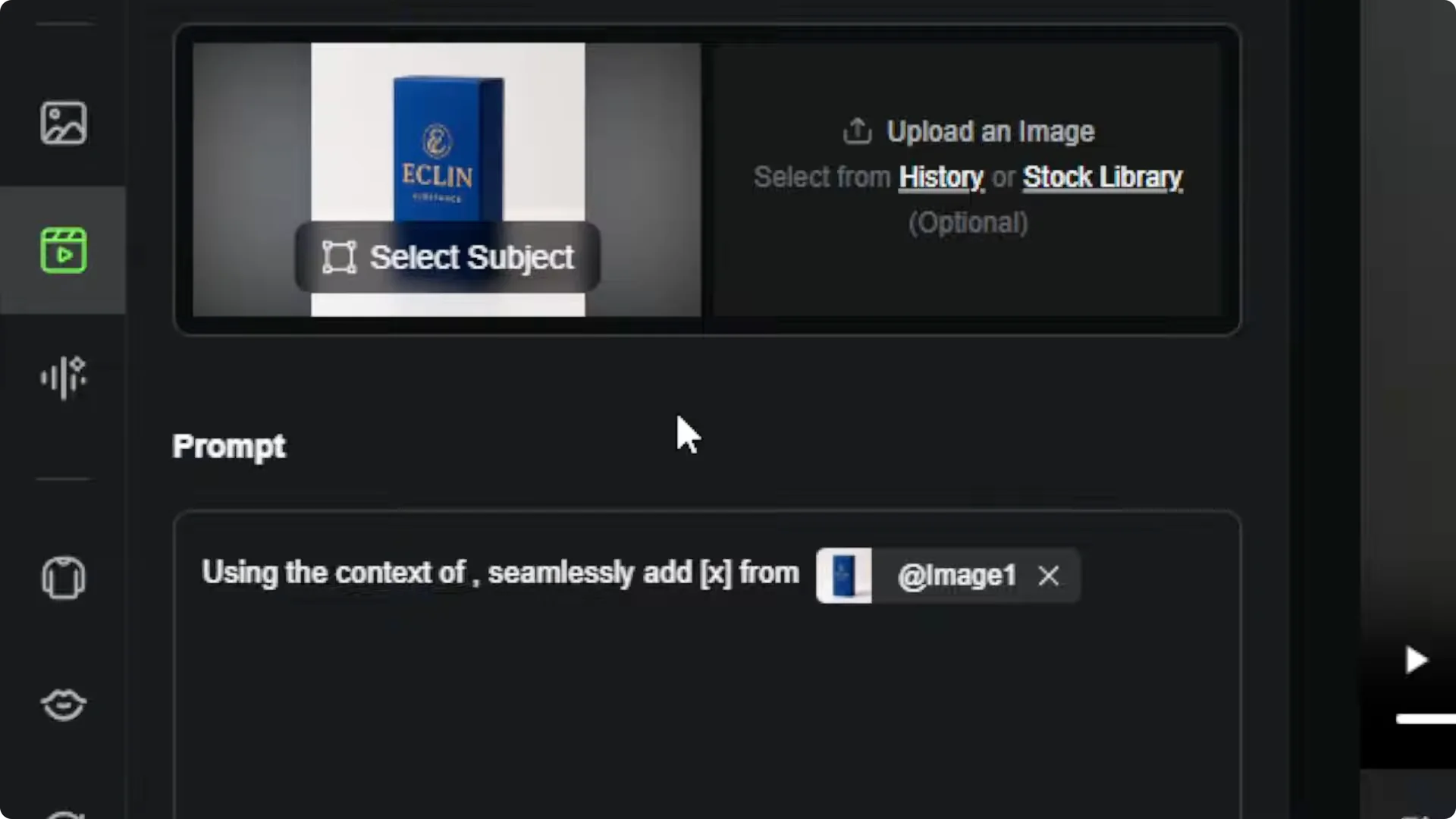
- The prompt template shows up as: using the context of [blank], add X from image 1.
- Once you upload a video, “using the context of” should reference the @reference video. If it doesn’t insert automatically, type the @ symbol and pick the reference video.
Deleting Elements With Kling AI Multi-Elements Editing
- Switch to the Delete tab.
- Upload or select the video.
- Brush over the thing you want to delete, same as the Swap selection step.
- In the prompt, replace X with what you want removed, like the man, the horse, the car, the cow, from the @reference video. If it doesn’t show as @reference video, type @ and select it.
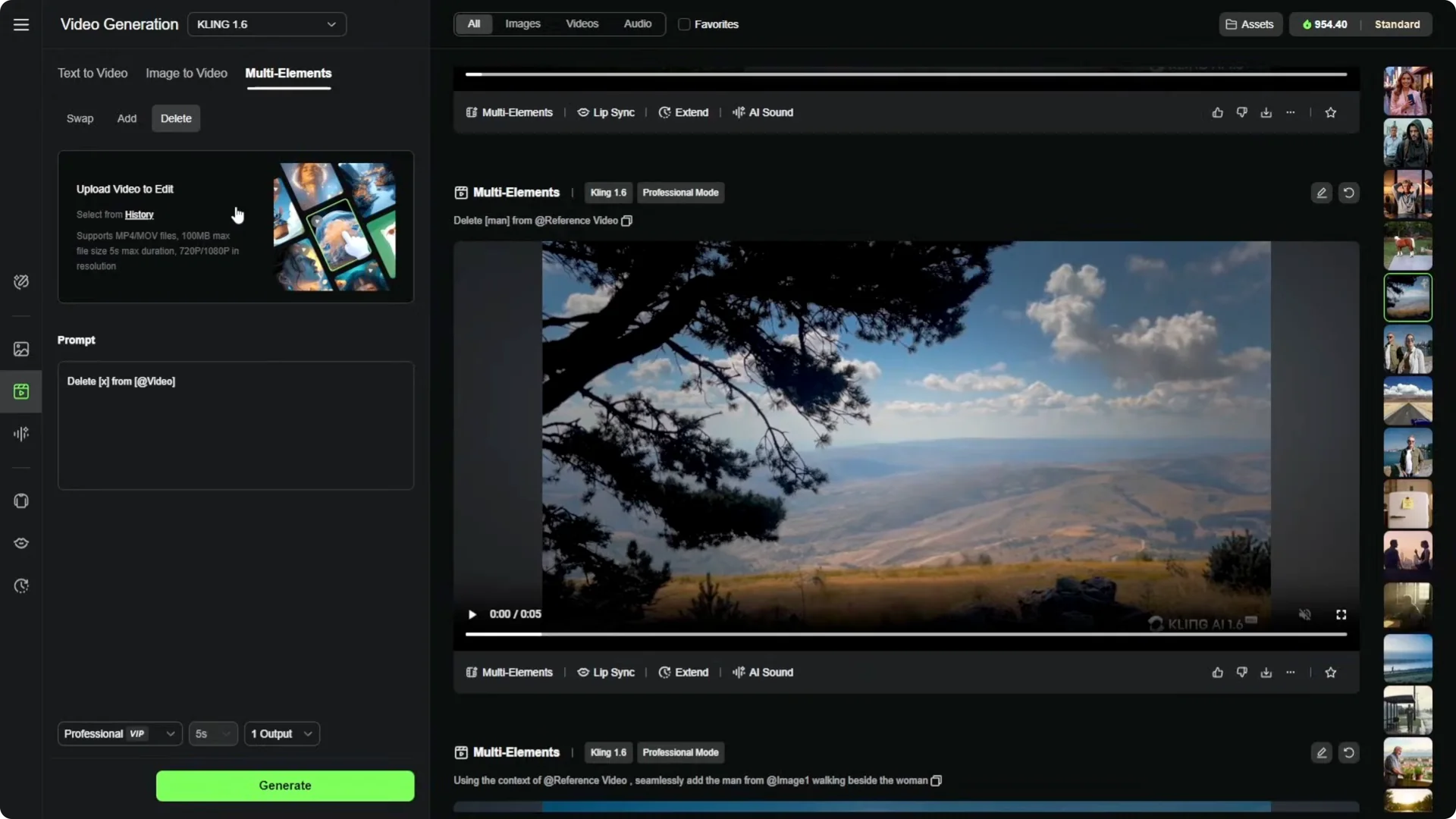
I tried this on a video of a man looking out over a valley on a nice peaceful day. I decided to get rid of the man, and sure enough, he’s gone. I don’t see any trace of him, and it did a great job of filling in whatever he was blocking from view.

Final Thoughts on Kling AI Multi-Elements Editing
Kling AI’s multi-elements tools make it simple to swap, add, or delete subjects in short clips. The selection tools are straightforward, the prompt templates work well once you get used to them, and the results can be impressive, even with quick setups. This generative AI stuff is getting cooler every day.