
Here is how I upscale video quality in Higsfield AI.
Start by getting to the right place and uploading your video, then pick the model and scale you want, and run the upscale. When it finishes, the quality looks much better and the video is upscaled.
Higgsfield Video Upscaling setup
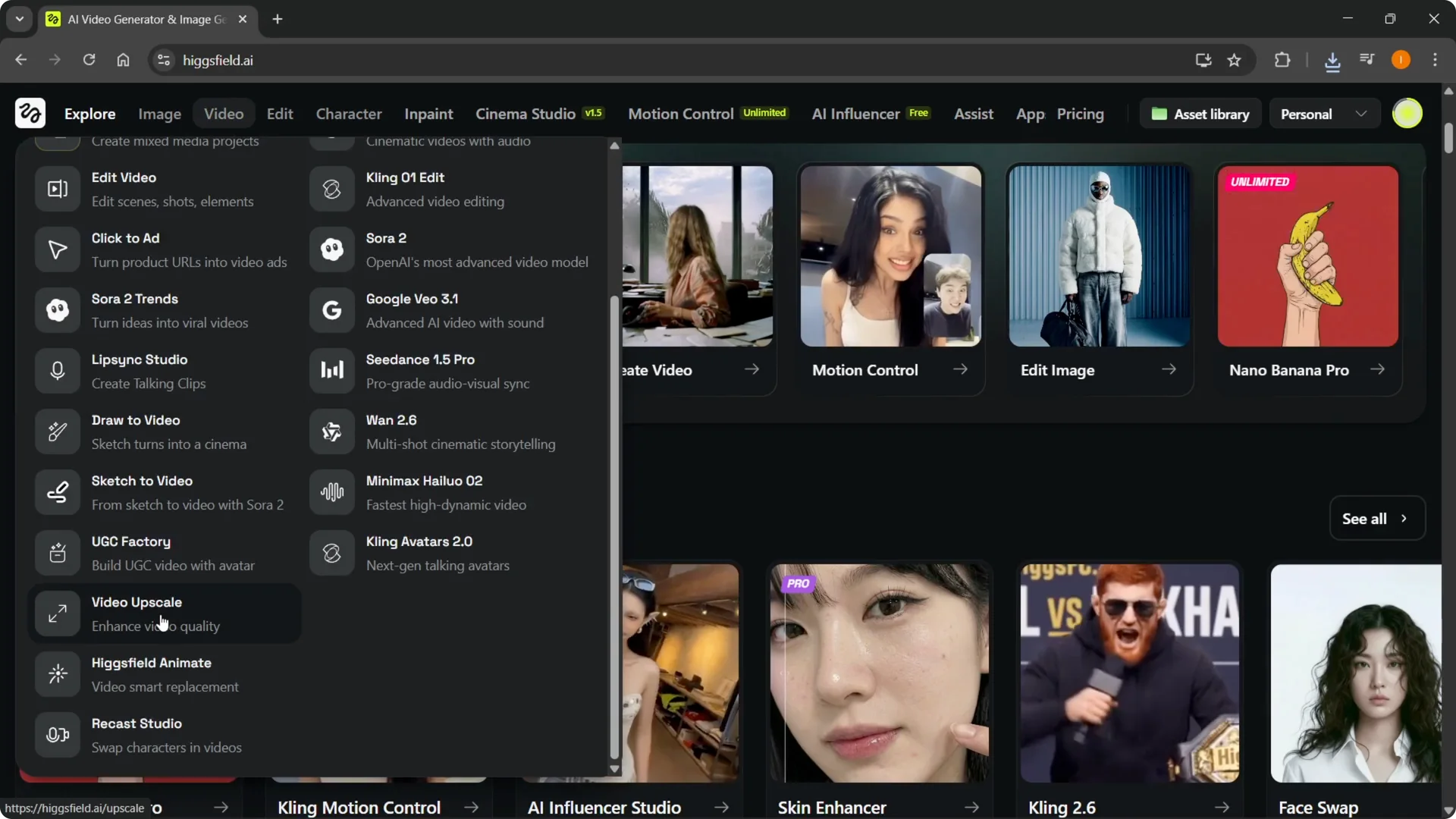
Step 1: Under Website, go to Video, hover over it, scroll down on the left, and click Video Upscale. That opens the tool you need.
If you need to confirm you have enough credits before starting, see how to check your credits.
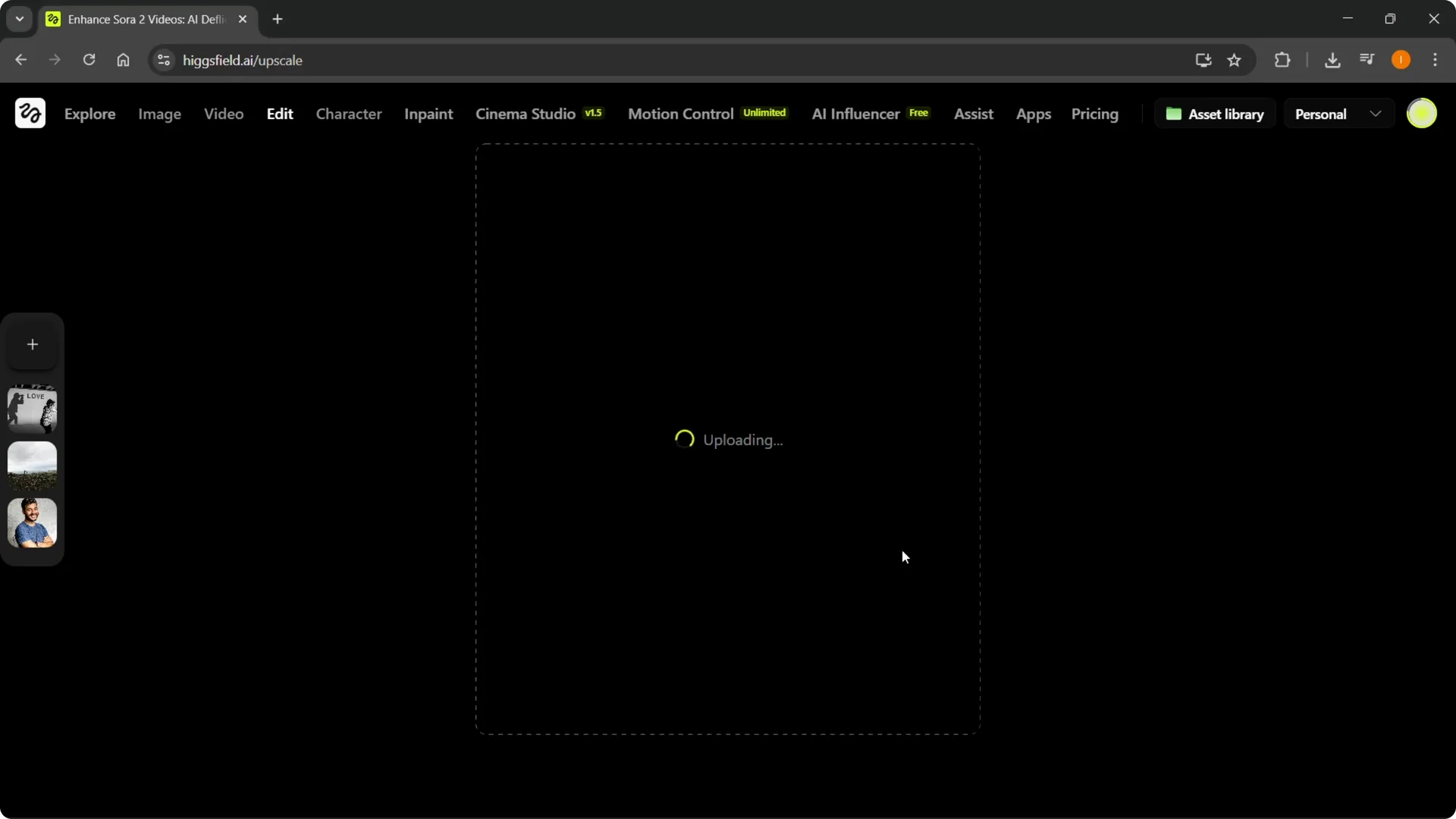
Step 2: Upload your media by clicking the upload area, selecting your Higsfield video, and clicking Open. It starts uploading right away, and depending on your internet speed, this may be very quick or a bit slower.
If you are preparing source clips in Higsfield, you can get better inputs by learning the Draw Video tool here: guide to Draw Video.
Higgsfield Video Upscaling models and scale
Step 3: Pick the model you want to enhance with. You will see Higsfield upscale, Topaz, and Sora 2, and you can use whichever one you want.

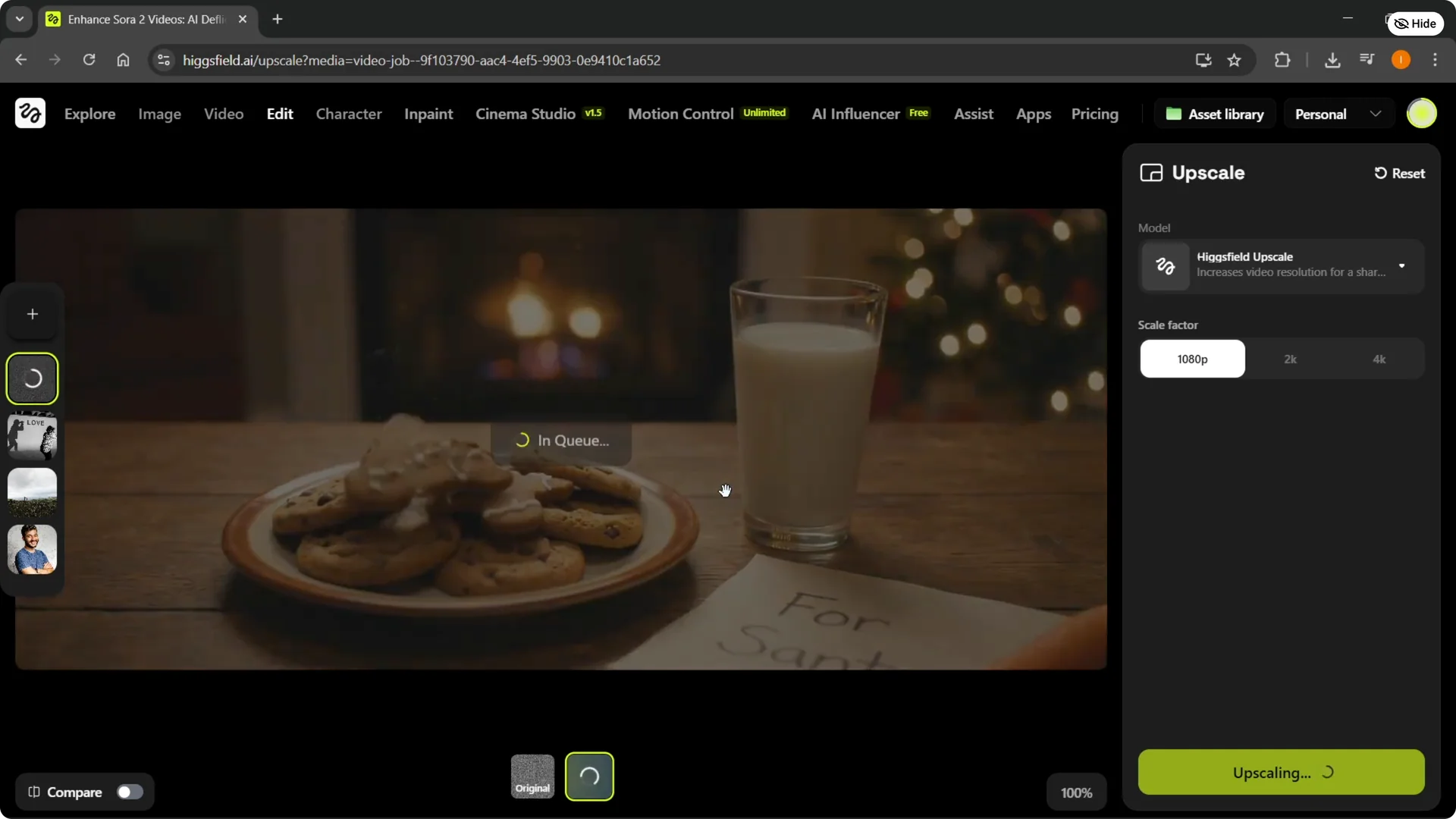
Step 4: Choose the scale factor. You can pick 1080p, and 2K or 4K are still coming soon, but they may already be available. If you switch to a different model, you may have more options, so check it.

Start the Higgsfield Video Upscaling process
Step 5: Set your choice, for example 1080, and click Upscale. The system starts upscaling the video, and when it is done, the quality is much better and your video has been upscaled.
Final thoughts
The flow is simple: open Video Upscale, upload your clip, choose a model, set the scale, and run the job. If you plan to add more credits for upscaling, you can save on costs by learning how to apply a Higgsfield promo code.