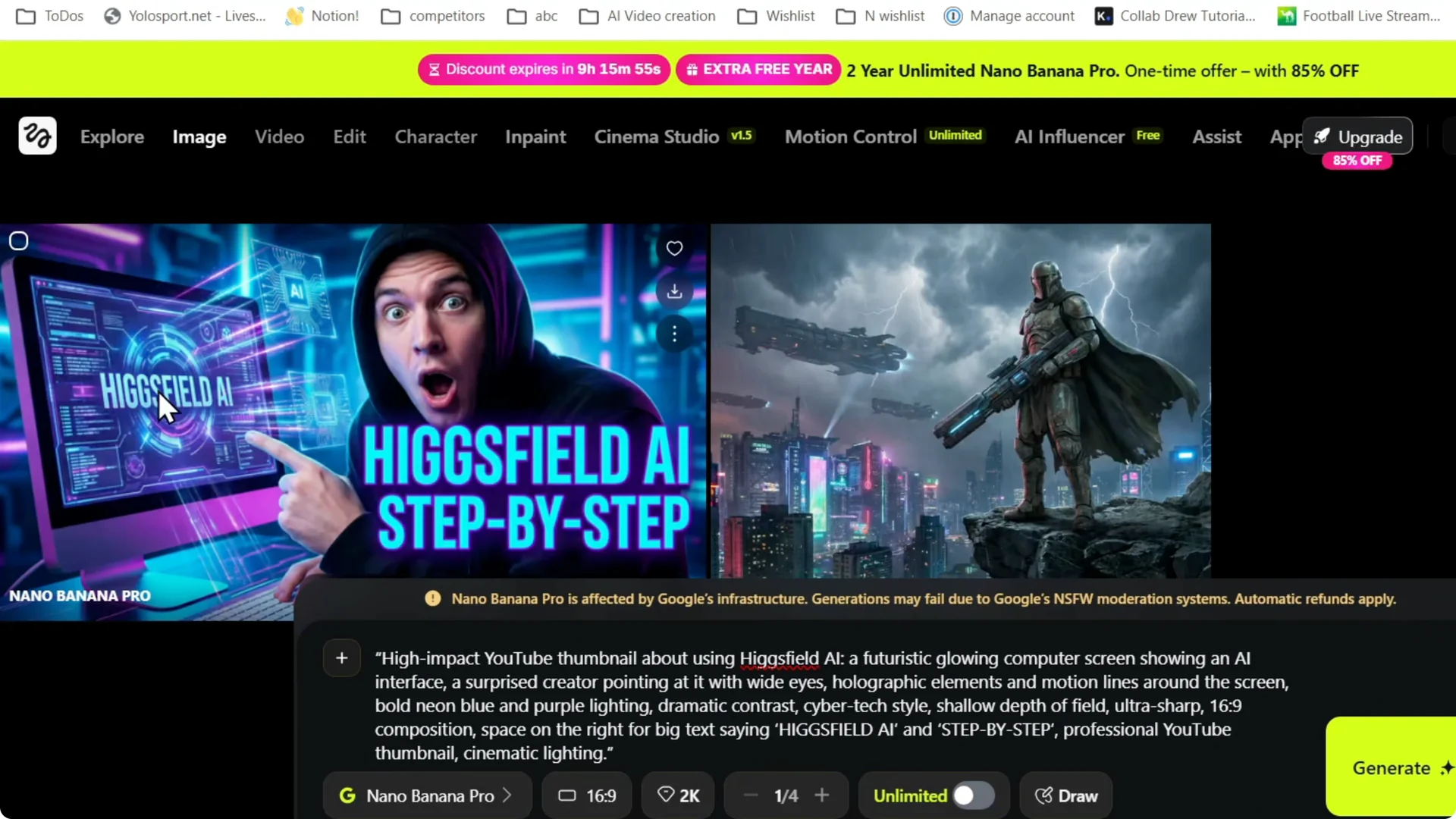
I’m going to show you how to create YouTube thumbnails in Higgsfield AI. If you want epic, viral, amazing thumbnails, start with a solid prompt. I grabbed a simple prompt from ChatGPT and pasted it into Higgsfield.
If you are building on-camera personas for your content, see this helpful walkthrough on the AI influencer workflow in Higgsfield.
Higgsfield AI Thumbnail Creation: Setup
Step 1: Open Higgsfield AI, go to Image, and click Create Image. This takes you to the generation panel. You will paste your prompt there.
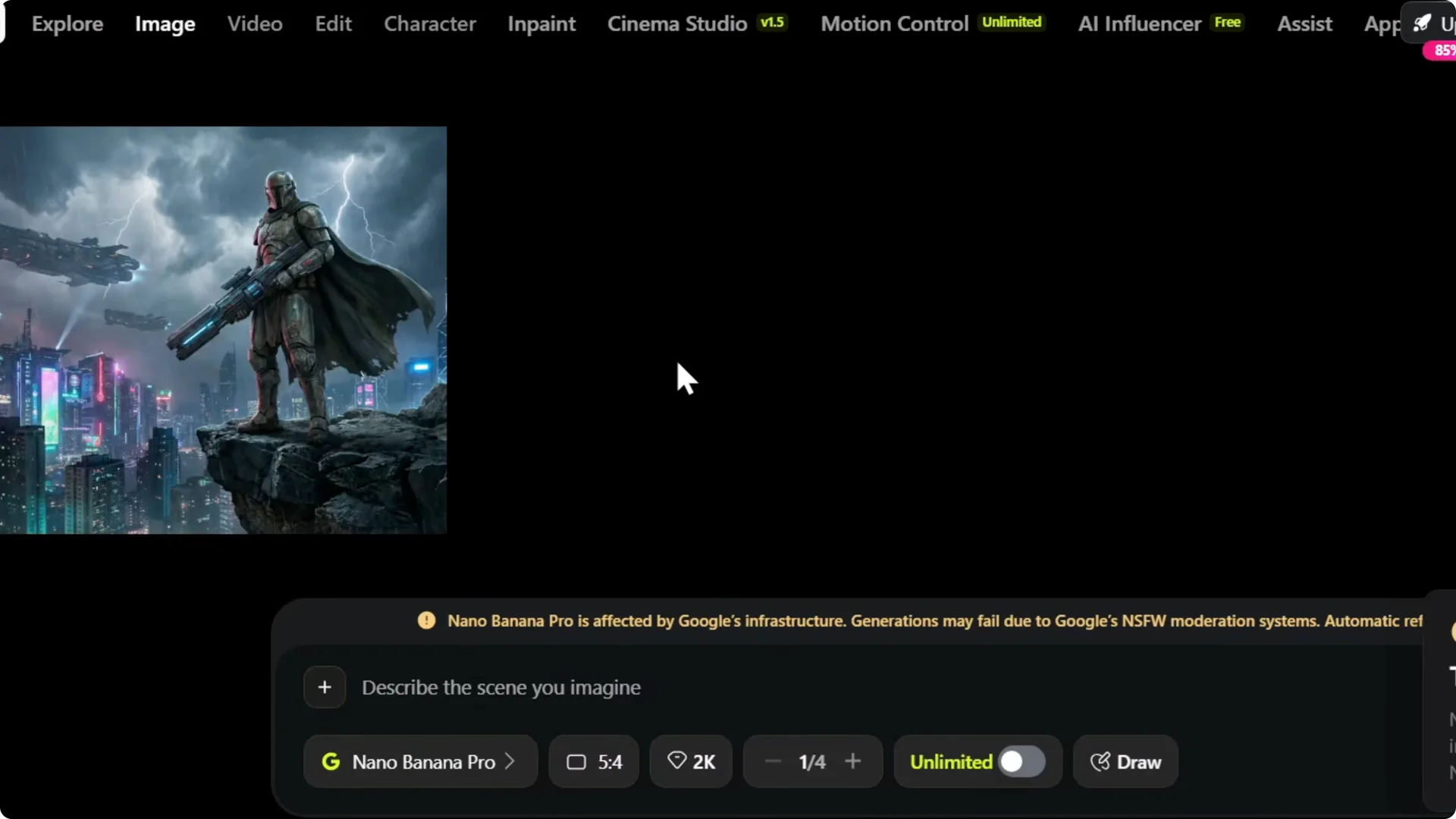
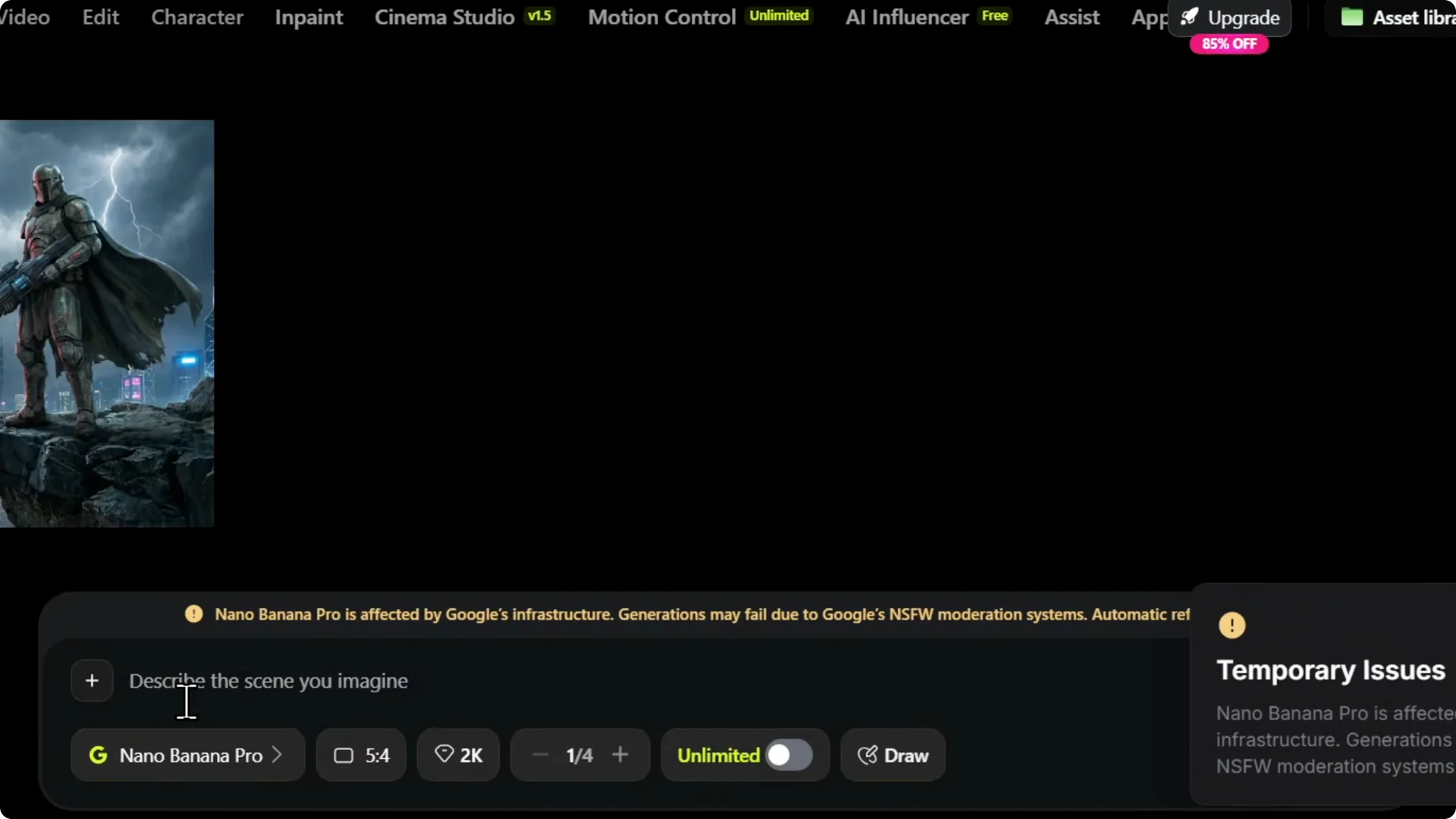
Step 2: Enter your prompt. Keep it clear and specific for the thumbnail you want. Include tone, style, and any text you want shown.
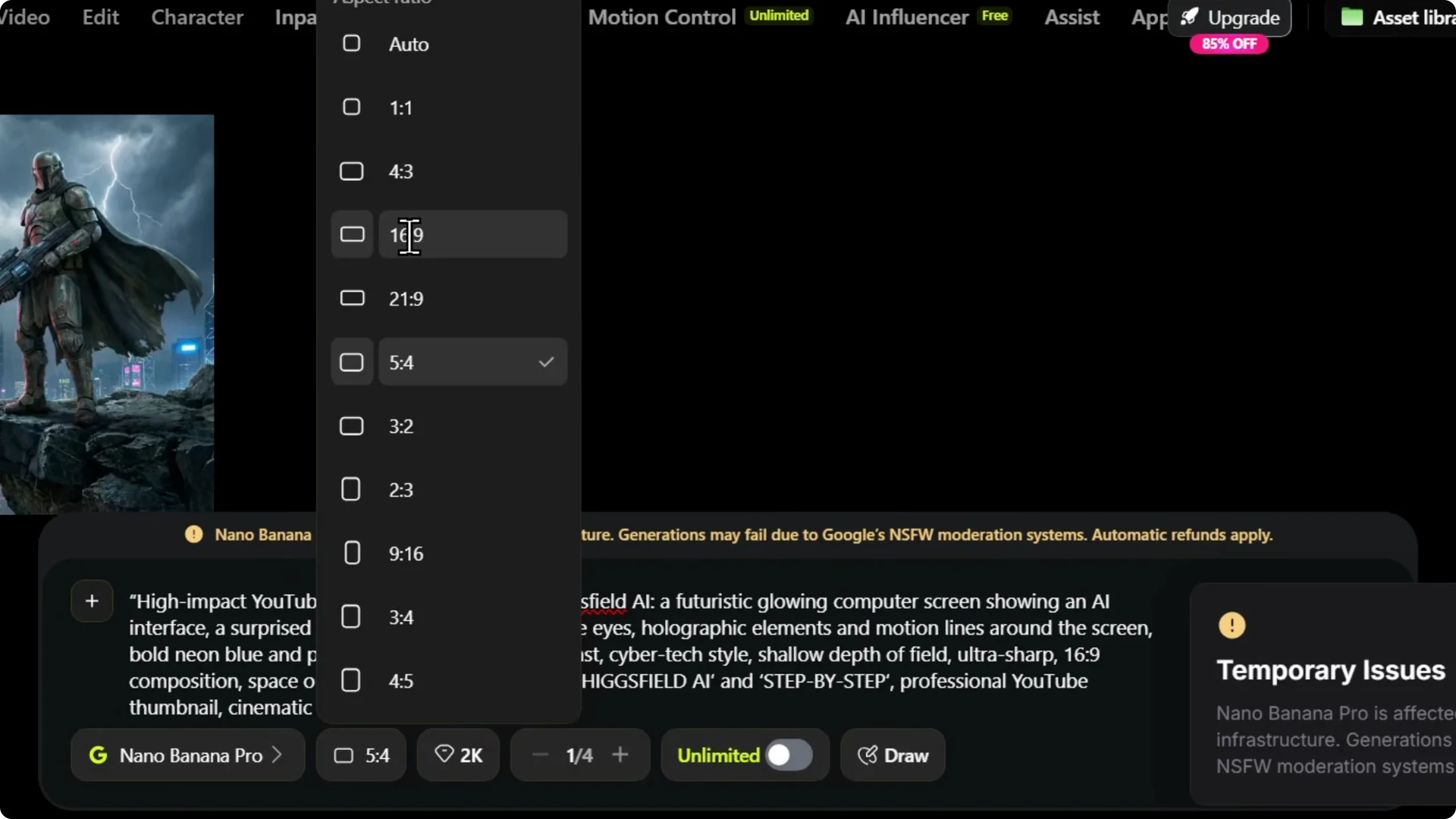
Step 3: Set the aspect ratio to 16×9. Click the ratio control and choose 16×9. That’s the standard YouTube thumbnail size.
Step 4: Pick your quality. You have 1K, 2K, and 4K. I work with 2K for a strong balance of detail and speed.
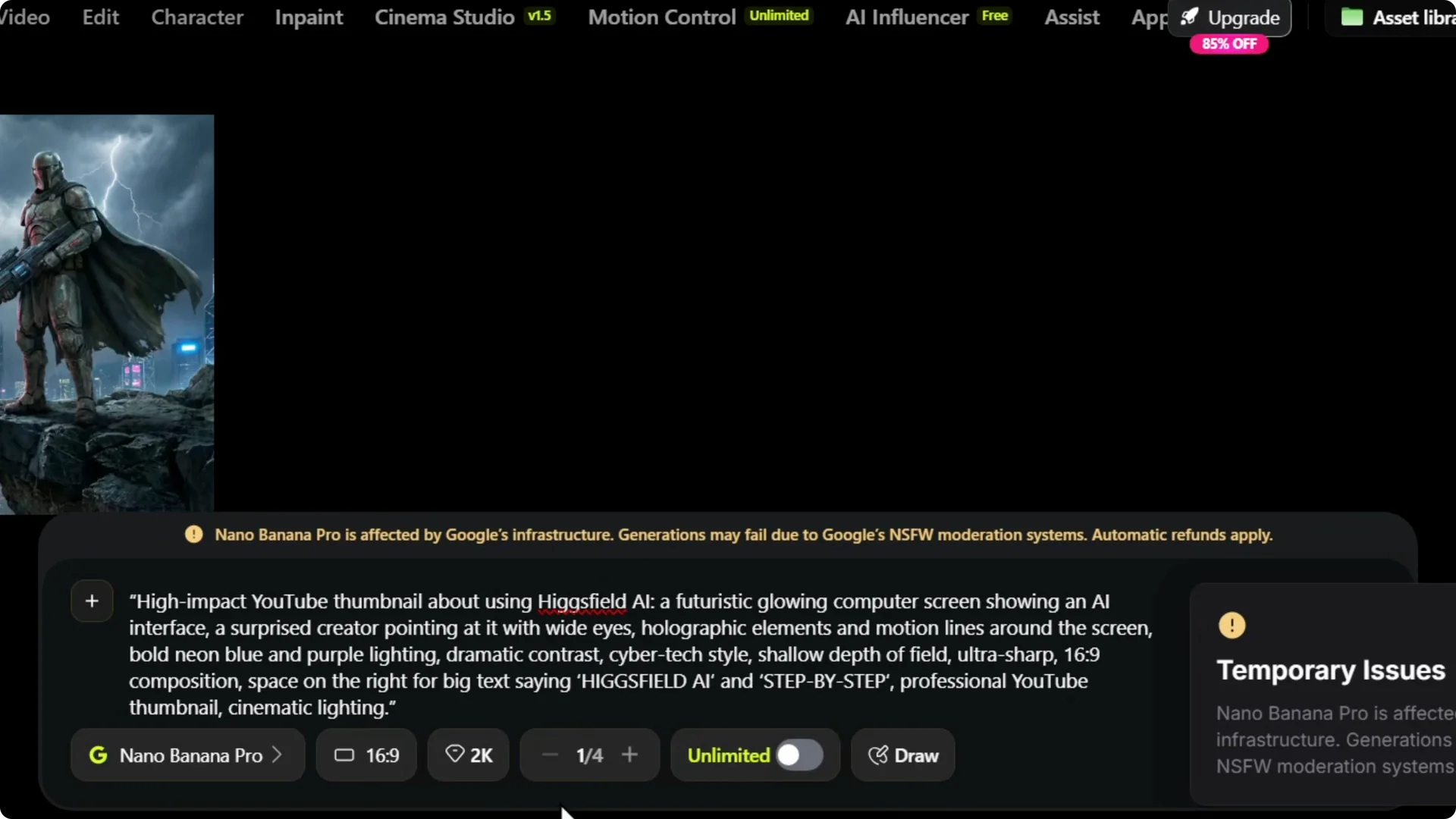
Step 5: Choose your batch size. If you want multiple styles to pick from, set it between 1 and 4. I’m leaving it at 1 for a single output.
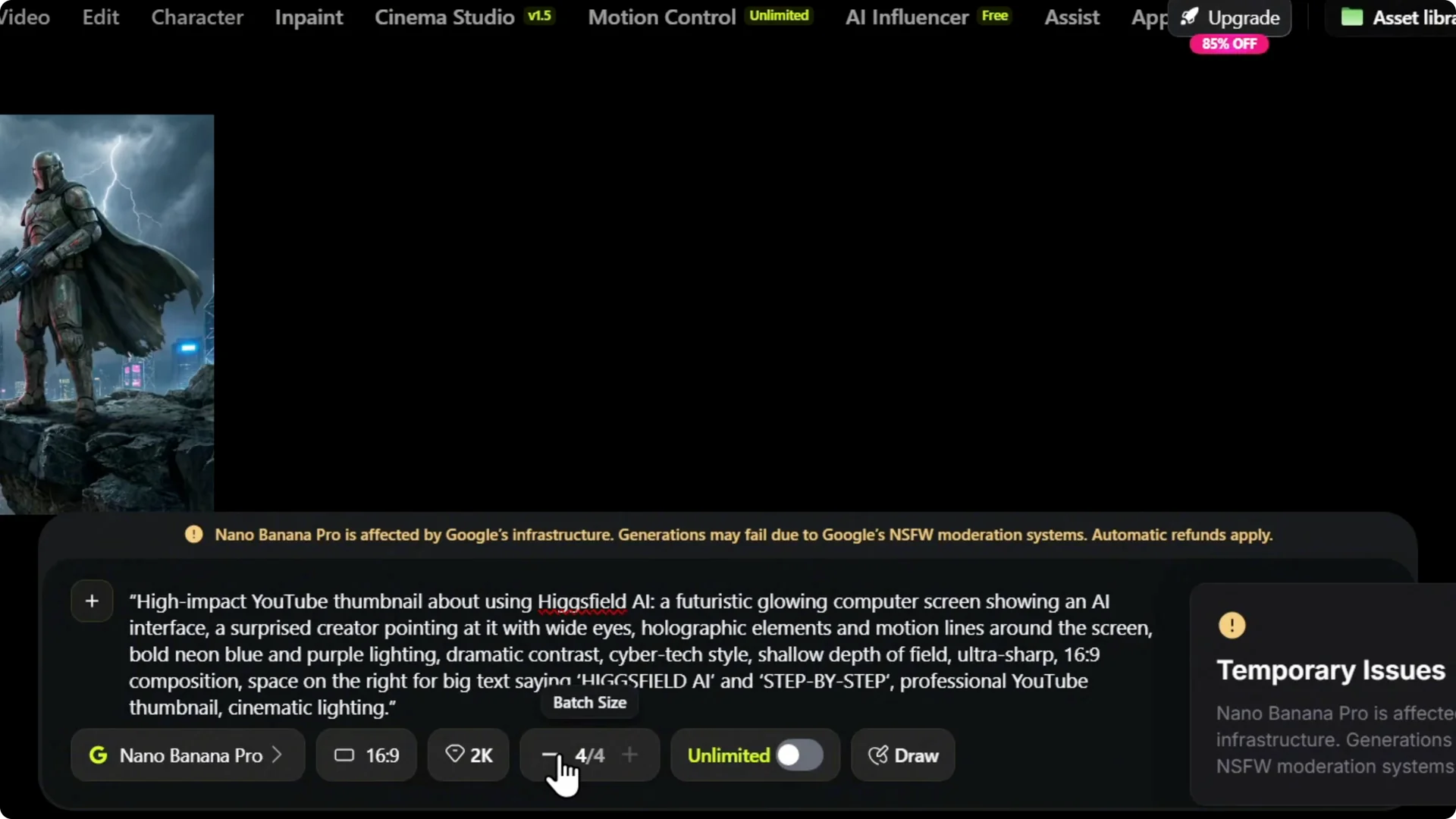
Step 6: Decide on the Unlimited toggle. If it’s on, your job goes to the standard queue and can take a bit longer. If it’s off, you get faster, priority results.
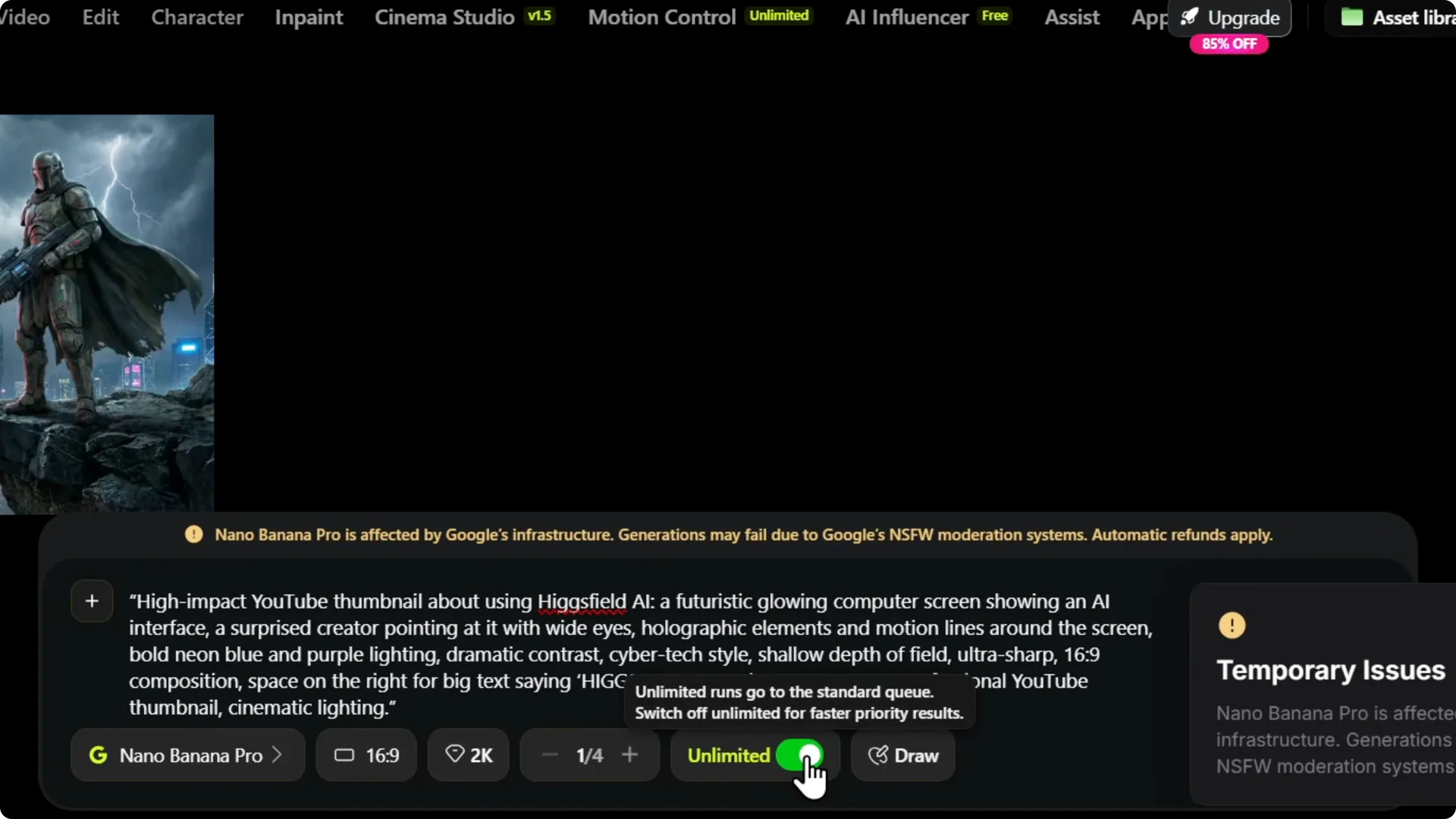
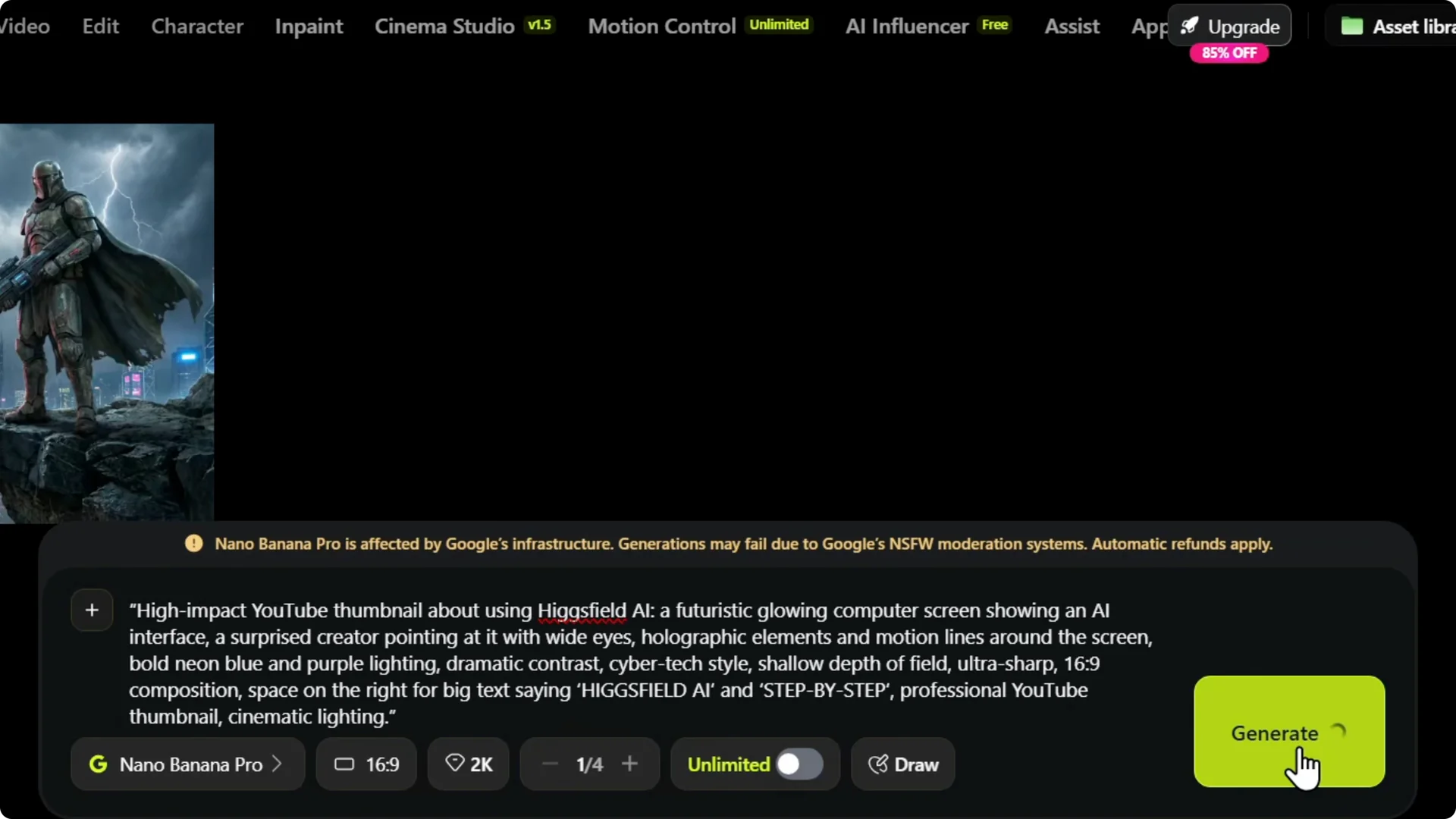
Step 7: Make sure no pop-ups or side panels are blocking the controls, then click Generate. This uses two credits. Wait for your image to render.
Higgsfield AI Thumbnail Creation: Results and Tweaks
The output reflects the prompt, for example a bold, futuristic thumbnail with the keywords you specified such as Higgsfield AI step by step. You can quickly review the result and confirm the style matches your idea. If you need a different look, adjust the prompt or batch size and generate again.
If you plan to turn your visuals into motion for your channel, check this guide on how to make AI videos for YouTube.
Higgsfield AI Thumbnail Creation: Export and Next Steps
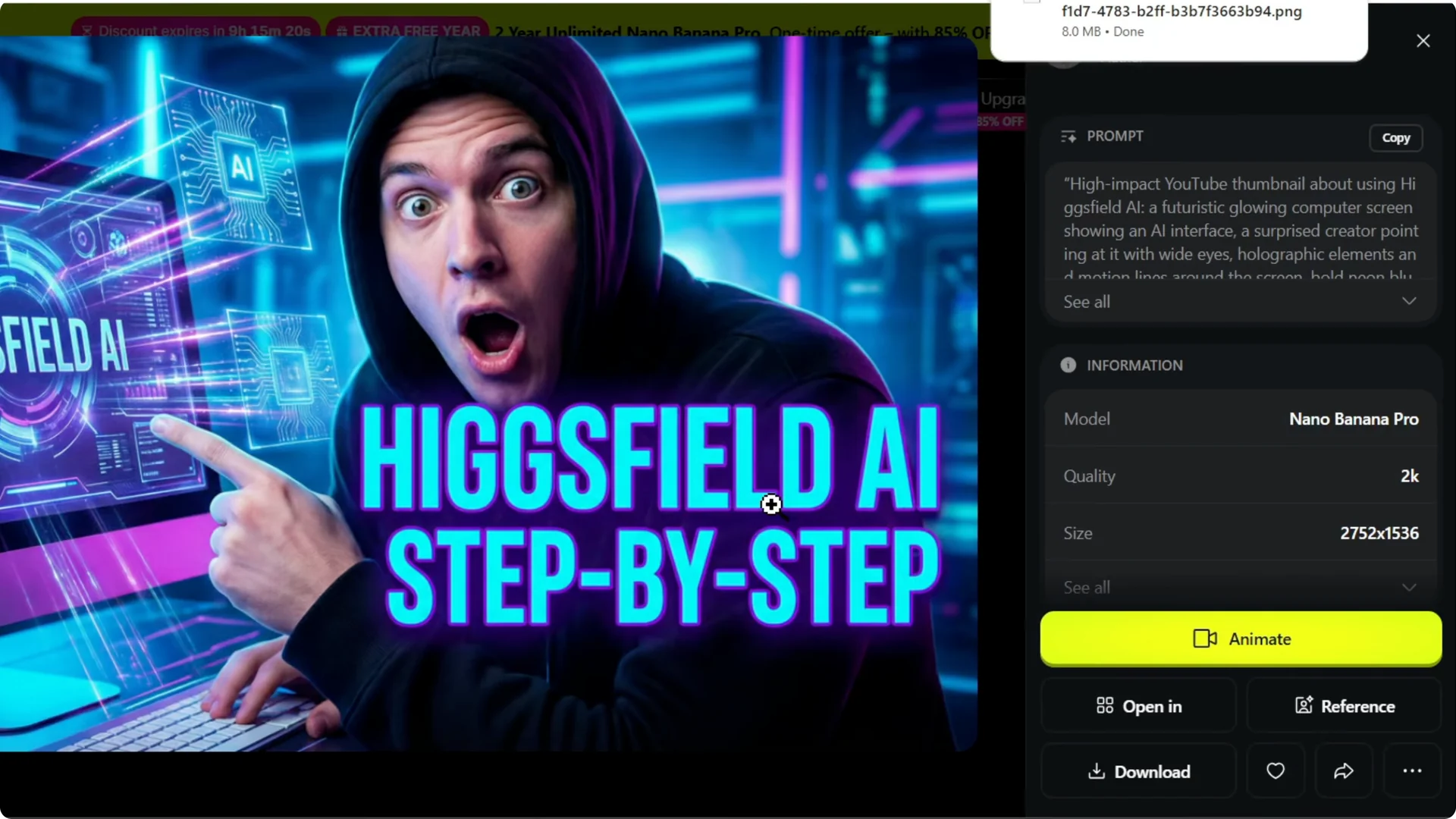
You can convert the image into animation if you want. You can also use a reference, open it in the editor, and refine details. Once you like the result, download it to your PC.
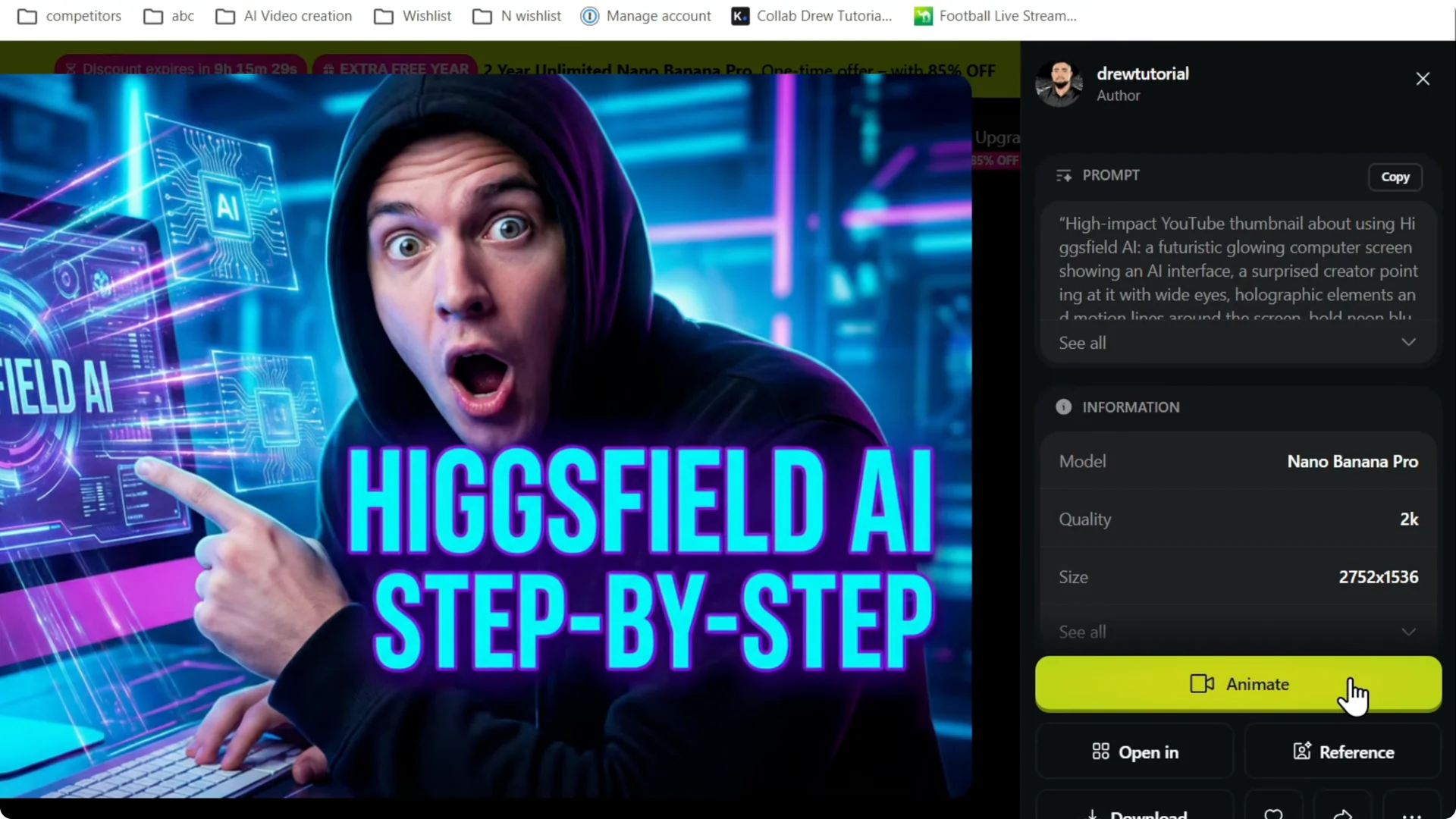
Step 8: Click Download. Save the file locally. Upload it as the thumbnail for your YouTube video.
If your thumbnails feature recurring faces or outfits, see how to keep them consistent with this guide to consistent characters and outfits in Higgsfield.
Final Thoughts
Higgsfield AI makes it fast to create eye-catching YouTube thumbnails with a clear prompt, the right 16×9 ratio, and a practical quality setting like 2K. Batch size helps you explore variations, and the Unlimited toggle lets you choose speed or queue access. Generate, review, and download, then upload it to your video.