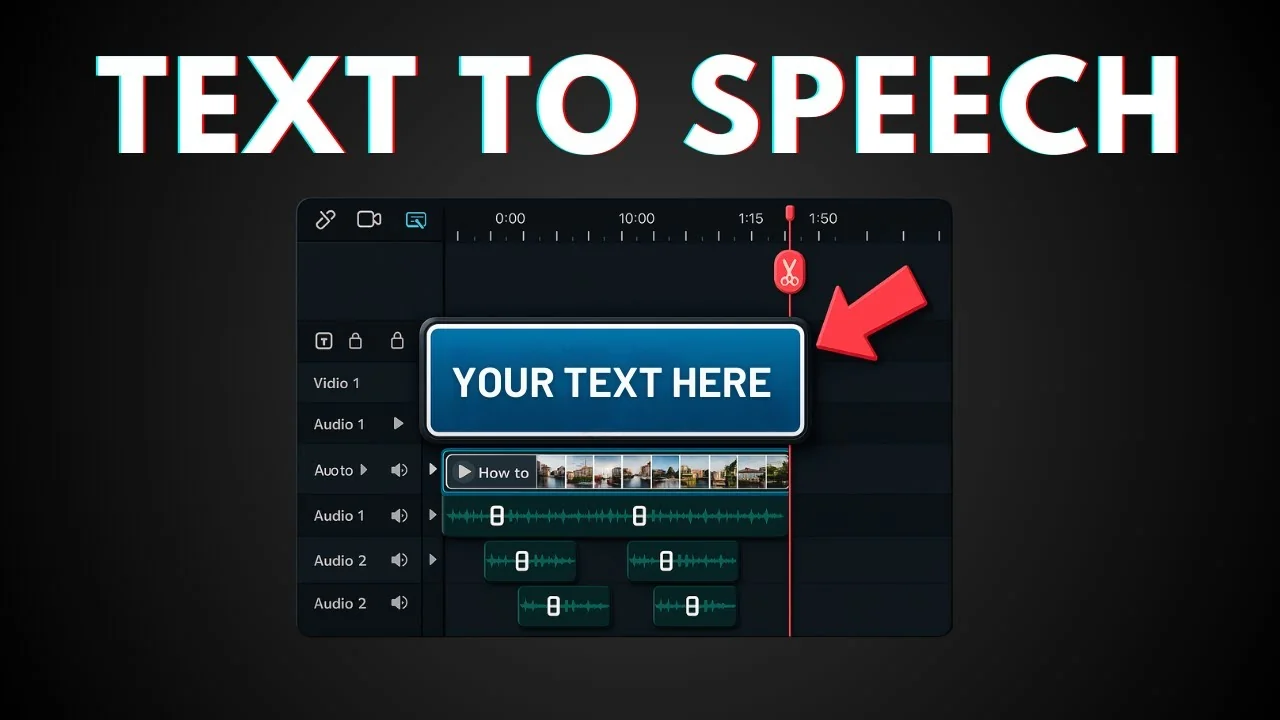
Here is how I use AI text-to-speech in the Filmora video editor. You provide narration or text and let Filmora create audio based on that text.
Make sure you are running the latest version of Filmora. Insert your video into a project timeline.
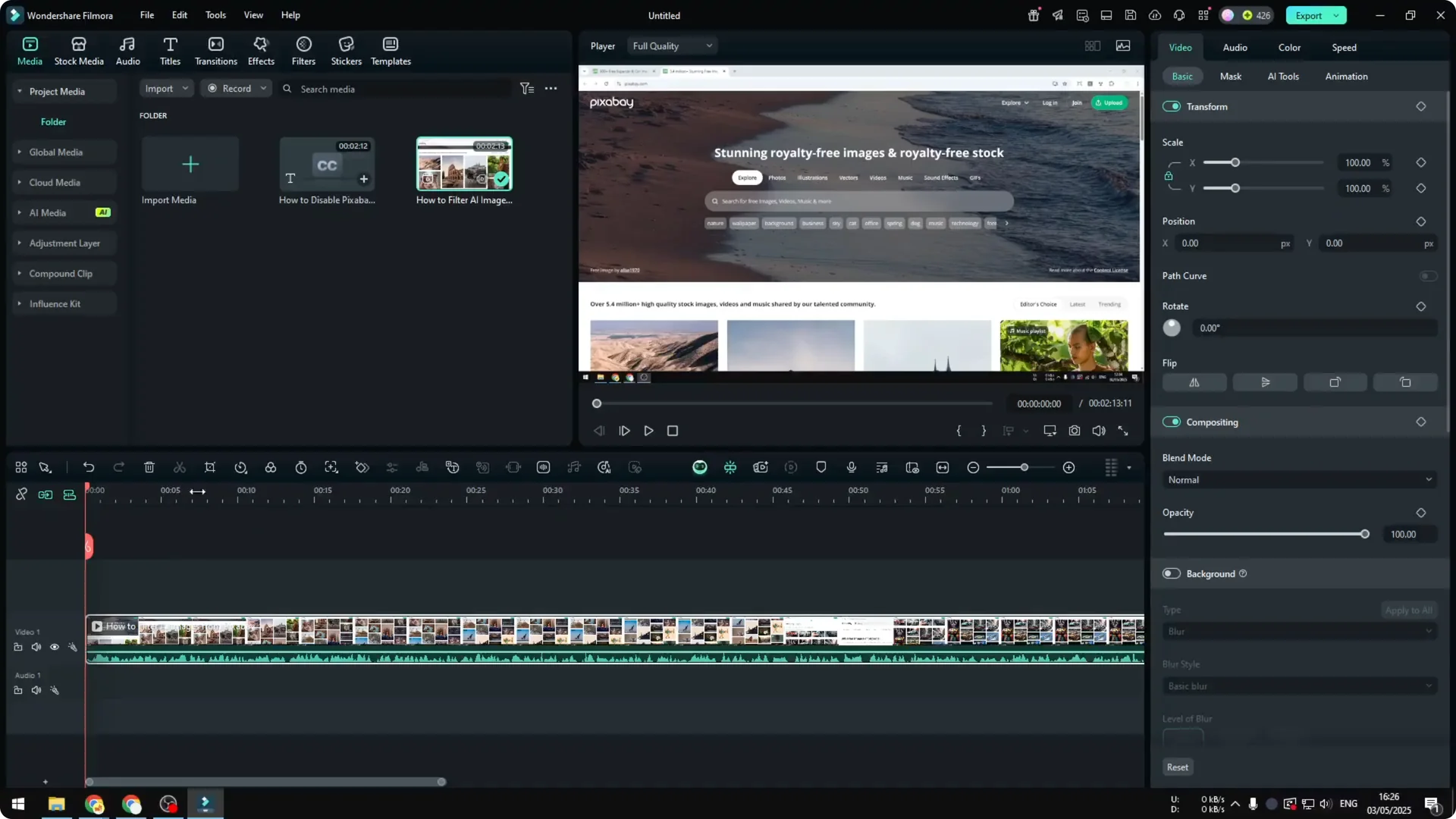
Filmora AI Text-to-Speech: Prepare Your Text
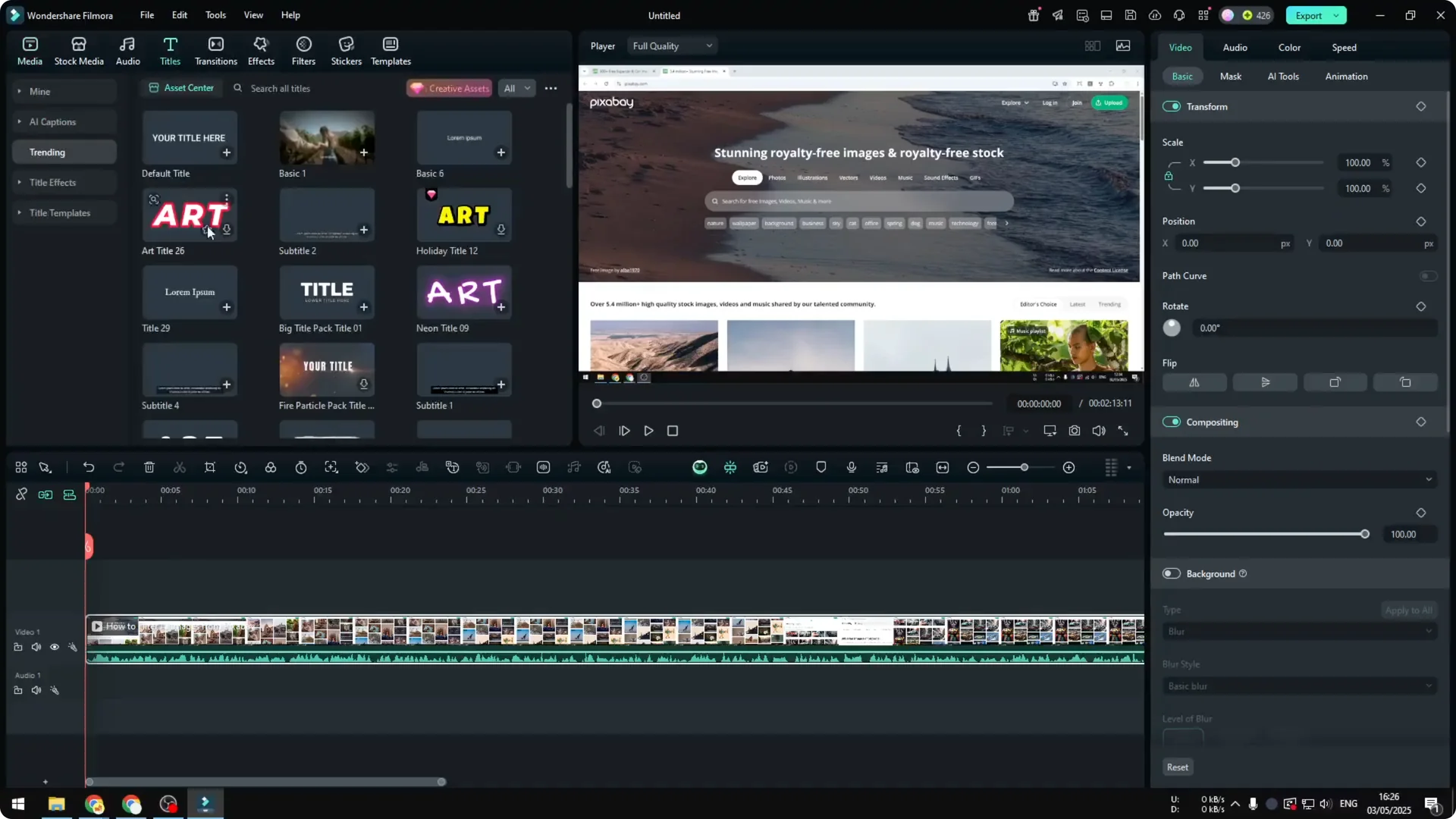
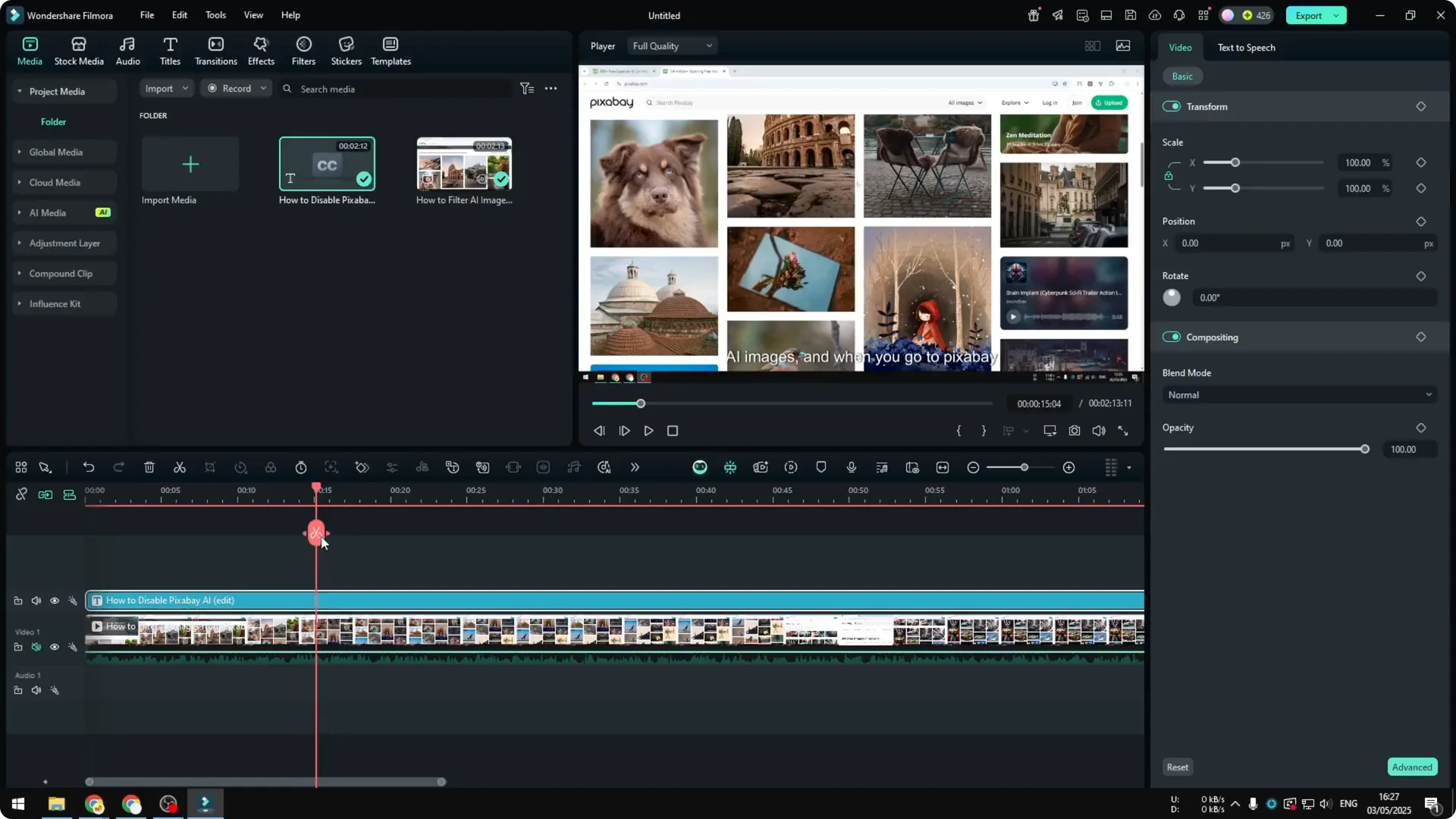
I add text for the video through Titles and select a style I want to use. For a simple explanation, I use Subtitle, which is basically the words I spoke in the original video.
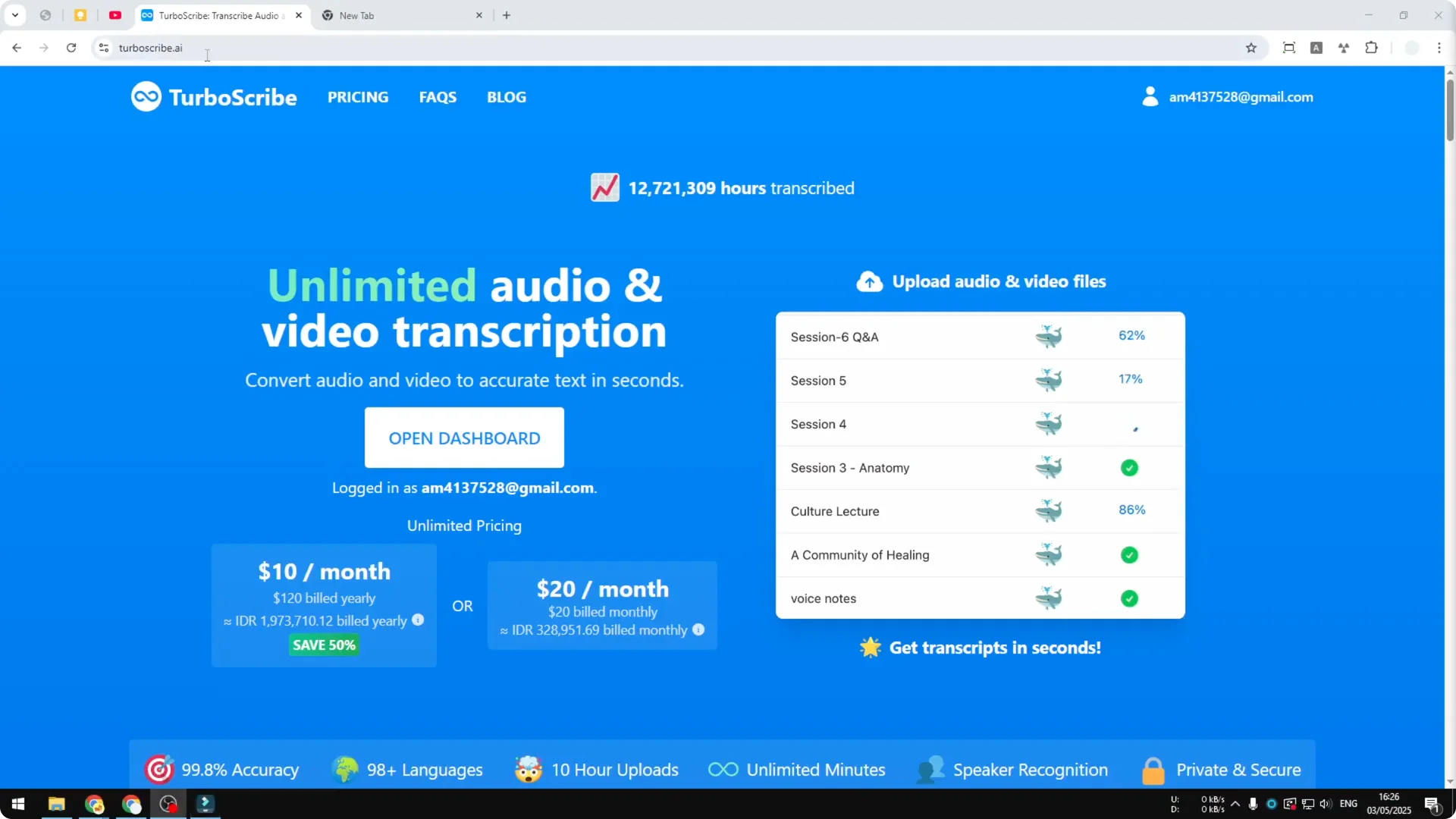
I exported the text from audio using turboscribe.ai and plan to use that text to create another audio.
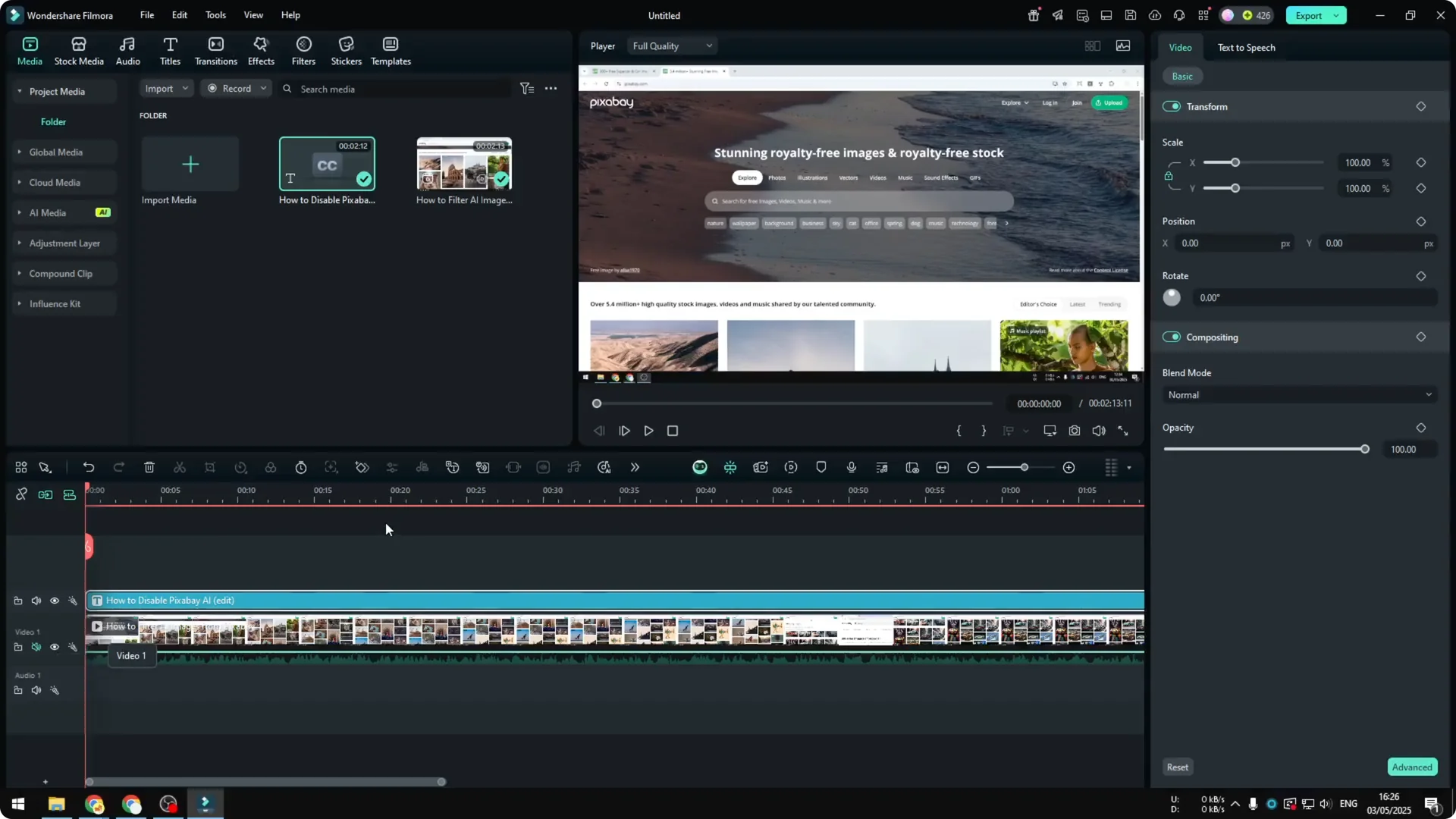
I mute the original audio so you can see the example without hearing the original voice.
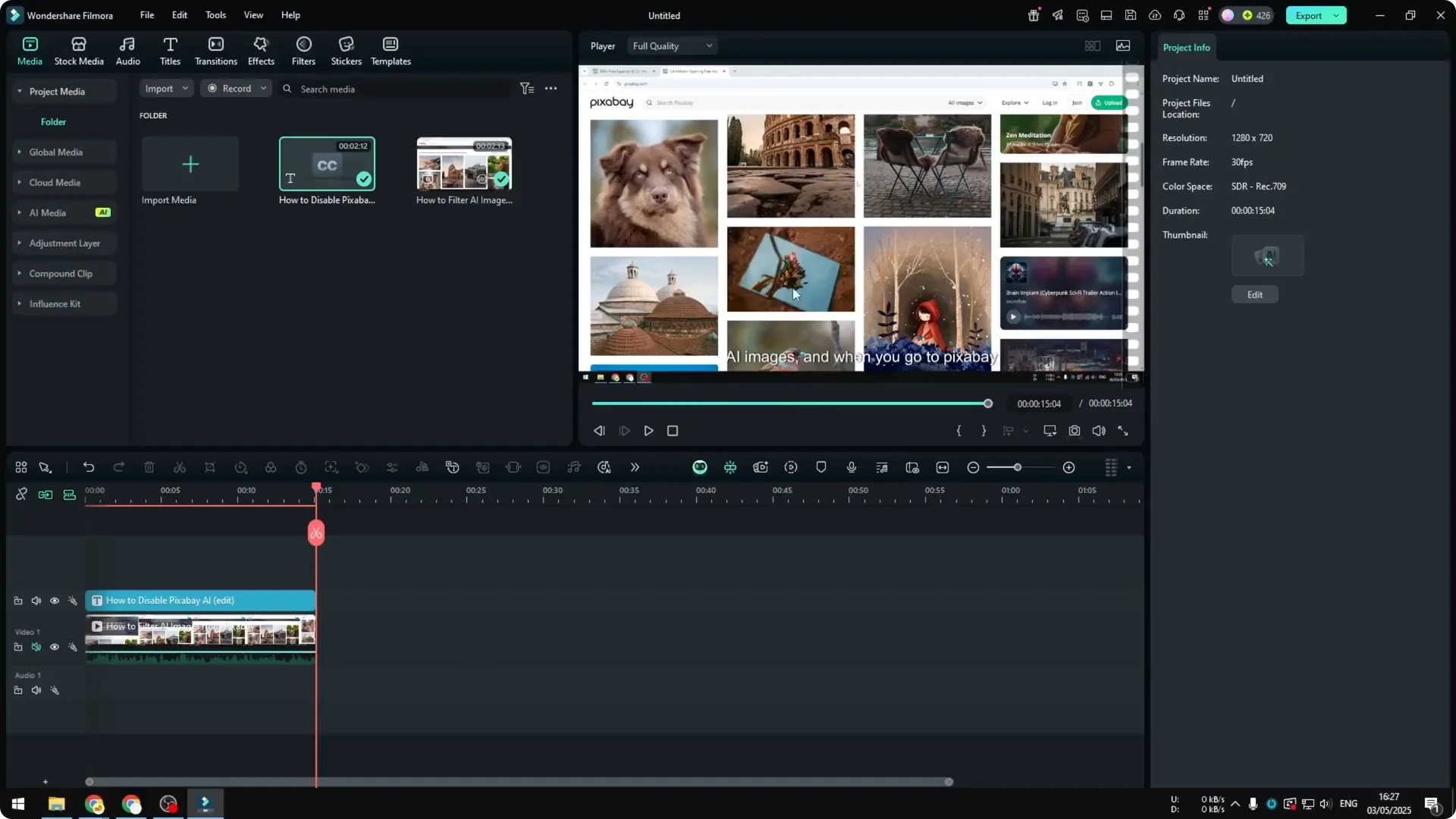
If the full video is too long for a test, trim it. I cut mine to around 15 seconds and remove the remaining section.
If you want to create a full video with full text, you do not have to trim. This is just a demonstration.
Filmora AI Text-to-Speech: Generate the Voice
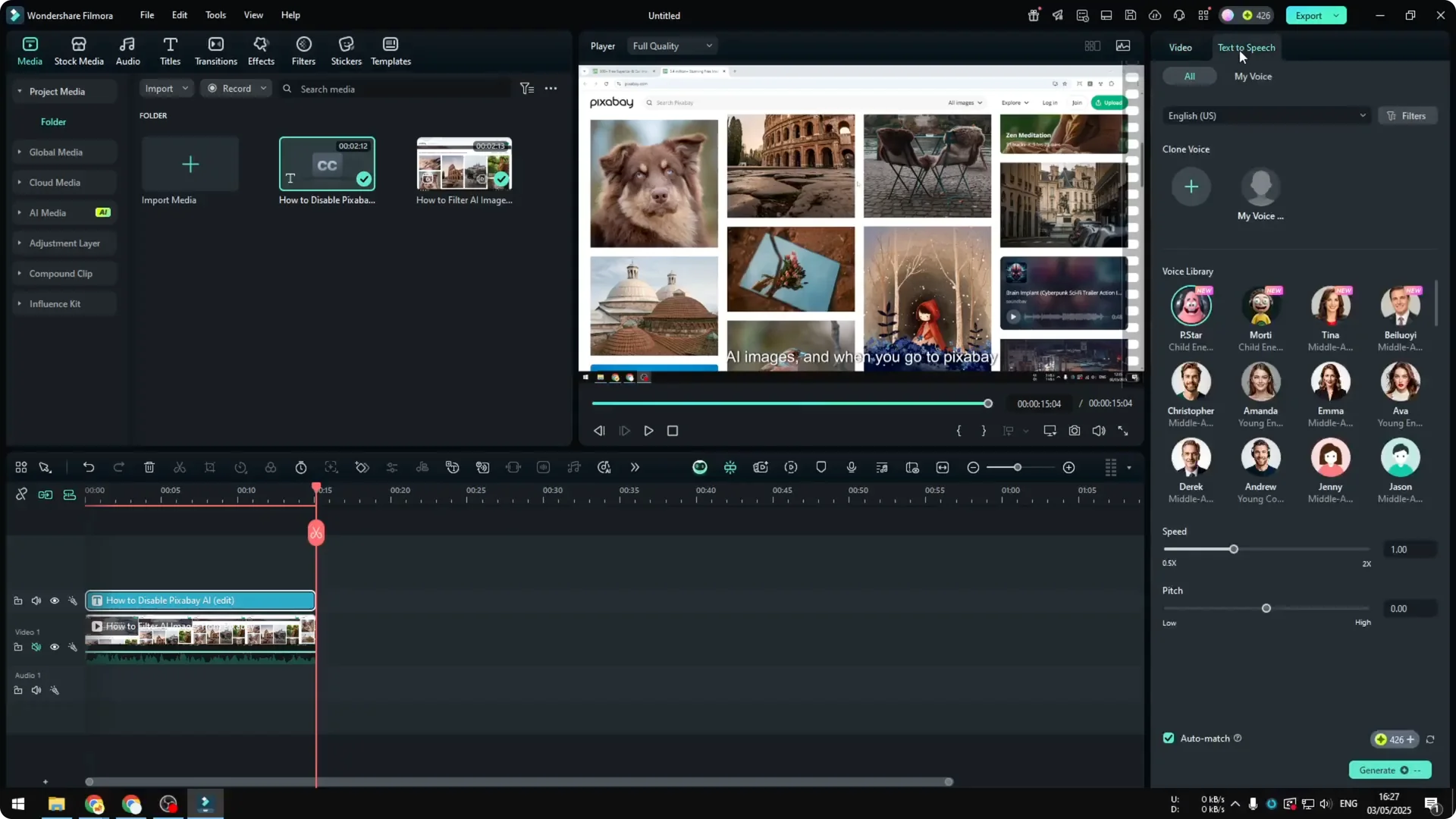
- Select the text on the timeline.
- Go to Text-to-Speech.
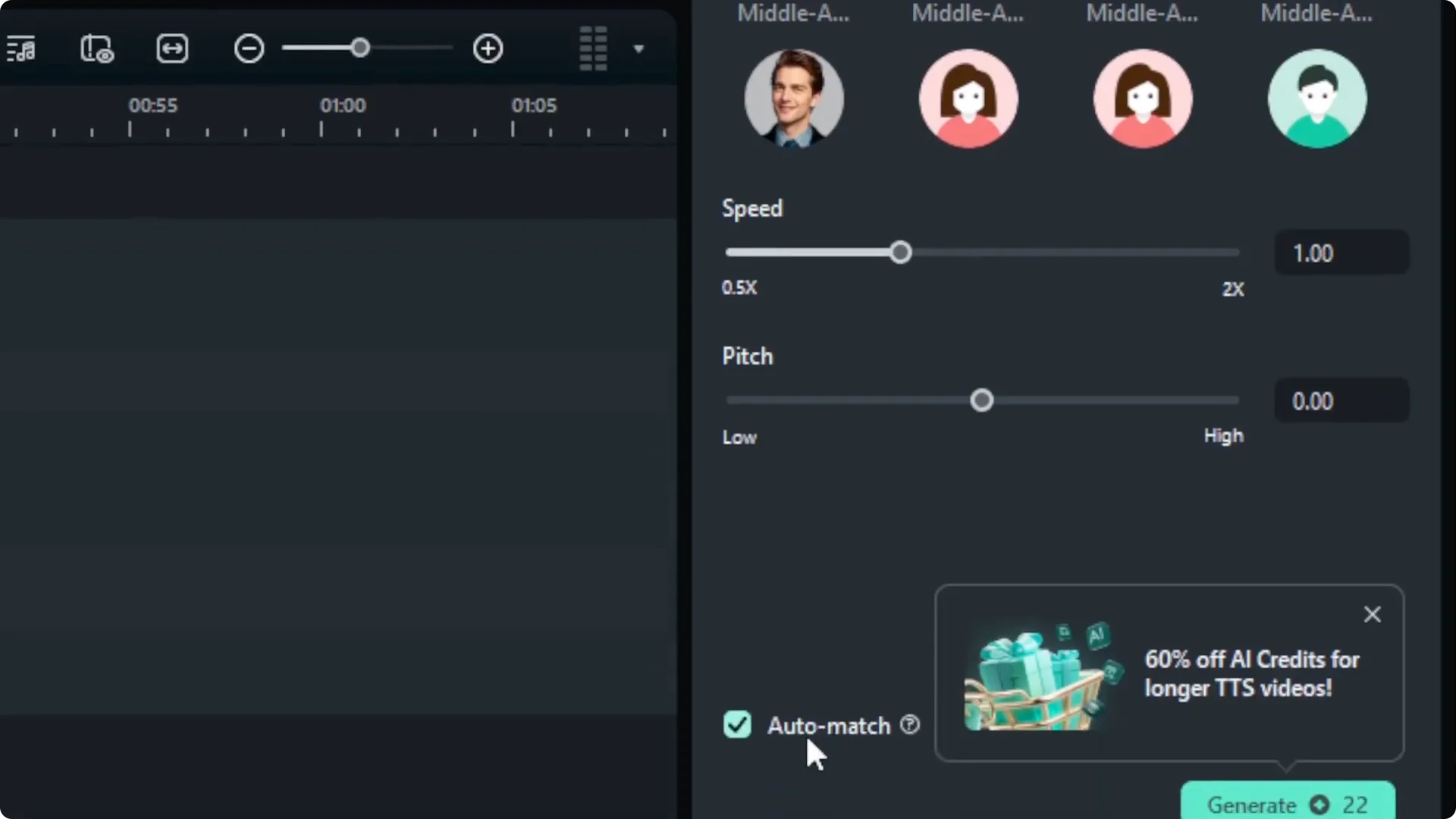
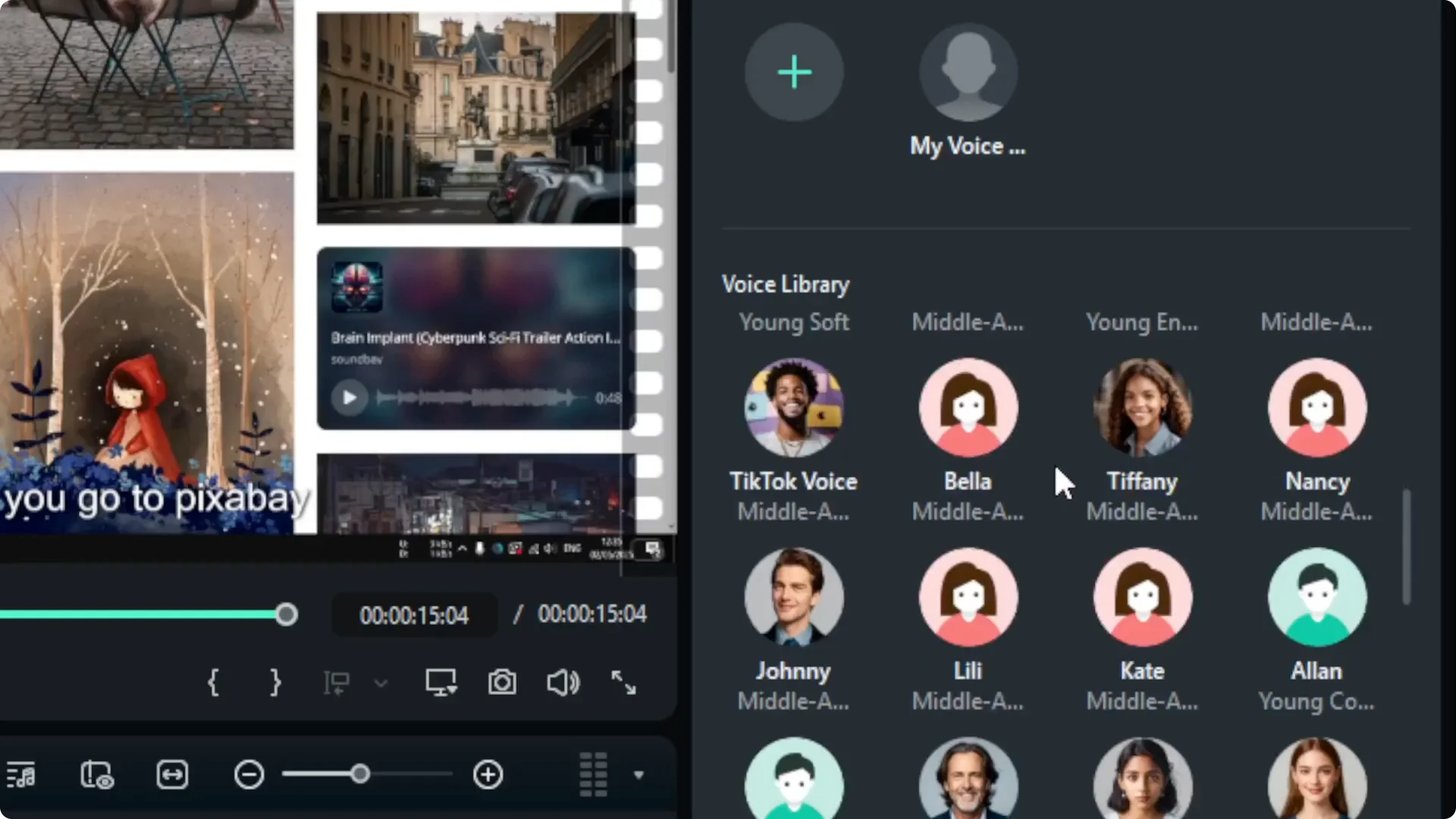
- Choose the audio or voice profile you want to use. There are many options. I tried a female voice such as Bella and then Bale.
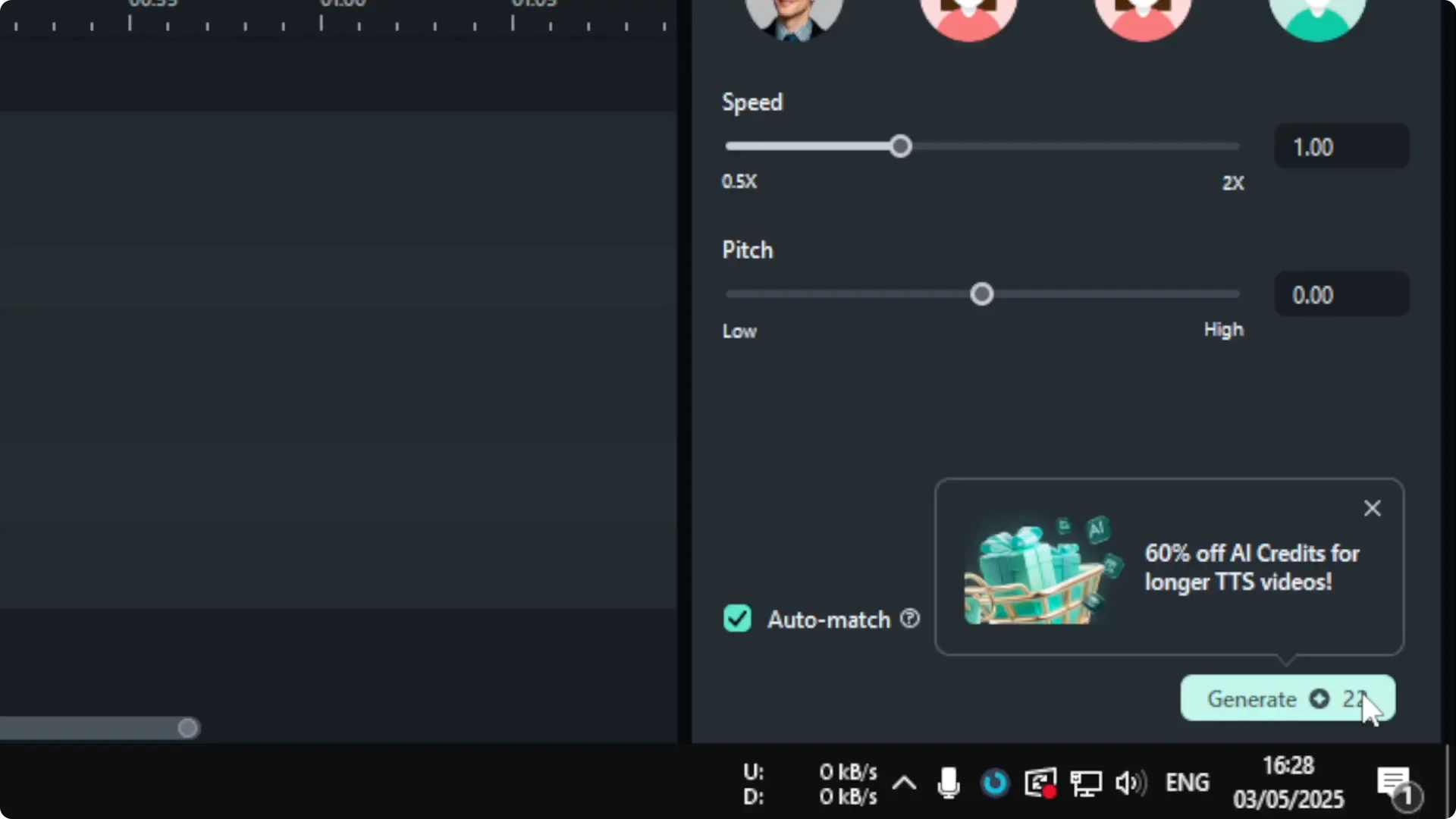
- You can adjust speed and pitch, but I highly recommend not changing them. It usually messes up the audio quality, so use the default setting.
- Enable Auto Match. This makes sure the generated audio is inserted into the timeline automatically and matches the text you provided.
- Click Generate. This will consume some credits from your Filmora account. The longer the video, the more credits it will take.
- Wait for Filmora to generate the audio based on the text.
Filmora AI Text-to-Speech: What to Expect in the Timeline
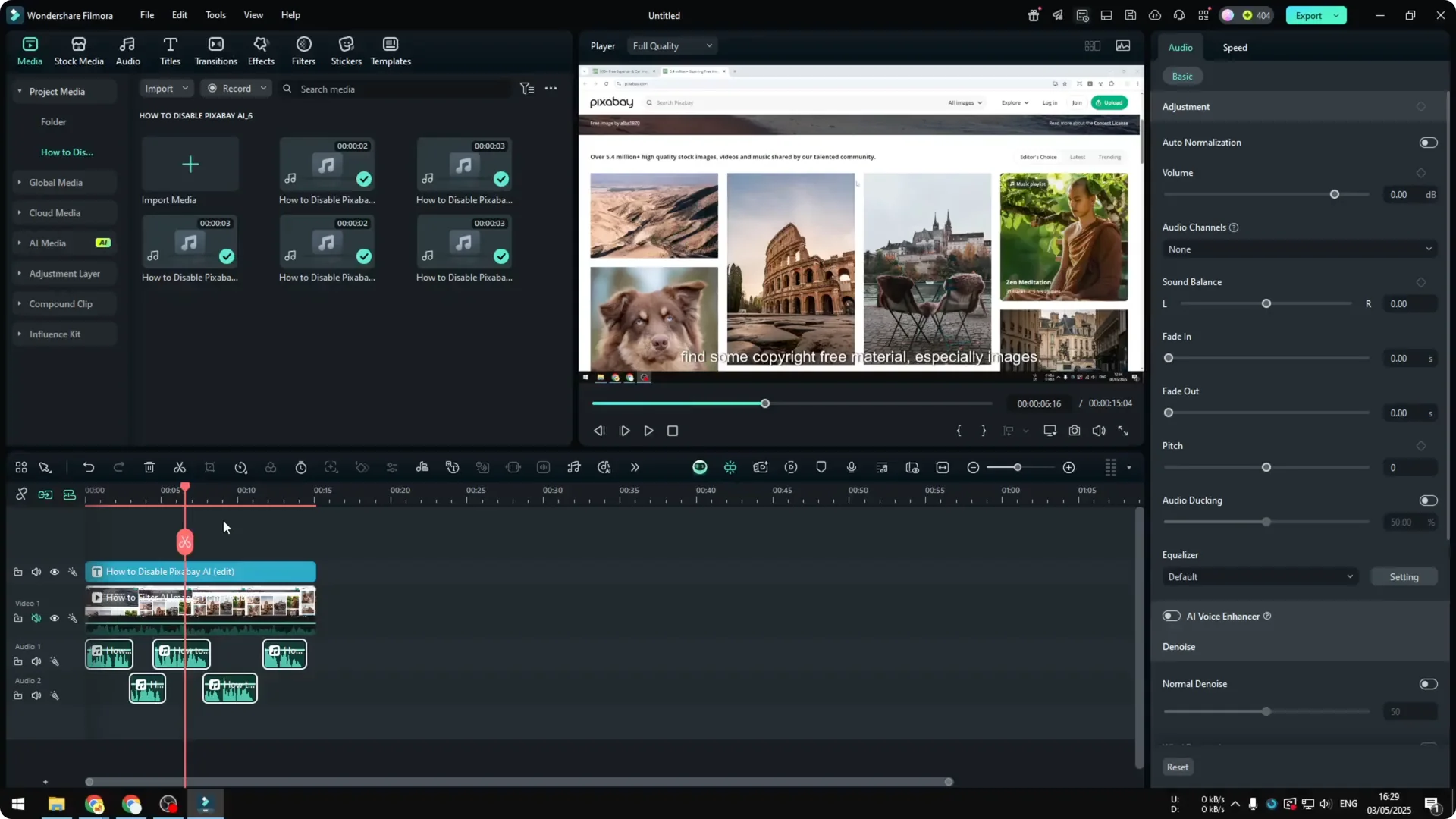
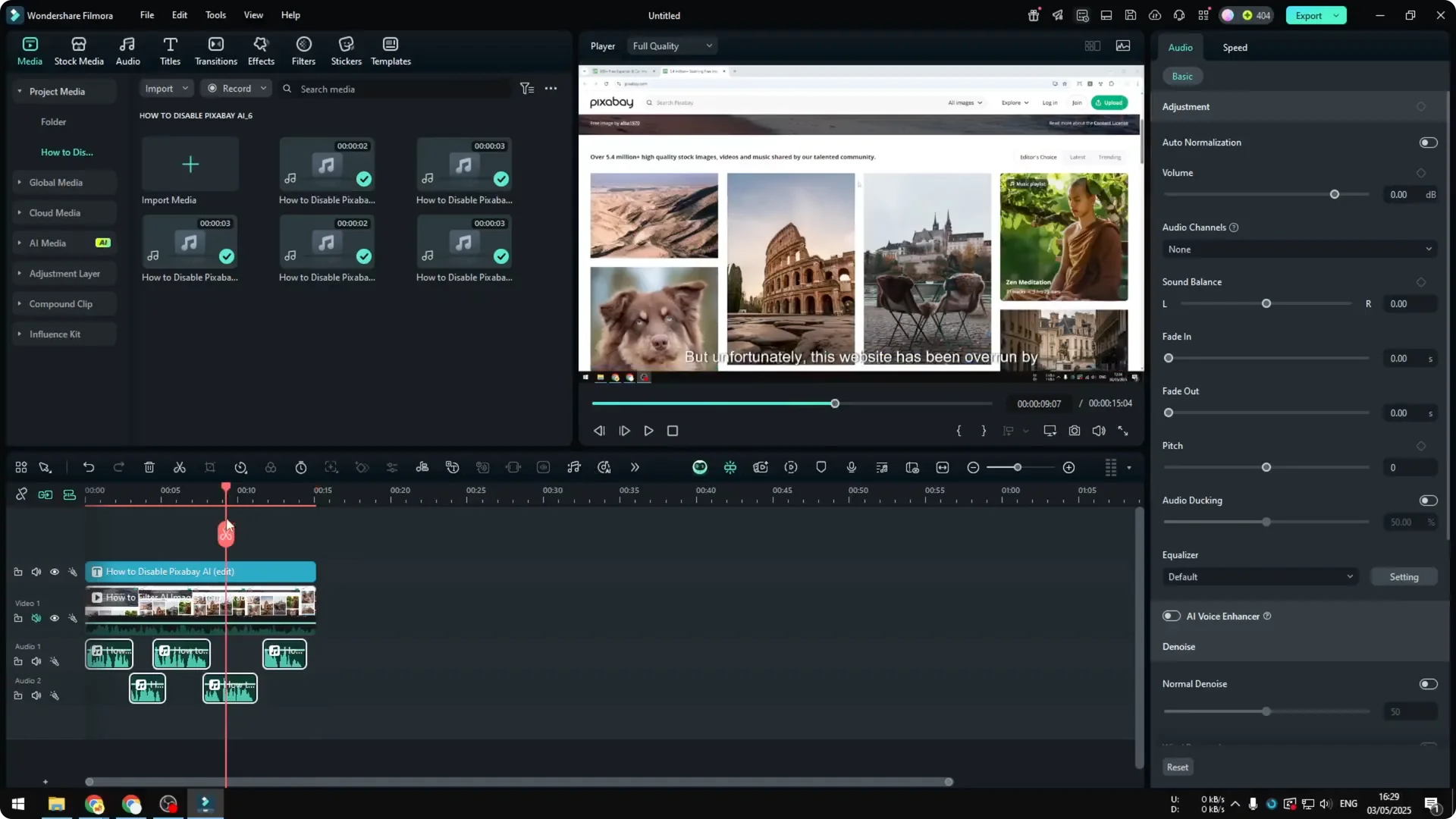
After generation, the audio is inserted into the video timeline. You might see multiple segments. That is because it creates different files based on sentences or lines of text, so it separates them.
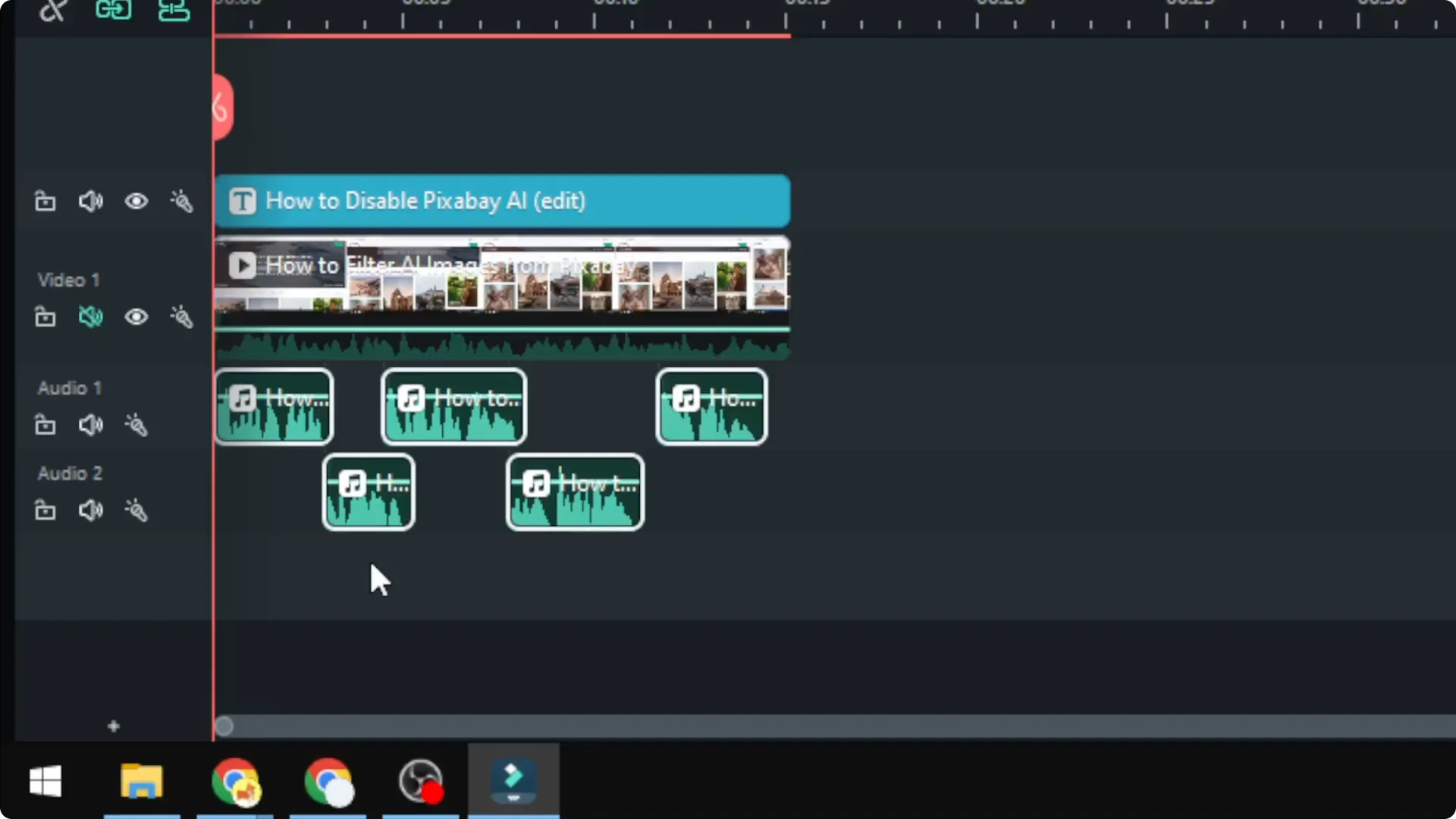
It matches the timestamp of the text, but it does not always have the same pacing as my voice. That can create awkward pauses, and it does not feel natural.
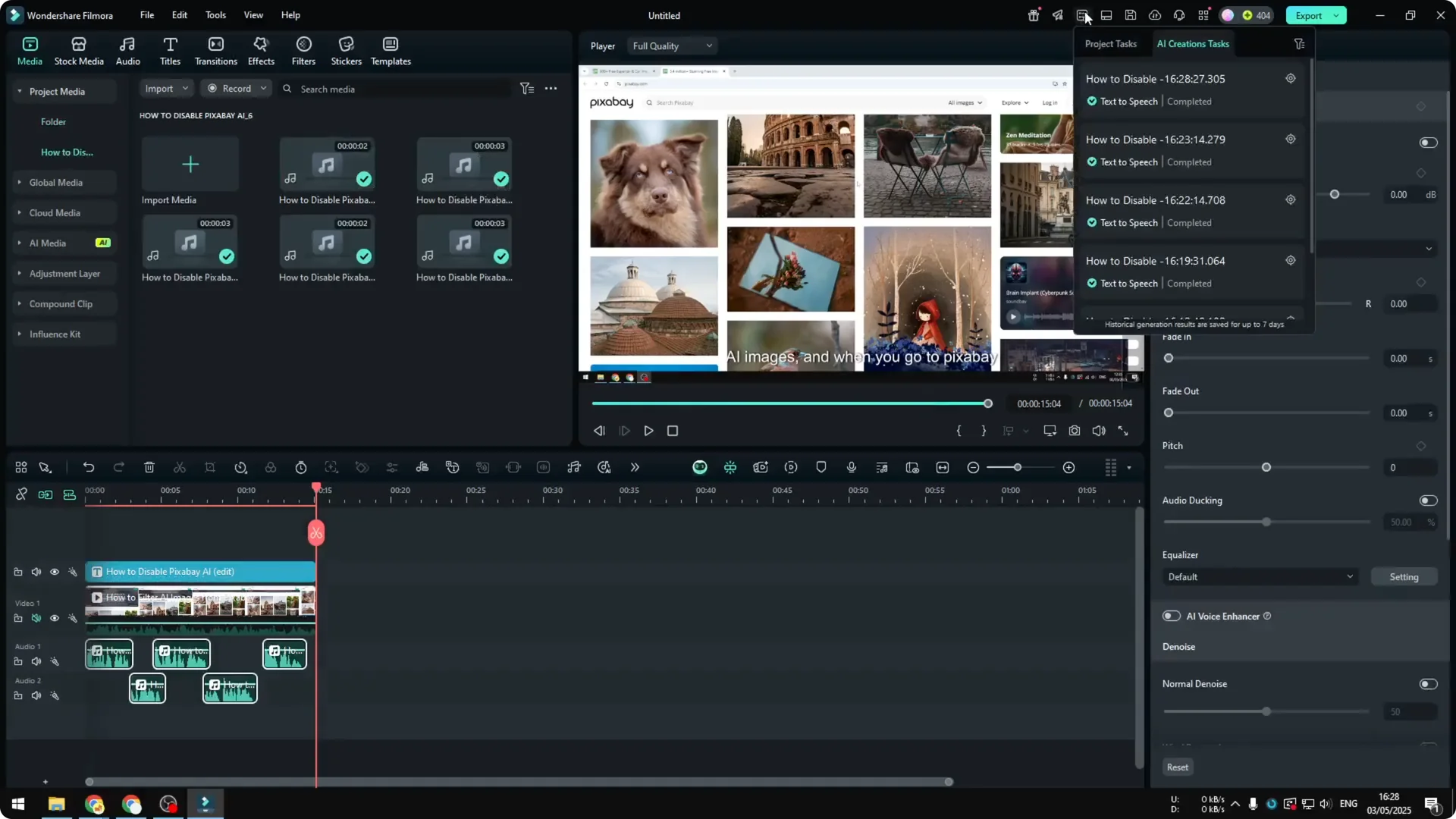
That is just the reality of using AI at the moment in Filmora. It is not perfect, but I expect it to get better over time.
Final Thoughts
- Make sure Filmora is up to date, add your video, and create a Subtitle track with your script.
- Use Text-to-Speech on the selected text, pick a voice, leave speed and pitch at default, enable Auto Match, and generate.
- Expect multiple audio segments aligned to your text, with timing that may not fully match a natural speaking pace.