One thing that I like about the Filmora video editor is that this jewel is very prolific at adding more and more AI features. I really like it because it makes editing a lot smoother and easier. But sometimes the AI tools in Filmora are not as good as third party options.
We have AI that can create video, AI that can edit images, or even create music in Filmora, and a lot of times third party options are way better.
I would say the voice cloning ability in Filmora is actually really good to the point that it might be worth it to use Filmora to clone your voice instead of using third party options like the one from Eleven Labs. It’s a bit cheaper and it is really good and realistic.
Filmora AI Voice Cloning: How to Clone Your Voice
Prepare the timeline to unlock the feature
- Open Filmora.
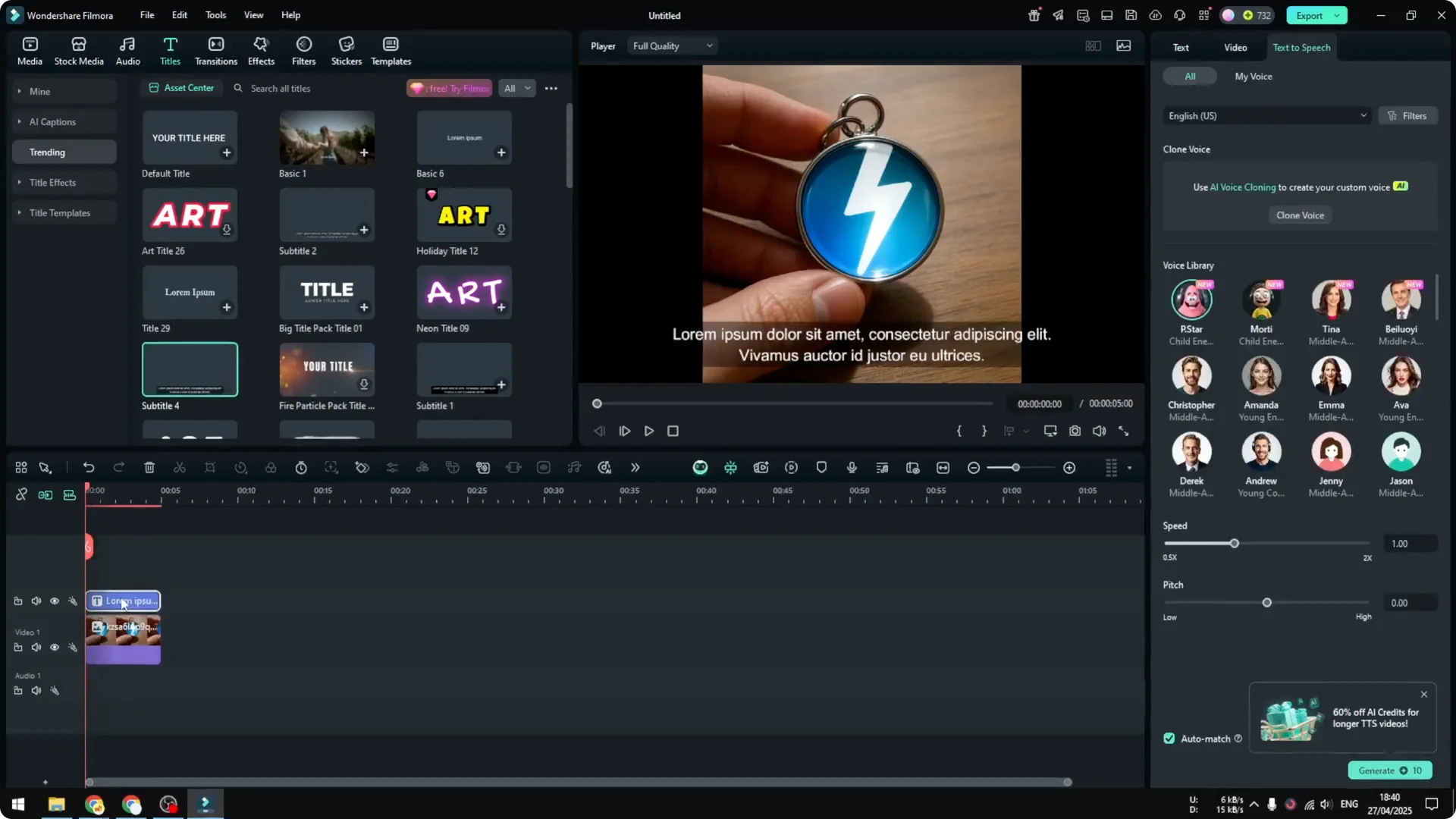
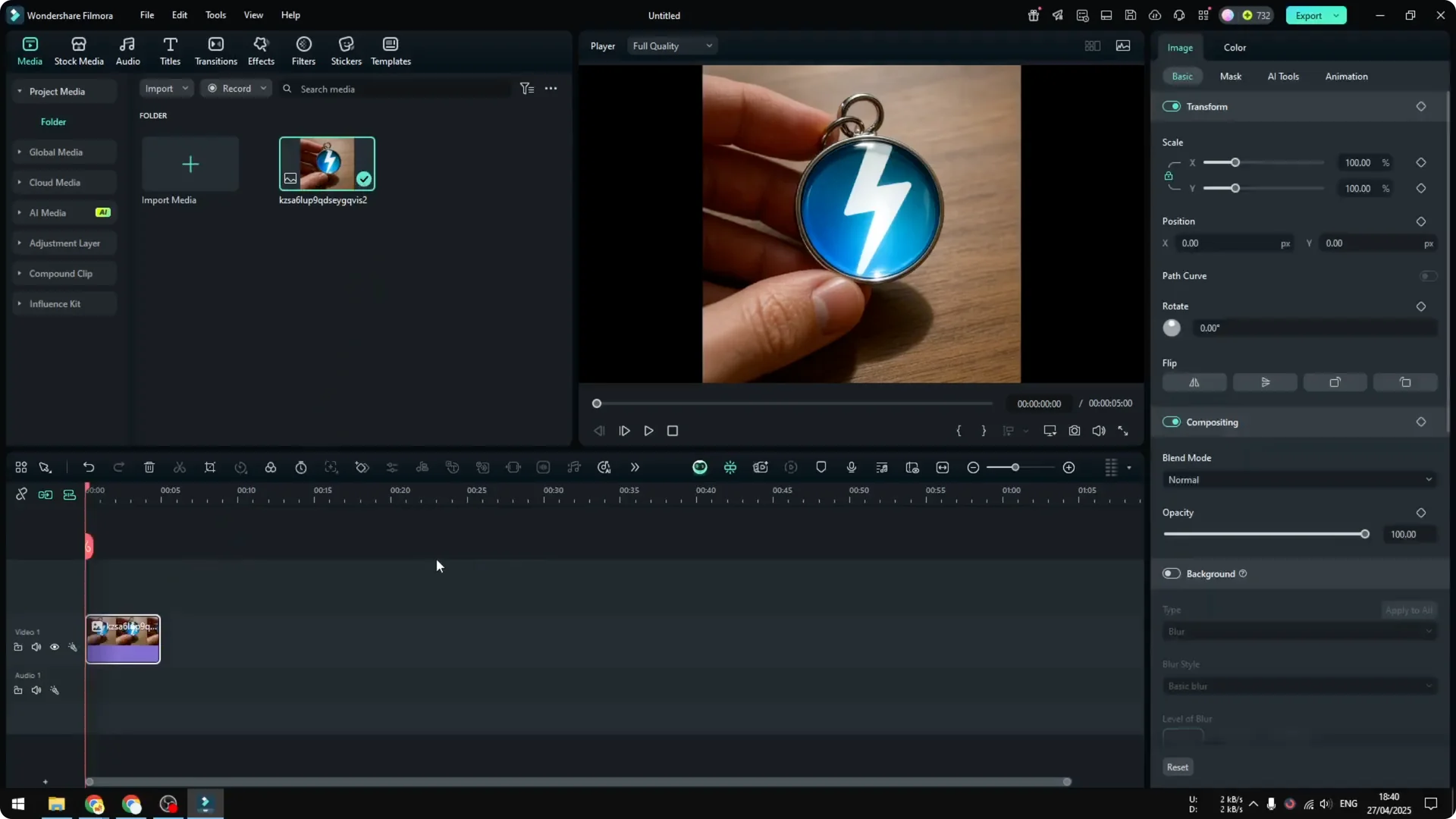
- Insert any video or any picture into the timeline. This enables access to the voice cloning feature.
- Go to Titles and insert any text. It doesn’t matter which one. I used a simple subtitle.
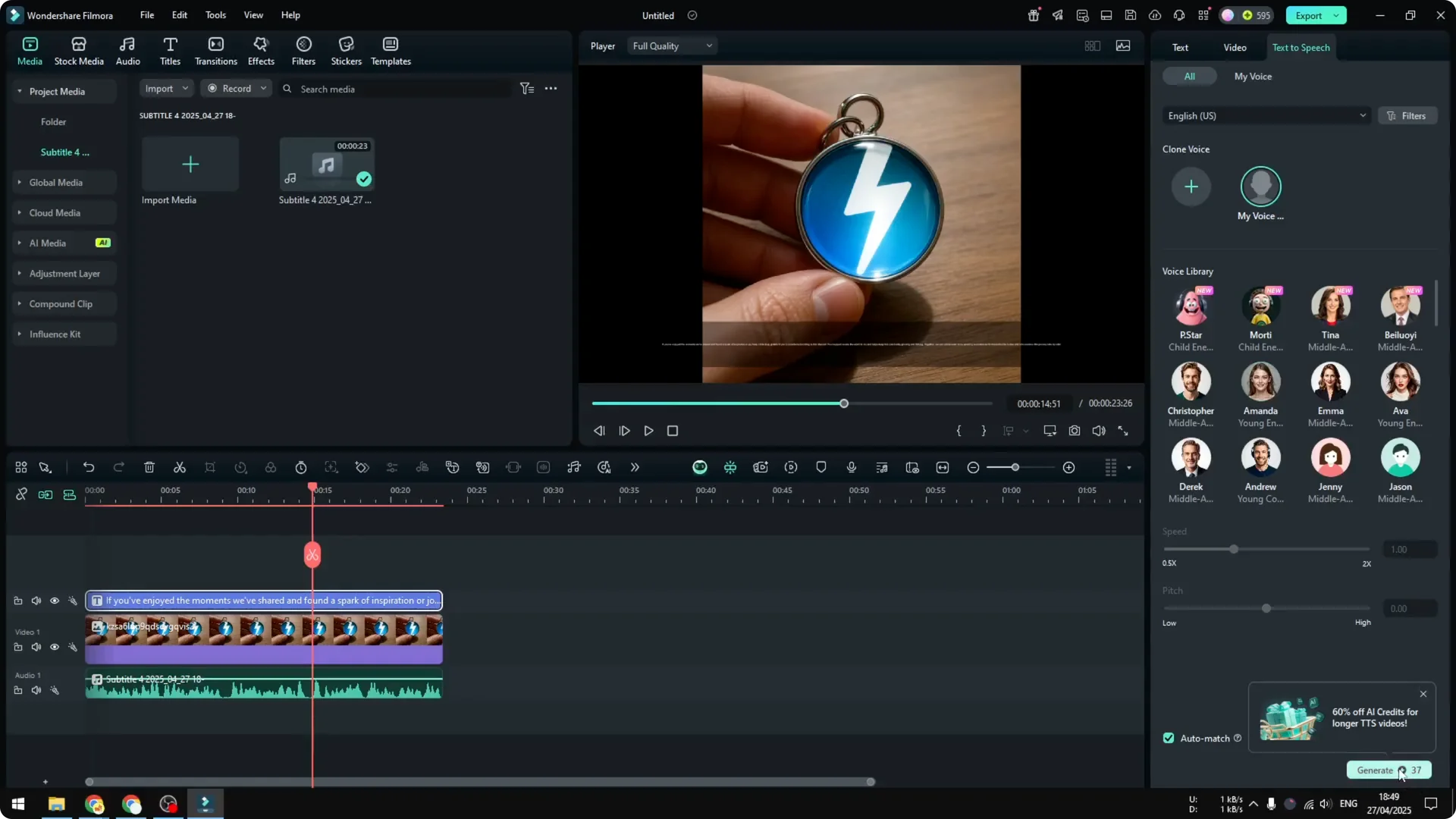
- Click the subtitle item, navigate to Text to Speech, then click Clone Voice.
If this is your first time, you’ll be asked to agree that you won’t use it for something harmful. Click Accept.
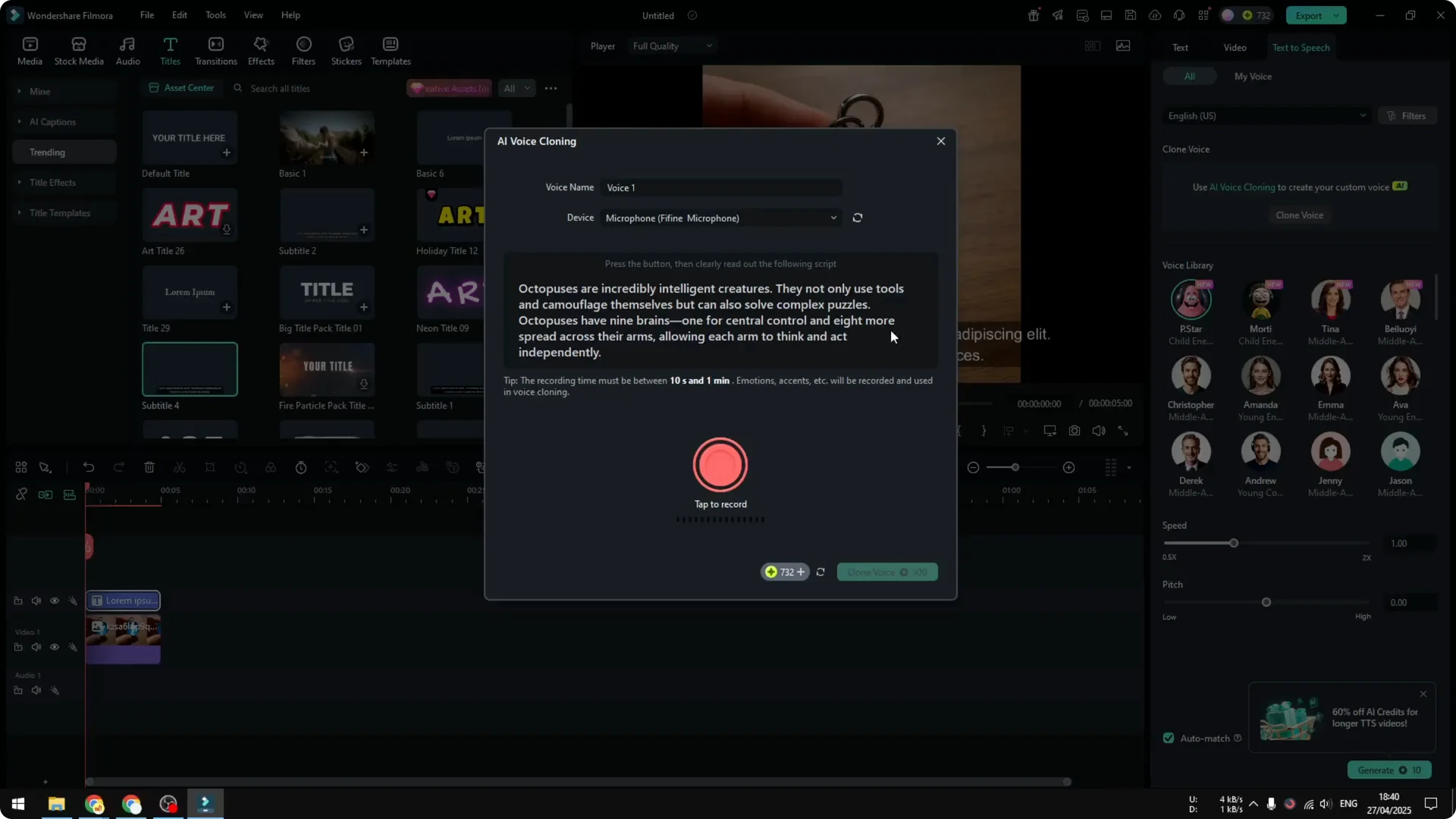
Set up your clone
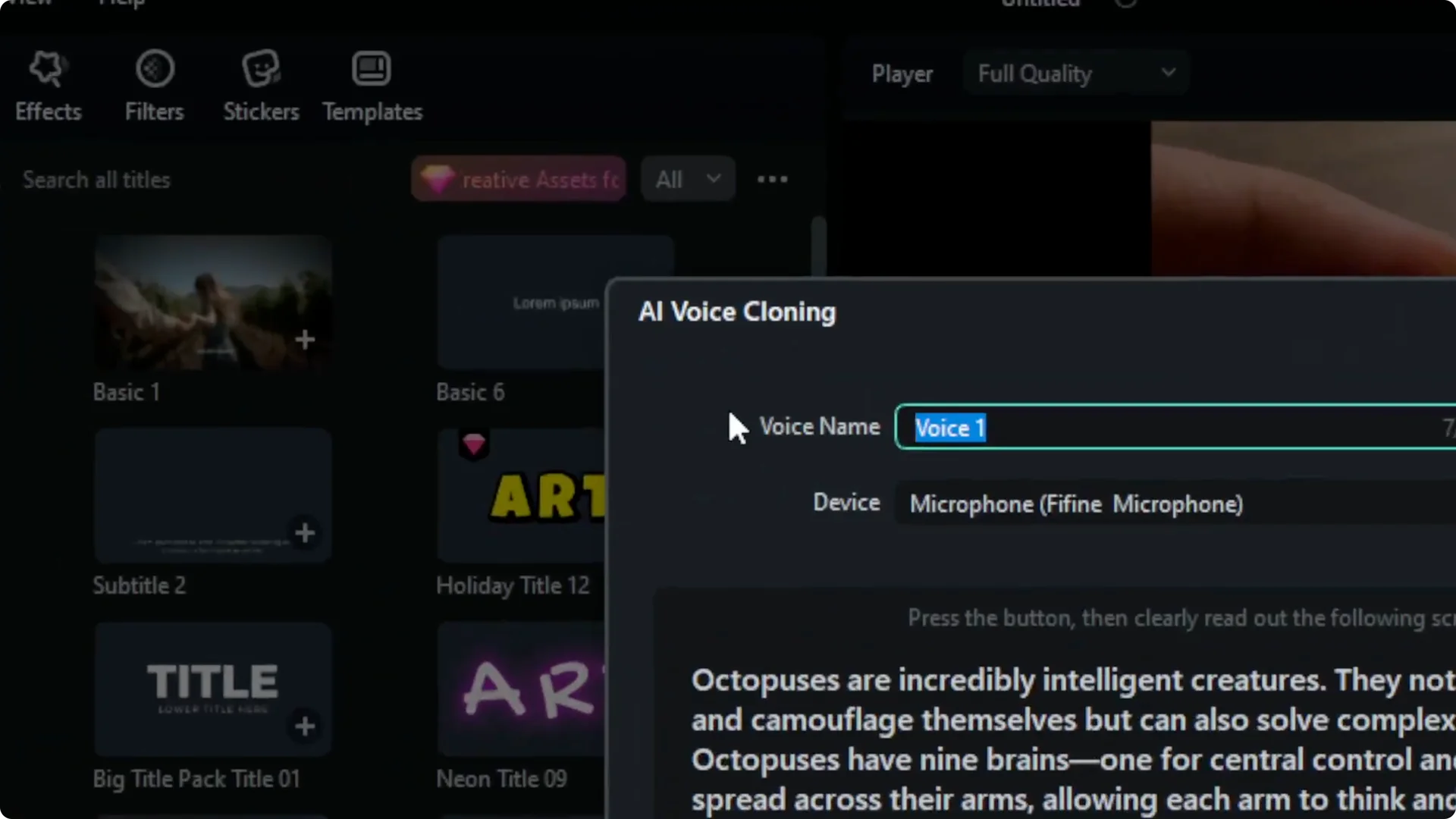
- Give your voice clone a name. I used “my voice cloning.”
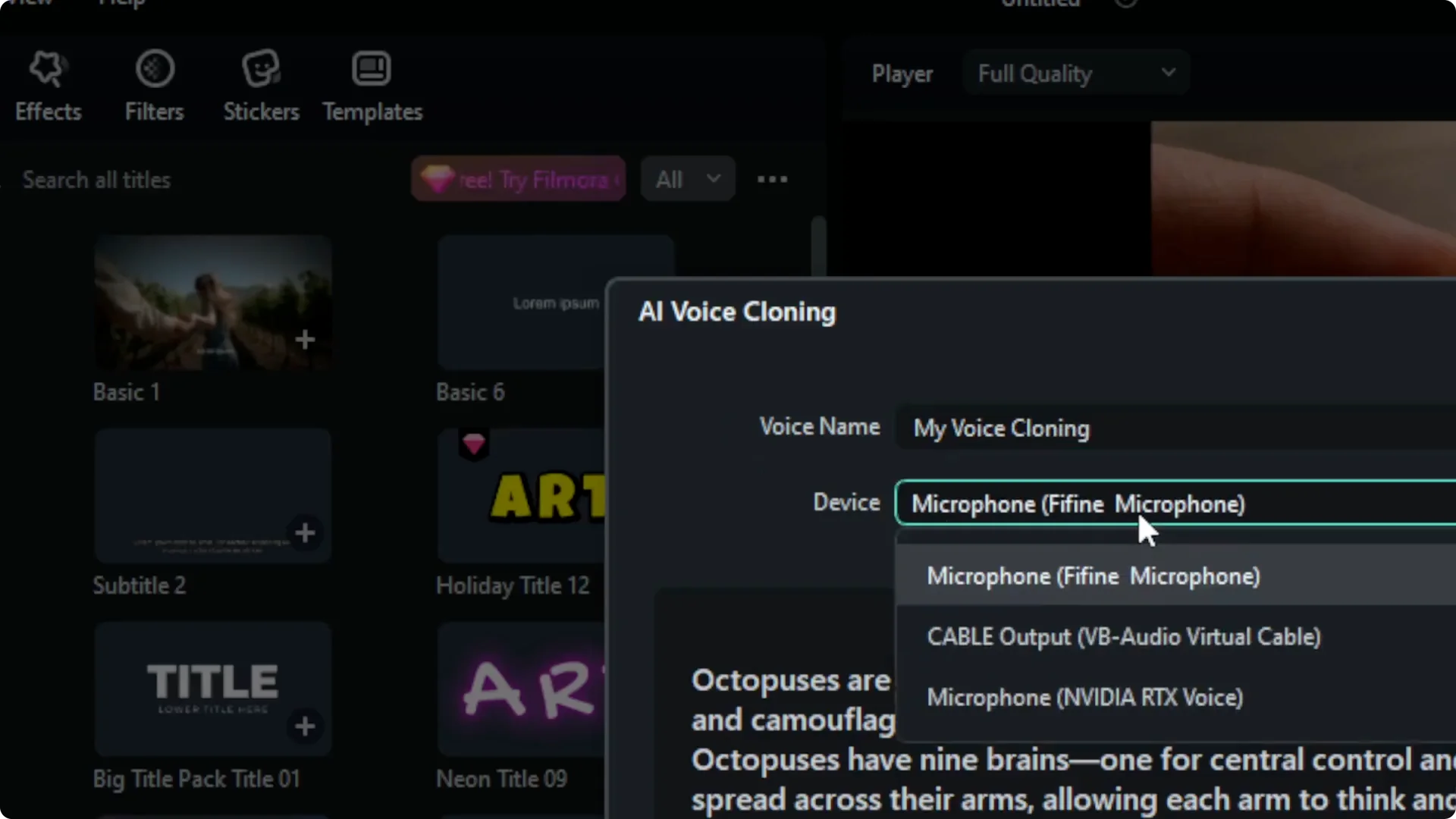
- Select your input device. I used the default microphone on my computer.
Read this before recording
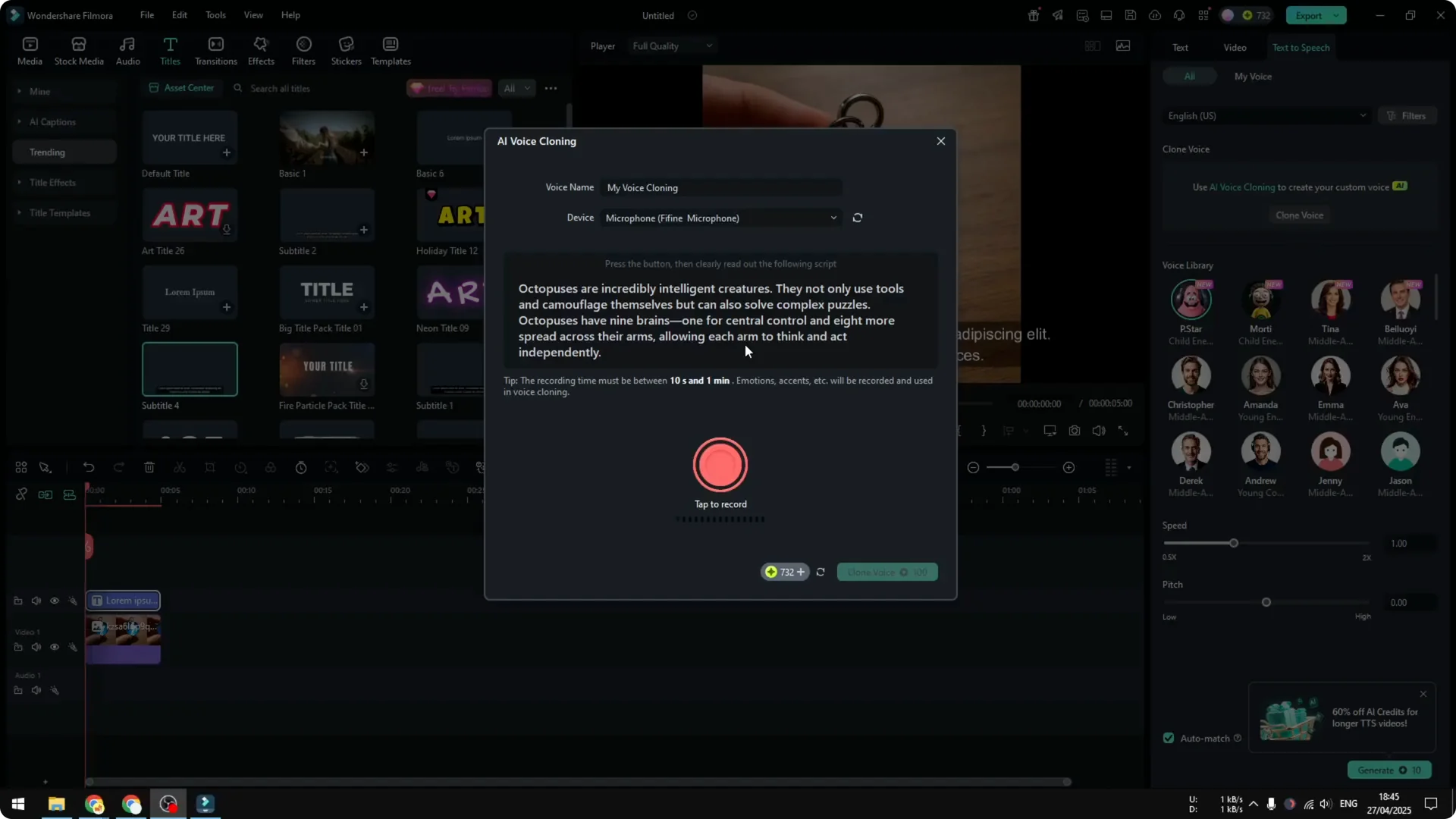
It is highly recommended to read the tips before recording. The tool will record your audio and then clone your voice based on that recording. Before you start:
- Practice the provided paragraph for 2 to 3 minutes so you can pronounce the words properly.
- Emphasize emotion, accent, and other elements in your voice to help the model capture your style accurately.
- Make sure your room is not too noisy.
- Make sure your microphone is tuned so the audio is captured properly.
- Maintain the same distance between your mouth and the microphone. Do not change the distance mid-sentence.
Record the sample and generate the clone
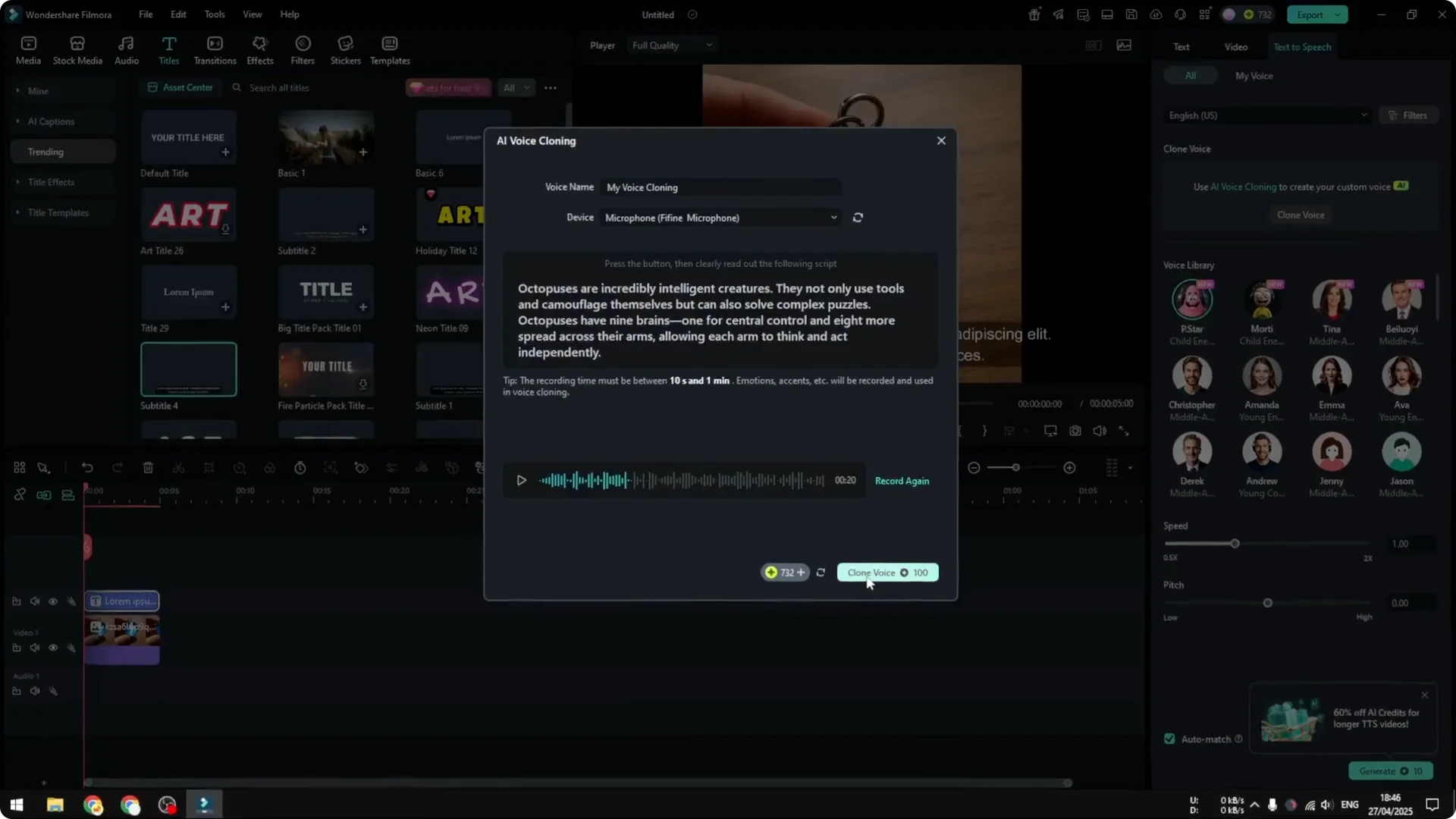
- Click Record and read the paragraph. The sample I read was:
Octopuses are incredibly intelligent creatures. They not only use tools and camouflage themselves, but can also solve complex puzzles. Octopuses have nine brains. One for central control and eight more spread across their arms, allowing each arm to think and act independently.
- When you are satisfied with the take, click Clone Voice. This will cost 100 credits.
- The process usually takes less than 2 minutes. In my case it took less than 30 seconds.
- Preview the audio. For example:
Life is like a box of chocolates. You never know what you’re going to get.
That sounded pretty good.
Use Your Clone for Text to Speech in Filmora AI Voice Cloning
- Paste or type your script into your text item.
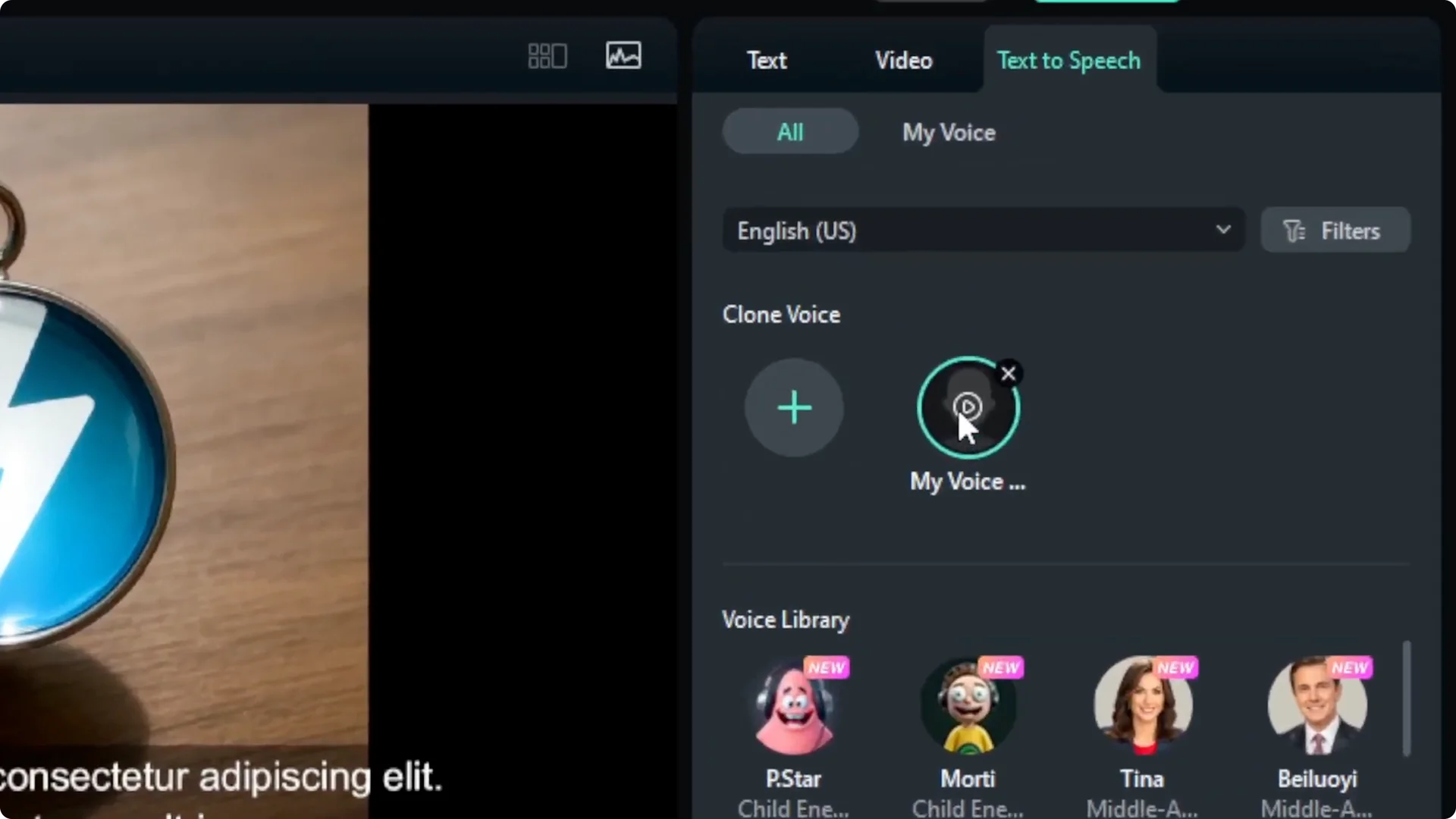
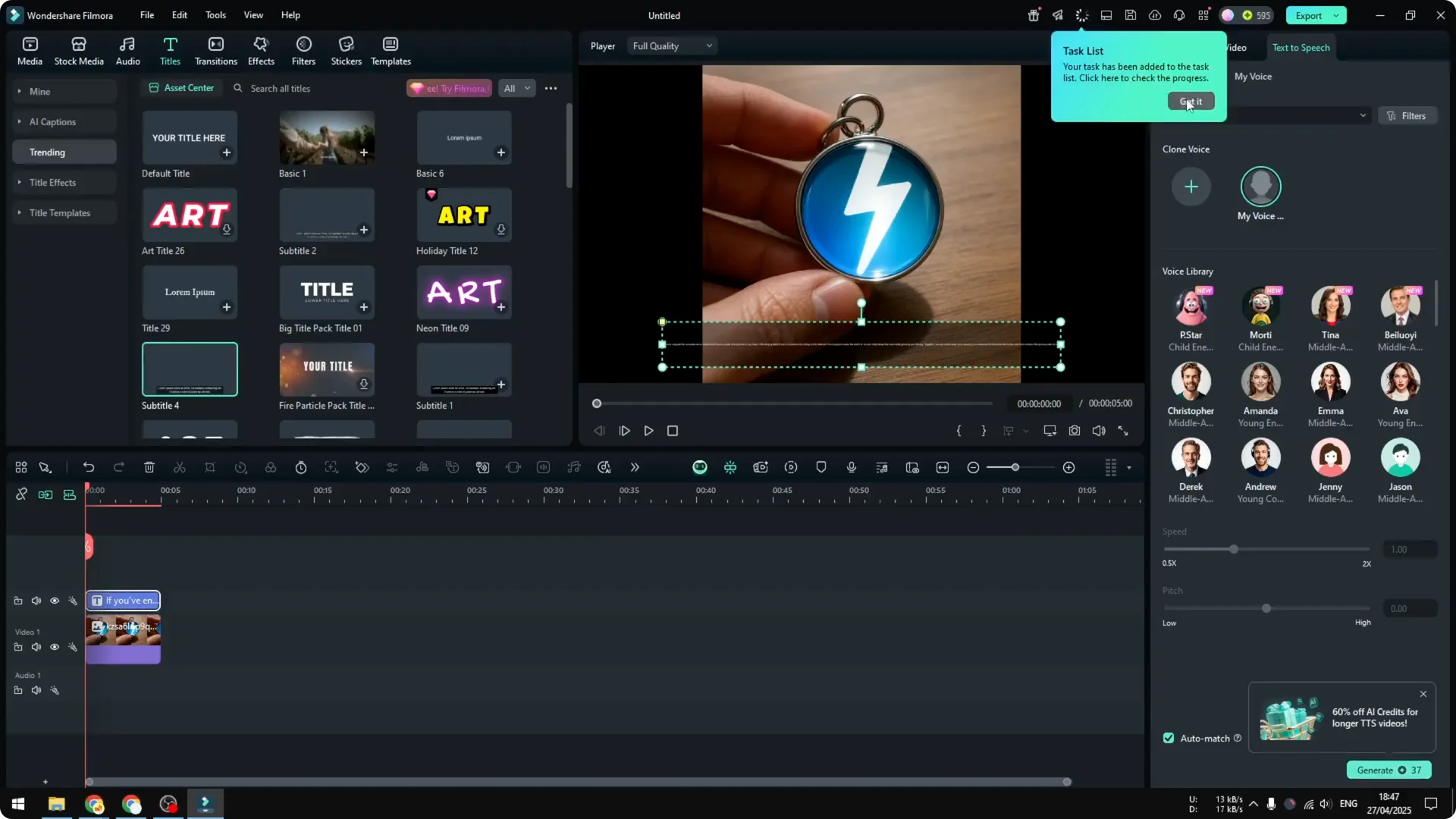
- Open Text to Speech and select your cloned voice.
- Click Generate. The job will appear in the task list and may take a bit to finish.
- Once done, play the result and check accuracy.
Filmora AI Voice Cloning vs other tools
I compared the result with All Voice Lab, which I consider an alternative to Eleven Labs. I used the same paragraph and my cloned voice there too. Filmora was not perfect, but it was way better than the one from All Voice Lab in my tests.
Reusing Your Voice in Filmora AI Voice Cloning
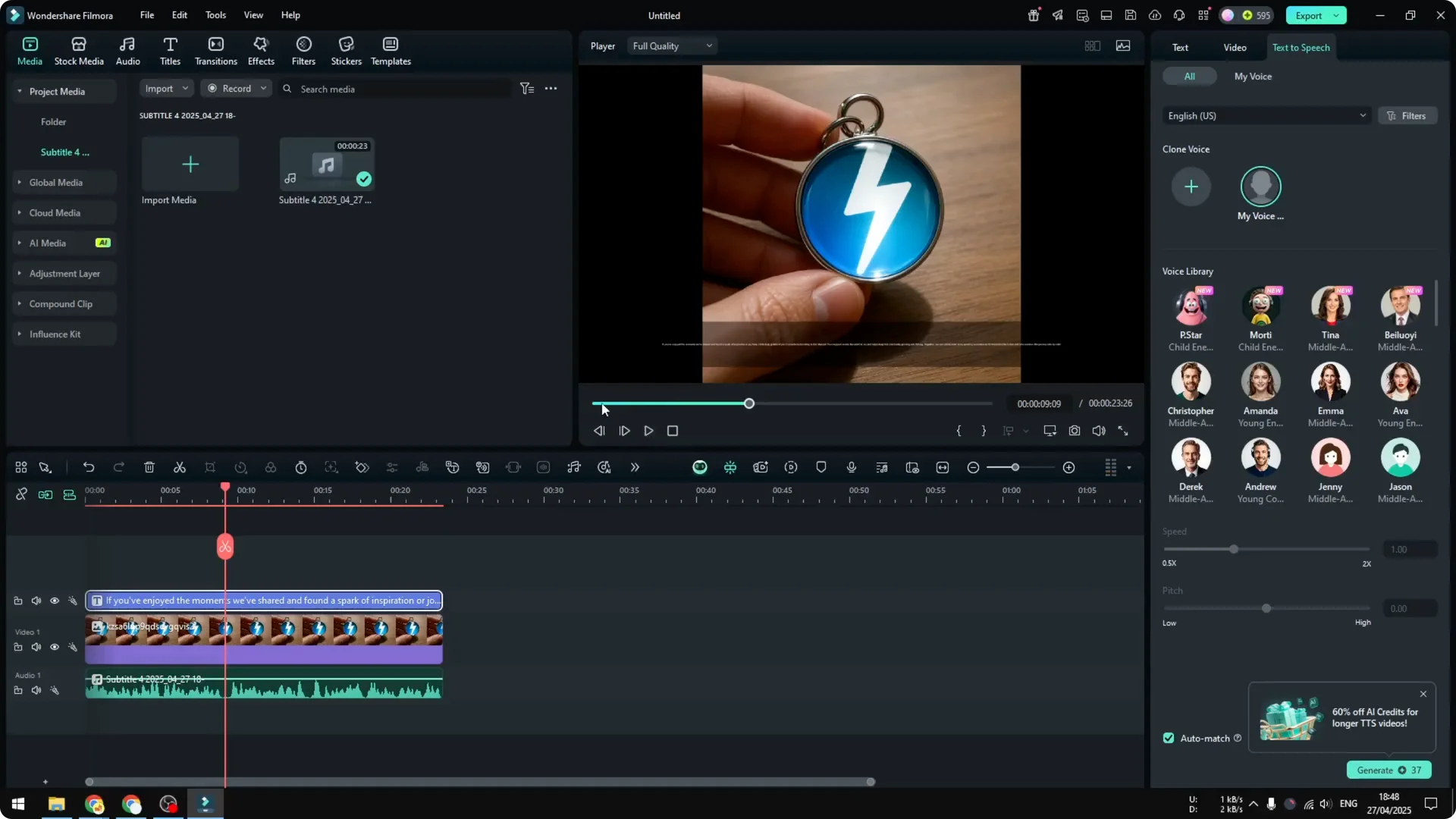
You don’t have to redo the cloning over and over again. Do it once, then later, when you want to create text to speech:
- Open the Text to Speech menu.
- Select your saved voice.
- Click Generate.
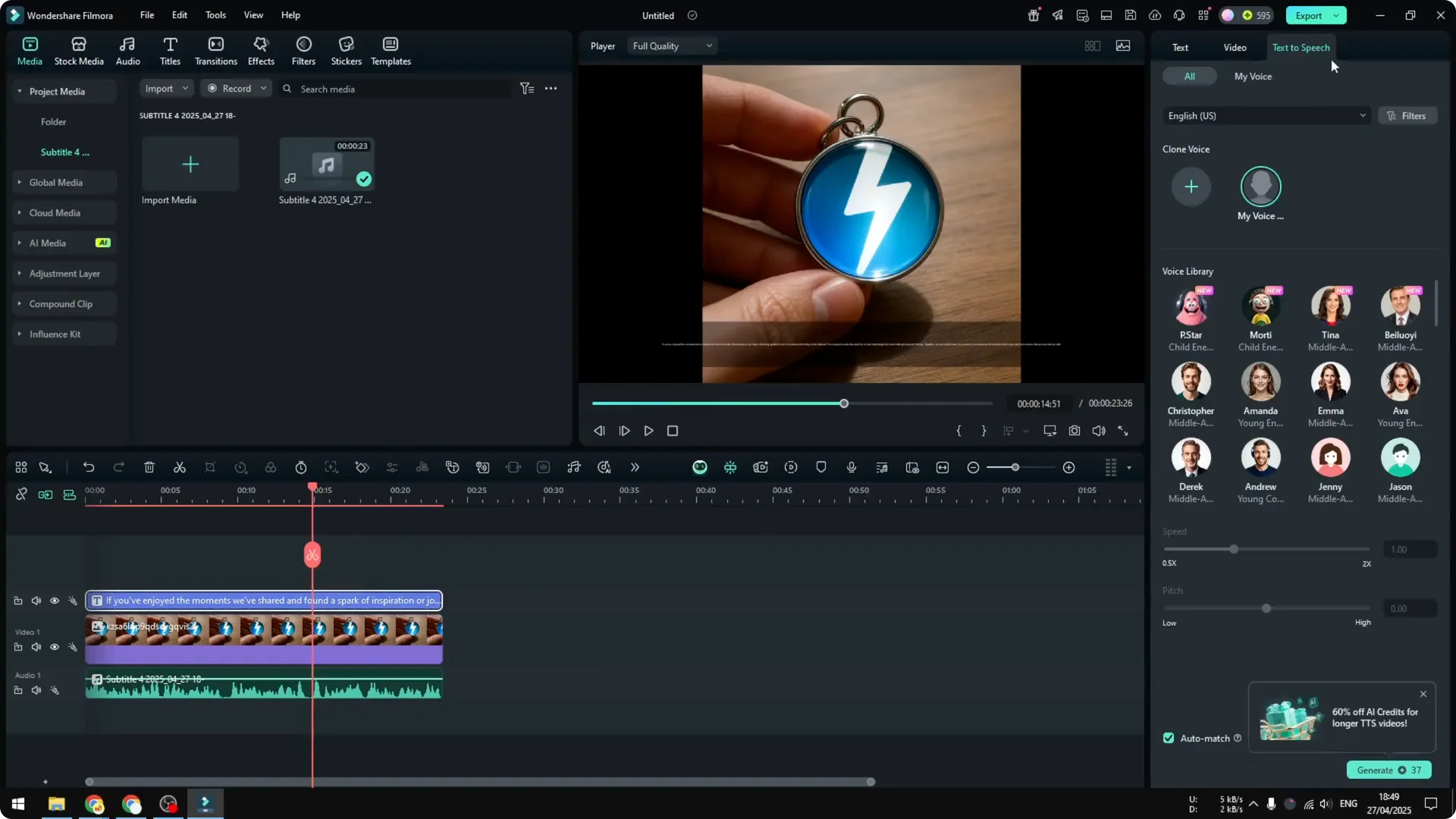
This will cost credits, but you don’t need to recreate the clone each time.
Final Thoughts
Filmora keeps adding AI features, and while some are outperformed by third party tools, the voice cloning in Filmora stands out. It’s realistic, quick to set up, and in my experience produced better results than All Voice Lab, with lower cost than some alternatives. Follow the recording tips, expect a short processing time, remember the credit cost, and you’ll be set to convert your scripts to audio in your own voice.