How can we generate videos with Higgsfield? I go to Image to Video and upload an image I made of a motorcycle coming down an airplane ramp.
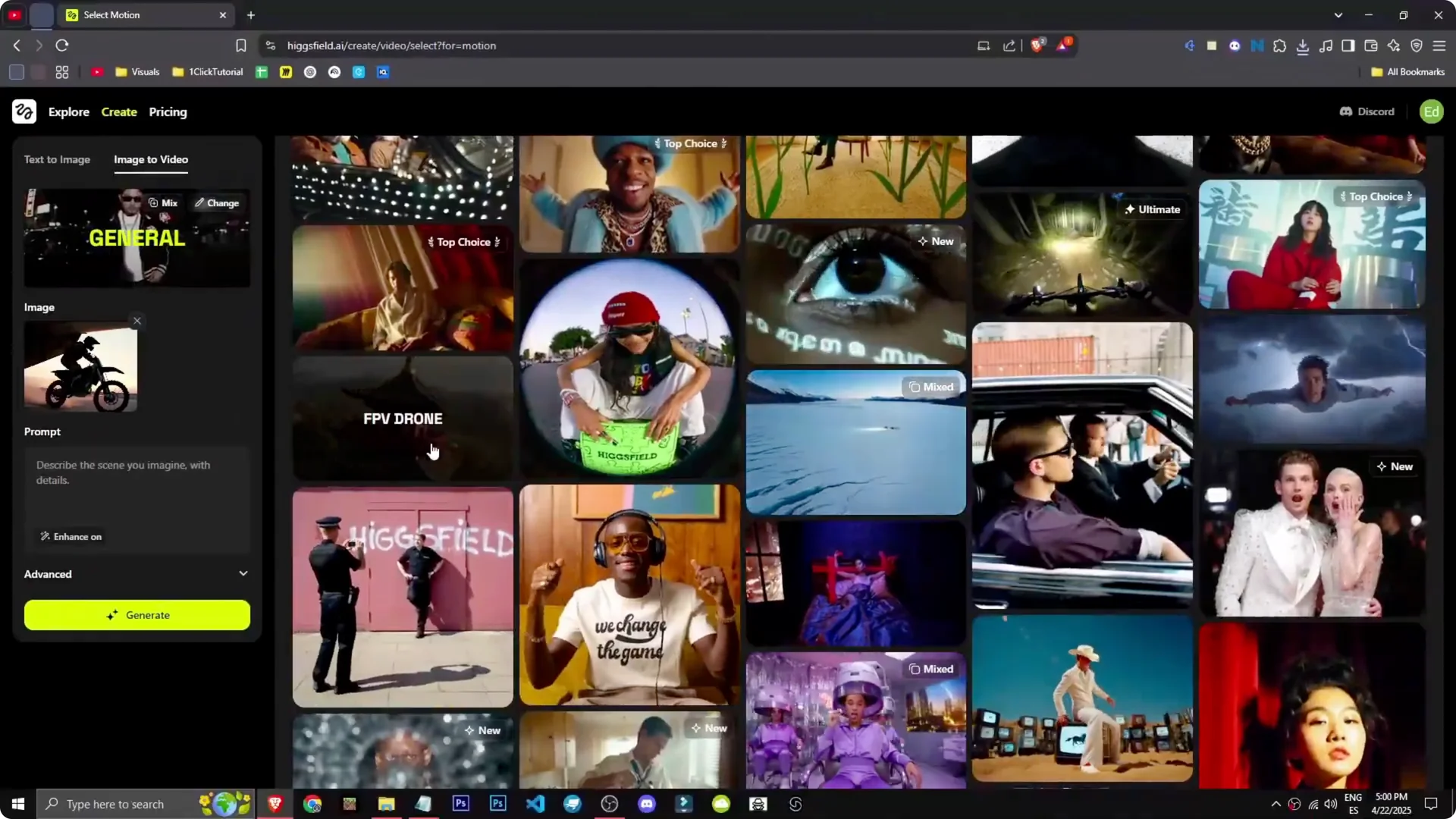
We want to set up one of the effects. I pick the FPV drone to see what it does. If you want to build personas with the same tool, see this AI influencer guide.
Getting started with Higgsfield AI Video Generation
Step 1: Go to Image to Video.
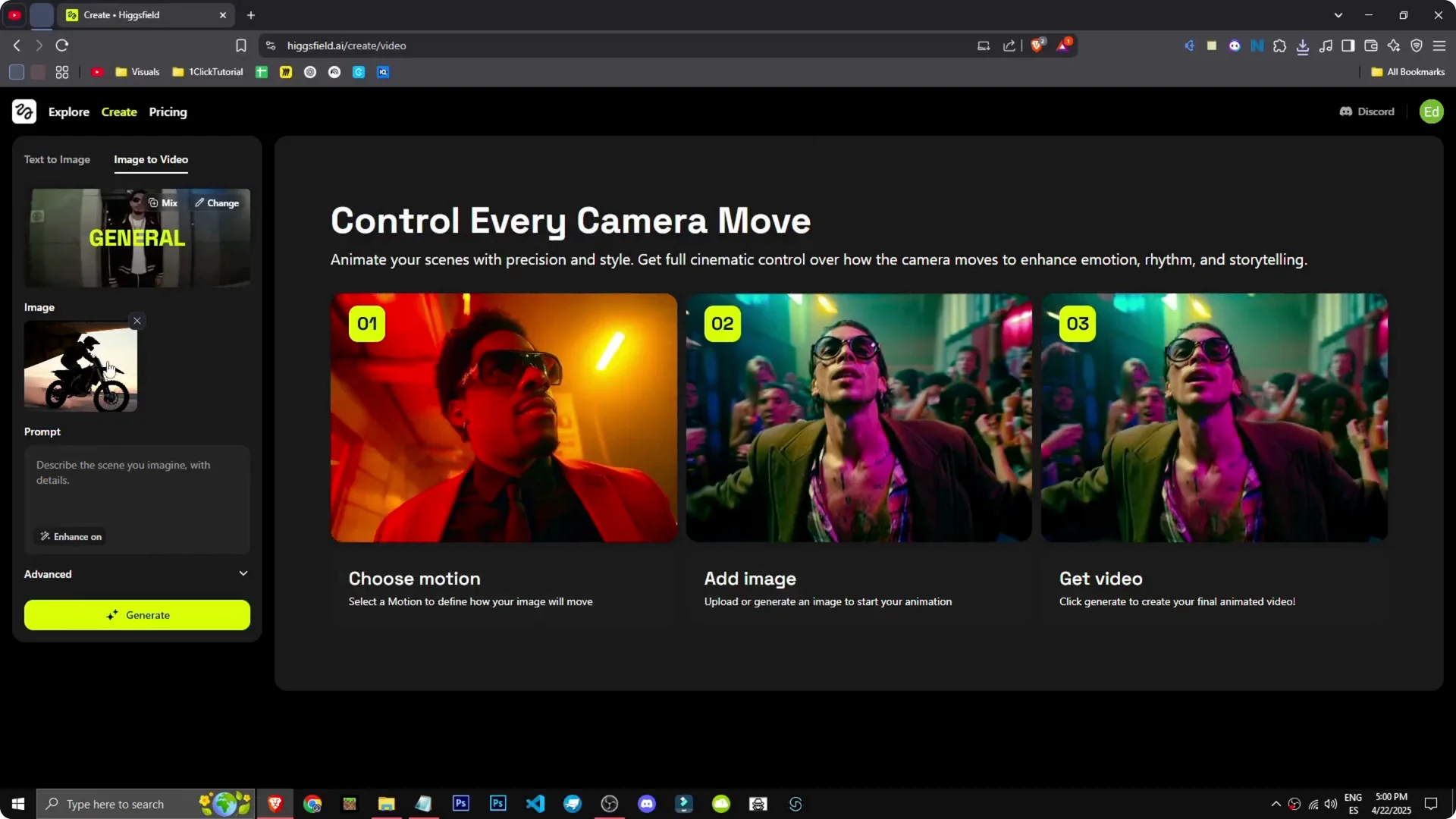
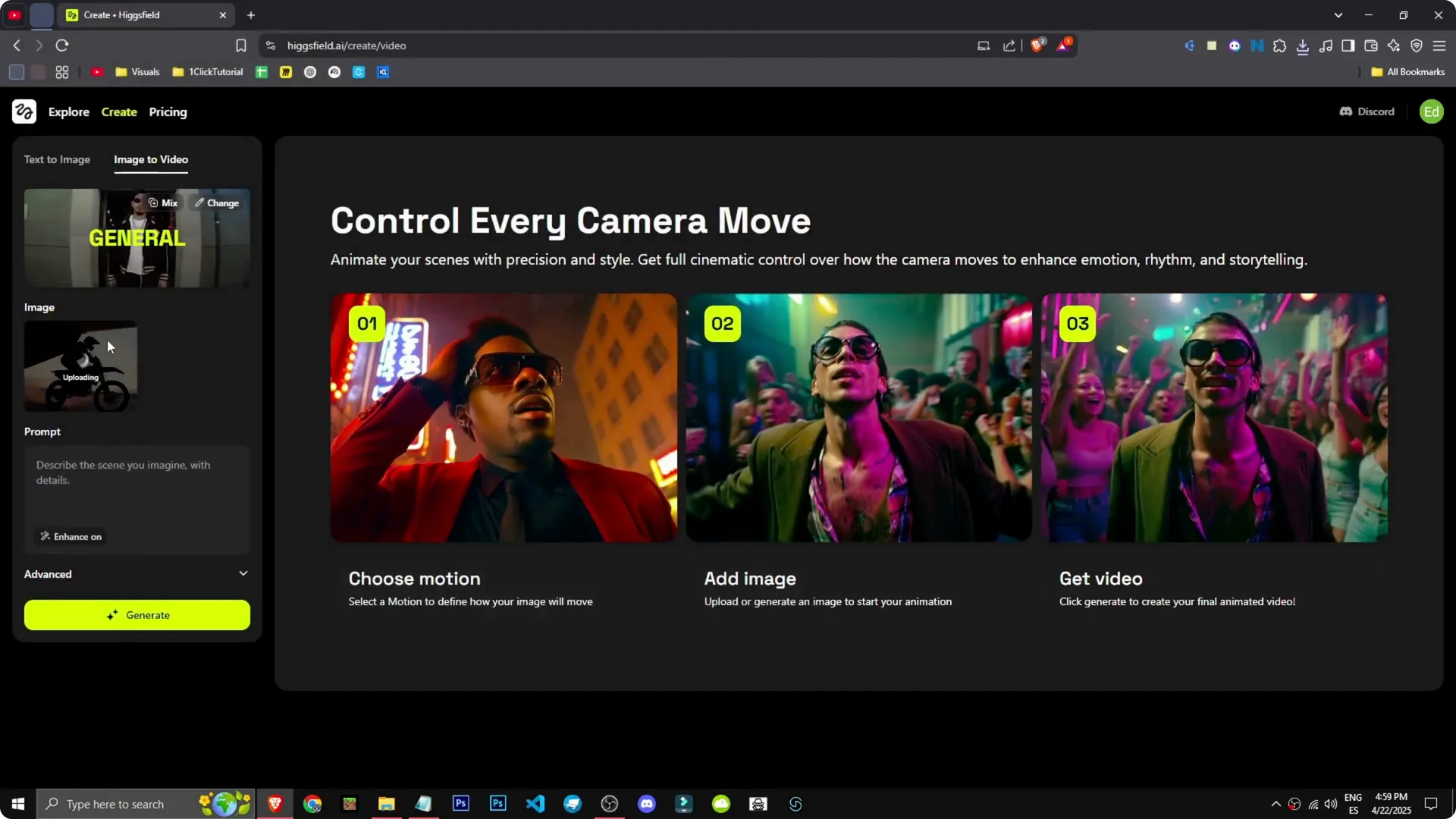
Step 2: I upload an image I made of a motorcycle coming down an airplane ramp.
Step 3: I set up one of the effects. I choose the FPV drone to see what it does.
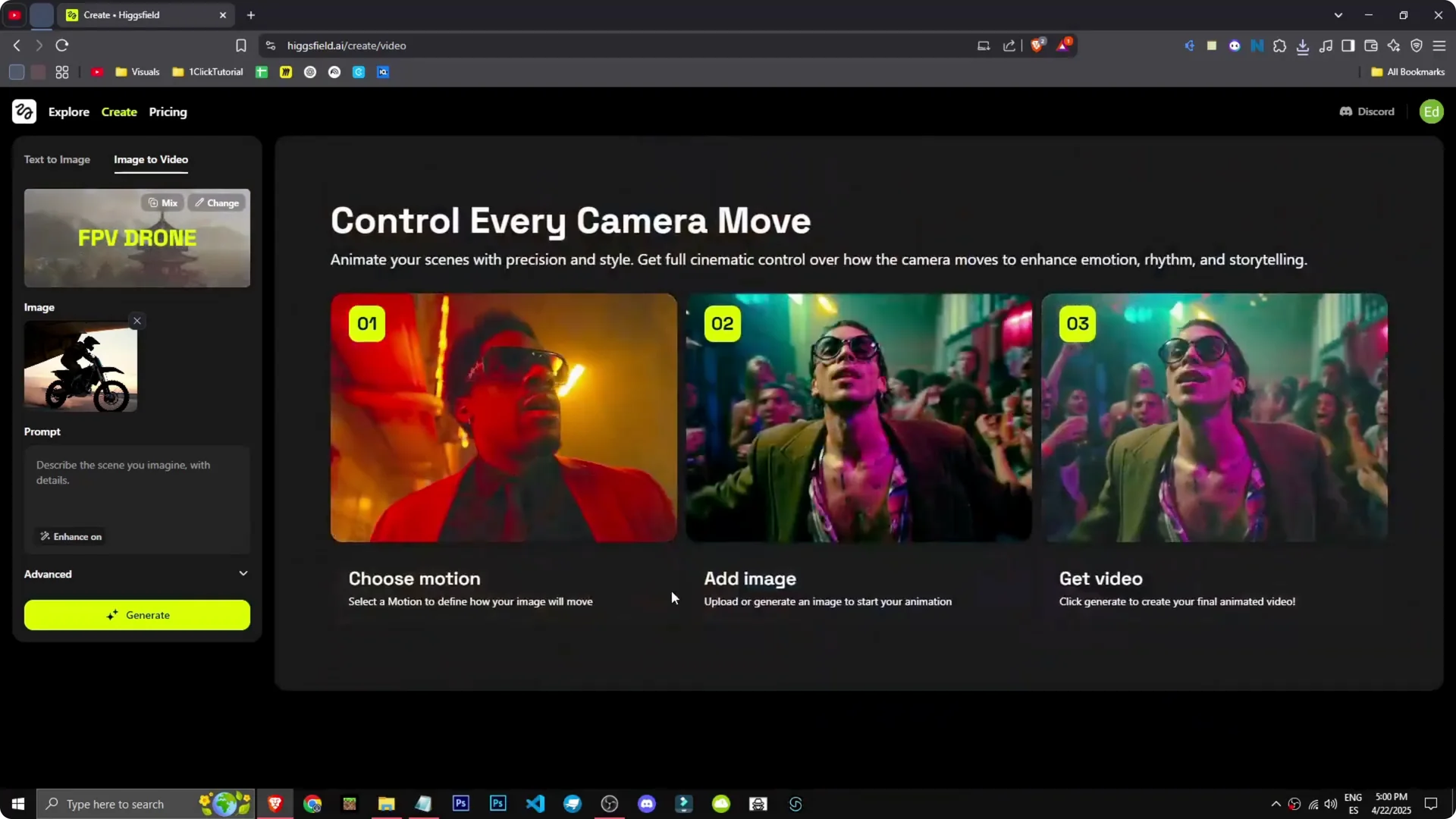
Step 4: I select it, choose the image, and ask what I want to happen. Honestly, I have no idea. Simple, direct, no prompt, just pure creativity.
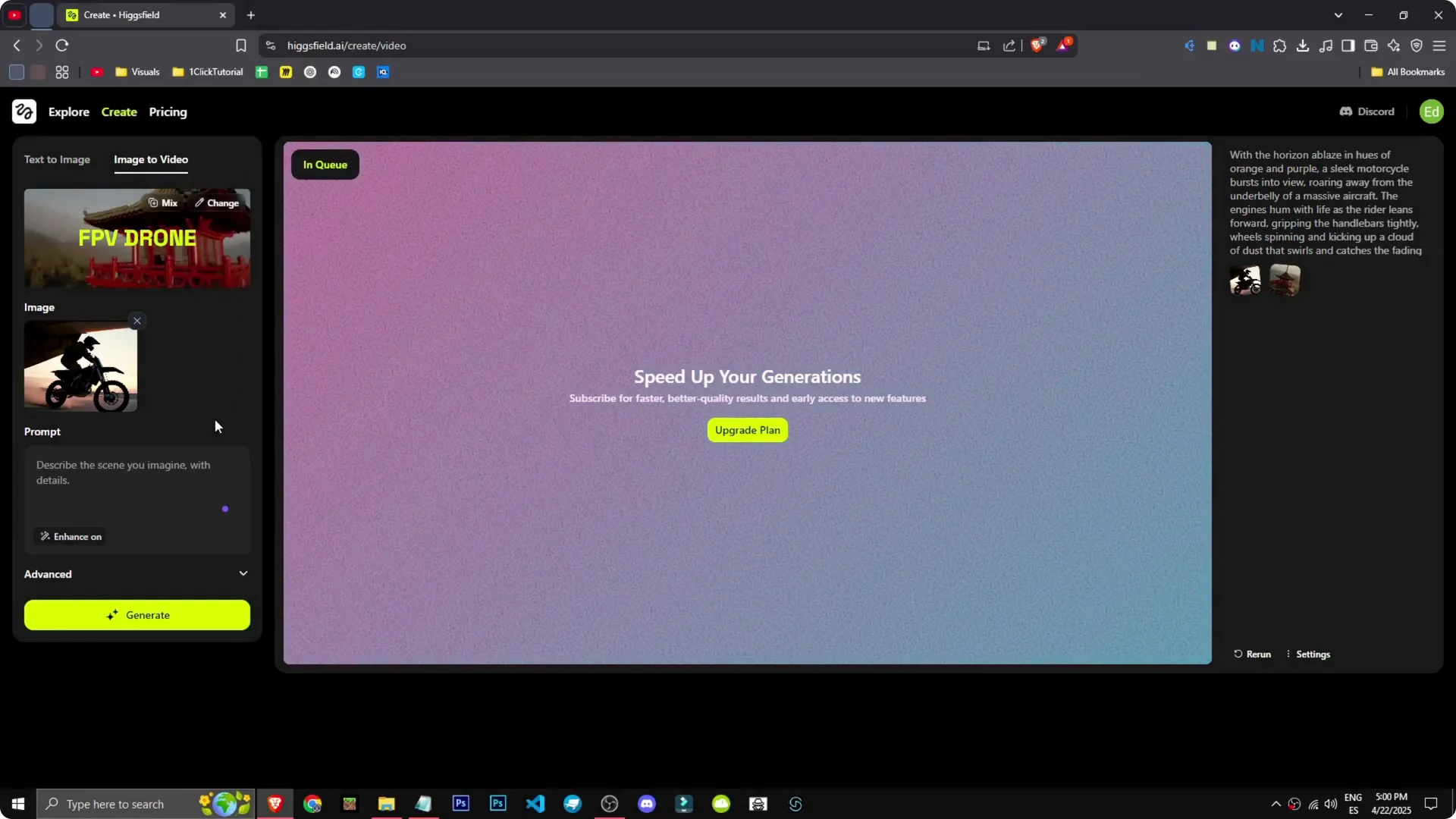
Step 5: I generate and wait in the queue. To speed up generation, we’d need a paid version. For more stylized motion and film looks, see these tips on creating cinematic AI videos.
Higgsfield AI Video Generation results
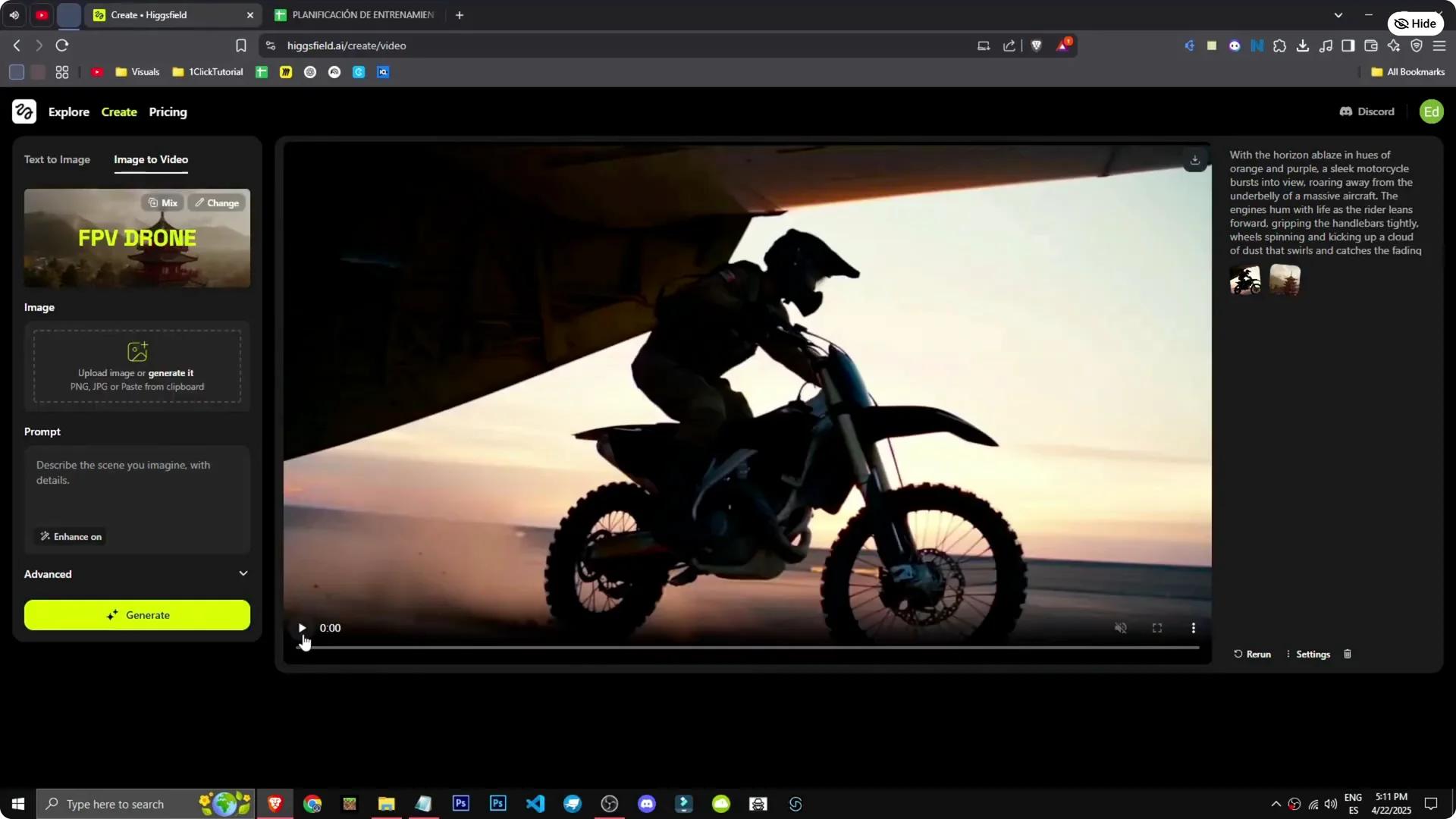
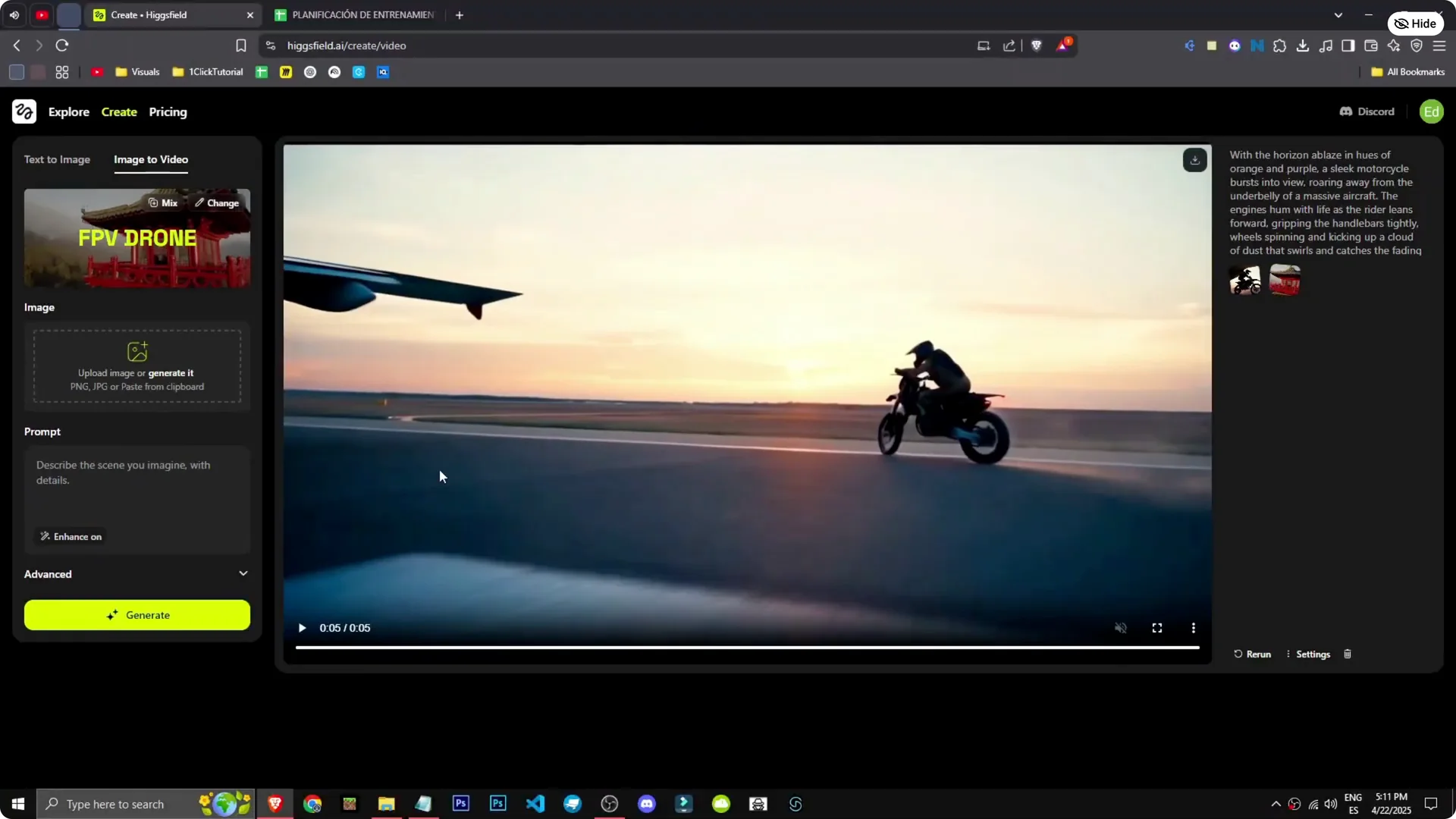
The result shows the motorcycle coming out of the plane, even skidding.
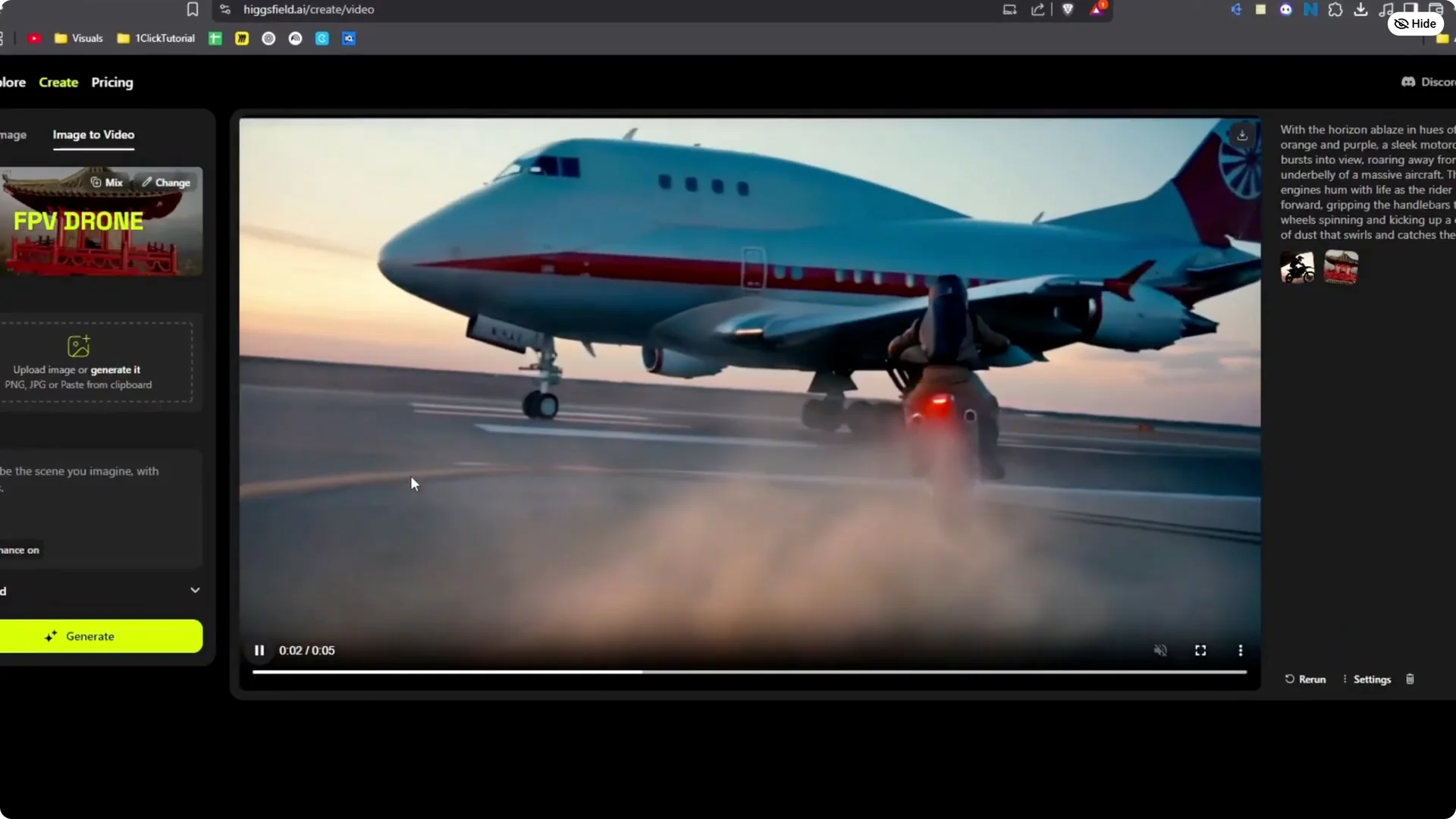
It looks incredible. The effect is mind-blowing. This AI isn’t just good, it’s phenomenal.
Clip and repurpose
After you get a result you like, you can turn longer runs into short viral edits. See how to convert long videos into viral clips using Filmora AI.
Final Thoughts
Image to Video with an FPV drone effect can produce striking motion from a single image. The queue works fine, and upgrading speeds things up. The motorcycle shot looks incredible, and the effect is phenomenal.