How to Reverse a Video in Filmora

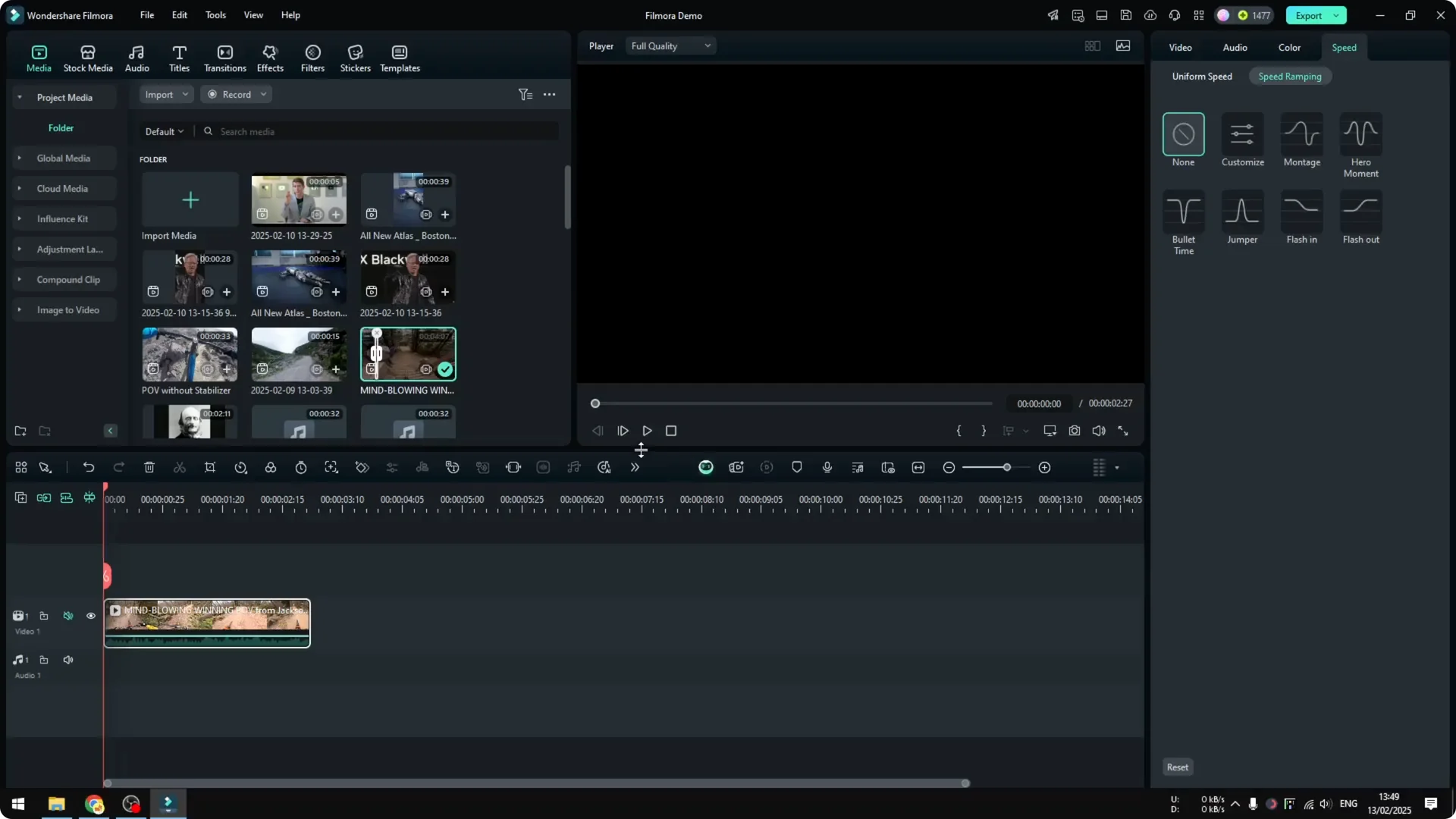
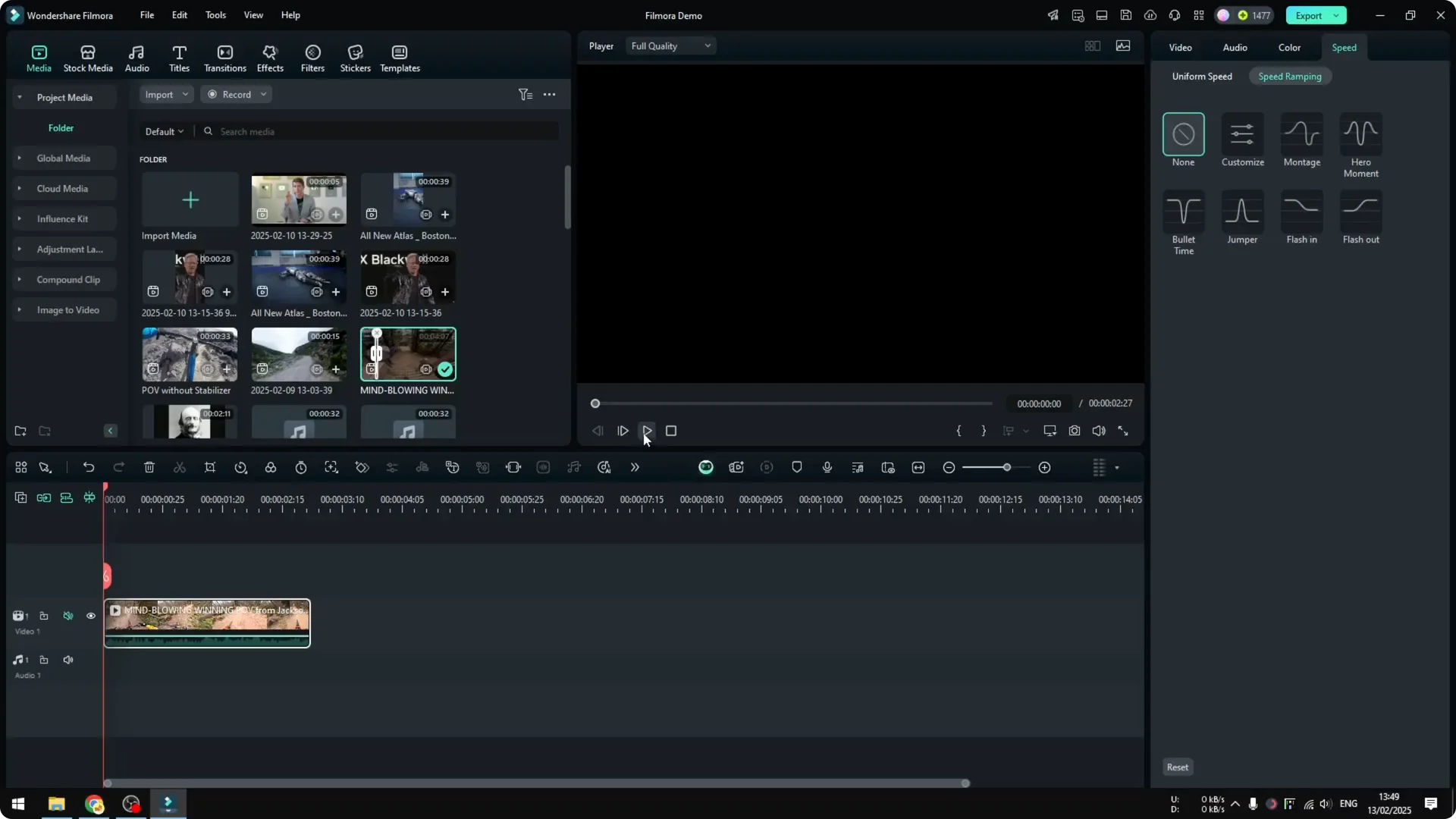
This is how you can reverse a video in Filmora. I start by inserting the video into the project timeline and play a bit so you can see how it looks before reversing – in my example it’s someone riding a bicycle. Then I reverse it so it goes backward in time.

Reverse Video in Filmora

Insert your clip
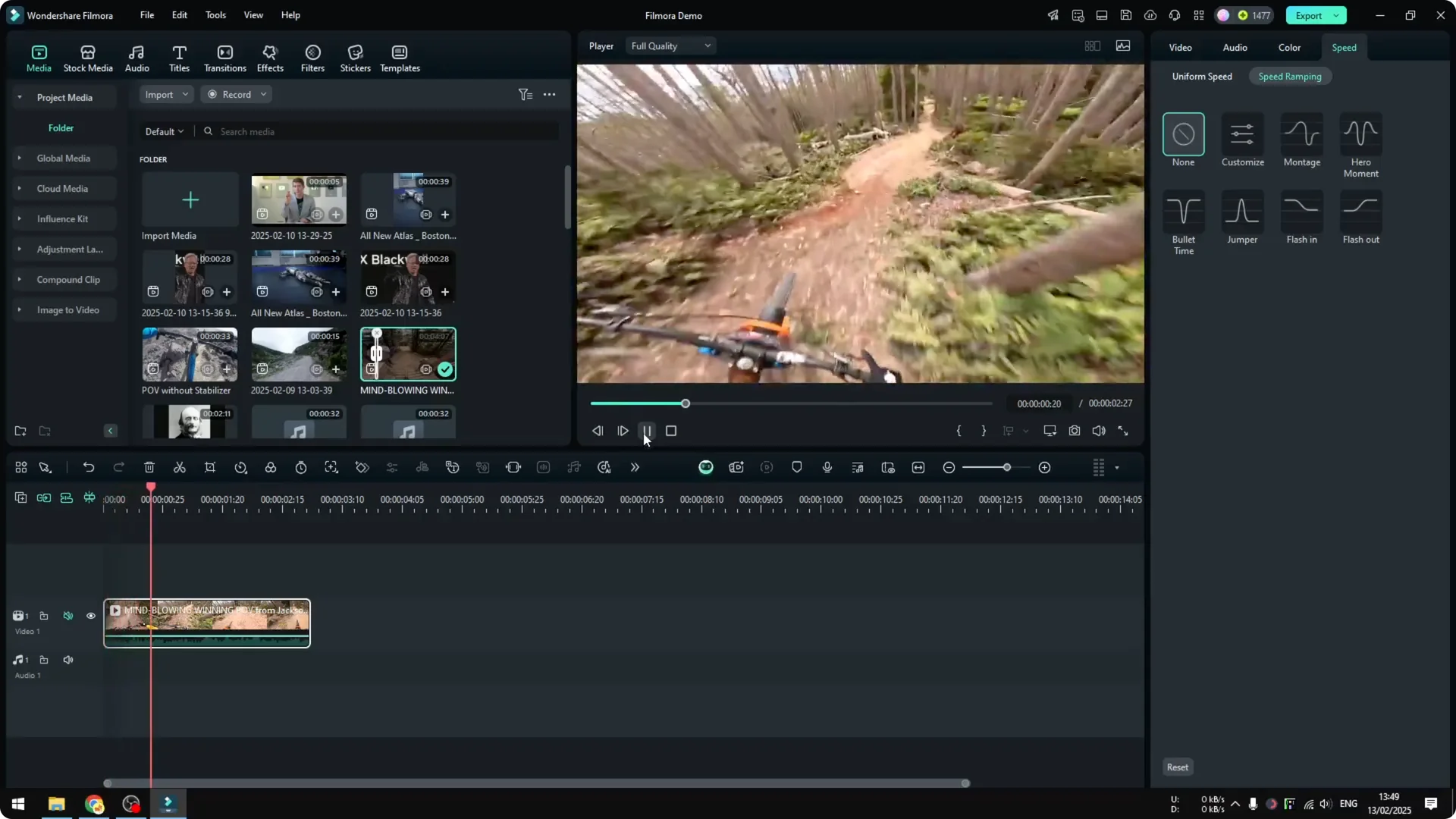
  • Click and drag your video clip to the project timeline.
  • Play a short section to see how it looks before reversing.
  • How to Reverse a Video in Filmora screenshot 3

    How to Reverse a Video in Filmora screenshot 2

    How to Reverse a Video in Filmora screenshot 1

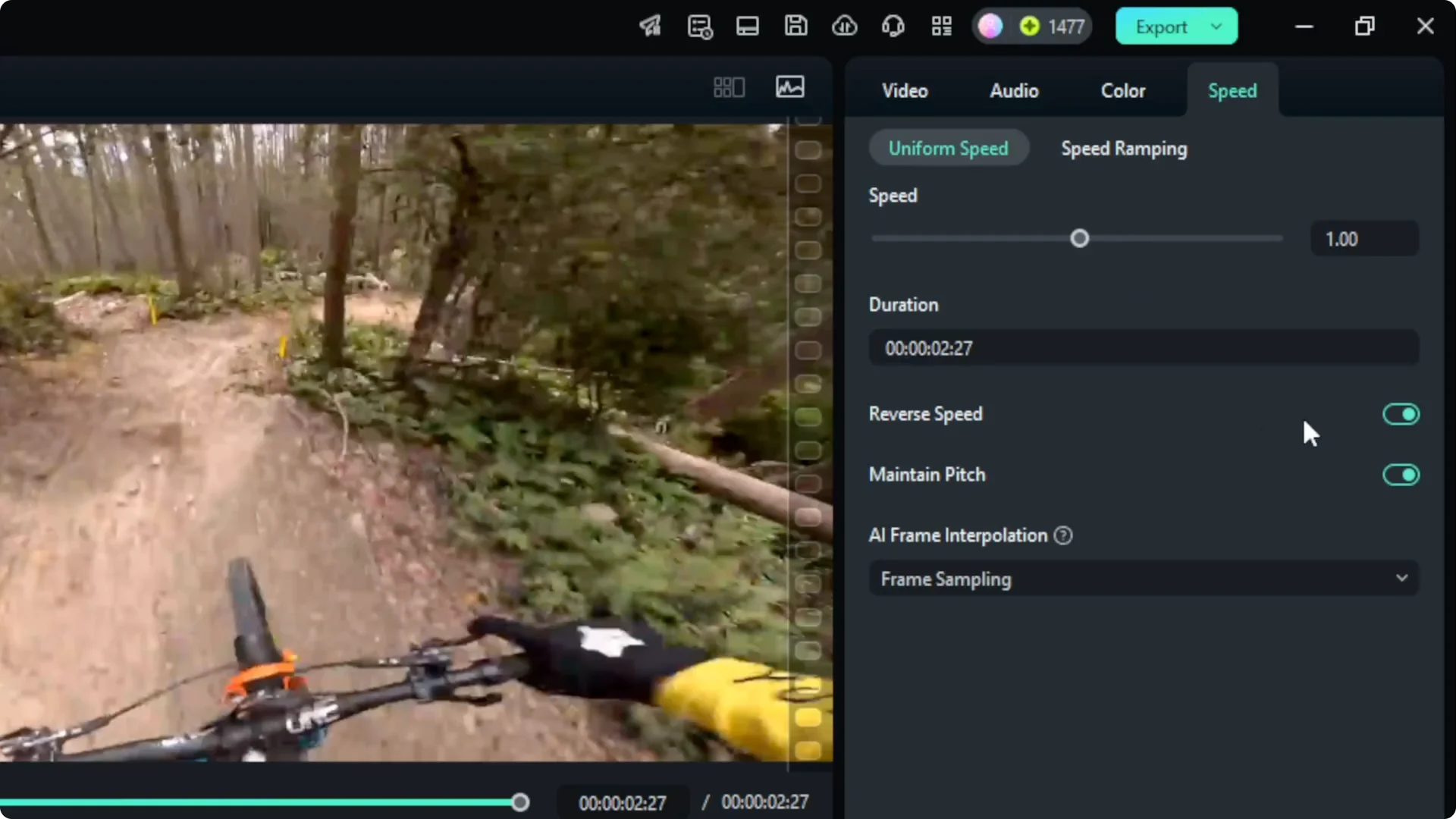
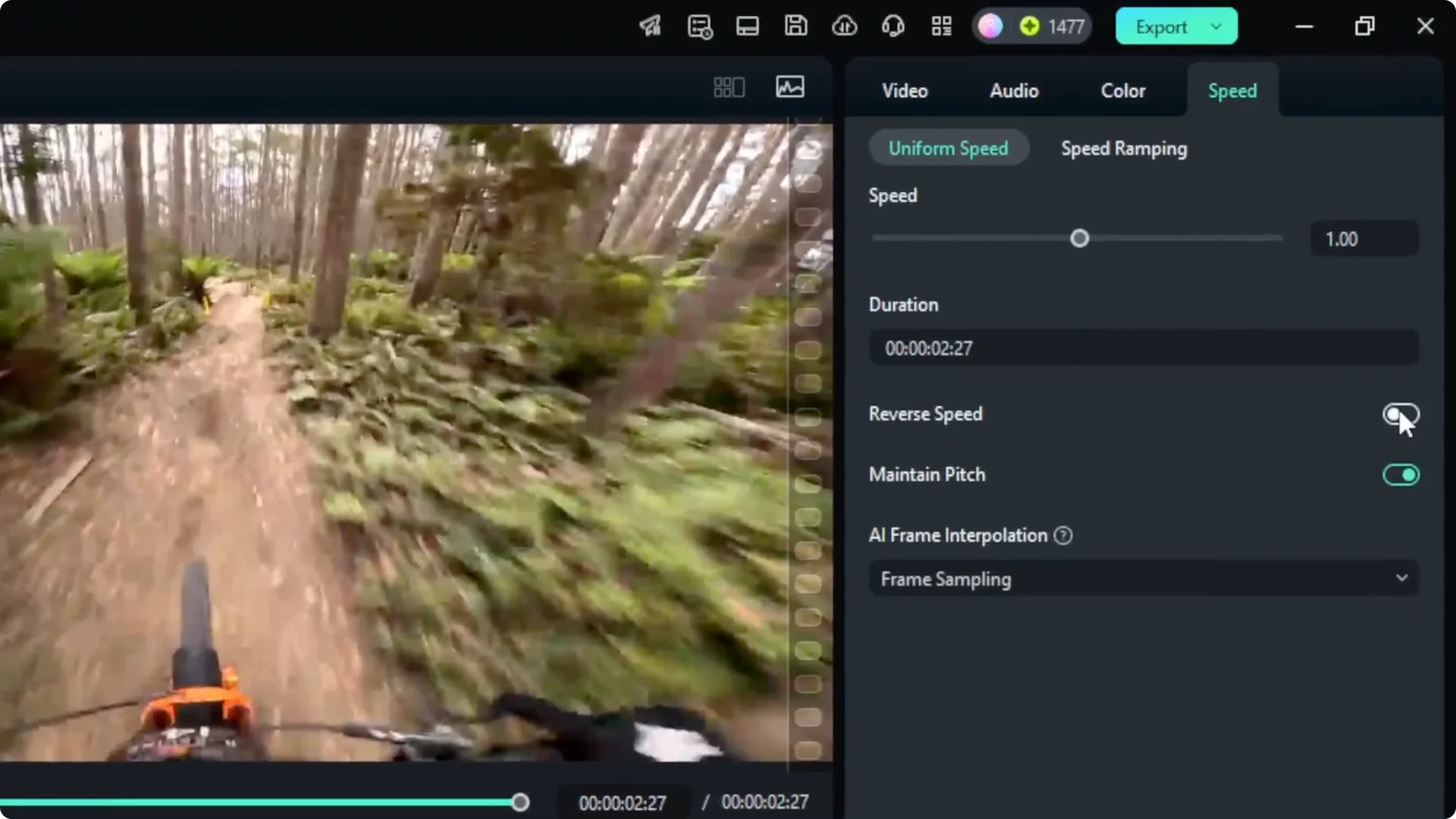
    Enable Reverse Speed

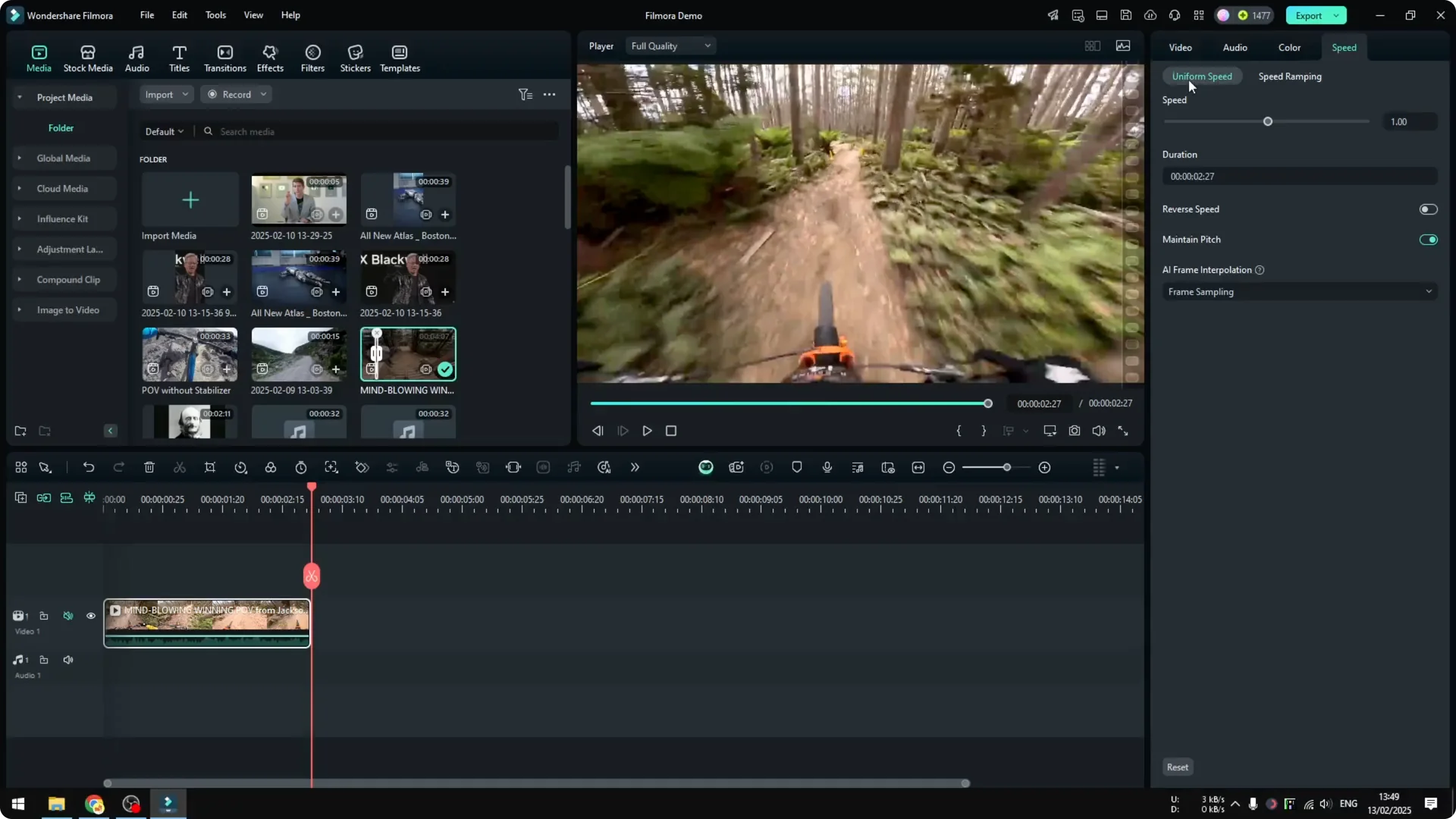
  • Click the clip on the timeline.
  • Open the Speed menu.
  • Click Uniform Speed.
  • Enable Reverse Speed.
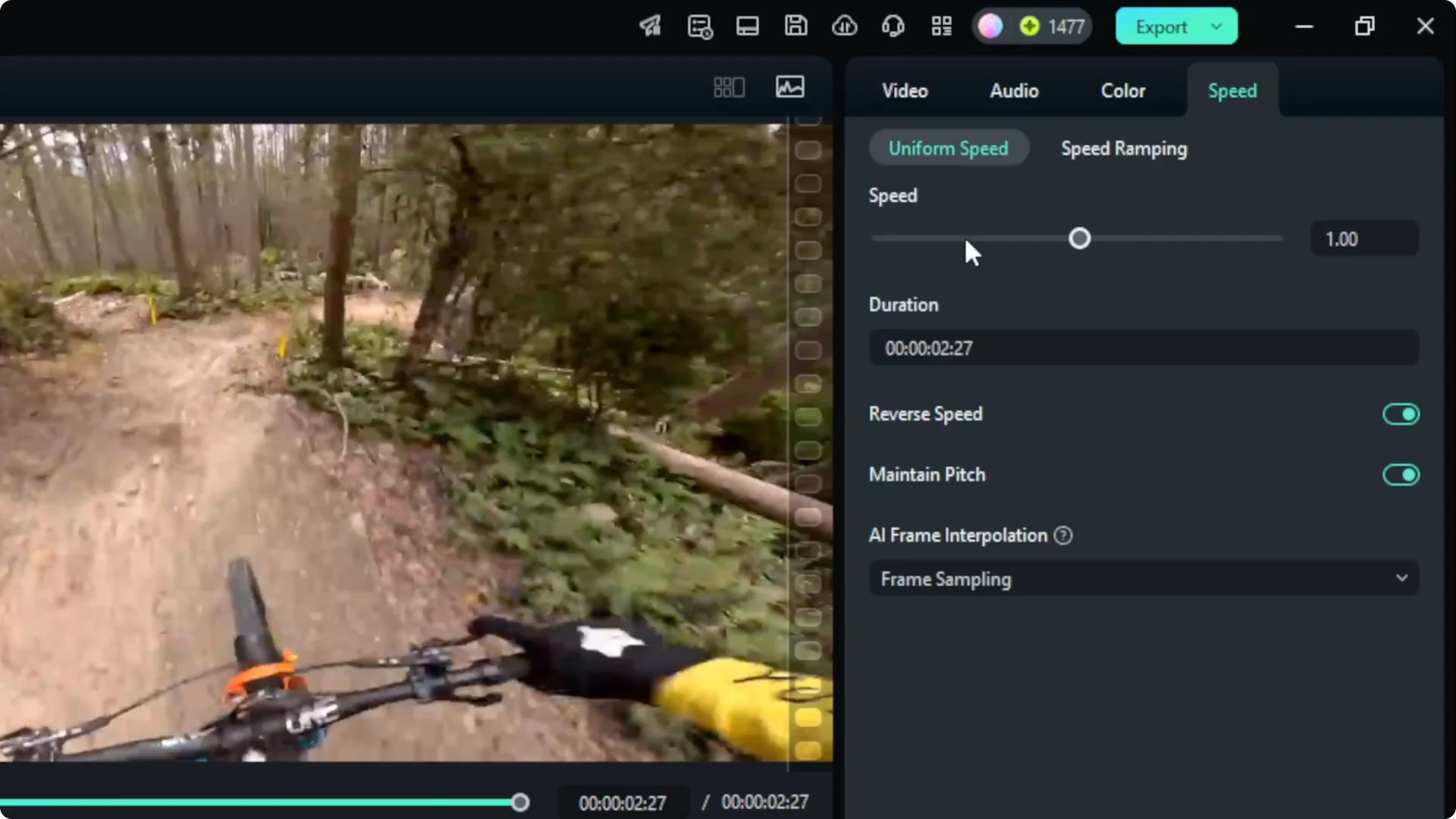
  • I recommend not changing the speed – don’t make it faster or slower. Just apply Reverse Speed.
  • How to Reverse a Video in Filmora screenshot 8

    How to Reverse a Video in Filmora screenshot 7

    How to Reverse a Video in Filmora screenshot 6

    How to Reverse a Video in Filmora screenshot 5

    How to Reverse a Video in Filmora screenshot 4

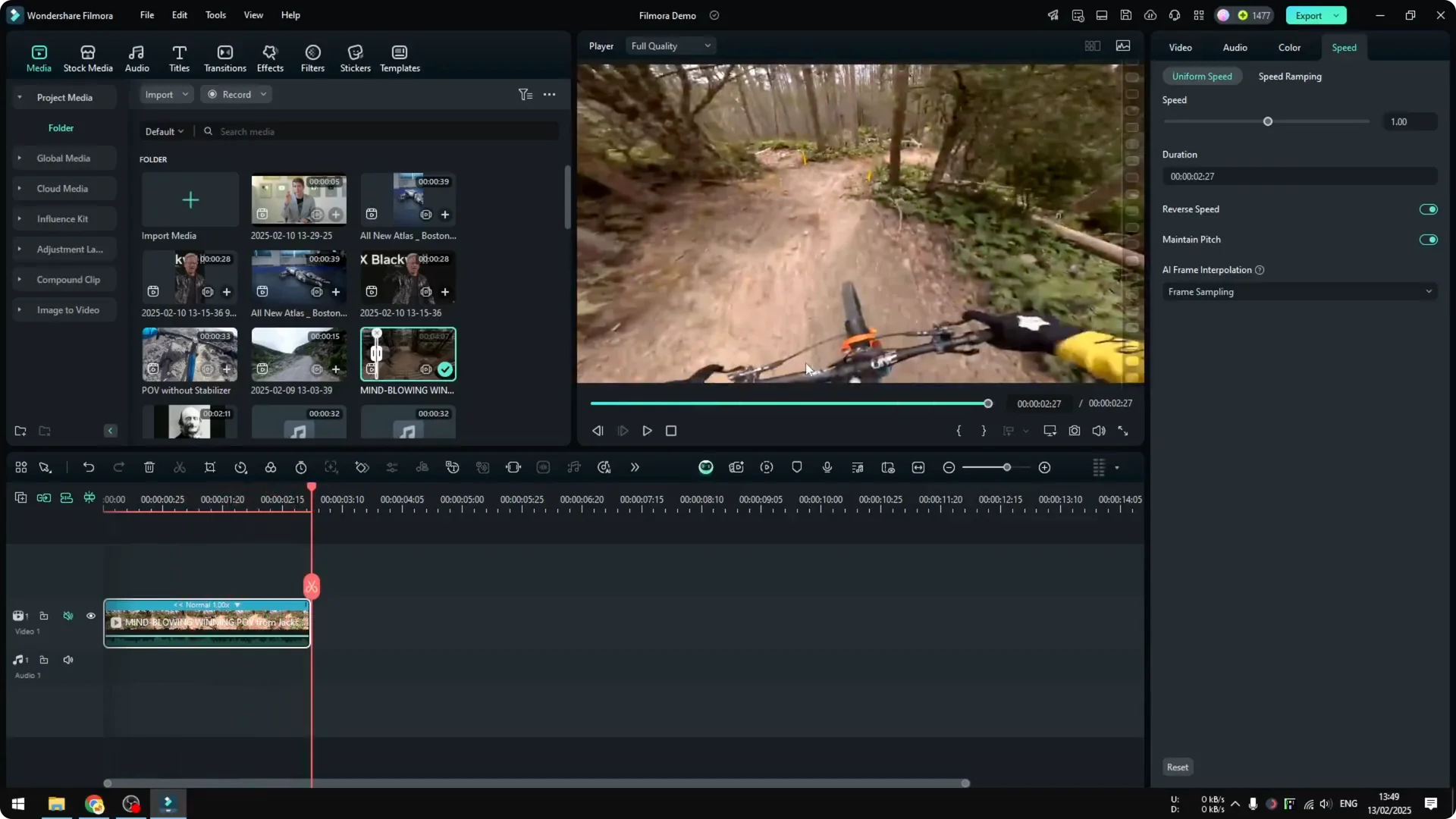
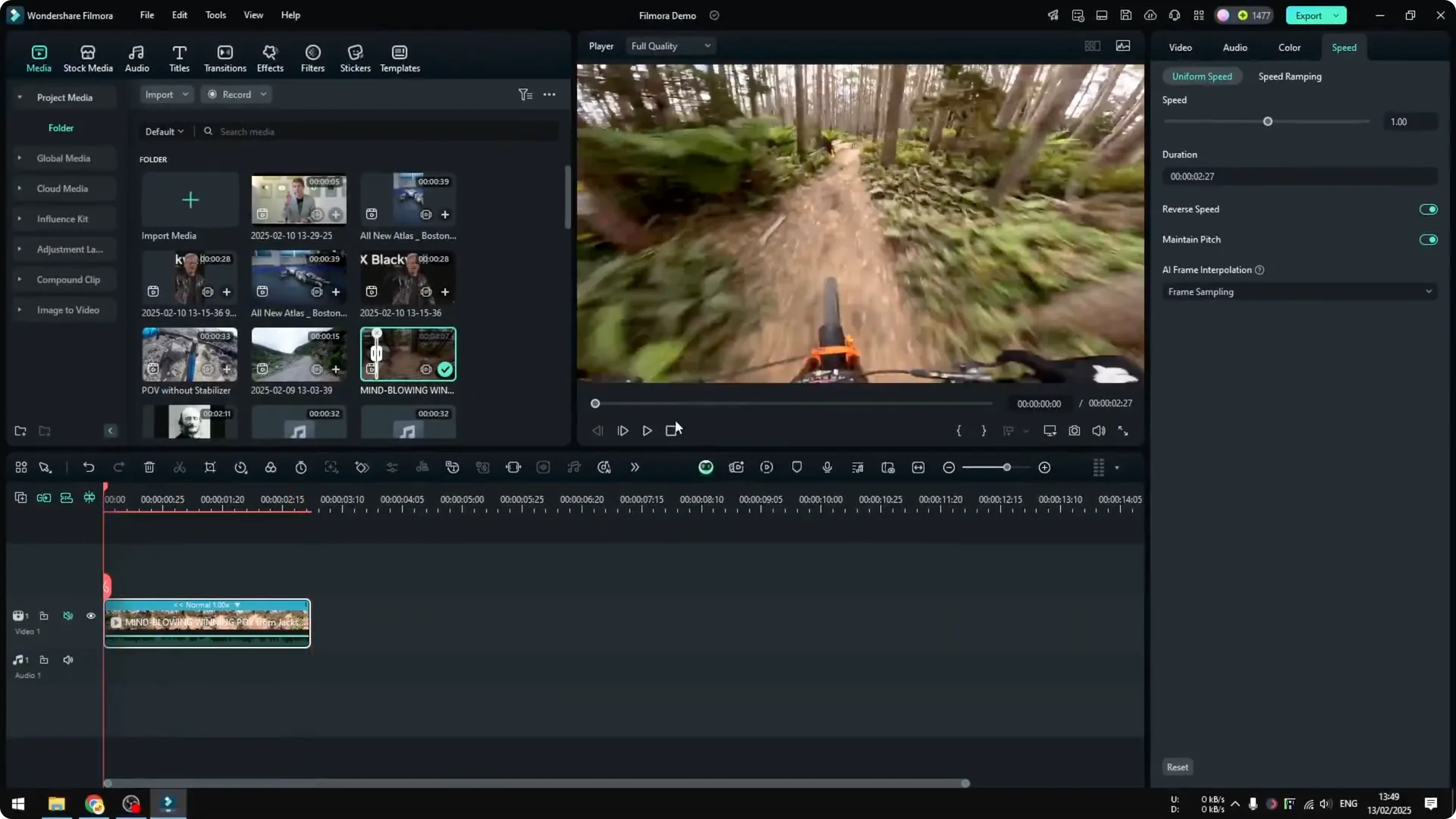
    Preview the result

  • Play the video again. You will see it going backward. In my case, the bicycle is moving backward, which is exactly what a reverse video does.
  • How to Reverse a Video in Filmora screenshot 10

    How to Reverse a Video in Filmora screenshot 9

    Final Thoughts

    Reversing a clip in Filmora is straightforward: add your clip, open Uniform Speed, enable Reverse Speed, and keep the speed unchanged. That’s all you need to make a video play backward.

    Leave a comment