If you tell stories, you need coverage. Getting the right angles from AI usually means a ton of prompting. I drop in one image and it gives me nine cinematic shots instantly.
Wide, over the shoulder, closeup. Then I pick the best frame, upscale it, and I have a clean shot list in seconds. I will show you the exact workflow and use cases for agencies and brands, animators, and video editors.
Higgsfield Shots Tutorial: What It Is
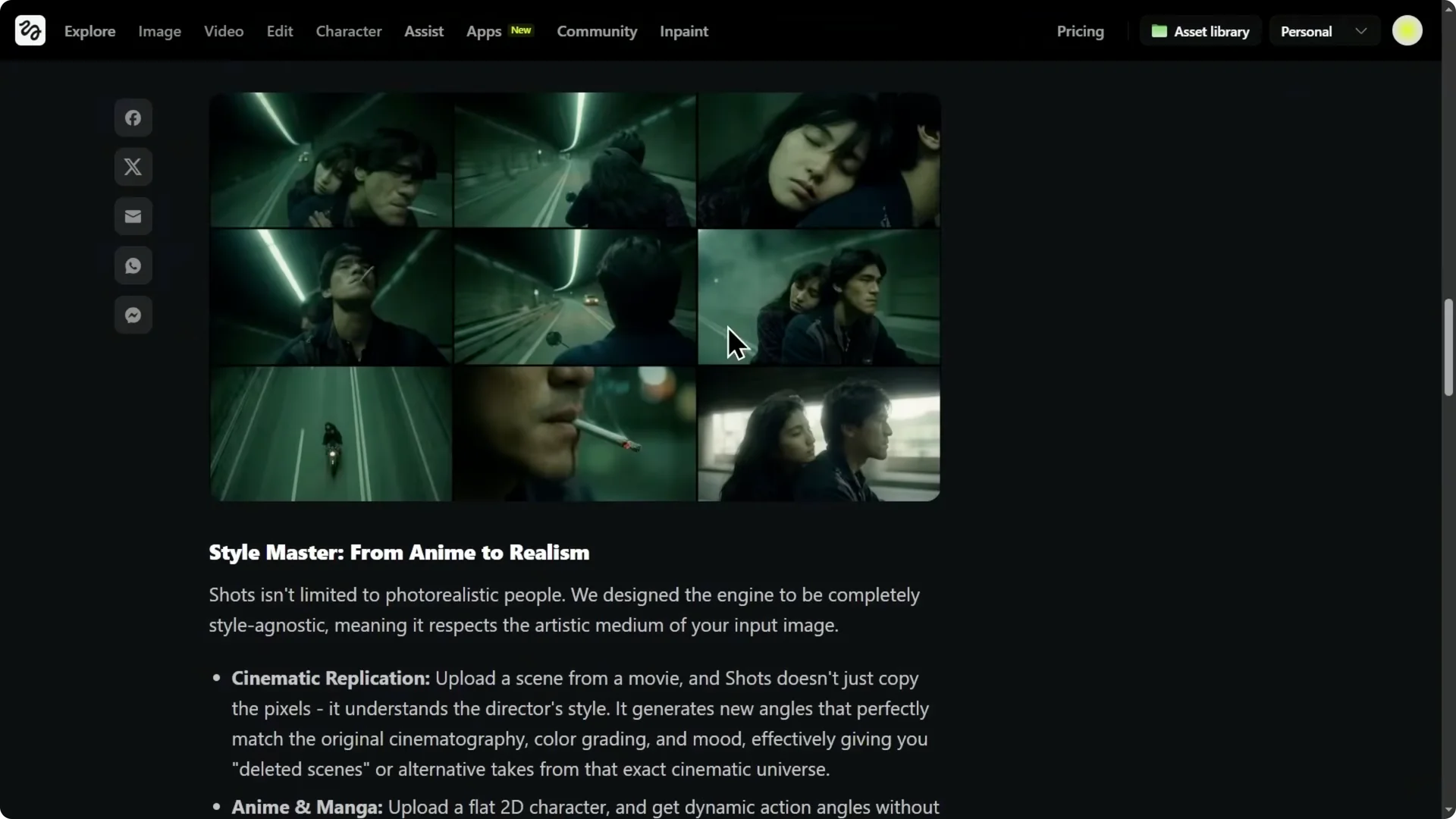
Shots is basically instant camera coverage. You give it one image, it generates a 3×3 contact sheet of nine cinematic angles that stay consistent. One image in, nine angles out.
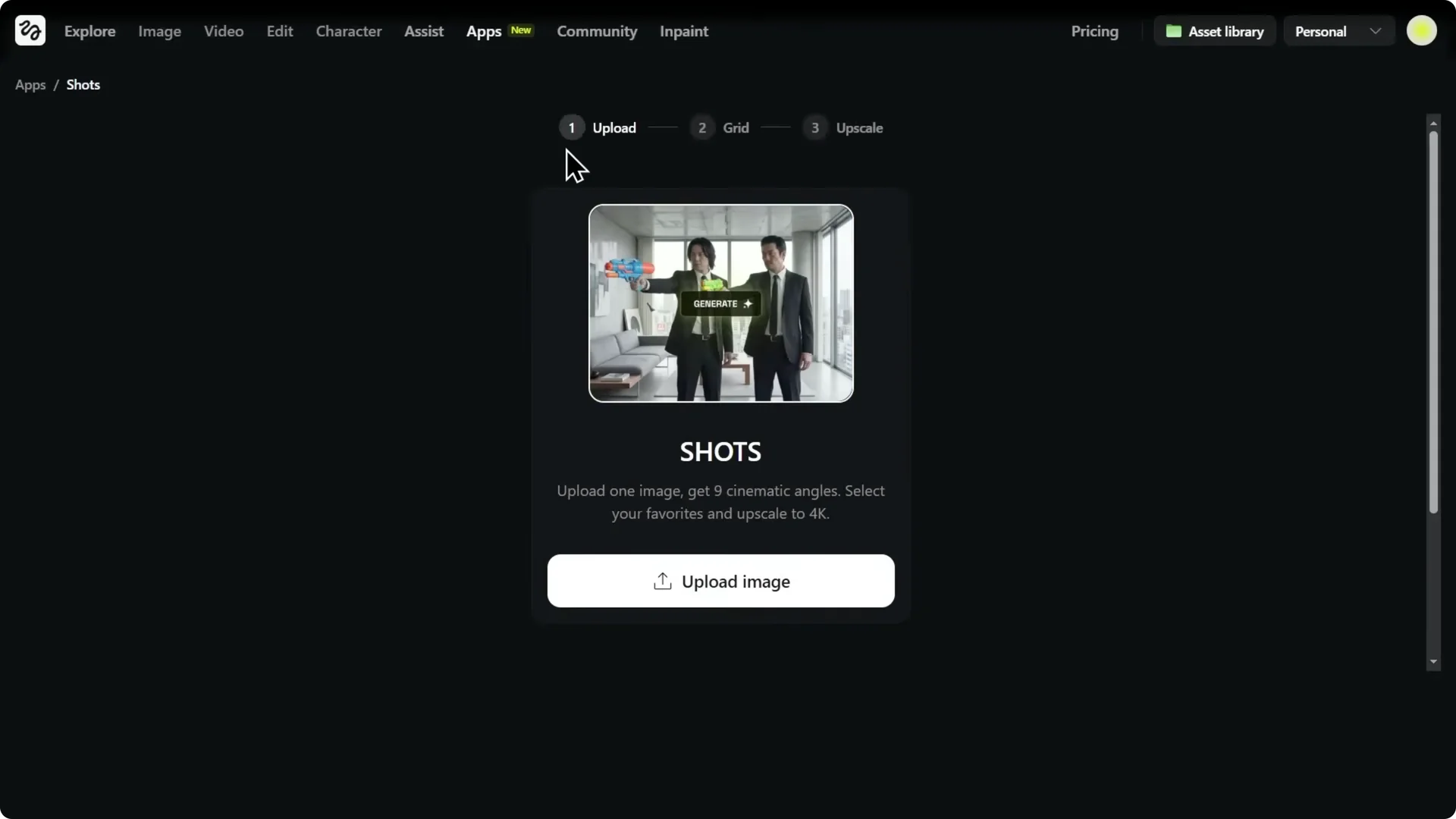
You will land on a simple interface with three steps. Upload, grid, upscale. That is the full loop.
For polish once you have your selects, see these easy editing tips for Higgsfield to clean edges and prep assets.
Higgsfield Shots Tutorial: Getting Started
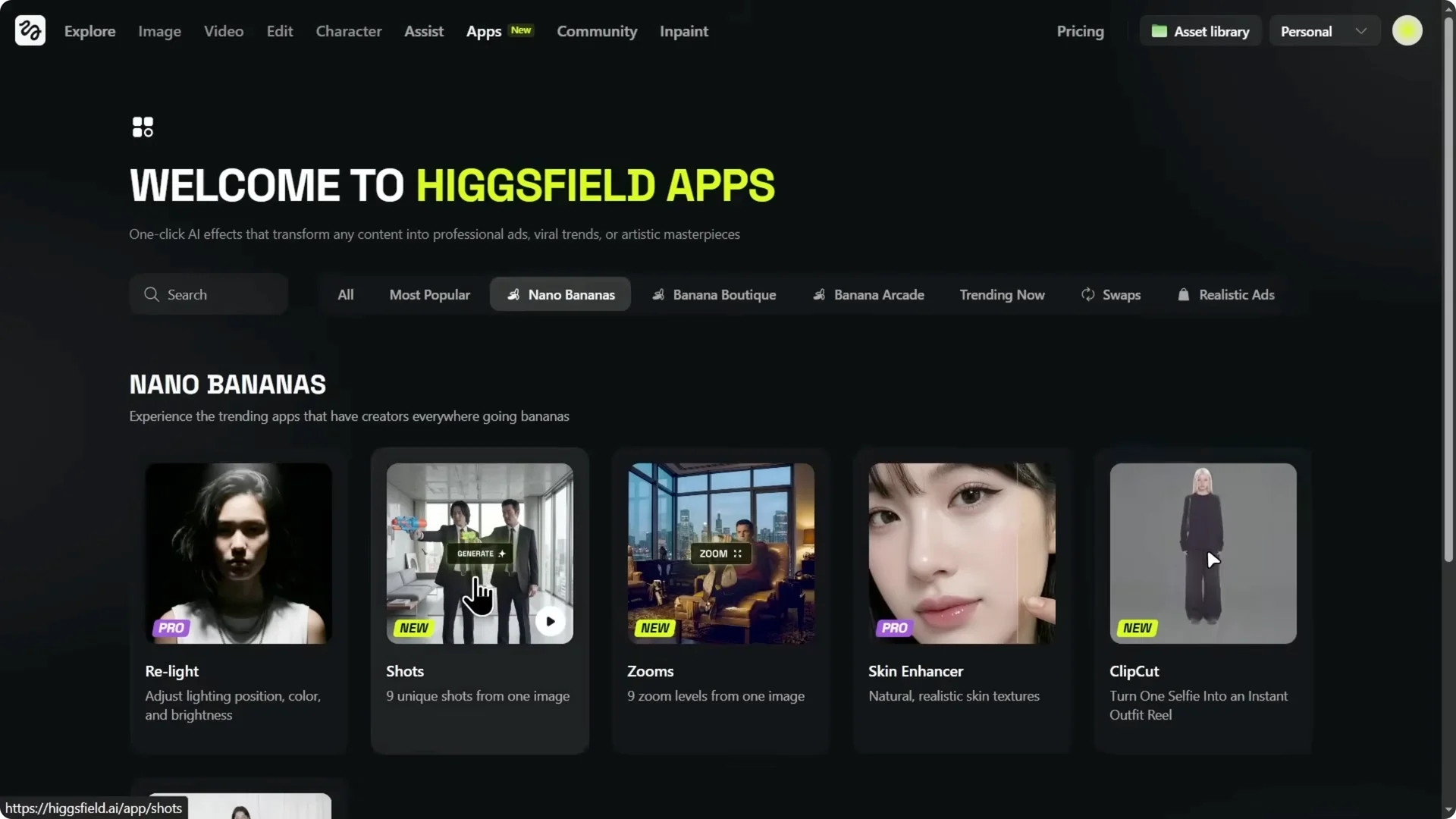
When you are on the Higgsfield website, go to the apps section and filter apps with Nano Banana. You will see Shots. Click it to open.
Step one: Upload a product or character image. Choose your ratio. You get nine angles for four credits, which is basically the cost of one standard 4K generation.
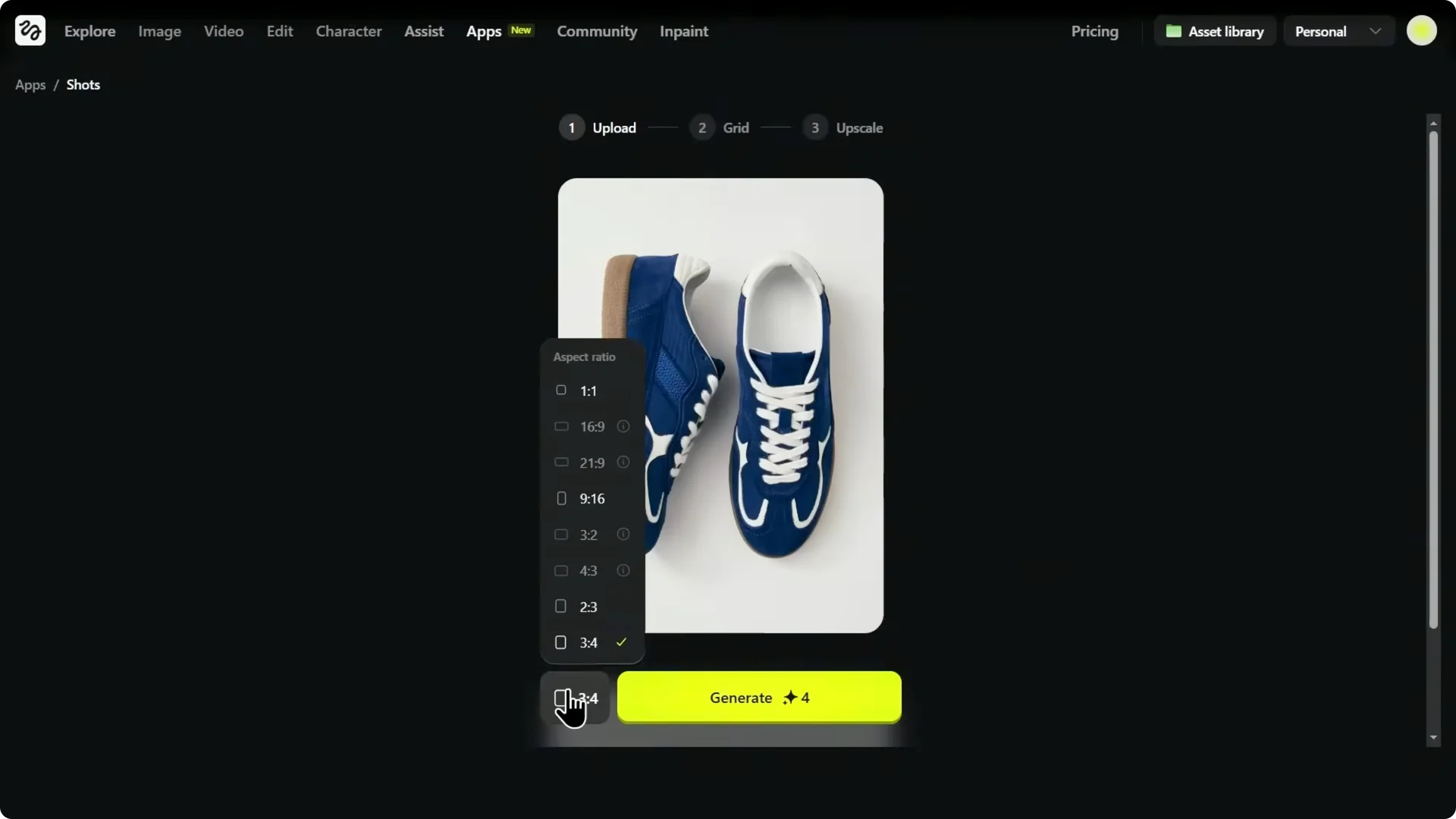
Step two: Review the 3×3 grid and pick frames that match your use. It is not random variations. It is coverage with different usable camera angles of the same subject.
Step three: Upscale only the keepers. Choose 2x or 4x so they are crisp and ready. Download and move to layout, storyboard, or video workflows.
Higgsfield Shots Tutorial: Agencies and Brands
If you have one clean product shot, Shots can turn it into a full set of variations instantly. Think listing images, ad creatives, and social posts without doing another shoot. I am starting with this simple sneaker photo with great lighting and a clean background.
You get nine angles right away. Here is how I choose based on where the images will be used. First, I need a clean hero image, something that reads instantly on a store page.
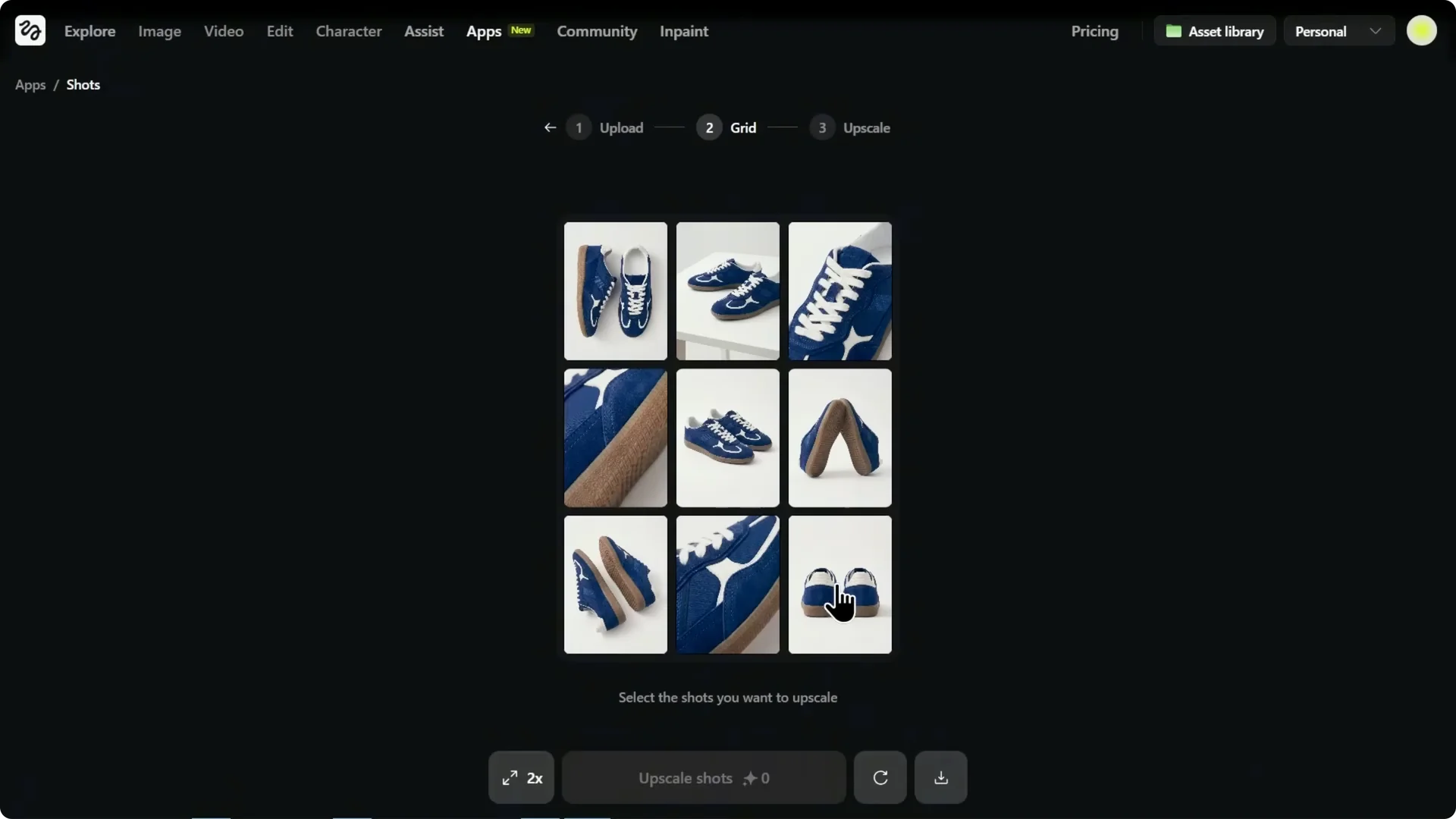
Then I want a 3/4 angle or side angle that sells the shape and silhouette. Next, I want detail, laces, stitching, material, texture that increases trust. And I always want outsole and back view.
Outsole sells build quality. Back view shows finishing. That is basically a complete e-commerce listing set from one photo.
Now I upscale only the keepers. This is where they become production ready for listings, ads, and thumbnails. Look at this closeup that shows texture, stitching, and material detail.
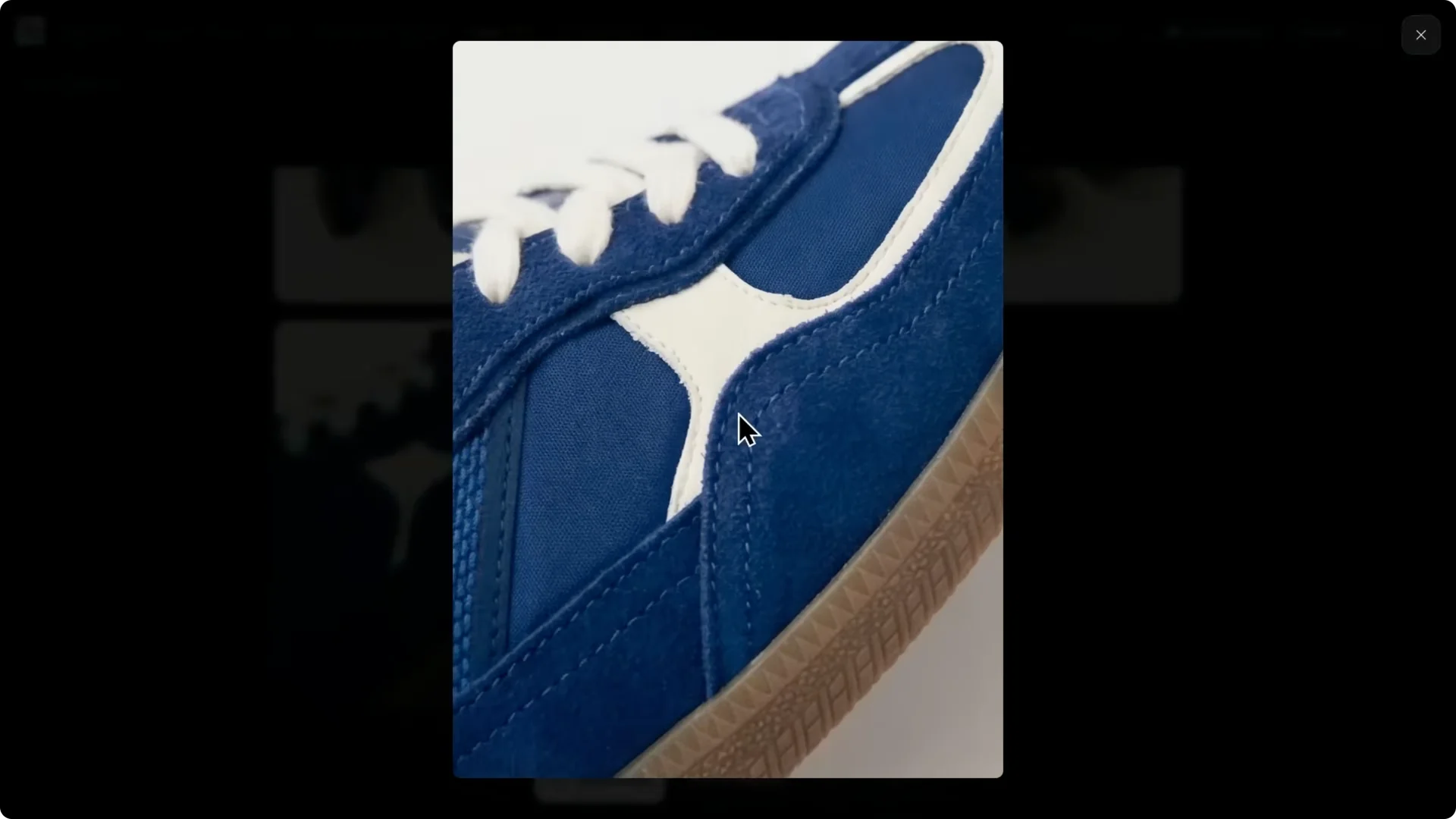
This is perfect for slide two or slide three in a product listing. It is also a great hook image for an ad because it feels premium and tactile. If you want video creatives, take any one of these upscaled frames into an image to video model and animate it.
For brands, this is instant creative coverage. One product shot becomes a full set of usable listing and ad variations in minutes. Same goes for model shoots with the same clothing and character.
You can take your shooting image and generate new angles while keeping styling intact. This feature is a huge timesaver as it requires zero prompting. That is the entire point.
Higgsfield Shots Tutorial: Animators and Anime Series Creators
The hardest part is consistency. Same character design, same lighting, same mood, but different camera angles. That is exactly what Shots is good at.
I am uploading this image as a starting point and watching what happens. It generates nine angles that still feel like the same scene. Same expression language, same jacket details, same warm lamp mood, same wood texture.
I am building a scene pack like instant storyboards. I pick a wide for location, a medium for performance, a close-up for emotion, plus one detail shot because anime lives on detail. Next, I upscale the keepers and download.
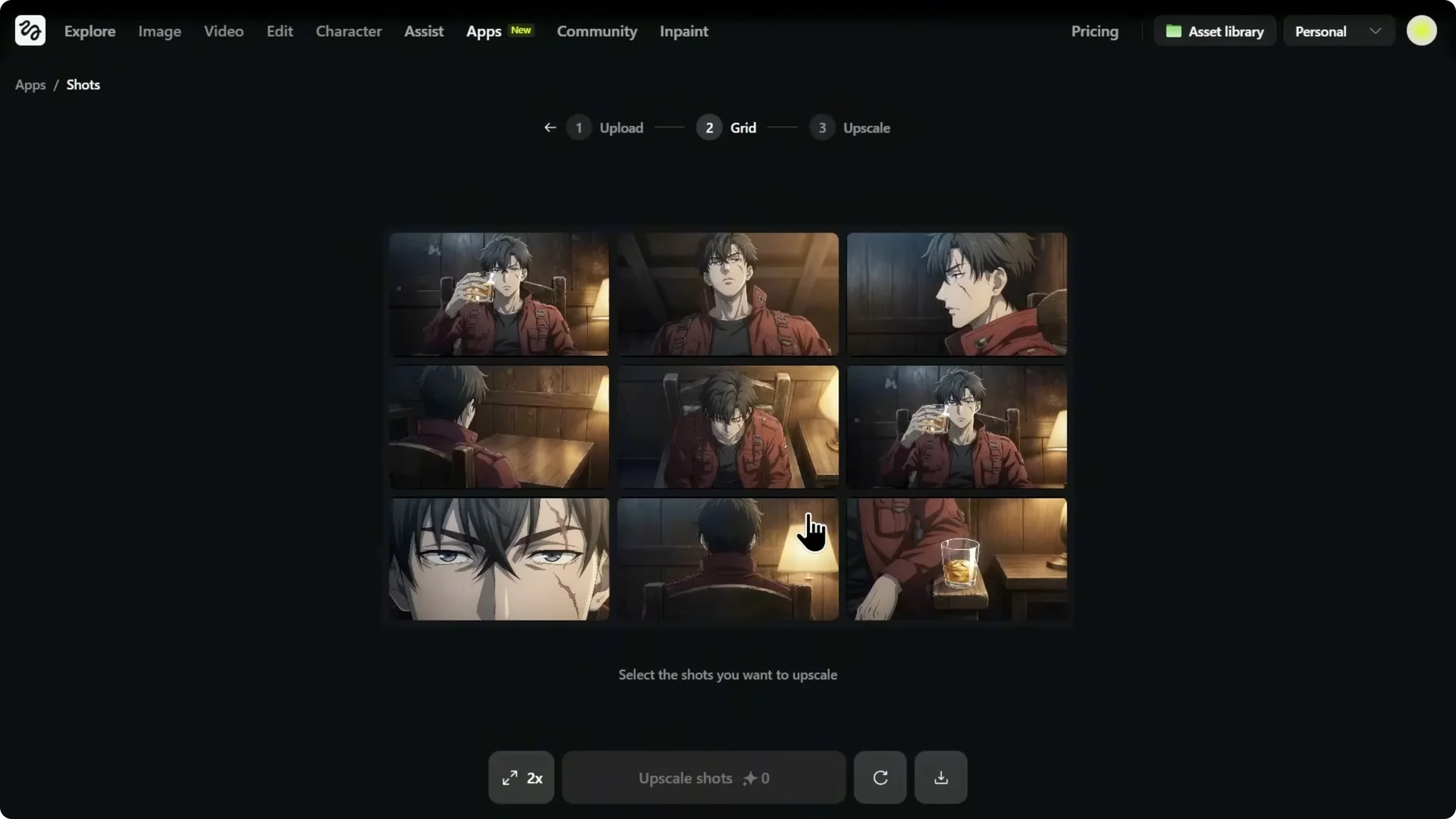
These become clean key frames. From here, I can take the key frames into WAN 2.6 and generate short clips. Those storyboard panels turn into moving shots.
It is not about the drink, it is about what is left after. I have seen too many things burn out and I am not sure if I will survive this one. That mood carries across angles without re-prompting.
If you are adding stylized effects or composites on top of these keys, see this guide to VFX with Higgsfield AI to plan passes and layering.
Higgsfield Shots Tutorial: Video Editors
During an edit, you always need extra cutaways and B-roll angles to keep the pacing clean. Shots solves that by giving you coverage from a single frame. If you are using an iconic scene as a reference, this gives you fresh angles that still feel like the same moment.
I get a full contact sheet and the grid is my preview. Once I find the frame I like, I upscale it to 2x or 4x so it is crisp and ready. I take that upscaled frame into an image to video model and turn it into real B-roll.
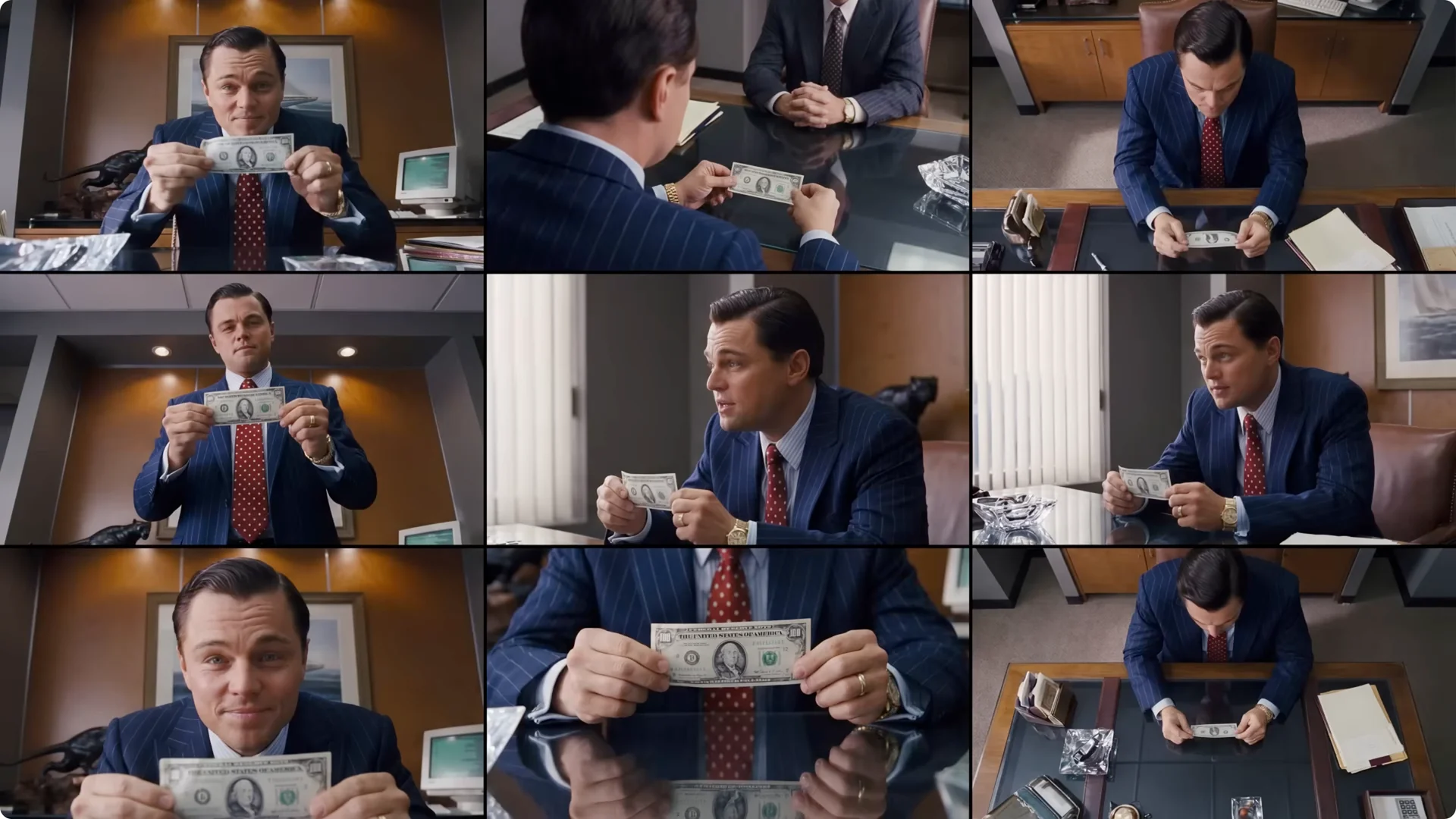
These videos are ready to drop into your timeline as cutaways, inserts, and reaction beats, so your edit feels fuller without hunting for footage. Pick your winners, upscale, and deploy. That is it.
For faster timelines and assembly, check out these quick editing workflows for Higgsfield videos that pair well with Shots outputs.
Higgsfield Shots Tutorial: Models and Updates
Higgsfield has added GPT image 1.5 and WAN 2.6 so you can generate your images and then push them into consistent video workflows. That makes the image to video handoff simple. Keep your subject, lighting, and mood intact while exploring more camera coverage.
Final Thoughts
One image in, nine cinematic angles out. Pick your winners, upscale, and you are ready to storyboard, build listings, or generate B-roll. Shots turns a single frame into instant coverage without prompts.