I am going to show you how to apply a video effect in Filmora. There are many effects in this program, and they can make your video more interesting and engaging. Here is how to apply an effect to a clip.
Getting started with Applying Video Effects in Filmora
Step 1: Put your video on the timeline.
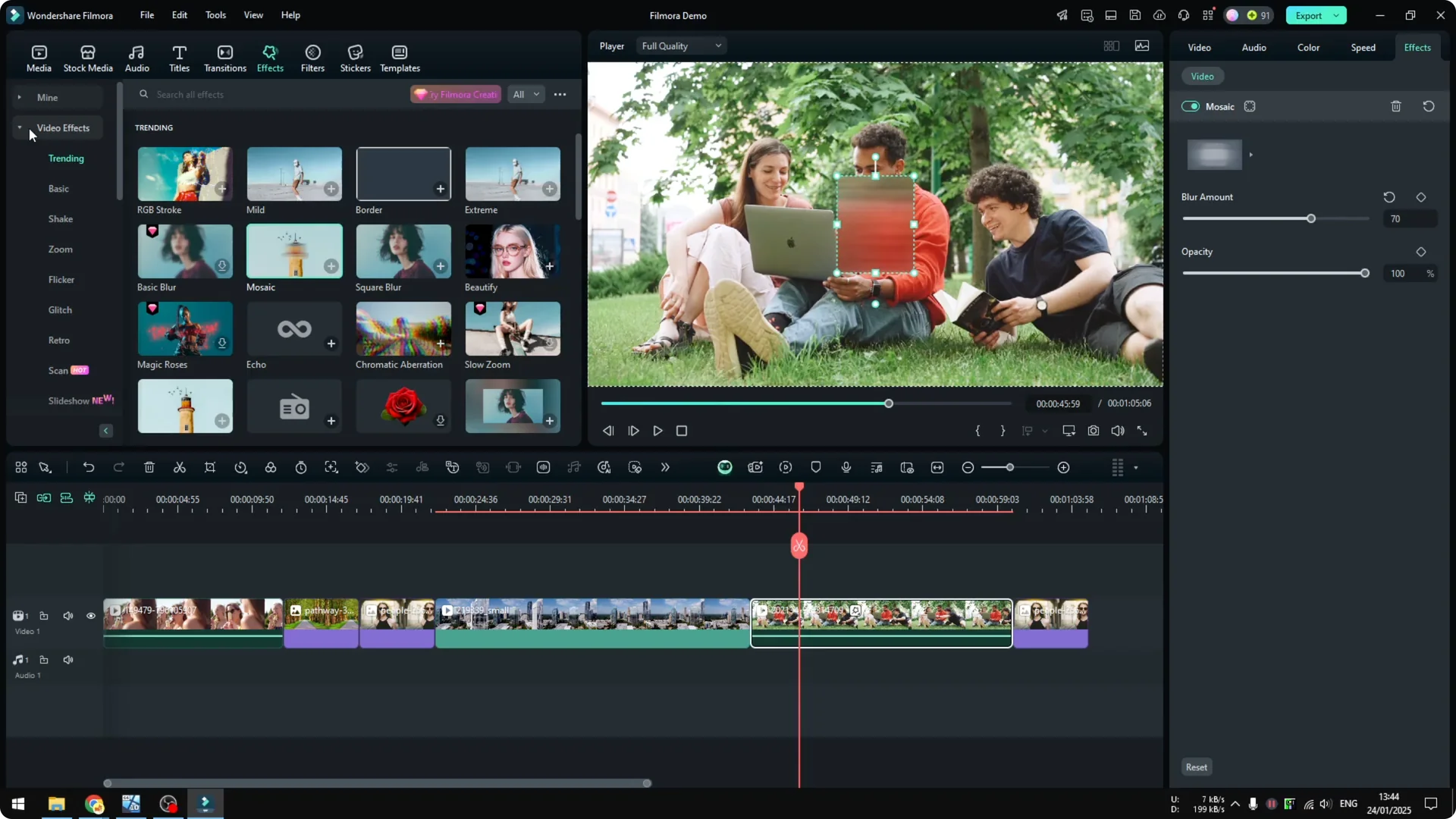
Step 2: Go to the top menu and open the Effects section. On the left, you will see effect categories, and clicking a category reveals the effects inside it.
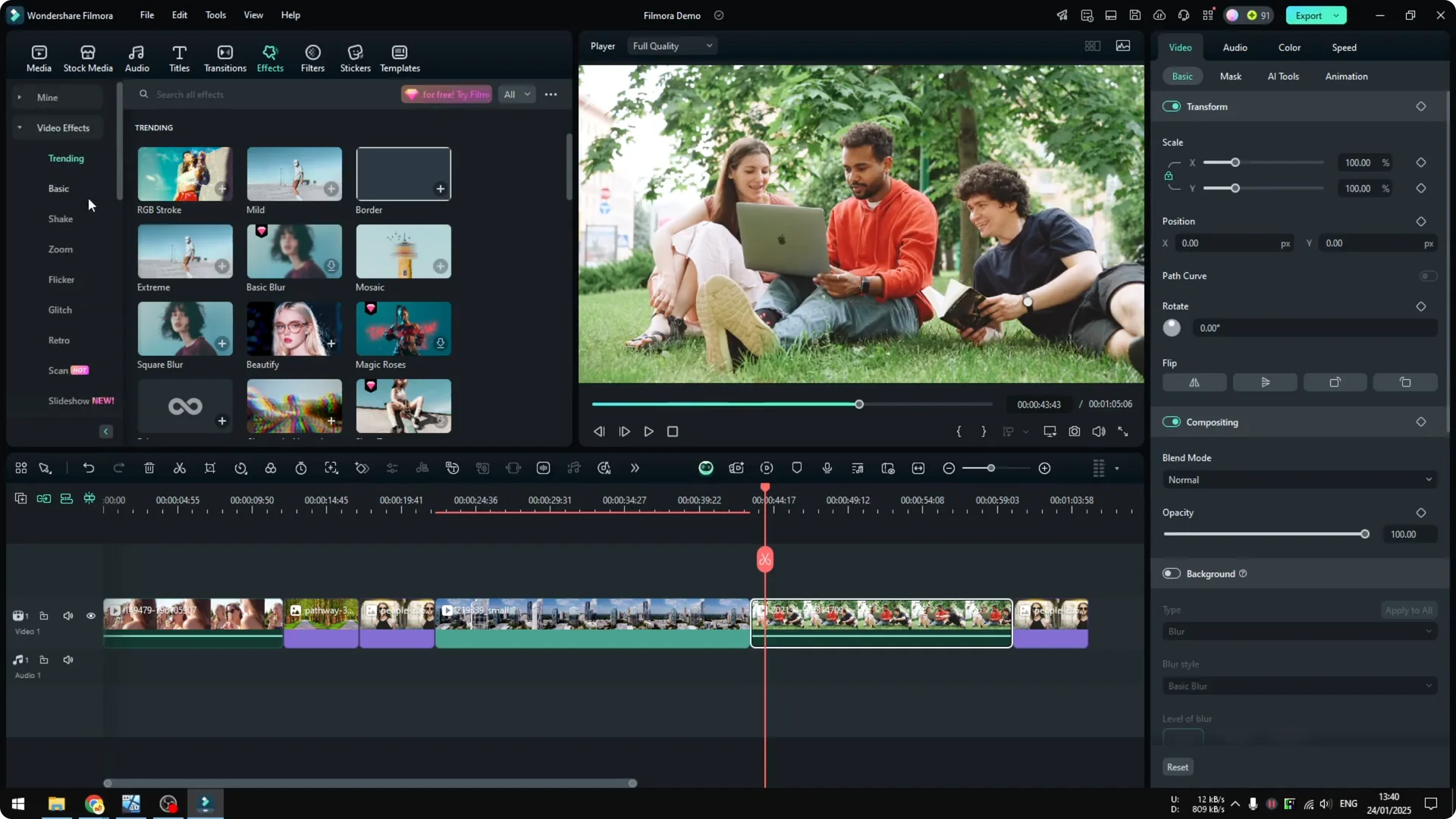
There is one icon that matters here. The pink diamond icon means the effect requires the Filmora Creative Assets plan. I am using Filmora Free or Filmora Lifetime Edition, so I cannot use effects with the diamond icon.
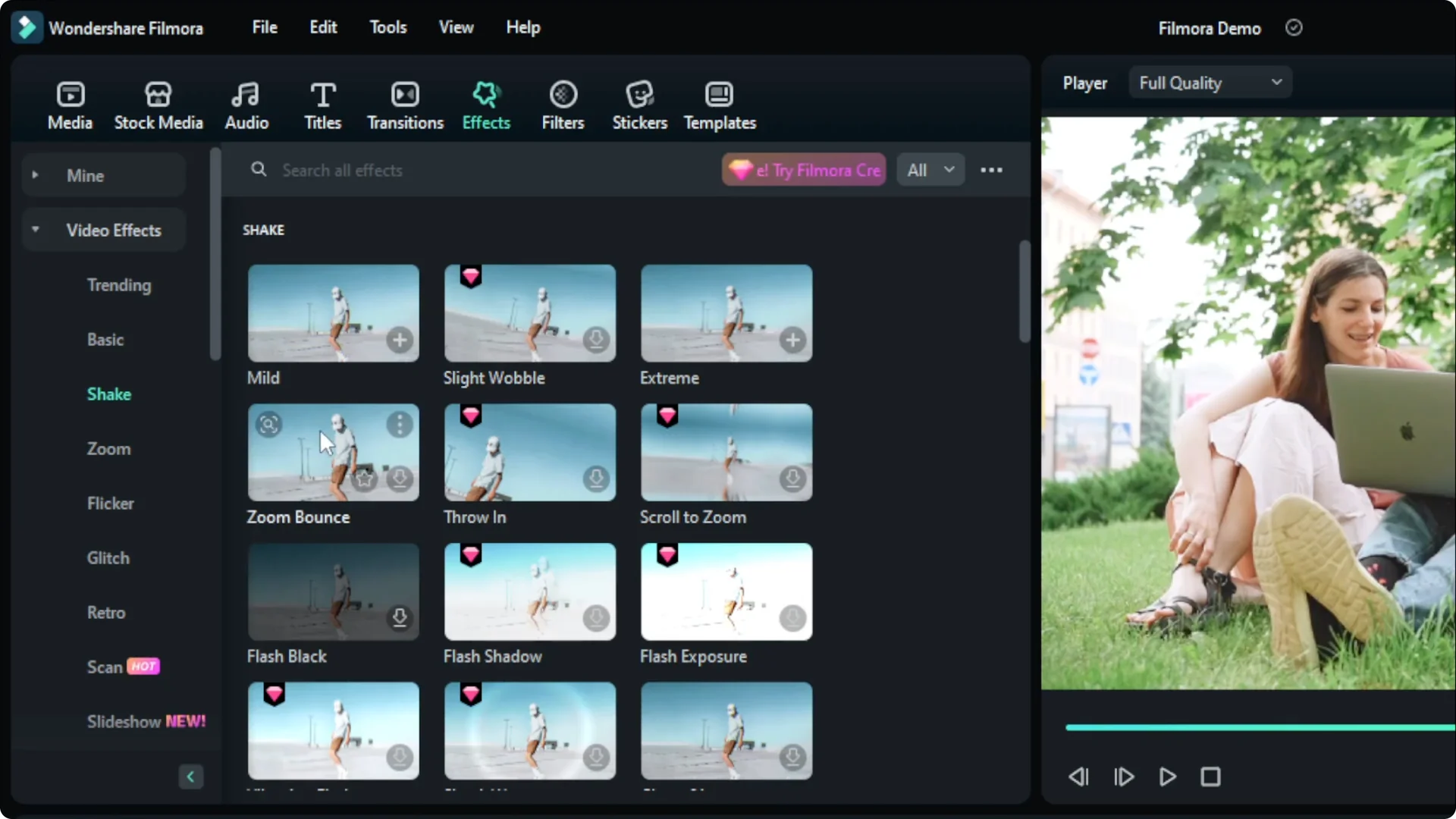
I can only use effects that are free and not labeled with the diamond. In my opinion, that is perfectly fine. The free effects are good enough.
Applying a sample effect in Filmora
I downloaded an effect called Slideshow. It is premium, but for a limited time it is free. I am going to apply this effect to my video.
Click and drag the effect on top of the clip you want. Filmora may show a notice that it is a premium asset but available for a limited time. I just check the prompt and click OK.
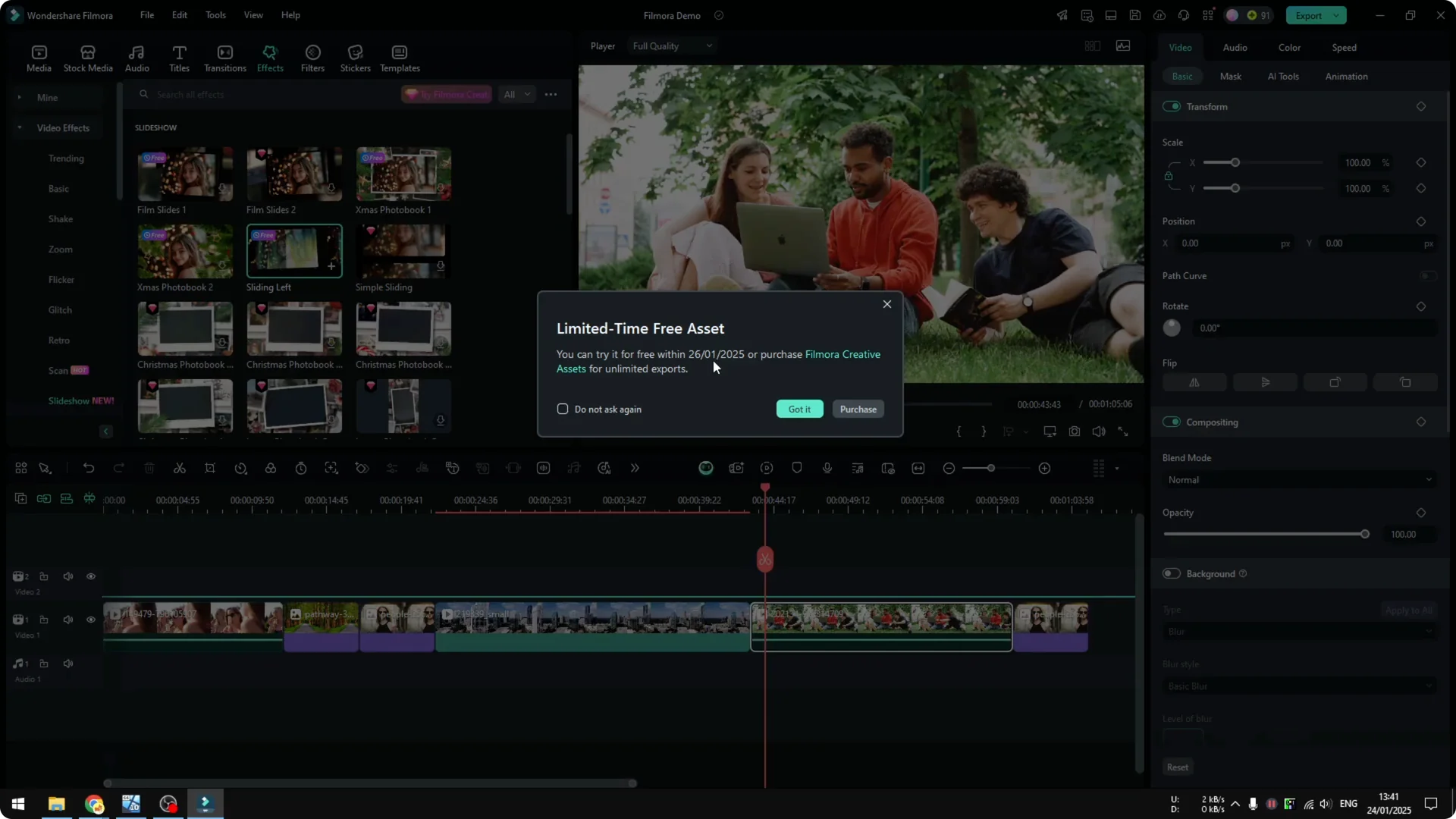
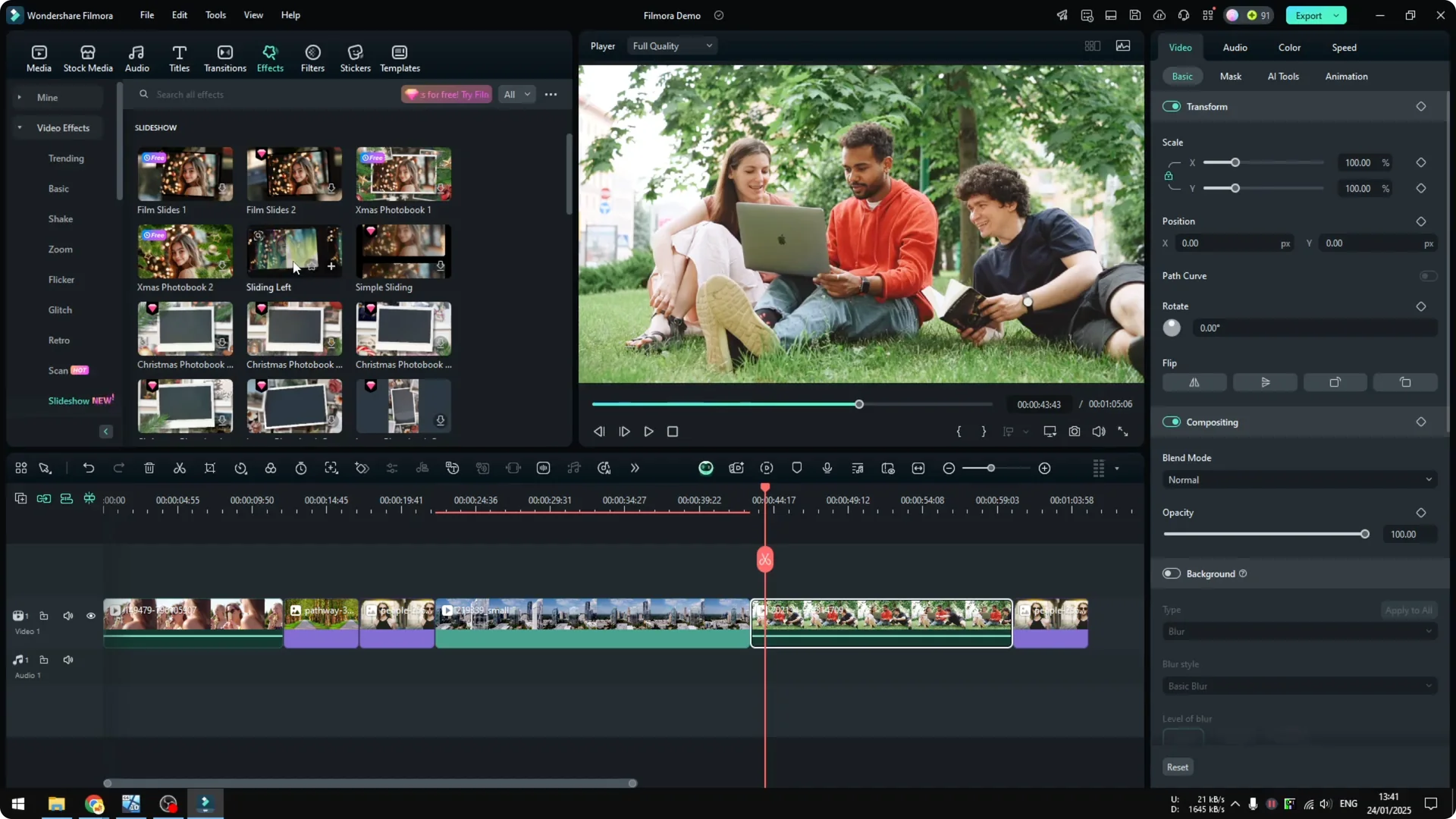
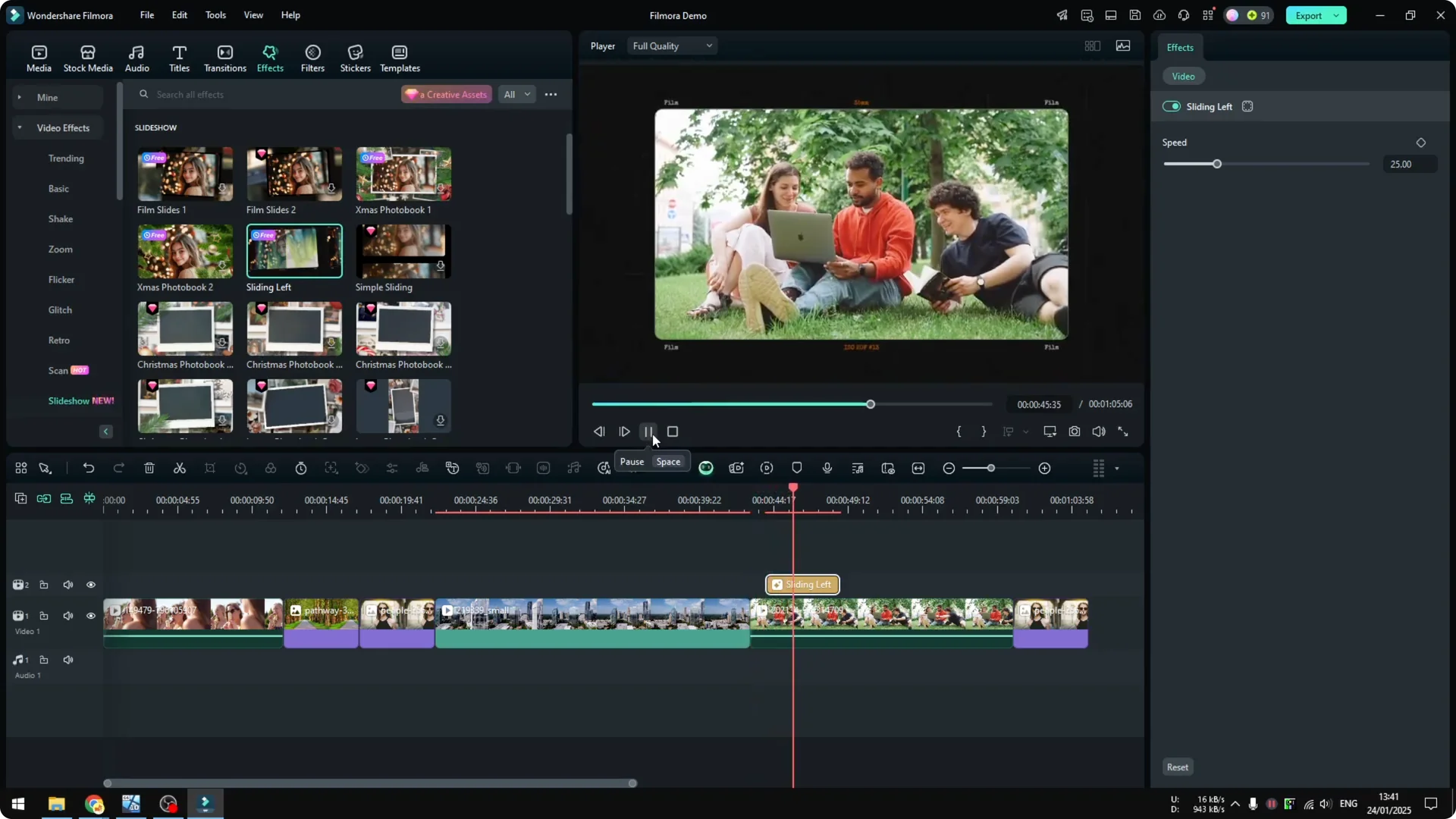
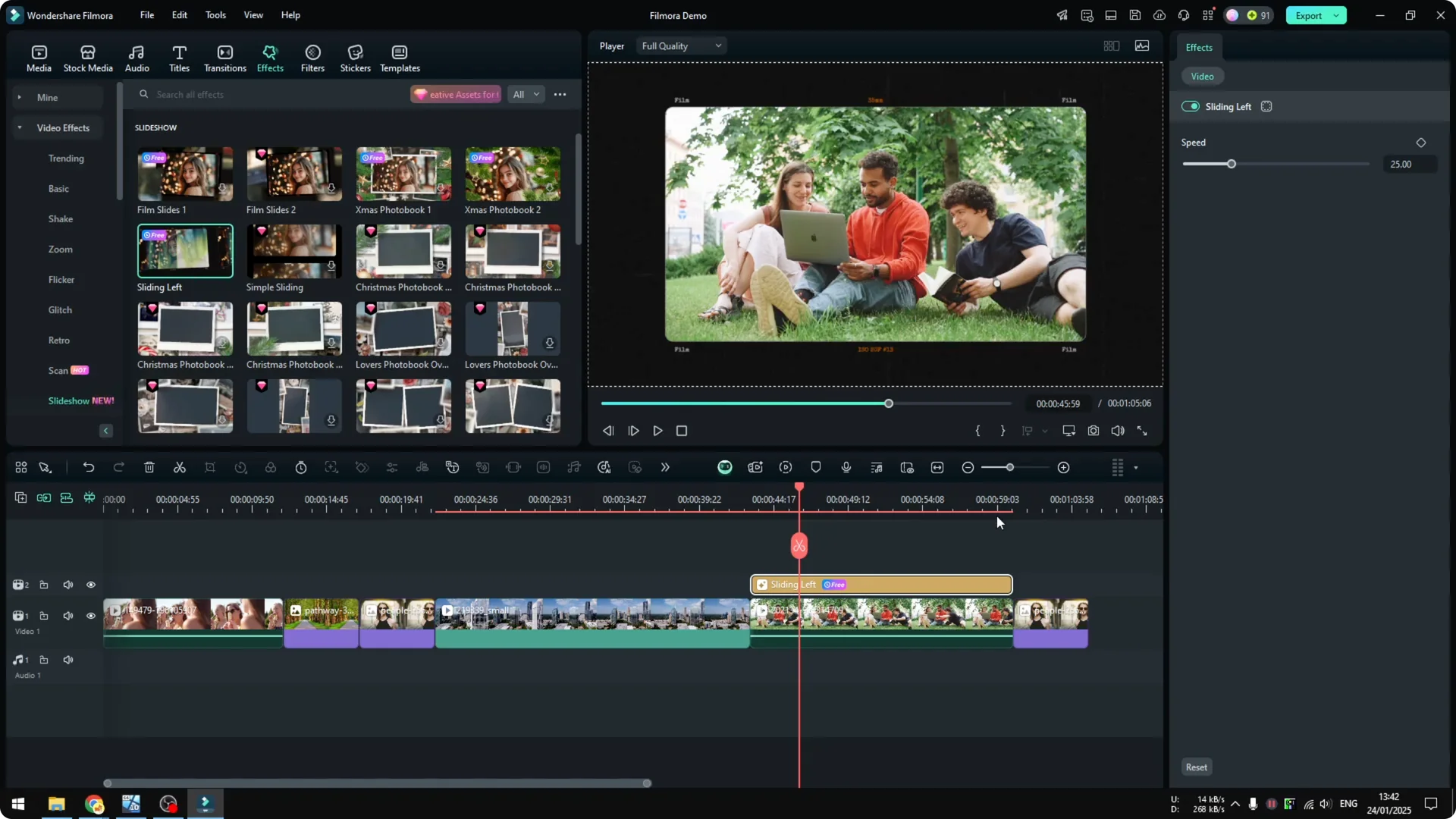
It turns the video into a nice screen style that makes the video more interesting. I extend the effect for the whole clip. It creates a really nice transition from one clip to another.
Read More: Glitch transition tutorial
Customizing effects in Applying Video Effects in Filmora
Customizing is easy. Double click the effect to open its settings. If you are on a previous version, you might need to click a settings icon.
I am using Filmora 14 with the Default layout. If you use the Classic layout, the access point is different, and you have to click the icon to open effect settings. I am more comfortable with the Default interface.
For this Slideshow effect I can only adjust the speed. That is a bit limited, because many other effects offer more adjustments. So I will try a different effect that gives more control.
Using the Mosaic effect in Filmora
I want to try the Mosaic effect. It is very useful if you want to censor something on the video or blur the face of a person. You can definitely use this effect for privacy or clarity.
Instead of putting this on top of the clip, you can put it directly on the clip. Drag it onto the clip so it becomes embedded. When you release the click, the effect is now part of the clip.
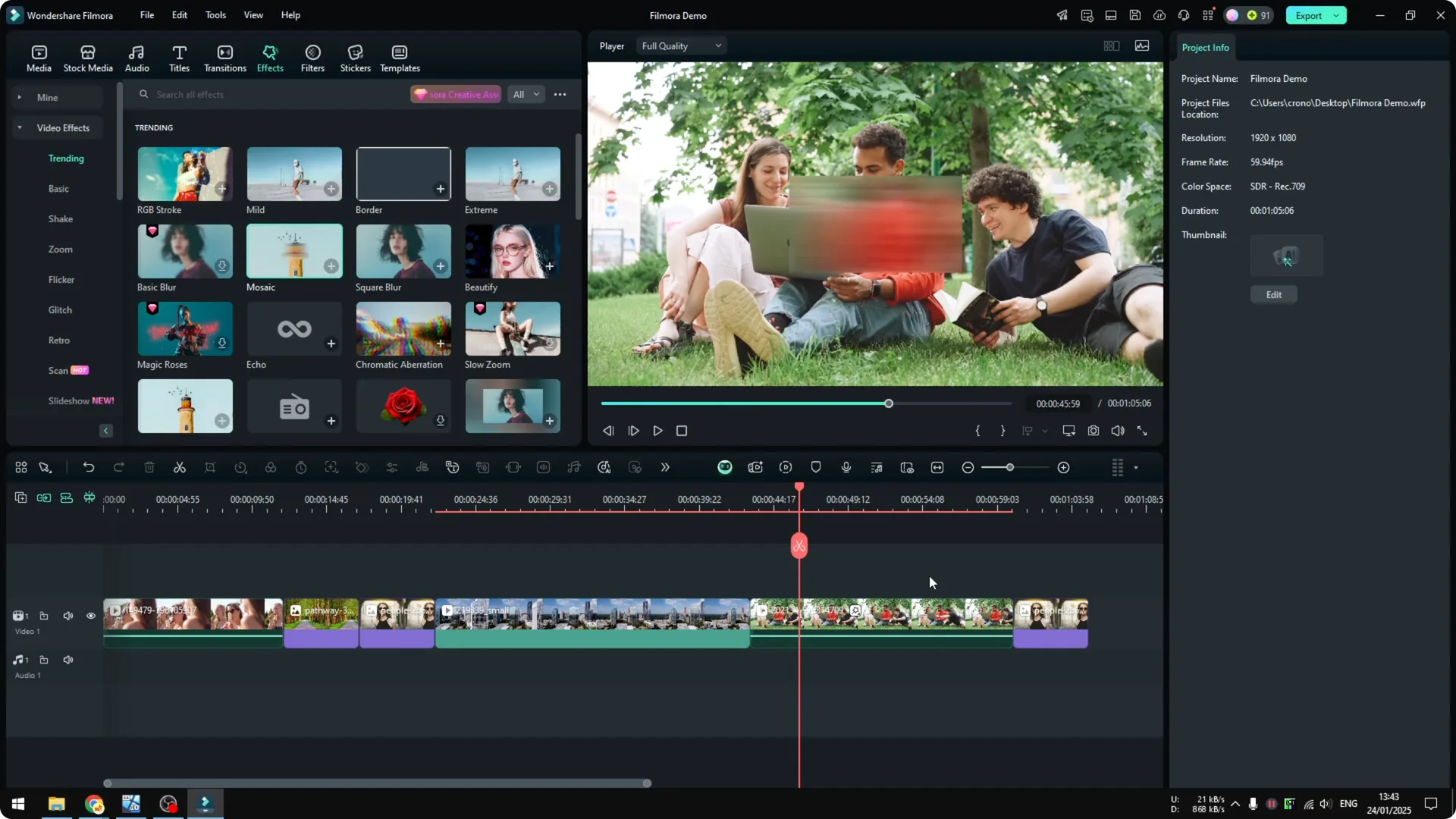
To modify it, double click the clip and open the Effects tab. You can select the blur type, change the blur amount, and adjust the opacity. You can also move and resize the mosaic area.
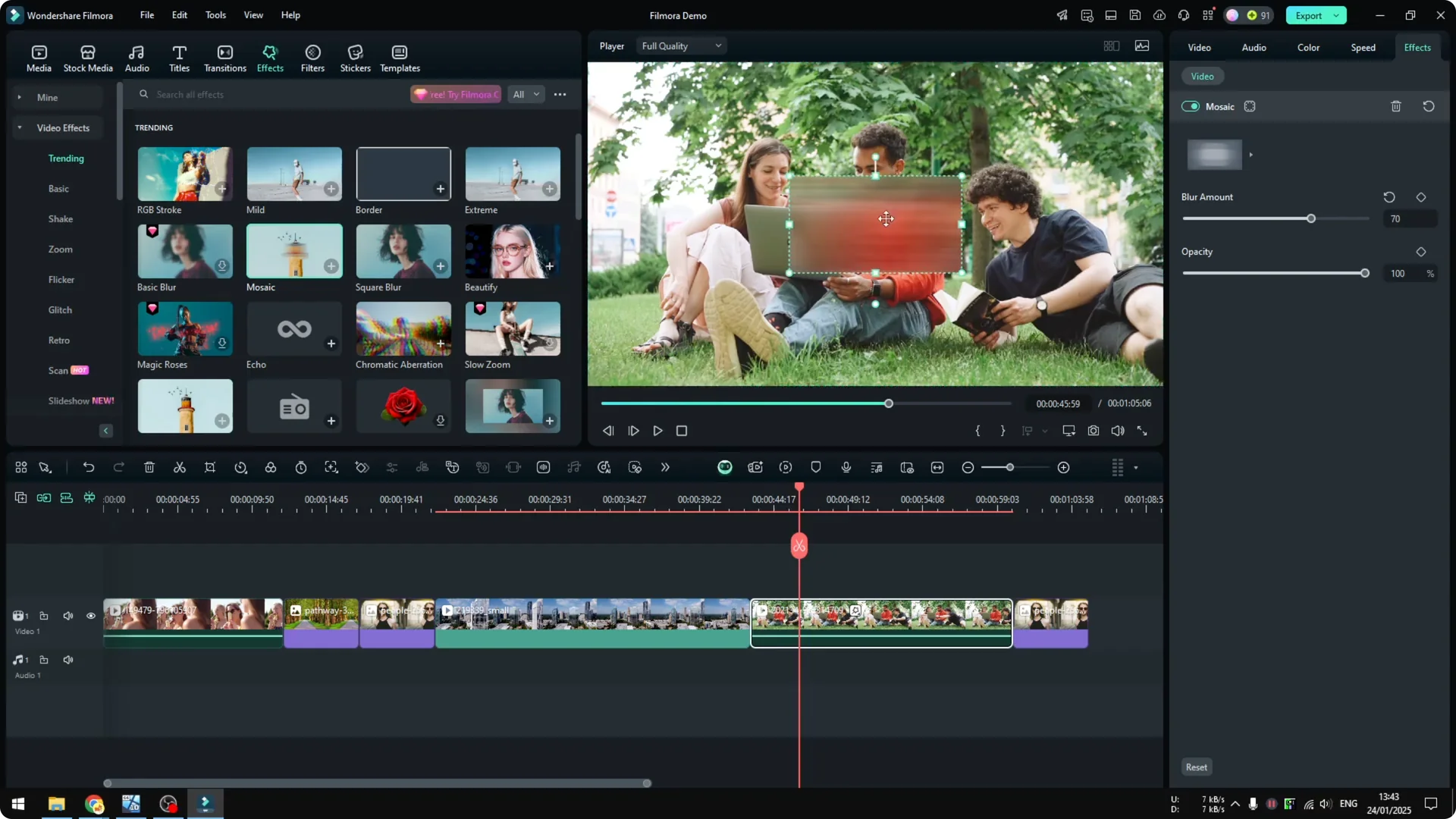
Keep in mind that every effect can have a different way to use or interact with. I cannot show you all the effects here. Each one has its own interactivity and use case.
Read More: Animate titles and text
Audio effects in Applying Video Effects in Filmora
There is also an Audio Effects section. It is very useful for certain use cases. You could apply Echo to your audio.
You can make your voice sound like you are talking in a big room like a hotel lobby. There is also an effect that makes your voice sound like an old radio. In many cases I use these on some videos, and they are really helpful.
Read More: Improve video quality with AI in Filmora
NewBlue FX and Boris FX in Applying Video Effects in Filmora
Honestly, I never tried NewBlue FX and Boris FX. From tutorials I watched, they are different from the built in effects. Since I am using a Filmora Lifetime license, I do not have access.
I would need to pay for the Filmora Creative plan, which is unfortunate. They look quite advanced. For my creative purpose, the default Filmora effects are good enough.
Final thoughts on Applying Video Effects in Filmora
Add your clip to the timeline, open Effects, and choose from the free options if you are not on the Creative Assets plan. Drag the effect onto the clip or above it, then double click to tweak the settings. Explore visual and audio effects, and pick the ones that fit your project and workflow.