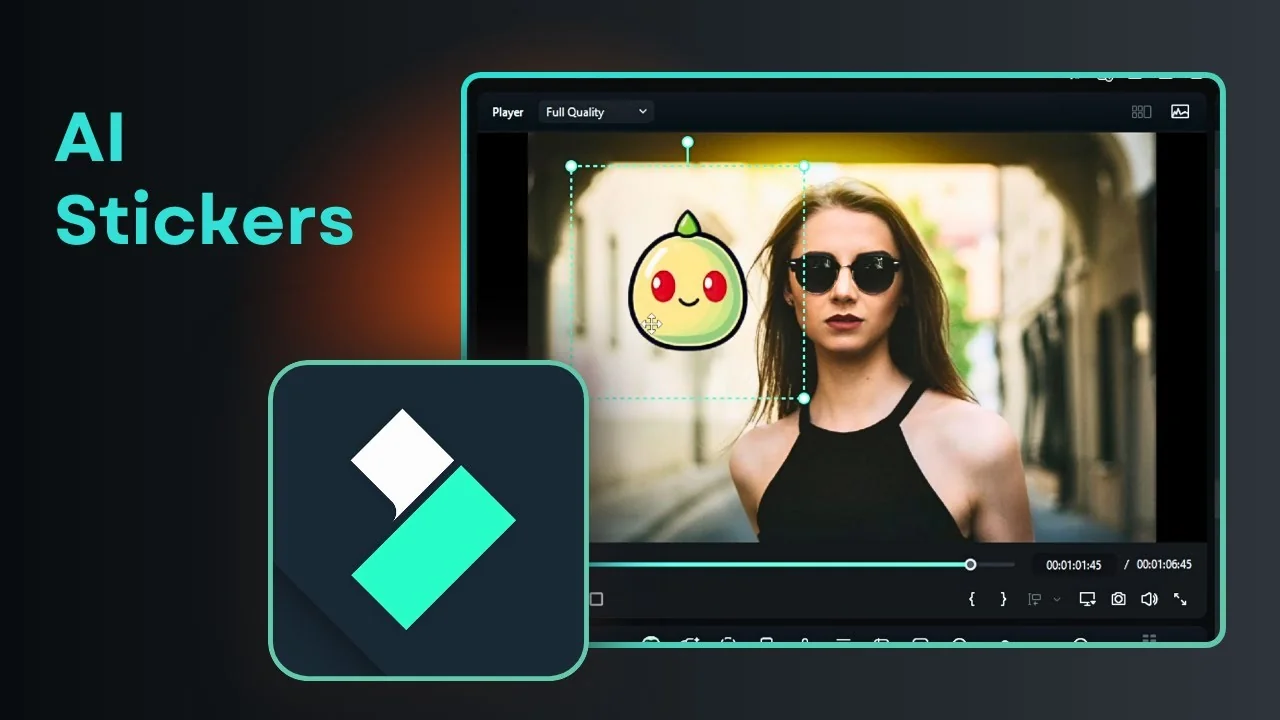
I am going to show you how you can create an AI sticker in Filmora. This sticker was generated right in Filmora. It is not coming from Google or any other website.
I think it is very useful to use this feature. There is a new tool called AI Sticker in Filmora, and if you love using stickers on your video you will find it beneficial.
Why I use the Filmora AI Sticker Tool
I want a custom look that matches my project without hunting through external sites. Creating stickers inside Filmora keeps everything in one place and fits the design of the edit.
If you are exploring more AI features in Filmora, see how to remove background noise in Filmora with AI to clean up your audio.
Getting started with the Filmora AI Sticker Tool
Prepare your timeline
You have to put a video on the timeline. I swapped in a different clip and removed a review sticker I had created earlier.
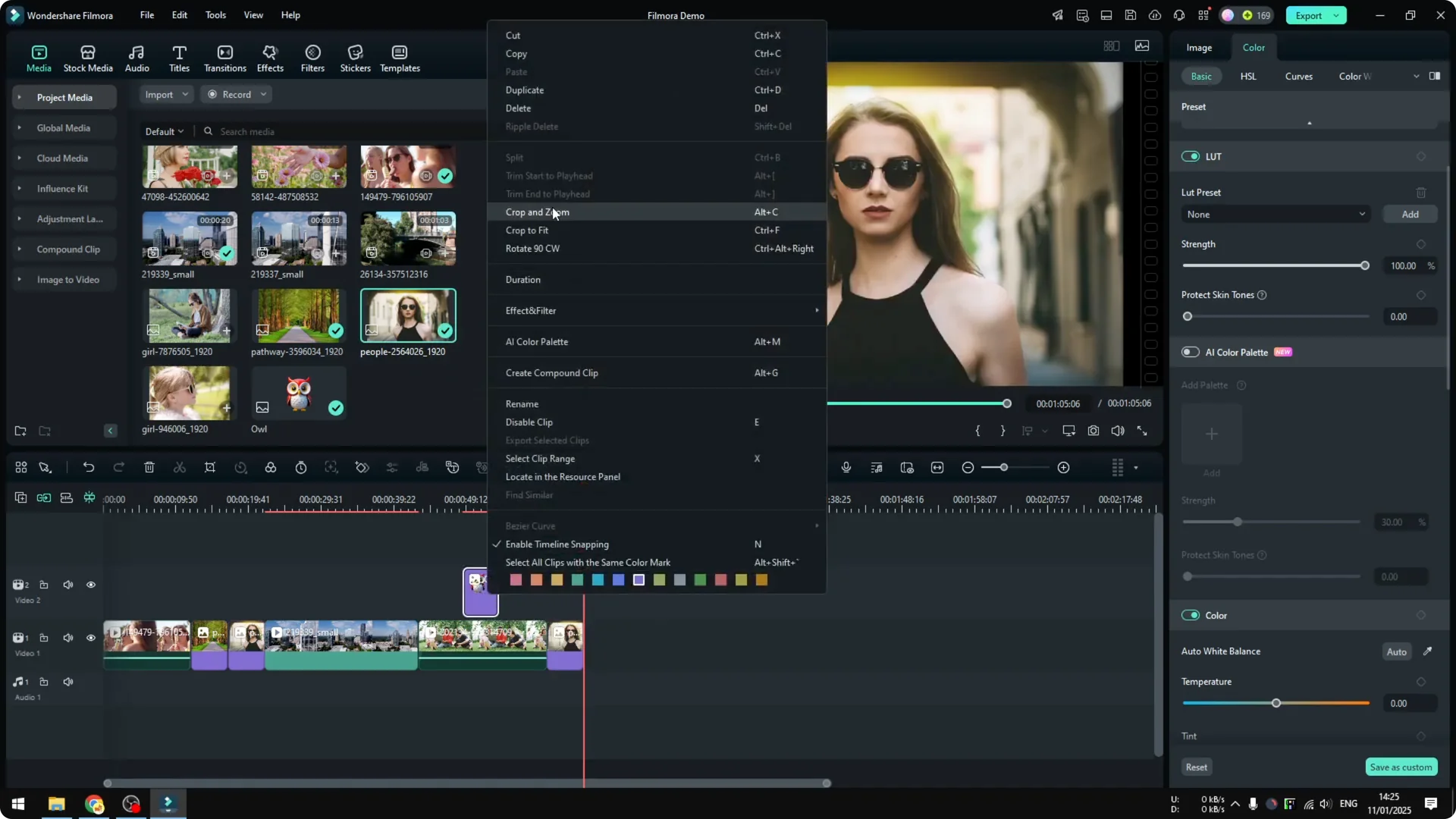
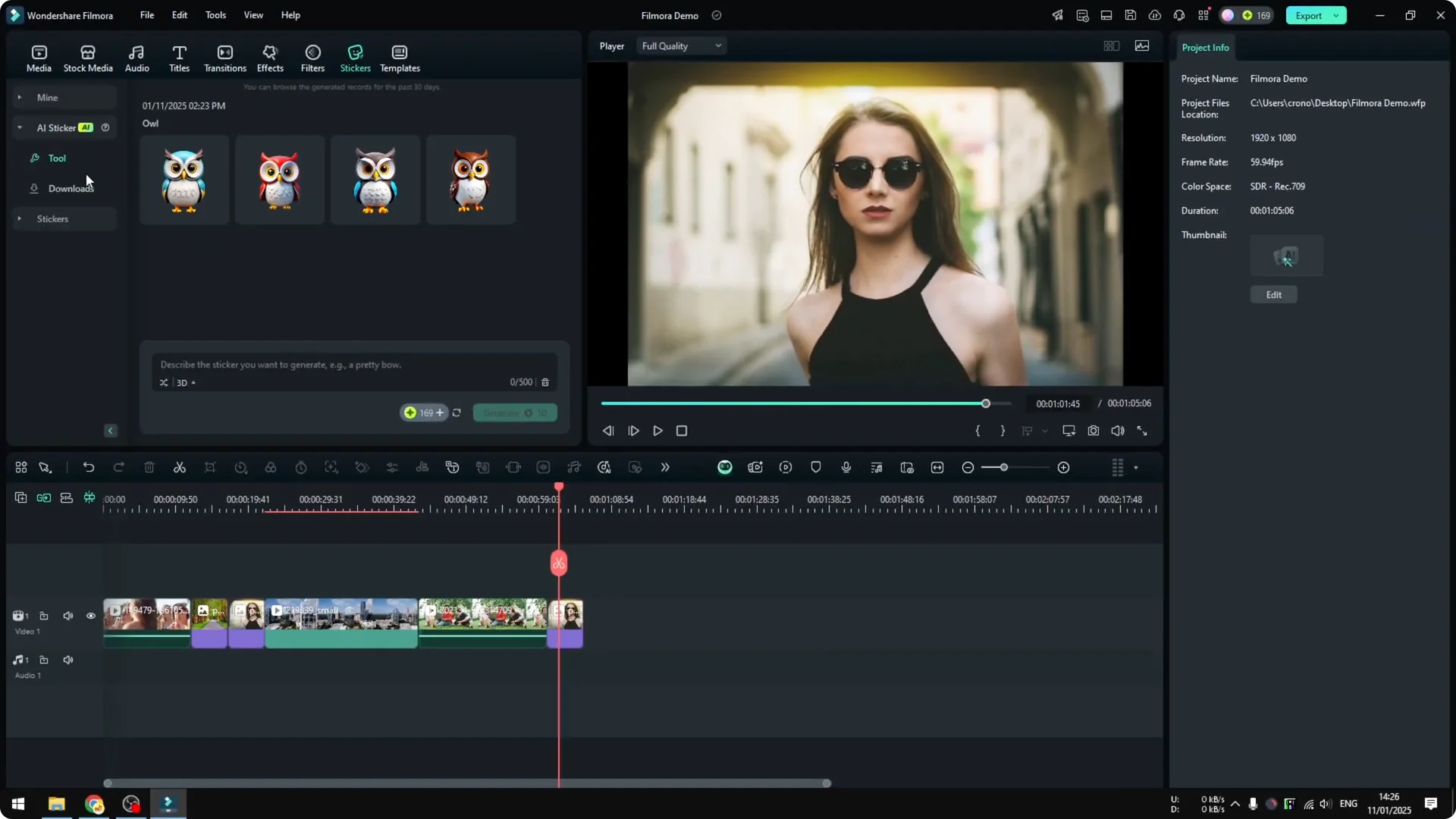
Open the Filmora AI Sticker Tool
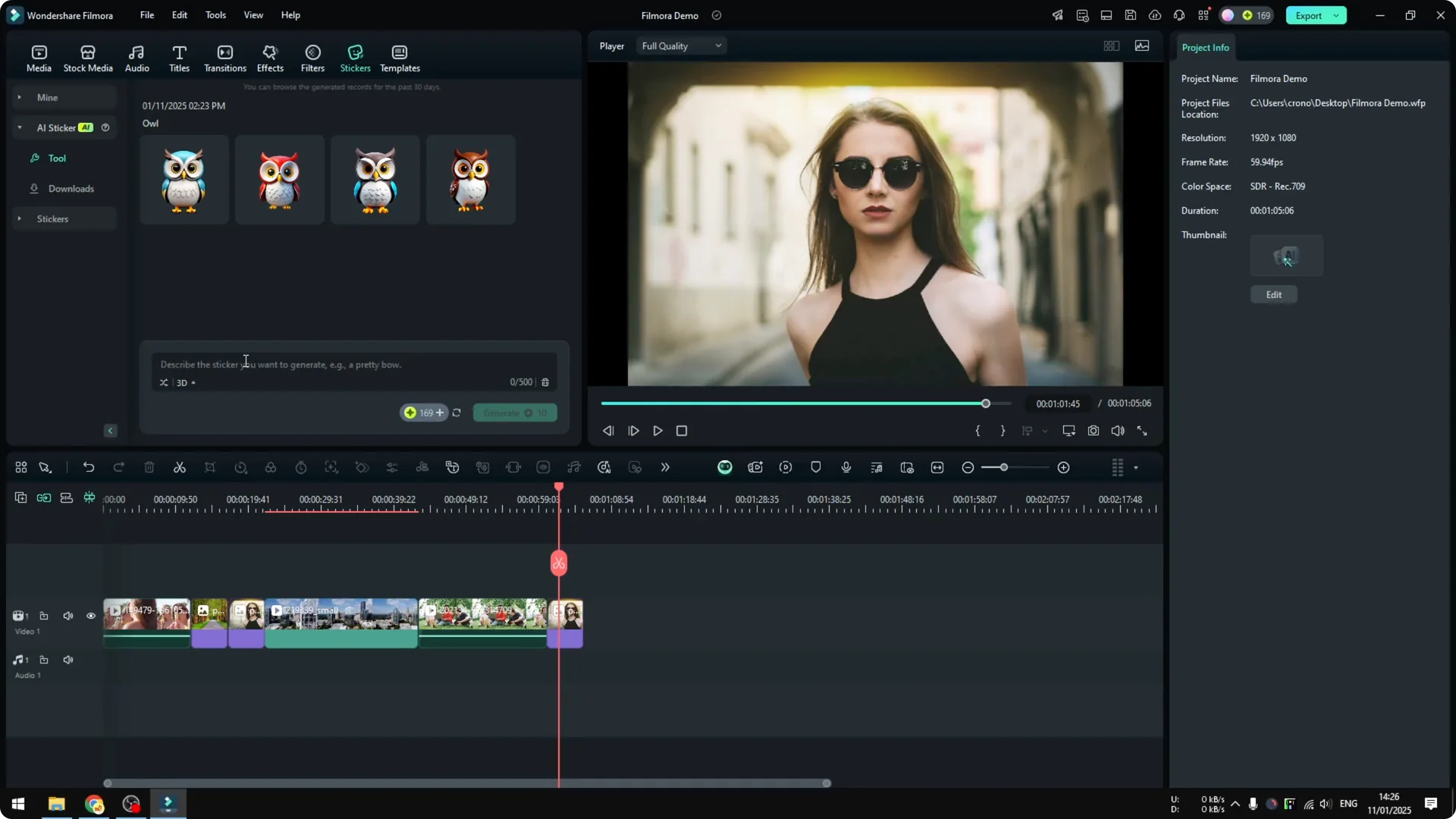
Navigate to the Sticker option and go to AI Stickers. Go to the Tool option where you can describe what the sticker is going to look like.
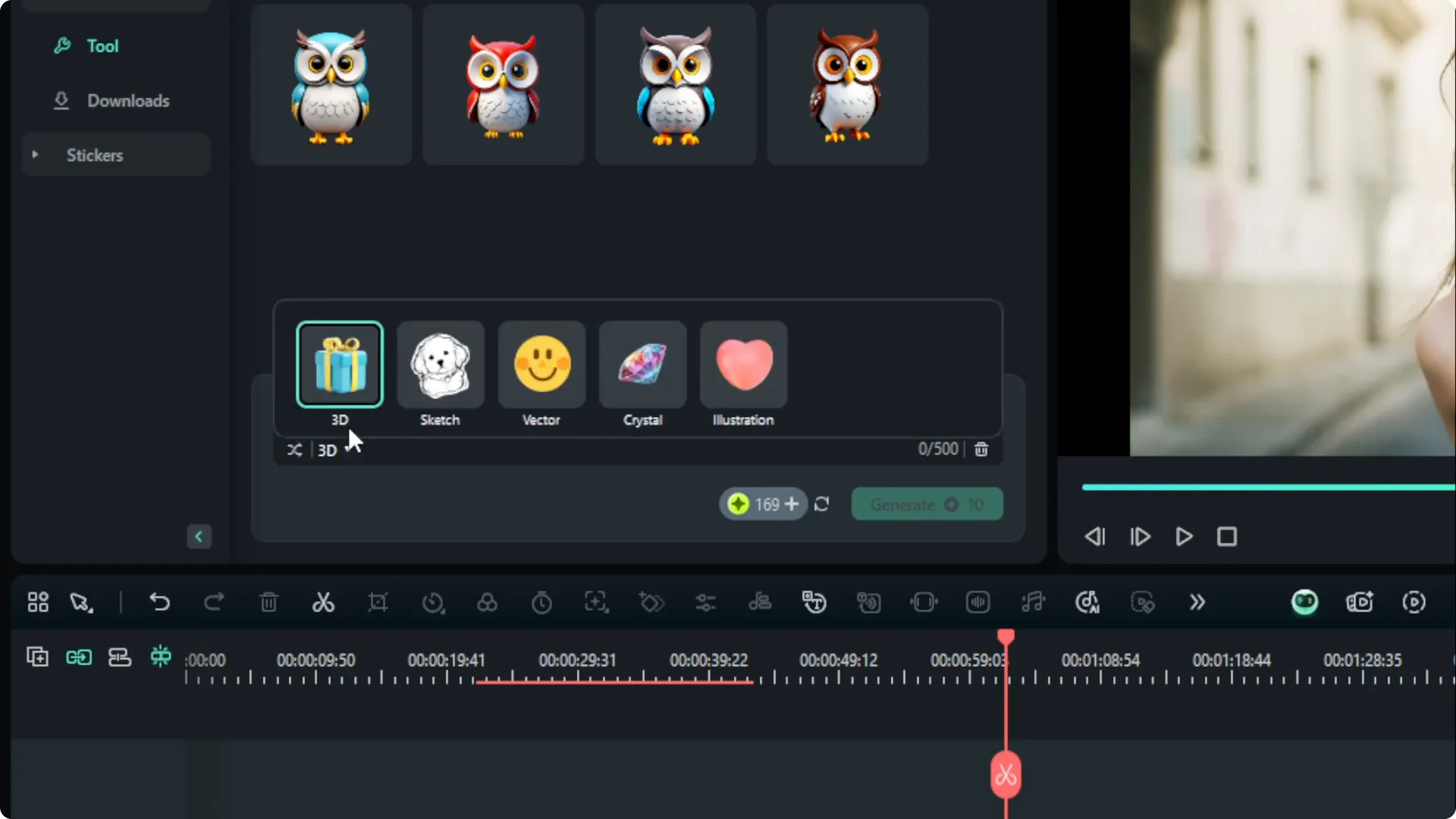
Describe your sticker and choose a style
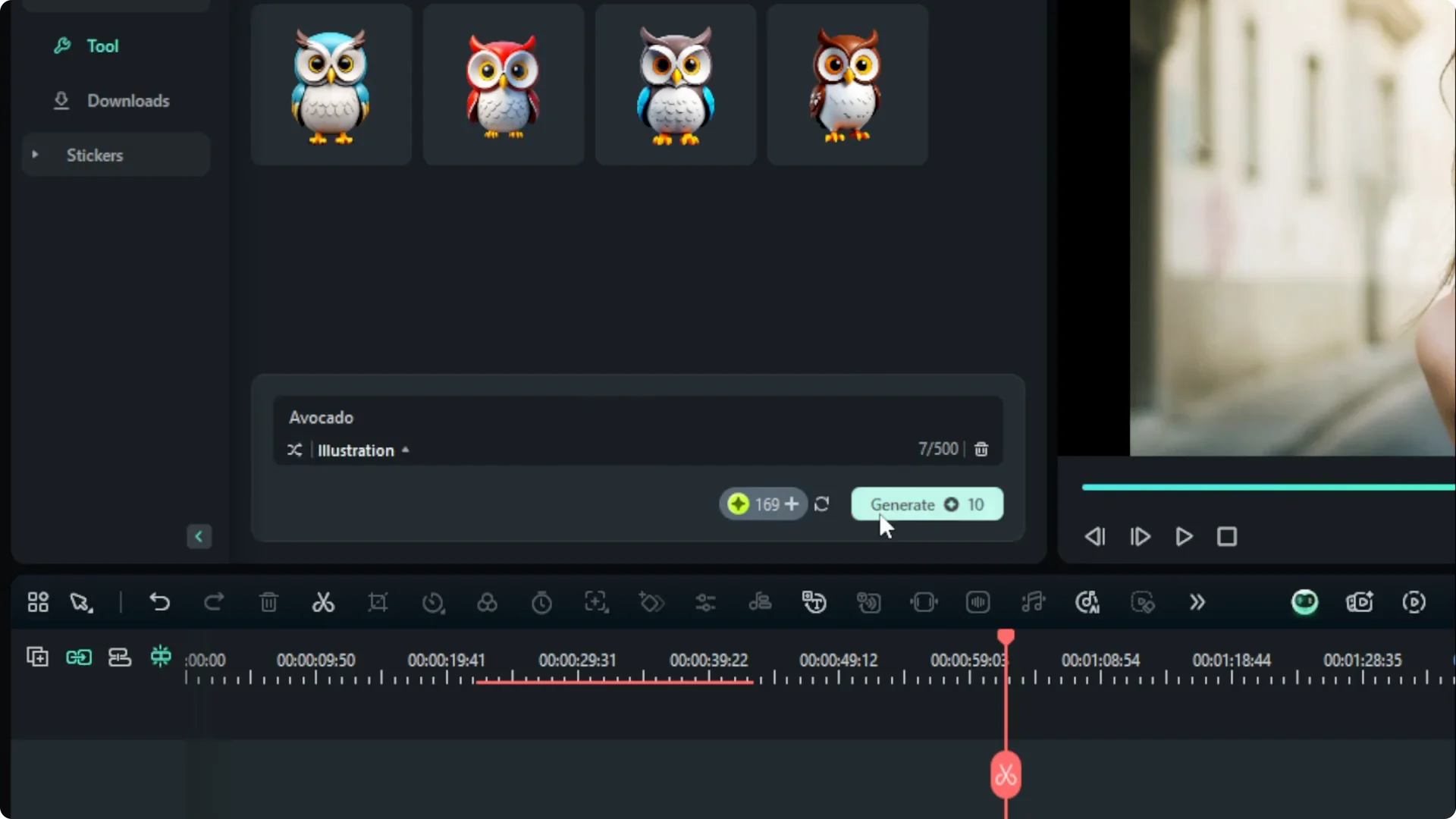
There is an option to choose between 3D, sketch, vector, crystal, and illustration. I believe Filmora will add more presets in the future, but for now I went with illustration. If you are running out of ideas you can pick from the random suggestions.
Read what you typed and make sure it matches the look you want before generating. If you want to try another creative AI effect in your edit, check out how to create an upside down city effect in Filmora with AI.
Credits and generation time
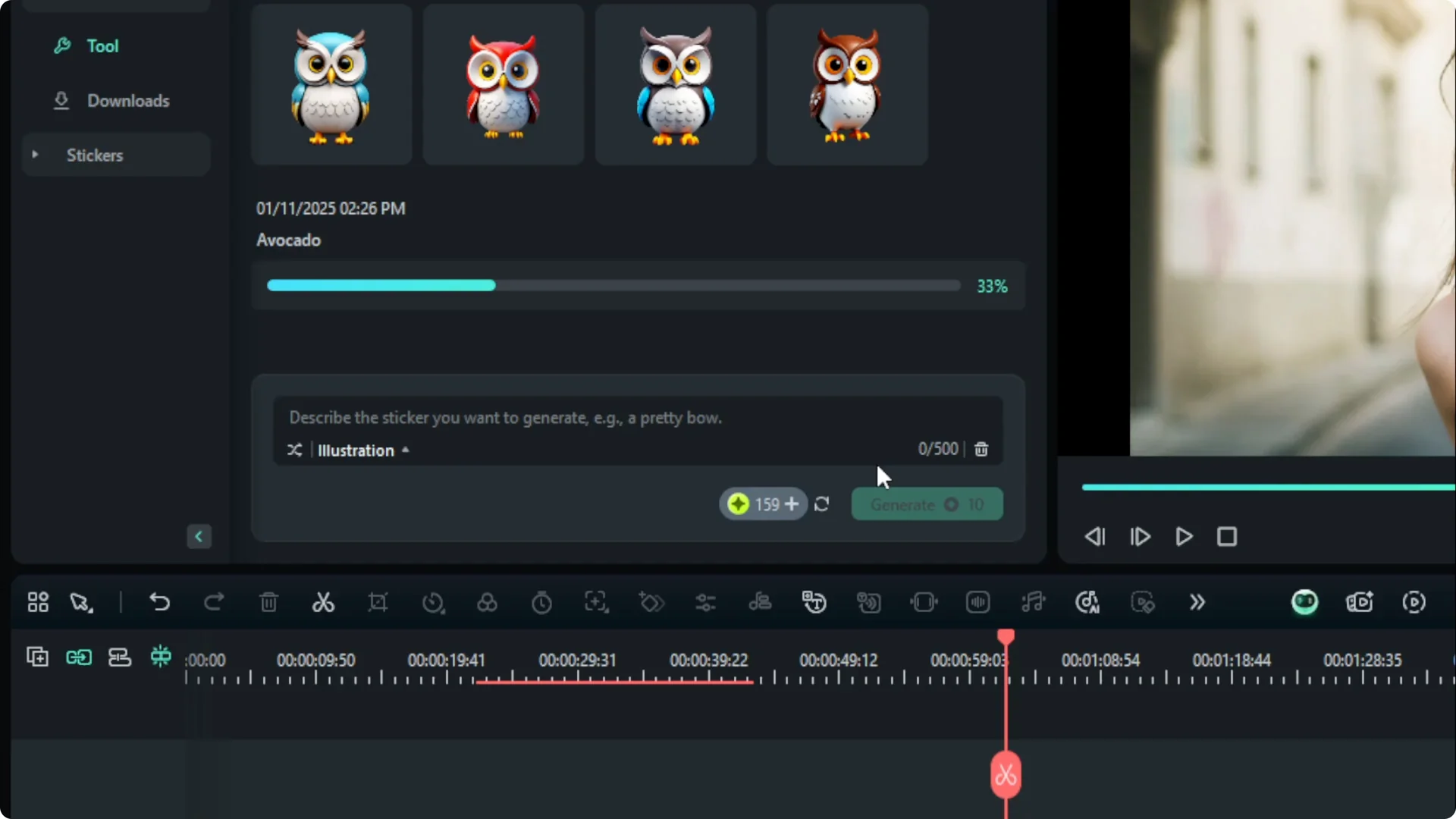
It is going to cost you 10 credits. If you are using the premium version you have limited credits every month, so use it when you need it. Click Generate and wait until it finishes.
My biggest complaint is that it can take longer than I expected. In some cases it might be faster to go to a website or Google Images to find a sticker, or you can use emojis to make your video more engaging. If you want a custom look, you can definitely use this feature.
Add and manage stickers
Download and place on the timeline
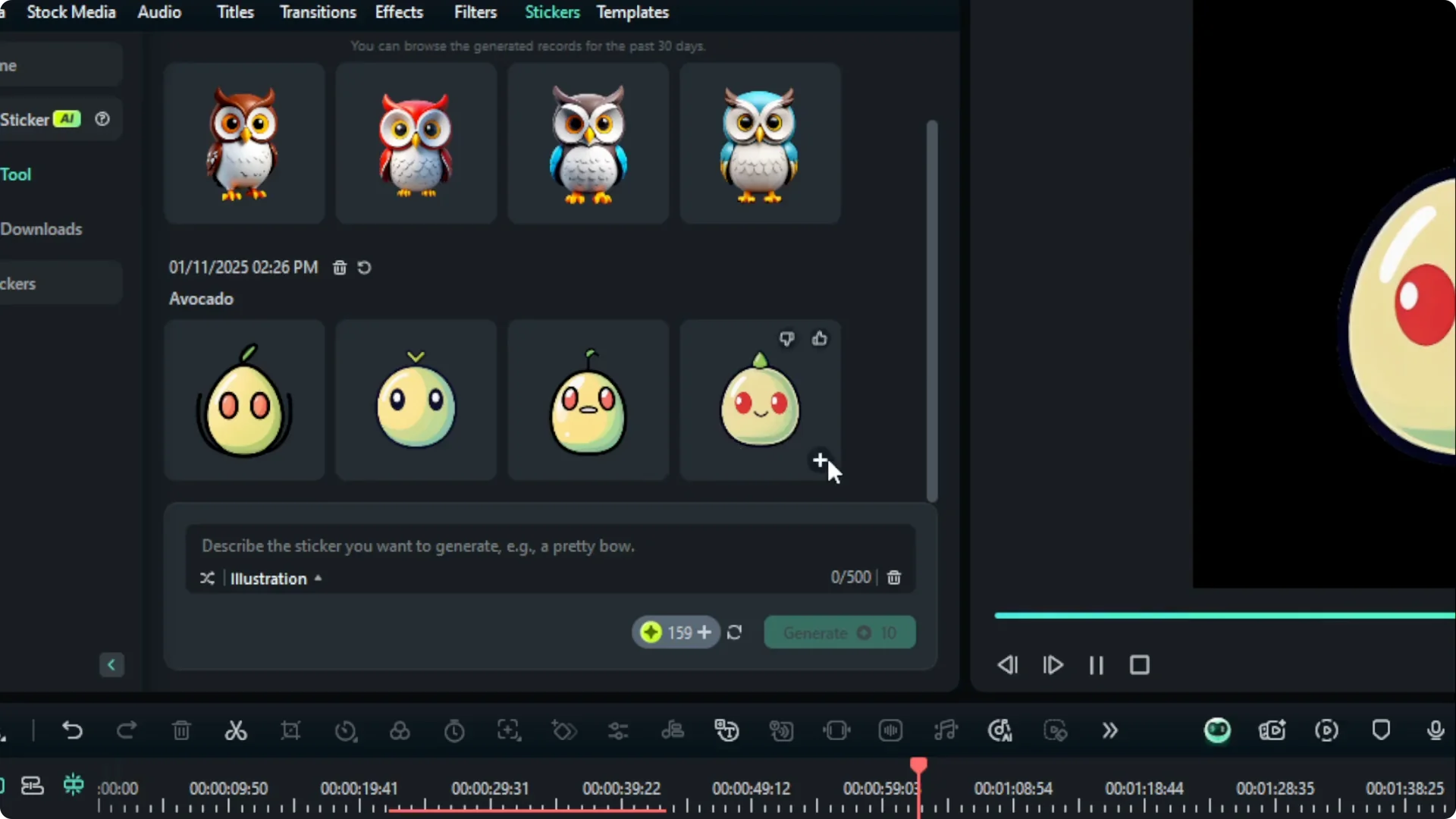
I got some cute stickers of avocado, which do not really look like avocado, but I can work with them. You can download the result and use it in your design. Click the download button or drag and drop the sticker into the timeline.
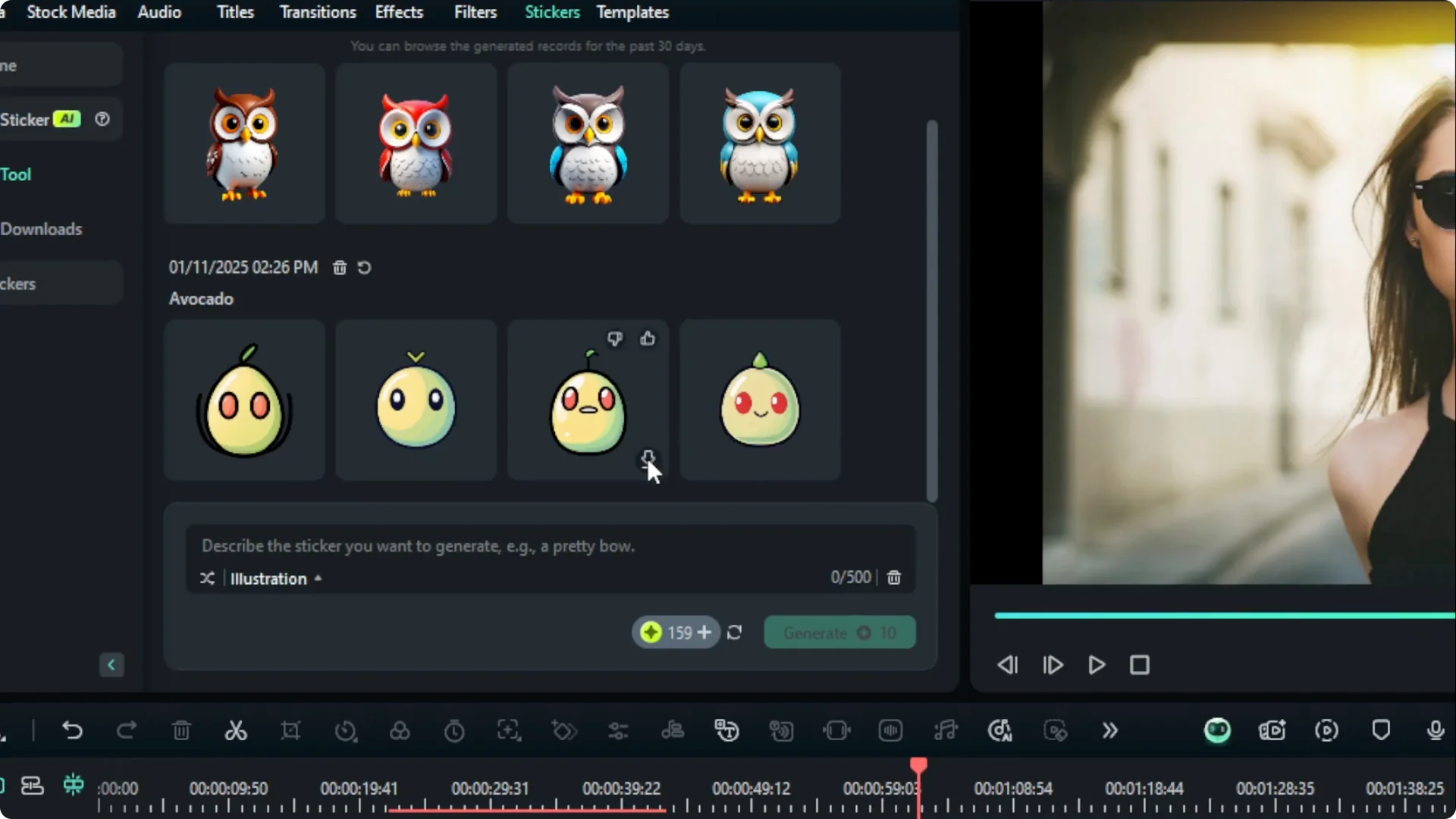
Download your stickers so you can keep using them without generating again. Once the sticker is on the timeline you can position it where you want.
Resize and reuse from Downloads
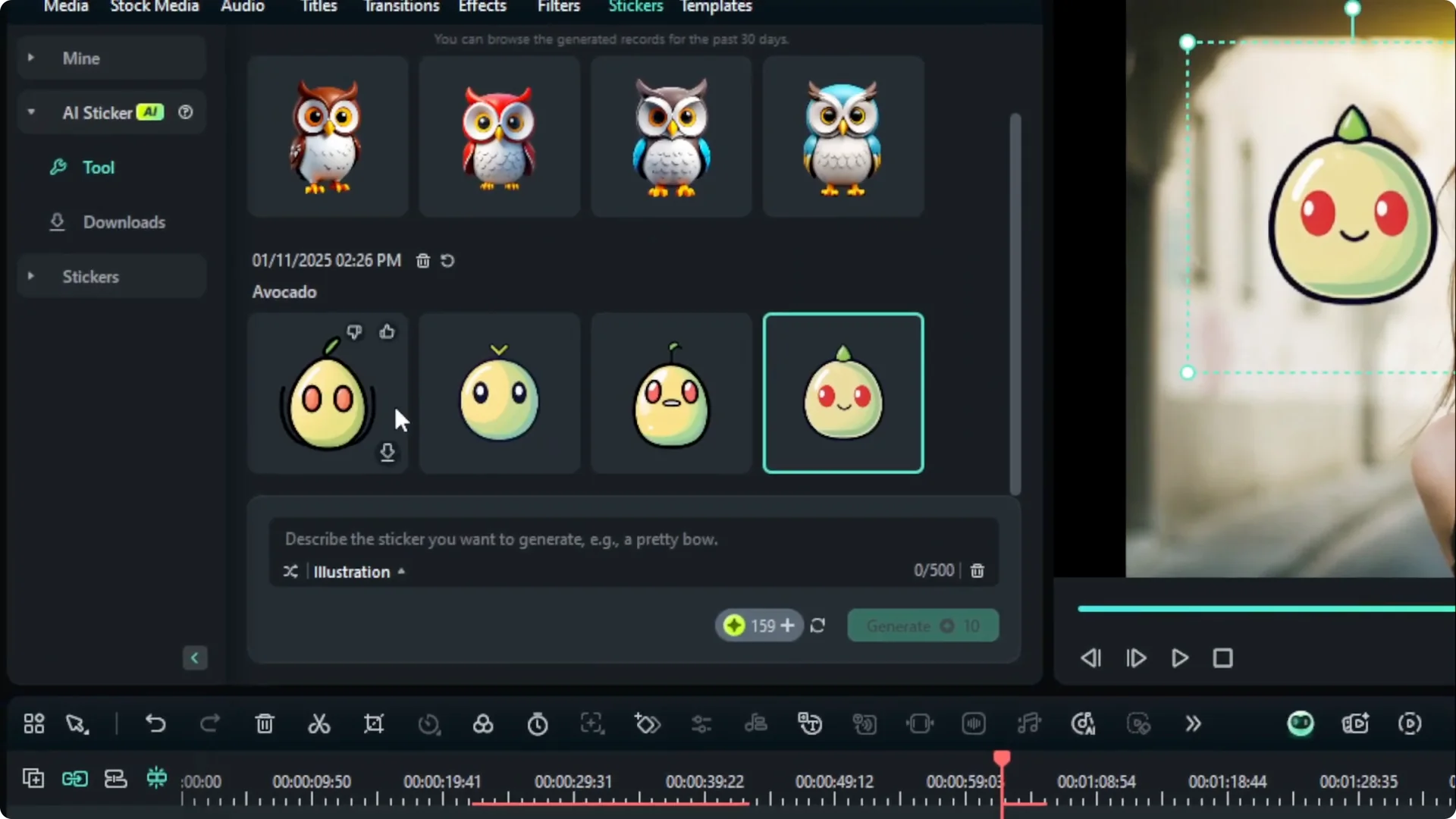
You can change the size of the sticker. I highly recommend downloading the sticker because the Downloads section shows all the stickers you have created and they are saved to your computer. Next time you want to add more, you do not have to use AI Stickers again, which saves credits.
If your project also needs vocal separation for remixes or karaoke, learn how to remove vocals from a song in Filmora with AI.
Final thoughts on the Filmora AI Sticker Tool
The tool is helpful for creating stickers inside your timeline with styles like illustration, vector, and more. Keep an eye on credits and generation time, and download your results for easy reuse. If you want a custom sticker that fits your edit, this is a practical way to make it right in Filmora.