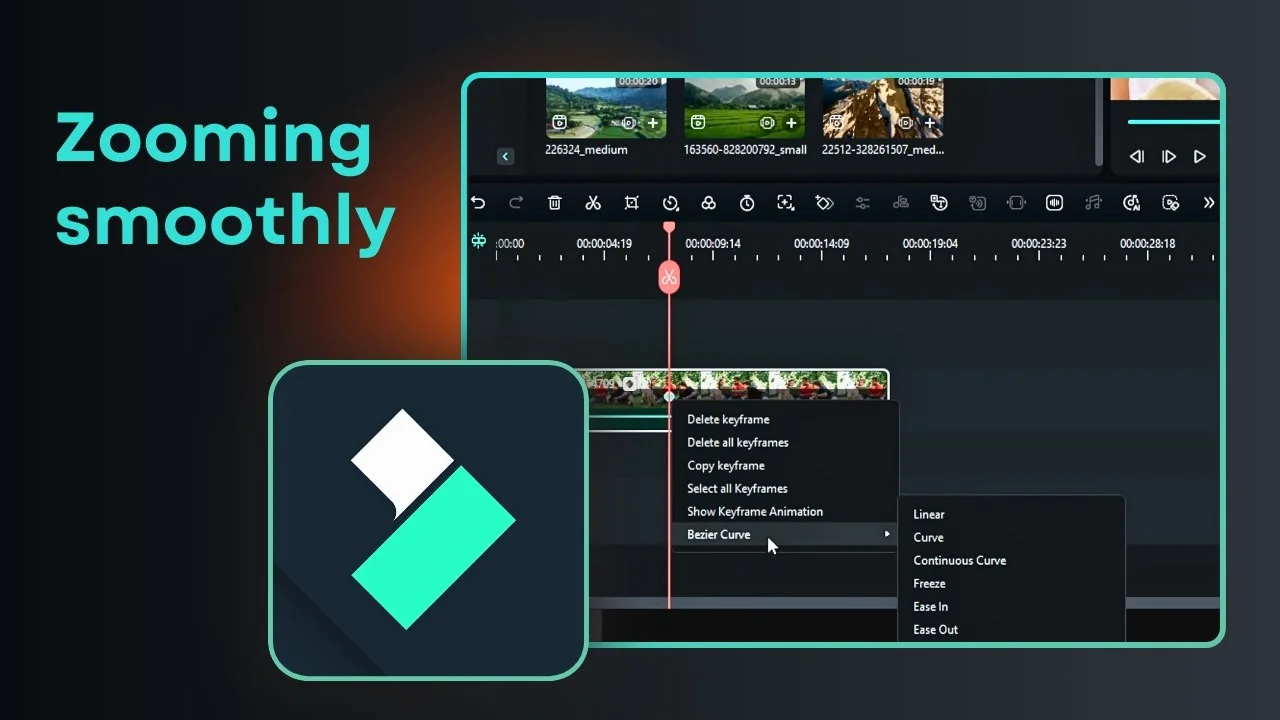
I want to create a zooming effect that focuses on the person wearing the red hoodie. The goal is to zoom the camera into that area of the frame. In Filmora there are multiple ways to do it, starting with a simple option that works for beginners and then a method that gives better control.
Filmora Smooth Zoom Effect Basics
Filmora Smooth Zoom Effect with Pan and Zoom
Start by right clicking your clip and choosing Crop and Zoom. Click Pan and Zoom. Set the Start frame and the End frame, make the end frame bigger, and position it so the subject is centered.
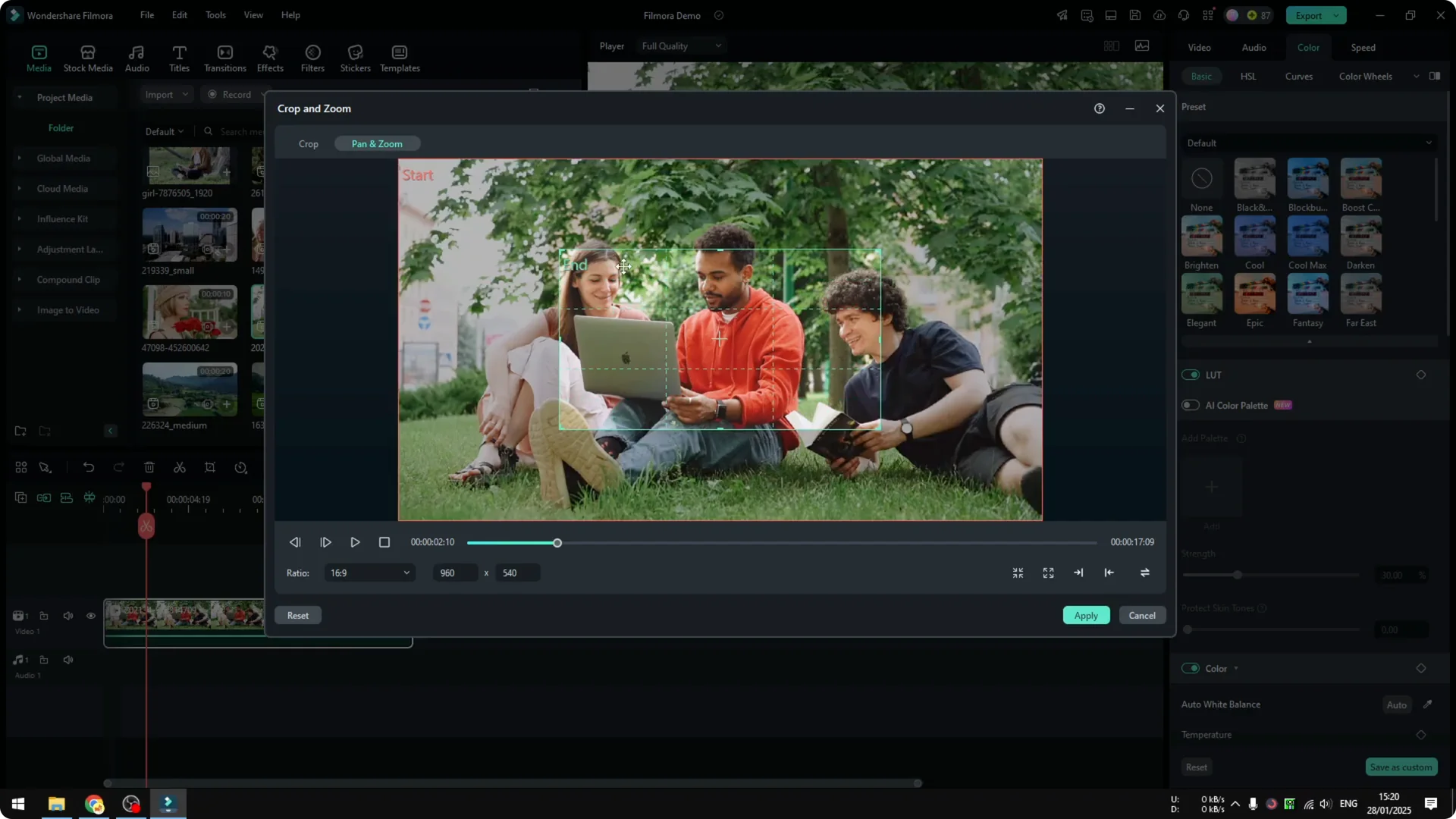
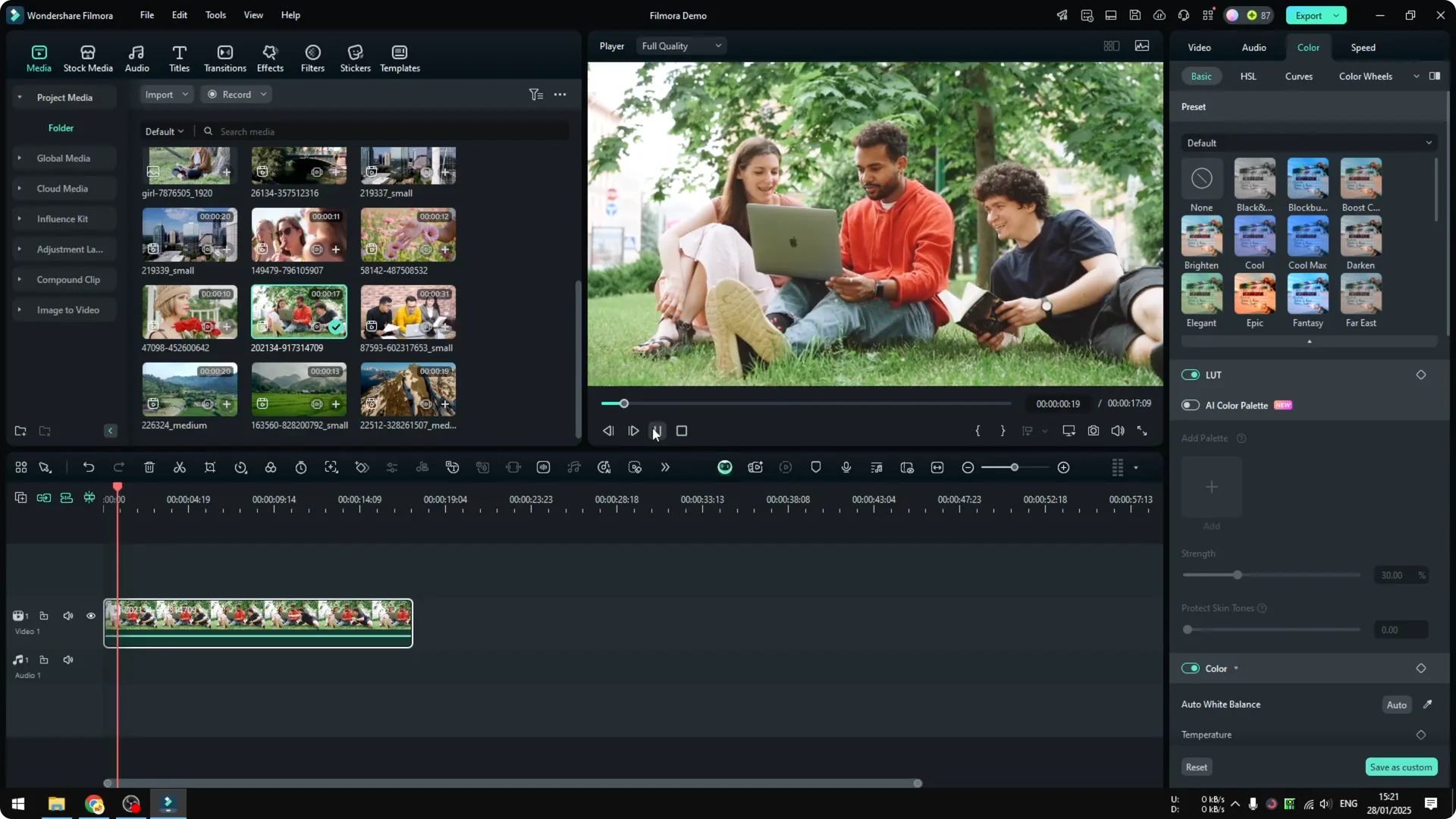
Click Apply and preview. The motion speed depends on clip length, so it can feel slow on longer clips. It works, but it is not my favorite for control or feel.
If you are dressing up your titles as you work on visuals, you can also add a glowing neon text effect in Filmora for a bold accent.
Filmora Smooth Zoom Effect with Keyframes
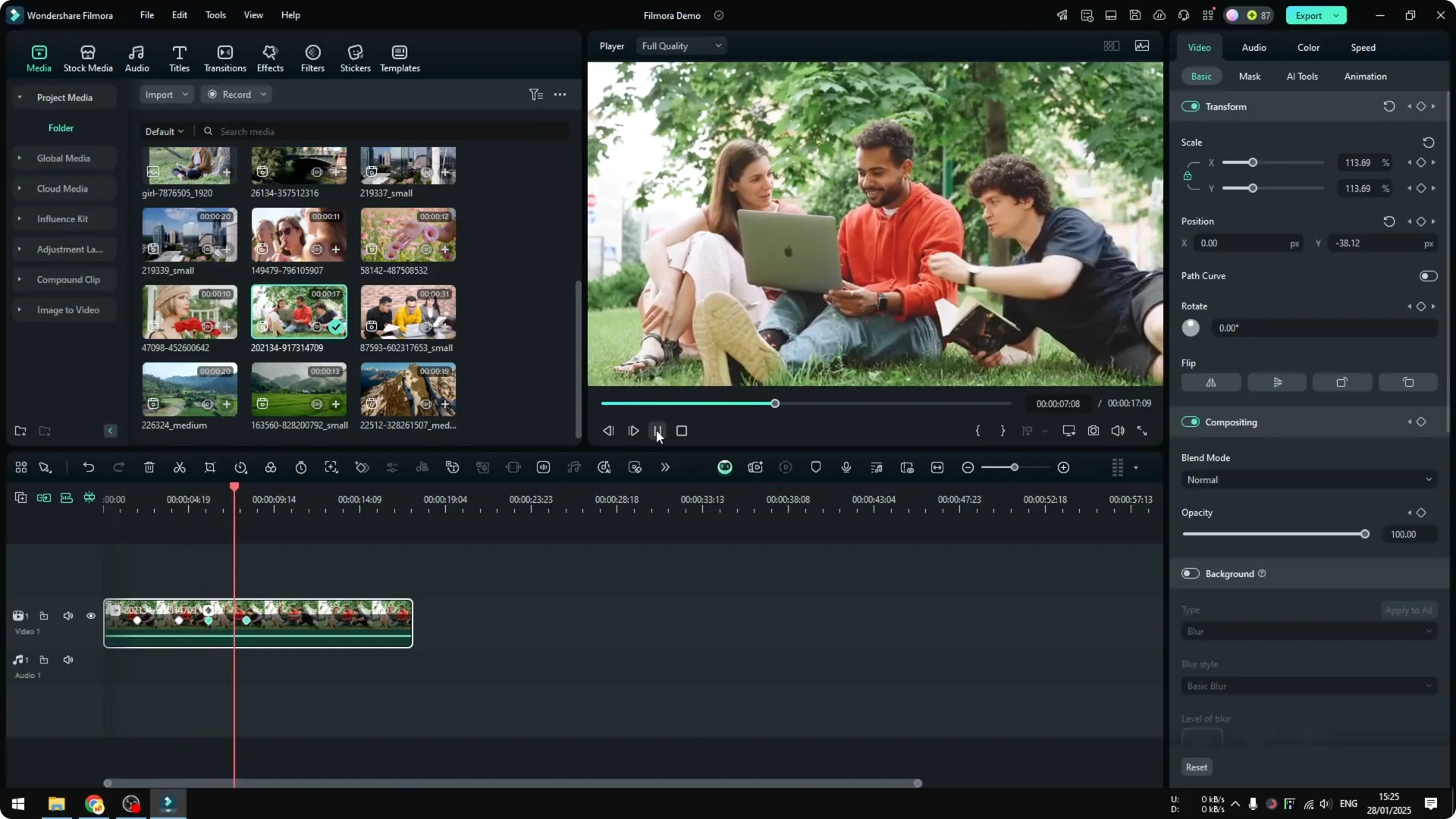
Keyframes used to be in an advanced mode, but they are not difficult, especially for zoom. Click the Keyframe button to add one at the point where you want the zoom to start. If you do not see the button, press Alt + left click at the spot to set the first keyframe.
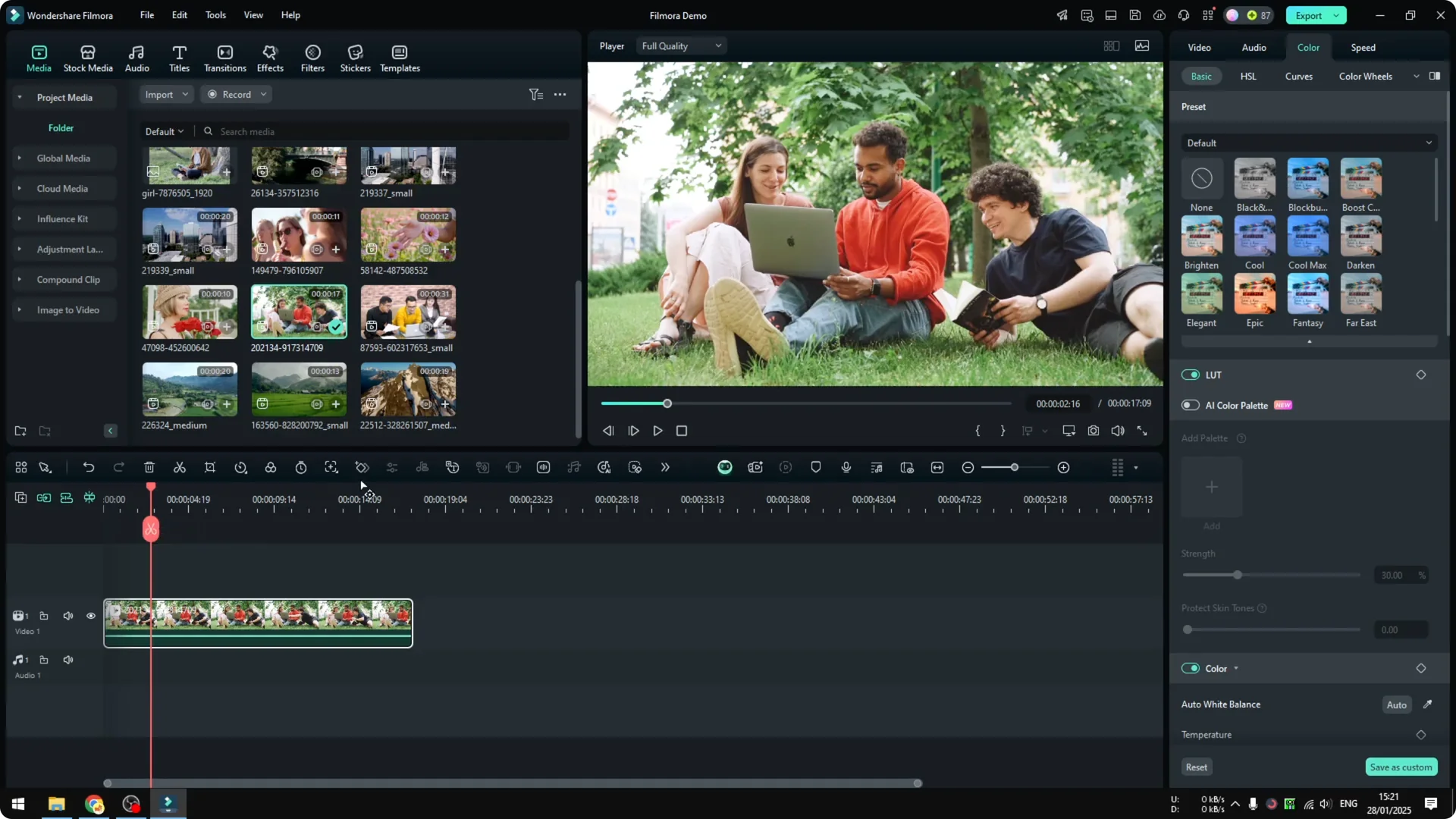
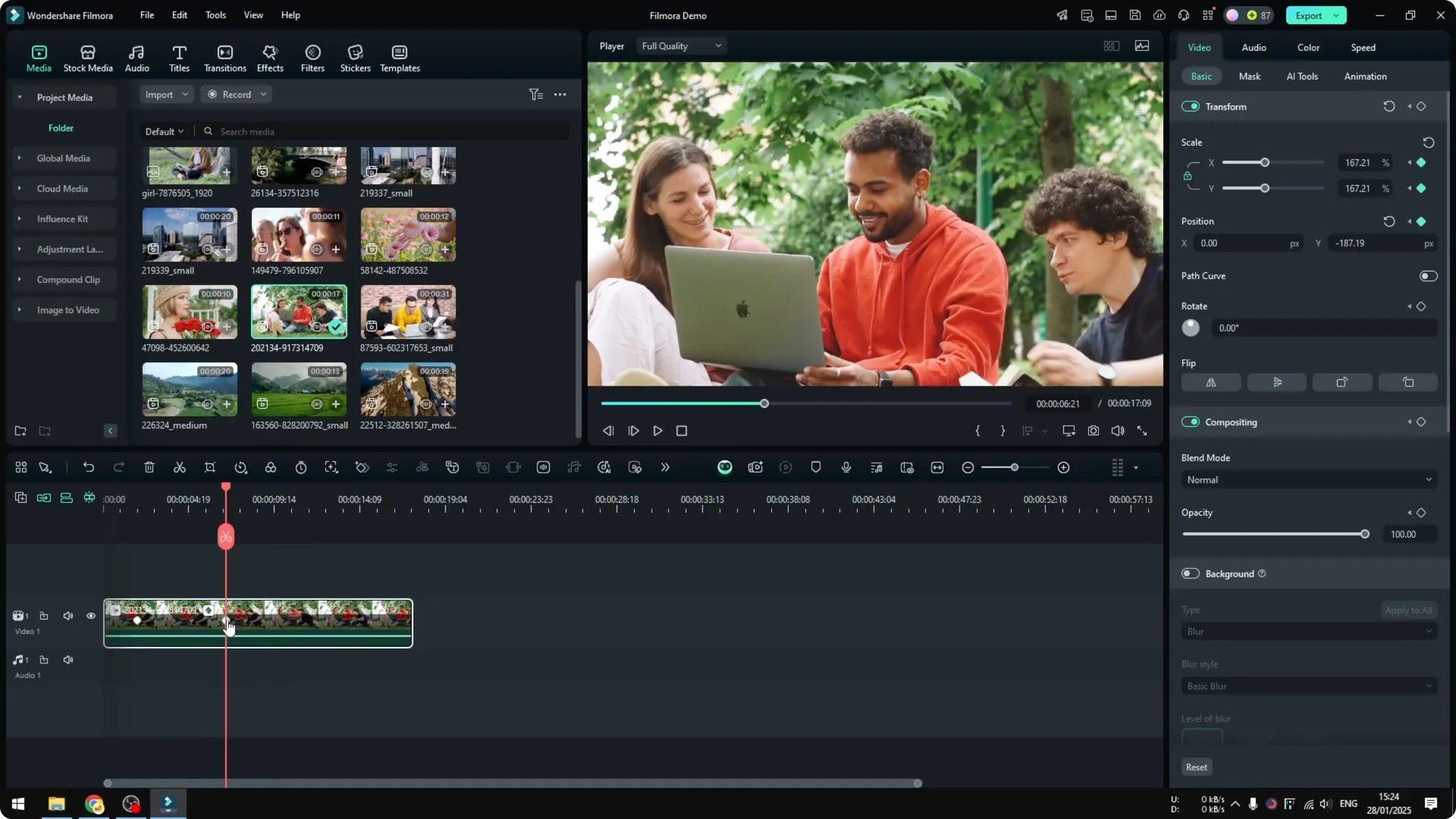
Move the playhead forward to where you want the zoom to stop. In the Video controls, increase the Scale to zoom in, and adjust the frame so the subject is centered. You now have two keyframes, which means the zoom will run from the first to the second and then hold.
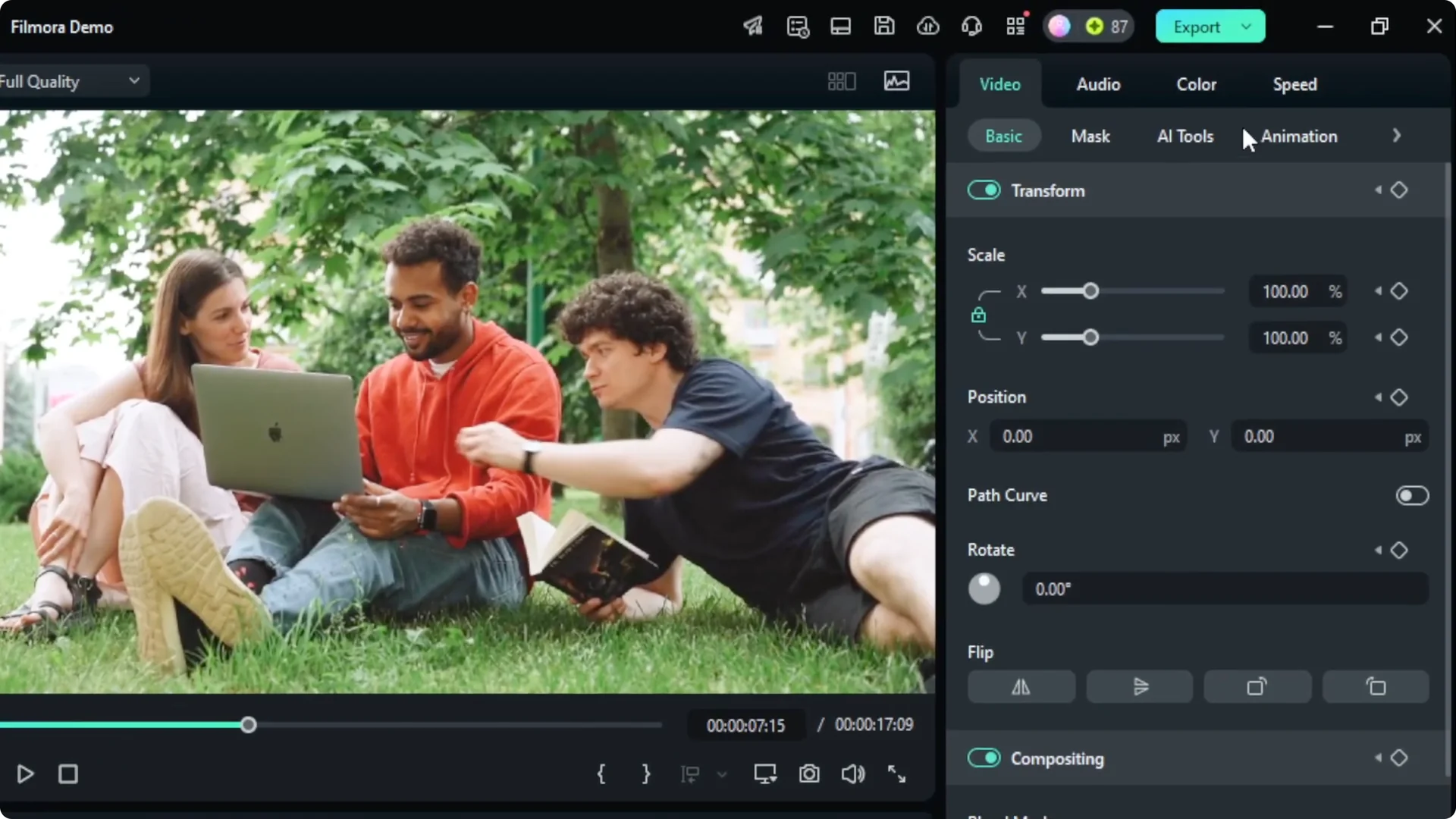
It looks fine, but it can feel flat if it ramps at a constant speed and then stops. You can make it feel better with easing.
Add easing to the Filmora Smooth Zoom Effect
Select both keyframes, right click, and choose Bezier curve. Pick Ease Out to slow the motion into the stop. Close the Bezier panel if it opens by pressing Alt + Shift + K.
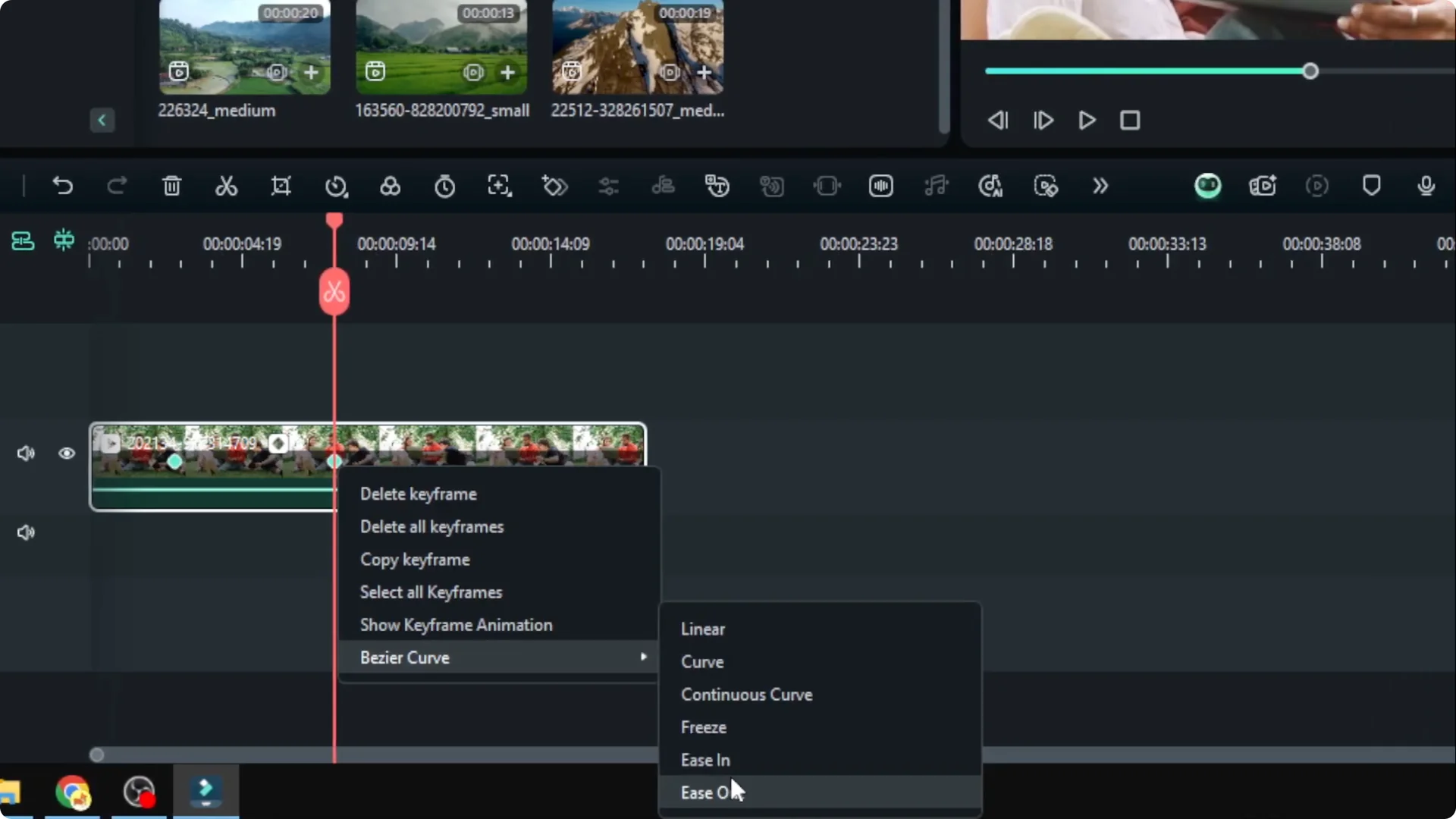
Play it back and you will see the zoom slow down into the subject and settle. To make it punchier, move the keyframes closer together so the zoom happens over a shorter span. The easing will still soften the ending.
If you want your sound transitions to feel as smooth as the visuals, you can create an audio crossfade in Filmora alongside this move.
Zoom back out with the Filmora Smooth Zoom Effect
Add a keyframe at the point where the zoomed shot should start moving back. Move the playhead forward and reset Scale to 100 percent so it returns to normal framing. Apply the same Ease Out in the Bezier curve settings, then close the panel with Alt + Shift + K.
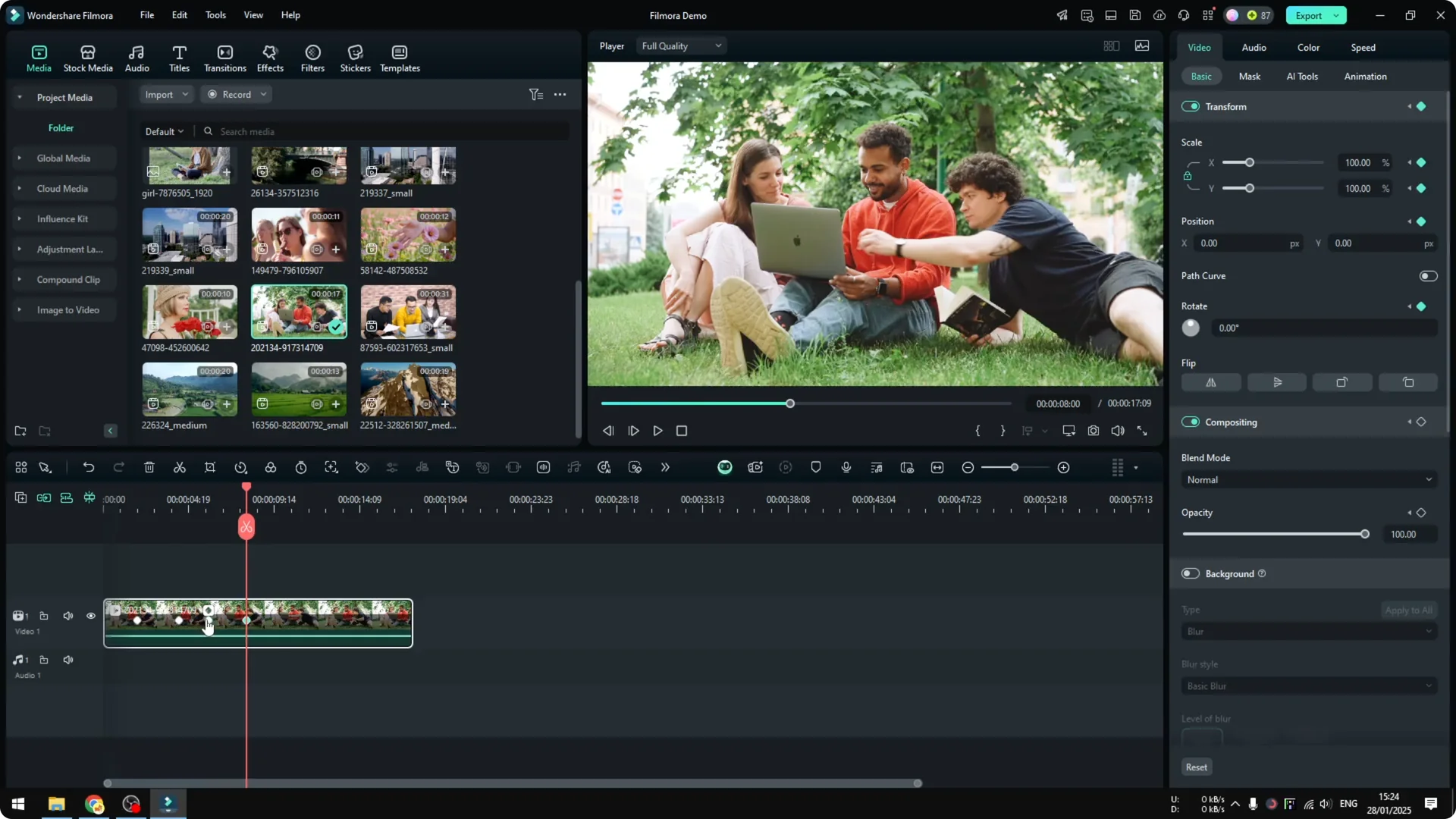
Play it through and you will see it zoom in, slow, hold, then zoom out smoothly. With just four keyframes you get a result that feels controlled and very professional. Keyframes plus easing are the simplest way to get a smooth zoom in Filmora with precise timing and focus.
If you are mixing dialogue and music under this move, you can keep speech clear by applying audio ducking in Filmora.
Final Thoughts on the Filmora Smooth Zoom Effect
The Pan and Zoom tool is quick and fine for a fast result, but it offers limited control. Keyframes with Ease Out give you better pacing, a cleaner stop, and the option to add a zoom out. With a few keyframes and easing, the Filmora Smooth Zoom Effect looks smooth, focused, and ready for any edit.