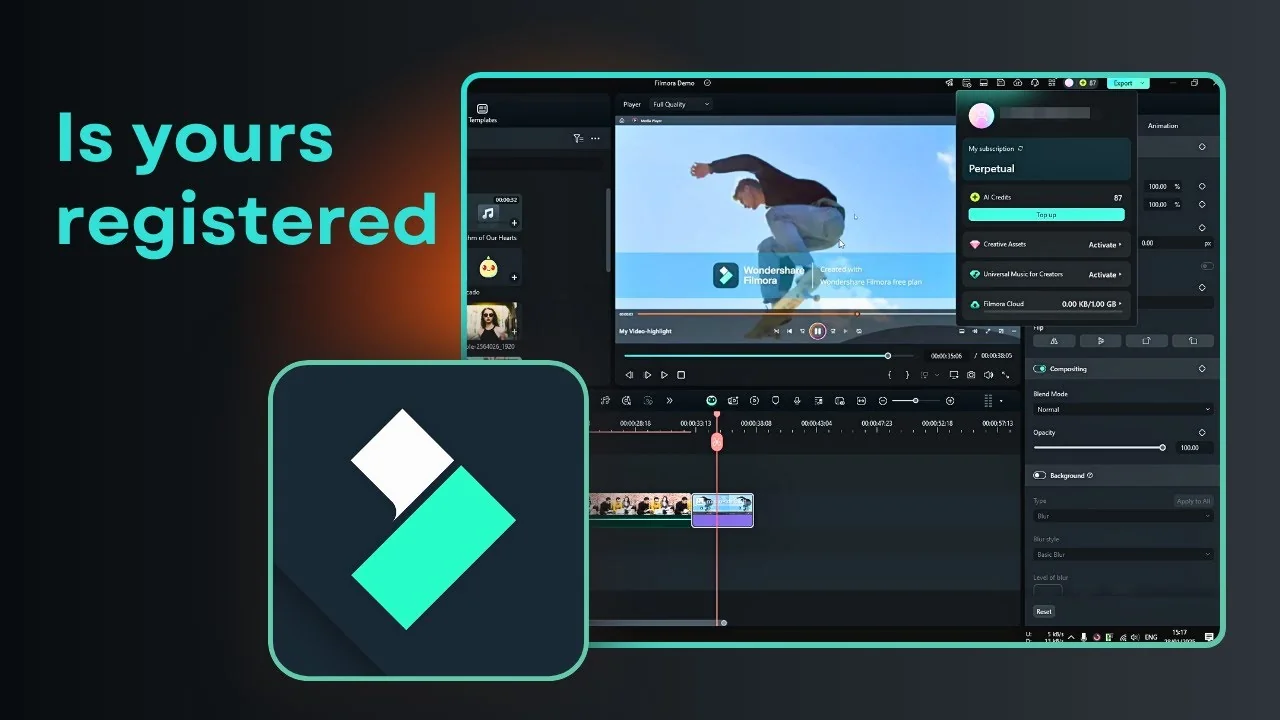
You can tell if your Filmora install is legitimate and which plan it is on in a few quick ways. These checks cover the Pro subscription, the Perpetual license, the free version, and unregistered installs.
Filmora License Verification through the account menu
The easiest way to tell if you are using Filmora that is legitimate is by going to the menu next to the Export button. Click it to open the Account menu, and you can see the subscription on your Filmora account.
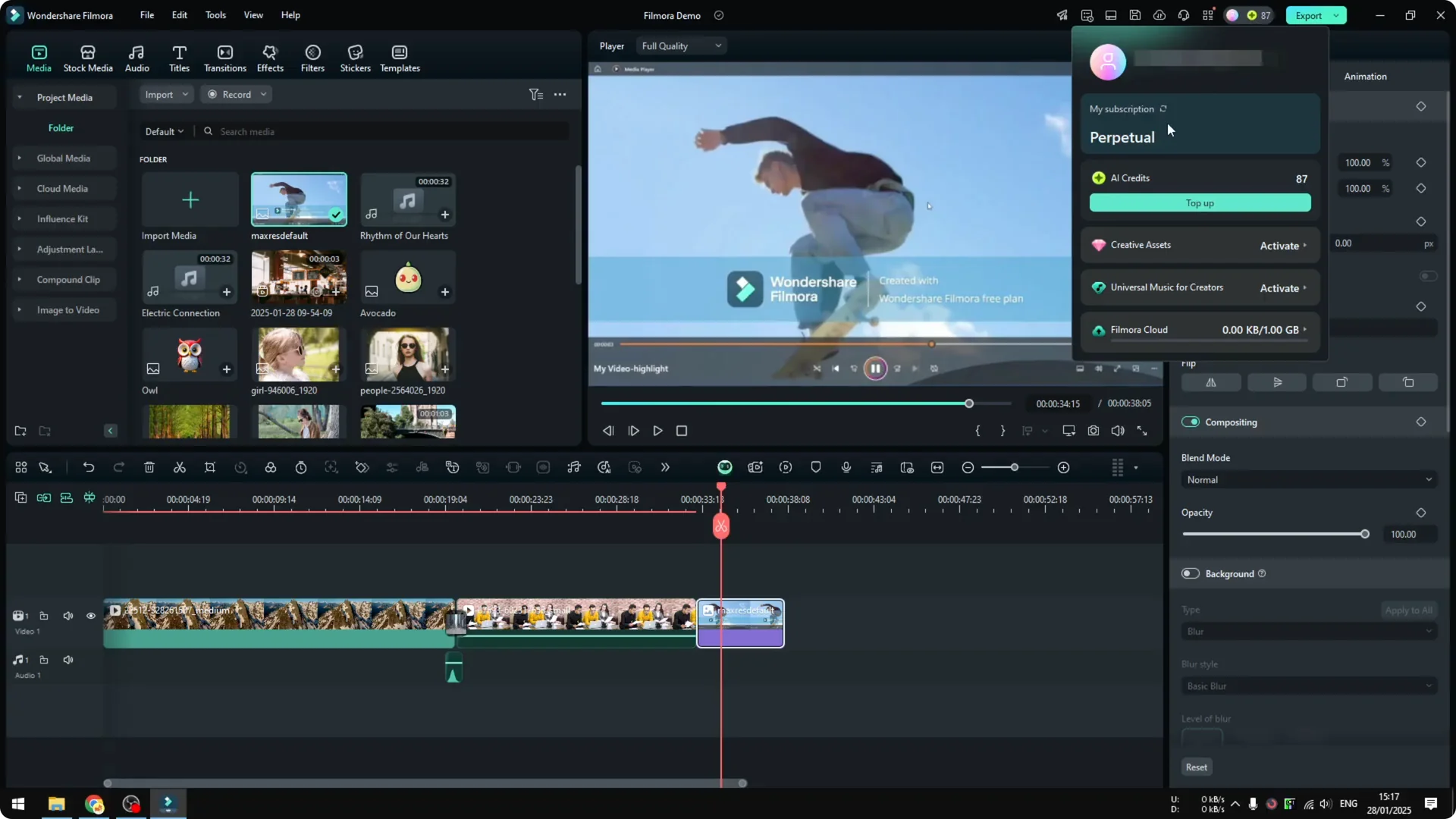
Right now I am using the Perpetual license, which is no longer available. It will show if you are on the Pro subscription that you pay monthly or yearly, or if you are using the free version. The information should be available right there.
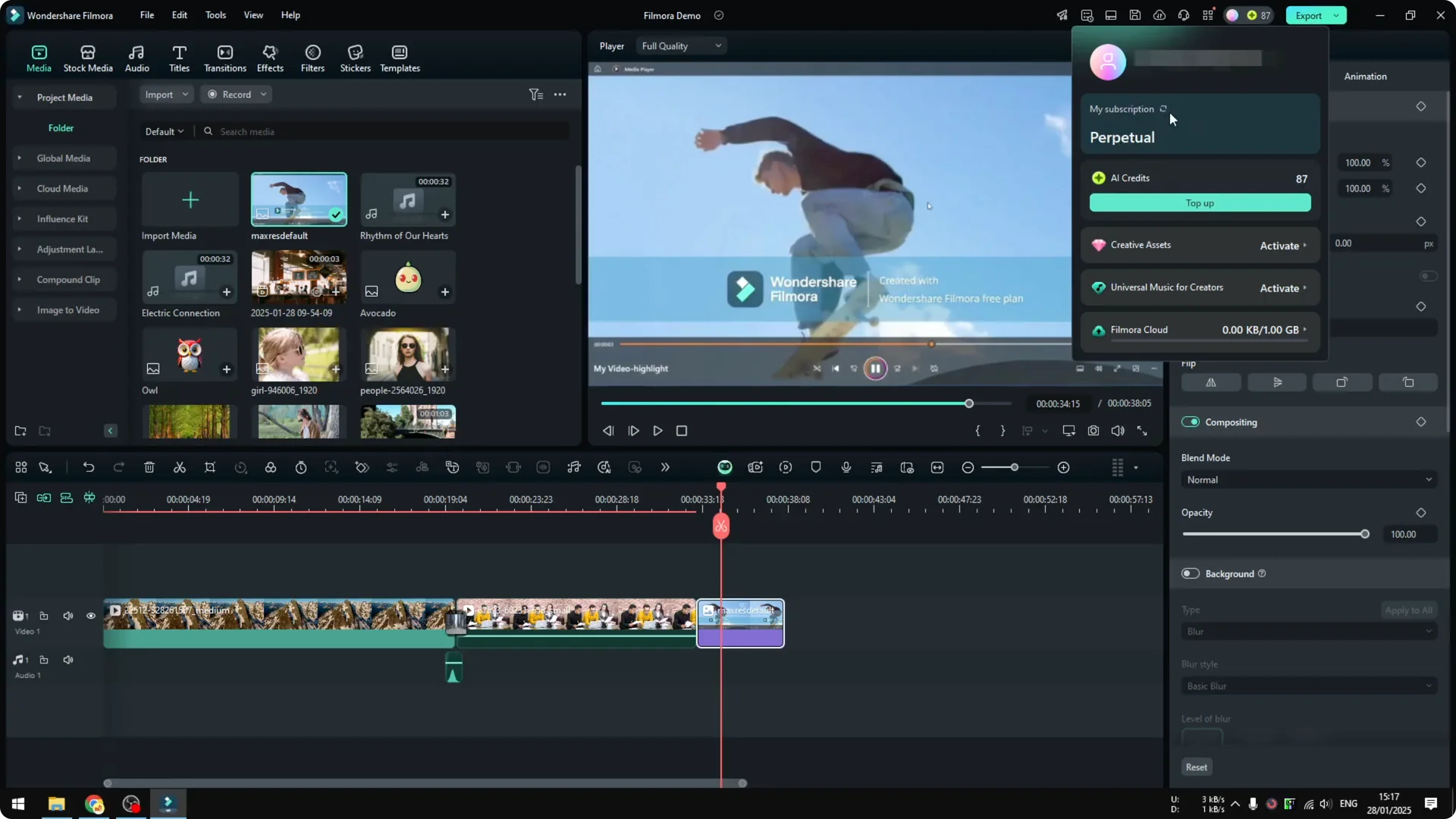
Quick steps
Open Filmora. Click the menu next to Export and open the Account menu. Read the plan shown for your account.
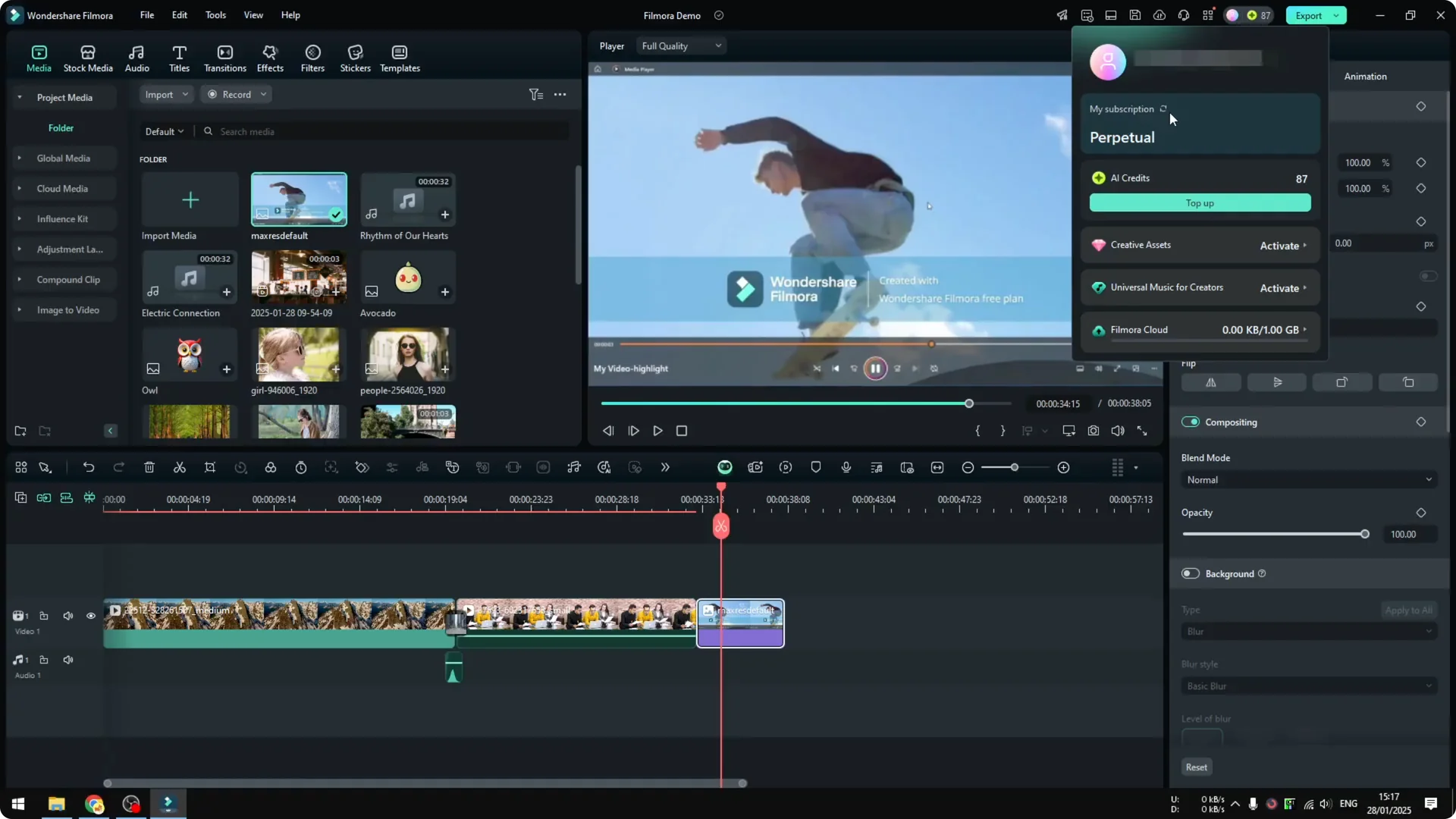
For voice work in Filmora, see our guide to recording your own voice and enhancing it with AI.
Filmora License Verification by exporting a video
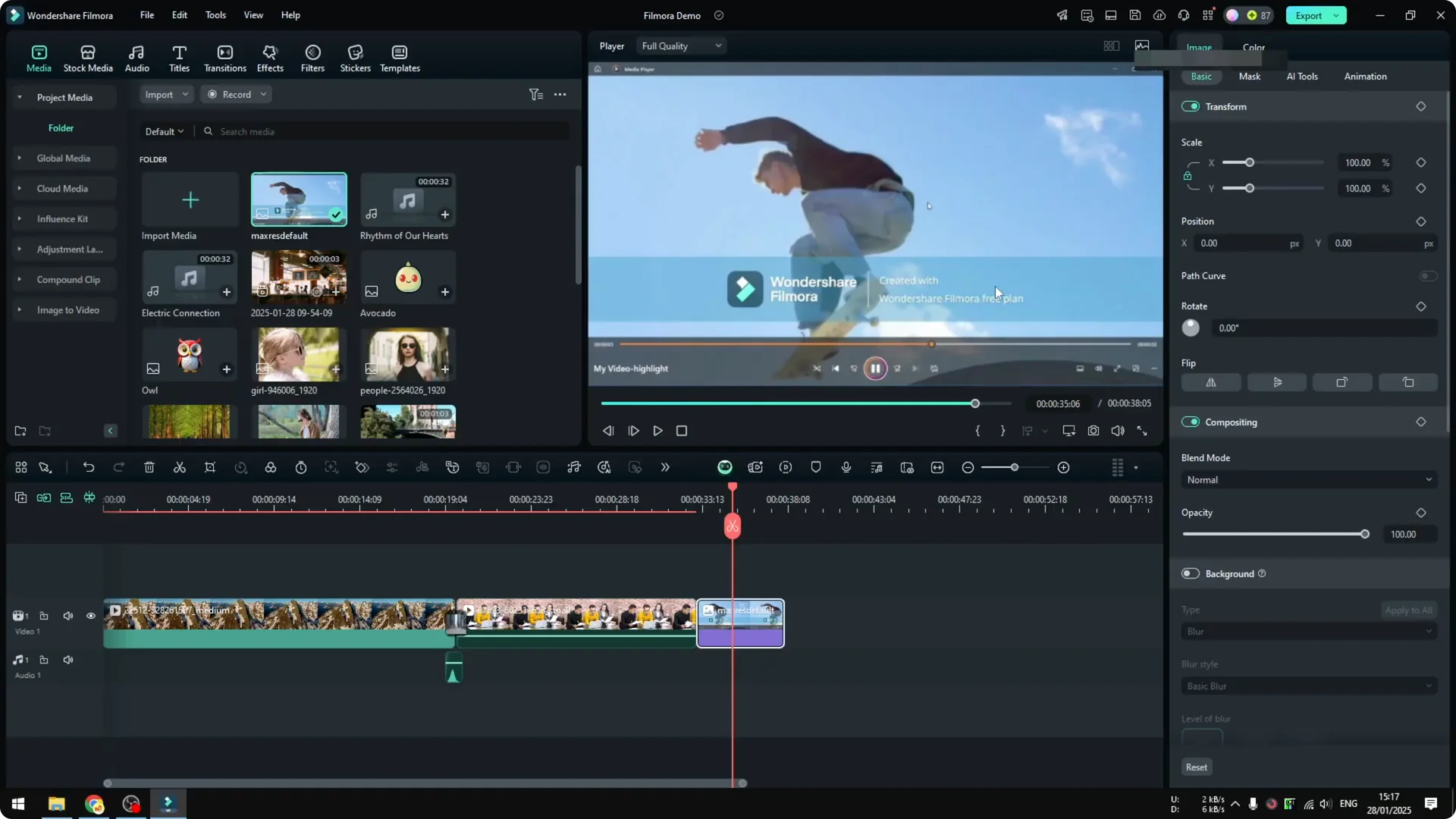
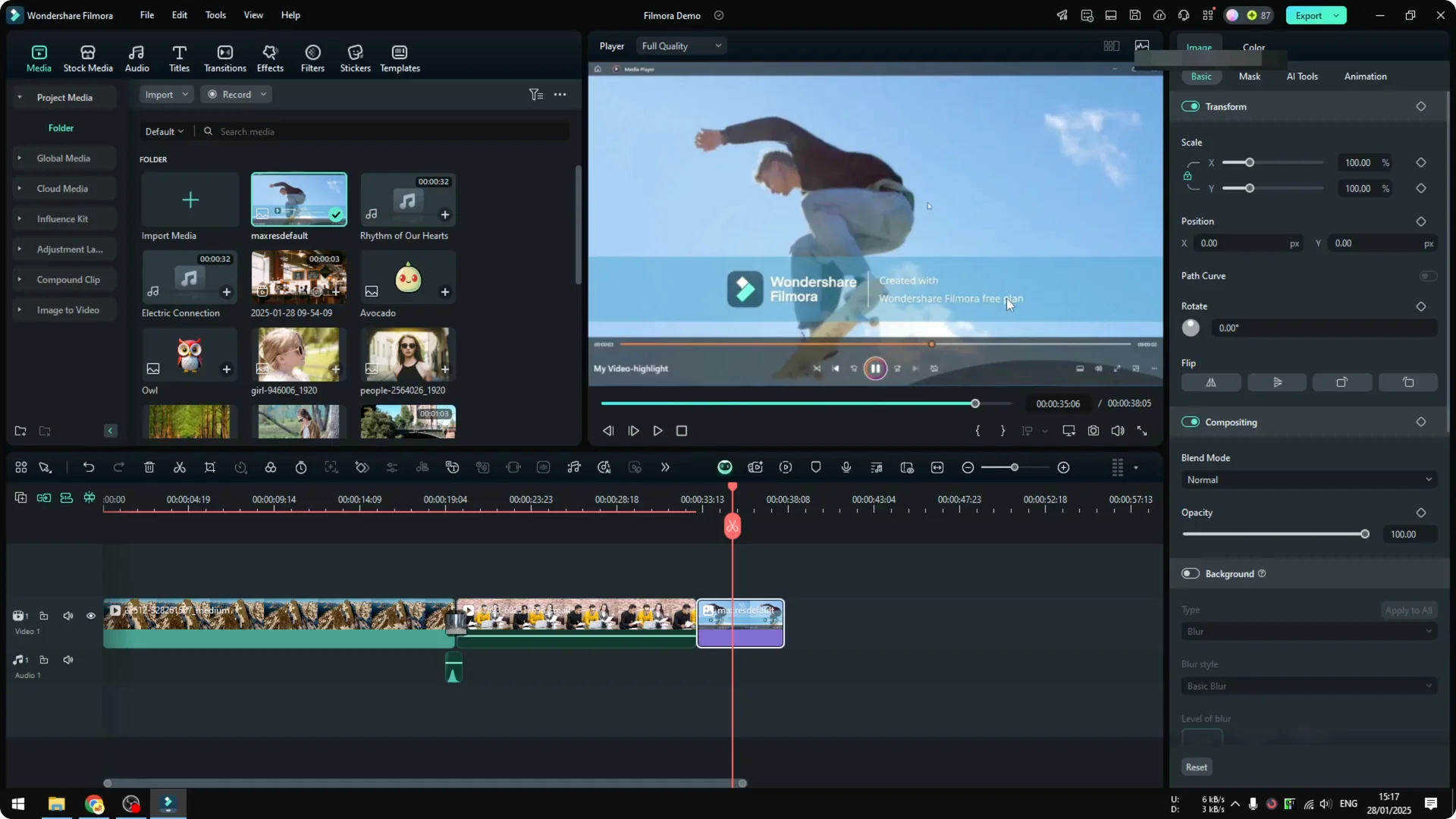
Another way to tell if you are on Pro or free is by exporting a video. If you see a big Watermark in the way of the video, that is the free version.
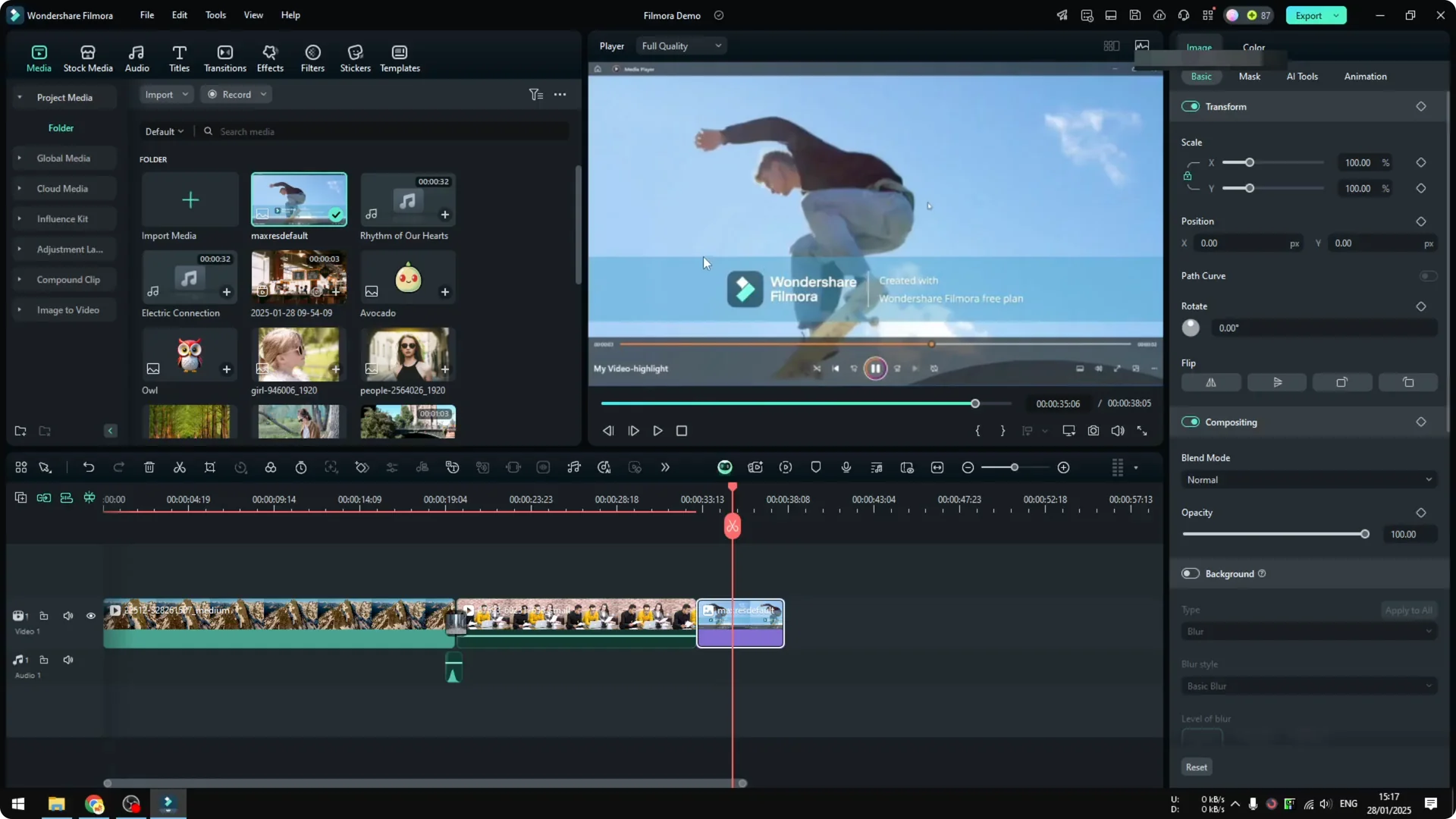
It does not look professional at all, and it is a clear indication that you are on the free version. If you have bought Filmora and still see this message, log into your Filmora account and verify your identity. You can then enjoy the full Pro version of Filmora that does not come with this annoying Watermark.
Quick steps
Export a short test video. Watch for a large Watermark across the frame. If it appears, sign in to your account to unlock the full version.
If you are exploring voice cloning features in Filmora AI, check our voice cloning walkthrough.
Filmora License Verification through the Help menu
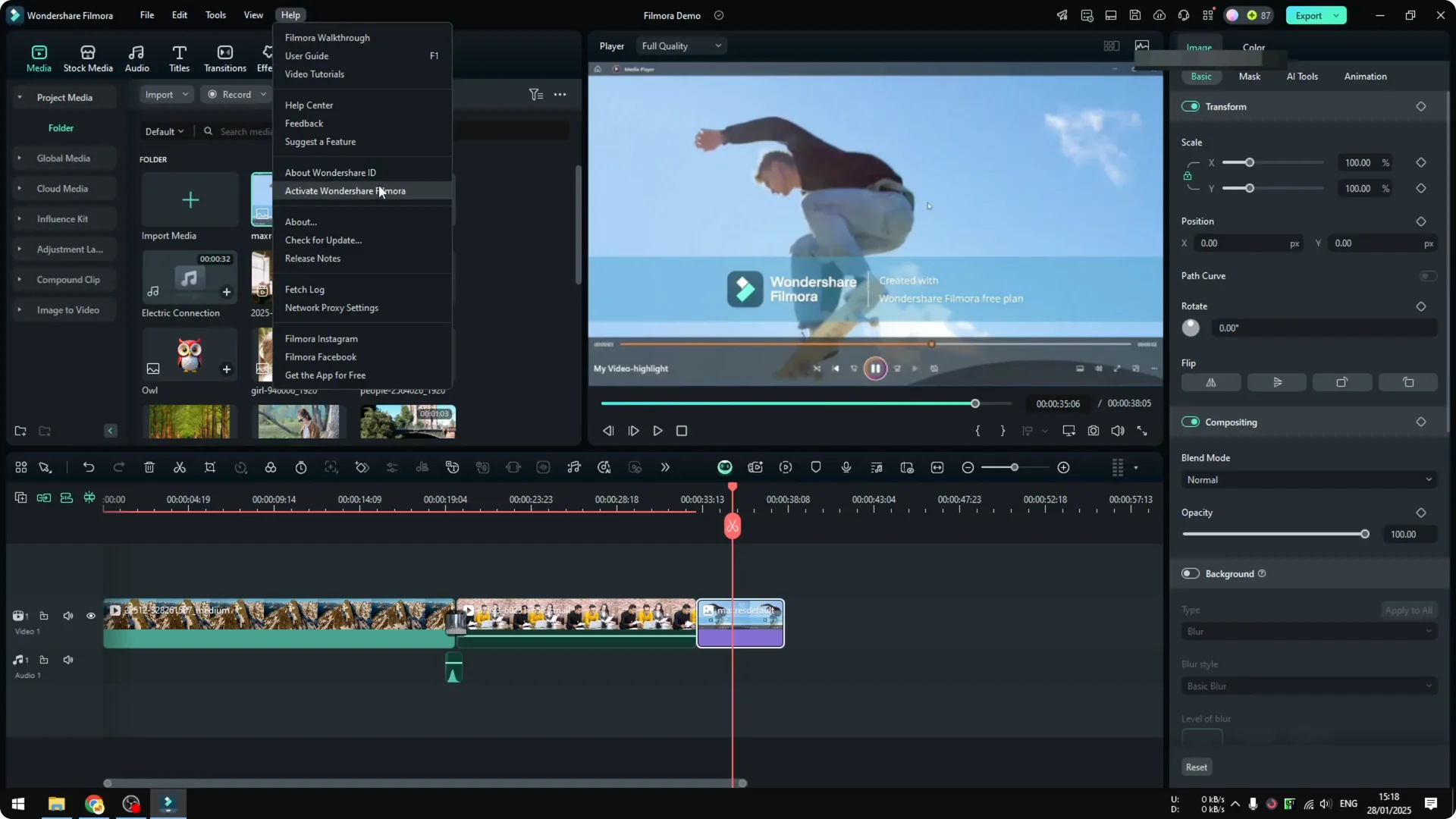
You can also check from the Help menu. Click About Wondershare ID or Activate Wondershare Filmora, and a browser window opens. Log into your Filmora account to verify the identity and the user of this Filmora software.
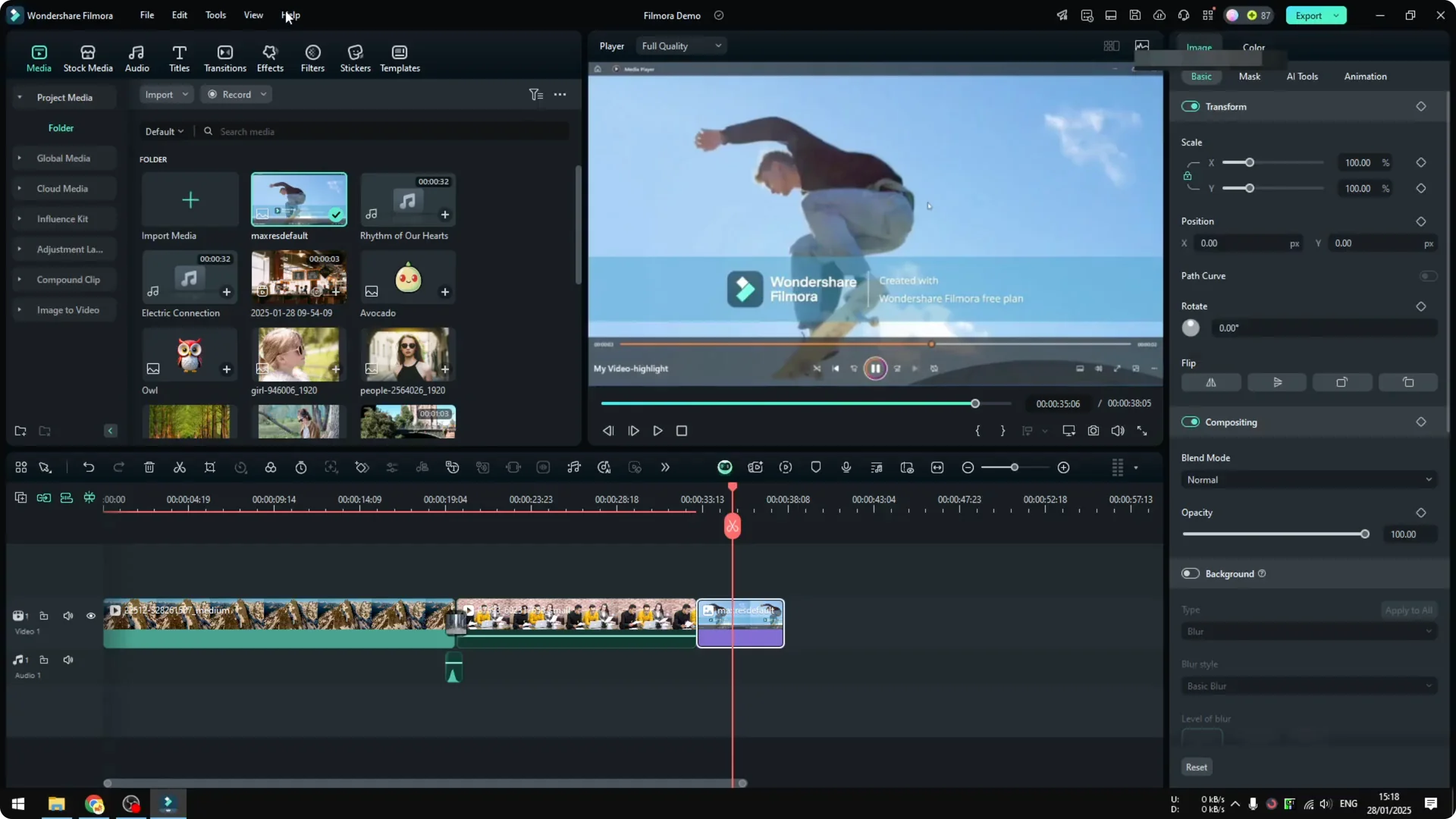
If you have paid for it, you should be able to log in smoothly without any problem. That confirms the license tied to your account.
Quick steps
Open Help in the top menu. Choose About Wondershare ID or Activate Wondershare Filmora, then sign in in the browser. Confirm the plan tied to your account.
After confirming your plan, you might want to look at color grading in Filmora using AI to improve your edits.
Final thoughts on Filmora License Verification
These are the three quick ways to see if you are on the Pro subscription, the Perpetual license, or the free version. Use the Account menu, an export check for the Watermark, or the Help menu login.
Once you verify your identity and plan, Filmora should work as expected without any Watermark. Keep your login active to enjoy the full version.