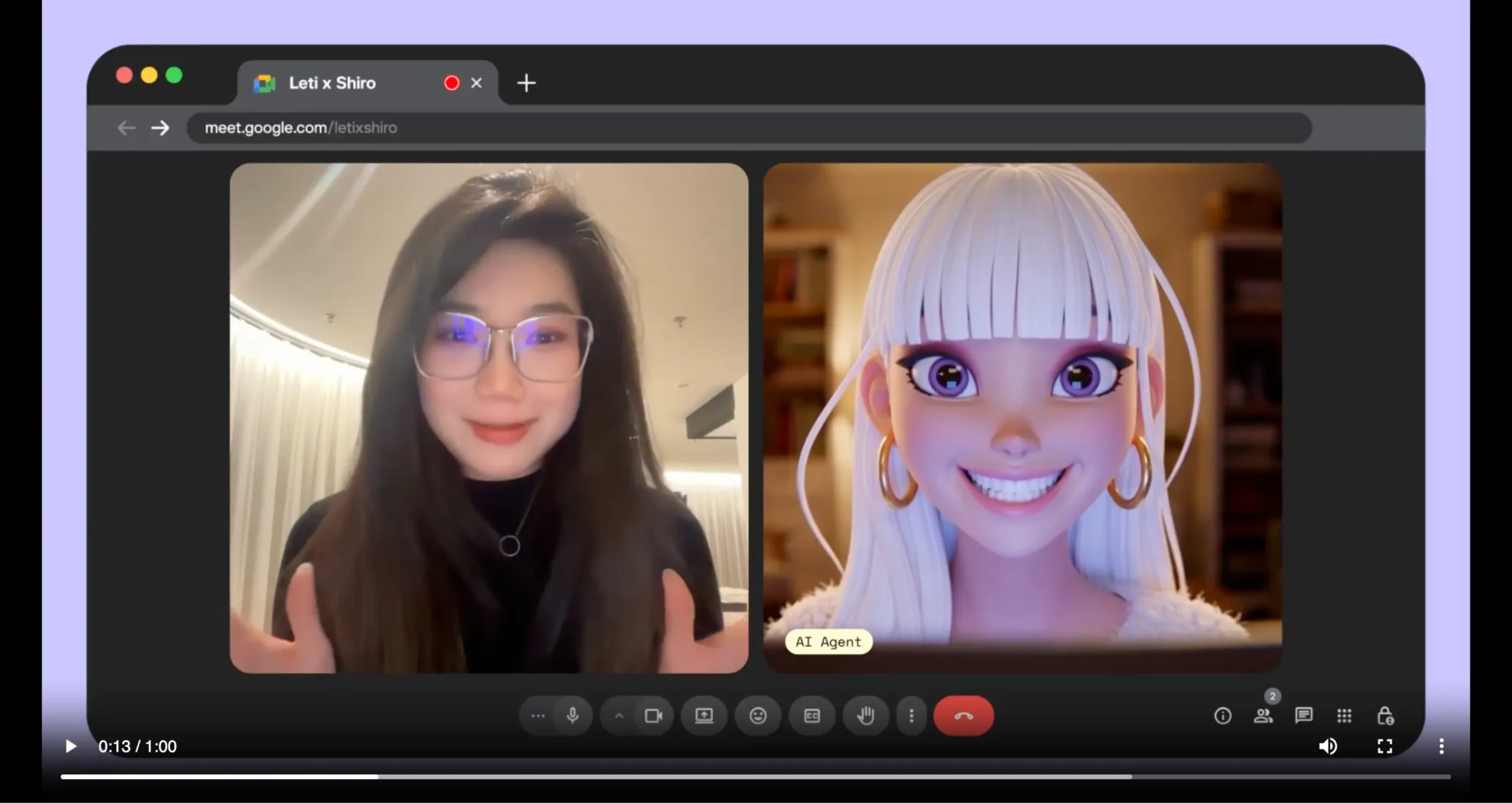
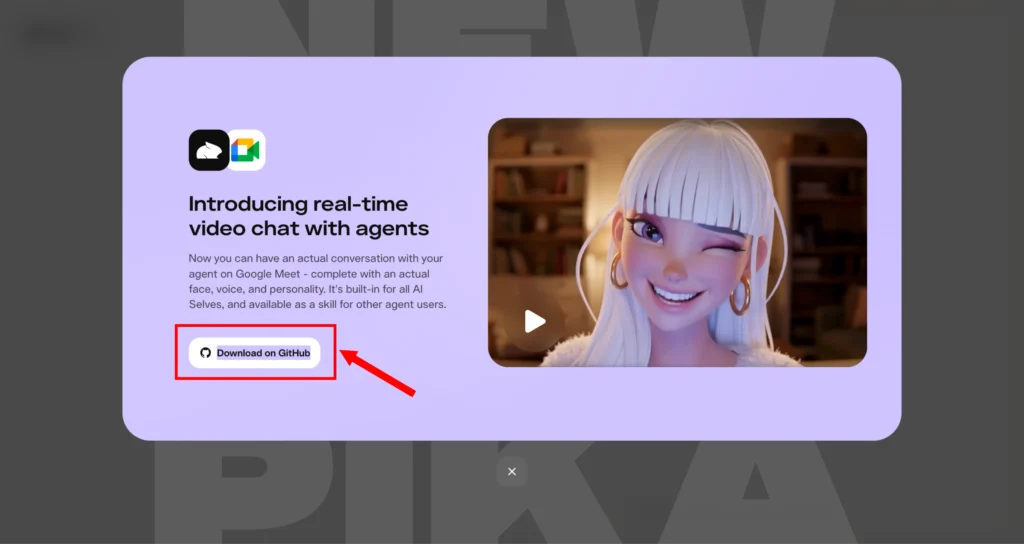
Artificial intelligence has come a long way from simple text-based chatbots. Today, AI agents can hold conversations, understand context, execute tasks, and now join your video meetings as a fully interactive avatar. PikaStream is at the forefront of this evolution, enabling AI agents to appear in live video calls with a face, a voice, and the ability to think and respond in real time.
Whether you are a developer building the next generation of virtual assistants, a business looking to automate routine meetings, a content creator experimenting with AI-driven media, or an educator seeking interactive AI instructors, PikaStream offers a compelling and accessible solution.
This guide walks you through everything you need to know — from creating your developer account to deploying a real-time AI avatar directly inside a Google Meet call.
What is PikaStream?
PikaStream is a new real-time AI video interaction system introduced as part of the Pika ecosystem. It enables AI agents to communicate through video with both a face and a voice, creating a more natural and engaging conversational experience.
Traditional AI interactions are mostly text-based or limited to voice, but PikaStream brings a visual layer that significantly improves communication quality.
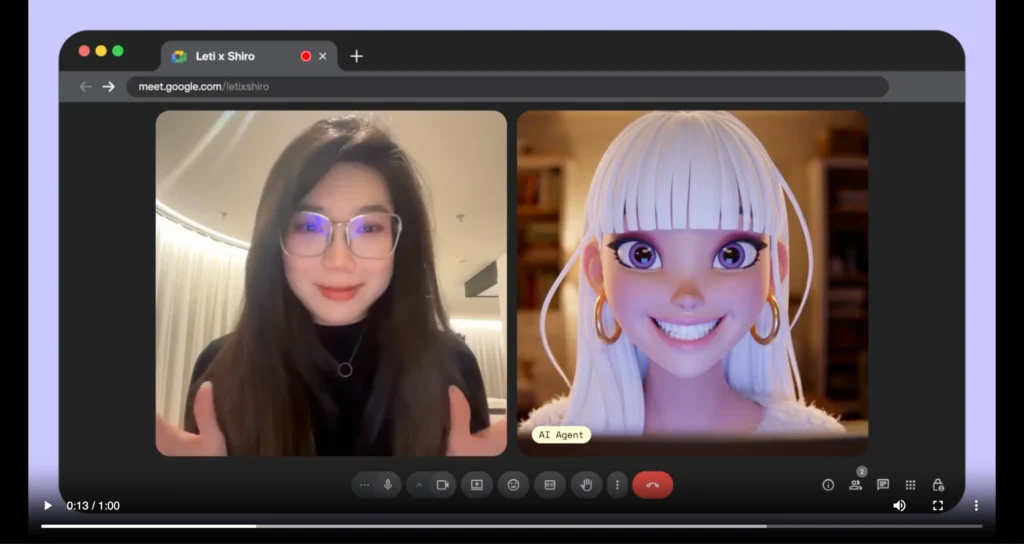
The system is powered by the PikaStream1.0 model, which allows agents to appear as avatars in live video calls. These avatars can speak, respond, and adapt in real time, making conversations feel more human-like. The idea behind PikaStream is simple: conversations become more effective when participants can see and hear each other, even if one of them is an AI agent.
Additionally, PikaStream integrates deeply with AI agent frameworks, allowing them not only to communicate but also to execute tasks during conversations. This makes it useful for both casual and professional applications.
What is PikaStream1.0 Model?
PikaStream1.0 is the core real-time model that powers PikaStream. It allows AI agents to respond instantly during a live video session.
The model supports low-latency communication, meaning there is minimal delay between user input and AI response. This is essential for maintaining a natural flow in conversations. It also enables adaptive responses, allowing the AI to adjust its tone, expressions, and responses based on the ongoing interaction.

Another key advantage of PikaStream1.0 is its ability to maintain memory and personality. This ensures that the AI agent behaves consistently across interactions, making it more reliable for long-term use cases such as customer support, virtual assistants, and training systems.
Low-Latency Communication: The model is optimized to minimize the delay between when a user speaks or sends input and when the AI responds. This is crucial for maintaining a natural conversational rhythm. In traditional AI systems, long response delays break the flow of dialogue; PikaStream1.0 is built to eliminate this friction.
Adaptive Responses: The model does not respond with a one-size-fits-all approach. It continuously monitors the tone, content, and context of a conversation and adjusts its responses accordingly. This makes the avatar feel responsive and alive rather than scripted.
Memory and Personality Preservation: One of PikaStream1.0’s standout capabilities is its ability to maintain memory across a session and preserve a consistent personality. This is especially important for use cases like customer support or virtual assistants, where users expect continuity across interactions. The AI remembers what was discussed earlier in the call and builds on it, creating a sense of genuine engagement rather than starting from scratch with every exchange.
Agentic Task Execution: Beyond just talking, PikaStream1.0 enables the AI avatar to perform actual tasks during a call, retrieving data, executing commands, summarizing documents, or interacting with connected tools and workflows. This turns the avatar from a passive conversationalist into an active participant.
Key Features of PikaStream
Real-Time Video AI Interaction
PikaStream allows AI agents to interact in real time through video. This means users can engage in live conversations with AI avatars that respond instantly, creating a seamless communication experience.
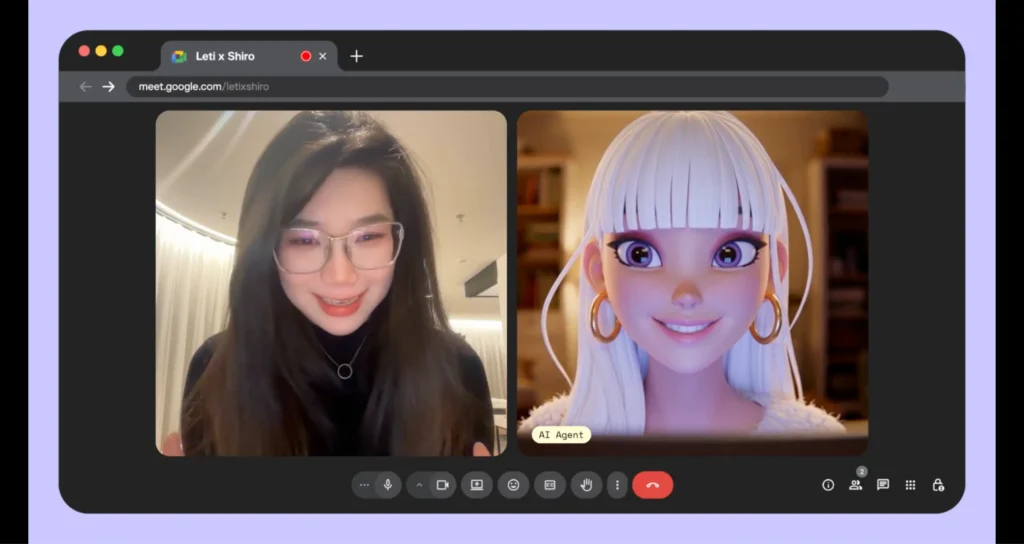
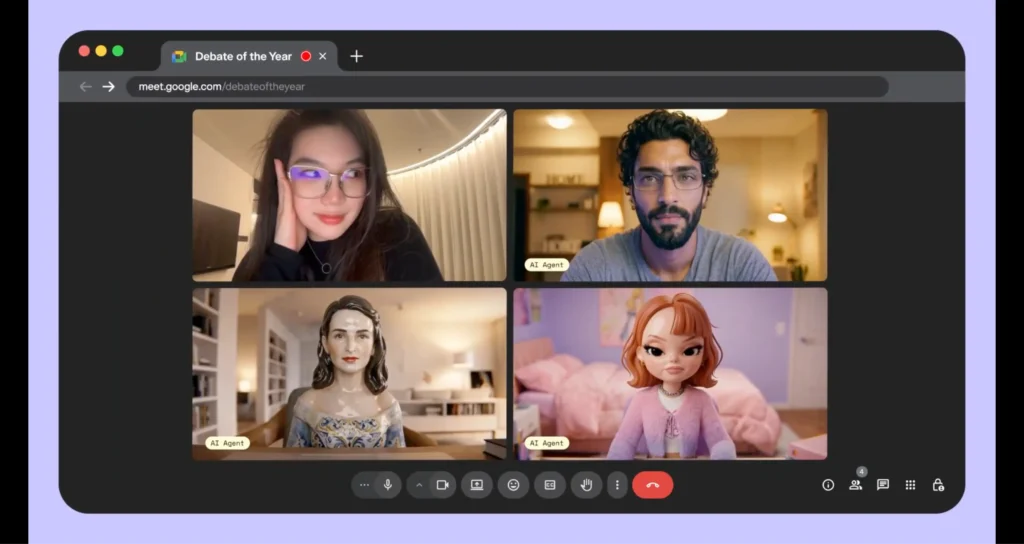
AI Avatar in Video Calls
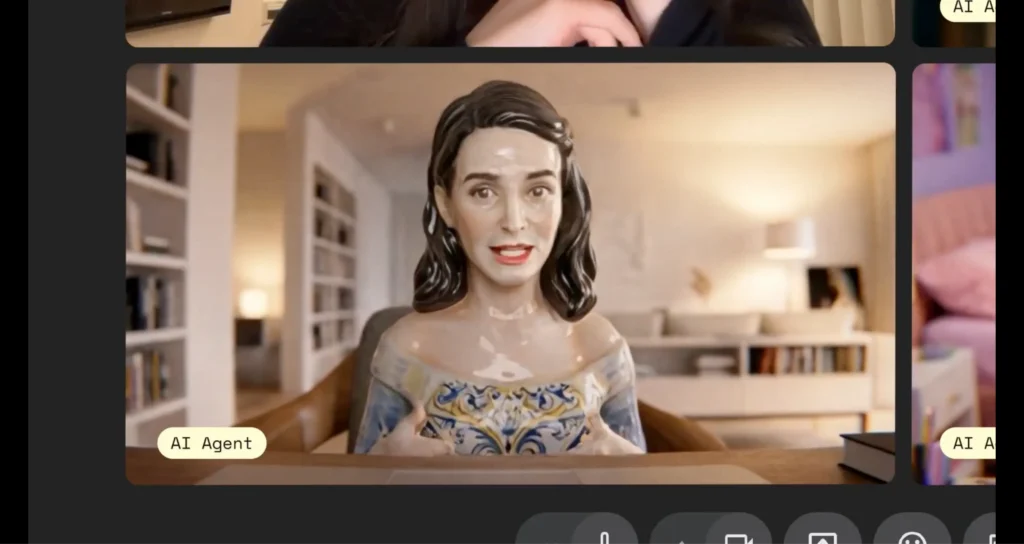
The system enables AI agents to join video calls as avatars. These avatars can be generated or customized, providing flexibility for branding or personalization.
Voice Cloning Capability
PikaStream supports voice cloning, allowing users to replicate a specific voice using a short audio sample. This feature is particularly useful for creating personalized AI assistants.
Memory and Personality Preservation
One of the standout features is the ability to preserve memory and personality. The AI can remember past interactions and maintain a consistent behavior pattern, making conversations more meaningful.
Real-Time Adaptability
The AI adapts to the conversation as it happens. It can adjust its responses based on context, tone, and user input, ensuring a dynamic interaction.
Agentic Task Execution
When integrated with AI agents, PikaStream allows them to perform tasks during the call. For example, an agent can retrieve data, execute commands, or assist with workflows while interacting with the user.
Context-Aware Conversations
The system uses workspace context, including identity, activity, and known contacts, to generate more relevant and informed responses.
Automatic Meeting Notes
After a session ends, PikaStream can generate and share meeting notes automatically, saving time and improving productivity.
What are Pika Skills?
Pika Skills are modular extensions that enhance the capabilities of AI agents. Each skill is a self-contained module that allows the agent to perform specific tasks.
A typical skill includes:
- SKILL.md: Defines how and when the skill should be used
- Scripts: Executable files that perform actions
- requirements.txt: Dependencies required for the skill
When a skill is added to an agent, it is automatically detected and used without manual configuration.
Available PikaStream Skill
Available Skill: pikastream-video-meeting
The primary skill relevant to this guide is pikastream-video-meeting. This skill enables an AI agent to join Google Meet calls as a real-time avatar. It handles everything: avatar display, voice interaction, billing checks, session management, post-meeting note retrieval, and context-aware conversation generation.
Pricing: $0.275 per minute of active session time.
Prerequisites Before Getting Started
Before diving into the setup steps, make sure you have the following ready:
- Python 3.10 or higher installed on your system. You can check this by running
python --versionin your terminal. - A Google account with access to Google Meet.
- A Pika Developer Account (which you will create in Step 1 below).
- Optionally, ffmpeg installed on your system if you plan to work with audio for voice cloning.
- The Pika Skills repository cloned or downloaded to your local machine.
How PikaStream Works (Step-by-Step Guide)
Step 1: Create a Pika Developer Account
The first thing you need is access to the Pika developer ecosystem. Navigate to the developer login page:
https://www.pika.me/dev/login
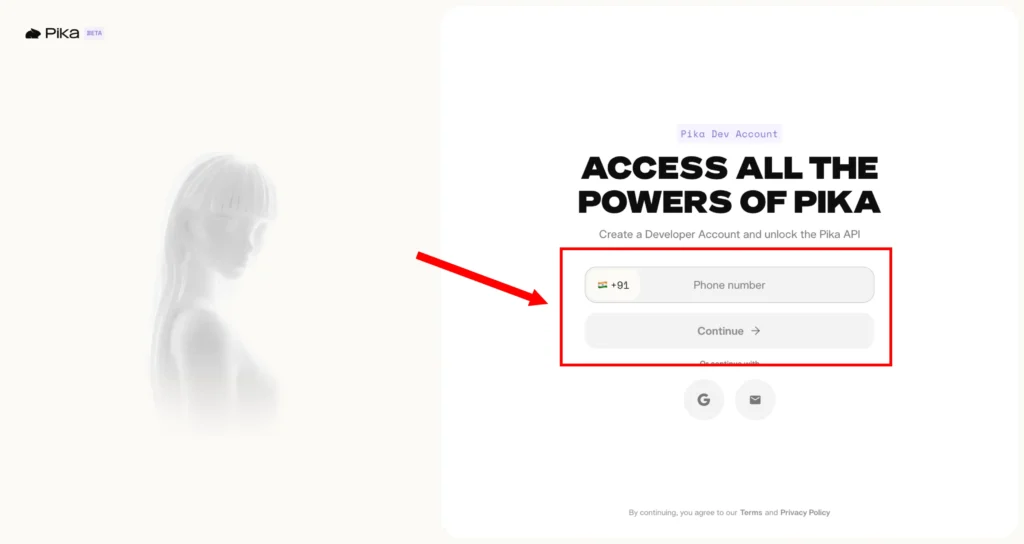
If you already have a Pika account, log in using your existing credentials. If you are new to the platform, click the option to create a new developer account.
Once logged in, you will land on the developer dashboard, which is your central hub for managing API keys, monitoring usage, and configuring model settings.
Step 2: Configure Your Developer Account and Access Model Settings
After logging in, locate the Developer Account button in the dashboard interface and click on it. This will take you into your account settings panel.
From there, navigate to Model Settings. This section is important because it is where your API keys are created and managed. The Model Settings panel also gives you visibility into how your tokens are being consumed across different features and models.
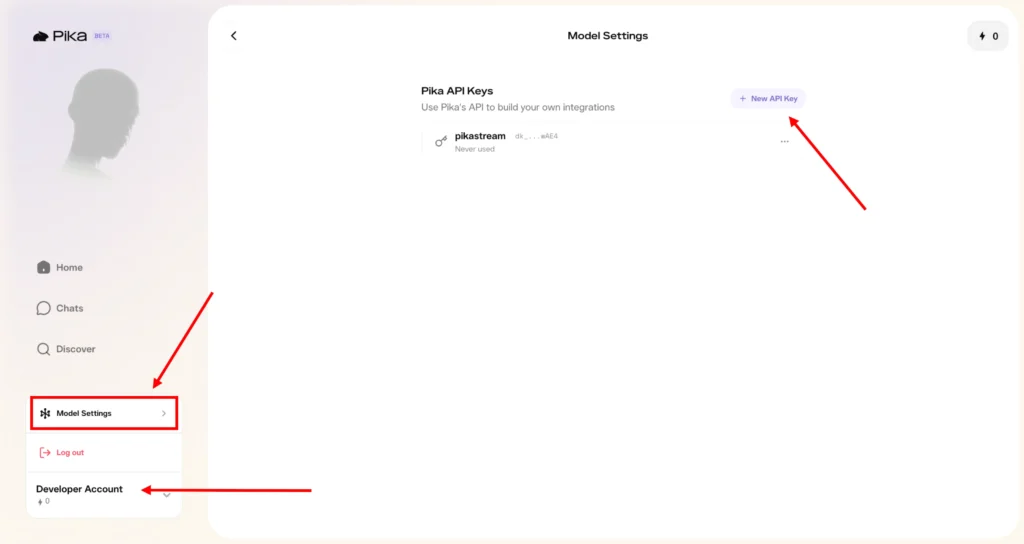
Take a moment to familiarize yourself with the dashboard. You will find usage graphs, session histories, balance information, and configuration options for connected models. Understanding the dashboard will help you manage your integration more effectively as you scale usage.
Step 3: Create Your API Key
Inside the Model Settings section, look for the button labeled “+ New API Key” and click it. You will be prompted to name the key (for example, “PikaStream Video Bot”) and confirm its creation.
Once generated, the API key will be displayed on screen. This is the only time you will be shown the full key, so make sure you copy it immediately and store it in a secure location — a password manager, a secrets vault, or a secure configuration file in your project. Do not hardcode this key directly into source code that will be committed to a public repository.
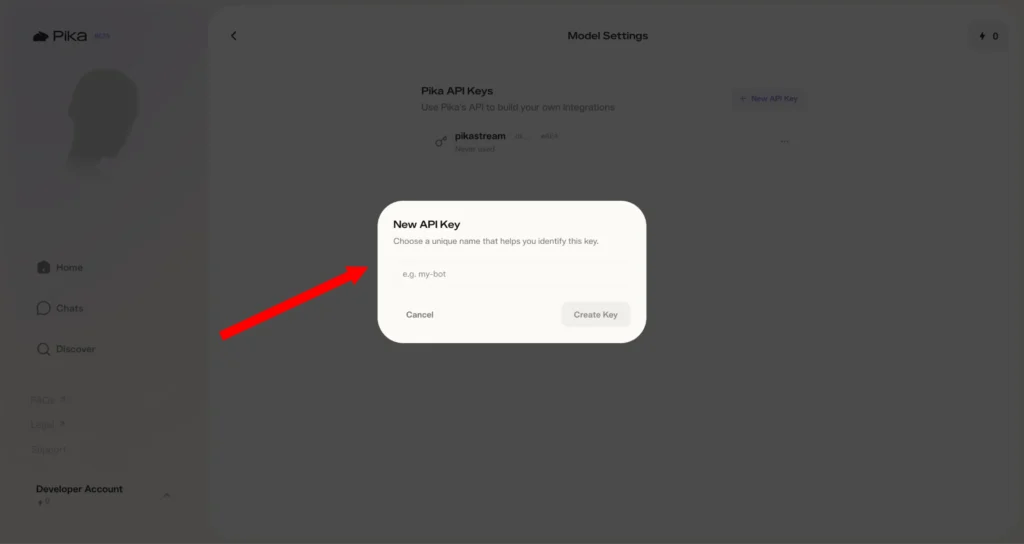
Your API key will begin with dk_, which stands for “developer key.” It looks something like this:
dk_a1b2c3d4e5f6g7h8i9j0k1l2m3n4o5p6
This key is what authenticates all of your API calls to the Pika platform.
Step 4: Top Up Your Developer Tokens
PikaStream is a usage-based service, and you need to have tokens in your account before you can start a live session. Tokens are consumed at a rate of $0.275 per minute for the pikastream-video-meeting skill.
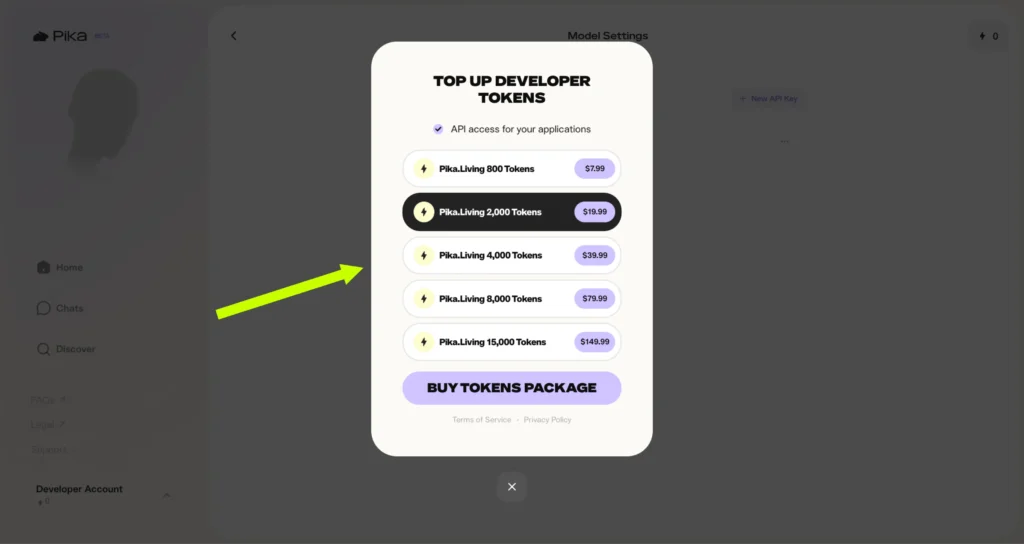
To purchase tokens, navigate to the billing or credits section of the Pika developer portal at pika.me. The official token packages available are:
| Package | Tokens | Price |
|---|---|---|
| Pika.Living Starter | 800 Tokens | $7.99 |
| Pika.Living Standard | 2,000 Tokens | $19.99 |
| Pika.Living Growth | 4,000 Tokens | $39.99 |
| Pika.Living Pro | 8,000 Tokens | $79.99 |
| Pika.Living Enterprise | 15,000 Tokens | $149.99 |
Choose a package that fits your expected usage. For initial testing and development, the 800-token starter pack is a reasonable choice. For production deployments or frequent meetings, consider the larger packages, which offer better value per token.
One of the conveniences of the pikastream-video-meeting skill is that it automatically checks your balance before initiating a session. If your balance is insufficient, the skill will generate a payment link for you automatically, so you can top up without leaving your workflow.
Step 5: Set the Environment Variable
With your API key ready, the next step is to configure your local environment to use it. The recommended approach is to set it as an environment variable rather than hardcoding it anywhere.
Open your terminal and run:
export PIKA_DEV_KEY="dk_your-key-here"
Replace dk_your-key-here with your actual API key. This command sets the variable for your current terminal session. For it to persist across sessions (so you do not have to set it every time you open a new terminal), add it to your shell profile:
For Bash users:
echo 'export PIKA_DEV_KEY="dk_your-key-here"' >> ~/.bashrc
source ~/.bashrc
For Zsh users (the default on macOS):
echo 'export PIKA_DEV_KEY="dk_your-key-here"' >> ~/.zshrc
source ~/.zshrc
You can verify the variable is set correctly by running:
echo $PIKA_DEV_KEY
It should print your key back to the terminal.
Step 6: Clone the Pika Skills Repository
Next, you need to get the Pika Skills code onto your machine. The skills are hosted as an open-source repository. Clone it using Git:
git clone https://github.com/pika-skills/pika-skills-open.git
cd pika-skills-open
Inside the repository, you will find the pikastream-video-meeting folder, which contains:
SKILL.md— The skill definition that your AI agent readsscripts/pikastreaming_videomeeting.py— The main Python script for managing sessionsrequirements.txt— Python dependencies
Step 7: Install Python Dependencies
Navigate to the pikastream-video-meeting folder and install the required dependencies:
cd pikastream-video-meeting
pip install -r requirements.txt
This will install all the libraries the skill scripts need to communicate with the PikaStream API, handle audio, manage sessions, and interact with Google Meet.
Step 8: Install the Skill Into Your Agent Workspace
If you are using an AI coding agent such as Claude Code, you need to point the agent at the skill folder so it can read the SKILL.md and understand how to use it. This is done by issuing an install command:
install /path/to/pika-skills-open/pikastream-video-meeting/
Replace the path with the actual path to the skill folder on your machine. Once installed, the agent will automatically detect the SKILL.md on startup and know when and how to activate the skill — no further configuration needed.
Step 9: Generate Your AI Avatar
Before the bot can join a meeting, it needs an avatar image. PikaStream gives you two options: use an AI-generated avatar, or provide your own custom image.
Option A: Generate an AI Avatar
Use the built-in avatar generation command, which calls OpenAI’s image models:
python scripts/pikastreaming_videomeeting.py generate-avatar \
  --output my_avatar.png \
  --prompt "A friendly, professional-looking person with a warm smile, wearing a business casual shirt"
The --prompt flag lets you describe what you want the avatar to look like. Be descriptive — the more detail you provide, the more tailored the result will be. Experiment with different prompts until you find an avatar that represents your use case well.
Option B: Use a Custom Image
If you have a specific image you want to use — a company logo, a brand mascot, or a personal photo — you can skip avatar generation entirely and provide the image path directly when joining a meeting (see Step 11).
For best results, use a high-resolution image with a clear, front-facing subject and minimal background clutter. Square images or images with consistent aspect ratios tend to work best.
Step 10: Clone a Voice (Optional)
PikaStream’s voice cloning feature lets you give your AI avatar a distinctive voice. All you need is a short audio recording — ideally 30 seconds to 2 minutes of clean, clear speech.
python scripts/pikastreaming_videomeeting.py clone-voice \
  --audio my_voice_sample.mp3 \
  --name "MyCustomVoice" \
  --noise-reduction
The --noise-reduction flag is optional but recommended if your audio sample has any background noise. After cloning, you will receive a voice ID that you can use when joining a meeting.
If you skip this step, PikaStream will use a default voice for the avatar. The default voice is perfectly functional, but voice cloning adds a layer of personalization that can significantly enhance the user experience.
Step 11: Join a Google Meet Call
This is the moment everything has been building toward. Joining a Google Meet with your AI avatar is as simple as a single command:
python scripts/pikastreaming_videomeeting.py join \
  --meet-url https://meet.google.com/your-meeting-code \
  --bot-name "Aria" \
  --image my_avatar.png \
  --voice-id MyCustomVoice \
  --system-prompt-file context.txt
Let’s break down the parameters:
--meet-url— The full URL of the Google Meet you want the bot to join.--bot-name— The display name the avatar will appear as in the meeting.--image— Path to the avatar image (either generated or custom).--voice-id— (Optional) The voice ID from your cloned voice. Omit this if using the default voice.--system-prompt-file— (Optional) A text file containing a custom system prompt that shapes how the avatar behaves, its personality, its knowledge, and its tone.
When the command executes, the skill first checks your token balance. If sufficient, it initiates the session and the avatar appears in the Google Meet as a participant. If your balance is too low, the script will generate a payment link and wait for you to top up before proceed.
How to Use PikaStream in Google Meet?
Using PikaStream in Google Meet is straightforward. Simply provide the meeting link to your AI agent. The agent will detect the link and activate the video meeting skill.
The AI will join the meeting as an avatar, interact with participants, and perform tasks if required. It can also leave the meeting when instructed.
Commands and Usage
Join Meeting
python scripts/pikastreaming_videomeeting.py join \
--meet-url URL --bot-name NAME --image IMAGE
Leave Meeting
python scripts/pikastreaming_videomeeting.py leave --session-id ID
Generate Avatar
python scripts/pikastreaming_videomeeting.py generate-avatar --output PATH
Clone Voice
python scripts/pikastreaming_videomeeting.py clone-voice --audio FILE --name NAME
Core Features of pikastream-video-meeting
- Real-time avatar streaming
- Voice cloning from audio samples
- AI-generated avatars
- Automatic billing and payment handling
- Context-aware conversations
- Post-meeting summaries
Use Cases of PikaStream
Developers and AI Agents
Developers can build advanced AI agents that communicate visually and perform real-time tasks.
Businesses and Meetings
Companies can use AI avatars for meetings, reducing the need for human presence in routine discussions.
Content Creators
Creators can use AI avatars for videos, live streams, and interactive content.
Customer Support
AI agents can handle customer queries through video calls, providing a more personal experience.
Education and Training
PikaStream can be used to create interactive learning environments with AI instructors.
Pricing and Billing Explained
The cost of using PikaStream is $0.2 per minute. The system automatically checks your balance before starting a session and generates a payment link if needed.
Requirements to Use PikaStream
- Python 3.10 or higher
- PIKA_DEV_KEY
- ffmpeg (optional)
Best Practices for Deploying PikaStream Effectively
Use High-Quality Avatar Images
The visual quality of your avatar matters. Blurry, low-resolution, or awkwardly cropped images will undermine the professional impression of your AI agent. Use high-resolution images with good lighting, a clear subject, and minimal visual noise in the background.
Provide Clear Voice Samples
If you are using voice cloning, the quality of your audio sample directly affects the quality of the cloned voice. Record in a quiet environment, speak clearly and at a natural pace, and use audio equipment that captures your voice accurately. Avoid samples with heavy compression, background music, or significant noise.
Craft a Thoughtful System Prompt
Your system prompt is the foundation of your avatar’s personality and behavior. Invest time in writing one that clearly defines:
- Who the avatar is
- What its goals and responsibilities are
- How it should behave in different situations
- What it should and should not discuss
A well-crafted system prompt produces dramatically better conversations than a vague or generic one.
Test Before Going Live
Always run a test session in a private meeting before deploying your avatar in a real business context. Verify that the audio is clear, the avatar renders correctly, the system prompt produces the intended behavior, and the billing system is functioning properly.
Monitor Token Usage
Keep an eye on your token balance, especially for longer or more frequent sessions. Set up alerts or check your balance regula
Common Mistakes to Avoid
Missing API Configuration: Forgetting to set the PIKA_DEV_KEY environment variable is the most common beginner mistake. Double-check that it is set and correctly formatted before running any commands.
Poor Audio Quality: Low-quality voice samples produce unconvincing cloned voices that can undermine the professionalism of your avatar. Invest in recording quality.
Ignoring Context Setup: Skipping the system prompt or providing a minimal one will result in generic, unhelpful conversations. Context is what makes PikaStream powerful — do not neglect it.
Using Low-Quality Visuals: A pixelated or poorly cropped avatar image creates a bad first impression. Take the time to prepare a high-quality image.
Insufficient Balance: Starting a session without enough tokens will cause the session to fail or be interrupted. Always verify your balance before important meetings.
Pricing Summary
| Service | Cost |
|---|---|
| pikastream-video-meeting | $0.275 per minute |
| 800 Developer Tokens | $7.99 |
| 2,000 Developer Tokens | $19.99 |
| 4,000 Developer Tokens | $39.99 |
| 8,000 Developer Tokens | $79.99 |
| 15,000 Developer Tokens | $149.99 |
Future of AI Video Agents
PikaStream represents the future of AI interaction. As technology improves, we can expect more advanced avatars, better realism, and wider adoption in industries such as healthcare, education, and business.
PikaStream GitHub and Resources
You can explore the official repository to access skills, documentation, and updates. The open-source nature allows developers to build and extend functionalities easily.
Conclusion
PikaStream is a significant step forward in AI communication. By combining video, voice, and real-time intelligence, it creates a more natural and effective interaction experience. It is suitable for developers, businesses, and creators looking to leverage AI in a more interactive way.