This is a full guide to all the new features in the new Higgsfield Sora 2 Pro update. It is very easy to see what is new because Higgsfield marked them with ribbons. Some show a best ribbon and others show a new ribbon.
You can go through the menus and you will see a bunch of new things that just came out. I am going to look at every single one of these right now. Here is how to use them step by step.
Higgsfield Sora 2 Pro New Features – Finding what is new
New tools are labeled with ribbons across the top menus. If you go over Images or Video, you will see these tags on fresh releases. That makes it quick to spot and open the latest options.
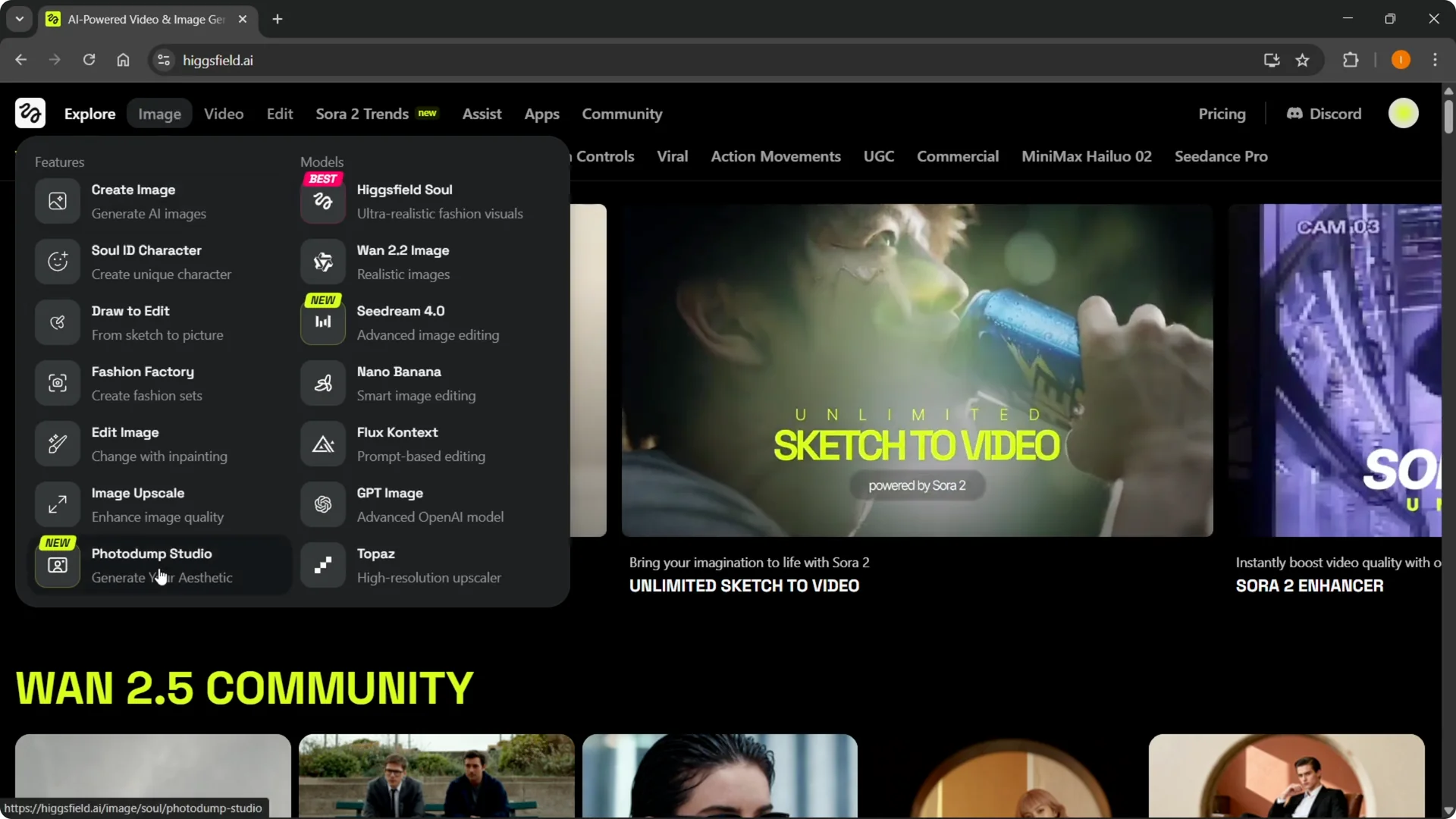
Higgsfield Sora 2 Pro New Features – Image tools
Photo Dump Studio
There is now a Photo Dump Studio where you can generate your aesthetic. I created a random photo dump using a random character, and the set looked very realistic. On images like these, you would not be able to tell the person is AI made.
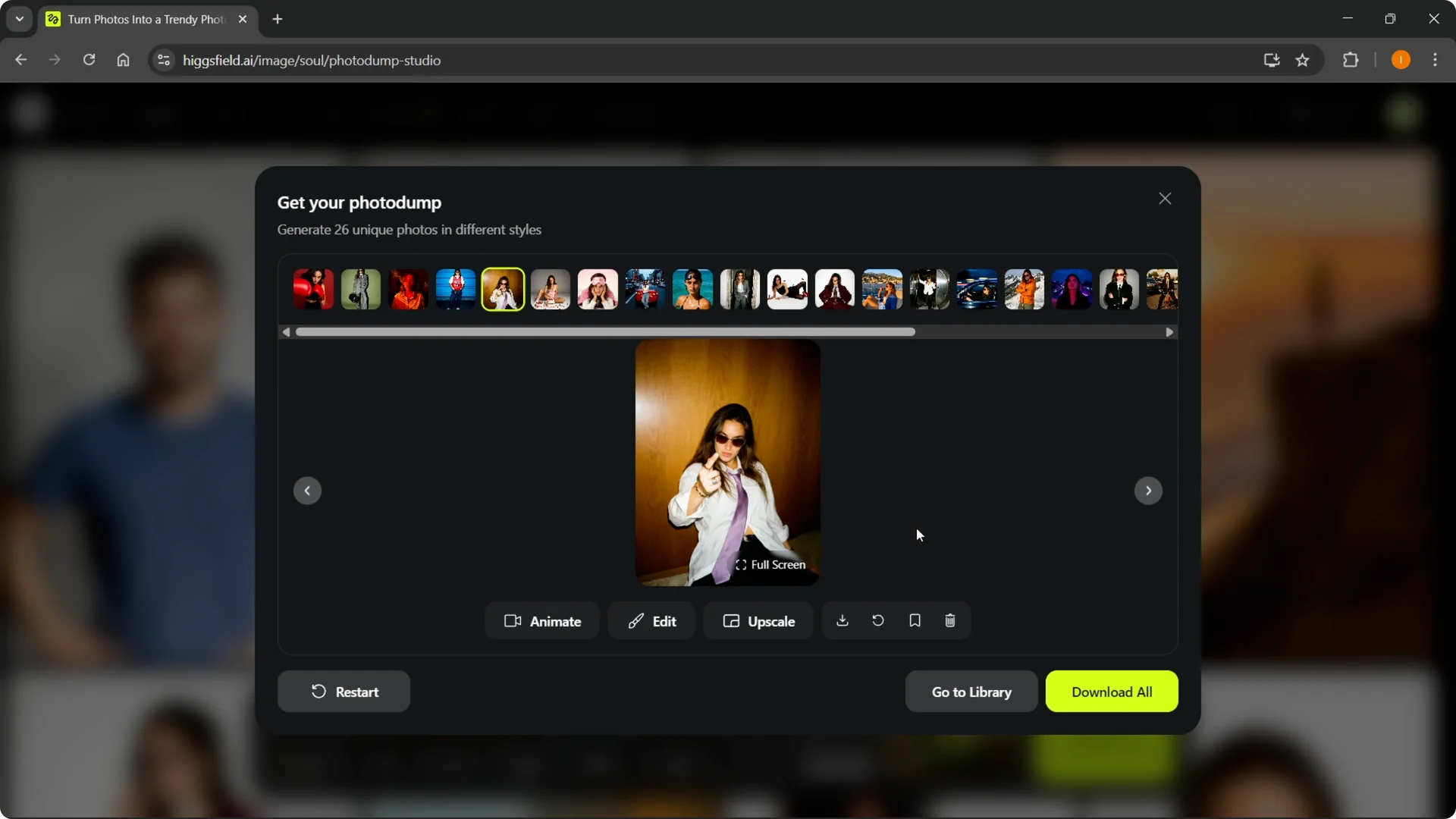
You can scroll through your set, download the results, and add them to your library. You can save a run as a draft. You can photo dump pretty much everything and anything you want.
You can build your own character if you want, or select one of the characters from the list. I restarted it and selected one of those, but you can stick with your own too. This is a great new feature to explore.
Step 1: Open Photo Dump Studio under Images.
Step 2: Pick a character or build your own.
Step 3: Generate, review the set, then download or save as a draft.
If you are comparing model options and presets used around Higgsfield, check Nano Banana Pro Higgsfield 2 for notes on related workflows.
Seedream 4.0 image editing
Under Images, there is advanced image editing in Seedream 4.0. You can edit any image by describing the scene you want and Seedream 4.0 does it. I took a photo of a dude without a hat and typed that I wanted his arms to be like this, and it did the magic.
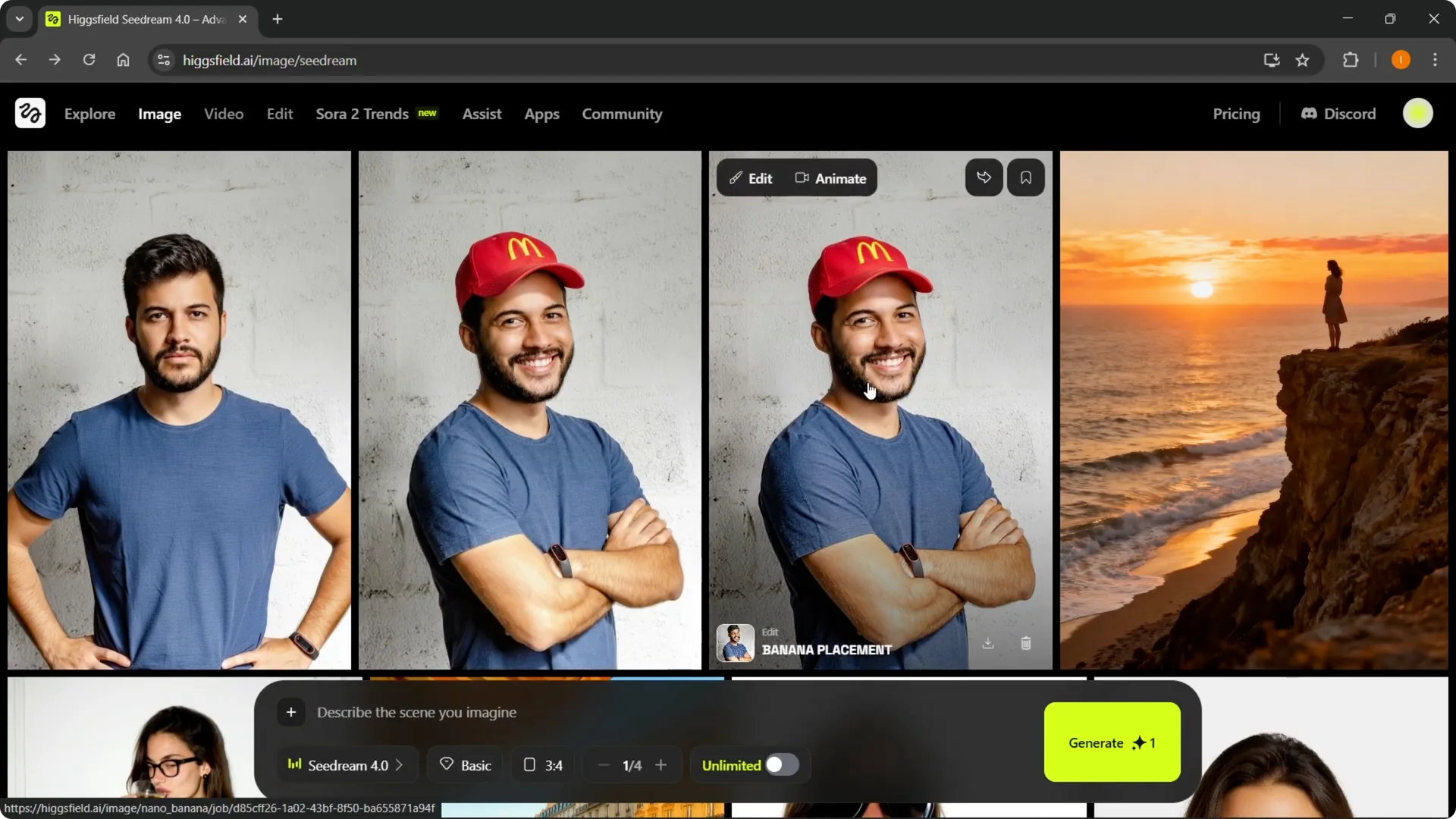
It makes edits look very realistic and there is no hassle. You just type what you want, and you are good to go. This is very good if you would like to edit any images.
Step 1: Open Seedream 4.0 and upload your image.
Step 2: Describe the edit in plain text, including pose or scene details.
Step 3: Generate, review, and save your edited image.
Higgsfield Sora 2 Pro New Features – Video tools
Sora 2 and Sora 2 Pro
Under Video, there are a bunch of new things. The most exciting one here is Sora 2 Pro. Inside Sora 2 you have options for Video, Draw the video, and Sketch the video.
You can draw anything in the canvas and turn that into a video. You can erase and repaint as you like, then set a style like realistic, cinematic, anime, commercial, or horror. Click Generate to make the video.
There is also Draw to edit, which has been a feature already before. For all of these, you can use Sora 2 and Sora 2 Pro. Sora 2 Pro is the most advanced video model to date in this lineup.
Step 1: Open Sora 2 or Sora 2 Pro and choose Video, Draw the video, or Sketch the video.
Step 2: Describe the scene you imagine or create a quick sketch.
Step 3: Pick style, set duration, resolution, and aspect ratio, then click Generate.
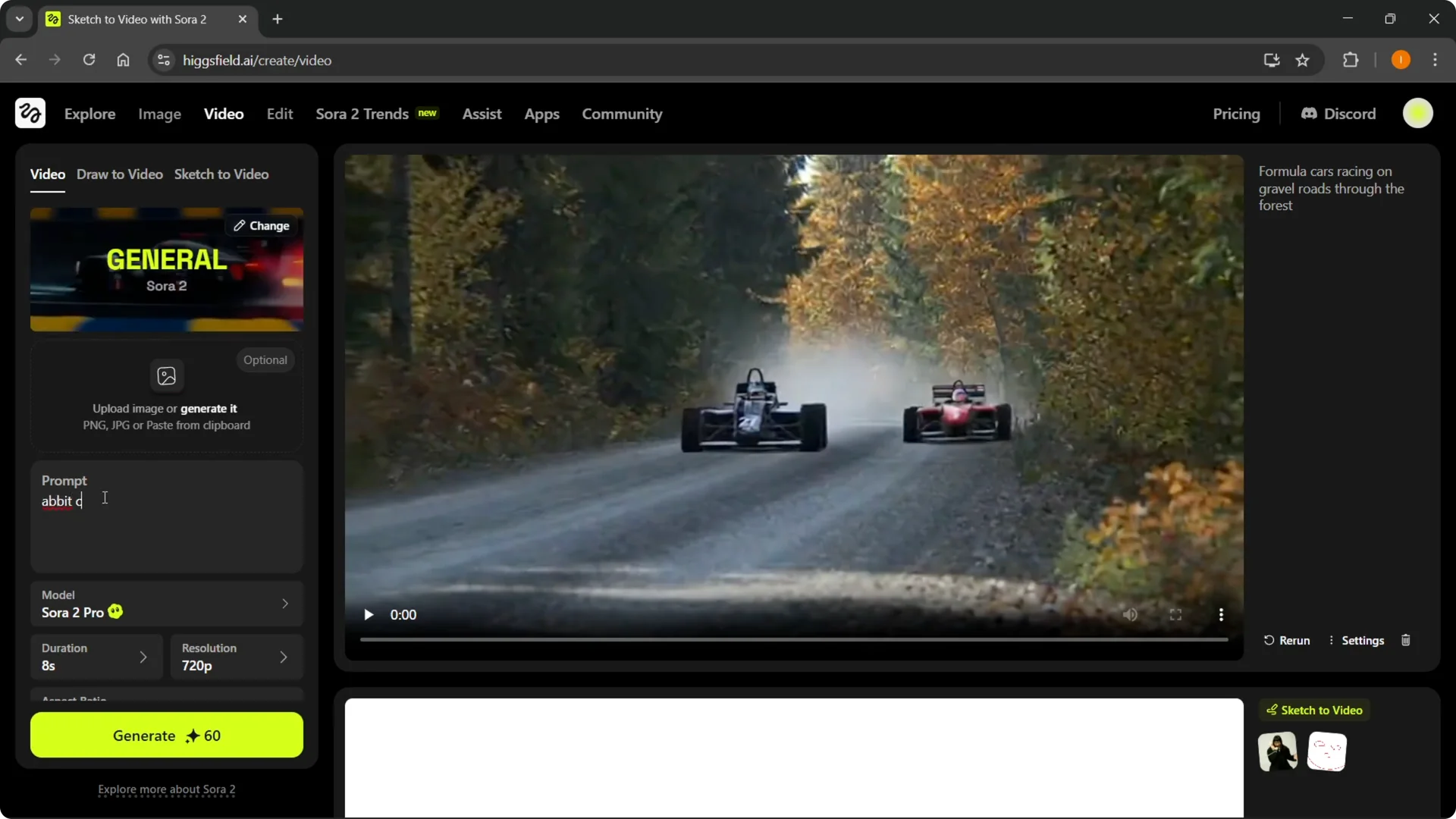
There is a general scene available to start with. I typed a prompt for Sora 2 Pro like ducks crossing the road in the middle of the day. Set duration, resolution, and aspect ratio just like before, then generate, and it starts working and deducts credits.
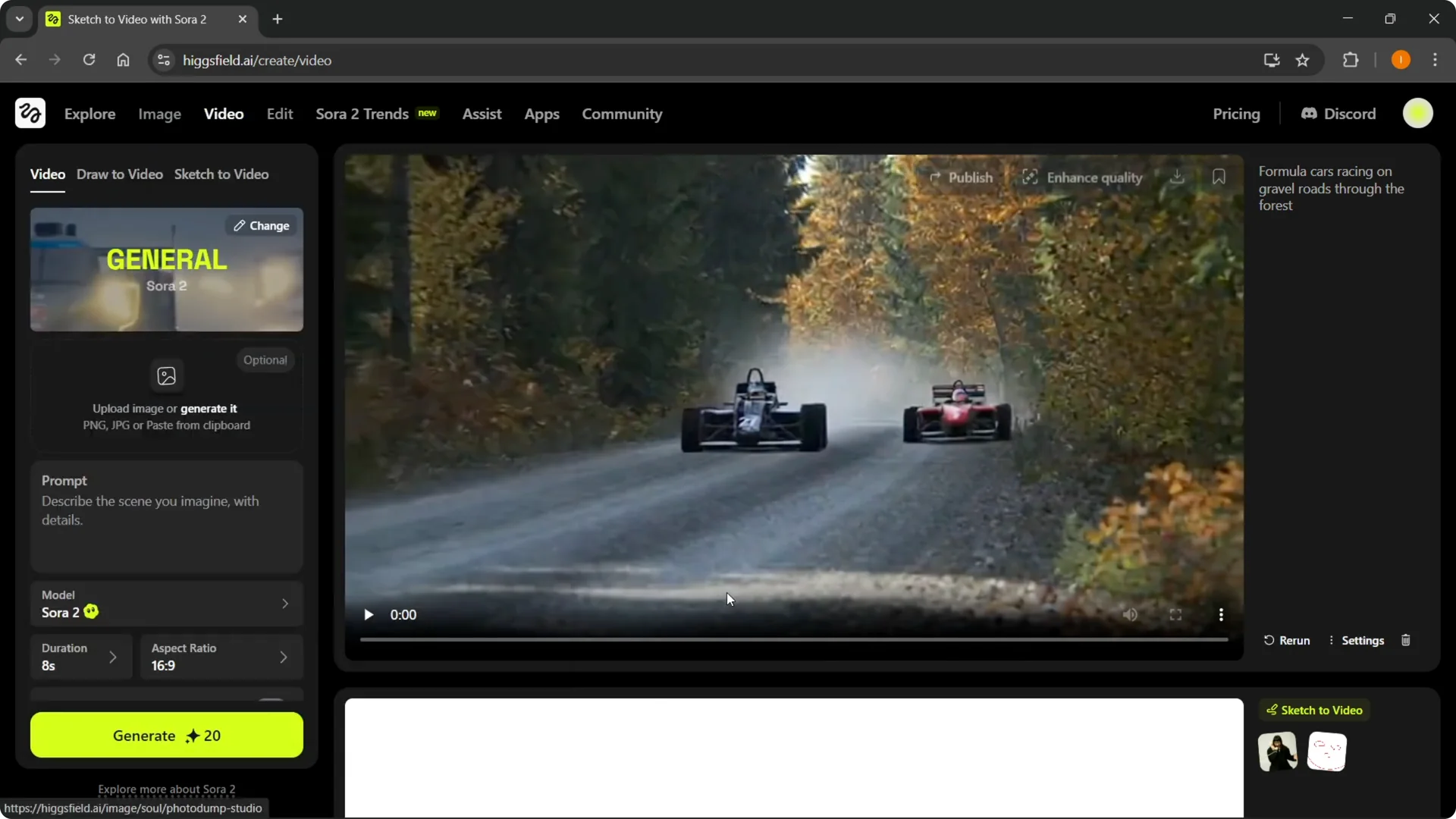
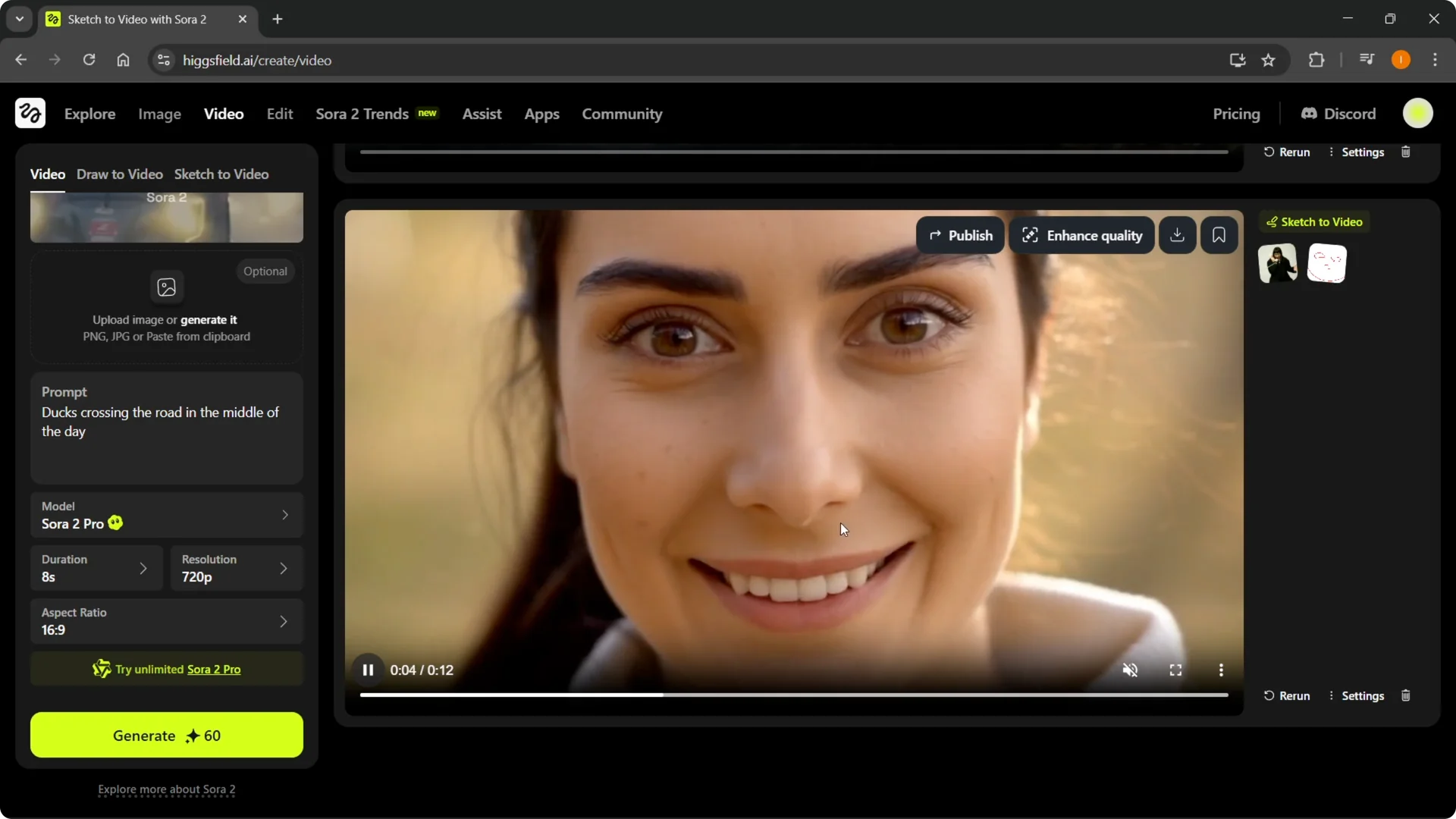
You can also see what I made with Sketch the video. I drew a smiley face and wrote nothing, and it realized I wanted someone to smile. It made a person who is smiling and added audio.
I also created a simple prompt like formula cars racing on gravel roads through the forest. It did exactly that, with audio, and it looked very realistic. You can publish it, enhance quality, download it, save it, rerun it, and change settings.
Step 1: Try a simple sketch like a smiley face to suggest emotion or action.
Step 2: Add a short prompt if needed to guide the scene.
Step 3: Generate, then enhance, download, or rerun with different settings.
If you need deeper prompting and workflow tips, see this Sora 2 guide for best practices on structure and parameters.
Google VEO 3.0
There is also Google VEO 3.0, which is AI video with sound. Open VEO 3.0, choose the general scene, and set your frames. You can set a start frame and end frame, and add ingredients like different images.
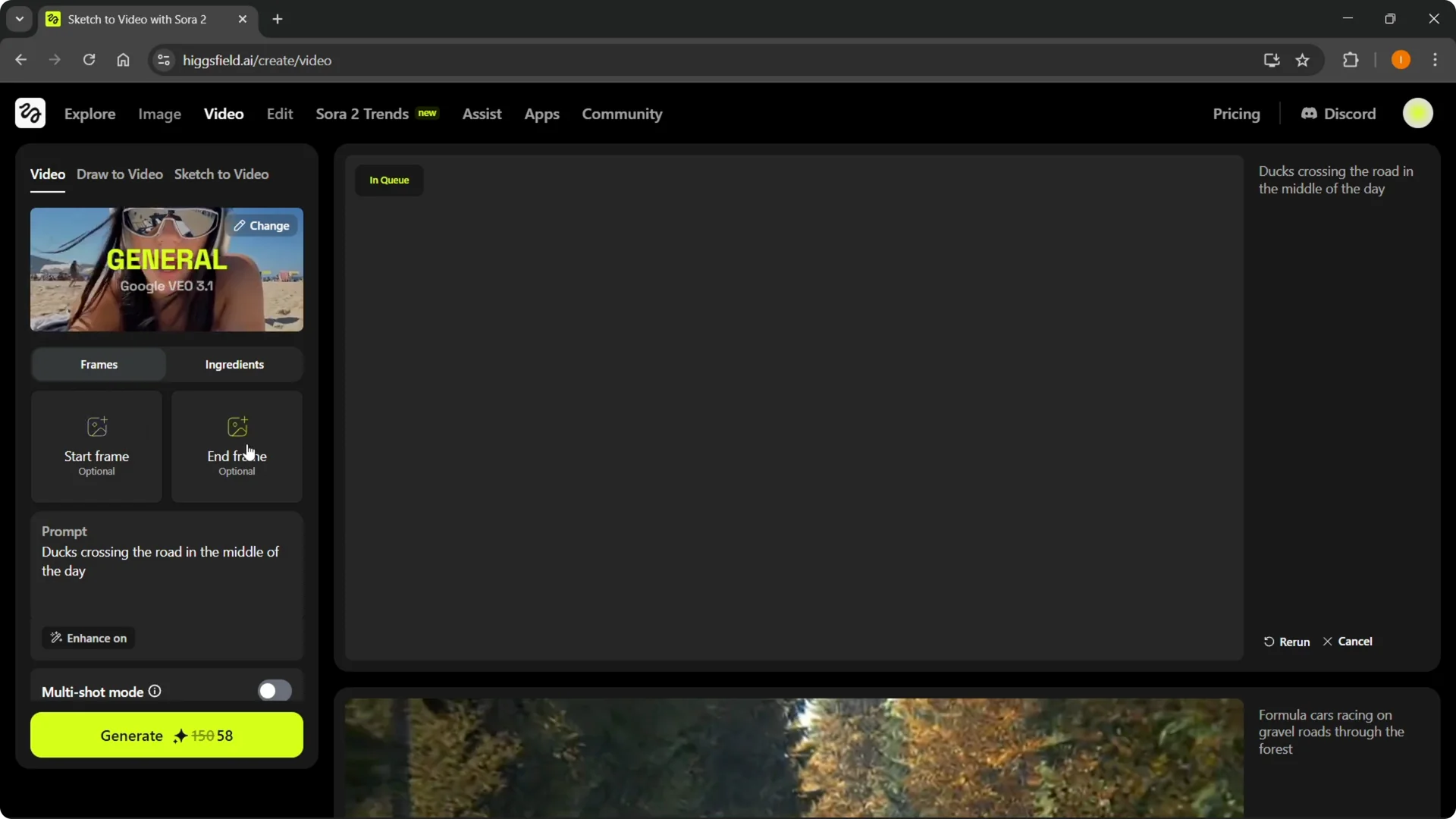
Prompt it in a similar way to Sora 2 Pro. There is a multi-shot mode, plus enhance options. Make sure you select the correct model, like Google VEO 3.0, or switch to Sora 2 Pro and Max if you want those.
Step 1: Open VEO 3.0, pick a scene, and define your start and end frames.
Step 2: Add ingredients like images, set multi-shot if needed, and write your prompt.
Step 3: Select the correct model, enhance if you want, and generate.
For notes on related presets and performance on the Higgsfield stack, you can skim Nano Banana Pro Higgsfield.
Video upscale
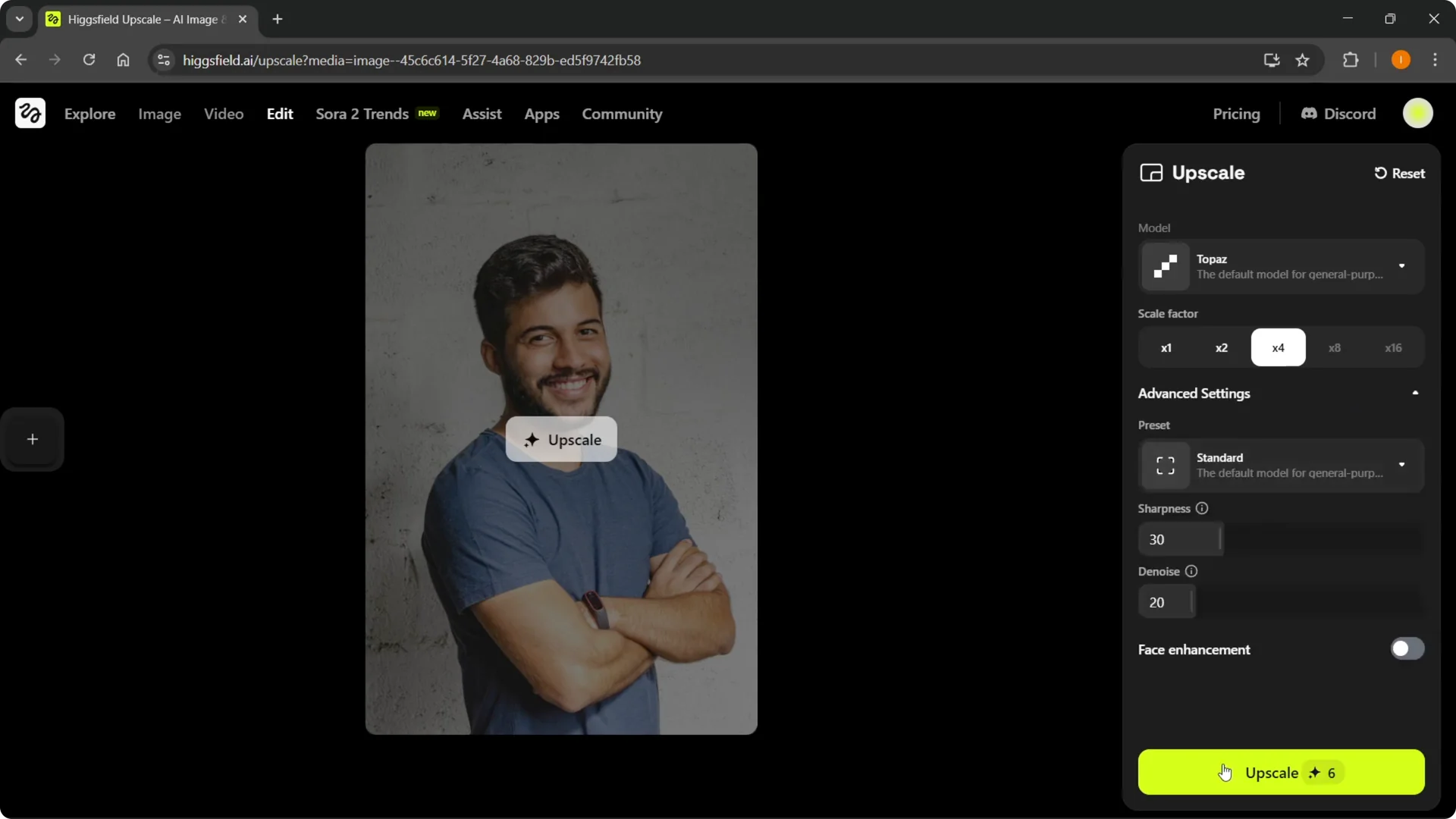
There is a new Video Upscale feature to enhance resolution and quality. Upload your image or video and choose 2x or 4x. Pick a model, open advanced settings if you want, then click Upscale.
This usually runs quickly and gives you very good quality results. Save the output and compare it side by side. It is a handy way to lift older clips to higher resolution.
Step 1: Upload your image or video to Upscale.
Step 2: Choose 2x or 4x and select a model.
Step 3: Open advanced settings if needed, then click Upscale and save.
Sora 2 trends
There is also Sora 2 Trends. You can create Sora 2 trends that are simple, fast, and accessible, and turn ideas into viral videos in minutes with no complex tools or skills. You can generate TikToks, YouTube Shorts, Instagram Reels, and similar videos.
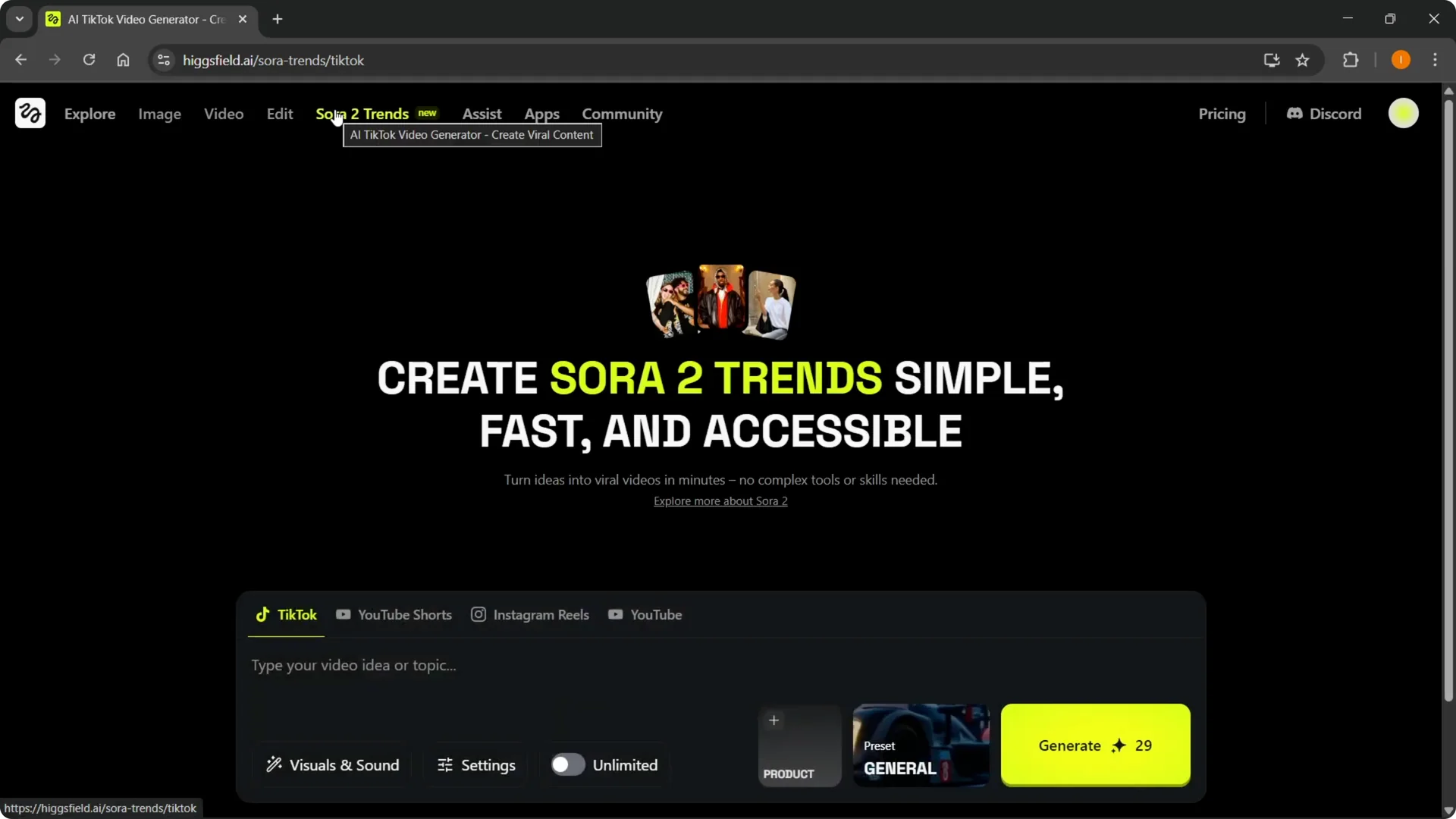
Add different visuals and sounds. Select from presets to move faster. Generate and wait for it to process.
Step 1: Open Sora 2 Trends and choose a preset that fits your idea.
Step 2: Add visuals and sounds, then adjust key settings.
Step 3: Generate and review the result for quick publishing.
You can also look through the Explore page to see what others have made with VEO 3.0 and Sora 2 Pro. There are a bunch of examples from sketches and simple prompts. It is crazy how good these can get.
Final Thoughts
These are the Higgsfield Sora 2 Pro new features I wanted to show. From Photo Dump Studio and Seedream 4.0 to Sora 2 Pro, VEO 3.0, Upscale, and Trends, it is very easy to generate, edit, and enhance. It is getting hard to tell this is made with AI.