Kling had a big week, and one of the highlights was Avatar 2.0. It is not just about how well the video matches the speech. It is the ability to make any avatar you want.
Other programs like Mirage Studio by Captions AI or HeyGen limit the avatars you can choose from, and when you try to build your own, it is not natural. It does not look good. Kling is getting it right, so here is a quick tutorial on how to build your own avatar and the different ways to do it.
Kling Avatar 2.0 overview
I have been using this for a client on the professional side of things. I built one from a built-in avatar in the library and felt it was one of the best animations I have seen. The lips did not distort and the sync held up when viewed larger.
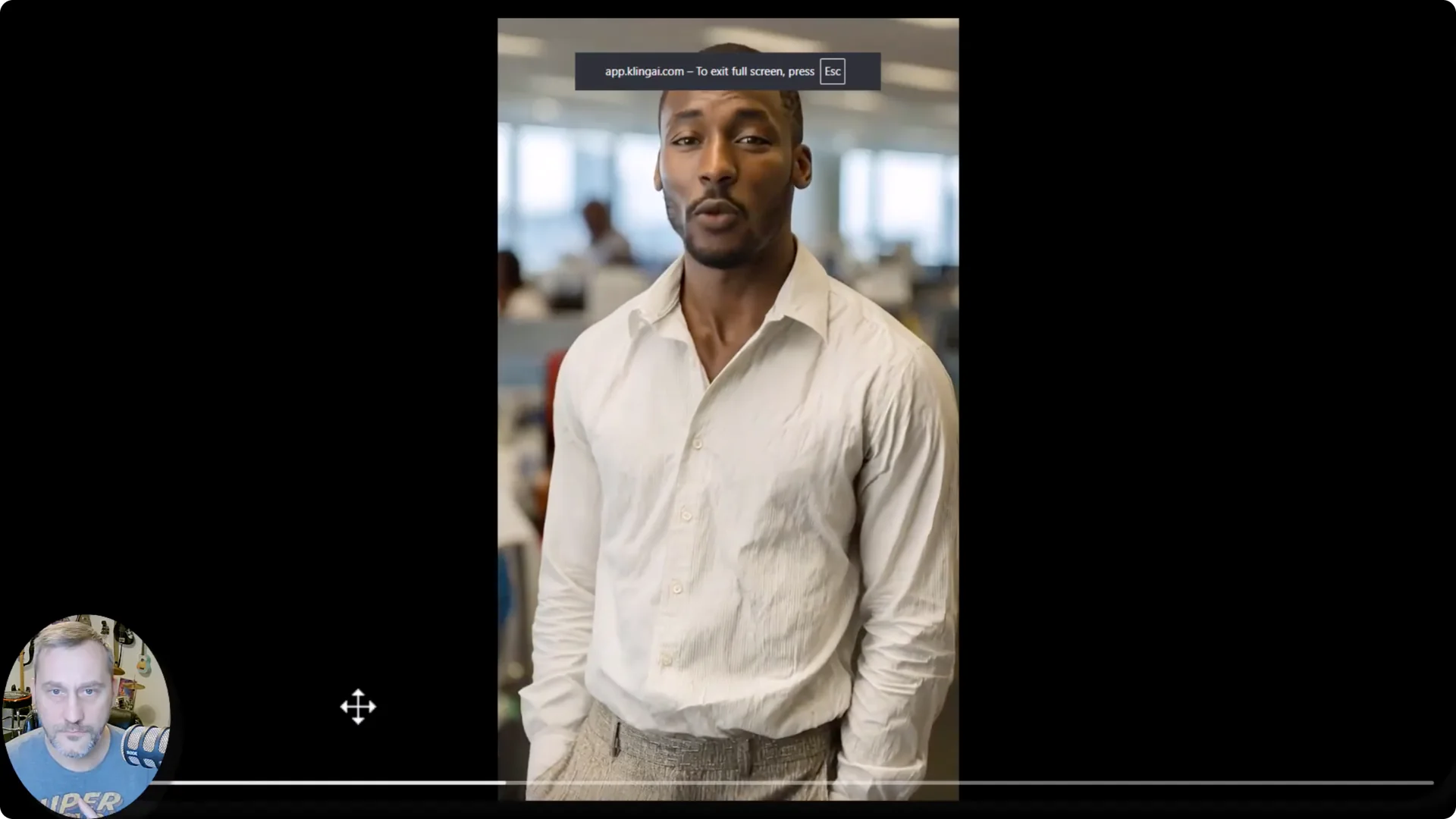
The avatar library matches people with voices. That helps, because when the voice feels disjointed from the person, you do not believe it and you think it is AI. The goal is to make these videos look so real that the viewer focuses on the information, not the AI.
You can view the library across categories. That is one path a lot of avatar creators offer. It works well if you find a face and voice pairing that fits your use case.
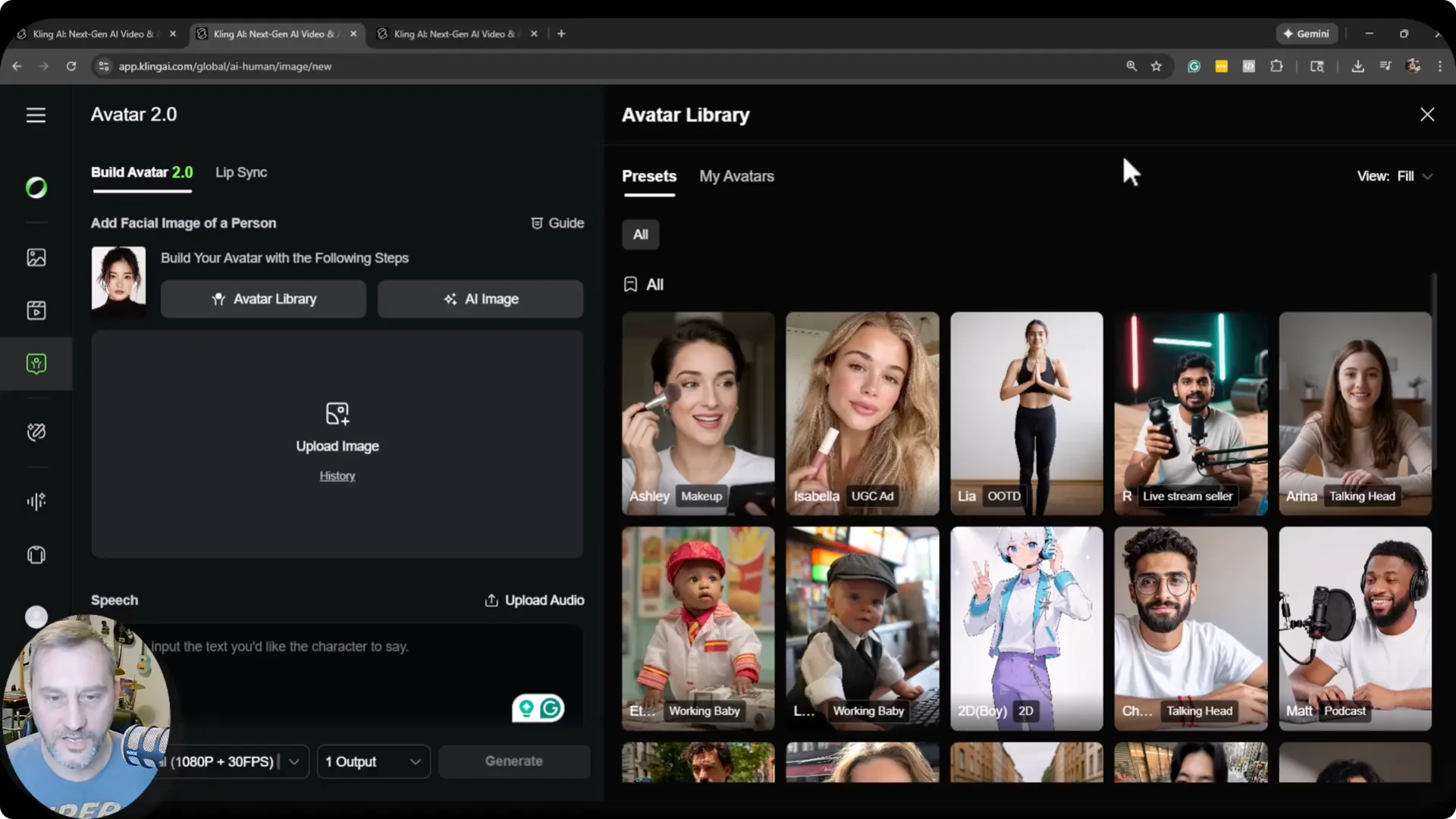
Library avatars in Kling Avatar 2.0
Start by browsing the built-in avatars. Choose a category, then pick a face that fits your tone. The voice pairing reduces the layer of disbelief.
Test a short script and preview it at a larger size. Look for lip shape stability and jaw movement. If it holds up when scaled, you are in good shape for production.
Upload an image
Step two is uploading an image. I uploaded an image I have used in previous videos. The animation here is way better than what I have seen elsewhere.
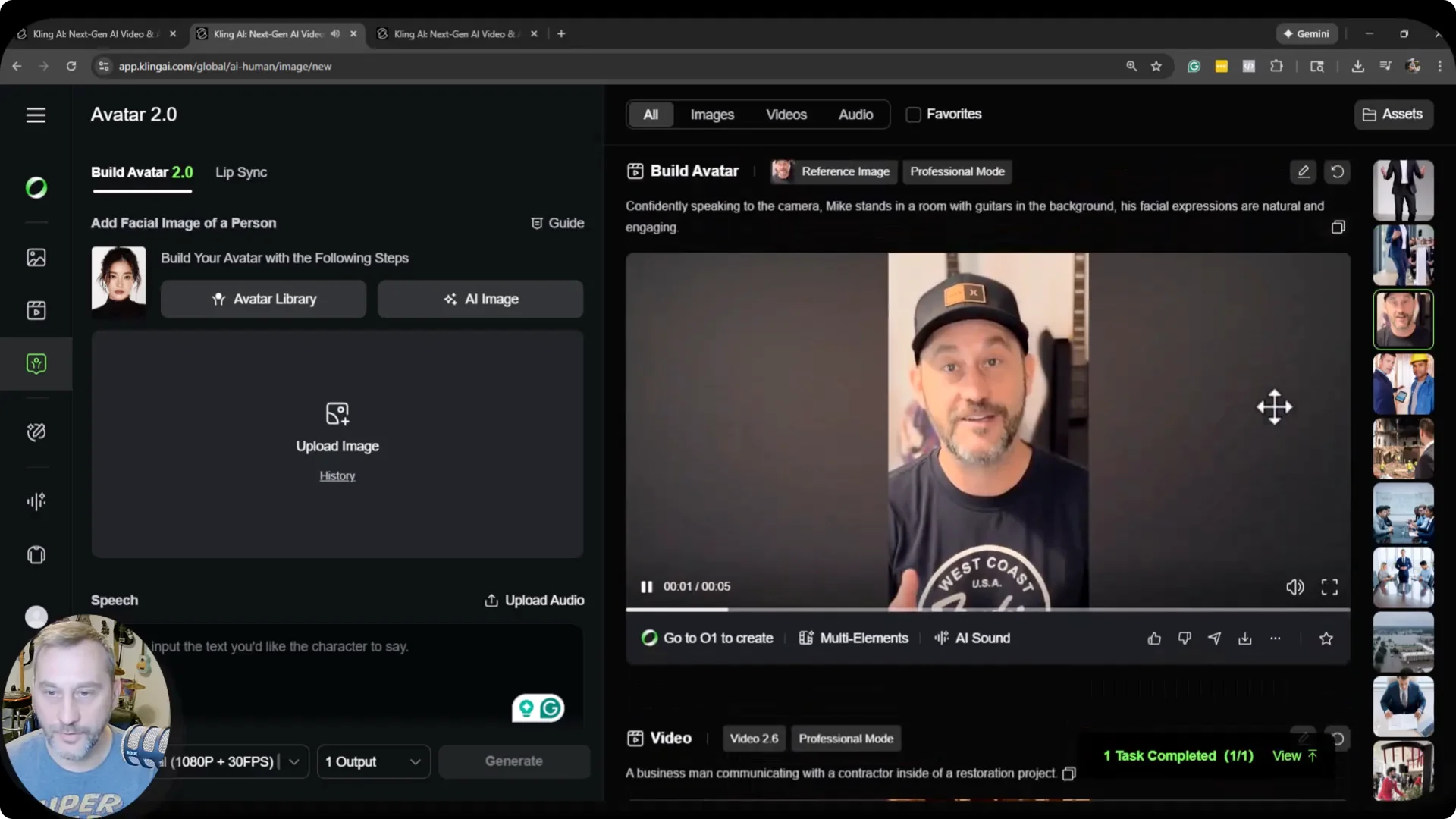
I tried this before with another program and it did not get the animation on my face. It distorted my hat and shirt, and my expressions did not look real. Kling Avatar 2.0 did a pretty darn good job with my face and expressions.
That said, it is not my voice. One of my complaints about Avatar 2.0 is that you cannot build your own voice. Some other tools let you record your voice so it can learn and run with it. If you need a clean custom track, see this guide on how to record your own voice and enhance it with AI.
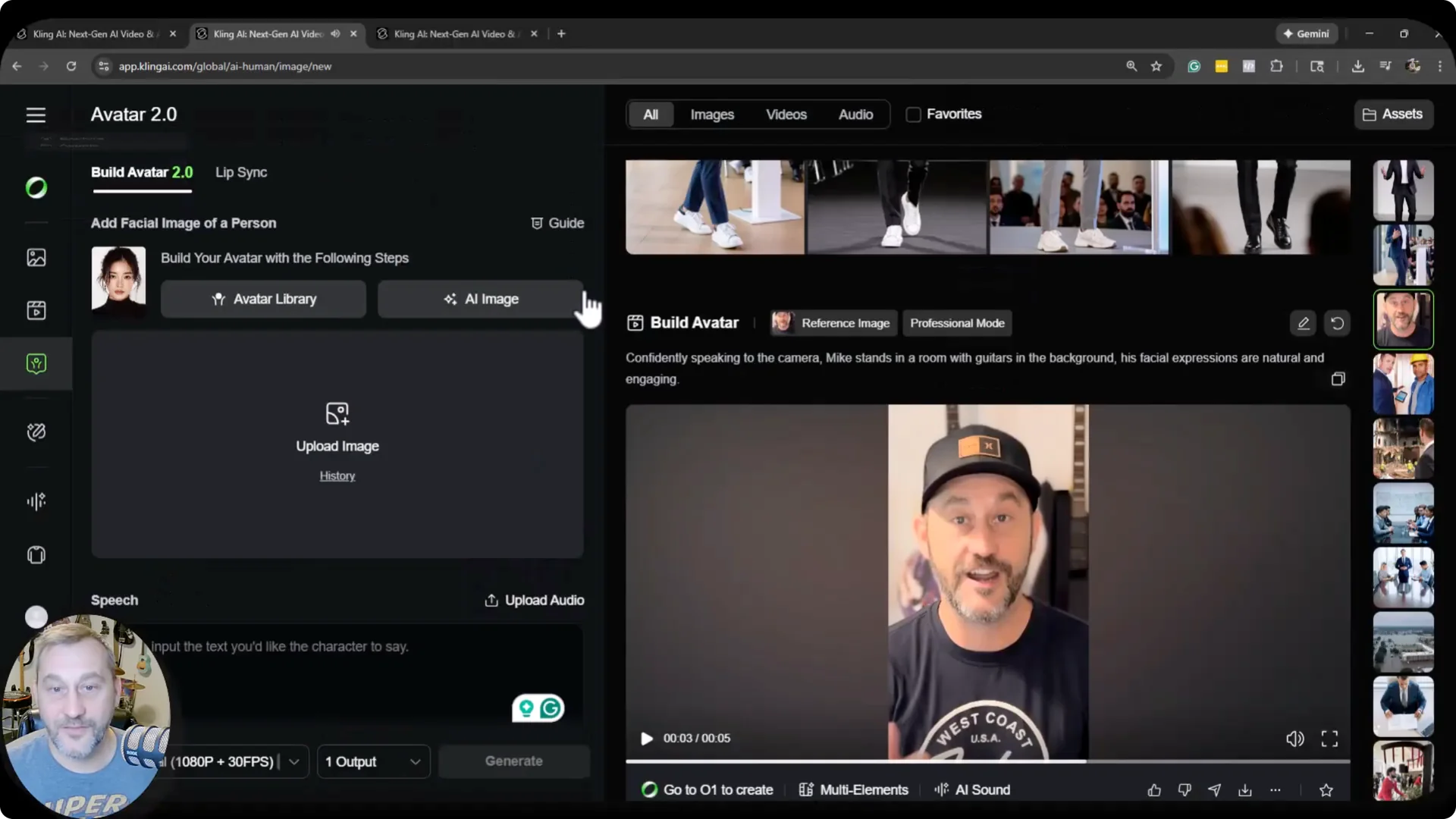
AI image avatars
This is where the real magic is. You can select male or female. If the age is strongly in one direction like children, youth, or elderly, check the box.
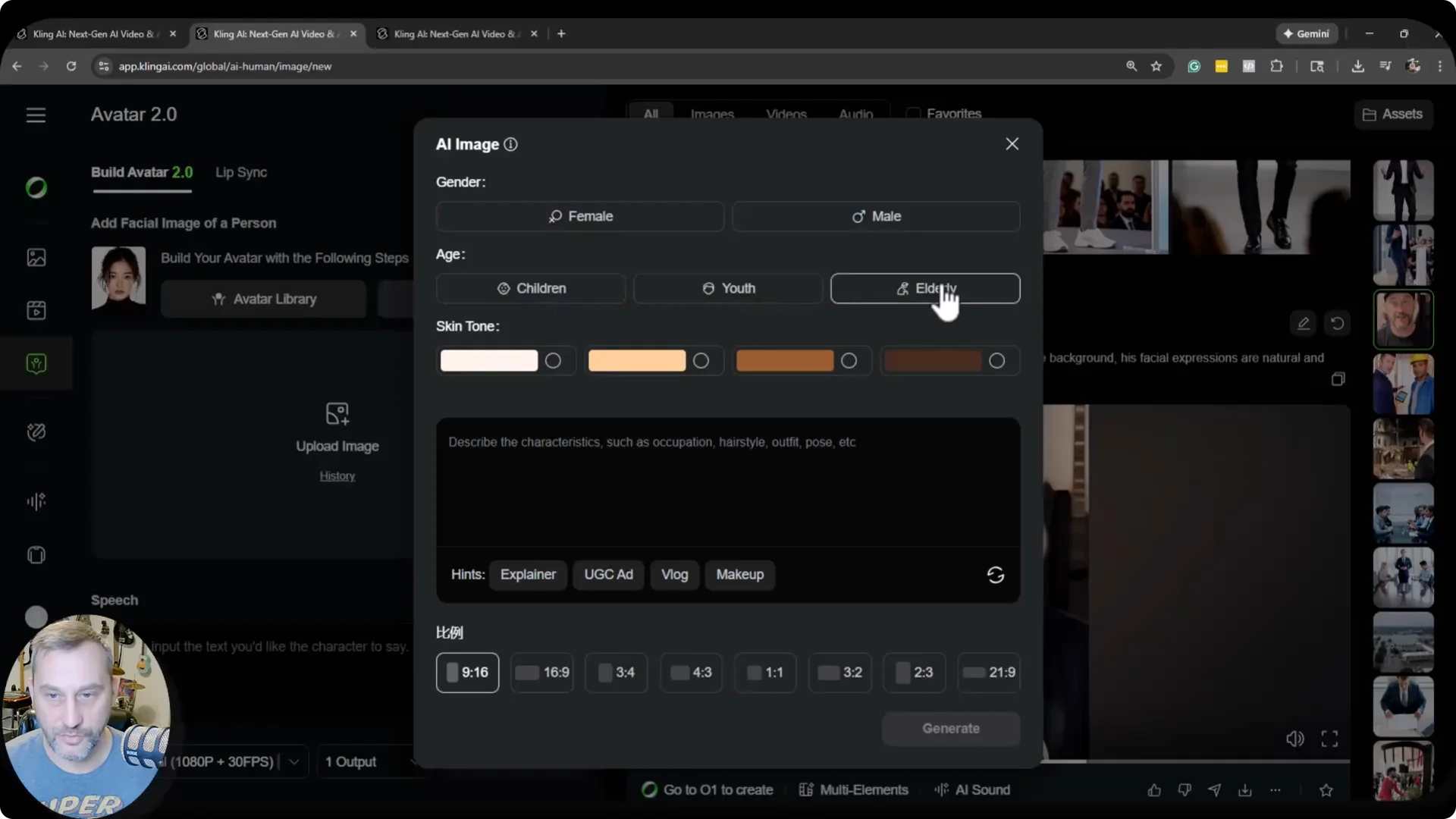
If the person is a normal age, you do not need to check anything. Choose a skin tone, then choose your characteristics. You can pull from the built-in hints.
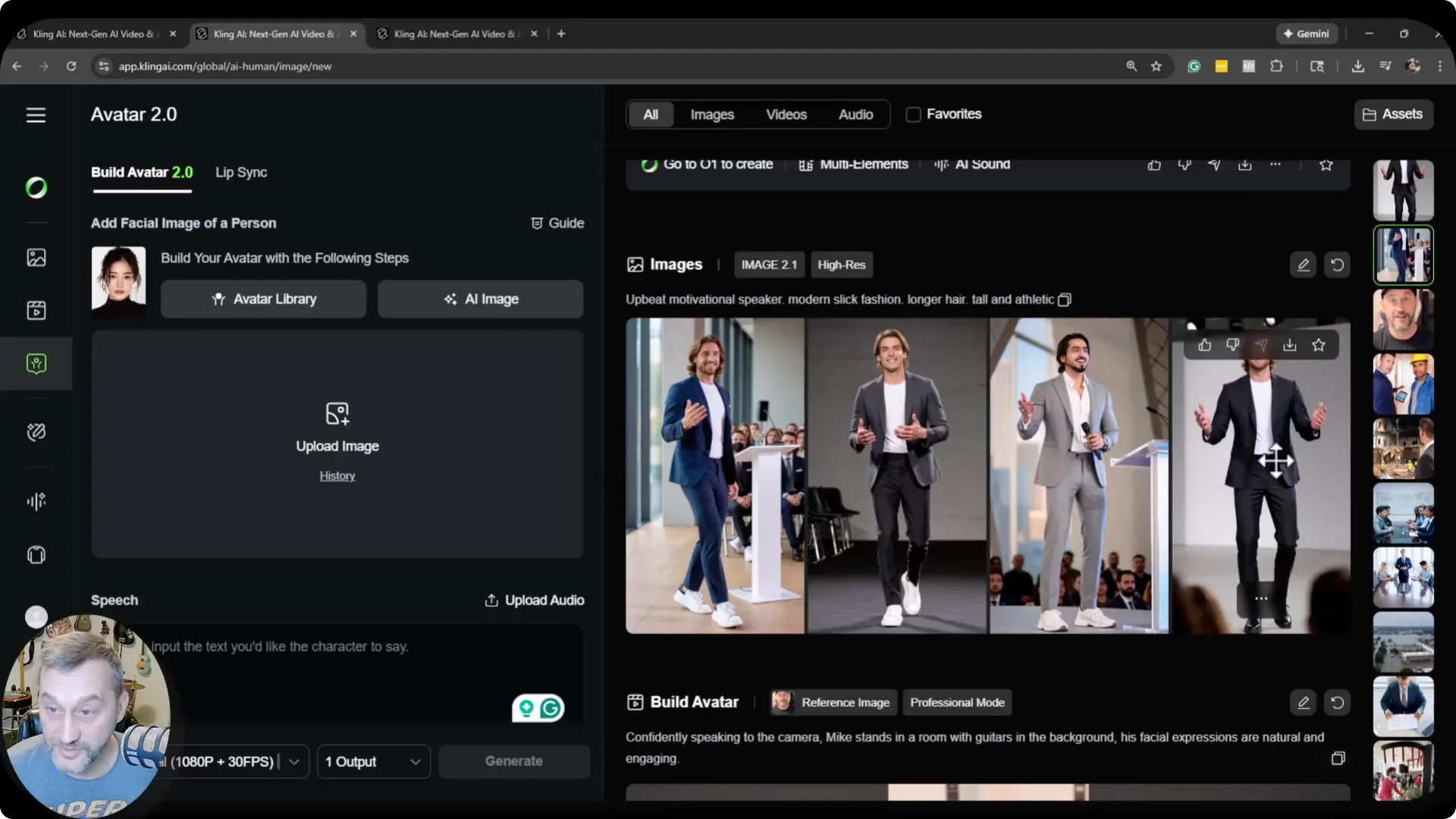
I wanted a motivational speaker with modern slick fashion, long hair, tall, and athletic. It gave me four different options that were super good. You get options and can pick the most natural result.
Script and animation prompt
Enter your speech in the script box. Then add an optional avatar prompt for behavior and direction. If you leave it blank, it will animate the scene how it thinks is best.
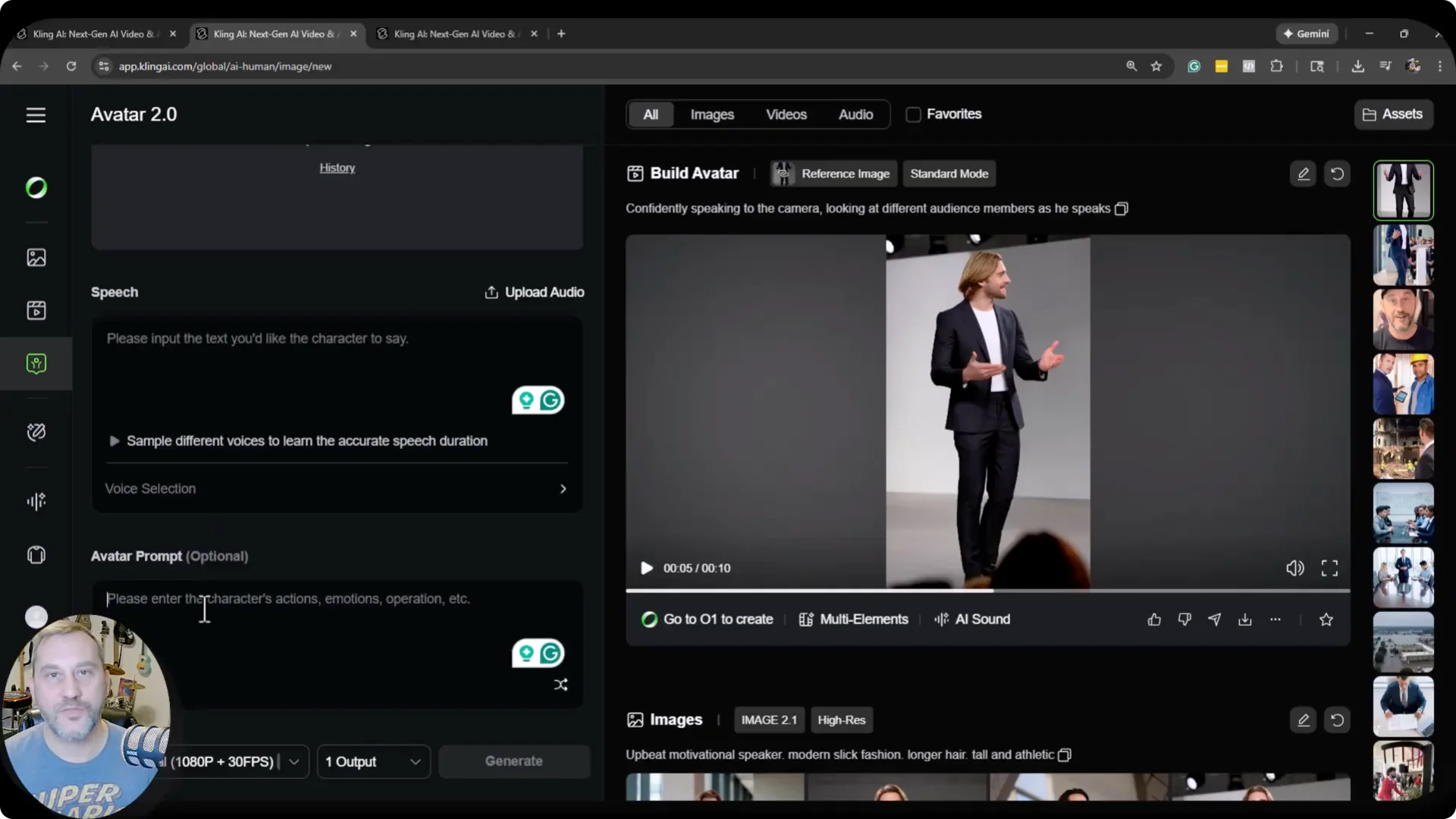
I wrote, confidently speaking at the camera but also looking at different audience members as he speaks. It did a pretty good job taking that and running with it. Body movement and eye shifts felt natural, even if the mouth showed some visual distortion.
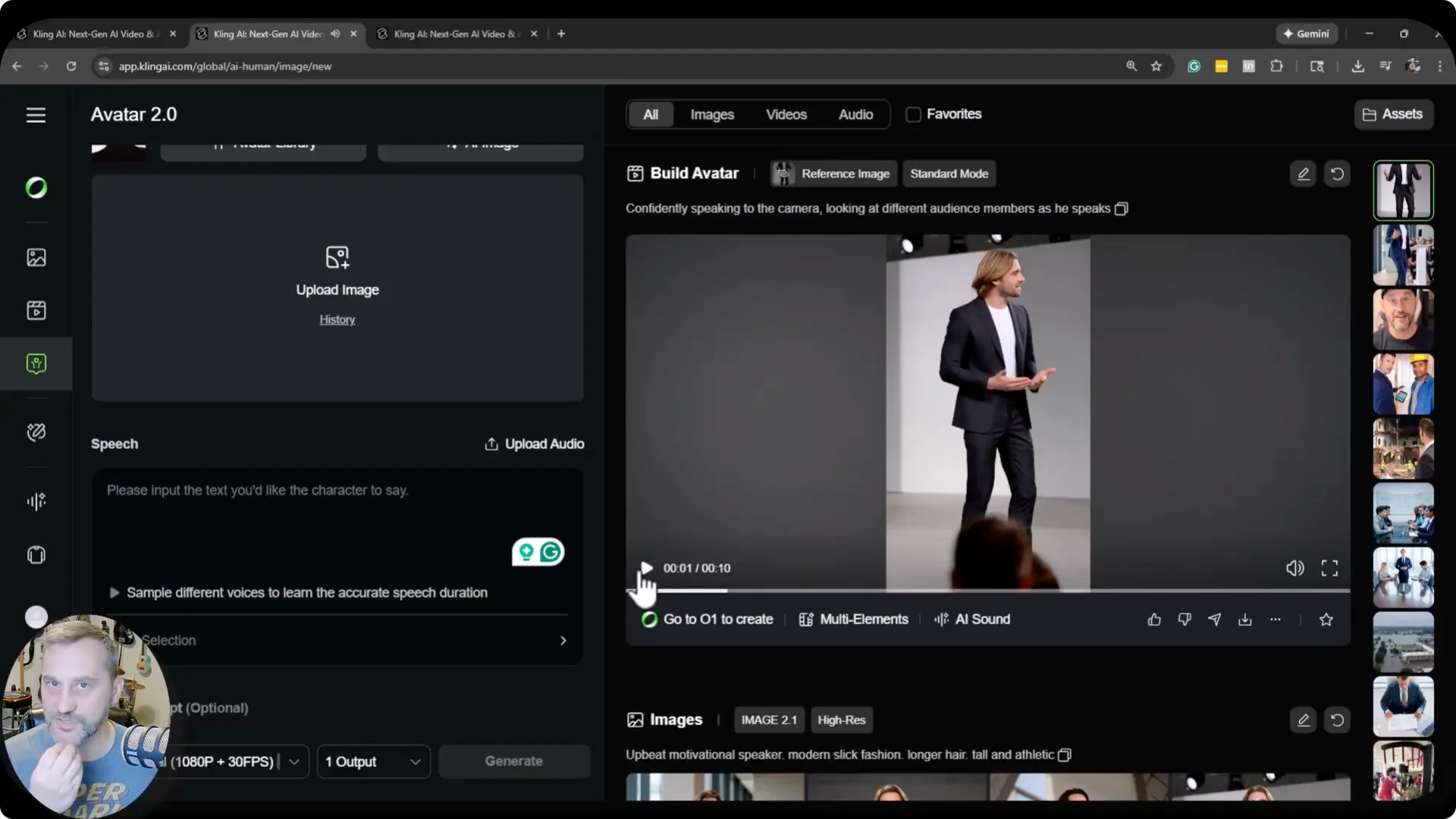
The voice was good, but the reading was not 100 percent natural language. It might take a few iterations to get it right. Altogether, this is on a good track.
If you want tighter control over movement beyond prompts, check out this look at Kling motion control techniques.
Real client results
I tested multiple outputs for a client. A few were not good, and one felt disjointed between the voice and the person. The best one was a guy in a park that nailed it.
There was a random hand that showed up at the end. Other than that, it was super good, and I used it as a call to action at the end of a video. Minor artifacts can appear, so always scrub the final seconds.
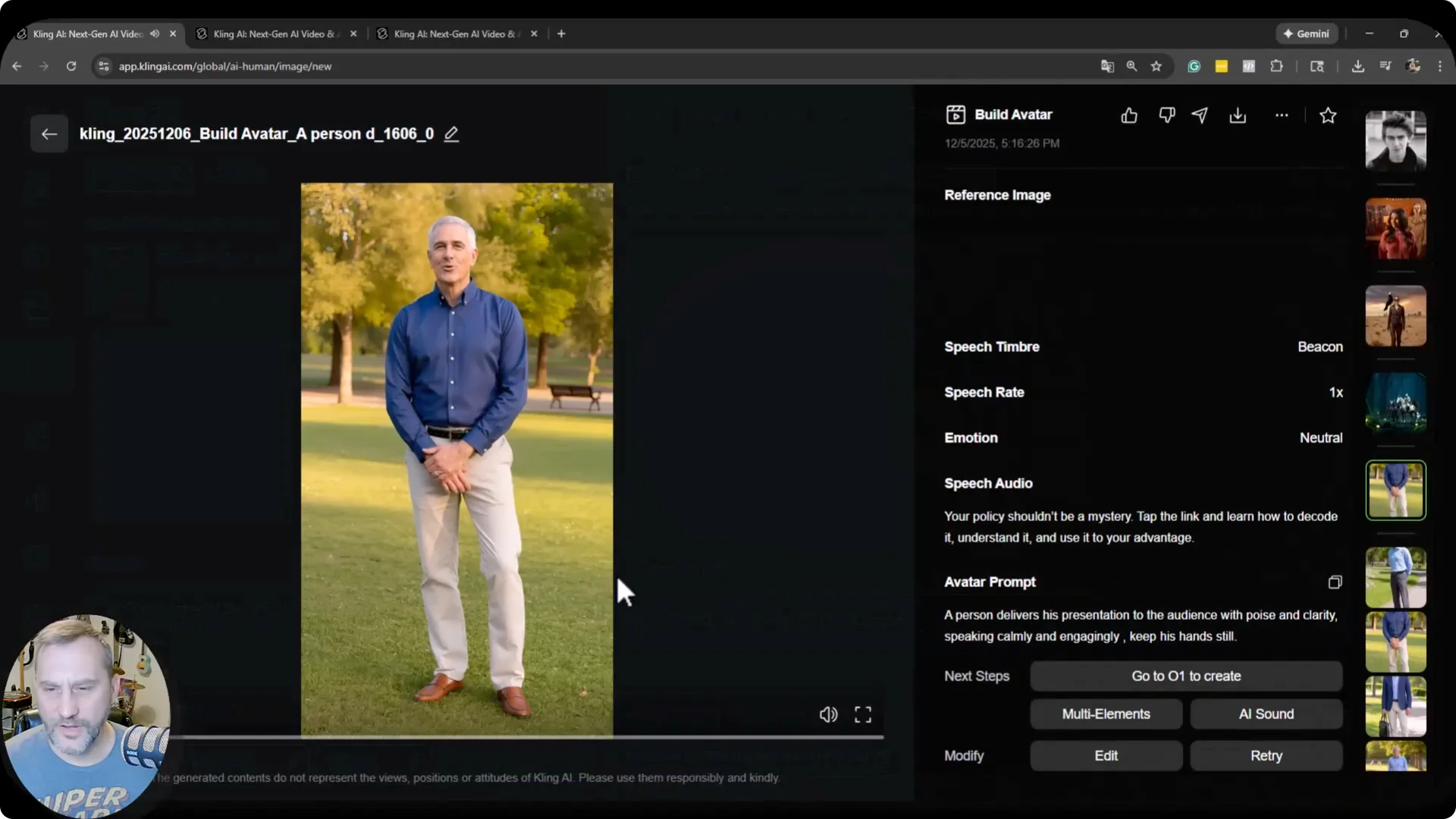
For that park clip, I asked for a corporate person in business casual attire in the middle of a park, approximately 50 years of age. It delivered it very well. There is a lot here you can use for professional clients.
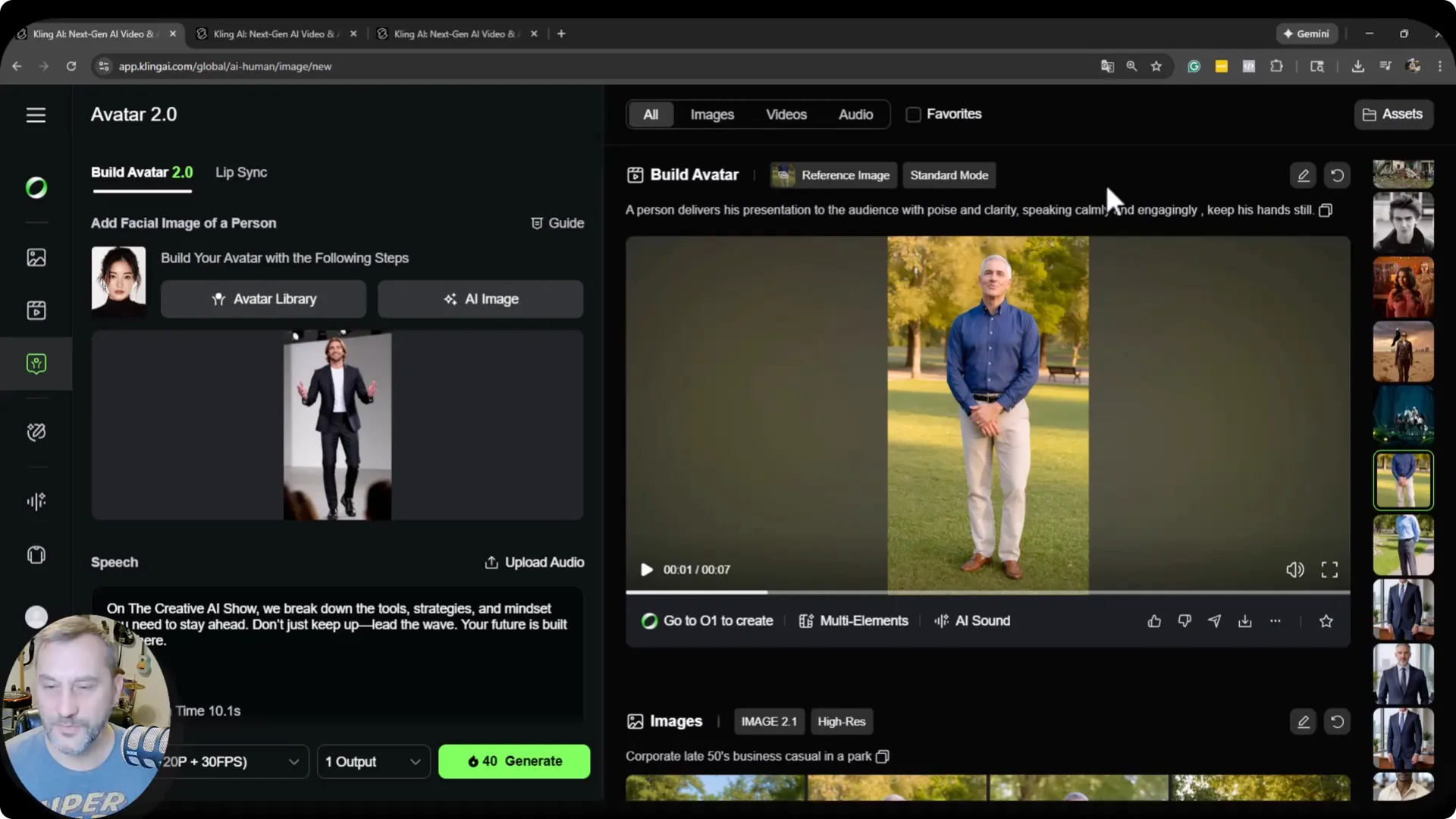
You can build your own avatar by typing the characteristics and exactly what you are looking for. It gives you options. I chose the most natural looking one from the four it generated.
For related channel setup workflows, see how to link a YouTube channel to an AI tool.
Quick steps
Step 1: Try the library avatars to validate lip sync and voice pairing. Pick a category and face that fits your brand. Preview at full size to confirm stability.
Step 2: Upload a single clear image if you need a specific look. Watch for artifacts around hats, logos, and edges. Kling handled my face and expressions cleanly.
Step 3: Use the AI image builder for full control. Set gender, age range if needed, skin tone, and characteristics. Provide a short script and an optional behavior prompt for camera presence.
Step 4: Iterate. If the mouth looks off or the read feels stiff, tweak the script phrasing and the behavior prompt. Pick the best of the four options and render again if needed.
Final thoughts
Avatar 2.0 has a couple of strikes against it, especially the voice limitation. You cannot build your own voice inside Avatar 2.0, but the facial animation and option quality are strong. For marketing videos and projects where you do not have an actor, it is already very helpful.
With the library avatars, image uploads, and the AI image builder, you can get natural results and tailor them to your client’s needs. Add clear characteristics, test variations, and keep iterating until it feels right. The progress here is moving in a very useful direction.