Creating VFX with AI in Higgsfield AI is straightforward and fast. Go to higgsfield.ai, sign into your account, or create one if you do not have it yet. Then move into the video creation flow.
Getting started with Higgsfield AI VFX Creation
Step 1: Go to higgsfield.ai and sign into your account or create one in case you do not have one yet.
Step 2: Hover over the create tab and click on video.
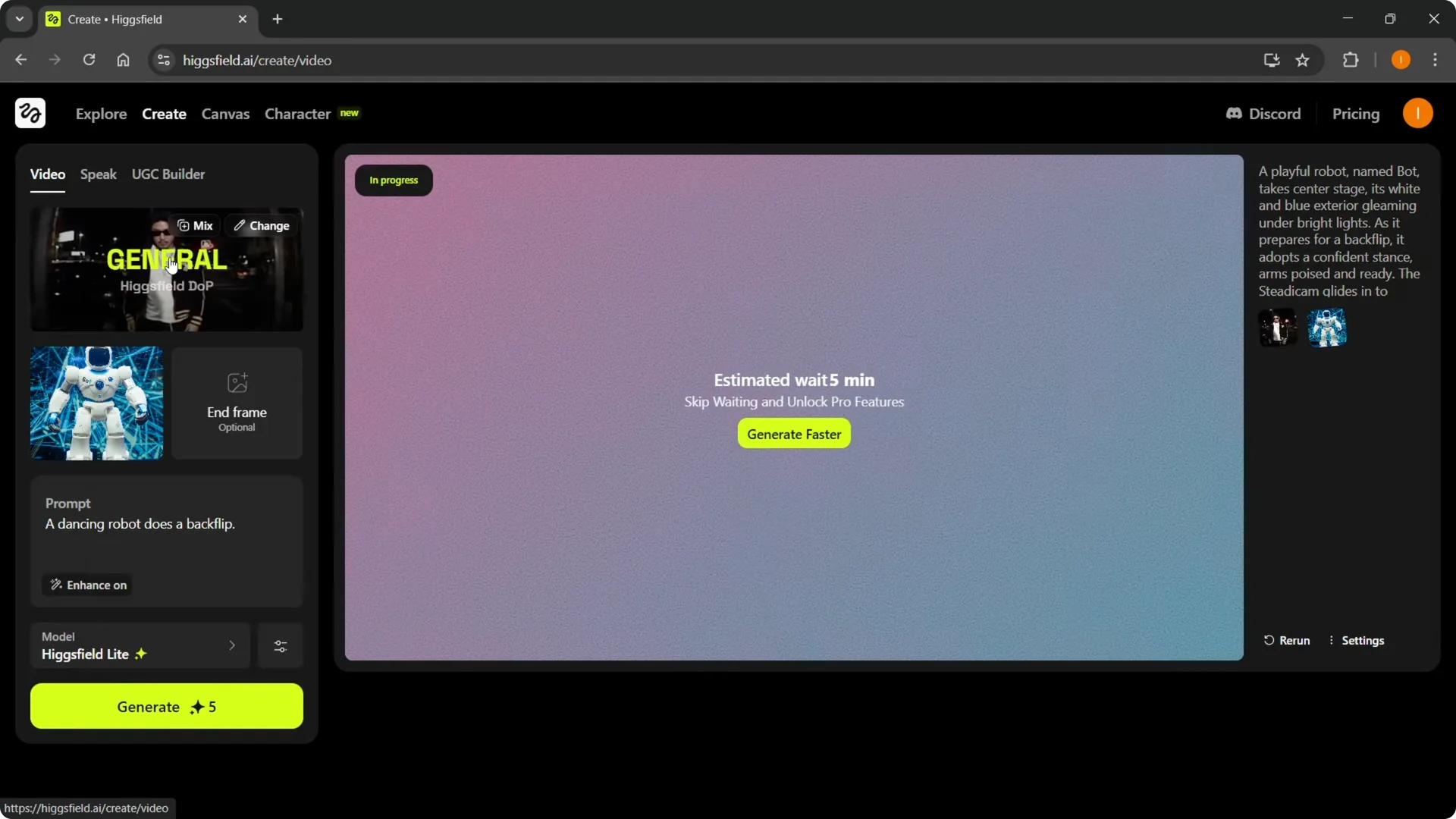
Image setup for Higgsfield AI VFX Creation
You have the option to put in an image you would like to base the video on, or you can also generate it. Pick an image that fits the effect you want, then proceed.
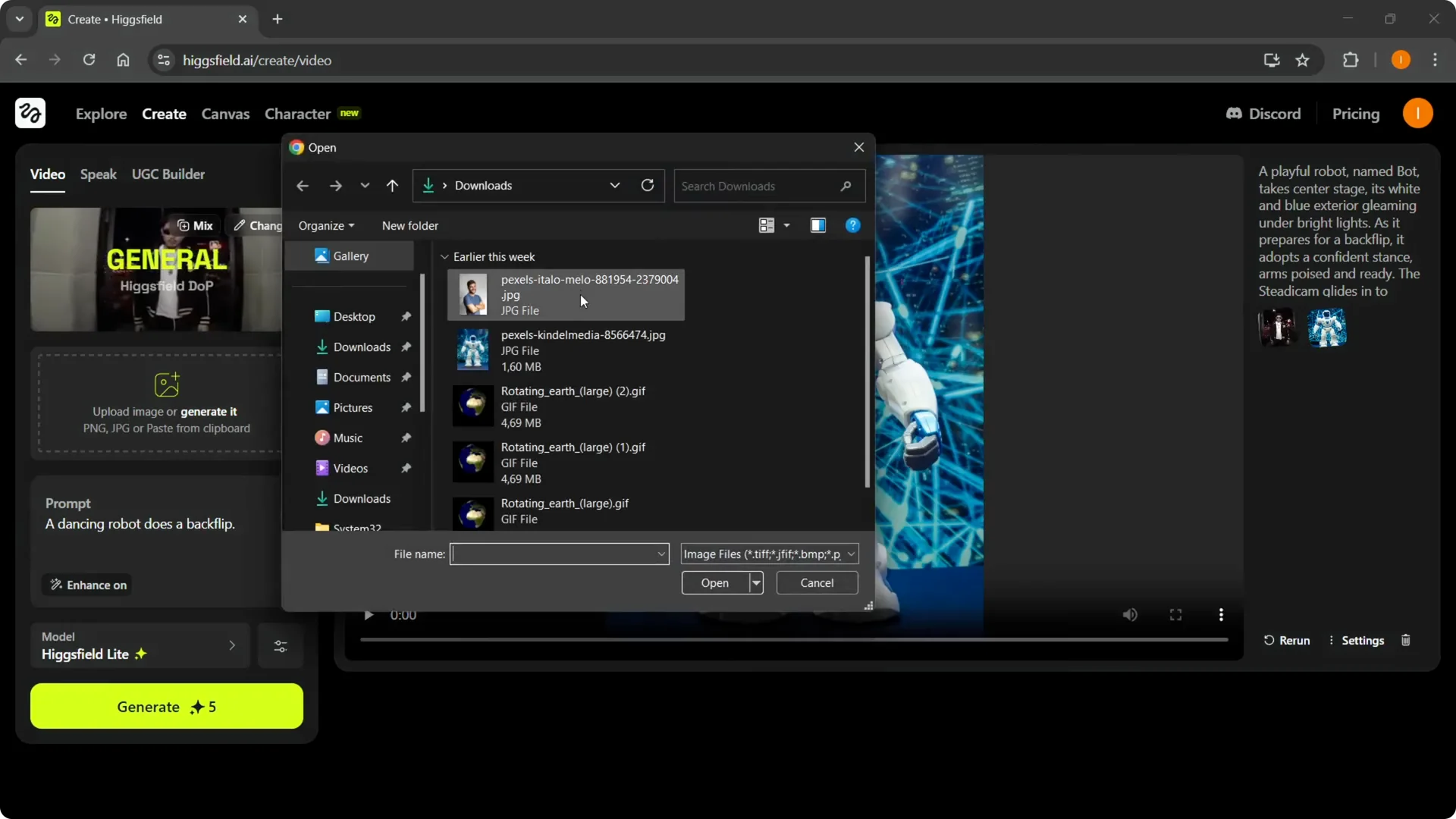
If you are building scenes around custom characters, see these character creation tips for Higgsfield to speed up your setup.
Presets in Higgsfield AI VFX Creation
Go to General. This is where the magic happens. Click on Change.
You will see presets like eyes in zoom, earth zoom out, building explosion, and bullet time. There are a lot of different VFX in here, and they can all be created with a prompt.
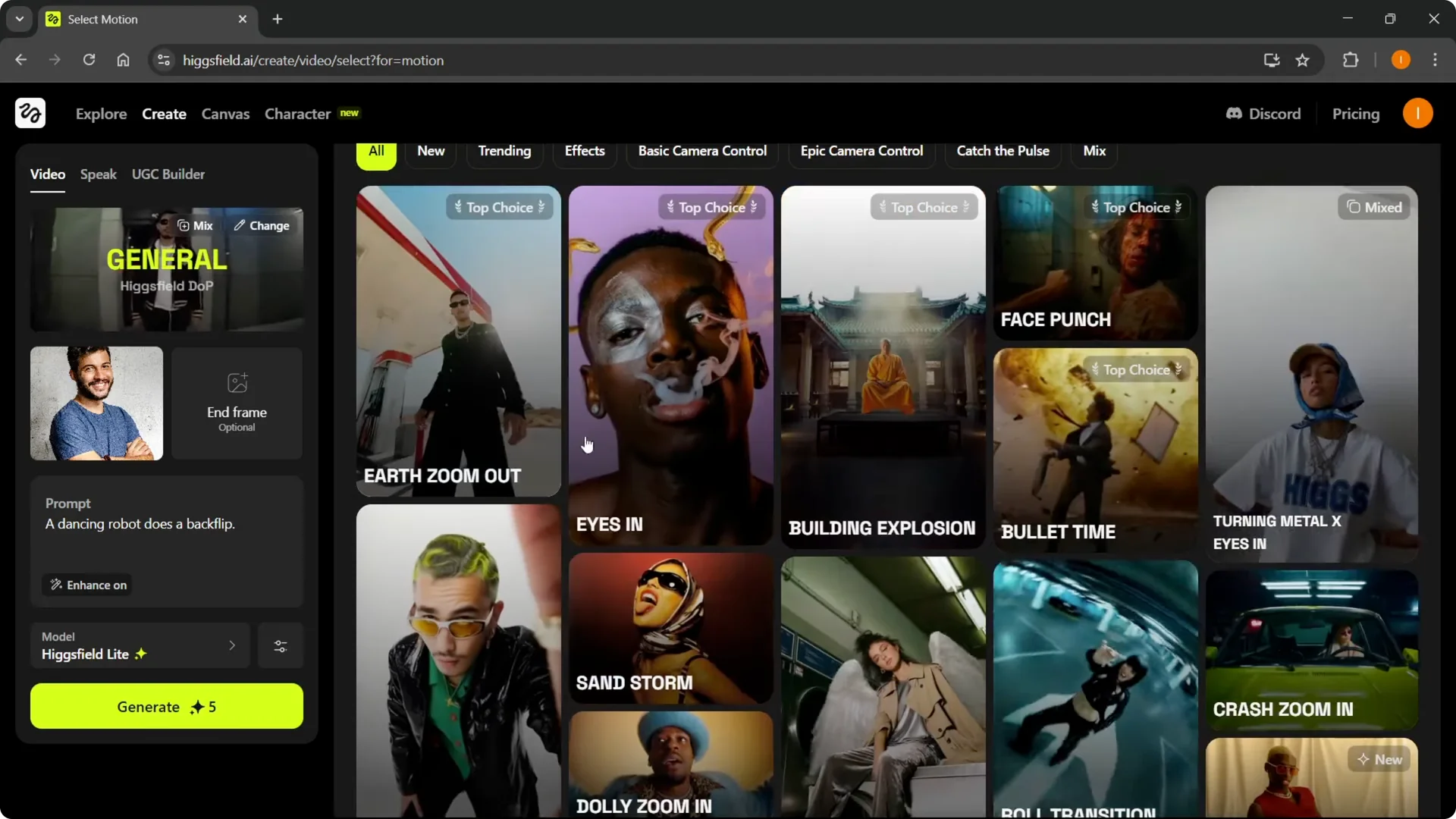
Example: Building explosion
Step 3: Click on the building explosion preset.
Step 4: Type in whatever you want for the scene. For example: the wall and building behind this person explodes, but he does not seem bothered at all.
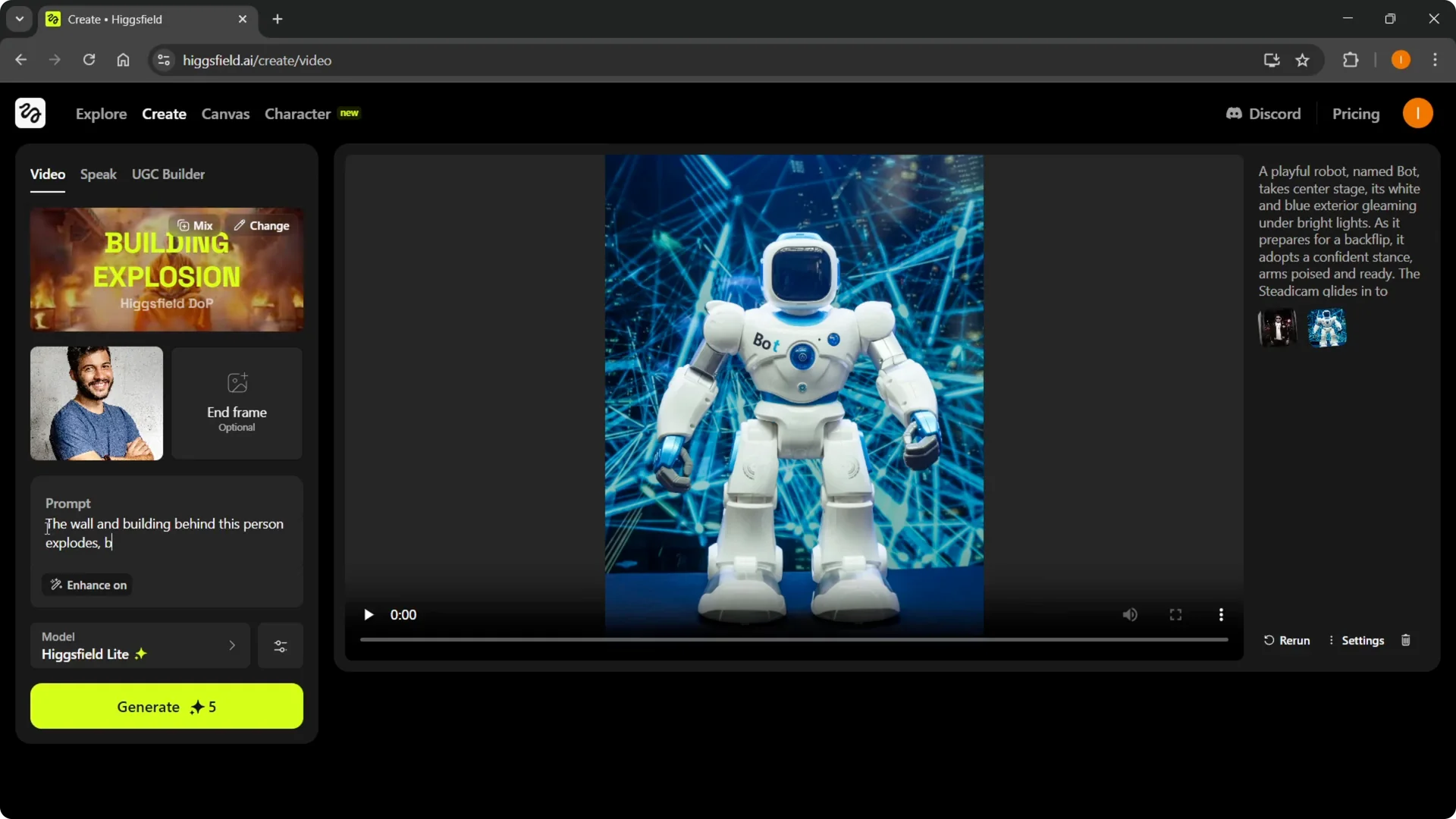
Prompt, model, and settings in Higgsfield AI VFX Creation
Enhance should be on for a bit more enhanced prompt. It is always good to have that for clarity.
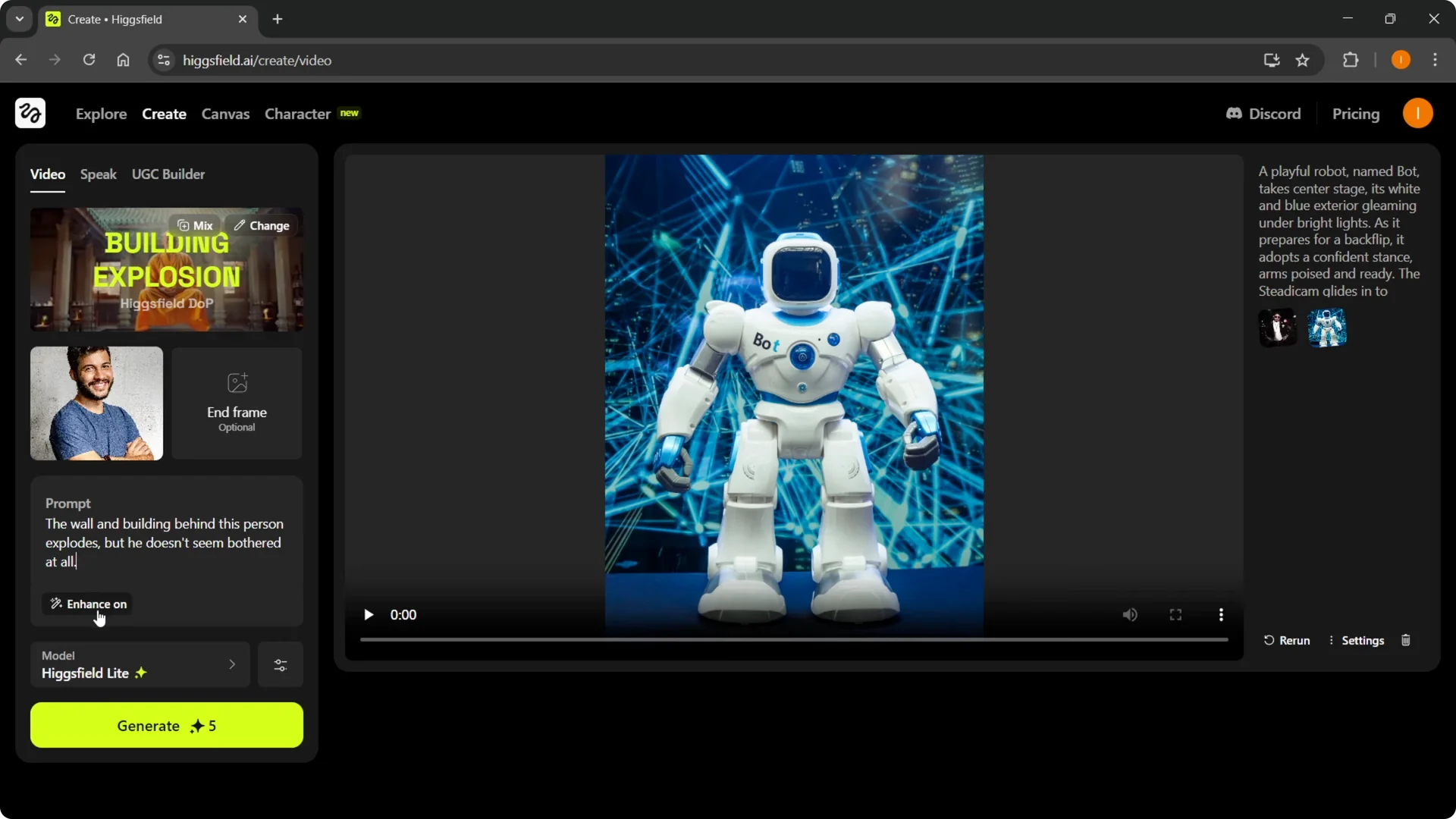
For the model, choose whichever you want. If you have premium, you can select one of the premium ones, but if you do not, you will have to go with the Higgsfield light. If you need to manage your plan later, you can cancel your Higgsfield AI subscription with this guide.
You also have some advanced settings. You can go with a random seed, select duration to be 3 or 5 seconds, and choose how many steps you would like. More steps will take more time and cost more.
Generate and review in Higgsfield AI VFX Creation
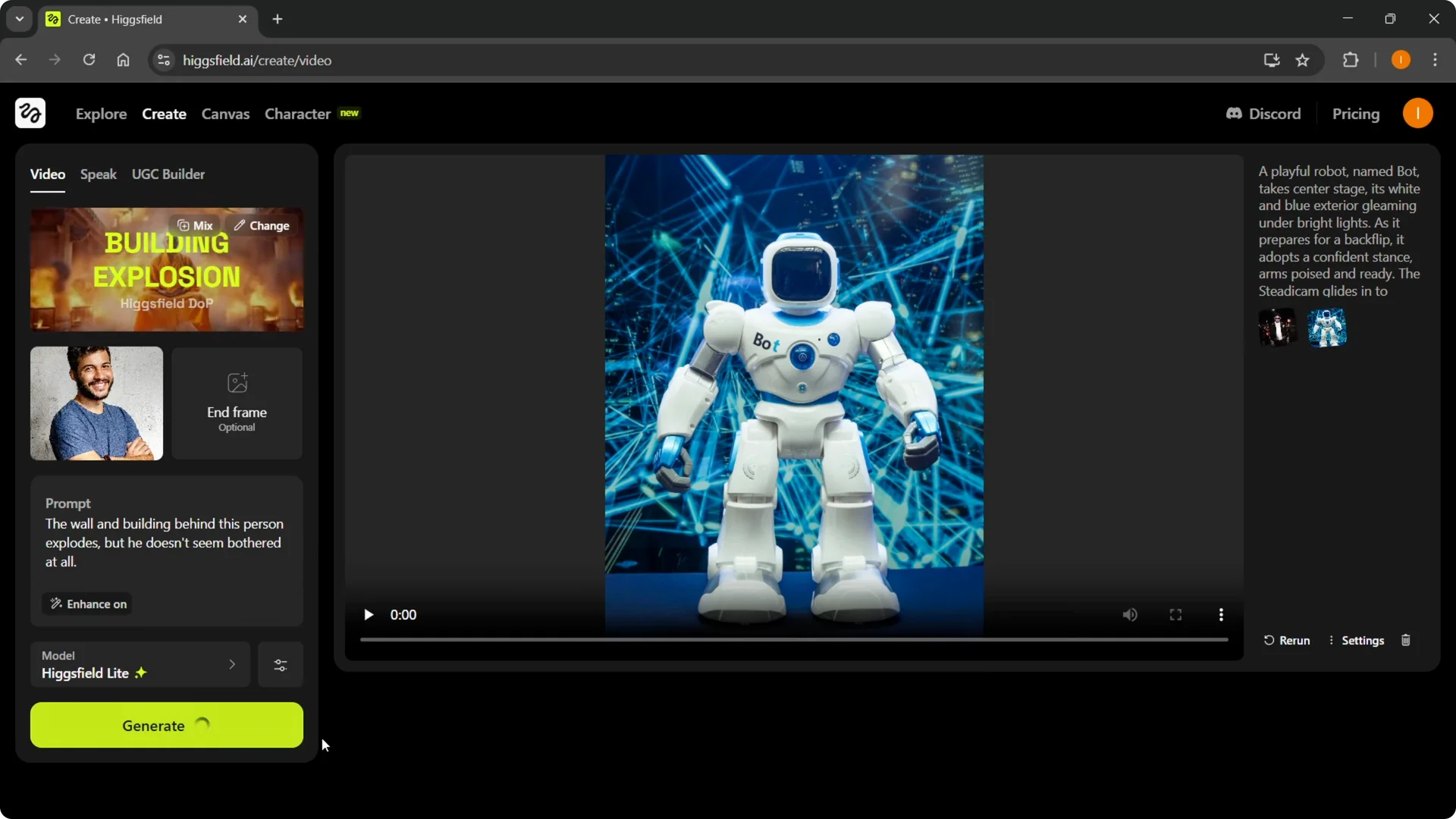
Step 5: Click on Generate. It is going to cost five credits.
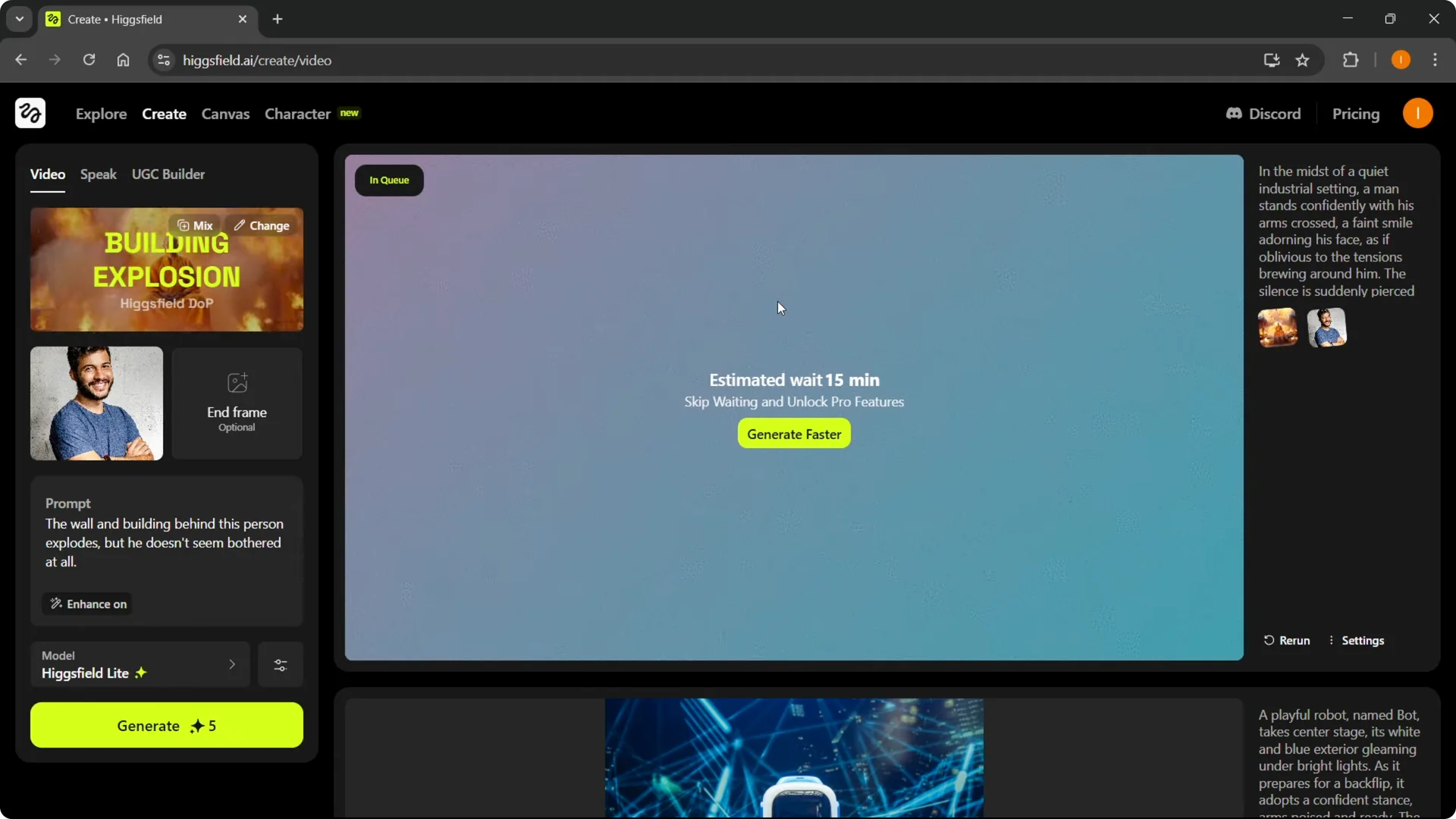
It will start generating on the right. You will see an estimate for completion, which can be around 15 minutes.
Once that is done, you can see how it turned out and generate a new one in case you would like something different. For more quick tricks and creative variations, check these Higgsfield Popcorn tips.
Final thoughts
Pick a preset, write a clear prompt, keep Enhance on, and choose the right model for your plan. Use seeds, duration, and steps to fine-tune cost and quality. Generate, review, and iterate until the effect matches your scene.