I’m going to show you how to create a consistent character in Higgsfield AI. Follow these steps for best results.
Getting started with Higgsfield AI Character Consistency
Step 1: Go to higsfield.ai and sign in to your account.
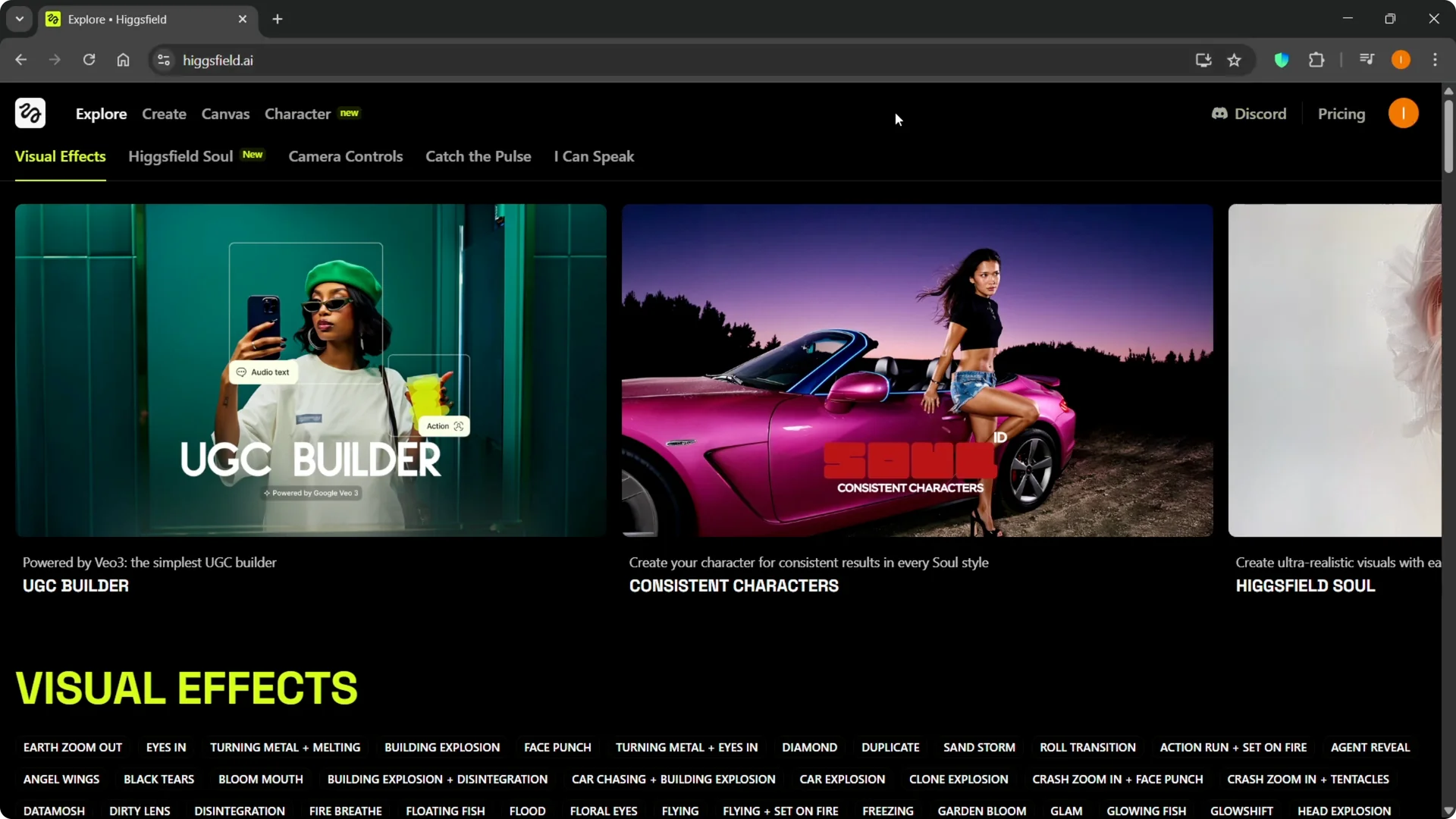
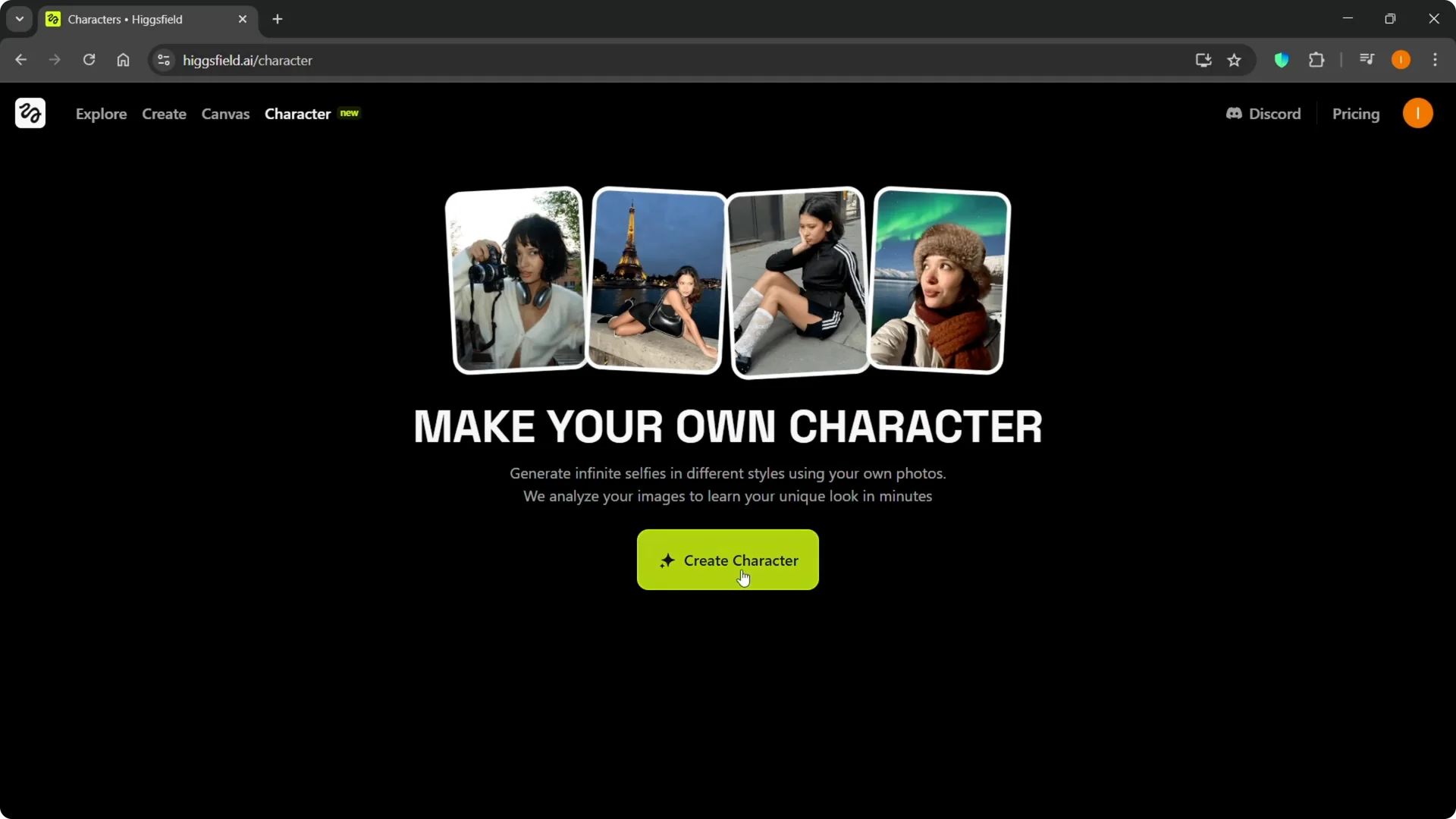
Step 2: On the Visual Effects page, select Consistent Characters at the top and click Create Character. If you need a quick refresher on the VFX tools, check this VFX guide for Higgsfield AI.
Preparing photos for Higgsfield AI Character Consistency
Photo requirements for Higgsfield AI Character Consistency
Step 3: Upload 20 or more high quality images of one person for best results. The more strong images you provide, the better the outcome will be.

Include different angles, clear facial expressions, and a consistent identity across the set. Aim for clean, well-lit shots that clearly show the face.
Photos to avoid for Higgsfield AI Character Consistency
Avoid duplicates, group shots, pets, and nudes. Skip images with filters, face coverings, accessories, or masks.

Bad examples are unclear or obscured, so stick to crisp images that show the same person in varied angles.
Uploading and review in Higgsfield AI Character Consistency
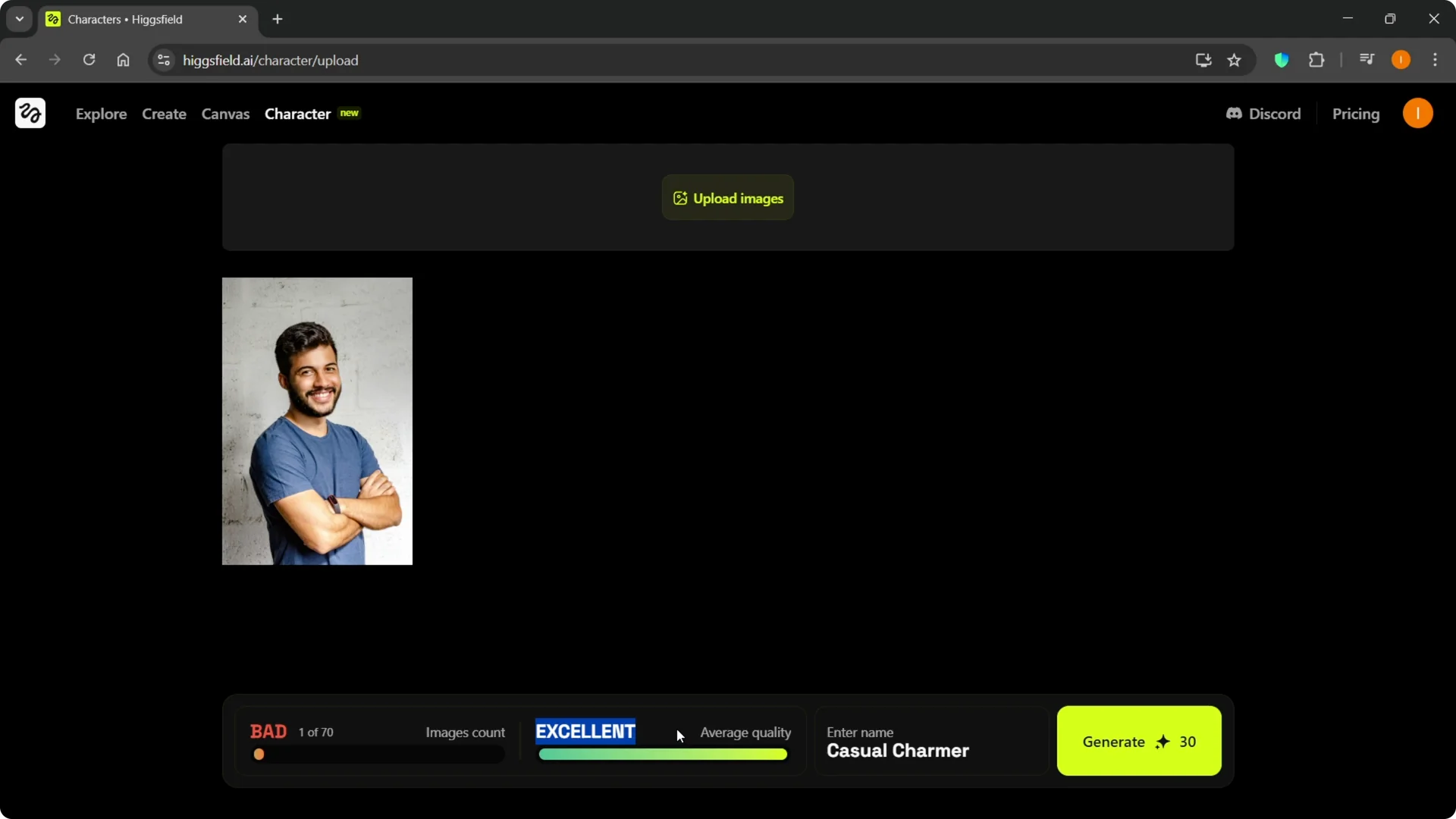
Step 4: Click Upload Images and add your photos. I uploaded one as a quick test, and the rating marked it as bad because it was just a single photo. Keep adding more until you have a strong set.
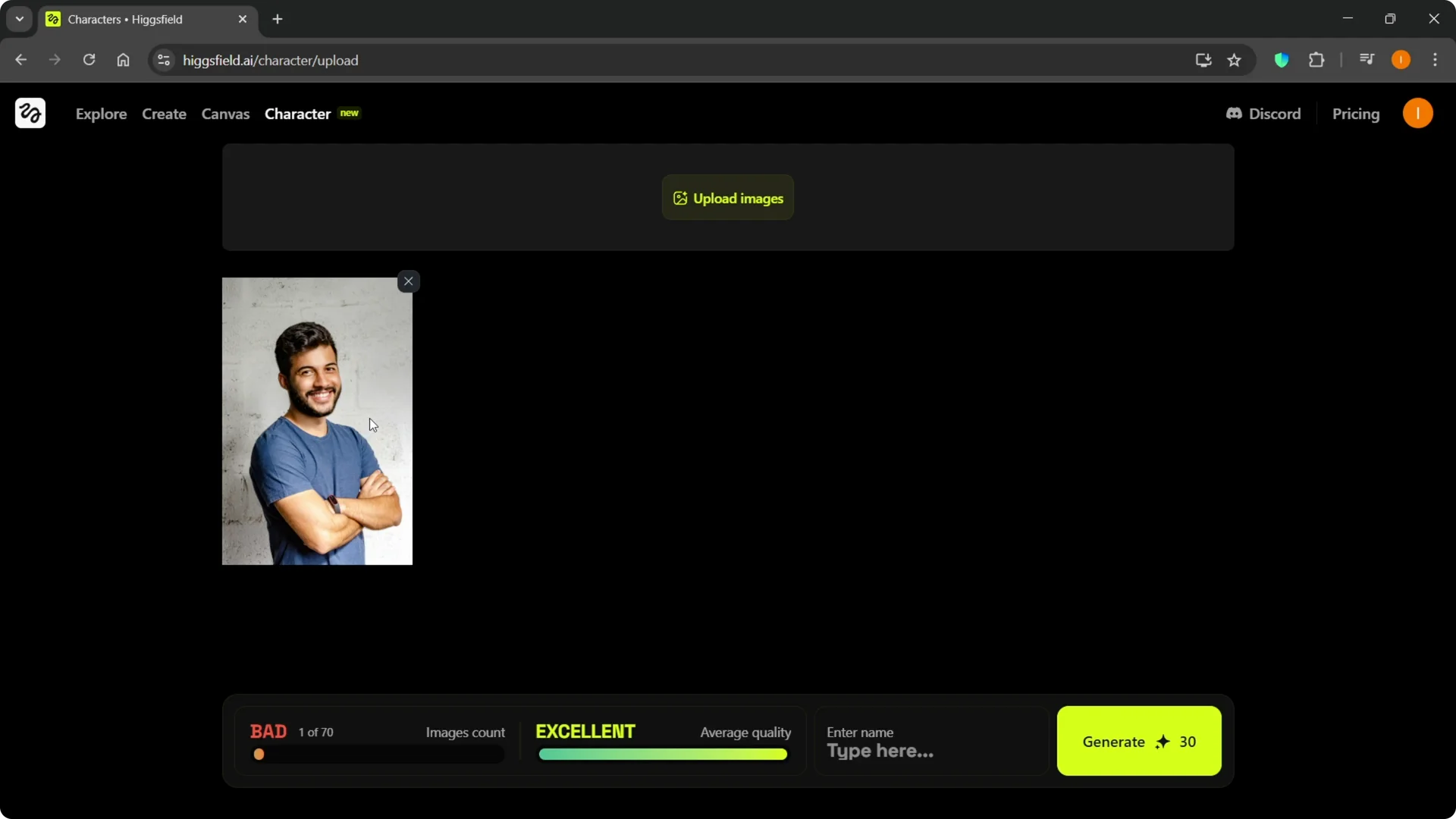
The tool shows a rating of how good your set is and an average quality label like Excellent or Good. You can upload up to about 70 photos. If your quality is Excellent or Good with a large set, you are in a great spot.
Naming and generating in Higgsfield AI Character Consistency
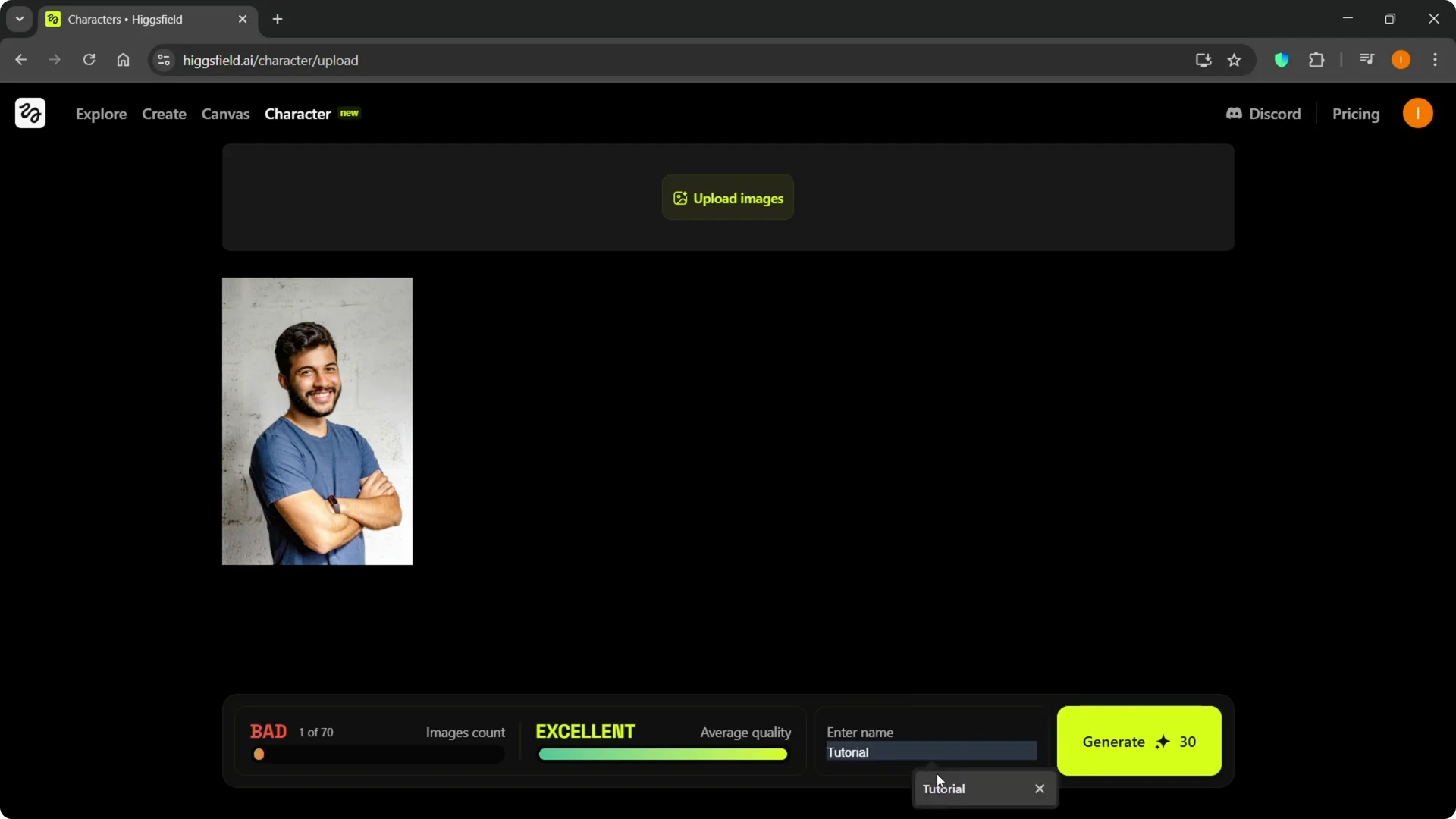
Step 5: Enter a name for your character. The tool may suggest a random name, but you can type your own. I named mine Tutorial.
Step 6: Click Generate. This costs 30 credits, so make sure you have credits or upgrade to a paid plan. If you ever need to change or end your plan, see how to cancel your Higgsfield AI subscription.
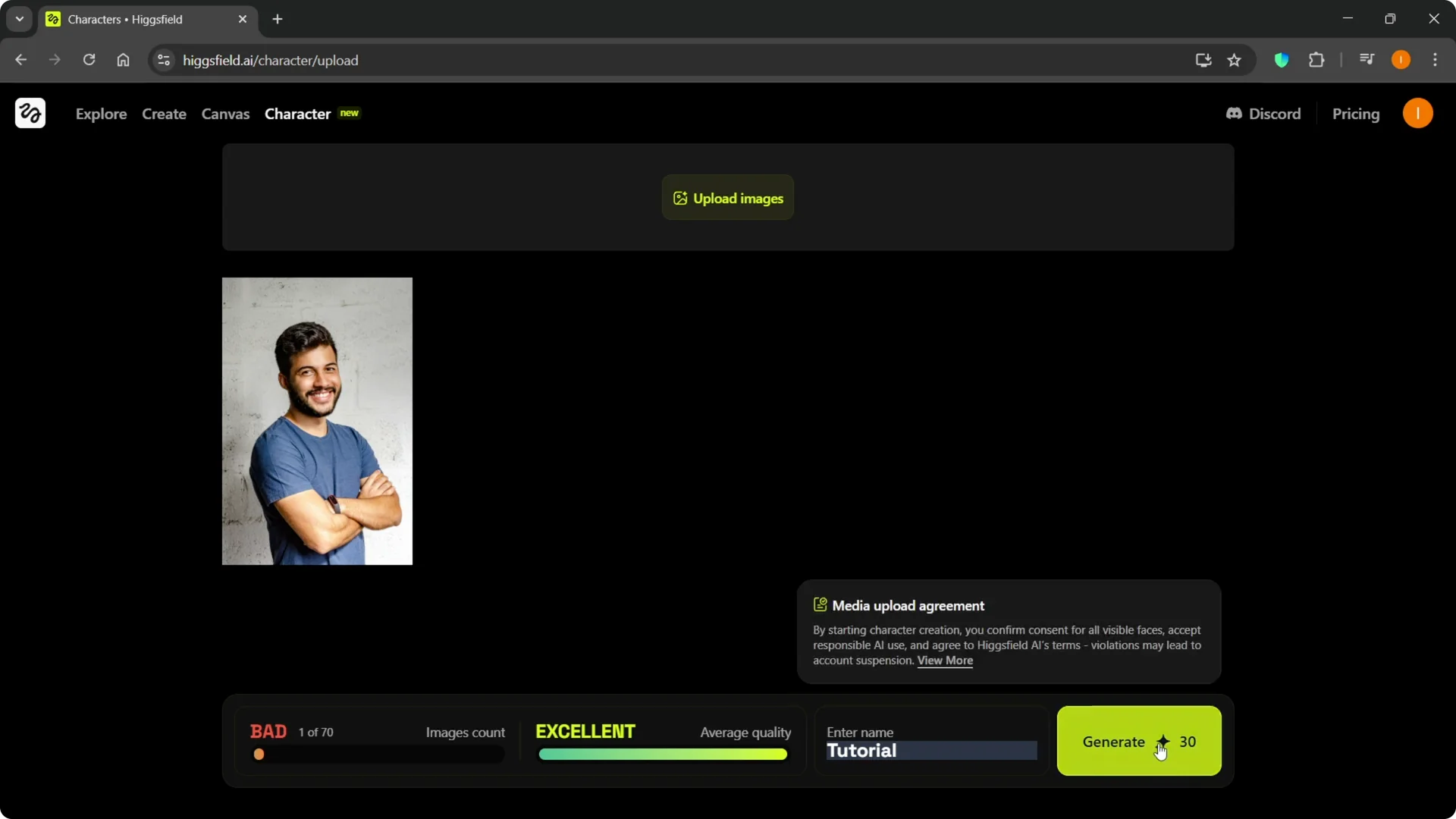
After credits are available, your consistent character will be generated. You can start using it for your AI images. To build scenes and sequences with your character, explore Cinema Studio.
Final thoughts on Higgsfield AI Character Consistency
Provide a strong photo set of 20 to 70 images with varied angles and clear expressions. Avoid low quality or obscured shots, watch the quality rating, then name and generate with credits. With a solid dataset, Higgsfield AI will produce a character you can reuse across your projects.