
If you’ve ever wanted to create a UGC video like “check out our new soda. It’s sugarfree” using just one image and some instructions, this guide walks you through exactly how I do it. My name is Santiago. We are checking out a software called Heisfield.
Heisfield is an AI powered tool where you can create images or videos. You can build a bunch of different assets for different projects and even create avatars. I am using one of the paid plans.
For a broader overview of creating images and videos with this kind of AI, see this practical guide to AI images and videos.
AI UGC Video Creation basics
If you don’t know what UGC means, it is user generated content. Brands hire people to record videos for their products. These people don’t need to be influencers or content creators.
AI UGC Video Creation with start and end frames
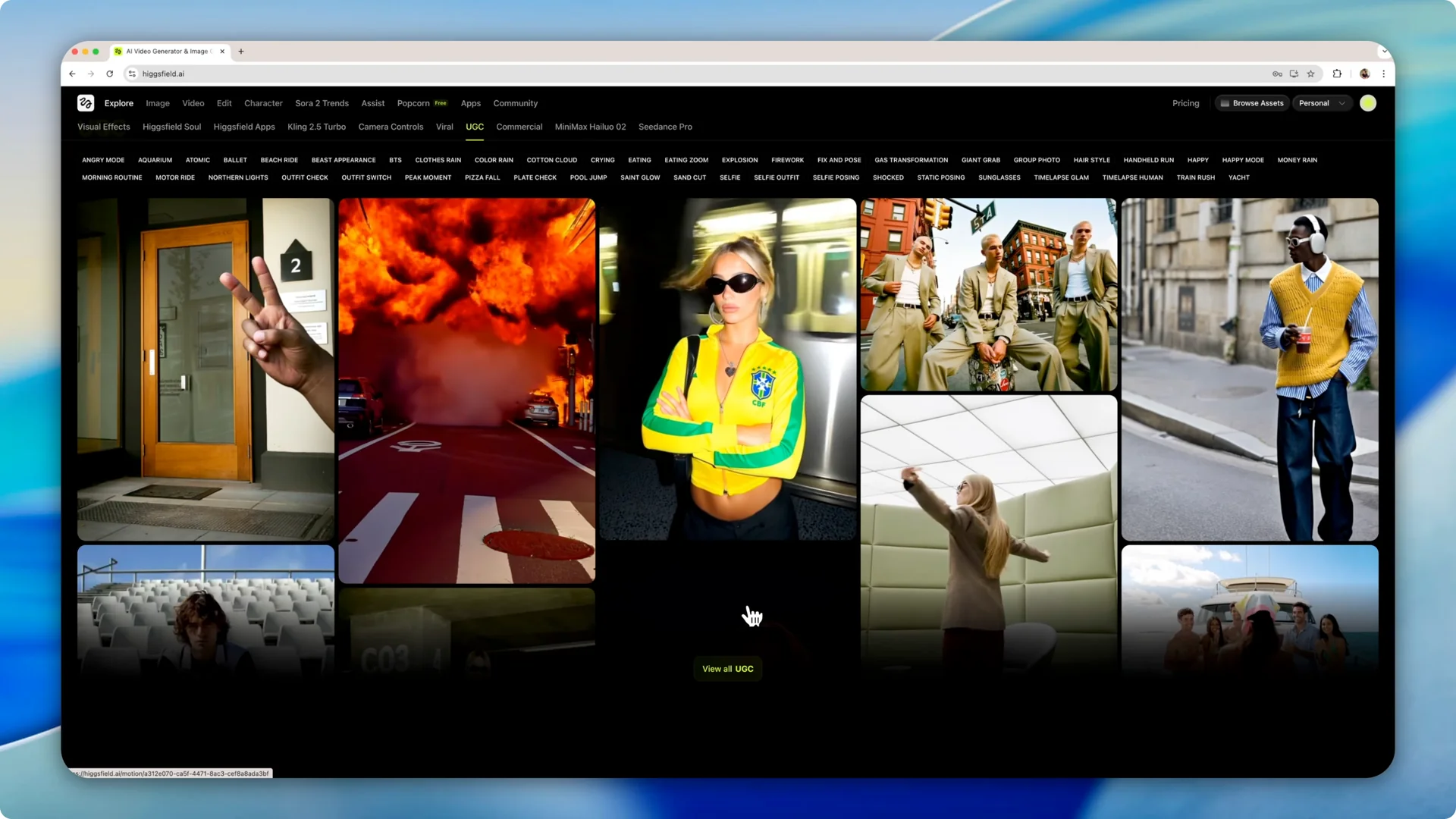
Step 1: Open the UGC tool. In the UGC tool, there are different groups of videos you can pick from like angry mode, northern lights, and outfit check. Click View all UGC to expand and pick what fits your product.
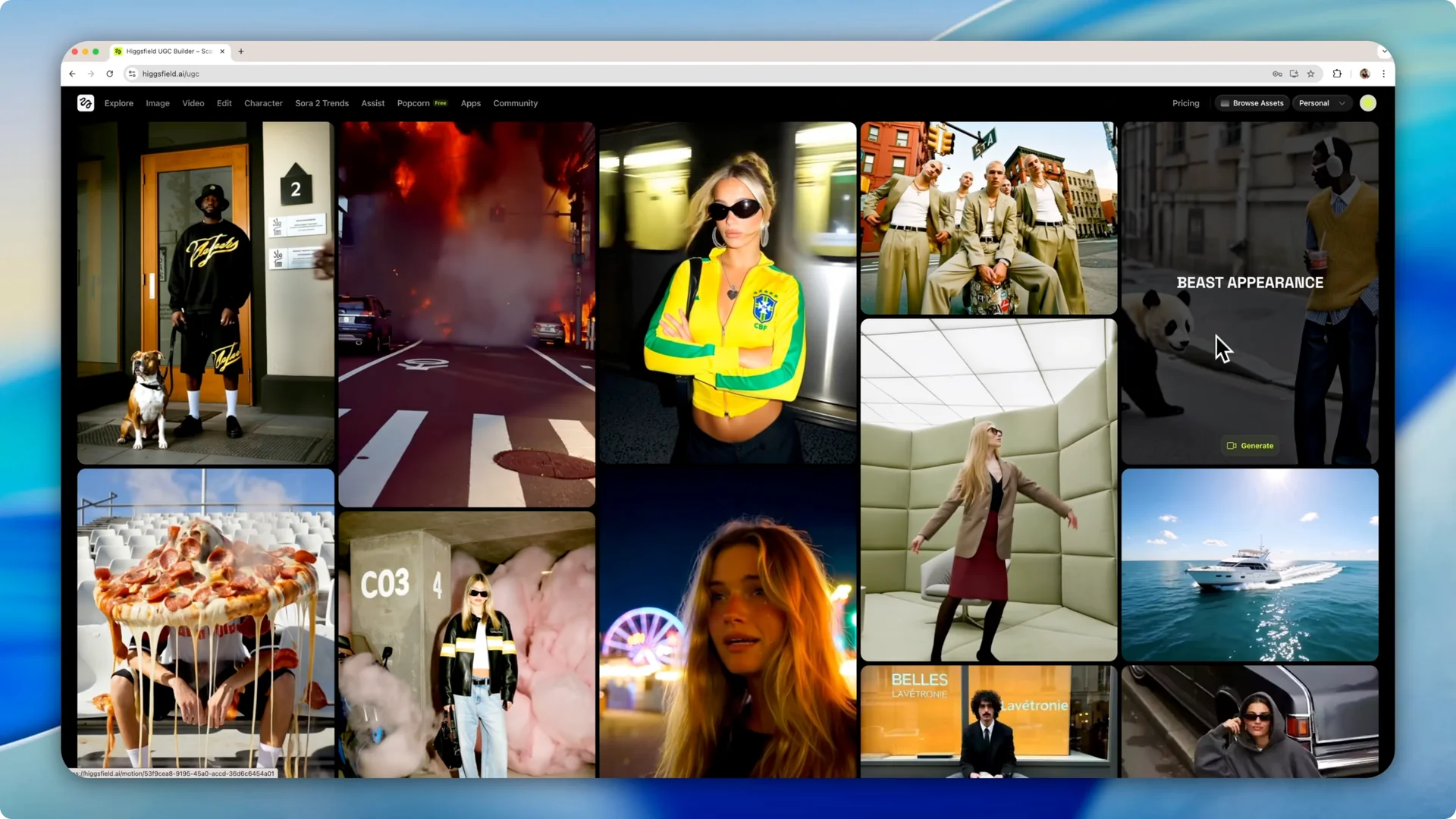
Step 2: Choose a template such as beast appearance and click Generate. You will be taken to a screen that shows your other projects.
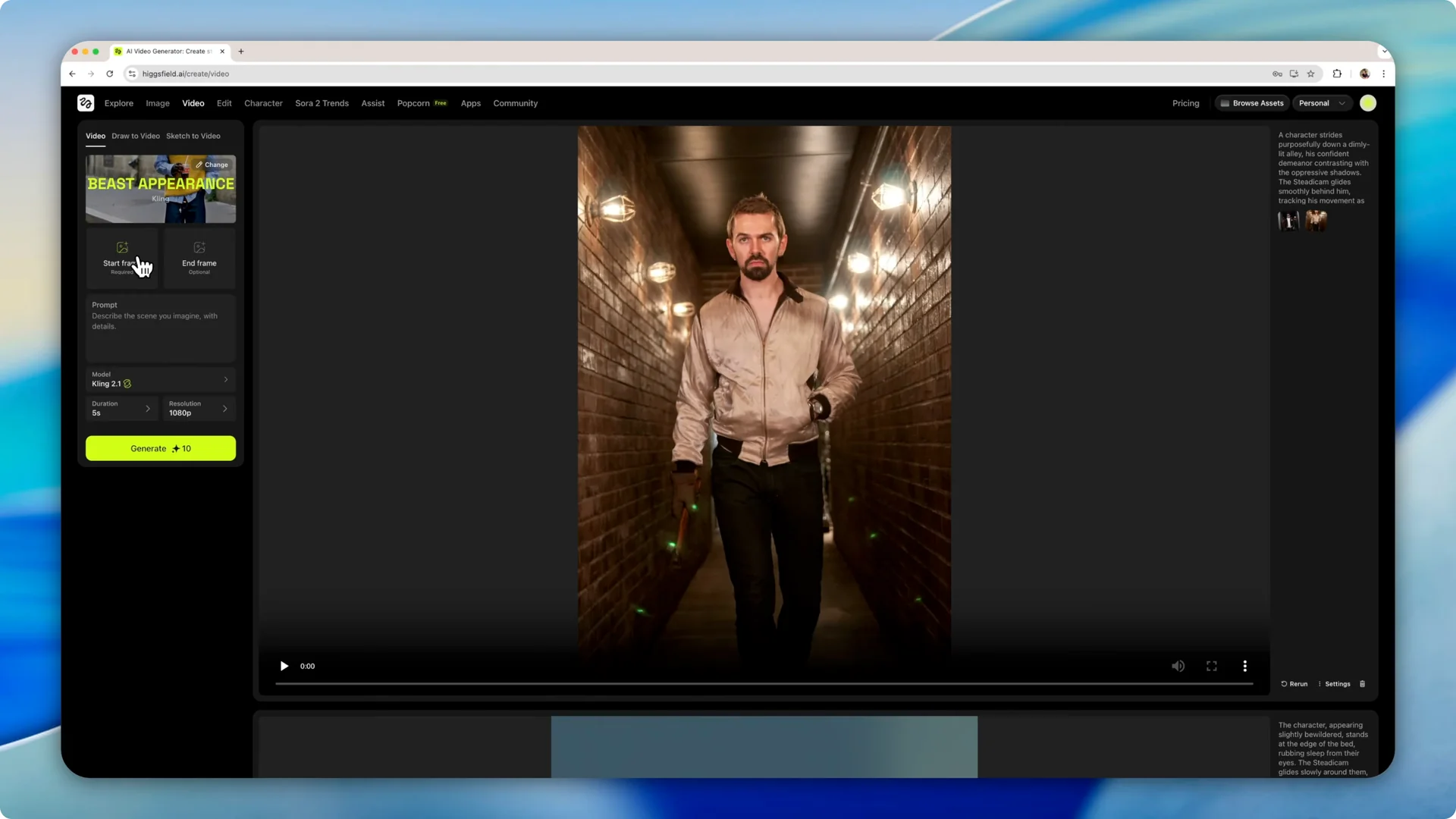
Step 3: Upload a start frame and an end frame for the user generated content to be created. I took a couple of pictures with one of my cats to show what the software can do.
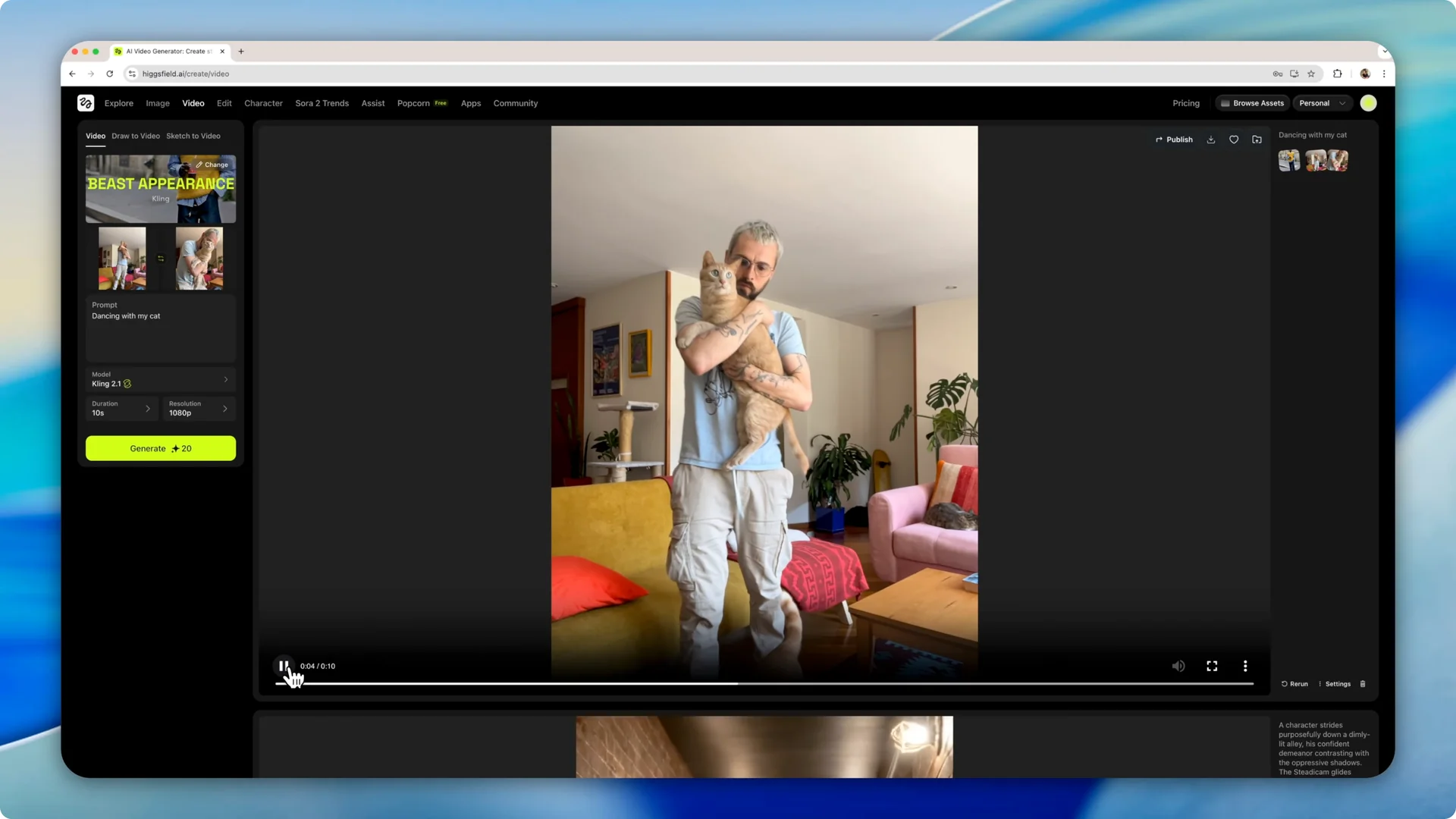
Step 4: Describe the scene with a prompt. I set a 10-second scene and selected the resolution from full HD or 720p. I recommend 1080p because it is more usable in a bunch of different scenarios.
Step 5: Select the model that the software is going to use. The one I used here is Clink 2.1. Write the prompt, and the software refines it and makes it a bit larger.
Step 6: Generate the scene and review it. It even added another cut to the scene. The way that I move and the way that my clothes move is really amazing.
Step 7: Download the video. Create a bunch of different scenes to build a larger sequence for UGC content.
For tips on producing realistic videos automatically with AI, check out this walkthrough on making videos look realistic automatically.
AI UGC Video Creation in the UGC factory
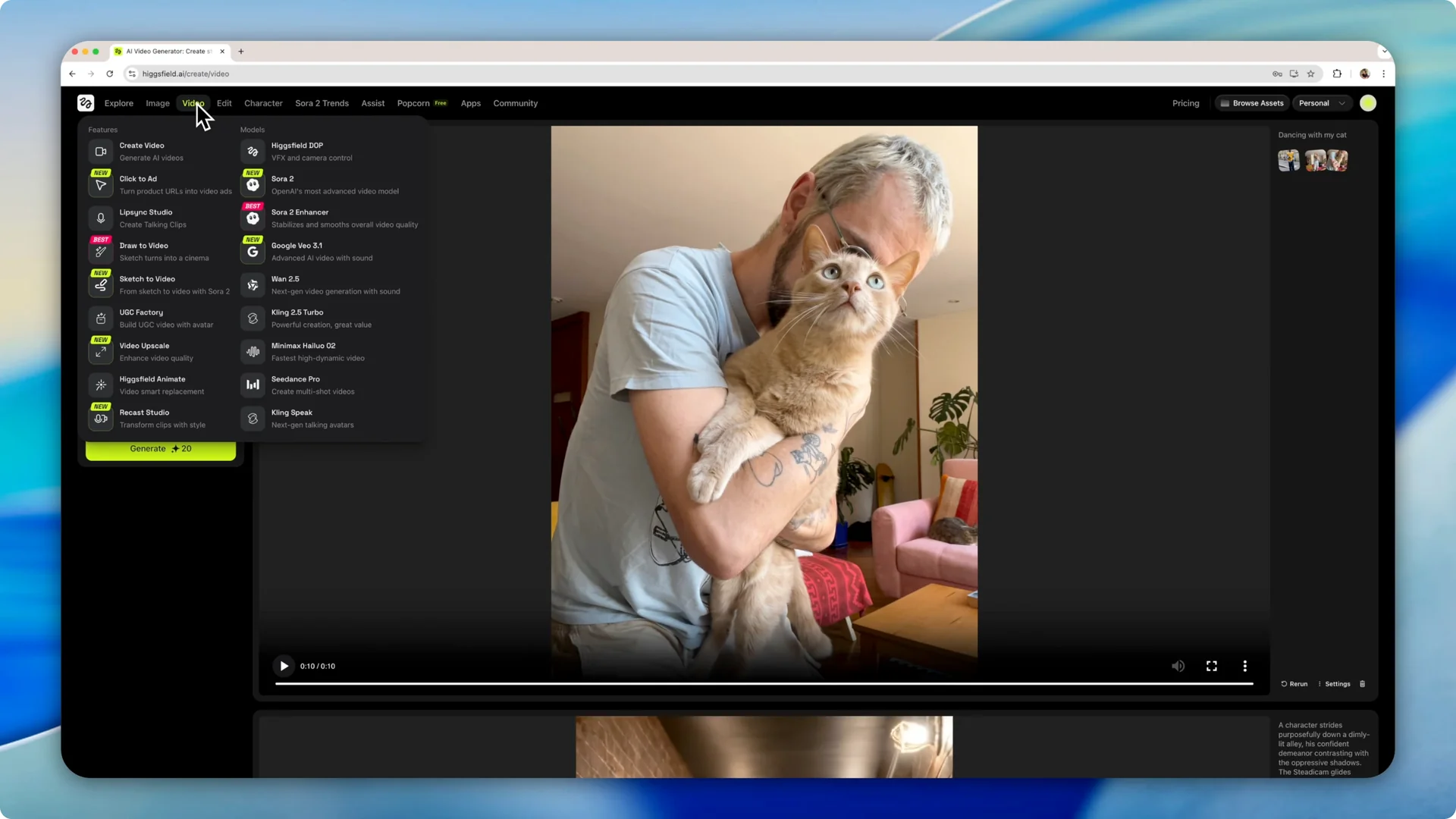
Another way you can use UGC in Heisfield is by going to the video tool and opening UGC factory. This takes you to the template area with options like general, selfie, and selling. I used the general template.
Templates and images
Step 1: Open UGC factory in the video tool and select a template. You will then be taken to the image part.
Step 2: Upload an avatar. I uploaded a picture of myself to be the avatar.
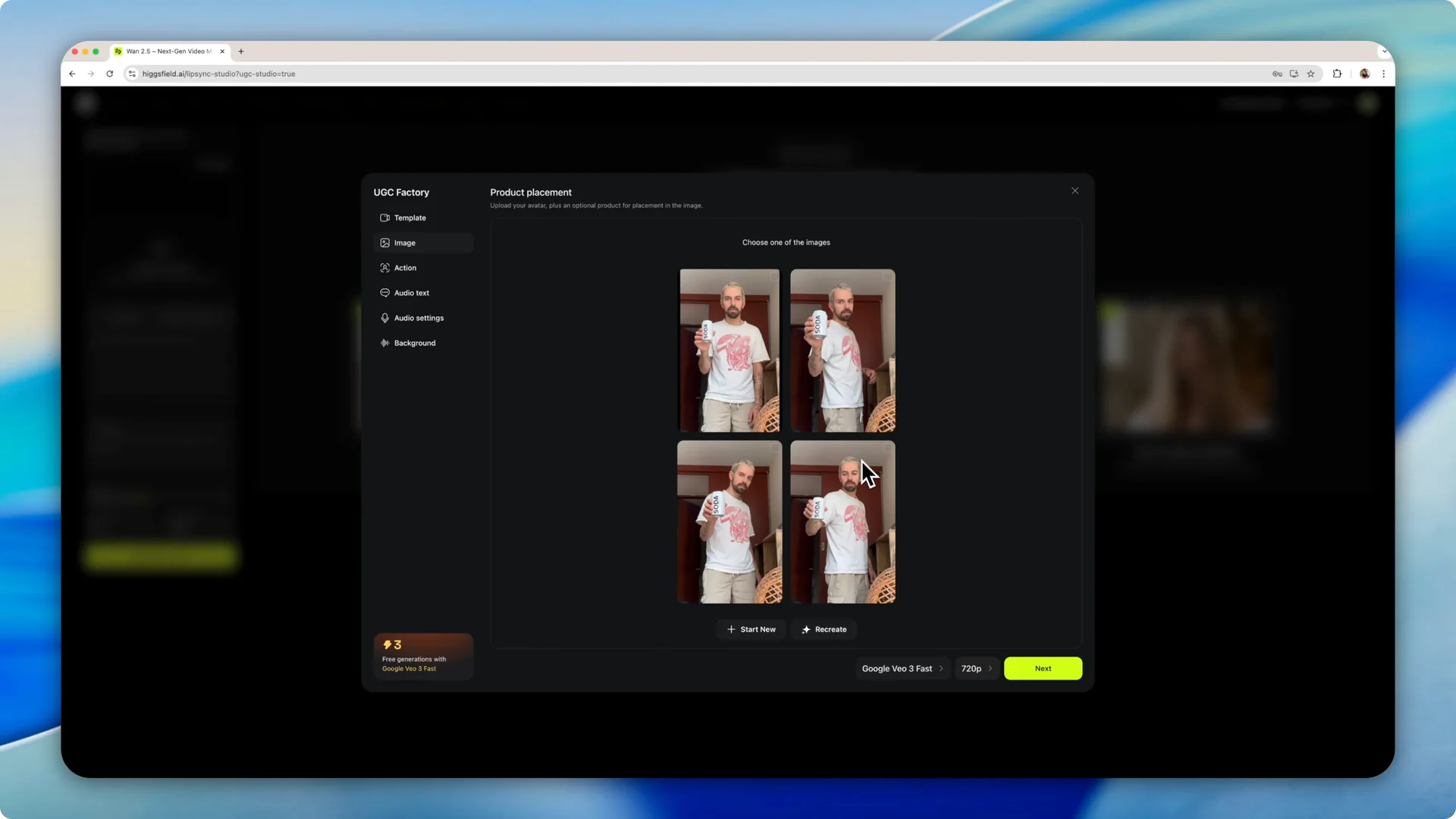
Step 3: Upload a product. I used a blank soda can with no brand and combined the images.
Step 4: Wait a few seconds for four different images to be created. Pick the one that looks more natural to you. I chose the third one.
If you want to spin this into an influencer-style workflow, see how to create an AI influencer.
Action and visual settings
Step 5: Go to Action and describe what the UGC is going to be performing. I asked the character to be smiling and moving the can.
Step 6: Choose the model, Google V3 fast or Google V3. Select the resolution of the final product, such as 1080p.
Audio and speech
Step 7: Select an audio that the character is going to be speaking. I wrote a simple speech: Check out our new soda. It’s sugarfree.
Step 8: Adjust audio settings and voice type. You can pick whispers, rough voice, harsh voice, soft and clear, loud and strong, very high, or no sound, and choose the emotion like happy, sad, fearful, or surprised.
Step 9: Select the language. I picked English, and you can also choose the accent such as American, British, South African, Indian, or African-American, or just leave it on auto.
Background and generation
Step 10: Describe the background sound. I chose city noises to play in the background.
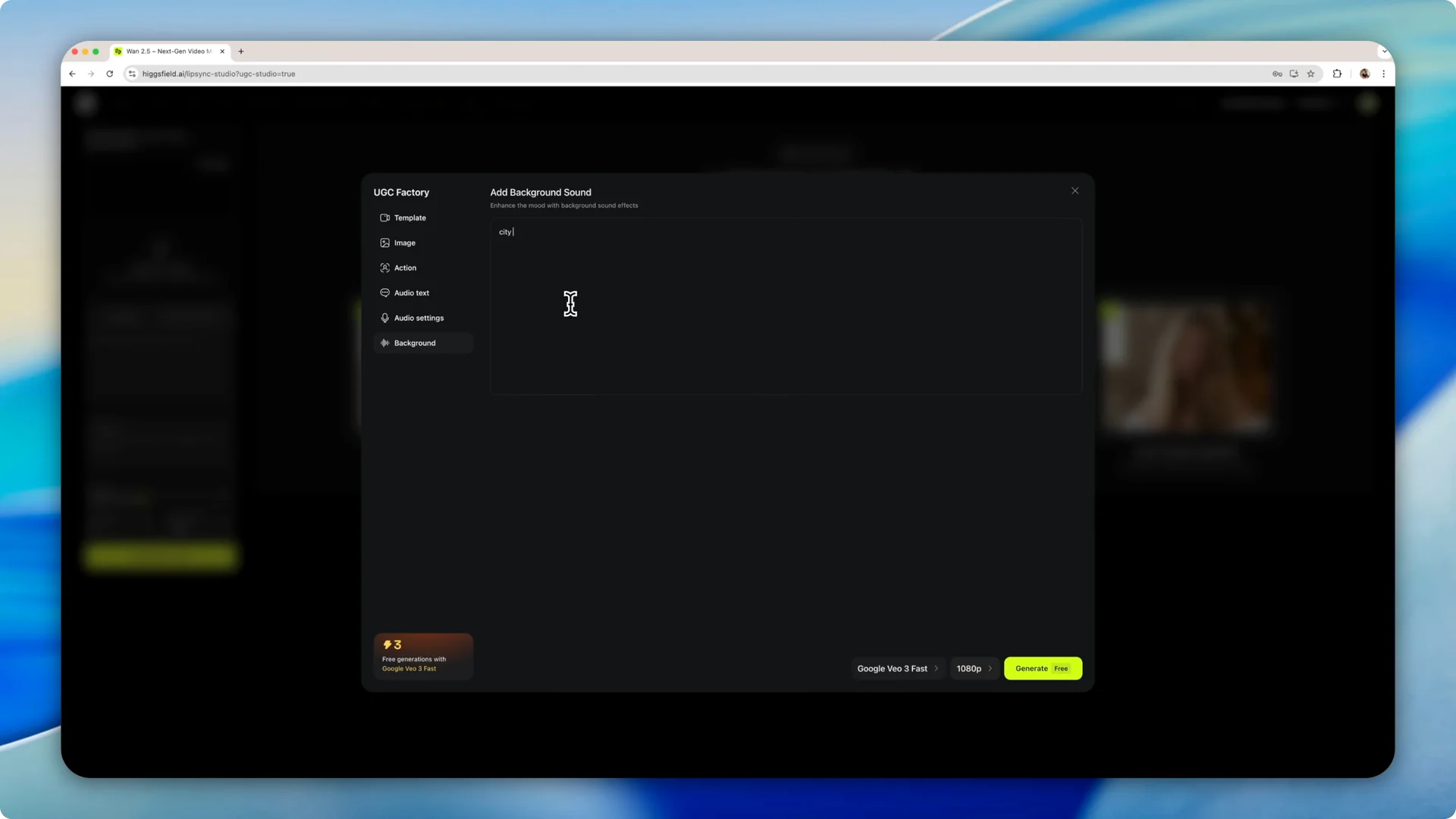
Step 11: Click Generate and wait a couple of minutes for the software to create your scene.
Results and tweaks
It did exactly what we wanted it to do. It created our character with a smiley face, added the speech we wrote, used the product we inputted, and showed it to the camera in a close-up.
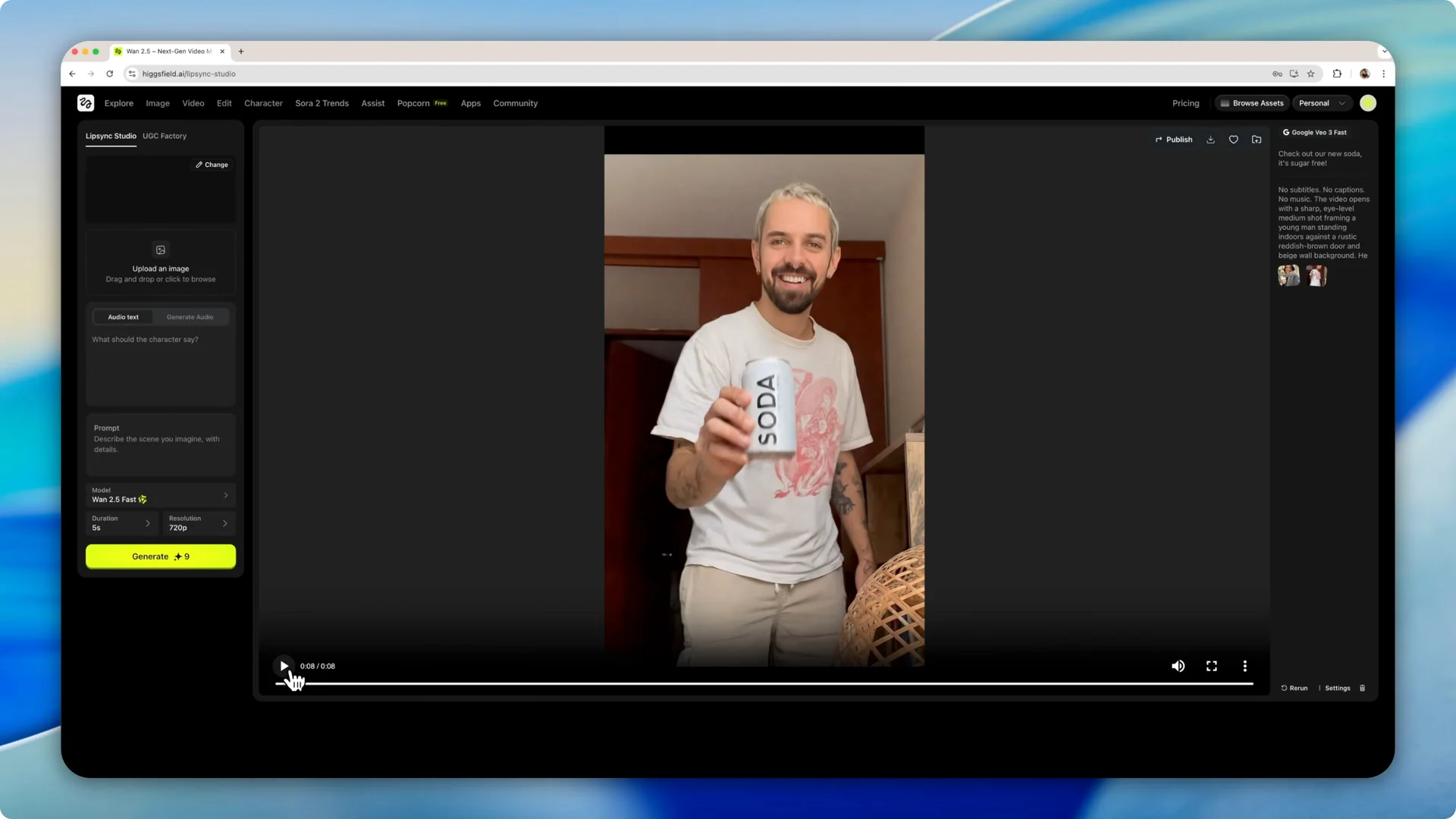
You can go back and play around with the speech to make it longer or shorter. All in all, the videos that the software creates are really usable. They look really real.
It took just one image of myself and some instructions to create this video. It is impressive the way the software does that with just one image and some prompts.
Final thoughts
You can create AI UGC videos in Heisfield in two main ways. Use start and end frames with a prompt, or build from a UGC factory template with an avatar, product, action, speech, and background sound. Both workflows produce results that are ready for marketing scenarios with minimal setup.