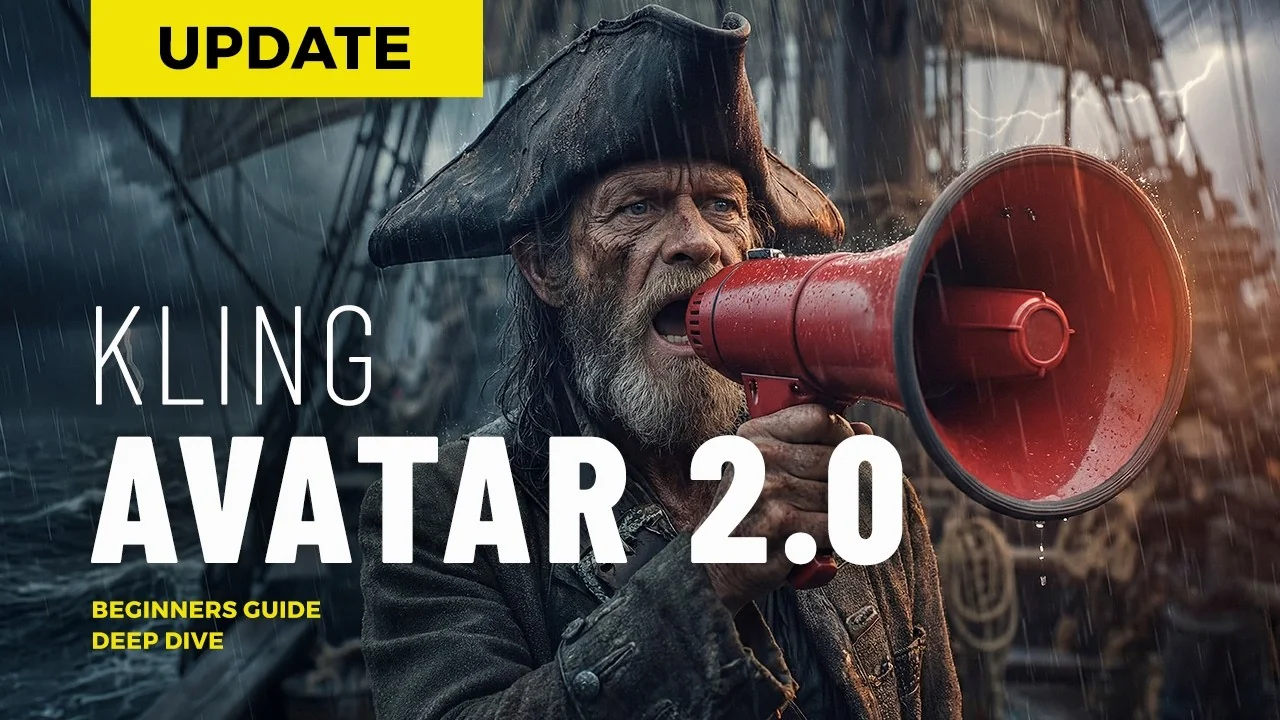
The topic of avatars had been on my radar for quite a while, but I never really found the right moment until now with Kling Avatar 2.0. And I’ll show you exactly why.
Let’s start with a quick definition. What exactly is an avatar? It’s a digital standin, a character that speaks on your behalf.
You provide an image and a voice and the AI turns that into a host, a storyteller or a product ambassador. Ideally, one that moves naturally, speaks your language, and delivers your message with expression and presence.
Kling puts it like this. The Avatar 2.0 feature allows you to upload character images, add voiceovers, and describe the character’s expressions to generate dynamic avatar videos. According to Kling, version 2.0 marks a major leap forward.
You can now create scenes that run up to 5 minutes. If you want your own avatar, Kling says it only takes three steps and one click on generate. But here are the real questions for me. Do the lips sync perfectly, how are the teeth rendered, and can this work for music videos too?
For movement planning and scene timing, see our motion control guide.
Before I show you how it works and how you can create your own avatar for a game, a video, a training session, or a presentation, here’s a quick look at some example clips. All of them were created directly on the native Kling platform.
Technically, Kling offers 42 built in voices you can choose from, but for these tests, I created a custom voice over externally and uploaded the audio myself. That way, I could see if Kling Avatar 2.0 handles languages beyond English and Chinese.
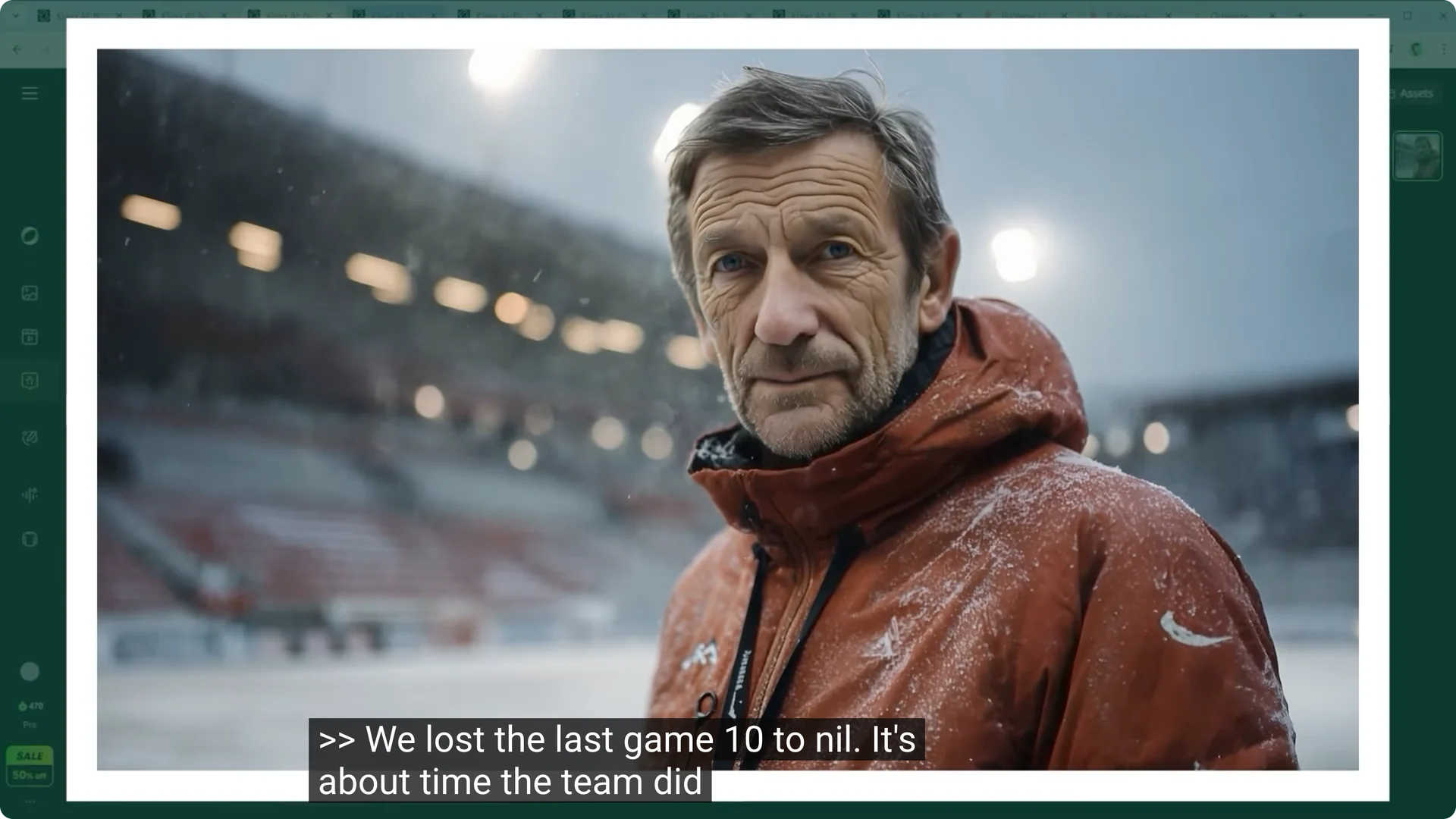
Example one, a football coach after a crushing Premier League defeat. We lost the last game 10 to nil. It’s about time the team did something.
Example two, an Indian mountaineer standing on top of the world having defied ice and cold. Example three, a French baker offering freshly baked goods straight from her woodfired oven. Example four, a Korean race car driver reflecting on major events back home.
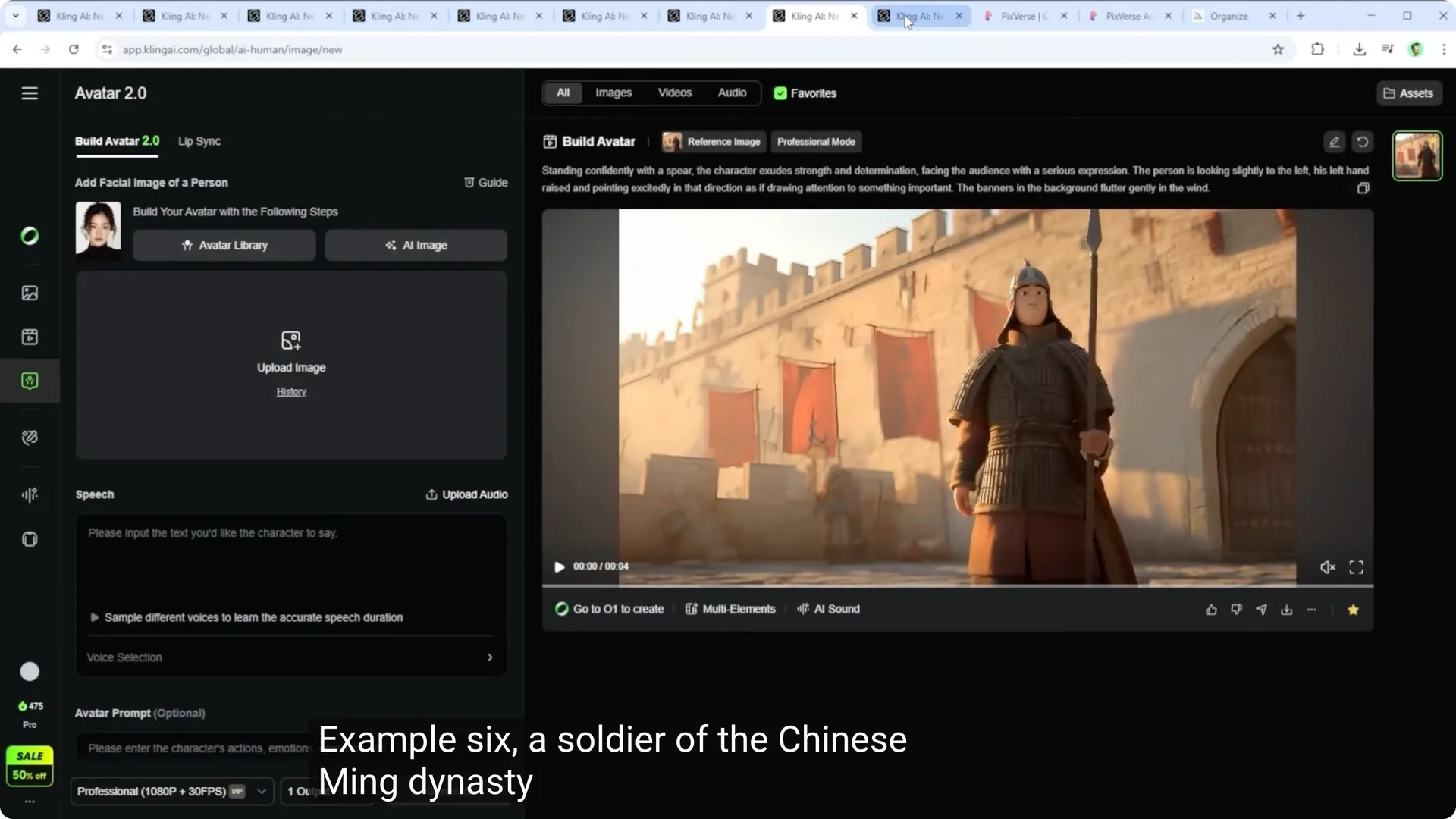
Example five, a Spanish pirate who’s had enough of the workload and is looking for an assistant. Example six, a soldier of the Chinese Ming dynasty rendered as a 3D animation standing quite literally on lost ground. Example seven, a Roman soldier on the battlefields of Asia Minor just before his big moment.
I’m about to sing something for you, but the performance with Avatar 2.0 isn’t quite ideal. And here’s the musical performance of the Roman Legionaire, first realized with Kling Avatar 2.0. You’ll notice that compared to pure voiceovers, the platform still has a few issues.
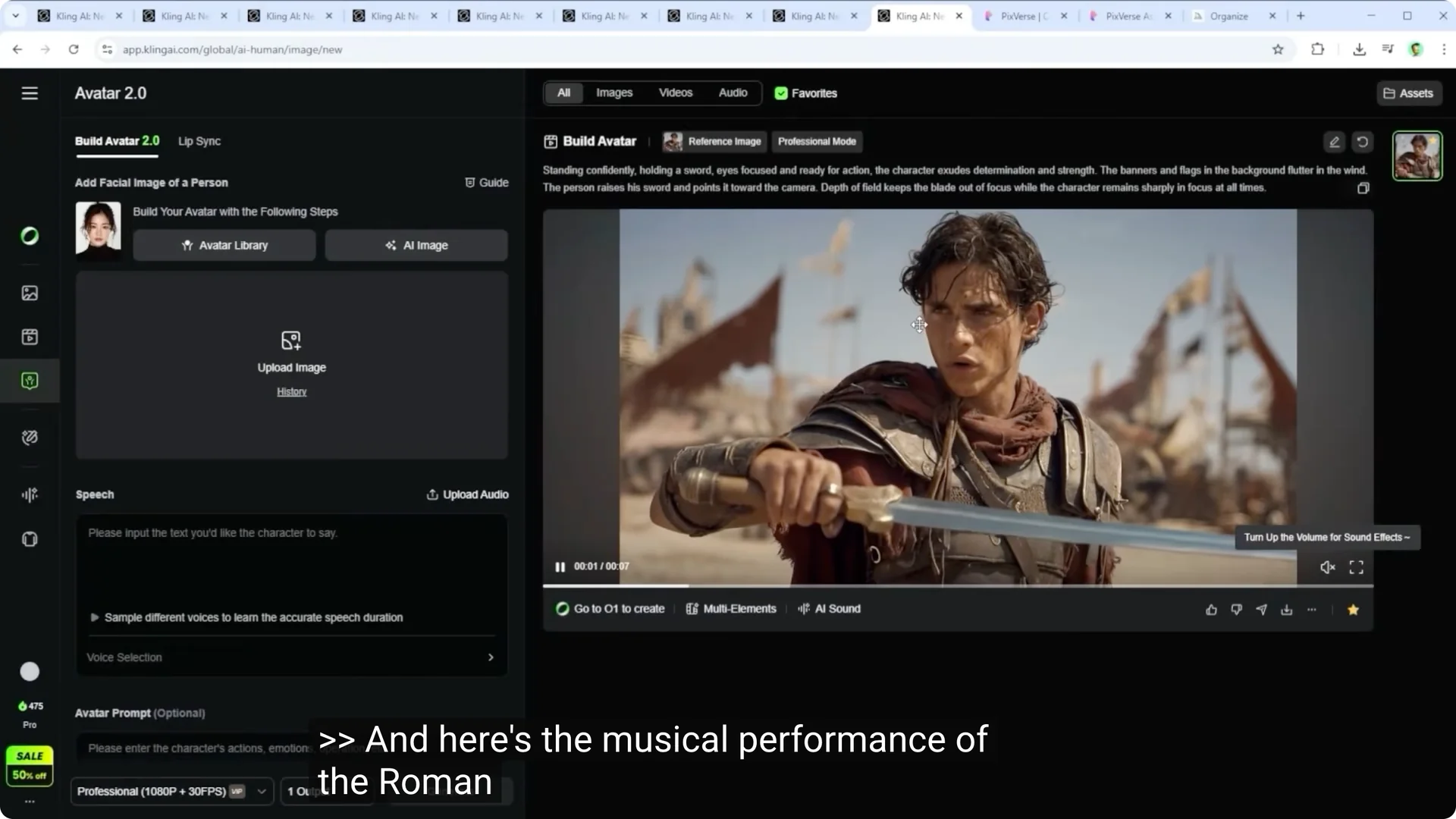
I stopped after the sixth attempt because what seemed to work initially kept failing or got flagged with error or censorship messages on repeat. Let’s talk about that musical scene first. What stood out was how unnatural the mouth movements looked in Kling.
Probably because the music, let’s call it noisy for now, made it hard for the AI to match syllables precisely. On the other hand, the hand and body gestures were well done. In the Pix version, the character stands still like a soldier.
The lip sync feels slightly more realistic, but still not perfect. That stiff statuike vibe comes from the video input, so that’s not on the AI. Now, looking at the other seven examples, it’s clear that the Avatar 2.0 feature is actually very solid.
Even languages that Kling doesn’t officially promote, like French, Hindi, and Spanish, worked well in terms of lip sync, as long as I uploaded my own audio file. Kling does have a built in voice pack, but honestly, it feels too generic. I’ll show you in a moment what you can tweak inside the Kling interface.
To go deeper on movement tools that complement avatars, see the new motion control features.
Kling Avatar 2.0 Tutorial: Interface and setup
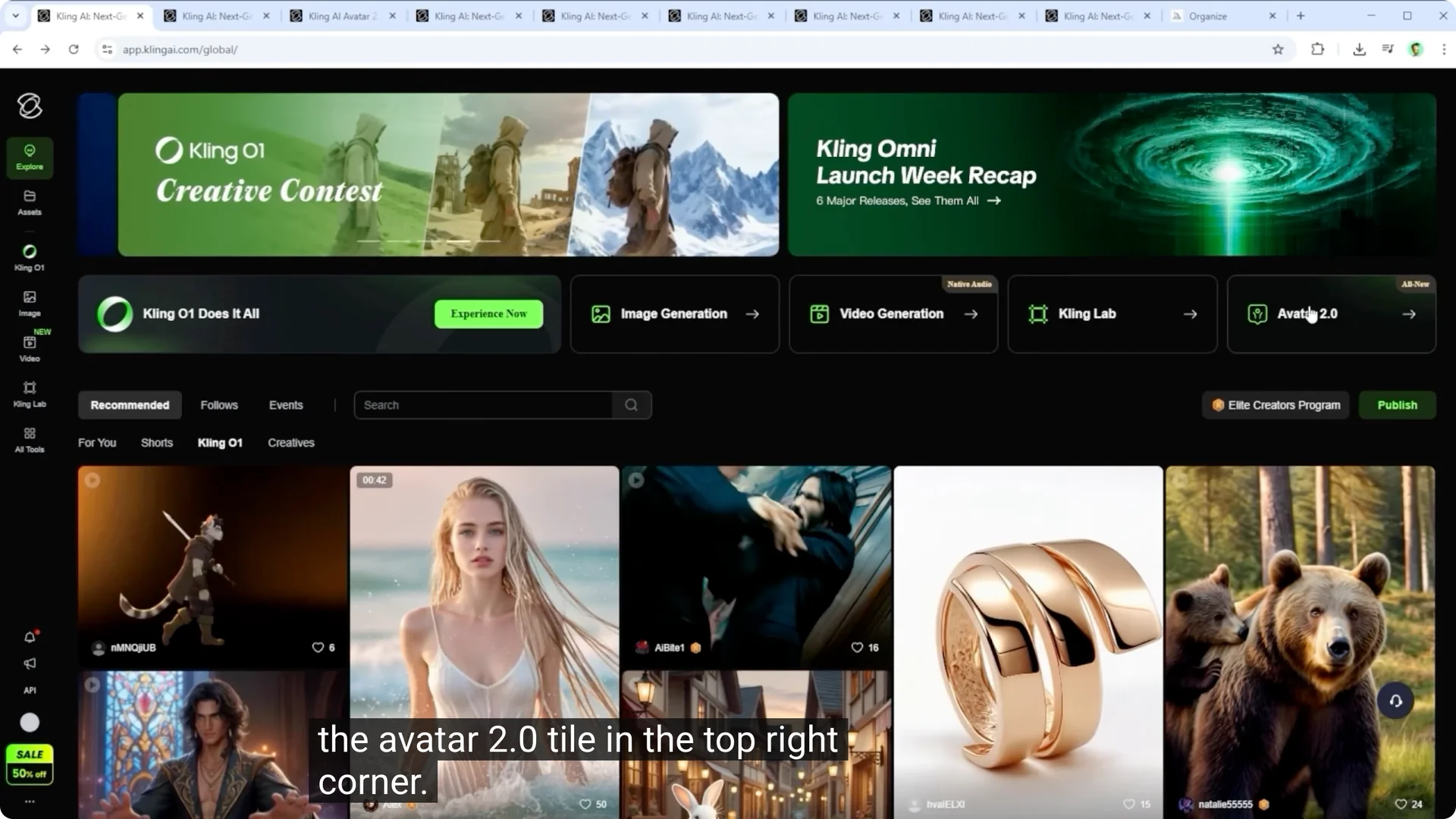
First, head to Kling‘s homepage and click on the Avatar 2.0 tile in the top right corner. Quick orientation. On the far left is the standard navigation bar where you’ll also see the avatar icon already active.
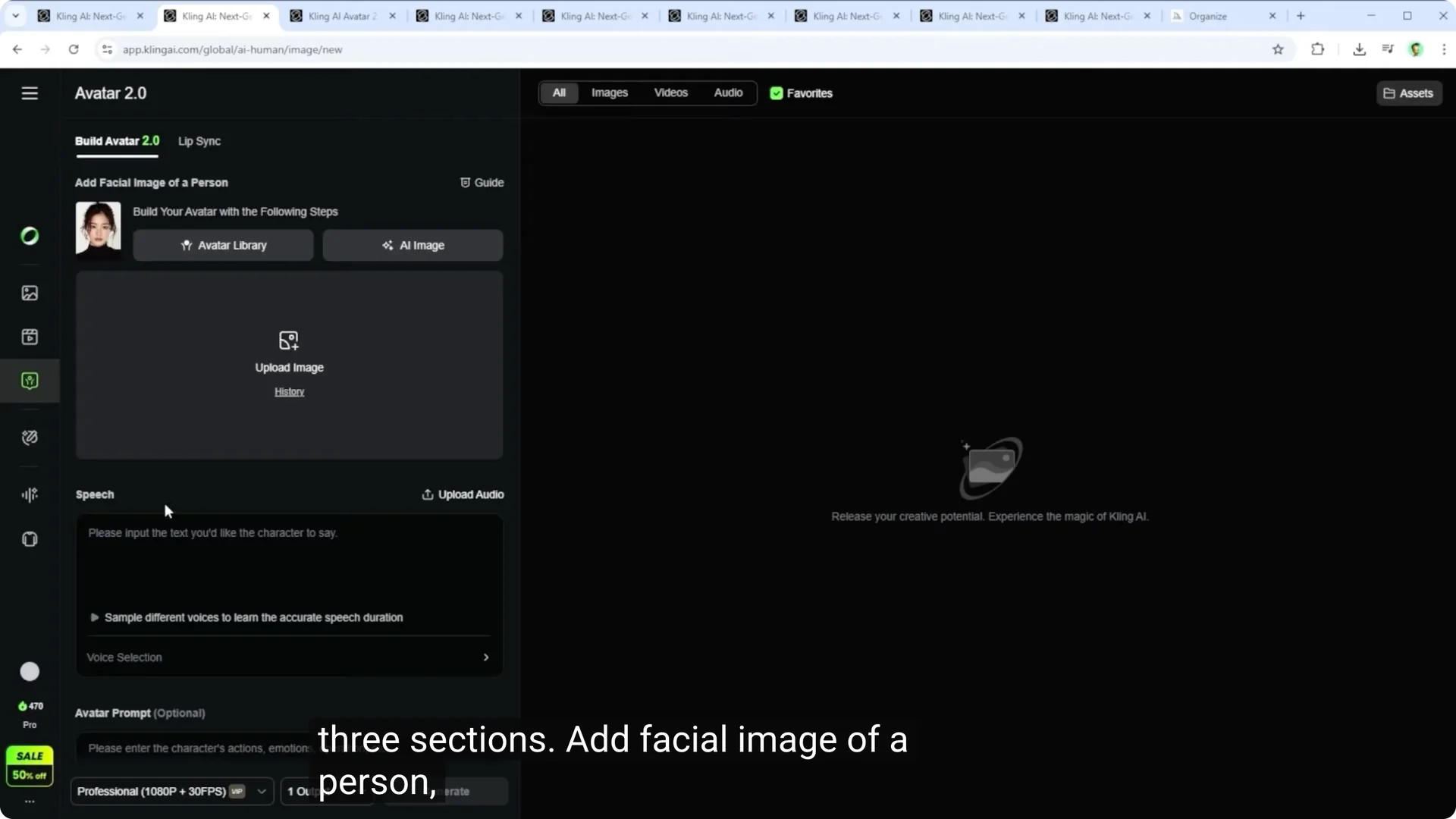
Right next to it is the main interface for this feature with three sections. Add facial image of a person, speech, and avatar prompt. First thing you might want to do is click on the word guide.
Kling has put together some solid tips here, including a few examples. Although to be honest, not all of them reflect the true quality of the tool. Or put differently, this is where you can see what standard voices actually sound like.
The prompt support, however, is well structured. Let’s head back to the main interface. Your first task is to define the avatar.
Kling Avatar 2.0 Tutorial: Step 1 define the avatar
Step one starts with the section add facial image of a person. There are multiple ways to go about this. Option one is via AI image.
Once you click it, a character builder opens, almost like in a video game. You can choose gender, age, skin tone, and aspect ratio for your image. In the dark field below, you can also add a prompt to customize the look.
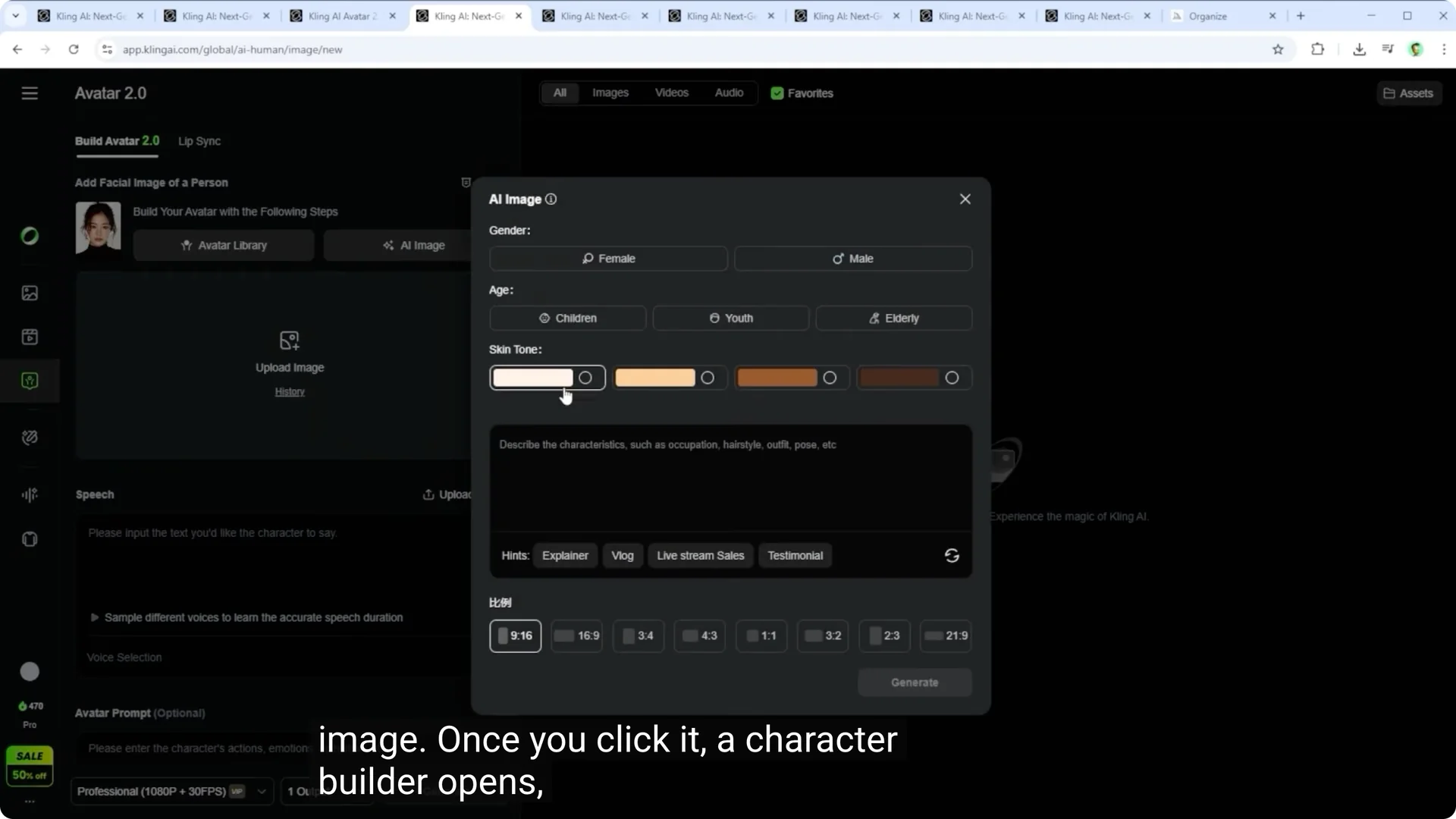
Kling includes a few preset styles here, which you can refresh as needed. They’re quite generic, though, very similar to the avatars shown in the preset section. Not really my thing.
If you want something more unique, write your own prompt or get help from chat GPT. For that, close the window briefly, then reopen it. This resets all fields, so you can paste in your custom prompt.
Pick your preferred aspect ratio and hit generate. The AI will give you four image options. Choose one, and if there’s a loading error, just refresh the page with F5.
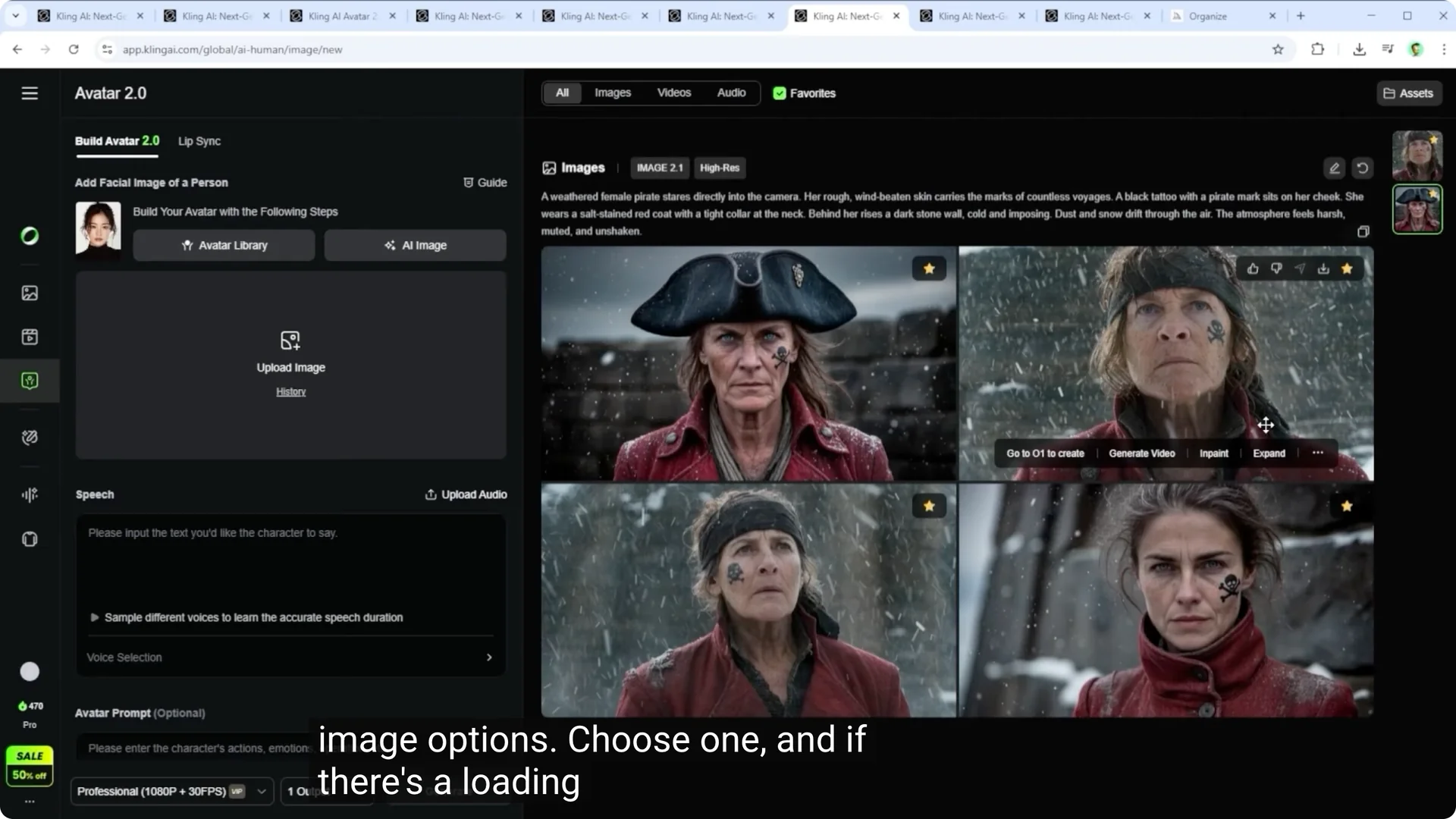
What you’ve done here is create a character image using Kling’s image AI, which now sits in your personal database. I’d recommend upscaling the image from here. Option two for defining an avatar is even simpler.
Just take an external image and drag and drop it into the upload field. Make sure the figure in the image is clearly visible. Kling will then analyze whether the image is usable as an avatar.
If you upload something like a scenery photo with no person, you’ll get a failed to analyze avatar message. Alternatively, you can also use the upload option from the history tab. Option three is the most interesting one because it lets you define a custom master avatar that you can reuse and adapt to different moods anytime.
Kling Avatar 2.0 Tutorial: Create a master avatar
Start by clicking on avatar library. This opens the same preset selection we saw earlier, again filled with standard avatars. Since I want to use a custom figure tailored to my needs, I exit the presets and click on my avatars instead.
Here you’ll already see a series of characters. I’ve visualized using Kling image 01 and midjourney. Before we describe a new person, a quick pro tip in this overview.
The avatars on the left were created with Kling’s image01 model, the ones on the right with midjourney. Of course, it’s a matter of taste, but to me, the look and feel of the midjourney versions just works better. Let’s now focus on the top left field called create avatar.
When you hover over it, three options appear we already know. Customize avatar, upload, and select from history. Since I want to use an external midjourney image, I click upload.
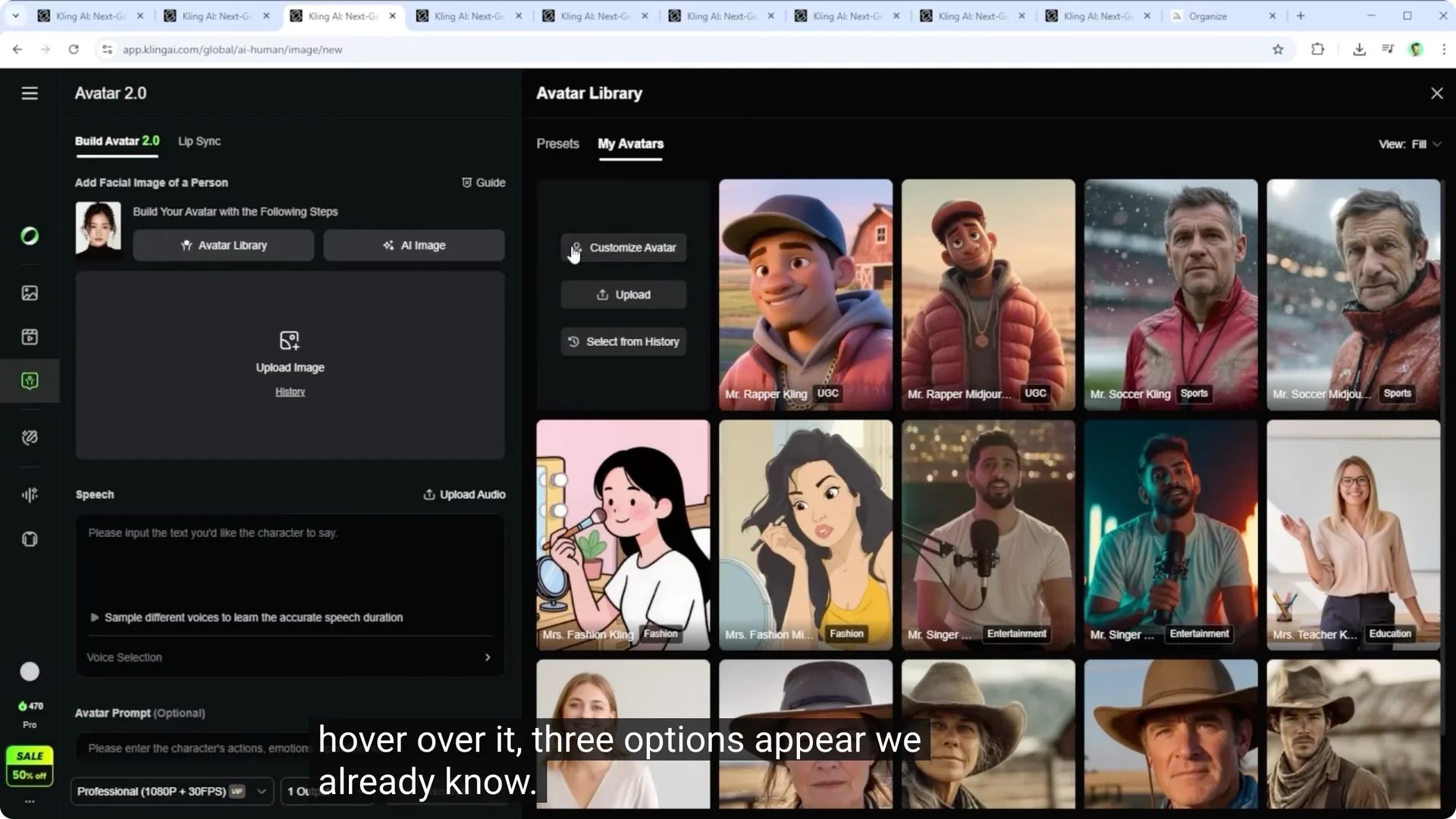
Kling now runs its verification process to check if the image can be used. On the left, you can assign a theme to the avatar. This has no functional impact.
It’s just for internal organization. You can also type in a custom label here. On the right, adjust the name of your avatar if needed.
Just below that is a description automatically generated by the AI based on the pose and overall impression of the character. You can edit this manually or replace it using the refresh button. In the bottom left section of the interface, there’s also an option to refine the prompt outside of the avatar setup.
Now, pick a voice. These are the standard voices I mentioned earlier. Kling assigns one automatically based on the image, but this is usually random and often doesn’t match the intended speech style.
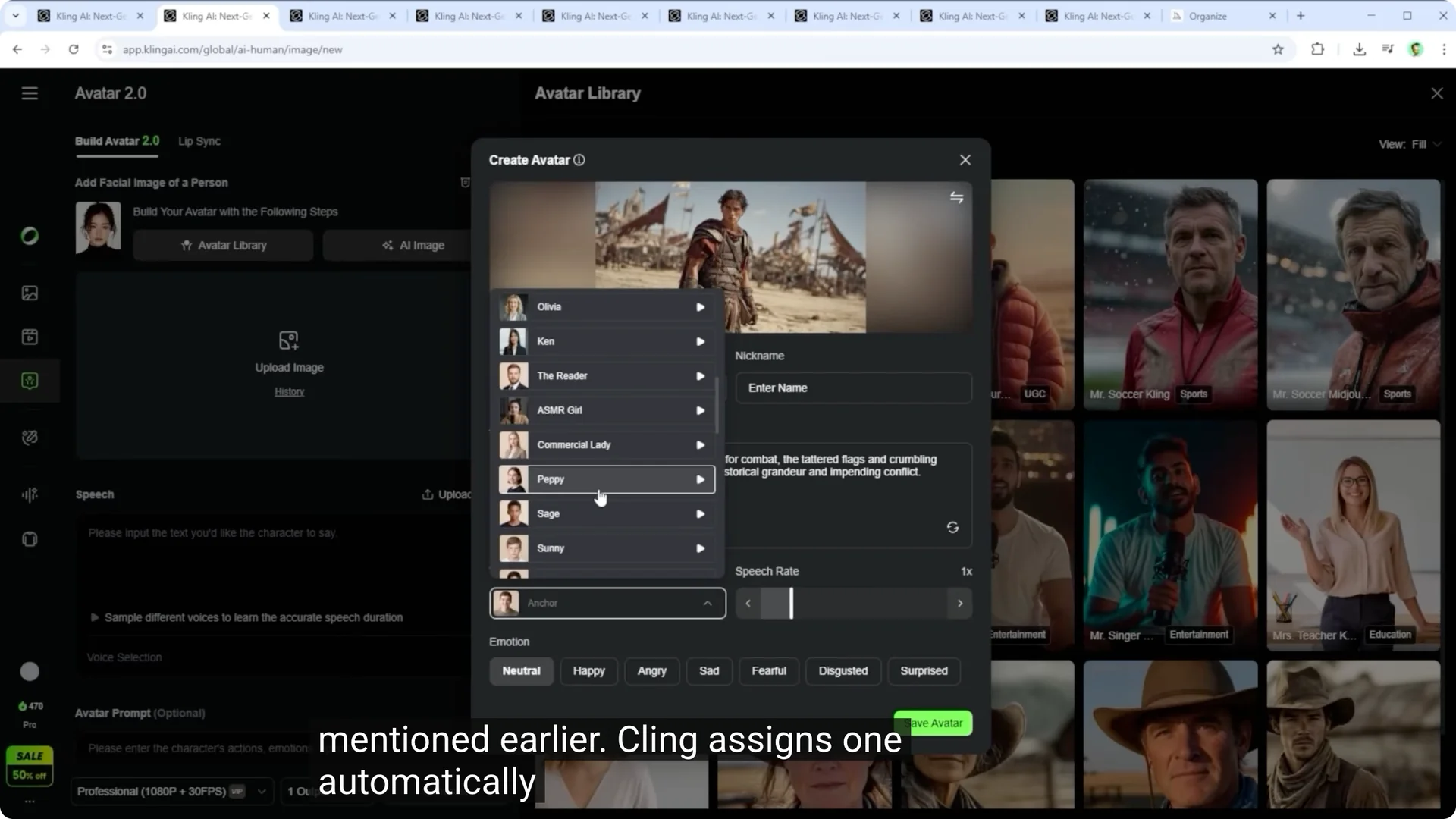
To find a better fit, you’d need to test each option manually. Make sure you don’t accidentally assign a female voice to a male character or the other way around. On the right, you can set the speech rate.
It ranges from 0.8 to two. A lower value means slower speech. Two is much faster.
This gives you some room to personalize the delivery. Lastly, you can select the emotional tone of the voice. Choose between neutral, happy, surprised, or others.
When you’re done, click save avatar. Your custom character is now ready and added to your list. If you want to remove it later, just click the trash can icon.
As you can see on the right, Kling supports different types of avatar visuals, 3D animation, illustration, or photo as long as the face is clearly visible. If you want to edit an avatar, hover over the avatar tile and click edit or delete. Clicking edit brings you back to the familiar setup interface.
I’ll go ahead and use the rapper avatar here. That completes step one.
Kling Avatar 2.0 Tutorial: Step 2 add speech
Step two is about what the avatar should say. You can upload your audio file directly here. For example, an MP3.
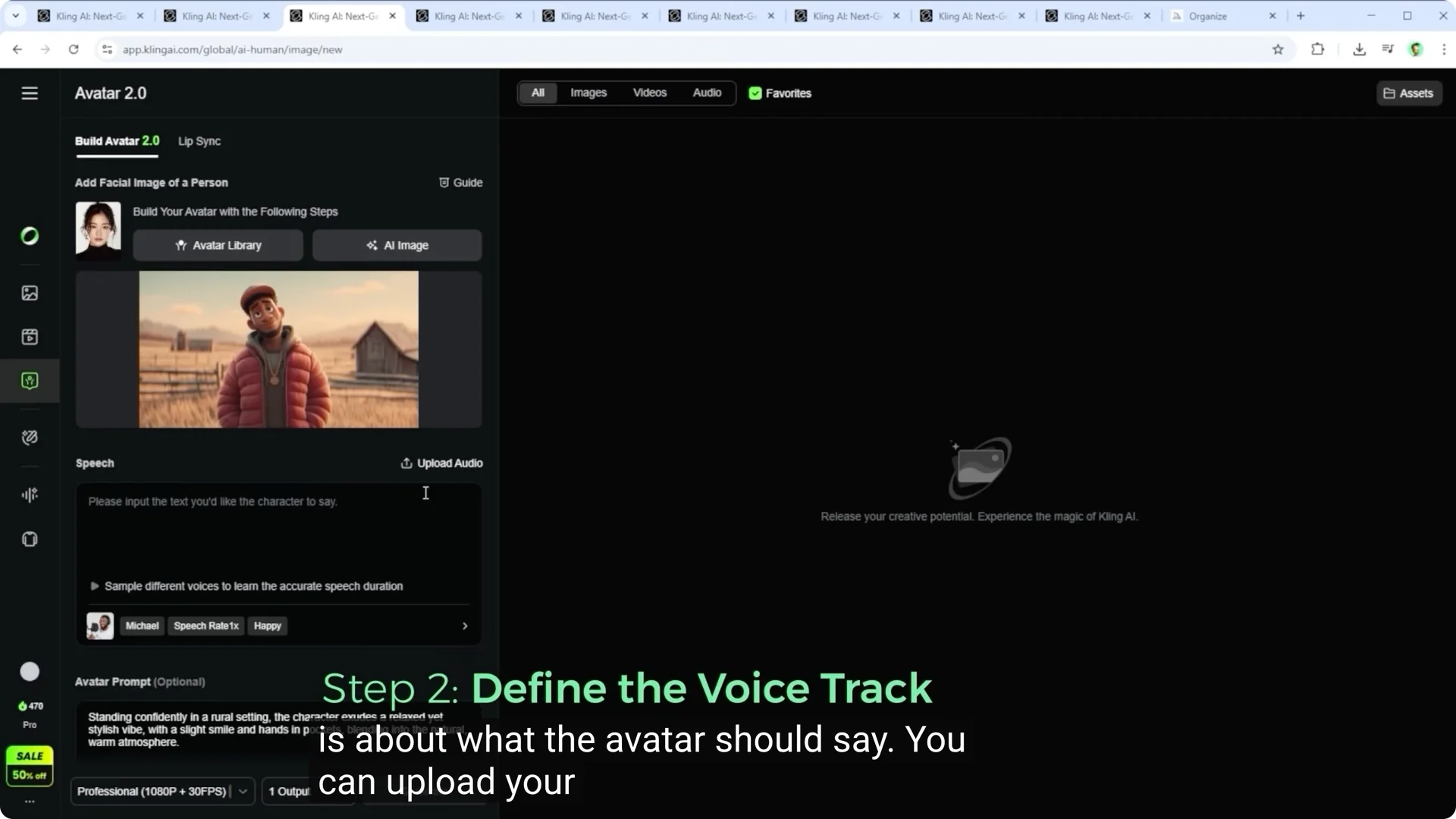
And then you’re done. Everything related to voice type, tone, and delivery is defined by that file. There are no further adjustments.
If you want to replace or remove the audio, click replace audio or the trash icon. Alternatively, you can paste a text script into the input field. Kling shows you how long the spoken part will take.
Based on that length, the platform calculates the cost shown in the lower right. If you click the small arrow pointing right, additional options appear. Oddly enough, you can select a different voice here, but that doesn’t really make sense since your avatar already has a specific character and tone.
More relevant is the emotion setting. This lets you adjust the delivery to better fit the situation, which adds a lot to the final result. Once you’re done, close the voice selection by clicking the X at the top.
Read More: connect your channel with Higgsfield AI
Kling Avatar 2.0 Tutorial: Step 3 refine the prompt
Step three lets you fine tune the avatar prompt. What you see here is the base description from the character’s internal profile. Think of it as an image to video prompt you can customize.
Earlier, for example, I added a short line that said a race car enters the frame. You could also delete the content entirely or randomize it. At the bottom, you’ll see the mode selection, standard or professional.
Availability depends on your plan. Next to it, set the number of outputs and click generate. The videos you get here are rendered at 1920x 1070 pixels if you have chosen a 16 by 9 format.
Kling Avatar 2.0 Tutorial: Lip sync feature
A quick detour to the lip sync feature. It’s the second item in the top left navigation. Once you click it, you’ll be able to upload a video.
This opens a kind of editor mode. In the top right corner, you can choose whether the speech should come from a text prompt or an audio file. Let’s say the person in the video is supposed to say a specific line.
You can select the voice, adjust the speech rate and choose the emotion here as well. By clicking add speech, the text from your prompt will be inserted into the timeline and you can drag it to the exact moment you want. This gives you full control over the output.
Personally, I still believe that using an external audio file produces better results. Credits will only be deducted once you click generate in the bottom right corner.
Final Thoughts
My personal conclusion, this is a powerful tool that’s definitely worth a closer look. Upload your own audio for the best lip sync across languages, and keep musical content simple if you want the mouth movements to hold up.
Once again, it’s important to note that all the features and settings shown here are only available on Kling’s native platform. If you access Avatar 2.0 through an API on an external service, chances are you’ll get a different or more limited feature set.