Higgsfield is an AI powered video and image generation platform designed for creators, marketers, and businesses. The platform specializes in creating cinematic quality content with visual effects and ready-to-use presets. It includes AI image generation tools, character creation at your disposal, and a bunch of editing tools.
There are key products inside the software. The basic one or the free one is called Popcorn.
I’m going to show you how I use it to create images, generate B-roll, apply different styles, and upscale those images for different scenarios.
If you care about keeping outfits consistent across your generated scenes, check out this guide to consistent outfits with Higgsfield Soul.
Getting Started with Higgsfield Popcorn Image Generation
Go to higgsfield.ai. We’re going to the option that says Popcorn, which is the free version.
At the bottom, there are two ways to use it: auto or manual.
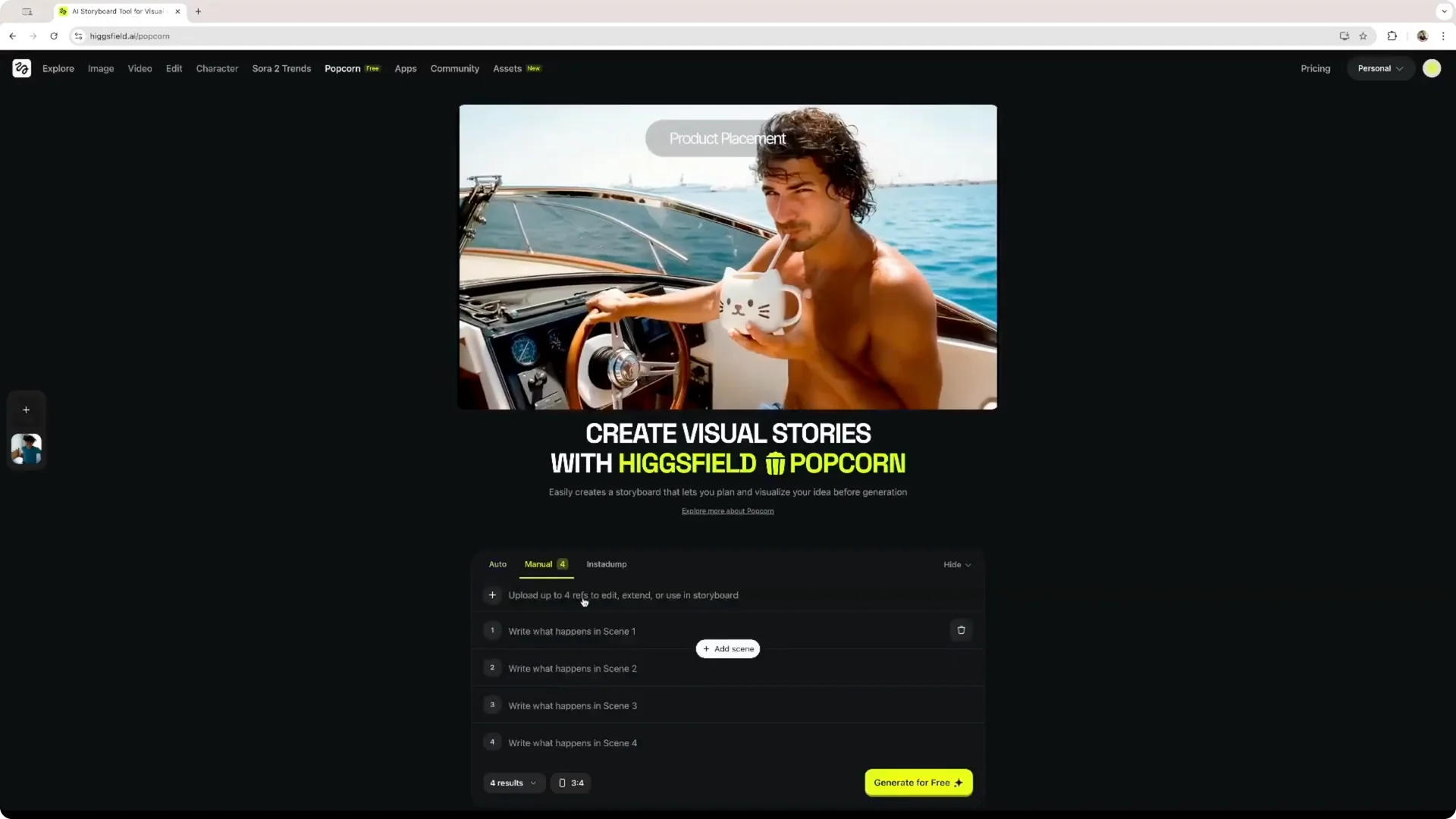
In manual, you upload reference images and describe each scene. In auto, you can upload images and describe the mood or the actions you want to create with your scenes. Both routes are simple once you know where to start.
Prompt and Generate in Higgsfield Popcorn Image Generation
Step 1: Describe the mood or the action you want to create in your scenes using the field at the bottom. Once you have that, you can start the story creation process.
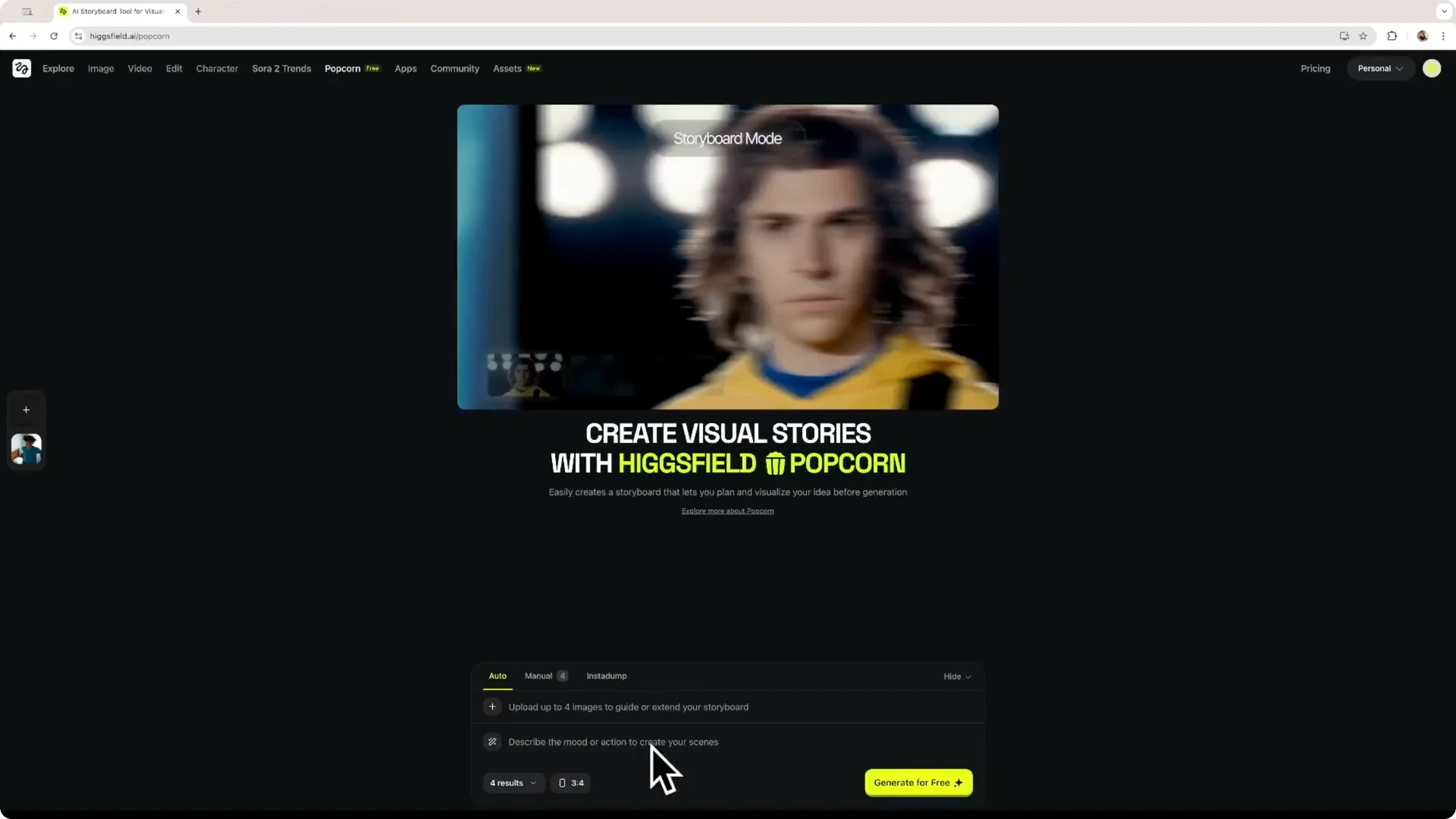
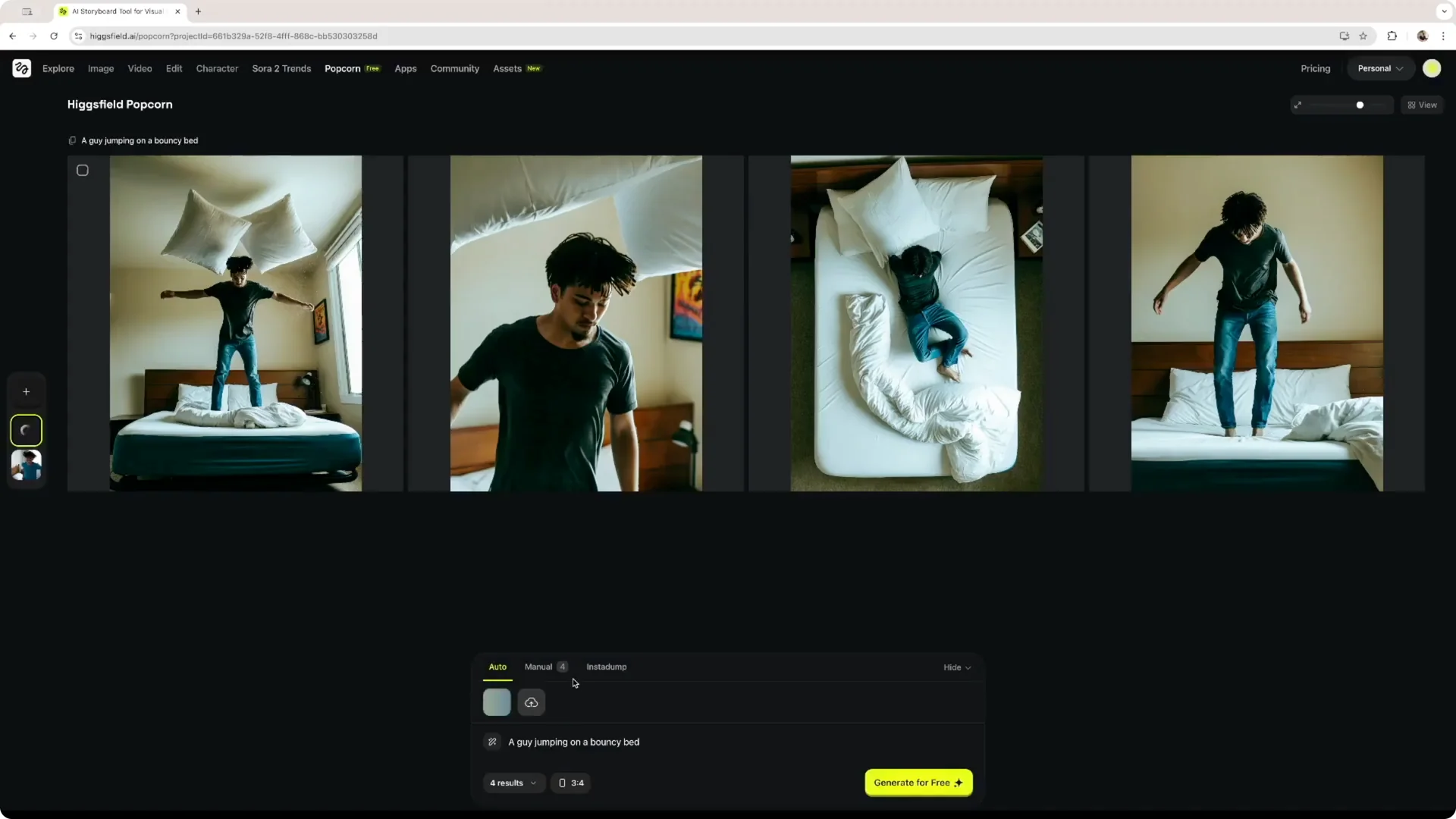
Step 2: For example, I’ll use a simple prompt: a guy jumping on a bouncy bed. You could also upload reference images of you jumping on a bed for the software to use, but I’ll do it all inside the software without uploading media.
Step 3: Click Generate for free. The software creates four different results in a few seconds and you just need to wait.
Work With Results in Higgsfield Popcorn Image Generation
You’ll see four images created in just a couple of seconds. If you hover over an image, you can edit the key frame, write a different description, animate the image, edit again, publish, download to your local computer, or delete it.
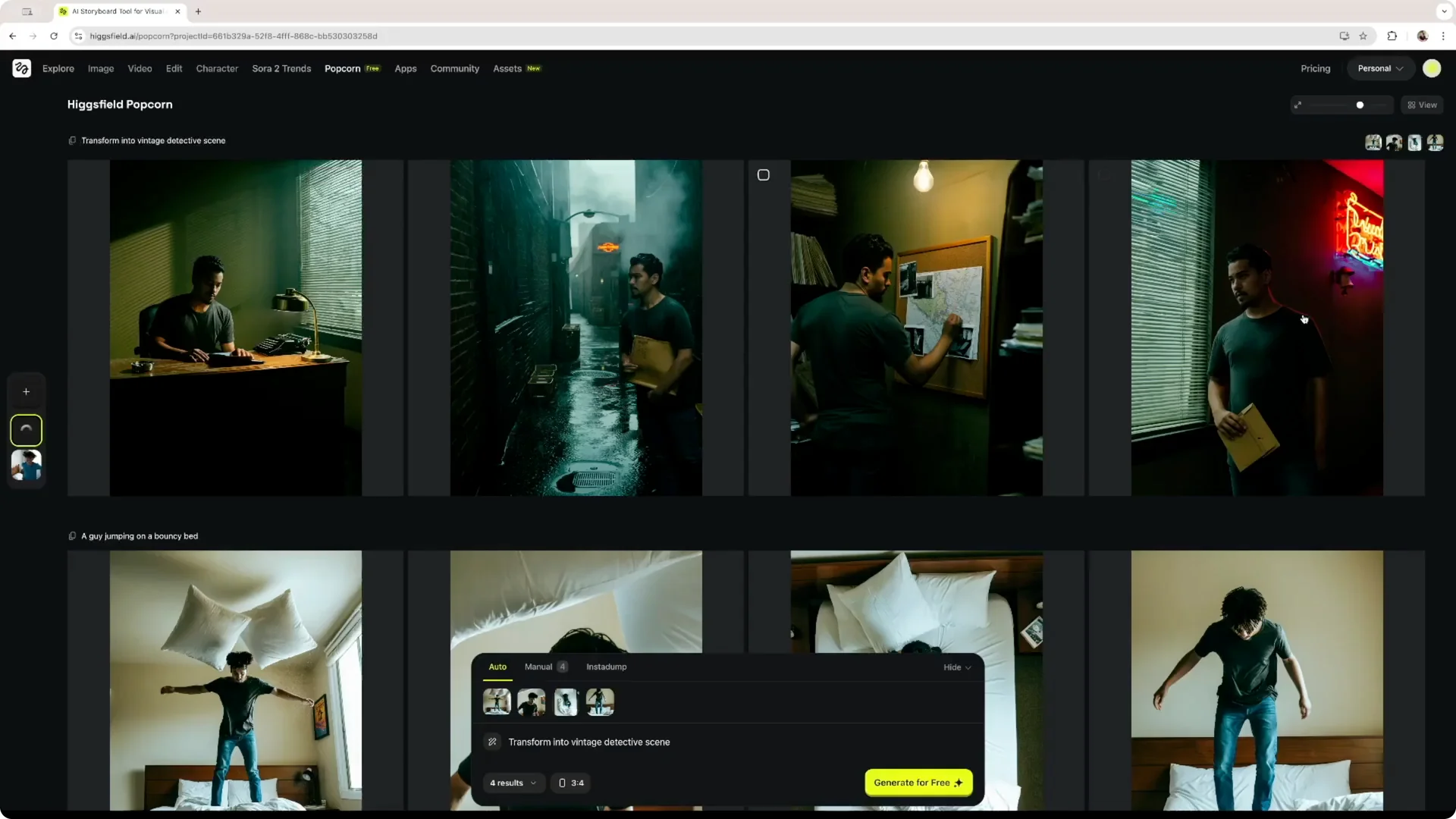
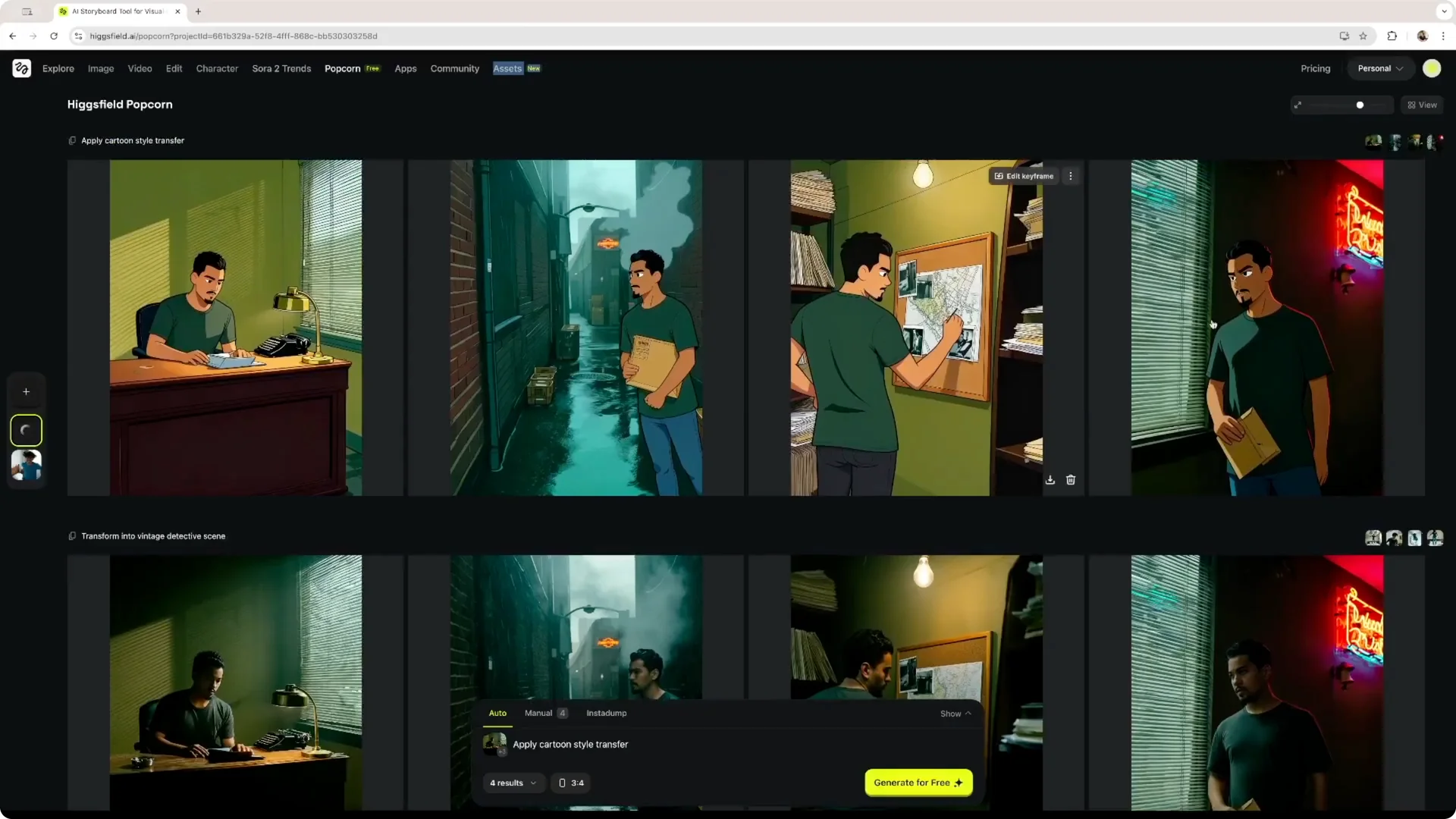
Step 4: Select the images and click Use. You can change the description of the images, like transforming them into a vintage detective scene.
Step 5: Click Generate for free to apply the new direction. After a few seconds, you’ll get four new results that match the description, and you can click on them to preview larger.
For longer stories where you want character continuity from scene to scene, see this tutorial on planning video stories with consistent characters.
Style Changes in Higgsfield Popcorn Image Generation
You can take it a step further and change the style of the images. Select the images, pick another style, for example a cartoon style, and click Generate.
After a few seconds, the software renders the new images. On the bottom you’ll see the source images, and on the top the cartoon style images. The work it does is really, really amazing, and it’s fast.
Insert Your Face in Higgsfield Popcorn Image Generation
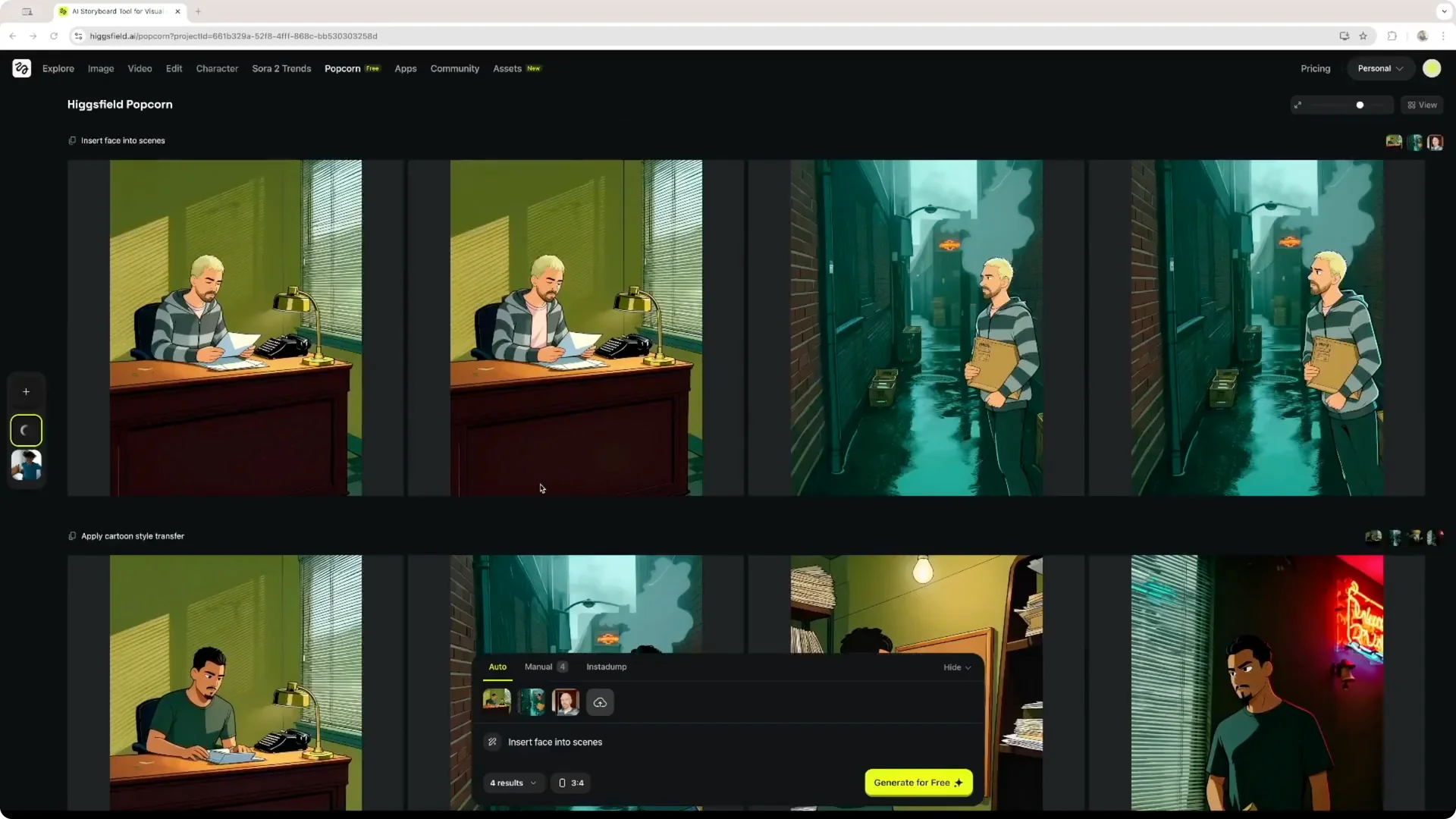
Step 1: Select the images you want and click Use. Upload another image, for example a picture of your face.
Step 2: Type the instruction Insert face into scenes. Click Generate for free and wait a few seconds for processing.
You’ll get results that match the instruction. It even copied the piercings on my face, the hoodie I’m wearing, and the shirt I have underneath, and it does a really, really amazing job. These free-to-use tools give you a very usable group of images for B-roll.
If you need a repeatable identity across projects, check this walkthrough on consistent character creation in Higgsfield.
Upscaling in Higgsfield Popcorn Image Generation
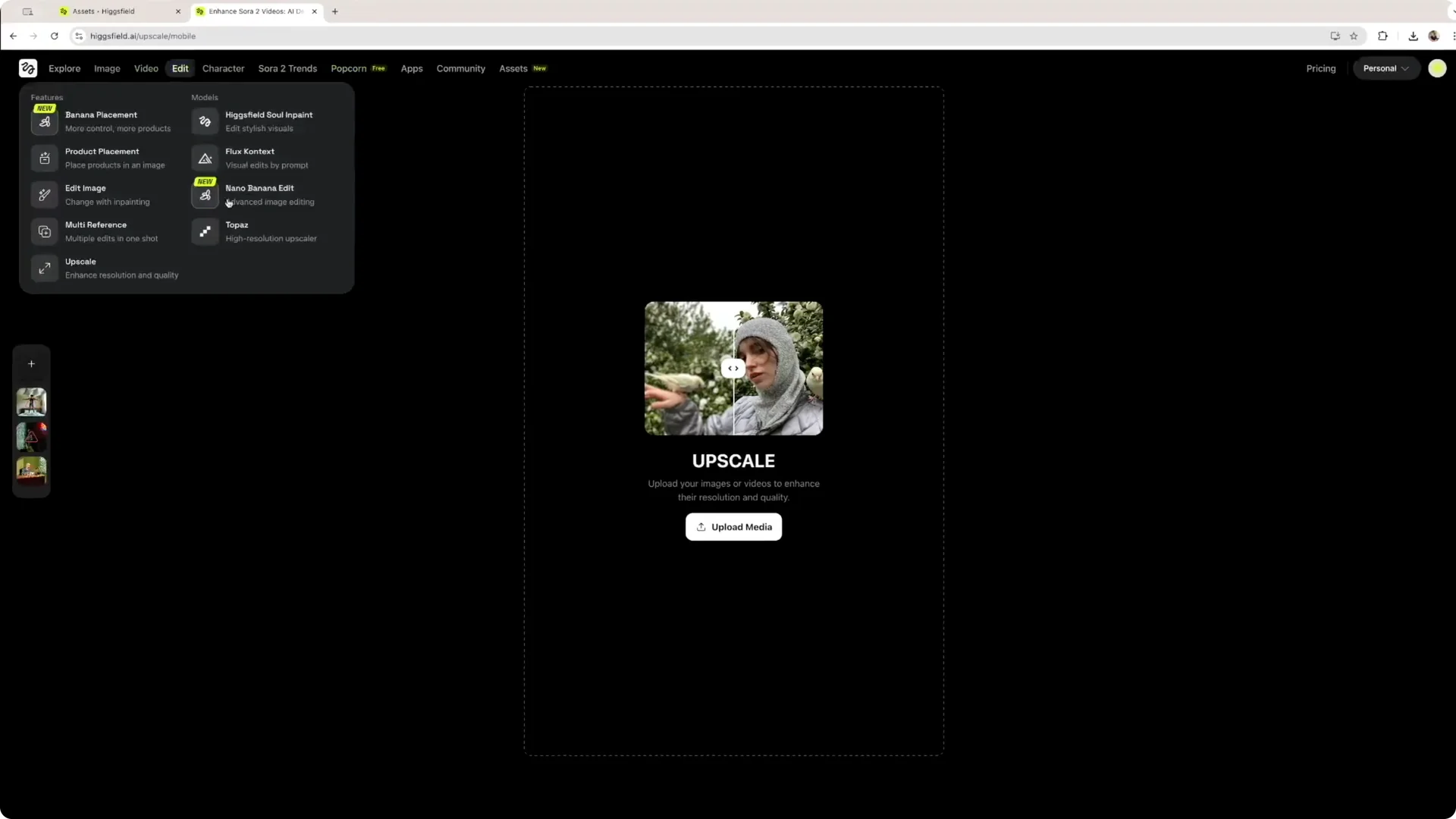
The final thing I want to show is how to upscale images using Sora. Go to Edit and click on Topaz to High Resolution Upscaler, then upload the media you want to upscale.
I’m using the image of myself portrayed as a cartoon character in a detective setting.
On the right, you have different settings. The default model is Topaz, but you can also use Topaz Generative if you want to select prompts to change the scene. You can set the scale factor to twice the size, four times the size, or more.
In Advanced settings, you can change the preset. High fidelity gives high resolution and detailed visuals, text refined optimizes sharp text, and you can push low resolution images like screenshots a bit higher in resolution. You can play with sharpness, denoise, face enhancement, creativity, and so on.
Step 1: Set your model, scale factor, and preset. Adjust sharpness, denoise, and face enhancement if needed.
Step 2: Click Upscale and wait a couple of minutes for processing. Then compare the original and the upscaled version with the slider at the bottom left.
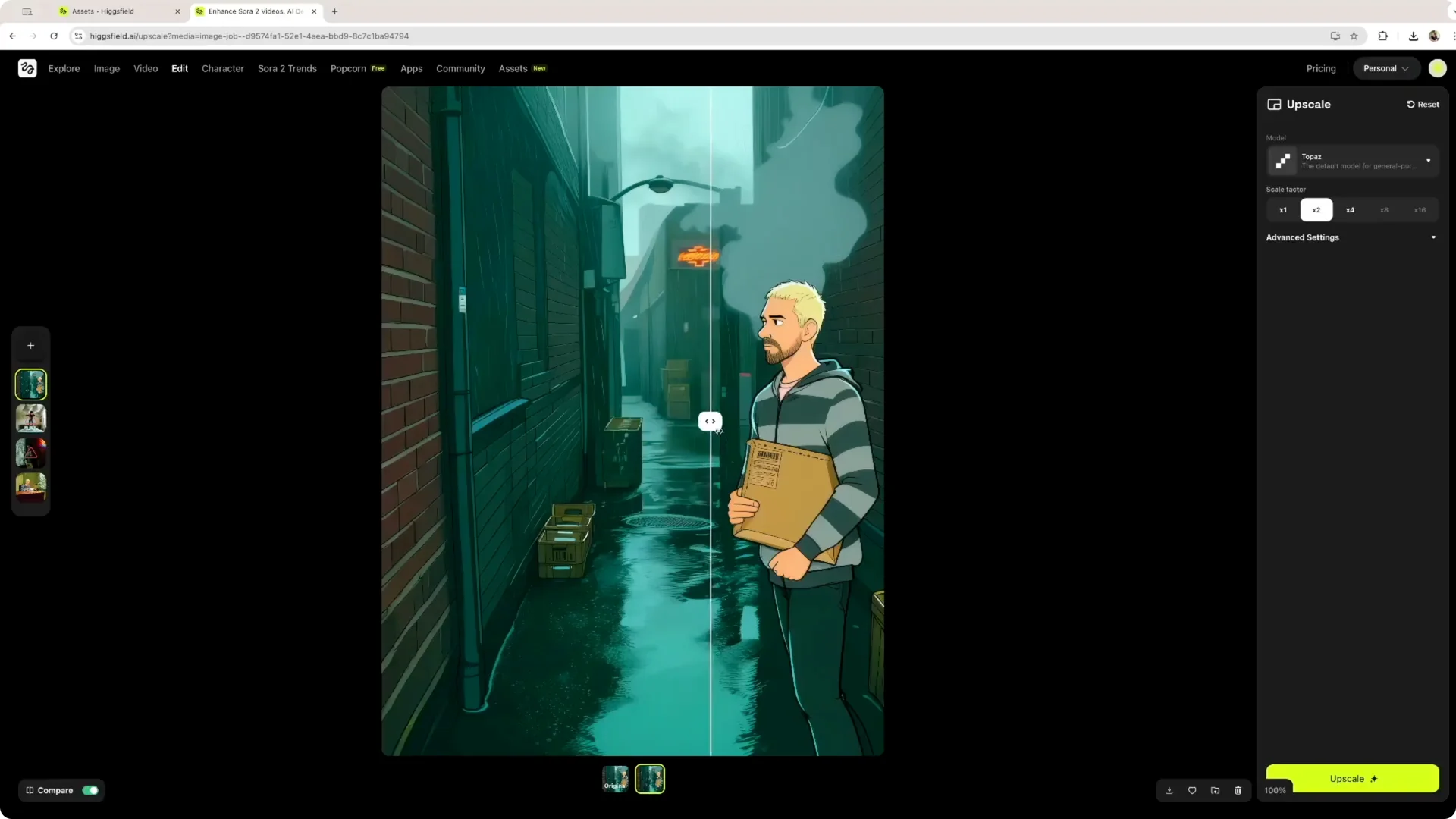
The final product is more refined and detailed. The water on the ground that was a bit blurry becomes much more defined and upscaled, and the same is true for the boxes, the bricks, and the rain. In the assets tool, you’ll see the final image that you can download or add to a different folder inside the software, and you can use it locally for any purpose.
Final Thoughts
Using the free Popcorn tool inside Higgsfield is straightforward. You can create a quick B-roll, transform your images into the styles you have in mind, apply your own face, and upscale the results for use in different projects. All in all, the tools are intuitive and easy to understand.