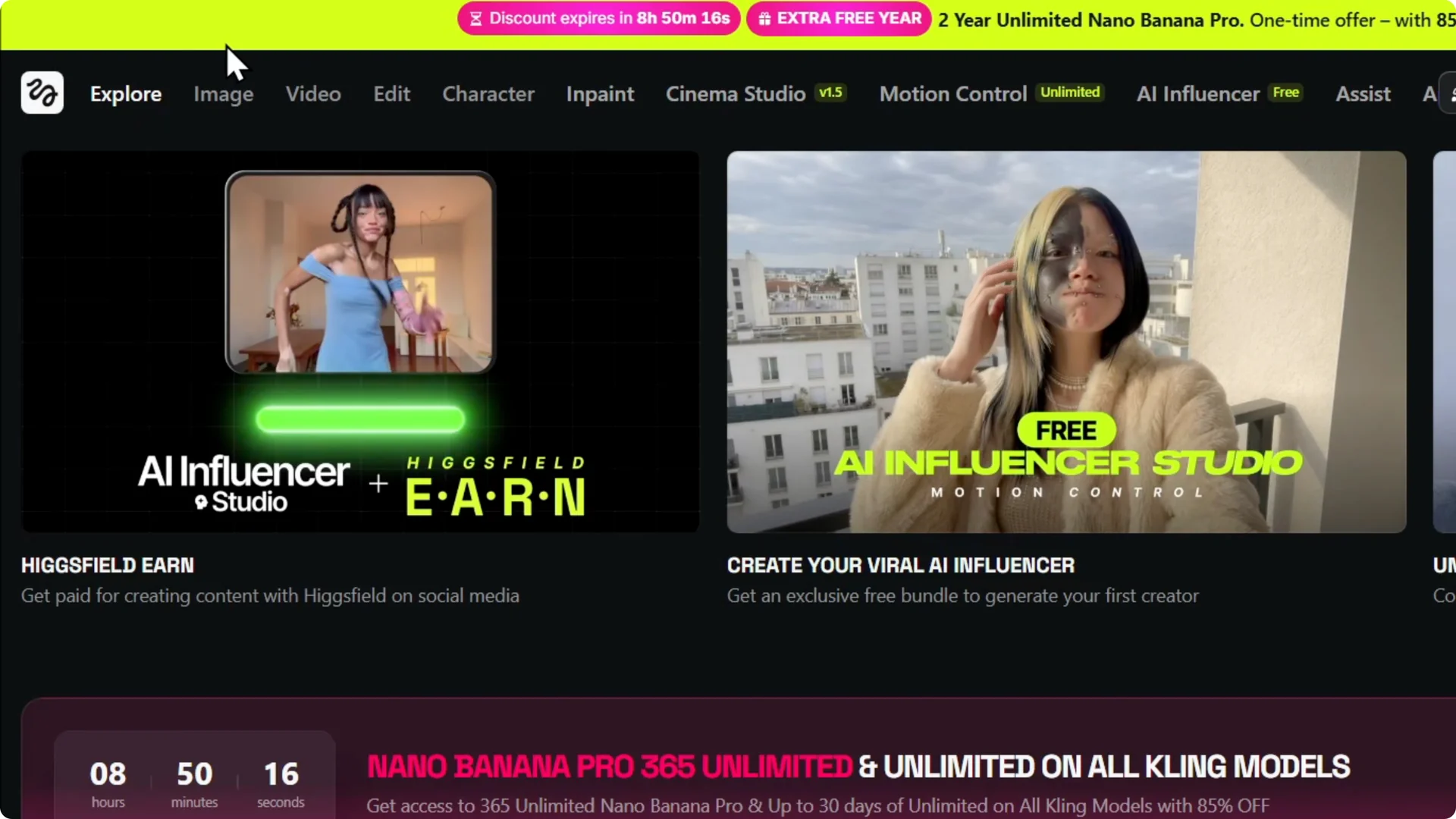
I want to show you how to use Higgsfield AI to do face swap. If you want a powerful AI tool that can do face swap, this app is a great pick.
It is one of the most powerful AI face swapping tools I have used, and I am in love with what it can do. It can generate some mind-blowing images and it has many AI tools in one place.
Getting started with Higgsfield AI Face Swap
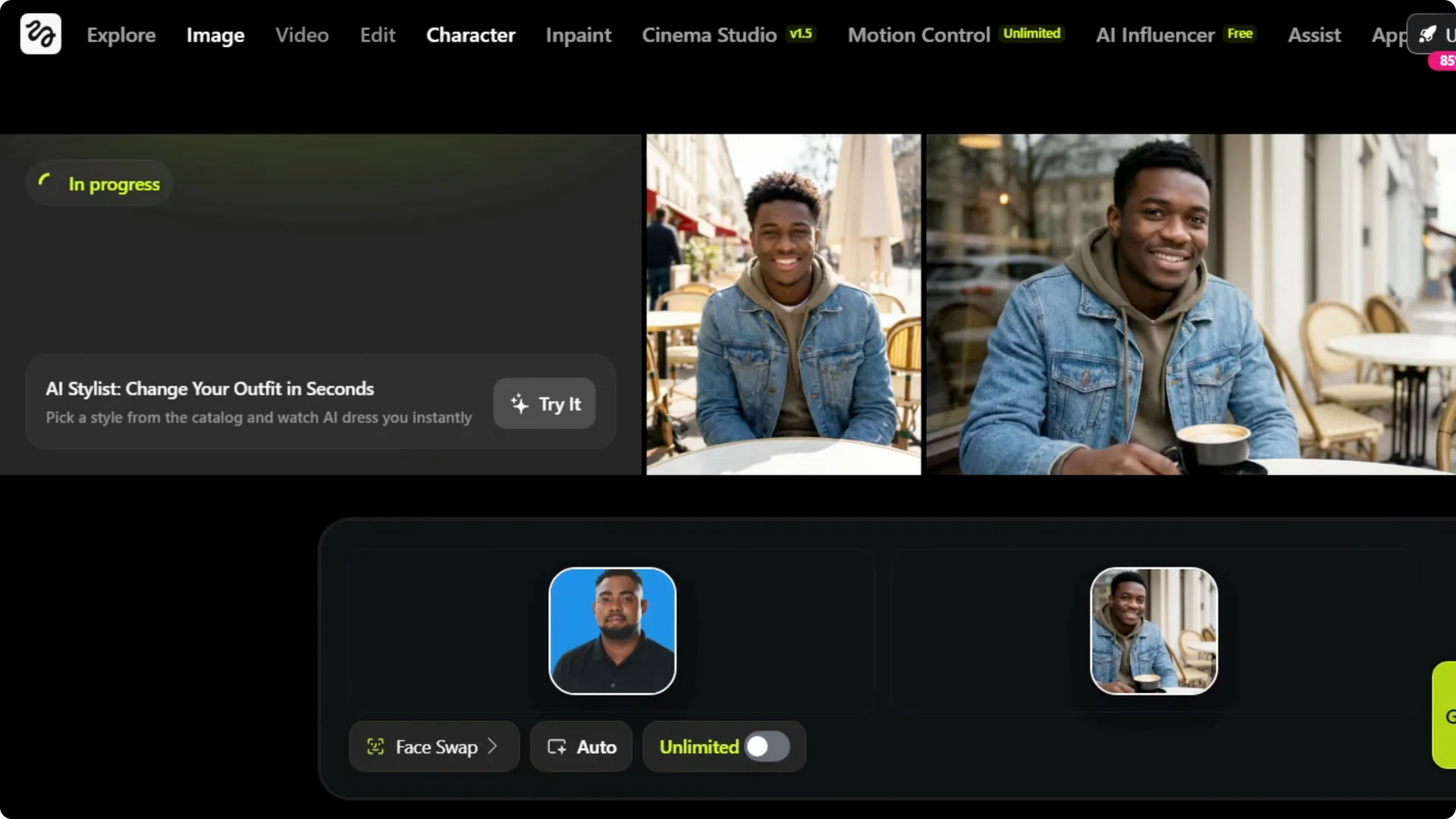
Step 1: Create your account and check credits. Sign up, create an account, and make sure you have enough credits to run face swaps.
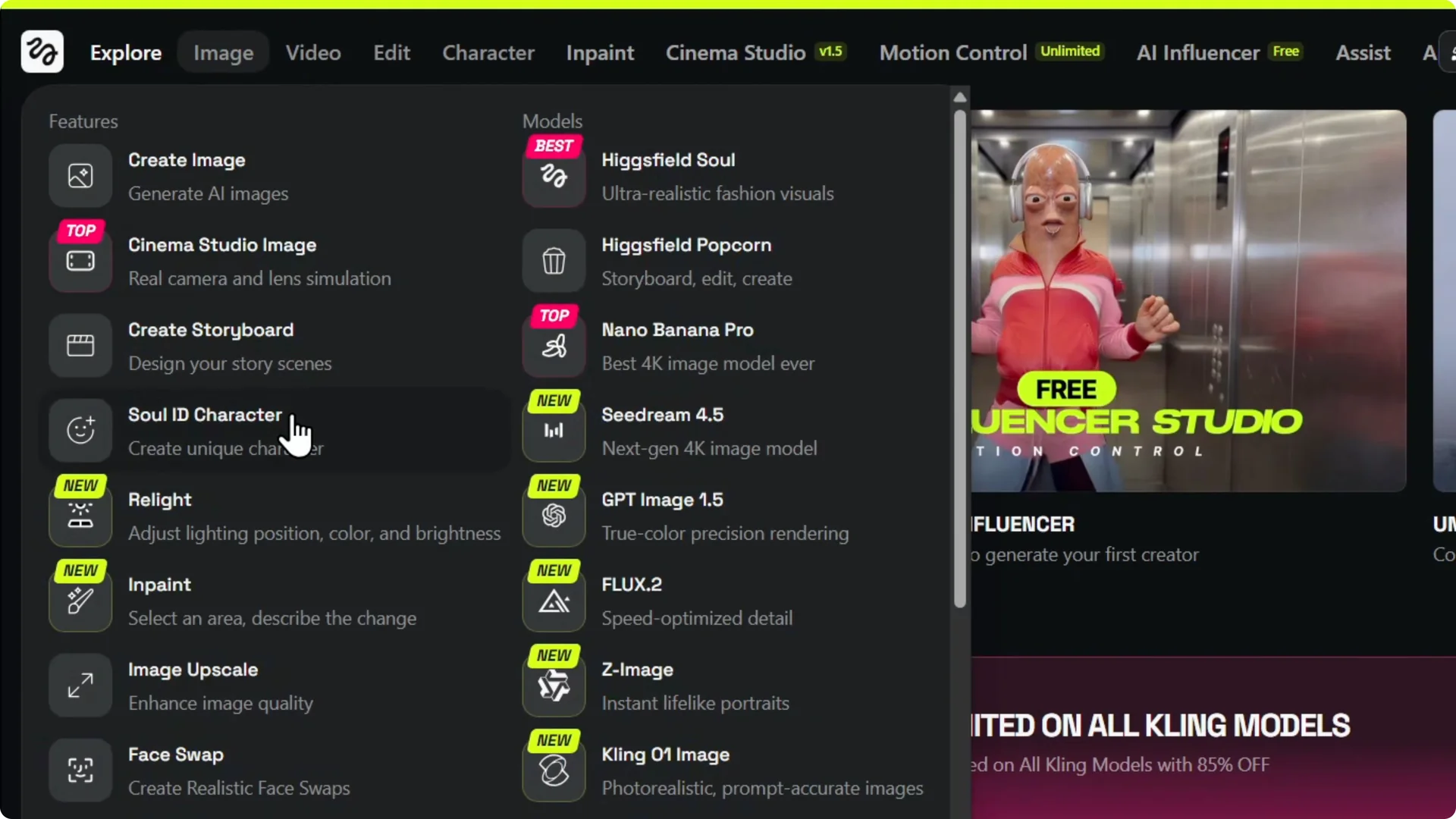
Step 2: Open the Face Swap tool. Hover over the Image section and select the face swap tool.
Step 3: Upload your face. Add a clear image of your face to the source area. Find a few good photos of yourself and upload the one that fits the shot you want.
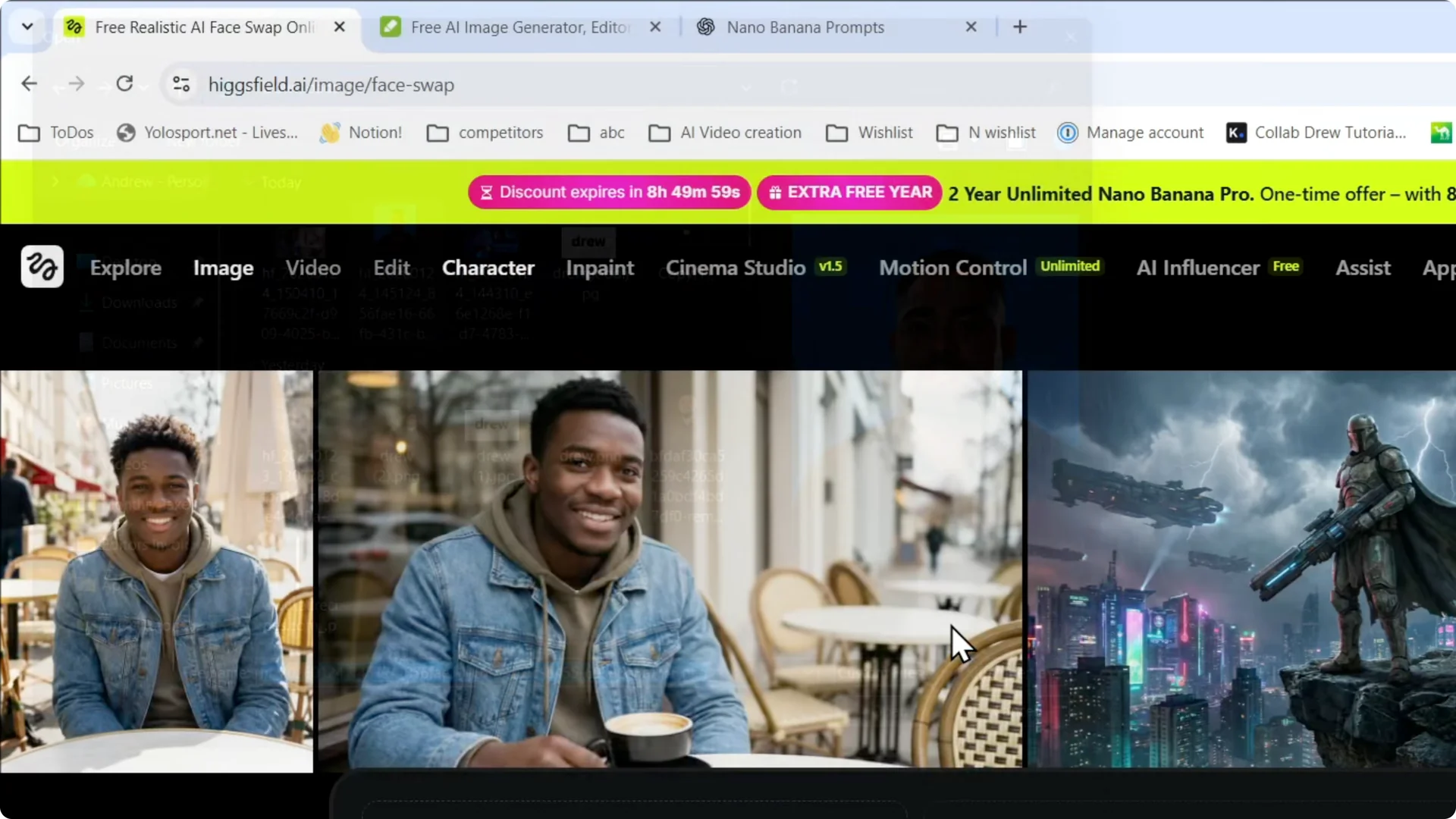
Step 4: Choose the target image. The target image is where you want your face to appear. Select or upload that image and confirm it as the target.
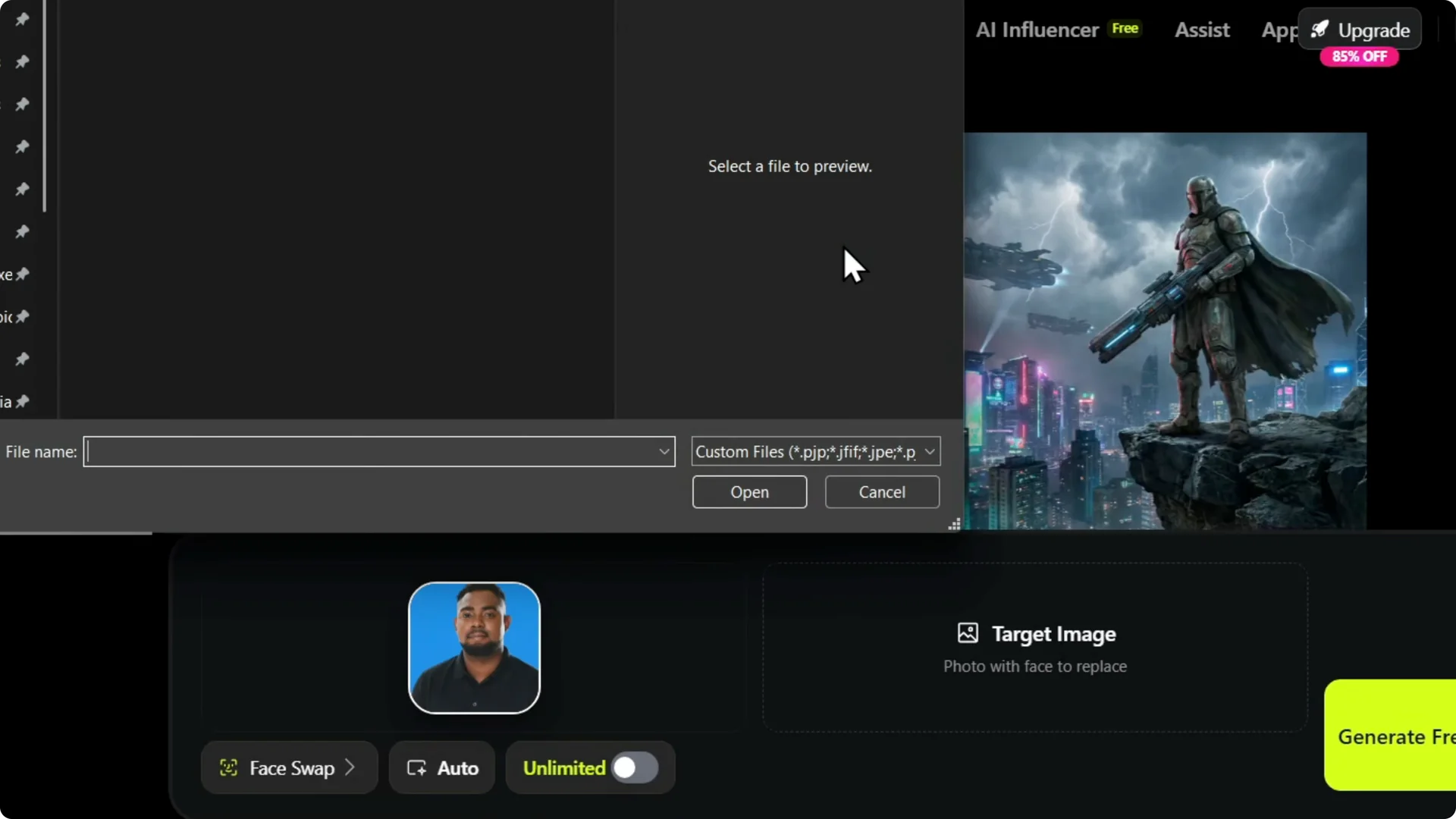
Step 5: Generate the result. Click Generate and wait for the output. This can take up to one or two minutes, so be patient while the AI processes it.
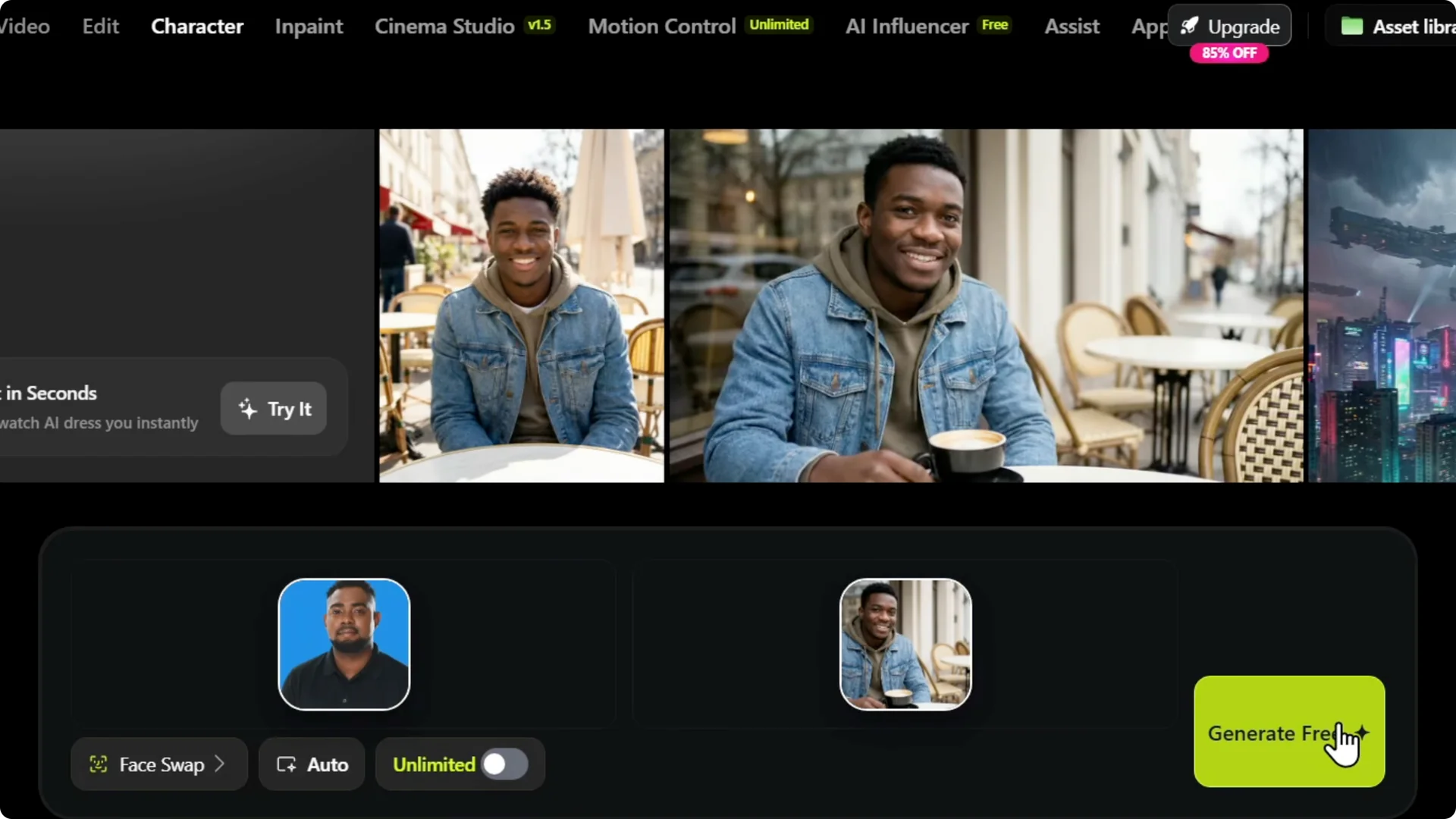
Higgsfield includes many other tools and models on the same platform. After you get familiar with face swap, you can explore more creative workflows for content creation. For a broader walkthrough of creative options, see this guide on adding Higgsfield AI to your content creation.
Improving results in Higgsfield AI Face Swap
Match angles and style
Face angle matters a lot. If your head is turned to the left, do not try to swap it into a target where the head turns to the right. You will get a closer to realistic result if your image and the target image share a similar angle, style, and body language.
Depending on how your face is set, the AI will try to align features, but alignment helps it do a better job. Keep the direction of the face consistent between your source and the target. That simple change makes a big difference in what it generates.
If you want to push realism further, refine the skin and facial texture after the swap. For tips on improving complexion and detail, check this overview of Higgsfield AI skin quality tools.
Compare attempts
A first attempt can be slightly off, yet still decent. When I switched to a target image with a similar angle to my face, the result looked much better.
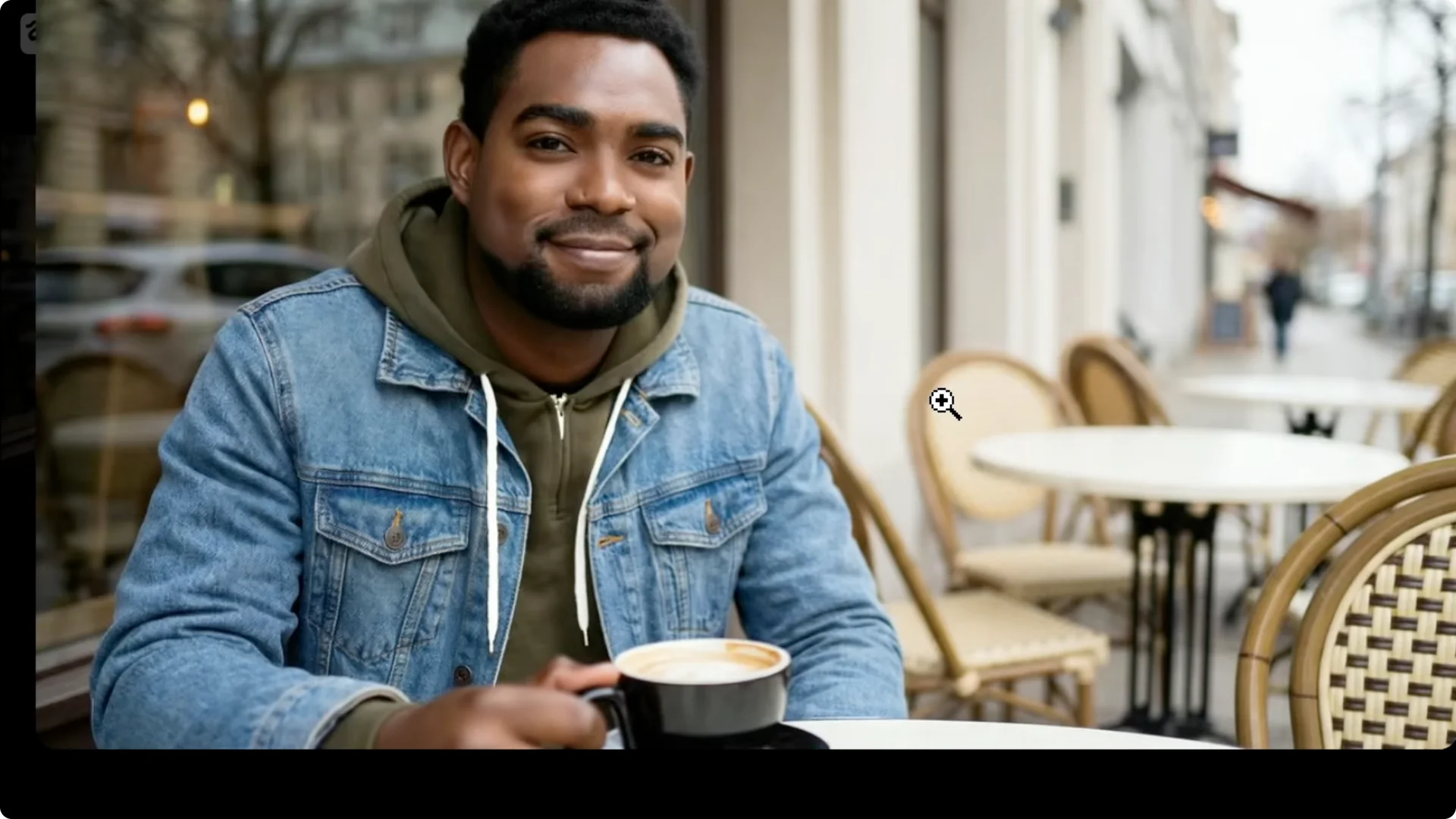
You might notice small changes like hair appearing a bit longer or shorter based on the target. That is normal, and matching angles and style usually improves this too.
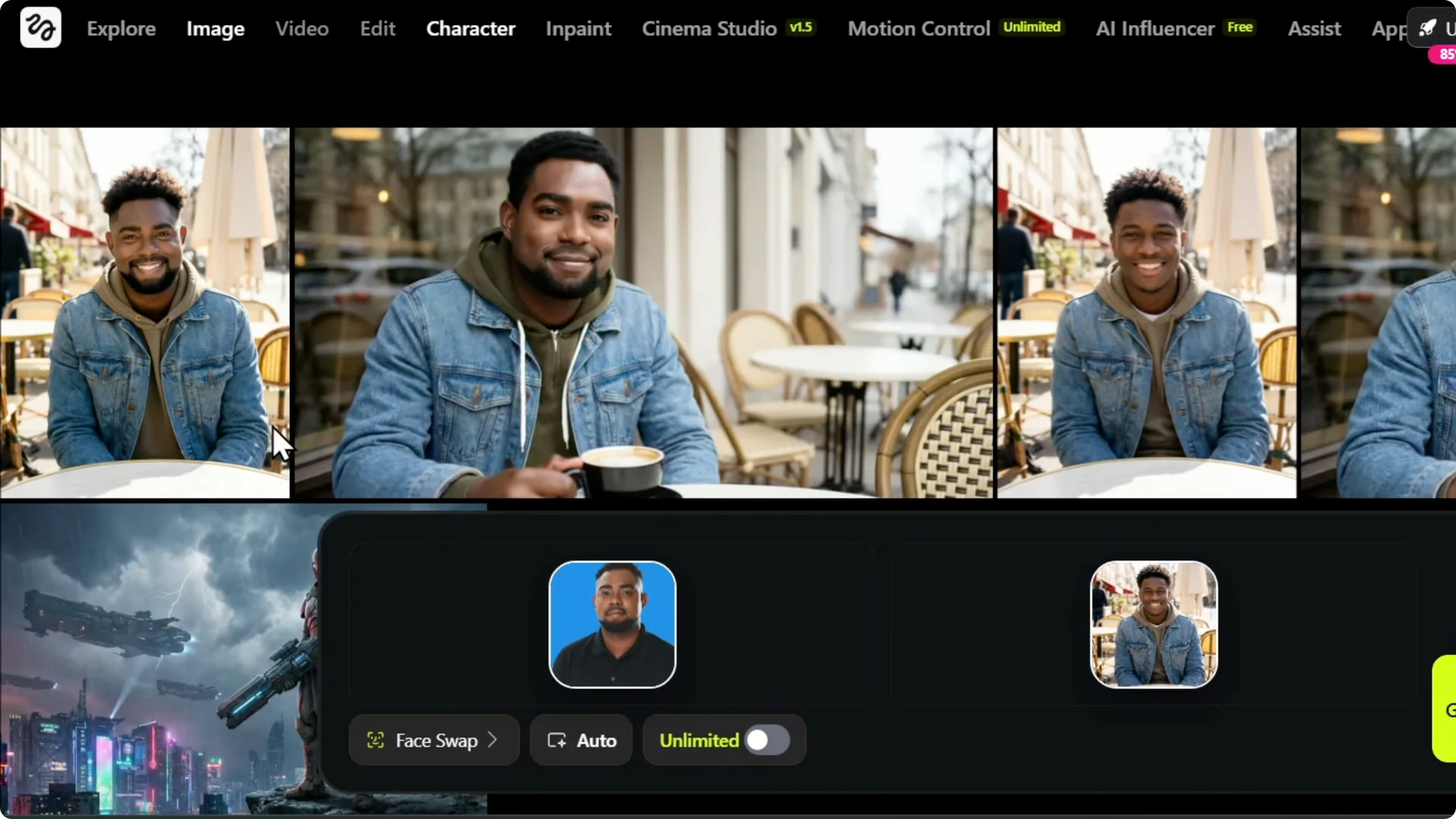
Animate with Higgsfield AI Face Swap
After you generate an image, you can animate it right away and turn it into a video. Depending on the model you choose, like Nano Banana or Sor AI or other options, you can even give it a short story and add voice.
If you want to polish and edit those animations, check this practical guide to the Higgsfield video editor. It is a smooth way to take your swapped image and build it into a complete clip.
Final thoughts
Face swapping in Higgsfield is very easy and simple. Upload a clear source photo, pick a target image, and generate the result. Match the angles and style to get a result that looks much better.