
I’m going to show you how to add your billing information on Higgsfield AI.
Higgsfield AI Billing Setup
Access account settings
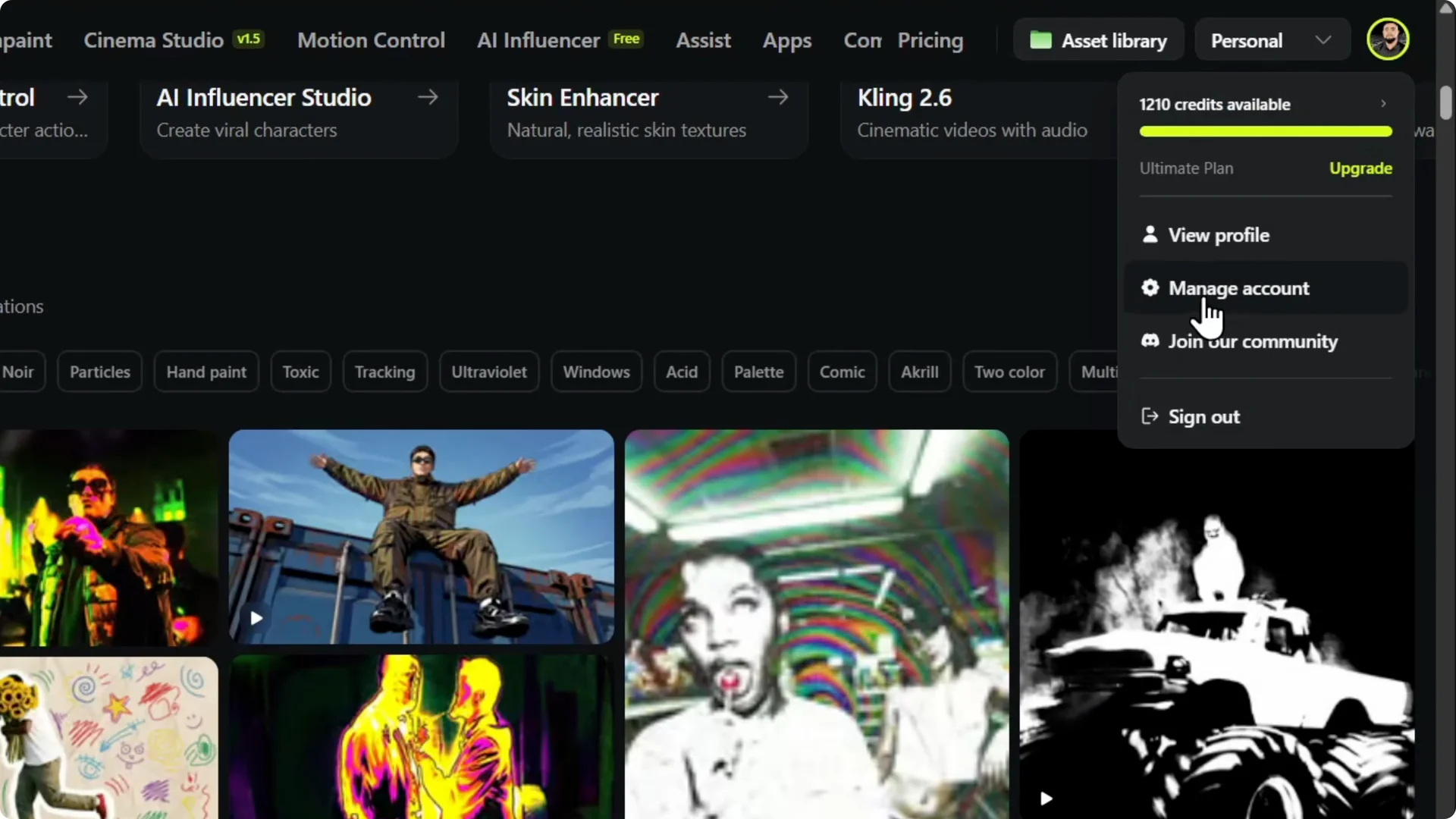
Hover over your account in the upper right and click Manage Account.
Open the billing section
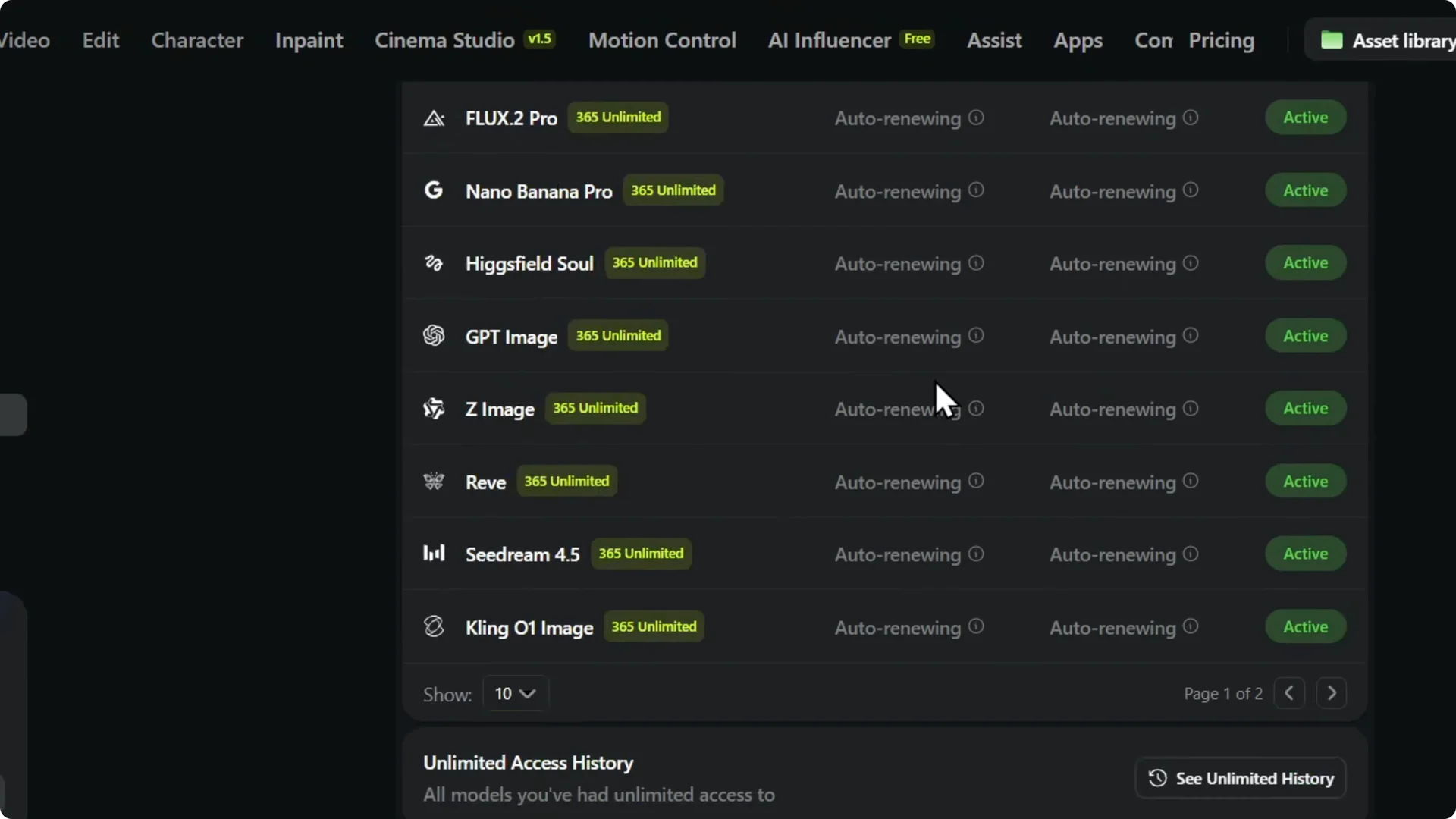
On the left side, click on Your Subscription and scroll down.
You will find a section called Billing Information.
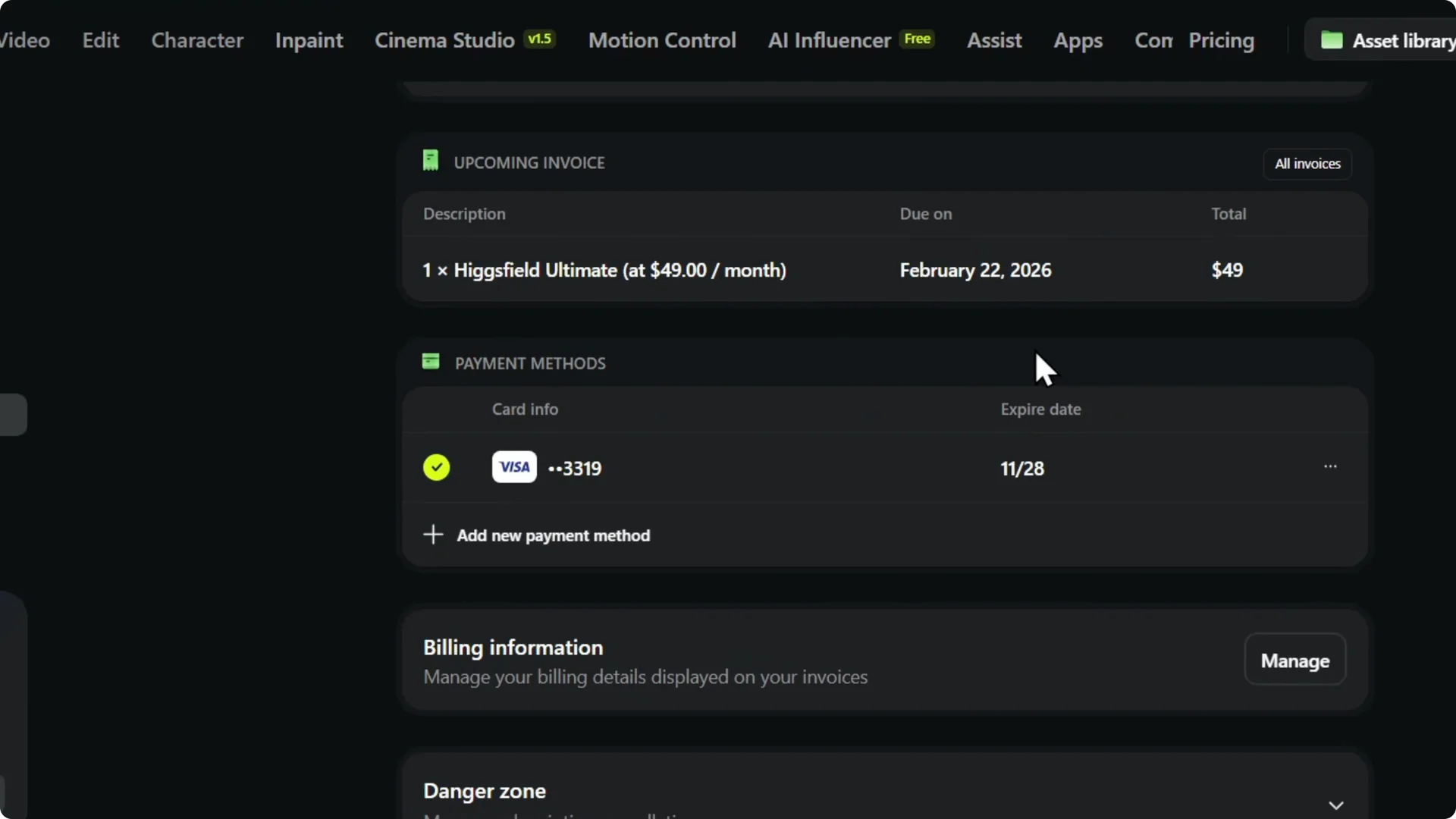
Click Manage. From here, you’ll be able to fill in all the details for your account.
Read More: Master Higgsfield Ai Video Editor
Enter billing information
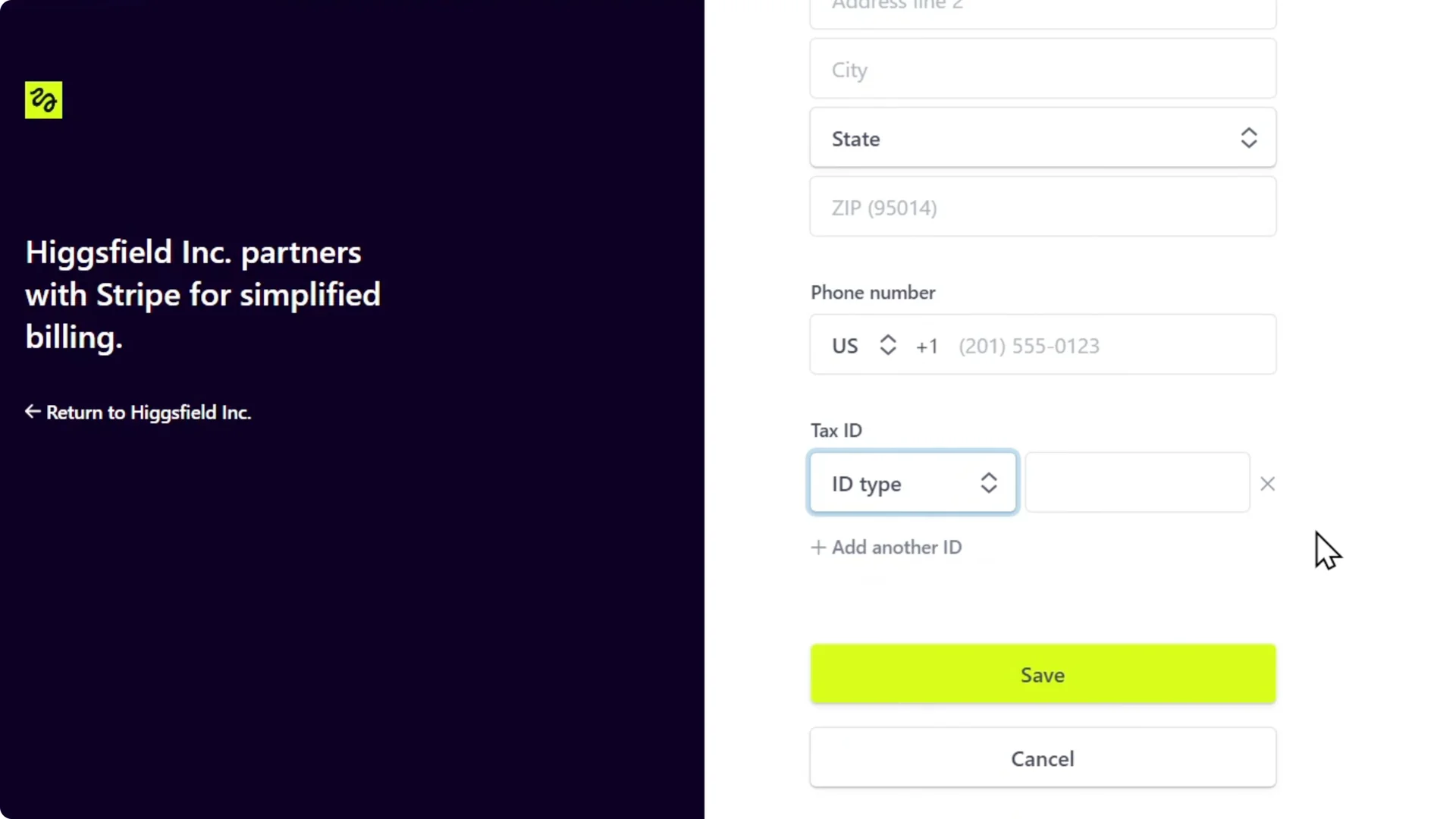
Fill your name, select your country, and enter your address, state, and zip code. Choose a country for your phone number and enter the phone number.
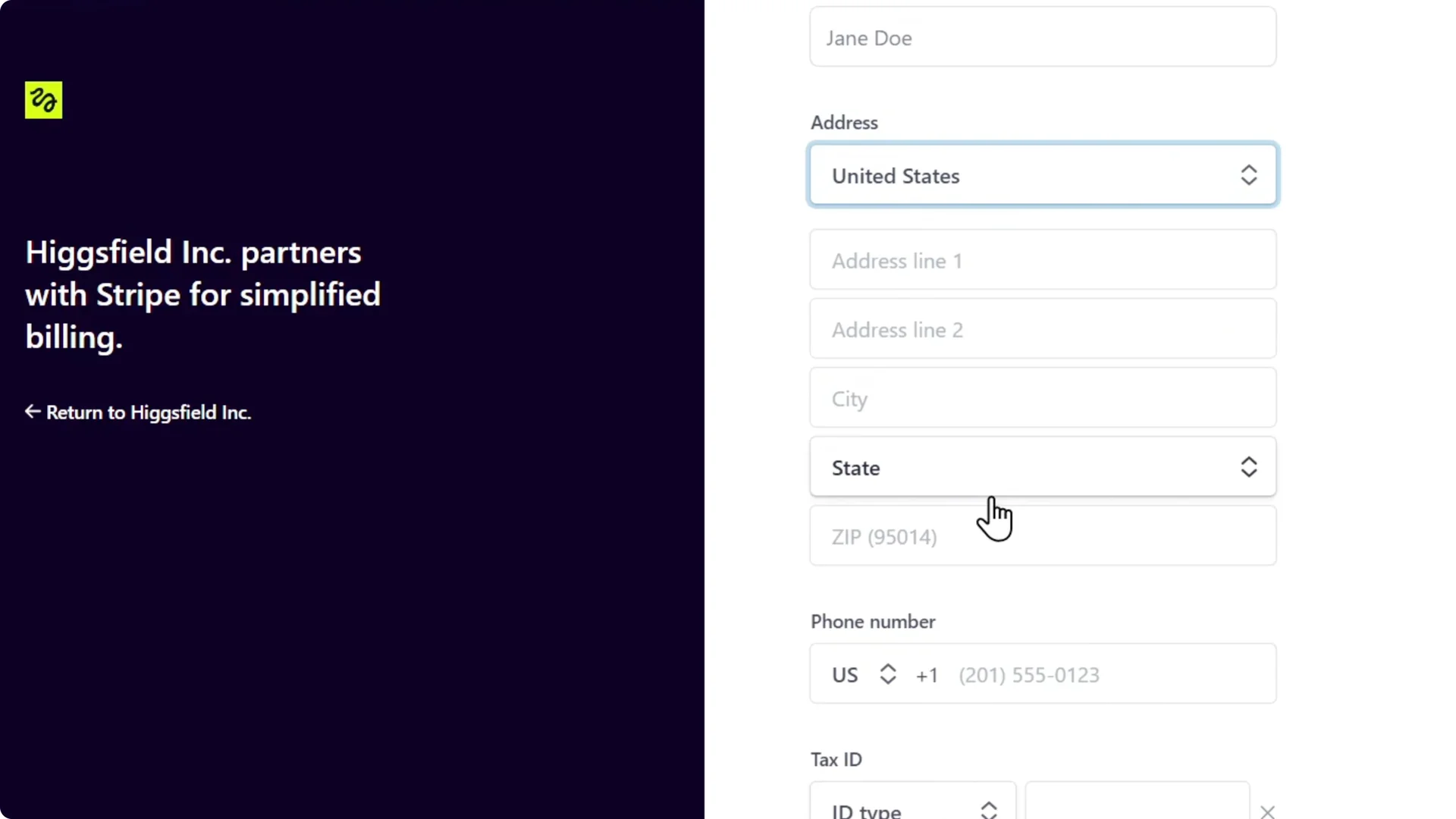
Choose the ID type. Fill in the tax ID.
Read More: Add Voice Higgsfield Ai
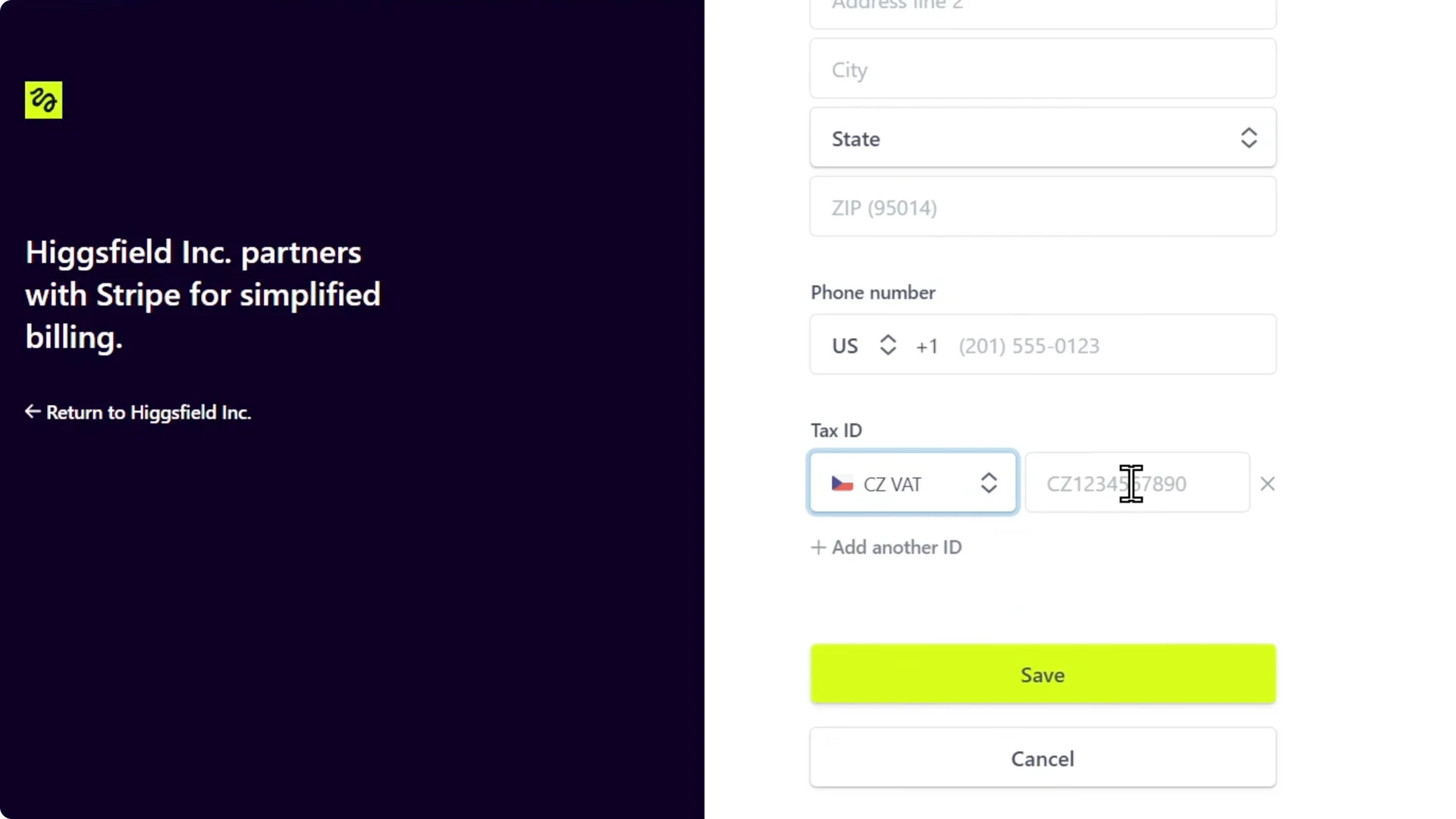
Example: VAT for Czech Republic
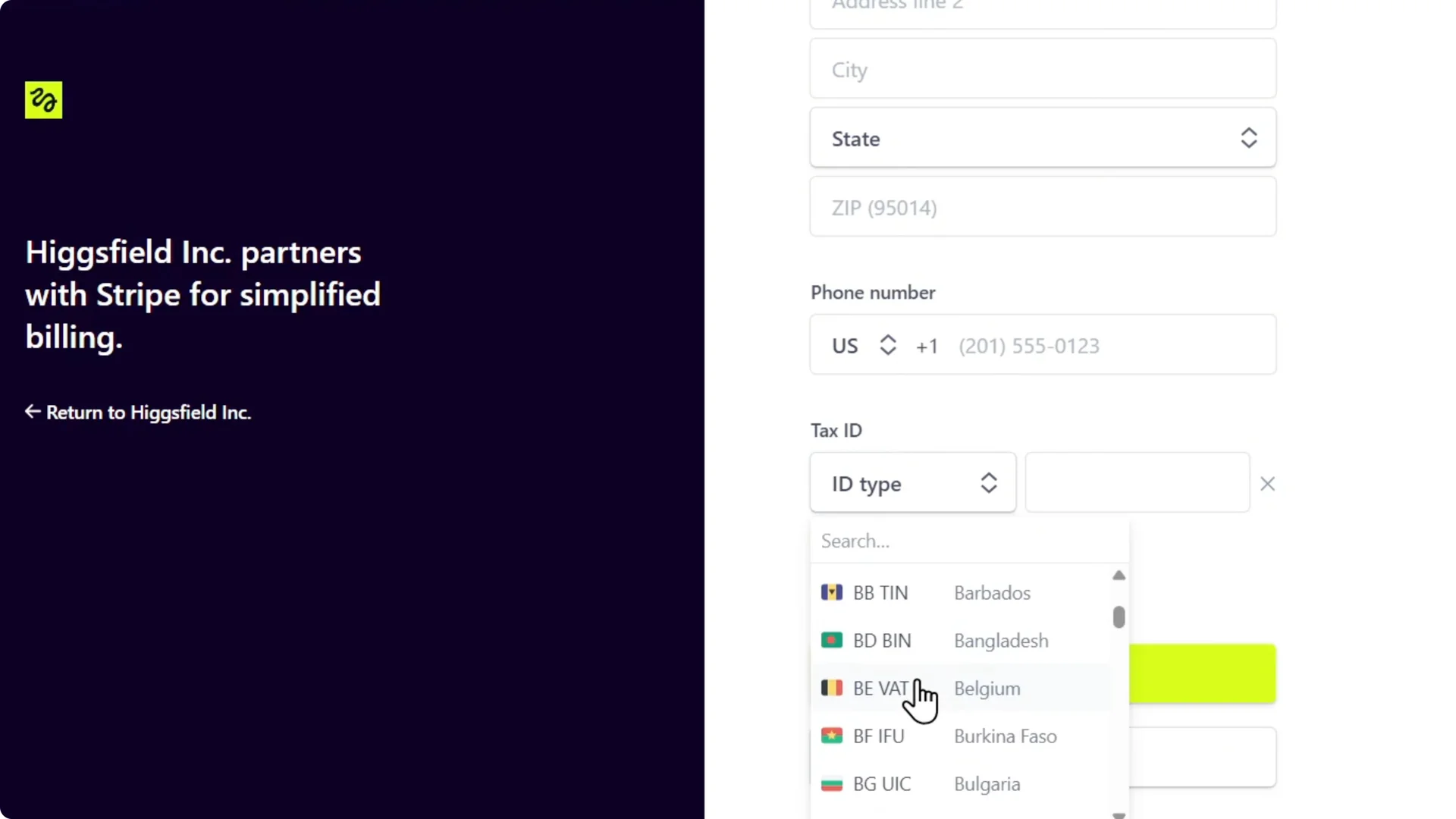
Look for CZ. I select Czech and it requires my VAT. I enter my VAT number and click Save.
Read More: Adding X Higgsfield Ai Content Creation
Final Thoughts
That’s how easy it is. You can fill in all the details for your account and save your changes.