
Here is how to link your YouTube channel to your Xfield AI account. Follow these quick steps to add it to your profile and confirm it works.
Higgsfield AI YouTube Integration
Open your profile
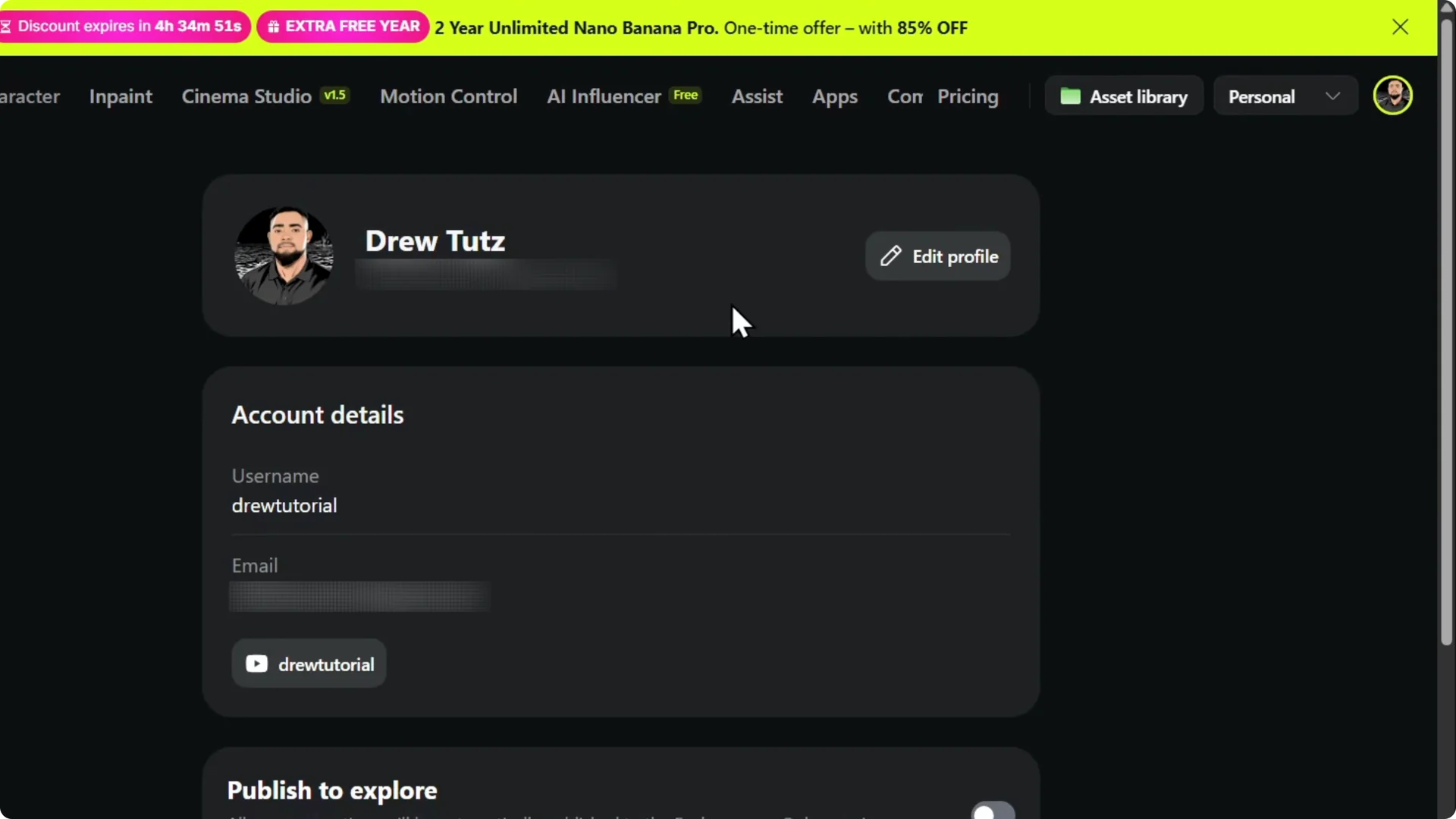
Step 1: Hover over your profile in the upper right.

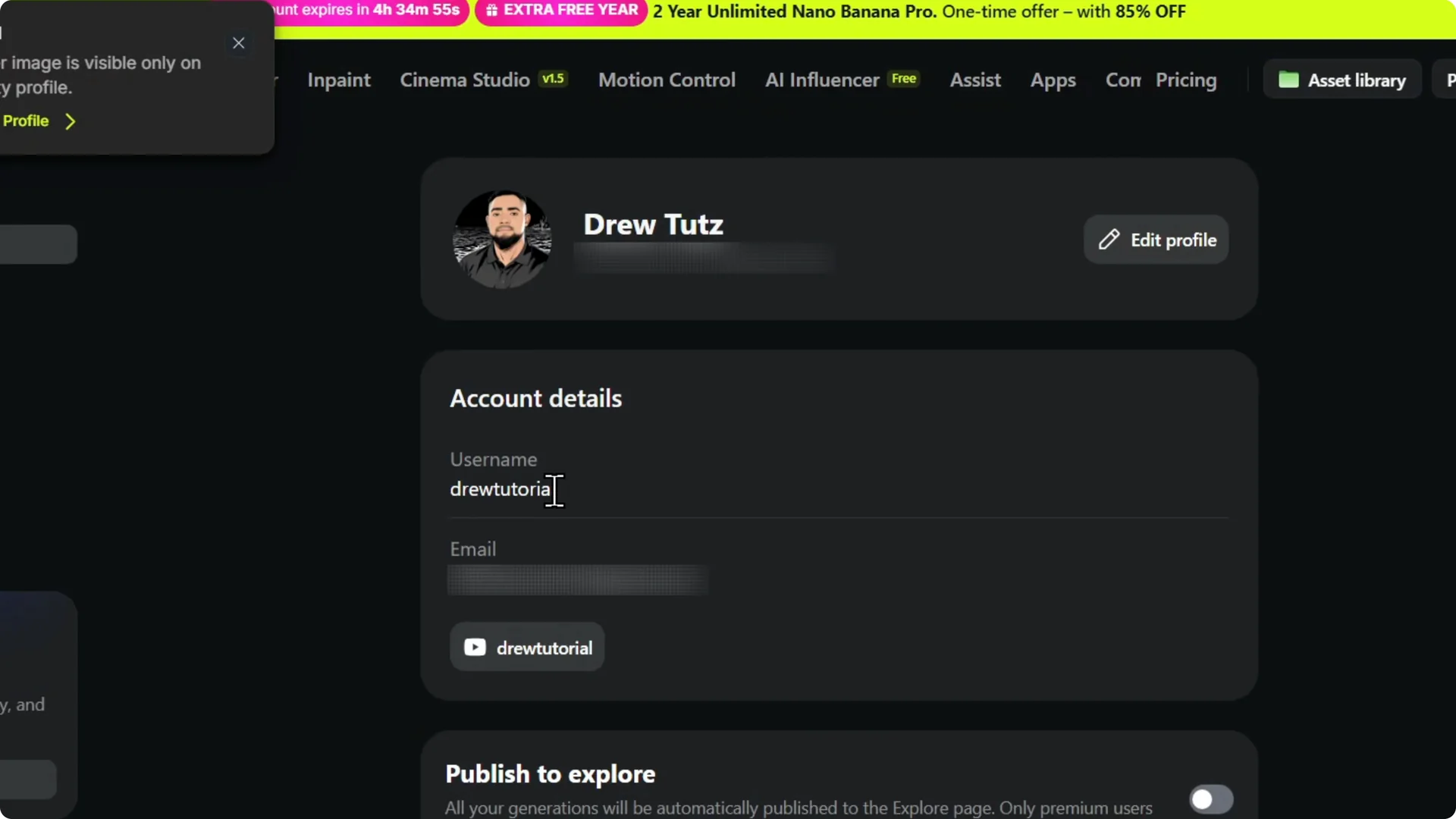
Step 2: Click Manage Account, then click Edit Profile.

Read More: How To Make A Faceless Ai Automated Youtube Channel
Add your YouTube channel
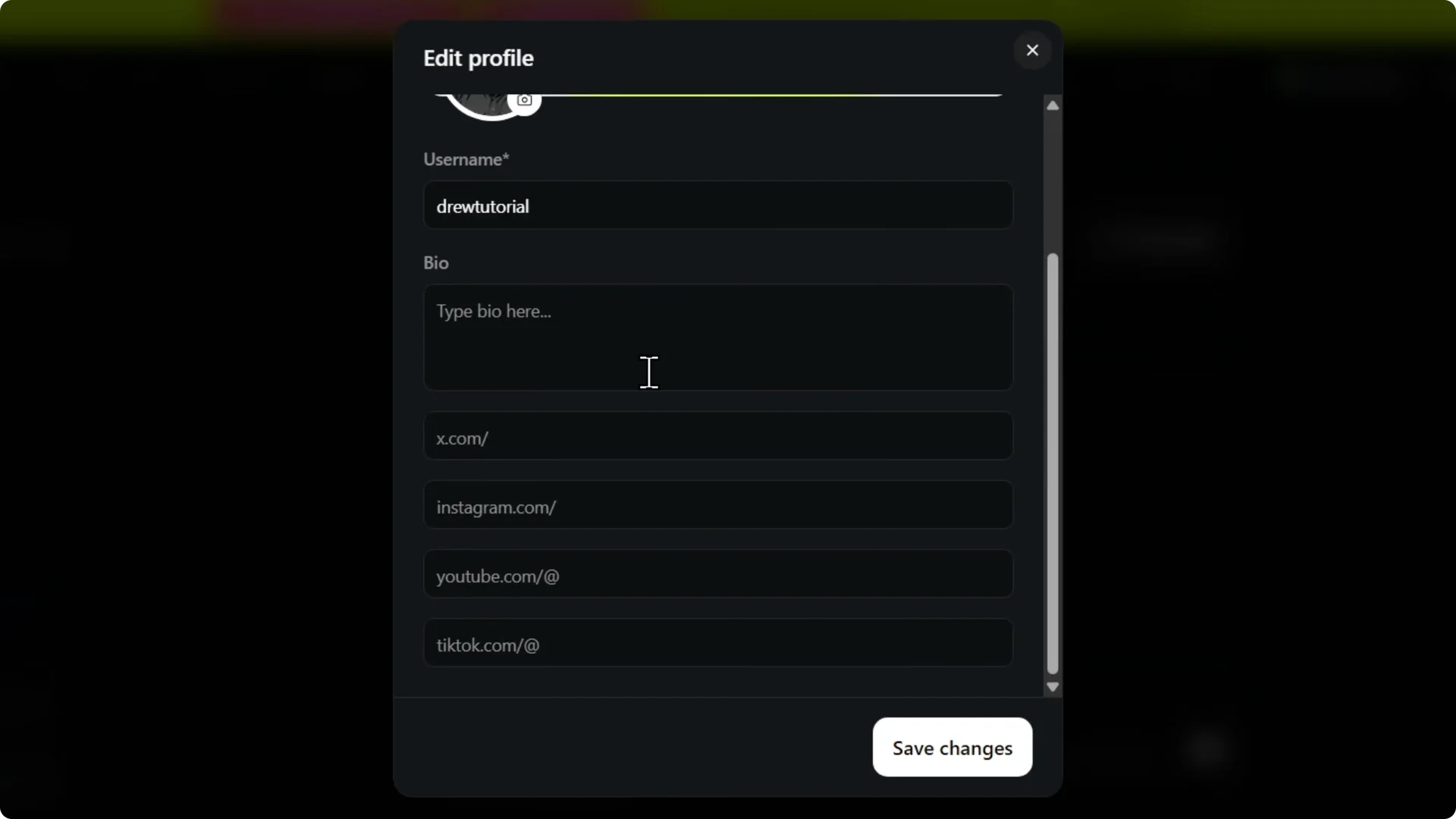
Step 3: Scroll down to the social accounts section. You will see X, Instagram, YouTube, and TikTok.
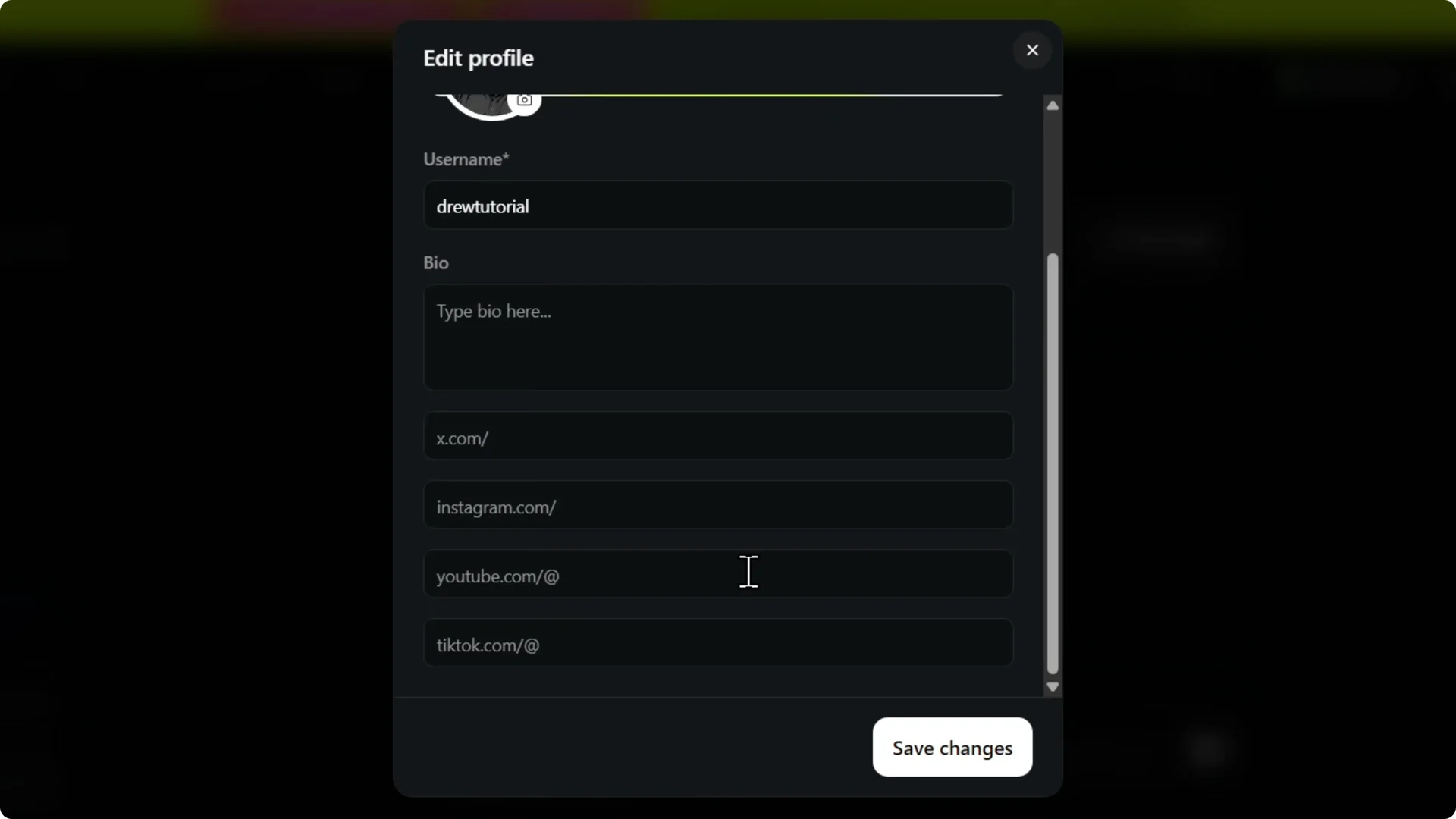
Step 4: Click the YouTube field and type your YouTube channel name. I type in Drew tutorial and that’s it.
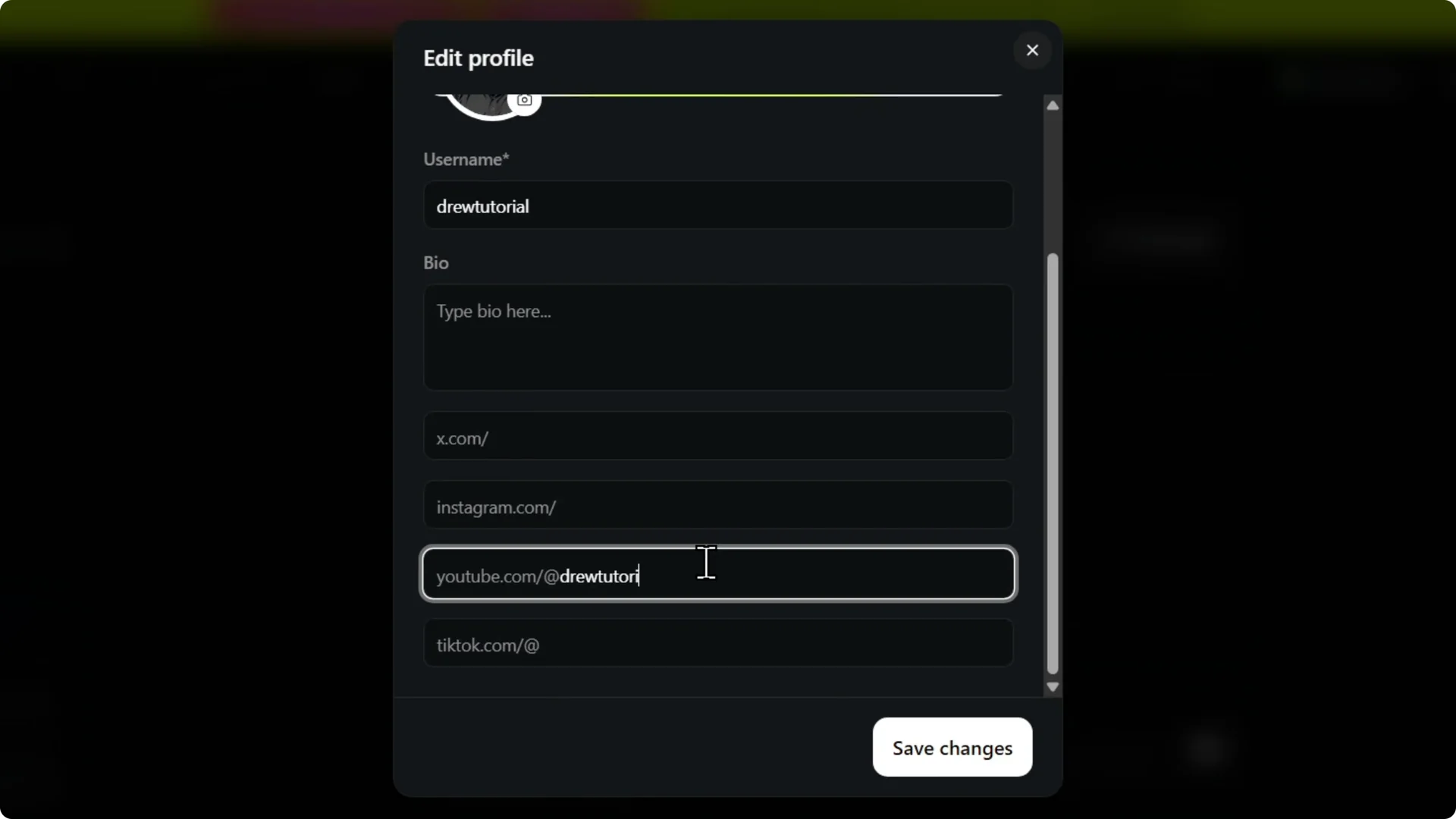
Step 5: Click Save to store your YouTube channel.
Read More: Youtube Thumbnails Higgsfield Ai
Verify the link
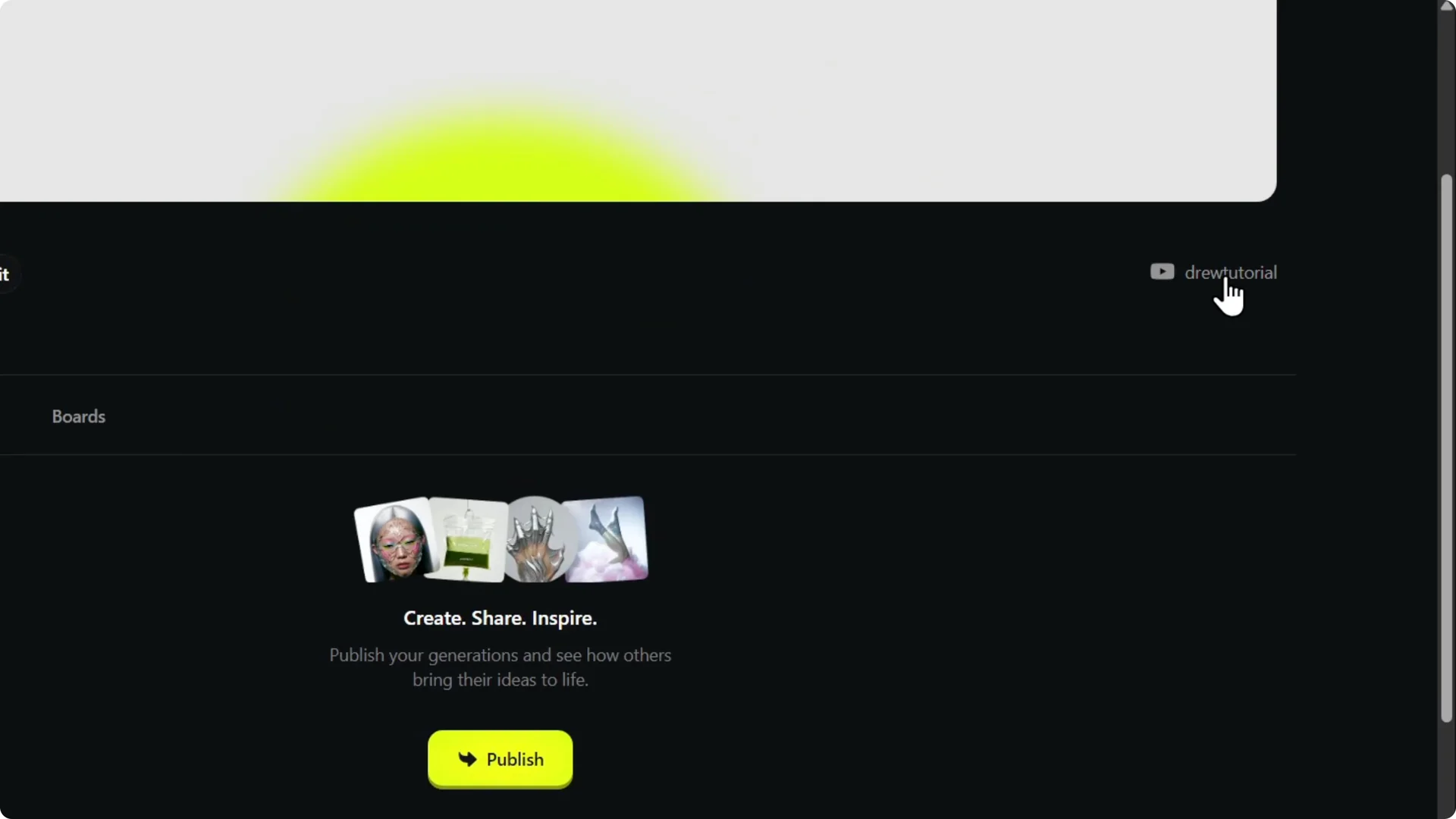
Step 6: Click View Profile. Your channel should appear in the upper right.
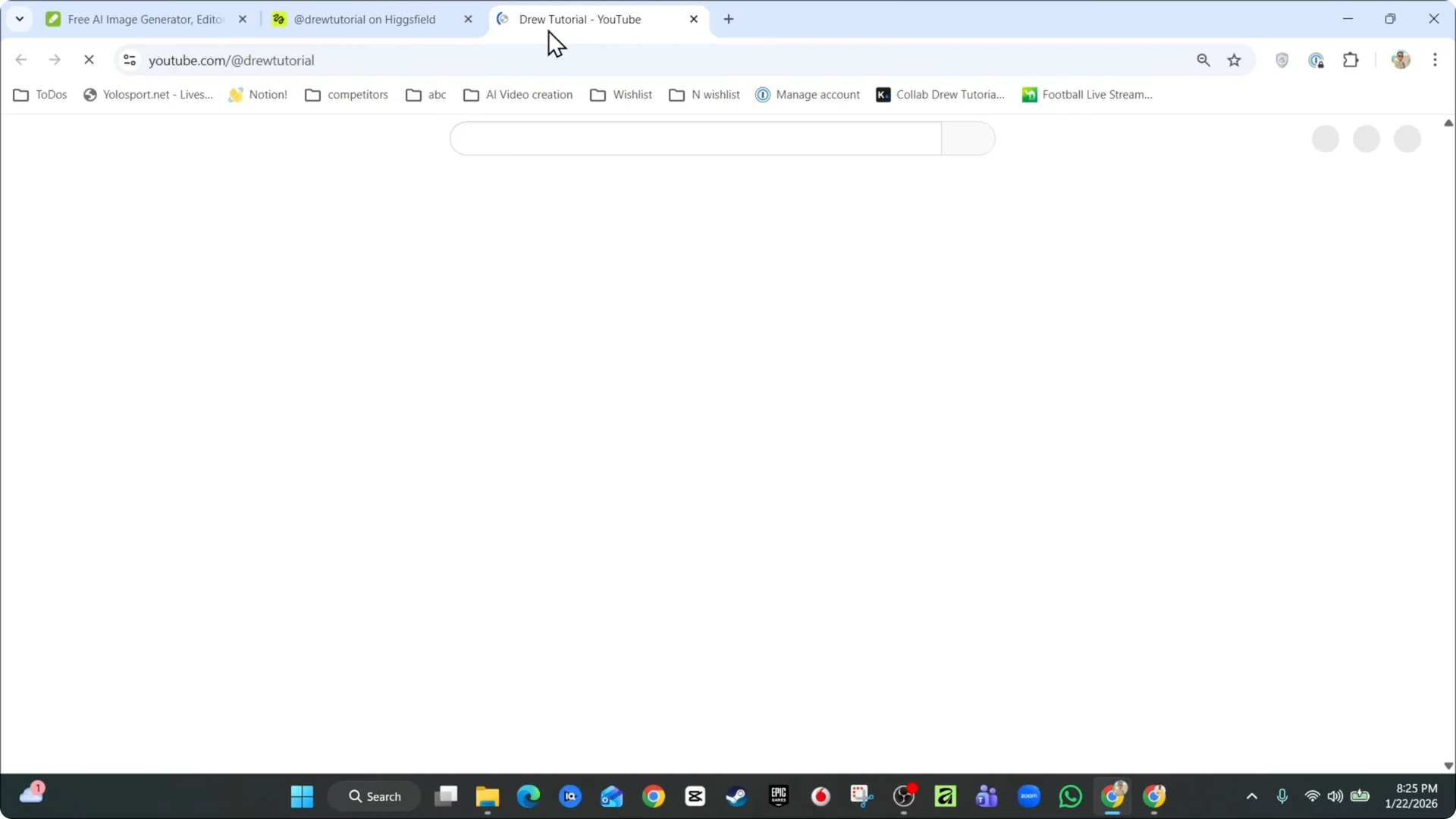
Step 7: Right click and open it. You will see that it finds your channel directly.
Read More: Higgsfield Ai Upscale Images Quality Loss
Final Thoughts
That’s how you can quickly link your YouTube channel to your Xfield AI account. Add it in Edit Profile, save, then confirm from your profile page. That’s it.