
Let’s personalize our Higgsfield AI account. Here is how to add a profile picture to your account.
Access settings for your Higgsfield AI Profile Picture
Step 1: Click your account avatar at the upper right, then click Manage account.
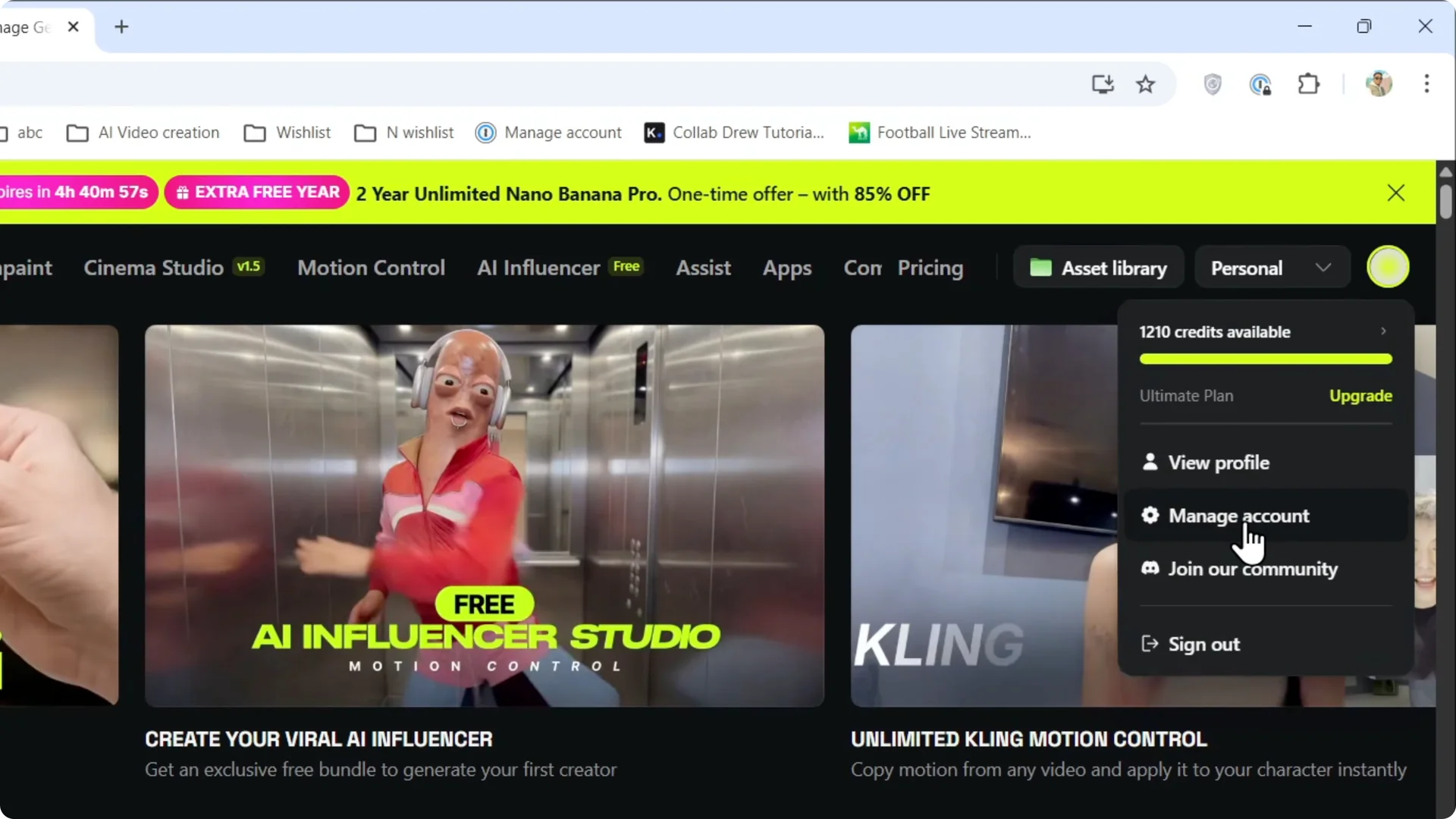
At the top, you will see the image area, and there may be nothing there. New accounts show a random placeholder.
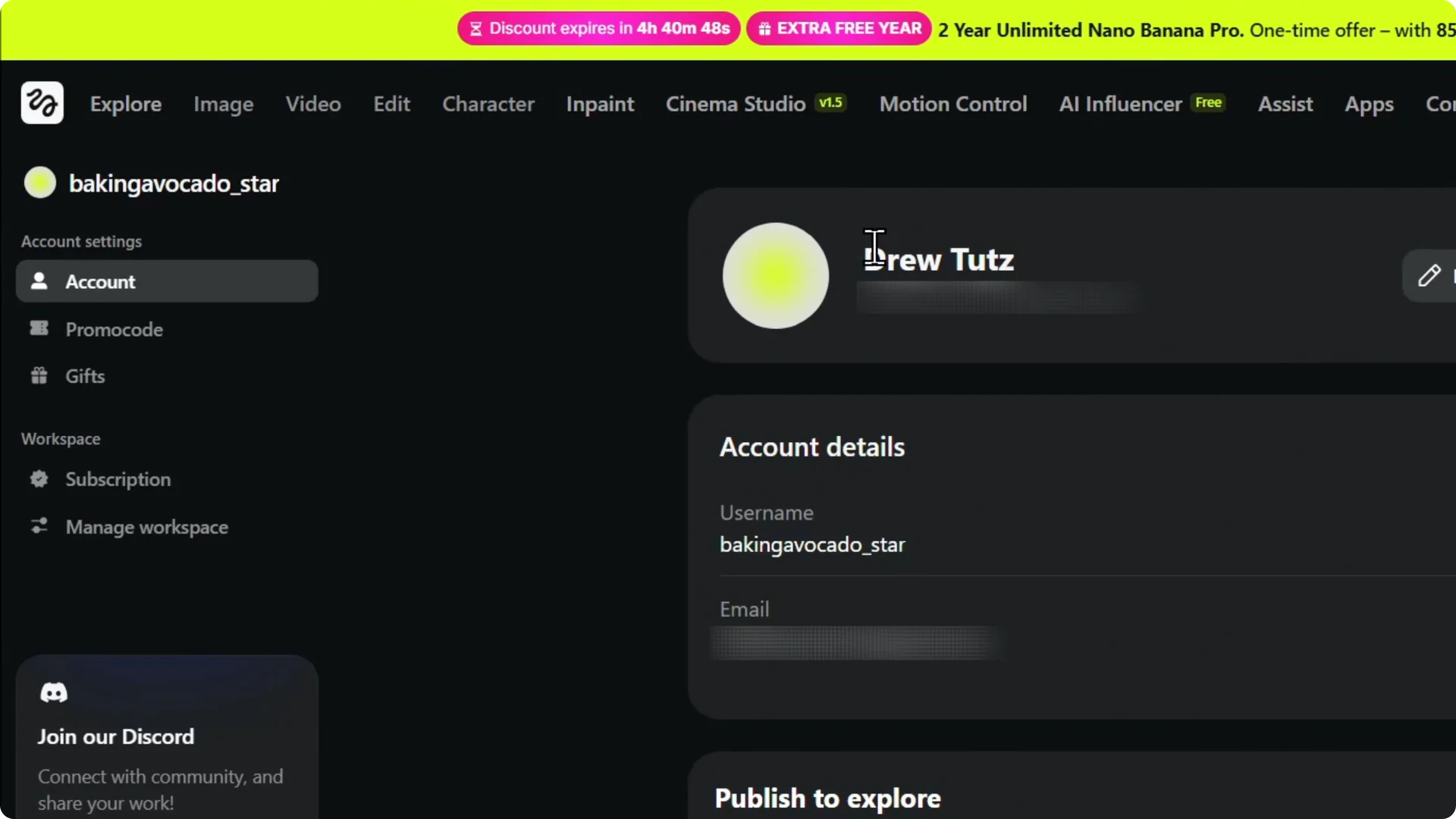
Upload your Higgsfield AI Profile Picture
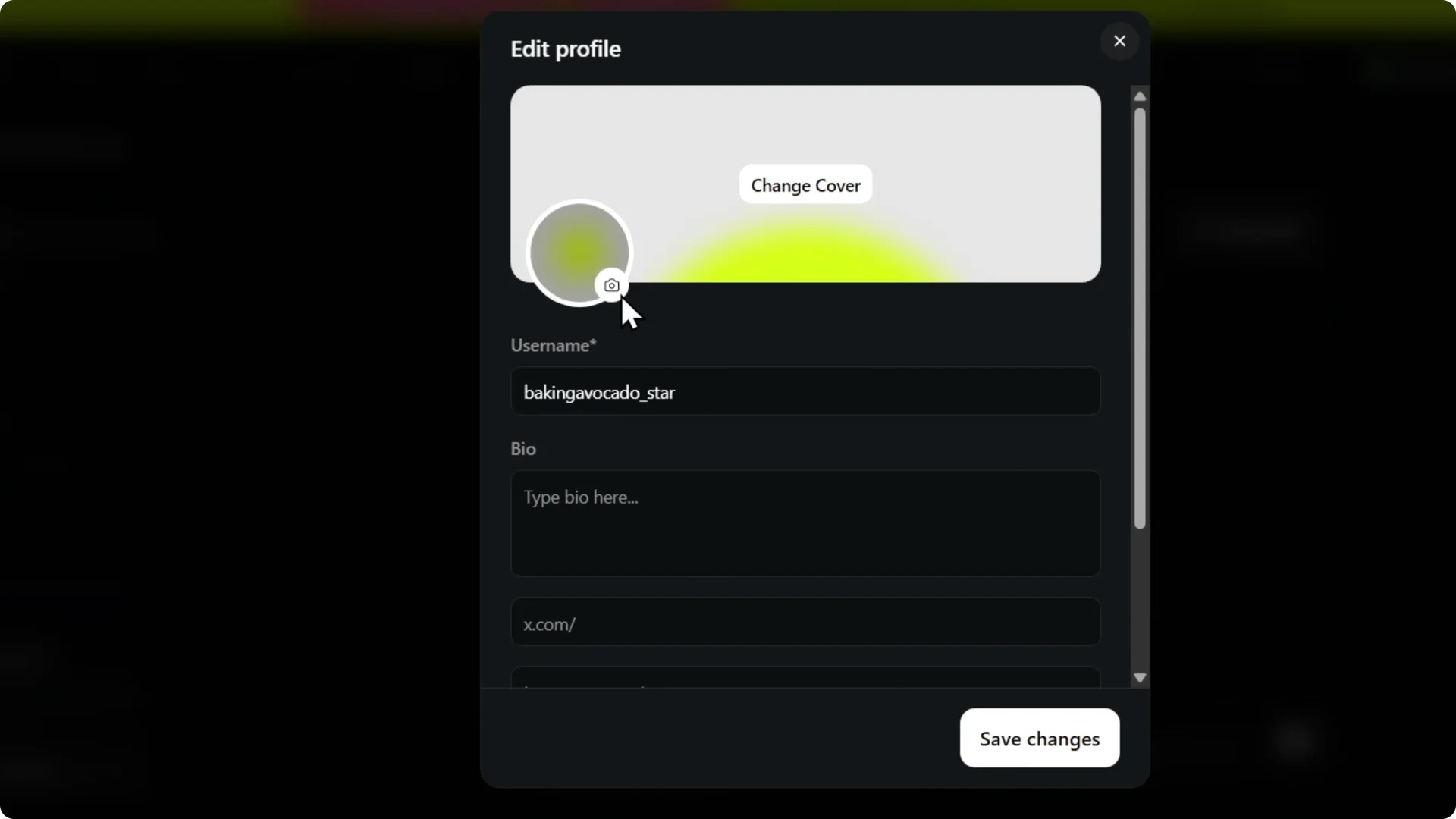
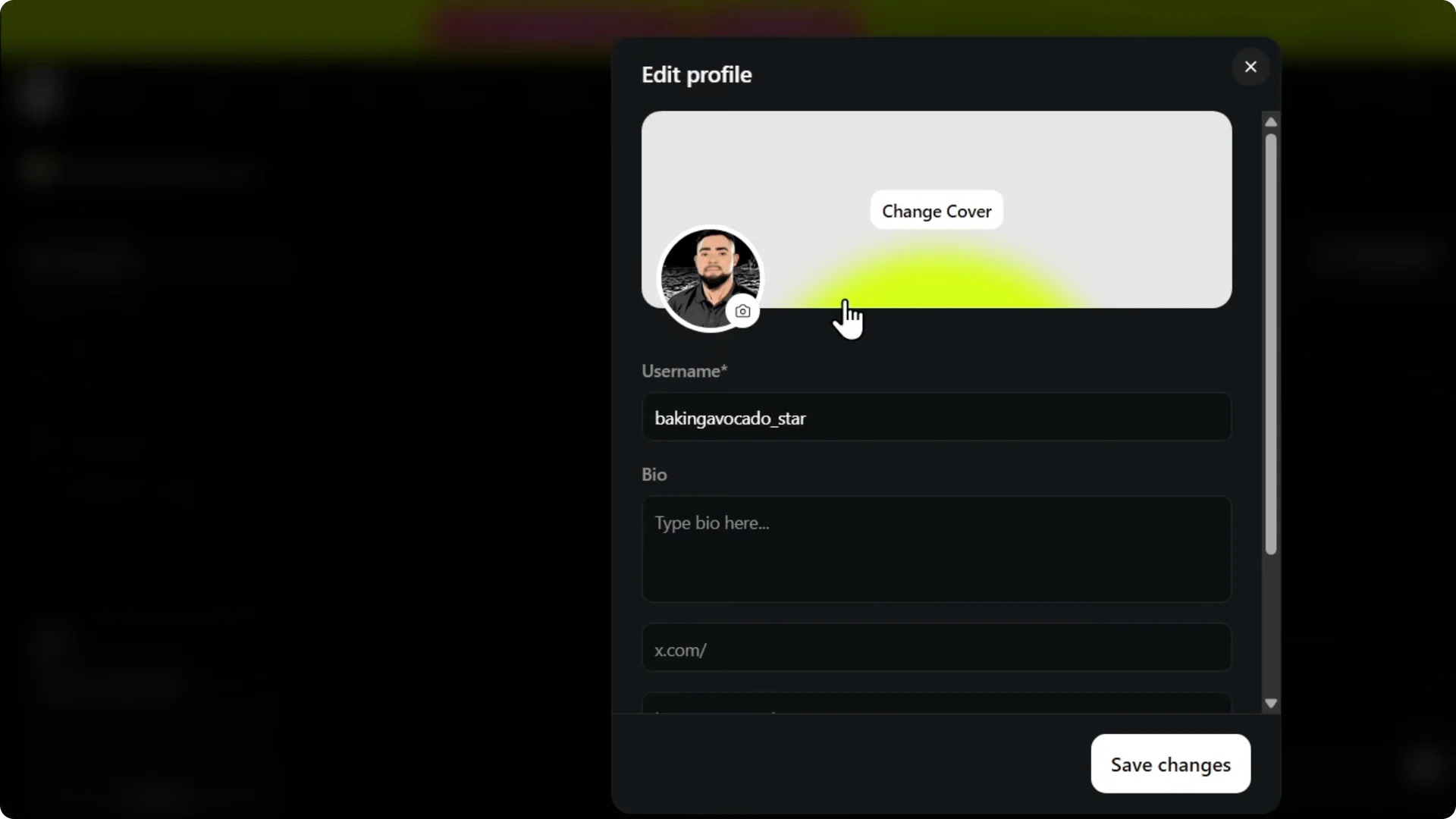
Step 2: Click Edit profile on the right, then click the camera icon.
Step 3: Your file explorer opens. Choose an image of yourself and add it.
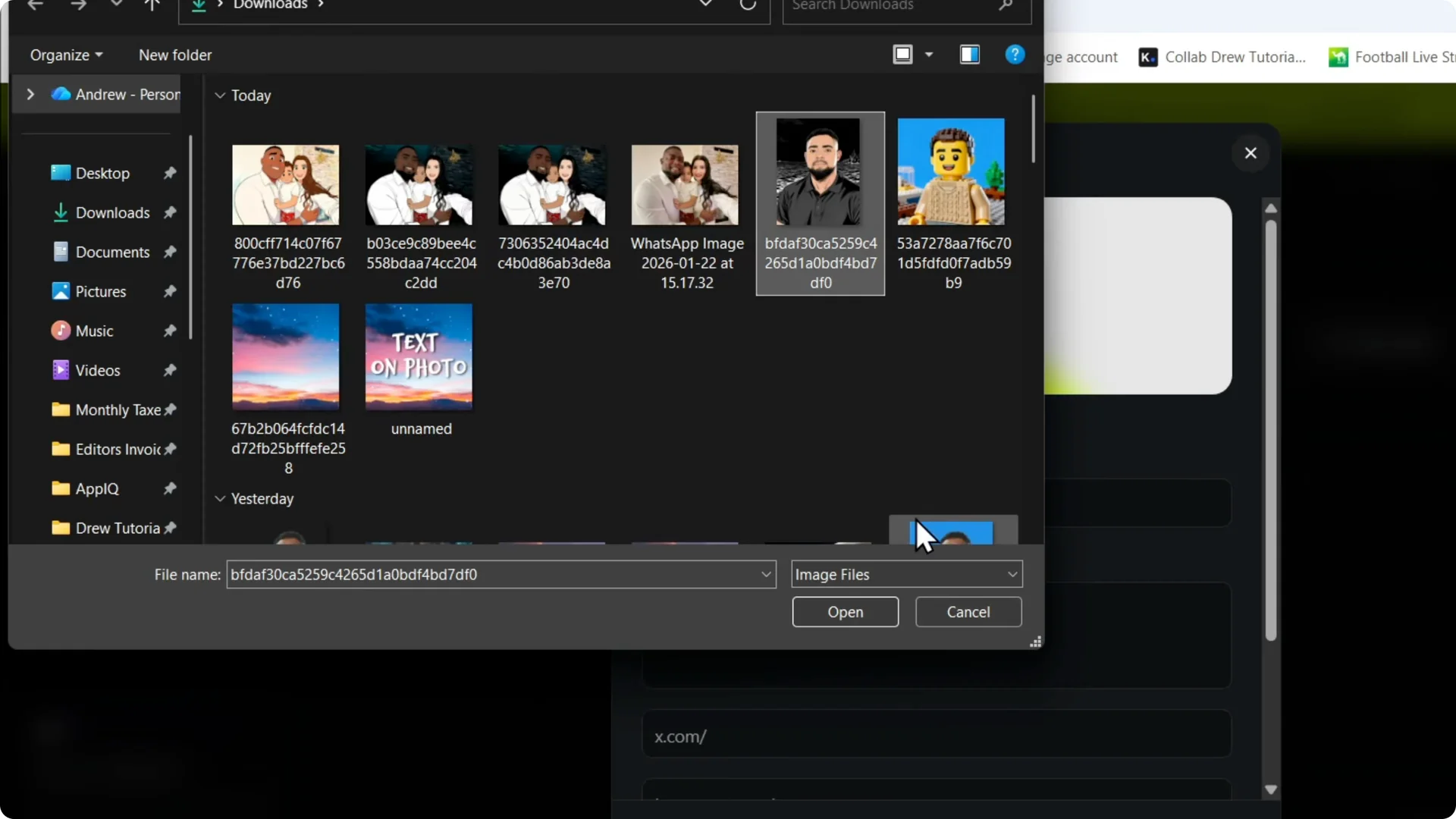
You will see your image appear as your profile picture.
Read More: Higgsfield Ai Face Swap Works
Cover image alongside your Higgsfield AI Profile Picture
You can add or change the cover. They call it a cover, and it shows on your profile as well.
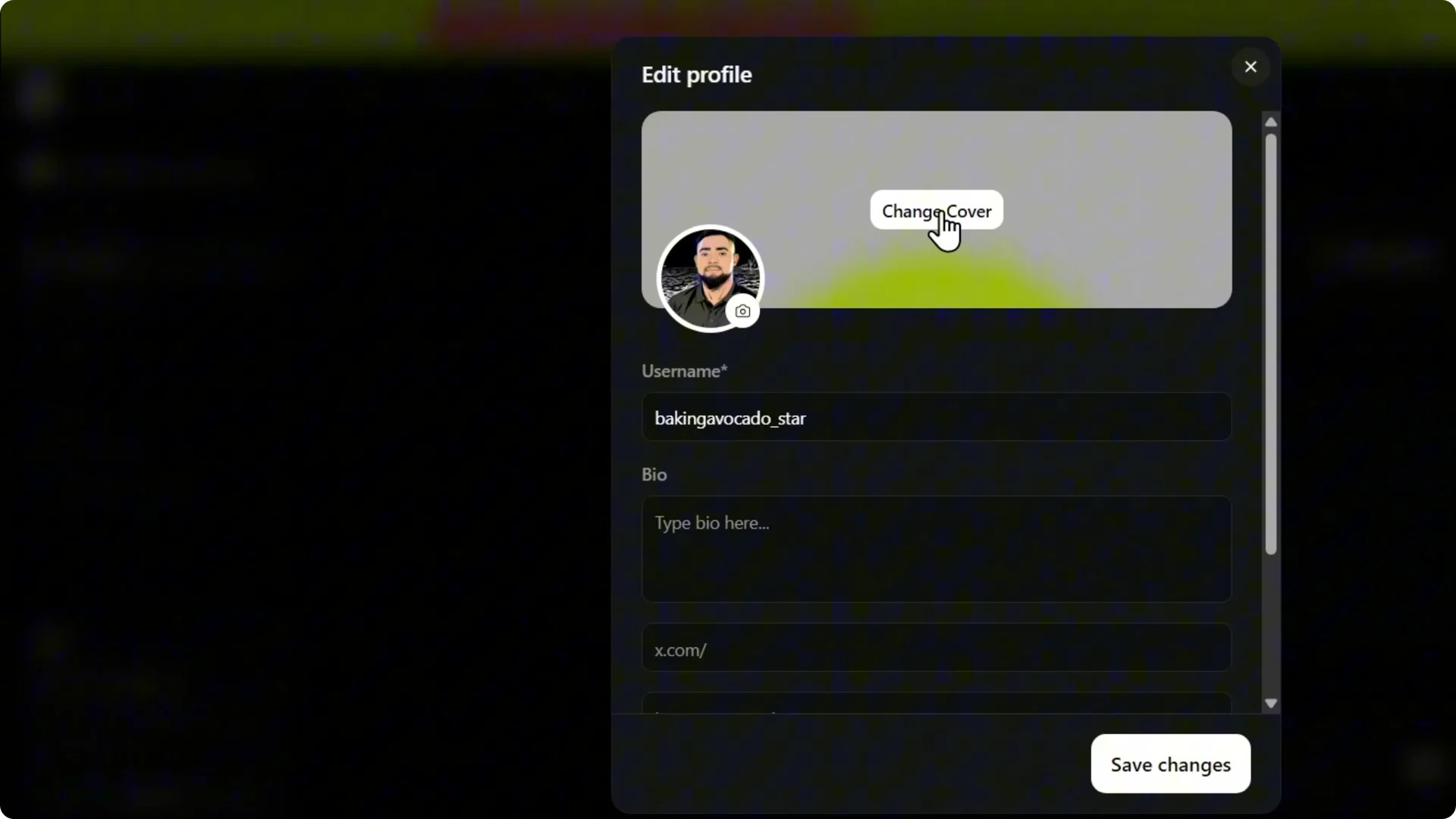
If you have something, you can add it. I do not have something really nice at the moment. Maybe I will add this later.
Read More: Higgsfield Ai Upscale Images Quality Loss
Save and refresh to apply your Higgsfield AI Profile Picture
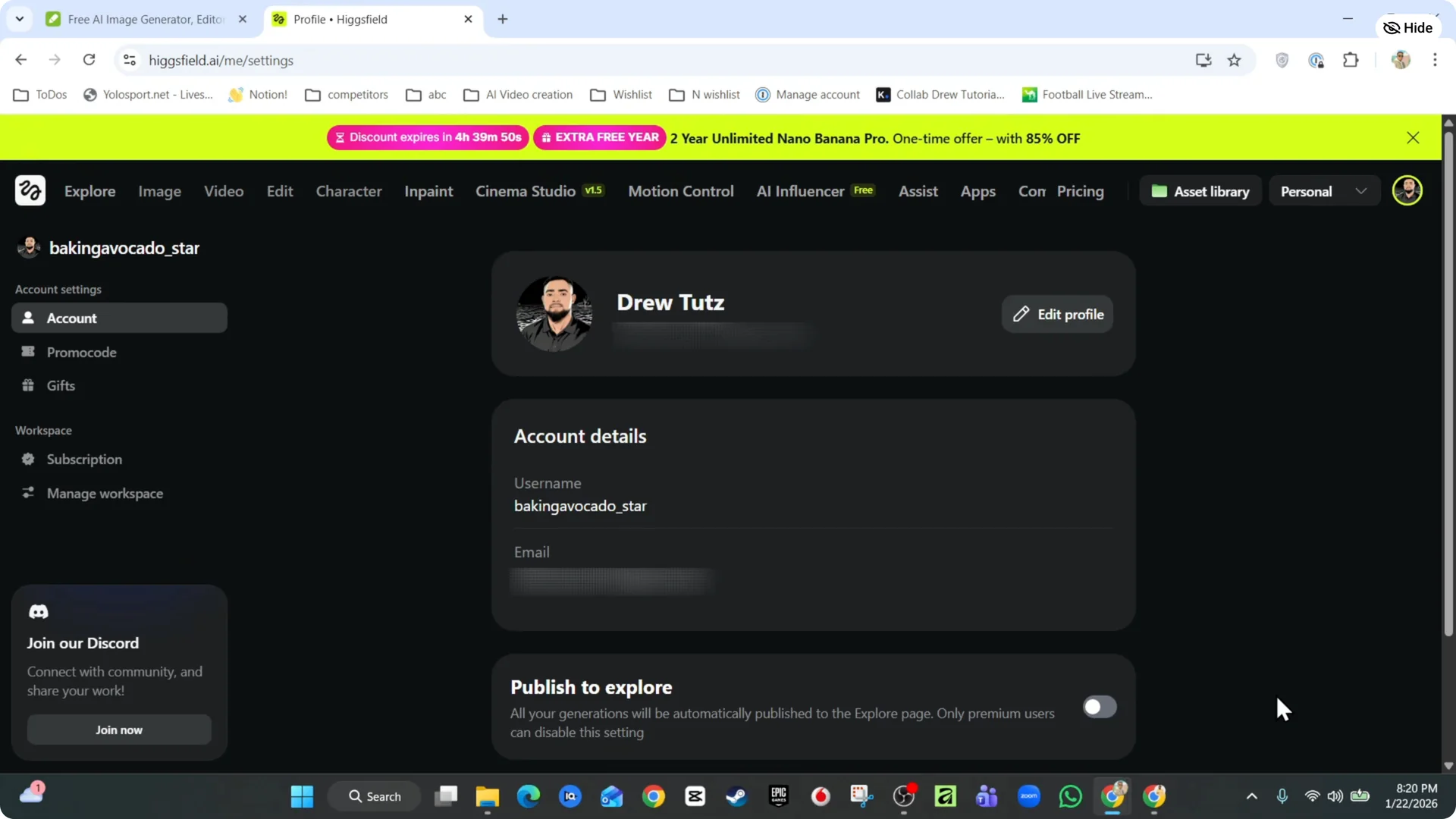
Step 4: Click Save changes. You will see your profile picture change on your account.
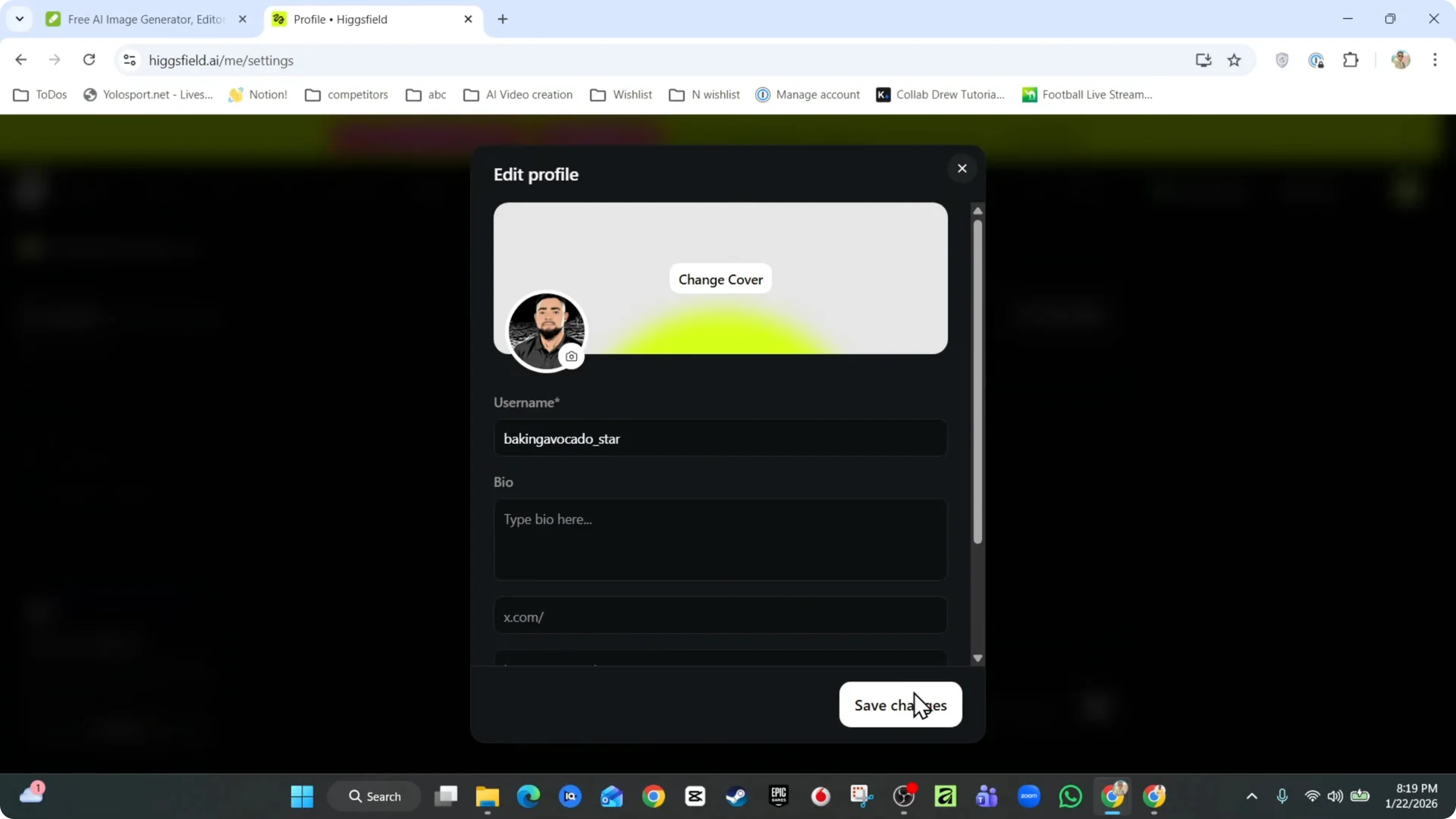
It might not change in the upper right yet. Refresh the page for it to take effect. After refreshing, it changes at the upper right.
Read More: Add Payment Method Higgsfield Ai
Final thoughts
Adding a profile picture is quick: open Manage account, edit your profile, upload the image, and save. Add a cover if you want your profile to look better. If the avatar does not update in the top corner right away, just refresh the page.