
I’m going to show you how to check your current plan in Xfale AI. The steps below let you confirm your plan, credits, and the models included.
This takes just a moment and gives you everything you need to know about what you get with your plan. Here is the quick path.
Viewing Subscription Details
Quick check from the account menu
Step 1: Hover over your account on the upper right. Here you will find the current plan that you have.

Step 2: Open Manage Account. On the left side, click Subscription. You will find your current plan with more detail.


What you can see on Subscription
Step 3: Review credits and inclusions. It shows the number of credits you have and the models you have, basically what you get with this plan. Scroll down to see how much credits you have in total.
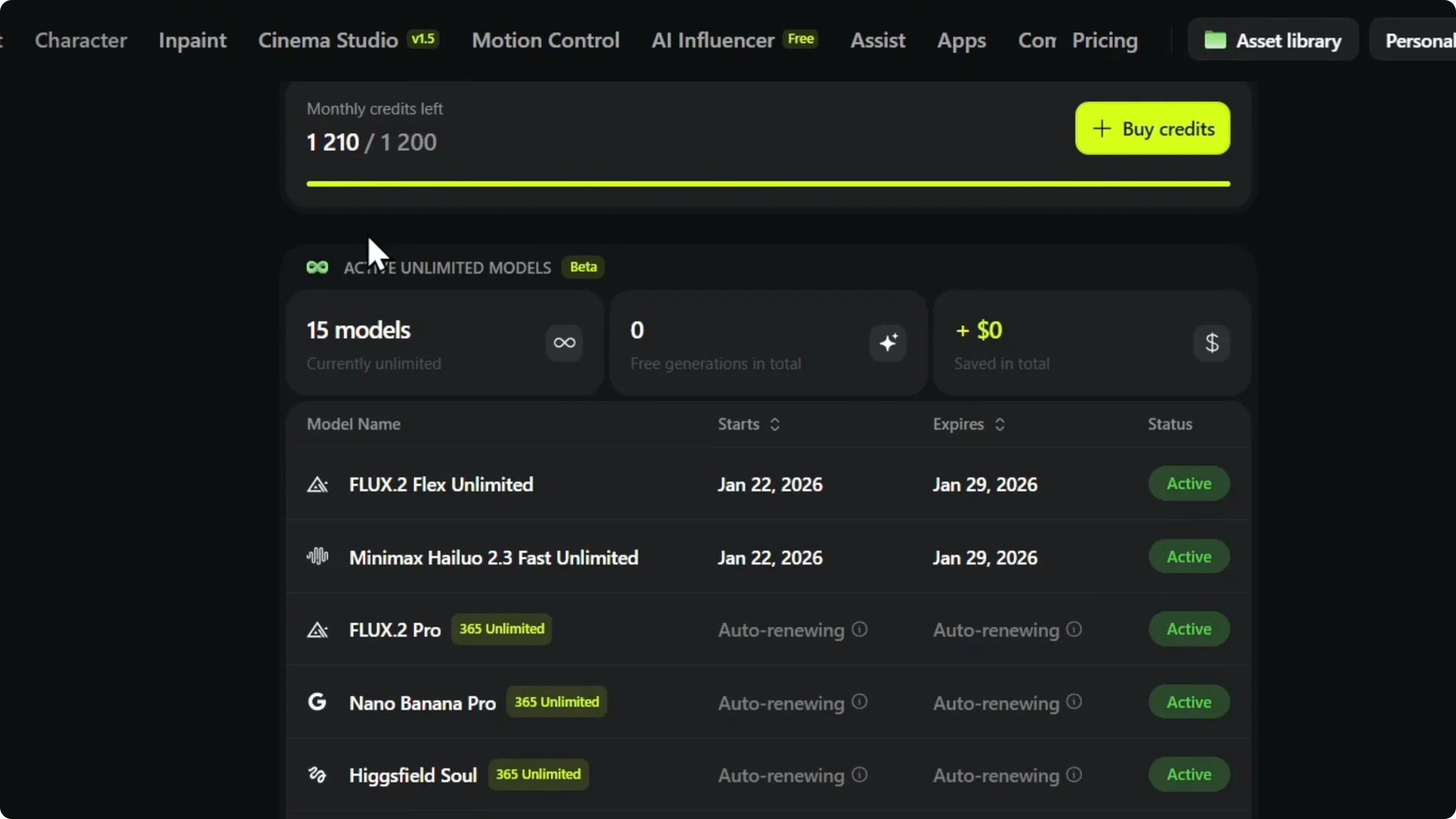
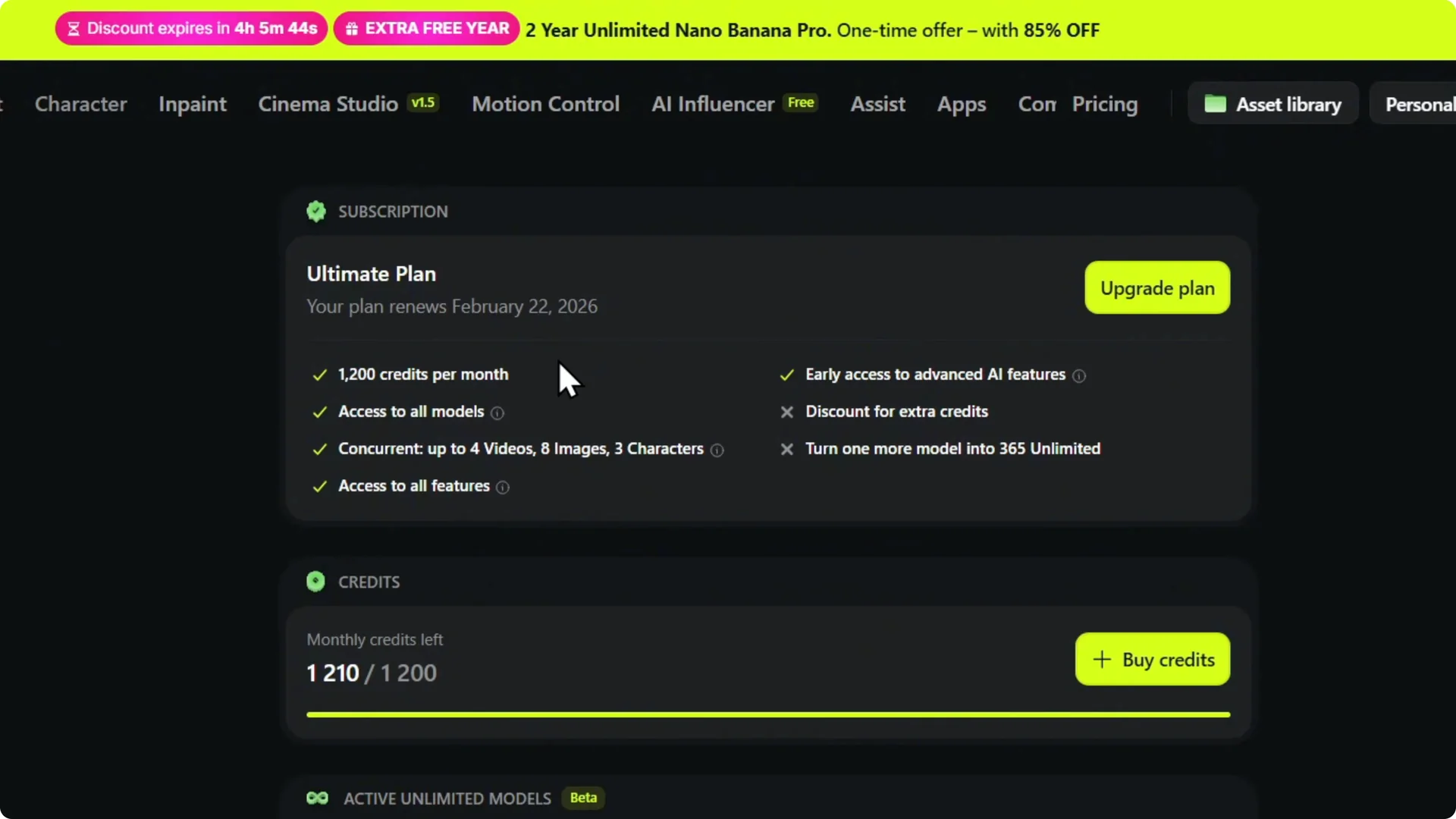
Step 4: Buy more credits if needed. You can buy more. If you need to add a payment method before topping up, handle that first.
Viewing active models
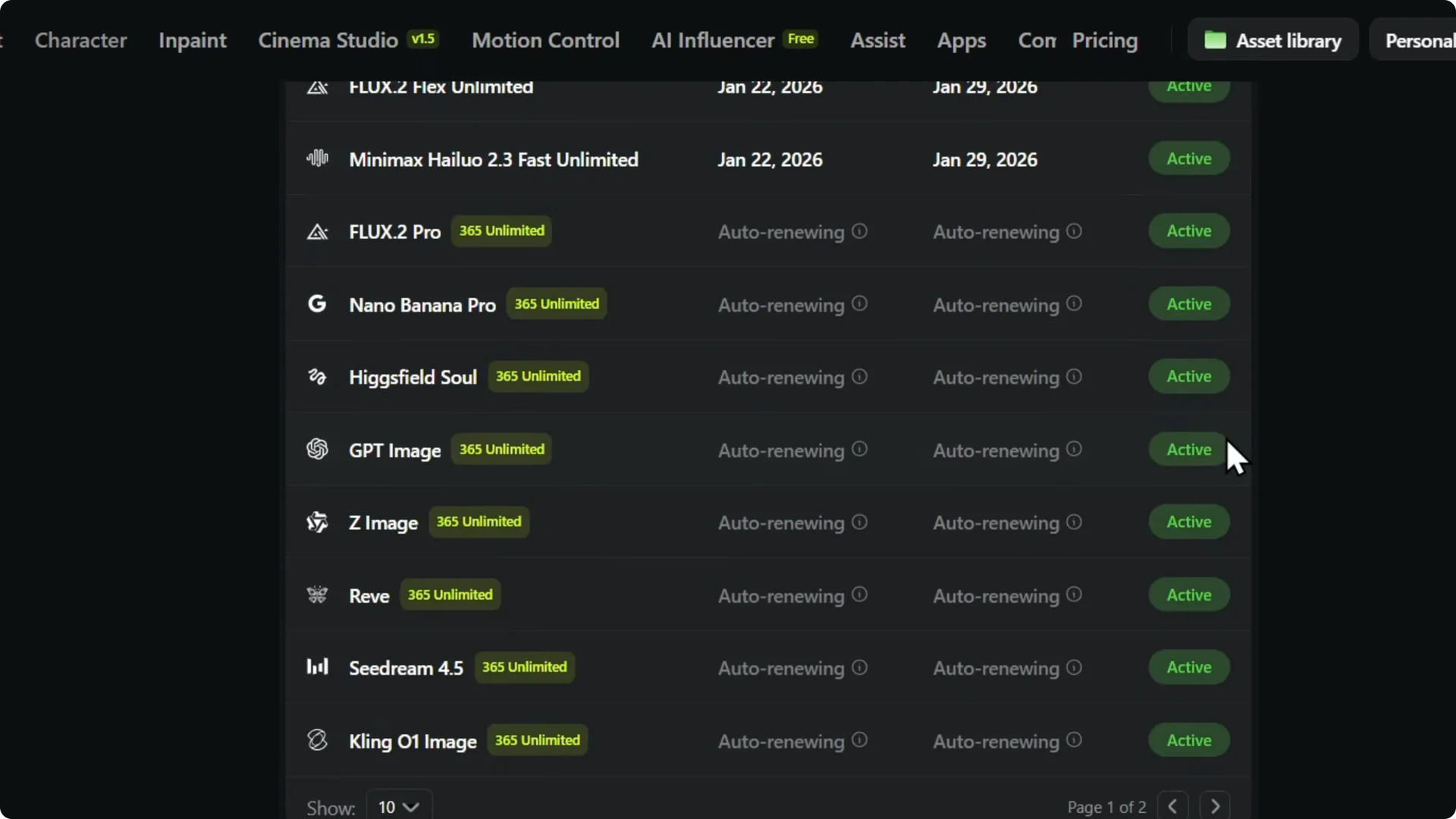
Step 5: Check active models for your plan. You can also check the active models that you get with the current plan. You can scroll through and see if they are active or not and what you get.
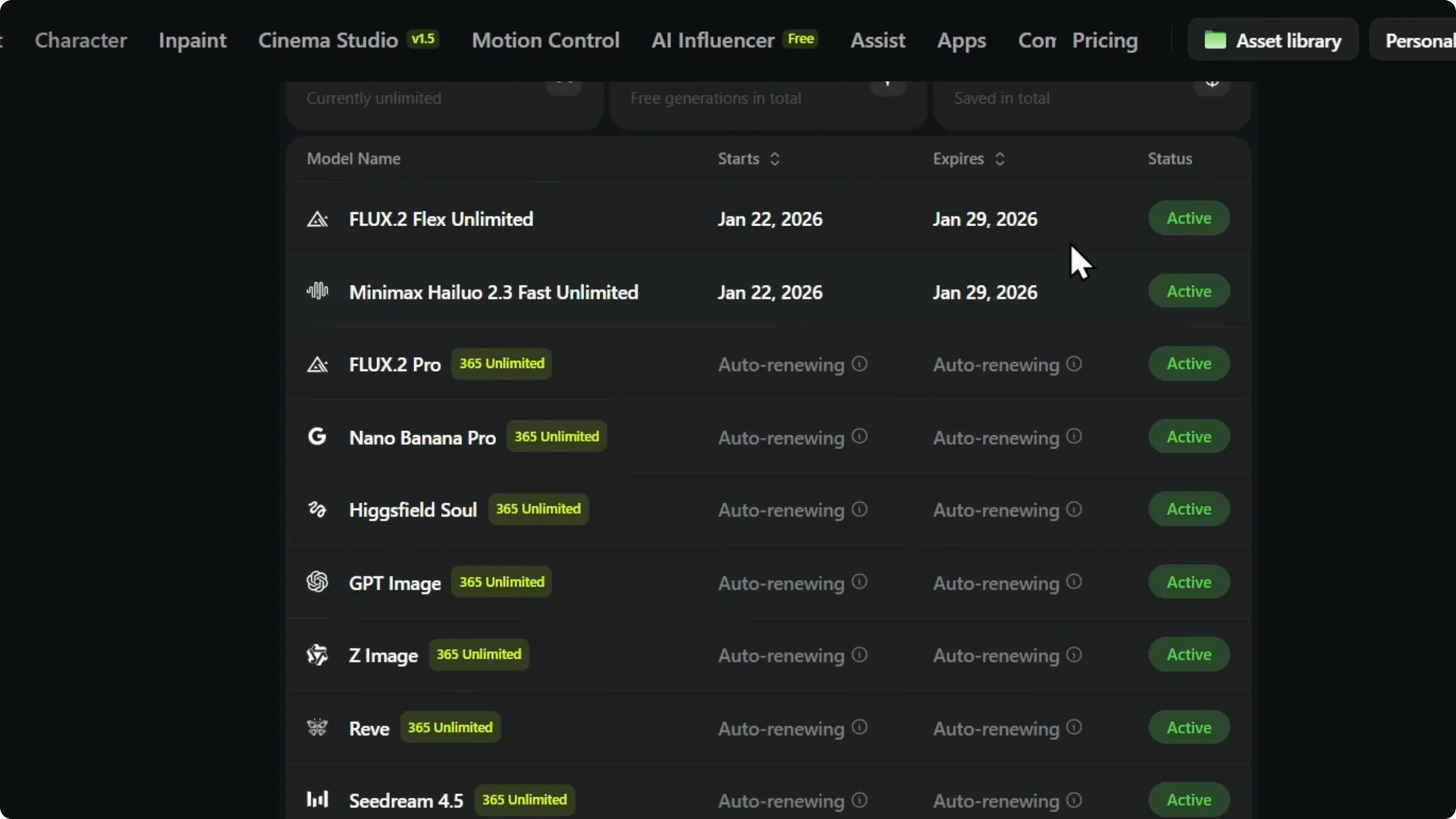
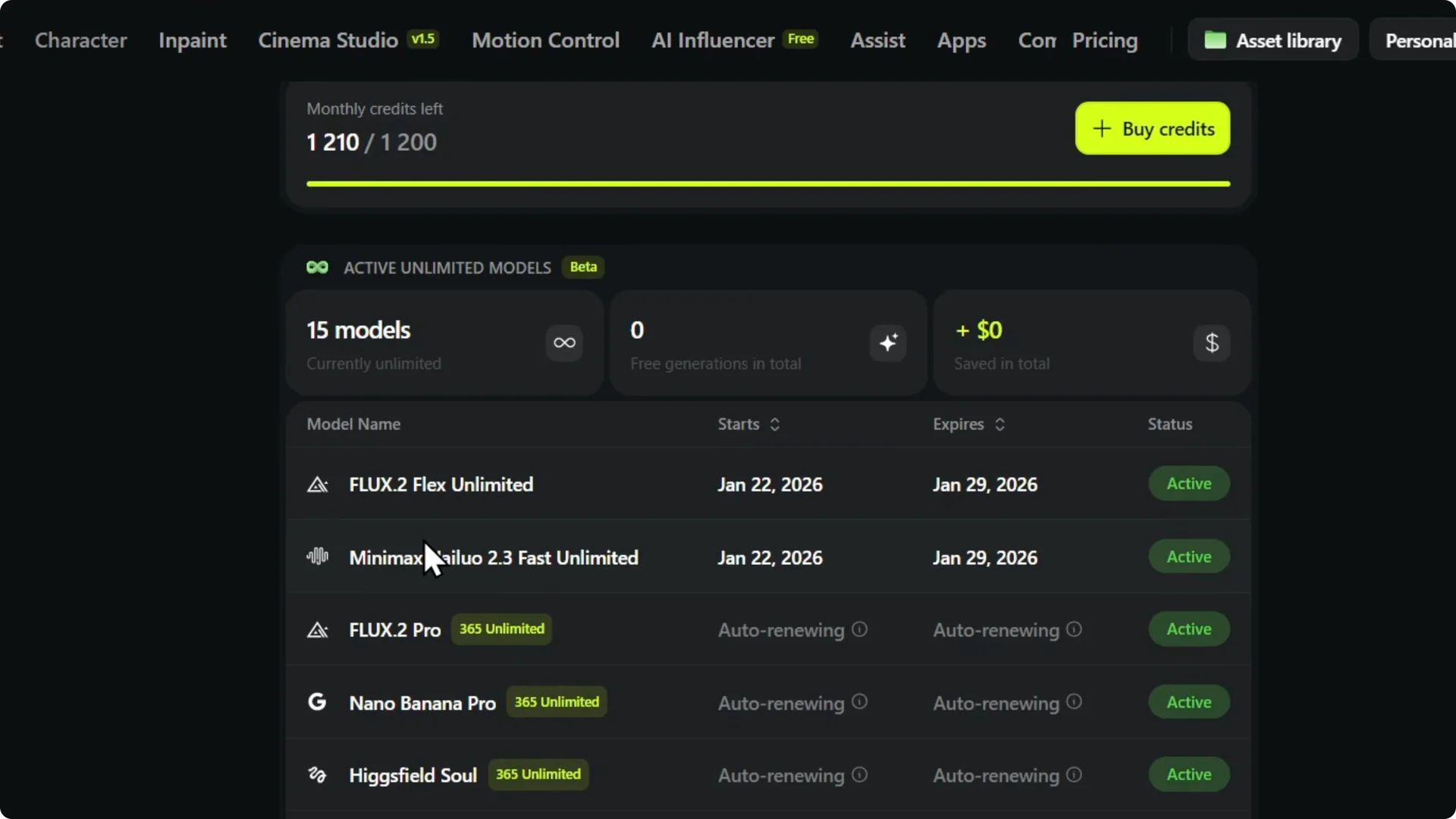
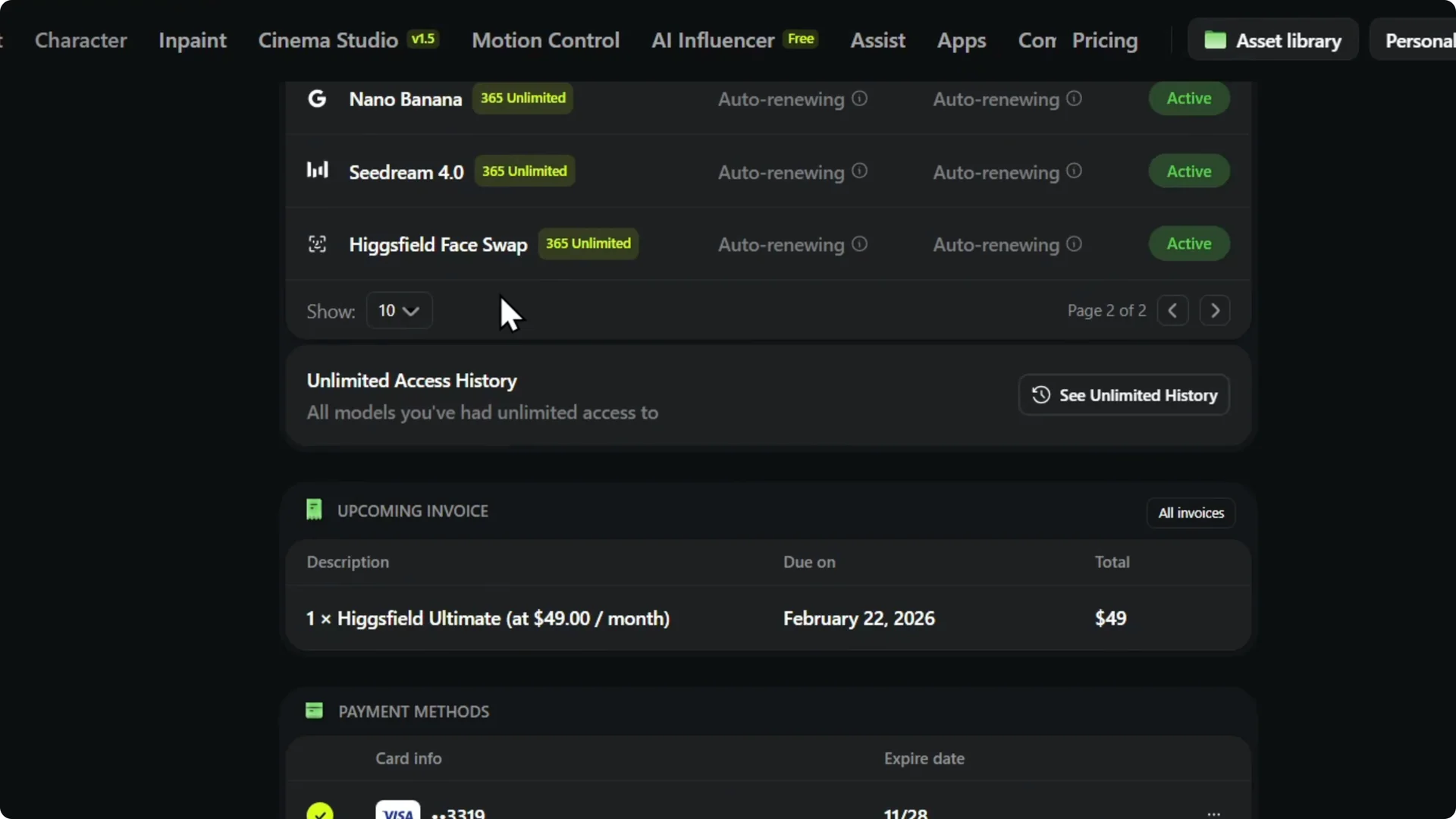
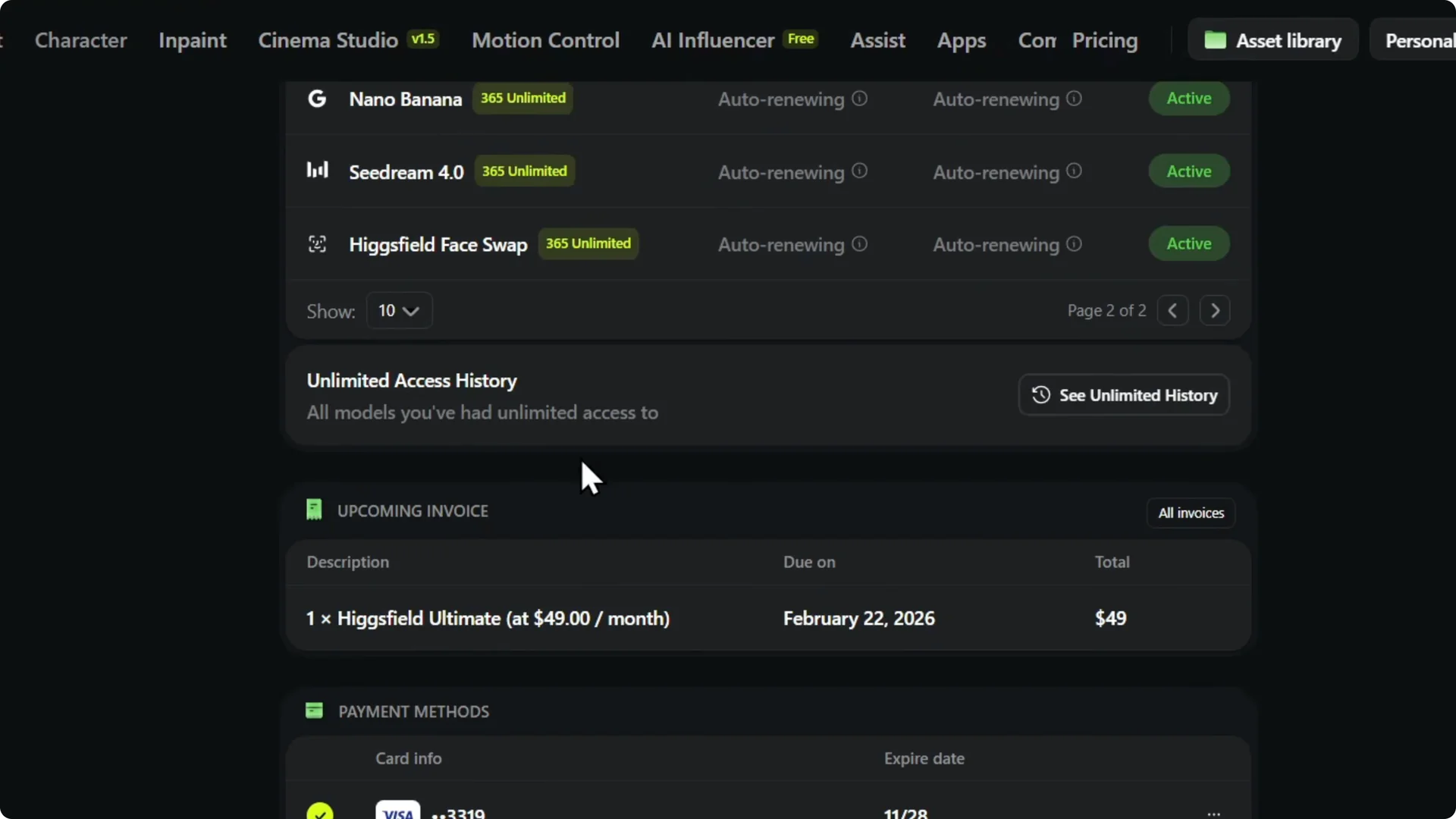
Step 6: See the full list. You can move to the next page if you have more or click on See Unlimited to see everything that you actually have. You can switch between the two pages to see them.
You will be able to use them in your generations when you’re using Xfield. For a closer look at model-driven features, see how face swap works and plan your usage accordingly.
If you manage credits for image outputs, it helps to reduce quality loss when upscaling images. That way your credits go further while keeping results sharp.
Final Thoughts
Hover over your account to see your current plan at a glance, or open Manage Account and Subscription for full details. Check total credits, review included models, and expand the list with See Unlimited if you need to confirm everything. Top up credits when needed and you’ll be set for your next generations.