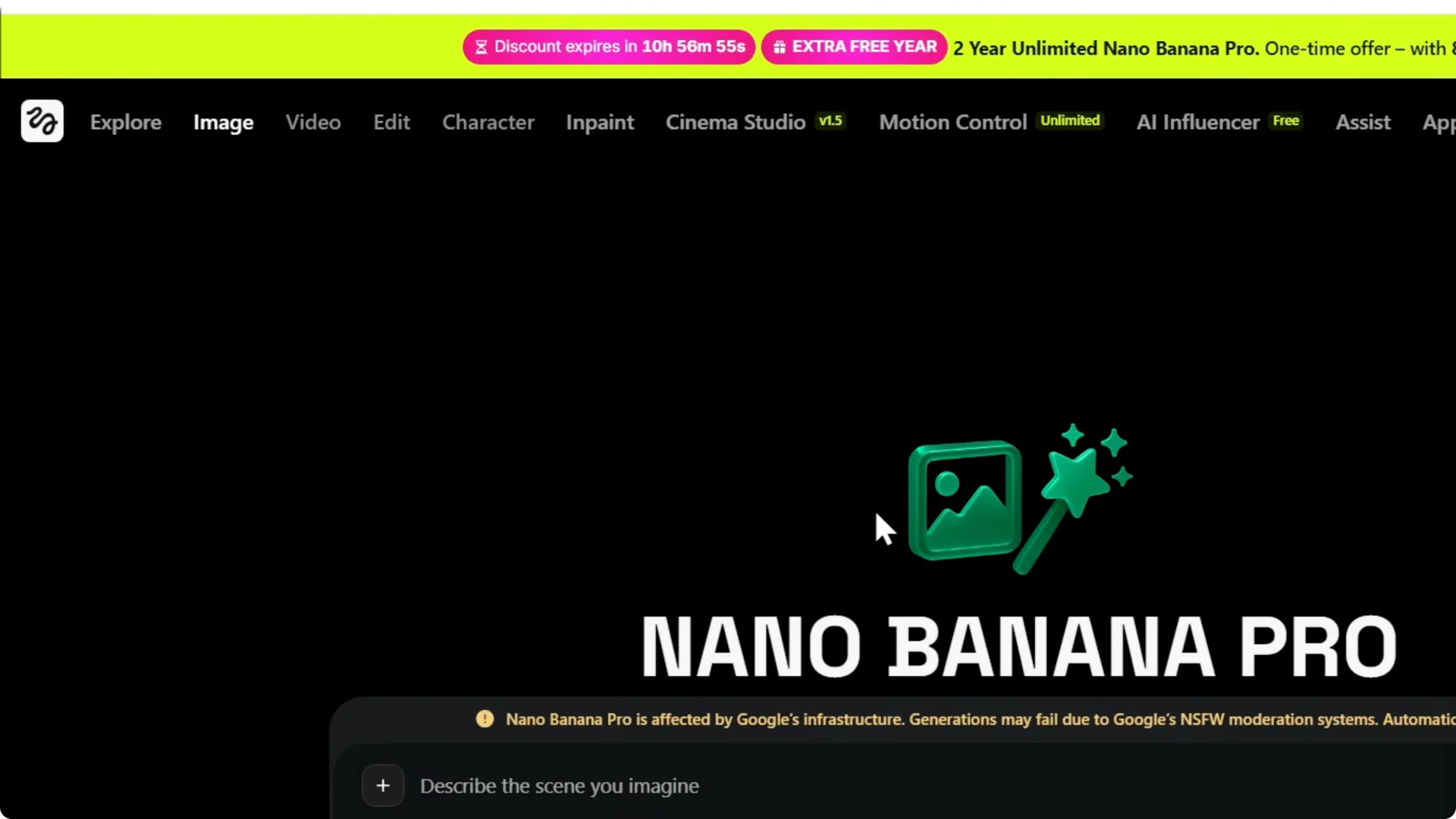
Here is how to change the aspect ratio in Higgsfield AI. I’m going to generate an image. I hover over Image, click Create an image, and it takes me to where I can enter my prompt.
If you also need to adjust account info before you start, you can change your username in a few steps.
Higgsfield AI Aspect Ratio
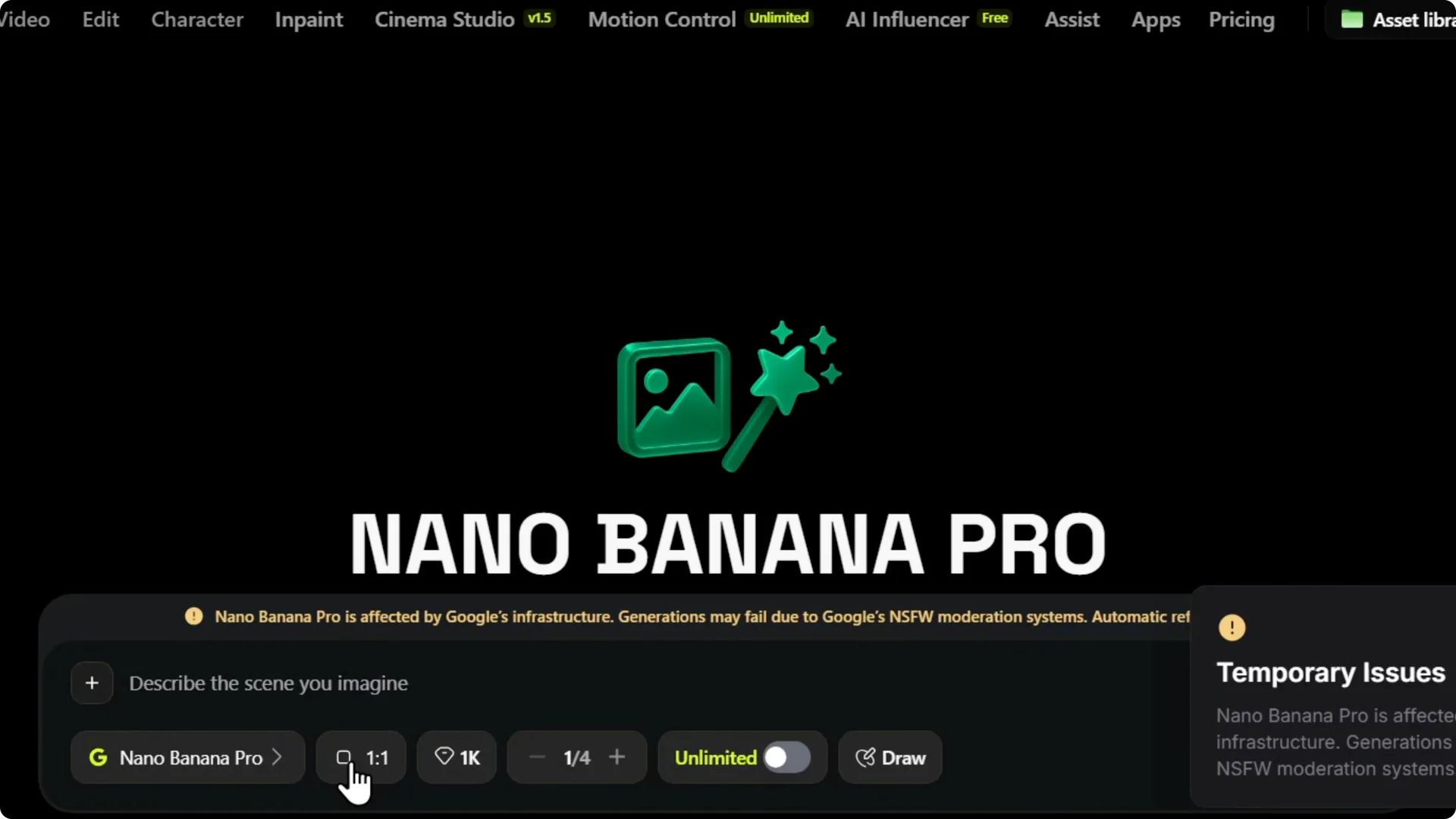
All I have to do if I want to change aspect ratio is look where it shows 1:1. That’s what you will see most likely if you’re using it for the first time. Just click here and you can change the aspect ratio.
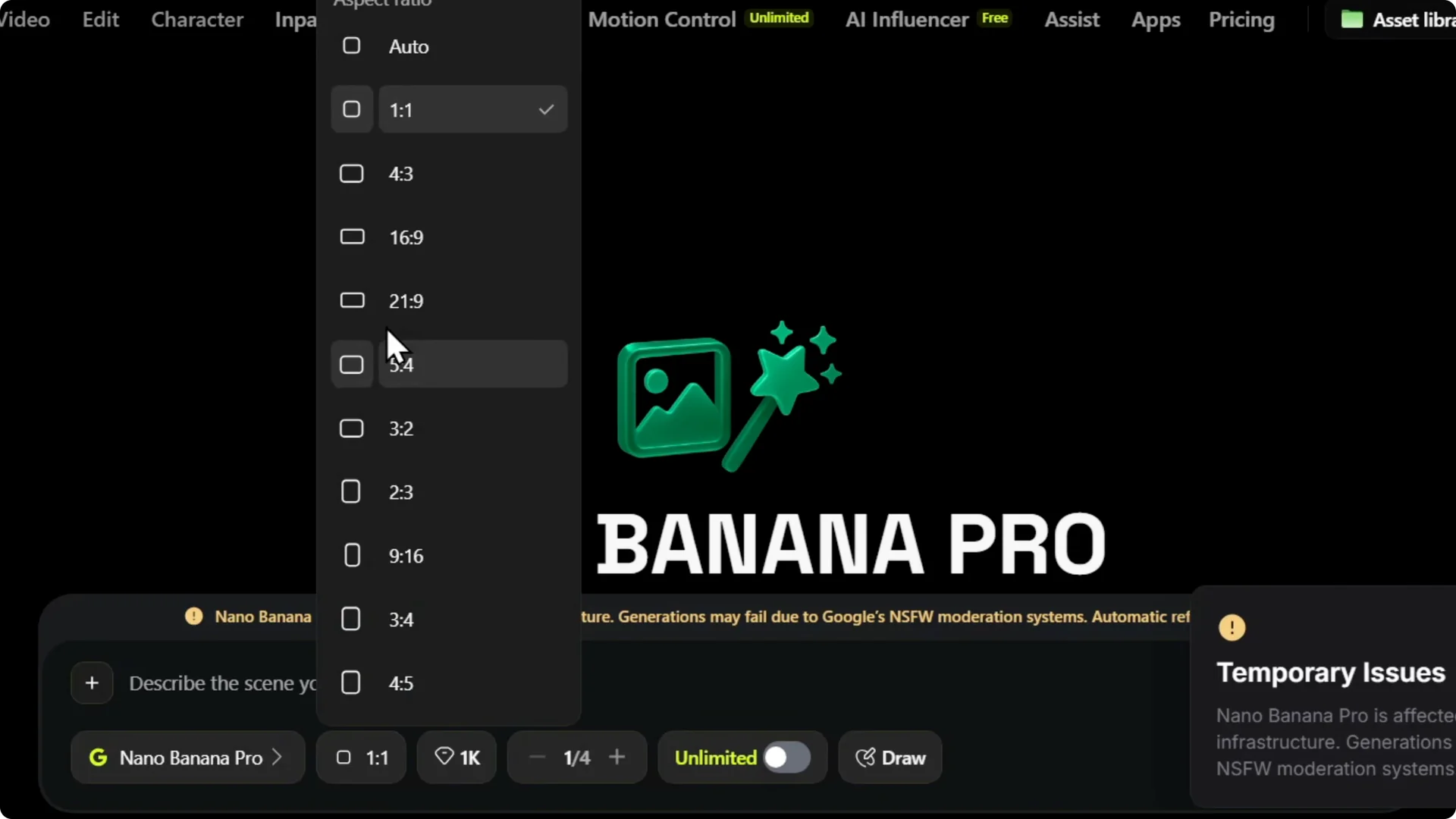
Change Higgsfield AI Aspect Ratio
Start an image
Step 1: Hover over Image and click Create an image. It takes you to the page where you can enter your prompt.
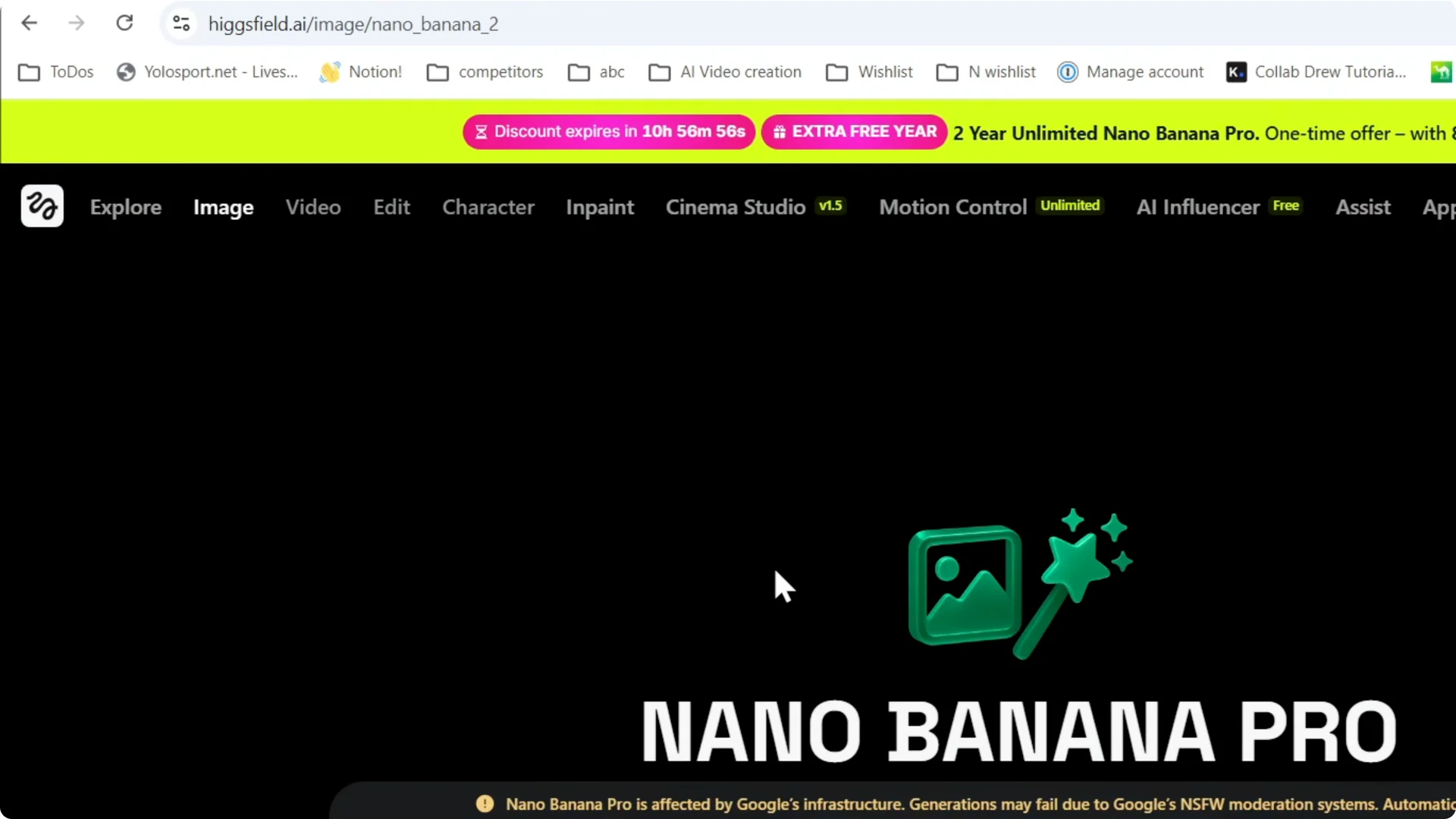
Find 1:1
Step 2: Look for the control that shows 1:1. That is what you will see the first time.
If you also want more control over the scene, see how to change backgrounds for your outputs.
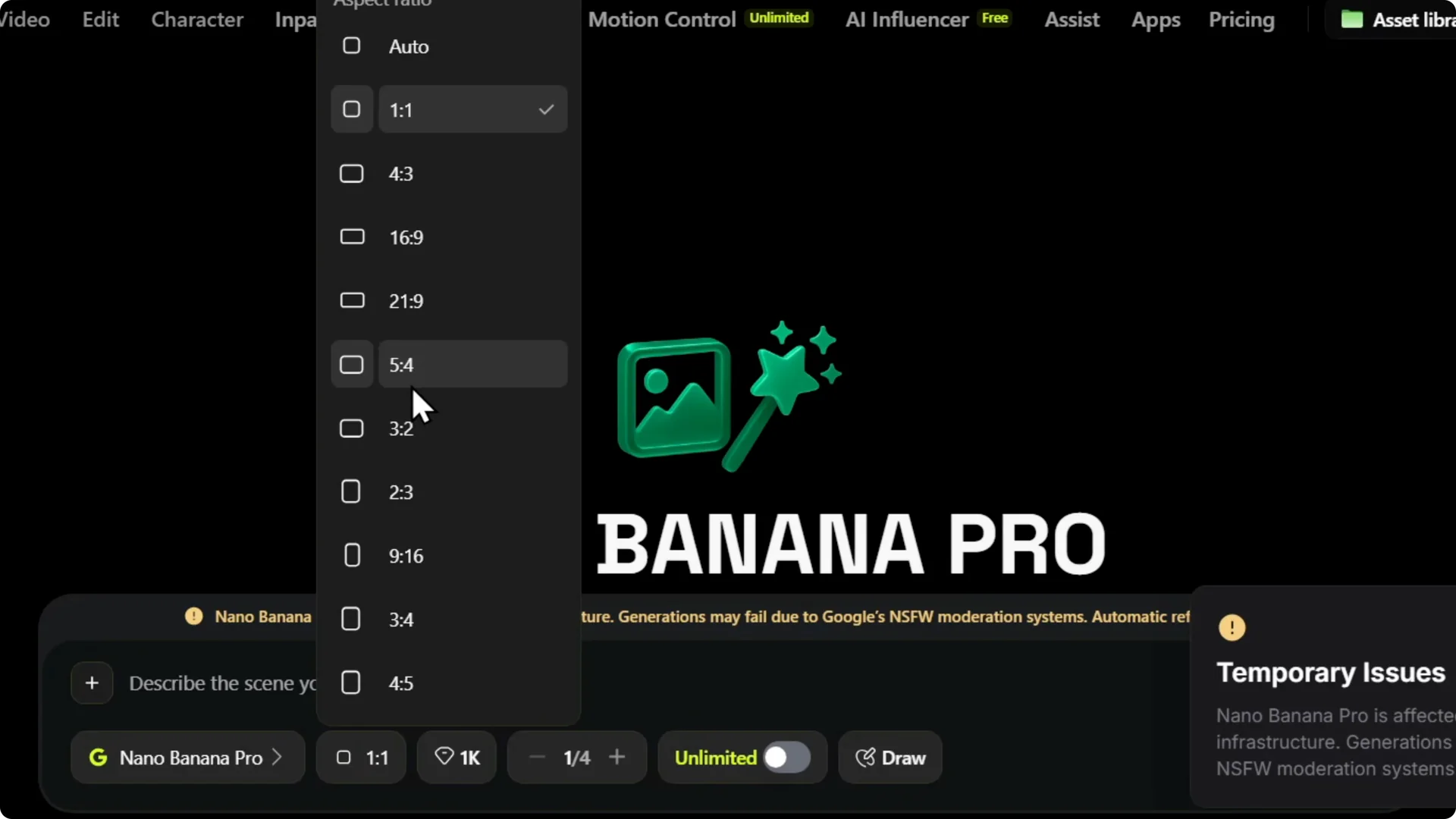
Pick a ratio
Step 3: Click it and pick another option, like 5×4. You can select it.
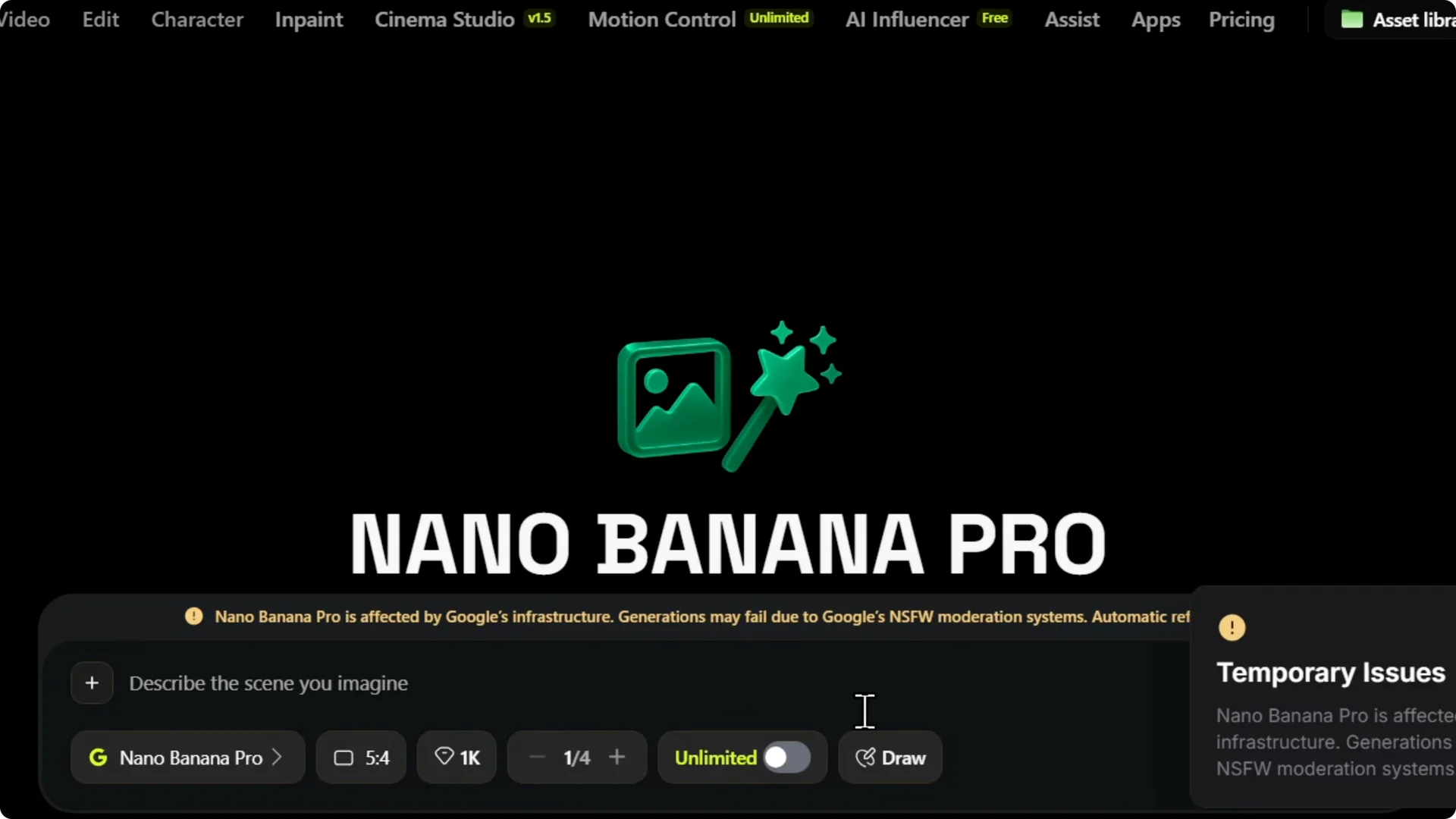
Generate
Step 4: Whenever you enter your prompt, you will now get a result shown within this aspect ratio. That’s it.
If you need details on time-based limits, check the plan seconds information.
Final Thoughts
Change it from 1:1 to your preferred option, like 5×4, before you generate. That’s it, very easy and very simple.