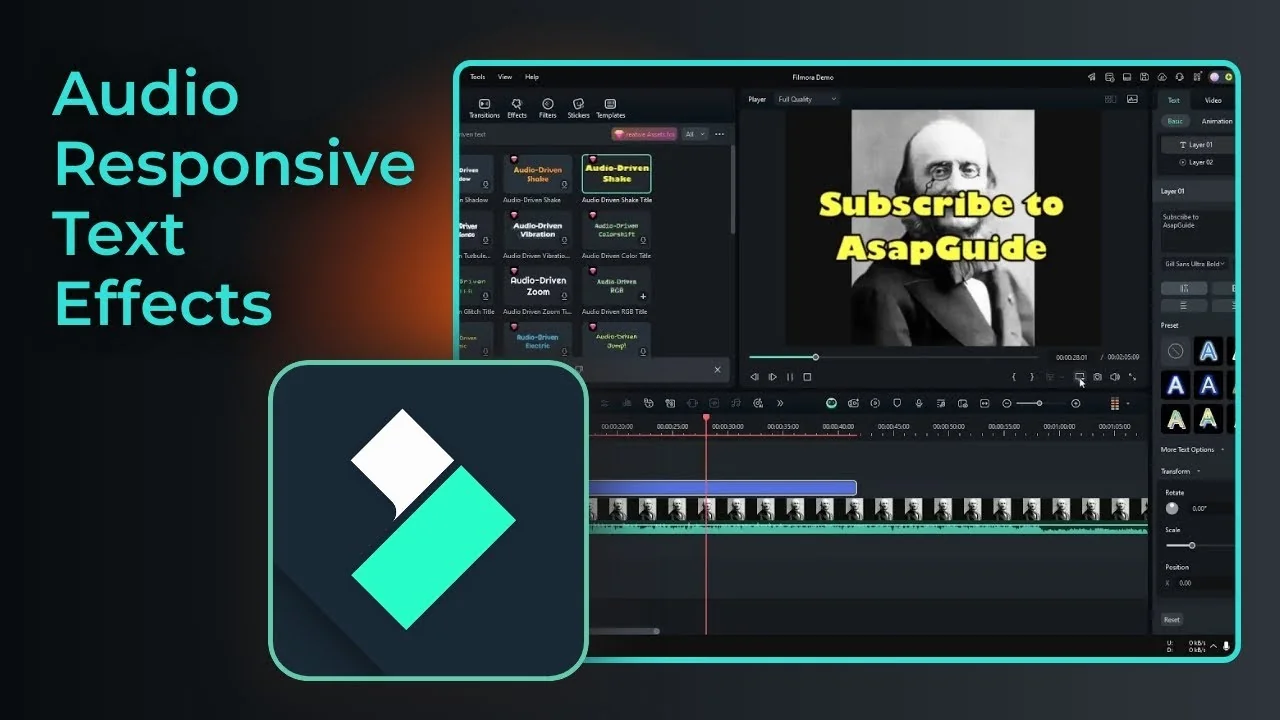
Audio-driven text reacts to the rhythm and changes in your soundtrack inside Filmora. The text can grow, glow, or even glitch based on the animation you choose. It is very simple to implement.
When the audio hits a new rhythm or a noticeable change, the text changes automatically. The result looks fantastic on top of music or any clip with a strong beat. For a neon look on your titles, see this quick walkthrough on a glowing neon text effect in Filmora.
Audio-Driven Text Effects in Filmora
What it does
This text effect responds to audio or music that is being played in your Filmora project. It plays an animation tied to peaks and changes in the audio. The exact look depends on the template you select.
Quick setup
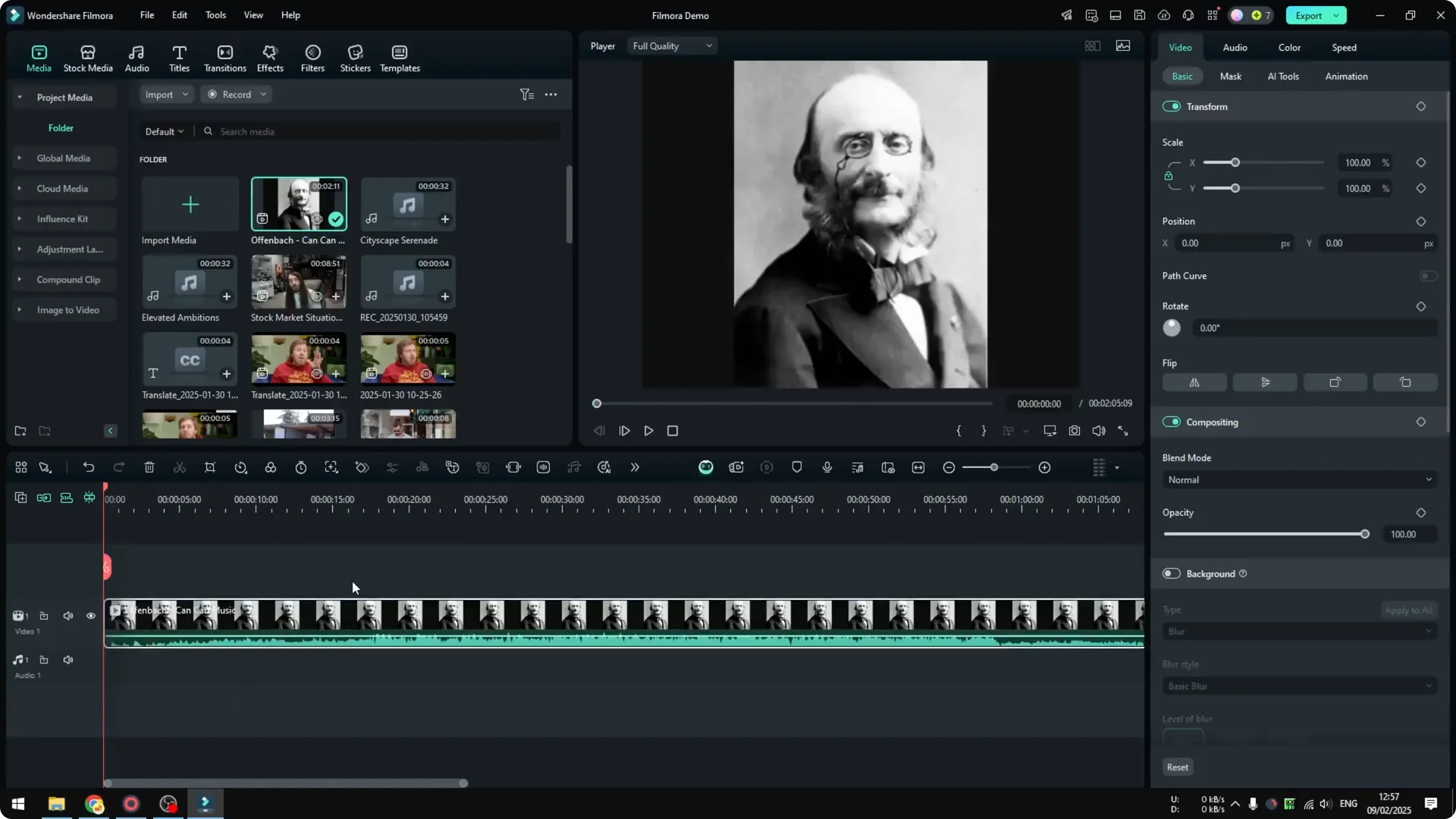
Insert a video or an audio into your project. Use any track you like, for example a classical music piece, then place it on the timeline. Add your text effect on top of the clip that contains the audio file.
Add the effect
Go to Titles. In the Trending section, search for audio driven effect to quickly find text effects that respond to audio. Pick one that fits your style.
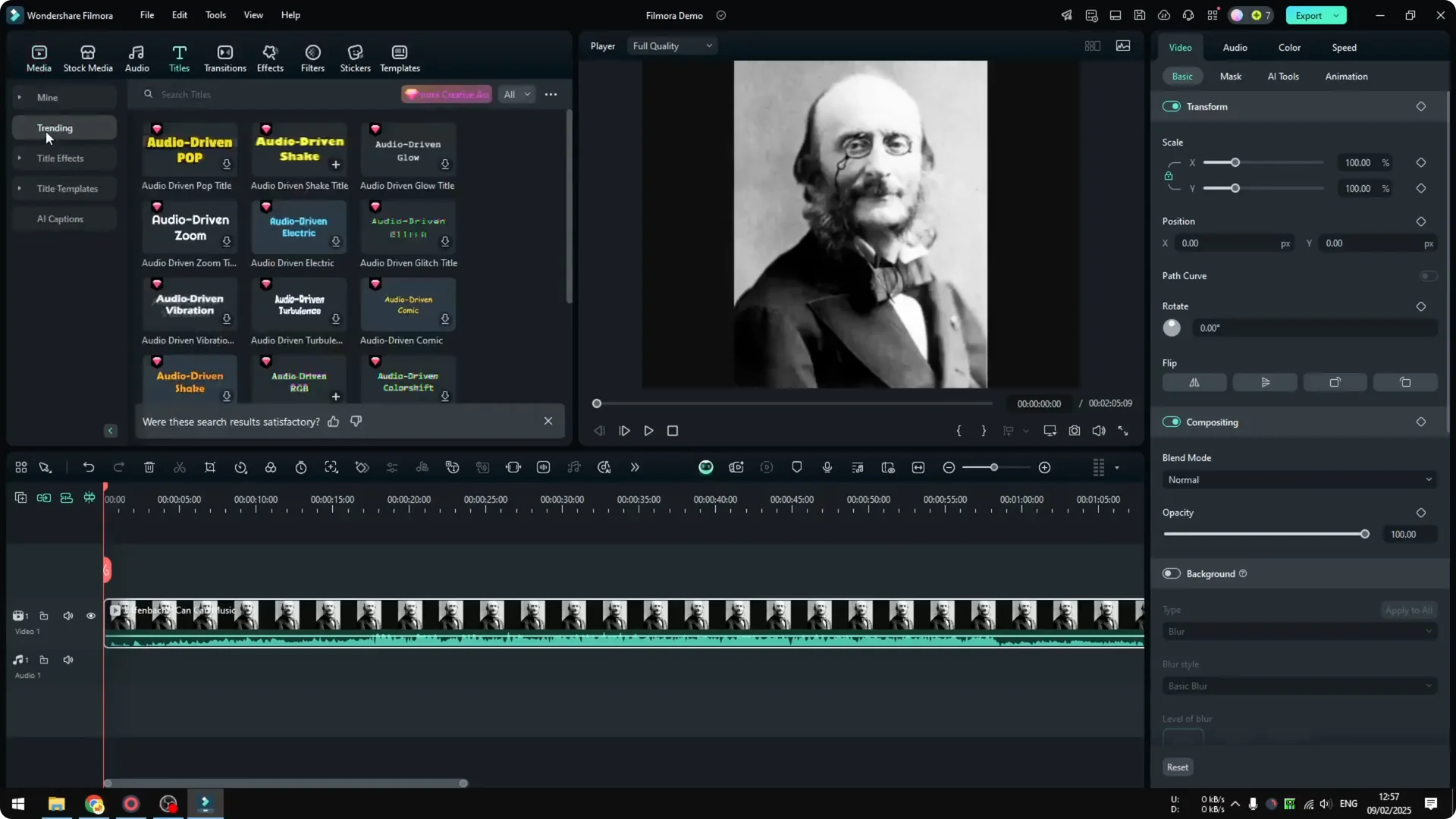
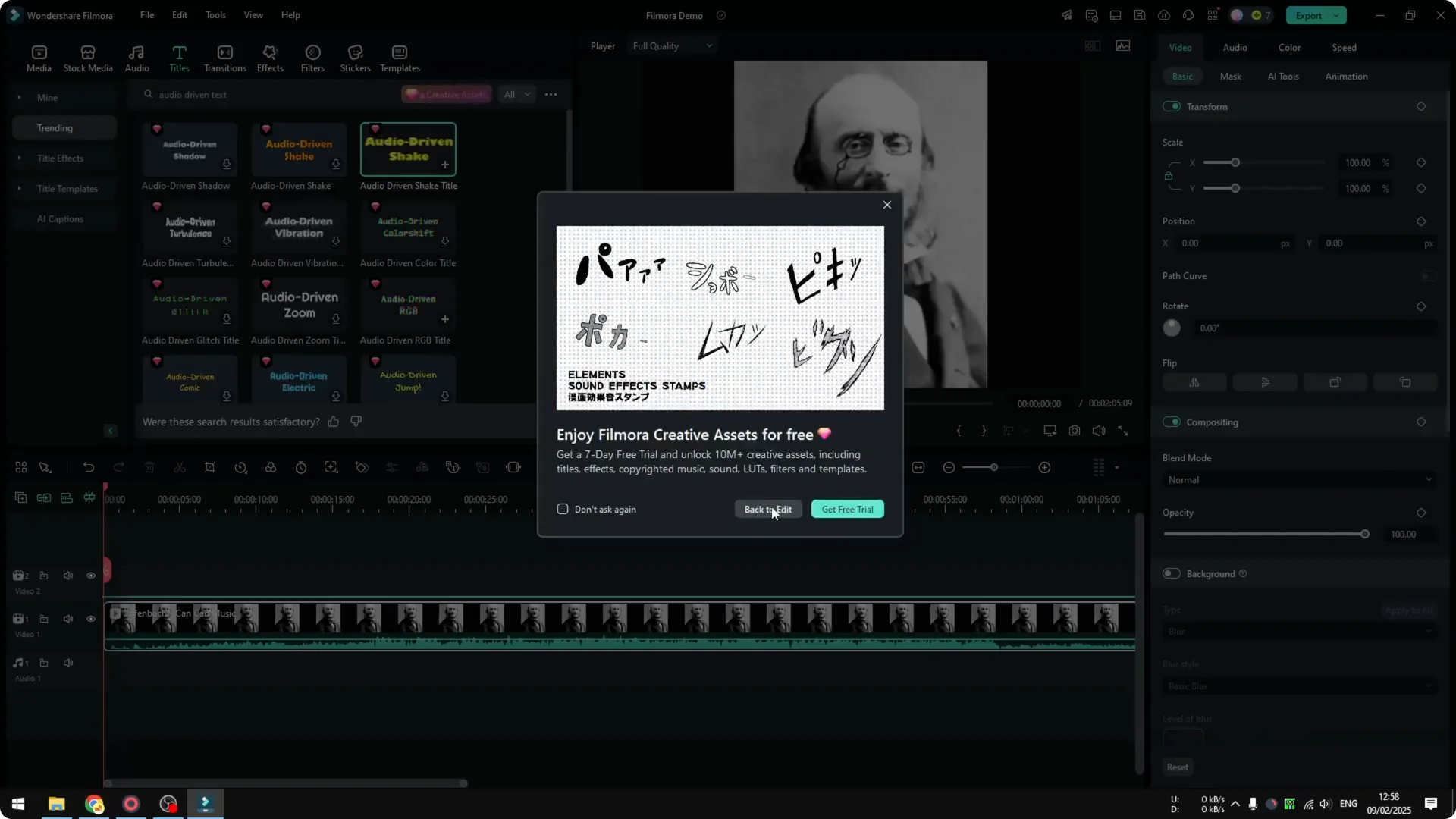
I like the Audio Driven Shake title because it looks interesting and reacts clearly to the beat. Click and drag it onto the timeline above your footage. Confirm any prompts and return to editing.
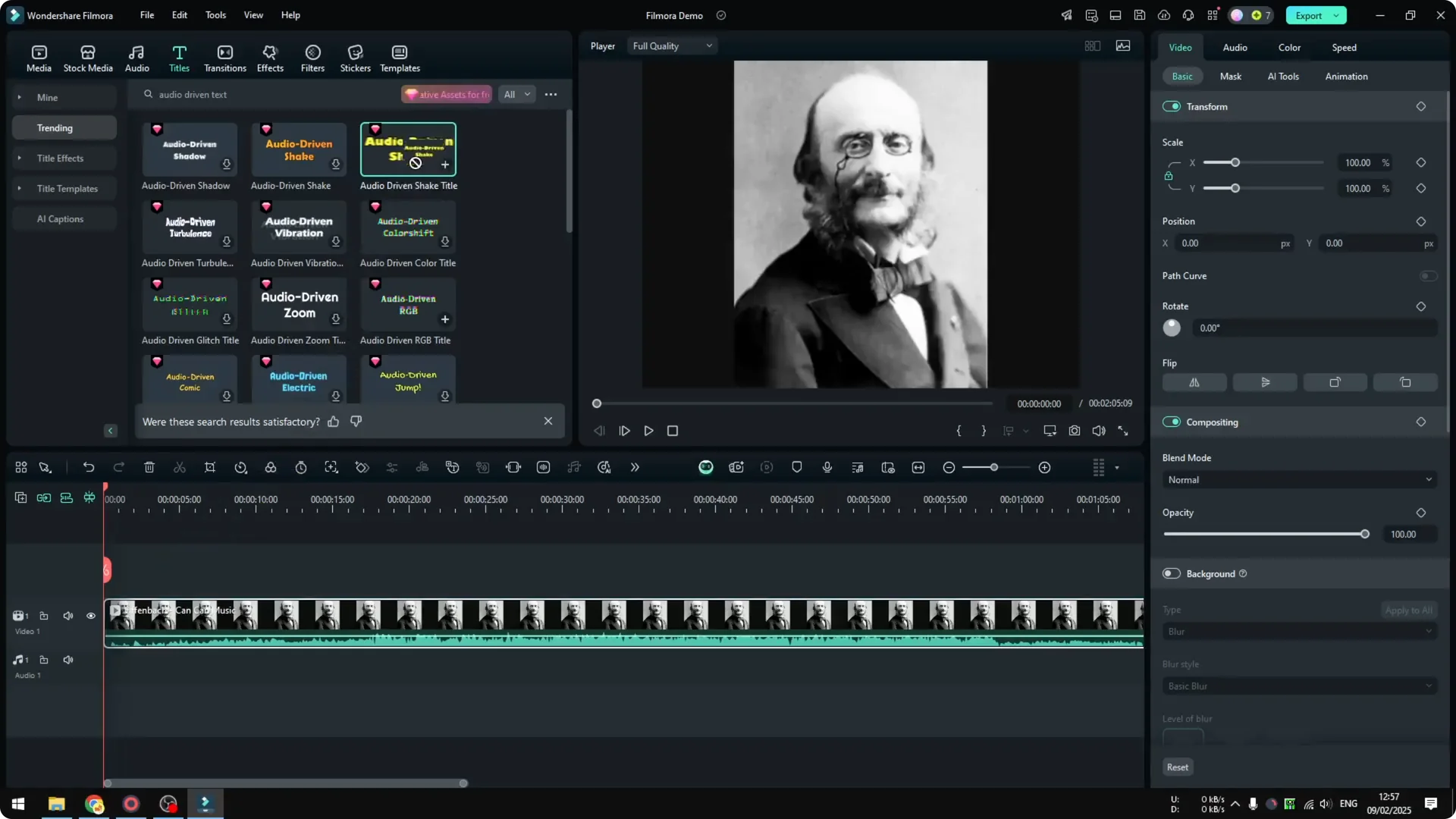
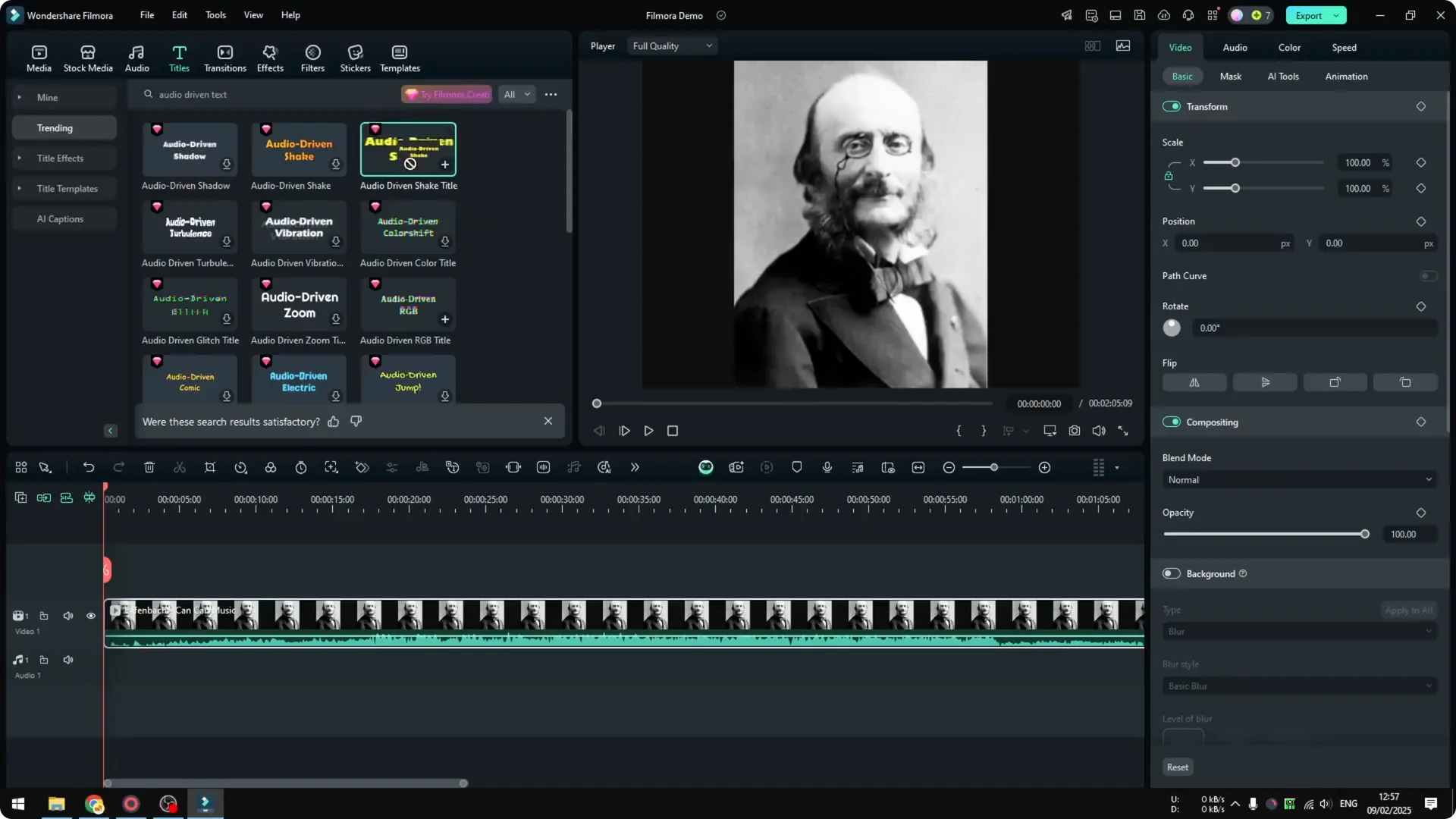
If the template shows a crown icon, it is a premium effect. Free users cannot export with premium titles, so you will need an active subscription to use it. With a subscription active, you can use this feature fully.
If you want reactive bars and shapes that move with music, take a look at this tutorial on an AI audio visualizer in Filmora.
Edit the text
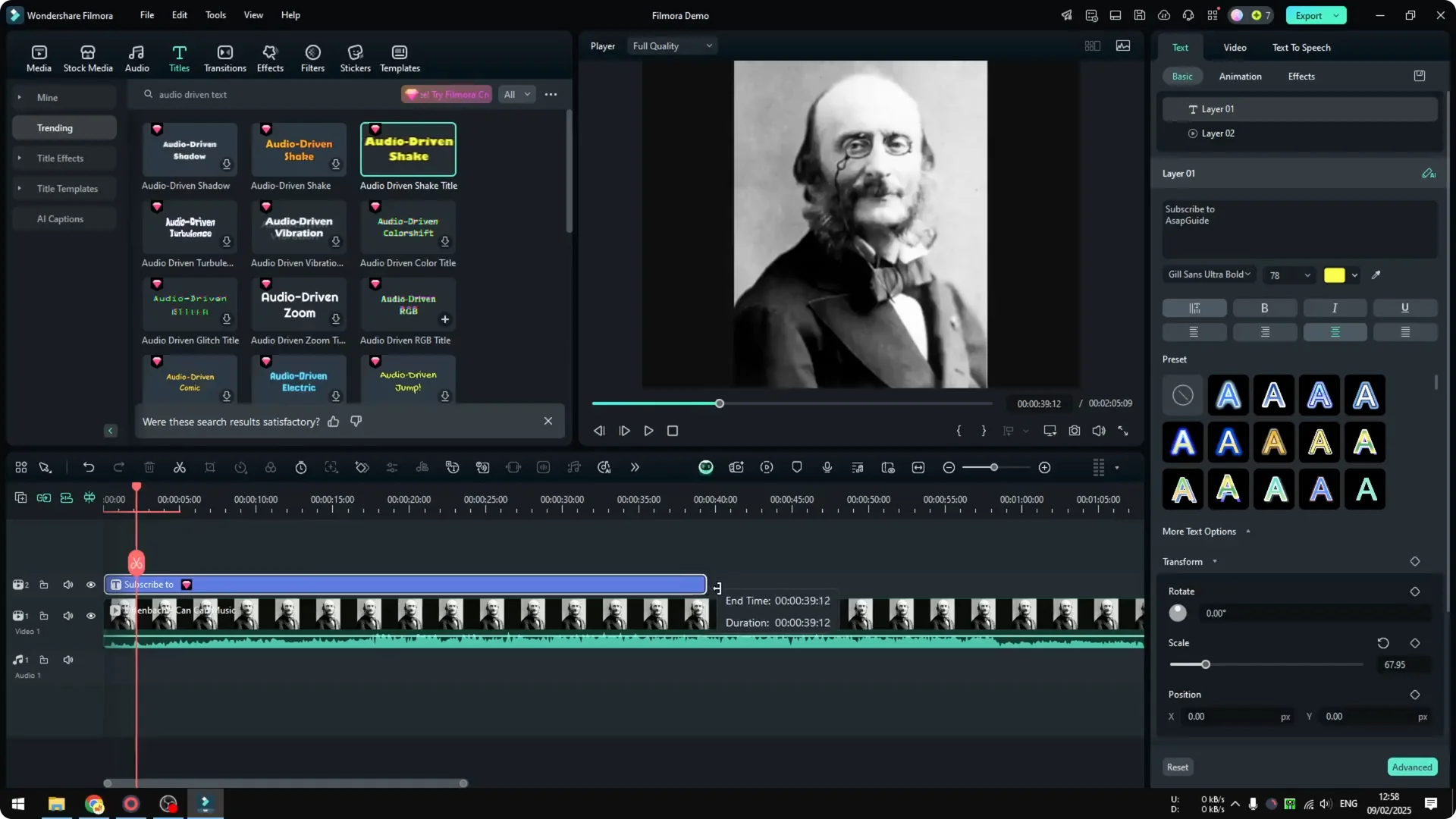
Double click the title on the timeline to open the text controls. In the Text section, change the wording to anything you want. Adjust font, size, and color to match your video.
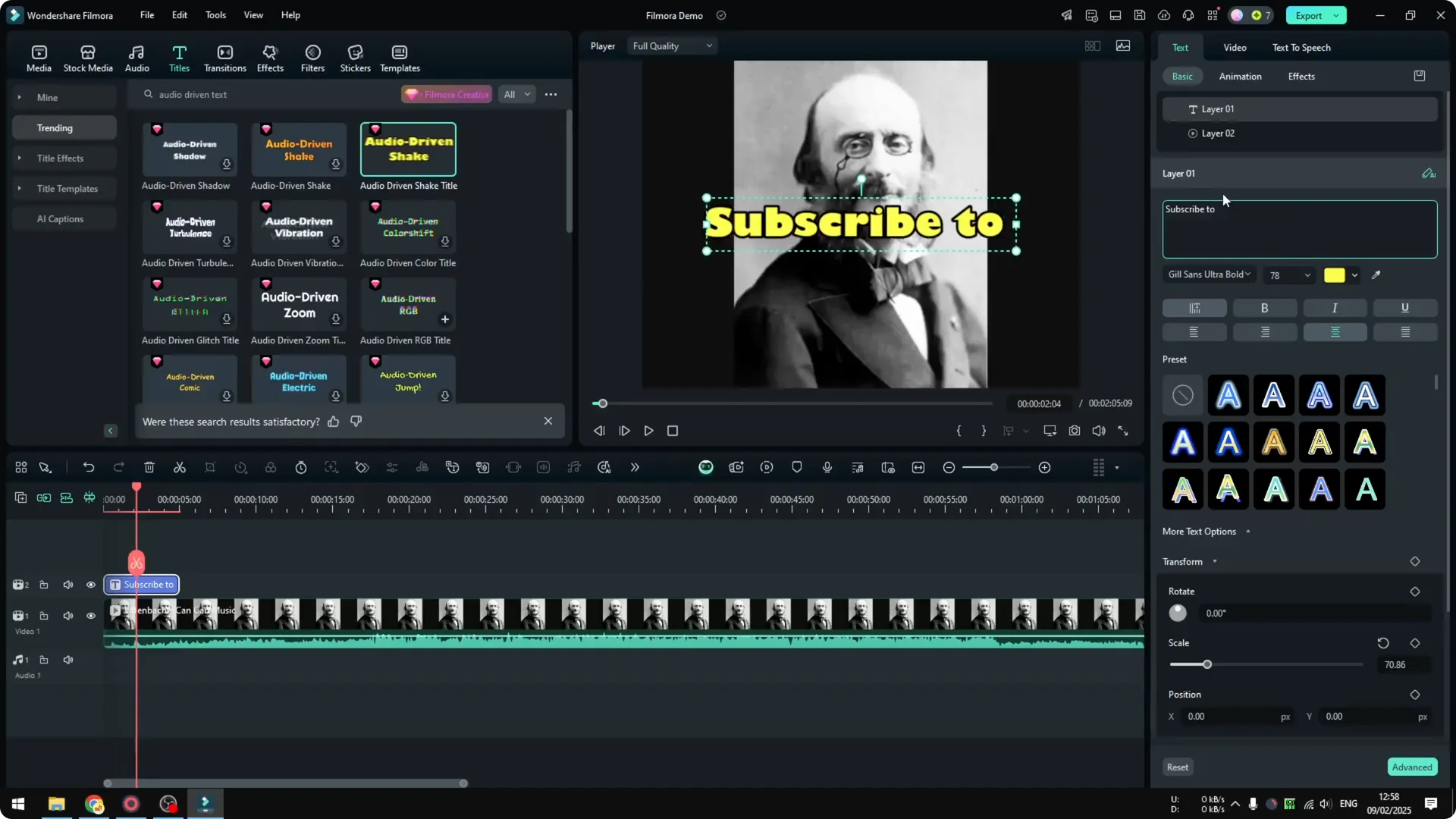
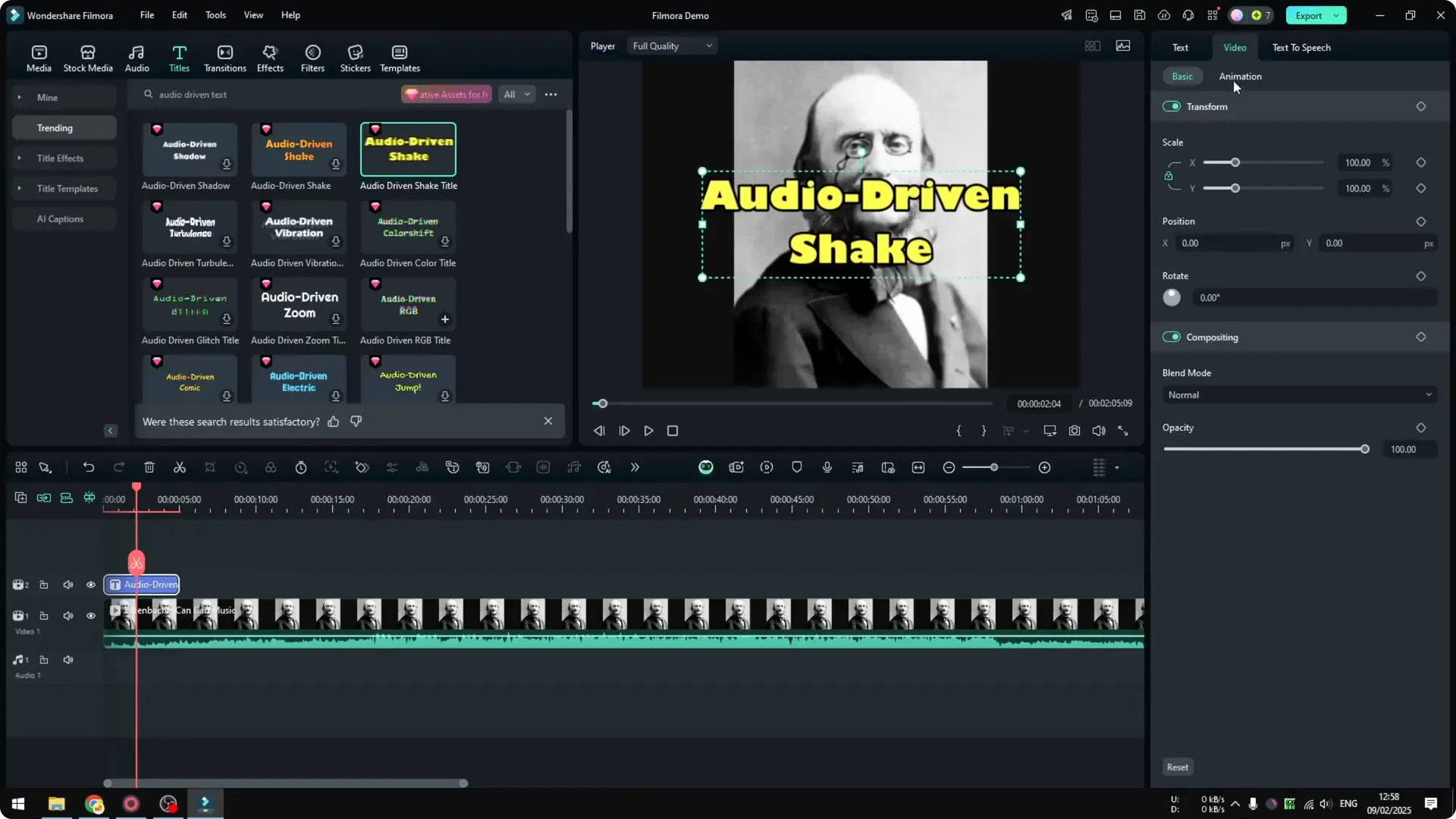
Extend the title clip on the timeline if you want it to last longer. Place the start of the clip near a strong beat for a punchy entrance. You can layer it with other elements for added impact.
Preview and timing
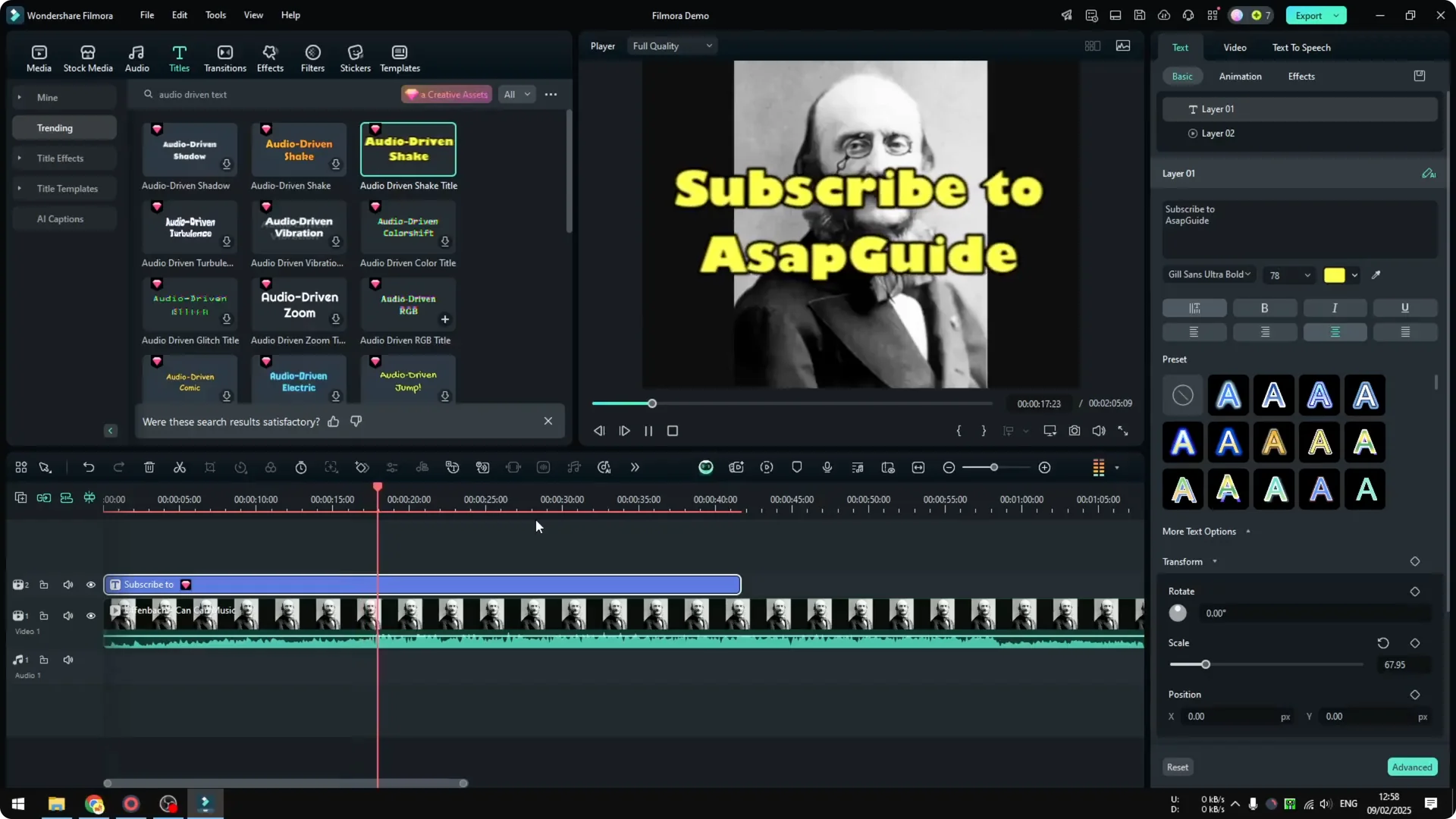
Play the timeline to see the text react to the audio. The animation will trigger on changes in the music and align with the rhythm. If the reaction is too subtle or too strong, try a different audio-driven title from the same section.
For more creative visual tricks to pair with titles, explore this effect that flips perspective with an upside down city look in Filmora.
Final thoughts
Audio-driven text effects in Filmora add dynamic motion that follows your soundtrack. Choose a template you like, edit the text, and place it over a music track to see instant results. If you need more control, try multiple templates until the reaction matches your beat.