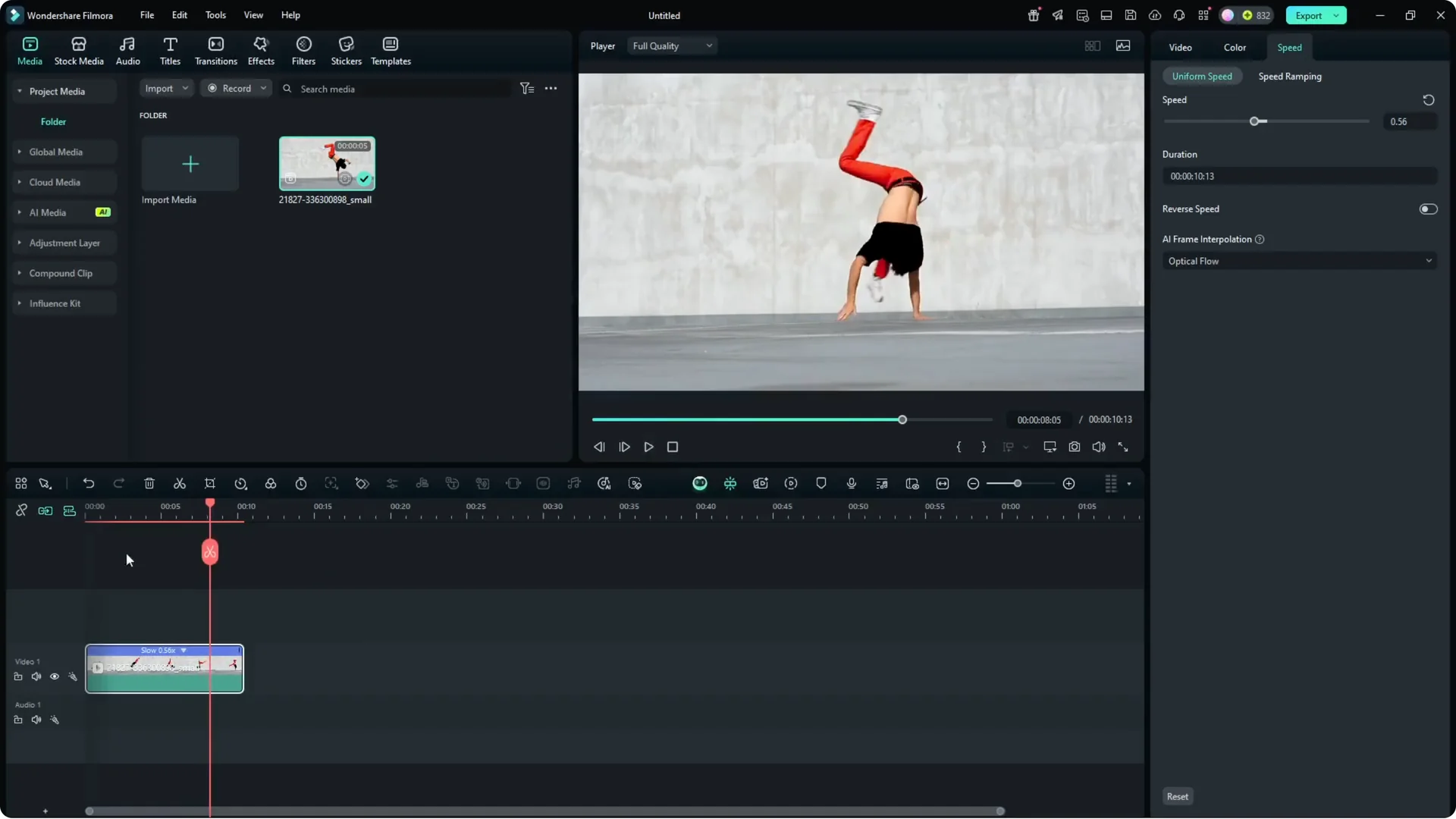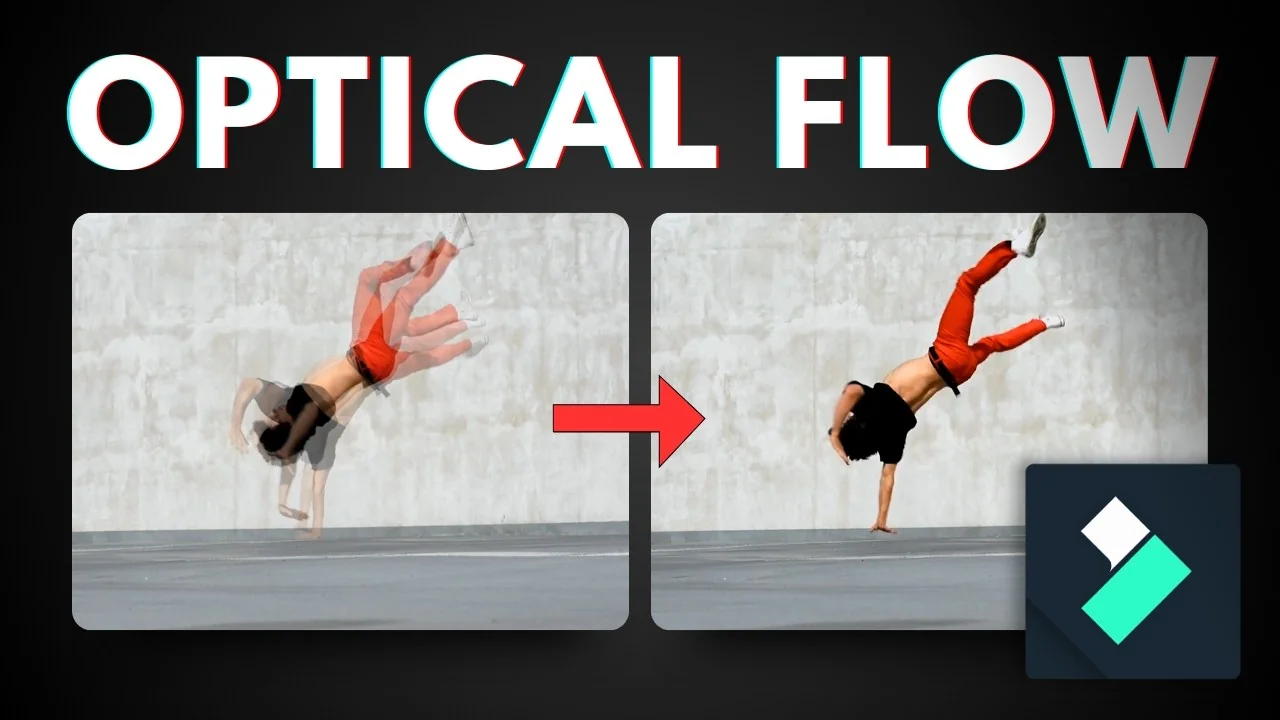
Turn Any Video to Slow Motion – Filmora AI

How do you create a nice and smooth slow motion video? First, record a video with at least 120 frames per second and preferably 240 frames per second. The problem is a lot of people don’t realize this setting, and even though their camera or smartphone is probably enough to record a slow motion video, they don’t usually do that. A lot of times the video was recorded in 60 or maybe 30 frames per second, which is not enough to create a smooth and nice slow motion video.

Fortunately there is a way in Filmora AI to make a slow motion video, and there’s a feature called AI Frame Interpolation. The idea is simple: it guesses the frame based on the previous or the next frame and creates smooth movement. It will fill the gap, so it can turn 60 frames into 120 frames, which is really nice.

Filmora AI Frame Interpolation: What It Does

AI Frame Interpolation analyzes the frames you already have and generates in-between frames to make motion look smoother at slower speeds. You can take a clip that was not recorded at a high frame rate and improve the smoothness after slowing it down.

Filmora AI Frame Interpolation: Step-by-Step

Prepare the clip and slow it down
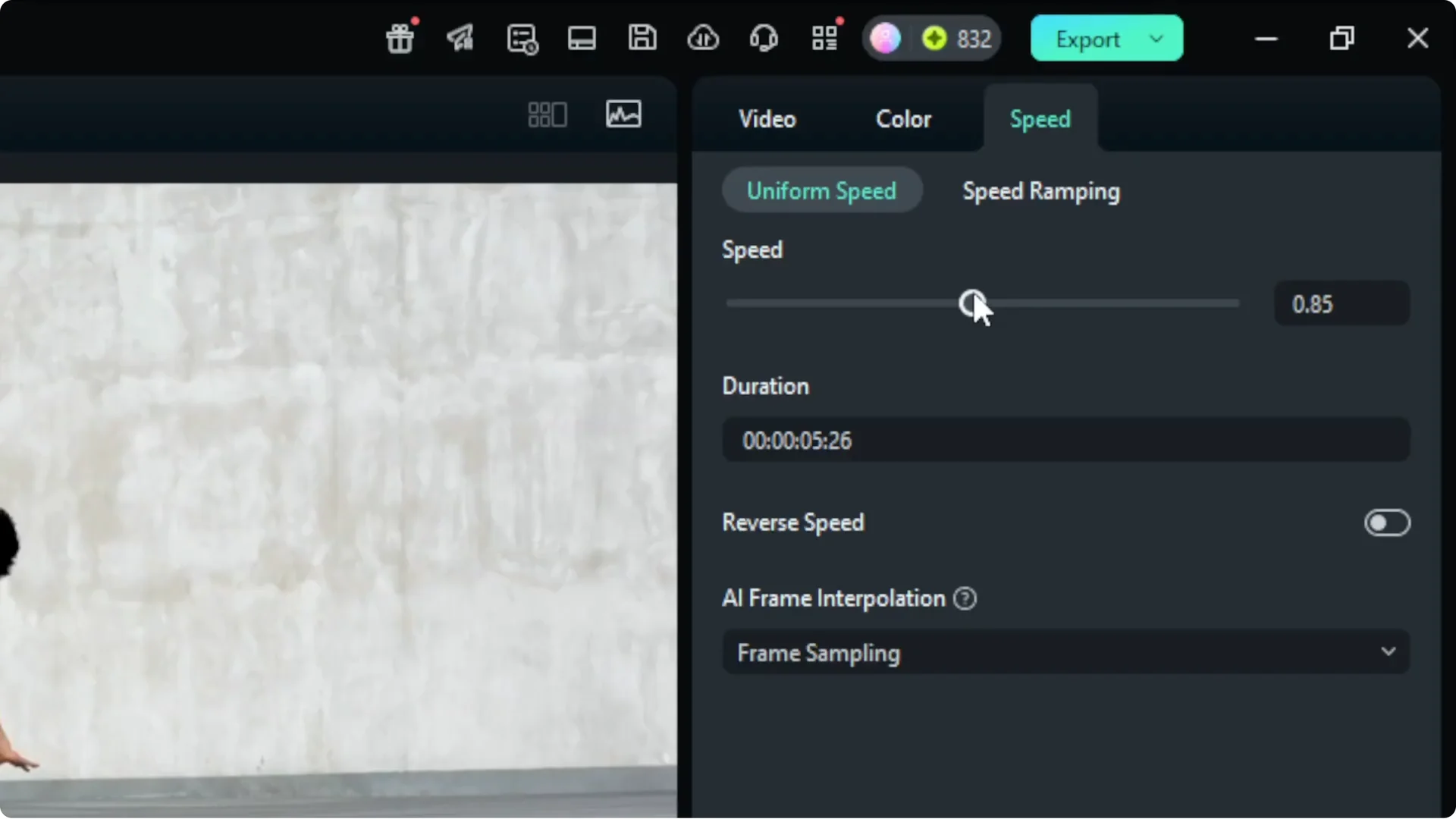
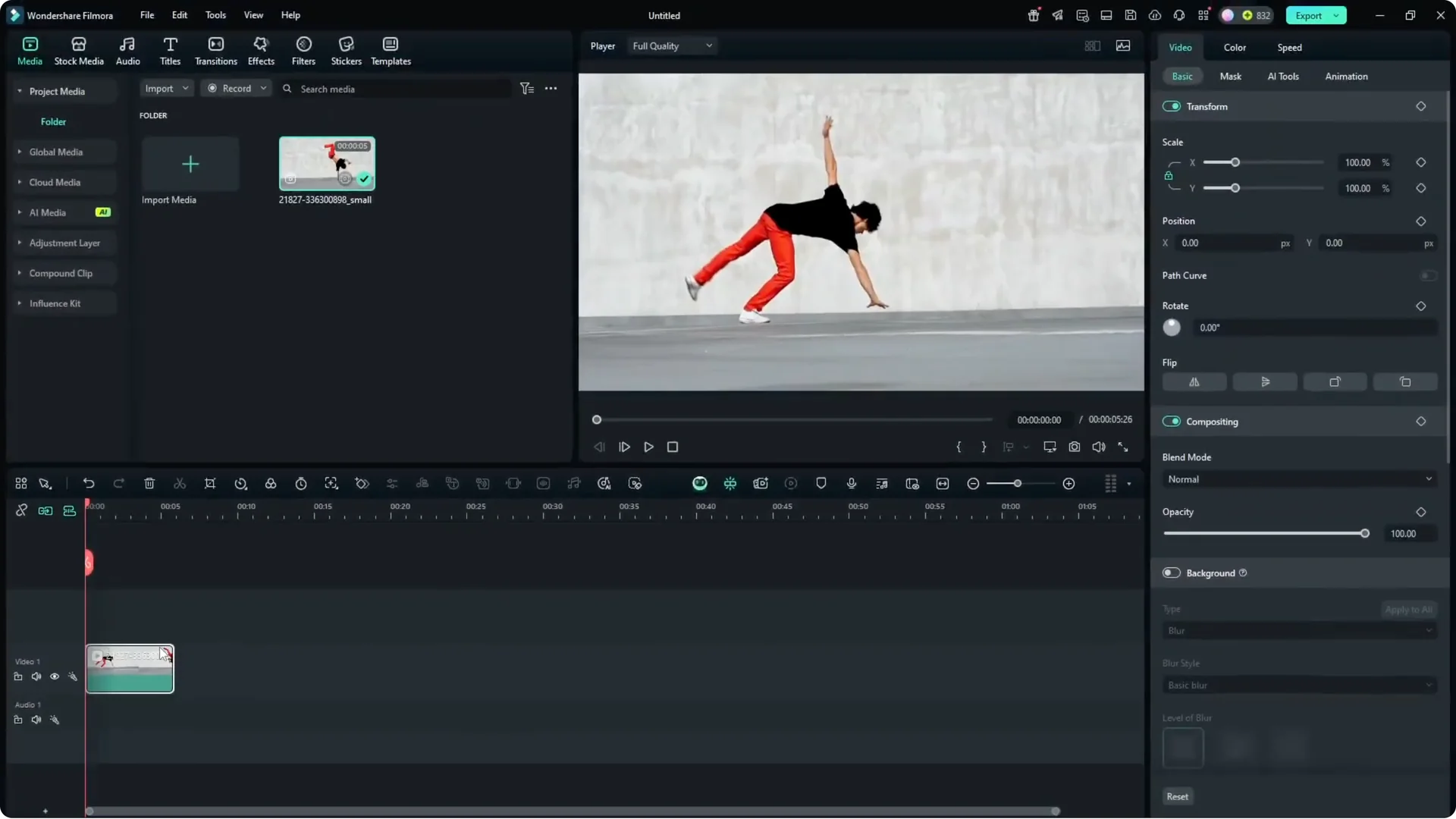
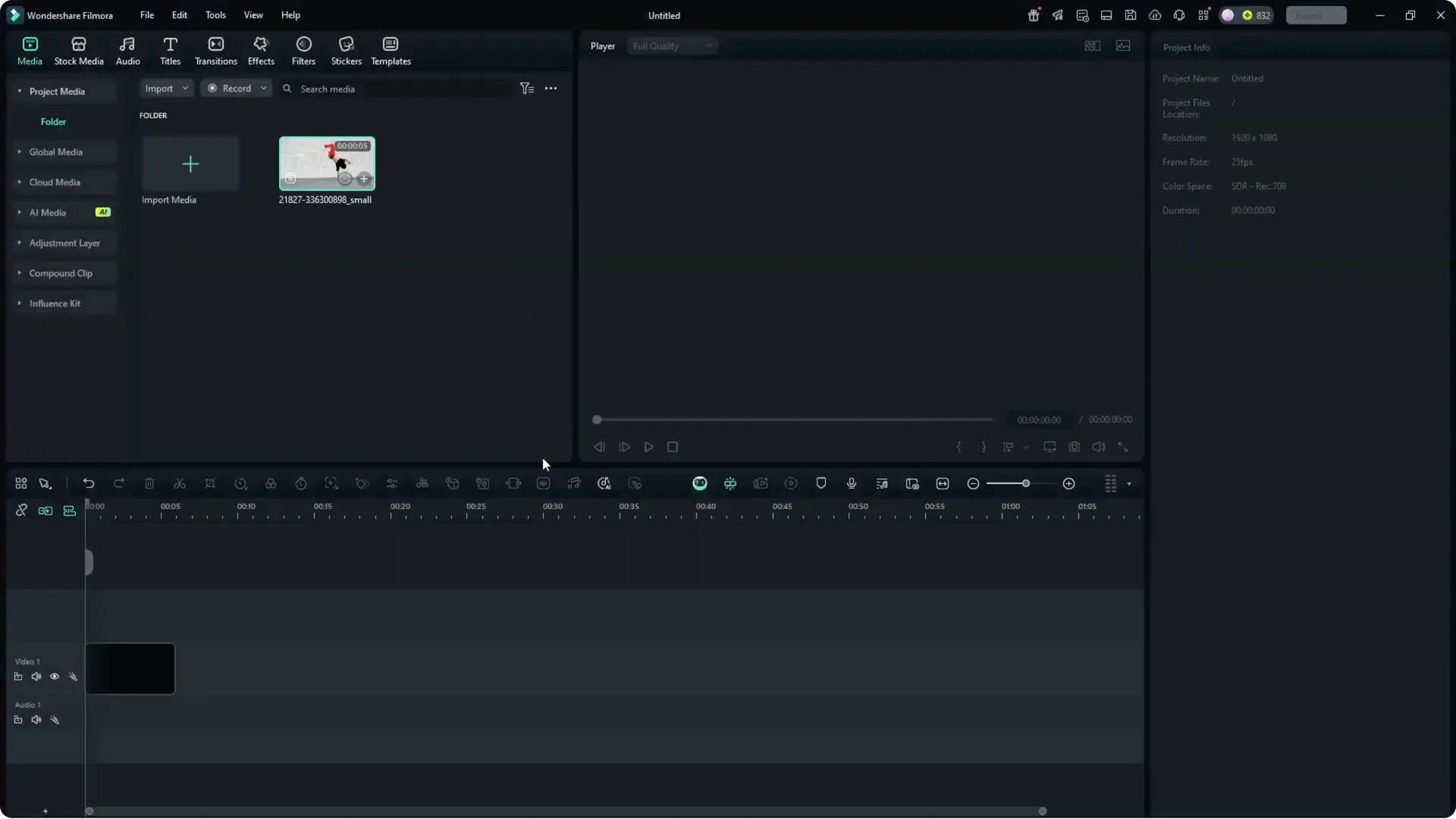
  • Add your video to the timeline and match the media settings.
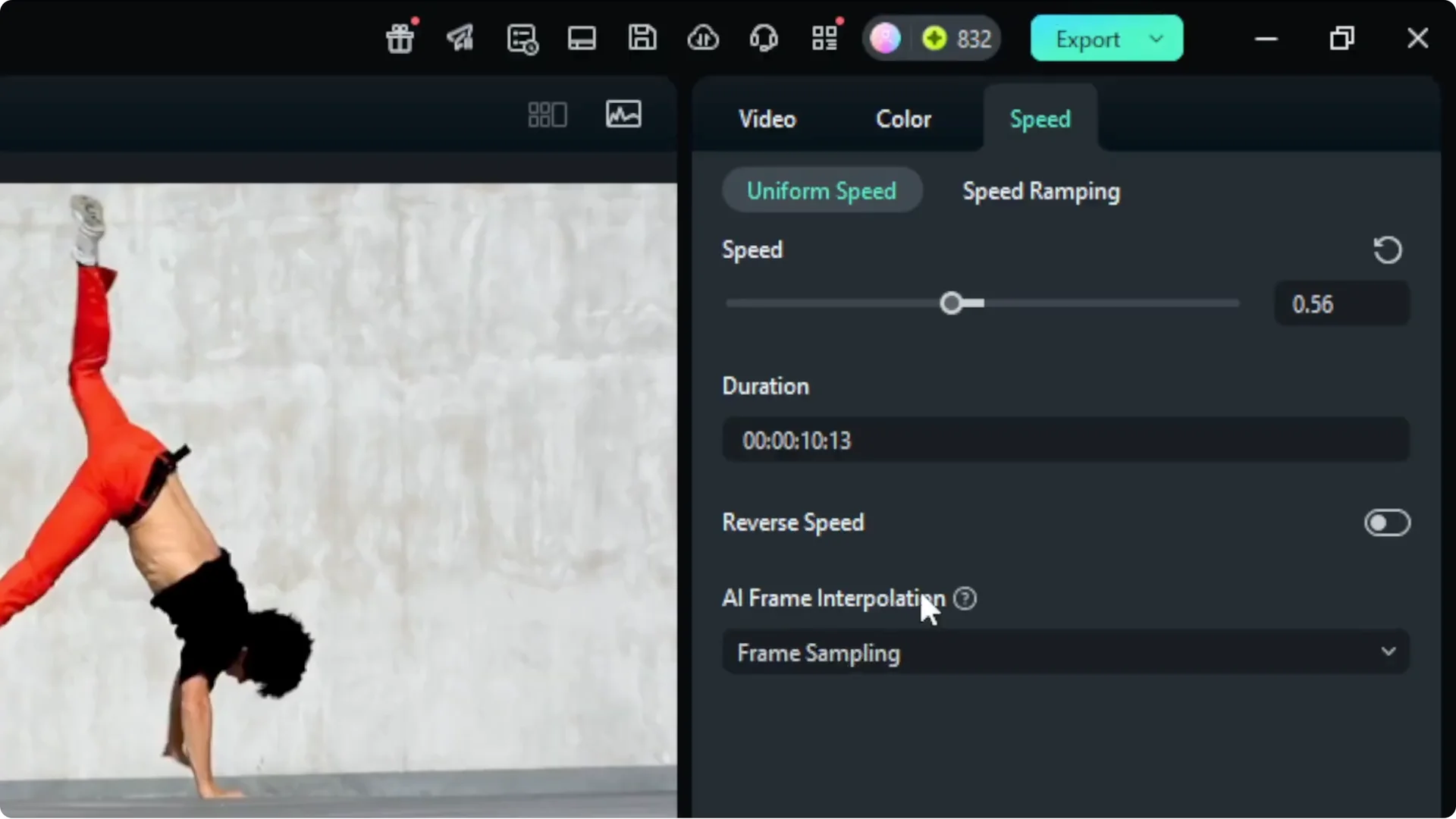
  • If your clip is about 5 seconds long and you want it to be around 10 to 12 seconds, open the Speed controls.
  • Reduce the speed to around 0.5 or 0.6. The duration should roughly double.
  • When you play the video now, it will likely look jittery and not smooth at all. It’s not close enough to be called a nice slow motion video yet.
  • Turn Any Video to Slow Motion - Filmora AI screenshot 3

    Turn Any Video to Slow Motion - Filmora AI screenshot 2

    Turn Any Video to Slow Motion - Filmora AI screenshot 1

    Apply AI Frame Interpolation

  • Select the clip and open the same Speed menu.
  • Enable AI Frame Interpolation.
  • Choose between Frame Blending and Optical Flow. Generally speaking, Optical Flow is better for this.
  • This is an AI feature that runs on your computer. If your computer is fast, you can see results more quickly. If it’s slow, processing may take a while.
  • Turn Any Video to Slow Motion - Filmora AI screenshot 5

    Turn Any Video to Slow Motion - Filmora AI screenshot 4

    Render a preview to see the actual result
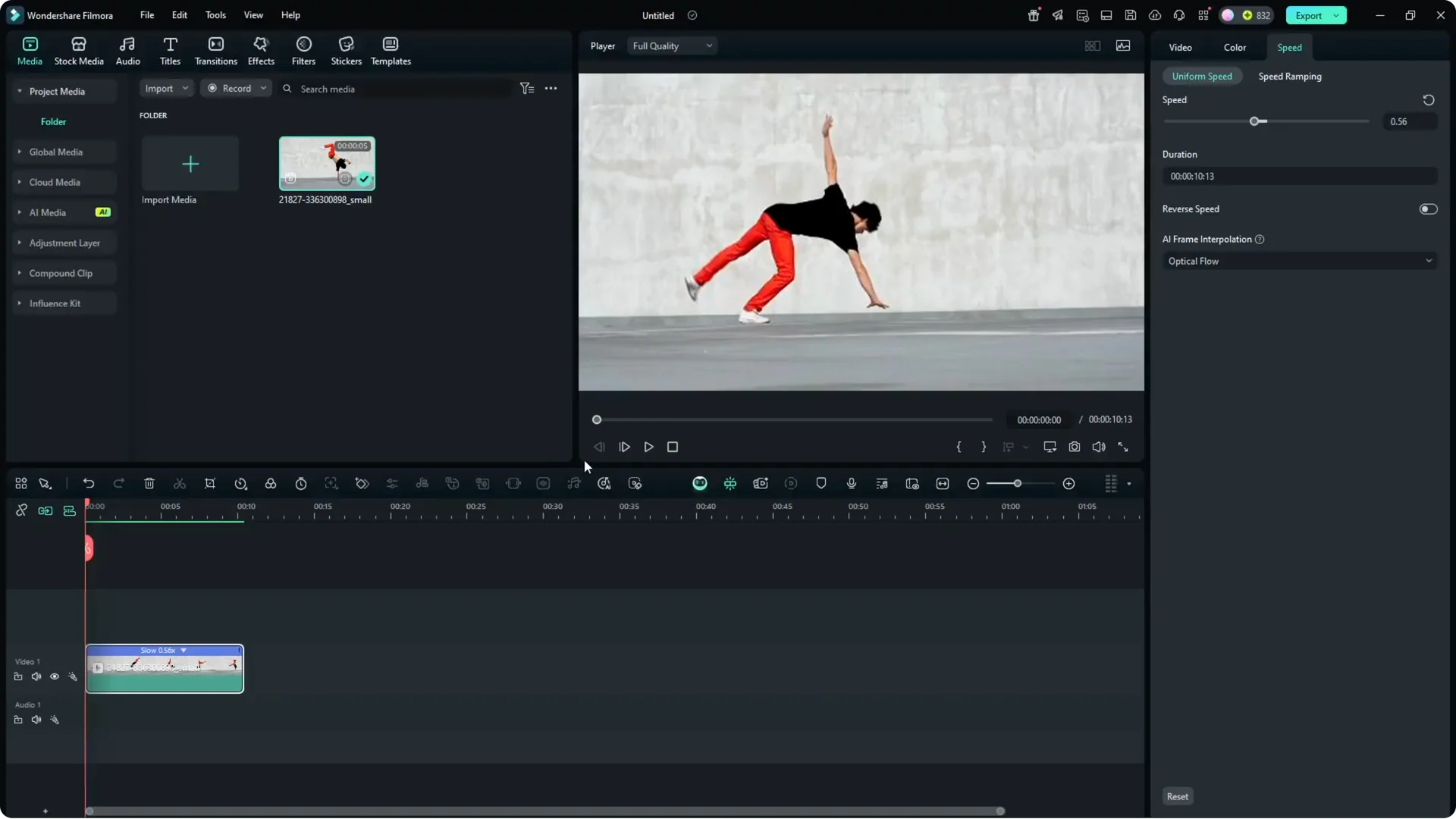
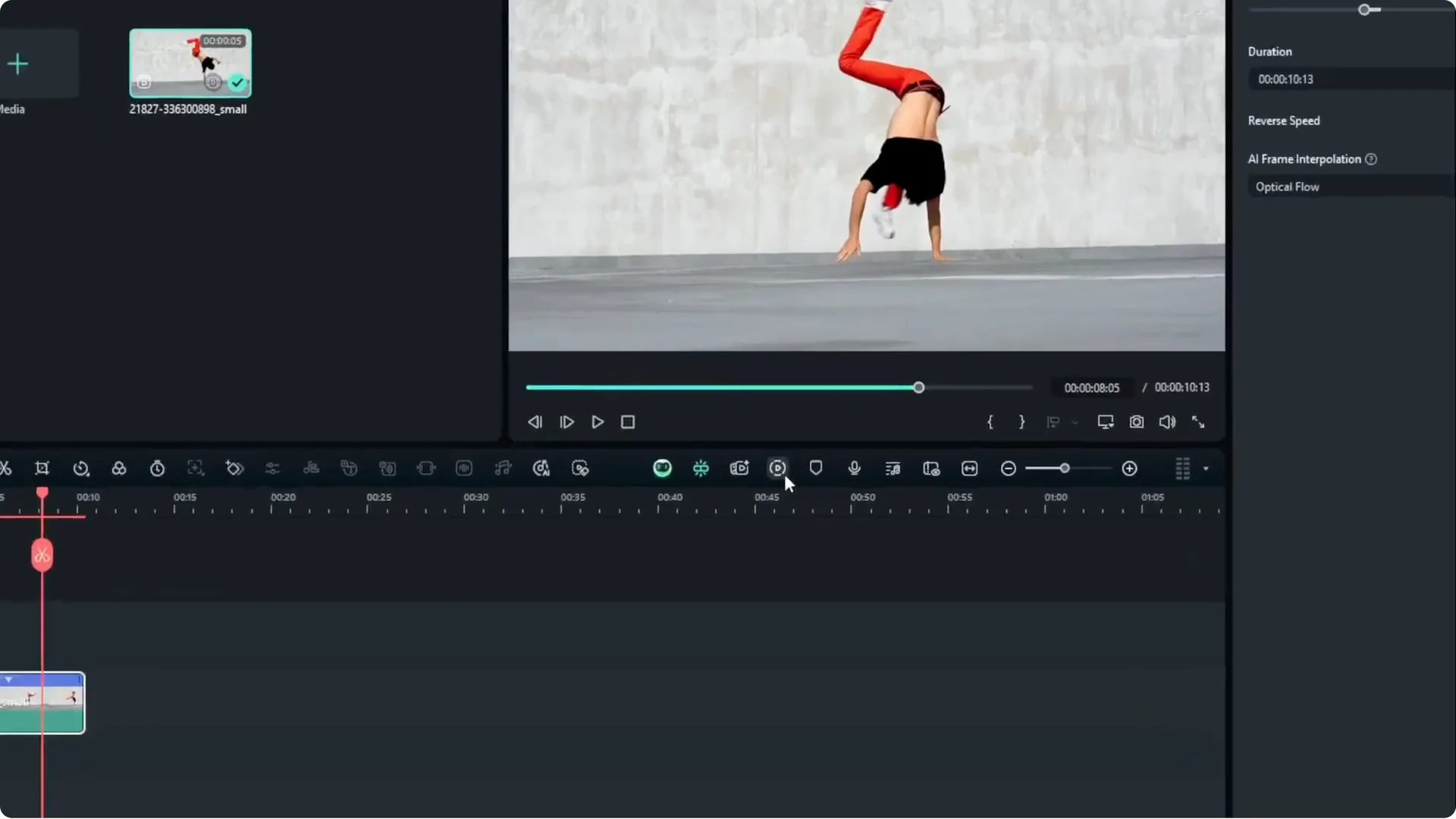
  • You won’t see the interpolation directly on the timeline.
  • Either export the video or click Render Preview to generate a preview.
  • Rendering creates the new frames based on your current frames and speed. The time it takes depends on your hardware.
  • After rendering, play the video again. The result is much smoother. It’s not exactly perfectly smooth, and it’s not going to be perfect, but it’s good enough to make the video appear smoother.
  • Turn Any Video to Slow Motion - Filmora AI screenshot 8

    Turn Any Video to Slow Motion - Filmora AI screenshot 7

    Turn Any Video to Slow Motion - Filmora AI screenshot 6

    Final Thoughts

    Recording at 120 fps or 240 fps is the best way to get smooth slow motion. If your footage is 60 fps or 30 fps, Filmora AI Frame Interpolation can fill in frames and improve the smoothness after slowing the clip down. Use Optical Flow, render a preview, and you’ll get a result that looks much better.

    Leave a comment