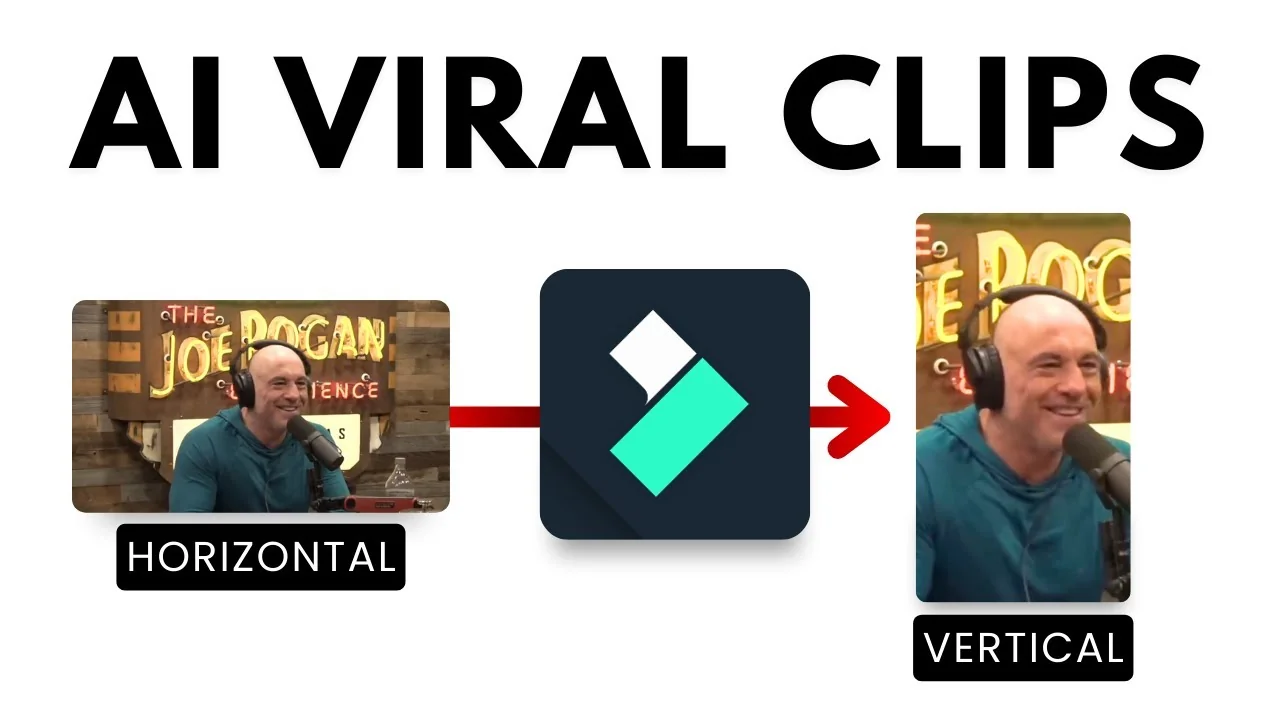
Short-form vertical clips are a popular format. You can feed a long-form video like a podcast or interview into AI tools that convert it to 9:16 for YouTube Shorts, Instagram Reels, and TikTok, but those are usually paid services. If you already use Filmora, you can combine built-in features to achieve the same result. It is not explicitly highlighted in Filmora’s documentation, but the workflow below works.
I’ll demonstrate using a shorter version of an interview that is 4 minutes long. I’ll create roughly a 1 minute version and convert it to a 9:16 aspect ratio because the original is horizontal, which is better for desktop than mobile.
Filmora AI Shorts Conversion – Workflow Overview
Filmora AI Shorts Conversion – Step 1: Auto Reframe to 9:16
Auto Reframe converts the video from one aspect ratio to another and tracks the subject so it stays framed properly.
Step-by-step:
1) Insert your video into Filmora.
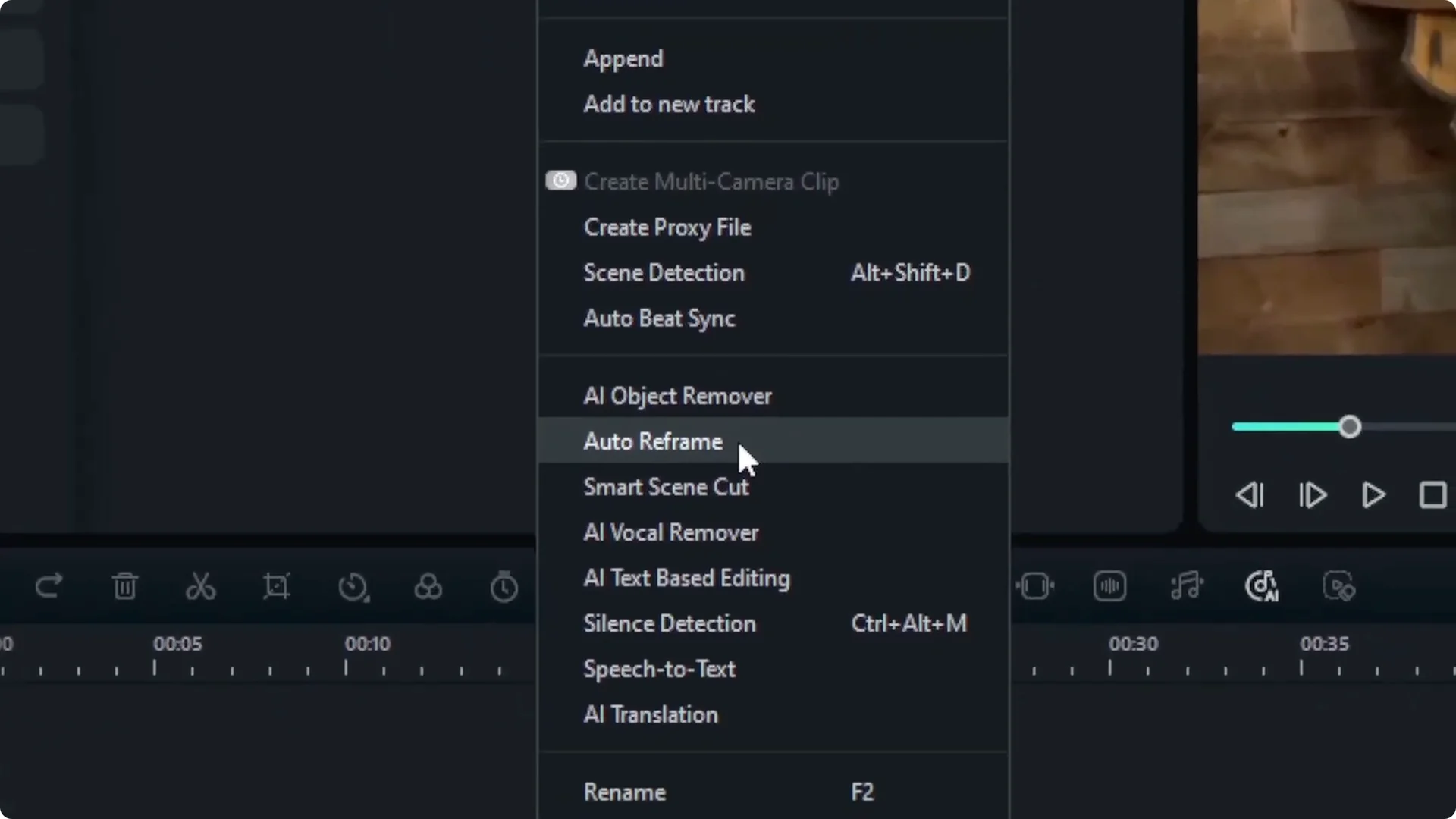
2) Right-click the clip and select Auto Reframe.
3) Set the target aspect ratio to 9:16 (vertical).
4) Set Motion Speed to Auto. You can try Slow or Fast, but Auto is the best approach here.
5) Click Analyze and wait for Filmora’s AI to find the subject and reframe based on the new aspect ratio.
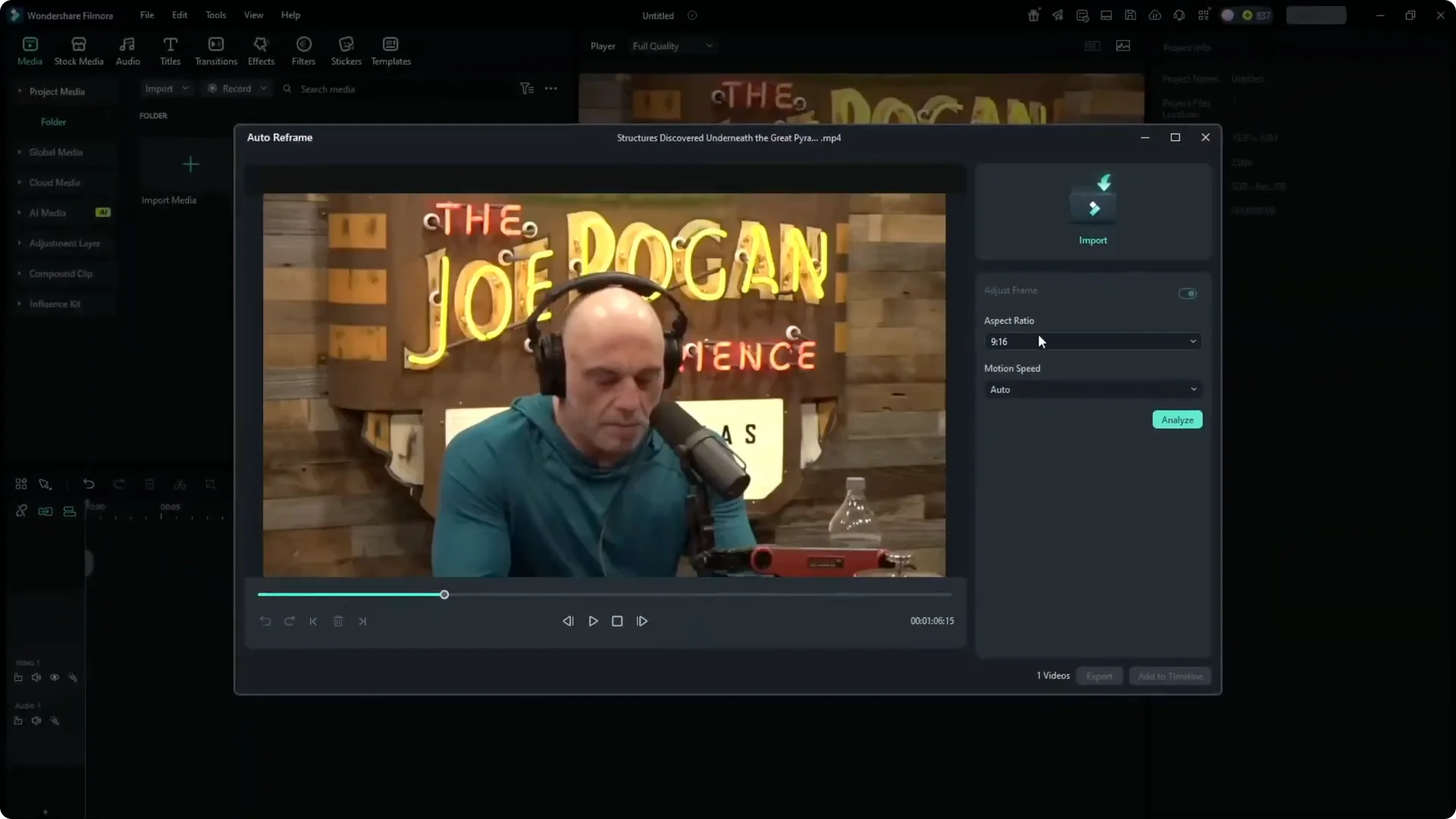
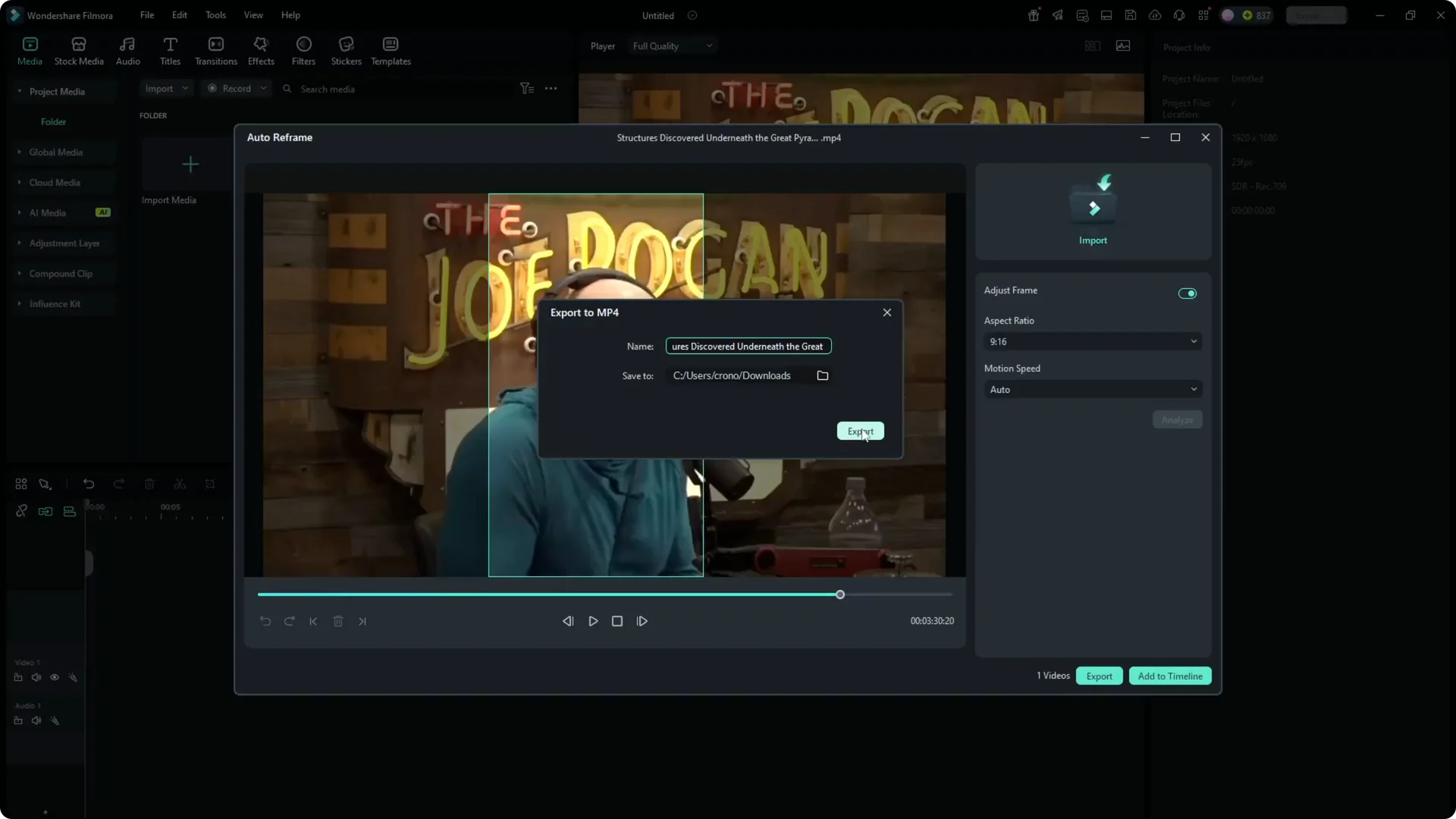
This process can take a while depending on duration. The result shows the area that will be cropped and exported into the new video. It detects faces and keeps them centered as the video plays. In some cases with multiple faces, it can get confused, but if the video is not too complex or does not contain many people, it is usually consistent.

When you are done, click Export. You can also click Add to Timeline if you want to edit immediately, but exporting first works better because the next step will extract highlights from the 9:16 version.
Filmora AI Shorts Conversion – Step 2: Smart Scene Cut for Highlights
Smart Scene Cut analyzes the video to find key moments and returns a set of clips ready to assemble into a short.
Step-by-step:
1) Drag and drop the newly exported 9:16 video back into Filmora.
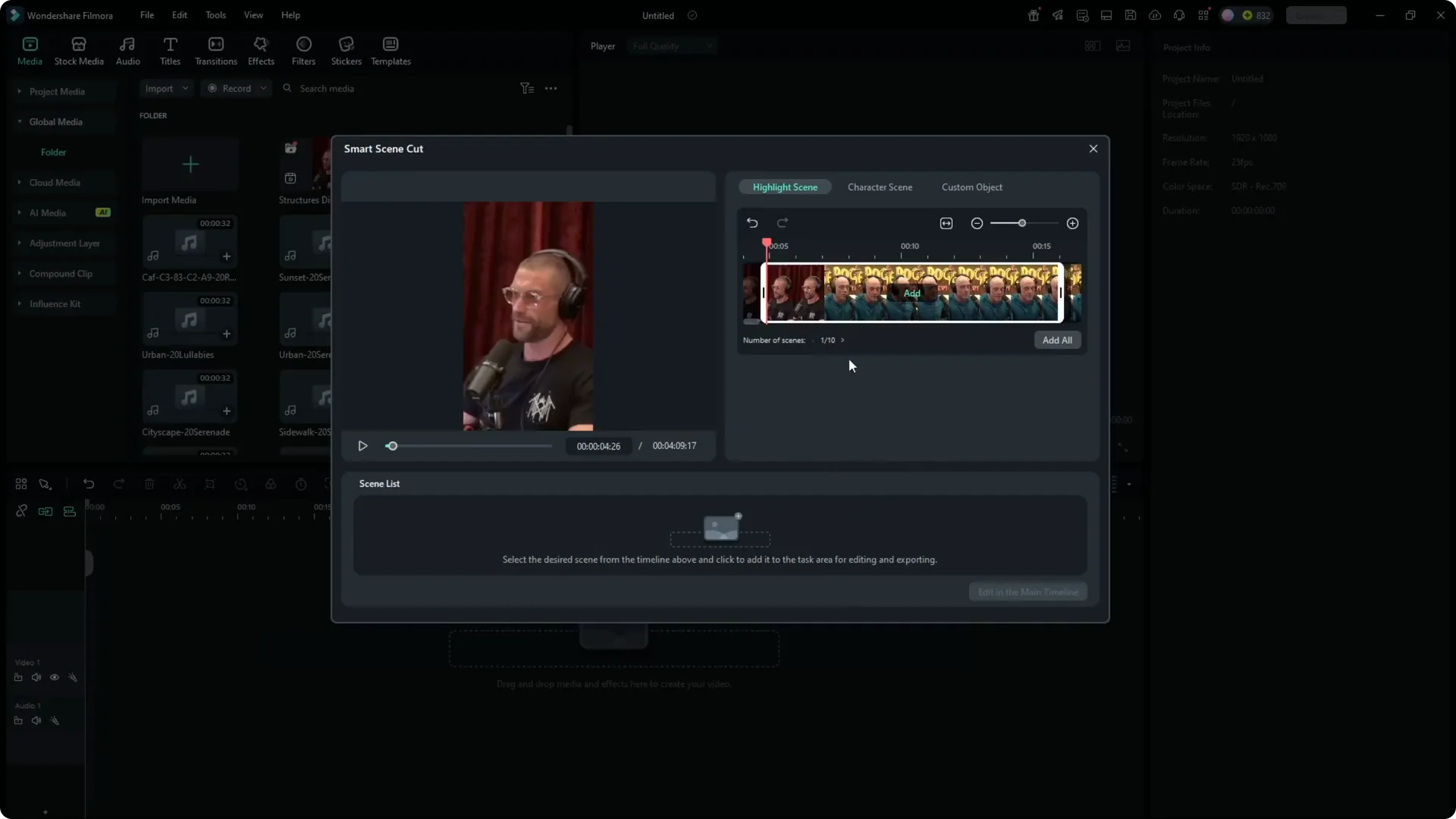
2) Right-click the 9:16 clip and choose Smart Scene Cut.
3) Start the analysis. The video is uploaded to Filmora’s server, and it consumes 5 credits. Filmora credit usage is quite generous and affordable, so 5 is minimal here.
4) Wait for the process to finish. Filmora will identify highlighted scenes and present them as separate clips.


Click Add All to send all selected highlights to your timeline. Follow the new media resolution and dimensions. You will see a condensed sequence that keeps the most interesting elements, removes unnecessary silence, and maintains smooth transitions. In my case, it went from 4 minutes to around 1 minute.
Filmora AI Shorts Conversion – Export and Share
Export the finished short and upload it to your social media accounts. The vertical format and tighter pacing make it far more suitable for Shorts, Reels, and TikTok.
Final Thoughts
You can create short, vertical clips from longer videos inside Filmora by combining Auto Reframe for 9:16 conversion with Smart Scene Cut for highlight extraction. The AI reframing keeps subjects centered, and the scene analysis trims silences and less interesting sections. This approach gives you a quick way to repurpose interviews and podcasts into engaging short-form content.