How to Speed Up or Slow Down Video in Filmora with Cinematic Look

This is how you can speed up or slow down a video in Filmora. I start with a basic slowdown on a specific section, then show how to make it look a lot cooler with cinematic speed ramping.

Filmora Speed Ramping: Basic speed changes on a section

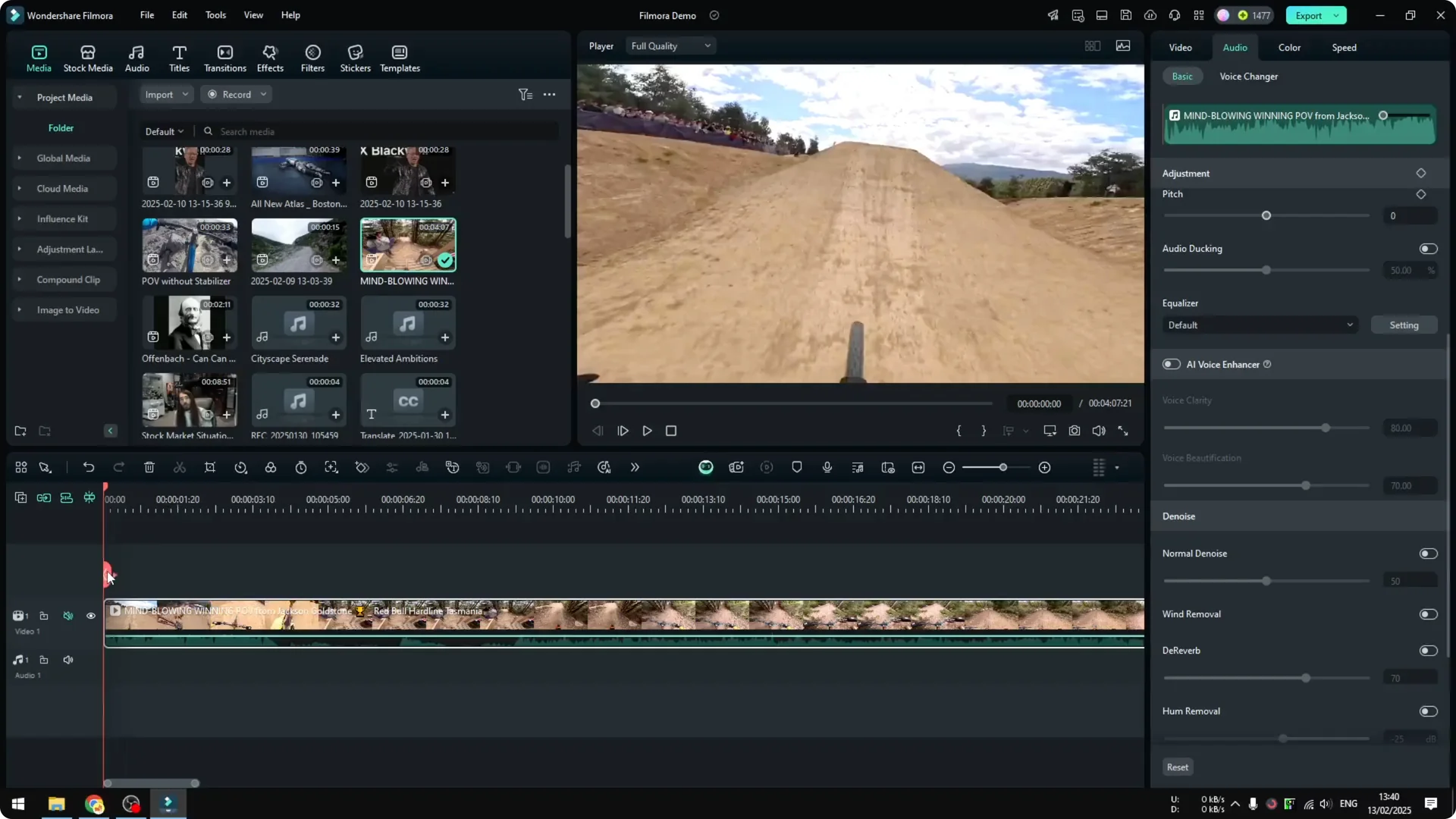
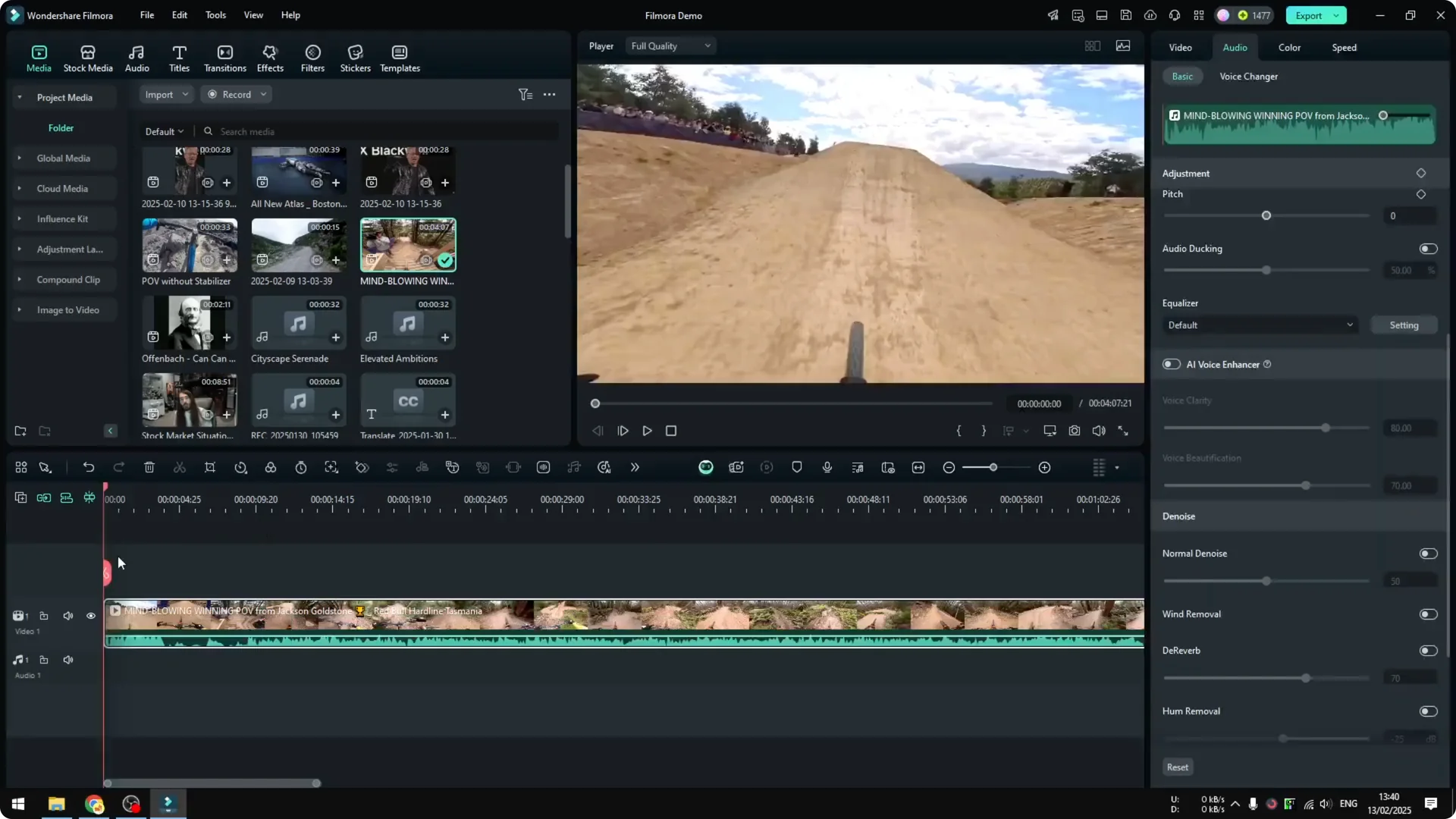
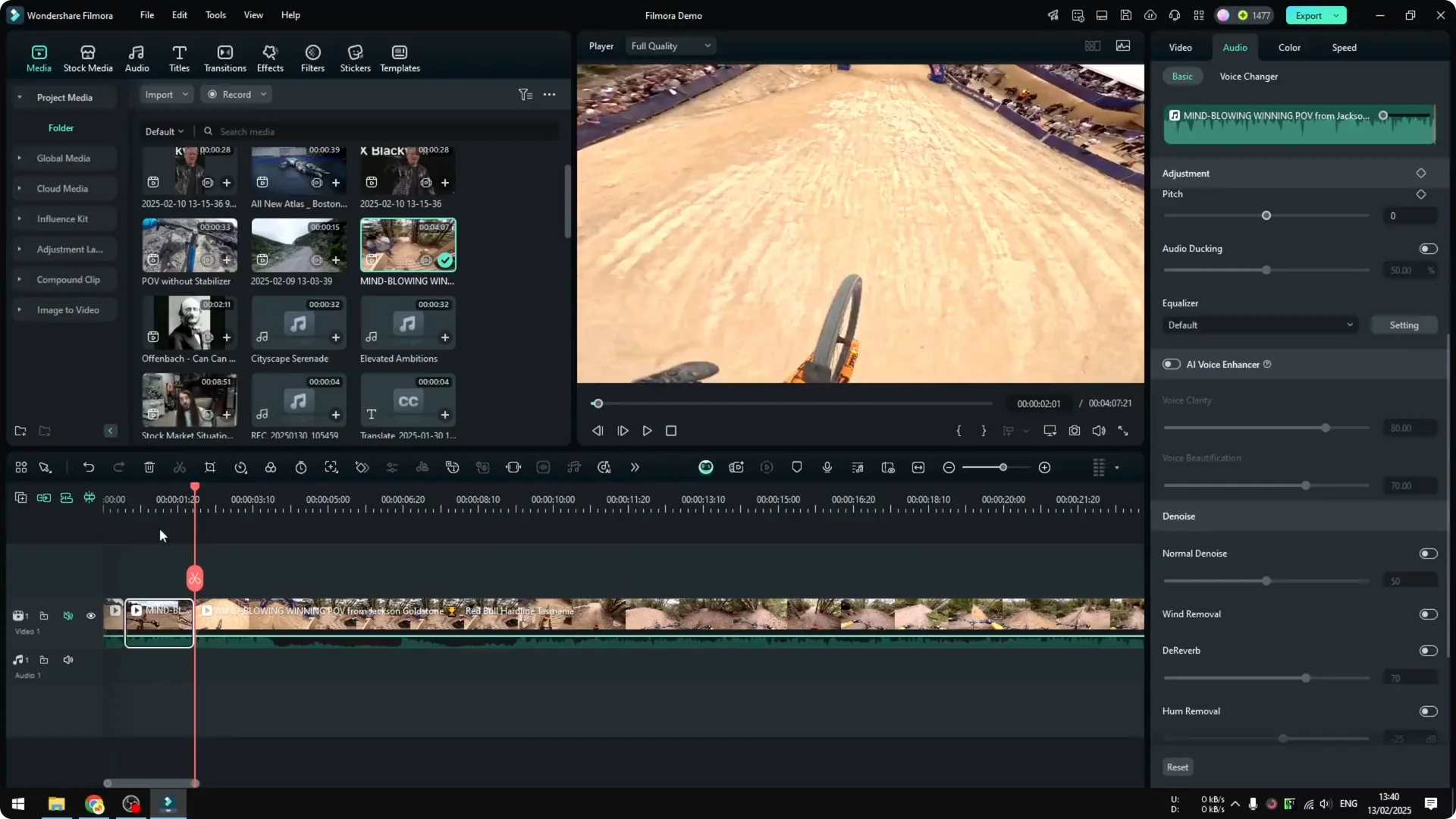
I have a video of someone riding a bicycle, and I want to add a slowdown effect to a certain section.

Step-by-step:
1. Drag the video into the project timeline.
2. Play the clip to find the section to slow down.
3. Split at the start and end of that moment to isolate the section.
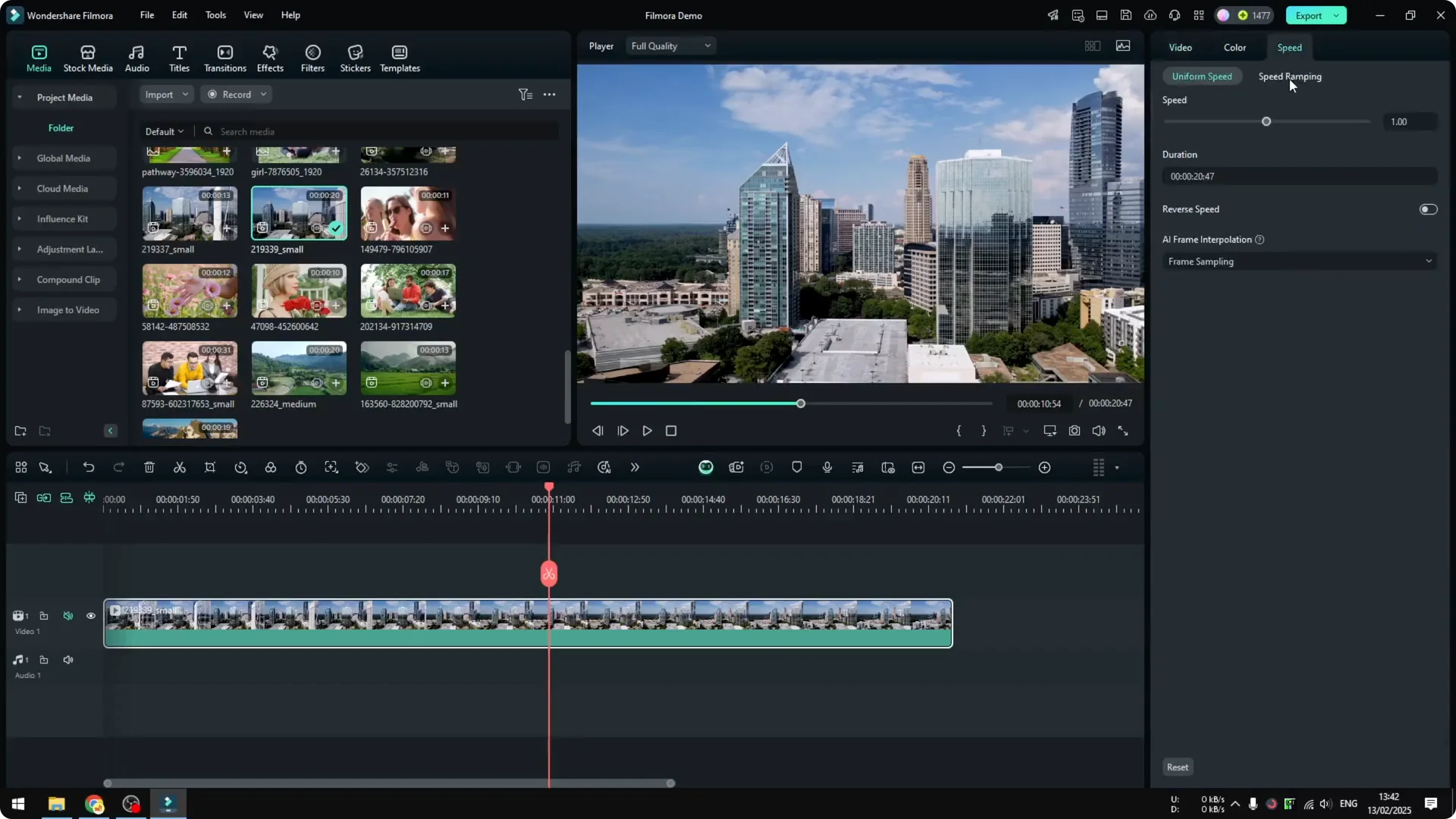
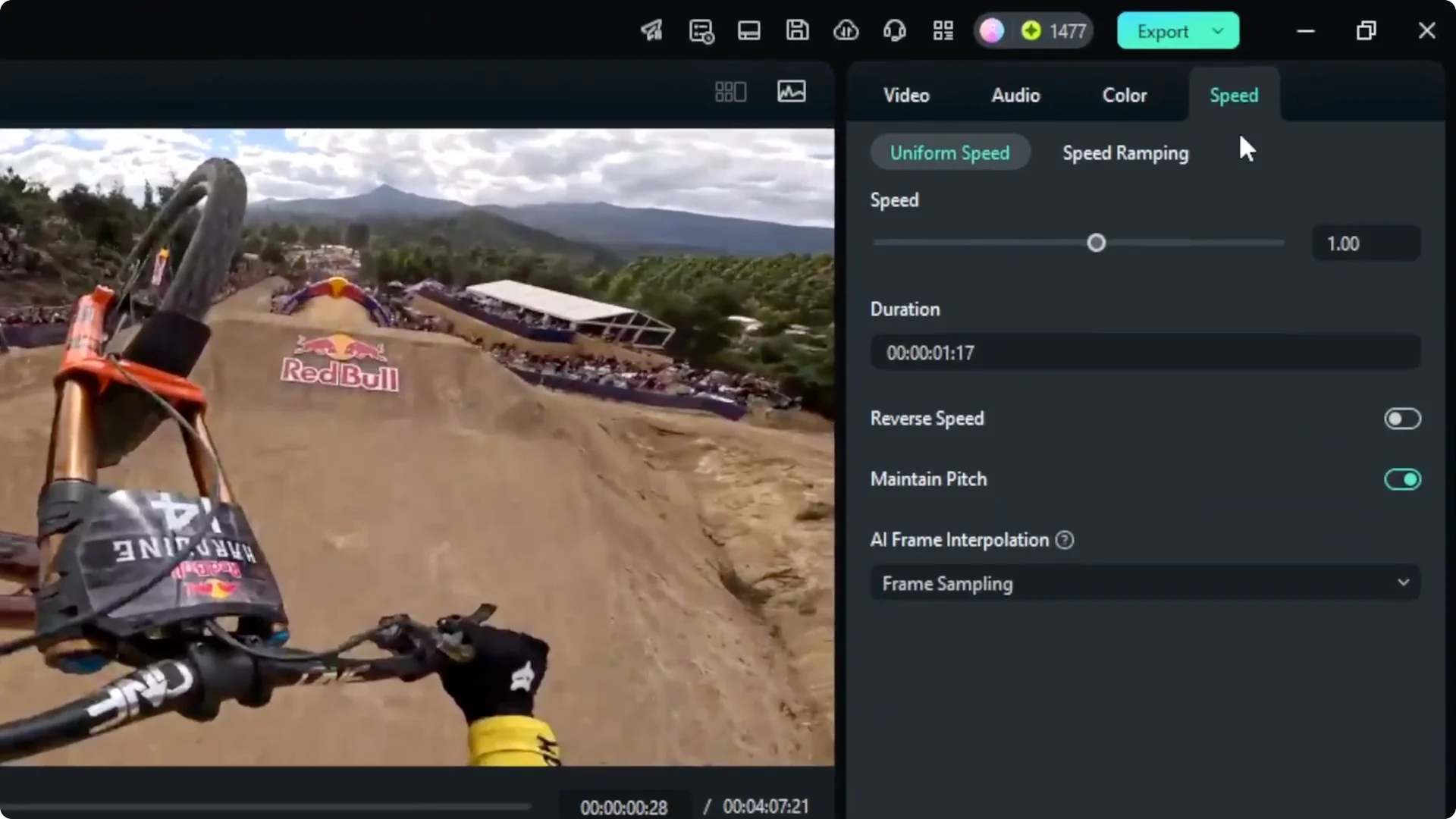
4. Select the section, go to Speed, and adjust the speed.
– Increase the number to make it faster.
– Decrease the number to make it slower or slow motion.
5. For example, set it to 0.3 for slow motion. The result is definitely slower, though it can be a bit choppy.
6. To make it faster, increase the number. For example, 1.5 makes everything run a lot faster.
How to Speed Up or Slow Down Video in Filmora with Cinematic Look screenshot 4

How to Speed Up or Slow Down Video in Filmora with Cinematic Look screenshot 3

How to Speed Up or Slow Down Video in Filmora with Cinematic Look screenshot 2

How to Speed Up or Slow Down Video in Filmora with Cinematic Look screenshot 1

Filmora Speed Ramping: Cinematic ramping with presets

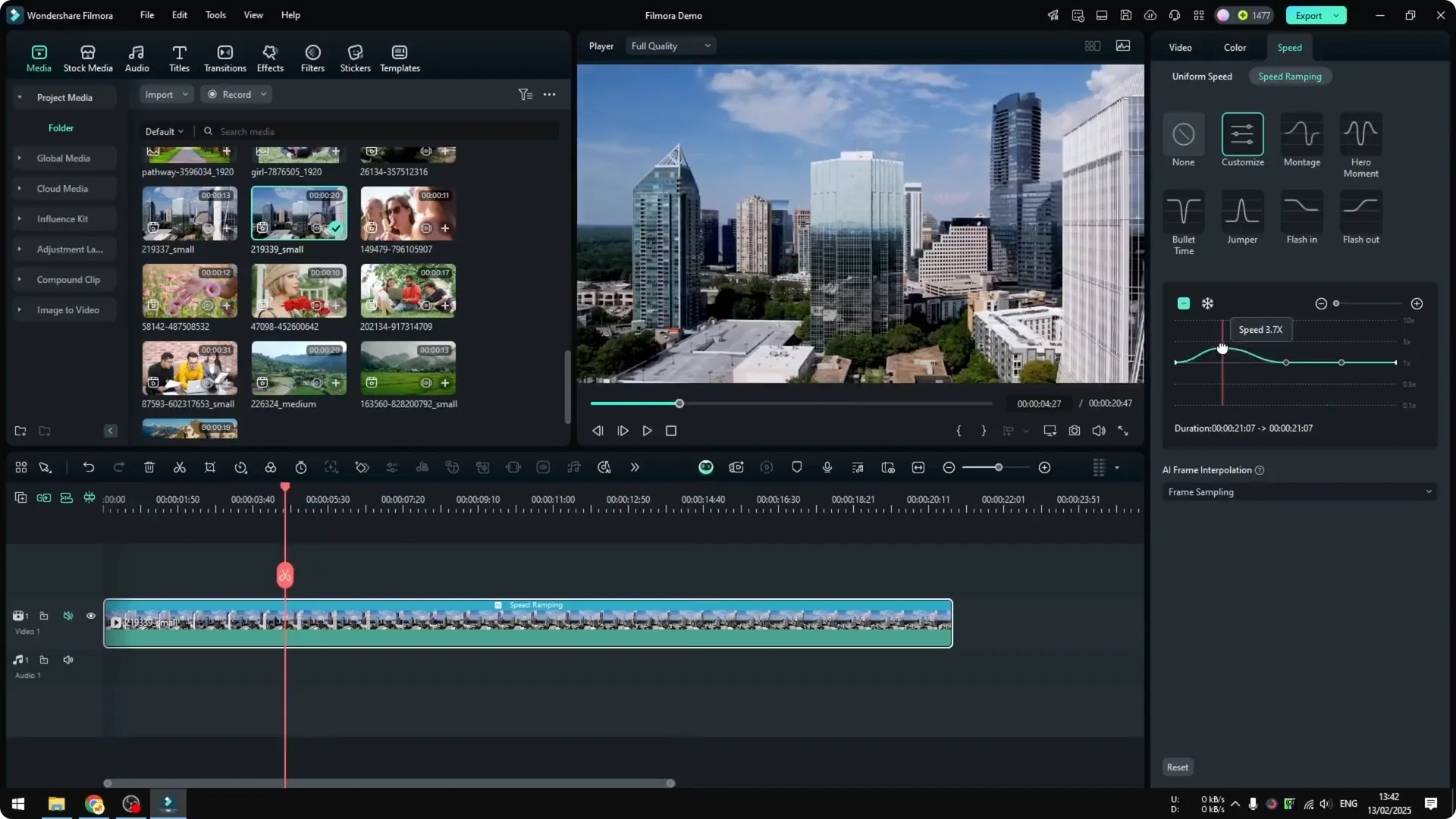
I switched to a different video, a drone footage of buildings. It looks okay but it’s very monotonous. Adding speed ramping makes it a lot more cinematic.
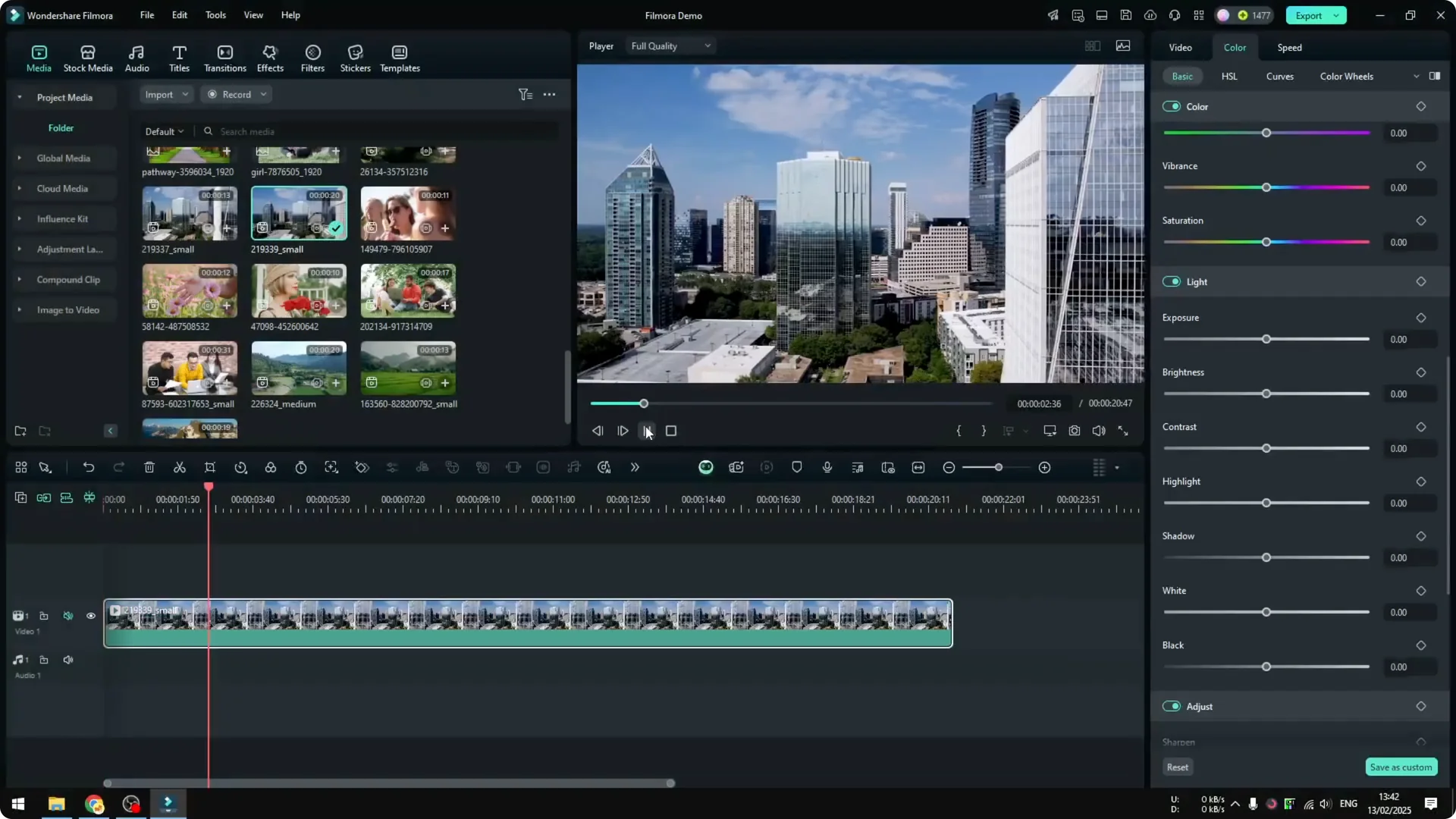
How to Speed Up or Slow Down Video in Filmora with Cinematic Look screenshot 5

Filmora Speed Ramping: Apply a preset
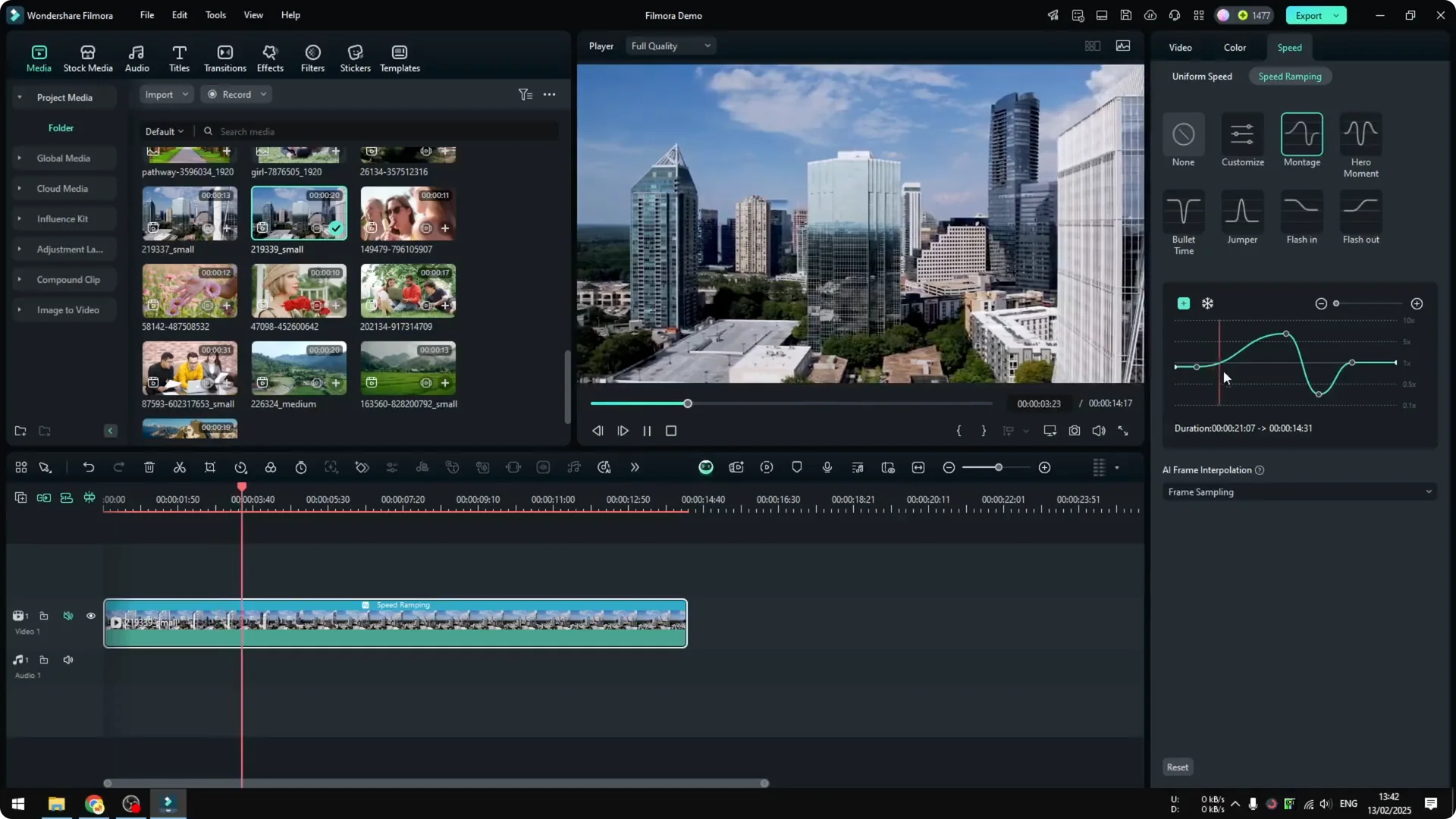
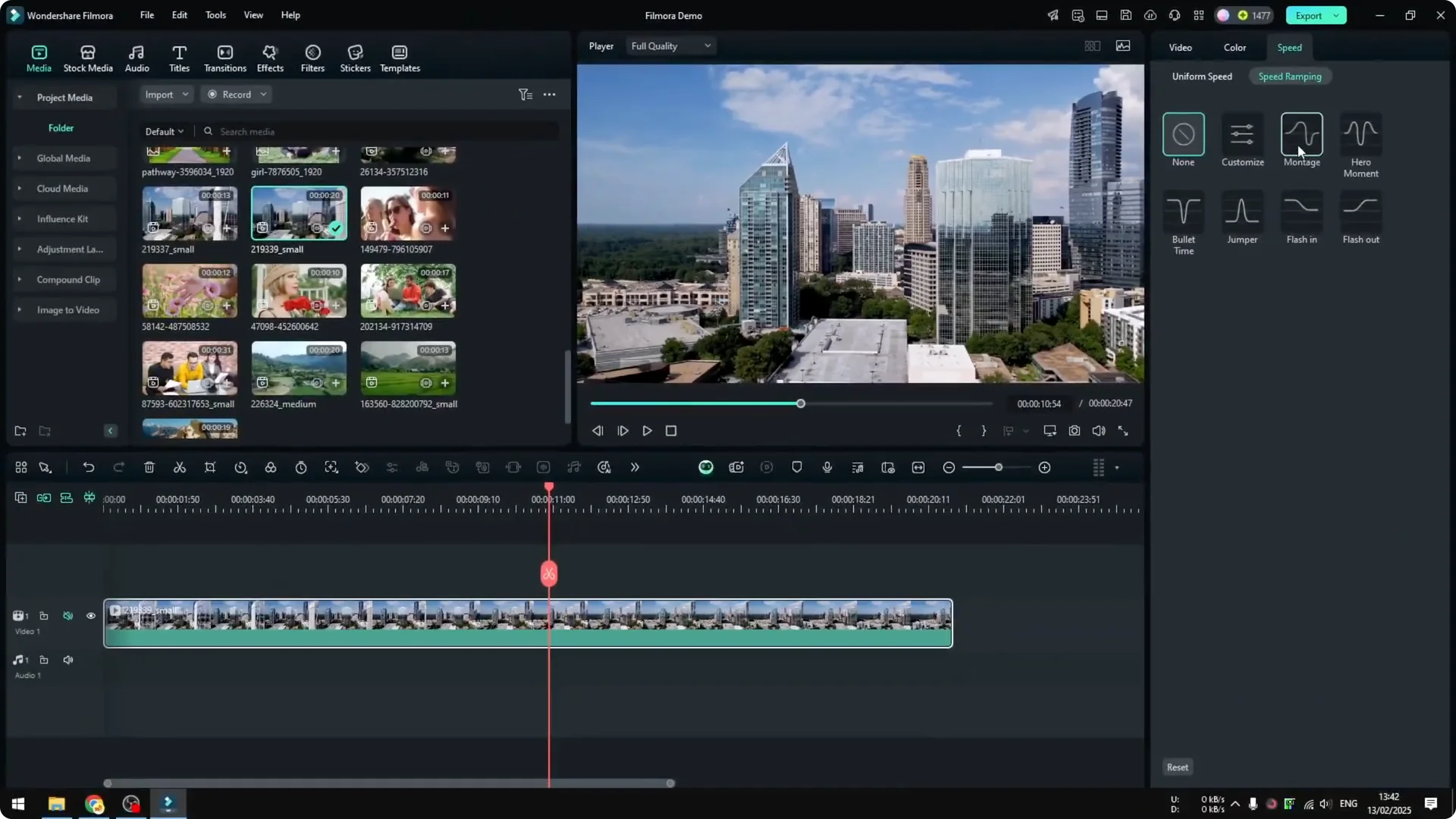
  • Click the video, go to Speed, then Speed Ramping.
  • Choose a profile. After applying it, the length of the video changes.
  • The result can look like this: it starts slow, then goes fast a little bit, then slows down, and finally goes back to normal. This is an effect you’ll have seen many times in movies, and it looks more cinematic.
  • How to Speed Up or Slow Down Video in Filmora with Cinematic Look screenshot 8

    How to Speed Up or Slow Down Video in Filmora with Cinematic Look screenshot 7

    How to Speed Up or Slow Down Video in Filmora with Cinematic Look screenshot 6

    Filmora Speed Ramping: Customize and add points

  • You can customize the speed at each point on the curve.
  • – Make it faster in one area.
    – Make it slower in another.
    – Speed it up again later.
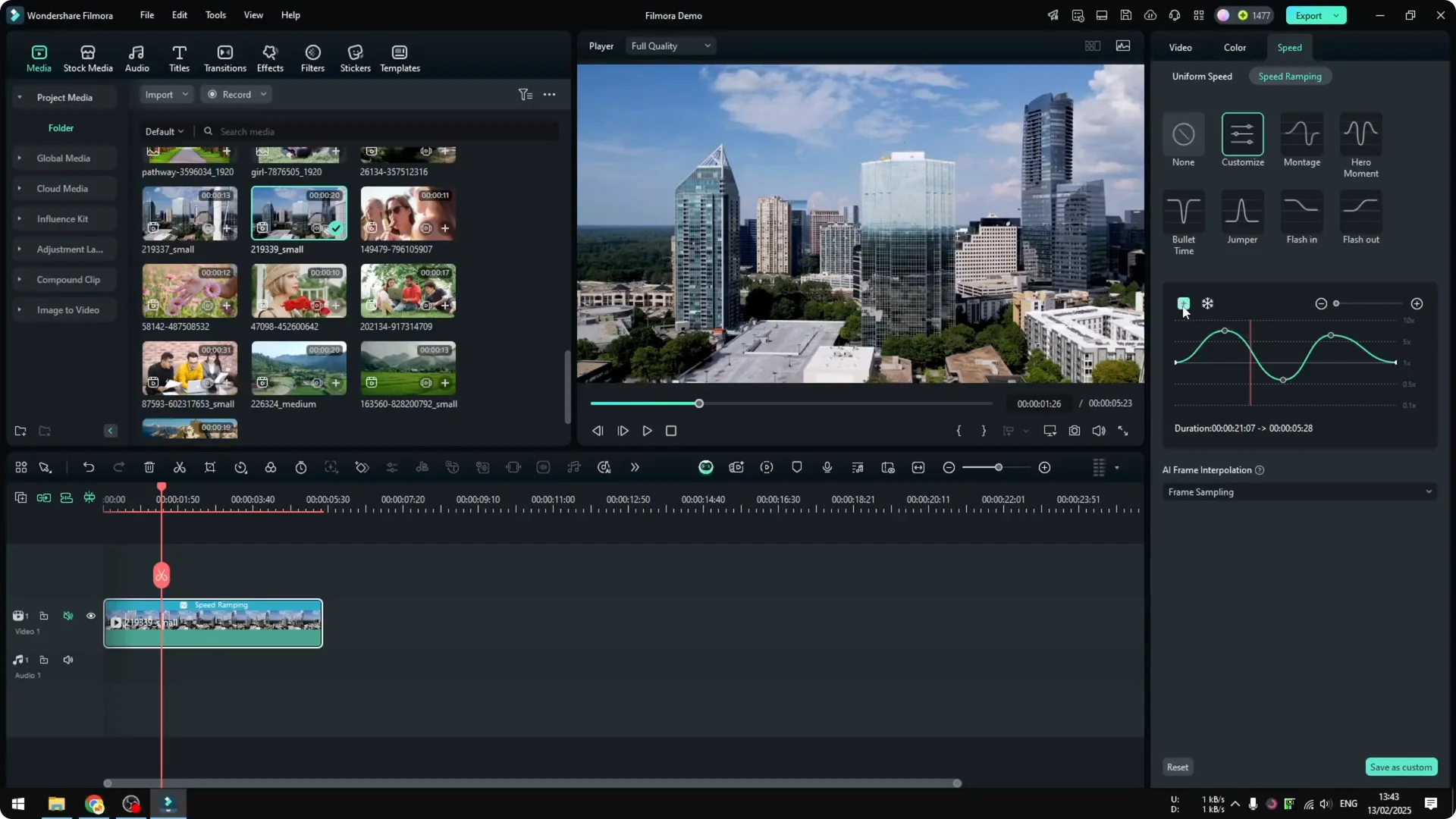
  • To add more points, click the plus button. A new point is added, and you can shape the timing exactly how you want. It’s really up to your imagination for how the video should be played.
  • How to Speed Up or Slow Down Video in Filmora with Cinematic Look screenshot 10

    How to Speed Up or Slow Down Video in Filmora with Cinematic Look screenshot 9

    Final Thoughts

  • For simple speed changes, isolate the section and adjust the speed value. Lower than 1 slows it down, higher than 1 speeds it up.
  • For a more cinematic result, use Filmora Speed Ramping presets and then fine-tune the points to control where the clip slows down and speeds up.
  • Leave a comment