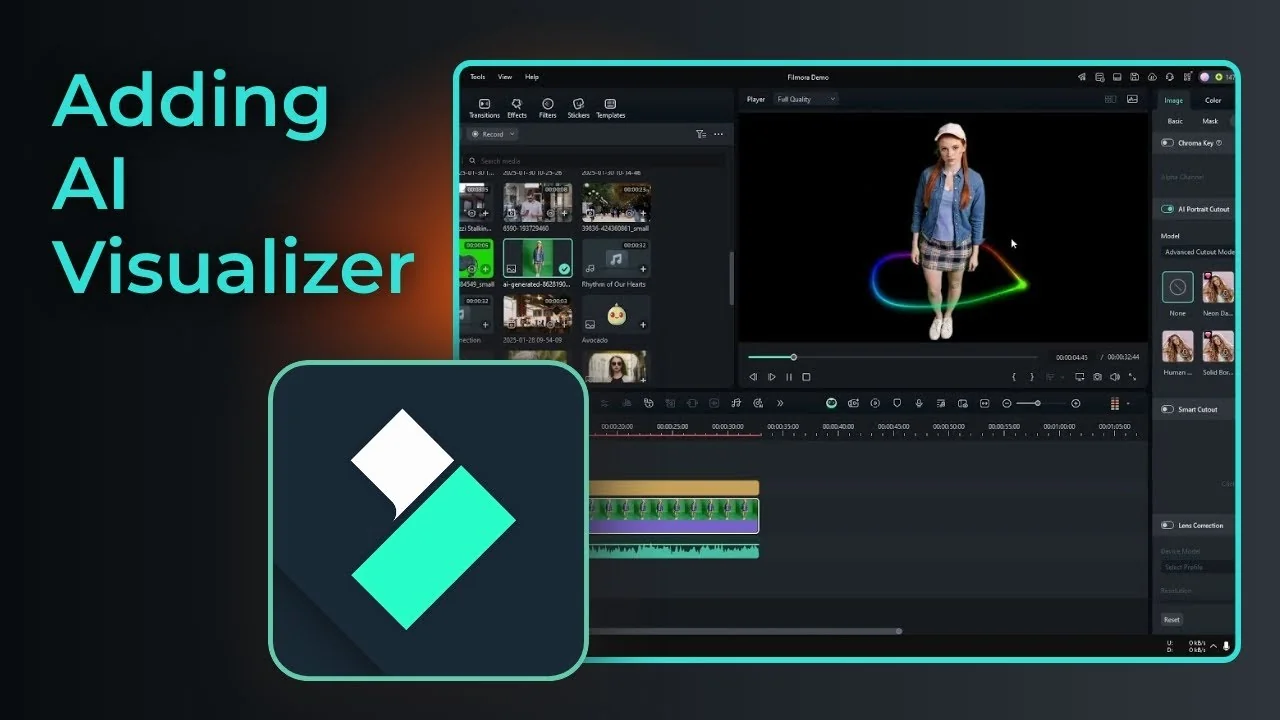
I’m going to show you how to add an audio visualizer in Filmora and then the new audio visualizer effect that incorporates AI to make the effect even more engaging and interesting to look at.
I have this music that I’ve created using AI. Right now it’s just a black empty screen. We need to add something to look at.
Filmora AI Audio Visualizer: basic option
1. Add your audio or even your video into the project timeline.
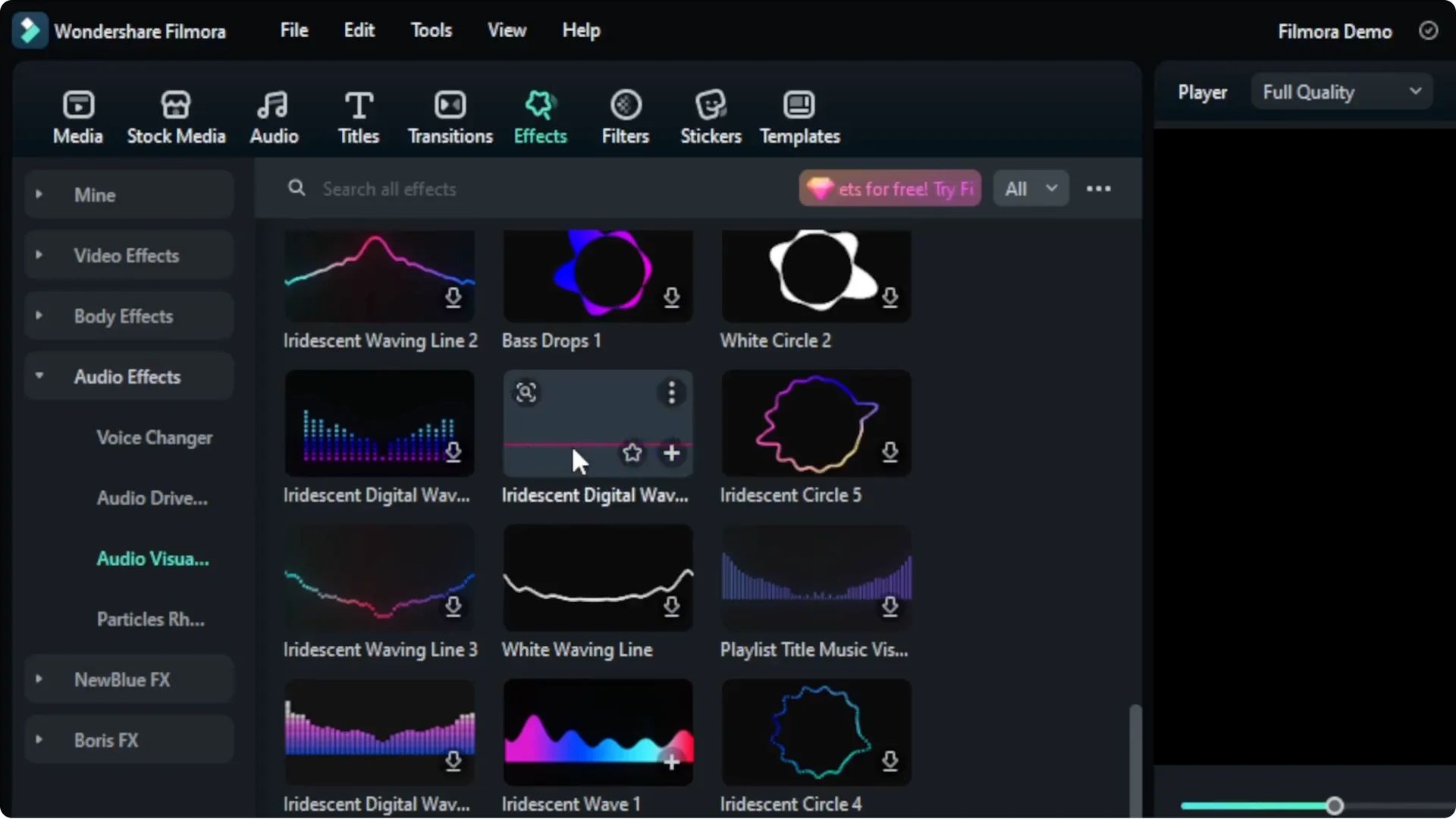
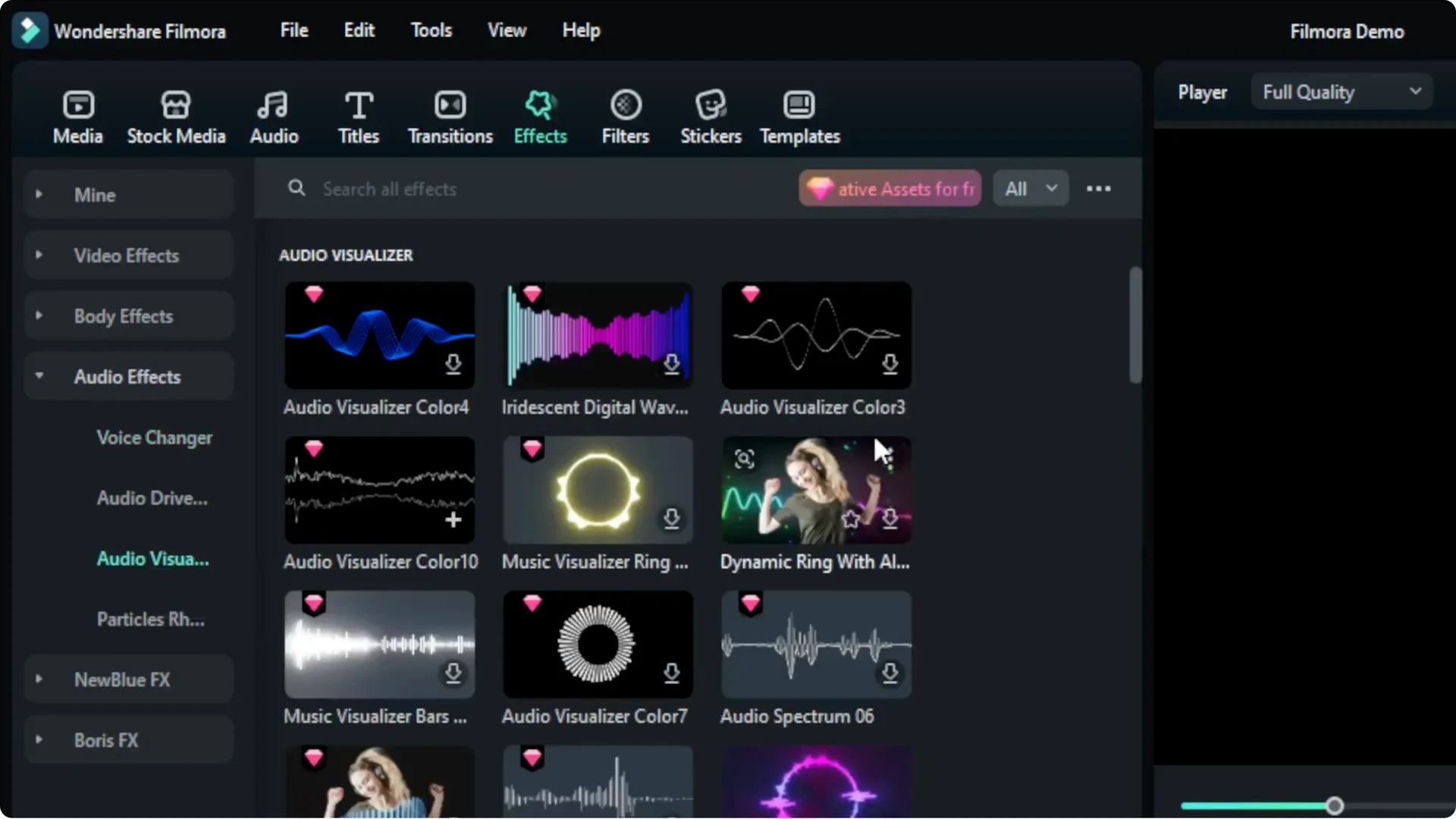
2. Navigate to the Effects menu, scroll down to Audio Effects, then go to Audio Visualization. You will see a list of audio visualizers that you can apply to your project.
3. The ones with diamond icons are premium, so if you’re using the free version of Filmora you cannot use them, but there are plenty of other visualizers that are free to use.
4. Download the one you want, then click and drag it to your video timeline. Make sure to encapsulate the entirety of the audio or video.
5. Play the music to see the basic effect. That’s the basic option that is not using AI.
Filmora AI Audio Visualizer: use the new AI audio visualizers
I’m going to remove the basic one and apply a new visualizer with the AI label.
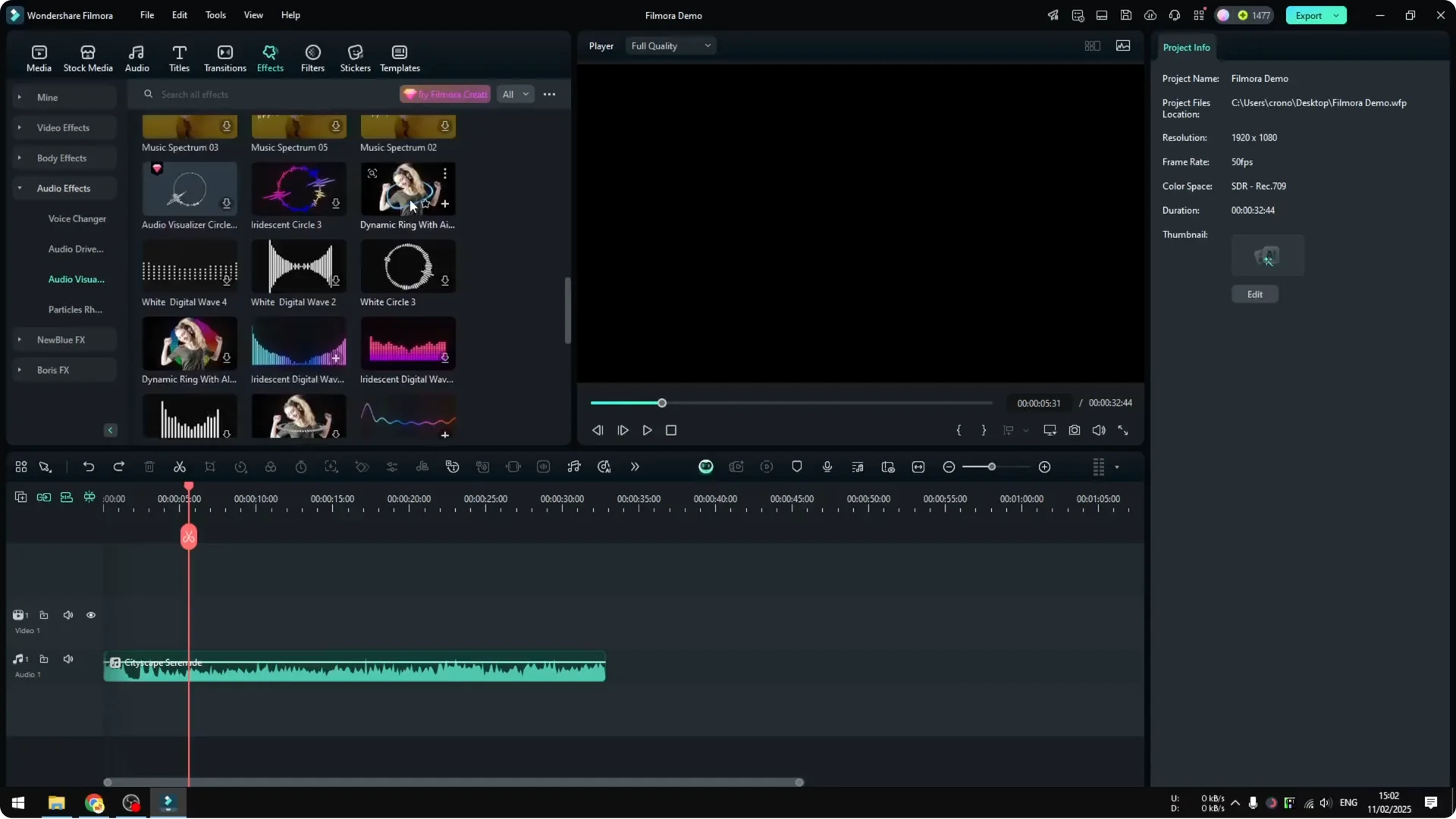
1. Scroll to the top and look for effects that have the AI label.
2. Apply one to your project. If it looks like it is not working and it is supposed to show a person on the video, add a person. Maybe it’s a photo, it could be also a video, but there has to be a person on the project timeline.
3. I added a photo of someone with a green screen because it makes the isolation easier. Extend the effect and the photo to cover your audio.
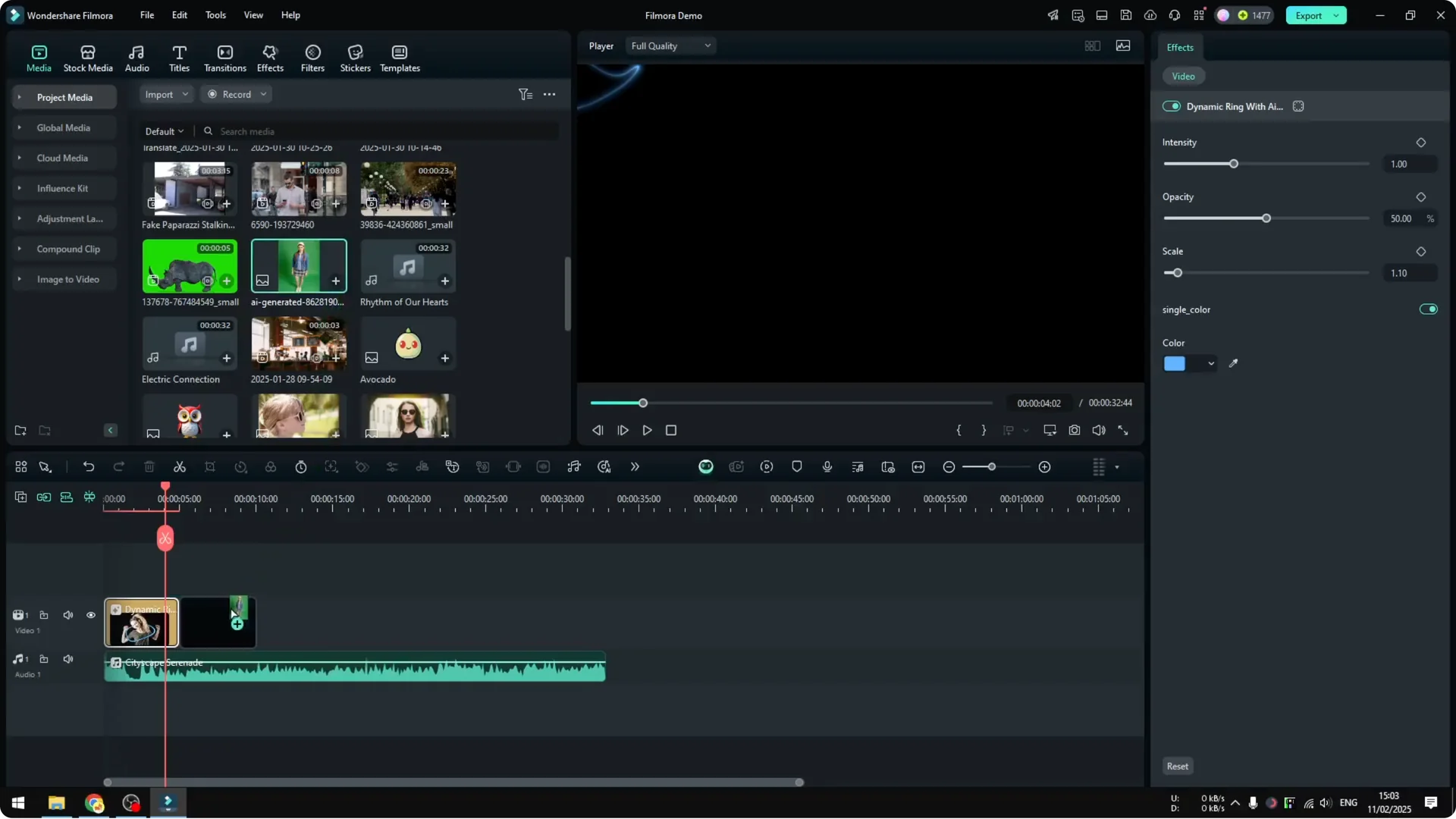
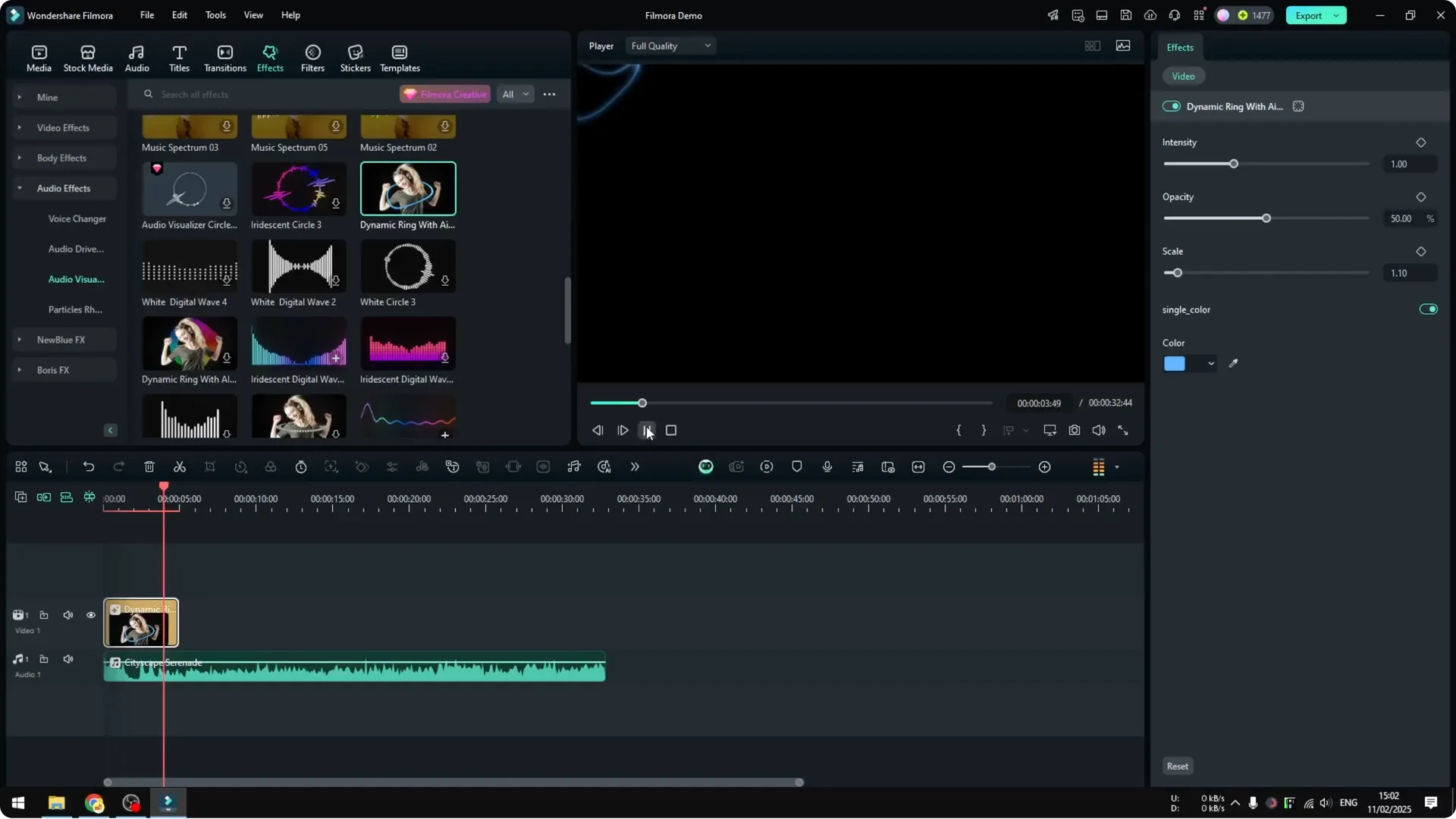
It is not perfect, but you can tell that now the effect is working.
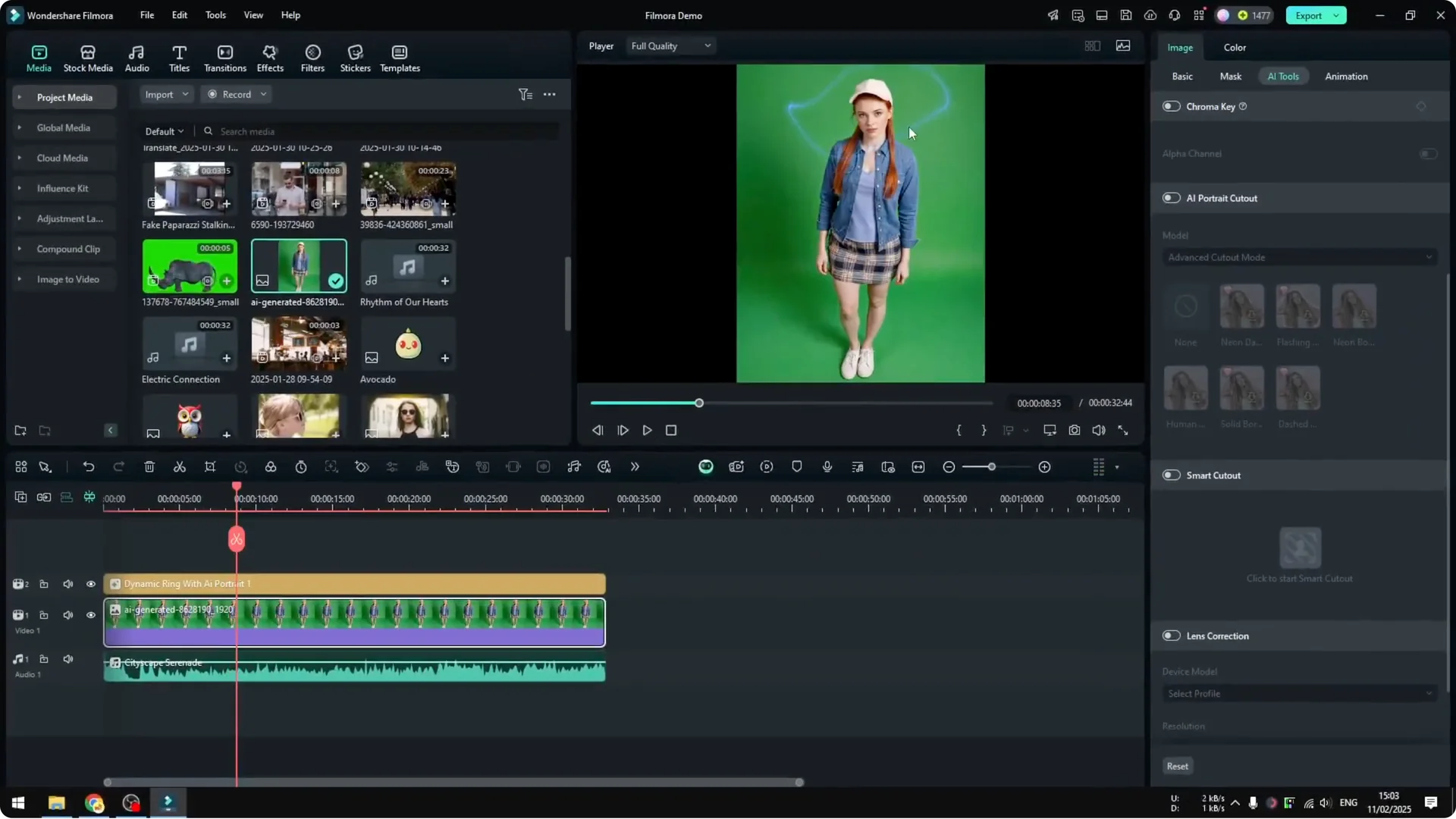
Make the Filmora AI Audio Visualizer more visible
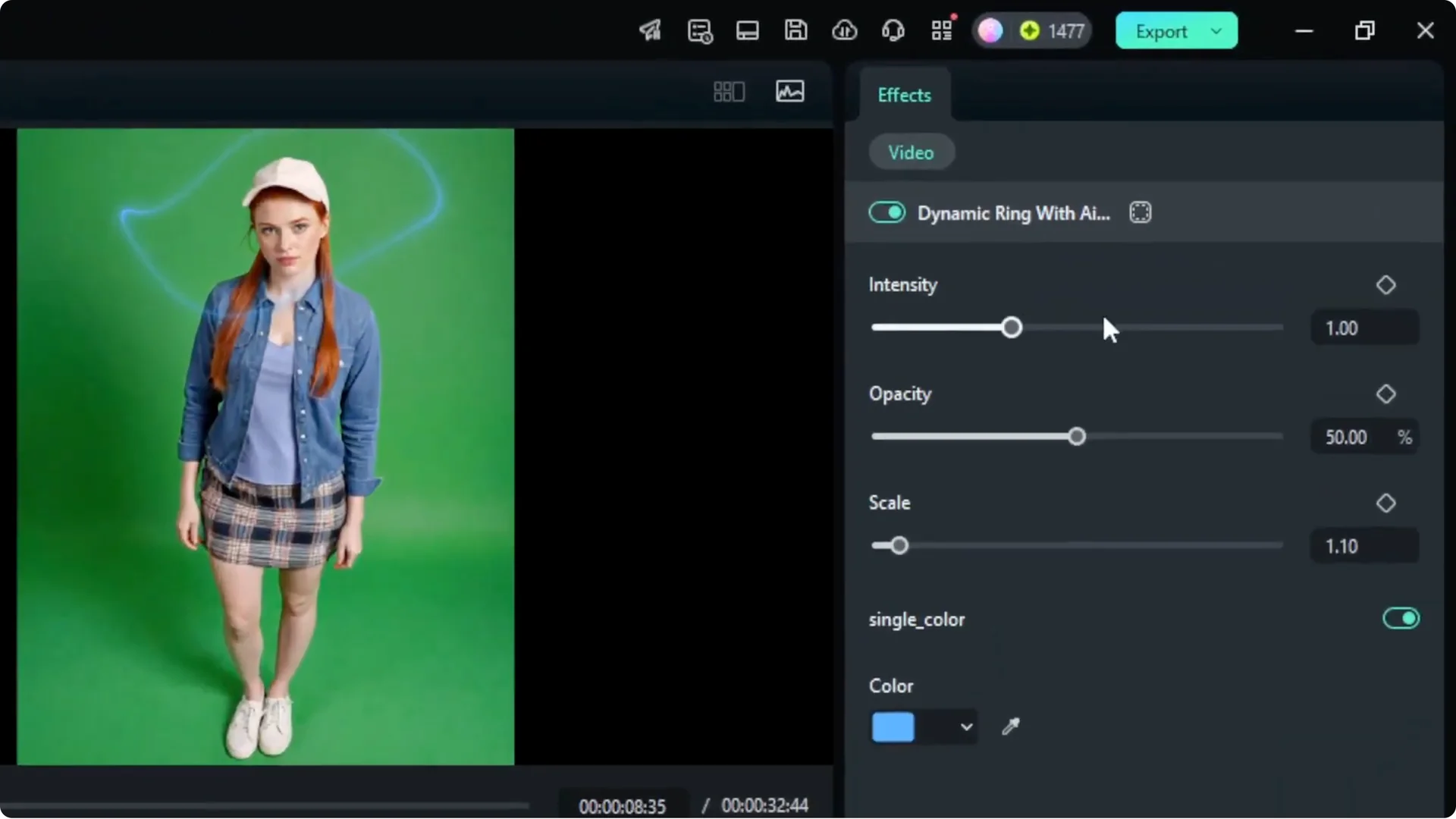
Remove the background for a cleaner result
1. Click on the photo.
2. Go to Image, then AI Tools.
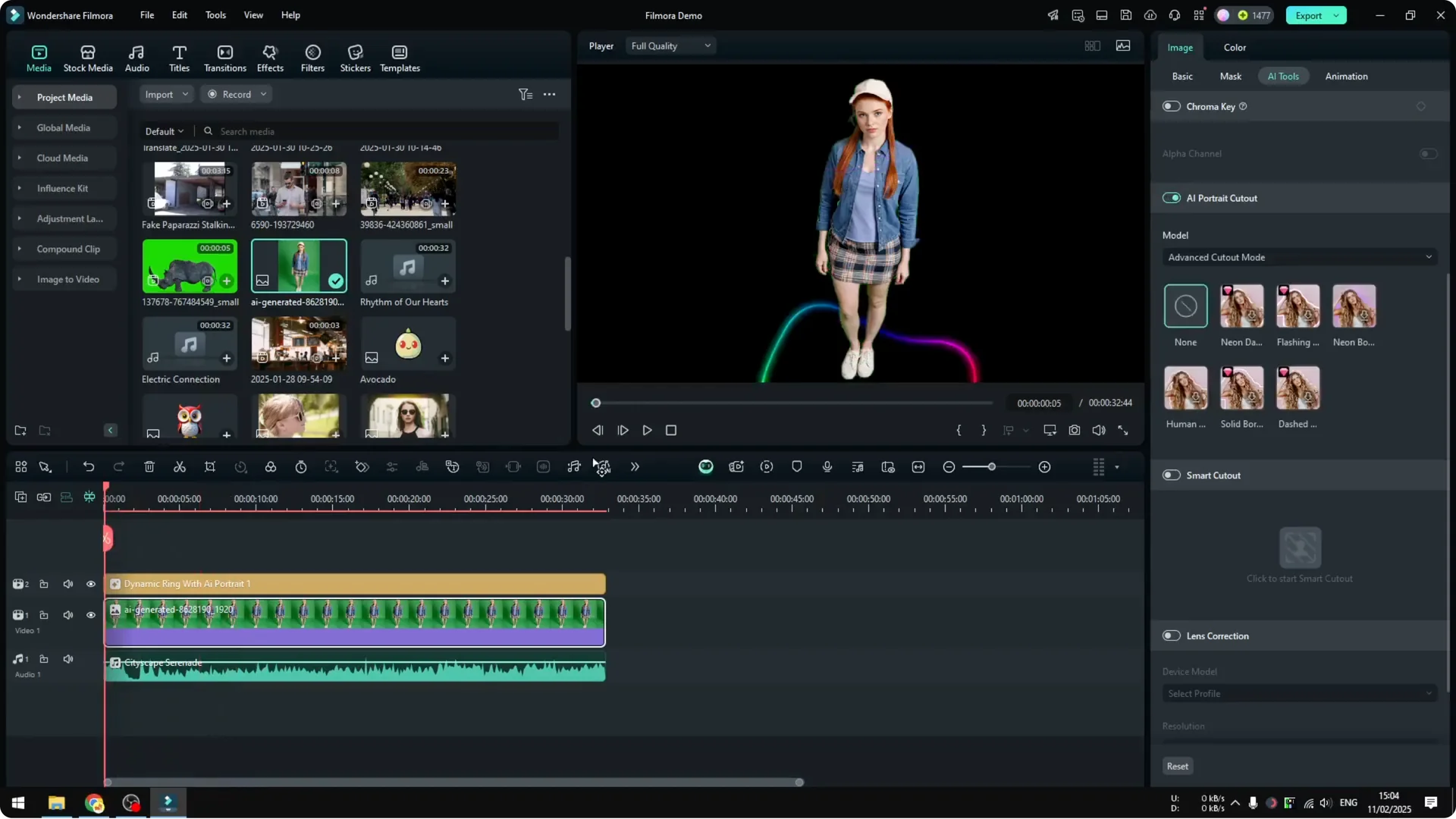
3. Enable AI Portrait Cutout.
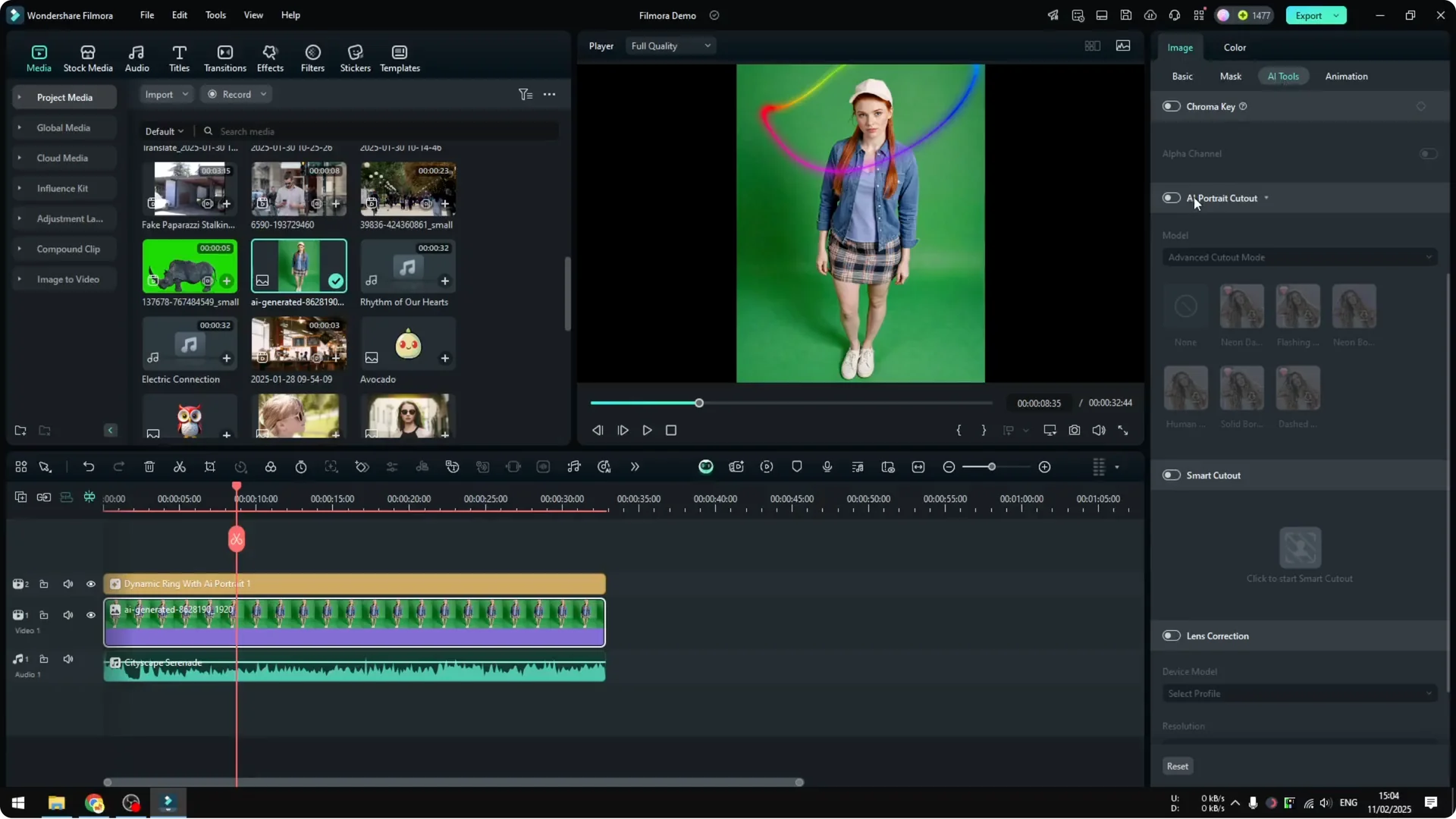
When you play it again you will see an amazing effect.
Final thoughts
That’s how you can use the new audio visualizer using AI in Filmora. It is up to you which audio visualizer you want to use. I think this one looks cooler because of this new effect, but it is up to your taste.