I use Higgsfield AI Transitions to create smooth changes between two images or clips. For example, I made a car go from a summer vibe into a winter season, and it looked very cool.
Here is exactly how I set it up.
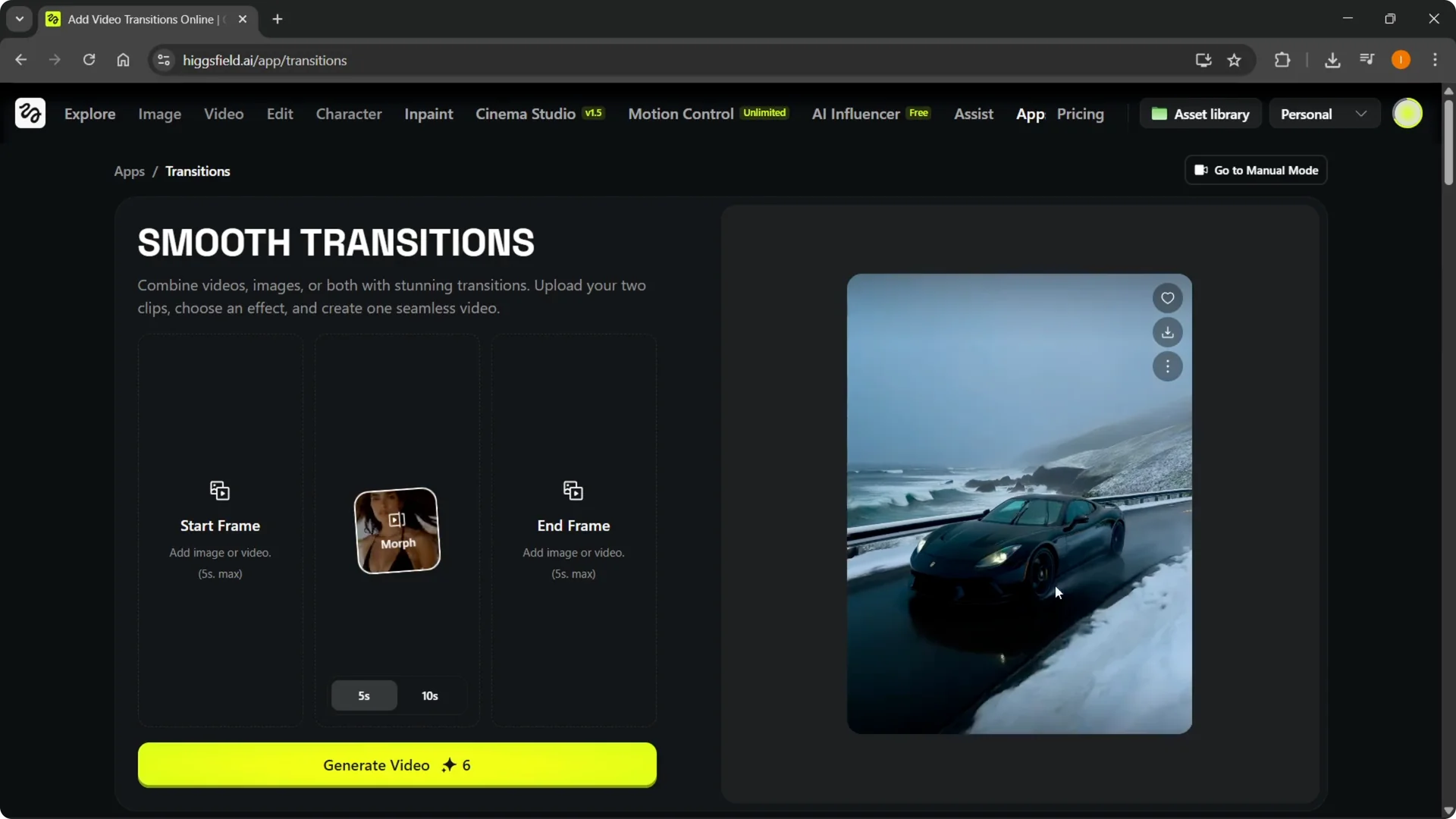
Find Higgsfield AI Transitions
Step 1: Open the Apps menu.
Go to Apps at the top.
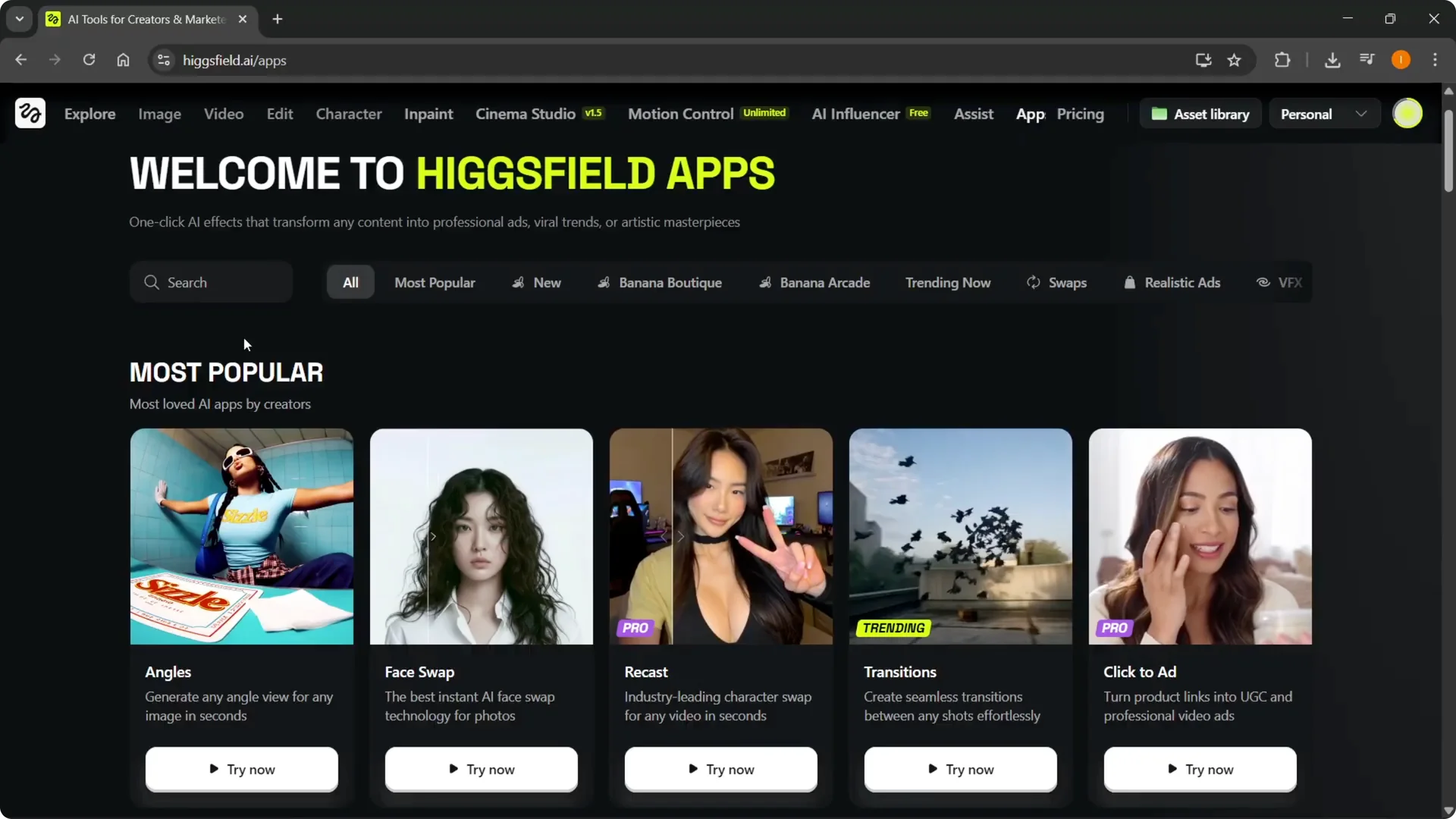
Step 2: Locate Transitions.
If you do not see it in the list, use the search bar to find Transitions.
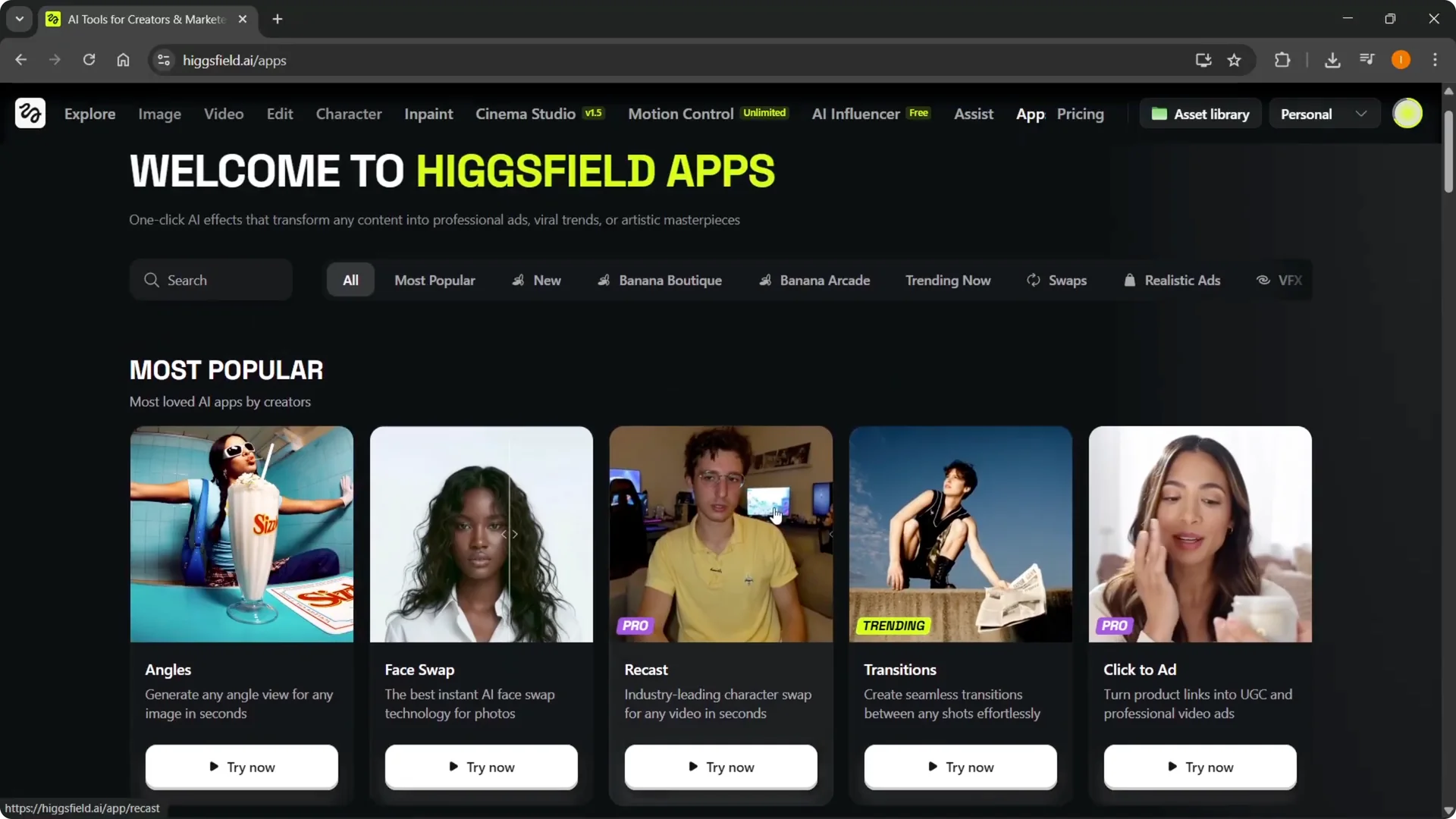
Step 3: Start the tool.
Click Try now to open the Transitions workspace.
For broader workflow tips with this toolset, see our guide to Sora 2 Higgsfield.
Frames for Higgsfield AI Transitions
Step 4: Add a start frame.
Choose an image or a video as your starting point, then upload it.
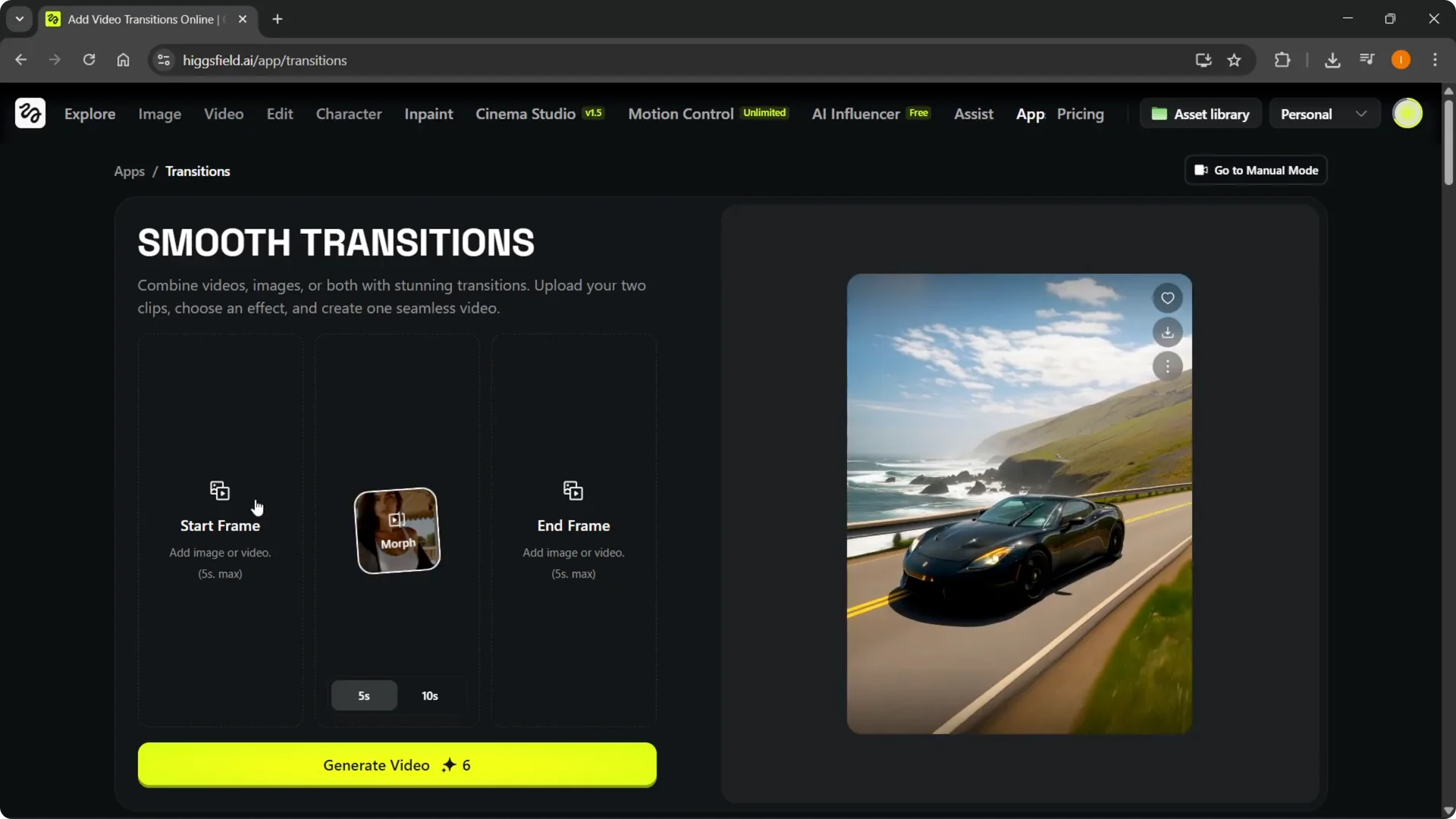
Step 5: Add an end frame.
Pick the final image or video you want to transition into.
I used a winter scene I generated with Higgsfield Popcorn, but any image that fits your concept works.
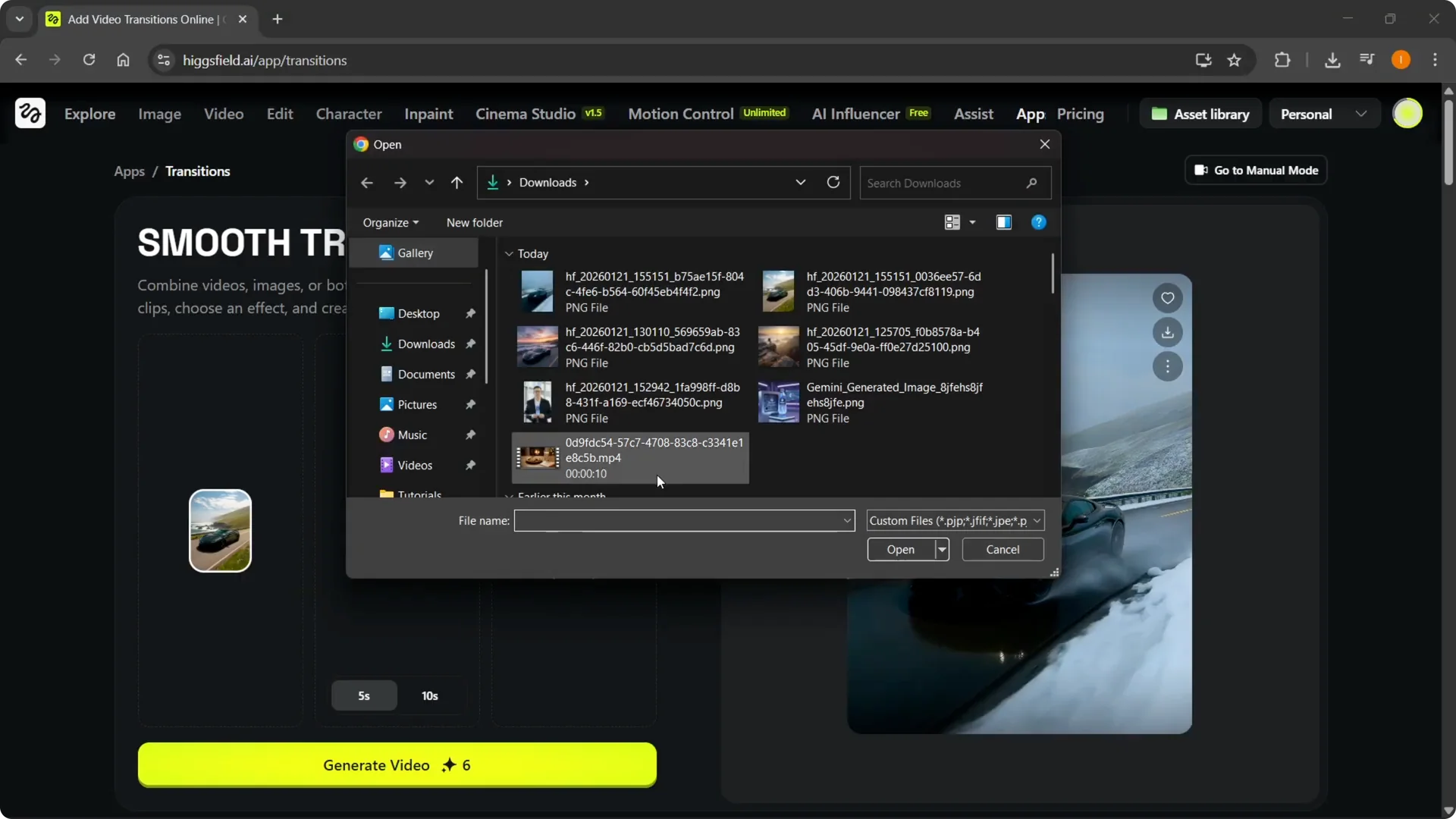
If your goal is to swap environments like summer to winter, see how to change backgrounds in Higgsfield AI.
Duration and styles in Higgsfield AI Transitions
Step 6: Set the duration.
Choose how long you want the animation to run, such as 5 seconds or 10 seconds.
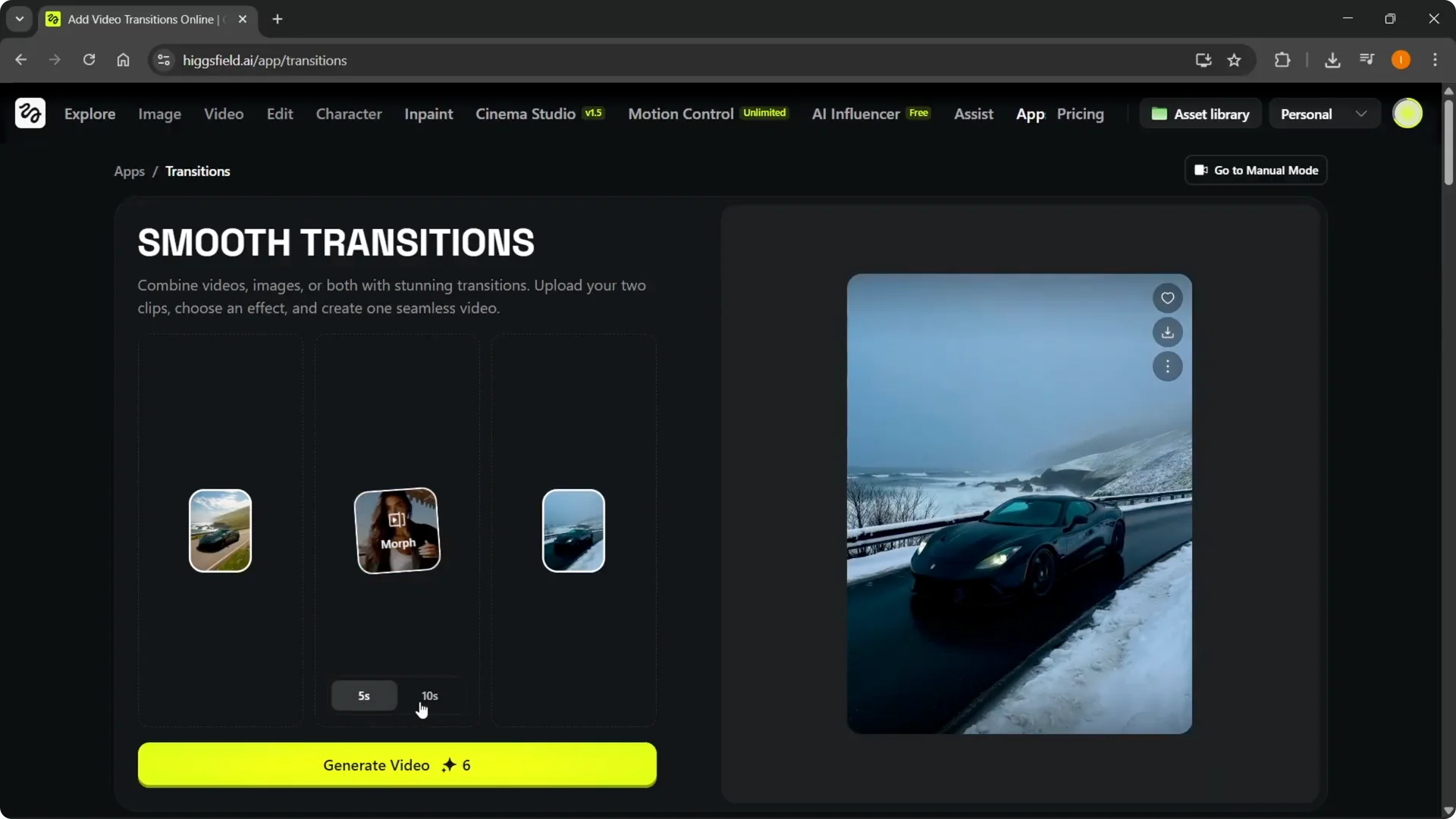
Step 7: Pick a transition style.
Options include raven, morph, airbending, and shadow smoke, with new styles added over time. I chose raven because it was first on the list.
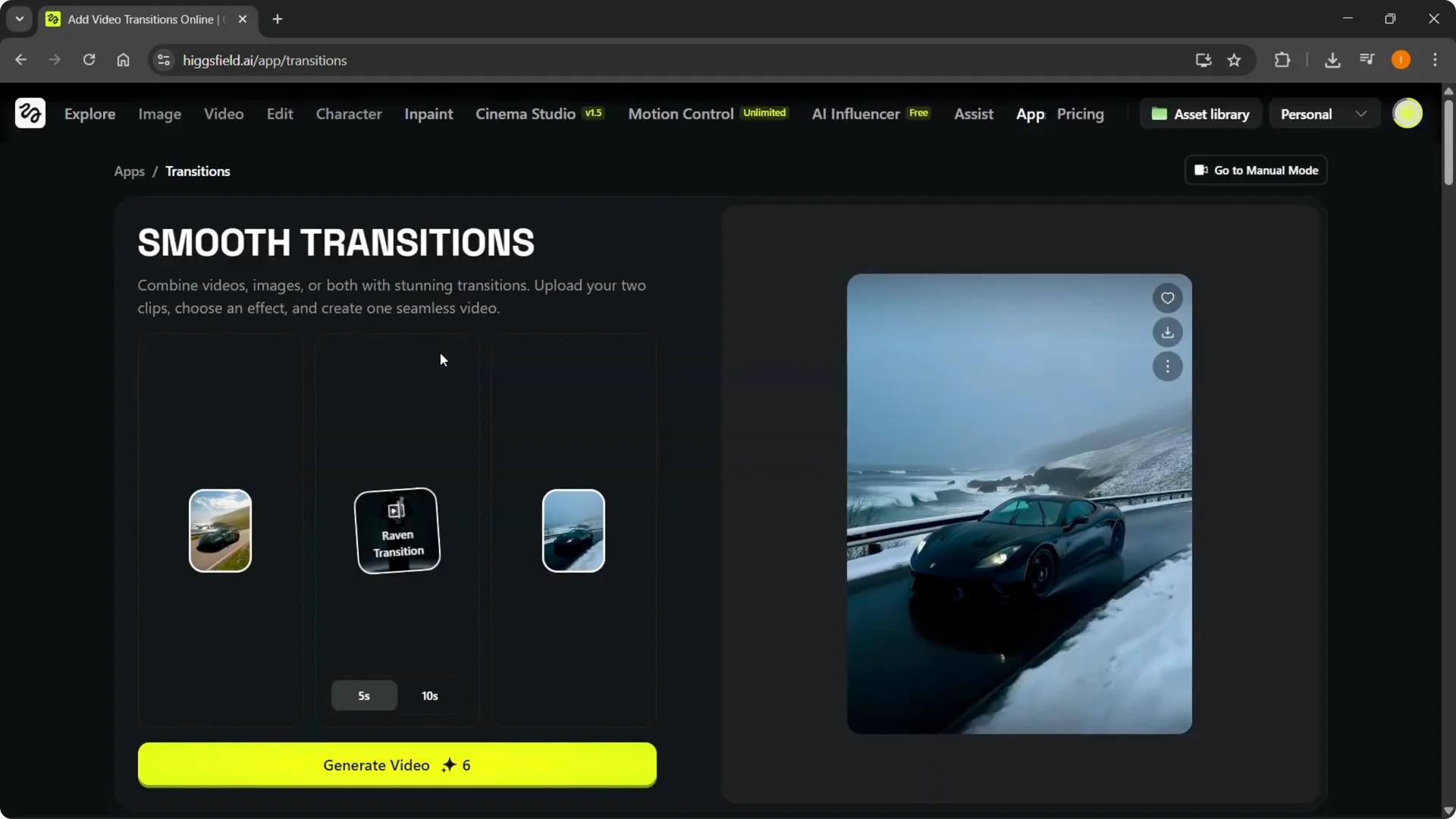
Generate and review in Higgsfield AI Transitions
Step 8: Generate the video.
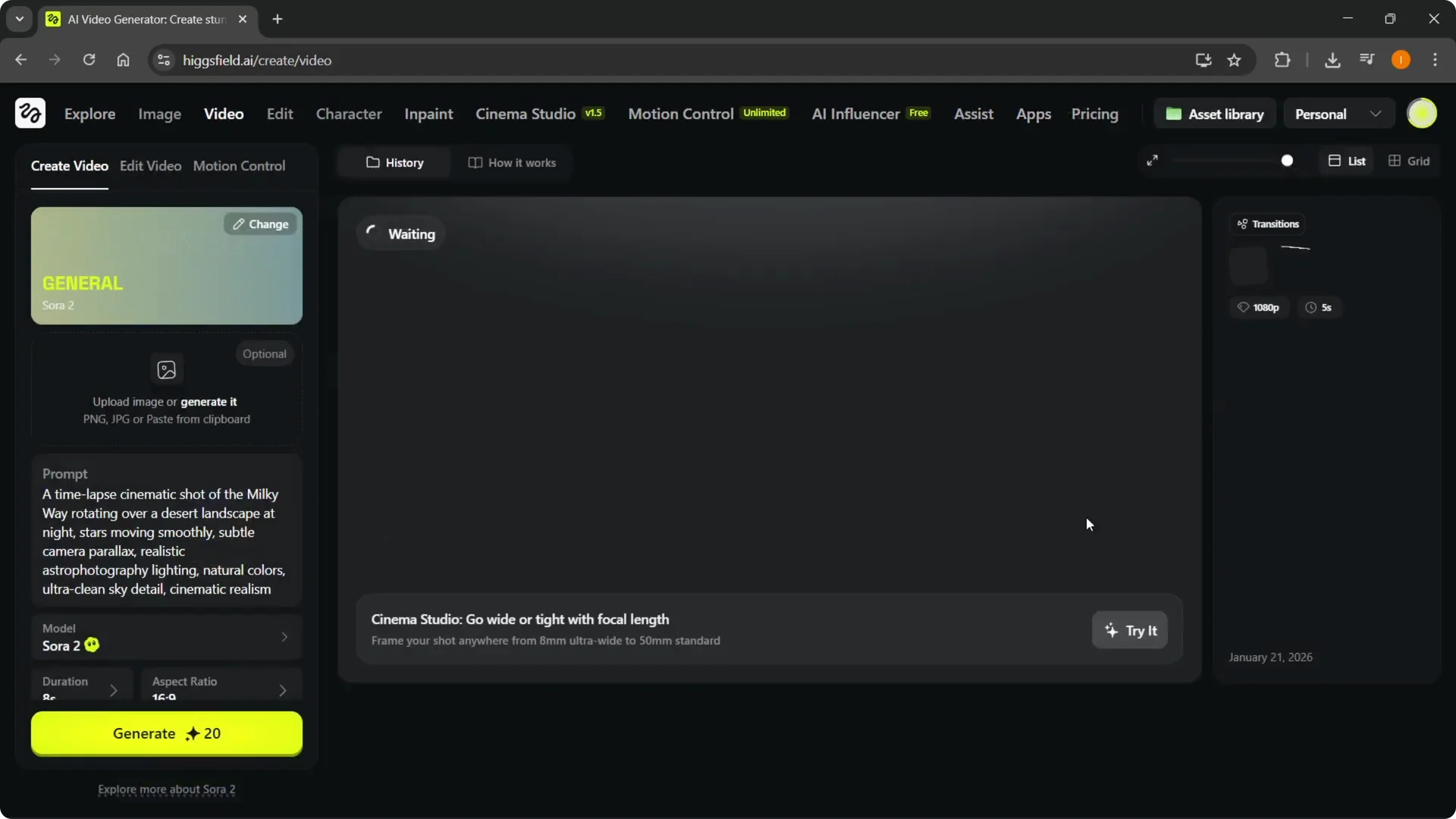
Click Generate video to start rendering your transition. This can take a few minutes, and the result will appear in the workspace when it is done.
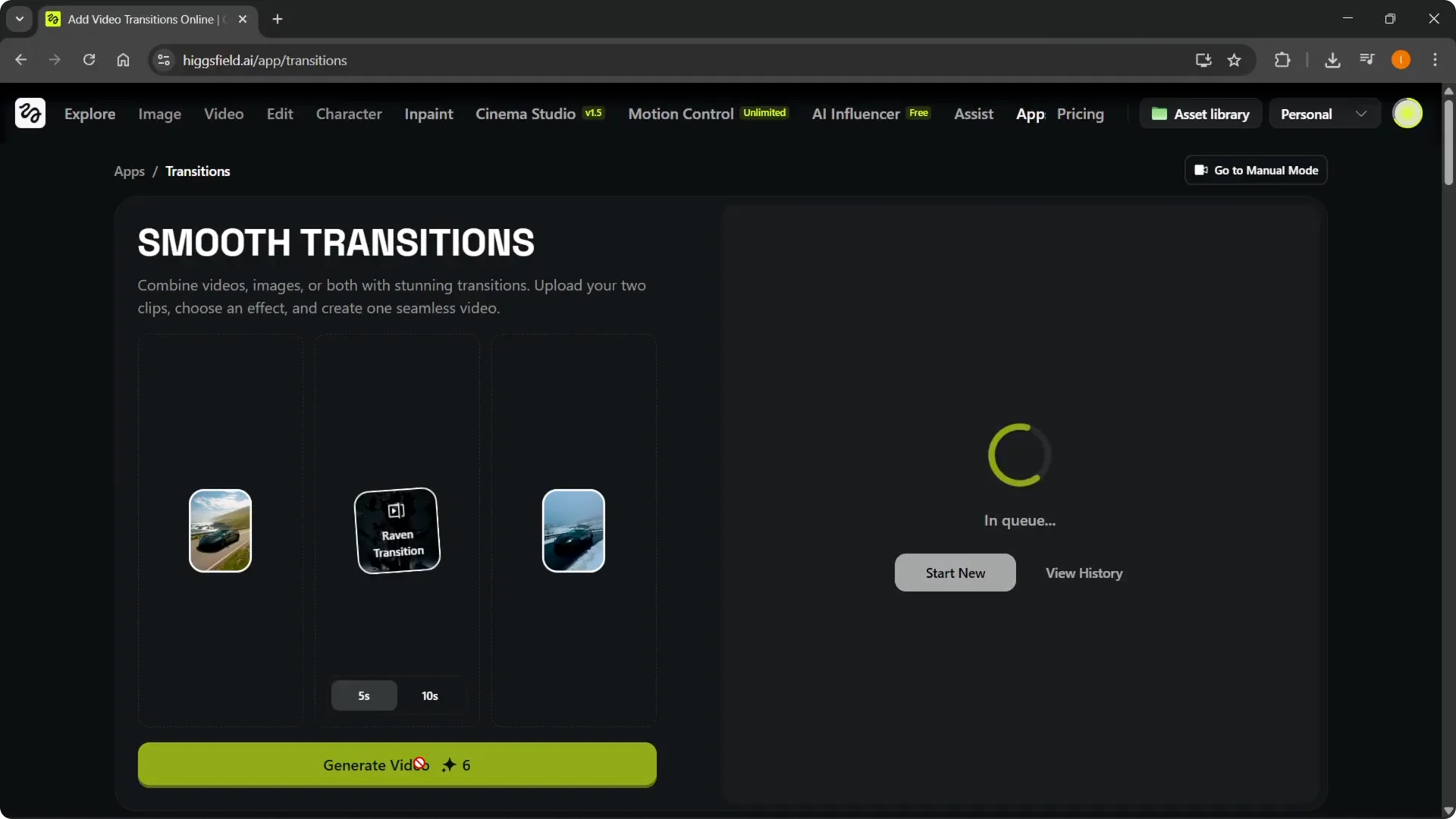
Step 9: Review your results.
Open the History panel to see all your generations and everything you have done. If you ever decide you are finished with the platform, here is how to delete a Higgsfield account quickly.
Final thoughts on Higgsfield AI Transitions
Set a clear start and end frame, choose a duration that fits the motion you want, and test a few styles until the effect matches your project. The tool makes it simple to build a clean transformation from one scene to another. Once you render, keep your best versions in History for quick access.