I’m going to show you how to make a Higgsfield video. To create a video, it’s very simple.
Getting started with Higgsfield Video Generation
Step 1: Go to higgsfield.ai and sign in to your account, or create one if you don’t have it yet.
Step 2: Hover over the Create tab, which is the second one at the top left, and click Video.
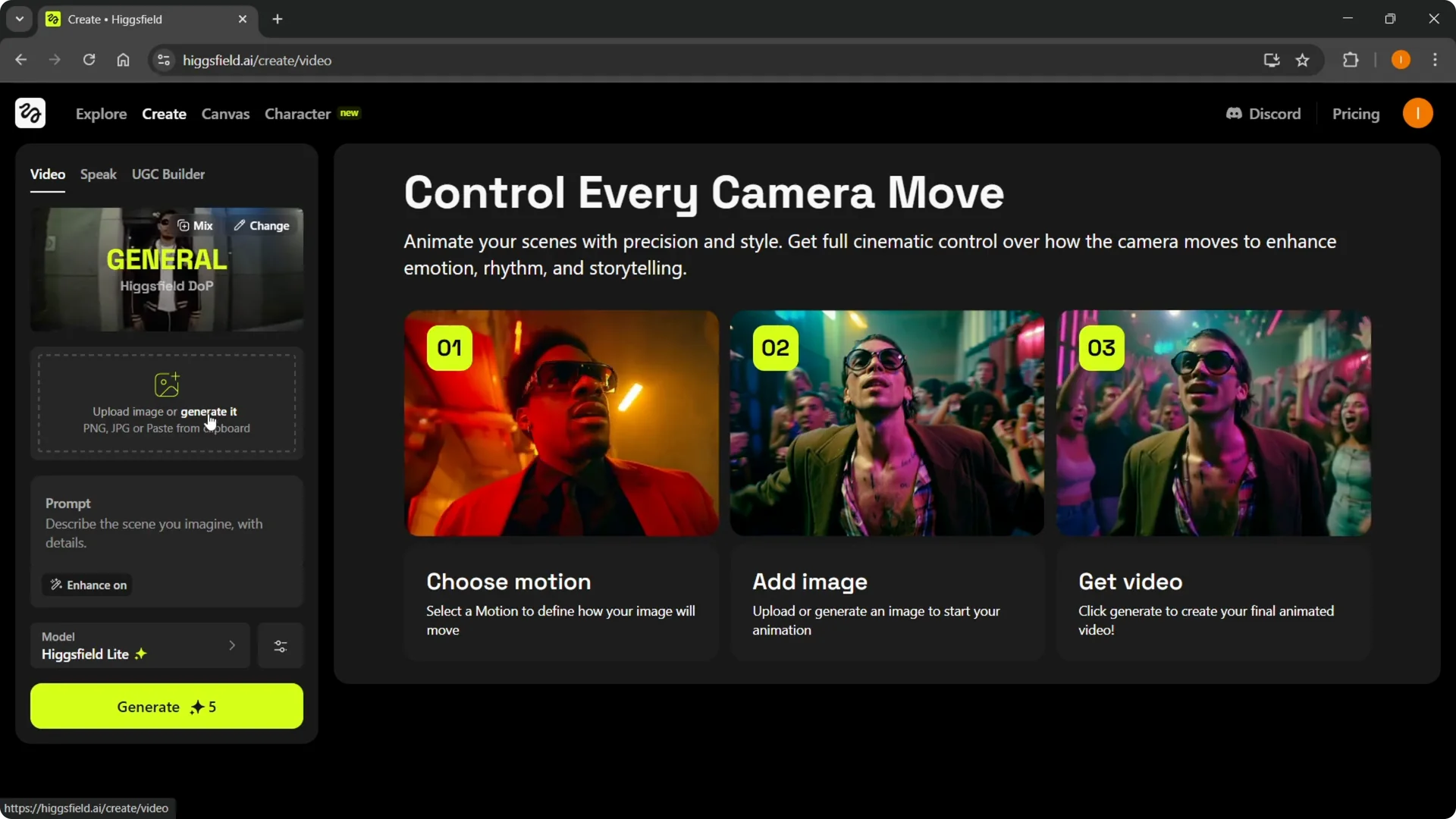
Step 3: For a regular video, use the Video tab, which is the first one.
Add media in Higgsfield Video Generation
Step 4: Upload an image or generate one. You can also paste an image from your clipboard.
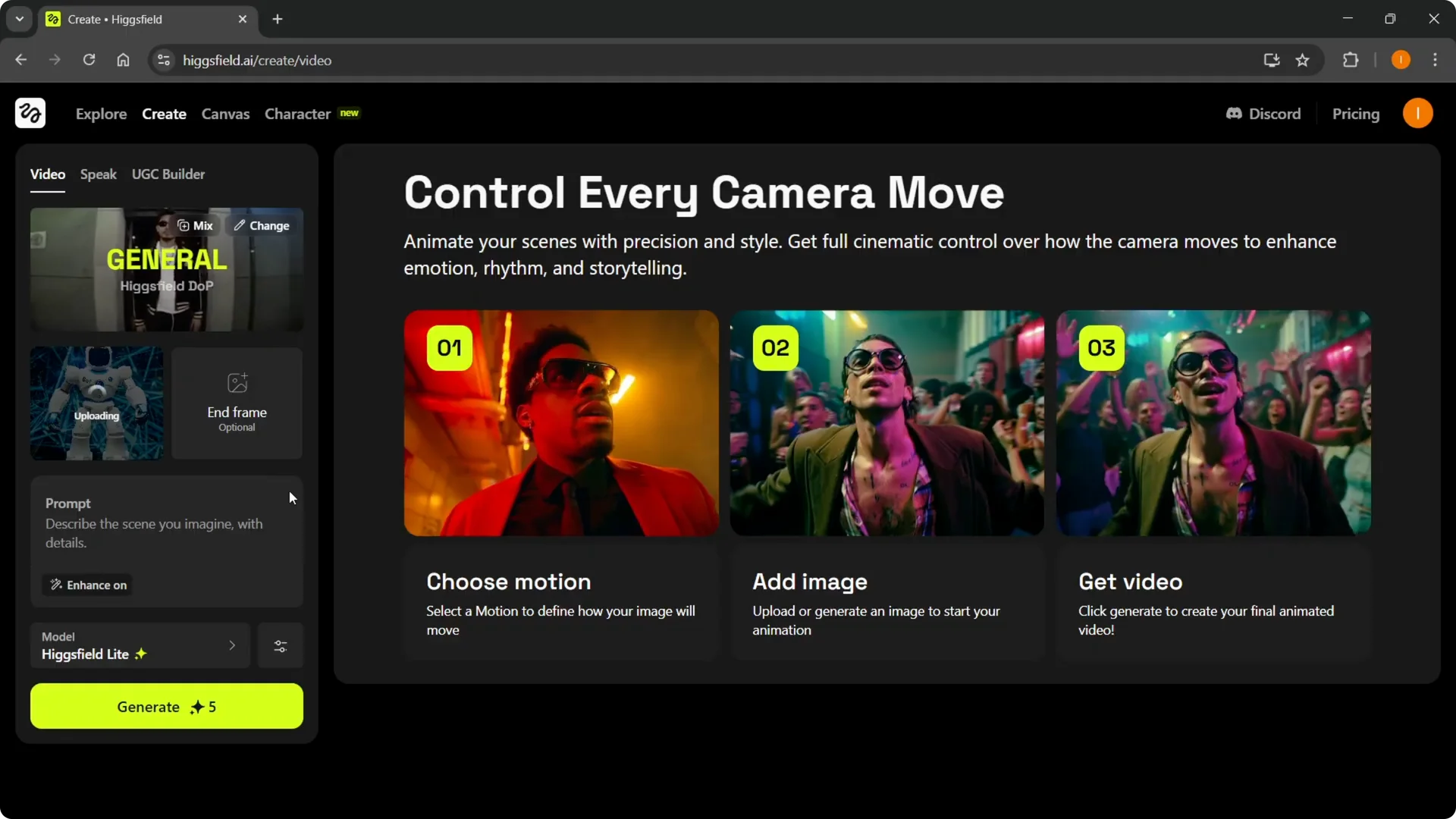
Step 5: I’m putting in a random image of a robot. You can also add an end frame if that’s something you want to have.
If your goal is to animate a persona, see how to create an AI influencer in Higgsfield.
Prompt and settings in Higgsfield Video Generation
Step 6: Type the prompt and describe the scene you imagine. For example, I’m typing a dancing robot, basically a dancing robot does a backflip.
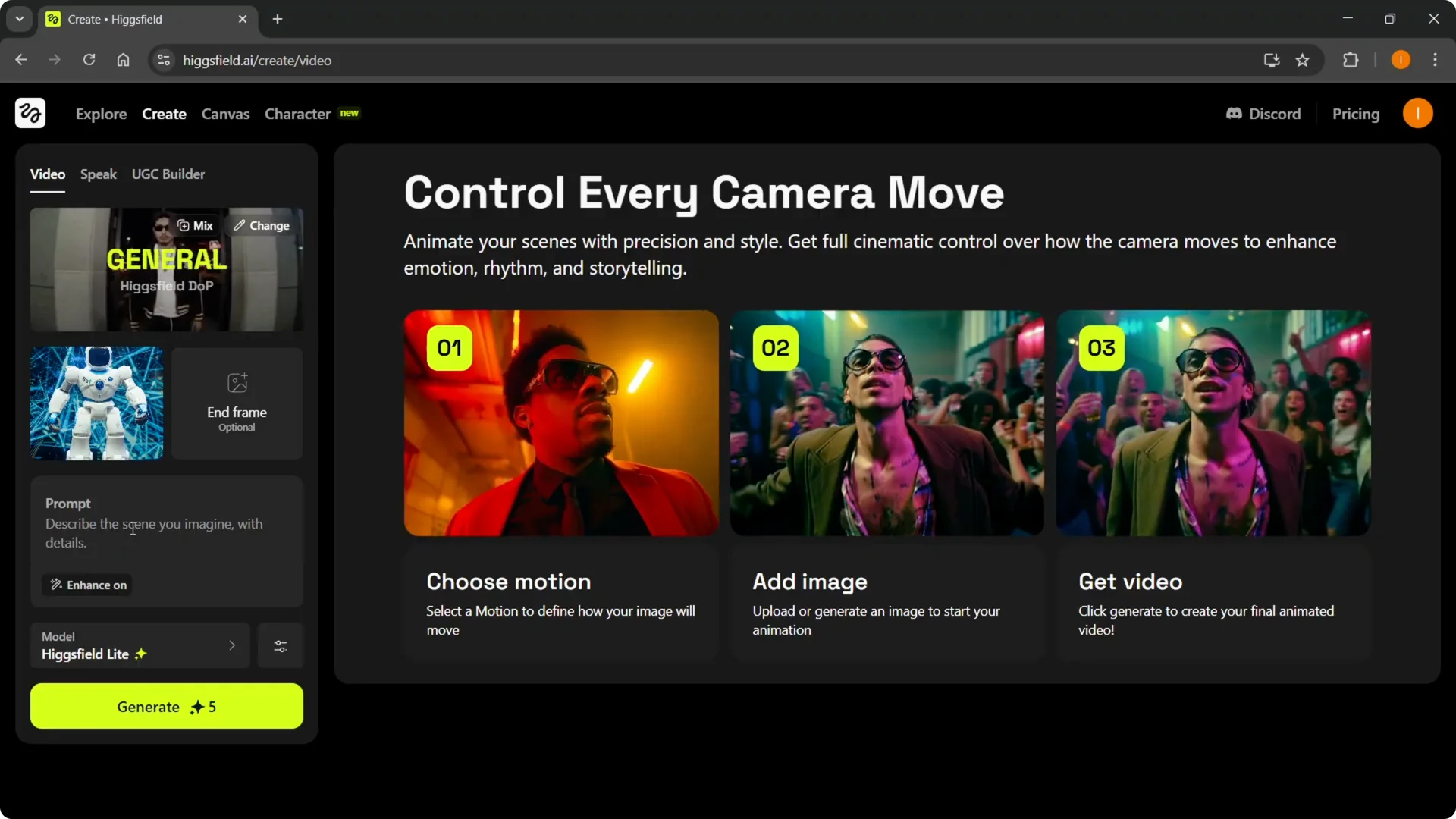
Step 7: Leave Enhance on or off if you want to, which will make it a bit better. At the top you have two options that say mix or change, and you can switch between these and pick presets that make your video better and more in line with what you need.
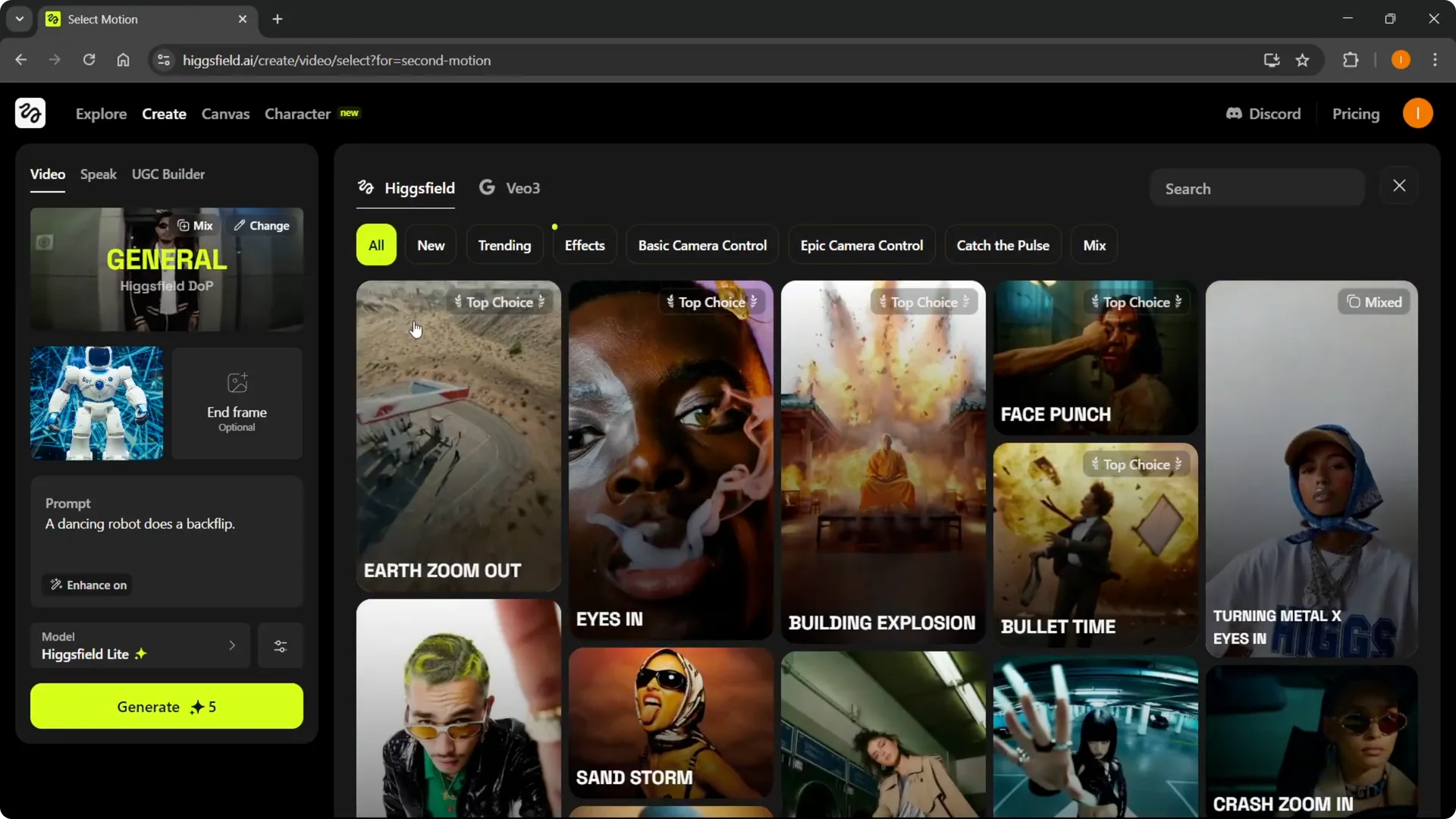
Step 8: I’m not going to use any preset here. I’m just using the general one that’s currently applied.
Models and advanced options in Higgsfield Video Generation
Step 9: Select your model. Higgsfield Light is available on the free plan, and the others are on premium plans, so I’m using Higgsfield Light.
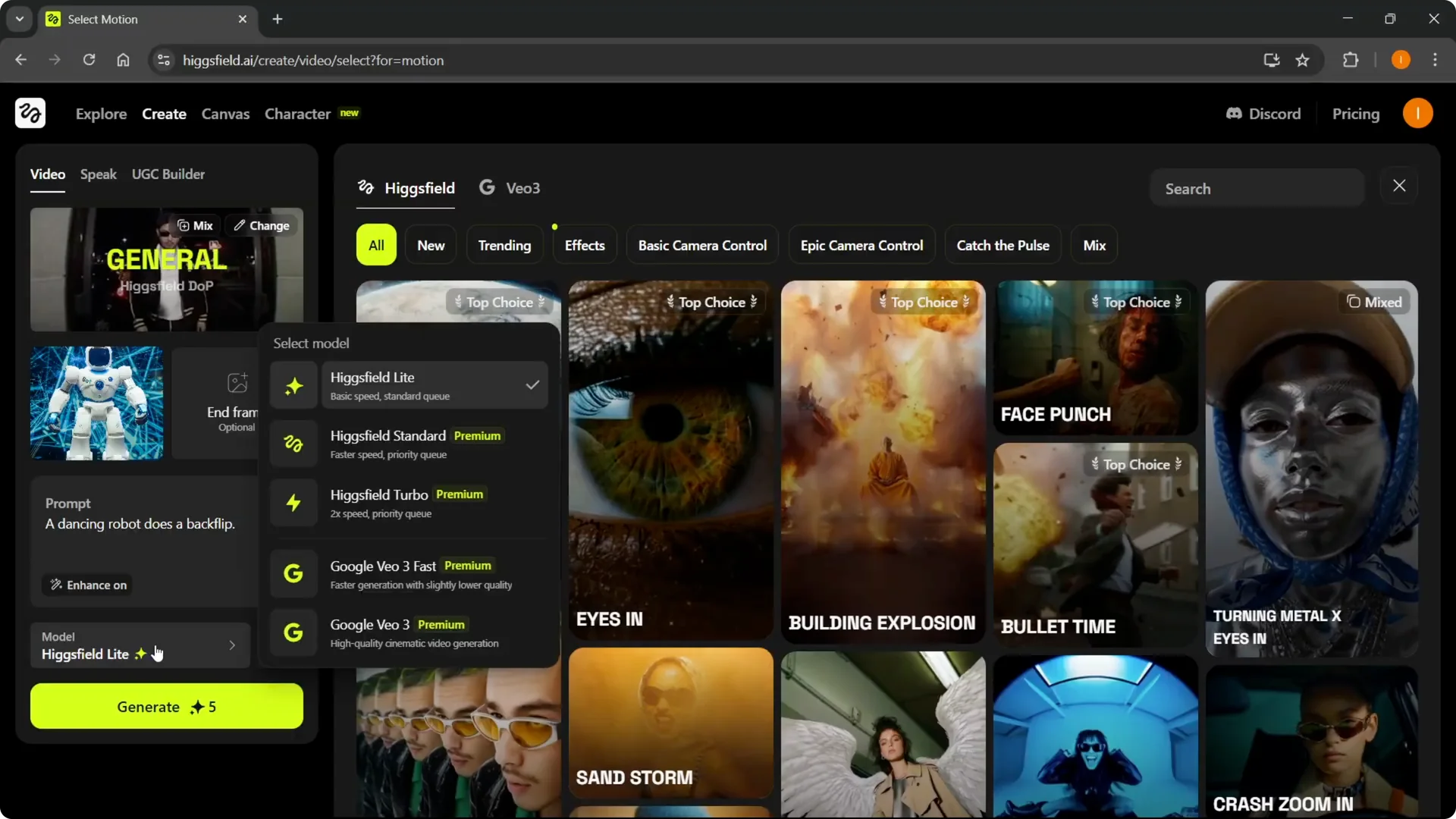
Step 10: Open Advanced options to pick a 3 or 5 second video. You can put in a random seed, and you can set your steps.
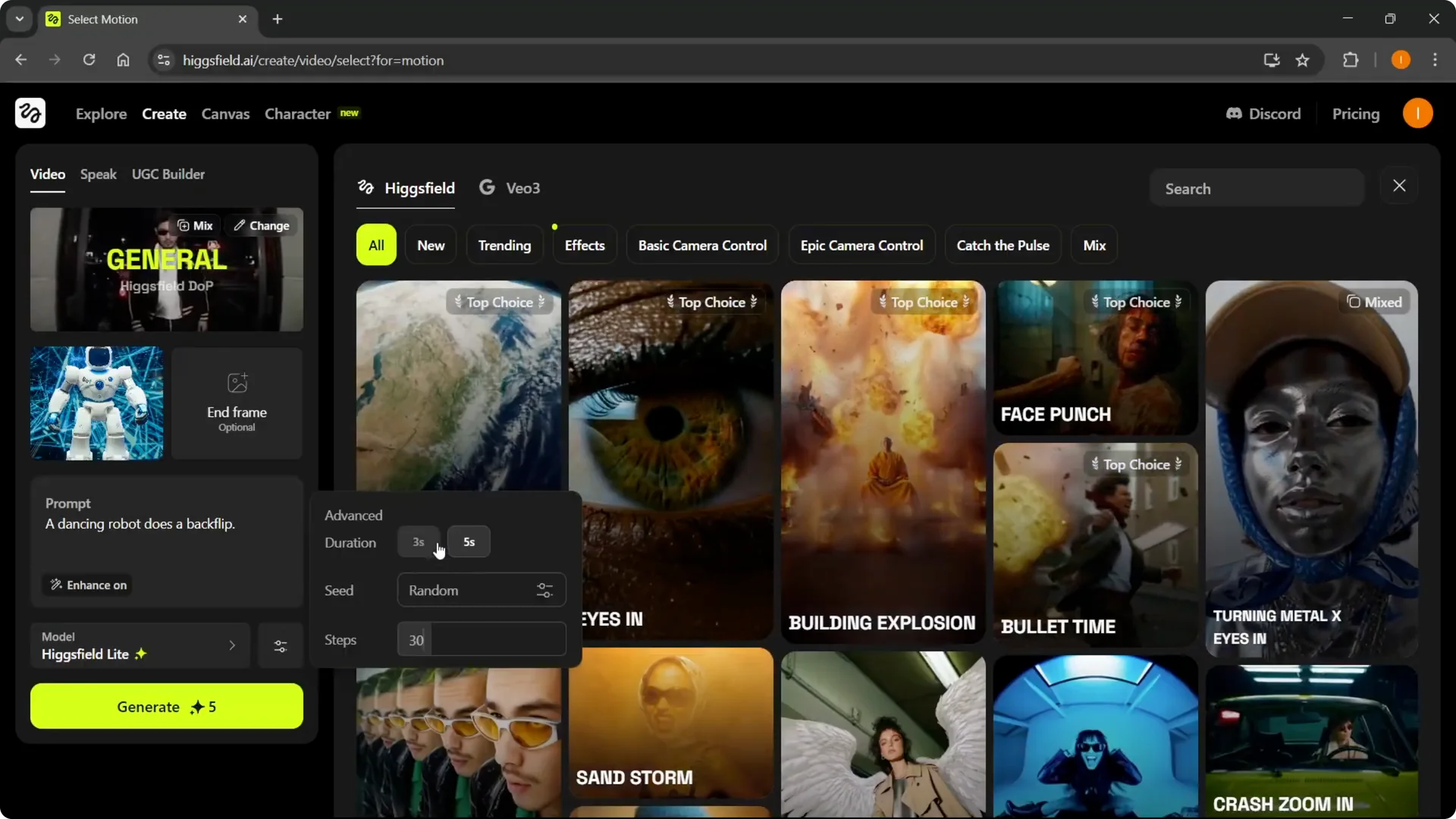
Step 11: The default is 30 steps. Better quality takes more steps and costs more.
For improving the result after rendering, you can upscale video quality in Higgsfield.
Generate and track credits in Higgsfield Video Generation
Step 12: Click Generate. It will take five credits, start loading, and then it will generate your video.
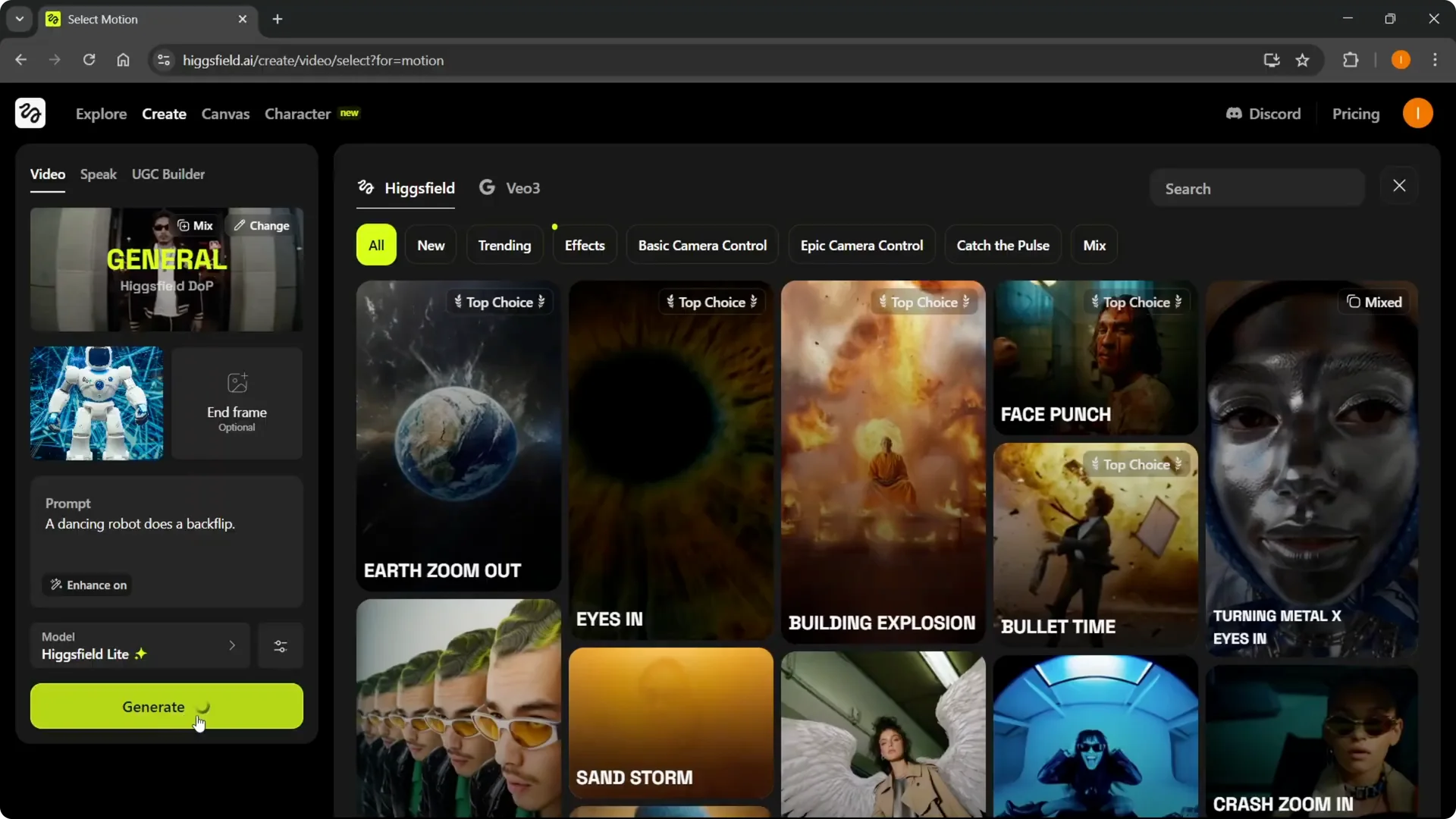
Step 13: This usually takes some time, so be patient. Keep track of how many credits you have remaining.
Step 14: You can check credits in your profile by clicking the credits. I have 10 remaining. I had 15.
If you ever decide to close your profile, here’s how to delete your Higgsfield account quickly.
View your result in Higgsfield Video Generation
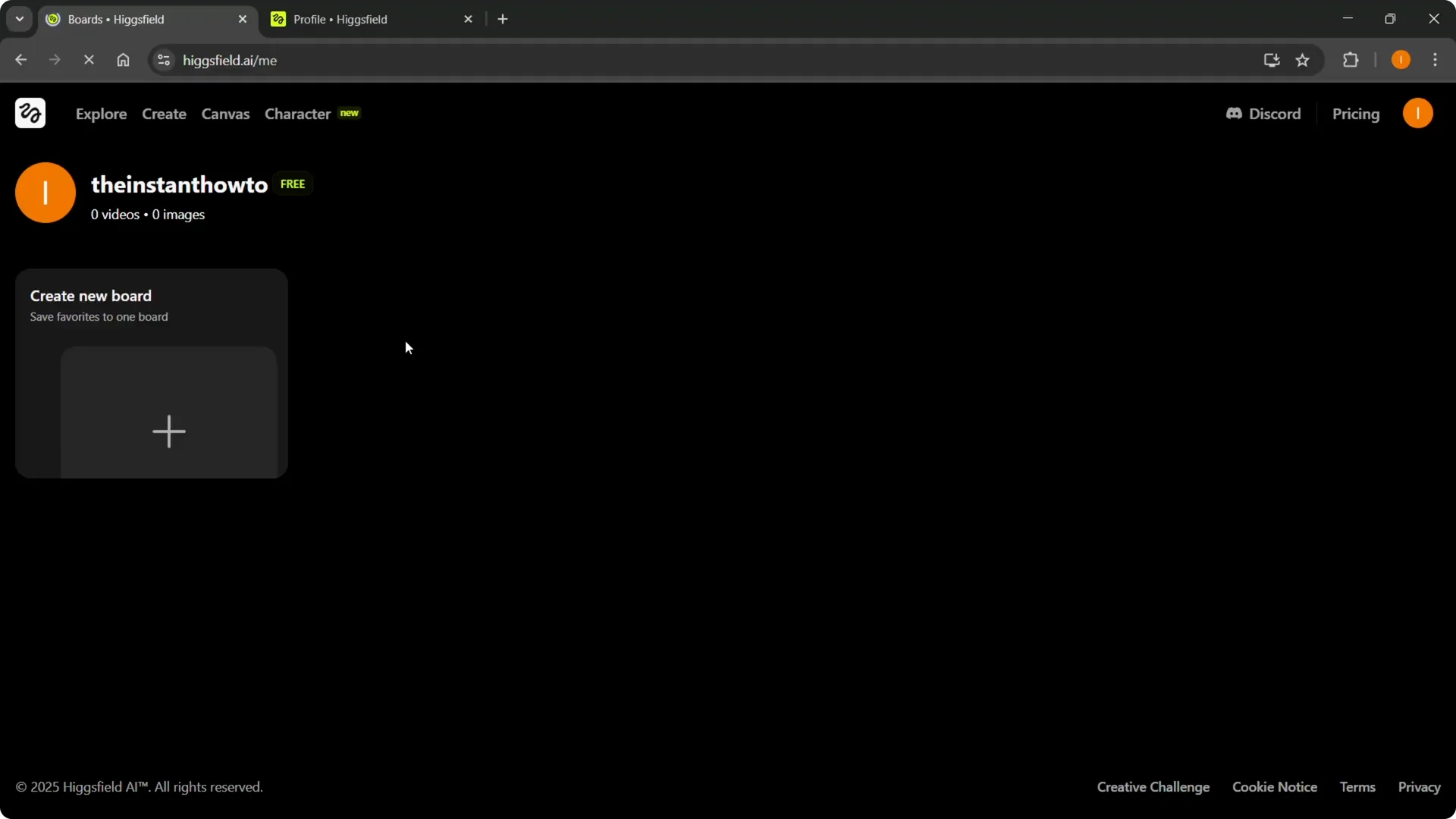
Step 15: Once the video is generated, it is displayed inside your dashboard. That’s pretty much it.
Final thoughts
Creating a Higgsfield video is straightforward: add your image, write a clear prompt, pick a model, set options, and generate. Watch your credits, and use presets or steps to control quality and length. Once it’s done, find the result in your dashboard and iterate as needed.