If you’ve ever wanted to create a short story using just an AI tool, here is exactly how I build all images and prompts from scratch in less than 10 minutes. I am creating an eight-scene cinematic Christmas story using Higgsfield. My name is Santiago, and I am using one of the paid plans.
Higgsfield is an AI-powered tool where you can create videos using prompts or images. You can also create images from prompts and build characters that you can reuse across scenes. For a broader walkthrough of image and video creation inside this platform, see our Higgsfield guide to image and video creation.
Higgsfield Overview for Text-to-Video Animation
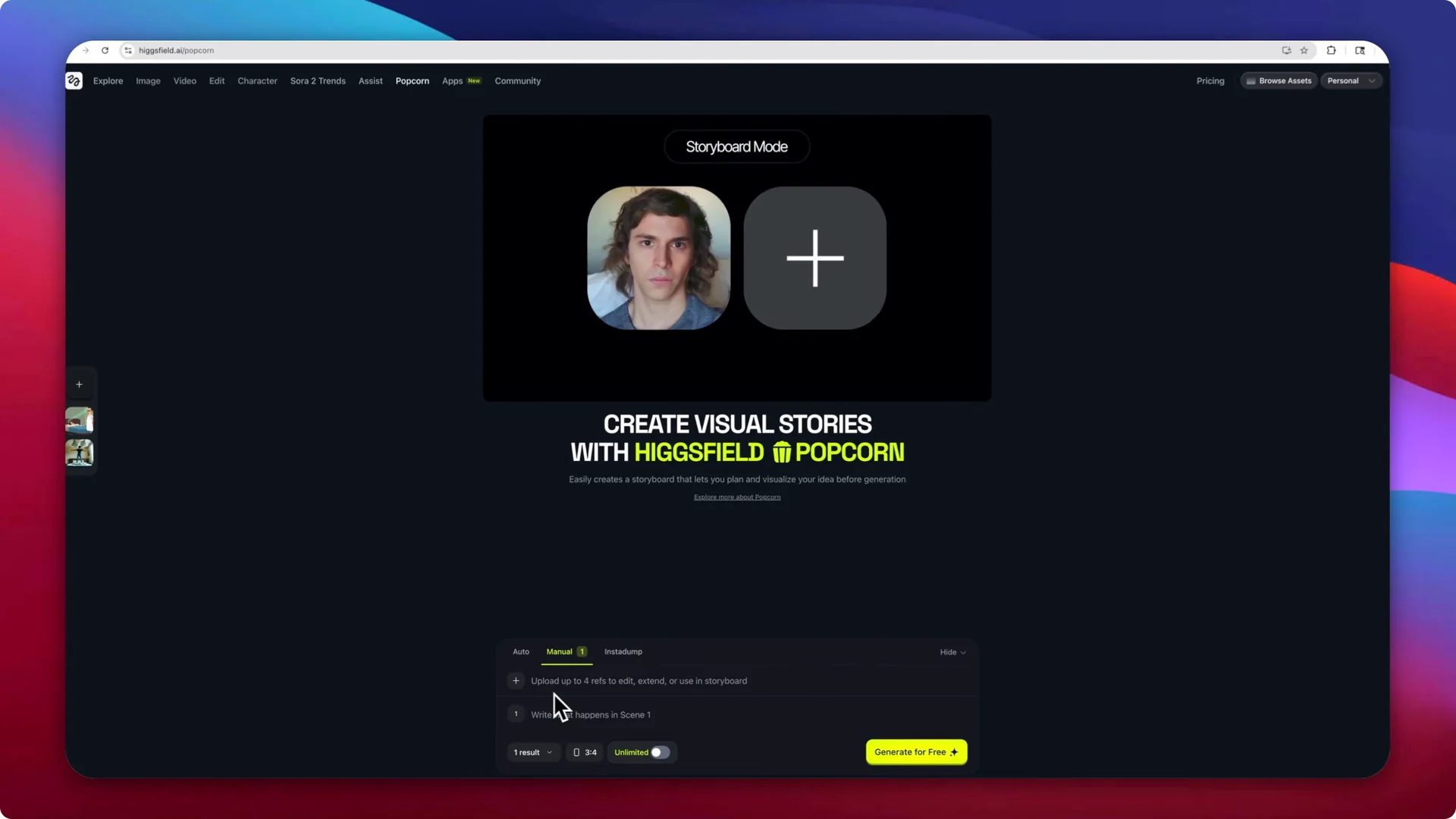
You can start with prompts, upload images, or mix both to direct the scenes. The Popcorn tool works in two modes. In Auto, you upload images and describe the actions for each scene, and in Manual, you write what happens in each specific scene and add scenes as needed.
If you want to create a fresh image before building scenes, open the Image tool, click Create Image, write your prompt, and generate. You can switch models for different visual styles like Y2K or digital cam. This gives you multiple versions to pick the one that fits your story.
Create a Character for Text-to-Video Animation
Generate a Base Character for Text-to-Video Animation
Step 1: Open the Image tool and click Create Image. Type a general prompt like “Christmas character,” click Generate, and wait for the four versions to appear.
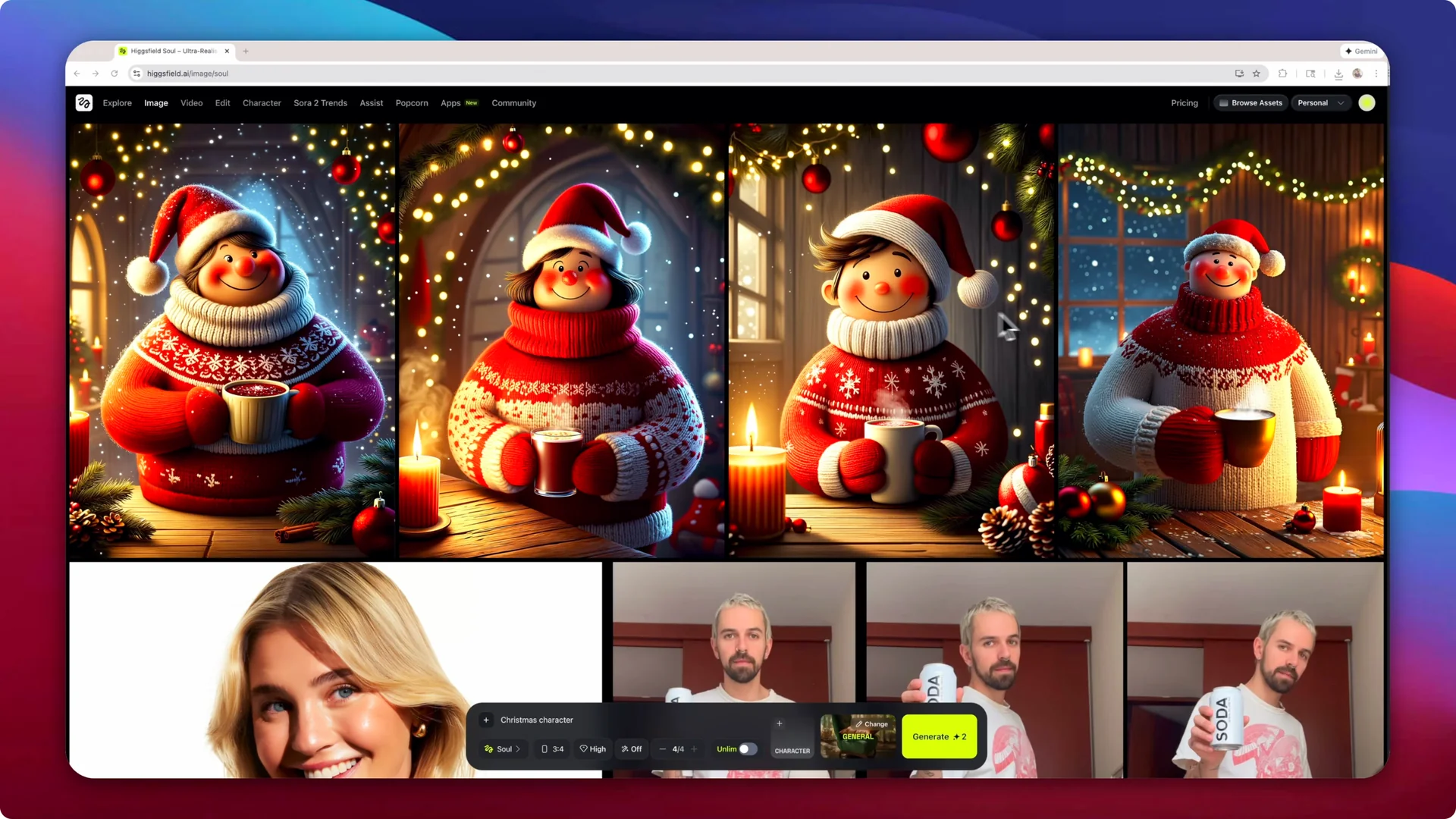
Step 2: Pick the one you like best and download it. If the look is not right, try another prompt or switch the visual style model to get a different aesthetic.
Face Swap Your Character for Text-to-Video Animation
Step 3: Open Character, then Face Swap. Upload your face as the source image and the generated character as the target image.
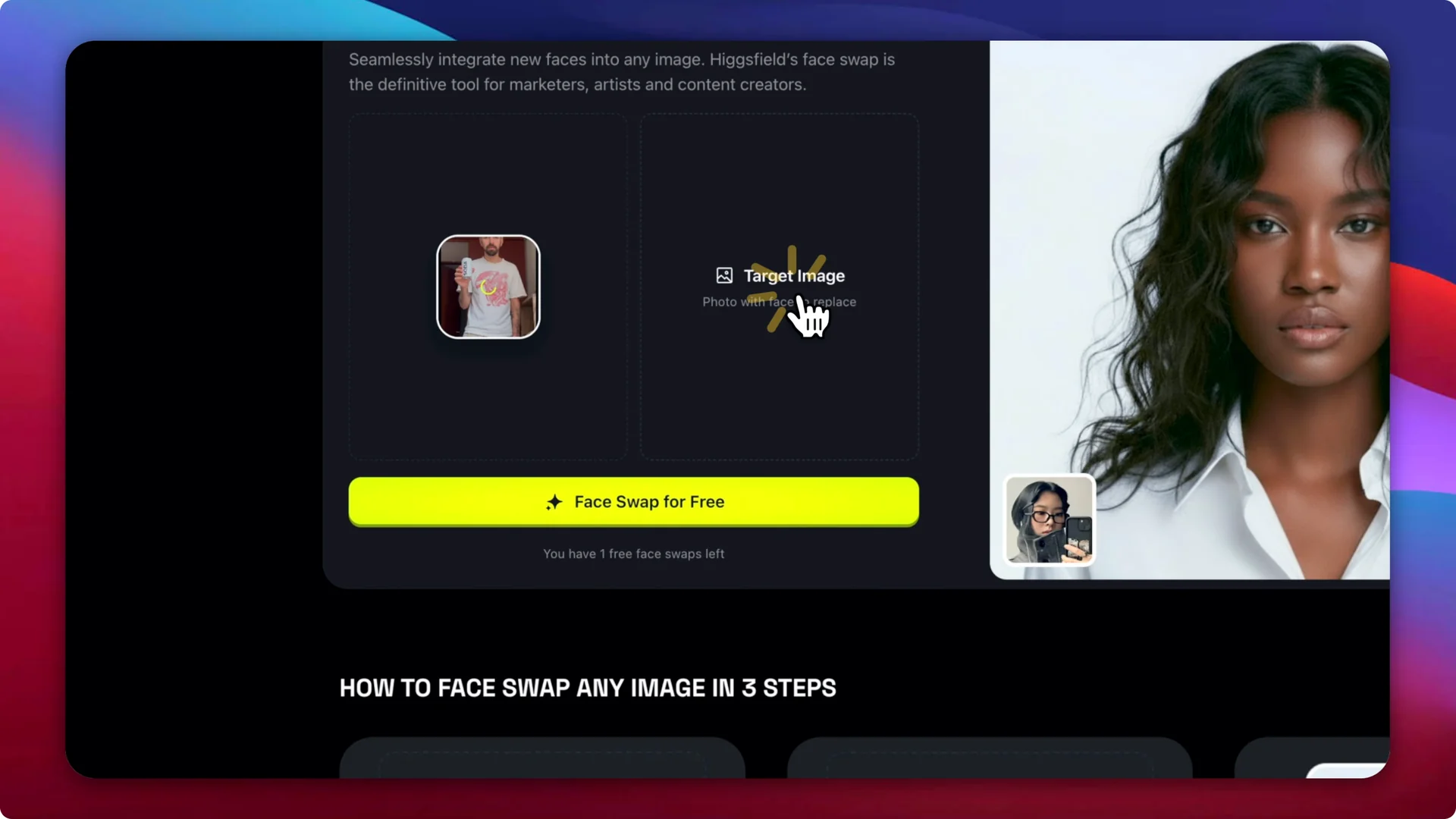
Step 4: Start the face swap and wait for the result to render. Download the new image and save it locally for use in your scenes.
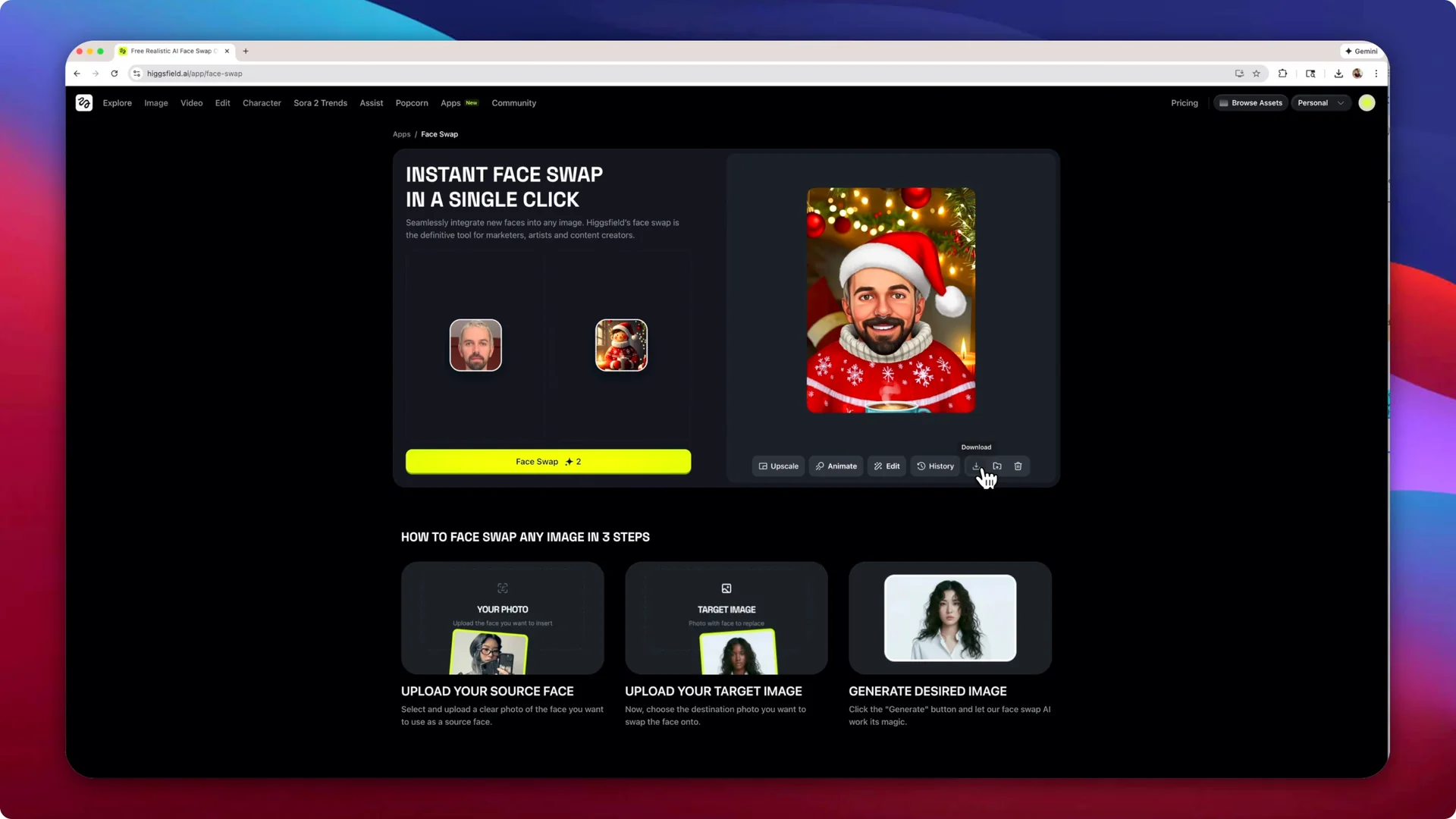
If you need your hero to look the same across the entire project, check out this overview of consistent character creation in Higgsfield.
Build Scenes with the Popcorn Tool for Text-to-Video Animation
Set Up Scenes in Manual Mode for Text-to-Video Animation
Step 5: Open the Popcorn tool and switch to Manual. Upload your reference images, including the face-swapped character and any supporting character you want to include.
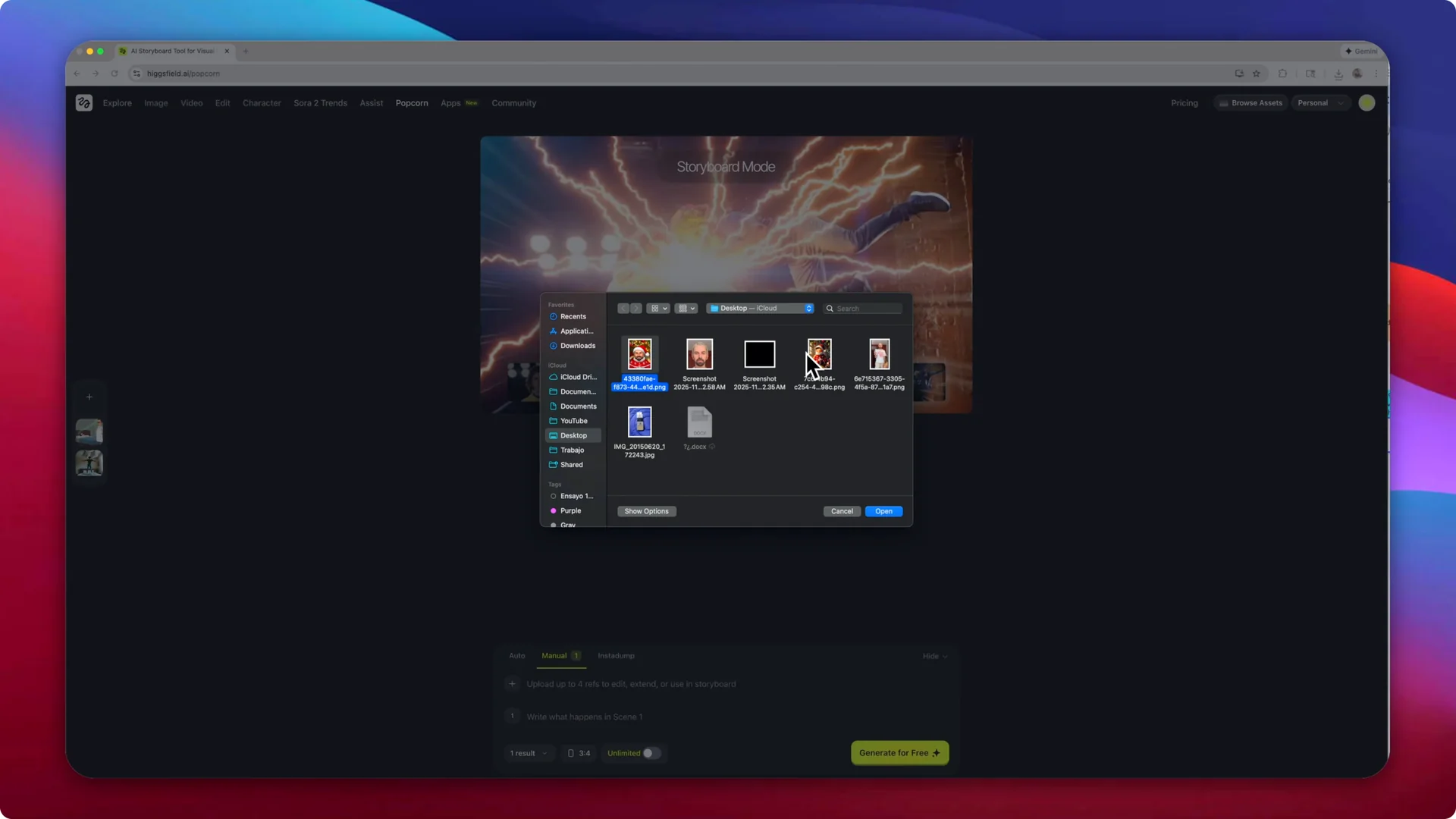
Step 6: Describe what happens in each individual scene. You can create up to eight scenes, and with two reference images uploaded here, I have six to use for this story.
Generate and Download Your Stills for Text-to-Video Animation
Step 7: Set the aspect ratio for the final scenes. I am using 3×4 for this project.
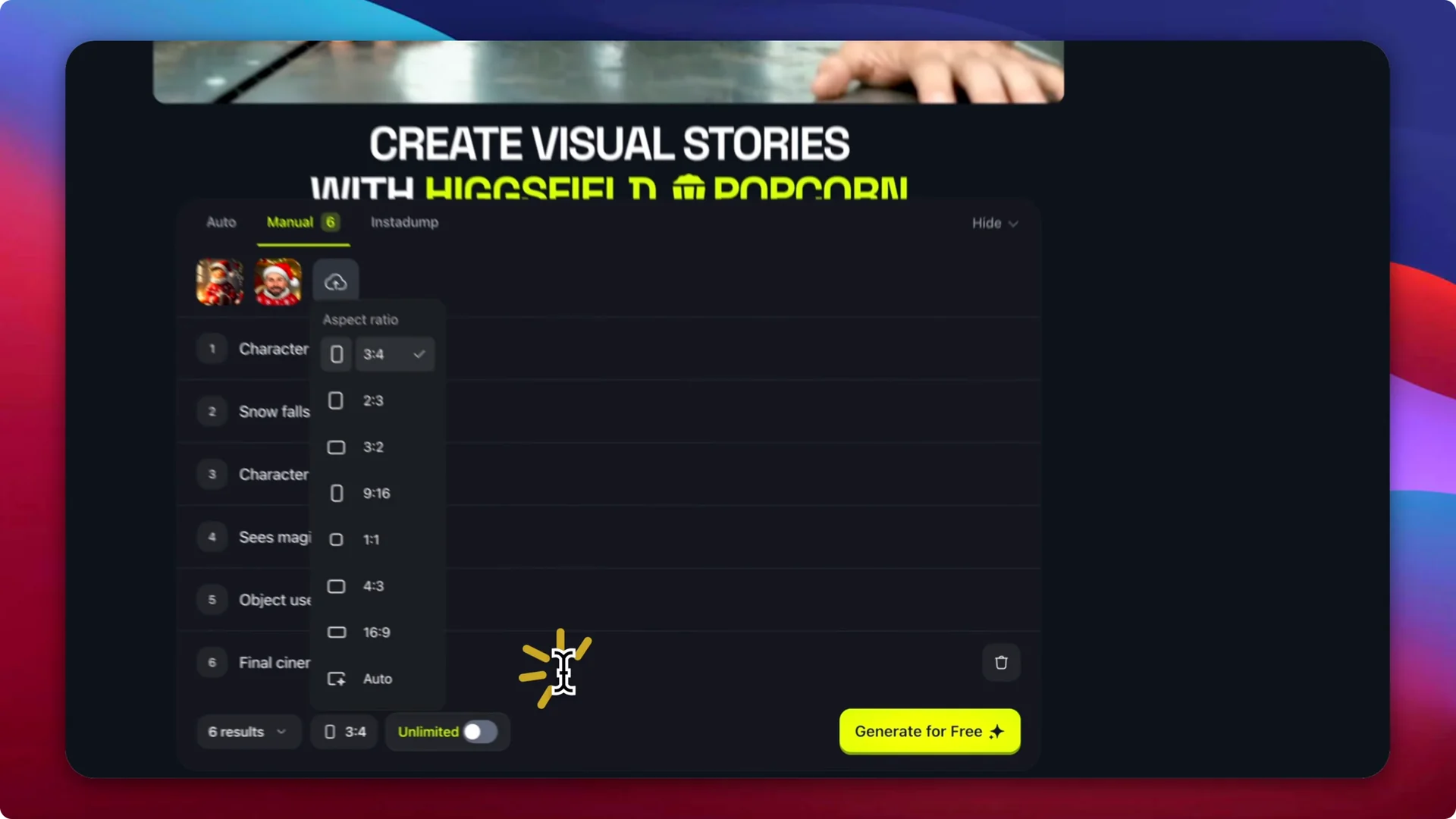
Step 8: Click Generate and wait for the scenes to render. Review the resulting stills and download the ones you want to animate first and last for the next step.
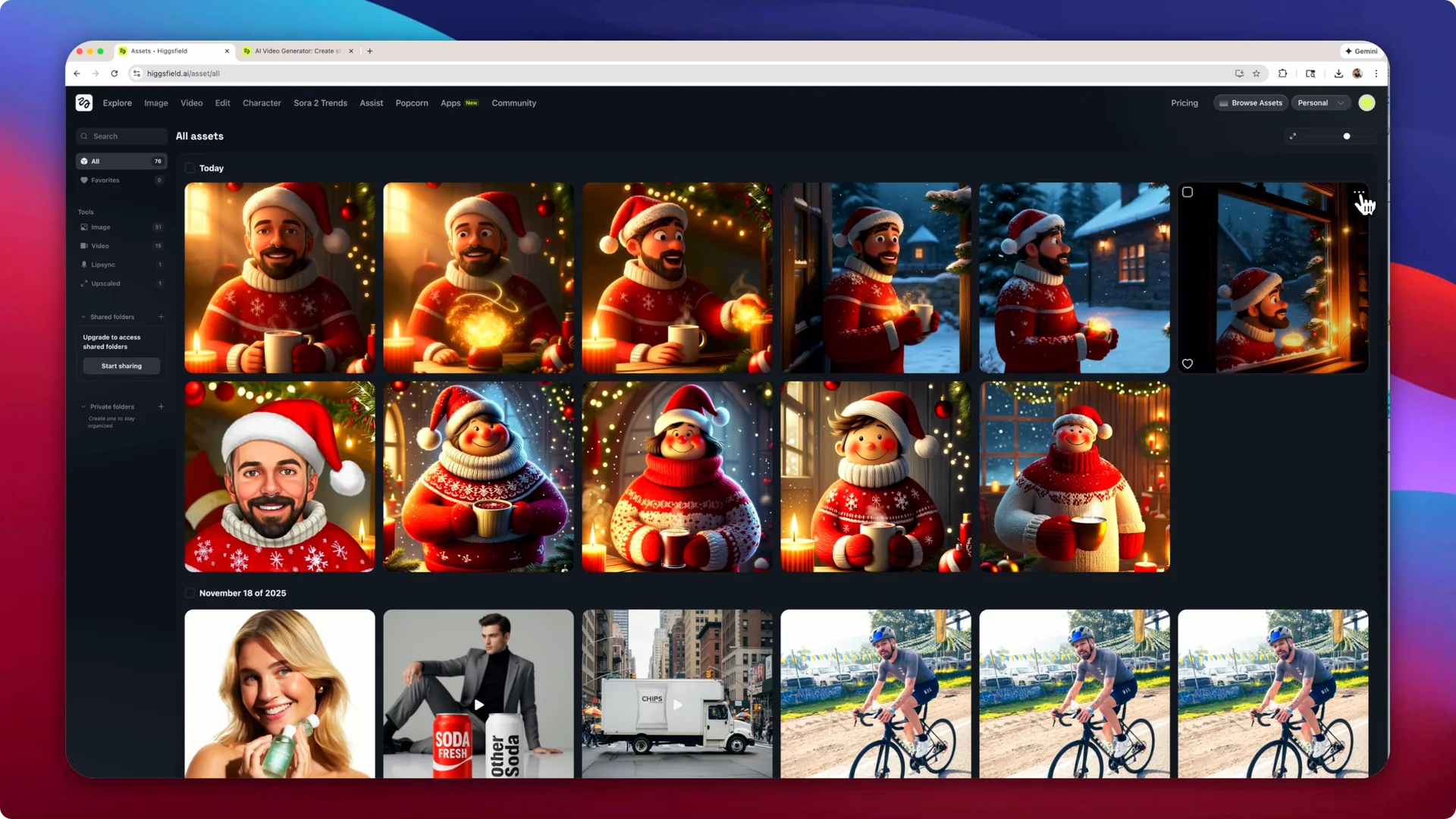
Create Text-to-Video Animation Between Frames
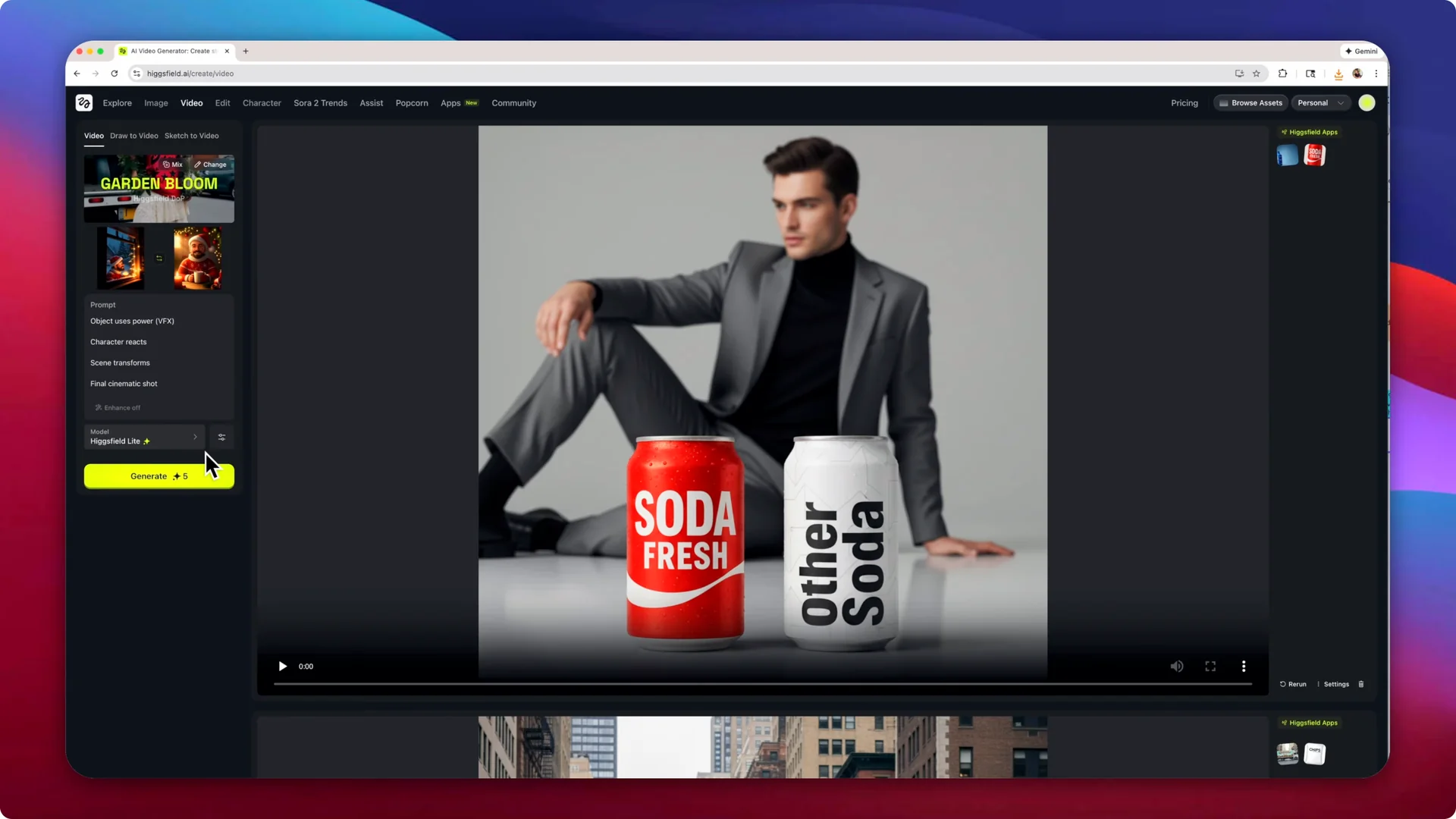
Step 9: Open the AI Video Generator under Create Video. Choose a starting image and an end image to build a short animation between those frames.
Step 10: Set the starting frame as picture 1 and the end frame as picture 2. Paste the scene description you already wrote for these frames and click Generate.
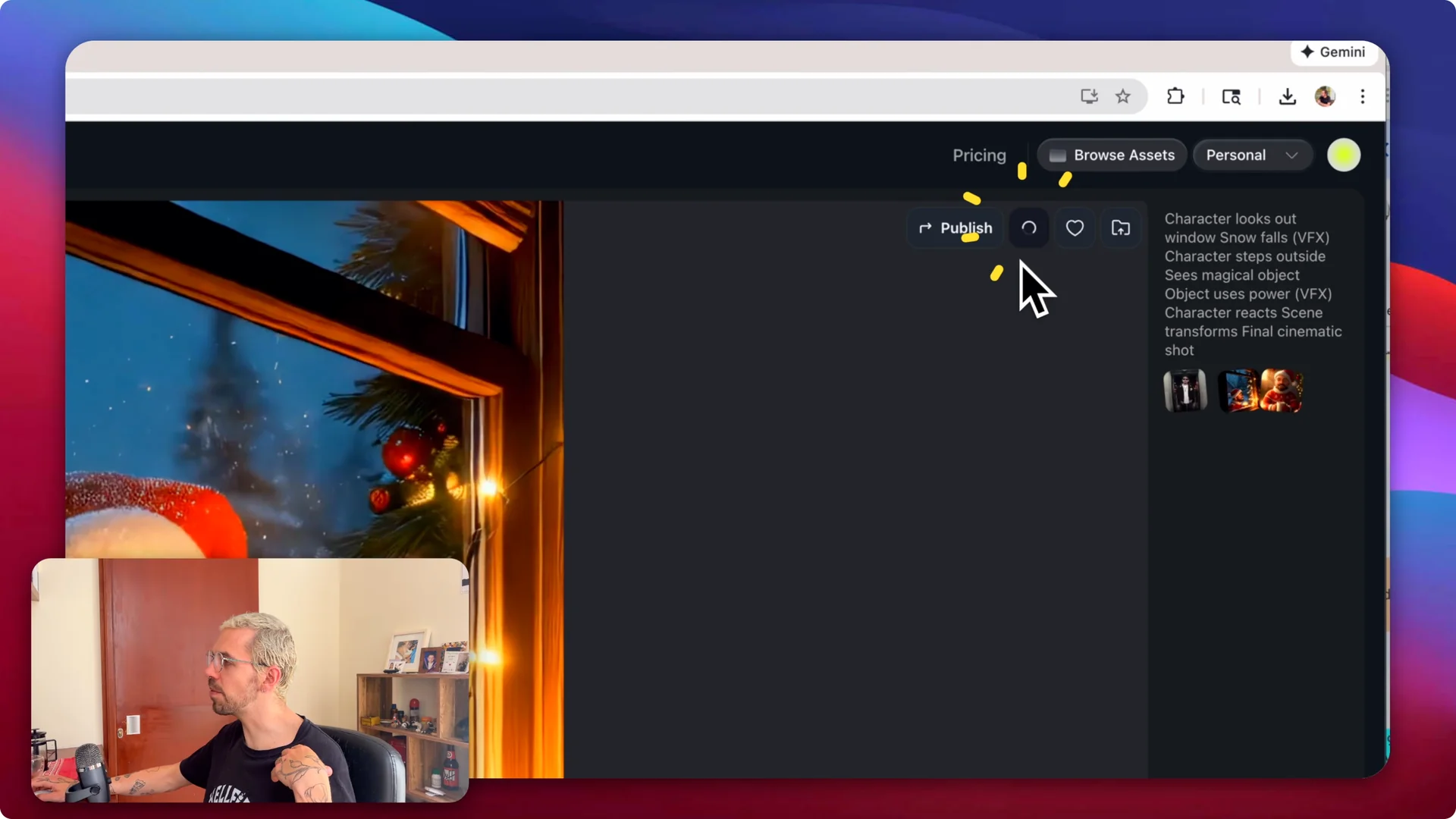
The video animates details like falling snow, subtle character movements, mouth and eye motion, and background elements such as the tree. Everything in the shot moves in a natural way, and the entire sequence comes from assets built from scratch inside Higgsfield. You can download the video with the arrow icon and save it locally for your projects.
For more techniques that carry over to other tools, see our Pika Labs video generation guide.
Final Thoughts on Text-to-Video Animation
This workflow lets you go from a blank prompt to a stylized character, build multiple scenes with clear direction, and animate between frames for a polished short story. The key steps are creating or importing a consistent character, describing scene actions with the Popcorn tool, and animating between key images in the AI Video Generator. Use the same approach for any theme you want, not just Christmas, and expand your scenes as your story grows.